
Calibration
Calibration is the act of ensuring that a testing instrument used in measurement will produce accurate results. Calibration is comparison between a standard measurement and the measurement using the test instrument.
Testing Instruments
Each testing instrument used in the Pressure Vessel module have calibration, which needs to be registered with following data as Calibration Report Number, Last Calibration Date, Calibration By, and Calibration Due Date.
To add a testing instrument, do the following steps,
1. Click Testing Instruments in the Calibration
The Testing Instruments page opens.

Figure 1.1: Testing Instruments page
Add a Testing Instrument
If you want to add a testing instrument, do the following steps,
1. Click  (ADD button) in the Testing Instruments See Fig 1.1.
The page shows a new box to add the details of a testing instrument.
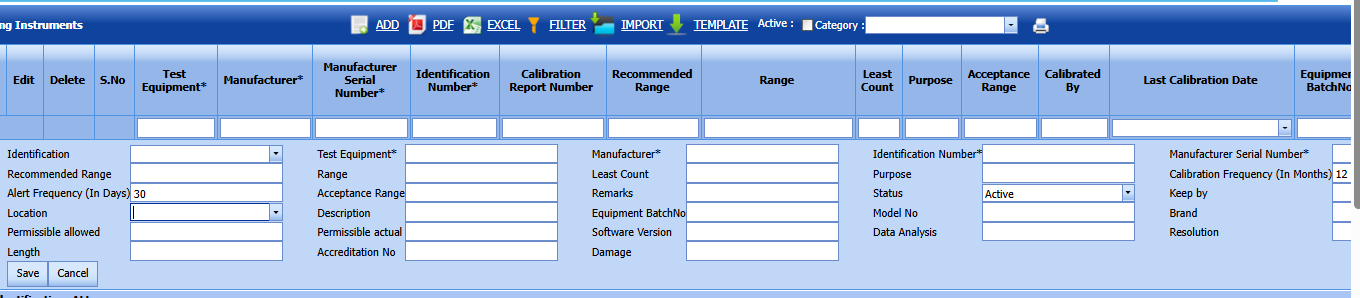
 Note: The fields notified with the symbol (*) are mandatory. You must enter the relevant details in that fields before saving.
2. In the Category box, select the category name from a drop-down list.
3. In the Test Equipment box, enter the test equipment name.
4. In the Manufacturer box, enter the manufacturer name of the test equipment.
5. In the Asset Tag Number box, enter the asset tag number of the test equipment.
6. In the Serial Number box, enter the serial number of the test equipment.
7. In the Recommended Range box, enter the recommended range of the test equipment.
8. In the Purpose/Model box, enter the model of the test equipment.
9. In the Calibration Frequency (In Months)box, enter the calibration frequency of the test equipment.
10. In the Alert Frequency (In Days)box, enter the alert frequency of the test equipment.
11. In the Acceptance Criteria box, enter the acceptance criteria detail.
12.Select location from the location dropdown
13. In the Remarks box, enter your remarks if any.
14. In the Status/Condition box, select the status/condition of the test equipment.
15.Enter range
16.Enter all the other fields
Click Save.
The testing equipment is successfully added.
Add Calibration Data for a Testing Instrument
Once you have added the testing instrument, you can add the calibration data for the added testing instrument.
1. Click  (Add icon) for the respective testing instrument. See Fig 1.1.
The Calibration window opens.

2. Click  (ADD button) in the Calibration window.
The window shows a new box to add the calibration data.
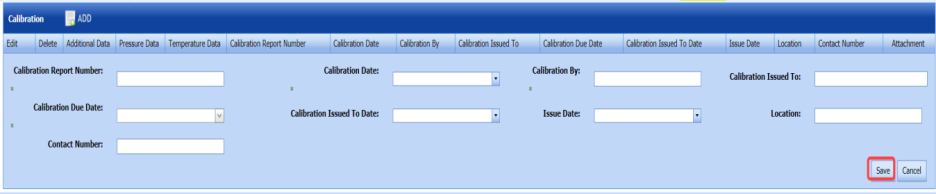
3. In the Calibration Report Number box, enter the calibration report number.
4. In the Calibration Date box, select the calibration date.
5. In the Calibration By box, enter the name of a person who has done the calibration.
6. In the Calibration Issued To box, enter the name of a person to whom the calibration details to be issued.
7. In the Calibration Due Date box, select the calibration due date.
8. In the Calibration Issued Date box, select the calibration issued date.
9. In the Location box, enter the name of the location where the calibration has done.
10. In the Contact Number box, enter the contact number of the person who has done the calibration.
11. Click Save.
The calibration data is added successfully.
Edit a Testing Instrument
If you want to edit any existing testing instrument in the Testing Instruments page,
1. Click (Edit icon) of the respective testing instrument. See Fig 1.1.
The Testing Instruments page shows the details of the selected test instrument.

2. Edit the details where you want.
3. Click Save.
Delete a Testing Instrument
If you want to delete any specific testing instrument from the list of added testing instrument, you can use  (Delete icon) provided in the Delete field of the Testing Instruments page. To know how to delete, see the topic, “Delete Any Client”.
Export Testing Instruments List
You can export a list of testing instruments added in the Testing Instruments page in the pdf and excel formats by using  (PDF button) and
  (Excel button). To know how to export, see the topic, “Export Clients List”.
View an Equipment Master List
If you want to view an equipment master list, click  (Print icon) provided in the upper side of the Testing Instruments page.
Filter a Testing Instrument
If you want to filter any specific testing instrument in the Testing Instruments page,
- you can use the category wise filter box
 provided in the upper side of the Testing Instruments To filter the testing equipment, select the category from the drop-down list
 - You can also use
 (FILTER button) located on the Testing Instruments To know how to filter using the Filter button, see the topic, “Filter Any User Account”.


Import Multiple Testing Instruments
If you want to import multiple testing instruments together, do the following,
1. Click  (TEMPLATE button). See Fig 1.1.
An excel worksheet will be downloaded with a predefined template to enter the details of test instruments.
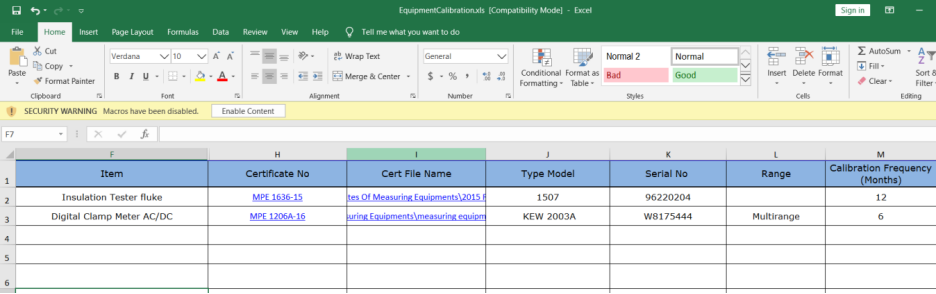
2. Enter the required test instrument details in the respective columns of the excel worksheet.
3. Once you have added the testing instrument details in the excel worksheet, save the excel worksheet on your computer.
4. Click  (IMPORT button). See Fig 1.1.
A new box opens for importing the excel worksheet saved on your computer.
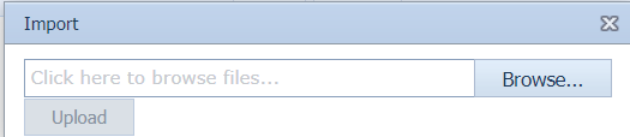
5. Click  (Browse button) to select the excel worksheet to be uploaded.
6. Select the excel worksheet you want to upload from your computer.
7. Click  (Upload button) to export the testing instrument details that are included in the excel worksheet.
The details of the testing instruments in the worksheet will be displayed in the Testing Instruments page.
View a Calibration History Card
To view a calibration history card, click  (Print icon) of the respective testing instrument, which is provided in the Report column of the Testing Instruments page.
No Comments