
TEST EQUIPMENT
5.0 TEST EQUIPMENT
The TEST EQUIPMENT tab helps you to get the details of the testing equipment that are added in the web application. This feature works only in online mode.
To get the test equipment details,
1. Tap TEST EQUIPMENT. See Fig 2.3.
The Testing Equipment page opens.
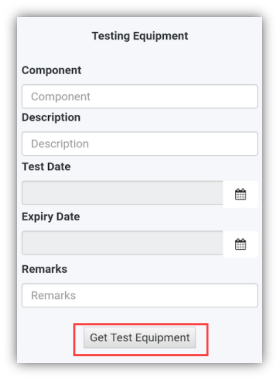
2. Enter the component name in the Component
 Note: If you want to get details for the specific test equipment, enter the description, test date, expiry date, or remarks of the equipment in the respective boxes.
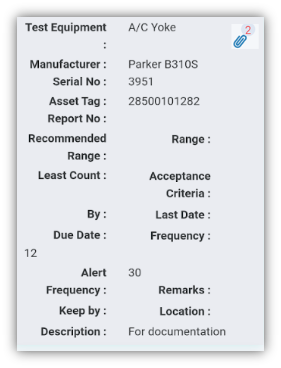
3. Tap Get Test Equipment. A list of test equipment reports for the selected component is appeared.
 Tip: If you want to view an attachment added with the test equipment, tap
  (Attach icon).
 Note: If the number of test equipment reports exceeds 500, you will receive the following notification: “The result records are more than 500, so system can’t load, pls add another filter and search”.
No Comments