
Welding Jobcard and Weld Spot Check
Welding Jobcard
The Welding Job Card feature in the mobile app is used to record and manage welding activities performed on specific weld joints. It allows users to capture welding details such as weld number, welder information, welding process, WPS used, welding date, consumables, and other relevant data.
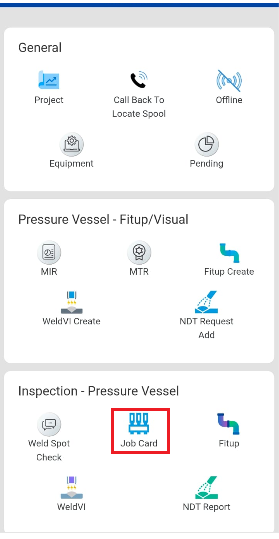
To create welding job card,do the following steps
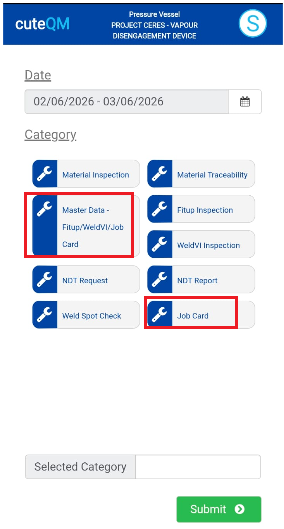
- Take offline data for Master Data-Fitup/WeldVI/Jobcard
- Take offline data for Job Card.
- Click Job Card menu in inspection
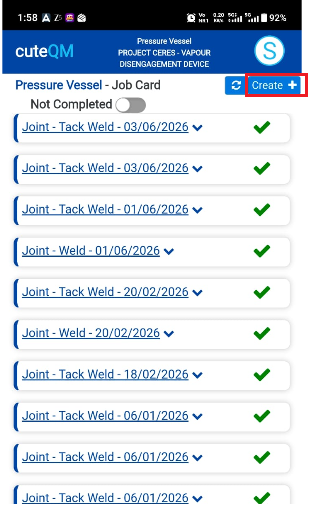
- Here jobcard list will be shown
- Click Create button at top
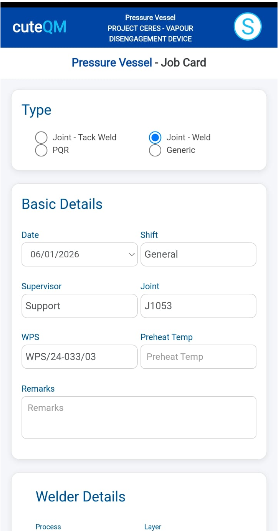
- Page will navigate to Add screen of job card
- Select the Type of the job card
- Select the date of jobcard
- Select the shift
- Select the supervisor
- Select the joint from the dropdown
- Select the wps number
- Enter pre heat temperature
- Enter remarks
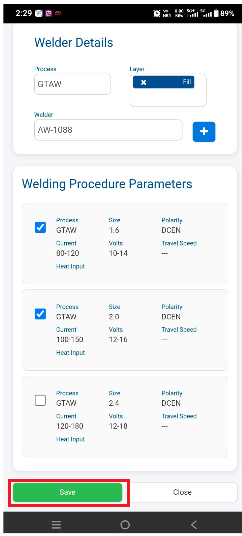
- Select the process in welder details
- Select the weld layer
- Select the welder.
- Once welder selected ,click + icon
- Select the welding procedure parameter
- Click Save.
Job Card created successfully.
Weld spot check
The Weld Spot Check feature in the mobile app is used to perform and record inspection checks on selected jobcard's joint. Inspectors can review weld quality, verify compliance with project requirements, record observations, attach photos, and document any defects or remarks. This helps ensure welding quality and provides traceable inspection records directly from the field.
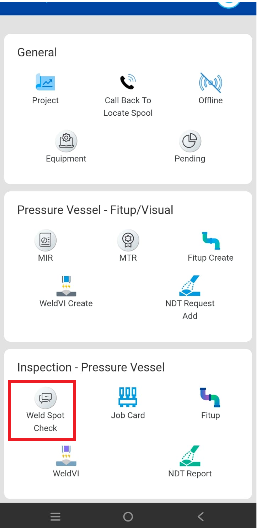
Add weld spot check
To add weld spot check for a welding job card,do the following steps
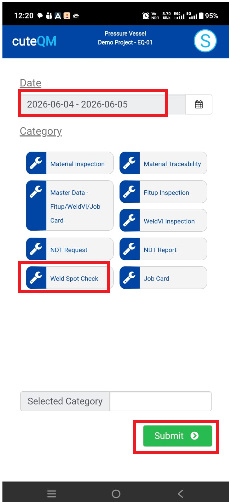
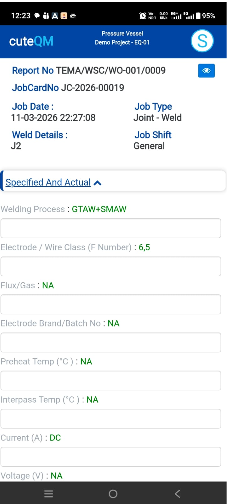
1.Take offline data for weld spot check
2.Click Weld spot check menu
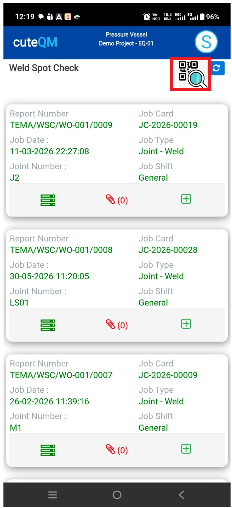
4.A QR code scan window will open.Scan the QR code of the job card.
5.A weld spot check record will automatically created.
6.Fill all the observations one by one
Weld spot check created successfully.
Update a weld spot check
To update weld spot check ,do the following steps
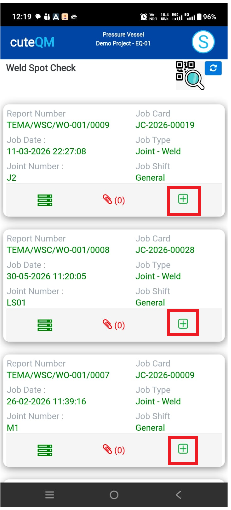
1.Take offline data for weld spot check
2.Click Weld spot check menu
3.Here all the existing spot check record will be displayed
4.Click + icon of the record to be updated
Weld spot check updated successfully.
Attach photo/files in weld spot check
To attach photo/files in the weld spot check,dothe following steps
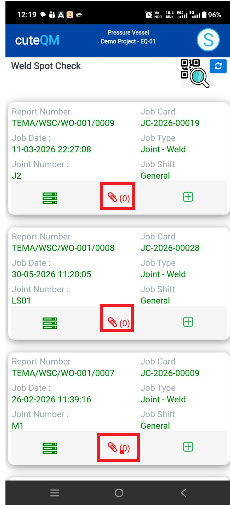
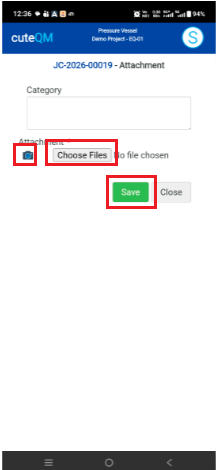
1.Take offline data for weld spot check
2.Click Weld spot check menu
3.Here all the existing spot check record will be displayed
4.Click attachmment  icon
icon
5.Enter category if required
6.Click camera icon and then phone camera will open.Capture the photo directly from the phone
7.If need to attach a file then click Choose file and select the file from phone and attach
8.Click save
Attachment saved successfully
No Comments