
Login
1.1 Login
To login into the cuteQM application,
1. Open your web browser.
2. Type the URL provided by your administrator, in the address bar of your web browser.
The login page appears.
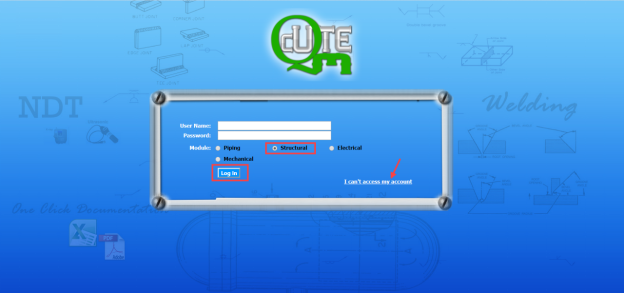
3. In the login page, enter your user name and password in the respective boxes.
 Note: If you forgot your password, click “I can’t access my account”. You will be redirected into a new web page. Enter your username to receive your password.
4. In the Module section, select Structural.
5. Click Login.
Once you have successfully logged in into the cuteQM application, the home page of the cuteQM application opens.
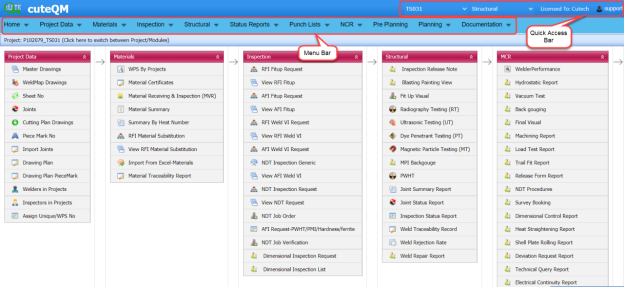
Figure 1.1 Home page of cuteQM application
 Note: The user name you have entered, the project you have been assigned, and the module you have selected are displayed in the upper right corner of the home page.
1.2 Change Password
If you want to change your current password,
1. Click your user name displayed on the quick access bar of the home page. See Fig 4.1.
A drop-down list opens with multiple options.
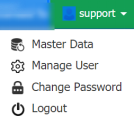
2. Click the Change Password
The Change Password page opens.
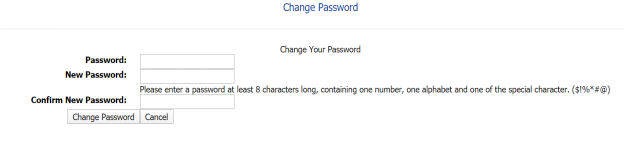
 Note: Before changing your password read the conditions specified in the Change Password page.
3. In the Password box, enter your current password.
4. In the New Password box, enter your new password.
5. In the Confirm New Password box, enter your new password again.
6. Click Change Password.
Your password will be successfully changed.
1.3 Log Out
If you want to log out from the application,
1. Click your user name displayed on the quick access bar of the home page. See Fig 4.1.
A drop-down list opens with multiple options.
2. Click Log out.
Your current session ends now. The home page appears.
No Comments