
2. RFI
2.1. Pre-Alignment RFI
2.1.1.RFI Pre-Alignment Add
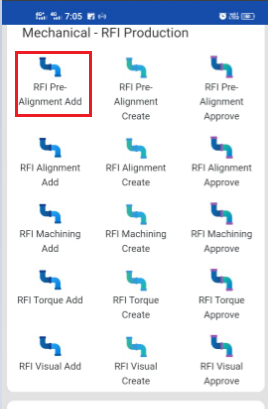
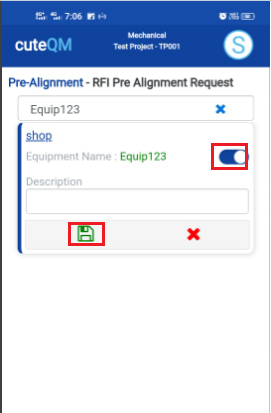
- Click RFI Pre alignment Add menu .This menu helps to add theequipments for the RFI pre alignment request.
- Select Equipment no in the dropdown list.
- Toggle ON the appropriate Equipment
- Enter description.
- Click
 Save icon.
 S
SPre alignment request added successfully.
2.1.2.RFI Pre alignment Create
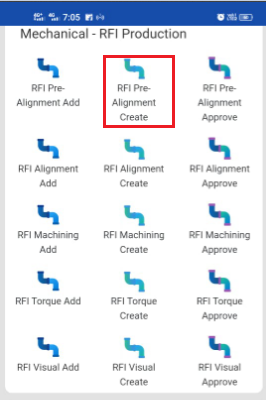
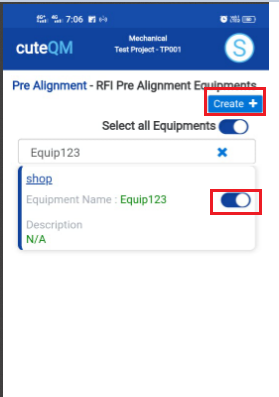
- Click RFI Pre alignment create menu.This menu helps to create RFI requests from added equipments.
- Select the equipment no from dropdown list
- Toggle ON the required equipment
- Click Create button at the top
- After create button clicked,a popup will open to key in inspection date,subcontractor and description.
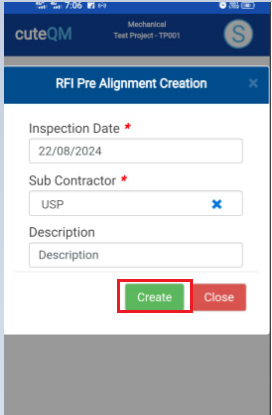
6. Click Create button.
RFI Pre alignment request created successfully.
2.1.3.RFI Pre alignment Approve
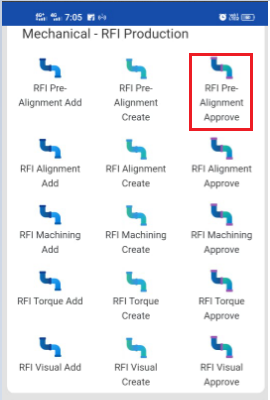
- Click RFI Pre alignment approve menu
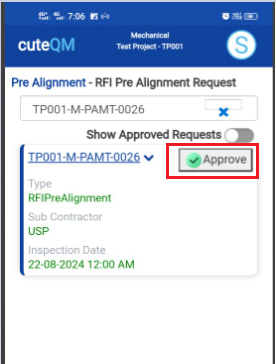
- Select the RFI request no from dropdown list
- Click Approve button.
Pre alignment request approved successfully.
2.1.4.RFI Pre Alignment Inspection
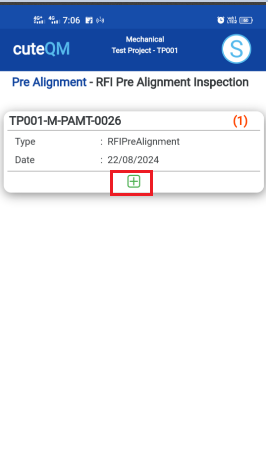
1.Click RFI Pre alignment menu in Inspection.
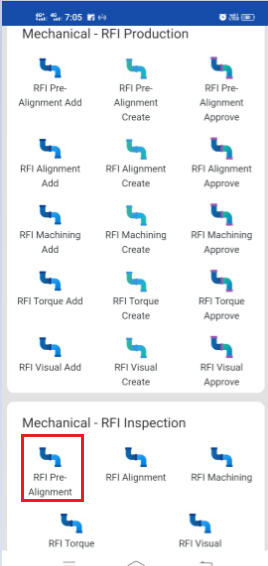
2.Click  button .It will redirected to new page
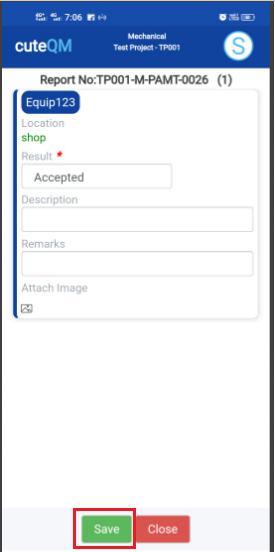
- Result will be defaultly accepted,If need to reject,you can change the dropdown as Reject
- Enter Description
- Enter Remarks
- Click Save button. RFI Pre alignment inspection approved successfully.
2.2. Alignment RFI
2.2.1.RFI Alignment Add
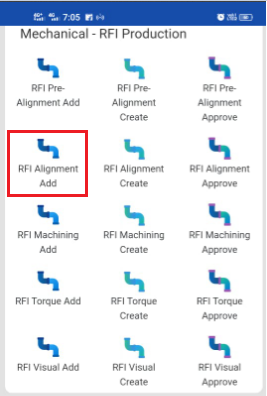
- Click RFI Alignment Add menu .This menu helps to add theequipments for the RFI alignment request.
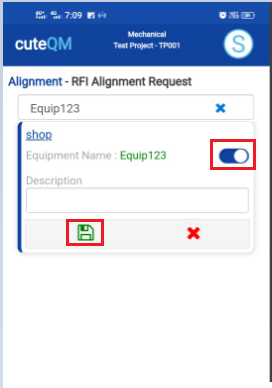
- Select Equipment no in the dropdown list.
- Toggle ON the appropriate Equipment
- Enter description.
- Click Save icon.
Alignment request added successfully.
2.2.2.RFI Alignment Create
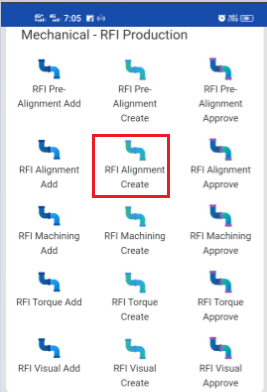
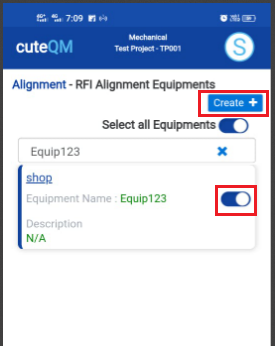
- Click RFI Alignment create menu.This menu helps to create RFI requests from added equipments.
- Select the equipment no from dropdown list
- Toggle ON the required equipment
- Click Create button at the top
- After create button clicked,a popup will open to key in inspection date,subcontractor and description.
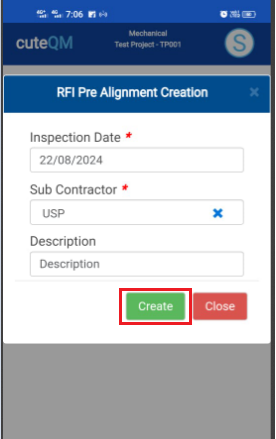
6. Click Create button.
RFI Alignment request created successfully.
2.2.3.RFI Alignment Approve
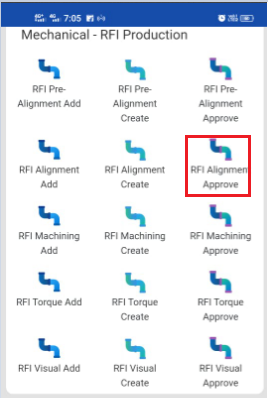
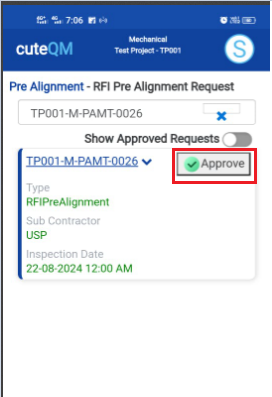
- Click RFI Alignment approve menu
- Select the RFI request no from dropdown list
- Click Approve button.
Alignment request approved successfully.
2.2.4.RFI Alignment Inspection
1.Click RFI Alignment menu in Inspection.
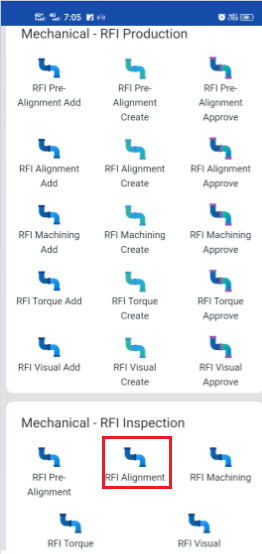
2.Click button .It will redirected to new page
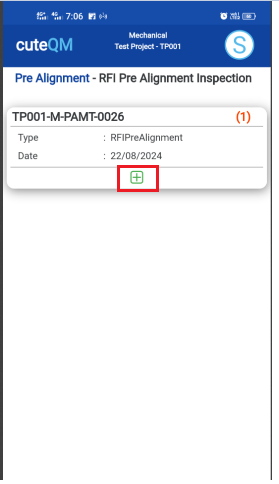
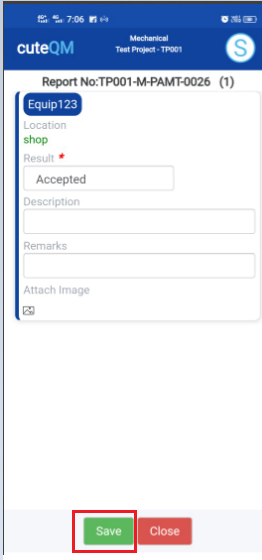
- Result will be defaultly accepted,If need to reject,you can change the dropdown as Reject
- Enter Description
- Enter Remarks
- Click Save button. RFI Alignment inspection approved successfully.
2.3. Machining RFI
2.3.1.RFI Machining Add
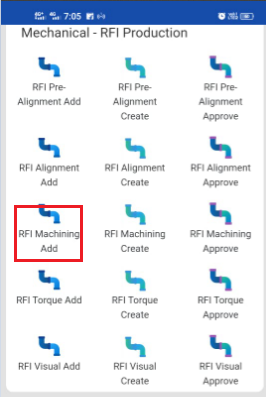
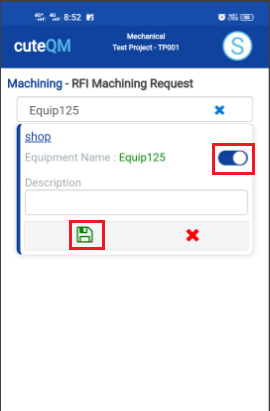
- Click RFI Machining Add menu .This menu helps to add the equipments for the RFI Machining request.
- Select Equipment no in the dropdown list.
- Toggle ON the appropriate Equipment
- Enter description.
- Click Save icon.
Machining RFI request added successfully.
2.3.2.RFI Machining Create
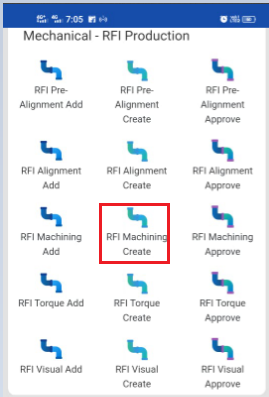
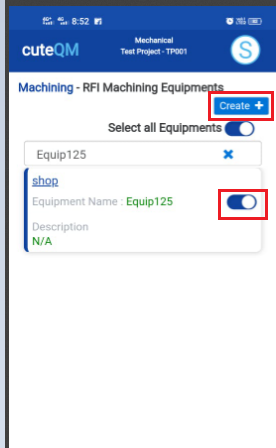
- Click RFI Machining create menu.This menu helps to create RFI requests from added equipments.
- Select the equipment no from dropdown list
- Toggle ON the required equipment
- Click Create button at the top
- After create button clicked,a popup will open to key in inspection date,subcontractor and description.
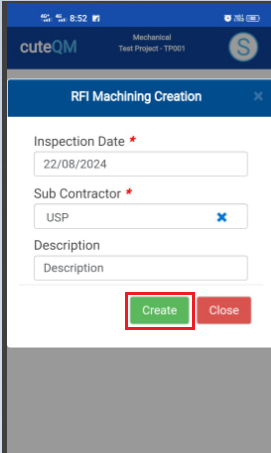
6. Click Create button.
RFI Maching request created successfully.
2.3.3.RFI Machining Approve
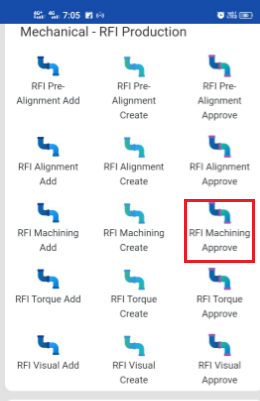
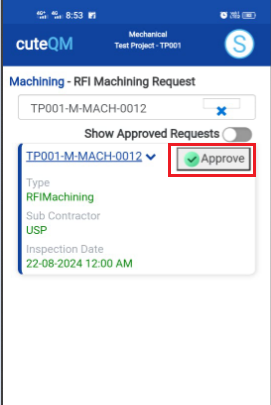
- Click RFI Machining approve menu
- Select the RFI request no from dropdown list
- Click Approve button.
Machining RFI request approved successfully.
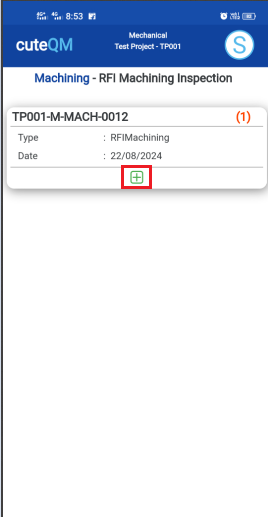
2.3.4.RFI Machining Inspection
1.Click RFI Machining menu in Inspection.
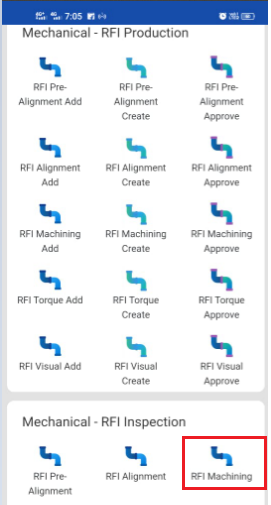
2.Click button .It will redirected to new page
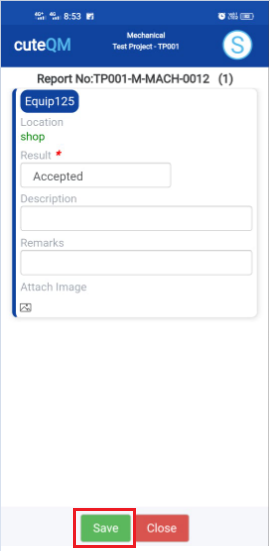
- Result will be defaultly accepted,If need to reject,you can change the dropdown as Reject
- Enter Description
- Enter Remarks
- Click Save button. RFI Machining inspection approved successfully.
2.4. Torque Tightening RFI
2.4.1.RFI Torque Tightening Add
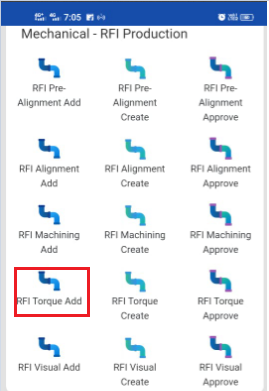
- Click RFI Torque Add menu .This menu helps to add the equipments for the RFI Torque request.
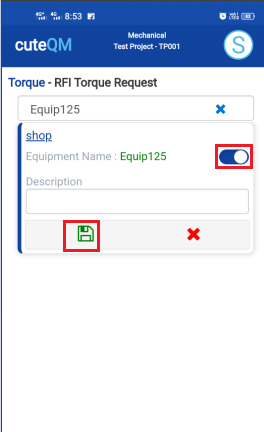
- Select Equipment no in the dropdown list.
- Toggle ON the appropriate Equipment
- Enter description.
- Click Save icon.
Torque RFI request added successfully.
2.4.2.RFI Torque Create
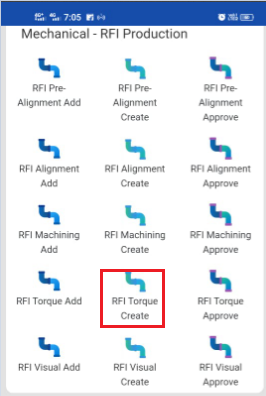
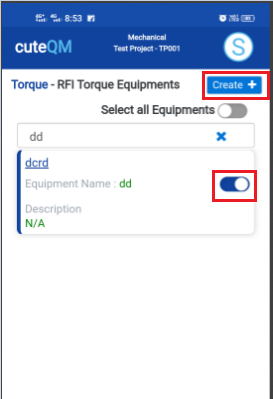
- Click RFI Torque create menu.This menu helps to create RFI requests from added equipments.
- Select the equipment no from dropdown list
- Toggle ON the required equipment
- Click Create button at the top
- After create button clicked,a popup will open to key in inspection date,subcontractor and description.
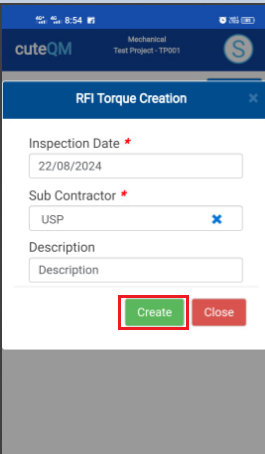
6. Click Create button.
RFI Torque request created successfully.
2.4.3.RFI Torque Approve
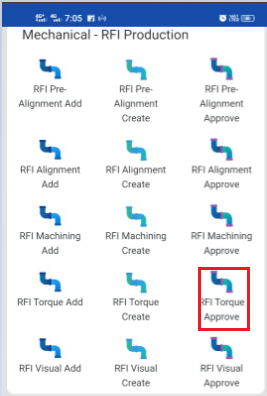
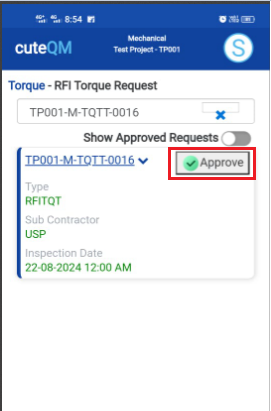
- Click RFI Torque approve menu
- Select the RFI request no from dropdown list
- Click Approve button.
Torque RFI request approved successfully.
2.4.4.RFI Torque Inspection
1.Click RFI Torque menu in Inspection.
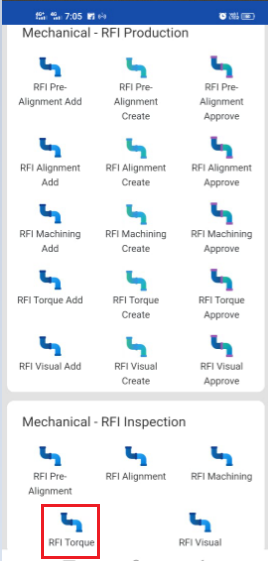
2.Click button .It will redirected to new page
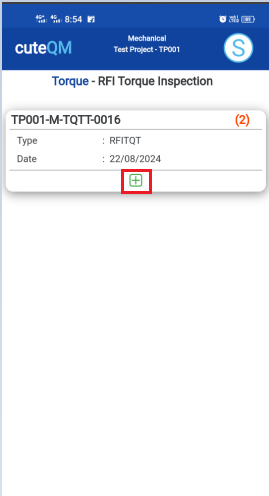
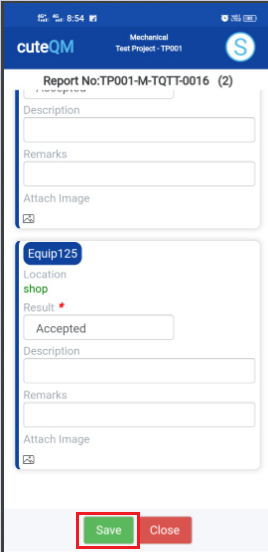
- Result will be defaultly accepted,If need to reject,you can change the dropdown as Reject
- Enter Description
- Enter Remarks
- Click Save button. RFI Torque inspection approved successfully.
2.5. Visual RFI
2.5.1.RFI Visual Add
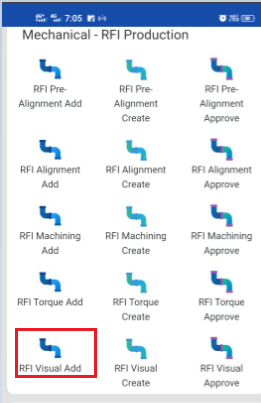
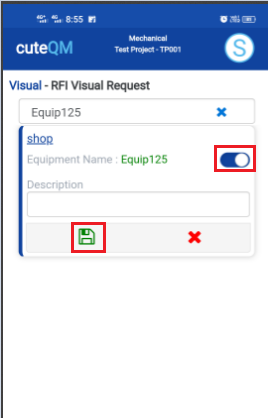
- Click RFI Visual Add menu .This menu helps to add the equipments for the RFI visual request.
- Select Equipment no in the dropdown list.
- Toggle ON the appropriate Equipment
- Enter description.
- Click Save icon.
Visual RFI request added successfully.
2.5.2.RFI Visual Create
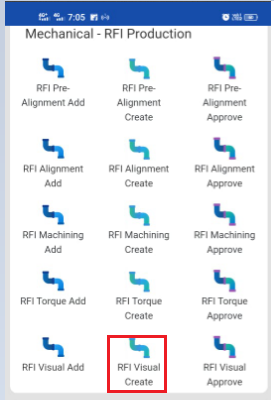
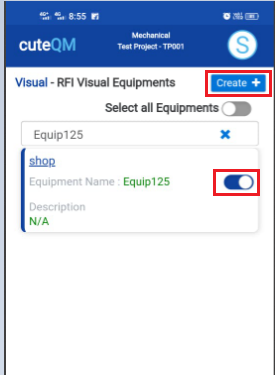
- Click RFI Visual create menu.This menu helps to create RFI requests from added equipments.
- Select the equipment no from dropdown list
- Toggle ON the required equipment
- Click Create button at the top
- After create button clicked,a popup will open to key in inspection date,subcontractor and description.
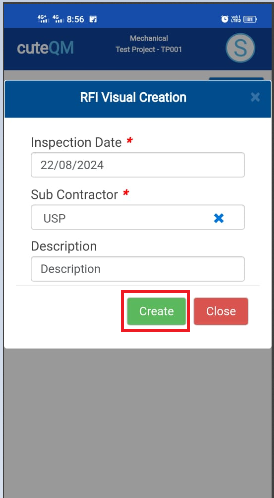
6. Click Create button.
RFI Visual request created successfully.
2.5.3.RFI Visual Approve
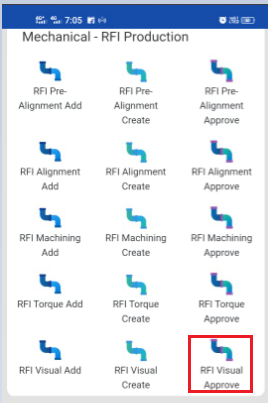
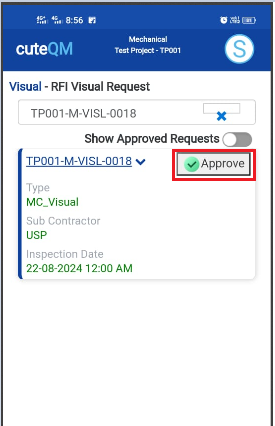
- Click RFI Torque approve menu
- Select the RFI request no from dropdown list
- Click Approve button.
Visual RFI request approved successfully.
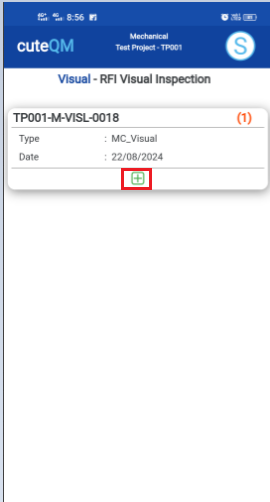
2.5.4.RFI Visual Inspection
1.Click RFI Visual menu in Inspection.
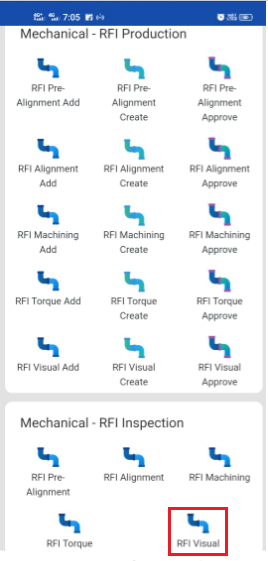
2.Click button .It will redirected to new page
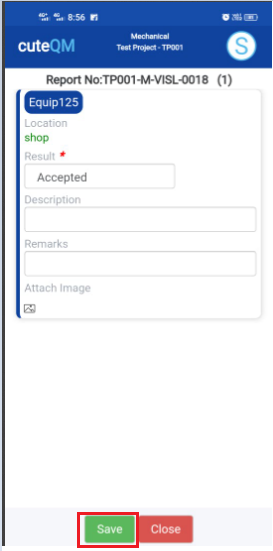
- Result will be defaultly accepted,If need to reject,you can change the dropdown as Reject
- Enter Description
- Enter Remarks
- Click Save button. RFI Visual inspection approved successfully.
No Comments