# 2. RFI
### **2.1. Pre-Alignment RFI**
#### **2.1.1.RFI Pre-Alignment Add**
[  ](https://wiki.cuteinfocomm.com/uploads/images/gallery/2024-08/image-1724334273188.png)[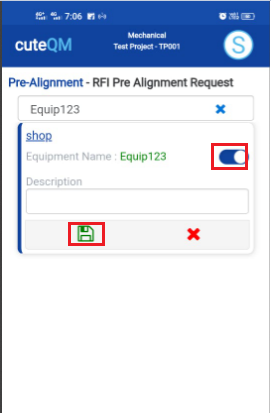](https://wiki.cuteinfocomm.com/uploads/images/gallery/2024-08/image-1724334313905.png)[ ](https://wiki.cuteinfocomm.com/uploads/images/gallery/2024-08/image-1724321887473.png)
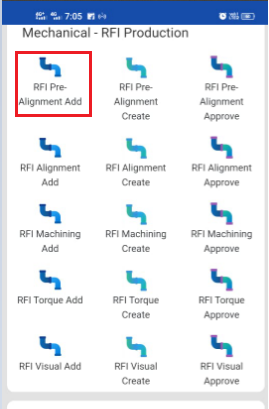
1. Click **RFI Pre alignment Add** menu .This menu helps to add theequipments for the RFI pre alignment request.
2. Select Equipment no in the dropdown list.
3. Toggle ON the appropriate Equipment
4. Enter **description**.
5. Click [S](https://wiki.cuteinfocomm.com/uploads/images/gallery/2024-08/image-1724334603626.png)**ave** icon.
**Pre alignment request added successfully.**
#### **2.1.2.RFI Pre alignment Create**
[ ](https://wiki.cuteinfocomm.com/uploads/images/gallery/2024-08/image-1724334842799.png)[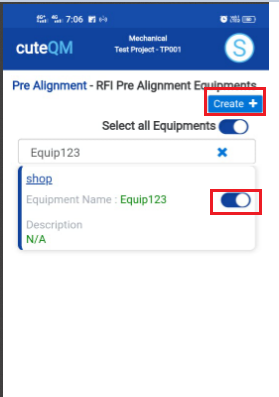](https://wiki.cuteinfocomm.com/uploads/images/gallery/2024-08/image-1724334932899.png)
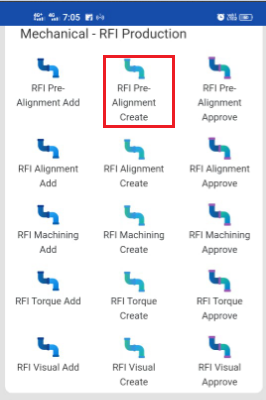
1. Click **RFI Pre alignment create** menu.This menu helps to create RFI requests from added equipments.
2. Select the equipment no from dropdown list
3. Toggle **ON** the required equipment
4. Click **Create** button at the top
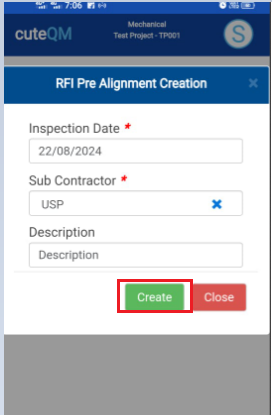
5. After create button clicked,a popup will open to key in **inspection date,subcontractor and description.**
[](https://wiki.cuteinfocomm.com/uploads/images/gallery/2024-08/image-1724335152096.png)
6\. Click **Create** button.
**RFI Pre alignment request created successfully.**
#### **2.1.3.RFI Pre alignment Approve**
[ ](https://wiki.cuteinfocomm.com/uploads/images/gallery/2024-08/image-1724335188639.png)[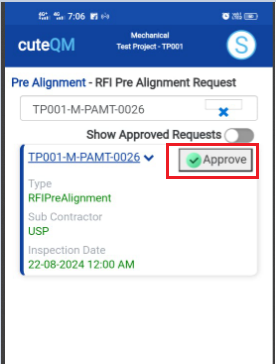](https://wiki.cuteinfocomm.com/uploads/images/gallery/2024-08/image-1724335232848.png)
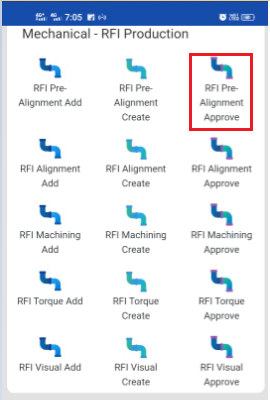
1. Click **RFI Pre alignment approve** menu
2. Select the RFI request no from dropdown list
3. Click **Approve** button.
**Pre alignment request approved successfully.**
#### **2.1.4.RFI Pre Alignment Inspection**
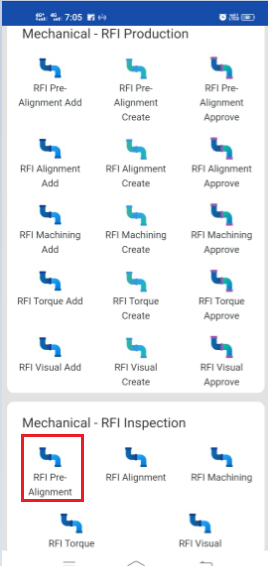
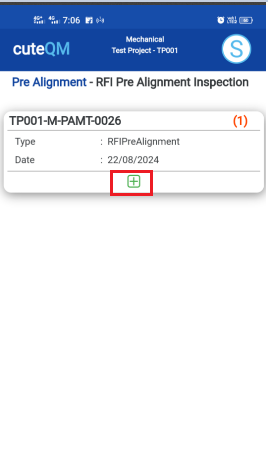
1.Click **RFI Pre alignment** menu in Inspection.
[ ](https://wiki.cuteinfocomm.com/uploads/images/gallery/2024-08/image-1724335360005.png)
2.Click [ button .It will redirected to new page](https://wiki.cuteinfocomm.com/uploads/images/gallery/2024-08/image-1724304171025.png)
[  ](https://wiki.cuteinfocomm.com/uploads/images/gallery/2024-08/image-1724335418846.png)[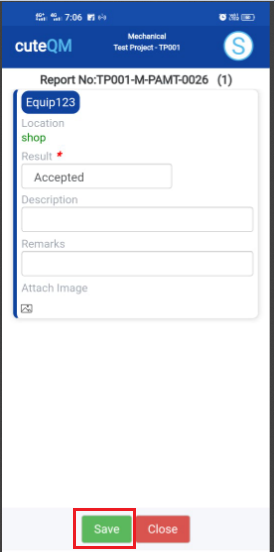](https://wiki.cuteinfocomm.com/uploads/images/gallery/2024-08/image-1724335456295.png)
1. Result will be defaultly accepted,If need to reject,you can change the dropdown as Reject
2. Enter **Description**
3. Enter **Remarks**
4. Click **Save** button. **RFI** **Pre alignment inspection approved successfully.**
### **2.2. Alignment RFI**
#### **2.2.1.RFI Alignment Add**
**[ ](https://wiki.cuteinfocomm.com/uploads/images/gallery/2024-08/image-1724335629840.png)[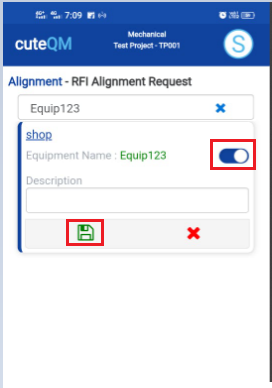](https://wiki.cuteinfocomm.com/uploads/images/gallery/2024-08/image-1724335666039.png)**
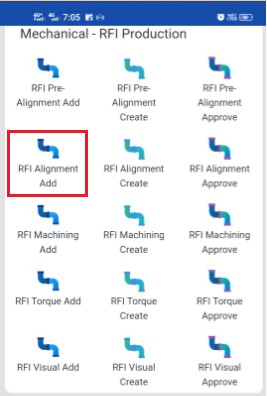
1. Click **RFI Alignment Add** menu .This menu helps to add theequipments for the RFI alignment request.
2. Select Equipment no in the dropdown list.
3. Toggle ON the appropriate Equipment
4. Enter **description**.
5. Click [S](https://wiki.cuteinfocomm.com/uploads/images/gallery/2024-08/image-1724334603626.png)**ave** icon.
**Alignment request added successfully.**
#### **2.2.2.RFI Alignment Create**
[ ](https://wiki.cuteinfocomm.com/uploads/images/gallery/2024-08/image-1724335831343.png)[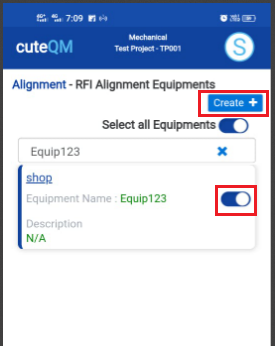](https://wiki.cuteinfocomm.com/uploads/images/gallery/2024-08/image-1724335869238.png)
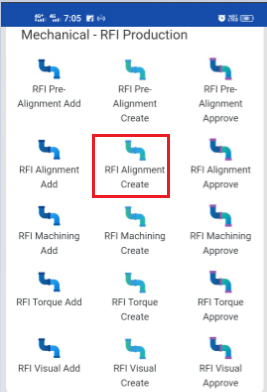
1. Click **RFI Alignment create** menu.This menu helps to create RFI requests from added equipments.
2. Select the equipment no from dropdown list
3. Toggle **ON** the required equipment
4. Click **Create** button at the top
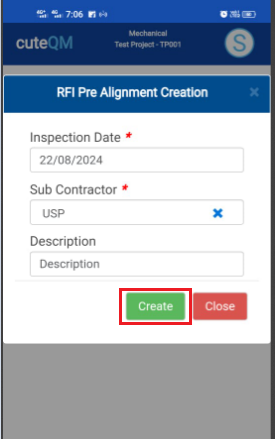
5. After create button clicked,a popup will open to key in **inspection date,subcontractor and description.**
[ ](https://wiki.cuteinfocomm.com/uploads/images/gallery/2024-08/image-1724336002199.png)
6\. Click **Create** button.
**RFI Alignment request created successfully.**
#### **2.2.3.RFI Alignment Approve**
[ ](https://wiki.cuteinfocomm.com/uploads/images/gallery/2024-08/image-1724336066298.png)[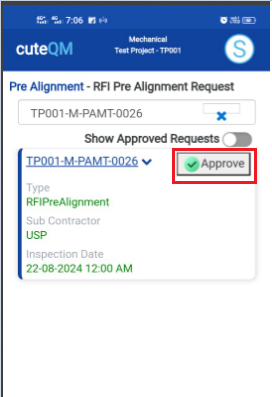](https://wiki.cuteinfocomm.com/uploads/images/gallery/2024-08/image-1724336098529.png)
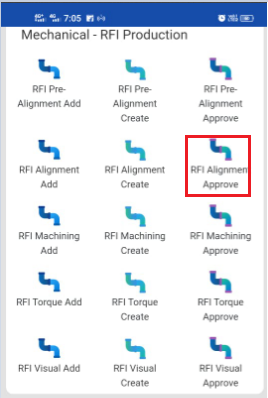
1. Click **RFI Alignment approve** menu
2. Select the RFI request no from dropdown list
3. Click **Approve** button.
**Alignment request approved successfully.**
#### **2.2.4.RFI Alignment Inspection**
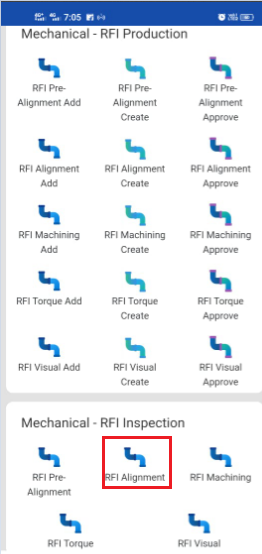
1.Click **RFI Alignment** menu in Inspection.
[ ](https://wiki.cuteinfocomm.com/uploads/images/gallery/2024-08/image-1724336180489.png)
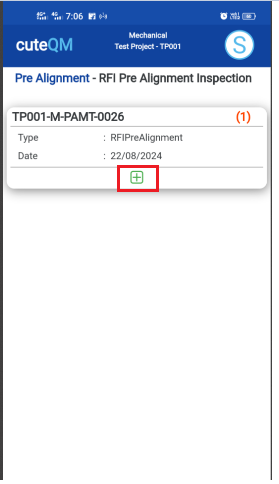
2.Click [ button .It will redirected to new page](https://wiki.cuteinfocomm.com/uploads/images/gallery/2024-08/image-1724304171025.png)
[ ](https://wiki.cuteinfocomm.com/uploads/images/gallery/2024-08/image-1724336237281.png)[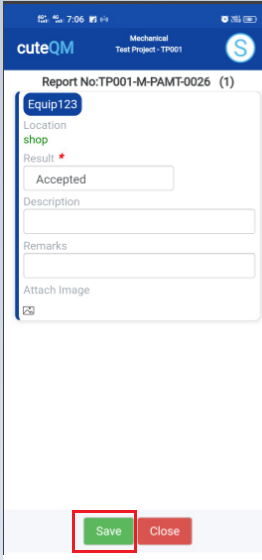](https://wiki.cuteinfocomm.com/uploads/images/gallery/2024-08/image-1724336265573.png)[ ](https://wiki.cuteinfocomm.com/uploads/images/gallery/2024-08/image-1724335418846.png)
1. Result will be defaultly accepted,If need to reject,you can change the dropdown as Reject
2. Enter **Description**
3. Enter **Remarks**
4. Click **Save** button. **RFI** **Alignment inspection approved successfully.**
### **2.3. Machining RFI**
#### **2.3.1.RFI Machining Add**
[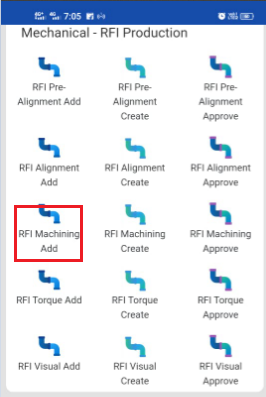 ](https://wiki.cuteinfocomm.com/uploads/images/gallery/2024-08/image-1724340666565.png)[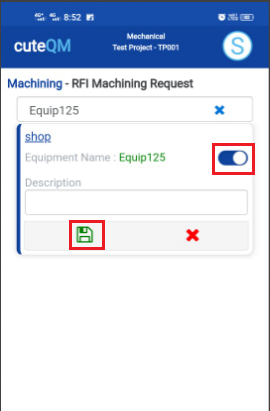](https://wiki.cuteinfocomm.com/uploads/images/gallery/2024-08/image-1724340689978.png)
1. Click **RFI Machining Add** menu .This menu helps to add the equipments for the RFI Machining request.
2. Select Equipment no in the dropdown list.
3. Toggle **ON** the appropriate Equipment
4. Enter **description**.
5. Click [S](https://wiki.cuteinfocomm.com/uploads/images/gallery/2024-08/image-1724334603626.png)**ave** icon.
**Machining RFI request added successfully.**
#### **2.3.2.RFI Machining Create**
[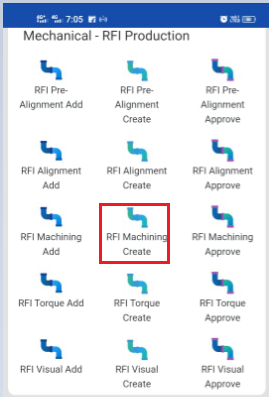 ](https://wiki.cuteinfocomm.com/uploads/images/gallery/2024-08/image-1724340784666.png)[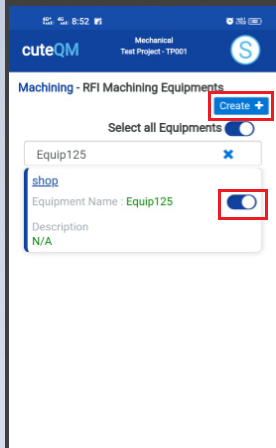](https://wiki.cuteinfocomm.com/uploads/images/gallery/2024-08/image-1724340799806.png)
1. Click **RFI Machining create** menu.This menu helps to create RFI requests from added equipments.
2. Select the equipment no from dropdown list
3. Toggle **ON** the required equipment
4. Click **Create** button at the top
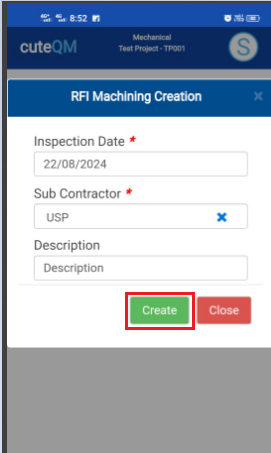
5. After create button clicked,a popup will open to key in **inspection date,subcontractor and description.**
[](https://wiki.cuteinfocomm.com/uploads/images/gallery/2024-08/image-1724340885094.png)
6\. Click **Create** button.
**RFI Maching request created successfully.**
#### **2.3.3.RFI Machining Approve**
[ ](https://wiki.cuteinfocomm.com/uploads/images/gallery/2024-08/image-1724340964086.png)[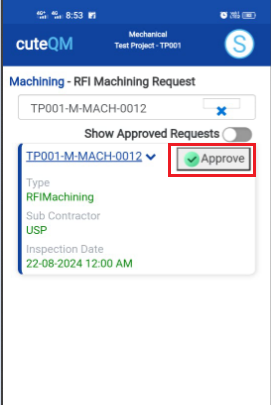](https://wiki.cuteinfocomm.com/uploads/images/gallery/2024-08/image-1724340979097.png)
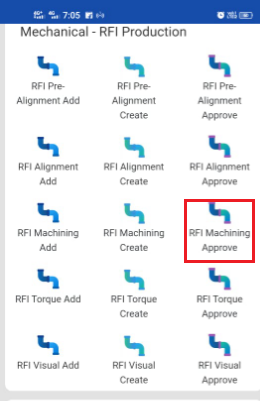
1. Click **RFI Machining approve** menu
2. Select the RFI request no from dropdown list
3. Click **Approve** button.
**Machining RFI request approved successfully.**
#### **2.3.4.RFI Machining Inspection**
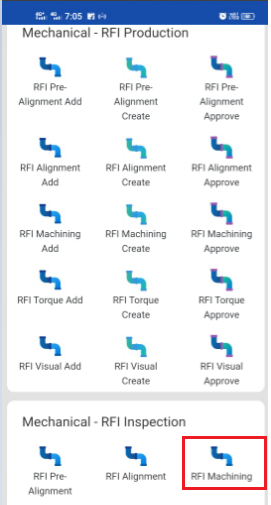
1.Click **RFI Machining** menu in Inspection.
[](https://wiki.cuteinfocomm.com/uploads/images/gallery/2024-08/image-1724341053347.png)
2.Click [ button .It will redirected to new page](https://wiki.cuteinfocomm.com/uploads/images/gallery/2024-08/image-1724304171025.png)
[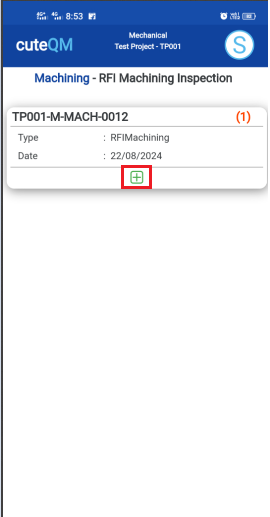 ](https://wiki.cuteinfocomm.com/uploads/images/gallery/2024-08/image-1724341118892.png)[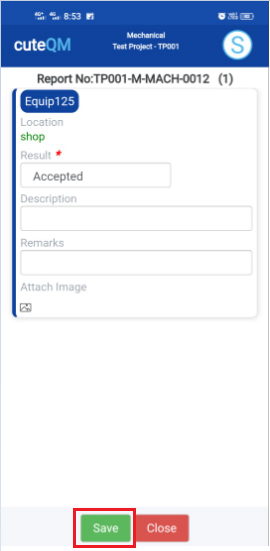](https://wiki.cuteinfocomm.com/uploads/images/gallery/2024-08/image-1724341173689.png)
1. Result will be defaultly accepted,If need to reject,you can change the dropdown as Reject
2. Enter **Description**
3. Enter **Remarks**
4. Click **Save** button. **RFI Machining** **inspection approved successfully.**
### **2.4. Torque Tightening RFI**
#### **2.4.1.RFI Torque Tightening Add**
[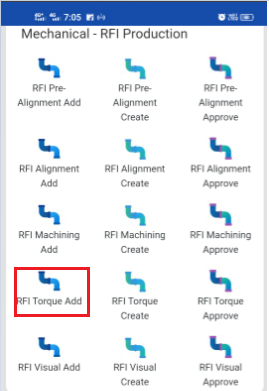 ](https://wiki.cuteinfocomm.com/uploads/images/gallery/2024-08/image-1724341432462.png)[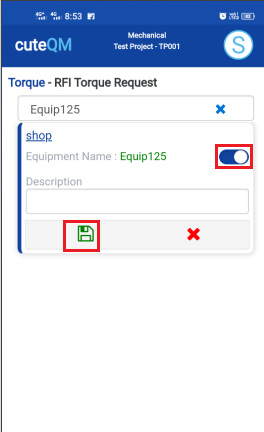](https://wiki.cuteinfocomm.com/uploads/images/gallery/2024-08/image-1724341447064.png)
1. Click **RFI Torque Add** menu .This menu helps to add the equipments for the RFI Torque request.
2. Select Equipment no in the dropdown list.
3. Toggle **ON** the appropriate Equipment
4. Enter description.
5. Click [S](https://wiki.cuteinfocomm.com/uploads/images/gallery/2024-08/image-1724334603626.png)**ave** icon.
**Torque RFI request added successfully.**
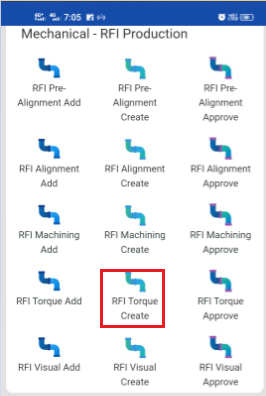
#### **2.4.2.RFI Torque Create**
[ ](https://wiki.cuteinfocomm.com/uploads/images/gallery/2024-08/image-1724341533603.png)[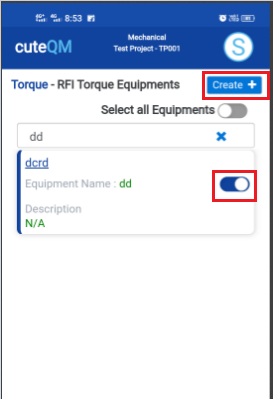](https://wiki.cuteinfocomm.com/uploads/images/gallery/2024-08/image-1724341549121.png)
1. Click **RFI Torque create** menu.This menu helps to create RFI requests from added equipments.
2. Select the equipment no from dropdown list
3. Toggle **ON** the required equipment
4. Click **Create** button at the top
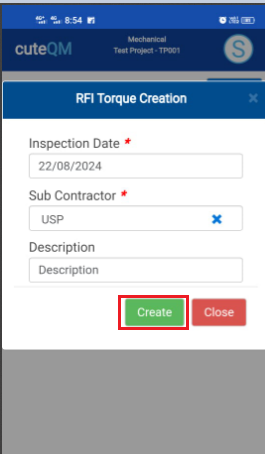
5. After create button clicked,a popup will open to key in **inspection date,subcontractor and description.**
[ ](https://wiki.cuteinfocomm.com/uploads/images/gallery/2024-08/image-1724341637863.png)
6\. Click **Create** button.
**RFI Torque request created successfully.**
#### **2.4.3.RFI Torque Approve**
[ ](https://wiki.cuteinfocomm.com/uploads/images/gallery/2024-08/image-1724341719726.png)[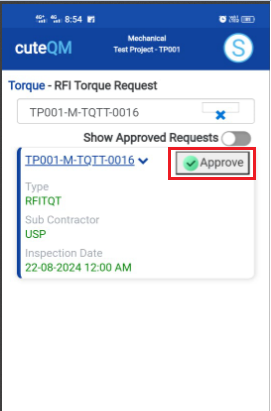](https://wiki.cuteinfocomm.com/uploads/images/gallery/2024-08/image-1724341732401.png)
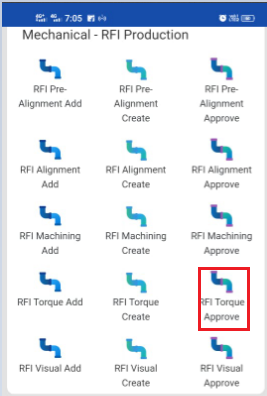
1. Click **RFI Torque approve** menu
2. Select the RFI request no from dropdown list
3. Click **Approve** button.
**Torque RFI request approved successfully.**
#### **2.4.4.RFI Torque Inspection**
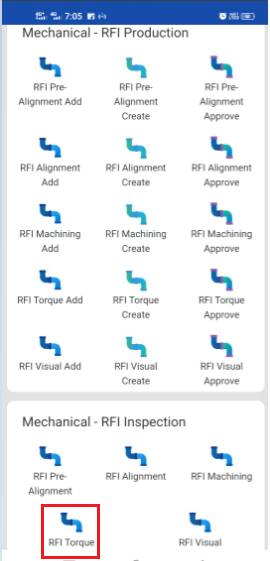
1.Click **RFI Torque** menu in Inspection.
[](https://wiki.cuteinfocomm.com/uploads/images/gallery/2024-08/image-1724341792666.png)
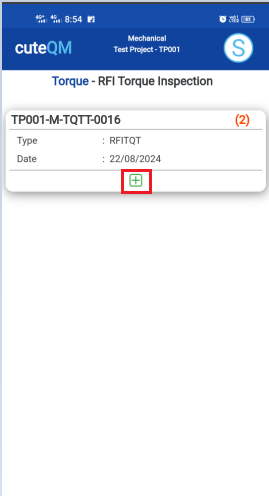
2.Click [ button .It will redirected to new page](https://wiki.cuteinfocomm.com/uploads/images/gallery/2024-08/image-1724304171025.png)
[ ](https://wiki.cuteinfocomm.com/uploads/images/gallery/2024-08/image-1724341833461.png)[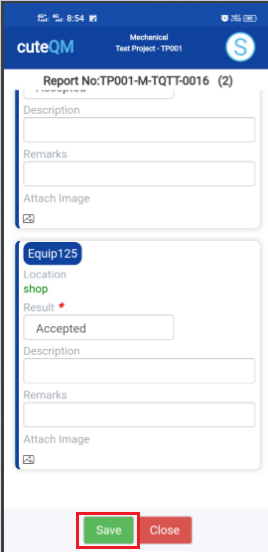](https://wiki.cuteinfocomm.com/uploads/images/gallery/2024-08/image-1724341879205.png)
1. Result will be defaultly accepted,If need to reject,you can change the dropdown as Reject
2. Enter **Description**
3. Enter **Remarks**
4. Click **Save** button. **RFI Torque** **inspection approved successfully.**
### **2.5. Visual RFI**
#### **2.5.1.RFI Visual Add**
[ ](https://wiki.cuteinfocomm.com/uploads/images/gallery/2024-08/image-1724342341647.png)[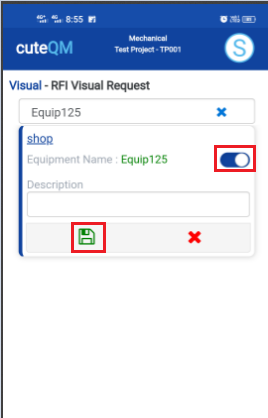](https://wiki.cuteinfocomm.com/uploads/images/gallery/2024-08/image-1724342362571.png)
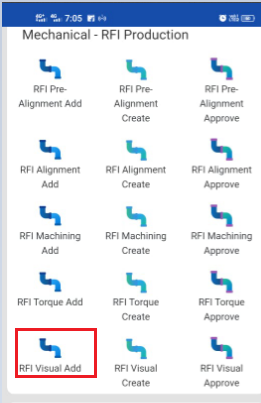
1. Click **RFI Visual Add** menu .This menu helps to add the equipments for the RFI visual request.
2. Select Equipment no in the dropdown list.
3. Toggle **ON** the appropriate Equipment
4. Enter **description**.
5. Click [S](https://wiki.cuteinfocomm.com/uploads/images/gallery/2024-08/image-1724334603626.png)**ave** icon.
**Visual RFI request added successfully.**
#### **2.5.2.RFI Visual Create**
[ ](https://wiki.cuteinfocomm.com/uploads/images/gallery/2024-08/image-1724342444303.png)[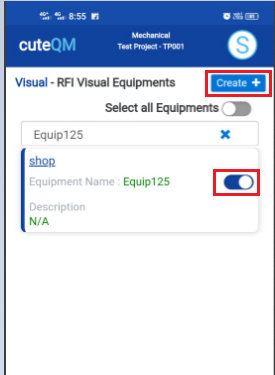](https://wiki.cuteinfocomm.com/uploads/images/gallery/2024-08/image-1724342454103.png)
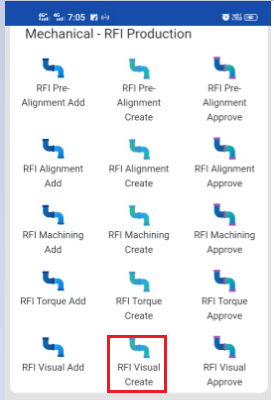
1. Click **RFI Visual create** menu.This menu helps to create RFI requests from added equipments.
2. Select the equipment no from dropdown list
3. Toggle **ON** the required equipment
4. Click **Create** button at the top
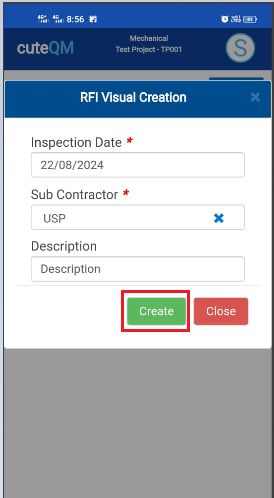
5. After create button clicked,a popup will open to key in **inspection date,subcontractor and description.**
[](https://wiki.cuteinfocomm.com/uploads/images/gallery/2024-08/image-1724342833202.png)
6\. Click **Create** button.
**RFI Visual request created successfully.**
#### **2.5.3.RFI Visual Approve**
[ ](https://wiki.cuteinfocomm.com/uploads/images/gallery/2024-08/image-1724342937943.png)[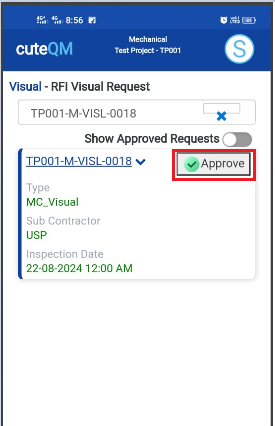](https://wiki.cuteinfocomm.com/uploads/images/gallery/2024-08/image-1724343032700.png)
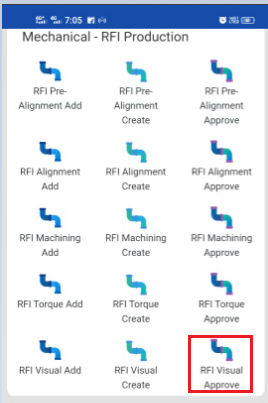
1. Click **RFI Torque approve** menu
2. Select the RFI request no from dropdown list
3. Click **Approve** button.
**Visual RFI request approved successfully.**
#### **2.5.4.RFI Visual Inspection**
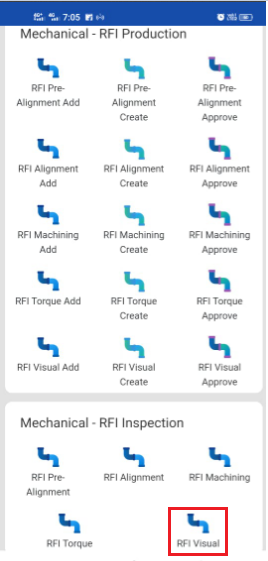
1.Click **RFI Visual** menu in Inspection.
[](https://wiki.cuteinfocomm.com/uploads/images/gallery/2024-08/image-1724343142113.png)
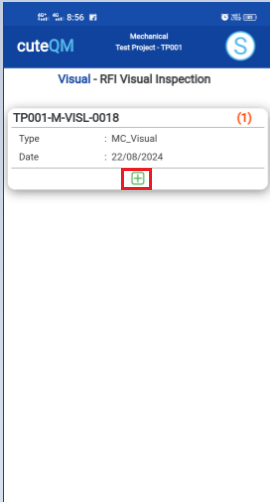
2.Click [ button .It will redirected to new page](https://wiki.cuteinfocomm.com/uploads/images/gallery/2024-08/image-1724304171025.png)
[ ](https://wiki.cuteinfocomm.com/uploads/images/gallery/2024-08/image-1724343250717.png)[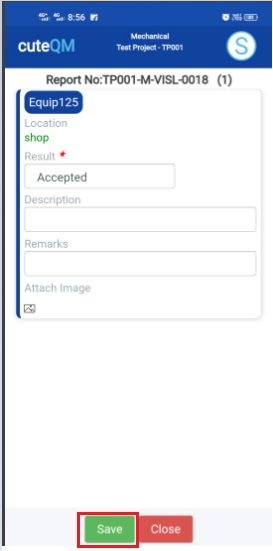](https://wiki.cuteinfocomm.com/uploads/images/gallery/2024-08/image-1724343288907.png)
1. Result will be defaultly accepted,If need to reject,you can change the dropdown as Reject
2. Enter **Description**
3. Enter **Remarks**
4. Click **Save** button. **RFI Visual** **inspection approved successfully.**