
Expense Claims
Employees shall submit expense claim forms along with the necessary supporting documents. The system allows expense claims to be saved and maintained as drafts for future completion. Claim can be verified and approved by the management, and the entire workflow is fully customized by client requirement.
New Claim
To add new expense claim, the below steps as to be followed.
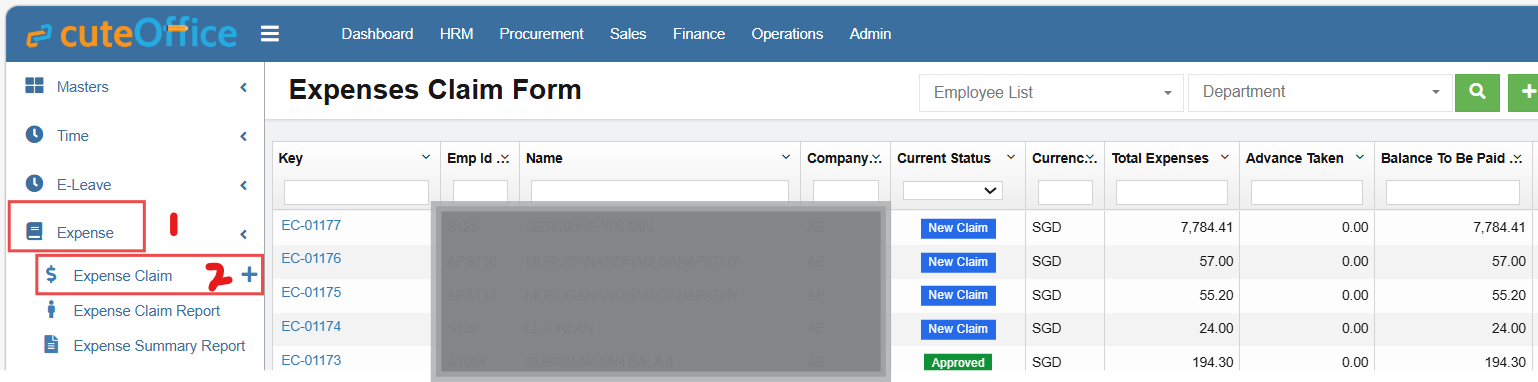
- Click Expense menu
- Click Expense Claim
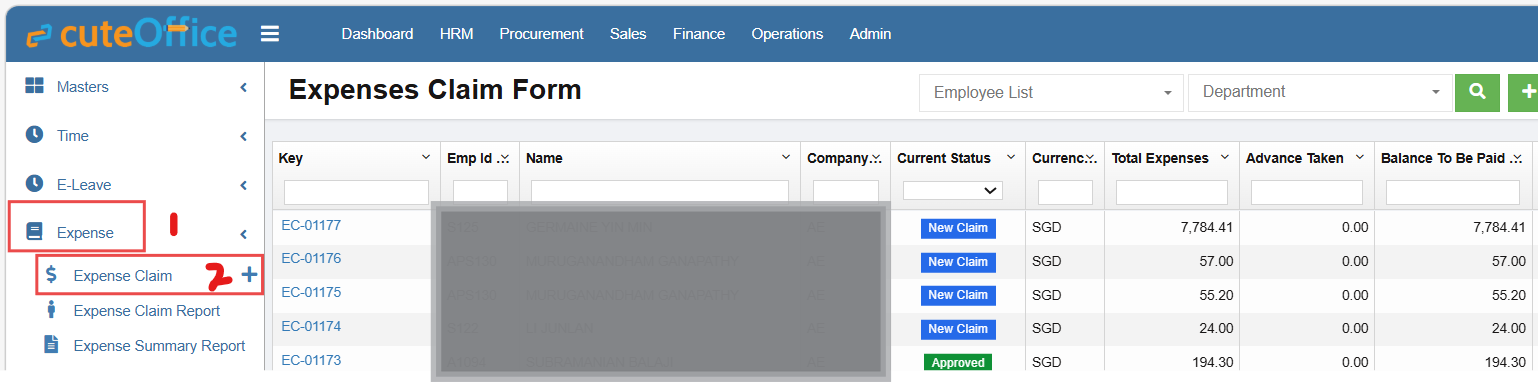
- Click add button on the top right corner

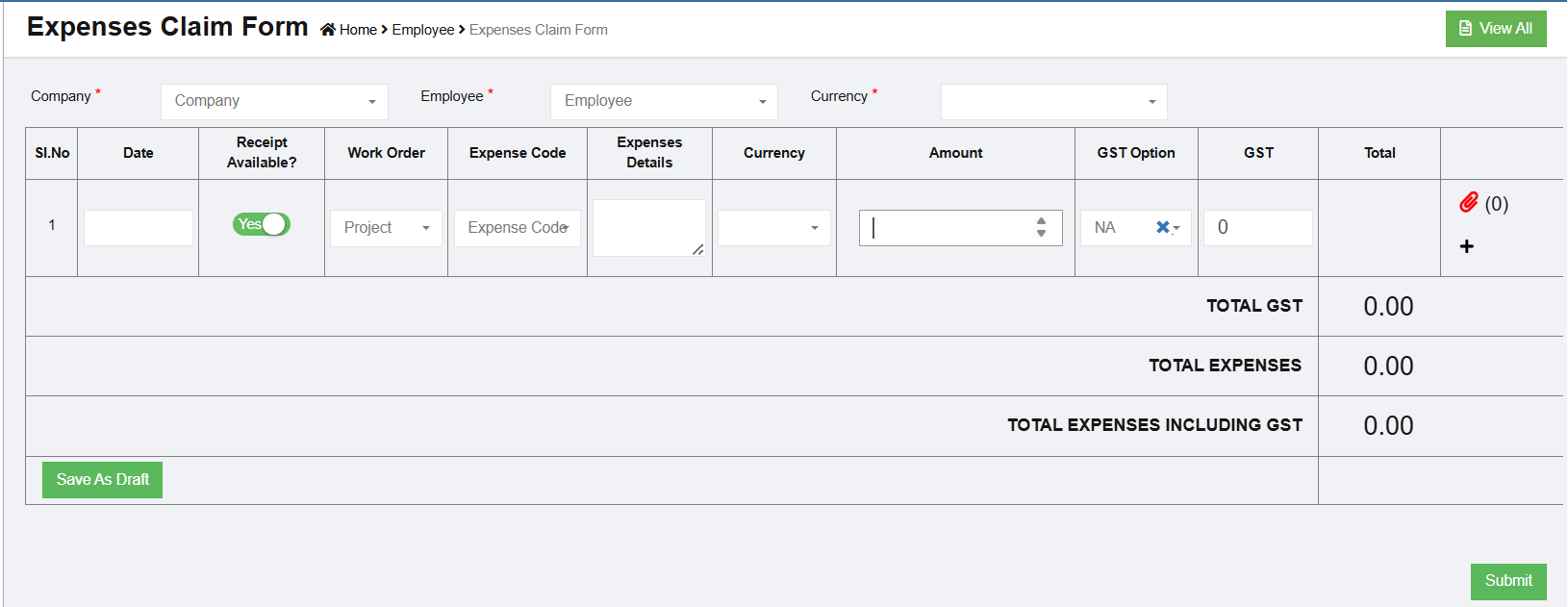
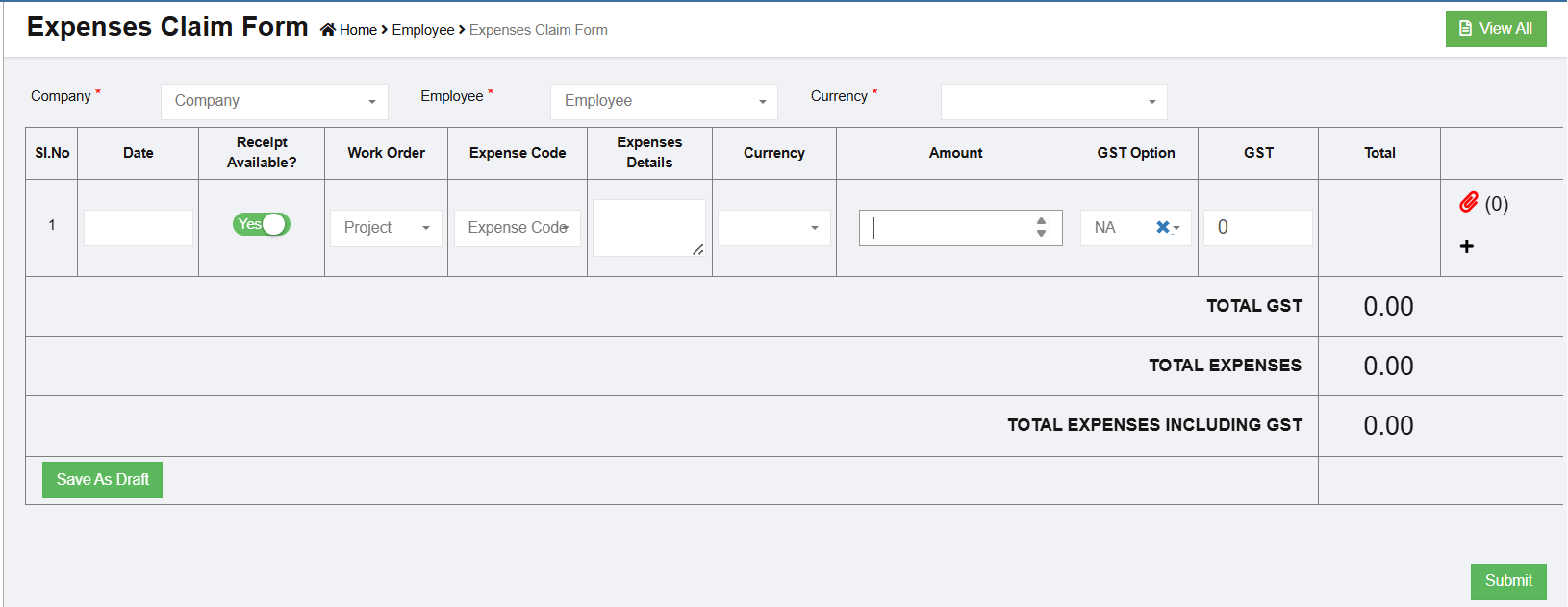
- Choose Company, Employee name, Currency, Date, Work Order (Project), Expense Code (integrated with Finance Claim code Master), Expenses details (open text), currency, Amount, GST Option and Attachment.
- Click Add icon beside to attachment icon to add next line item.
- Click Save as Draft
- Click Submit
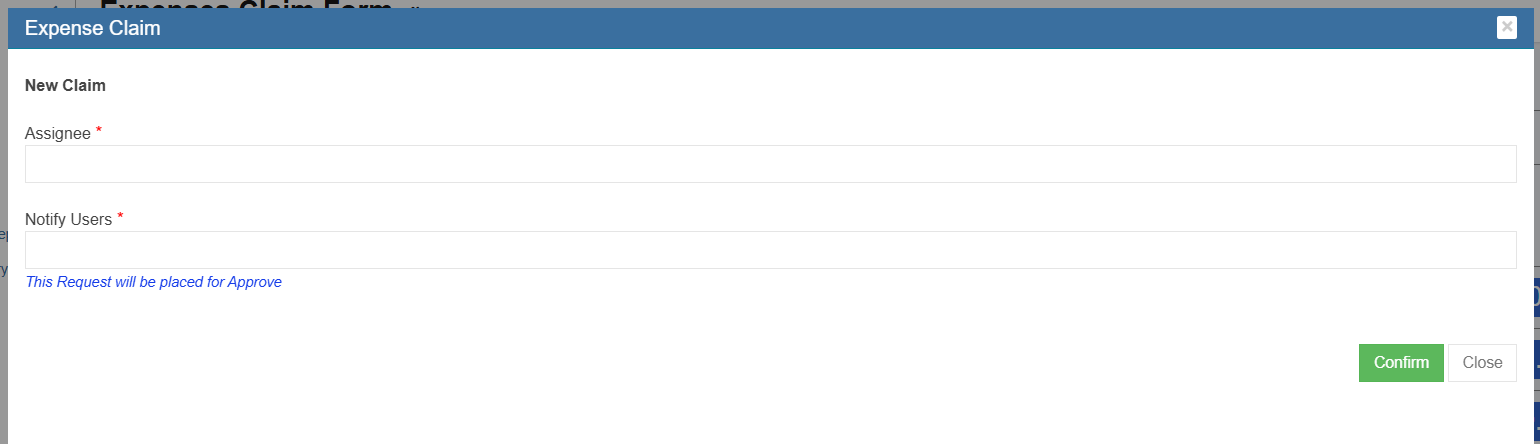
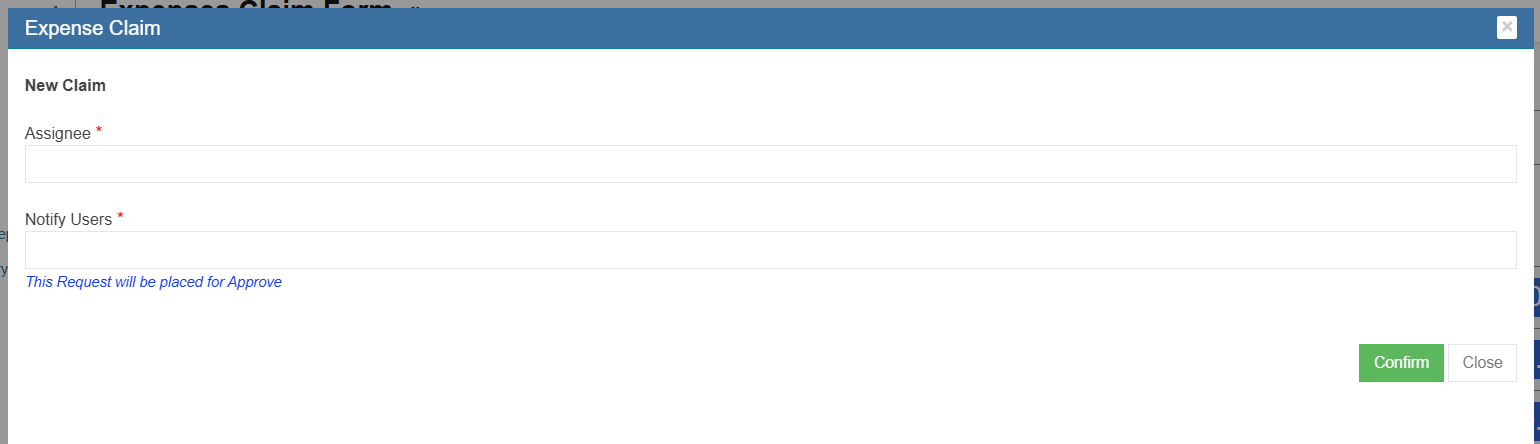
- Add Assignee and Notify Users for Approval.
- Click Confirm
- Assignee can verify and approve/return/reject/cancel the record.

- The status change from "New Claim" to "Approved" in the view all page.

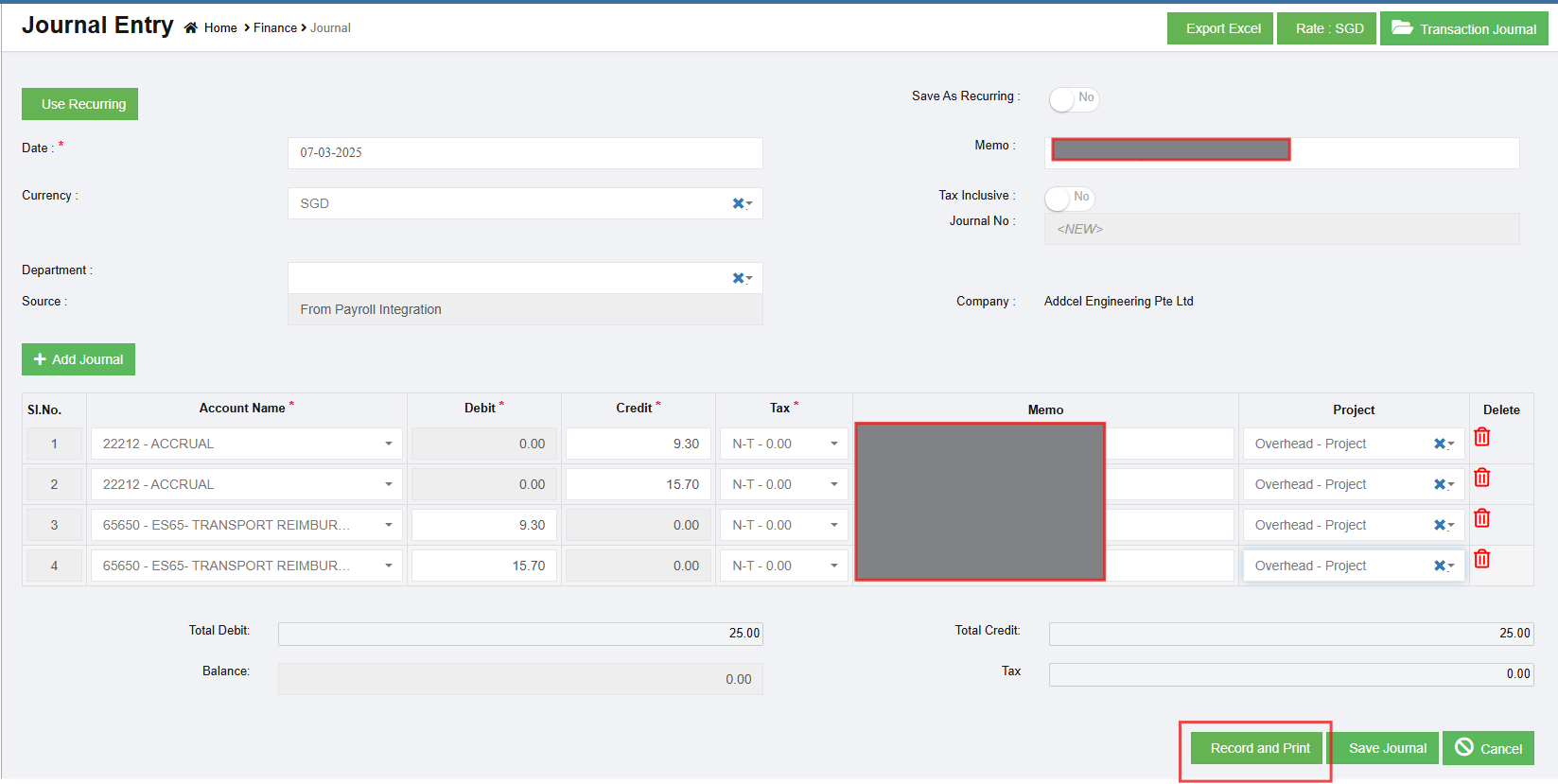
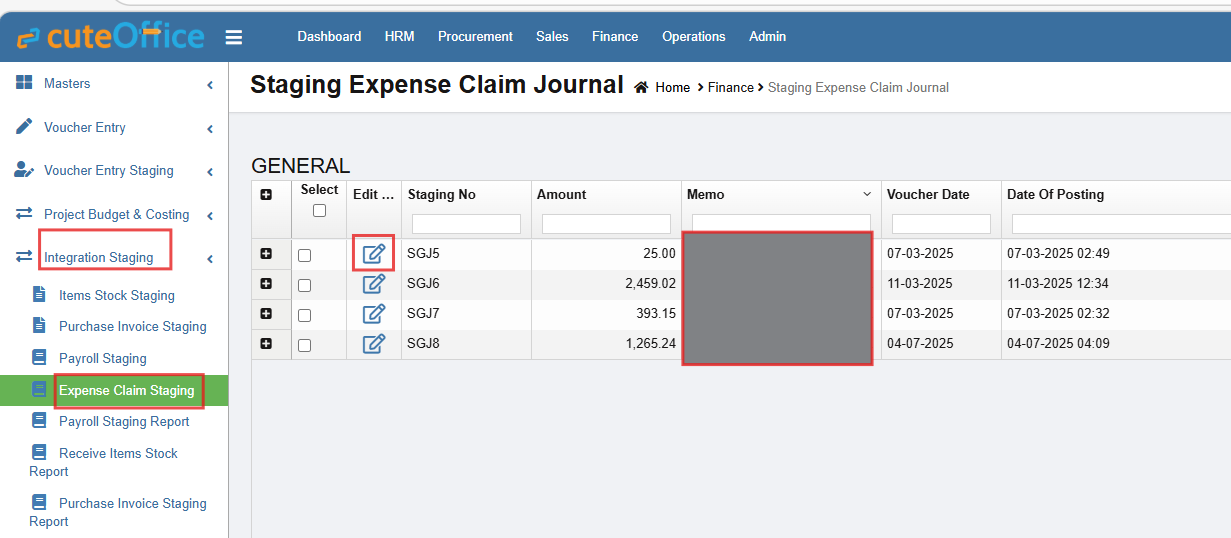
- Click "Post to Account" to post the record in Finance "Expense Claim Staging".
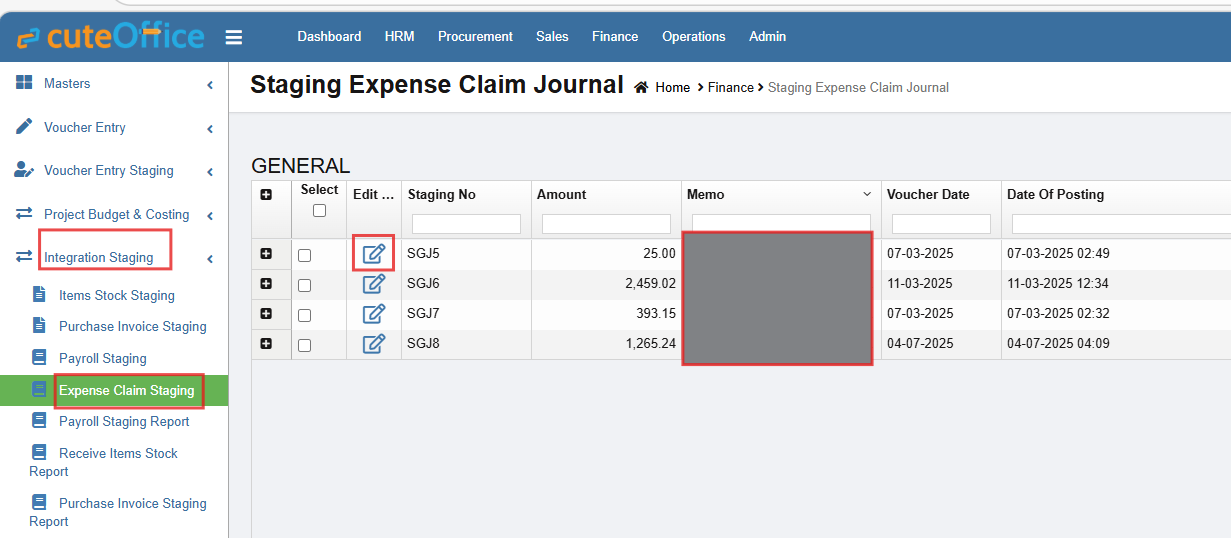
- Navigate to Finance Module
- Click Integration Staging
- Click Expense Claim Staging
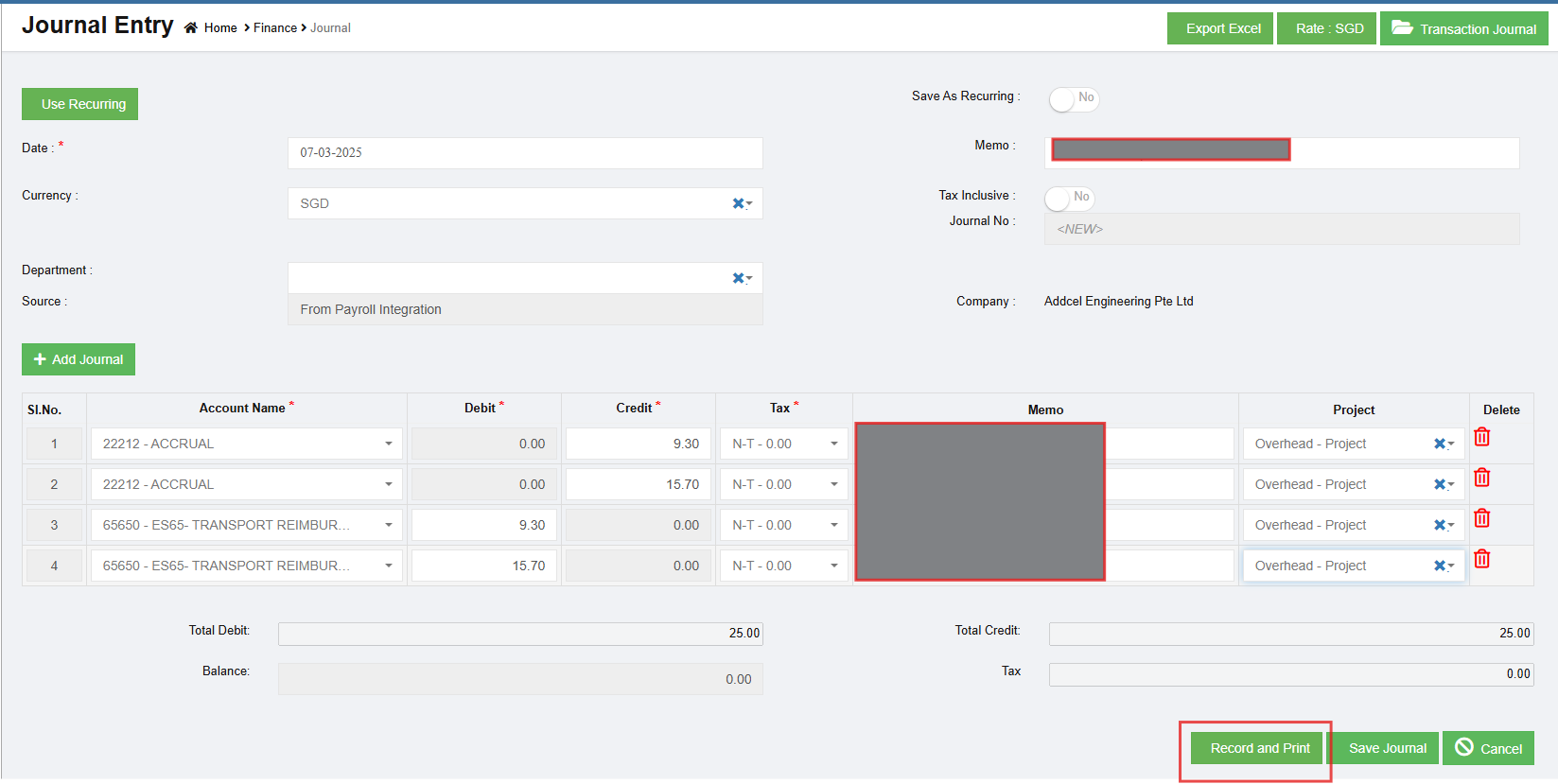
- Click edit and save the record.



No Comments