# Weldmap
#### **Weld Map**
Weld mapping is the process of assigning information to a weld joint to enable easy identification of its design (WPS), production (welders, their qualifications, date welded), quality (visual inspection, NDT) and traceability (heat numbers of materials joined & welding consumables).
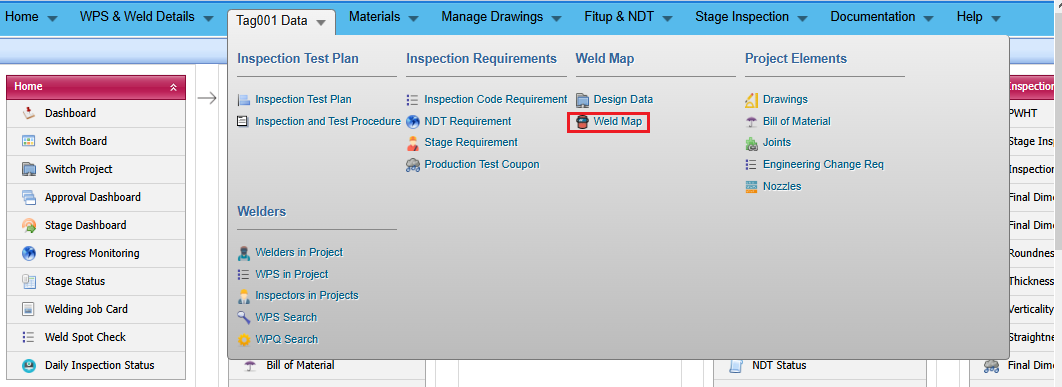
The **Weld Map** tab in the **Tag Data** menu used to add a weld map.
[](https://wiki.cuteinfocomm.com/uploads/images/gallery/2026-05/image-1778822207935.png)
1\. Click **Weld Map menu**
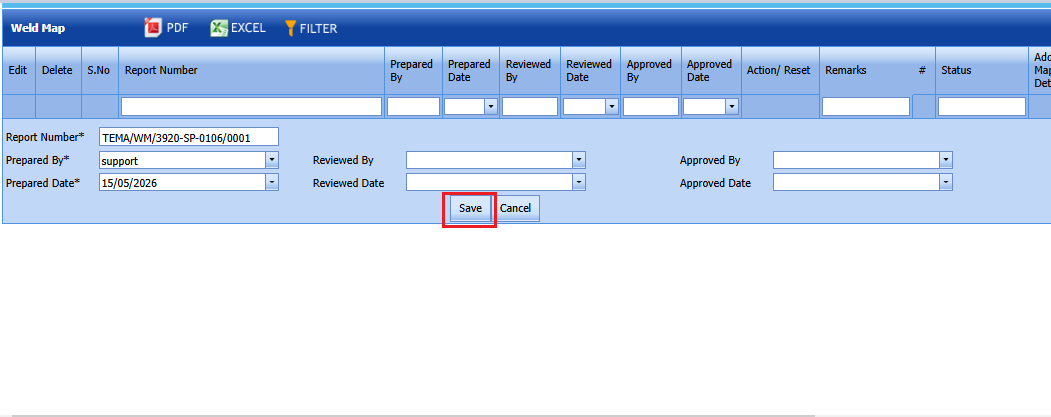
The **Weld Map** page opens.
[](https://wiki.cuteinfocomm.com/uploads/images/gallery/2026-05/image-1778822293498.png)
**Figure 6.7: Weld Map page**
#### **10.1 Add a Weld Map**
If you want to add a weld map, do the following steps,
1\. Click **weldmap** menu See Fig 6.7.
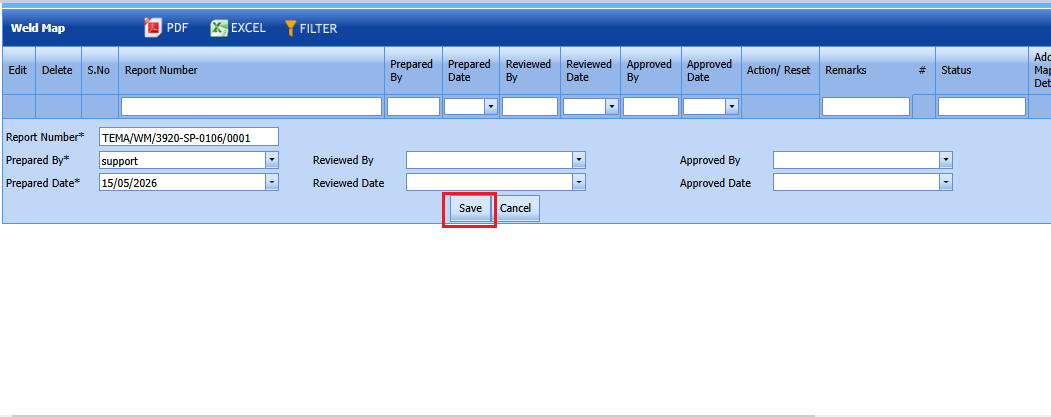
2.An Add page will opens .
The page shows a new box to add the details of the weld map.
[](https://wiki.cuteinfocomm.com/uploads/images/gallery/2026-05/image-1778822401895.png)
[](http://wiki.cuteinfocomm.com/uploads/images/gallery/2022-04/image-1651063190363.png)**Tip**: A report number for a new weld map will be updated automatically in the **Report Number** box.
3\. In the Prepared By box, enter the name of welder who has prepared the weld map.
4\. In the Reviewed By box, enter the name of welder who has received the weld map.
5\. In the Approved By box, enter the name of welder who has approved the weld map.
6\. In the Prepared Date box, choose the prepared date of the weld map.
7\. In the Reviewed Date box, choose the reviewed date of the weld map.
8\. In the Approved Date box, choose the approved date of the weld map.
9\. Click **Save**.
The weld map is successfully added.
#### Edit a Weld Map**
If you want to edit any existing weld map in the **Weld Map** page, do the following,
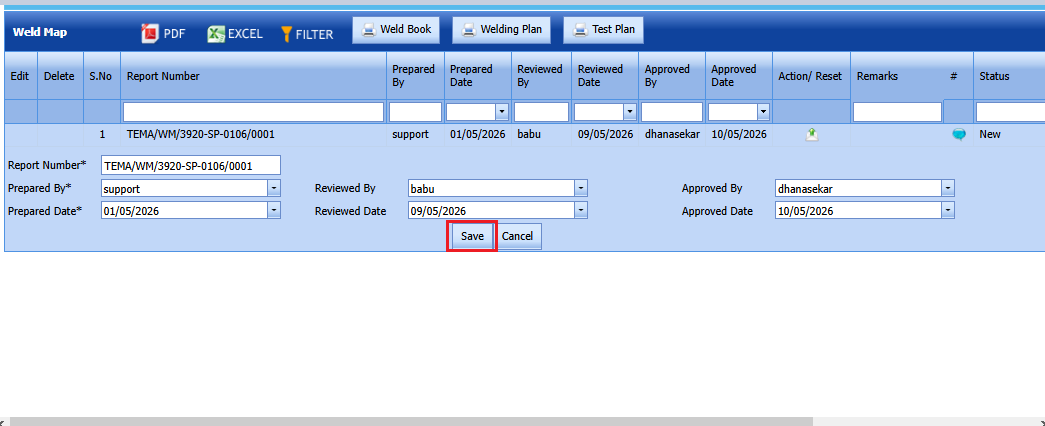
1\. Click[](http://wiki.cuteinfocomm.com/uploads/images/gallery/2022-04/image-1651063271576.png)(Edit icon) in the **Edit** column for the respective weld map. See Fig 6.7.
The page shows the details of added weld map.
[](https://wiki.cuteinfocomm.com/uploads/images/gallery/2026-05/image-1778822513307.png)
2\. Click on any box where you want to edit the details, and then edit the details in the respective box.
3\. Click **Save**.
#### **Attach a File into a Weld Map**
If you want to attach a file with any weld map listed in the **Weld Map** page, you can use[](http://wiki.cuteinfocomm.com/uploads/images/gallery/2022-04/image-1651063332140.png) (Attach icon) provided in the **Attachment** column for the respective weld map. To know how to attach, see the topic, “[**Attach a file into a PWPS**](http://wiki.cuteinfocomm.com/books/cuteqm/page/welding#bkmrk-6.1.6-attach-a-file-)”.
#### **Export Weld Maps List**
You can export a list of weld maps added in the **Weld Map** page in the pdf and excel formats by using [](http://wiki.cuteinfocomm.com/uploads/images/gallery/2022-04/image-1651063374584.png) (**PDF** button) and
[](http://wiki.cuteinfocomm.com/uploads/images/gallery/2022-04/image-1651063384993.png) (**Excel** button).
#### **Filter Any Weld Map**
If you want to filter any weld map in the **Weld Map** page, you can use [](http://wiki.cuteinfocomm.com/uploads/images/gallery/2022-04/image-1651063416907.png) (**FILTER** button) provided in the **Weld Map** page. See Fig 9.7. To know how to filter, see the topic, “[**Filter Any User Account**](http://wiki.cuteinfocomm.com/books/cuteqm/page/manage-user#bkmrk-4.1.9-filter-a-user-)”.
#### **Print a Weld Map**
If you want to print a weldmap then click **print** icon[](https://wiki.cuteinfocomm.com/uploads/images/gallery/2026-05/image-1778823358162.png)on the weldmap screen.
Weldmap print gives a clear details of the weld plan and Test plan.
[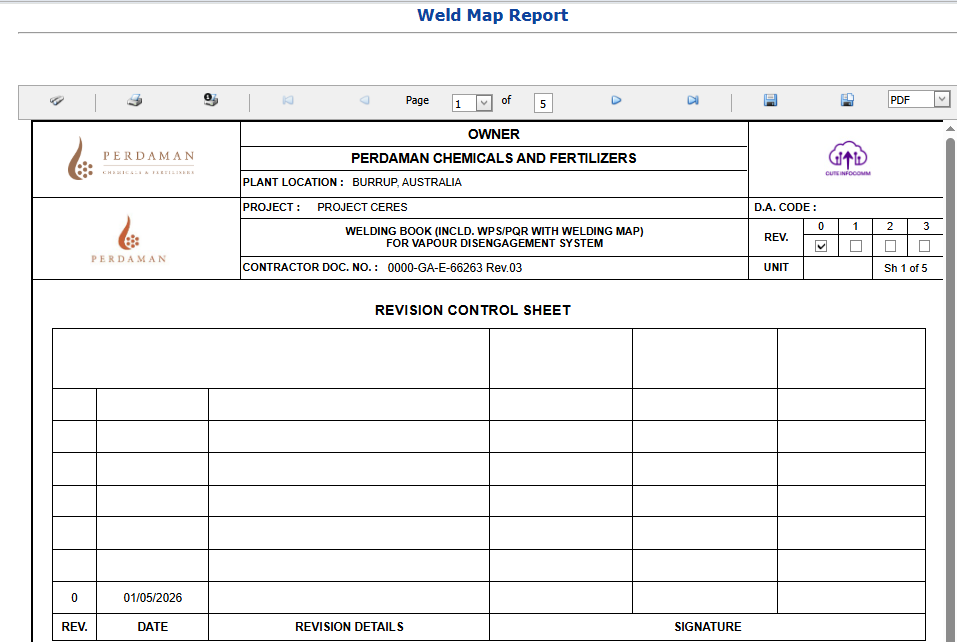](https://wiki.cuteinfocomm.com/uploads/images/gallery/2026-05/image-1778823565916.png)
#### **Weld Book,Weld Plan,Test Plan**
Weld and Test Plan is a document detailing a systematic approach to forming a weld joint by welding two or more workpieces (metal or plastic) according to a particular geometry. A welding joint is a point or edge where two or more pieces of metal or plastic are joined together.
[](https://wiki.cuteinfocomm.com/uploads/images/gallery/2026-05/image-1778823713596.png)
If you want to print weld book,weld plan and test plan, click the correcponding print button at the top as shown above.
#### **Revise weldmap**
To revise a weldmap, click Revise button placed in the revise column of the weldmap.(If workflow enabled,revise button will enable only after the workflow approval)
[](https://wiki.cuteinfocomm.com/uploads/images/gallery/2026-05/image-1779946343387.png)