Welding Jobcard and weld spot check
1.Welding job card
A welding job card is a document used in fabrication and welding works to provide detailed instructions and records for a specific welding activity or joint. It acts as a work order and tracking sheet for welders, inspectors, and supervisors.
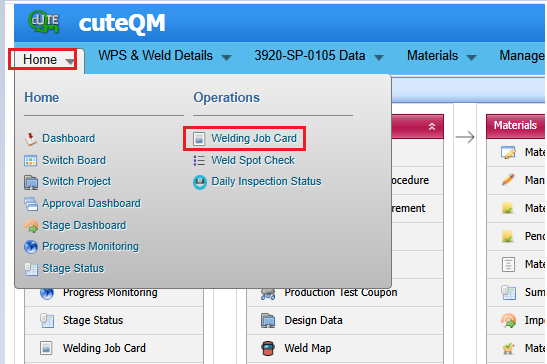
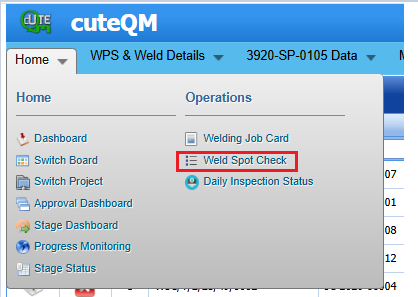
Welding job card menu placed under the Home menu as shown below
Add a welding job card
If you want to add a welding job card, do the following steps,
1. Click welding job card menu
2,Click Add button placed at top

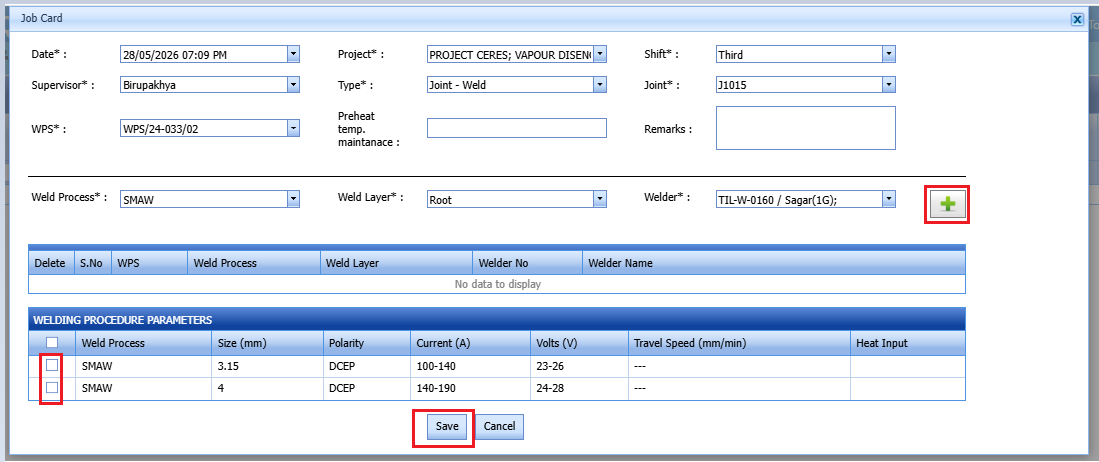
3.Select the date
4.Select the project of the job card
4.Select shift from the dropdown
5.Select the supervisor from the dropdown
6.Select the type from the dropdown selection
7.Joint-Select the joint which is going to weld(Fitup inspection completed joints will be shown in the dropdown)
8.Select the wps for the joint
9.Weld layer-Select the layer from the dropdown
10.Welder-Select the appropriate welder and click the + icon to save the welder
11.Select the welding parameter from the list at the bottom
Welding job card created successfully.
Edit a welding job card
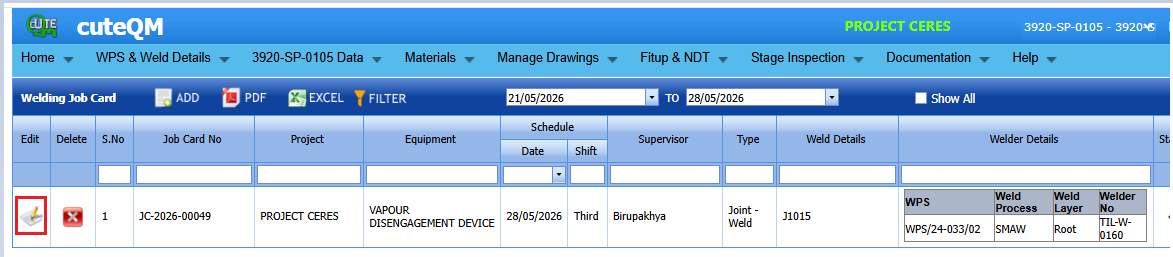
1.If you want to edit a welding job card,click edit button placed at the leftside of the job card.
2.Update the fileds which required
Welding jobcard updated successfully.
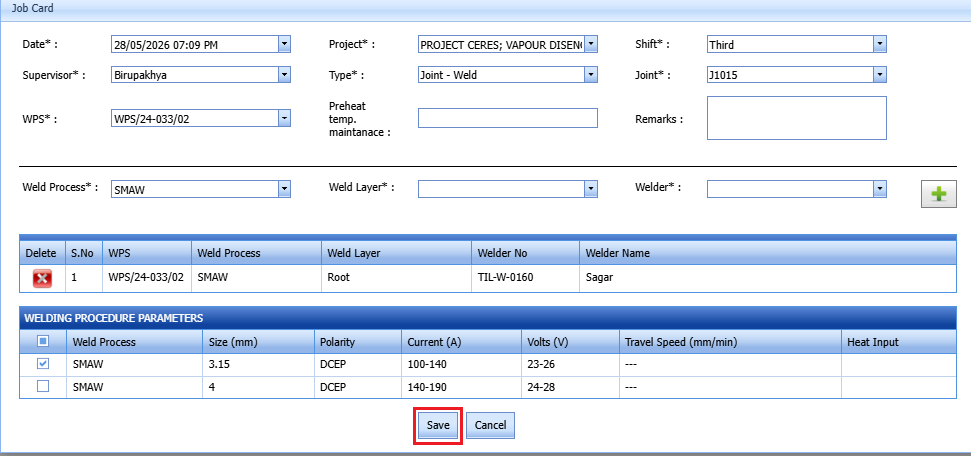
Delete a welding job card
If you want to delete a welding job card,do the following steps
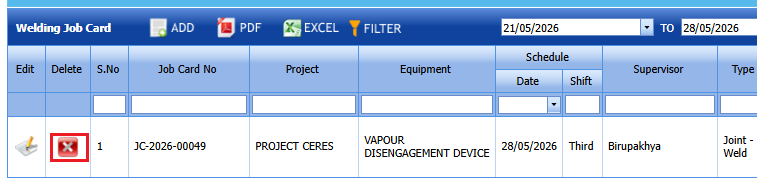
1.Click delete icon placed at the welding job card
2.Select ok to the confirm delete.
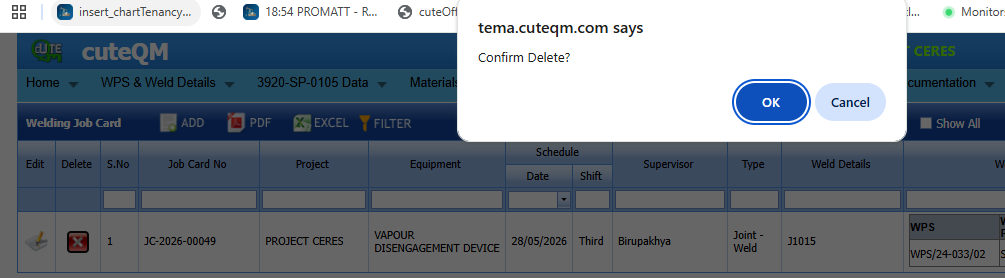
3.Welding job card deleted successfully.
Approve a welding job card
If you want to approve a welding job card,

1.Click welding job card menu
2.Here all the welding job cards will be listed
3.Click the Approve button placed against the job card (cuteQM_weldinspection role users can approve the job card)
4.Welding job card approved successfully.
Attach a File into a Welding job card
If you want to attach a file with any welding job card l, you can use (Attach icon) provided in the Attachment column for the respective job card. To know how to attach, see the topic, “Attach a file into a PWPS”.
Export Welding job card List
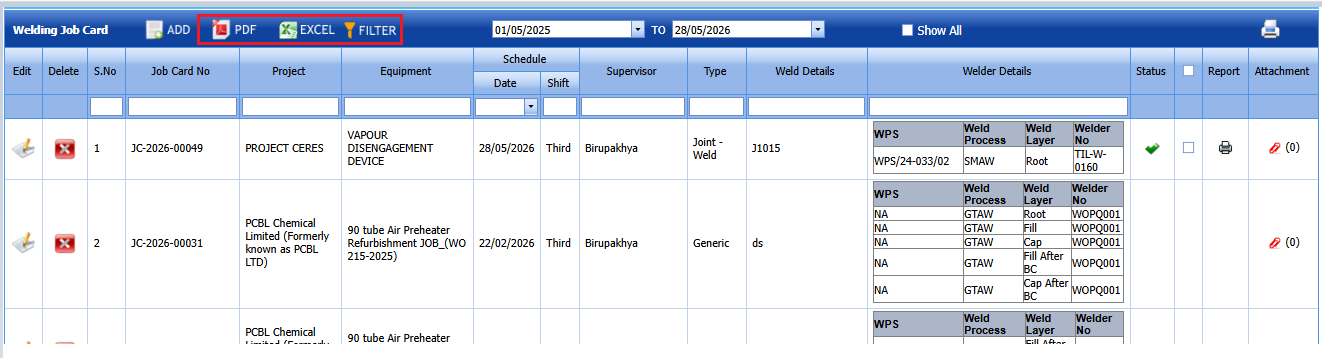
You can export a list of job cards added in the Welding job card page in the pdf and excel formats by using  (PDF button) and
 (Excel button).
Filter Any Welding job card
If you want to filter any job card in the Welding job card page, you can use  (FILTER button) provided in the page. . To know how to filter, see the topic, “Filter Any User Account”.
Print a Welding job card
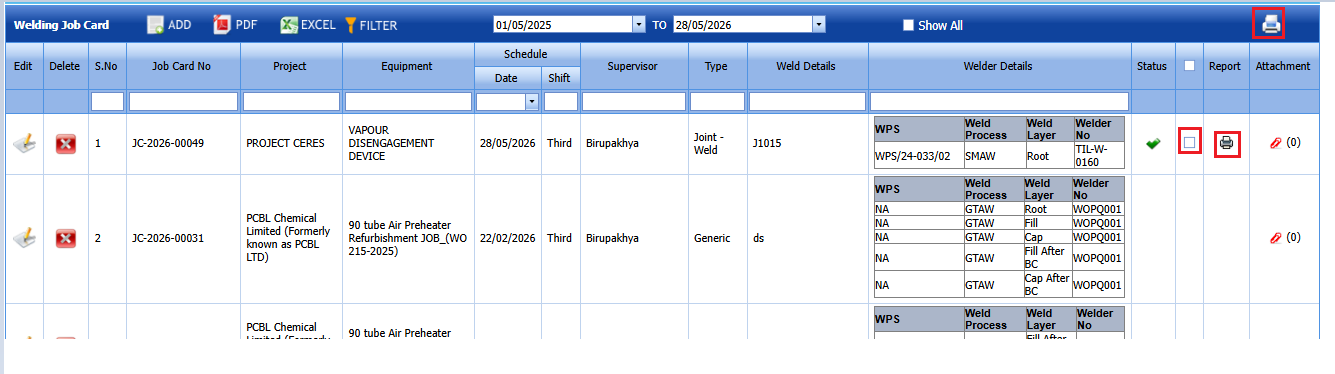
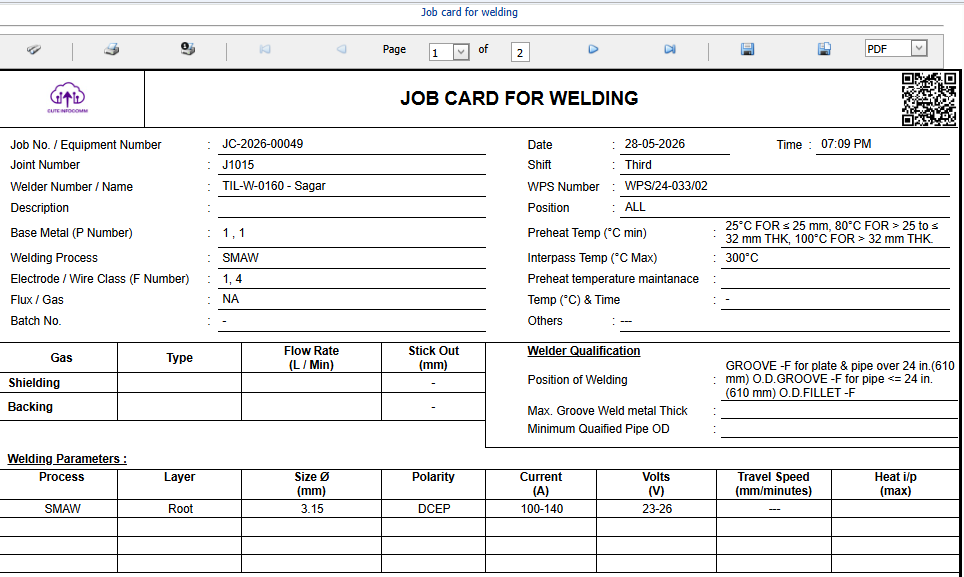
If you want to print a welding job card then click print icon on the welding job card screen.
Welding job card print gives a clear details .
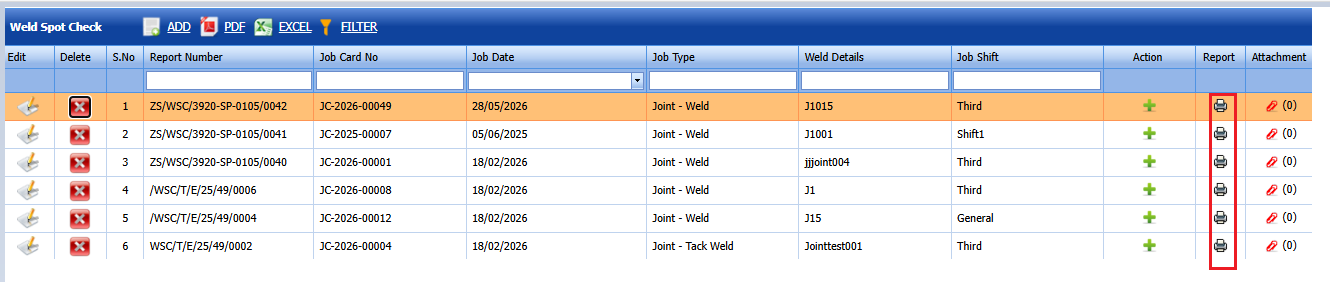
Weld spot check
A weld spot check is a random or selective inspection carried out on certain weld joints to verify welding quality, instead of inspecting every single weld completely.
Add a weld spot check
If you want to add a weld spot check, do the following steps,
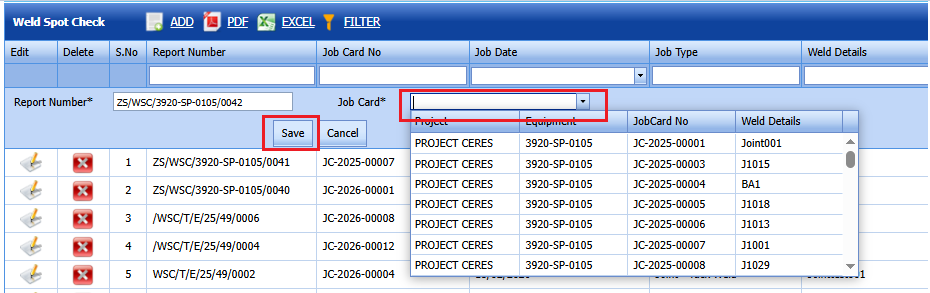
1. Click weld spot check menu
2.Click Add button placed at top
3.Report number-Automatically generated and we can modify this,if required
4.Job card-Select the job card which is going to the weld spot check(Approved job cards will be listed in the dropdown)
Weld spot check created successfully.
Update Results of a weld spot check
1.To update the results of a weld spot check ,click icon in the list screen
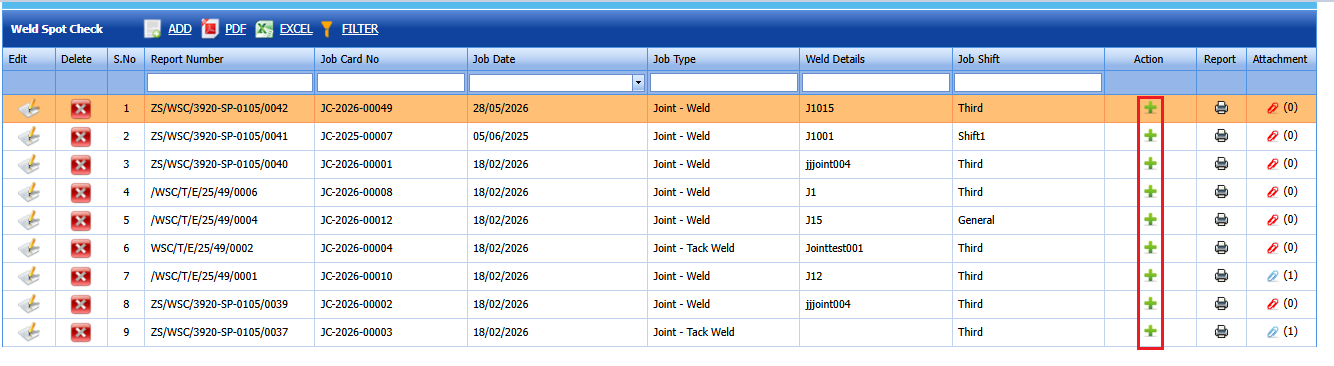
2.A popup will be open to enter the observations.
3.Enter the observations in the text boxes shown below
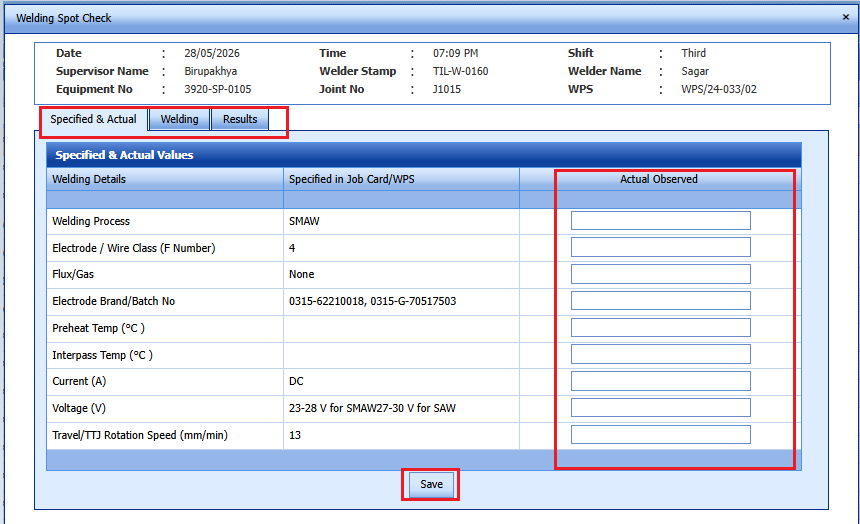
Weld spot check observations updated successfuly.
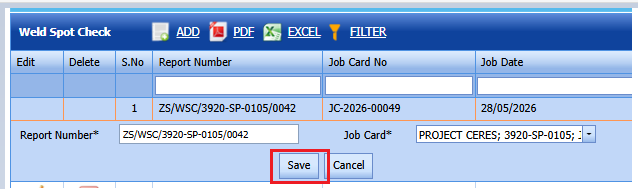
Edit a weld spot check
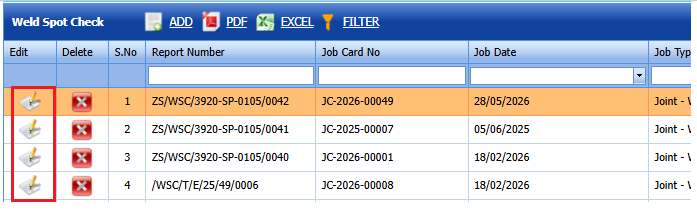
1.If you want to edit a weldingspot check,clickedit button placed at the leftside of the job card.
2.Update the fileds which required
Weld spot check updated successfully.
Delete a weld spot check
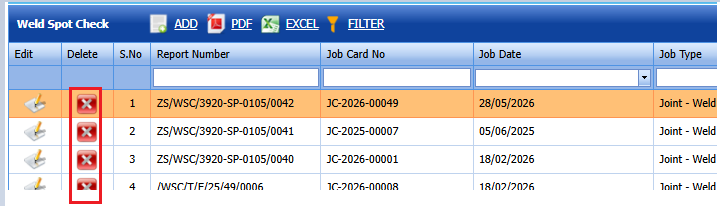
If you want to delete a weld,do the following steps
1.Clickdelete icon placed at the weld spot check
2.Select ok to the confirm delete.
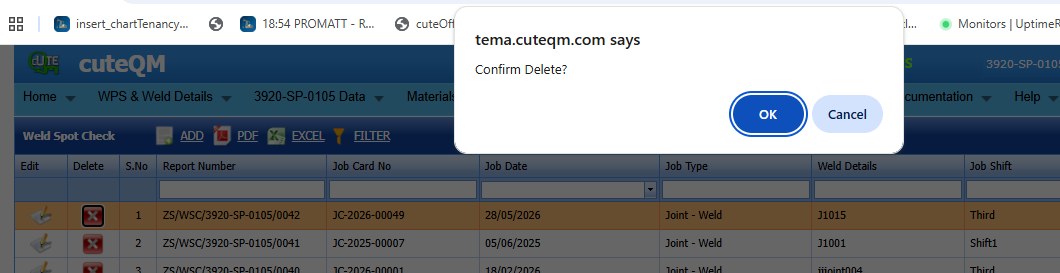
Weld spot check deleted successfully.
Attach a File into a Weld spot check
If you want to attach a file with any weld spot check , you can use (Attach icon) provided in the Attachment column for the respective spot check. To know how to attach, see the topic, “Attach a file into a PWPS”.
Export Weld spot check List
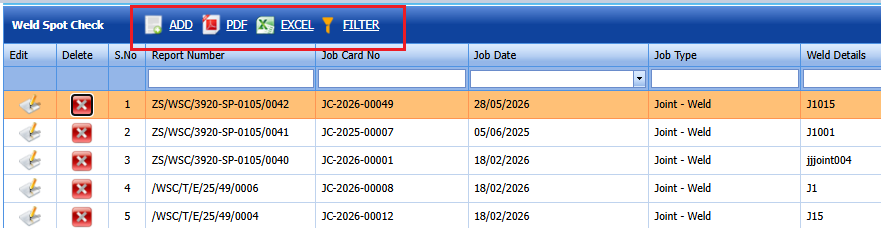
You can export a list of weld spot checks added in the page in the pdf and excel formats by using (PDF button) and
(Excel button).
Filter Any Weld spot check
If you want to filter anyweld spot check in the page, you can use (FILTER button) provided in the page. . To know how to filter, see the topic, “Filter Any User Account”.
Print a Weld spot check
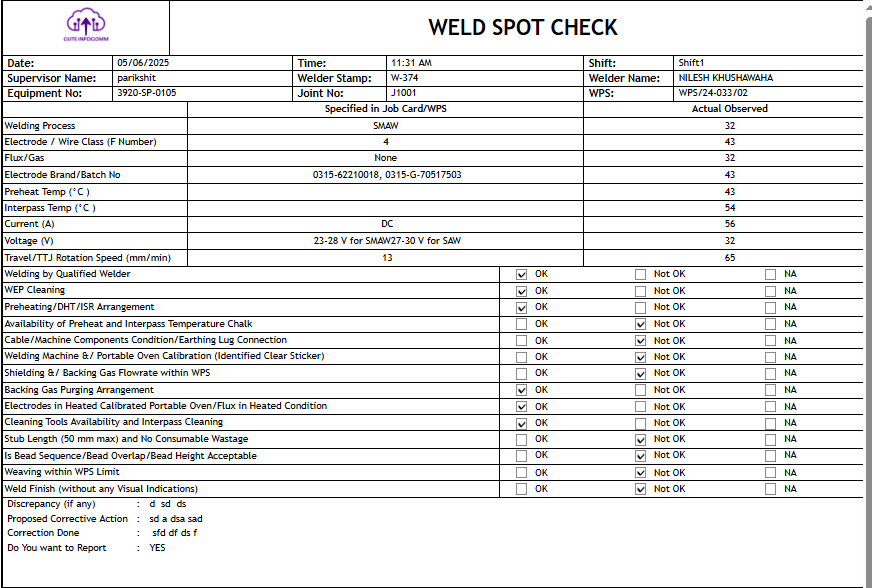
If you want to print a weld spot check then click print iconon the weld spot check screen.
Weld spot check print gives a clear details .