# Test Pack (ISO)
## **7.1 Test Pack (ISO)**
The **Test Pack (ISO)** tab in the **Test Pack** menu helps you to add a test back (ISO). To navigate to the test pack adding page,
1. Click **Test Pack (ISO)** in the **Test Pack** menu. The **Test Pack** page opens. [](http://wiki.cuteinfocomm.com/uploads/images/gallery/2022-05/image-1651543354232.png)
**Figure 7.1: Test Pack (ISO) page**
#### **7.1.1 Add a Test Pack**
If you want to add a test pack, do the following steps,
1. Click [](http://wiki.cuteinfocomm.com/uploads/images/gallery/2022-05/image-1651543543330.png) (**ADD** button) in the **Test Pack** page. See Fig 7.1.
The page opens a new window to add the details of a test pack.
[](http://wiki.cuteinfocomm.com/uploads/images/gallery/2022-05/image-1651543565541.png)
[](http://wiki.cuteinfocomm.com/uploads/images/gallery/2022-05/image-1651543577053.png)**Note**: The field notified with a symbol (\*) is mandatory. You must enter the relevant details in that fields before saving.
[](http://wiki.cuteinfocomm.com/uploads/images/gallery/2022-05/image-1651543595388.png)**Tip**: A report number for a new test pack will be updated automatically in the **Report Number** box. If you want to change the report number, you can change.
2. In the **System** box, select a system from a drop-down list.
3. In the **Name** box, enter the name of the test pack.
4. In the **Sub System** box, select a sub system from a drop-down list.
5. In the **Type of Test** box, enter the type of test.
6. In the **Test Medium** box, enter the name of a test medium.
7. In the **Test Pressure** box, enter the test pressure value.
8. In the **Test Area** box, enter the name of a test area.
9. In the **Hot Oil Flush** box, enter the detail of hot oil flush.
10. In the **Chem. Clean** box, enter the detail of chemical cleaning.
11. In the **Test Duration (Hours)** box, enter the duration of test.
12. Click **Save**.
The test pack is successfully added and listed in the **Test Pack** page. Once you have added a test pack, you can manage the checklist of MCR and map ISO drawings/spool for the added test pack.
#### **7.1.2 Manage a Checklist**
If you want to manage the checklist of test pack,
1. Click (Add icon) in the **Manage Checklist** See Fig 7.1. The page redirects you to the **Checklist Name** page.
[](http://wiki.cuteinfocomm.com/uploads/images/gallery/2022-05/image-1651543710003.png)
2. Click [](http://wiki.cuteinfocomm.com/uploads/images/gallery/2022-05/image-1651543727678.png) (**ADD** button) in the **Checklist Name** page.
The page opens a new window to add the details of the checklist.
[](http://wiki.cuteinfocomm.com/uploads/images/gallery/2022-05/image-1651543745781.png)
3. In the **Checklist** box, enter the checklist name.
4. In the **Status** box, select the status of the checklist.
5. In the **Completed by** box, enter the name of a person who has completed checklist.
6. In the **Completed Date** box, select the completed date of the checklist.
7. Click **Save**.
The added checklist will be listed in the **Checklist Name** page.
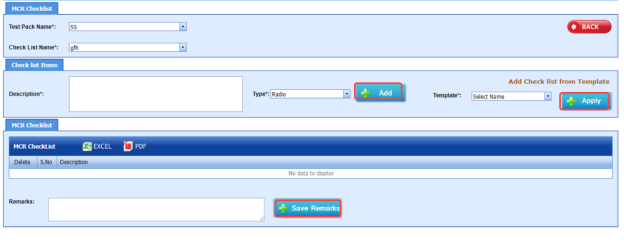
8. If you want to manage the added checklist, click (Add icon) in the ****Manage Checklist**** column of the ****Checklist Name**** page. The **MCR Checklist** page opens for the selected checklist.
[](http://wiki.cuteinfocomm.com/uploads/images/gallery/2022-05/image-1651543808517.png)
9. In the Description box, enter the description for the checklist you want to add.
10. In the Type box, select the checklist type and click [](http://wiki.cuteinfocomm.com/uploads/images/gallery/2022-05/image-1651543831025.png). The added checklist will be listed in the **MCR Checklist** window.
[](http://wiki.cuteinfocomm.com/uploads/images/gallery/2022-05/image-1651543851553.png)
11. If you want to add the checklists from a template, in the ****Template**** box, select the template from a drop-down list and click [](http://wiki.cuteinfocomm.com/uploads/images/gallery/2022-05/image-1651543872691.png). The checklists in the template will be listed in the **MCR Checklist** window.
12. In the **Remarks** box, enter your remarks.
13. Click [](http://wiki.cuteinfocomm.com/uploads/images/gallery/2022-05/image-1651543897241.png).
#### **7.1.3 Map ISO**
If you want to map ISO drawings/ spool for the added test pack, do the following steps,
1. Click [](http://wiki.cuteinfocomm.com/uploads/images/gallery/2022-05/image-1651543951214.png)(Add icon) in the Map ISO column of the respective test pack. The **Map Drawings/Spool** window opens.
[](http://wiki.cuteinfocomm.com/uploads/images/gallery/2022-05/image-1651543968426.png)
2. Click [](http://wiki.cuteinfocomm.com/uploads/images/gallery/2022-05/image-1651543986339.png) (**ADD** button) in the **Map Drawings/Spool** window. The window shows a list of drawing and their spools.
[](http://wiki.cuteinfocomm.com/uploads/images/gallery/2022-05/image-1651544002519.png)
3. Do one of the following steps to add spools,
1. 1. If you want to add a spool, click[](http://wiki.cuteinfocomm.com/uploads/images/gallery/2022-05/image-1651544024461.png)(Add icon) provided in the **Add** column.
The added spools will be moved to right side of the window.
2. If you want to add all spools in the drawing, click[](http://wiki.cuteinfocomm.com/uploads/images/gallery/2022-05/image-1651544093925.png) (Add icon) provided in the ******Drawing Number****** column. The added spools will be moved to right side of the window.
4. Click **Save**.
The added spools will be listed in the in the **Map Drawings/Spool** window.
1. 1. If you want to view a weld inspection summary report, click [](http://wiki.cuteinfocomm.com/uploads/images/gallery/2022-05/image-1651544156692.png) (print icon) provided in the **Welding Summary** column.
2. If you want to view a visual welding report, click [](http://wiki.cuteinfocomm.com/uploads/images/gallery/2022-05/image-1651544174998.png)(print icon) provided in the **Visual Welding Report** column.
#### **7.1.4 Edit a Test Pack**
If you want to edit any added test pack in the **Test Pack** page,
1. Click [](http://wiki.cuteinfocomm.com/uploads/images/gallery/2022-05/image-1651544227928.png) (Edit icon) of the respective test pack. See Fig 7.1. The **Test Pack** page shows the details of the selected test pack.
2. Edit the details where you want.
3. Click **Save**.
#### **7.1.5 Delete a Test Pack**
If you want to delete any existing test pack in the **Test Pack** page, you can use [](http://wiki.cuteinfocomm.com/uploads/images/gallery/2022-05/image-1651544304884.png) (Delete icon) provided in the **Test Pack** page. To know how to delete, see the topic, **“**[**Delete** **P&ID**](http://wiki.cuteinfocomm.com/books/cuteqm/page/project-data/#bkmrk-3.1.3%C2%A0delete-a-p%26id)”.
#### **7.1.6 View a Test Pack Spool List Report**
If you want to view a test pack spool list report, click [](http://wiki.cuteinfocomm.com/uploads/images/gallery/2022-05/image-1651544333949.png) (print icon) provided in the **Spool** column.
#### **7.1.7 View a Drawing List Report**
If you want to view a drawing list report, click[](http://wiki.cuteinfocomm.com/uploads/images/gallery/2022-05/image-1651544367459.png)(print icon) provided in the **Drawing** column.
#### **7.1.8 View a Cover Page of Test Pack**
If you want to view a cover page of test pack, click [](http://wiki.cuteinfocomm.com/uploads/images/gallery/2022-05/image-1651544405303.png)(print icon) provided in the **Cover Page** column.
#### **7.1.9 View a Test Pack Report**
If you want to view a test pack report, click [](http://wiki.cuteinfocomm.com/uploads/images/gallery/2022-05/image-1651544435366.png)(print icon) provided in the **Test Pack** column.
#### **7.1.10 Export Test Pack list**
You can export a list of test packs added in the **Test Pack** page in both the pdf and excel formats by using [](http://wiki.cuteinfocomm.com/uploads/images/gallery/2022-05/image-1651544467667.png)(**PDF** button) and [](http://wiki.cuteinfocomm.com/uploads/images/gallery/2022-05/image-1651544475915.png) (**Excel** button). To know how to export, see the topic, “[**Export P&ID list**](http://wiki.cuteinfocomm.com/books/cuteqm/page/project-data/#bkmrk-3.1.3%C2%A0delete-a-p%26id)”.
### **7.2 Test Pack (Spool)**
The **Test Pack (Spool)** tab in the **Test Pack** menu helps you to add a test back (Spool). To navigate to the test pack adding page,
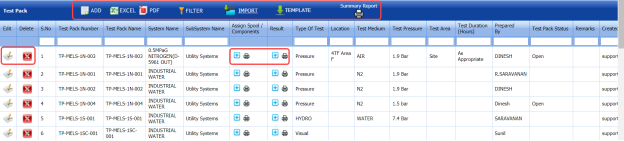
1. Click **Test Pack (Spool)** in the **Test Pack** menu. The **Test Pack** page opens.
[](http://wiki.cuteinfocomm.com/uploads/images/gallery/2022-05/image-1651544528920.png)
**Figure 7.2: Test Pack page**
#### **7.2.1 Add a Test Pack**
If you want to add a test pack, do the following steps,
1. Click [](http://wiki.cuteinfocomm.com/uploads/images/gallery/2022-05/image-1651544580391.png) (**ADD** button) in the **Test Pack** See Fig 7.2. The page opens a new window to add the details of a test pack.
[](http://wiki.cuteinfocomm.com/uploads/images/gallery/2022-05/image-1651544599891.png)
[](http://wiki.cuteinfocomm.com/uploads/images/gallery/2022-05/image-1651544614011.png)**Note**: The field notified with a symbol (\*) is mandatory. You must enter the relevant details in that fields before saving.
[](http://wiki.cuteinfocomm.com/uploads/images/gallery/2022-05/image-1651544626835.png)**Tip**: A report number for a new test pack will be updated automatically in the **Report Number** box. If you want to change the report number, you can change.
2. In the **System Name** box, select a system from a drop-down list.
3. In the **Name** box, enter the name of the test pack.
4. In the **Sub System** **Name** box, select a sub system from a drop-down list.
5. In the **Type of Test** box, enter the type of test.
6. In the **Templates** box, select a template from a drop-down list.
7. In the **Remarks** box, enter your remarks if any.
8. In the **Test Medium** box, enter the name of a test medium.
9. In the **Test Pressure** box, enter the test pressure value.
10. In the **Test Area** box, enter the name of a test area.
11. In the **Hot Oil Flush** box, enter the detail of hot oil flush.
12. In the **Chem. Clean** box, enter the detail of chemical cleaning.
13. In the **Test Duration (Hours)** box, enter the duration of test.
14. In the **Prepared By** box, enter the name of a person who has prepared the test pack.
15. In the **Test Pack Status** box, enter the status of the test pack.
16. Click **Save**.
The test pack is successfully added and listed in the **Test Pack** page. Once you have added a test pack, you can manage the checklist and assign spools and components for the added test pack.
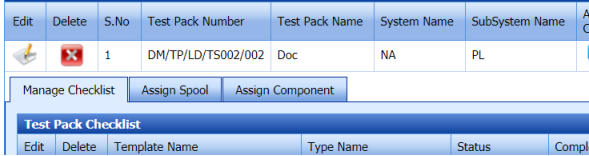
[](http://wiki.cuteinfocomm.com/uploads/images/gallery/2022-05/image-1651544726989.png)**Note**: If you want to perform the above tasks, click [](http://wiki.cuteinfocomm.com/uploads/images/gallery/2022-05/image-1651544741313.png)(Add icon) in the **Assign Spool/ Components** column of the respective test pack.
The page shows the **Manage Checklist**, **Assign Spool**, and **Assign Component** options.
[](http://wiki.cuteinfocomm.com/uploads/images/gallery/2022-05/image-1651544756068.png)
#### **7.2.2 Manage a Checklist**
If you want to manage the test pack checklist, Click the **Manage Checklist** option.
The **Test Pack Checklist** window opens.
[](http://wiki.cuteinfocomm.com/uploads/images/gallery/2022-05/image-1651544795099.png)
If you want to edit any checklist, you can edit the checklist.
#### **7.2.3 Assign a Spool**
If you want to assign spool for the added test pack, do the following steps,
1. Select the **Assign Spool** option. The **Assign** **Spool** window opens.
[](http://wiki.cuteinfocomm.com/uploads/images/gallery/2022-05/image-1651544837324.png)
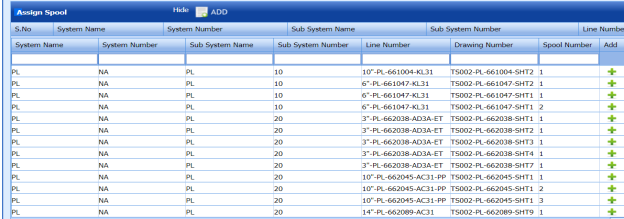
2. Click [](http://wiki.cuteinfocomm.com/uploads/images/gallery/2022-05/image-1651544853964.png) (**ADD** button) in the **Assign Spool** window.
The window shows a list of spools.
[](http://wiki.cuteinfocomm.com/uploads/images/gallery/2022-05/image-1651544870561.png)
3. If you want to add a spool, click [](http://wiki.cuteinfocomm.com/uploads/images/gallery/2022-05/image-1651544887244.png) (Add icon) provided in the ****Add**** column.
4. Click **Save**.
The added spools will be listed in the in the **Assign Spool** window.
#### **7.2.4 Assign a Component**
If you want to assign a component, click the **Assign Component** option.
The **Assign Component** window opens.
[](http://wiki.cuteinfocomm.com/uploads/images/gallery/2022-05/image-1651544945174.png)
#### **7.2.5 Add Test Pack Result**
After completing the spool test for the added test pack request, you can add the result details. To add results, do the following steps,
1. Click [](http://wiki.cuteinfocomm.com/uploads/images/gallery/2022-05/image-1651544980036.png)(Add icon) in the **Result** column of the **Test Pack** See Fig 7.2. The **Test Package** window opens.
[](http://wiki.cuteinfocomm.com/uploads/images/gallery/2022-05/image-1651544995255.png)
[](http://wiki.cuteinfocomm.com/uploads/images/gallery/2022-05/image-1651545001001.png)
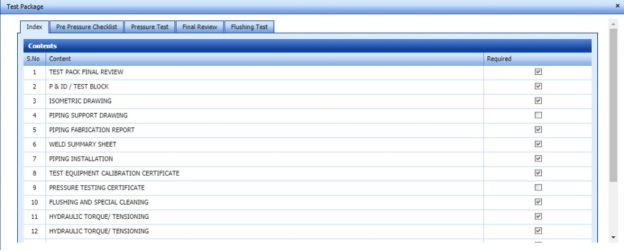
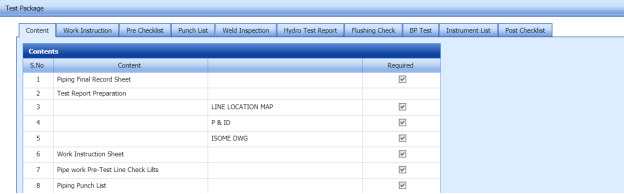
The **Test Package** window contains the following options: **Index**, **Pre-Pressure Checklist**, **Pressure Test**, **Final Review**, **Flushing Test, Content, Work instruction, Pre-Checklist, Punch List, Weld Inspection, Hydro Test Report, Flushing Check, BP Test, Instrument List,** and **Post Checklist**.
##### **Index**
If you want to add index for the test pack,
1. Click **Index** option. The **Index** window opens with a list of contents.
[](http://wiki.cuteinfocomm.com/uploads/images/gallery/2022-05/image-1651545049095.png)
2. Select the contents which you want to add in the Index.
##### **Pre-Pressure Checklist**
If you want to add pre-pressure checklist for the test pack,
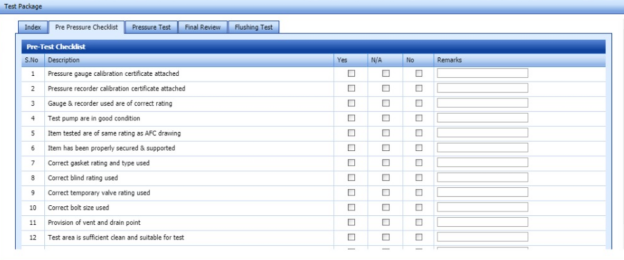
1. Click **Pre-Pressure Checklist** option. The **Pre-Pressure Checklist** window opens with a list of checklists.
[](http://wiki.cuteinfocomm.com/uploads/images/gallery/2022-05/image-1651545087165.png)
2. Select the checklists which you want to add.
1. 1. If you want to add the checklist, select the checkbox in the **Yes** column for the respect checklist.
2. If the checklist is not applicable, select the checkbox in the ****N/A**** column.
3. If you do not want to any checklist, select the checkbox in the ****No**** column for the respect checklist.
##### **Pressure Test**
If you want to add pressure test results,
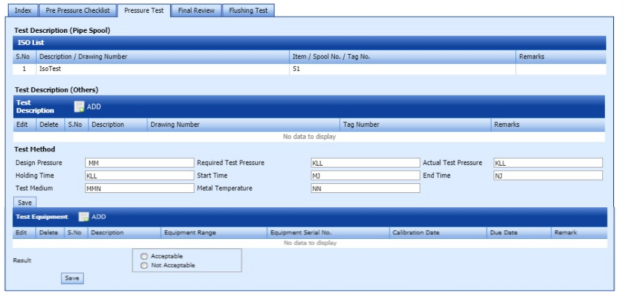
1. Click **Pressure Test** option. The **Pressure Test** window opens with the following boxes: **ISO List**, **Test Description**, and **Test Equipment**.
[](http://wiki.cuteinfocomm.com/uploads/images/gallery/2022-05/image-1651545163781.png)
2. In the **Test Description** box, click [](http://wiki.cuteinfocomm.com/uploads/images/gallery/2022-05/image-1651545180020.png) (**ADD** button).
The **Test Method** box opens.
1. 1. In the **Design Pressure** box, enter the design pressure value.
2. In the **Required Test Pressure** box, enter the required test pressure value.
3. In the **Actual Test Pressure** box, enter the actual test pressure value.
4. In the **Holding Time** box, enter the holding time range.
5. In the **Start Time** box, enter the start time of the pressure test.
6. In the **End Time** box, enter the end time of the pressure test.
7. In the **Test Medium** box, enter the test medium name.
8. In the ****Metal Temperature**** box, enter the metal temperature value.
9. Click **Save**.
3. In the ****Result**** field, select the result of the pressure test whether ****Acceptable**** or ****Not Acceptable****.
4. Click **Save**.
##### **Final Review**
If you want to view the final review of the test pack,
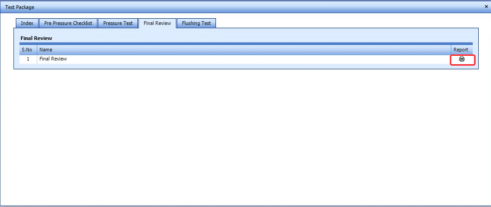
1. Click **Final Review** option. The **Final Review** window opens with the final review report.
[](http://wiki.cuteinfocomm.com/uploads/images/gallery/2022-05/image-1651545291024.png)
2. If you want to view the final review report, click [](http://wiki.cuteinfocomm.com/uploads/images/gallery/2022-05/image-1651545317403.png)(print icon).
##### **Flushing Test**
If you want to add flushing test results,
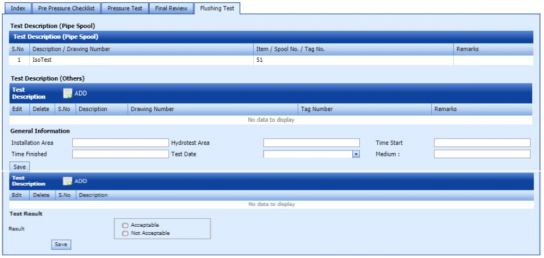
1. Click **Flushing Test** option. The **Flushing Test** window opens with the following boxes: **Test Description (Pipe Spool), Test Description**, and **Test Equipment**.
[](http://wiki.cuteinfocomm.com/uploads/images/gallery/2022-05/image-1651545380776.png)
2. In the **Test Description (Others)** box, click [](http://wiki.cuteinfocomm.com/uploads/images/gallery/2022-05/image-1651545397156.png) (**ADD** button).
The **General Information** box opens.
1. 1. In the **Installation Area** box, enter the installation area value.
2. In the **Hydrotest Area** box, enter the hydrotest area value.
3. In the **Start Time** box, enter the start time of the flushing test
4. In the **Time** **Finished** box, enter the finished time of the flushing test.
5. In the **Test Date** box, select the date of flushing test.
6. In the **Test Medium** box, enter the test medium name.
7. Click **Save.**
3. In the ****Test** **Result**** field, select the result of the pressure test whether ****Acceptable**** or ****Not Acceptable****.
4. Click **Save**.
##### **Content**
If you want to add content for the test pack,
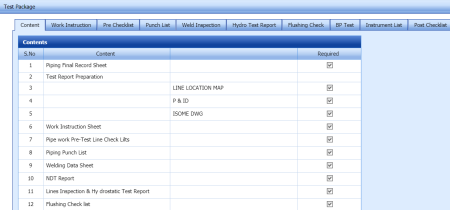
1. Click **Content** option.
The **Contents** window opens with a list of contents.
[](http://wiki.cuteinfocomm.com/uploads/images/gallery/2022-05/image-1651545498658.png)
2. Select the contents which you want to add in the Content.
##### **Work Instruction Sheet**
If you want to add the work instruction,
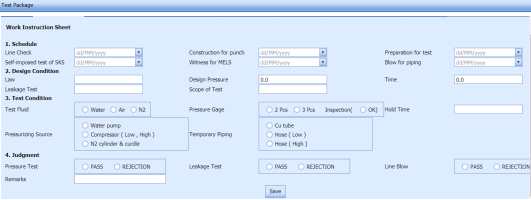
1. Click **Work Instruction Sheet** option. The **Work Instruction Sheet** window opens.
[](http://wiki.cuteinfocomm.com/uploads/images/gallery/2022-05/image-1651545539441.png)
2. In the **Schedule** field, enter the work schedule details.
3. In the **Design Condition** field, enter the design condition details.
4. In the **Test Condition** field, enter the test condition details.
5. In the **Judgement** field, enter the judgement details.
6. Click **Save**.
##### **Pre-Test Checklist**
If you want to add pre-test checklist for the test pack,
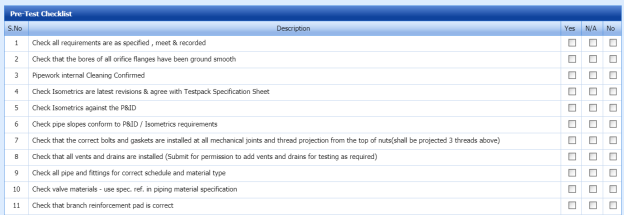
1. Click **Pre-Test Checklist** option. The **Pre-Test Checklist** window opens with a list of checklists.
[](http://wiki.cuteinfocomm.com/uploads/images/gallery/2022-05/image-1651545597768.png)
2. Select the checklists which you want to add.
1. 1. If you want to add the checklist, select the checkbox in the ****Yes**** column for the respect checklist.
2. If the checklist is not applicable, select the checkbox in the **N/A** column.
3. If you do not want to any checklist, select the checkbox in the ****No**** column for the respect checklist.
##### **Welding Inspection Record**
If you want to view the welding inspection record,
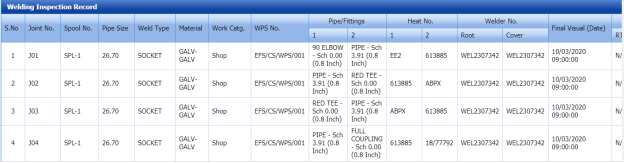
1. Click **Welding Inspection Record** option.
The **Welding Inspection Record** window shows the welding inspection record.
[](http://wiki.cuteinfocomm.com/uploads/images/gallery/2022-05/image-1651545671140.png)
##### **Hydro Test Report**
If you want to add the hydro test report,
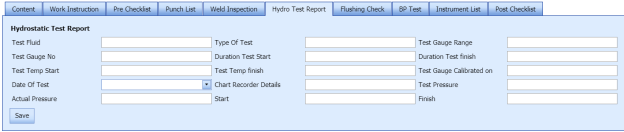
1. Click **Hydro Test Report** option. The **Hydrostatic Test Report** window shows a new window to add the hydrostatic test report details.
[](http://wiki.cuteinfocomm.com/uploads/images/gallery/2022-05/image-1651545712404.png)
2. In the **Test Fluid** box, enter the test fluid name.
3. In the **Type of Test** box, enter the test type.
4. In the **Test Gauge Range** box, enter the test gauge range.
5. In the **Test Gauge No** box, enter the test gauge number.
6. In the **Duration** **Test Start** box, enter the test starting time.
7. In the **Duration** **Test Finish** box, enter the test finishing time.
8. In the **Date of Test** box, select the test date.
9. In the **Test Pressure** box, enter the test pressure value.
10. In the **Actual Pressure** box, enter the actual pressure value.
11. Click **Save**.
##### **Flushing Check List**
If you want to add the flushing check list,
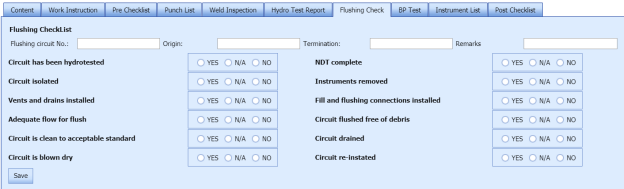
1. Click **Flushing Check List** option. The **Flushing Check List** window shows a new window to add the flushing check list details.
[](http://wiki.cuteinfocomm.com/uploads/images/gallery/2022-05/image-1651545808835.png)
2. In the **Flushing Circuit No** box, enter the flushing circuit number.
3. In the **Origin** box, enter the origin name.
4. In the **Termination** box, enter the termination detail.
5. In the **Remarks** box, enter your remarks if any.
6. Select the appropriate checklist.
7. Click **Save**.
##### **BP List**
If you want to add the BP list detail,
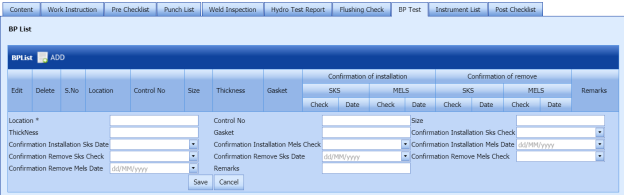
1. Click **BP List** option. The **BP List** window shows a new window to add the BP list details.
[](http://wiki.cuteinfocomm.com/uploads/images/gallery/2022-05/image-1651545873388.png)
2. Click [](http://wiki.cuteinfocomm.com/uploads/images/gallery/2022-05/image-1651545892274.png) (**ADD** button) in the **BP List** window.
3. In the **Location** box, enter the location name.
4. In the **Control No** box, enter the control number.
5. In the **Size** box, enter the size vale.
6. In the **Thickness** box, enter the thickness value.
7. In the **Gasket** box, enter the gasket detail.
8. Click **Save**.
##### **Instrument List**
If you want to add the instrument list detail,
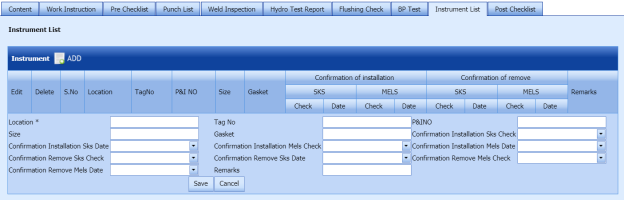
1. Click **Instrument List** option. The **Instrument List** window shows a new window to add the instrument list details.
[](http://wiki.cuteinfocomm.com/uploads/images/gallery/2022-05/image-1651545955999.png)
2. Click [](http://wiki.cuteinfocomm.com/uploads/images/gallery/2022-05/image-1651545968812.png) (**ADD** button) in the **Instrument List** window.
3. In the **Location** box, enter the location name.
4. In the **Tag No** box, enter the tag number.
5. In the **P&I No** box, enter the P&I number.
6. In the **Size** box, enter the size vale.
7. In the **Gasket** box, enter the gasket detail.
8. In the **Remarks** box, enter your remarks if any.
9. Click **Save**.
##### **Post-Test Checklist**
If you want to add post-test checklist for the test pack,
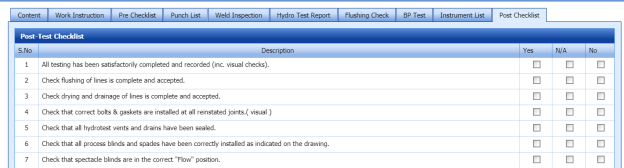
1. Click **Post-Test Checklist** option. The **Post-Test Checklist** window opens with a list of checklists.
[](http://wiki.cuteinfocomm.com/uploads/images/gallery/2022-05/image-1651546053227.png)
2. Select the checklists which you want to add.
1. 1. If you want to add the checklist, select the checkbox in the ****Yes**** column for the respect checklist.
2. If the checklist is not applicable, select the checkbox in the **N/A** column.
3. If you do not want to any checklist, select the checkbox in the ****No**** column for the respect checklist.
#### **7.2.6 Edit a Test Pack**
If you want to edit any added test pack in the **Test Pack** page,
1. Click [](http://wiki.cuteinfocomm.com/uploads/images/gallery/2022-05/image-1651546164159.png)(Edit icon) of the respective test pack. See Fig 7.2.
The **Test Pack** page shows the details of the selected test pack.
2. Edit the details where you want.
3. Click **Save**.
#### **7.2.7 Delete a Test Pack**
If you want to delete any existing test pack in the **Test Pack** page, you can use [](http://wiki.cuteinfocomm.com/uploads/images/gallery/2022-05/image-1651546226610.png) (Delete icon) provided in the **Test Pack** page. To know how to delete, see the topic, “[**Delete P&ID**](http://wiki.cuteinfocomm.com/books/cuteqm/page/project-data/#bkmrk-3.1.3%C2%A0delete-a-p%26id)”.
#### **7.2.8 View a Test Pack MDR Report**
If you want to view a test pack MDR report, click [](http://wiki.cuteinfocomm.com/uploads/images/gallery/2022-05/image-1651546273073.png)(print icon) provided in the **Assign Spool/Components** column.
#### **7.2.9 Attach a File into a Test Pack**
If you want to attach any file with any test pack listed in the **Test Pack** page, you can attach the file by using (Attach icon) in the **Attachment** column. To know how to attach, follow the procedures given in the topic “[**Attach a file into P&ID**](http://wiki.cuteinfocomm.com/books/cuteqm/page/project-data/#bkmrk-3.1.7%C2%A0attach-a-file-)”.
#### **7.2.10 Export Test Pack list**
You can export a list of test packs added in the **Test Pack** page in both the pdf and excel formats by using [](http://wiki.cuteinfocomm.com/uploads/images/gallery/2022-05/image-1651546334034.png) (**PDF** button) and [](http://wiki.cuteinfocomm.com/uploads/images/gallery/2022-05/image-1651546341921.png) (**Excel** button). To know how to export, see the topic, “**[Export P&ID list](http://wiki.cuteinfocomm.com/books/cuteqm/page/project-data/#bkmrk-3.1.4%C2%A0export-p%26id-li)**”.
#### **7.2.11 Filter a Test Pack**
If you want to filter any specific test pack in the **Test Pack** page, you can use [](http://wiki.cuteinfocomm.com/uploads/images/gallery/2022-05/image-1651546374497.png) (**FILTER** button) located on the **Test Pack** page. To know how to filter, see the topic, “**[Filter P&ID](http://wiki.cuteinfocomm.com/books/cuteqm/page/project-data/#bkmrk-3.1.5%C2%A0filter-a-p%26id)**”.
#### **7.2.12 Import Multiple Test Packs**
If you want to import multiple test packs together, do the following,
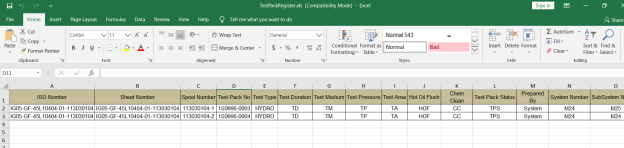
1. Click [](http://wiki.cuteinfocomm.com/uploads/images/gallery/2022-05/image-1651546418940.png) (**TEMPLATE** button). See Fig 7.2. An excel worksheet will be downloaded with a predefined template to enter the details of systems.
[](http://wiki.cuteinfocomm.com/uploads/images/gallery/2022-05/image-1651546438111.png)
2. Enter the required test pack details in the respective columns of the excel worksheet.
3. Once you have added the test pack details in the excel worksheet, save the excel worksheet on your computer.
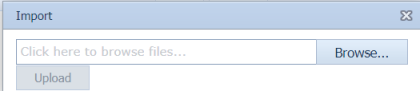
4. Click [](http://wiki.cuteinfocomm.com/uploads/images/gallery/2022-05/image-1651546461777.png) (**IMPORT** button). See Fig 7.2.
A new window opens for importing the excel worksheet saved on your computer.
[](http://wiki.cuteinfocomm.com/uploads/images/gallery/2022-05/image-1651546480404.png)
5. Click [](http://wiki.cuteinfocomm.com/uploads/images/gallery/2022-05/image-1651546491813.png) (**Browse** button) to select the excel worksheet to be uploaded.
6. Select the excel worksheet you want to upload from your computer.
7. Click [](http://wiki.cuteinfocomm.com/uploads/images/gallery/2022-05/image-1651546518022.png) (**Upload** button) to export the test pack details that are included in the excel worksheet.
The details of the test packs in the worksheet will be displayed in the **Test Pack** page.
#### **7.2.13 View a Test Pack Summary Report**
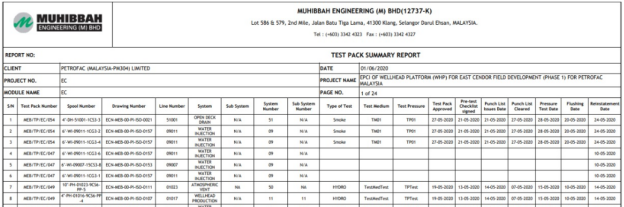
If you want to view a test pack summary report, click (**Summary Report** icon) provided in the **Test Pack** page.
[](http://wiki.cuteinfocomm.com/uploads/images/gallery/2022-05/image-1651546673870.png)
### **7.3 Test Pack Checklist**
The **Test Pack Checklist** tab in the **Test Pack** menu helps you add the checklist items for the specific test pack. To add the checklist,
1. Click **Test Pack Checklist** in the **Test Pack** menu. The **MCR Checklist** page opens.
[](http://wiki.cuteinfocomm.com/uploads/images/gallery/2022-05/image-1651546715359.png)
2. In the **Test Pack Name** box, select the test pack name from a drop-down list.
3. In the **Checklist Name** box, select a checklist from a drop-down list.
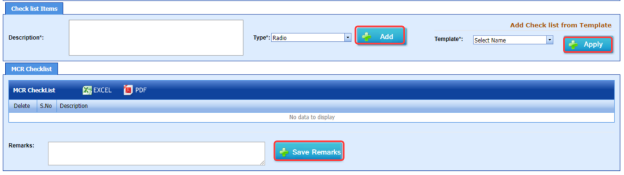
The **Checklist Items** and **MCR Checklist** windows open.
[](http://wiki.cuteinfocomm.com/uploads/images/gallery/2022-05/image-1651546760538.png)
4. In the Description box, enter the description for the checklist you want to add.
5. In the Type box, select the checklist type and click [](http://wiki.cuteinfocomm.com/uploads/images/gallery/2022-05/image-1651546780027.png).
The added checklist will be listed in the **MCR Checklist** window.
[](http://wiki.cuteinfocomm.com/uploads/images/gallery/2022-05/image-1651546802461.png)
6. If you want to add the checklists from a template, in the ****Template**** box, select the template from a drop-down list and click [](http://wiki.cuteinfocomm.com/uploads/images/gallery/2022-05/image-1651546817649.png). The checklists in the template will be listed in the **MCR Checklist** window.
7. In the **Remarks** box, enter your remarks.
8. Click [](http://wiki.cuteinfocomm.com/uploads/images/gallery/2022-05/image-1651546851304.png).
### **7.4 MCR Checklist Template**
The **MCR Checklist Template** tab in the **Test Pack** menu helps you to add MC/SC – Check Record (CR)/Check Sheet (CS) templates. To navigate to the templates adding page,
1. Click **MCR Checklist Template** in the **Test Pack** menu.
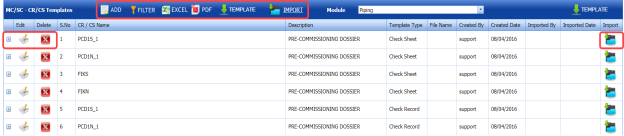
The **MC/SC – CR/CS Templates** page opens.
[](http://wiki.cuteinfocomm.com/uploads/images/gallery/2022-05/image-1651547076013.png)
**Figure 7.4: MC/SC – CR/CS Templates page**
#### **7.4.1 Add a CR/CS Template**
If you want to add a CR/CS template,
1. Click [](http://wiki.cuteinfocomm.com/uploads/images/gallery/2022-05/image-1651547133354.png) (**ADD** button) in the **MC/SC – CR/CS Templates** page. See Fig 7.4.
The page opens a new window to add the details of a test pack.
[](http://wiki.cuteinfocomm.com/uploads/images/gallery/2022-05/image-1651547150827.png)
[](http://wiki.cuteinfocomm.com/uploads/images/gallery/2022-05/image-1651547155894.png)**Note**: The field notified with a symbol (\*) is mandatory. You must enter the relevant details in that fields before saving.
2. In the ****CR/CS Name**** box, enter the name for CR/CS.
3. In the ****Template Type**** box, select a template whether CR or CS.
4. In the **Description** box, enter the description for CR/CS.
5. Click **Save**.
The template is successfully added and listed in the **MC/SC – CR/CS Templates** page. Once you have added the template details, you must import the respective template.
#### **7.4.2 Import a CR/CS Template**
If you want to import CR/CS template,
1. Click [](http://wiki.cuteinfocomm.com/uploads/images/gallery/2022-05/image-1651547260900.png)(Add icon) of the respective CR/CS name in the **MC/SC – CR/CS Templates** page. The **Check Records** window opens.
[](http://wiki.cuteinfocomm.com/uploads/images/gallery/2022-05/image-1651547236749.png)
2. Click [](http://wiki.cuteinfocomm.com/uploads/images/gallery/2022-05/image-1651547248791.png) (**ADD** button) in the **Check Records** window.
[](http://wiki.cuteinfocomm.com/uploads/images/gallery/2022-05/image-1651547276765.png)
3. In **Items** box, enter the details of items.
4. Browse and attach a CS/CR template you want to import.
5. Click **Save**.
#### **7.4.3 Edit a CR/CS Template**
If you want to edit any added CR/CS template in the **MC/SC – CR/CS Templates** page,
1. Click [](http://wiki.cuteinfocomm.com/uploads/images/gallery/2022-05/image-1651547336350.png)(Edit icon) of the respective CR/CS template. See Fig 7.4. The **MC/SC – CR/CS Templates** page shows the details of the selected CR/CS template.
2. Edit the details where you want.
3. Click **Save**.
#### **7.4.4 Delete a CR/CS Template**
If you want to delete any existing CR/CS template in the **MC/SC – CR/CS Templates** page, you can use [](http://wiki.cuteinfocomm.com/uploads/images/gallery/2022-05/image-1651547404028.png) (Delete icon) provided in the **MC/SC – CR/CS Templates** page. To know how to delete, see the topic, “[**Delete P&ID**](http://wiki.cuteinfocomm.com/books/cuteqm/page/project-data/#bkmrk-3.1.3%C2%A0delete-a-p%26id)”.
#### **7.4.5 Export CR/CS Template list**
You can export a list of CR/CS templates added in the **MC/SC – CR/CS Templates** page in both the pdf and excel formats by using [](http://wiki.cuteinfocomm.com/uploads/images/gallery/2022-05/image-1651547446615.png) (**PDF** button) and [](http://wiki.cuteinfocomm.com/uploads/images/gallery/2022-05/image-1651547455236.png) (**Excel** button). To know how to export, see the topic, “**[Export P&ID list](http://wiki.cuteinfocomm.com/books/cuteqm/page/project-data/#bkmrk-3.1.4%C2%A0export-p%26id-li)**”.
#### **7.4.6 Filter a CR/CS Template**
If you want to filter any specific CR/CS template in the **MC/SC – CR/CS Templates page, you can use [](http://wiki.cuteinfocomm.com/uploads/images/gallery/2022-05/image-1651547488133.png) (**FILTER** button) located on the **Test Pack** page. To know how to filter, see the topic, “[**Filter P&ID**](http://wiki.cuteinfocomm.com/books/cuteqm/page/project-data/#bkmrk-3.1.5%C2%A0filter-a-p%26id)”.
#### **7.4.7 Import Multiple CR/CS Templates**
If you want to import multiple CR/CS templates together, do the following,
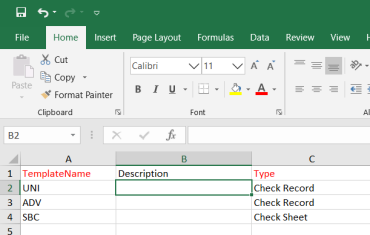
1. Click [](http://wiki.cuteinfocomm.com/uploads/images/gallery/2022-05/image-1651547526814.png) (**TEMPLATE** button). See Fig 7.4. An excel worksheet will be downloaded with a predefined template to enter the details of CR/CS templates.
[](http://wiki.cuteinfocomm.com/uploads/images/gallery/2022-05/image-1651547550384.png)
2. Enter the required CR/CS template details in the respective columns of the excel worksheet.
3. Once you have added the CR/CS template details in the excel worksheet, save the excel worksheet on your computer.
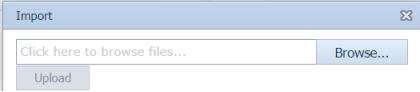
4. Click [](http://wiki.cuteinfocomm.com/uploads/images/gallery/2022-05/image-1651547573724.png) (****IMPORT**** button). See Fig 7.4. A new window opens for importing the excel worksheet saved on your computer.
[](http://wiki.cuteinfocomm.com/uploads/images/gallery/2022-05/image-1651547597892.png)
5. Click [](http://wiki.cuteinfocomm.com/uploads/images/gallery/2022-05/image-1651547607462.png) (**Browse** button) to select the excel worksheet to be uploaded.
6. Select the excel worksheet you want to upload from your computer.
7. Click [](http://wiki.cuteinfocomm.com/uploads/images/gallery/2022-05/image-1651547629419.png) (**Upload** button) to export the CR/CS template details that are included in the excel worksheet.
The details of the CR/CS templates in the worksheet will be displayed in the **MC/SC – CR/CS Templates page.
### **7.5 Test Pack Contents**
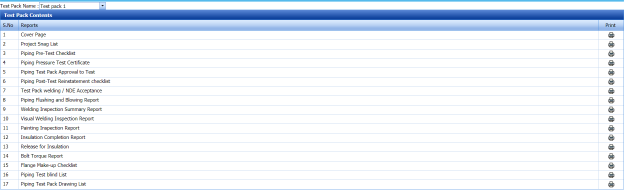
The Test Pack Contents page used to view a list of reports of the documents included in the Test Pack. To view the test pack content’s report,
1. Click **Test Pack Contents** in the **Test Pack** menu. The **Test Pack Contents** page opens.
[](http://wiki.cuteinfocomm.com/uploads/images/gallery/2022-05/image-1651547737967.png)
**Figure 7.5: Test Pack Contents page**
2. In the **Test Pack Name** box, select a test pack from a drop-down list.
The **Test Pack Contents** page shows a list of reports in the selected test pack.
[](http://wiki.cuteinfocomm.com/uploads/images/gallery/2022-05/image-1651547775494.png)**Note**: If you want to view any specific report, click the respective (Print icon) in the **Print** column.
### **7.6 Joints Not in Any Test Pack Report**
The **Joints Not in Any Test Pack Report** tab in the **Test Pack** menu shows a list of joints not added in any test pack report. To view of the details of joints,
1. Click **Joints Not in Any Test Pack Report** in the **Test Pack** menu.
2. The **Joints Not in Any Test Pack Report** page opens with a list of joints, which are not added in any test pack report.
[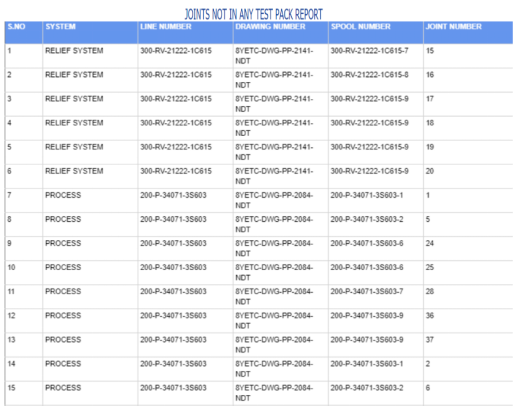](http://wiki.cuteinfocomm.com/uploads/images/gallery/2022-05/image-1651547956061.png)
### **7.7 Overall Status**
The **Overall Status** tab in the **Test Pack** menu helps you to view the overall status of NDT inspection, welding progress and piping. To view the overall status,
1. Click **Overall Status** in the **Test Pack** menu.
The page shows the overall status.
[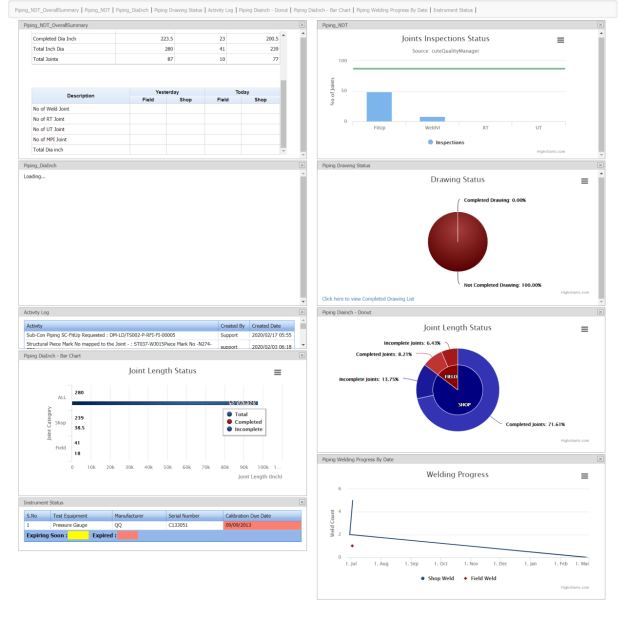](http://wiki.cuteinfocomm.com/uploads/images/gallery/2022-05/image-1651548098092.png)
### **7.8 Acid Pickling Certificate**
Pickling is a metal surface treatment used to remove impurities such as stains, inorganic contaminants, rust or scale from ferrous metals, copper, precious metals and aluminum alloys. A solution called pickle liquor, which usually contains acid, is used to remove the surface impurities.
The **Acid Pickling Certificate** tab in the **Test Pack** menu used to add the acid pickling certificate. To add the acid pickling certificate, do the following steps,
1. Click **Acid Pickling Certificate** in the **Test Pack** menu. The **View Acid Pickling Certificate** page opens.
[](http://wiki.cuteinfocomm.com/uploads/images/gallery/2022-05/image-1651548179437.png)
**Figure 7.8: View Acid Pickling Certificate page**
#### **7.8.1 Add an Acid Pickling Certificate**
If you want to add an acid pickling certificate, do the following steps,
1. Click [](http://wiki.cuteinfocomm.com/uploads/images/gallery/2022-05/image-1651548328208.png)(****ADD**** button) in the ****View Acid Pickling Certificate**** page. The **ACID PICKLING** page opens.
[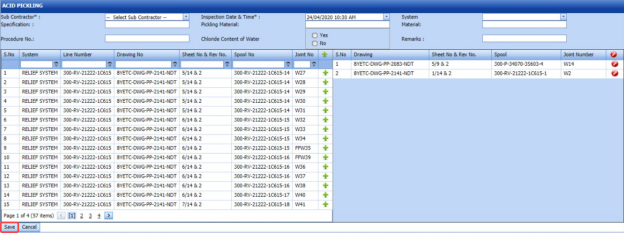](http://wiki.cuteinfocomm.com/uploads/images/gallery/2022-05/image-1651548352396.png)
2. In the **Sub Contractor** box, select a sub-contractor from a drop-down list.
3. In the **Inspection Date & Time** box, select the inspection date and time.
4. In the **Specification** box, enter the specification.
5. In the **Pickling Material** box, enter the name of the pickling material.
6. In the **System Material** box, select the system material.
7. In the **Procedure No** box, enter the procedure number.
8. If you use the chloride content of water for the acid pickling testing, select ****Yes**** in the ****Chloride Content of Water**** option otherwise select ****No****.
9. In the **Remarks** box, enter your remarks if any.
Before saving the added acid pickling certificate, you must add joints for the acid pickling certificate.
[](http://wiki.cuteinfocomm.com/uploads/images/gallery/2022-05/image-1651548413696.png)**Note**: You can add multiple joints for one acid pickling certificate.
The **ACID PICKLING** page shows a list of joints for the corresponding line and drawing numbers including the spool number. If you want to add joints for the acid pickling certificate, do the following steps,
[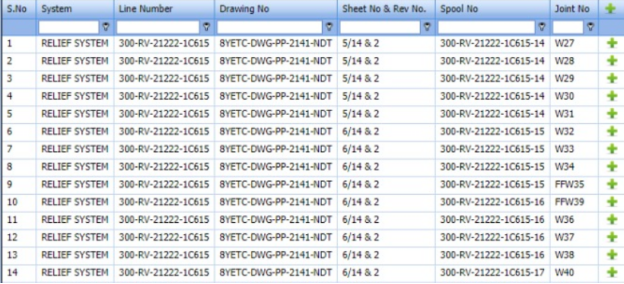](http://wiki.cuteinfocomm.com/uploads/images/gallery/2022-05/image-1651548452133.png)
10. Click [](http://wiki.cuteinfocomm.com/uploads/images/gallery/2022-05/image-1651548467961.png)(Add icon) of the respective joints you want to add. The added joints will be moved and listed in the right side of the page.
[](http://wiki.cuteinfocomm.com/uploads/images/gallery/2022-05/image-1651548483224.png)
11. Click **Save**.
The acid pickling certificate will be added and listed in the **View Acid Pickling Certificate** page.
#### **7.8.2 Edit an Acid Pickling Certificate**
If you want to edit any existing acid pickling certificate added in the **View Acid Picking Certificate page, do the following steps,
1. Click [](http://wiki.cuteinfocomm.com/uploads/images/gallery/2022-05/image-1651548538681.png)(Edit icon) in the ****Edit**** column for the respective acid pickling certificate. See Fig 10.8. The **ACID PICKLING** page opens with the details of the selected acid pickling certificate.
2. Click any box where you want to edit the details, and then edit the details in the respective box.
3. Click **Save**.
#### **7.8.3 Approve an Acid Pickling Certificate**
Once you have added the acid pickling certificate, the **Request Status** column in the **View Acid Pickling Certificate** page is appeared with[](http://wiki.cuteinfocomm.com/uploads/images/gallery/2022-05/image-1651548648350.png)(Approve and Reject icons).
1. If you want to approve the acid pickling certificate, click [](http://wiki.cuteinfocomm.com/uploads/images/gallery/2022-05/image-1651548669700.png)(Approve icon) in the **Request Status** column. Otherwise click [](http://wiki.cuteinfocomm.com/uploads/images/gallery/2022-05/image-1651548679681.png) (Reject icon) to reject the certificate.
#### **7.8.4 Add RFI Data for an Acid Pickling Certificate**
If you want to add the details of RFI data for the added acid pickling certificate, do the following steps,
1. Click [](http://wiki.cuteinfocomm.com/uploads/images/gallery/2022-05/image-1651548731406.png)(Edit icon) in the **RFI Data** column of the **View Acid Pickling Certificate** See Fig 7.8. The **RFI Inspection Request List** window opens.
[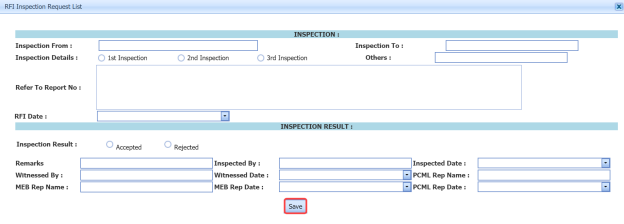](http://wiki.cuteinfocomm.com/uploads/images/gallery/2022-05/image-1651548765056.png)
2. In the **Inspection From** box, enter the detail from where the inspection should start.
3. In the **Inspection To** box, enter the detail to where the inspection should end.
4. In the ****Inspection Details**** option, select 1stInspection, 2nd Inspection or 3rd Inspection according to the inspection details.
5. In the **Others** box, enter any other inspection related details.
6. In the **Refer to Report No** box, enter the report number for reference.
7. In the **RFI Date** box, choose the RFI date.
8. In the ****Inspection Result**** option, if the inspection result is accepted, select ****Accepted**** otherwise select ****Rejected****.
9. In the ****Remarks**** box, enter your remarks if any.
10. In the **Inspected by** box, enter the name of a person who has done inspection.
11. In the **Inspected Date** box, choose the date of inspection.
12. In the **Witnessed By** box, enter the name of the witnessed person.
13. In the **Witnessed Date** box, choose the date of witnessed.
14. In the **PCML Rep Name** box, enter the representative name of PCML.
15. In the **PCML Rep Date** box, choose the PCML rep date.
16. In the **MEB Rep Name** box, enter the representative name of MEB.
17. In the **MEB Rep Date box**, choose MEB rep date.
18. Click **Save**.
The RFI data for the acid pickling certificate is added successfully.
#### **7.8.5 View an RFI Report for Acid Pickling Certificate**
If you want to view an RFI report for the acid pickling certificate, click [](http://wiki.cuteinfocomm.com/uploads/images/gallery/2022-05/image-1651549018650.png) (print icon) provided in the **RFI Report** column of the **View Acid Pickling Certificate** page. See Fig 7.8.
#### **7.8.6 View an Acid Pickling Report**
If you want to view the acid pickling report, click [](http://wiki.cuteinfocomm.com/uploads/images/gallery/2022-05/image-1651549124084.png)(print icon) provided in the **Print** column of the **View Acid Pickling Certificate** page. See Fig 7.8.
#### **7.8.7 Add Result for Acid Pickling Test**
After completing the acid pickling test for the added request, you can add the result details. To add results, do the following steps,
1. Click [](http://wiki.cuteinfocomm.com/uploads/images/gallery/2022-05/image-1651549219239.png)(Edit icon) in the **RFI Data** column of the ****View Acid Pickling Certificate**** page. The Result window opens a list of systems added for the particular request.
[](http://wiki.cuteinfocomm.com/uploads/images/gallery/2022-05/image-1651549260463.png)
2. In the **Result** column, select the result of each system from the given result options in the drop-down list.
3. In the **Remarks** column, enter your remarks if any.
4. Click **Save**.
#### **7.8.8 Attach a File into an Acid Pickling Certificate**
If you want to attach a file with any acid pickling certificate listed in the **View** **Acid Pickling Certificate** page, you can attach the file by using [](http://wiki.cuteinfocomm.com/uploads/images/gallery/2022-05/image-1651549318288.png)(Attach icon) in the **Attachment** column. To know how to attach, follow the procedures given in the topic “[**Attach a file into P&ID**](http://wiki.cuteinfocomm.com/books/cuteqm/page/project-data/#bkmrk-3.1.7%C2%A0attach-a-file-)”.
#### **7.8.9 Export Acid Pickling Certificate List**
You can export a list of acid pickling certificates added in the **View Acid Pickling Certificate** page in both the pdf and excel formats by using [](http://wiki.cuteinfocomm.com/uploads/images/gallery/2022-05/image-1651549363620.png) (**PDF** button) and [](http://wiki.cuteinfocomm.com/uploads/images/gallery/2022-05/image-1651549372379.png) (**Excel** button). To know how to export, see the topic, “[**Export P&ID list**](http://wiki.cuteinfocomm.com/books/cuteqm/page/project-data/#bkmrk-3.1.4%C2%A0export-p%26id-li)”.
#### **7.8.10 Filter an Acid Pickling Certificate**
If you want to filter any specific acid pickling certificate in the **View Acid Pickling Certificate** page, you can use [](http://wiki.cuteinfocomm.com/uploads/images/gallery/2022-05/image-1651549409415.png)(**FILTER** button) located on the **View Acid Pickling Certificate** page. To know how to filter, see the topic, “[**Filter P&ID**](http://wiki.cuteinfocomm.com/books/cuteqm/page/project-data/#bkmrk-3.1.5%C2%A0filter-a-p%26id)”.
### **7.9 Valve Leak Test Record**
All valves are inspected and tested by the inspectors to ensure that they conform to the required valve leakage standards. Valve leakage is tested using either a hydrostatic test that is the test medium is a liquid, such as water or kerosene, or a pneumatic test that is the test medium is a gas, such as air or nitrogen.
The **Valve Leak Test Record** tab in the **Test Pack** menu used to add the valve leak test report. To add the valve leak test report, do the following steps,
1. Click **Valve Leak Test Record** in the **Test Pack** menu. The **Valve Leak Test** page opens.
[](http://wiki.cuteinfocomm.com/uploads/images/gallery/2022-05/image-1651549479725.png)
**Figure 7.9: Valve Leak Test page**
#### **7.9.1 Add a Valve Leak Test Report**
If you want to add a valve leak test report, do the following steps,
1. Click [](http://wiki.cuteinfocomm.com/uploads/images/gallery/2022-05/image-1651549542580.png) (**ADD** button) in the **Valve Leak Test** page. A new window opens to add the details of the valve leak test report.
[](http://wiki.cuteinfocomm.com/uploads/images/gallery/2022-05/image-1651549562477.png)
[](http://wiki.cuteinfocomm.com/uploads/images/gallery/2022-05/image-1651549570417.png)**Note**: The fields notified with a symbol (\*) are mandatory. You must enter the relevant details in that fields before saving.
[](http://wiki.cuteinfocomm.com/uploads/images/gallery/2022-05/image-1651549585308.png)**Tip**: A report number for a new valve leak test report will be updated automatically in the **Report Number** box. If you want change the report number, you can change.
2. In the **Test Pack** box, select a test pack from a drop-down list.
3. In the **Specification** box, enter the specification.
4. In the ****Prepared By**** box, enter the name a person who has prepared the valve leak test report.
5. In the ****Prepared Date**** box, enter the prepared date of the valve leak test report.
6. In the ****Reviewed By**** box, enter the name a person who has reviewed the valve leak test report.
7. In the ****Reviewed Date**** box, enter the reviewed date of the valve leak test report.
8. In the **Approved By** box, enter the name a person who has approved the valve leak test report.
9. In the ****Approved Date**** box, enter the approved date of the valve leak test report.
10. Click **Save**.
The valve leak test report will be added and listed in the **Valve Leak Test** page.
#### **7.9.2 Edit a Valve Leak Test Report**
If you want to edit any existing valve leak test report added in the **Valve Leak Test page, do the following steps,
1. Click[ ](http://wiki.cuteinfocomm.com/uploads/images/gallery/2022-05/image-1651549840941.png) (Edit icon) in the **Edit** column for the respective valve leak test report. See Fig 7.9. The **Valve Leak Test page opens with the details of the selected valve leak test report.
2. Click any box where you want to edit the details, and then edit the details in the respective box.
3. Click **Save**.
#### **7.9.3 Add Result for Valve Leak Test**
After completing the valve leak test, you can add the test result details. To add results, do the following steps,
1. Click [](http://wiki.cuteinfocomm.com/uploads/images/gallery/2022-05/image-1651549929056.png)(Edit icon) in the **Edit Report** column of the **Valve Leak Test** page. The Result window opens.
[](http://wiki.cuteinfocomm.com/uploads/images/gallery/2022-05/image-1651549960391.png)
2. Click (**Add** button).
[](http://wiki.cuteinfocomm.com/uploads/images/gallery/2022-05/image-1651549984582.png)
3. In the **Valve Type** box, enter the type of the valve.
4. In the **Location** box, enter the location of the valve.
5. In the **Size** box, enter the size of the valve.
6. In the **Rating** box, enter the rating of the valve.
7. In the **Tag Number** box, enter the tag number of the valve.
8. In the **Serial No** box, enter the serial number of the valve.
9. In the **Body Test (Hydro)** box, enter the detail of hydrostatic valve body test.
10. In the **Seat Test (Hydro)** box, enter the detail of the hydrostatic valve seat test.
11. In the **Body Test (Pneumatic)** box, enter the detail of pneumatic valve body test.
12. In the **Seat Test (Pneumatic)** box, enter the detail of the pneumatic valve seat test.
13. In the **Results** box, select the results whether Accepted or Rejected.
14. In the **Remarks** box, enter your remarks if any.
15. Click **Save**.
#### **7.9.4 View a Valve Leak Test Report**
If you want to view the valve leak test report, click [](http://wiki.cuteinfocomm.com/uploads/images/gallery/2022-05/image-1651550133251.png)(print icon) provided in the **Report** column of the **Valve Leak Test** page. See Fig 7.9.
#### **7.9.5 Attach a File into a Valve Leak Test Report**
If you want to attach a file with any valve leak test report listed in the **Valve Leak Test page, you can attach the file by using [](http://wiki.cuteinfocomm.com/uploads/images/gallery/2022-05/image-1651550176289.png)(Attach icon) in the **Attachment** column. To know how to attach, follow the procedures given in the topic “[**Attach a file into P&ID**](http://wiki.cuteinfocomm.com/books/cuteqm/page/project-data/#bkmrk-3.1.7%C2%A0attach-a-file-)”.
#### **7.9.6 Export Valve Leak Test Report List**
You can export a list of valve leak test reports added in the **Valve Leak Test** page in both the pdf and excel formats by using [](http://wiki.cuteinfocomm.com/uploads/images/gallery/2022-05/image-1651550247104.png) (**PDF** button) and [](http://wiki.cuteinfocomm.com/uploads/images/gallery/2022-05/image-1651550270439.png) (**Excel** button). To know how to export, see the topic, “**[Export P&ID list](http://wiki.cuteinfocomm.com/books/cuteqm/page/project-data/#bkmrk-3.1.4%C2%A0export-p%26id-li)**”.
### **7.10 ITR Register (Generic)**
The **ITR Register (Generic)** tab in the **Test Pack** menu used to add the ITR register.
1. Click **ITR Register (Generic)** in the **Test Pack** menu.
The **ITR Register (Generic)** page opens.
[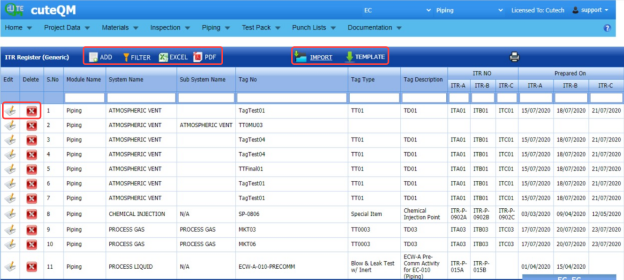](http://wiki.cuteinfocomm.com/uploads/images/gallery/2022-05/image-1651550315668.png)
**Figure 10.10: ITR Register (Generic) page**
#### **7.10.1 Add an ITR Register**
If you want to add an ITR Register,
1. Click (**Add** button) in the **ITR Register (Generic)** page. The **ITR Register (Generic)** page opens a new window to add the details of the ITR register.
[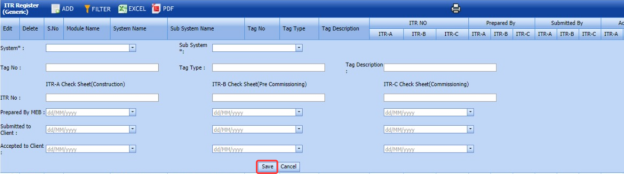](http://wiki.cuteinfocomm.com/uploads/images/gallery/2022-05/image-1651550387415.png)
2. In the **System** box, enter the system name.
3. In the **Sub System** box, enter the subsystem name.
4. In the **Tag No** box, enter the tag number.
5. In the **Tag Type** box, enter the tag type.
6. In the **Tag Description** box, enter the tag description.
The page shows three options such as **ITR-A Check Sheet (Construction)**, **ITR-B Check Sheet (Pre-Commissioning), ITR-C Check Sheet (Commissioning).**
You must add the following details for each option individually.
7. In the **ITR No** box, enter the ITR number for each option.
8. In the **Prepared by MEB** box, select the prepared date of ITR register for each option.
9. In the **Submitted to Client** box, select the submitted date of ITR register for each option.
10. In the **Accepted to Client** box, select the accepted date of ITR register for each option.
11. Click **Save**.
The ITR register will be saved and listed in the **ITR Register (Generic)** page.
#### **7.10.2 Edit an ITR Register**
If you want to edit any existing ITR register in the **ITR Register (Generic)** page, do the following steps,
1. Click [](http://wiki.cuteinfocomm.com/uploads/images/gallery/2022-05/image-1651550519244.png)(Edit icon) in the **Edit** column for the respective ITR register. See Fig 7.10. The **ITR Register (Generic) page shows the details of the added ITR register.
2. Click any box where you want to edit the details, and then edit the details in the respective box.
3. Click **Save**.
#### **7.10.3 Delete an ITR Register**
If you want to delete any ITR register in the **ITR Register (Generic) page, you can use [](http://wiki.cuteinfocomm.com/uploads/images/gallery/2022-05/image-1651550576420.png) (Delete icon) provided in the **ITR Register (Generic) page. To know how to delete, see the topic, “**[Delete P&ID](http://wiki.cuteinfocomm.com/books/cuteqm/page/project-data/#bkmrk-3.1.3%C2%A0delete-a-p%26id)**”.
#### **7.10.4 View an ITR Register Report**
If you want to view the ITR register report, click [](http://wiki.cuteinfocomm.com/uploads/images/gallery/2022-05/image-1651550619124.png)(print icon) provided in the upper side of the **ITR Register (Generic) page. See Fig 7.10.
#### **7.10.5 Filter an ITR Register**
If you want to filter any ITR register in the **ITR Register (Generic) page, you can use [](http://wiki.cuteinfocomm.com/uploads/images/gallery/2022-05/image-1651550692090.png) (**FILTER** button) located on the **ITR Register (Generic) page. To know how to filter, see the topic, “[**Filter P&ID**](http://wiki.cuteinfocomm.com/books/cuteqm/page/project-data/#bkmrk-3.1.5%C2%A0filter-a-p%26id)”.
#### **7.10.6 Export an ITR Register**
You can export the ITR Register in the **ITR Register (Generic) page in both the pdf and excel formats by using [](http://wiki.cuteinfocomm.com/uploads/images/gallery/2022-05/image-1651550727042.png)(**PDF** button) and [](http://wiki.cuteinfocomm.com/uploads/images/gallery/2022-05/image-1651550741307.png) (**Excel** button). To know how to export, see the topic, “[**Export P&ID list**](http://wiki.cuteinfocomm.com/books/cuteqm/page/project-data/#bkmrk-3.1.4%C2%A0export-p%26id-li)”.
#### **7.10.7 Import Multiple ITR Register**
If you want to import multiple ITR register together, do the following,
1. Click [](http://wiki.cuteinfocomm.com/uploads/images/gallery/2022-05/image-1651550797950.png) (**TEMPLATE** button). See Fig 7.10. An excel worksheet will be downloaded with a predefined template to enter the details of ITR register.
[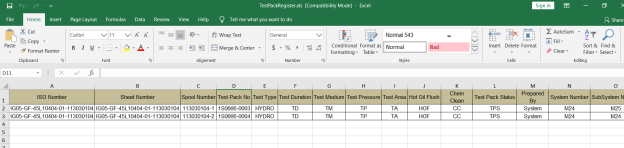](http://wiki.cuteinfocomm.com/uploads/images/gallery/2022-05/image-1651550816720.png)
2. Enter the required ITR register details in the respective columns of the excel worksheet.
3. Once you have added the ITR register details in the excel worksheet, save the excel worksheet on your computer.
4. Click [](http://wiki.cuteinfocomm.com/uploads/images/gallery/2022-05/image-1651550846438.png) (**IMPORT** button). See Fig 7.10.
A new window opens for importing the excel worksheet saved on your computer.
[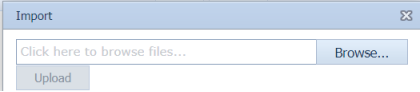](http://wiki.cuteinfocomm.com/uploads/images/gallery/2022-05/image-1651550862919.png)
5. Click [](http://wiki.cuteinfocomm.com/uploads/images/gallery/2022-05/image-1651550880711.png) (**Browse** button) to select the excel worksheet to be uploaded.
6. Select the excel worksheet you want to upload from your computer.
7. Click [](http://wiki.cuteinfocomm.com/uploads/images/gallery/2022-05/image-1651550902330.png) (**Upload** button) to export the ITR register details that are included in the excel worksheet.
The details of the ITR register in the worksheet will be displayed in the **ITR Register (Generic)** page.
### **7.10 ITR Register Summary**
The **ITR Register Summary** tab in the **Test Pack** menu helps you to view the ITR register summary report. To view the report,
1. Click **ITR Register Summary** in the **Test Pack** menu. The **ITR Register (Generic) Summary** **Report** page opens.
[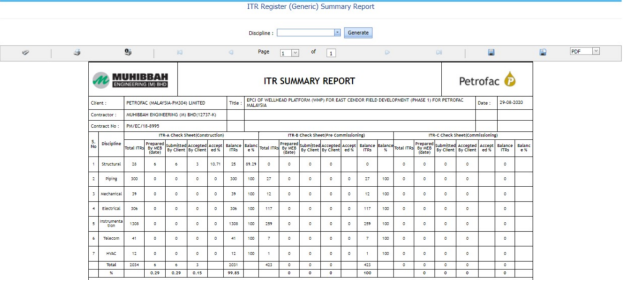](http://wiki.cuteinfocomm.com/uploads/images/gallery/2022-05/image-1651550965151.png)
**Figure 10.11: ITR Register (Generic) Summary** **Report** **page**
#### **7.11.1 Print an ITR Register Summary Report**
If you want to print an ITR register summary report, use [](http://wiki.cuteinfocomm.com/uploads/images/gallery/2022-05/image-1651551026048.png) and [](http://wiki.cuteinfocomm.com/uploads/images/gallery/2022-05/image-1651551033551.png) (print icons) provided in the **ITR Register (Generic) Summary** **Report** page.
1. If you want to print the current page of the ITR register summary report, click [](http://wiki.cuteinfocomm.com/uploads/images/gallery/2022-05/image-1651551072179.png) (print icon including the page number).
2. If you want to print all the pages of the ITR register summary report, click[](http://wiki.cuteinfocomm.com/uploads/images/gallery/2022-05/image-1651551098549.png)(print icon).
#### **7.11.2 View an ITR Register Summary Report**
You can view the ITR register summary report in various formats by using the option [](http://wiki.cuteinfocomm.com/uploads/images/gallery/2022-05/image-1651551137488.png) provided in the upper right corner of the **ITR Register (Generic) Summary** **Report** page.
### **7.12 Management of Change**
Management of change (MOC) is a systematic approach to organizational changes with the aim of ensuring the continued safety of the workforce throughout the process. These systematic processes ensure that the change is dealt with in a proactive fashion.
The **Management of Change** tab in the **Test Pack** menu used to add the details of the management of change.
1. Click **Management of Change** in the **Test Pack** menu. The **Management of Change** page opens.
[](http://wiki.cuteinfocomm.com/uploads/images/gallery/2022-05/image-1651551223562.png)
**Figure 7.12: Management of Change page**
#### **7.12.1 Add the Details of Management of Change**
If you want to add the details of the management of change, do the following steps,
1. Click [](http://wiki.cuteinfocomm.com/uploads/images/gallery/2022-05/image-1651551284151.png) (**Add** button) in the **Management of Change** page. The page shows a new window to add the details of the management of change.
[](http://wiki.cuteinfocomm.com/uploads/images/gallery/2022-05/image-1651551301517.png)
2. In the **MOC Number** box, enter the management of change number.
3. In the **Description** box, enter the description for the management of change.
4. In the **Status** box, enter the status of the management of change.
5. In the **Cleared by** box, enter the name of a person who has cleared the management of change.
6. In the **Cleared Date** box, select the cleared date of the management of change.
7. In the **Status Date** box, select the status date of the management of change.
8. In the **Document File Name** box, enter the document file name.
9. Click **Save**.
The management of change is added and listed in the **Management of Change** page.
#### **7.12.2 Edit a Management of Change**
If you want to edit any existing management of change in the **Management of Change** page, do the following steps,
1. Click [](http://wiki.cuteinfocomm.com/uploads/images/gallery/2022-05/image-1651551388920.png)(Edit icon) in the ****Edit**** column for the respective management of change. See Fig 7.12. The page opens with the details of the selected management of change.
2. Click any box where you want to edit the details, and then edit the details in the respective box.
3. Click **Save**.
#### **7.12.3 Attach a File into a Management of Change**
If you want to attach a file with any existing management of change listed in the **Management of Change** page, you can attach the file by using [](http://wiki.cuteinfocomm.com/uploads/images/gallery/2022-05/image-1651551485978.png) (Attach icon) in the **Attachment** column. To know how to attach, follow the procedures given in the topic “[**Attach a file into P&ID**](http://wiki.cuteinfocomm.com/books/cuteqm/page/project-data/#bkmrk-3.1.7%C2%A0attach-a-file-)”.
#### **7.12.4 Export Management of Change List**
You can export a list of management of change added in the **Management of Change** page in both the pdf and excel formats by using [](http://wiki.cuteinfocomm.com/uploads/images/gallery/2022-05/image-1651551518634.png) (**PDF** button) and [](http://wiki.cuteinfocomm.com/uploads/images/gallery/2022-05/image-1651551526050.png) (**Excel** button). To know how to export, see the topic, “[**Export P&ID list**](http://wiki.cuteinfocomm.com/books/cuteqm/page/project-data/#bkmrk-3.1.4%C2%A0export-p%26id-li)”.
#### **7.12.5 Filter a Management of Change**
If you want to filter any specific management of change in the **Management of Change** page, you can use [](http://wiki.cuteinfocomm.com/uploads/images/gallery/2022-05/image-1651551560189.png) (**FILTER** button) located on the **Management of Change** page. To know how to filter, see the topic, “**[Filter P&ID](http://wiki.cuteinfocomm.com/books/cuteqm/page/project-data/#bkmrk-3.1.5%C2%A0filter-a-p%26id)**”.
#### **7.12.6 Import Multiple Management of Change**
If you want to import multiple management of change together, do the following,
1. Click [](http://wiki.cuteinfocomm.com/uploads/images/gallery/2022-05/image-1651551613579.png) (**TEMPLATE** button). See Fig 7.12.
An excel worksheet will be downloaded with a predefined template to enter the details of management of change.
2. Enter the required management of change details in the respective columns of the excel worksheet.
3. Once you have added the management of change details in the excel worksheet, save the excel worksheet on your computer.
4. Click [](http://wiki.cuteinfocomm.com/uploads/images/gallery/2022-05/image-1651551662245.png) (**IMPORT** button). See Fig 7.12.
A new window opens for importing the excel worksheet saved on your computer.
[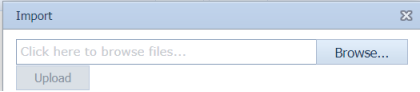](http://wiki.cuteinfocomm.com/uploads/images/gallery/2022-05/image-1651551683931.png)
5. Click [](http://wiki.cuteinfocomm.com/uploads/images/gallery/2022-05/image-1651551703407.png) (****Browse**** button) to select the excel worksheet to be uploaded.
6. Select the excel worksheet you want to upload from your computer.
7. Click [](http://wiki.cuteinfocomm.com/uploads/images/gallery/2022-05/image-1651551732734.png) (****Upload**** button) to export the management of change that are included in the excel worksheet.
The details of the management of change in the worksheet will be displayed in the **Management of Change** page.
### **7.13 Technical Queries**
Technical queries are used by companies and their contractors to ask each other questions or to gather more information.
The **Technical Queries** tab in the **Test Pack** menu used to add the details of the technical query.
1. Click **Technical Queries** in the **Test Pack** menu. The **Technical Queries** page opens.
[](http://wiki.cuteinfocomm.com/uploads/images/gallery/2022-05/image-1651551864443.png)
**Figure 7.13: Technical Queries page**
#### **7.13.1 Add the Details of Technical Query**
If you want to add the details of the technical query, do the following steps,
1. Click [](http://wiki.cuteinfocomm.com/uploads/images/gallery/2022-05/image-1651551919764.png) (**Add** button) in the **Technical Queries page.
The page shows a new window to add the details of the technical query.
[](http://wiki.cuteinfocomm.com/uploads/images/gallery/2022-05/image-1651551960175.png)
2. In the **Document Number** box, enter the document number.
3. In the **Tag Number** box, enter the tag number.
4. In the **System** box, select a system.
5. In the **Unit** box, enter the name of a unit.
6. In the **Area** box, enter the name of an area.
7. In the **Department** box, enter the department name.
8. In the **Priority** box, enter the priority detail.
9. In the **Description** box, enter the description of the technical query.
10. In the **Document File Name** box, enter the document file name.
11. In the **Drawing** box, enter the drawing number.
12. In the **Issued on** box, enter the issued date of technical query.
13. In the **Status** box, enter the status of the technical query.
14. Click **Save**.
The technical query is added and listed in the **Technical Queries** page.
#### **7.13.2 Edit a Technical Query**
If you want to edit any existing technical query in the **Technical Queries** page, do the following steps,
1. Click [](http://wiki.cuteinfocomm.com/uploads/images/gallery/2022-05/image-1651552143603.png)(Edit icon) in the **Edit** column for the respective technical query. See Fig 7.13. The page opens with the details of the selected technical query.
2. Click any box where you want to edit the details, and then edit the details in the respective box.
3. Click **Save**.
#### **7.13.3 Attach a File into a Technical Query**
If you want to attach a file with any existing technical query listed in the **Technical Queries** page, you can attach the file by using [](http://wiki.cuteinfocomm.com/uploads/images/gallery/2022-05/image-1651554236401.png) (Attach icon) in the **Attachment** column. To know how to attach, follow the procedures given in the topic “[**Attach a file into P&ID**](http://wiki.cuteinfocomm.com/books/cuteqm/page/project-data/#bkmrk-3.1.7%C2%A0attach-a-file-)”.
#### **7.13.4 Export Technical Queries List**
You can export a list of technical queries added in the **Technical Queries** page in both the pdf and excel formats by using [](http://wiki.cuteinfocomm.com/uploads/images/gallery/2022-05/image-1651554517256.png) (**PDF** button) and [](http://wiki.cuteinfocomm.com/uploads/images/gallery/2022-05/image-1651554533305.png) (**Excel** button). To know how to export, see the topic, “[**Export P&ID list**](http://wiki.cuteinfocomm.com/books/cuteqm/page/project-data/#bkmrk-3.1.4%C2%A0export-p%26id-li)”.
#### **7.13.5 Filter a Technical Query**
If you want to filter any specific technical query in the **Technical Queries** page, you can use [](http://wiki.cuteinfocomm.com/uploads/images/gallery/2022-05/image-1651554696852.png) (**FILTER** button) located on the **Technical Queries** page. To know how to filter, see the topic, “**[Filter P&ID](http://wiki.cuteinfocomm.com/books/cuteqm/page/project-data/#bkmrk-3.1.5%C2%A0filter-a-p%26id)**”.
#### **7.13.6 Import Multiple Technical Queries**
If you want to import multiple technical queries together, do the following,
1. Click [](http://wiki.cuteinfocomm.com/uploads/images/gallery/2022-05/image-1651554880246.png) (**TEMPLATE** button). See Fig 7.13. An excel worksheet will be downloaded with a predefined template to enter the details of technical query.
2. Enter the required technical query details in the respective columns of the excel worksheet.
3. Once you have added the technical query details in the excel worksheet, save the excel worksheet on your computer.
4. Click [](http://wiki.cuteinfocomm.com/uploads/images/gallery/2022-05/image-1651554929323.png) (****IMPORT**** button). See Fig 7.13. A new window opens for importing the excel worksheet saved on your computer.
[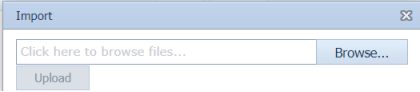](http://wiki.cuteinfocomm.com/uploads/images/gallery/2022-05/image-1651554955886.png)
5. Click [](http://wiki.cuteinfocomm.com/uploads/images/gallery/2022-05/image-1651554970806.png) (****Browse**** button) to select the excel worksheet to be uploaded.
6. Select the excel worksheet you want to upload from your computer.
7. Click [](http://wiki.cuteinfocomm.com/uploads/images/gallery/2022-05/image-1651554999288.png) (**Upload** button) to export the technical query that are included in the excel worksheet.
The details of the technical query in the worksheet will be displayed in the **Technical Queries** page.
### **7.14 Site Instructions**
A site instruction is a formal instruction sent from the head contractor that contains directives for contractors working on a piping project.
The **Site Instructions** tab in the **Test Pack** menu used to add the details of the site instruction.
1. Click **Site Instructions** in the **Test Pack** menu. The **Site Instructions** page opens.
[](http://wiki.cuteinfocomm.com/uploads/images/gallery/2022-05/image-1651555089022.png)
#### **7.14.1 Add the Details of Site Instructions**
If you want to add the details of the site instruction, do the following steps,
1. Click [](http://wiki.cuteinfocomm.com/uploads/images/gallery/2022-05/image-1651555271884.png) (**Add** button) in the **Site Instructions page. The page shows a new window to add the details of the site instruction.
[](http://wiki.cuteinfocomm.com/uploads/images/gallery/2022-05/image-1651555329008.png)
2. In the **Item ID** box, enter the item id number.
3. In the **Tag Number** box, enter the tag number.
4. In the **System** box, select a system.
5. In the **Unit** box, enter the name of a unit.
6. In the **Area** box, enter the name of an area.
7. In the **Department** box, enter the department name.
8. In the **Priority** box, enter the priority detail.
9. In the **Description** box, enter the description of the technical query.
10. In the **Document File Name** box, enter the document file name.
11. In the **Drawing** box, enter the drawing number.
12. In the **Issued on** box, enter the issued date of technical query.
13. In the **Status** box, enter the status of the technical query.
14. Click **Save**.
The site instruction is added and listed in the **Site Instructions page.
#### **7.14.2 Edit a Site Instruction**
If you want to edit any existing site instruction in the **Site Instructions** page, do the following steps,
1. Click [](http://wiki.cuteinfocomm.com/uploads/images/gallery/2022-05/image-1651555500701.png)(Edit icon) in the **Edit** column for the respective site instruction. See Fig 7.14. The page opens with the details of the selected site instruction.
2. Click any box where you want to edit the details, and then edit the details in the respective box.
3. Click **Save**.
#### **7.14.3 Attach a File into a Site Instruction**
If you want to attach a file with any existing site instruction listed in the **Site Instructions page, you can attach the file by using [](http://wiki.cuteinfocomm.com/uploads/images/gallery/2022-05/image-1651555568776.png)(Attach icon) in the **Attachment** column. To know how to attach, follow the procedures given in the topic “[**Attach a file into P&ID**](http://wiki.cuteinfocomm.com/books/cuteqm/page/project-data/#bkmrk-3.1.7%C2%A0attach-a-file-)”.
#### **7.14.4 Export Site Instructions List**
You can export a list of site instructions added in the **Site Instructions** page in both the pdf and excel formats by using [](http://wiki.cuteinfocomm.com/uploads/images/gallery/2022-05/image-1651555749935.png) (**PDF** button) and [](http://wiki.cuteinfocomm.com/uploads/images/gallery/2022-05/image-1651555758977.png) (**Excel** button). To know how to export, see the topic, “**[Export P&ID list](http://wiki.cuteinfocomm.com/books/cuteqm/page/project-data/#bkmrk-3.1.4%C2%A0export-p%26id-li)**”.
#### **7.14.5 Filter a Site Instruction**
If you want to filter any specific site instruction in the **Site Instructions** page, you can use [](http://wiki.cuteinfocomm.com/uploads/images/gallery/2022-05/image-1651556001499.png) (**FILTER** button) located on the **Site Instructions** page. To know how to filter, see the topic, “[**Filter P&ID**](http://wiki.cuteinfocomm.com/books/cuteqm/page/project-data/#bkmrk-3.1.5%C2%A0filter-a-p%26id)”.
#### **7.14.6 Import Multiple Site Instructions**
If you want to import multiple site instructions together, do the following,
1. Click [](http://wiki.cuteinfocomm.com/uploads/images/gallery/2022-05/image-1651556042278.png) (**TEMPLATE** button). See Fig 7.14. An excel worksheet will be downloaded with a predefined template to enter the details of site instruction.
2. Enter the required site instruction details in the respective columns of the excel worksheet.
3. Once you have added the site instruction details in the excel worksheet, save the excel worksheet on your computer.
4. Click [](http://wiki.cuteinfocomm.com/uploads/images/gallery/2022-05/image-1651556094848.png) (****IMPORT**** button). See Fig 7.14. A new window opens for importing the excel worksheet saved on your computer.
[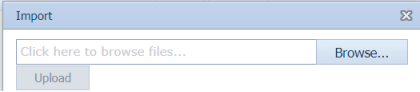](http://wiki.cuteinfocomm.com/uploads/images/gallery/2022-05/image-1651556114873.png)
5. Click [](http://wiki.cuteinfocomm.com/uploads/images/gallery/2022-05/image-1651556128442.png) (****Browse**** button) to select the excel worksheet to be uploaded.
6. Select the excel worksheet you want to upload from your computer.
7. Click [](http://wiki.cuteinfocomm.com/uploads/images/gallery/2022-05/image-1651556153252.png) (**Upload** button) to export the site instruction that are included in the excel worksheet.
The details of the site instruction in the worksheet will be displayed in the **Site Instructions** page.
### **7.15 Test Pack Status Report**
**Test Pack Status Report** shows the status of test pack.
If you want to view a test pack status report, do the following steps,
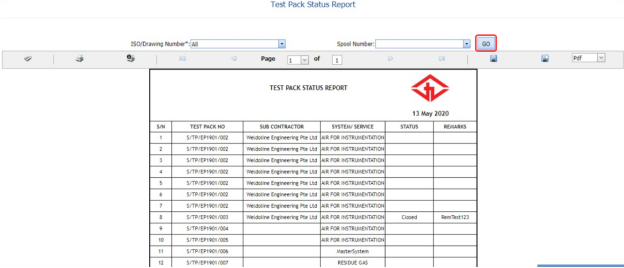
1. Click **Test Pack Status Report** in the **Piping** menu. The **Test Pack Status Report** page opens.
[](http://wiki.cuteinfocomm.com/uploads/images/gallery/2022-05/image-1651556242868.png)
**Figure 7.15: Test Pack Status Report page**
2. In the **ISO/Drawing Number** box, select the ISO/drawing from a drop-down list.
3. In the ****Spool Number**** box, select the spool number from a drop-down list.
4. Click **Go**.
The **Test Pack Status Report** page shows the test pack number, subcontractor name, system/service information, and test pack status.
#### **7.15.1 Print a Test Pack Status Report**
If you want to print the test pack status report, use [](http://wiki.cuteinfocomm.com/uploads/images/gallery/2022-05/image-1651557077358.png) and [](http://wiki.cuteinfocomm.com/uploads/images/gallery/2022-05/image-1651557085627.png) (print icons) provided in the **Test Pack Status Report** page. See Fig 7.15.
1. If you want to print the current page of the test pack status report, click [](http://wiki.cuteinfocomm.com/uploads/images/gallery/2022-05/image-1651557112461.png) (print icon including the page number).
2. If you want to print all the pages of the test pack status report, click [](http://wiki.cuteinfocomm.com/uploads/images/gallery/2022-05/image-1651557131328.png)(print icon).
#### **7.15.2 Export a Test Pack Status Report**
You can export the test pack status report in various formats by using the option provided in the upper right corner of the **Test Pack Status Report** page.