SHOW ALL PENDING REPORTS
10.0 SHOW ALL PENDING REPORTS
The SHOW ALL PENDING REPORTS tab helps you to view all pending reports for the inspections those are not completed yet. By using this feature, you can check whether the QA, Sub contractor, Client, and Owner have submitted their inspection report.

This feature automatically updates the detail of all pending reports from the web application. You can view the pending reports in an offline mode also.
Do the following steps to view the pending reports,
1. Tap SHOW ALL PENDING REPORTS. The Pending Reports page opens.
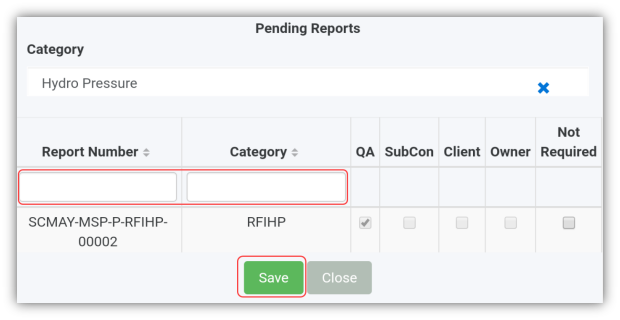
Figure 11.1 Pending Reports page
 Tip: 1. You can configure displaying of the number of reports per page by selecting 10, 25, 50 or 100, accordingly.
2. If you want to filter one report among the list of reports, you must enter the report number or category details in the respective boxes given in the Pending Reportspage.
The Pending Reports page contains the following fields:
- Report Number - shows the report number of the pending reports.
- Category - shows the category of the pending reports.
- QA, Subcon, Client, and Owner- each field appears with a check box to show whether the inspection has completed by the QA, Subcontractor, Client, and Owner, respectively.
 Note: If the check box of any field is enabled with the tick mark, it means that the respective person has completed the inspection.
- Not required - appears with a check box that helps you to decide about further inspection process. You can enable the check box if you have decided that no need of any further inspection process to be done by the QA, Subcontractor, Client or Owner.
- Tap the Category box, and select the category from a drop-down list.
The Pending Reports page shows a list of pending reports corresponding to the selected category. You can check the status of the report.
- If want to end up the inspection process, enable the check box in the Not required
- Tap Save.