# Punch Lists
### **8.0 Punch List**
A punch list is a list of items or tasks that need to be done before a piping project is completed. The **Punch Lists** menu in the home page of the ***cuteQM*** app helps to create and view the punch lists in Piping project.
### **8.1 Create a New Punch List**
If you want to create a punch list, do the following steps,
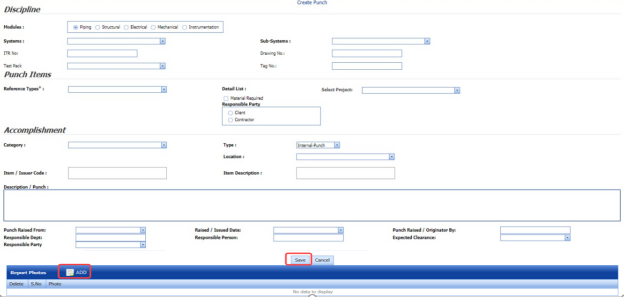
1. Click **Create New Punch List** in the **Punch lists** menu. The **Create Punch** page opens.
[](http://wiki.cuteinfocomm.com/uploads/images/gallery/2022-05/image-1651563761302.png)
**Figure 8.1: Create Punch page**
2. In the **Modules** box, select a module from the given modules.
3. In the **Systems** box, select a system from a drop-down list.
4. In the **Sub-Systems** box, select a sub-system from a drop-down list.
5. In the **ITR No** box, enter the ITR number.
6. In the **Drawing No** box, enter the drawing number.
7. In the **Test Pack** box, select a test pack from a drop-down list.
8. In the **Tag No** box, enter the tag number.
9. In the **Reference Types** box, select the reference type from the given options.
10. In the **Select Project** box, select a project from a drop-down list.
11. In the **Category** box, select any category from the given categories such as **A**, **B**, and **C**.
**A** - Item to be cleared before hydrostatic test.
**B** - Item to be cleared after hydrostatic test.
**C** - Item which can be cleared after hydrostatic test but before final acceptance of the whole plant.
12. In the **Type** box, select the type of punch such as whether internal or external.
13. In the ****Item**** box, enter the item details.
14. In the **Location** box, select a location from a drop-down list.
15. In the **Description/ Punch** box, enter the description for the punch list.
16. In the ****Punch Raised From**** box, select the detail such as from where the punch has been raised.
17. In the **Date Raised** box, select the date when the punch has been raised.
18. In the **Punch Raised** By box, enter the name of a person who has raised the punch.
19. In the **Responsible Dept** box, enter the department name, which is responsible for the punch.
20. In the **Responsible Person** box, enter the name of a person who is responsible for the punch.
21. In the **Expected Clearance** box, select the expected date of clearing the punch list.
22. Click **Save**.
The punch list is successfully added.
#### **8.1.1 Add Report Photos**
If you want to add any report photos for the punch list,
1. Click [](http://wiki.cuteinfocomm.com/uploads/images/gallery/2022-05/image-1651564332218.png) (**ADD** button) in the **Report Photos** box. [](http://wiki.cuteinfocomm.com/uploads/images/gallery/2022-05/image-1651564347455.png)
2. Click [](http://wiki.cuteinfocomm.com/uploads/images/gallery/2022-05/image-1651564367139.png) (**Browse** button) to browse a photo stored in your computer.
3. Click **Upload**.
The selected photo will be updated.
### **8.2 View Punch Lists**
The **View Punch Lists** tab helps you to view and edit the punch list, which is added by using the **Create New Punch List** tab.
1. Click **View Punch Lists** in the **Punch Lists** menu. The **Punch List** page opens with added punch lists.
[](http://wiki.cuteinfocomm.com/uploads/images/gallery/2022-05/image-1651564439486.png)
**Figure 8.2: Punch List page**
[](http://wiki.cuteinfocomm.com/uploads/images/gallery/2022-05/image-1651564462498.png)**Note**: If you want to verify the added punch list item, click the checkbox provided in the **Verify** column.
If you want to clear the added punch list item, click the checkbox provided in the **Clear** column.
#### **8.2.1 View a Punch List Report**
If you want to view a punch list report, click [](http://wiki.cuteinfocomm.com/uploads/images/gallery/2022-05/image-1651564523183.png) (**Print** button) provided in the upper side of the **Punch List** page. See Fig 11.2.
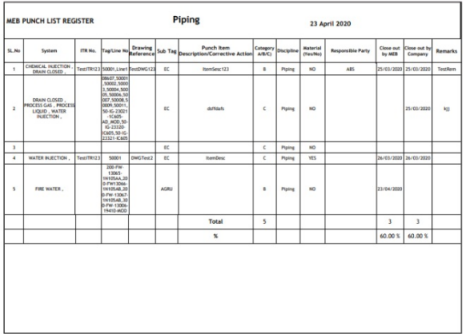
#### **8.2.2 View a Punch List Register**
If you want to view a punch list register, click [](http://wiki.cuteinfocomm.com/uploads/images/gallery/2022-05/image-1651564556647.png) (**Punch List Register** button) provided in the upper side of the **Punch List** page. See Fig 8.2.
[](http://wiki.cuteinfocomm.com/uploads/images/gallery/2022-05/image-1651564597790.png)
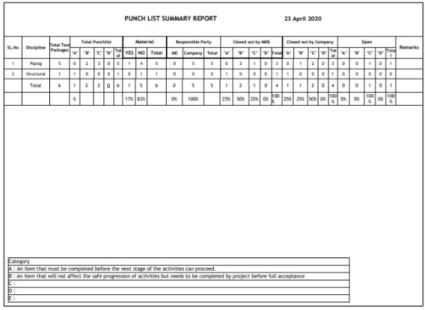
#### **8.2.3 View a Punch List Summary**
If you want to view a punch list summary, click [](http://wiki.cuteinfocomm.com/uploads/images/gallery/2022-05/image-1651564654001.png) (**Punch List Summary** button) provided in the upper side of the **Punch List** page. See Fig 8.2.
[](http://wiki.cuteinfocomm.com/uploads/images/gallery/2022-05/image-1651564665102.png)
#### **8.2.4 Attach a File into a Punch List**
If you want to attach any file with any punch list listed in the **Punch List** page, you can attach the file by using [](http://wiki.cuteinfocomm.com/uploads/images/gallery/2022-05/image-1651564697424.png) (Attach icon) in the **Attachment** column. To know how to attach, follow the procedures given in the topic “[**Attach a file into P&ID**](http://wiki.cuteinfocomm.com/books/cuteqm/page/project-data/#bkmrk-3.1.7%C2%A0attach-a-file-)”.
#### **8.2.5 Edit a Punch List**
If you want to edit any existing punch list in the **Punch List** page, click [ ](http://wiki.cuteinfocomm.com/uploads/images/gallery/2022-05/image-1651564736837.png)(Edit icon) in the **Edit** column for the respective punch list. See Fig 8.2. Edit the details in the respective box you want.
#### **8.2.6 Export Punch Lists**
You can export a list of punch lists added in the **Punch List** page in both the pdf and excel formats by using [](http://wiki.cuteinfocomm.com/uploads/images/gallery/2022-05/image-1651564790767.png) (**PDF** button) and [](http://wiki.cuteinfocomm.com/uploads/images/gallery/2022-05/image-1651564799808.png) (**Excel** button). To know how to export, see the topic, “[**Export P&ID list**](http://wiki.cuteinfocomm.com/books/cuteqm/page/project-data/#bkmrk-3.1.4%C2%A0export-p%26id-li)”.
#### **8.2.7 Filter a Punch List**
If you want to filter any punch list in the **Punch List page, you can use [](http://wiki.cuteinfocomm.com/uploads/images/gallery/2022-05/image-1651564830901.png) (**FILTER** button) located on the **Punch List** page. To know how to filter, see the topic, “[**Filter P&ID**](http://wiki.cuteinfocomm.com/books/cuteqm/page/project-data/#bkmrk-3.1.5%C2%A0filter-a-p%26id)”.
### **8.3 Punch List Detail Report**
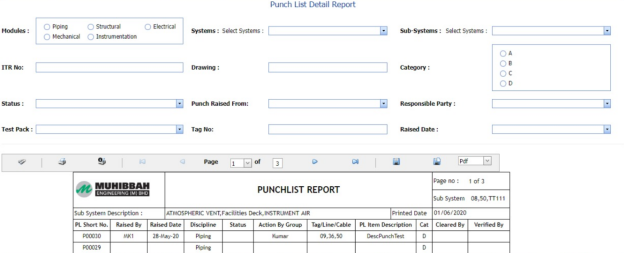
The **Punch List Detail Report** tab in the **Punch Lists** menu helps you to view a detailed report of the punch lists. To view the punch list detail report,
1. Click **Punch List Detail Report** in the **Punch Lists** menu. The **Punch List Detail Report** page opens.
[](http://wiki.cuteinfocomm.com/uploads/images/gallery/2022-05/image-1651564880865.png)
**Figure 11.3: Punch List Detail Report page**
2. In the **Modules** field, select **Piping** from the given modules.
3. In the **Systems** box, select a system from a drop-down list.
4. In the **Sub Systems** box, select a sub-system from a drop-down list.
5. In the **ITR No** box, enter the ITR number.
6. In the **Drawing** box, enter the drawing number.
7. In the **Category** box, select a category from a list.
8. In the **Status** box, select a status from a drop-down list.
9. In the **Punch Raised From** box, select a person who has raised the punch list.
10. In the **Responsible Party** box, select a responsible party from a drop-down list.
11. In the **Test Pack** box, select a test pack from a drop-down list.
12. In the **Tag No** box, enter the tag number.
13. In the **Raised Date** box, select a raised date of the punch list.
The punch list report opens based on the selected data.
#### **8.3.1 Print a Punch List Detail Report**
If you want to print the punch list detail report, use [](http://wiki.cuteinfocomm.com/uploads/images/gallery/2022-05/image-1651564984856.png) and [](http://wiki.cuteinfocomm.com/uploads/images/gallery/2022-05/image-1651564994571.png) (print icons) provided in the Punch List Detail Report page.
1. If you want to print the current page of the punch list detail report, click [](http://wiki.cuteinfocomm.com/uploads/images/gallery/2022-05/image-1651565010716.png) (print icon including the page number).
2. If you want to print all the pages of the punch list detail report, click [](http://wiki.cuteinfocomm.com/uploads/images/gallery/2022-05/image-1651565030275.png)(print icon).
#### **8.3.2 View a Punch List Detail Report**
You can view the punch list detail report in various formats by using the option [](http://wiki.cuteinfocomm.com/uploads/images/gallery/2022-05/image-1651565072341.png) provided in the upper right corner of the punch list detail report page.
### **8.4 Punch List System Report**
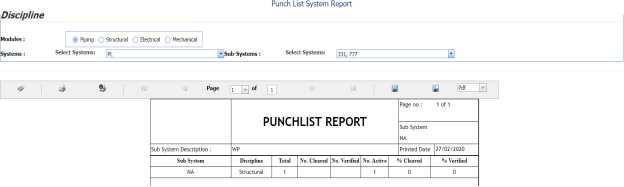
The **Punch List System Report** tab in the **Punch Lists** menu helps you to view a punch list system report. To view the punch list system report,
1. Click **Punch List System Report** in the **Punch Lists** menu. The **Punch List System Report** page opens.
[](http://wiki.cuteinfocomm.com/uploads/images/gallery/2022-05/image-1651565127081.png)
**Figure 8.4: Punch List System Report page**
2. In the **Modules** field, select **Piping** from the given modules.
3. In the **Systems** box, select a system from a drop-down list.
4. In the **Sub Systems** box, select a sub-system from a drop-down list.
The punch list system report opens based on the selected data.
#### **8.4.1 Print a Punch List System Report**
If you want to print the punch list system report, use [](http://wiki.cuteinfocomm.com/uploads/images/gallery/2022-05/image-1651565199162.png)and [](http://wiki.cuteinfocomm.com/uploads/images/gallery/2022-05/image-1651565209554.png) (print icons) provided in the Punch List system Report page.
1. If you want to print the current page of the punch list system report, click [](http://wiki.cuteinfocomm.com/uploads/images/gallery/2022-05/image-1651565231247.png) (print icon including the page number).
2. If you want to print all the pages of the punch list system report, click [](http://wiki.cuteinfocomm.com/uploads/images/gallery/2022-05/image-1651565251350.png) (print icon).
#### **8.4.2 View a Punch List System Report**
You can view the punch list system report in various formats by using the option [](http://wiki.cuteinfocomm.com/uploads/images/gallery/2022-05/image-1651565284055.png)provided in the upper right corner of the punch list system report page.
### **8.5 Punch List Sub System Report**
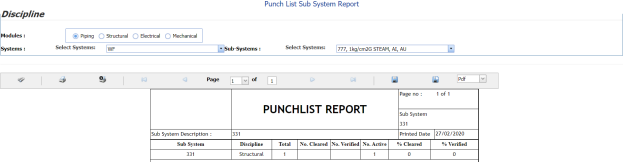
The **Punch List Sub System Report** tab in the **Punch Lists** menu helps you to view a punch list sub system report. To view the punch list sub system report,
1. Click **Punch List Sub System Report** in the **Punch Lists** menu. The **Punch List Sub System Report** page opens.
[](http://wiki.cuteinfocomm.com/uploads/images/gallery/2022-05/image-1651565349914.png)
**Figure 8.5: Punch List Sub System Report page**
2. In the **Modules** field, select **Piping** from the given modules.
3. In the **Systems** box, select a system from a drop-down list.
4. In the **Sub Systems** box, select a sub-system from a drop-down list.
The punch list sub system report opens based on the selected data.
#### **8.5.1 Print a Punch List Sub System Report**
If you want to print the punch list sub system report, use [](http://wiki.cuteinfocomm.com/uploads/images/gallery/2022-05/image-1651565494422.png) and [](http://wiki.cuteinfocomm.com/uploads/images/gallery/2022-05/image-1651565501892.png) (print icons) provided in the Punch List Sub System Report page.
1. If you want to print the current page of the punch list sub system report, click [](http://wiki.cuteinfocomm.com/uploads/images/gallery/2022-05/image-1651565520665.png) (print icon including the page number).
2. If you want to print all the pages of the punch list sub system report, click[](http://wiki.cuteinfocomm.com/uploads/images/gallery/2022-05/image-1651565540672.png) (print icon).
#### **8.5.2 View a Punch List Sub System Report**
You can view the punch list sub system report in various formats by using the option [](http://wiki.cuteinfocomm.com/uploads/images/gallery/2022-05/image-1651565573134.png) provided in the upper right corner of the punch list sub system report page.
### **8.6 Punch List Category Report**
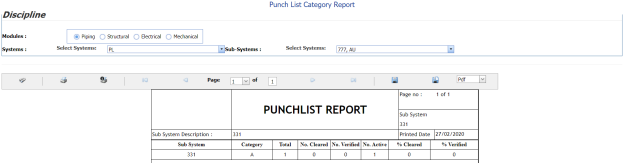
The **Punch List Category Report** tab in the **Punch Lists** menu helps you to view a punch list category report. To view the punch list category report,
1. Click **Punch List Category Report** in the **Punch Lists** menu. The **Punch List Category Report** page opens.
[](http://wiki.cuteinfocomm.com/uploads/images/gallery/2022-05/image-1651565615247.png)
**Figure 8.6: Punch List Category Report page**
2. In the **Modules** field, select **Piping** from the given modules.
3. In the **Systems** box, select a system from a drop-down list.
4. In the **Sub Systems** box, select a sub-system from a drop-down list.
The punch list category report opens based on the selected data.
#### **8.6.1 Print a Punch List Category Report**
If you want to print the punch list category report, use [](http://wiki.cuteinfocomm.com/uploads/images/gallery/2022-05/image-1651565709840.png) and [](http://wiki.cuteinfocomm.com/uploads/images/gallery/2022-05/image-1651565719251.png) (print icons) provided in the Punch List Category Report page.
1. If you want to print the current page of the punch list category report, click [](http://wiki.cuteinfocomm.com/uploads/images/gallery/2022-05/image-1651565739157.png) (print icon including the page number).
2. If you want to print all the pages of the punch list category report, click [](http://wiki.cuteinfocomm.com/uploads/images/gallery/2022-05/image-1651565760598.png)(print icon).
#### **8.6.2 View a Punch List Category Report**
You can view the punch list category report in various formats by using the option [](http://wiki.cuteinfocomm.com/uploads/images/gallery/2022-05/image-1651566069654.png) provided in the upper right corner of the punch list category report page.