# Project Data
### **3.0 Project Data**
The **Project Data** menu in the ***cuteQM*** app helps you to add the master data and the personal data for the piping project. Once you click the **Project Data** menu, the following tabs open,
### **3.1 Piping and Instrumentation Diagram (P&ID)**
P&ID is a schematic diagram which shows the functional relationship of piping, instrumentation, and system equipment components. The P&ID includes mechanical equipment with names and numbers, Process piping, sizes and identification, Flow directions, and so on.
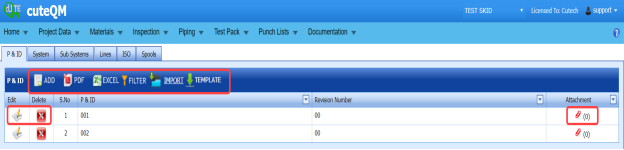
The **P&ID** tab in the **Project Data** menu helps you to add a P&ID. If you want to navigate to **P&ID,** do the following,
1. Click ****P&ID**** in the ****Project Data**** menu. The **P&ID** page opens.
[](http://wiki.cuteinfocomm.com/uploads/images/gallery/2022-04/image-1651119091006.png)
**Figure 3.1: P&ID page**
#### **3.1.1 Add a P&ID**
If you want to add a new P&ID, do the following steps,
1. Click [](http://wiki.cuteinfocomm.com/uploads/images/gallery/2022-04/image-1651119261792.png) (**ADD** button) in the **P&ID** page. See Fig 3.1.
A new window opens to add a new P&ID.
[](http://wiki.cuteinfocomm.com/uploads/images/gallery/2022-04/image-1651119327370.png)
[](http://wiki.cuteinfocomm.com/uploads/images/gallery/2022-04/image-1651119345695.png) **Note**: The field notified with a symbol (\*) is mandatory. You must enter the relevant details in that fields before saving.
2. In the **P&ID** box, enter the P&ID number.
3. In the **Revision Number** box, enter the revision number for the P&ID.
4. Click ****Save.**** The P&ID is successfully added and listed in the **P&ID** page.
#### **3.1.2 Edit a P&ID**
If you want to edit any existing P&ID in the **P&ID** page,
1. Click [](http://wiki.cuteinfocomm.com/uploads/images/gallery/2022-04/image-1651119535516.png)(Edit icon) of the respective P&ID. See Fig 3.1.
2. The **P&ID** page shows the details of the P&ID.
3. [](http://wiki.cuteinfocomm.com/uploads/images/gallery/2022-04/image-1651119624700.png)
4. Edit the details where you want.
5. Click **Save**.
#### **3.1.3 Delete a P&ID**
If you want to delete any existing P&ID in the **P&ID** page,
1. Click [](http://wiki.cuteinfocomm.com/uploads/images/gallery/2022-04/image-1651119763562.png) (Delete icon) of the respective P&ID. See Fig 3.1.
You receive a notification message “**Confirm Delete?**”.
2. Click **OK**.
The selected P&ID will be deleted from the **P&ID** page.
#### **3.1.4 Export P&ID list**
You can export a list of P&IDs added in the **P&ID** page in both the pdf and excel formats.
1. If you want to export the P&ID list in the pdf format, click [](http://wiki.cuteinfocomm.com/uploads/images/gallery/2022-04/image-1651119905005.png)(**PDF** button).
The P&ID list will be downloaded as a pdf file.
2. If you want to export the P&ID list in the excel format, click [](http://wiki.cuteinfocomm.com/uploads/images/gallery/2022-04/image-1651119961686.png) (**Excel** button).
The P&ID list will be downloaded as an excel file.
#### **3.1.5 Filter a P&ID**
If you want to filter any specific P&ID in the **P&ID** page, do the following,
1. Click [](http://wiki.cuteinfocomm.com/uploads/images/gallery/2022-04/image-1651120162201.png) (**FILTER** button) located on the **P&ID See Fig 3.1.
Once you clicked the **Filter** button, the filter box opens for the **P&ID** and **Revision Number** columns.
[](http://wiki.cuteinfocomm.com/uploads/images/gallery/2022-04/image-1651120201531.png)
2. Enter relevant detail in the respective column’s filter box to filter any P&ID.
#### **3.1.6 Import Multiple P&IDs**
If you want to import multiple P&IDs together, do the following,
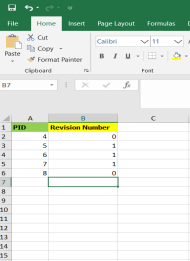
1. Click [](http://wiki.cuteinfocomm.com/uploads/images/gallery/2022-04/image-1651120365377.png) (**TEMPLATE** button). See Fig 3.1.
An excel worksheet will be downloaded with a predefined template to enter the details of P&IDs.
[](http://wiki.cuteinfocomm.com/uploads/images/gallery/2022-04/image-1651120425289.png)
2. Enter the required P&ID details in the respective columns of the excel worksheet.
3. Once you have added the P&ID details in the excel worksheet, save the excel worksheet on your computer.
4. Click [](http://wiki.cuteinfocomm.com/uploads/images/gallery/2022-04/image-1651120501083.png) (**IMPORT** button). See Fig 3.1.
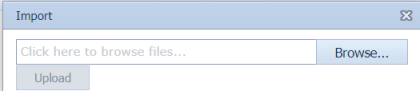
A new window opens for importing the excel worksheet saved on your computer.
[](http://wiki.cuteinfocomm.com/uploads/images/gallery/2022-04/image-1651120563525.png)
5. Click [](http://wiki.cuteinfocomm.com/uploads/images/gallery/2022-04/image-1651120579811.png) (**Browse** button) to select the excel worksheet to be uploaded.
6. Select the excel worksheet you want to upload from your computer.
7. Click [](http://wiki.cuteinfocomm.com/uploads/images/gallery/2022-04/image-1651120651822.png) (**Upload** button) to export the P&IDs that are included in the excel worksheet.
The details of the P&IDs in the worksheet will be displayed in the **P&ID** page.
#### **3.1.7 Attach a File into a P&ID**
If you want to attach a file for example drawing, with any existing P&ID listed in the **P&ID** page,
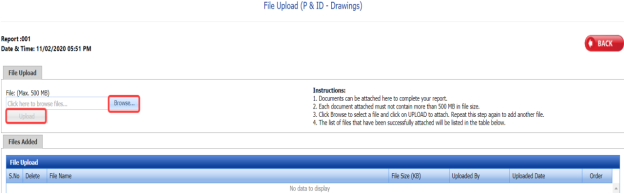
1. Click [](http://wiki.cuteinfocomm.com/uploads/images/gallery/2022-04/image-1651120776655.png) (Attach icon) provided against the respective P&ID in the **P&ID** page.
The **File Upload (P&ID - Drawings)** page opens.
[](http://wiki.cuteinfocomm.com/uploads/images/gallery/2022-04/image-1651120946537.png)
[](http://wiki.cuteinfocomm.com/uploads/images/gallery/2022-04/image-1651120969847.png)**Note**: Before uploading any file, read the instructions given in the **File Upload (P&ID - Drawings)** page.
2. Click [](http://wiki.cuteinfocomm.com/uploads/images/gallery/2022-04/image-1651120997251.png) (**Browse** button).
3. Select a file which you want to upload from your computer.
4. Click [](http://wiki.cuteinfocomm.com/uploads/images/gallery/2022-04/image-1651121030903.png) (**Upload** button) to attach the file.
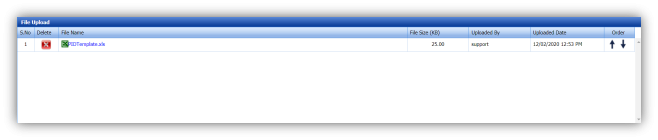
The uploaded file will be displayed in the **File Upload** table.
[](http://wiki.cuteinfocomm.com/uploads/images/gallery/2022-04/image-1651121061820.png)
### **3.2 System**
You can add the details of systems to be used in the piping project by using the **Systems** tab in the **Project Data** menu. If you want to navigate to **Systems,**
1. Click **Systems** in the **Project Data** menu.
The **System** page opens.
[](http://wiki.cuteinfocomm.com/uploads/images/gallery/2022-04/image-1651121131964.png)
**Figure 3.2: System page**
#### **3.2.1 Add a System**
If you want to add a new system, do the following steps,
1. Click [](http://wiki.cuteinfocomm.com/uploads/images/gallery/2022-04/image-1651121326059.png) (**ADD** button) in the **System** See Fig 3.2.
A new window opens to add a new system.
[](http://wiki.cuteinfocomm.com/uploads/images/gallery/2022-04/image-1651121364671.png)
[](http://wiki.cuteinfocomm.com/uploads/images/gallery/2022-04/image-1651121376559.png)**Note**: The fields notified with a symbol (\*) are mandatory. You must enter the relevant details in that fields before saving.
2. In the ****System**** box, enter the system name.
3. In the ****Abbreviation**** box, enter the abbreviation for the system name.
4. In the **System Number** box, enter the system number.
5. Click ****Save.****The system is successfully added and listed in the **System** page.
[](http://wiki.cuteinfocomm.com/uploads/images/gallery/2022-04/image-1651121590257.png)**Note**:
- - If you want to map cover page for any added system, click the respective [](http://wiki.cuteinfocomm.com/uploads/images/gallery/2022-04/image-1651121618076.png) (Add icon)
provided in the **Map Cover Page** column and add the cover pages.
- If you want to map certificates for any added system, click the respective [](http://wiki.cuteinfocomm.com/uploads/images/gallery/2022-04/image-1651121746668.png)(Add icon)
provided in the **Map Certificates** column and add the cover pages.
- If you want to map Check Record/Check Sheet (CR/CS) for any added system,
click the respective [](http://wiki.cuteinfocomm.com/uploads/images/gallery/2022-04/image-1651121804240.png)(Add icon) provided in the **Map CR/CS** column and add the cover pages.
#### **3.2.2 Edit a System**
If you want to edit any existing system in the **System** page,
1. Click [](http://wiki.cuteinfocomm.com/uploads/images/gallery/2022-04/image-1651121873901.png)(Edit icon) of the respective System. See Fig 3.2.
The **System** page shows the details of the selected system.
[](http://wiki.cuteinfocomm.com/uploads/images/gallery/2022-04/image-1651121910492.png)
2. Edit the details where you want.
3. Click **Save**.
#### **3.2.3 Delete a System**
If you want to delete any existing system in the **System** page, you can use (Delete icon) provided in the **System** page. To know how to delete, see the topic, “[Delete P&ID](#bkmrk-3.1.3%C2%A0delete-a-p%26id "Project Data")”.
#### **3.2.4 Export System List**
You can export a list of systems added in the **System** page in both the pdf and excel formats by using [](http://wiki.cuteinfocomm.com/uploads/images/gallery/2022-04/image-1651122299855.png) (**PDF** button) and [](http://wiki.cuteinfocomm.com/uploads/images/gallery/2022-04/image-1651122478697.png) (**Excel** button). To know how to export, see the topic, “[Export P&ID list](http://wiki.cuteinfocomm.com/books/cuteqm/page/project-data/#bkmrk-3.1.4%C2%A0export-p%26id-li)”.
#### **3.2.5 Filter a System**
If you want to filter any specific system in the **System** page, you can use [](http://wiki.cuteinfocomm.com/uploads/images/gallery/2022-04/image-1651122763905.png) (**FILTER** button) located on the **System** page. To know how to filter, see the topic, “[Filter P&ID](http://wiki.cuteinfocomm.com/books/cuteqm/page/project-data/#bkmrk-3.1.5%C2%A0filter-a-p%26id)”.
#### **3.2.6 Import Multiple Systems**
If you want to import multiple systems together, do the following,
1. Click [](http://wiki.cuteinfocomm.com/uploads/images/gallery/2022-04/image-1651122886316.png) (**TEMPLATE** button). See Fig 3.2.
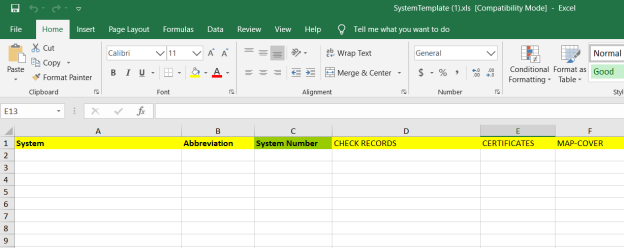
An excel worksheet will be downloaded with a predefined template to enter the details of systems.
[](http://wiki.cuteinfocomm.com/uploads/images/gallery/2022-04/image-1651122931636.png)
2. Enter the required system details in the respective columns of the excel worksheet.
3. Once you have added the system details in the excel worksheet, save the excel worksheet on your computer.
4. Click [](http://wiki.cuteinfocomm.com/uploads/images/gallery/2022-04/image-1651122972277.png) (**IMPORT** button). See Fig 3.2.
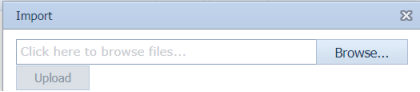
A new window opens for importing the excel worksheet saved on your computer.
[](http://wiki.cuteinfocomm.com/uploads/images/gallery/2022-04/image-1651122999447.png)
5. Click [](http://wiki.cuteinfocomm.com/uploads/images/gallery/2022-04/image-1651123014955.png) (**Browse** button) to select the excel worksheet to be uploaded.
6. Select the excel worksheet you want to upload from your computer.
7. Click [](http://wiki.cuteinfocomm.com/uploads/images/gallery/2022-04/image-1651123042197.png) (**Upload** button) to export the systems that are included in the excel worksheet.
The details of the systems in the worksheet will be displayed in the **System** page.
#### **3.2.7 Attach a File into a System**
If you want to attach any file with any system listed in the **System** page, you can attach the file by using (Attach icon) in the **Attachment** column. To know how to attach, follow the procedures given in the topic “[**Attach a file into P&ID**](http://wiki.cuteinfocomm.com/books/cuteqm/page/project-data/#bkmrk-3.1.7%C2%A0attach-a-file-)”.
### **3.3 Sub System**
The **Sub** **Systems** tab in the **Project Data** menu helps you to add the details of sub systems to be in used in the piping project. If you want to navigate to **Sub** **Systems,**
1. Click **Sub** **Systems** in the **Project Data** menu.
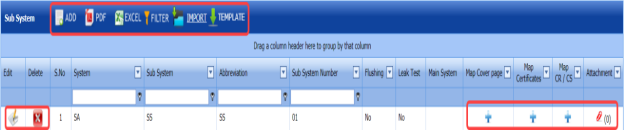
The **Sub** **Systems** page opens.
[](http://wiki.cuteinfocomm.com/uploads/images/gallery/2022-04/image-1651123216599.png)
**Figure 6.3: Sub System page**
#### **3.3.1 Add a Sub System**
If you want to add a new sub system, do the following steps,
1. Click [](http://wiki.cuteinfocomm.com/uploads/images/gallery/2022-04/image-1651123283337.png) (**ADD** button) in the **Sub** **System** See Fig 3.3.
A new window opens to add a new sub system.
[](http://wiki.cuteinfocomm.com/uploads/images/gallery/2022-04/image-1651123319434.png)
[](http://wiki.cuteinfocomm.com/uploads/images/gallery/2022-04/image-1651123334977.png)**Note**: The fields notified with a symbol (\*) are mandatory. You must enter the relevant details in that fields before saving.
2. In the ****System**** box, select a system from a drop-down list.
3. In the ****Sub** **System**** box, select a sub system from a drop-down list.
4. In the ****Abbreviation**** box, enter the abbreviation for the sub system.
5. In the ****Sub** **System Number**** box, enter the sub system number.
6. If the added subsystem needs to be flushed, select **Yes** in the **Flushing** option otherwise select **No**.
7. If there is need to perform the leakage test for the added subsystem, select ****Yes**** in the ****Leak Test**** option otherwise select ****No****.
8. In the ****Description**** box, enter the description for the added sub system.
9. Click ****Save.****The sub system is successfully added and listed in the **Sub** **System** page.
#### **3.3.2 Edit a Sub System**
If you want to edit any existing sub system in the **Sub** **System** page,
1. Click [](http://wiki.cuteinfocomm.com/uploads/images/gallery/2022-04/image-1651123496277.png)(Edit icon) of the respective sub system. See Fig 3.3.
The **Sub System** page shows the details of the selected sub system.
[](http://wiki.cuteinfocomm.com/uploads/images/gallery/2022-04/image-1651123531945.png)
2. Edit the details where you want.
3. Click **Save**.
#### **3.3.3 Delete a Sub System**
If you want to delete any existing sub system in the **Sub System** page, you can use [](http://wiki.cuteinfocomm.com/uploads/images/gallery/2022-04/image-1651123593833.png) (Delete icon) provided in the **Sub** **System** page. To know how to delete, see the topic,
#### **3.3.4 Export Sub System List**
You can export a list of sub systems added in the **Sub System** page in both the pdf and excel formats by using [](http://wiki.cuteinfocomm.com/uploads/images/gallery/2022-04/image-1651123664991.png) (**PDF** button) and [](http://wiki.cuteinfocomm.com/uploads/images/gallery/2022-04/image-1651123690259.png) (**Excel** button). To know how to export, see the topic, “[Export P&ID list](http://wiki.cuteinfocomm.com/books/cuteqm/page/project-data/#bkmrk-3.1.4%C2%A0export-p%26id-li)”.
#### **3.3.5 Filter a Sub System**
If you want to filter any specific sub system in the **Sub System** page, you can use [](http://wiki.cuteinfocomm.com/uploads/images/gallery/2022-04/image-1651123790660.png) (**FILTER** button) located on the **Sub System** page. To know how to filter, see the topic, “[Filter P&ID](http://wiki.cuteinfocomm.com/books/cuteqm/page/project-data/#bkmrk-3.1.5%C2%A0filter-a-p%26id)”.
#### **3.3.6 Import Multiple Sub Systems**
If you want to import multiple sub systems together, do the following,
1. Click [](http://wiki.cuteinfocomm.com/uploads/images/gallery/2022-04/image-1651123870609.png) (**TEMPLATE** button). See Fig 3.3.
An excel worksheet will be downloaded with a predefined template to enter the details of sub systems.
[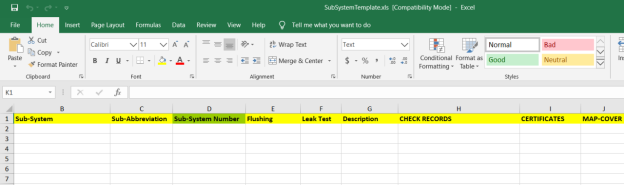](http://wiki.cuteinfocomm.com/uploads/images/gallery/2022-04/image-1651123911588.png)
2. Enter the required sub system details in the respective columns of the excel worksheet.
3. Once you have added the sub system details in the excel worksheet, save the excel worksheet on your computer.
4. Click [](http://wiki.cuteinfocomm.com/uploads/images/gallery/2022-04/image-1651123941803.png) (**IMPORT** button). See Fig 3.3.
A new window opens for importing the excel worksheet saved on your computer.
[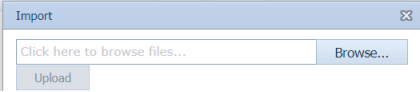](http://wiki.cuteinfocomm.com/uploads/images/gallery/2022-04/image-1651123970121.png)
5. Click [](http://wiki.cuteinfocomm.com/uploads/images/gallery/2022-04/image-1651123982893.png) (**Browse** button) to select the excel worksheet to be uploaded.
6. Select the excel worksheet you want to upload from your computer.
7. Click [](http://wiki.cuteinfocomm.com/uploads/images/gallery/2022-04/image-1651124010915.png) (**Upload** button)to export the sub systems that are included in the excel worksheet.
The details of the sub systems in the worksheet will be displayed in the **Sub System** page.
#### **3.3.7 Attach a File into a Sub System**
If you want to attach any file with any sub system listed in the **Sub** **System** page, you can attach the file by using [](http://wiki.cuteinfocomm.com/uploads/images/gallery/2022-04/image-1651124079903.png) (Attach icon) in the **Attachment** column. To know how to attach, follow the procedures given in the topic. “[**Attach a file into P&ID**](http://wiki.cuteinfocomm.com/books/cuteqm/page/project-data/#bkmrk-3.1.7%C2%A0attach-a-file-)”.
### **3.4 Lines**
The **Lines** tab in the **Project Data** menu helps you to add the details of lines to be in used in the piping project. If you want to add **Lines,**
1. Click ****Lines**** in the ******Project Data****** menu, The **Lines** page opens.
[](http://wiki.cuteinfocomm.com/uploads/images/gallery/2022-04/image-1651124204405.png)
**Figure 3.4: Lines page**
#### **3.4.1 Add a Line**
If you want to add a line, do the following steps,
1. Click [](http://wiki.cuteinfocomm.com/uploads/images/gallery/2022-04/image-1651124269606.png) (**ADD** button) in the **Lines** page. See Fig 3.4.
A new window opens to add new lines.
[](http://wiki.cuteinfocomm.com/uploads/images/gallery/2022-04/image-1651124295360.png)
[](http://wiki.cuteinfocomm.com/uploads/images/gallery/2022-04/image-1651124303799.png)**Note**: The fields notified with a symbol (\*) are mandatory. You must enter the relevant details in that fields before saving.
2. In the ****Sub System**** box, select a sub system from a drop-down list.
3. In the ****Line Number**** box, enter the line number.
4. In the ****Size**** box, select the size of the line.
5. In the ****Piping Class**** box, enter the piping class name.
6. In the ****Line Code**** box, enter the line code.
7. In the ****Sheet Number**** box, enter the sheet number.
8. In the ****RT Req. %**** box, enter the requirement percentage of RT.
9. In the ****UT Req. %**** box, enter the requirement percentage of UT.
10. In the ****MT Req. %**** box, enter the requirement percentage of MT.
11. In the ****PT Req. %****box, enter the requirement percentage of PT.
12. In the ****PWHT Req. %****box, enter the requirement percentage of PWHT.
13. In the ****PMI Req. %****box, enter the requirement percentage of PMI. [](http://wiki.cuteinfocomm.com/uploads/images/gallery/2022-04/image-1651124410452.png)**Note**: The RT, UT, MT, PT, PWHT, and PMI Requirements (%) should be filled with valid numerical numbers. The joint testing will be performed based on the value given by you, for example, if you enter 100 % of requirement, which means 100 % of the joints will be tested. If you enter 0 %, none of joints will be tested.
14. Click **Save.**
The line is successfully added and listed in the **Lines** page.
#### **3.4.2 Edit a Line**
If you want to edit any existing line in the **Lines** page,
1. Click [](http://wiki.cuteinfocomm.com/uploads/images/gallery/2022-04/image-1651126180149.png)(Edit icon) of the respective sub system. See Fig 3.4.
The **Lines** page shows the details of the selected line.
[](http://wiki.cuteinfocomm.com/uploads/images/gallery/2022-04/image-1651126233689.png)
2. Edit the details where you want.
3. Click **Save**.
#### **3.4.3 Delete a Line**
If you want to delete any existing line in the **Lines** page, you can use [](http://wiki.cuteinfocomm.com/uploads/images/gallery/2022-04/image-1651126724369.png) (Delete icon) provided in the **Lines** page. To know how to delete, see the topic, “[Delete P&ID](http://wiki.cuteinfocomm.com/books/cuteqm/page/project-data/#bkmrk-3.1.3%C2%A0delete-a-p%26id)”.
#### **3.4.4 Export Line List**
You can export a list of lines added in the **Lines** page in both the pdf and excel formats by using [](http://wiki.cuteinfocomm.com/uploads/images/gallery/2022-04/image-1651126780734.png) (**PDF** button) and [](http://wiki.cuteinfocomm.com/uploads/images/gallery/2022-04/image-1651126798134.png)(**Excel** button). To know how to export, see the topic “[Export P&ID list](http://wiki.cuteinfocomm.com/books/cuteqm/page/project-data/#bkmrk-3.1.4%C2%A0export-p%26id-li)”.
#### **3.4.5 Filter a Line**
If you want to filter any specific line in the **Lines** page, you can use [](http://wiki.cuteinfocomm.com/uploads/images/gallery/2022-04/image-1651126966554.png) (**FILTER** button) located on the **Lines** page. To know how to filter, see the topic, “[Filter P&ID](http://wiki.cuteinfocomm.com/books/cuteqm/page/project-data/#bkmrk-3.1.5%C2%A0filter-a-p%26id)”.
#### **3.4.6 Import Multiple Lines**
If you want to import multiple lines together, do the following,
1. Click [](http://wiki.cuteinfocomm.com/uploads/images/gallery/2022-04/image-1651127025691.png) (**TEMPLATE** button). See Fig 3.4.
An excel worksheet will be downloaded with a predefined template to enter the details of lines.
[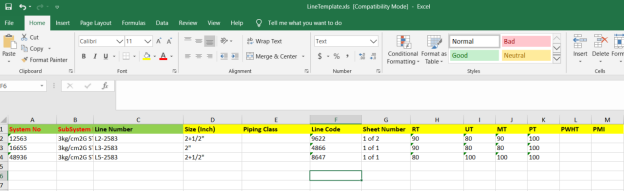](http://wiki.cuteinfocomm.com/uploads/images/gallery/2022-04/image-1651127086914.png)
2. Enter the required line details in the respective columns of the excel worksheet.
3. Once you have added the line details in the excel worksheet, save the excel worksheet on your computer.
4. Click [](http://wiki.cuteinfocomm.com/uploads/images/gallery/2022-04/image-1651127121187.png) (**IMPORT** button). See Fig 3.4.
A new window opens for importing the excel worksheet saved on your computer.
[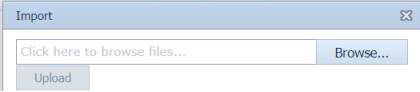](http://wiki.cuteinfocomm.com/uploads/images/gallery/2022-04/image-1651127150104.png)
5. Click [](http://wiki.cuteinfocomm.com/uploads/images/gallery/2022-04/image-1651127193042.png) (**Browse** button) to select the excel worksheet to be uploaded.
6. Select the excel worksheet you want to upload from your computer.
7. Click [](http://wiki.cuteinfocomm.com/uploads/images/gallery/2022-04/image-1651127277086.png) (**Upload** button) to export the lines that are included in the excel worksheet.
The details of the lines in the worksheet will be displayed in the **Lines** page.
#### **3.4.7 Attach a File into a Line**
If you want to attach any file with a line listed in the **Lines** page, you can attach the file by using [](http://wiki.cuteinfocomm.com/uploads/images/gallery/2022-04/image-1651127356456.png)(Attach icon) in the **Attachment** column. To know how to attach, follow the procedures given in the topic “[**Attach a file into P&ID**](http://wiki.cuteinfocomm.com/books/cuteqm/page/project-data/#bkmrk-3.1.7%C2%A0attach-a-file-)”.
### **3.5 Isometric (ISO) Drawings**
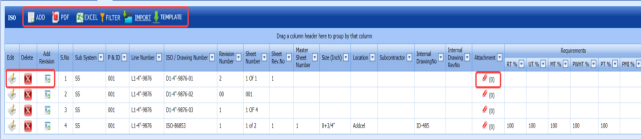
An isometric drawing is a detailed orthographic drawing that represents the details of 3D structure of the piping system in a 2D format for fabrication of the pipe. If you want to navigate to **ISO**,
1. Click ****ISO Drawings**** in the ******Project Data****** menu. The **ISO** page opens.
[](http://wiki.cuteinfocomm.com/uploads/images/gallery/2022-04/image-1651127433012.png)
**Figure 3.5: ISO page**
#### **3.5.1 Add an ISO Drawing**
If you want to add a new ISO drawing, do the following steps,
1. Click [](http://wiki.cuteinfocomm.com/uploads/images/gallery/2022-04/image-1651127541296.png) (**ADD** button) in the **ISO** page. See Fig 3.5.
A new window opens to add a new ISO drawing.
[](http://wiki.cuteinfocomm.com/uploads/images/gallery/2022-04/image-1651127575296.png)
[](http://wiki.cuteinfocomm.com/uploads/images/gallery/2022-04/image-1651127586154.png) **Note**: The fields notified with a symbol (\*) are mandatory. You must enter the relevant details in that fields before saving.
2. In the ****Line Number**** box, select the line number from a drop-down list.
3. In the ****P&ID**** box, select the P&ID from a drop-down list.
4. In the ****ISO Drawing Number**** box, enter the number for an ISO drawing you want to add.
5. In the ****Revision Number**** box, enter the revision number for the ISO drawing.
6. In the **Internal Drawing No** box, enter the internal drawing number of the isometric drawing.
7. In the ****Internal Drawing Rev. No**** box, enter the revision number for the internal drawing.
8. In the ****Sheet No**** box, enter the sheet number.
9. In the ****Sheet Rev. No**** box, enter the sheet revision number.
10. In the ****Master Sheet No**** box, enter the master sheet number.
11. In the ****Line Size**** box, select the line size from a drop-down list.
12. In the ****Location**** box, select the location from a drop-down list.
13. In the ****Sub Contractor**** box, select the sub-contractor from a drop-down list.
14. In the ****RT Req. %**** box, enter the requirement percentage of RT.
15. In the ****UT Req. %**** box, enter the requirement percentage of UT.
16. In the ****MT Req. %**** box, enter the requirement percentage of MT.
17. In the ****PT Req. %**** box, enter the requirement percentage of PT.
18. In the ****PWHT Req. %**** box, enter the requirement percentage of PWHT.
19. In the ****PMI Req. %**** box, enter the requirement percentage of PMI. [](http://wiki.cuteinfocomm.com/uploads/images/gallery/2022-04/image-1651127866481.png)**Note**: The RT, UT, MT, PT, PWHT, and PMI Requirements (%) should be filled with valid numerical numbers. The joint testing will be performed based on the value given by you, for example, if you enter 100 % of requirement, which means 100 % of the joints will be tested. If you enter 0 %, none of joints will be tested.
20. Click ****Save.****The ISO drawing is successfully added and listed in the **ISO** page.
#### **3.5.2 Add Revision for ISO Drawing**
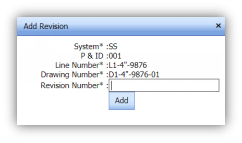
Once you have added the ISO drawing, the **ISO** page shows [](http://wiki.cuteinfocomm.com/uploads/images/gallery/2022-04/image-1651127997956.png) (Revision icon) for the added ISO drawing. You can add multiple revisions for the added ISO by using this revision icon.
1. Click [](http://wiki.cuteinfocomm.com/uploads/images/gallery/2022-04/image-1651128029530.png) (Revision icon) of the respective ISO drawing.
The **Add Revision** box opens.
[](http://wiki.cuteinfocomm.com/uploads/images/gallery/2022-04/image-1651128056098.png)
2. In the ****Revision Number**** box, enter the revision number.
3. Click ****Add****. The revision for the ISO drawing will be added and listed in the **ISO** page.
#### **3.5.3 Edit an ISO Drawing**
If you want to edit any existing ISO drawing in the **ISO** page,
1. Click [](http://wiki.cuteinfocomm.com/uploads/images/gallery/2022-04/image-1651128135468.png)(Edit icon) of the respective sub system. See Fig 3.5.
The **ISO** page shows the details of the selected ISO drawing.
[](http://wiki.cuteinfocomm.com/uploads/images/gallery/2022-04/image-1651128166066.png)
2. Edit the details where you want.
3. Click ****Save****.
#### **3.5.4 Delete an ISO Drawing**
If you want to delete any existing ISO drawing in the **ISO** page, you can use [](http://wiki.cuteinfocomm.com/uploads/images/gallery/2022-04/image-1651128248371.png) (Delete icon) provided in the **ISO** page. To know how to delete, see the topic, “[Delete P&ID](http://wiki.cuteinfocomm.com/books/cuteqm/page/project-data/#bkmrk-3.1.3%C2%A0delete-a-p%26id)”.
#### **3.5.5 Export ISO Drawings List**
You can export a list of ISO drawings added in the **ISO** page in both the pdf and excel formats by using [](http://wiki.cuteinfocomm.com/uploads/images/gallery/2022-04/image-1651128300644.png) (**PDF** button) and [](http://wiki.cuteinfocomm.com/uploads/images/gallery/2022-04/image-1651128311204.png) (**Excel** button). To know how to export, see the topic, “[Export P&ID list](http://wiki.cuteinfocomm.com/books/cuteqm/page/project-data/#bkmrk-3.1.4%C2%A0export-p%26id-li)”.
#### **3.5.6 Filter an ISO Drawing**
If you want to filter any specific ISO drawing in the **ISO** page, you can use [](http://wiki.cuteinfocomm.com/uploads/images/gallery/2022-04/image-1651128397314.png) (**FILTER** button) provided on the **ISO** page. To know how to filter, see the topic, “[Filter P&ID](http://wiki.cuteinfocomm.com/books/cuteqm/page/project-data/#bkmrk-3.1.5%C2%A0filter-a-p%26id)”.
#### **3.5.7 Import Multiple ISO Drawings**
If you want to import multiple ISO drawings together, do the following,
1. Click [](http://wiki.cuteinfocomm.com/uploads/images/gallery/2022-04/image-1651128469532.png) (**TEMPLATE** button). See Fig 3.5.
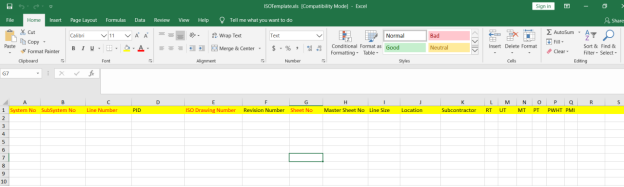
An excel worksheet will be downloaded with a predefined template to enter the details of ISO drawings.
[](http://wiki.cuteinfocomm.com/uploads/images/gallery/2022-04/image-1651128508757.png)
2. Enter the required ISO drawing details in the respective columns of the excel worksheet.
3. Once you have added the ISO drawing details in the excel worksheet, save the excel worksheet on your computer.
4. Click [](http://wiki.cuteinfocomm.com/uploads/images/gallery/2022-04/image-1651128544505.png) (**IMPORT** button). See Fig 3.5.
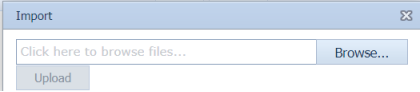
A new window opens for importing the excel worksheet saved on your computer.
[](http://wiki.cuteinfocomm.com/uploads/images/gallery/2022-04/image-1651128572672.png)
5. Click [](http://wiki.cuteinfocomm.com/uploads/images/gallery/2022-04/image-1651128597761.png) (**Browse** button) to select the excel worksheet to be uploaded.
6. Select the excel worksheet you want to upload from your computer.
7. Click [](http://wiki.cuteinfocomm.com/uploads/images/gallery/2022-04/image-1651128627885.png) (**Upload** button) to export the ISO drawings that are added in the excel worksheet.
The details of the ISO drawings in the worksheet will be displayed in the **ISO** page.
#### **3.5.8 Attach a File into an ISO Drawing**
If you want to attach any file with an ISO drawing listed in the **ISO** page, you can attach the file by using [](http://wiki.cuteinfocomm.com/uploads/images/gallery/2022-04/image-1651128675518.png)(Attach icon) in the **Attachment** column. To know how to attach, follow the procedures given in the topic “[**Attach a file into P&ID**](http://wiki.cuteinfocomm.com/books/cuteqm/page/project-data/#bkmrk-3.1.7%C2%A0attach-a-file-)”.
### **3.6 Spools**
A spool refers to a section of a piping system that is pre-fabricated as smaller segments with flanges and fittings. If you want to navigate to **Spools**,
1. Click ****Spools**** in the ******Project Data.******The **Spools** page opens.
[](http://wiki.cuteinfocomm.com/uploads/images/gallery/2022-04/image-1651128749796.png)
**Figure 3.6: Spools page**
#### **3.6.1 Add a Spool**
If you want to add a new spool, do the following steps,
1. Click [](http://wiki.cuteinfocomm.com/uploads/images/gallery/2022-04/image-1651128843702.png) (**ADD** button) in the **Spools** See Fig 3.6.
A new window opens to add a new spool.
[](http://wiki.cuteinfocomm.com/uploads/images/gallery/2022-04/image-1651128875173.png)
[](http://wiki.cuteinfocomm.com/uploads/images/gallery/2022-04/image-1651128883299.png)**Note**: The fields notified with a symbol (\*) are mandatory. You must enter the relevant details in that fields before saving.
2. In the ****ISO Drawing Number**** box, select the ISO drawing number from a drop-down list.
3. In the ****Spool Number**** box, enter the spool number for a spool you want to add.
4. In the ****Tag Id**** box, enter the tag id number of the spool.
5. In the ****Location**** box, select the location from a drop-down list.
6. In the ****Contractor** **Name**** box, enter the contractor name.
7. In the ****Remarks**** box, enter your remarks if any.
8. Click ****Save.****The spool is successfully added and listed in the **Spools** page.
#### **3.6.2 Edit a Spool**
If you want to edit any existing spool in the **Spools** page,
1. Click [](http://wiki.cuteinfocomm.com/uploads/images/gallery/2022-04/image-1651129026533.png)(Edit icon)of the respective spool. See Fig 3.6.
The **Spools** page shows the details of the selected spool.
[](http://wiki.cuteinfocomm.com/uploads/images/gallery/2022-04/image-1651129062410.png)
2. Edit the details where you want.
3. Click ****Save****.
#### **3.6.3 Delete a Spool**
If you want to delete any existing spool in the **Spools** page, you can use [](http://wiki.cuteinfocomm.com/uploads/images/gallery/2022-04/image-1651129124714.png) (Delete icon) provided in the **Spools** page. To know how to delete, see the topic, “[Delete P&ID](http://wiki.cuteinfocomm.com/books/cuteqm/page/project-data/#bkmrk-3.1.3%C2%A0delete-a-p%26id)”.
#### **3.6.4 Export Spool List**
You can export a list of spools added in the **Spools** page in both the pdf and excel formats by using [](http://wiki.cuteinfocomm.com/uploads/images/gallery/2022-04/image-1651129164359.png) (**PDF** button) and (**Excel** button). To know how to export, see the topic, “[Export P&ID list](http://wiki.cuteinfocomm.com/books/cuteqm/page/project-data/#bkmrk-3.1.4%C2%A0export-p%26id-li)”.
#### **3.6.5 Filter a Spool**
If you want to filter any spool in the **Spools** page, you can use [](http://wiki.cuteinfocomm.com/uploads/images/gallery/2022-04/image-1651129229621.png) (**FILTER** button) provided on the **Spools** page. To know how to filter, see the topic, “[Filter P&ID](http://wiki.cuteinfocomm.com/books/cuteqm/page/project-data/#bkmrk-3.1.5%C2%A0filter-a-p%26id)”.
#### **3.6.6 Import Multiple Spools**
If you want to import multiple spools together, do the following,
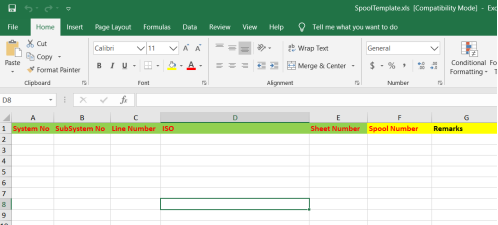
1. Click (**TEMPLATE** button). See Fig 3.6.
An excel worksheet will be downloaded with a predefined template to enter the details of spools.
[](http://wiki.cuteinfocomm.com/uploads/images/gallery/2022-04/image-1651129313702.png)
2. Enter the required spool details in the respective columns of the excel worksheet.
3. Once you have added the spool details in the excel worksheet, save the excel worksheet on your computer.
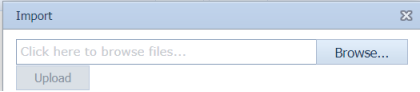
4. Click [](http://wiki.cuteinfocomm.com/uploads/images/gallery/2022-04/image-1651129406453.png) (**IMPORT** button). See Fig 3.6.
A new window opens for importing the excel worksheet saved on your computer.
[](http://wiki.cuteinfocomm.com/uploads/images/gallery/2022-04/image-1651129432805.png)
5. Click (****Browse**** button) to select the excel worksheet to be uploaded.
6. Select the excel worksheet you want to upload from your computer.
7. Click (**Upload** button) to export the spool details that are added in the excel worksheet.
The details of the spools in the worksheet will be displayed in the **Spools** page.
### **3.7 Joints**
A variety of joints are used in the assembly of pipes. Joints are the points where two or more pieces of materials for example pipes, are joined by welding. The **Joints** tab in the **Project Data** menu helps you add the joint details including joint number, material specification, welding type, and so on.
If you want to navigate to **Joints,**
1. Click **Joints** in the **Project Data** menu.
The **Joints** page opens.
Due to insufficient space, the captured figure of the **Joints** page is split as four.
[](http://wiki.cuteinfocomm.com/uploads/images/gallery/2022-04/image-1651130834723.png)
[](http://wiki.cuteinfocomm.com/uploads/images/gallery/2022-04/image-1651130839151.png)
[](http://wiki.cuteinfocomm.com/uploads/images/gallery/2022-04/image-1651130844522.png)
[](http://wiki.cuteinfocomm.com/uploads/images/gallery/2022-04/image-1651130851996.png)
**Figure 3.7: Joints page**
#### **3.7.1 Add a Joint**
If you want to add a new joint, do the following steps,
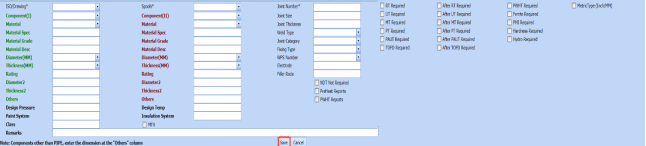
1. Click [](http://wiki.cuteinfocomm.com/uploads/images/gallery/2022-04/image-1651131075707.png) (****ADD**** button) in the ****Joints**** See Fig 3.7. A new window opens to add a new joint.
[](http://wiki.cuteinfocomm.com/uploads/images/gallery/2022-04/image-1651131116014.png)
[](http://wiki.cuteinfocomm.com/uploads/images/gallery/2022-04/image-1651131198398.png)**Note**: The fields notified with a symbol (\*) are mandatory. You must enter the relevant details in that fields before saving.
2. In the **ISO Drawing Number** box, select the ISO drawing number from a drop-down list.
3. In the ****Spools**** box, select the spool from a drop-down list.
4. In the ****Component (I)**** box, select the first component which you want to join.
5. In the ****Material**** box, select the material of the first component.
6. Enter the details of first component such as ****Material Spec****, ****Material Grade****, ****Material Desc****, ****Diameter (MM)****, ****Thickness (MM)****, ****Rating****, ****Diameter2****, and ****Thickness2****.
7. In the ****Component (II)**** box, select the second component which you want joint.
8. In the ****Material**** box, select the material of the second component.
9. Enter the details of second component such as ****Material Spec****, ****Material Grade****, ****Material Desc****, ****Diameter (MM)****, ****Thickness (MM)****, ****Rating****, ****Diameter2****, and ****Thickness2****.
10. If the component is other than pipe, enter the dimensions in ****Others****
11. In the ****Design Pressure**** box, enter the design pressure value.
12. In the ****Paint System**** box, enter the paint system name.
13. In the ****Design Temp**** box, enter the design temperature value.
14. In the ****Insulation System**** box, enter the insulation system name.
15. In the ****Joint Number**** box, enter the joint number.
16. In the ****Joint Size**** box, enter the joint size range.
17. In the ****Joint Thickness**** box, enter the joint thickness range.
18. In the ****Weld Type**** box, select the welding type from a drop-down list.
19. In the ****Joint Category**** box, select the joint category from a drop-down list.
20. In the ****Fixing Type**** box, select the fixing type from a drop-down list.
21. In the ****WPS Number**** box, select the WPS number from a drop-down list.
22. In the ****Electrode**** box, enter the electrode name.
23. In the ****Filler Rod**** box, enter the filler rod name.
24. If the NDT inspection is not required for the added joint, select the checkbox of the **NDT Not Required** option.
25. If the NDT inspection is required for the added joint, select the checkbox of the respective NDT types given for example **RT Required**, **UT Required**, and so on.
26. In the ****Remarks**** box, enter your remarks if any.
27. Click ****Save.****The joint is successfully added.
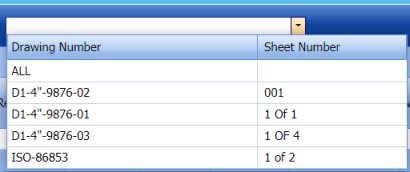
28. If you want view the added joint, select the respective drawing number from a drop-down list of the **Select Drawing Number** box in the upper side of the **Joints** page. and listed in the **Joints** page.
[](http://wiki.cuteinfocomm.com/uploads/images/gallery/2022-04/image-1651131647160.png)
The joint for the selected drawing number will be displayed in the **Joints** page.
[](http://wiki.cuteinfocomm.com/uploads/images/gallery/2022-04/image-1651131660363.png)
#### **6.7.2 Clone a Joint**
The Clone option provided in the **Joints** page used to add a new joint from previously added joint. If a joint to be added is having the same specifications of any joint already listed in the **Joints** page, you can add the new joint by using [](http://wiki.cuteinfocomm.com/uploads/images/gallery/2022-04/image-1651131717921.png) (Clone icon).
1. In the ****Joints**** page, find out the joint you want to clone. [](http://wiki.cuteinfocomm.com/uploads/images/gallery/2022-04/image-1651131757866.png)
2. Click[](http://wiki.cuteinfocomm.com/uploads/images/gallery/2022-04/image-1651131989751.png)(Clone icon) of the respective joint.
The **Joints** page shows the details of selected joint except joint number in the **Joint Number** box. See the below figure.
[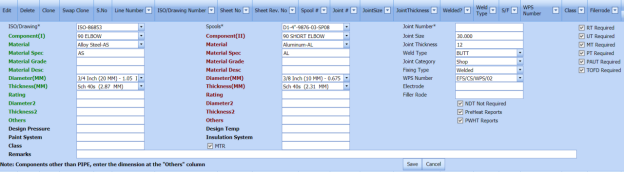](http://wiki.cuteinfocomm.com/uploads/images/gallery/2022-04/image-1651132015191.png)
3. If you want to change any details, you can change in the respective boxes.
4. In the ****Joint Number**** box, enter the joint number for the new joint you want to add.
5. Click ****Save****. The new joint is successfully added and listed in the **Joints** page.
[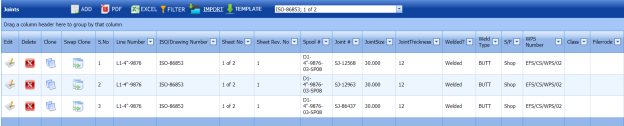](http://wiki.cuteinfocomm.com/uploads/images/gallery/2022-04/image-1651132098303.png)
#### **3.7.3 Swap Clone Joint**
The Swap Clone option provided in the **Joints** page used to add a new joint from previously added joint. When you do swap clone of any joint, the first and second components in the joint will be swapped each other.
1. In the ****Joints**** page, find out the joint you want to swap clone. [](http://wiki.cuteinfocomm.com/uploads/images/gallery/2022-04/image-1651132194628.png)
2. Click [](http://wiki.cuteinfocomm.com/uploads/images/gallery/2022-04/image-1651132234131.png) (Swap Clone icon) of the respective joint. The **Joints** page shows the details of selected joint except joint number in the **Joint Number** box. The **Component (I)** and **Component (II)** will be swapped each other. See the below figure.
[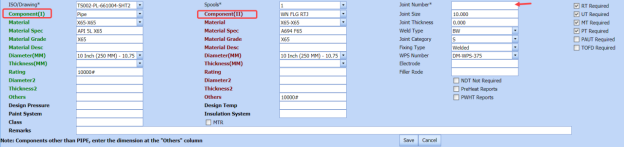](http://wiki.cuteinfocomm.com/uploads/images/gallery/2022-04/image-1651132275715.png)
3. If you want to change any details, you can change in the respective boxes.
4. In the ****Joint Number**** box, enter the joint number for the new joint you want to add.
5. Click ****Save****. The new joint is successfully added and listed in the **Joints** page.
[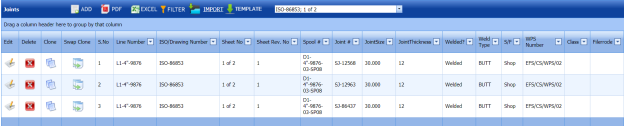](http://wiki.cuteinfocomm.com/uploads/images/gallery/2022-04/image-1651132327179.png)
#### **3.7.4 Edit a Joint**
If you want to edit any existing joint in the **Joints** page,
1. Click (Edit icon) of the respective joint. See Fig 3.7. The **Joints** page shows the details of the selected joint.
[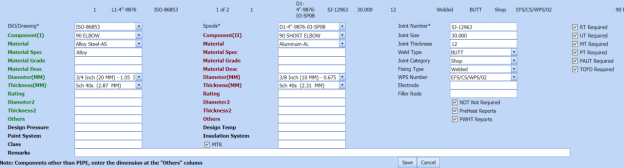](http://wiki.cuteinfocomm.com/uploads/images/gallery/2022-04/image-1651132455198.png)
2. Edit the details where you want.
3. Click ****Save****.
#### **3.7.5 Delete a Joint**
If you want to delete any existing joint in the **Joints** page, you can use [](http://wiki.cuteinfocomm.com/uploads/images/gallery/2022-04/image-1651132644809.png) (Delete icon) provided in the **Joints** page. To know how to delete, see the topic, “[Delete P&ID](http://wiki.cuteinfocomm.com/books/cuteqm/page/project-data/#bkmrk-3.1.3%C2%A0delete-a-p%26id)”.
#### **3.7.6 Export Joints List**
You can export a list of joints added in the **Joints** page in both the pdf and excel formats by using [](http://wiki.cuteinfocomm.com/uploads/images/gallery/2022-04/image-1651132703793.png) (**PDF** button) and [](http://wiki.cuteinfocomm.com/uploads/images/gallery/2022-04/image-1651132724425.png) (**Excel** button). To know how to export, see the topic, “[Export P&ID list](http://wiki.cuteinfocomm.com/books/cuteqm/page/project-data/#bkmrk-3.1.4%C2%A0export-p%26id-li)”.
#### **3.7.7 Filter a Joint**
If you want to filter any joint in the **Joints** page, you can use [](http://wiki.cuteinfocomm.com/uploads/images/gallery/2022-04/image-1651132789692.png) (**FILTER** button) provided on the **Joints** page. To know how to filter, see the topic, “[Filter P&ID](http://wiki.cuteinfocomm.com/books/cuteqm/page/project-data/#bkmrk-3.1.5%C2%A0filter-a-p%26id)”.
#### **3.7.8 Import Multiple Joints**
If you want to import multiple joints together, do the following,
1. Click [](http://wiki.cuteinfocomm.com/uploads/images/gallery/2022-04/image-1651132953138.png) (**TEMPLATE** button). See Fig 3.7.
An excel worksheet will be downloaded with a predefined template to enter the details of joints.
[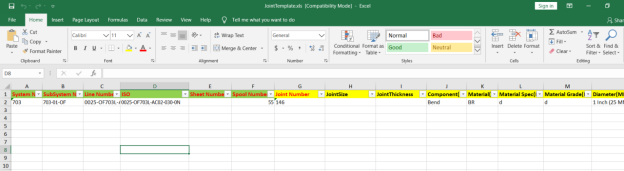](http://wiki.cuteinfocomm.com/uploads/images/gallery/2022-04/image-1651132976303.png)
2. Enter the required joint details in the respective columns of the excel worksheet.
3. Once you have added the joint details in the excel worksheet, save the excel worksheet on your computer.
4. Click [](http://wiki.cuteinfocomm.com/uploads/images/gallery/2022-04/image-1651133055006.png) (****IMPORT**** button). See Fig 3.7.
A new window opens for importing the excel worksheet saved on your computer.
[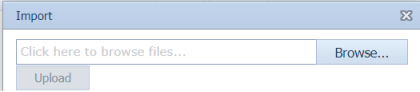](http://wiki.cuteinfocomm.com/uploads/images/gallery/2022-04/image-1651133091897.png)
5. Click [](http://wiki.cuteinfocomm.com/uploads/images/gallery/2022-04/image-1651133119712.png) (**Browse** button) to select the excel worksheet to be uploaded.
6. Select the excel worksheet you want to upload from your computer.
7. Click [](http://wiki.cuteinfocomm.com/uploads/images/gallery/2022-04/image-1651133155455.png) (****Upload**** button) to export the joint details that are added in the excel worksheet.
The details of the joints in the worksheet will be displayed in the **Joints** page.
### **3.8 Drawing Bulk Edit**
The **Drawing Bulk Edit** tab in the **Project Data** menu helps you to make changes in all the added ISO drawings together, where the ISO drawings are added using the [**ISO Drawings**](http://wiki.cuteinfocomm.com/books/cuteqm/page/project-data/#bkmrk-3.5%C2%A0isometric-%28iso%29-) tab. This feature avoids the need to open each ISO drawing individually for making changes in the ISO drawings because you can make changes in all the ISO drawings together.
If you want to make changes in the ISO drawings together, do the following steps,
1. Click ****Drawing Bulk Edit**** in the ****Project Data**** menu. The **Drawing Bulk Edit** page opens with a list ISO drawing added in the **ISO Drawings** page.
[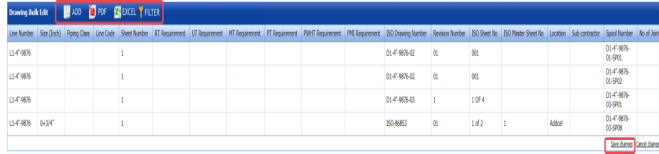](http://wiki.cuteinfocomm.com/uploads/images/gallery/2022-04/image-1651133300204.png)
**Figure 3.8: Drawing Bulk Edit page**
2. If you want make changes in any ISO drawing details, click on the respective detail, and edit.
3. Click ****Save Changes****. The changes you have made here will be reflected in the respective ISO drawing in the [**ISO**](http://wiki.cuteinfocomm.com/books/cuteqm/page/project-data/#bkmrk-3.5%C2%A0isometric-%28iso%29-) page.
[](http://wiki.cuteinfocomm.com/uploads/images/gallery/2022-04/image-1651133358768.png)**Note**: You can also add a new ISO drawing by using (**ADD** Button) provided in the upper side of the **Drawing Bulk Edit** page.
#### **3.8.1 Export Drawings After Editing**
After making changes in the ISO drawings, you can export a list of drawings in the **Drawing Bulk Edit** page in both the pdf and excel formats by using [](http://wiki.cuteinfocomm.com/uploads/images/gallery/2022-04/image-1651133450281.png) (**PDF** button) and [](http://wiki.cuteinfocomm.com/uploads/images/gallery/2022-04/image-1651133459839.png) (**Excel** button). To know how to export, see the topic, “[Export P&ID list](http://wiki.cuteinfocomm.com/books/cuteqm/page/project-data/#bkmrk-3.1.4%C2%A0export-p%26id-li)”.
#### **3.8.2 Filter a Drawing**
If you want to filter any ISO drawing in the **Drawing Bulk Edit** page, you can use (**FILTER** button) provided on the **Drawing Bulk Edit** page. To know how to filter, see the topic, “[Filter P&ID](http://wiki.cuteinfocomm.com/books/cuteqm/page/project-data/#bkmrk-3.1.5%C2%A0filter-a-p%26id)”.
### **3.9 Joints Bulk Edit**
The **Joints Bulk Edit** tab in the **Project Data** menu helps you to make changes in all the added joints together, where the joints are added using the [Joints](http://wiki.cuteinfocomm.com/books/cuteqm/page/project-data/#bkmrk-3.-7%C2%A0joints) tab. This feature avoids the need to open each joint individually for making changes in the joint because you can make changes in all the joints together.
If you want to make changes in the joints together, do the following steps,
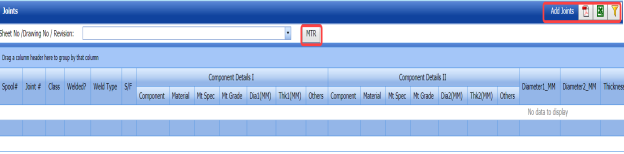
1. Click ****Joints Bulk Edit**** in the ******Project Data****** menu******.******The **Joints** page opens with a list joints added in the **Joints** page.
[](http://wiki.cuteinfocomm.com/uploads/images/gallery/2022-04/image-1651133622102.png)
**Figure 3.9: Joints page**
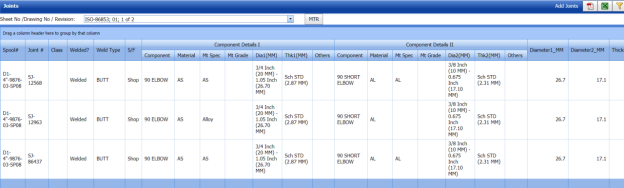
2. In the **Sheet No/Drawing No/Revision** box, select the drawing number from a drop-down list.
The joints corresponding to the selected drawing number will be displayed in the **Joints** page.
[](http://wiki.cuteinfocomm.com/uploads/images/gallery/2022-04/image-1651133679769.png)
3. If you want make changes in any joint, click on the respective joint detail, and edit.
4. Click ****Save Changes****. The changes you have made here will be reflected in the respective joints in the [**Joints**](http://wiki.cuteinfocomm.com/books/cuteqm/page/project-data/#bkmrk-3.-7%C2%A0joints) page.
[](http://wiki.cuteinfocomm.com/uploads/images/gallery/2022-04/image-1651133717640.png)**Note**: You can also add a new joint by using provided in the upper right corner of the **Joints Bulk Edit** page.
#### **3.9.1 Export Joints After Editing**
After making changes in the joints, you can export a list of joints in the **Joints** page in both the pdf and excel formats by using [](http://wiki.cuteinfocomm.com/uploads/images/gallery/2022-04/image-1651133805751.png) (**PDF** button) and [](http://wiki.cuteinfocomm.com/uploads/images/gallery/2022-04/image-1651133820284.png) (**Excel** button). To know how to export, see the topic, “[Export P&ID list](http://wiki.cuteinfocomm.com/books/cuteqm/page/project-data/#bkmrk-3.1.4%C2%A0export-p%26id-li)”.
#### **3.9.2 Filter a Joint**
If you want to filter any joint in the **Joints** page, you can use [](http://wiki.cuteinfocomm.com/uploads/images/gallery/2022-04/image-1651133877947.png) (**FILTER** button) provided in the **Joints** page. To know how to filter, see the topic, “[Filter P&ID](http://wiki.cuteinfocomm.com/books/cuteqm/page/project-data/#bkmrk-3.1.5%C2%A0filter-a-p%26id)”.
#### **3.9.3 View Material Traceability Record (MTR)**
You can view the MTR for added joints by using [](http://wiki.cuteinfocomm.com/uploads/images/gallery/2022-04/image-1651133927232.png) (**MTR** button) provided in the **Joints** page. Once you click the **MTR** button, the page redirects you into the [Material Traceability Record](http://wiki.cuteinfocomm.com/books/cuteqm/page/materials/#bkmrk-4.10%C2%A0material-tracea) page.
### **3.10 Import from Excel - Masters**
The **Import from Excel – Masters** tab helps you to upload master data for all fields instead of uploading data for each field individually.
If you want to import master data for different fields, do the following,
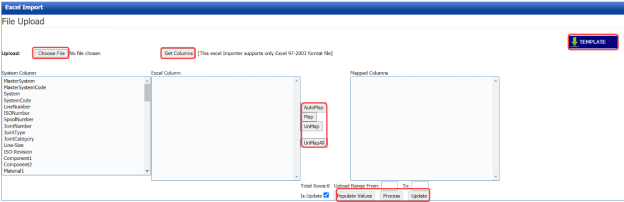
1. Click ****Import from Excel – Masters**** in the ******Project Data******The **File Upload** page opens.
[](http://wiki.cuteinfocomm.com/uploads/images/gallery/2022-04/image-1651134017306.png)
**Figure 3.10: File Upload page**
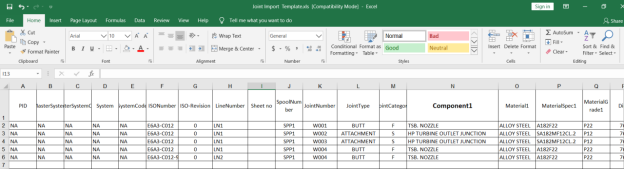
2. Download a template by using [](http://wiki.cuteinfocomm.com/uploads/images/gallery/2022-04/image-1651134174669.png) (****TEMPLATE**** button) to enter the details of master data.
An excel worksheet will be downloaded with a pre-defined template to the details.
[](http://wiki.cuteinfocomm.com/uploads/images/gallery/2022-04/image-1651134236413.png)
3. Enter the relevant details in the respective column of the excel worksheet.
4. Click [](http://wiki.cuteinfocomm.com/uploads/images/gallery/2022-04/image-1651134292995.png) (Choose File button).
Once the file has been uploaded successfully, you receive a message, “Successfully uploaded”
5. Click [](http://wiki.cuteinfocomm.com/uploads/images/gallery/2022-04/image-1651134343191.png)(Get Columns button).
The columns added in the excel worksheet will be listed in the **Excel Column** field.
[](http://wiki.cuteinfocomm.com/uploads/images/gallery/2022-04/image-1651134359459.png)**Note**: Make sure that the **Excel Column** field must have all the columns as in the **System Column** field.
6. To map the columns in the ****System Column**** and ****Excel Column**** fields, do one of the following,
1. If you want to map the columns Automatically, click [](http://wiki.cuteinfocomm.com/uploads/images/gallery/2022-04/image-1651134444969.png) (**AutoMap** button).
The columns will be mapped automatically and displayed in the **Mapped Columns** field.
2. If you want to map each column manually, select the respective columns in both the **System Columns** and Each **Excel Column** fields and then click [](http://wiki.cuteinfocomm.com/uploads/images/gallery/2022-04/image-1651134554716.png) (**Map** button). [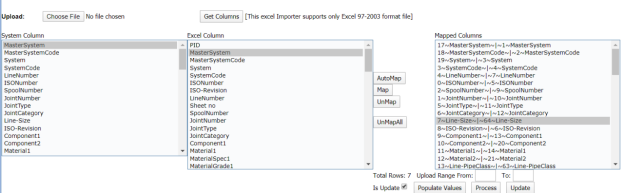](http://wiki.cuteinfocomm.com/uploads/images/gallery/2022-04/image-1651134545201.png)
7. To un-map the columns in the **Mapped Columns** field, select the respective column and then click [](http://wiki.cuteinfocomm.com/uploads/images/gallery/2022-04/image-1651134731173.png) (**UnMap** button).
Once you have completed the mapping and un-mapping of columns, you must enter the range for uploading the data from the excel worksheet.
[](http://wiki.cuteinfocomm.com/uploads/images/gallery/2022-04/image-1651134756458.png)**Note**: In the **Total Rows** field, the system indicates the total number of rows filled in the excel worksheet.
[](http://wiki.cuteinfocomm.com/uploads/images/gallery/2022-04/image-1651134776943.png)**Tip**: You must enter the upload starting range as two in the **Upload Range From** field because a first row in the excel worksheet is having heading of the columns.
8. In the ****Upload Range From and To**** fields, enter the range of rows you want to upload from the excel worksheet.
9. Click [](http://wiki.cuteinfocomm.com/uploads/images/gallery/2022-04/image-1651134865782.png) (**Populate Values** button).
10. Click [](http://wiki.cuteinfocomm.com/uploads/images/gallery/2022-04/image-1651134884892.png) (**Process** button).
The system processes all the uploaded data and displays in the **Excel Import** page.
[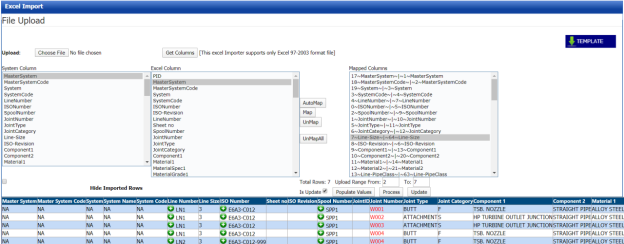](http://wiki.cuteinfocomm.com/uploads/images/gallery/2022-04/image-1651134915245.png)
11. Click [](http://wiki.cuteinfocomm.com/uploads/images/gallery/2022-04/image-1651134930979.png) (**Update** button) to import the uploaded data.
The data will be successfully imported.
### **3.11 NDT Procedures**
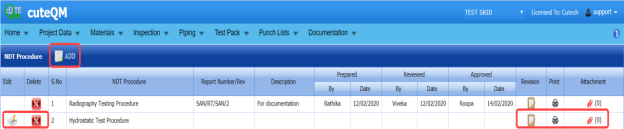
The **NDT procedures** tab in the **Project Data** menu helps you to add an NDT procedure. Once you have added the NDT procedure details you can add revision for the added NDT procedure. If you want to add an NDT procedure, do the following steps,
1. Click ****NDT Procedures**** in the ****Project Data**** menu. The **NDT Procedure** page opens.
[](http://wiki.cuteinfocomm.com/uploads/images/gallery/2022-04/image-1651135080005.png)
**Figure 3.11: NDT Procedure page**
#### **3.11.1 Add an NDT procedure**
If you want to add an NDT procedure,
1. Click [](http://wiki.cuteinfocomm.com/uploads/images/gallery/2022-04/image-1651135146245.png) (**ADD** button) in the **NDT Procedure page. See Fig 3.11.
A new window opens to add an NDT procedure.
[](http://wiki.cuteinfocomm.com/uploads/images/gallery/2022-04/image-1651135200022.png)
2. In the ****NDT Procedure**** box, select the NDT procedure from a drop-down list.
3. In the ****NDT Procedure Title**** box, enter the NDT procedure title.
4. Click ****Save****. The NDT procedure is successfully added.
#### **3.11.2 Add Details of NDT Procedure**
Once you have added the NDT procedure, you must add the details of the added NDT procedure.
1. Click[](http://wiki.cuteinfocomm.com/uploads/images/gallery/2022-04/image-1651135343723.png)(Edit icon) of the respective NDT procedure in the **NDT Procedure** See Fig 3.11.
The **NDT Procedure Revision** window opens.
[](http://wiki.cuteinfocomm.com/uploads/images/gallery/2022-04/image-1651135384675.png)
2. Click [](http://wiki.cuteinfocomm.com/uploads/images/gallery/2022-04/image-1651135399350.png) (**ADD** button) in the **NDT Procedure Revision** window.
A new window opens to add the NDT procedure details.
[](http://wiki.cuteinfocomm.com/uploads/images/gallery/2022-04/image-1651135439130.png)
[](http://wiki.cuteinfocomm.com/uploads/images/gallery/2022-04/image-1651135447542.png)**Note**: The fields notified with a symbol (\*) are mandatory. You must enter the relevant details in that fields before saving. [](http://wiki.cuteinfocomm.com/uploads/images/gallery/2022-04/image-1651135477119.png)**Tip**: A report number for the revision will be updated automatically in the **Report Number/ Revision** box.
3. In the ****Description**** box, enter the description for the NDT procedure.
4. In the ****Prepared By**** box, enter the name a person who has prepared the NDT procedure.
5. In the ****Prepared Date**** box, enter the prepared date of the NDT procedure.
6. In the ****Reviewed By**** box, enter the name a person who has reviewed the NDT procedure.
7. In the ****Reviewed Date**** box, enter the reviewed date of the NDT procedure.
8. In the ****Approved By**** box, enter the name a person who has approved the NDT procedure.
9. In the ****Approved Date**** box, enter the approved date of the NDT procedure.
10. Click ****Save****. The NDT procedure details are successfully saved and listed in the **NDT Procedure Revision** window.
#### **3.11.3 Add Revision for NDT Procedure**
Once you have added the NDT procedure details, you can add revision for the added NDT procedures. You can add multiple revisions for one NDT procedure. To add revision,
1. Click[](http://wiki.cuteinfocomm.com/uploads/images/gallery/2022-04/image-1651135631723.png)(Revision icon) of the respective NDT procedure.
A new window opens with the details of existing NDT procedure.
[](http://wiki.cuteinfocomm.com/uploads/images/gallery/2022-04/image-1651135665658.png)
2. Click **Save**.
The revision for the selected NDT procedure is added.
#### **3.11.4 View an NDT Procedure Report**
If you want to view an NDT procedure report, click[](http://wiki.cuteinfocomm.com/uploads/images/gallery/2022-04/image-1651135739577.png) (print icon) provided in the **Print** column of the **NDT Procedure** page. See Fig 3.11.
#### **3.11.5 Attach a File into an NDT Procedure**
If you want to attach any file with a NDT procedure listed in the **NDT Procedure** page, you can attach the file by using [](http://wiki.cuteinfocomm.com/uploads/images/gallery/2022-04/image-1651135785176.png) (Attach icon) in the **Attachment** column. To know how to attach, follow the procedures given in the topic “[**Attach a file into P&ID**](http://wiki.cuteinfocomm.com/books/cuteqm/page/project-data/#bkmrk-3.1.7%C2%A0attach-a-file-)”.
### **3.12 WPS in Project**
WPS is a written instruction that specifies materials, consumables and edge preparations for a given joint. The WPS lists the pre- and post-weld operations including heat treatments; machining, grinding, and dressing of the weld.
The **WPS in Project** tab in the **Project Data** menu helps you to add a WPS report and assign the WPS to a project.
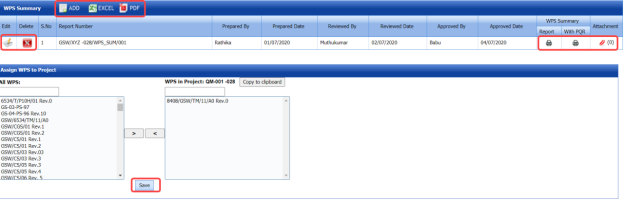
1. Click ****WPS in Project**** tab in the ******Project Data****** menu. The WPS by projects page opens with two fields such as **WPS Summary** and **Assign WPS to Project**.
[](http://wiki.cuteinfocomm.com/uploads/images/gallery/2022-04/image-1651135904499.png)
**Figure 3.12: WPS in projects page**
#### **3.12.1 Add a WPS Summary Report**
If you want to add a new WPS summary report, do the following,
1. Click [](http://wiki.cuteinfocomm.com/uploads/images/gallery/2022-04/image-1651136003602.png) (**ADD** button) in the **WPS Summary** field. See Fig 3.12.
A new window opens to add a WPS report.
[](http://wiki.cuteinfocomm.com/uploads/images/gallery/2022-04/image-1651136040774.png)
[](http://wiki.cuteinfocomm.com/uploads/images/gallery/2022-04/image-1651136053842.png)**Tip**: A report number for a new WPS report will be updated automatically in the **Report Number** box. If you want to change the report number, you can change.
2. In the ****Prepared By**** box, enter the name of a person who has prepared the WPS report.
3. In the ****Reviewed By**** box, enter the name of a person who has reviewed the WPS report.
4. In the ****Approved By**** box, enter the name of a person who has approved the WPS report.
5. In the ****Prepared Date**** box, choose the prepared date of the WPS report.
6. In the ****Reviewed Date**** box, choose the reviewed date of the WPS report.
7. In the ****Approved Date**** box, choose the approved date of the WPS report.
8. Click ****Save****. The WPS summary report is successfully added.
#### **3.12.2 View a WPS Summary Report**
If you want to view a WPS summary report, click (Print icon) provided in the **WPS Summary Report** column.
#### **3.12.3 View a WPS Summary Report with PQR**
If you want to view a WPS summary report with PQR, click (Print icon) provided in the **WPS Summary with PQR** column.
#### **3.12.4 Attach a File into a WPS Summary Report**
If you want to attach any file with any WPS summary report listed in the **WPS Summary** page, you can use [](http://wiki.cuteinfocomm.com/uploads/images/gallery/2022-04/image-1651136319442.png) (Attach icon) provided in the **Attachment** column for the respective WPS summary report. To know how to attach, follow the procedures given in the topic “[**Attach a file into P&ID**](http://wiki.cuteinfocomm.com/books/cuteqm/page/project-data/#bkmrk-3.1.7%C2%A0attach-a-file-)”.
#### **3.12.5 Export WPS Summary Reports List**
You can export a list of added WPS reports in the pdf and excel formats by using [](http://wiki.cuteinfocomm.com/uploads/images/gallery/2022-04/image-1651136377809.png) (**PDF** button) and [](http://wiki.cuteinfocomm.com/uploads/images/gallery/2022-04/image-1651136397341.png) (**Excel** button). To know how to export, see the topic, “[Export P&ID list](http://wiki.cuteinfocomm.com/books/cuteqm/page/project-data/#bkmrk-3.1.4%C2%A0export-p%26id-li)”.
#### **3.12.6 Assign a WPS to a Project**
The **Assign WPS to Project** field in the **WPS in projects** page allows you to assign the WPS to the project. If you want to assign any WPS to the project, do the following,
[](http://wiki.cuteinfocomm.com/uploads/images/gallery/2022-04/image-1651136449870.png)
In the **Assign WPS to Project** field, the **All WPS** box displays a list of available WPS. The **WPS in Project** box displays a list of WPS that has been already assigned for the project.
1. If you want to assign any WPS for the project, select the respective WPS in the ****ALL WPS**** box, and then click [](http://wiki.cuteinfocomm.com/uploads/images/gallery/2022-04/image-1651136506476.png) (Assign welder button). The selected WPS will be assigned to the project.
2. If you want to reject any WPS that has been assigned for the project, select the respective WPS in the ****WPS in Project**** box, and then click [](http://wiki.cuteinfocomm.com/uploads/images/gallery/2022-04/image-1651136568689.png) (Reject welder button).
### **3.13 Welders in Projects**
The **Welders in Projects** tab in the **Project Data** menu helps you to assign welders for a project. You can add a welder report by using this tab. This tab also helps you to view a welder list and WPQ details.
1. Click **Welders in Projects** tab in **Project Data** menu.
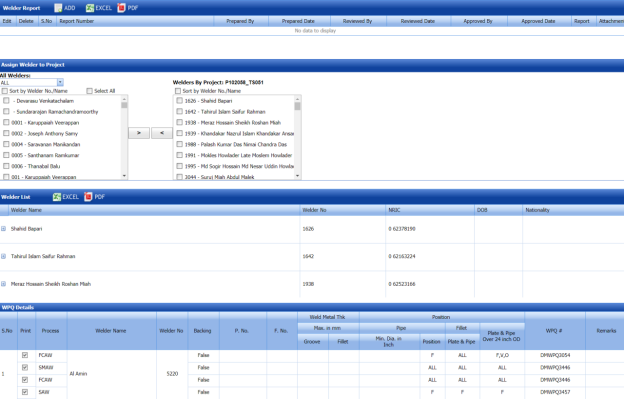
The welders in projects page opens with four fields such as **Welder Report**, **Assign Welder to Project**, **Welder List**, and **WPQ Details**.
[](http://wiki.cuteinfocomm.com/uploads/images/gallery/2022-04/image-1651136663917.png)
**Figure 3.13: Welders in project page**
#### **3.13.1 Add a Welder Report**
If you want to add a welder report, do the following steps,
1. Click [](http://wiki.cuteinfocomm.com/uploads/images/gallery/2022-04/image-1651136796065.png) (**ADD** button) in the **Welder Report** See Fig 3.13.
A new window opens to add a welder report.
[](http://wiki.cuteinfocomm.com/uploads/images/gallery/2022-04/image-1651136830683.png)
[](http://wiki.cuteinfocomm.com/uploads/images/gallery/2022-04/image-1651136863440.png)**Tip**: A report number for a new welder report will be updated automatically in the **Report Number** box.
2. In the ****Prepared By**** box, enter the name of welder who has prepared the welder report.
3. In the ****Received By**** box, enter the name of welder who has received the welder report.
4. In the ****Approved By**** box, enter the name of welder who has approved the welder report.
5. In the ****Prepared Date**** box, choose the prepared date of the welder report.
6. In the ****Received Date**** box, choose the received date of the welder report.
7. In the ****Approved Date**** box, choose the approved date of the welder report.
8. Click ****Save****. The welder report is successfully added.
#### **3.13.2 View a Welder Report**
If you want to view a welder report, click[](http://wiki.cuteinfocomm.com/uploads/images/gallery/2022-04/image-1651137043660.png)(Print icon) provided in the **Report** column.
#### **3.13.3 Attach a File into a Welder Report**
If you want to attach any file with any welder report listed in the **Welder Report** window, you can use[](http://wiki.cuteinfocomm.com/uploads/images/gallery/2022-04/image-1651137111900.png) (Attach icon) provided in the **Attachment** column for the respective welder report. To know how to attach, follow the procedures given in the topic “[**Attach a file into P&ID**](http://wiki.cuteinfocomm.com/books/cuteqm/page/project-data/#bkmrk-3.1.7%C2%A0attach-a-file-)”.
#### **3.13.4 Export Welder Reports List**
You can export a list of welder reports in the **Welder Report** field in both the pdf and excel formats by using [](http://wiki.cuteinfocomm.com/uploads/images/gallery/2022-04/image-1651137177474.png) (**PDF** button) and [](http://wiki.cuteinfocomm.com/uploads/images/gallery/2022-04/image-1651137189912.png) (**Excel** button). To know how to export, see the topic, “[Export P&ID list](http://wiki.cuteinfocomm.com/books/cuteqm/page/project-data/#bkmrk-3.1.4%C2%A0export-p%26id-li)”.
#### **3.13.5 Assign a Welder to a Project**
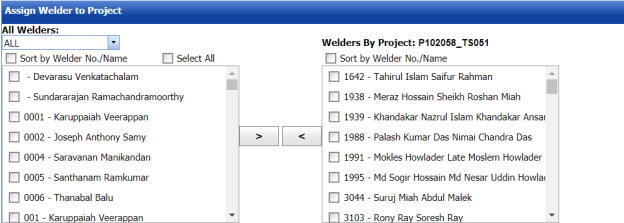
The **Assign Welder to Project** field in the welders in projects page allows you to assign any welder to the particular project. If you want to assign any welder to the project, do the following,
[](http://wiki.cuteinfocomm.com/uploads/images/gallery/2022-04/image-1651137252547.png)
1. In the **All Welders** box, if you want to view all the welders, click **ALL** otherwise select the respective company’s welder group from a drop-down list to view their welders list.
Once you have selected the company’s welder group, the left-side box shows a list of welders. The right-side box shows a list of welders who has been already assigned for the project.
2. If you want to assign any welder for the project, select the respective welder in the left-side box, and then click [](http://wiki.cuteinfocomm.com/uploads/images/gallery/2022-04/image-1651137423048.png)(Assign welder button).
The selected welder will be assigned to the project.
3. If you want to reject any welder who has been assigned for the project, select the respective welder in the right-side box, and then click [](http://wiki.cuteinfocomm.com/uploads/images/gallery/2022-04/image-1651137530725.png) (Reject welder button).
#### **3.13.6 Welder List**
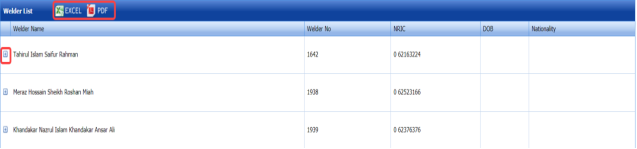
The **Welder List** field in the welders in projects page shows the welder details such as welder name, welder number, NRIC, date of birth, and nationality. This field also helps you to assign the WPQs of welders to the project, and remove any WPQs from the project.
[](http://wiki.cuteinfocomm.com/uploads/images/gallery/2022-04/image-1651137630980.png)
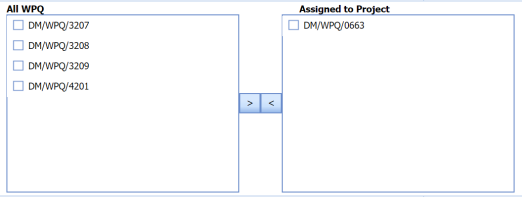
If you click[](http://wiki.cuteinfocomm.com/uploads/images/gallery/2022-04/image-1651137642763.png)(Expand Icon) of the respective welder, the **All WPQ** box shows the details of all WPQs of the welder, and the **Assigned to Project** box shows any WPQ that has been assigned to a project.
[](http://wiki.cuteinfocomm.com/uploads/images/gallery/2022-04/image-1651137711680.png)
1. If you want to assign any WPQ for the project, select the respective WPQ in the **All WPQ** box, and then click [](http://wiki.cuteinfocomm.com/uploads/images/gallery/2022-04/image-1651137746447.png)
(Assign WPQ button).
The selected welder will be assigned to the project.
2. If you want to reject any WPQ that has been assigned for the project, select the respective WPQ in the **Assigned to Project** box, and then click [](http://wiki.cuteinfocomm.com/uploads/images/gallery/2022-04/image-1651137824244.png) (Reject WPQ button).
#### **3.13.7 WPQ Details**
The **WPQ details** field in the welders in projects page shows the WPQ details of each welder including welder’s name, welder number, welding process name, weld metal thickness, position, and so on.
[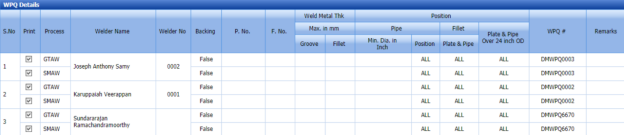](http://wiki.cuteinfocomm.com/uploads/images/gallery/2022-04/image-1651138342512.png)
If you want to take a print of any WPQ details, click the checkbox provided in the **Print** Column.
### **3.14 Inspectors in Projects**
The **Inspectors in Projects** tab in the **Project Data** menu helps you to map inspectors for the specific project.
1. Click the **Inspectors in Projects** tab.
The **Project Mapping – Inspectors** page opens
[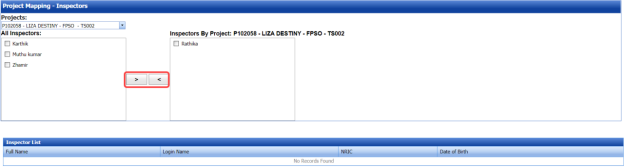](http://wiki.cuteinfocomm.com/uploads/images/gallery/2022-04/image-1651138418263.png)
**Figure 3.14: Project Mapping – Inspectors page**
The **Project Mapping – Inspectors** page shows a list of inspectors, which is added in the **Master Data**. If you want to map any inspectors for a specific project, do the following,
2. Select a project you want from the ****Projects**** box. A list of available inspectors will be displayed.
3. Select the check box of the respective inspector which you want to map for the selected project.
[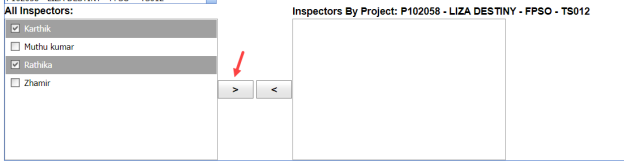](http://wiki.cuteinfocomm.com/uploads/images/gallery/2022-04/image-1651138500653.png)
4. Click [](http://wiki.cuteinfocomm.com/uploads/images/gallery/2022-04/image-1651138511507.png) (Map icon).
The selected inspectors are mapped for the selected project.
[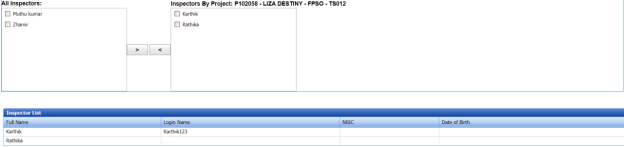](http://wiki.cuteinfocomm.com/uploads/images/gallery/2022-04/image-1651138535910.png)
The **Inspector List** window shows the inspector’s name, login name, NRIC, and Date of birth.
### **3.15 WPQ Search**
The **WPQ Search** tab in the **Project Data** menu used to filter the specific WPQ result. To perform the WPQ search,
1. Click ****WPQ Search**** in the ******Project Data****** menu. The **WPQ Search** page opens with the **WPQ Results** window.
[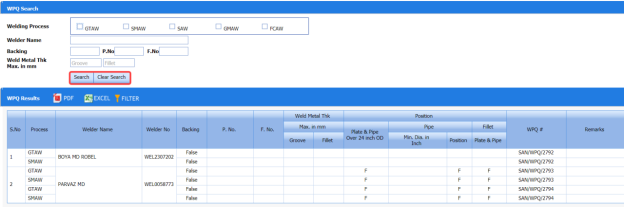](http://wiki.cuteinfocomm.com/uploads/images/gallery/2022-04/image-1651143779007.png)
**Figure 3.15: WPQ Search page**
2. In the ****Welding Process**** box, select a welding process from the given welding processes.
3. In the ****Welder Name**** box, enter the name of a welder.
4. In the ****Backing**** box, enter the backing details.
5. In the **Weld Metal Thk Max. in mm** box, enter the minimum and maximum thickness of the weld metal.
6. Click [](http://wiki.cuteinfocomm.com/uploads/images/gallery/2022-04/image-1651143902806.png) (**Search** button).
The **WPQ Results** window shows the WPQ details based on the given data.
#### **3.15.1 Export WPQ Results**
You can export the WPQ results in the **WPQ Results** window in both the pdf and excel formats by using [](http://wiki.cuteinfocomm.com/uploads/images/gallery/2022-04/image-1651144003140.png) (**PDF** button) and [](http://wiki.cuteinfocomm.com/uploads/images/gallery/2022-04/image-1651144016905.png) (**Excel** button). To know how to export, see the topic, “[Export P&ID list](http://wiki.cuteinfocomm.com/books/cuteqm/page/project-data/#bkmrk-3.1.4%C2%A0export-p%26id-li)”.
#### **3.15.2 Filter WPQ Results**
If you want to filter any WPQ in the **WPQ Results** page, you can use [](http://wiki.cuteinfocomm.com/uploads/images/gallery/2022-04/image-1651144066532.png) (**FILTER** button) provided on the **WPQ Results page. To know how to filter, see the topic, “[Filter P&ID](http://wiki.cuteinfocomm.com/books/cuteqm/page/project-data/#bkmrk-3.1.5%C2%A0filter-a-p%26id)”.
### **3.16 Bill of Material**
Bill of Material is a comprehensive inventory of the raw materials, assembles, sub assembles, parts and components, as well as the quantity of each, needed to the piping fabrication.
The **Bill of Material** tab in the **Project Data** menu used to add a new bill of material.
1. Click **Bill of Material** in the **Project Data** menu.
The **Bill of Material** page opens.
[](http://wiki.cuteinfocomm.com/uploads/images/gallery/2022-04/image-1651144225149.png)
**Figure 3.16: Bill of Material page**
#### **3.16.1 Add a Bill of Material**
If you want to add a bill of material,
1. In the ****ISO/Drawing No**** box, select the ISO drawing number from a drop-down list.
2. In the ****Material Type**** box, select a material type from a drop-down list.
3. Click [](http://wiki.cuteinfocomm.com/uploads/images/gallery/2022-04/image-1651144312247.png) (**Add** button).
A new window opens to add the material details.
[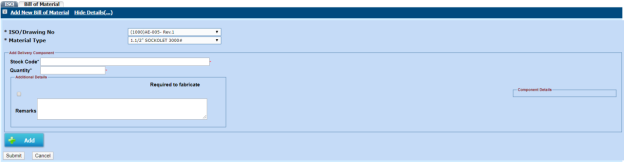](http://wiki.cuteinfocomm.com/uploads/images/gallery/2022-04/image-1651144342917.png)
4. In the ****Stock Code**** box, enter the stock code.
5. In the ****Quantity**** box, enter the quantity of the material.
6. In the ****Component Details**** box, enter the component details.
7. In the ****Remarks**** box, enter your remarks if any.
8. If the materials are need to be fabricated, enable the checkbox of the ****Required to fabricate**** option.
9. Click ****Submit****. The bill of material is added.
### **3.17 Spools Location – Masters**
The **Spools Location – Masters** tab in the **Project Data** menu used to add the details of the spool location.
1. Click ****Spools Location – Masters**** in the ******Project Data****** menu. The **Spools Location** page opens.
[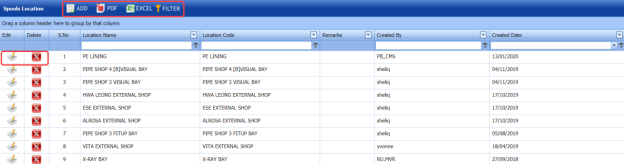](http://wiki.cuteinfocomm.com/uploads/images/gallery/2022-04/image-1651144550068.png)
**Figure 3.17: Spools Location page**
#### **3.17.1 Add a Spool Location**
If you want to add a spool location, do the following steps,
1. Click [](http://wiki.cuteinfocomm.com/uploads/images/gallery/2022-04/image-1651144642384.png) (**ADD** button) in the **Spools Location** page. See Fig 3.17.
A new window opens to add a new spool location.
[](http://wiki.cuteinfocomm.com/uploads/images/gallery/2022-04/image-1651144676899.png)
2. In the ****Location Name**** box, enter the location name.
3. In the ****Location Code**** box, enter the location code.
4. In the ****Remarks**** box, enter your remarks if any.
5. Click ****Save.****The spool location is successfully added.
#### **3.17.2 Edit a Spool Location**
If you want to edit any existing spool location detail in the **Spools Location** page,
1. Click [](http://wiki.cuteinfocomm.com/uploads/images/gallery/2022-04/image-1651144815771.png)(Edit icon)of the respective spool location. See Fig 3.17.
The **Spools Location** page shows the details of the selected location.
2. Edit the details where you want.
3. Click ****Save****.
#### **3.17.3 Delete a Spool Location**
If you want to delete any existing spool location in the **Spools Location** page, you can use [](http://wiki.cuteinfocomm.com/uploads/images/gallery/2022-04/image-1651144951947.png) (Delete icon). To know how to delete, see the topic, “[Delete P&ID](http://wiki.cuteinfocomm.com/books/cuteqm/page/project-data/#bkmrk-3.1.3%C2%A0delete-a-p%26id)”.
#### **3.17.4 Export Spool Location List**
You can export a list of spool location added in the **Spools Location** page in both the pdf and excel formats by using [](http://wiki.cuteinfocomm.com/uploads/images/gallery/2022-04/image-1651145002894.png) (**PDF** button) and [](http://wiki.cuteinfocomm.com/uploads/images/gallery/2022-04/image-1651145022584.png) (**Excel** button). To know how to export, see the topic, “[Export P&ID list](http://wiki.cuteinfocomm.com/books/cuteqm/page/project-data/#bkmrk-3.1.4%C2%A0export-p%26id-li)”.
#### **3.17.5 Filter a Spool Location**
If you want to filter any spool location in the **Spools Location** page, you can use [](http://wiki.cuteinfocomm.com/uploads/images/gallery/2022-04/image-1651145078005.png) (**FILTER** button) provided on the **Spools Location** page. To know how to filter, see the topic, “[Filter P&ID](http://wiki.cuteinfocomm.com/books/cuteqm/page/project-data/#bkmrk-3.1.5%C2%A0filter-a-p%26id)”.
### **3.18 Workflow Settings**
The **Workflow Settings** tab in the **Project Data** menu used to set a workflow in the **Piping** project.
1. Click **Workflow Settings** in the **Project Data** menu.
The **Workflow** page opens.
[](http://wiki.cuteinfocomm.com/uploads/images/gallery/2022-04/image-1651145159460.png)
**Figure 3.18: Workflow page**
#### **3.18.1 Add a Workflow**
If you want to add a workflow,
1. Click [](http://wiki.cuteinfocomm.com/uploads/images/gallery/2022-04/image-1651145239059.png) (**ADD** button) in the **Workflow** See Fig 3.18.
The page shows a new window to add the category.
[](http://wiki.cuteinfocomm.com/uploads/images/gallery/2022-04/image-1651145280544.png)
2. In the **Category** box, select a category from a drop-down list.
3. Click ****Save****. The added category will be listed in the **Workflow** page. See Fig 3.18.
4. Click [](http://wiki.cuteinfocomm.com/uploads/images/gallery/2022-04/image-1651145382522.png) (Add icon) of the respective category.
The **Workflow Details** window opens.
[](http://wiki.cuteinfocomm.com/uploads/images/gallery/2022-04/image-1651145419157.png)
5. Click [](http://wiki.cuteinfocomm.com/uploads/images/gallery/2022-04/image-1651145471636.png) (**ADD** button) in the **Workflow Details** window.
[](http://wiki.cuteinfocomm.com/uploads/images/gallery/2022-04/image-1651145484842.png)
6. In the ****Role Name**** box, select a role name from a drop-down list.
7. In the ****Description**** box, enter the description for the role name.
8. Click ****Save****.
#### **3.18.2 Edit a Workflow**
If you want to edit any existing workflow in the **Workflow** page,
1. Click [](http://wiki.cuteinfocomm.com/uploads/images/gallery/2022-04/image-1651145609219.png)(Edit icon) of the respective workflow. See Fig 3.18.
The **Workflow** page shows the details of the selected workflow.
2. Edit the details where you want.
3. Click ****Save****.
#### **3.18.3 Delete a Workflow**
If you want to delete any existing workflow in the **Workflow** page, you can use [](http://wiki.cuteinfocomm.com/uploads/images/gallery/2022-04/image-1651145702845.png) (Delete icon) provided in the **Workflow** page. To know how to delete, see the topic, “[**Delete P&ID**](http://wiki.cuteinfocomm.com/books/cuteqm/page/project-data/#bkmrk-3.1.3%C2%A0delete-a-p%26id)”.
#### **3.18.4 Export Workflow List**
You can export a list of workflows added in the **Workflow** page in both the pdf and excel formats by using [](http://wiki.cuteinfocomm.com/uploads/images/gallery/2022-04/image-1651145783334.png) (**PDF** button) and (**Excel** button). To know how to export, see the topic, **“**[**Export P&ID list**](http://wiki.cuteinfocomm.com/books/cuteqm/page/project-data/#bkmrk-3.1.4%C2%A0export-p%26id-li)”.
#### **3.18.5 Filter a Workflow**
If you want to filter any specific workflow, you can use [](http://wiki.cuteinfocomm.com/uploads/images/gallery/2022-04/image-1651145835186.png) (**FILTER** button) located on the **Workflow** page. To know how to filter, see the topic, **“**[**Filter** **P&ID**](http://wiki.cuteinfocomm.com/books/cuteqm/page/project-data/#bkmrk-3.1.5%C2%A0filter-a-p%26id)”.
### **3.19 Inspection Requirements**
The **Inspection Requirements** tab in the **Project Data** menu used to add the requirement details for the inspection.
1. Click ****Inspection Requirements**** in the ******Project Data****** menu. The **Inspection Requirements** page opens.
[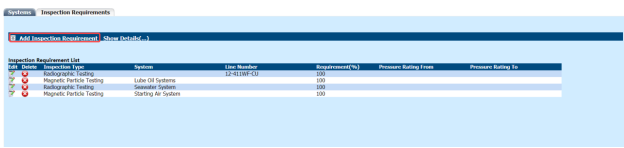](http://wiki.cuteinfocomm.com/uploads/images/gallery/2022-04/image-1651145927701.png)
**Figure 3.19: Inspection Requirements page**
#### **3.19.1 Add an Inspection Requirement**
If you want to add an inspection requirement, do the following steps,
1. Click **Add Inspection Requirement**.
The **Add New Inspection Requirement** window opens.
[](http://wiki.cuteinfocomm.com/uploads/images/gallery/2022-04/image-1651146039326.png)
2. In the Inspection Type box, select an inspection type.
3. If you want to add the system detail, select the ****System**** option and choose a system from a drop-down list.
4. If you want to add the line number detail, select the ****Line Number**** option and choose a line number from a drop-down list.
5. In the ****Requirement**** box, enter the inspection requirement percentage.
6. In the ****Pressure Rating From**** and ****To**** box, enter the pressure rating range.
7. Click ****Create****. The inspection requirement details will be added and listed in the **Inspection Requirements** page.
#### **3.19.2 Edit an Inspection Requirement**
If you want to edit any added inspection requirement details,
1. Click[](http://wiki.cuteinfocomm.com/uploads/images/gallery/2022-04/image-1651146387262.png)(Edit icon) of the respective inspection requirement. See Fig 3.19.
The added inspection requirement details open.
2. Edit the details where you want.
3. Click **Save**.
#### **3.19.3 Delete an Inspection Requirement**
If you want to delete any existing inspection requirement, you can use [](http://wiki.cuteinfocomm.com/uploads/images/gallery/2022-04/image-1651146563620.png) (Delete icon). To know how to delete, see the topic, “[**Delete P&ID**](http://wiki.cuteinfocomm.com/books/cuteqm/page/project-data/#bkmrk-3.1.3%C2%A0delete-a-p%26id)”.
### **3.20 Template Check Sheets**
The **Template** **Check Sheets** tab in the **Project Data** menu helps you to add MC/SC – Check Record (CR)/Check Sheet (CS) templates. To navigate to the templates adding page,
1. Click ****Template**** ****Check Sheets**** in the ****Project Data**** menu. The **MC/SC – CR/CS Templates** page opens.
[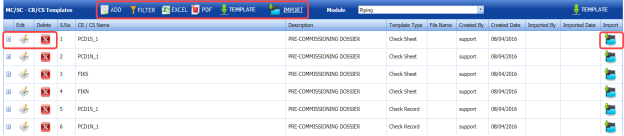](http://wiki.cuteinfocomm.com/uploads/images/gallery/2022-04/image-1651146667275.png)
**Figure 3.20: MC/SC – CR/CS Templates page**
#### **3.20.1 Add a CR/CS Template**
If you want to add a CR/CS template,
1. Click [](http://wiki.cuteinfocomm.com/uploads/images/gallery/2022-04/image-1651146753744.png) (**ADD** button) in the **MC/SC – CR/CS Templates** page. See Fig 3.20.
The page opens a new window to add the details of a template.
[](http://wiki.cuteinfocomm.com/uploads/images/gallery/2022-04/image-1651146797365.png)
[](http://wiki.cuteinfocomm.com/uploads/images/gallery/2022-04/image-1651146807542.png)**Note**: The field notified with a symbol (\*) is mandatory. You must enter the relevant details in that fields before saving.
2. In the ****CR/CS Name**** box, enter the name for CR/CS.
3. In the ****Template Type**** box, select a template whether CR or CS.
4. In the ****Description**** box, enter the description for CR/CS.
5. Click ****Save****. The template is successfully added and listed in the **MC/SC – CR/CS Templates** page. Once you have added the template details, you must import the respective template.
#### **3.20.2 Import a CR/CS Template**
If you want to import CR/CS template,
1. Click [](http://wiki.cuteinfocomm.com/uploads/images/gallery/2022-04/image-1651146963355.png)(Add icon) of the respective CR/CS name in the ****MC/SC – CR/CS Templates**** page.
The **Check Records** window opens.
2. Click [](http://wiki.cuteinfocomm.com/uploads/images/gallery/2022-04/image-1651147006091.png) (**ADD** button) in the **Check Records**
[](http://wiki.cuteinfocomm.com/uploads/images/gallery/2022-04/image-1651147035140.png)
3. In ****Items**** box, enter the details of items.
4. Browse and attach a CS/CR template you want to import.
5. Click ****Save****.
#### **3.20.3 Edit a CR/CS Template**
If you want to edit any added CR/CS template in the **MC/SC – CR/CS Templates** page,
1. Click[](http://wiki.cuteinfocomm.com/uploads/images/gallery/2022-04/image-1651147161197.png)(Edit icon) of the respective CR/CS template. See Fig 3.20
The **MC/SC – CR/CS Templates** page shows the details of the selected CR/CS template.
2. Edit the details where you want.
3. Click **Save**.
#### **3.20.4 Delete a CR/CS Template**
If you want to delete any existing CR/CS template in the **MC/SC – CR/CS Templates** page, you can use [](http://wiki.cuteinfocomm.com/uploads/images/gallery/2022-04/image-1651147369017.png) (Delete icon) provided in the **MC/SC – CR/CS Templates** page. To know how to delete, see the topic, “[**Delete P&ID**](http://wiki.cuteinfocomm.com/books/cuteqm/page/project-data/#bkmrk-3.1.3%C2%A0delete-a-p%26id)”.
#### **3.20.5 Export CR/CS Template list**
You can export a list of CR/CS templates added in the **MC/SC – CR/CS Templates** page in both the pdf and excel formats by using [](http://wiki.cuteinfocomm.com/uploads/images/gallery/2022-04/image-1651147415718.png) (**PDF** button) and [](http://wiki.cuteinfocomm.com/uploads/images/gallery/2022-04/image-1651147459655.png) (**Excel** button). To know how to export, see the topic, “**[Export P&ID list](http://wiki.cuteinfocomm.com/books/cuteqm/page/project-data/#bkmrk-3.1.4%C2%A0export-p%26id-li)**”.
#### **3.20.6 Filter a CR/CS Template**
If you want to filter any specific CR/CS template in the **MC/SC – CR/CS Templates page, you can use [](http://wiki.cuteinfocomm.com/uploads/images/gallery/2022-04/image-1651147526981.png) (**FILTER** button) located on the **MC/SC – CR/CS Templates** page. To know how to filter, see the topic, “**[Filter P&ID](http://wiki.cuteinfocomm.com/books/cuteqm/page/project-data/#bkmrk-3.1.5%C2%A0filter-a-p%26id)**”.
#### **3.20.7 Import Multiple CR/CS Templates**
If you want to import multiple CR/CS templates together, do the following,
1. Click [](http://wiki.cuteinfocomm.com/uploads/images/gallery/2022-04/image-1651147608905.png) (**TEMPLATE** button). See Fig 3.20.
An excel worksheet will be downloaded with a predefined template to enter the details of CR/CS templates.
[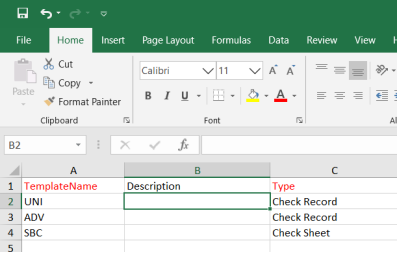](http://wiki.cuteinfocomm.com/uploads/images/gallery/2022-04/image-1651147662917.png)
2. Enter the required CR/CS template details in the respective columns of the excel worksheet.
3. Once you have added the CR/CS template details in the excel worksheet, save the excel worksheet on your computer.
4. Click [](http://wiki.cuteinfocomm.com/uploads/images/gallery/2022-04/image-1651147694510.png) (**IMPORT** button). See Fig 3.20.
A new window opens for importing the excel worksheet saved on your computer.
[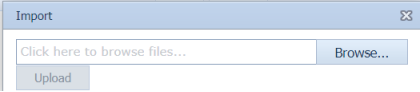](http://wiki.cuteinfocomm.com/uploads/images/gallery/2022-04/image-1651147759788.png)
5. Click [](http://wiki.cuteinfocomm.com/uploads/images/gallery/2022-04/image-1651147779396.png) (**Browse** button) to select the excel worksheet to be uploaded.
6. Select the excel worksheet you want to upload from your computer.
7. Click [](http://wiki.cuteinfocomm.com/uploads/images/gallery/2022-04/image-1651147820331.png) (**Upload** button) to export the CR/CS template details that are included in the excel worksheet.
The details of the CR/CS templates in the worksheet will be displayed in the **MC/SC – CR/CS Templates page.
### **3.21 Certificate Template Check Sheets**
The **Certificate Template Check Sheets** tab in the **Project Data** menu used to add the details included in a certificate.
1. Click **Certificate Template Check Sheets** in the **Project Data.**
The **Certificates** page opens.
[](http://wiki.cuteinfocomm.com/uploads/images/gallery/2022-04/image-1651147963784.png)
**Figure 3.21: Certificates page**
#### **3.21.1 Add a Certificate**
If you want to add a certificate,
1. Click [](http://wiki.cuteinfocomm.com/uploads/images/gallery/2022-04/image-1651148035060.png) (**ADD** button) in the **Certificates** See Fig 3.21.
The page opens a new window to add the details of a certificate.
[](http://wiki.cuteinfocomm.com/uploads/images/gallery/2022-04/image-1651148072326.png)
[](http://wiki.cuteinfocomm.com/uploads/images/gallery/2022-04/image-1651148083309.png)**Note**: The field notified with a symbol (\*) is mandatory. You must enter the relevant details in that fields before saving.
2. In the ****Certificate**** box, enter the name of the certificate.
3. In the ****Status**** box, select the status of the certificate.
4. In the ****Certificate Type**** box, enter the description for CR/CS.
5. In the ****Certificate Created Date**** box, select the created date of the certificate.
6. In the ****Sign off Date**** box, select the sign off date of the certificate.
7. Click ****Save****.
The certificate is successfully added and listed in the **Certificates** page. Once you have added the certificate details, you must import the respective certificate.
#### **3.21.2 Import a Certificate**
If you want to import a copy of the certificate,
1. Click [](http://wiki.cuteinfocomm.com/uploads/images/gallery/2022-04/image-1651148215594.png)(Import icon) of the respective certificate in the **Certificates** page.
2. Attach the copy of the certificate.
#### **3.21.3 Edit a Certificate**
If you want to edit any added certificate in the **Certificates** page,
1. Click[](http://wiki.cuteinfocomm.com/uploads/images/gallery/2022-04/image-1651148296607.png)(Edit icon) of the respective certificate. See Fig 3.21.
The **Certificates** page shows the details of the selected certificate.
2. Edit the details where you want.
3. Click **Save**.
#### **3.21.4 Delete a Certificate**
If you want to delete any existing certificate in the **Certificates** page, you can use [](http://wiki.cuteinfocomm.com/uploads/images/gallery/2022-04/image-1651148377279.png) (Delete icon) provided in the **Certificates** page. To know how to delete, see the topic, “**[Delete P&ID](http://wiki.cuteinfocomm.com/books/cuteqm/page/project-data/#bkmrk-3.1.3%C2%A0delete-a-p%26id)**”.
#### **3.21.5 Export Certificate list**
You can export a list of certificates added in the **Certificates** page in both the pdf and excel formats by using [](http://wiki.cuteinfocomm.com/uploads/images/gallery/2022-04/image-1651148446776.png) (**PDF** button) and [](http://wiki.cuteinfocomm.com/uploads/images/gallery/2022-04/image-1651148459859.png) (**Excel** button). To know how to export, see the topic, “**[Export P&ID list](http://wiki.cuteinfocomm.com/books/cuteqm/page/project-data/#bkmrk-3.1.4%C2%A0export-p%26id-li)**”.
#### **3.21.6 Filter a Certificate**
If you want to filter any specific certificate in the **Certificates** page, you can use [](http://wiki.cuteinfocomm.com/uploads/images/gallery/2022-04/image-1651148572959.png) (**FILTER** button) located on the **Certificates** page. To know how to filter, see the topic, “**[Filter P&ID](http://wiki.cuteinfocomm.com/books/cuteqm/page/project-data/#bkmrk-3.1.5%C2%A0filter-a-p%26id)**”.
#### **3.21.7 Import Multiple Certificates**
If you want to import multiple certificates together, do the following,
1. Click [](http://wiki.cuteinfocomm.com/uploads/images/gallery/2022-04/image-1651148641776.png) (**TEMPLATE** button). See Fig 3.21.
An excel worksheet will be downloaded with a predefined template to enter the details of certificates.
2. Enter the required certificate details in the respective columns of the excel worksheet.
3. Once you have added the certificate details in the excel worksheet, save the excel worksheet on your computer.
4. Click[ ](http://wiki.cuteinfocomm.com/uploads/images/gallery/2022-04/image-1651148711944.png) (**IMPORT** button). See Fig 3.21.
A new window opens for importing the excel worksheet saved on your computer.
[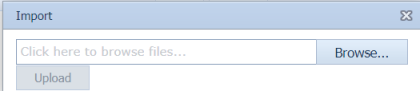](http://wiki.cuteinfocomm.com/uploads/images/gallery/2022-04/image-1651148762119.png)
5. Click [](http://wiki.cuteinfocomm.com/uploads/images/gallery/2022-04/image-1651148782202.png) (**Browse** button) to select the excel worksheet to be uploaded.
6. Select the excel worksheet you want to upload from your computer.
7. Click [](http://wiki.cuteinfocomm.com/uploads/images/gallery/2022-04/image-1651148808859.png) (**Upload** button) to export the certificate details that are included in the excel worksheet.
The details of the certificates in the worksheet will be displayed in the **Certificates** page.
### **3.22 Welder Qualification Test Coupon**
The **Welder Qualification Test Coupon** tab in the **Project Data** menu used to add the welder qualification test coupon details.
If you want to add a welder qualification test coupon, do the following steps,
1. Click **Welder Qualification Test Coupon** in the **Project Data** menu.
The **Welder Qualification Test Coupon** page opens.
[](http://wiki.cuteinfocomm.com/uploads/images/gallery/2022-04/image-1651149235081.png)
**Figure 3.22: Welder Qualification Test Coupon** **page**
#### **3.22.1 Add a Welder Qualification Test Coupon**
If you want to add a welder qualification test coupon report,
1. Click [](http://wiki.cuteinfocomm.com/uploads/images/gallery/2022-04/image-1651149752001.png) (**ADD** button) in the **Welder Qualification Test Coupon** page. See Fig 3.22.
A new window opens to add the welder qualification test coupon.
[](http://wiki.cuteinfocomm.com/uploads/images/gallery/2022-04/image-1651149927306.png)
[](http://wiki.cuteinfocomm.com/uploads/images/gallery/2022-04/image-1651149937676.png)**Tip**: A report number for a new welder qualification test coupon will be updated automatically in the **Report Number** box.
2. In the ****Test Date**** box, select the welder qualification test date.
3. In the ****Work Order**** box, enter the work order name.
4. Click **Save**.
The welder qualification test coupon will be added and listed in the **Welder Qualification Test Coupon.**
#### **3.22.2 Add Welder Qualification Test Coupon Details**
To add the welder qualification test coupon details,
1. Click[](http://wiki.cuteinfocomm.com/uploads/images/gallery/2022-04/image-1651150112351.png)(Add icon) of the respective test coupon. See Fig 3.22.
The **WQTC Details** window opens.
[](http://wiki.cuteinfocomm.com/uploads/images/gallery/2022-04/image-1651150153475.png)
2. Click [](http://wiki.cuteinfocomm.com/uploads/images/gallery/2022-04/image-1651150165836.png) (**ADD** button) in the **WQTC Details** window.
A new window opens to enter the WQTC details.
[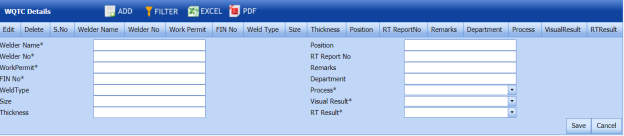](http://wiki.cuteinfocomm.com/uploads/images/gallery/2022-04/image-1651150217300.png)
3. In the **Welder Name** box, enter the welder name.
4. In the **Position** box, enter the position detail.
5. In the ****Welder No**** box, enter the welder number.
6. In the ****RT Report No**** box, enter the RT report number.
7. In the ****Work Permit**** box, enter the work permit detail.
8. In the ****Remarks**** box, enter your remarks if any.
9. In the ****FIN No**** box, enter the FIN number.
10. In the ****Department**** box, enter the department name.
11. In the ****Weld Type**** box, enter the welding type.
12. In the ****Process**** box, select the welding process.
13. In the ****Size**** box, enter the welding size.
14. In the ****Visual Result**** box, select the visual result.
15. In the ****Thickness**** box, enter the thickness of the welding.
16. In the **RT Result** box, select the RT result.
17. Click ****Save****.
#### **3.22.3 View a Welder Qualification Test Coupon Report**
To view a welder qualification test coupon report, click[](http://wiki.cuteinfocomm.com/uploads/images/gallery/2022-04/image-1651150484253.png)(Print icon) of the respective test coupon, which is provided in the **Report** column of the **Welder Qualification Test Coupon** page.
#### **3.22.4 Approve a Welder Qualification Test Coupon**
Once you have added the welder qualification test coupon details, you must approve the test coupon. To approve the test coupon,
1. Click [](http://wiki.cuteinfocomm.com/uploads/images/gallery/2022-04/image-1651154796800.png)(Submit icon) in the **Action** column.
#### **3.33.5 Export Welder Qualification Test Coupon List**
You can export a list of test coupons added in the **Welder Qualification Test Coupon** page in both the pdf and excel formats by using [](http://wiki.cuteinfocomm.com/uploads/images/gallery/2022-04/image-1651154857721.png) (**PDF** button) and [](http://wiki.cuteinfocomm.com/uploads/images/gallery/2022-04/image-1651154870961.png) (**Excel** button). To know how to export, see the topic, “**[Export P&ID list](http://wiki.cuteinfocomm.com/books/cuteqm/page/project-data/#bkmrk-3.1.4%C2%A0export-p%26id-li)**”.
#### **3.33.6 Filter a Welder Qualification Test Coupon**
If you want to filter any specific test coupon in the **Welder Qualification Test Coupon** page, you can use [](http://wiki.cuteinfocomm.com/uploads/images/gallery/2022-04/image-1651154913038.png)(**FILTER** button) located on the page. To know how to filter, see the topic, “**[Filter P&ID](http://wiki.cuteinfocomm.com/books/cuteqm/page/project-data/#bkmrk-3.1.5%C2%A0filter-a-p%26id)**”.
### **3.23 Valve List**
The **Valve List** tab in the **Project Data** menu helps you add the valve details.
If you want to navigate to **Valve List,**
1. Click **Valve List** in the **Project Data** menu.
The **Valve List** page opens.
[](http://wiki.cuteinfocomm.com/uploads/images/gallery/2022-04/image-1651155000830.png)
**Figure 3.23: Valve List page**
#### **3.23.1 Add a Valve**
If you want to add a new valve, do the following steps,
1. Click [](http://wiki.cuteinfocomm.com/uploads/images/gallery/2022-04/image-1651155090763.png) (**ADD** button) in the **Valve List** page. See Fig 3.23.
A new window opens to add a new valve.
[](http://wiki.cuteinfocomm.com/uploads/images/gallery/2022-04/image-1651155128670.png)
[](http://wiki.cuteinfocomm.com/uploads/images/gallery/2022-04/image-1651155136829.png)**Note**: The fields notified with a symbol (\*) are mandatory. You must enter the relevant details in that fields before saving.
2. In the ****Tag Number**** box, select the tag number of the valve.
3. In the ****Description**** box, enter the description for the valve.
4. In the ****Function**** box, enter the function name.
5. In the ****Sequence Number**** box, enter the sequence number of the valve.
6. In the ****Site Number**** box, enter the site number.
7. In the ****System**** box, select a system.
8. In the ****Area**** box****,**** enter the area name.
9. In the ****Location**** box, enter the location name.
10. In the ****PID**** box, enter the PID number.
11. In the ****Vendor PID**** box, enter the vendor PID number.
12. In the ****Layout**** box, enter the layout detail.
13. In the ****Parent tag**** box, enter the parent tag number.
14. In the ****Parent type**** box, enter the parent type.
15. In the ****Skid Number**** box, enter the skid number.
16. In the ****PO Number**** box, enter the PO number.
17. In the ****Manufacturer**** box, enter the manufacturer name.
18. In the ****Supplier**** box, enter the supplier name.
19. In the ****Model Number**** box, enter the model number of the valve.
20. In the ****Data Sheet**** box, enter the data sheet detail.
21. In the ****Procurement Status**** box, enter the procurement status detail.
22. In the ****Remarks**** box, enter your remarks if any.
23. Click ****Save.****The valve is successfully added.
#### **3.23.2 Clone a Valve**
The **Clone** option provided in the **Valve List** page used to add a new valve from previously added valve. If a valve to be added is having the same specifications of any valve already listed in the **Valve List** page, you can add the new valve by using [](http://wiki.cuteinfocomm.com/uploads/images/gallery/2022-04/image-1651155451936.png)(Clone icon).
1. In the **Valve List** page, find out the valve you want to clone.
2. Click [](http://wiki.cuteinfocomm.com/uploads/images/gallery/2022-04/image-1651155492842.png)(Clone icon) of the respective valve.
The **Valve List** page shows the details of selected valve. See the below figure.
[](http://wiki.cuteinfocomm.com/uploads/images/gallery/2022-04/image-1651155520510.png)
3. If you want to change any details, you can change in the respective boxes.
4. Click ****Save****. The new valve is successfully added and listed in the **Valve List** page.
#### **3.23.3 Edit a Valve**
If you want to edit any existing valve in the **Valve List** page,
1. Click [](http://wiki.cuteinfocomm.com/uploads/images/gallery/2022-04/image-1651155657115.png)(Edit icon) of the respective valve. See Fig 3.23.
The **Valve List** page shows the details of the selected valve.
2. Edit the details where you want.
3. Click ****Save****.
#### **3.23.4 Delete a Valve**
If you want to delete any existing valve in the **Valve List** page, you can use [](http://wiki.cuteinfocomm.com/uploads/images/gallery/2022-04/image-1651155721171.png) (Delete icon) provided in the **Valve List** page. To know how to delete, see the topic, “**[Delete P&ID](http://wiki.cuteinfocomm.com/books/cuteqm/page/project-data/#bkmrk-3.1.3%C2%A0delete-a-p%26id)**”.
#### **3.23.5 Export Valve List**
You can export a list of valves added in the **Valve List** page in both the pdf and excel formats by using [](http://wiki.cuteinfocomm.com/uploads/images/gallery/2022-04/image-1651155777359.png) (**PDF** button) and [](http://wiki.cuteinfocomm.com/uploads/images/gallery/2022-04/image-1651155792745.png) (**Excel** button). To know how to export, see the topic, “**[Export P&ID list](http://wiki.cuteinfocomm.com/books/cuteqm/page/project-data/#bkmrk-3.1.4%C2%A0export-p%26id-li)**”.
#### **3.23.6 Filter a Valve**
If you want to filter any valve in the **Valve List** page, you can use [](http://wiki.cuteinfocomm.com/uploads/images/gallery/2022-04/image-1651155842391.png) (**FILTER** button) provided on the **Valve List** page. To know how to filter, see the topic, “[**Filter P&ID**](http://wiki.cuteinfocomm.com/books/cuteqm/page/project-data/#bkmrk-3.1.5%C2%A0filter-a-p%26id)”.
#### **3.23.7 Import Multiple Valves**
If you want to import multiple valves together, do the following,
1. Click [](http://wiki.cuteinfocomm.com/uploads/images/gallery/2022-04/image-1651155907259.png) (**TEMPLATE** button). See Fig 3.23.
An excel worksheet will be downloaded with a predefined template to enter the details of joints.
2. Enter the required valve details in the respective columns of the excel worksheet.
3. Once you have added the valve details in the excel worksheet, save the excel worksheet on your computer.
4. Click [](http://wiki.cuteinfocomm.com/uploads/images/gallery/2022-04/image-1651155991999.png) (****IMPORT**** button). See Fig 3.23.
A new window opens for importing the excel worksheet saved on your computer.
[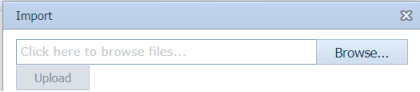](http://wiki.cuteinfocomm.com/uploads/images/gallery/2022-04/image-1651156015904.png)
5. Click [](http://wiki.cuteinfocomm.com/uploads/images/gallery/2022-04/image-1651156045571.png) (****Browse**** button) to select the excel worksheet to be uploaded.
6. Select the excel worksheet you want to upload from your computer.
7. Click [](http://wiki.cuteinfocomm.com/uploads/images/gallery/2022-04/image-1651156067415.png) (**Upload** button)to export the valve details that are added in the excel worksheet.
The details of the valves in the worksheet will be displayed in the **Valve List** page.
### **3.24 Special Component**
The **Special Component** tab in the **Project Data** menu used to add any special component to be used in the Piping project.
To add the details of special component, follow the same procedure given in the topic, “[**Valve List**](http://wiki.cuteinfocomm.com/books/cuteqm/page/project-data/#bkmrk-3.23%C2%A0valve-list%C2%A0)”.