# Piping
## **6.0 Piping**
The **Piping** menu in the home page of the ***cuteQM*** app used to add results after performing the piping related inspections. This menu also helps you to view the inspection reports.
### **6.1 Radiographic Testing (RT)**
RT inspection method is one of the types of NDT inspection used to conduct inspection in the piping project by using either x-rays or gamma rays.
Once the NDT inspection request is added with the selection of RT type by using the [**NDT Inspection Request**](http://wiki.cuteinfocomm.com/books/cuteqm/page/inspection/#bkmrk-5.5%C2%A0ndt-inspection-r) tab, the added inspection request will be moved here. After completing RT inspection, you can add the RT inspection result details by using this RT tab.
To navigate to **Radiographic Testing (RT)**,
1. Click **Radiographic Testing (RT)** in the **Piping** menu.
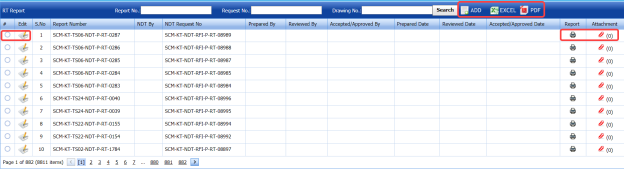
The **RT Report** page opens.
[](http://wiki.cuteinfocomm.com/uploads/images/gallery/2022-05/image-1651456975125.png)
**Figure 6.1: RT Report page**
### **6.11 Add an RT Report**
If you want to add an RT report, do the following steps,
1. Click (**ADD** button) in the **RT Report** page. See Fig 6.1.
The **RT Report** page opens a new window to add an RT report.
[](http://wiki.cuteinfocomm.com/uploads/images/gallery/2022-05/image-1651457045679.png)
[](http://wiki.cuteinfocomm.com/uploads/images/gallery/2022-05/image-1651457054027.png)**Note**: The fields notified with a symbol (\*) are mandatory. You must enter the relevant details in that fields before saving.
[](http://wiki.cuteinfocomm.com/uploads/images/gallery/2022-05/image-1651457074555.png)**Tip**: A report number for a new RT report will be updated automatically in the **Report Number** box. If you want change the report number, you can change.
2. In the ****NDT By**** box, select the requisition detail of NDT whether by third party or internal from a drop-down list.
3. In the ****NDT Request No**** box, select an RT request number from a drop-down list.
4. In the ****Prepared By**** box, enter the name of a person who has prepared the RT report.
5. In the ****Prepared Date**** box, select the prepared date of the RT report.
6. In the ****Reviewed By**** box, enter the name of a person who has reviewed the RT report.
7. In the ****Reviewed Date**** box, select the reviewed date of the RT report.
8. In the **Accepted/Approved By** boxes, enter the name of a person who has accepted/approved the RT report.
9. In the ****Accepted/Approved Date**** box, select the accepted/approved date of the RT report.
10. Click **Save**.
The RT report is successfully added. Once you have added the RT report, you must add RT inspection results.
#### **6.1.2 Add RT Inspection Results**
If you want to add the RT inspection results for the added RT report, do the following steps,
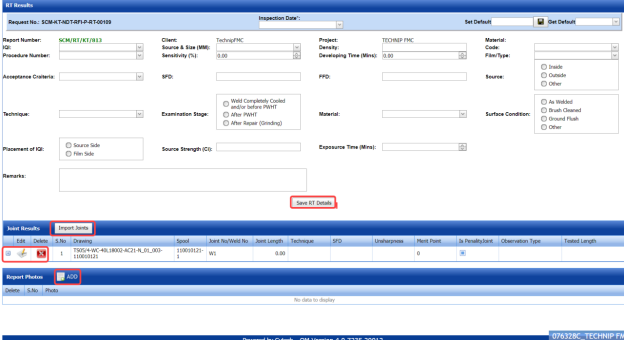
1. Click the respective added RT report in the **RT Report** See Fig 6.1. The **RT Report** page shows **RT Results**, **Joint Results**, and **Report Photos** windows to add RT results.
[](http://wiki.cuteinfocomm.com/uploads/images/gallery/2022-05/image-1651457210104.png)
**Figure 6.1.1: RT Results page**
2. In the **Inspection Date** box, select the date of inspection.
3. In the ****Image Quality Indicator (IQI)**** box, select IQI from a drop-down list.
4. In the ****Source & Size (MM)**** box, select the RT source and their size from a drop-down list.
5. In the ****Density**** box, enter the radiographic density range.
6. In the ****Code**** box, select the code of the material from a drop-down list.
7. In the ****Procedure Number**** box, select the procedure number from a drop-down list.
8. In the ****Sensitivity (%)****box, set the radiographic sensitivity by using up and down arrows.
9. In the ****Developing Time (Mins)****box, set the developing time by using up and down arrows.
10. In the ****Film/ Type**** box, select the name of a film including type from a drop-down list.
11. In the ****Acceptance Criteria**** box, select the acceptance criteria from a drop-down list.
12. In the **Source to Film Distance (SFD)** box, enter the distance range between the source and the film.
13. In the ****Focus Film Distance (FFD)****box, enter the focus film distance range.
14. In the ****Source**** box, select any one source option whether inside, outside, or other.
15. In the ****Technique**** box, select the radiographic technique from a drop-down list.
16. In the ****Examination Stage**** box, select the examination stage from the specified options.
17. In the ****Material**** box, select the material from a drop-down list.
18. In the ****Surface Condition**** box, select the condition of the surface from the specified options.
19. In the ****Placement of IQI**** box, select any one option from source side and film side.
20. In the ****Source Strength (Ci)****box, enter the source strength value.
21. In the ****Exposure Time (Mins)****box, set the exposure time by using up and down arrows.
22. In the ****Remarks**** box, enter your remarks if any.
23. Click **Save RT Details**.
The RT details are successfully updated. Once you have updated the RT details, you must add marker results of added joints.
[](http://wiki.cuteinfocomm.com/uploads/images/gallery/2022-05/image-1651457424614.png)**Note**: Once you have added RT details, you can save the added RT details and reuse the saved details while you adding RT details for any other RT report.
[](http://wiki.cuteinfocomm.com/uploads/images/gallery/2022-05/image-1651457441877.png)
- To save the added RT details, enter any name in the **Set Default** box and click .
- If you want to add the same RT details for any other RT report, select the name in the **Get Default**.
The saved details will be automatically updated in the respective boxes.
#### **6.1.2.1 Add Marker Results for Joints**
The **RT Results** window shows a list of joints added for the RT inspection. If you want to add marker results for the respective joints,
[](http://wiki.cuteinfocomm.com/uploads/images/gallery/2022-05/image-1651457522125.png)
1. Click [](http://wiki.cuteinfocomm.com/uploads/images/gallery/2022-05/image-1651457537910.png) (Add icon) for the respective joint. The **Marker Results** window opens with a list of markers of the respective joint.
[](http://wiki.cuteinfocomm.com/uploads/images/gallery/2022-05/image-1651457553612.png)
2. If you want to add any additional markers, click [](http://wiki.cuteinfocomm.com/uploads/images/gallery/2022-05/image-1651457569760.png) (****ADD**** button). The **Marker Results** window shows a new window to add a new marker.
[](http://wiki.cuteinfocomm.com/uploads/images/gallery/2022-05/image-1651457587529.png)
1. 1. In the **Marker** box, enter the marker number.
2. In the ****Sensitivity**** box, enter the sensitivity range.
3. In the ****Result**** box, select the marker result from the given result options.
4. In the ****Defect**** box, select the defect type if any.
5. In the ****Defect Length (MM)****box, enter the defect length value.
6. In the ****Remarks**** box, enter your remarks if any.
7. Click **Save**. The marker is added and listed in the **Marker Results** window.
3. If you want to update marker results,
1. 1. Click [](http://wiki.cuteinfocomm.com/uploads/images/gallery/2022-05/image-1651457705186.png)(Edit icon) in the ****Edit**** column for the respective marker results. A new window opens to edit the marker results.
[](http://wiki.cuteinfocomm.com/uploads/images/gallery/2022-05/image-1651457723040.png)
2. Click any box where you want to edit the details, and edit the marker results.
3. Click **Save**.
4. If you want delete any existing marker results, click[](http://wiki.cuteinfocomm.com/uploads/images/gallery/2022-05/image-1651457759689.png)(Delete icon) for the respective marker results.
#### **9.1.2.2 Import Additional Joints**
If you want to import additional joints for the RT inspection,
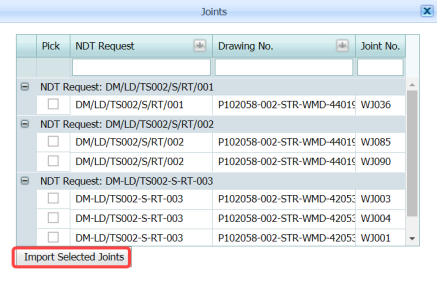
1. Click [](http://wiki.cuteinfocomm.com/uploads/images/gallery/2022-05/image-1651457878755.png) (****Import Joints**** button) in the ****RT Results**** See Fig 6.1.1. The **Joints** window opens with a list of joints.
[](http://wiki.cuteinfocomm.com/uploads/images/gallery/2022-05/image-1651457894177.png)
2. Select the joints you want to import.
3. Click [](http://wiki.cuteinfocomm.com/uploads/images/gallery/2022-05/image-1651457914402.png) (****Import Selected Joints**** button). The selected joints are imported for the respective RT inspection. Once you have imported the joints, you must perform the RT inspection and add the marker results for the added joints.
#### **6.1.2.3 Add Report Photos**
If you want to add any report photos for the updated RT results,
1. Click [](http://wiki.cuteinfocomm.com/uploads/images/gallery/2022-05/image-1651457976604.png) (****ADD**** button) in the ****Report Photos**** box in the ****RT Results**** See Fig 6.1.1. [](http://wiki.cuteinfocomm.com/uploads/images/gallery/2022-05/image-1651457998647.png)
2. Click [](http://wiki.cuteinfocomm.com/uploads/images/gallery/2022-05/image-1651458019569.png) (****Browse**** button) to browse a photo stored in your computer.
3. Click **Upload**.
The selected photo will be updated.
#### **6.1.3 Attach a File into an RT Report**
If you want to attach any file with any RT report listed in the **RT Report** page, you can attach the file by using[](http://wiki.cuteinfocomm.com/uploads/images/gallery/2022-05/image-1651458091734.png) (Attach icon) in the **Attachment** column. To know how to attach, follow the procedures given in the topic “[**Attach a file into P&ID**](http://wiki.cuteinfocomm.com/books/cuteqm/page/project-data/#bkmrk-3.1.7%C2%A0attach-a-file-)”.
#### **6.1.4 View an NDT – RT Report**
If you want to view an NDT - RT report, click[](http://wiki.cuteinfocomm.com/uploads/images/gallery/2022-05/image-1651458111372.png) (print icon) provided in the **Report** column of the **RT Report** page. See Fig 6.1.
#### **6.1.5 Edit an RT Report**
If you want to edit any existing RT report in the **RT Report** page, do the following,
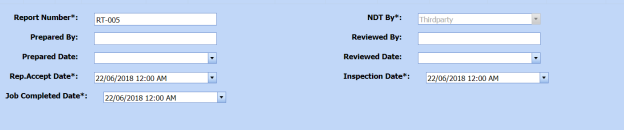
1. Click [](http://wiki.cuteinfocomm.com/uploads/images/gallery/2022-05/image-1651458157295.png)(Edit icon) in the ****Edit**** column for the respective RT report. See Fig 6.1. A new window opens to edit the RT report.
[](http://wiki.cuteinfocomm.com/uploads/images/gallery/2022-05/image-1651458179837.png)
2. Click any box where you want to edit the details, and then edit the details in the respective box.
3. Click **Save**.
4. If you want to edit the RT inspection results of any report, click the respective report and change the results.
#### **6.1.6 Export RT Report List**
You can export a list of RT reports added in the **RT Report** page in both the pdf and excel formats by using [](http://wiki.cuteinfocomm.com/uploads/images/gallery/2022-05/image-1651458263661.png) (**PDF** button) and [](http://wiki.cuteinfocomm.com/uploads/images/gallery/2022-05/image-1651458275233.png) (**Excel** button). To know how to export, see the topic, “[**Export P&ID list**](http://wiki.cuteinfocomm.com/books/cuteqm/page/project-data/#bkmrk-3.1.4%C2%A0export-p%26id-li)”.
#### **6.1.7 Filter an RT Report**
If you want to filter any RT report, do one of the following,
[](http://wiki.cuteinfocomm.com/uploads/images/gallery/2022-05/image-1651458307102.png)
1. If you want to filter any RT report based on the report number, enter the corresponding report number in the **Report No** box in the **RT Report** page, and then Click **Search**.
2. If you want to filter any RT report based on the request number, enter the corresponding request number in the ****Request No**** box in the ****RT Report**** page, and then Click ****Search****.
3. If you want to filter any RT report based on the drawing number, enter the corresponding drawing number in the ****Drawing No**** box in the ****RT Report**** page, and then Click ****Search****.
### **6.2 Ultrasonic Testing (UT)**
The UT method is one of the NDT inspection methods used for performing inspection in the piping project by using high frequency sound waves.
Once the NDT inspection request is added with the selection of UT type by using the [**NDT Inspection Request**](http://wiki.cuteinfocomm.com/books/cuteqm/page/inspection/#bkmrk-5.5%C2%A0ndt-inspection-r) tab, the added inspection request will be moved here. After completing UT inspection, you can add the UT inspection result details by using this UT tab.
To navigate to **Ultrasonic Testing (UT)**,
1. Click the **Ultrasonic Testing (UT)** tab in the **Piping** menu.
The **UT Report** page opens.
[](http://wiki.cuteinfocomm.com/uploads/images/gallery/2022-05/image-1651458397668.png)
**Figure 6.2: UT Report page**
#### **6.2.1 Add an UT Report**
If you want to add an UT report, do the following,
1. Click [](http://wiki.cuteinfocomm.com/uploads/images/gallery/2022-05/image-1651458451141.png) (**ADD** button) in the U**T Report** page. See Fig 6.2.
A new window opens to add an UT report.
[](http://wiki.cuteinfocomm.com/uploads/images/gallery/2022-05/image-1651458470068.png)
[](http://wiki.cuteinfocomm.com/uploads/images/gallery/2022-05/image-1651458479581.png)**Note**: The fields notified with a symbol (\*) are mandatory. You must enter the relevant details in that fields before saving.
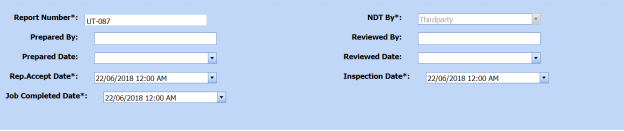
[](http://wiki.cuteinfocomm.com/uploads/images/gallery/2022-05/image-1651458494051.png)**Tip**: A report number for a new UT report will be updated automatically in the **Report Number** box.
2. In the ****NDT By**** box, select the requisition of NDT whether by third party or internal from a drop-down list.
3. In the **NDT** **Request No** box, select an UT request number from a drop-down list.
4. In the ****Prepared By**** box, enter the name of a person who has prepared the UT report.
5. In the ****Prepared Date**** box, select the prepared date of the UT report.
6. In the ****Reviewed By**** box, enter the name of a person who has reviewed the UT report.
7. In the ****Reviewed Date**** box, select the reviewed date of the UT report.
8. In the **Accepted/Approved By** boxes, enter the name of a person who has accepted/approved the UT report.
9. In the ****Accepted/Approved Date**** box, select the accepted/approved date of the UT report.
10. In the ****Accept Date**** box, select the report accept date.
11. Click ****Save****.
The UT report is successfully added. Once you have added the UT report, you must add UT results for the respective added UT report.
#### **6.2.2 Add UT Results**
If you want to add the UT results for the respective UT report, do the following,
1. Click the respective added UT report in the **UT Report** page. See Fig 6.2.
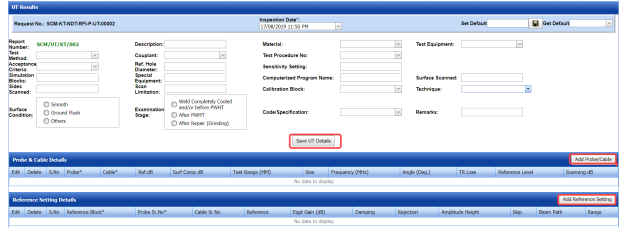
The **UT Report** page shows **UT Results**, **Probe & Cable Details**, **Reference Setting Details**, **UT Results**, and **Report Photos** windows.
[](http://wiki.cuteinfocomm.com/uploads/images/gallery/2022-05/image-1651458661419.png)
[](http://wiki.cuteinfocomm.com/uploads/images/gallery/2022-05/image-1651458667578.png)
**Figure 6.2.1: UT Results page**
2. In the **Inspection Date** box, select the date of UT inspection.
3. In the **Test Method** box, select the test method from a drop-down list.
4. In the **Description** box, enter the description about the UT inspection.
5. In the **Material** box, select the material from a drop-down list.
6. In the **Test Equipment** box, select the test equipment from a drop-down list.
7. In the **Acceptance Criteria** box, select the acceptance criteria from a drop-down list.
8. In the **Couplant** box, select the couplant material from a drop-down list.
9. In the **Test** **Procedure No** box, select the test procedure number from a drop-down list.
10. In the **Simulation Blocks** box, enter the detail of simulation blocks.
11. In the **Ref. Hole Diameter** box, enter the diameter value of the reference hole.
12. In the **Sensitivity Setting** box, enter the information about the sensitivity setting.
13. In the **Sides Scanned** box, enter the details of the sides that are scanned.
14. In the **Special Equipment** box, enter the name of the special equipment if any.
15. In the **Computerized Program Name** box, enter the computerized program name.
16. In the **Surface Scanned** box, the details of the surfaces that are scanned.
17. In the **Scan Limitation** box, enter the limitation range of scanning.
18. In the **Code/Specification** box, select the specification from a drop-down list.
19. In the **Calibration Block** box, select the calibration block from a drop-down list.
20. In the **Technique** box, select the technique from a drop-down list.
21. In the **Examination Stage** box, select the examination stage from the specified options.
22. In the **Surface Condition** box, select the surface condition from the specified options.
23. In the **Remarks** box, enter your remarks if any.
24. Click **Save UT Details**.
The UT details are successfully updated. Once you have updated the UT details, you must add the probe and cable details for the UT inspection.
[](http://wiki.cuteinfocomm.com/uploads/images/gallery/2022-05/image-1651458828873.png)**Note**: Once you have added UT details, you can save the added UT details and reuse the saved details while you adding UT details for any other UT report.
[](http://wiki.cuteinfocomm.com/uploads/images/gallery/2022-05/image-1651458849409.png)
- To save the added UT details, enter any name in the ****Set Default**** box and click [](http://wiki.cuteinfocomm.com/uploads/images/gallery/2022-05/image-1651458875012.png). The added details will be saved in the given name.
- If you want to add the same UT details for any other UT report, select the name in the **Get Default**.
The saved details will be automatically updated in the respective boxes.
#### **6.2.2.1 Add Probe & Cable Details**
If you want to add probe and cable details for the updated UT results,
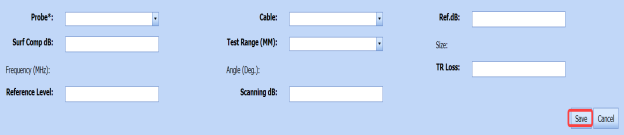
1. Click (****Add Probe/ Cable**** button) in the ****Probe& Cable Details**** See Fig 6.2.1. A new window opens to add the probe and cable details.
[](http://wiki.cuteinfocomm.com/uploads/images/gallery/2022-05/image-1651459151707.png)
2. In the ****Probe**** box, select a probe from a drop-down list.
3. In the ****Cable**** box, select a cable from a drop-down list.
4. In the ****dB**** box, enter the reference decibel range.
5. In the ****Surf Comp dB**** box, enter the decibel range of the surface component.
6. In the ****Test Range (MM)**** box, enter the test range in millimeters.
7. In the ****Reference Level**** box, enter the reference level detail.
8. In the ****Scanning dB**** box, enter the scanning decibel range.
9. In the ****TR Loss**** box, enter the transmission loss detail.
10. Click ****Save****.
The probe and cable details are successfully added. Once you have added the probe and cable details, you must add the reference setting details.
#### **6.2.2.2 Add Reference Setting Details**
If you want to add the reference setting details for the updated UT results,
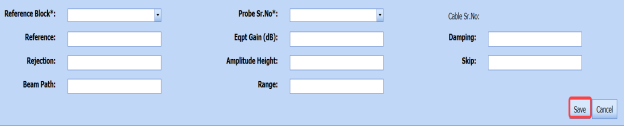
1. Click [](http://wiki.cuteinfocomm.com/uploads/images/gallery/2022-05/image-1651459275518.png) (**Add Reference Setting** button) in the **Reference Setting Details** window. See Fig 6.2.1.
A new window opens to add the reference setting details.
[](http://wiki.cuteinfocomm.com/uploads/images/gallery/2022-05/image-1651459291934.png)
2. In the **Reference Block** box, select the reference block from a drop-down list.
3. In the **Probe Sr. No** box, select the serial number of the probe from a drop-down list.
4. In the **Reference** box, enter the reference detail.
5. In the **Eqpt Gain (dB)** box, enter the equipment gain in decibels.
6. In the **Damping** box, enter the damping ratio.
7. In the ****Rejection**** box, enter the rejection detail.
8. In the ****Amplitude Height**** box, enter the amplitude height range.
9. In the ****Skip**** box, enter the skip detail.
10. In the ****Beam Path**** box, enter the beam path detail.
11. In the **Range** box, enter the range detail.
12. Click **Save**.
The reference setting details are successfully added. Once you have added the reference setting details, you must add the inspection results for added joints.
#### **6.2.2.3 Add UT Results**
The **UT Results** window shows a list of joints added for the UT inspection. If you want to add UT results for joints,
1. Click [](http://wiki.cuteinfocomm.com/uploads/images/gallery/2022-05/image-1651459415594.png)(Edit icon) for the respective UT results listed in the **UT Results** window.
The **UT Results** window opens with the added UT details.
[](http://wiki.cuteinfocomm.com/uploads/images/gallery/2022-05/image-1651459427454.png)
2. In the ****Result**** box, update your UT inspection results whether ****Accepted****, ****Rejected****, or ****Cancelled****.
3. In the ****Remarks**** box, enter your remarks if any.
4. Click Save.
#### **6.2.2.4 Import Additional Joints**
If you want to add more joints, you can add by using the import joints option. To import joints,
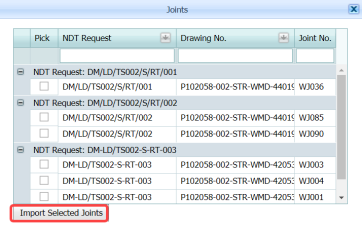
1. Click [](http://wiki.cuteinfocomm.com/uploads/images/gallery/2022-05/image-1651459489964.png)(**Import Joints** button) in the **UT Results** See Fig 6.2.1. The **Joints** window opens with a list of joints.
[](http://wiki.cuteinfocomm.com/uploads/images/gallery/2022-05/image-1651459509609.png)
2. Select the joints you want to import.
3. Click [](http://wiki.cuteinfocomm.com/uploads/images/gallery/2022-05/image-1651459530724.png)(****Import Selected Joints**** button).
The selected joints are imported for the respective UT and listed in the **UT Results** window. Once you have imported the joints, you must add the UT results for the imported joints.
#### **6.2.2.5 Add Report Photos**
If you want to add any report photos for the updated UT results,
1. Click [](http://wiki.cuteinfocomm.com/uploads/images/gallery/2022-05/image-1651459581706.png) (****ADD**** button) in the ****Report Photos**** box in the ****UT Results**** See Fig 6.2.1. [](http://wiki.cuteinfocomm.com/uploads/images/gallery/2022-05/image-1651459597770.png)
2. Click [](http://wiki.cuteinfocomm.com/uploads/images/gallery/2022-05/image-1651459614550.png) (****Browse**** button) to browse a photo stored in your computer.
3. Click **Upload**.
The selected photo will be updated.
The UT results will be updated successfully.
#### **6.2.3 Attach a File into an UT Report**
If you want to attach any file with any UT report listed in the **UT Report** page, you can attach the file by using [](http://wiki.cuteinfocomm.com/uploads/images/gallery/2022-05/image-1651459668994.png) (Attach icon) in the **Attachment** column. To know how to attach, follow the procedures given in the topic “[**Attach a file into P&ID**](http://wiki.cuteinfocomm.com/books/cuteqm/page/project-data/#bkmrk-3.1.7%C2%A0attach-a-file-)”.
#### **6.2.4 View an NDT – UT Report**
If you want to print an NDT - UT report, click [](http://wiki.cuteinfocomm.com/uploads/images/gallery/2022-05/image-1651459708135.png)(print icon) provided in the **Report** column of the **UT Report** page. See Fig 6.2.
#### **6.2.5 Edit an UT Report**
If you want to edit any existing UT report in the **UT Report** page, do the following,
1. Click [](http://wiki.cuteinfocomm.com/uploads/images/gallery/2022-05/image-1651459752424.png)(Edit icon) in the ****Edit**** column for the respective UT report. See Fig 6.2. A new window opens to edit the UT report.
[](http://wiki.cuteinfocomm.com/uploads/images/gallery/2022-05/image-1651459773622.png)
2. Click any box where you want to edit the details, and then edit the details in the respective box.
3. Click ****Save****.
#### **6.2.6 Export UT Report List**
You can export a list of UT reports added in the **UT Report** page in both the pdf and excel formats by using [](http://wiki.cuteinfocomm.com/uploads/images/gallery/2022-05/image-1651459825907.png) (**PDF** button) and [](http://wiki.cuteinfocomm.com/uploads/images/gallery/2022-05/image-1651459839034.png) (**Excel** button). To know how to export, see the topic, “**[Export P&ID list](http://wiki.cuteinfocomm.com/books/cuteqm/page/project-data/#bkmrk-3.1.4%C2%A0export-p%26id-li)**”.
#### **6.2.7 Filter an UT Report**
If you want to filter any UT report, do one of the following,
[](http://wiki.cuteinfocomm.com/uploads/images/gallery/2022-05/image-1651459936550.png)
1. If you want to filter any UT report based on the report number, enter the corresponding report number in the ****Report No**** box in the ****UT Report**** page, and then Click ****Search****.
2. If you want to filter any UT report based on the request number, enter the corresponding request number in the **Request No** box in the **UT Report** page, and then Click **Search**.
3. If you want to filter any UT report based on the drawing number, enter the corresponding drawing number in the ****Drawing No**** box in the ****UT Report**** page, and then Click ****Search****.
### **6.3 Ultrasonic Thickness Testing (UTG)**
The UTG method is one of the NDT inspection methods used for performing inspection in the piping project.
Once the NDT inspection request is added with the selection of UTG type by using the [**NDT Inspection Request**](http://wiki.cuteinfocomm.com/books/cuteqm/page/inspection/#bkmrk-5.5%C2%A0ndt-inspection-r) tab, the added inspection request will be moved here. After completing UTG inspection, you can add the UTG inspection result details by using this UTG tab.
To navigate to **Ultrasonic Testing (UTG)**,
1. Click the ****Ultrasonic Testing (UTG)**** tab in the ****Piping**** menu. The **UTG Report** page opens.
[](http://wiki.cuteinfocomm.com/uploads/images/gallery/2022-05/image-1651460058584.png)
**Figure 6.3: UTG Report page**
#### **6.3.1 Add an UTG Report**
If you want to add an UTG report, do the following,
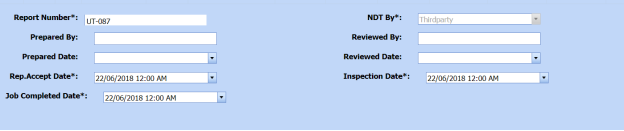
1. Click [](http://wiki.cuteinfocomm.com/uploads/images/gallery/2022-05/image-1651460196041.png) (**ADD** button) in the **UTG Report** page. See Fig 6.3.
A new window opens to add an UTG report.
[](http://wiki.cuteinfocomm.com/uploads/images/gallery/2022-05/image-1651460213845.png)
[](http://wiki.cuteinfocomm.com/uploads/images/gallery/2022-05/image-1651460224352.png)**Note**: The fields notified with a symbol (\*) are mandatory. You must enter the relevant details in that fields before saving.
[](http://wiki.cuteinfocomm.com/uploads/images/gallery/2022-05/image-1651460254211.png) **Tip**: A report number for a new UTG report will be updated automatically in the **Report Number** box.
2. In the **NDT By** box, select the requisition of NDT whether by third party or internal from a drop-down list.
3. In the ****NDT** **Request No**** box, select an UTG request number from a drop-down list.
4. In the ****Prepared By**** box, enter the name of a person who has prepared the UTG report.
5. In the ****Prepared Date**** box, select the prepared date of the UTG report.
6. In the ****Reviewed By**** box, enter the name of a person who has reviewed the UTG report.
7. In the ****Reviewed Date**** box, select the reviewed date of the UTG report.
8. In the ****Accepted/Approved By**** boxes, enter the name of a person who has accepted/approved the UTG report.
9. In the ****Accepted/Approved Date**** box, select the accepted/approved date of the UTG report.
10. In the ****Accept Date**** box, select the report accept date.
11. Click **Save**.
The UTG report is successfully added. Once you have added the UTG report, you must add UTG results for the respective added UTG report.
#### **6.3.2 Add UTG Results**
If you want to add the UTG results for the respective UT report, do the following steps,
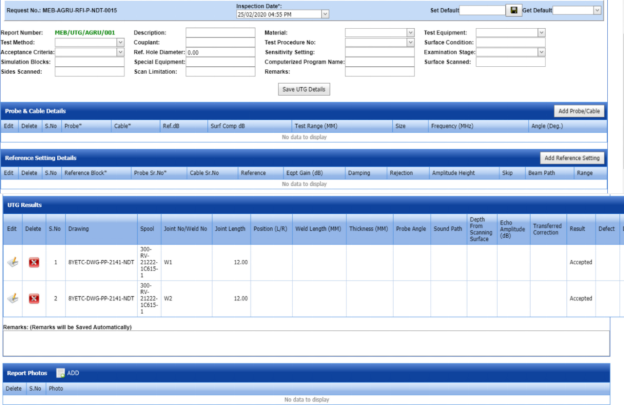
1. Click the respective added UTG report in the ****UTG Report**** See Fig 6.3. The **UT Report** page shows **UTG Details**, **Probe & Cable Details**, **Reference Setting Details**, **UTG Results**, and **Report Photos** windows.
[](http://wiki.cuteinfocomm.com/uploads/images/gallery/2022-05/image-1651460391549.png)
**Figure 6.3.1: UTG Results page**
2. In the ****Inspection Date**** box, select the date of UTG inspection.
3. In the ****Test Method**** box, select the test method from a drop-down list.
4. In the ****Description**** box, enter the description about the UTG inspection.
5. In the ****Material**** box, select the material from a drop-down list.
6. In the ****Test Equipment**** box, select the test equipment from a drop-down list.
7. In the ****Acceptance Criteria**** box, select the acceptance criteria from a drop-down list.
8. In the ****Couplant**** box, select the couplant material from a drop-down list.
9. In the ****Test** **Procedure No**** box, select the test procedure number from a drop-down list.
10. In the ****Simulation Blocks**** box, enter the detail of simulation blocks.
11. In the ****Hole Diameter**** box, enter the diameter value of the reference hole.
12. In the ****Sensitivity Setting**** box, enter the information about the sensitivity setting.
13. In the ****Sides Scanned**** box, enter the details of the sides that are scanned.
14. In the ****Special Equipment**** box, enter the name of the special equipment if any.
15. In the **Computerized Program Name** box, enter the computerized program name.
16. In the ****Surface Scanned**** box, the details of the surfaces that are scanned.
17. In the ****Scan Limitation**** box, enter the limitation range of scanning.
18. In the ****Remarks**** box, enter your remarks if any.
19. Click **Save UTG Details**.
The UTG details are successfully updated. Once you have updated the UTG details, you must add the probe and cable details for the UTG inspection.
[](http://wiki.cuteinfocomm.com/uploads/images/gallery/2022-05/image-1651460552733.png)**Note**: Once you have added UTG details, you can save the added UTG details and reuse the saved details while you adding UTG details for any other UTG report.
[](http://wiki.cuteinfocomm.com/uploads/images/gallery/2022-05/image-1651460568853.png)
- To save the added UTG details, enter any name in the **Set Default** box and click . The added details will be saved in the given name.
- If you want to add the same UTG details for any other UTG report, select the name in the ****Get Default****.
The saved details will be automatically updated in the respective boxes.
#### **6.3.2.1 Add Probe & Cable Details**
If you want to add probe and cable details for the updated UTG results,
1. Click [](http://wiki.cuteinfocomm.com/uploads/images/gallery/2022-05/image-1651460652486.png) (****Add Probe/ Cable**** button) in the ****Probe& Cable Details**** See Fig 6.3.1. A new window opens to add the probe and cable details.
[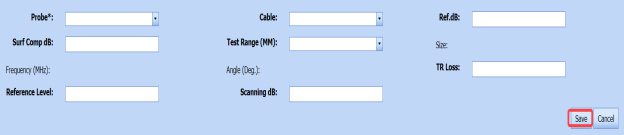](http://wiki.cuteinfocomm.com/uploads/images/gallery/2022-05/image-1651460671701.png)
2. In the **Probe** box, select a probe from a drop-down list.
3. In the **Cable** box, select a cable from a drop-down list.
4. In the **Ref. dB** box, enter the reference decibel range.
5. In the **Surf Comp dB** box, enter the decibel range of the surface component.
6. In the **Test Range (MM)** box, enter the test range in millimeters.
7. In the **Reference Level** box, enter the reference level detail.
8. In the **Scanning dB** box, enter the scanning decibel range.
9. In the **TR Loss** box, enter the transmission loss detail.
10. Click **Save**.
The probe and cable details are successfully added. Once you have added the probe and cable details, you must add the reference setting details.
#### **6.3.22 Add Reference Setting Details**
If you want to add the reference setting details for the updated UTG results,
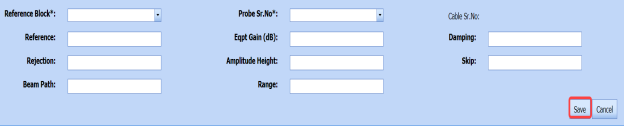
1. Click [](http://wiki.cuteinfocomm.com/uploads/images/gallery/2022-05/image-1651460825806.png) (**Add Reference Setting** button) in the **Reference Setting Details** window. See Fig 6.3.1.
A new window opens to add the reference setting details.
[](http://wiki.cuteinfocomm.com/uploads/images/gallery/2022-05/image-1651460865480.png)
2. In the ****Reference Block**** box, select the reference block from a drop-down list.
3. In the ****Probe Sr. No**** box, select the serial number of the probe from a drop-down list.
4. In the ****Reference**** box, enter the reference detail.
5. In the ****Eqpt Gain (dB)**** box, enter the equipment gain in decibels.
6. In the ****Damping**** box, enter the damping ratio.
7. In the ****Rejection**** box, enter the rejection detail.
8. In the ****Amplitude Height**** box, enter the amplitude height range.
9. In the ****Skip**** box, enter the skip detail.
10. In the ****Beam Path**** box, enter the beam path detail.
11. In the **Range** box, enter the range detail.
12. Click **Save**.
The reference setting details are successfully added. Once you have added the reference setting details, you must add the inspection results for added joints.
#### **6.3.2.3 Add UTG Results**
The **UTG Results** window shows a list of joints added for the UTG inspection. If you want to add UTG results for joints,
1. Click [](http://wiki.cuteinfocomm.com/uploads/images/gallery/2022-05/image-1651460993514.png)(Edit icon) for the respective UTG results listed in the **UTG Results** window. The **UTG Results** window opens with the added UTG details.
[](http://wiki.cuteinfocomm.com/uploads/images/gallery/2022-05/image-1651461015609.png)
2. In the **Result** box, update your UTG inspection results whether **Accepted**, **Rejected**, or **Cancelled**.
3. In the **Remarks** box, enter your remarks if any.
4. Click Save.
#### **6.3.2.4 Import Additional Joints**
If you want to add more joints, you can add by using the import joints option. To import joints,
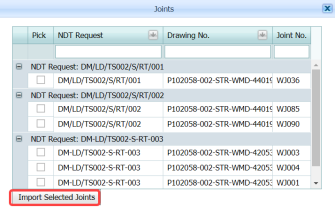
1. Click (**Import Joints** button) in the **UTG Results** See Fig 6.3.1. The **Joints** window opens with a list of joints.
[](http://wiki.cuteinfocomm.com/uploads/images/gallery/2022-05/image-1651461090378.png)
2. Select the joints you want to import.
3. Click [](http://wiki.cuteinfocomm.com/uploads/images/gallery/2022-05/image-1651461111654.png) (**Import Selected Joints** button).
The selected joints are imported for the respective UTG and listed in the **UTG Results** window. Once you have imported the joints, you must add the UTG results for the imported joints.
#### **6.3.2.5 Add Report Photos**
If you want to add any report photos for the updated UTG results,
1. Click (**ADD** button) in the **Report Photos** box in the **UTG Results** window. See Fig 6.3.1.
[](http://wiki.cuteinfocomm.com/uploads/images/gallery/2022-05/image-1651461205079.png)
2. Click [](http://wiki.cuteinfocomm.com/uploads/images/gallery/2022-05/image-1651461219859.png) (****Browse**** button) to browse a photo stored in your computer.
3. Click **Upload**.
The selected photo will be updated.
The UTG results will be updated successfully.
#### **6.3.3 Attach a File into an UTG Report**
If you want to attach any file with any UTG report listed in the **UTG Report** page, you can attach the file by using [](http://wiki.cuteinfocomm.com/uploads/images/gallery/2022-05/image-1651461281438.png) (Attach icon) in the **Attachment** column. To know how to attach, follow the procedures given in the topic “[**Attach a file into P&ID**](http://wiki.cuteinfocomm.com/books/cuteqm/page/project-data/#bkmrk-3.1.7%C2%A0attach-a-file-)”.
#### **6.3.4 View an NDT – UTG Report**
If you want to print an NDT - UTG report, click [](http://wiki.cuteinfocomm.com/uploads/images/gallery/2022-05/image-1651461321440.png)(print icon) provided in the **Report** column of the **UTG Report** page. See Fig 6.3.
#### **6.3.5 Edit an UTG Report**
If you want to edit any existing UTG report in the **UTG Report** page, do the following,
1. Click (Edit icon) in the ****Edit**** column for the respective UTG report. See Fig 6.3. A new window opens to edit the UTG report.
[](http://wiki.cuteinfocomm.com/uploads/images/gallery/2022-05/image-1651461367585.png)
2. Click any box where you want to edit the details, and then edit the details in the respective box.
3. Click **Save**.
#### **6.3.6 Export UTG Report List**
You can export a list of UTG reports added in the **UTG Report** page in both the pdf and excel formats by using[](http://wiki.cuteinfocomm.com/uploads/images/gallery/2022-05/image-1651461411002.png) (**PDF** button) and [](http://wiki.cuteinfocomm.com/uploads/images/gallery/2022-05/image-1651461419476.png) (**Excel** button). To know how to export, see the topic, “**[Export P&ID list](http://wiki.cuteinfocomm.com/books/cuteqm/page/project-data/#bkmrk-3.1.4%C2%A0export-p%26id-li)**”.
#### **6.3.7 Filter an UTG Report**
If you want to filter any UTG report, do one of the following,
[](http://wiki.cuteinfocomm.com/uploads/images/gallery/2022-05/image-1651461459776.png)
1. If you want to filter any UTG report based on the report number, enter the corresponding report number in the ****Report No**** box in the ****UTG Report**** page, and then Click ****Search****.
2. If you want to filter any UTG report based on the request number, enter the corresponding request number in the **Request No** box in the **UTG Report** page, and then Click **Search**.
3. If you want to filter any UTG report based on the drawing number, enter the corresponding drawing number in the ****Drawing No**** box in the ****UTG Report**** page, and then Click ****Search****.
### **6.4 Dye Penetrant Testing (PT)**
Dye Penetrant Testing **(**DPT) method is one of the oldest and simplest NDT inspection methods used for inspecting the materials in the piping project by using ultraviolet or white light, depending on the type of dye used - fluorescent or non fluorescent (visible). PT also called liquid penetrate inspection (LPI) or penetrant testing (PT).
Once the NDT inspection request is added with the selection of PT type by using the **[NDT Inspection Request](http://wiki.cuteinfocomm.com/books/cuteqm/page/inspection/#bkmrk-5.5%C2%A0ndt-inspection-r)** tab, the added inspection request will be moved here. After completing PT inspection, you can add the PT inspection result details by using this PT tab.
To navigate to **Dye Penetrant Testing (PT)**,
1. Click **Dye Penetrant Testing (PT)** in the **Piping** menu.
The **PT Report** page opens.
[](http://wiki.cuteinfocomm.com/uploads/images/gallery/2022-05/image-1651461576408.png)
**Figure 6.4: PT Report page**
#### **6.4.1 Add a PT Report**
If you want to add a PT report, do the following steps,
1. Click [](http://wiki.cuteinfocomm.com/uploads/images/gallery/2022-05/image-1651461626702.png)(**ADD** button) in the **PT Report** page. See Fig 6.4.
The **PT Report** page opens a new window to add an PT report.
[](http://wiki.cuteinfocomm.com/uploads/images/gallery/2022-05/image-1651461649609.png)
[](http://wiki.cuteinfocomm.com/uploads/images/gallery/2022-05/image-1651461657621.png)**Note**: The fields notified with a symbol (\*) are mandatory. You must enter the relevant details in that fields before saving.
[](http://wiki.cuteinfocomm.com/uploads/images/gallery/2022-05/image-1651461669928.png)**Tip**: A report number for a new PT report will be updated automatically in the **Report Number** box.
2. In the **NDT By** box, select the requisition detail of NDT whether by third party or internal from a drop-down list.
3. In the **NDT** **Request No** box, select an NDT request number from a drop-down list.
4. In the **Prepared By** box, enter the name of a person who has prepared the PT report.
5. In the **Prepared Date** box, select the prepared date of the PT report.
6. In the **Reviewed By** box, enter the name of a person who has reviewed the PT report.
7. In the **Reviewed Date** box, select the reviewed date of the PT report.
8. In the ****Accepted/Approved By**** boxes, enter the name of a person who has accepted/approved the PT report.
9. In the ****Accepted/Approved Date**** box, select the accepted/approved date of the PT report.
10. Click **Save**.
The PT report is successfully added and listed in the **PT Report** page. Once you have added the PT report, you must add PT results for the respective added PT report.
#### **6.4.2 Add PT Results**
If you want to add the PT results for the respective PT report, do the following steps,
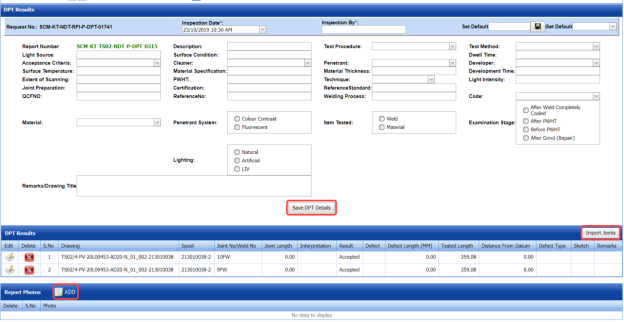
1. Click the respective added PT report in the ****PT Report**** See Fig 6.4. The **RT Report** page shows the **DPT Results** and **Report Photos** windows.
[](http://wiki.cuteinfocomm.com/uploads/images/gallery/2022-05/image-1651461795280.png)
**Figure 6.4.1: DPT Results page**
2. In the **Inspection Date** box, select the date of DPT inspection.
3. In the ****Inspection By**** box, enter the name of a person who has done the DPT inspection.
4. In the **Light Source** box, enter the light source detail.
5. In the **Description** box, enter the description.
6. In the **Test Procedure** box, select the test procedure from a drop-down list.
7. In the **Test Method** box, select the test method from a drop-down list.
8. In the **Acceptance Criteria** box, select the acceptance criteria from a drop-down list.
9. In the **Surface Condition** box, enter the condition of the surface.
10. In the **Dwell Time** box, enter dwell time range.
11. In the **Surface Temperature** box, enter the surface temperature value.
12. In the **Cleaner** box, select the cleaner from a drop-down list.
13. In the **Penetrant** box, select the penetrant from a drop-down list.
14. In the **Developer** box, select the developer from a drop-down list.
15. In the **Material Specification** box, enter the material specification.
16. In the **Material Thickness** box, enter the material thickness value.
17. In the **Development Time** box, enter the time for development.
18. In the **Extend of Scanning** box, enter the details of scanning extend.
19. In the **PWHT** box, enter the PWHT detail.
20. In the **Technique** box, select the PT technique from a drop-down list.
21. In the **Light Intensity** box, enter the light intensity value.
22. In the **Joint Preparation** box, enter the joint preparation detail.
23. In the **Certification** box, enter the certification detail.
24. In the **Reference Standard** box, enter the reference standard detail.
25. In the **Reference No** box, enter the reference number.
26. In the **Welding Process** box, enter the type of welding process.
27. In the **Code** box, enter the code detail.
28. In the **Examination Stage** box, select the examination stage from the specified options.
29. In the **Item Tested** box, select the tested items from the specified options.
30. In the **Inspection Method** box, select the inspection method from the specified options.
31. In the **Material** box, select the material from a drop-down list.
32. In the **Penetrant System** box, select the type of penetrant system.
33. In the **Lighting** box, select the type of lighting.
34. In the **Remarks/Drawing Title** box, enter your remarks if any.
35. Click **Save DPT Details**.
The DPT details are successfully updated. Once you have updated the DPT details, you must add DPT inspection results for the added joints.
[](http://wiki.cuteinfocomm.com/uploads/images/gallery/2022-05/image-1651462044014.png)**Note**: Once you have added DPT details, you can save the added DPT details and reuse the saved details while you adding DPT details for any other DPT report.
[](http://wiki.cuteinfocomm.com/uploads/images/gallery/2022-05/image-1651462057600.png)
- To save the added DPT details, enter any name in the **Set Default** box and click .
- If you want to add the same DPT details for any other DPT report, select the name in the ****Get Default****. The saved details will be automatically updated in the respective boxes.
#### **6.4.2.1 Add PT Results for Joints**
The **DPT Results** window shows a list of joints added for the PT inspection. If you want to add PT results for joints,
1. Click [](http://wiki.cuteinfocomm.com/uploads/images/gallery/2022-05/image-1651462136442.png)(Edit icon) for the respective joint listed in the ****DPT Results**** window. The **UT Results** window opens with the added UT details.
[](http://wiki.cuteinfocomm.com/uploads/images/gallery/2022-05/image-1651462159549.png)
2. In the **Result** box, update your PT inspection results whether **Accepted**, **Rejected**, or **Cancelled**.
3. In the **Remarks** box, enter your remarks if any.
4. Click Save.
#### **6.4.2.2 Import Additional Joints**
If you want to add more joints, you can add by using the import joints option. To import joints,
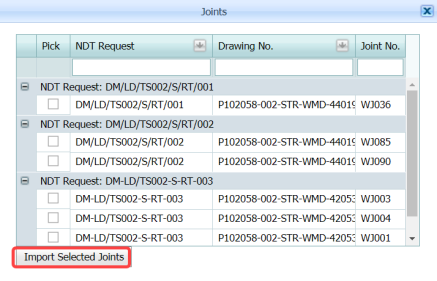
1. Click [](http://wiki.cuteinfocomm.com/uploads/images/gallery/2022-05/image-1651462236651.png) (**Import Joints** button) in the **DPT Results** window. See Fig 6.4.1.
The **Joints** window opens with a list of joints.
[](http://wiki.cuteinfocomm.com/uploads/images/gallery/2022-05/image-1651462253710.png)
2. Select the joints you want to import.
3. Click [](http://wiki.cuteinfocomm.com/uploads/images/gallery/2022-05/image-1651462290676.png) (****Import Selected Joints**** button). The selected joints are imported and listed in the **DPT Results** window. Once you have added joints, you must update the DPT results for added joints.
#### **6.4.2.3 Add Report Photos**
If you want to add any report photos for the updated DPT results,
1. Click [](http://wiki.cuteinfocomm.com/uploads/images/gallery/2022-05/image-1651462362252.png) (****ADD**** button) in the ****Report Photos**** box in the ****DPT Results**** See Fig 6.4.1. [](http://wiki.cuteinfocomm.com/uploads/images/gallery/2022-05/image-1651462378894.png)
2. Click [](http://wiki.cuteinfocomm.com/uploads/images/gallery/2022-05/image-1651462395423.png) (**Browse** button) to browse a photo stored in your computer.
3. Click **Upload**.
The selected photo will be updated.
#### **6.4.3 Attach a File into a PT Report**
If you want to attach any file with any PT report listed in the P**T Report** page, you can attach the file by using [](http://wiki.cuteinfocomm.com/uploads/images/gallery/2022-05/image-1651462436780.png) (Attach icon) in the **Attachment** column. To know how to attach, follow the procedures given in the topic “[**Attach a file into P&ID**](http://wiki.cuteinfocomm.com/books/cuteqm/page/project-data/#bkmrk-3.1.7%C2%A0attach-a-file-)”.
#### **6.4.4 View an NDT – PT Report**
If you want to view an NDT - PT report, click [](http://wiki.cuteinfocomm.com/uploads/images/gallery/2022-05/image-1651462480783.png)(print icon) provided in the **Report** column of the **PT Report** page. See Fig 6.4.
#### **6.4.5 Edit a PT Report**
If you want to edit any existing PT report in the **RT Report** page, do the following steps,
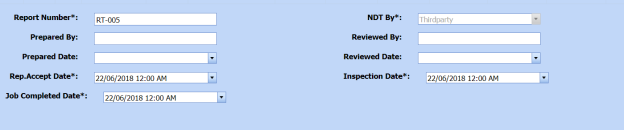
1. Click [](http://wiki.cuteinfocomm.com/uploads/images/gallery/2022-05/image-1651462525855.png)(Edit icon) in the ****Edit**** column for the respective DPT report. See Fig 6.4. The **RT Report** page shows the details of the selected PT report.
[](http://wiki.cuteinfocomm.com/uploads/images/gallery/2022-05/image-1651462547666.png)
2. Click any box where you want to edit the details, and then edit the details in the respective box.
3. Click **Save**.
#### **6.4.6 Export PT Report List**
You can export a list of RT reports added in the **RT Report** page in both the pdf and excel formats by using[](http://wiki.cuteinfocomm.com/uploads/images/gallery/2022-05/image-1651462599355.png) (**PDF** button) and [](http://wiki.cuteinfocomm.com/uploads/images/gallery/2022-05/image-1651462608849.png) (**Excel** button). To know how to export, see the topic, “[**Export P&ID list**](http://wiki.cuteinfocomm.com/books/cuteqm/page/project-data/#bkmrk-3.1.4%C2%A0export-p%26id-li)”.
#### **6.4.7 Filter a PT Report**
If you want to filter any PT report, do one of the following,
[](http://wiki.cuteinfocomm.com/uploads/images/gallery/2022-05/image-1651462644477.png)
1. If you want to filter any DPT report based on the report number, enter the corresponding report number in the **Report No** box in the **PT Report** page, and then Click **Search**.
2. If you want to filter any DPT report based on the request number, enter the corresponding request number in the ****Request No**** box in the ****PT Report**** page, and then Click ****Search****.
3. If you want to filter any DPT report based on the drawing number, enter the corresponding drawing number in the ****Drawing No**** box in the ****PT Report**** page, and then Click ****Search****.
### **6.5 Magnetic Particle Testing (MT)**
Magnetic Particle Testing also referred to as Magnetic Particle Inspection is one of the NDT inspection methods used to detect defects or discontinuities such as cracks, at or near the surface in ferromagnetic metals such as iron, steel, nickel, cobalt and so on, in the piping project.
Once the NDT inspection request is added with the selection of MT type by using the [**NDT Inspection Request**](http://wiki.cuteinfocomm.com/books/cuteqm/page/inspection/#bkmrk-5.5%C2%A0ndt-inspection-r) tab, the added inspection request will be moved here. After completing the MT inspection, you can add the MT inspection result details by using this MT tab.
To navigate to **Magnetic Particle Testing (MT)**,
1. Click ****Magnetic Particle Testing (MT)****in the ****Piping**** menu. The **MT Report** page opens.
[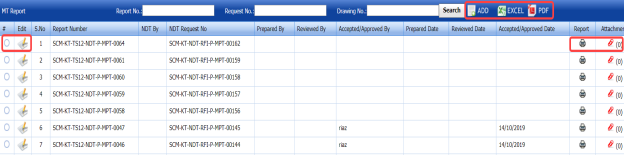](http://wiki.cuteinfocomm.com/uploads/images/gallery/2022-05/image-1651463363441.png)
**Figure 6.5: MT Report page**
#### **6.5.1 Add an MT Report**
If you want to add an MT report, do the following steps,
1. Click [ ](http://wiki.cuteinfocomm.com/uploads/images/gallery/2022-05/image-1651463425912.png) (**ADD** button) in the **MT Report** page. See Fig 6.5.
The **MT Report** page shows a new window opens to add an MT report.
[](http://wiki.cuteinfocomm.com/uploads/images/gallery/2022-05/image-1651463462784.png)
[](http://wiki.cuteinfocomm.com/uploads/images/gallery/2022-05/image-1651463476191.png)**Note**: The fields notified with a symbol (\*) are mandatory. You must enter the relevant details in that fields before saving.
[](http://wiki.cuteinfocomm.com/uploads/images/gallery/2022-05/image-1651463516998.png)**Tip**: A report number for a new MT report will be updated automatically in the **Report Number** box.
2. In the ****NDT By**** box, select the requisition detail of NDT inspection whether by third party or internal.
3. In the ****NDT** **Request No**** box, select an NDT request number from a drop-down list.
4. In the **Prepared By** box, enter the name of a person who has prepared the MT report.
5. In the ****Prepared Date**** box, select the prepared date of the MT report.
6. In the ****Reviewed By**** box, enter the name of a person who has reviewed the MT request.
7. In the ****Reviewed Date**** box, select the reviewed date of the MT report.
8. In the **Accepted/Approved By** boxes, enter the name of a person who has accepted/approved the MT report.
9. In the ****Accepted/Approved Date**** box, select the accepted/approved date of the MT report.
10. Click **Save**.
The MT report is successfully added and listed in the **MT Report** page. Once you have added the MT report, you must add MT results for the respective MT report.
#### **6.5.2 Add MT Results**
If you want to add the MT results for the respective MT report, do the following,
1. Click the respective MT report in the **MT Report** page. See Fig 6.5. The **MT Report** page shows **MPT Results** and **Report Photos** window.
[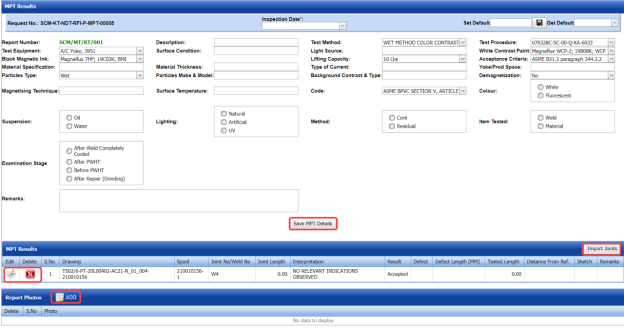](http://wiki.cuteinfocomm.com/uploads/images/gallery/2022-05/image-1651463644963.png)
**Figure 6.5.1: MT Results page**
2. In the **Inspection Date** box, select the date of inspection.
3. In the **Test Equipment** box, select the test equipment from a drop-down list.
4. In the **Description** box, enter the description.
5. In the **Test Procedure** box, select the test procedure from a drop-down list.
6. In the **Test Method** box, select the test method from a drop-down list.
7. In the **Black Magnetic Ink** box, select the type of black magnetic ink from a drop-down list.
8. In the **Surface Condition** box, enter the condition of the surface.
9. In the **Light Source** box, enter the light source detail.
10. In the **White Contrast Paint** box, select the type of white contrast paint.
11. In the **Material Specification** box, enter the material specification.
12. In the **Material Thickness** box, enter the material thickness value.
13. In the **Type of Current** box, enter the type of current.
14. In the **Lifting Capacity** box, select the lifting capacity value.
15. In the **Acceptance Criteria** box, select the acceptance criteria from a drop-down list.
16. In the **Yoke/ Prod Space** box, enter the relevant information.
17. In the **Particles Type** box, select the type of particles from a drop-down list.
18. In the **Particles Make & model** box, enter the model of the particle including made of materials.
19. In the **Background Contrast & Type** box, enter the type of background including contrast range.
20. In the ****Demagnetization**** box, if you want demagnetization select ****Yes**** otherwise select ****No****.
21. In the ****Magnetizing Technique**** box, enter the magnetizing technique.
22. In the **Surface Temperature** box, enter the surface temperature value.
23. In the **Code** box, enter the code detail.
24. In the **Color** box, select any color from the specified options.
25. In the **Suspension** box, select any suspension liquid from the specified options.
26. In the **Lighting** box, select any lighting from the specified options.
27. In the **Method** box, select any method from the specified options.
28. In the **Item Tested** box, select the tested items from the specified options.
29. In the **Examination Stage** box, select the examination stage from the specified options.
30. In the **Remarks** box, enter your remarks if any.
31. Click **Save MPT Details**.
The MT details are successfully updated. Once you have updated the MT details, you must add MT inspection results for the added joints.
[](http://wiki.cuteinfocomm.com/uploads/images/gallery/2022-05/image-1651463886205.png)**Note**: Once you have added MT details, you can save the added MT details and reuse the saved details while you adding MT details for any other MT report.
[](http://wiki.cuteinfocomm.com/uploads/images/gallery/2022-05/image-1651463903221.png)
- To save the added MT details, enter any name in the **Set Default** box and click. The added details will be saved in the given name.
- If you want to add the same MT details for any other MT report, select the name in the **Get Default**.
The saved details will be automatically updated in the respective boxes.
#### **6.5.2.1 Add MT Results for Joints**
The **MPT Results** window shows a list of joints added for the MT inspection. If you want to add MT results for joints,
1. Click [](http://wiki.cuteinfocomm.com/uploads/images/gallery/2022-05/image-1651467449934.png)(Edit icon) for the respective joint listed in the ****MPT Results**** window. The **MPT Results** window opens a new window with the added MT details.
[](http://wiki.cuteinfocomm.com/uploads/images/gallery/2022-05/image-1651467485929.png)
2. In the **Result** box, update your MT inspection results whether **Accepted**, **Rejected**, or **Cancelled**.
3. In the ****Remarks**** box, enter your remarks if any.
4. Click **Save**.
#### **6.5.2.2 Import Additional joints**
If you want to import joints for the updated MPT results,
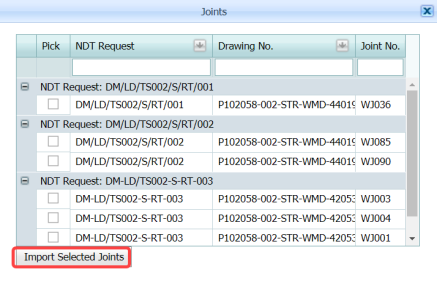
1. Click [](http://wiki.cuteinfocomm.com/uploads/images/gallery/2022-05/image-1651467647315.png) (**Import Joints** button) in the **MPT Results** window. See Fig 6.5.1.
The **Joints** window opens with a list of joints.
[](http://wiki.cuteinfocomm.com/uploads/images/gallery/2022-05/image-1651467668812.png)
2. Select the joints you want to import.
3. Click [](http://wiki.cuteinfocomm.com/uploads/images/gallery/2022-05/image-1651467741861.png) (****Import Selected Joints**** button). The selected joints are added and listed in the **MPT results** window. You must add the MT inspection results for the added joints.
#### **6.5.2.3 Add Report Photos**
If you want to add any report photos for the updated MT results,
1. Click (**ADD** button) in the **Report Photos** box in the **MPT Results** window. See Fig 6.5.1.
[](http://wiki.cuteinfocomm.com/uploads/images/gallery/2022-05/image-1651467845780.png)
2. Click [](http://wiki.cuteinfocomm.com/uploads/images/gallery/2022-05/image-1651467878820.png) (**Browse** button) to browse a photo stored in your computer.
3. Click **Upload**.
The selected photo will be updated.
### **6.5.3 Attach a File into an MT Report**
If you want to attach any file with any MT report listed in the **MT Report** page, you can attach the file by using [](http://wiki.cuteinfocomm.com/uploads/images/gallery/2022-05/image-1651467978037.png)(Attach icon) in the **Attachment** column. To know how to attach, follow the procedures given in the topic “[**Attach a file into P&ID**](http://wiki.cuteinfocomm.com/books/cuteqm/page/project-data/#bkmrk-3.1.7%C2%A0attach-a-file-)”.
### **6.5.4 View an NDT – MT Report**
If you want to view an NDT - MT report, click [](http://wiki.cuteinfocomm.com/uploads/images/gallery/2022-05/image-1651468087425.png)(print icon) provided in the **Report** column of the **MT Report** page. See Fig 6.5.
### **6.5.5 Edit a MT Report**
If you want to edit any existing MT report in the **MT Report** page, do the following steps,
1. Click [](http://wiki.cuteinfocomm.com/uploads/images/gallery/2022-05/image-1651468355189.png)(Edit icon) in the ****Edit**** column for the respective MT report. See Fig 6.5. A new window opens to edit the MT report.
[](http://wiki.cuteinfocomm.com/uploads/images/gallery/2022-05/image-1651468379679.png)
2. Click any box where you want to edit the details, and then edit the details in the respective box.
3. Click **Save**.
### **6.5.6 Export MT Report List**
You can export a list of RT reports added in the **RT Report** page in both the pdf and excel formats by using [](http://wiki.cuteinfocomm.com/uploads/images/gallery/2022-05/image-1651468439909.png)(**PDF** button) and [](http://wiki.cuteinfocomm.com/uploads/images/gallery/2022-05/image-1651468450780.png) (**Excel** button). To know how to export, see the topic, “[**Export P&ID list**](http://wiki.cuteinfocomm.com/books/cuteqm/page/project-data/#bkmrk-3.1.4%C2%A0export-p%26id-li)”.
### **6.5.7 Filter a MT Report**
If you want to filter any MT report, do one of the following,
[](http://wiki.cuteinfocomm.com/uploads/images/gallery/2022-05/image-1651468483436.png)
1. If you want to filter any MT report based on the report number, enter the corresponding report number in the **Report No** box in the **MT Report** page, and then Click **Search**.
2. If you want to filter any MT report based on the request number, enter the corresponding request number in the ****Request No**** box in the ****MT Report**** page, and then Click ****Search****.
3. If you want to filter any MT report based on the drawing number, enter the corresponding drawing number in the ****Drawing No**** box in the ****MT Report**** page, and then Click ****Search****.
### **6.6 Phased Array Ultrasonic Testing (PAUT) Inspection**
PAUT is an advanced NDT inspection technique that utilizes multiple UT probes to inspect more complex geometries. PAUT used to inspect almost any material where traditional UT methods have been utilized for weld inspections and crack detection.
The **PAUT** tab in the **Piping** menu helps you to add a PAUT report. Once the NDT inspection request is added with the selection of PAUT type by using the [**NDT Inspection Request**](http://wiki.cuteinfocomm.com/books/cuteqm/page/inspection/#bkmrk-5.5%C2%A0ndt-inspection-r) tab, the added inspection request will be moved here.
After completing the PAUT inspection, you can add the PAUT inspection result details by using this **PAUT** tab. To navigate to **PAUT**,
1. Click **PAUT** in the **Piping** menu.
The **PAUT Report** page opens.
[](http://wiki.cuteinfocomm.com/uploads/images/gallery/2022-05/image-1651468857506.png)
[](http://wiki.cuteinfocomm.com/uploads/images/gallery/2022-05/image-1651468864583.png)
**Figure 6.6: PAUT Report page**
#### **6.6.1 Add a PAUT Report**
If you want to add a PAUT report, do the following steps,
1. Click [](http://wiki.cuteinfocomm.com/uploads/images/gallery/2022-05/image-1651469266450.png) (**ADD** button) in the **PAUT Report** page. See Fig 6.6. The **PAUT Report** page shows a new window to add the details of a PAUT report.
[](http://wiki.cuteinfocomm.com/uploads/images/gallery/2022-05/image-1651469461920.png)
[](http://wiki.cuteinfocomm.com/uploads/images/gallery/2022-05/image-1651469472224.png)**Note**: The fields notified with a symbol (\*) are mandatory. You must enter the relevant details in that fields before saving.
[](http://wiki.cuteinfocomm.com/uploads/images/gallery/2022-05/image-1651469491662.png)**Tip**: A report number for a new PAUT report will be updated automatically in the **Report Number** box. If you want to change the report number, you can change.
2. In the **NDT By** box, select the requisition detail of NDT whether by third party or internal.
3. In the **NDT** **Request No** box, select an NDT request number from a drop-down list.
4. In the **Prepared By** box, enter the name of a person who has prepared the PAUT report.
5. In the **Prepared Date** box, select the prepared date of the PAUT report.
6. In the **Reviewed By** box, enter the name of a person who has reviewed the PAUT report.
7. In the **Reviewed Date** box, select the reviewed date of the PAUT report.
8. In the ****Accepted/ Approved By**** boxes, enter the name of a person who has approved the PAUT report.
9. In the **Accepted/ Approved Date** box, select the approved date of the PAUT report.
10. Click **Save**.
The PAUT report is successfully added and listed in the **PAUT Report** page. Once you have added the PAUT report, you must add PAUT inspection result details.
#### **6.6.2 Add PAUT Inspection Results**
If you want to add the PAUT results for the respective PAUT report, do the following steps,
1. Click the respective PAUT report in the **PAUT Report** page. See Fig 6.6.
The **PAUT Report** page shows **Joint Results**, **PAUT Results**, and **Report Photos** windows.
[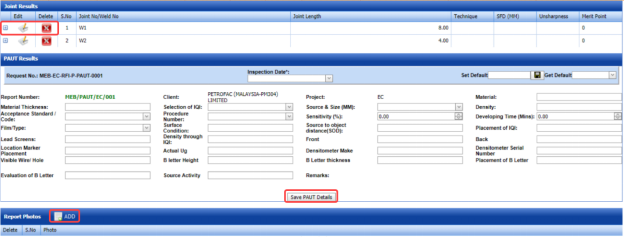](http://wiki.cuteinfocomm.com/uploads/images/gallery/2022-05/image-1651469637487.png)
**Figure 6.6.1: PAUT Results adding page**
2. In the **Inspection Date** box, select the date of inspection.
3. In the **Material Thickness** box, enter the thickness of the material.
4. In the **Selection of IQI** box, select an IQI from a drop-down list.
5. In the **Source and Size (MM)** box, select a source from a drop-down list.
6. In the **Material** box, enter the name of the material.
7. In the **Density** box, enter the density value of the material.
8. In the **Acceptance Standard/Code** box, select the acceptance standard/code from a drop-down list.
9. In the **Procedure Number** box, select the procedure number from a drop-down list.
10. In the **Sensitivity** box, set the sensitivity value of the material.
11. In the **Developing Time (Mins)** box, set the developing time.
12. In the **Film Type** box, select the type of film.
13. In the **Surface Condition** box, enter the surface condition detail.
14. In the **Source to Object Distance (SOD)** box, enter the distance value from source to object.
15. In the **Placement of IQI** box, enter the placement detail of IQI.
16. In the **Lead Screens** box, enter the lead screens detail.
17. In the **Density through IQI** box, enter the density through IQI detail.
18. In the **Front** and **Back** boxes, enter the front and back details.
19. In the **Location Marker** box, enter the location marker detail.
20. In the **Densitometer Serial Number** box, enter the densitometer serial number.
21. In the **Visible Wire/Hole** box, enter the detail of visible wire/hole.
22. In the **Remarks** box, enter your remarks if any.
23. Click **Save PAUT Details**.
The PAUT details are successfully updated. Once you have updated the PAUT details, you must add the PAUT inspection results for joints in the **Joint Results** window.
[](http://wiki.cuteinfocomm.com/uploads/images/gallery/2022-05/image-1651469819519.png)**Note**: Once you have added PAUT details, you can save the added PAUT details and reuse the saved details while you adding PAUT details for any other PAUT report.
[](http://wiki.cuteinfocomm.com/uploads/images/gallery/2022-05/image-1651469836535.png)
- To save the added PAUT details, enter any name in the **Set Default** box and click . The added details will be saved in the given name.
- If you want to add the same PAUT details for any other PAUT report, select the name in the ****Get Default****.
The saved details will be automatically updated in the respective boxes.
#### **6.6.2.1 Add PAUT Results for Joints**
The **Joint Results** window shows a list of joints added for the PAUT inspection. If you want to add PAUT results for joints,
1. Click [](http://wiki.cuteinfocomm.com/uploads/images/gallery/2022-05/image-1651469915727.png) (Edit icon) for the respective joint listed in the ****Joint Results**** window. The **Joint Results** window opens a new window with the added joint details.
[](http://wiki.cuteinfocomm.com/uploads/images/gallery/2022-05/image-1651469942131.png)
2. In the ****Result**** box, update your PWHT inspection results whether ****Accepted****, ****Rejected****, or ****Cancelled****.
3. In the **Remarks** box, enter your remarks if any.
4. Click **Save**.
#### **6.6.2.2 Add Report Photos**
If you want to add any report photos for the updated PAUT results,
1. Click [](http://wiki.cuteinfocomm.com/uploads/images/gallery/2022-05/image-1651470017102.png) (**ADD** button) in the **Report Photos** window. See Fig 6.6.1.
[](http://wiki.cuteinfocomm.com/uploads/images/gallery/2022-05/image-1651470010993.png)
2. Click [](http://wiki.cuteinfocomm.com/uploads/images/gallery/2022-05/image-1651470038246.png) (****Browse**** button) to browse a photo stored in your computer.
3. Click **Upload**.
The selected photo will be updated.
#### **6.6.3 Attach a File into a PAUT Report**
If you want to attach any file with any PAUT report listed in the **PAUT Report** page, you can attach the file by using [](http://wiki.cuteinfocomm.com/uploads/images/gallery/2022-05/image-1651470394291.png)(Attach icon) in the **Attachment** column. To know how to attach, follow the procedures given in the topic “[**Attach a file into P&ID**](http://wiki.cuteinfocomm.com/books/cuteqm/page/project-data/#bkmrk-3.1.7%C2%A0attach-a-file-)”.
#### **6.6.4 View a PAUT Report**
If you want to view a PAUT report, click [](http://wiki.cuteinfocomm.com/uploads/images/gallery/2022-05/image-1651470435010.png)(print icon) provided in the **Report** column of the **PAUT Report** page. See Fig 6.6.
#### **6.6.5 Edit a PAUT Report**
If you want to edit any existing PAUT report in the **PAUT Report** page, do the following,
1. Click[](http://wiki.cuteinfocomm.com/uploads/images/gallery/2022-05/image-1651470484604.png)(Edit icon) in the **Edit** column for the respective PAUT report. See Fig 6.6. The **PAUT Report** page shows the details of the added PAUT report.
2. Click any box where you want to edit the details, and then edit the details in the respective box.
3. Click **Save**.
#### **6.6.6 Export PAUT Report List**
You can export a list of PAUT reports added in the **PAUT Report** page in both the pdf and excel formats by using [](http://wiki.cuteinfocomm.com/uploads/images/gallery/2022-05/image-1651470557699.png) (**PDF** button) and [](http://wiki.cuteinfocomm.com/uploads/images/gallery/2022-05/image-1651470567609.png) (**Excel** button). To know how to export, see the topic, “**[Export P&ID list](http://wiki.cuteinfocomm.com/books/cuteqm/page/project-data/#bkmrk-3.1.4%C2%A0export-p%26id-li)**”.
#### **6.6.7 Filter a PAUT Report**
If you want to filter any PAUT report,
[](http://wiki.cuteinfocomm.com/uploads/images/gallery/2022-05/image-1651470602365.png)
1. If you want to filter any PAUT report based on the report number, enter the corresponding report number in the **Report No** box in the **PAUT Report** page, and then Click **Search**.
2. If you want to filter any PAUT report based on the request number, enter the corresponding request number in the ****Request No**** box in the ****PAUT Report**** page, and then Click ****Search****.
3. If you want to filter any PAUT report based on the drawing number, enter the corresponding drawing number in the ****Drawing No**** box in the ****PAUT Report**** page, and then Click ****Search****.
### **6.7 Time of Flight Diffraction (TOFD) Inspection**
TOFD is a reliable method of NDT- UT used to look for flaws in welds. TOFD uses the time of flight of an ultrasonic pulse to find the location of a reflector. TOFD can also be used for weld overlays in piping.
The **TOFD** tab in the **Piping** menu helps you to add a TOFD report. Once the NDT inspection request is added with the selection of TOFD type by using the [**NDT Inspection Request**](http://wiki.cuteinfocomm.com/books/cuteqm/page/inspection/#bkmrk-5.5%C2%A0ndt-inspection-r) tab, the added inspection request will be moved here.
After completing the TOFD inspection, you can add the TOFD inspection result details by using this **TOFD** tab. To navigate to **TOFD**,
1. Click **TOFD** in the **Piping** menu.
The **TOFD Report** page opens.
[](http://wiki.cuteinfocomm.com/uploads/images/gallery/2022-05/image-1651470727236.png)
[](http://wiki.cuteinfocomm.com/uploads/images/gallery/2022-05/image-1651470736781.png)
**Figure 6.7: TOFD Report page**
#### **6.7.1 Add a TOFD Report**
If you want to add a TOFD report, do the following steps,
1. Click [](http://wiki.cuteinfocomm.com/uploads/images/gallery/2022-05/image-1651470811053.png) (****ADD**** button) in the ****TOFD Report**** See Fig 6.7. The **TOFD Report** page shows a new window to add the details of a TOFD report.
[](http://wiki.cuteinfocomm.com/uploads/images/gallery/2022-05/image-1651470833318.png)
[](http://wiki.cuteinfocomm.com/uploads/images/gallery/2022-05/image-1651470838266.png)**Note**: The fields notified with a symbol (\*) are mandatory. You must enter the relevant details in that fields before saving.
[](http://wiki.cuteinfocomm.com/uploads/images/gallery/2022-05/image-1651470857877.png)**Tip**: A report number for a new TOFD report will be updated automatically in the **Report Number** box. If you want to change the report number, you can change.
2. In the **NDT By** box, select the requisition detail of NDT whether by third party or internal.
3. In the **NDT** **Request No** box, select an NDT request number from a drop-down list.
4. In the **Prepared By** box, enter the name of a person who has prepared the TOFD report.
5. In the **Prepared Date** box, select the prepared date of the TOFD report.
6. In the **Reviewed By** box, enter the name of a person who has reviewed the TOFD report.
7. In the **Reviewed Date** box, select the reviewed date of the TOFD report.
8. In the **Accepted/ Approved By** boxes, enter the name of a person who has approved the TOFD report.
9. In the **Accepted/ Approved Date** box, select the approved date of the TOFD report.
10. Click **Save**.
The TOFD report is successfully added and listed in the **TOFD Report** page. Once you have added the TOFD report, you must add TOFD inspection result details.
#### **6.7.2 Add TOFD Inspection Results**
If you want to add the TOFD results for the respective TOFD report, do the following steps,
1. Click the respective TOFD report in the **TOFD Report** page. See Fig 6.7.
The **TOFD Report** page shows **Joint Results**, **TOFD Results**, and **Report Photos** windows.
[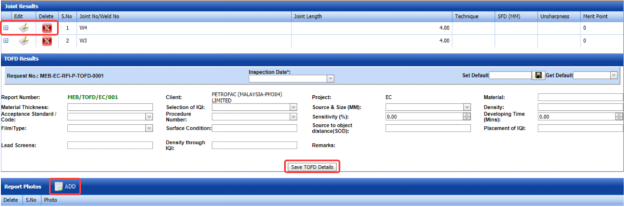](http://wiki.cuteinfocomm.com/uploads/images/gallery/2022-05/image-1651470982952.png)
**Figure 6.7.1: TOFD Results adding page**
2. In the **Inspection Date** box, select the date of inspection.
3. In the **Material Thickness** box, enter the thickness of the material.
4. In the **Selection of IQI** box, select an IQI from a drop-down list.
5. In the **Source and Size (MM)** box, select a source from a drop-down list.
6. In the **Material** box, enter the name of the material.
7. In the **Density** box, enter the density value of the material.
8. In the **Acceptance Standard/Code** box, select the acceptance standard/code from a drop-down list.
9. In the **Procedure Number** box, select the procedure number from a drop-down list.
10. In the **Sensitivity** box, set the sensitivity value of the material.
11. In the **Developing Time (Mins)** box, set the developing time.
12. In the **Film Type** box, select the type of film.
13. In the **Surface Condition** box, enter the surface condition detail.
14. In the **Source to Object Distance (SOD)** box, enter the distance value from source to object.
15. In the **Placement of IQI** box, enter the placement detail of IQI.
16. In the **Lead Screens** box, enter the lead screens detail.
17. In the **Density through IQI** box, enter the density through IQI detail.
18. In the **Remarks** box, enter your remarks if any.
19. Click **Save TOFD Details**.
The TOFD details are successfully updated. Once you have updated the TOFD details, you must add the TOFD inspection results for joints in the **Joint Results** window.
[](http://wiki.cuteinfocomm.com/uploads/images/gallery/2022-05/image-1651471174153.png)**Note**: Once you have added TOFD details, you can save the added TOFD details and reuse the saved details while you adding TOFD details for any other TOFD report.
[](http://wiki.cuteinfocomm.com/uploads/images/gallery/2022-05/image-1651471214319.png)
- To save the added TOFD details, enter any name in the **Set Default** box and click . The added details will be saved in the given name.
- If you want to add the same TOFD details for any other TOFD report, select the name in the ****Get Default****.
The saved details will be automatically updated in the respective boxes.
#### **6.7.2.1 Add TOFD Results for Joints**
The **Joint Results** window shows a list of joints added for the TOFD inspection. If you want to add TOFD results for joints,
1. Click [](http://wiki.cuteinfocomm.com/uploads/images/gallery/2022-05/image-1651471296024.png)(Edit icon) for the respective joint listed in the **Joint Results** window.
The **Joint Results** window opens a new window with the added joint details.
[](http://wiki.cuteinfocomm.com/uploads/images/gallery/2022-05/image-1651471307571.png)
2. In the **Result** box, update your PWHT inspection results whether **Accepted**, **Rejected**, or **Cancelled**.
3. In the ****Remarks**** box, enter your remarks if any.
4. Click **Save**.
#### **6.7.2.2 Add Report Photos**
If you want to add any report photos for the updated TOFD results,
1. Click [ ](http://wiki.cuteinfocomm.com/uploads/images/gallery/2022-05/image-1651471402733.png)(****ADD**** button) in the ****Report Photos**** See Fig 6.7.1. [](http://wiki.cuteinfocomm.com/uploads/images/gallery/2022-05/image-1651471395181.png)
2. Click [](http://wiki.cuteinfocomm.com/uploads/images/gallery/2022-05/image-1651471421838.png) (****Browse**** button) to browse a photo stored in your computer.
3. Click **Upload**.
The selected photo will be updated.
### **6.7.3 Attach a File into a TOFD Report**
If you want to attach any file with any TOFD report listed in the **TOFD Report** page, you can attach the file by using [](http://wiki.cuteinfocomm.com/uploads/images/gallery/2022-05/image-1651471473855.png) (Attach icon) in the **Attachment** column. To know how to attach, follow the procedures given in the topic “[**Attach a file into P&ID**](http://wiki.cuteinfocomm.com/books/cuteqm/page/project-data/#bkmrk-3.1.7%C2%A0attach-a-file-)”.
### **6.7.4 View a TOFD Report**
If you want to view a TOFD report, click[](http://wiki.cuteinfocomm.com/uploads/images/gallery/2022-05/image-1651471517482.png)(print icon) provided in the **Report** column of the **PAUT Report** page. See Fig 6.7.
### **6.7.5 Edit a TOFD Report**
If you want to edit any existing TOFD report in the **TOFD Report** page, do the following,
1. Click [](http://wiki.cuteinfocomm.com/uploads/images/gallery/2022-05/image-1651471590133.png)(Edit icon) in the **Edit** column for the respective TOFD report. See Fig 6.7. The **TOFD Report** page shows the details of the added TOFD report.
2. Click any box where you want to edit the details, and then edit the details in the respective box.
3. Click **Save**.
### **6.7.6 Export TOFD Report List**
You can export a list of TOFD reports added in the **TOFD Report** page in both the pdf and excel formats by using [](http://wiki.cuteinfocomm.com/uploads/images/gallery/2022-05/image-1651471657278.png) (**PDF** button) and [](http://wiki.cuteinfocomm.com/uploads/images/gallery/2022-05/image-1651471667825.png) (**Excel** button). To know how to export, see the topic, “**[Export P&ID list](http://wiki.cuteinfocomm.com/books/cuteqm/page/project-data/#bkmrk-3.1.4%C2%A0export-p%26id-li)**”.
### **6.7.7 Filter a TOFD Report**
If you want to filter any TOFD report,
[](http://wiki.cuteinfocomm.com/uploads/images/gallery/2022-05/image-1651471713753.png)
1. If you want to filter any TOFD report based on the report number, enter the corresponding report number in the **Report No** box in the **TOFD Report** page, and then Click **Search**.
2. If you want to filter any TOFD report based on the request number, enter the corresponding request number in the **Request No** box in the **TOFD Report** page, and then Click **Search**.
3. If you want to filter any TOFD report based on the drawing number, enter the corresponding drawing number in the ****Drawing No**** box in the ****TOFD Report**** page, and then Click ****Search****.
### **6.8 Post Weld Heat Treatment (PWHT)**
The **PWHT** tab in the **Piping** menu helps you to add a PWHT report. Once the NDT inspection request is added with the selection of PWHT type by using the **[NDT Inspection Request](http://wiki.cuteinfocomm.com/books/cuteqm/page/inspection/#bkmrk-5.5%C2%A0ndt-inspection-r)** tab, the added inspection request will be moved here.
After completing the PWHT inspection, you can add the PWHT inspection result details by using this PWHT tab. To navigate to **PWHT**,
1. Click **PWHT** in the **Piping** menu. The **PWHT Report** page opens.
[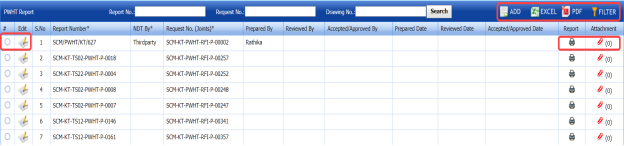](http://wiki.cuteinfocomm.com/uploads/images/gallery/2022-05/image-1651471815374.png)
**Figure 6.8: PWHT Report page**
#### **6.8.1 Add a PWHT Report**
If you want to add a PWHT report, do the following,
1. Click [](http://wiki.cuteinfocomm.com/uploads/images/gallery/2022-05/image-1651471876805.png) (****ADD**** button) in the ****PWHT Report**** See Fig 6.8. The **PWHT Report** page shows a new window to add a PWHT report.
[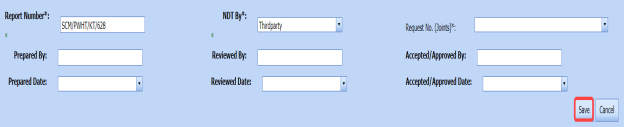](http://wiki.cuteinfocomm.com/uploads/images/gallery/2022-05/image-1651471893507.png)
[](http://wiki.cuteinfocomm.com/uploads/images/gallery/2022-05/image-1651471904175.png)**Note**: The fields notified with a symbol (\*) are mandatory. You must enter the relevant details in that fields before saving.
[](http://wiki.cuteinfocomm.com/uploads/images/gallery/2022-05/image-1651471919572.png)**Tip**: A report number for a new PWHT report will be updated automatically in the **Report Number** box. If you want to change the report number, you can change.
2. In the **NDT By** box, select the requisition detail of NDT whether by third party or internal.
3. In the ****Request Number**** box, select an NDT request number from a drop-down list.
4. In the ****Prepared By**** box, enter the name of a person who has prepared the PWHT report.
5. In the ****Prepared Date**** box, select the prepared date of the PWHT report.
6. In the ****Reviewed By**** box, enter the name of a person who has reviewed the PWHT report.
7. In the ****Reviewed Date**** box, select the reviewed date of the PWHT report.
8. In the ****Reviewed Date**** box, select the reviewed date of the PWHT report.
9. In the **Accepted/ Approved Date** box, select the approved date of the PWHT report.
10. Click **Save**.
The PWHT report is successfully added and listed in the **PWHT Report** page. Once you have added the PWHT report, you must add PWHT inspection result details.
#### **6.8.2 Add PWHT Results**
If you want to add the PWHT results for the respective PWHT report, do the following steps,
1. Click the respective PWHT report in the **PWHT Report** See Fig 6.8. The **PWHT Report** page shows **PWHT Results**, **Joint Results**, and **Report Photos** windows.[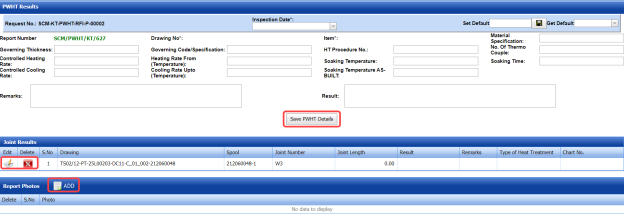](http://wiki.cuteinfocomm.com/uploads/images/gallery/2022-05/image-1651472107759.png) **Figure 9.8.1: PWHT Results page**
2. In the **Inspection Date** box, select the inspection date.
3. In the **Material Specification** box, enter the specification for the material.
4. In the **Governing Thickness** box, enter the governing thickness value.
5. In the **Governing Code/Specification** box, enter the governing code/specification.
6. In the **HT Procedure No** box, select the HT procedure number.
7. In the **No. of Thermo Couple** box, enter the number of thermo couple.
8. In the **Controlled** **Heating Rate** box, enter the controlled heating rate value.
9. In the **Heating Rate From (Temperature)** box, enter the heating rate starting range.
10. In the **Soaking Temperature** box, enter the soaking temperature value.
11. In the **Soaking Time** box, enter the soaking time value.
12. In the **Controlled Cooling Rate** box, enter the range of controlled cooling rate.
13. In the **Cooling Rate Up to (Temperature)** box, enter the cooling rate temperature range.
14. In the **Soaking Temperature** box, enter the soaking temperature value.
15. In the **Remarks** box, enter your remarks if any.
16. In the **Result** box, enter your PWHT result.
17. Click **Save PWHT Details**.
The PWHT details are successfully updated. Once you have updated the PWHT details, you must add the PWHT inspection results for joints in the **Joint Results** window.
[](http://wiki.cuteinfocomm.com/uploads/images/gallery/2022-05/image-1651472359339.png)**Note**: Once you have added PWHT details, you can save the added PWHT details and reuse the saved details while you adding PWHT details for any other PWHT report.
[](http://wiki.cuteinfocomm.com/uploads/images/gallery/2022-05/image-1651472395679.png)
- To save the added PWHT details, enter any name in the **Set Default** box and click . The added details will be saved in the given name.
- If you want to add the same PWHT details for any other PWHT report, select the name in the ****Get Default****.
The saved details will be automatically updated in the respective boxes.
#### **6.8.21 Add PWHT Results for Joints**
The **Joint Results** window shows a list of joints added for the PWHT inspection. If you want to add PWHT results for joints,
1. Click [](http://wiki.cuteinfocomm.com/uploads/images/gallery/2022-05/image-1651472469335.png)(Edit icon) for the respective joint listed in the ****Joint Results**** window. The **Joint Results** window opens a new window with the added joint details.
[](http://wiki.cuteinfocomm.com/uploads/images/gallery/2022-05/image-1651472500428.png)
2. In the ****Result**** box, update your PWHT inspection results whether ****Accepted****, ****Rejected****, or ****Cancelled****.
3. In the **Remarks** box, enter your remarks if any.
4. Click **Save**.
#### **6.8.2.2 Add Report Photos**
If you want to add any report photos for the updated PWHT results,
1. Click (**ADD** button) in the **Report Photos** window. See Fig 6.8.1. [](http://wiki.cuteinfocomm.com/uploads/images/gallery/2022-05/image-1651475015929.png)
2. Click [](http://wiki.cuteinfocomm.com/uploads/images/gallery/2022-05/image-1651475034790.png) (****Browse**** button) to browse a photo stored in your computer.
3. Click **Upload**.
The selected photo will be updated.
### **6.8.3 Attach a File into a PWHT Report**
If you want to attach any file with any PWHT report listed in the **PWHT Report** page, you can attach the file by using [](http://wiki.cuteinfocomm.com/uploads/images/gallery/2022-05/image-1651475091390.png)(Attach icon) in the **Attachment** column. To know how to attach, follow the procedures given in the topic “[**Attach a file into P&ID**](http://wiki.cuteinfocomm.com/books/cuteqm/page/project-data/#bkmrk-3.1.7%C2%A0attach-a-file-)”.
### **6.8.4 View a PWHT Report**
If you want to view a PWHT report, click[](http://wiki.cuteinfocomm.com/uploads/images/gallery/2022-05/image-1651475142945.png)(print icon) provided in the **Report** column of the **PWHT Report** page. See Fig 6.8.
### **6.8.5 Edit a PWHT Report**
If you want to edit any existing PWHT report in the **PWHT Report** page, do the following,
1. Click [](http://wiki.cuteinfocomm.com/uploads/images/gallery/2022-05/image-1651475201757.png)(Edit icon) in the **Edit** column for the respective PWHT report. See Fig 6.8. The **PWHT Report** page shows the details of the added PWHT report.
2. Click any box where you want to edit the details, and then edit the details in the respective box.
3. Click **Save**.
### **6.8.6 Export PWHT Report List**
You can export a list of PWHT reports added in the **PWHT Report** page in both the pdf and excel formats by using [](http://wiki.cuteinfocomm.com/uploads/images/gallery/2022-05/image-1651475288882.png)(**PDF** button) and [](http://wiki.cuteinfocomm.com/uploads/images/gallery/2022-05/image-1651475311047.png) (**Excel** button). To know how to export, see the topic, “**[Export P&ID list](http://wiki.cuteinfocomm.com/books/cuteqm/page/project-data/#bkmrk-3.1.4%C2%A0export-p%26id-li)**”.
### **6.8.7 Filter a PWHT Report**
If you want to filter any PWHT report,
- Use [](http://wiki.cuteinfocomm.com/uploads/images/gallery/2022-05/image-1651475359425.png) (**FILTER** button) in the **PWHT Report** page, See Fig 6.8. (OR)
- Do one of the following steps to filter the PWHT report,
[](http://wiki.cuteinfocomm.com/uploads/images/gallery/2022-05/image-1651475377449.png)
1. 1. If you want to filter any PWHT report based on the report number, enter the corresponding report number in the **Report No** box in the **PWHT Report** page, and then Click **Search**.
2. If you want to filter any PWHT report based on the request number, enter the corresponding request number in the ****Request No**** box in the ****PWHT Report**** page, and then Click ****Search****.
3. If you want to filter any PWHT report based on the drawing number, enter the corresponding drawing number in the ****Drawing No**** box in the ****PWHT Report**** page, and then Click ****Search****.
### **6.9 Positive Material Identification (PMI)**
PMI is one of the more specialized NDT methods. With positive material identification, the alloy composition of materials can be determined.
PMI is one of the more specialized NDT methods. With positive material identification, the alloy composition of materials can be determined.
After completing the PMI inspection, you can add the PMI inspection result details by using this **PMI** tab. To navigate to **PMI**,
1. Click ****PMI**** in the ******Piping****** menu. The **PMI Report** page opens.
[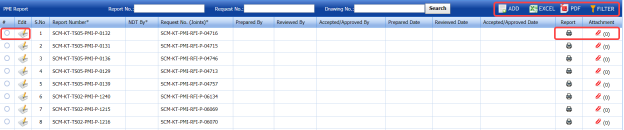](http://wiki.cuteinfocomm.com/uploads/images/gallery/2022-05/image-1651475539031.png)
**Figure 6.9: PMI Report page**
#### **6.9.1 Add a PMI Report**
If you want to add a PMI report, do the following,
1. Click [](http://wiki.cuteinfocomm.com/uploads/images/gallery/2022-05/image-1651475655267.png) (**ADD** button) in the **PMI Report** page. See Fig 6.9.
The **PMI Report** page shows a new window to add a new PMI report.
[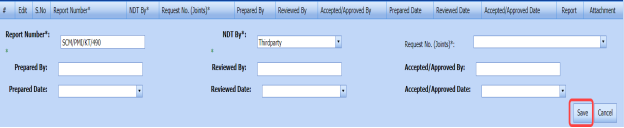](http://wiki.cuteinfocomm.com/uploads/images/gallery/2022-05/image-1651475676855.png)
[](http://wiki.cuteinfocomm.com/uploads/images/gallery/2022-05/image-1651475692787.png) **Note**: The fields notified with a symbol (\*) are mandatory. You must enter the relevant details in that fields before saving.
[](http://wiki.cuteinfocomm.com/uploads/images/gallery/2022-05/image-1651475714260.png)**Tip**: A report number for a new PMI report will be updated automatically in the **Report Number** box. If you want to change the report number, you can change.
2. In the ****NDT By**** box, select the requisition detail of NDT whether by third party or internal.
3. In the ****Request No**** box, select an NDT request number from a drop-down list.
4. In the ****Prepared By**** box, enter the name of a person who has prepared the PMI report.
5. In the ****Prepared Date**** box, select the prepared date of the PMI report.
6. In the ****Reviewed By**** box, enter the name of a person who has reviewed the PMI report.
7. In the ****Reviewed Date**** box, select the reviewed date of the PMI report.
8. In the ****Accepted/ Approved By**** boxes, enter the name of a person who has approved the PMI report.
9. In the ****Accepted/ Approved Date**** box, select the approved date of the PMI report.
10. Click **Save**.
The PMI report is successfully added and listed in the **PMI Report** page. Once you have added the PMI report, you must add PMI inspection result details.
### **6.6.2 Add PMI Results**
If you want to add the PMI results for the respective PMI report, do the following steps,
1. Click the respective PMI report in the ****PMI Report**** See Fig 6.9. The **PMI Report** page shows **PMI Results**, **PMI Elements, PMI** **Joint Details**, and **Report Photos** windows.
[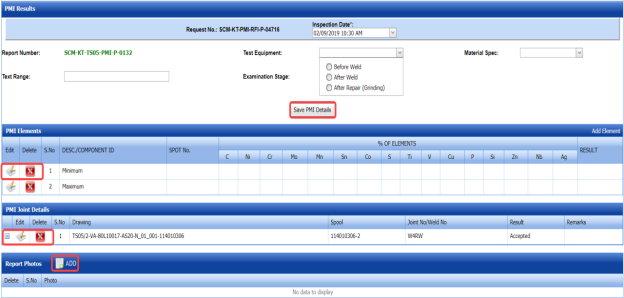](http://wiki.cuteinfocomm.com/uploads/images/gallery/2022-05/image-1651475866923.png)
**Figure 9.9.1: PMI Results page**
2. In the **Inspection Date** box, select the inspection date.
3. In the ****Test Equipment**** box, select the test equipment from a drop-down list.
4. In the **Material Spec** box, select the material specification from a drop-down list.
5. In the ****Text Range**** box, enter the detail of text range.
6. In the ****Examination Stage**** box, select the examination stage from the given options.
7. Click ****Save PMI Details****.
The PMI details are successfully updated. Once you have updated the PMI details, you must add the PMI inspection results for the added elements.
#### **6.9.2.1 Add PMI Results for Elements**
The **PMI Elements** window shows a list of elements added for the PMI inspection. If you want to add PMI results for elements,
1. Click [](http://wiki.cuteinfocomm.com/uploads/images/gallery/2022-05/image-1651476005640.png)(Edit icon) for the respective element listed in the **PMI Elements** window. The **PMI Elements** window opens a new window on each column with the added element details.
[](http://wiki.cuteinfocomm.com/uploads/images/gallery/2022-05/image-1651476035438.png)
2. Enter the relevant details in each column.
3. In the ****Result**** column, update your PMI inspection results whether ****Accepted****, ****Rejected****, or ****Cancelled****.
4. Click ****Save****.
#### **6.9.2.2 Add More Elements**
If you want to add more elements, do the following steps,
1. Click **Add Element** in the **PMI Elements** window. A new window opens in each column of the **PMI Elements** window to add a new element.
[](http://wiki.cuteinfocomm.com/uploads/images/gallery/2022-05/image-1651476117771.png)
2. Enter the relevant details in the respective columns.
3. Click **Save.**
The element is successfully added.
#### **6.9.2.3 Add PMI Results for Joints**
The **PMI** **Joint Details** window shows a list of joints added for the PMI inspection. If you want to add PMI results for joints,
1. Click [](http://wiki.cuteinfocomm.com/uploads/images/gallery/2022-05/image-1651476186231.png)(Edit icon) for the respective joint listed in the **PMI Joint Details** window. The **PMI** **Joint Details** window opens a new window with the added joint details.
[](http://wiki.cuteinfocomm.com/uploads/images/gallery/2022-05/image-1651476224471.png)
2. In the **Result** box, update your PMI inspection results whether **Accepted**, **Rejected**, or **Cancelled.**
3. In the ****Remarks**** box, enter your remarks if any.
4. Click ****Save****.
#### **6.9.2.4 Add Report Photos**
If you want to add any report photos for the updated PMI results,
1. Click [](http://wiki.cuteinfocomm.com/uploads/images/gallery/2022-05/image-1651476366836.png) (**ADD** button) in the **Report Photos** window. See Fig 6.9.1. [](http://wiki.cuteinfocomm.com/uploads/images/gallery/2022-05/image-1651476386070.png)
2. Click [](http://wiki.cuteinfocomm.com/uploads/images/gallery/2022-05/image-1651476406366.png) (****Browse**** button) to browse a photo stored in your computer.
3. Click **Upload**.
The selected photo will be updated.
### **6.9.3 Attach a File into a PMI Report**
If you want to attach any file with any PMI report listed in the **PMI Report** page, you can attach the file by using [](http://wiki.cuteinfocomm.com/uploads/images/gallery/2022-05/image-1651476463151.png)(Attach icon) in the **Attachment** column. To know how to attach, follow the procedures given in the topic “[**Attach a file into P&ID**](http://wiki.cuteinfocomm.com/books/cuteqm/page/project-data/#bkmrk-3.1.7%C2%A0attach-a-file-)”.
### **6.9.4 View a PMI Report**
If you want to view a PMI report, click [](http://wiki.cuteinfocomm.com/uploads/images/gallery/2022-05/image-1651476502082.png)(print icon) provided in the **Report** column of the **PMI Report** page. See Fig 6.9.
### **6.9.5 Edit a PMI Report**
If you want to edit any existing PMI report in the **PMI Report** page, do the following,
1. Click [](http://wiki.cuteinfocomm.com/uploads/images/gallery/2022-05/image-1651476573380.png)(Edit icon) in the **Edit** column for the respective PMI report. See Fig 6.9. The **PMI Report** page shows the details of the added PMI report.
2. Click any box where you want to edit the details, and then edit the details in the respective box.
3. Click **Save**.
### **6.9.6 Export PMI Report List**
You can export a list of PMI reports added in the **PMI Report** page in both the pdf and excel formats by using [](http://wiki.cuteinfocomm.com/uploads/images/gallery/2022-05/image-1651476663846.png) (**PDF** button) and [](http://wiki.cuteinfocomm.com/uploads/images/gallery/2022-05/image-1651476682614.png) (**Excel** button). To know how to export, see the topic, “[**Export P&ID list**](http://wiki.cuteinfocomm.com/books/cuteqm/page/project-data/#bkmrk-3.1.4%C2%A0export-p%26id-li)”.
### **6.9.7 Filter a PMI Report**
If you want to filter any PMI report,
- Use [](http://wiki.cuteinfocomm.com/uploads/images/gallery/2022-05/image-1651476737184.png) (**FILTER** button) in the **PMI Report** page, See Fig 6.9. (OR)
- Do one of the following steps to filter the PMI report,
[](http://wiki.cuteinfocomm.com/uploads/images/gallery/2022-05/image-1651476758789.png)
- 1. If you want to filter any PMI report based on the report number, enter the corresponding report number in the ****Report No**** box in the ****PMI Report**** page, and then Click ****Search****.
2. If you want to filter any PMI report based on the request number, enter the corresponding request number in the ****Request No**** box in the ****PMI Report**** page, and then Click ****Search****.
3. If you want to filter any PMI report based on the drawing number, enter the corresponding drawing number in the ****Drawing No**** box in the ****PMI Report**** page, and then Click ****Search****.
### **6.10 Ferrite**
Ferrite testing, also referred to as a ferrite scope test, is a rapid NDT method used to measure the amount of delta ferrite on materials used in the piping project.
The **Ferrite** tab in the **Piping** menu helps you to add a ferrite report. Once the NDT inspection request is added with the selection of ferrite type by using the **[NDT Inspection Request](http://wiki.cuteinfocomm.com/books/cuteqm/page/inspection/#bkmrk-5.5%C2%A0ndt-inspection-r)** tab, the added inspection request will be moved here.
The **Ferrite** tab in the **Piping** menu helps you to add a ferrite report. Once the NDT inspection request is added with the selection of ferrite type by using the **[NDT Inspection Request](http://wiki.cuteinfocomm.com/books/cuteqm/page/inspection/#bkmrk-5.5%C2%A0ndt-inspection-r)** tab, the added inspection request will be moved here.
1. Click **Ferrite** in the **Piping** menu. The **Ferrite Report** page opens.
[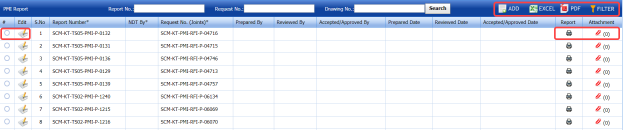](http://wiki.cuteinfocomm.com/uploads/images/gallery/2022-05/image-1651477113567.png)
**Figure 6.10: Ferrite Report page**
#### **6.10.1 Add a Ferrite Report**
If you want to add a ferrite report, do the following steps,
1. Click [](http://wiki.cuteinfocomm.com/uploads/images/gallery/2022-05/image-1651477182875.png) (**ADD** button) in the **Ferrite Report** page. See Fig 6.10. The **Ferrite Report** page shows a new window to add a new ferrite report.
[](http://wiki.cuteinfocomm.com/uploads/images/gallery/2022-05/image-1651477200421.png)
[](http://wiki.cuteinfocomm.com/uploads/images/gallery/2022-05/image-1651477211722.png)**Note**: The fields notified with a symbol (\*) are mandatory. You must enter the relevant details in that fields before saving.
[](http://wiki.cuteinfocomm.com/uploads/images/gallery/2022-05/image-1651477228893.png)**Tip**: The report number for a new ferrite report will be updated automatically in the **Report Number** box. If you want to change the report number, you can change.
2. In the ****NDT By**** box, select the requisition detail of NDT whether by third party or internal.
3. In the ****Request No**** box, select an NDT request number from a drop-down list.
4. In the **Prepared By** box, enter the name of a person who has prepared the ferrite report.
5. In the **Prepared Date** box, select the prepared date of the ferrite report.
6. In the **Reviewed By** box, enter the name of a person who has reviewed the ferrite report.
7. In the **Reviewed Date** box, select the reviewed date of the ferrite report.
8. In the ****Accepted/ Approved By**** boxes, enter the name of a person who has approved the ferrite report.
9. In the ****Accepted/ Approved Date**** box, select the approved date of the PMI report.
10. Click **Save**. The ferrite report is successfully added and listed in the **Ferrite Report** page. Once you have added the ferrite report, you must add ferrite inspection result details.
#### **6.10.2 Add Ferrite Inspection Results**
If you want to add ferrite inspection results for the respective ferrite report, do the following steps,
1. Click the respective ferrite report in the ****Ferrite Report**** See Fig 6.10. The **Ferrite Report** page shows **Ferrite Results**, **Ferrite Inspection Details, Joint Results**, and **Report Photos** windows.
[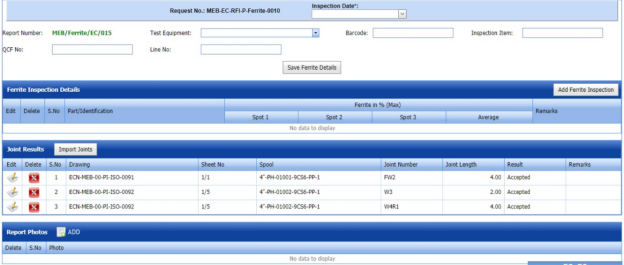](http://wiki.cuteinfocomm.com/uploads/images/gallery/2022-05/image-1651477384949.png)
**Figure 6.10.1: Ferrite Results page**
2. In the **Inspection Date** box, select the date of ferrite inspection.
3. In the **Test Equipment** box, select the test equipment from a drop-down list.
4. In the **Barcode** box, enter the barcode of the material.
5. In the **Inspection Item** box, enter the detail of inspection items.
6. In the **QCF No** box, enter the QCF number.
7. In the **Line No** box, enter the line number.
8. Click **Save Ferrite Details**.
The ferrite details are successfully updated. Once you have updated the ferrite details, you must add the ferrite inspection results.
#### **6.10.2.1 Add Ferrite Inspection Details**
If you want to add ferrite inspection details,
1. Click **Add Ferrite Inspection** in the **Ferrite Inspection Details** window.
The **Ferrite Inspection Details** window opens a new window on each column.
[](http://wiki.cuteinfocomm.com/uploads/images/gallery/2022-05/image-1651477824561.png)
2. Enter the relevant details in each column.
3. Click **Save**.
#### **6.10.2.2 Add Joint Results**
The **Joint Results** window shows a list of joints added for the ferrite inspection. If you want to add ferrite inspection results for joints,
[](http://wiki.cuteinfocomm.com/uploads/images/gallery/2022-05/image-1651477895948.png)
1. Click [](http://wiki.cuteinfocomm.com/uploads/images/gallery/2022-05/image-1651735737445.png)(Edit icon) for the respective joint listed in the **Joint Results** window. The **Joint Results** window opens a new window with the added joint details.
[](http://wiki.cuteinfocomm.com/uploads/images/gallery/2022-05/image-1651477939840.png)
2. In the ****Result**** box, update your ferrite inspection results whether ****Accepted****, ****Rejected****, or ****Cancelled****.
3. In the ****Remarks**** box, enter your remarks if any.
4. Click **Save**.
#### **6.10.2.3 Import Joints**
If you want to import multiple joints,
1. Click (**Import Joints** button) in the **Joint Results** window. The **Joints** window opens.
[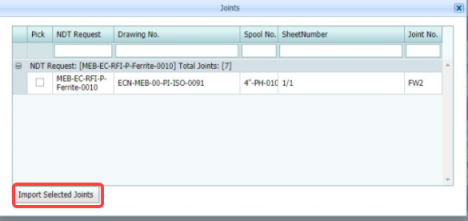](http://wiki.cuteinfocomm.com/uploads/images/gallery/2022-05/image-1651478017444.png)
2. Select the checkbox of the joints you want to import.
3. Click **Import Selected Joints**.
The imported joints will be listed in the **Joint Results** window.
#### **6.10.2.4 Add Report Photos**
If you want to add any report photos for the updated ferrite inspection results,
1. Click [](http://wiki.cuteinfocomm.com/uploads/images/gallery/2022-05/image-1651480544542.png) (**ADD** button) in the **Report Photos** window. [](http://wiki.cuteinfocomm.com/uploads/images/gallery/2022-05/image-1651480555413.png)
2. Click [](http://wiki.cuteinfocomm.com/uploads/images/gallery/2022-05/image-1651480568969.png) (****Browse**** button) to browse a photo stored in your computer.
3. Click **Upload**.
The selected photo will be updated.
### **6.10.3 Attach a File into a Ferrite Report**
If you want to attach any file with any ferrite report listed in the **Ferrite Report** page, you can attach the file by using [](http://wiki.cuteinfocomm.com/uploads/images/gallery/2022-05/image-1651480626457.png) (Attach icon) in the **Attachment** column. To know how to attach, follow the procedures given in the topic “[**Attach a file into P&ID**](http://wiki.cuteinfocomm.com/books/cuteqm/page/project-data/#bkmrk-3.1.7%C2%A0attach-a-file-)”.
### **6.10.4 View a Ferrite Report**
If you want to view a ferrite report, click[](http://wiki.cuteinfocomm.com/uploads/images/gallery/2022-05/image-1651480702173.png)(print icon) provided in the **Report** column of the **Ferrite Report** page. See Fig 6.10.
### **6.10.5 Edit a Ferrite Report**
If you want to edit any existing ferrite report in the **Ferrite Report** page, do the following steps,
1. Click [](http://wiki.cuteinfocomm.com/uploads/images/gallery/2022-05/image-1651480780466.png) (Edit icon) in the **Edit** column for the respective ferrite report. See Fig 6.10. The **Ferrite Report** page shows the details of the added ferrite report.
2. Click any box where you want to edit the details, and then edit the details in the respective box.
3. Click ****Save****.
### **6.10.6 Export Ferrite Report List**
You can export a list of ferrite reports added in the **Ferrite Report** page in both the pdf and excel formats by using [](http://wiki.cuteinfocomm.com/uploads/images/gallery/2022-05/image-1651480859460.png)(**PDF** button) and [](http://wiki.cuteinfocomm.com/uploads/images/gallery/2022-05/image-1651480871231.png) (**Excel** button). To know how to export, see the topic, “[**Export P&ID list**](http://wiki.cuteinfocomm.com/books/cuteqm/page/project-data/#bkmrk-3.1.4%C2%A0export-p%26id-li)”.
### **6.10.7 Filter a Ferrite Report**
If you want to filter any ferrite report,
- Use (**FILTER** button) in the **Ferrite Report** page, See Fig 9.10. (OR)
- Do one of the following steps to filter the ferrite report,[](http://wiki.cuteinfocomm.com/uploads/images/gallery/2022-05/image-1651481112722.png)
- 1. If you want to filter any ferrite report based on the report number, enter the corresponding report number in the **Report No** box in the **Ferrite Report** page, and then Click **Search**.
2. If you want to filter any ferrite report based on the request number, enter the corresponding request number in the ****Request No**** box in the ****Ferrite Report**** page, and then Click ****Search****.
3. If you want to filter any ferrite report based on the drawing number, enter the corresponding drawing number in the ****Drawing No**** box in the ****Ferrite Report**** page, and then Click ****Search****.
### **6.11 Hardness**
Harness testing is one of the NDT type of inspection. Hardness testing is performed to evaluate the mechanical properties metal joints and other materials thus helps to ensure that the material meets a particular specification.
The **Hardness** tab in the **Piping** menu helps you to add a hardness report. Once the NDT inspection request is added with the selection of hardness type testing by using the [**NDT Inspection Request**](http://wiki.cuteinfocomm.com/books/cuteqm/page/inspection/#bkmrk-5.5%C2%A0ndt-inspection-r) tab, the added inspection request will be moved here.
After completing the hardness testing, you can add the hardness testing result details by using this **Hardness** tab. To navigate to **Hardness**,
1. Click **Hardness** in the **Piping** menu. The **Hardness Report** page opens.
[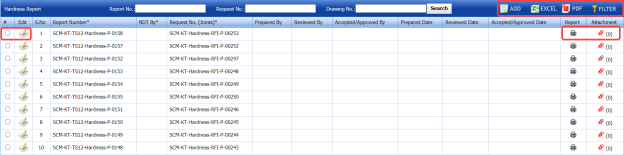](http://wiki.cuteinfocomm.com/uploads/images/gallery/2022-05/image-1651481281389.png)
**Figure 6.11: Hardness Report page**
#### **6.11.1 Add a Hardness Report**
If you want to add a hardness report, do the following steps,
1. Click [](http://wiki.cuteinfocomm.com/uploads/images/gallery/2022-05/image-1651481375997.png) (**ADD** button) in the **Hardness Report** See Fig 6.11. The **Hardness Report** page shows a new window to add a new hardness report.
[](http://wiki.cuteinfocomm.com/uploads/images/gallery/2022-05/image-1651481397369.png)
[](http://wiki.cuteinfocomm.com/uploads/images/gallery/2022-05/image-1651481408213.png) **Note**: The fields notified with a symbol (\*) are mandatory. You must enter the relevant details in that fields before saving.
[](http://wiki.cuteinfocomm.com/uploads/images/gallery/2022-05/image-1651481421689.png)**Tip**: A report number for a new hardness report will be updated automatically in the **Report Number** box. If you want to change the report number, you can change.
2. In the **NDT By** box, select the requisition detail of NDT whether by third party or internal.
3. In the **Request No** box, select an NDT request number from a drop-down list.
4. In the **Prepared By** box, enter the name of a person who has prepared the hardness report.
5. In the **Prepared Date** box, select the prepared date of the hardness report.
6. In the **Reviewed By** box, enter the name of a person who has reviewed the hardness report.
7. In the **Reviewed Date** box, select the reviewed date of the hardness report.
8. In the **Accepted/ Approved By** boxes, enter the name of a person who has approved the hardness report.
9. In the **Accepted/ Approved Date** box, select the approved date of the hardness report.
10. Click **Save**.
The hardness report is successfully added and listed in the **Hardness Report** page. Once you have added the hardness report, you must add hardness testing result details.
#### **6.11.2 Add Harness Results**
If you want to add the hardness testing results for the respective Hardness report, do the following steps,
1. Click the respective hardness report in the **Hardness Report** See Fig 6.11. The **Hardness Report** page shows **Hardness Results**, **Joint Results**, and **Report Photos** windows.
[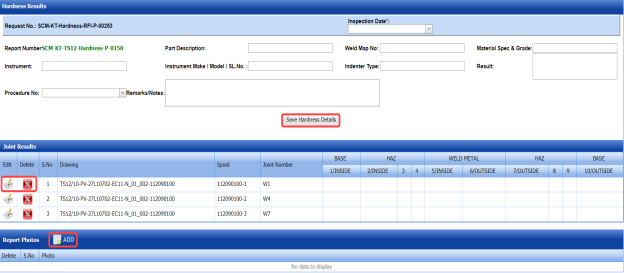](http://wiki.cuteinfocomm.com/uploads/images/gallery/2022-05/image-1651481619145.png)
**Figure 6.11.1: Hardness Results page**
2. In the **Inspection Date** box, select the date of hardness testing.
3. In the **Part Description** box, enter the description of a part to be tested for hardness.
4. In the **Weld Map No** box, enter the weld map drawing number.
5. In the **Material Spec & Grade** box, enter the grade and description for the material.
6. In the **Instrument** box, enter the name of the instrument to be used for hardness testing.
7. In the **Instrument Make/ Model/ SL. No.** box, enter the instrument model or serial number.
8. In the **Intender Type** box, enter the type of intender.
9. In the **Result** box, enter the result of hardness test.
10. In the **Procedure No** box, select the procedure number from a drop-down list.
11. In the **Remarks** box, enter your remarks if any.
12. Click **Save Hardness Details**.
The hardness details are successfully updated. Once you have updated the hardness details, you must add the hardness inspection results for the joints.
#### **6.11.2.1 Add Hardness Testing Results of joints**
The **Joint Results** window shows a list of joints added for the hardness test. If you want to add hardness test results for joints,
1. Click [](http://wiki.cuteinfocomm.com/uploads/images/gallery/2022-05/image-1651481762609.png)(Edit icon) for the respective joint listed in the **Joint Results** window. The **Joint Results** window opens a new window for each column with the added joint details.
[](http://wiki.cuteinfocomm.com/uploads/images/gallery/2022-05/image-1651481786724.png)
2. Update your hardness test details in all columns.
3. Click **Save**.
#### **6.11.2.2 Add Report Photos**
If you want to add any report photos for the updated hardness test results,
1. Click [](http://wiki.cuteinfocomm.com/uploads/images/gallery/2022-05/image-1651481861643.png) (**ADD** button) in the **Report Photos** window. [](http://wiki.cuteinfocomm.com/uploads/images/gallery/2022-05/image-1651481856617.png)
2. Click [](http://wiki.cuteinfocomm.com/uploads/images/gallery/2022-05/image-1651481889873.png) (**Browse** button) to browse a photo stored in your computer.
3. Click **Upload**.
The selected photo will be updated.
#### **6.11.3 Attach a File into a Hardness Report**
If you want to attach any file with any hardness report listed in the **Hardness Report** page, you can attach the file by using[](http://wiki.cuteinfocomm.com/uploads/images/gallery/2022-05/image-1651481943631.png) (Attach icon) in the **Attachment** column. To know how to attach, follow the procedures given in the topic “[**Attach a file into P&ID**](http://wiki.cuteinfocomm.com/books/cuteqm/page/project-data/#bkmrk-3.1.7%C2%A0attach-a-file-)”.
#### **6.11.4 View a Hardness Report**
If you want to view a hardness report, click[](http://wiki.cuteinfocomm.com/uploads/images/gallery/2022-05/image-1651481989772.png)(print icon) provided in the **Report** column of the **Hardness Report** page. See Fig 6.11.
#### **6.11.5 Edit a Hardness Report**
If you want to edit any existing hardness report in the **Hardness Report** page, do the following steps,
1. Click [](http://wiki.cuteinfocomm.com/uploads/images/gallery/2022-05/image-1651482097945.png)(Edit icon) in the **Edit** column for the respective hardness report. See Fig 6.11. The **Hardness Report** page shows the details of the added hardness report.
2. Click any box where you want to edit the details, and then edit the details in the respective box.
3. Click **Save**.
#### **6.11.6 Export Hardness Report List**
You can export a list of hardness reports added in the **Hardness Report** page in both the pdf and excel formats by using [](http://wiki.cuteinfocomm.com/uploads/images/gallery/2022-05/image-1651482171052.png) (**PDF** button) and [](http://wiki.cuteinfocomm.com/uploads/images/gallery/2022-05/image-1651482183501.png) (**Excel** button). To know how to export, see the topic, “[**Export P&ID list**](http://wiki.cuteinfocomm.com/books/cuteqm/page/project-data/#bkmrk-3.1.4%C2%A0export-p%26id-li)”.
#### **6.11.7 Filter a Hardness Report**
If you want to filter any hardness report,
- Use [](http://wiki.cuteinfocomm.com/uploads/images/gallery/2022-05/image-1651482237773.png) (**FILTER** button) in the **Hardness Report** page, See Fig 6.11. (OR)
- Do one of the following steps to filter the hardness report, [](http://wiki.cuteinfocomm.com/uploads/images/gallery/2022-05/image-1651482250782.png)
- 1. If you want to filter any hardness report based on the report number, enter the corresponding report number in the **Report No** box in the **Hardness Report** page, and then Click **Search**.
2. If you want to filter any hardness report based on the request number, enter the corresponding request number in the **Request No** box in the **Hardness Report** page, and then Click **Search**.
3. If you want to filter any hardness report based on the drawing number, enter the corresponding drawing number in the **Drawing No** box in the **Hardness Report** page, and then Click **Search**.
### **6.12 RFI Hydro Pressure Report**
The **RFI Hydro Pressure Report** tab in the **Piping** menu helps you to add a hydro pressure report in piping project. To navigate to **RFI Hydro Pressure Report,**
1. Click **RFI Hydro Pressure Report** in the **Piping** menu. The **Pressure Report** page opens.
[](http://wiki.cuteinfocomm.com/uploads/images/gallery/2022-05/image-1651482356392.png)
**Figure 6.12: Pressure Report page**
#### **6.12.1 Add a Hydro Pressure Report**
If you want to add a hydro pressure report, do the following steps,
1. Click [](http://wiki.cuteinfocomm.com/uploads/images/gallery/2022-05/image-1651482424320.png) (**ADD** button) in the **Pressure Report** page. See Fig 6.12. The **Pressure Report** page shows a new window to add details of a new hydro pressure report.
[](http://wiki.cuteinfocomm.com/uploads/images/gallery/2022-05/image-1651482444728.png)
[](http://wiki.cuteinfocomm.com/uploads/images/gallery/2022-05/image-1651482457687.png)**Note**: The fields notified with a symbol (\*) are mandatory. You must enter the relevant details in that fields before saving.
[](http://wiki.cuteinfocomm.com/uploads/images/gallery/2022-05/image-1651482472061.png)**Tip**: A report number for a new hydro pressure report will be updated automatically in the **Report Number** box. If you want to change the report number, you can change.
2. In the **Test Pack** box, select the test pack from a drop-down list.
3. In the **Prepared By** box, enter the name of a person who has prepared the hydro pressure report.
4. In the **Prepared Date** box, select the prepared date of the hydro pressure report.
5. In the **Reviewed By** box, enter the name of a person who has reviewed the hydro pressure report.
6. In the **Reviewed Date** box, select the reviewed date of the hydro pressure report.
7. In the **Approved By** boxes, enter the name of a person who has approved the hydro pressure report.
8. In the **Approved Date** box, select the approved date of the hydro pressure report.
9. Click **Save**.
The hydro pressure report is successfully added and listed in the **Pressure Report** page. Once you have added the hydro pressure report, you must add hydro pressure test details.
#### **6.12.2 Add Hydro Pressure Test Details**
If you want to add the hydro pressure test details, do the following steps,
1. Click [](http://wiki.cuteinfocomm.com/uploads/images/gallery/2022-05/image-1651482616086.png)(Edit icon) in the **Edit Report** column of the **Pressure Report** page. See Fig 6.12. The **Pressure Report** page shows **Test Parameters**, **Equipment Details**, and **Pressure Raise & Reduce Records** windows.
[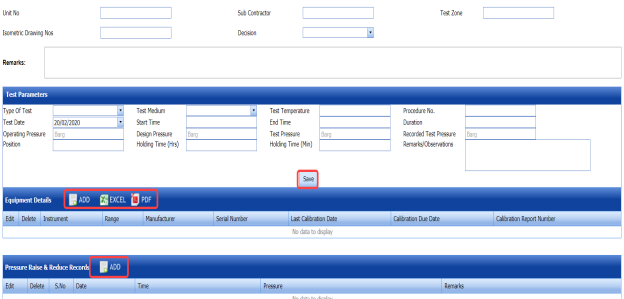](http://wiki.cuteinfocomm.com/uploads/images/gallery/2022-05/image-1651482634787.png)
**Figure 6.12.1: Pressure Report page**
2. In the **Unit No** box, enter the unit number.
3. In the **Sub Contractor** box, enter the name of a sub-contractor.
4. In the **Test Zone** box, enter the detail of test zone.
5. In the **Isometric Drawing No** box, enter the isometric drawing number.
6. In the **Decision** box, select your decision whether confirm or non-confirm.
7. In the **Remarks** box, enter your remarks if any.
#### **6.12.2.1 Add Test Parameters**
If you want to add test parameters for the hydro pressure test, enter the following details in the **Test Parameters** window,
1. In the **Type of Test** box, select the test type from a drop-down list.
2. In the **Test Medium** box, select the test medium from a drop-down list.
3. In the **Test Temperature** box, enter the test temperature value.
4. In the **Procedure No** box, enter the procedure number.
5. In the **Test Date** box, select the test date.
6. In the **Start Time** and **End Time** boxes, enter the start time and end time of test.
7. In the **Duration** box, enter the duration of test.
8. In the **Operating Pressure** box, enter the operating pressure value.
9. In the **Design Pressure** box, enter the design pressure value.
10. In the **Recorded Test Pressure** box, enter the recorded test pressure value.
11. In the **Position** box, enter the position detail.
12. In the **Holding Time (Hrs)** box, enter the holding period in hours.
13. In the **Holding Time (Min)** box, enter the holding period in minutes.
14. In the **Remarks/Observations** box, enter your remarks/observations if any.
15. Click **Save**.
#### **6.12.2.2 Add Equipment Details**
If you want to add equipment details for the hydro pressure test,
1. Click (**ADD** button) in the **Equipment Details** window. [](http://wiki.cuteinfocomm.com/uploads/images/gallery/2022-05/image-1651482921383.png)
2. In the **Conducted By** box, select the method of conducting hydro pressure test whether **Internal** or
3. In the **Equipment Details** box, select an equipment from a drop-down list.
4. Click **Save**.
The equipment is successfully added and listed in the **Equipment Details** window. Once you have added the equipment, you must add the calibration detail for the added equipment.
5. To add calibration detail, click [](http://wiki.cuteinfocomm.com/uploads/images/gallery/2022-05/image-1651483173602.png)(Edit icon) in the **Edit** column for the equipment.
The **Equipment Details** windows shows a new window with added equipment details.
[](http://wiki.cuteinfocomm.com/uploads/images/gallery/2022-05/image-1651483192710.png)
6. In the **Manufacturer** box, enter the name of the manufacturer.
7. In the **Last Calibration Date** box, select the last calibration date.
8. In the **Calibration Due Date** box, select the calibration due date.
9. In the **Calibration Report No** box, enter the calibration report number.
10. Click **Save**.
#### **6.12.2.3 Add Pressure Raise and Reduce Records**
If you want to add pressure raise and reduce records,
1. Click [](http://wiki.cuteinfocomm.com/uploads/images/gallery/2022-05/image-1651483274292.png) (**ADD** button) in the **Pressure Raise & Reduce Records** window. The **Pressure Raise & Reduce Records** window opens a new window to add the required details.
[](http://wiki.cuteinfocomm.com/uploads/images/gallery/2022-05/image-1651483302755.png)
2. In the **Date** box, select the pressure testing date.
3. In the **Time** box, enter the time of pressure testing.
4. In the **Pressure** box, enter the pressure value.
5. In the **Remarks** box, enter your remarks if any.
6. Click **Save**.
#### **6.12.3 Attach a File into a Hydro Pressure report**
If you want to attach any file with any hydro pressure report listed in the **Pressure Report** page, you can attach the file by using [](http://wiki.cuteinfocomm.com/uploads/images/gallery/2022-05/image-1651483358342.png)(Attach icon) in the **Attachment** column. To know how to attach, follow the procedures given in the topic “[**Attach a file into P&ID**](http://wiki.cuteinfocomm.com/books/cuteqm/page/project-data/#bkmrk-3.1.7%C2%A0attach-a-file-)”.
#### **6.12.4 View a Hydro Pressure Report**
If you want to view a hydro pressure report, click[](http://wiki.cuteinfocomm.com/uploads/images/gallery/2022-05/image-1651483489650.png)(print icon) provided in the **Report** column of the **Pressure Report** page. See Fig 6.12.
#### **6.12.5 Edit a Hydro Pressure Report**
If you want to edit any existing hydro pressure report in the **Pressure Report** page, do the following steps,
1. Click[](http://wiki.cuteinfocomm.com/uploads/images/gallery/2022-05/image-1651483545628.png) (Edit icon) in the **Edit** column for the respective hydro pressure report. See Fig 6.12.
The **Pressure Report** page shows the details of the added pressure report.
2. Click any box where you want to edit the details, and then edit the details in the respective box.
3. Click **Save**.
#### **6.12.6 Export Hydro Pressure Report List**
You can export a list of hydro pressure reports added in the **Pressure Report** page in both the pdf and excel formats by using[](http://wiki.cuteinfocomm.com/uploads/images/gallery/2022-05/image-1651483749235.png) (**PDF** button) and [](http://wiki.cuteinfocomm.com/uploads/images/gallery/2022-05/image-1651483761023.png) (**Excel** button). To know how to export, see the topic, “[**Export P&ID list**](http://wiki.cuteinfocomm.com/books/cuteqm/page/project-data/#bkmrk-3.1.4%C2%A0export-p%26id-li)”.
#### **6.12.7 Lock a Hydro Pressure Report**
If you want to lock any hydro pressure report, select the checkbox of the respective hydro pressure report. See Fig 6.12.
### **6.13 PMI/Hardness Summary Report**
The **PMI/HARDNESS Summary Report** tab in the **Piping** menu helps you to view the PMI and hardness summary report. To view the report,
1. Click **PMI/HARDNESS Summary Report** in the **Piping** menu. The PMI and Hardness summary report page opens.
[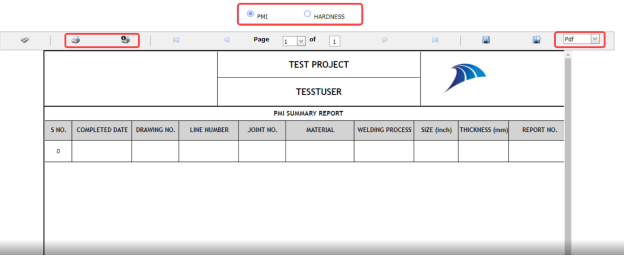](http://wiki.cuteinfocomm.com/uploads/images/gallery/2022-05/image-1651483860313.png)
**Figure 6.13: PMI/Hardness Summary Report page**
2. If you want to view the PMI summary report, click the **PMI** option. The PMI Summary Report opens.
3. If you want to view the hardness summary report, click the **HARDNESS** option. The Hardness Summary Report opens.
#### **6.13.1 Print a PMI and Hardness Summary Report**
If you want to print a PMI/Hardness summary report, use [](http://wiki.cuteinfocomm.com/uploads/images/gallery/2022-05/image-1651483966995.png) and [](http://wiki.cuteinfocomm.com/uploads/images/gallery/2022-05/image-1651483978597.png) (print icons) provided in the PMI and Hardness summary report page.
1. If you want to print the current page of the PMI and Hardness summary report, click[](http://wiki.cuteinfocomm.com/uploads/images/gallery/2022-05/image-1651484006858.png) (print icon including the page number).
2. If you want to print all the pages of the PMI and Hardness summary report, click[](http://wiki.cuteinfocomm.com/uploads/images/gallery/2022-05/image-1651484042994.png)(print icon).
#### **6.13.2 View a PMI and Hardness Summary Report**
You can view the PMI and Hardness summary report in various formats by using the option [](http://wiki.cuteinfocomm.com/uploads/images/gallery/2022-05/image-1651488463299.png)provided in the upper right corner of the PMI and Hardness summary report page.
### **6.14 Preheat/PWHT Summary Report**
The **PREHEAT/PWHT Summary Report** tab in the **Piping** menu helps you to view the Preheat and PWHT summary report. To view the report,
1. Click **PREHEAT/PWHT Summary Report** in the **Piping** menu. The Preheat and PWHT summary report page opens.
[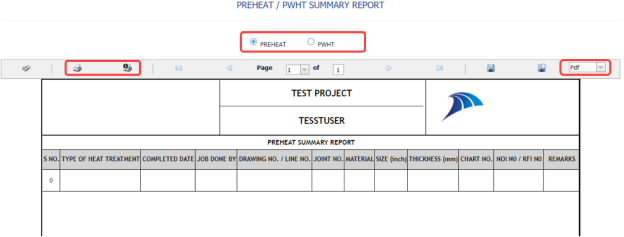](http://wiki.cuteinfocomm.com/uploads/images/gallery/2022-05/image-1651488516069.png)
**Figure 6.14: Preheat/PWHT Summary Report page**
2. If you want to view the preheat summary report, click the ****PREHEAT**** option. The Preheat Summary Report opens.
3. If you want to view the PWHT summary report, click the **PWHT** option.
The PWHT Summary Report opens.
#### **6.14.1 Print a Preheat and PWHT Summary Report**
If you want to print a Preheat/PWHT summary report, use [](http://wiki.cuteinfocomm.com/uploads/images/gallery/2022-05/image-1651488628251.png)and [](http://wiki.cuteinfocomm.com/uploads/images/gallery/2022-05/image-1651488642316.png) (print icons) provided in the Preheat and PWHT summary report page.
1. If you want to print the current page of the Preheat and PWHT summary report, click [](http://wiki.cuteinfocomm.com/uploads/images/gallery/2022-05/image-1651488689373.png) (print icon including the page number).
2. If you want to print all the pages of the Preheat and PWHT summary report, click [](http://wiki.cuteinfocomm.com/uploads/images/gallery/2022-05/image-1651488715490.png) (print icon).
#### **6.14.2 View a Preheat and PWHT Summary Report**
You can view the preheat and PWHT summary report in various formats by using the option [](http://wiki.cuteinfocomm.com/uploads/images/gallery/2022-05/image-1651488787421.png)provided in the upper right corner of the Preheat and PWHT summary report page.
### **6.15 PAUT Summary Report**
The **PAUT Summary Report** tab in the **Piping** menu helps you to view the PAUT summary report. To view the report,
1. Click **PAUT Summary Report** in the **Piping** menu. The PAUT summary report page opens.
[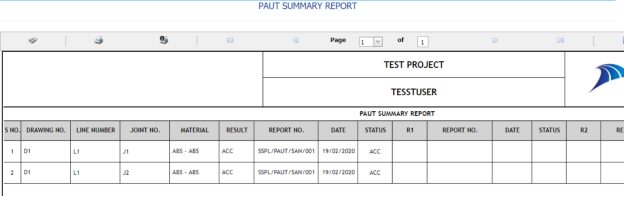](http://wiki.cuteinfocomm.com/uploads/images/gallery/2022-05/image-1651491579262.png)
**Figure 6.15: PAUT Summary Report page**
#### **6.15.1 Print a PAUT Summary Report**
If you want to print a PAUT summary report, use [](http://wiki.cuteinfocomm.com/uploads/images/gallery/2022-05/image-1651491656810.png)and [](http://wiki.cuteinfocomm.com/uploads/images/gallery/2022-05/image-1651491678343.png) (print icons) provided in the PAUT summary report page.
1. If you want to print the current page of the PAUT summary report, click [](http://wiki.cuteinfocomm.com/uploads/images/gallery/2022-05/image-1651491711275.png) (print icon including the page number).
2. If you want to print all the pages of the PAUT summary report, click[](http://wiki.cuteinfocomm.com/uploads/images/gallery/2022-05/image-1651491737978.png) (print icon).
#### **6.15.2 View a PAUT Summary Report**
You can view the PAUT summary report in various formats by using the option [](http://wiki.cuteinfocomm.com/uploads/images/gallery/2022-05/image-1651491784222.png)provided in the upper right corner of the PAUT summary report page.
### **6.16 RT Summary Report**
The **RT Summary Report** tab in the **Piping** menu helps you to view the RT summary report. To view the report,
1. Click **RT Summary Report** in the **Piping** menu. The RT summary report page opens.
[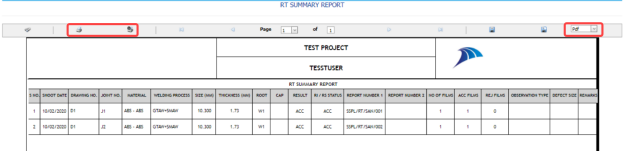](http://wiki.cuteinfocomm.com/uploads/images/gallery/2022-05/image-1651491841782.png)
**Figure 6.16: RT Summary Report page**
#### **6.16.1 Print a RT Summary Report**
If you want to print a RT summary report, use [](http://wiki.cuteinfocomm.com/uploads/images/gallery/2022-05/image-1651491902854.png)and [](http://wiki.cuteinfocomm.com/uploads/images/gallery/2022-05/image-1651491916423.png) (print icons) provided in the RT summary report page.
1. If you want to print the current page of the RT summary report, click [](http://wiki.cuteinfocomm.com/uploads/images/gallery/2022-05/image-1651491957064.png) (print icon including the page number).
2. If you want to print all the pages of the RT summary report, click[](http://wiki.cuteinfocomm.com/uploads/images/gallery/2022-05/image-1651491975666.png)(print icon).
#### **6.16.2 View a RT Summary Report**
You can view the RT summary report in various formats by using the option [](http://wiki.cuteinfocomm.com/uploads/images/gallery/2022-05/image-1651492015362.png) provided in the upper right corner of the RT summary report page.
### **6.17 Welder Performance Record**
The **Welder Performance Record** tab in the **Piping** menu helps you to view a performance record of welders. To view the welder performance record,
1. Click **Welder Performance Record** in the **Piping** menu. The **Welder Performance Record** page opens.
[](http://wiki.cuteinfocomm.com/uploads/images/gallery/2022-05/image-1651492255075.png)
**Figure 6.17: Welder Performance Record page**
#### **6.17.1 Add a Welder Performance Record**
If you want to add a welder performance record, do the following steps,
1. Click [](http://wiki.cuteinfocomm.com/uploads/images/gallery/2022-05/image-1651492326718.png) (**ADD** button) in the **Welder Performance Record** page. The page opens a new window to add the details of the welder performance record.
[](http://wiki.cuteinfocomm.com/uploads/images/gallery/2022-05/image-1651492362277.png)
[](http://wiki.cuteinfocomm.com/uploads/images/gallery/2022-05/image-1651492375176.png)**Tip:** The **r**eport number for the welder performance record will be updated automatically. If you want to change the report number, you can change.
2. In the ****Start Date**** and ****End Date**** boxes, select the start and ending dates to view the welder performance record.
3. In the **Prepared By** box, enter the name a person who has prepared the welder performance record.
4. In the ****Prepared Date**** box, enter the prepared date of the welder performance record.
5. In the **Reviewed By** box, enter the name a person who has reviewed the welder performance record.
6. In the **Reviewed By** box, enter the name a person who has reviewed the welder performance record.
7. In the **Approved By** box, enter the name a person who has approved the welder performance record.
8. In the ****Approved Date**** box, enter the approved date of the welder performance record.
9. Click ****Save****. The welder performance record will be added and listed in the **Welder Performance Record** page.
#### **6.17.2 Edit a Welder Performance Record**
If you want to edit any existing welder performance record in the **Welder Performance Record** page, do the following steps,
1. Click [](http://wiki.cuteinfocomm.com/uploads/images/gallery/2022-05/image-1651493134127.png)(Edit icon) in the **Edit** column for the respective welder performance record. See Fig 6.17. The **Welder Performance Record** page shows the details of the added welder performance record.
2. Click any box where you want to edit the details, and then edit the details in the respective box.
3. Click ****Save****.
#### **6.17.3 View a Welder Performance Record**
If you want to view a welder performance record, click[](http://wiki.cuteinfocomm.com/uploads/images/gallery/2022-05/image-1651493230771.png)(print icon) provided in the **Welder Performance Record** page. See Fig 6.17.
#### **6.17.4 Attach a File into a Welder Performance Record**
If you want to attach any file with a welder performance record listed in the **Welder Performance Record** page, you can attach the file by using [](http://wiki.cuteinfocomm.com/uploads/images/gallery/2022-05/image-1651493270431.png) (Attach icon) in the **Attachment** column. To know how to attach, follow the procedures given in the topic “[**Attach a file into P&ID**](http://wiki.cuteinfocomm.com/books/cuteqm/page/project-data/#bkmrk-3.1.7%C2%A0attach-a-file-)”.
#### **6.17.5 Export a Welder Performance Record**
You can export the welder performance in the **Welder Performance Record** page in both the pdf and excel formats by using[](http://wiki.cuteinfocomm.com/uploads/images/gallery/2022-05/image-1651493320700.png) (**PDF** button) and [](http://wiki.cuteinfocomm.com/uploads/images/gallery/2022-05/image-1651493333475.png) (**Excel** button). To know how to export, see the topic, “[**Export P&ID list**](http://wiki.cuteinfocomm.com/books/cuteqm/page/project-data/#bkmrk-3.1.4%C2%A0export-p%26id-li)”.
### **6.18 Generate Weld Visual Report**
The **Generate Weld Visual Report** tab in the **Piping** menu helps you to generate a weld visual report.
1. Click **Generate Weld Visual Report** in the **Piping** menu. The **Daily Pipe Weld Visual Record** page opens.
[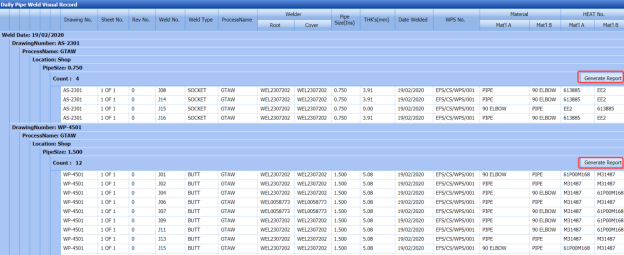](http://wiki.cuteinfocomm.com/uploads/images/gallery/2022-05/image-1651493397068.png)
**Figure 6.18: Daily Pipe Weld Visual Record** **page**
The **Daily Pipe Weld Visual Record** page shows the list of weld visual inspections completed on each day including the welding date, weld process name, location, pipe size, and drawing name.
1. - The **Daily Pipe Weld Visual Record** page shows the list of weld visual inspections completed on each day including the welding date, weld process name, location, pipe size, and drawing name.
- Each group has a maximum of 20 number of weld visual inspection.
- Each group is separated by different group number.
- You can generate a report for each group individually by using the respective report generating option provided in the ****Daily** **Pipe** **Weld Visual Record**** page.
2. If you want to generate report of DPWR for any group or date, click [](http://wiki.cuteinfocomm.com/uploads/images/gallery/2022-05/image-1651493577374.png) (****Generate Report**** button) of the respective group or date.
The generated reports will be moved to the [**Weld Visual Report**](http://wiki.cuteinfocomm.com/books/cuteqm/page/inspection/#bkmrk-6.19%C2%A0weld-visual-rep) page. To view the generated reports, navigate to the [**Weld Visual Report**](http://wiki.cuteinfocomm.com/books/cuteqm/page/inspection/#bkmrk-6.19%C2%A0weld-visual-rep) tab.
### **6.19 Weld Visual Report**
The **Weld Visual Report** tab in the **Piping** menu helps you to view a weld visual report. Once you have generated the weld visual report, the generated report will be moved here. You can view the respective report by using this tab. To view the weld visual report,
1. Click **Weld Visual Report** in the **Piping** menu. The **Weld Visual Report** page opens.
[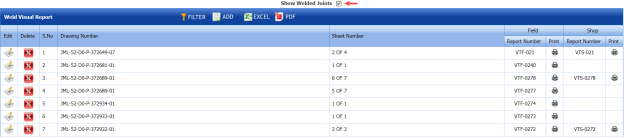](http://wiki.cuteinfocomm.com/uploads/images/gallery/2022-05/image-1651493689271.png)
**Figure 6.19: Weld Visual Report page**
[](http://wiki.cuteinfocomm.com/uploads/images/gallery/2022-05/image-1651493758040.png)**Note**: If you want to view the welded joints, select the checkbox of the **Show Welded Joints** option provided in the page. The page shows the list of welded joints.
#### **6.19.1 Add Weld Visual Report**
If you want to add a weld visual report, do the following steps,
1. Click [](http://wiki.cuteinfocomm.com/uploads/images/gallery/2022-05/image-1651493813056.png) (**ADD** button) in the ****Weld Visual Report**** page. The page opens a new window to add the details of the weld visual report.
[](http://wiki.cuteinfocomm.com/uploads/images/gallery/2022-05/image-1651493870645.png)
2. In the **Drawing Number** box, select the drawing number from a drop-down list.
The field report number and shop report number will be updated automatically in the respective boxes.
3. Click **Save**.
The weld visual report is successfully added and listed in the **Weld Visual Report** page.
#### **6.19.2 Edit a Weld Visual Report**
If you want to edit any existing weld visual report in the **Weld Visual Report** page, do the following steps,
1. Click [](http://wiki.cuteinfocomm.com/uploads/images/gallery/2022-05/image-1651493969060.png)(Edit icon) in the **Edit** column for the respective weld visual report. See Fig 6.19. The **Weld Visual Report** page shows the details of the added report.
2. Click any box where you want to edit the details, and then edit the details in the respective box.
3. Click **Save**.
#### **6.19.3 Delete a Weld Visual Report**
If you want to delete any weld visual report in the **Weld Visual Report** page, you can use [](http://wiki.cuteinfocomm.com/uploads/images/gallery/2022-05/image-1651494056968.png) (Delete icon) provided in the **Weld Visual Report** page. To know how to delete, see the topic, “[**Delete P&ID**](http://wiki.cuteinfocomm.com/books/cuteqm/page/project-data/#bkmrk-3.1.3%C2%A0delete-a-p%26id)”.
#### **6.19.4 View a Weld Visual Report**
- If you want to view a weld visual report related with the field inspection, click [](http://wiki.cuteinfocomm.com/uploads/images/gallery/2022-05/image-1651494130879.png)(print icon) provided in the **Field** column. See Fig 6.19.
- If you want to view a weld visual report related with the shop inspection, click [](http://wiki.cuteinfocomm.com/uploads/images/gallery/2022-05/image-1651494170970.png) (print icon) provided in the ****Shop**** See Fig 6.19.
#### **6.19.5 Filter a Weld Visual Report**
If you want to filter any weld visual report in the **Weld Visual Report** page, you can use [](http://wiki.cuteinfocomm.com/uploads/images/gallery/2022-05/image-1651494232278.png) (**FILTER** button) located on the **Weld Visual Report** page. To know how to filter, see the topic, “[**Filter P&ID**](http://wiki.cuteinfocomm.com/books/cuteqm/page/project-data/#bkmrk-3.1.5%C2%A0filter-a-p%26id)”.
#### **6.19.6 Export a Weld Visual Report**
You can export the weld visual reports in the **Weld Visual Report** page in both the pdf and excel formats by using (**PDF** button) and (**Excel** button). To know how to export, see the topic, “[**Export P&ID list**](http://wiki.cuteinfocomm.com/books/cuteqm/page/project-data/#bkmrk-3.1.4%C2%A0export-p%26id-li)”.
### **6.20 Weld Joint Log Sheet**
The **Weld Joint Log sheet** tab in the Piping menu helps you to view a log sheet of pipe welding inspection. To view the log sheet,
1. Click **Weld Joint Log sheet** in the **Piping** menu. The pipe welding inspection log sheet page opens.
[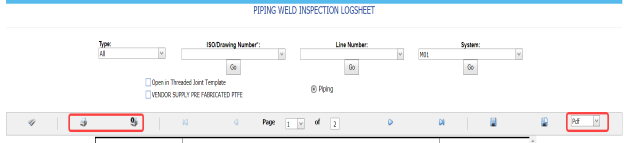](http://wiki.cuteinfocomm.com/uploads/images/gallery/2022-05/image-1651494348611.png)
**Figure 6.20: Pipe welding inspection log sheet page**
2. In the **Type** box, select the type of joint.
3. Do one of the following steps,
1. 1. In the ****ISO Drawing Number**** box, select the isometric drawing number from a drop-down list.
2. In the **Line Number** box, select the line number from a drop-down list.
3. In the **System** box, select the system from a drop-down list.
4. Click **Go.**
5. If you want to open the log sheet in a threaded joint template, click the checkbox of the ****Open in Threaded Joint Template**** option.
6. If you want to open the log sheet in a threaded joint template, click the checkbox of the ******Open in Threaded Joint Template****** option. The pipe welding inspection log sheet opens for the selected option.
[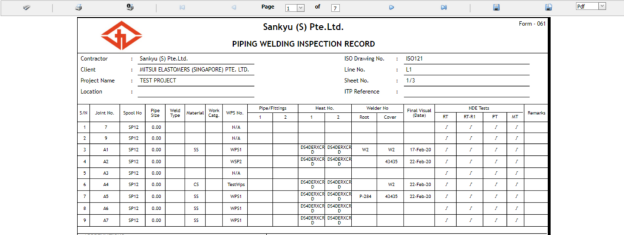](http://wiki.cuteinfocomm.com/uploads/images/gallery/2022-05/image-1651494499475.png)
#### **6.20.1 Print a Weld Joint Log sheet**
If you want to print the weld joint log sheet, use [](http://wiki.cuteinfocomm.com/uploads/images/gallery/2022-05/image-1651494668204.png) and [](http://wiki.cuteinfocomm.com/uploads/images/gallery/2022-05/image-1651494691298.png) (print icons) provided in the Weld Joint Log sheet page.
1. If you want to print the current page of the Weld Joint Log sheet, click [ ](http://wiki.cuteinfocomm.com/uploads/images/gallery/2022-05/image-1651494755663.png) (print icon including the page number).
2. If you want to print all the pages of the Weld Joint Log sheet, click [](http://wiki.cuteinfocomm.com/uploads/images/gallery/2022-05/image-1651494789720.png) (print icon).
#### **6.20.2 View a Weld Joint Log sheet**
You can view the weld joint log sheet in various formats by using the option[](http://wiki.cuteinfocomm.com/uploads/images/gallery/2022-05/image-1651494832436.png) provided in the upper right corner of the Weld Joint Log sheet page.
### **6.21 Joint Summary Report**
The **Joint Summary report** tab in the **Piping** menu used to view a joint summary report. If you want to see a joint summary report,
1. Click **Joint Summary Report** in the **Piping** menu.
The **Joint Summary Report** page shows summary details of isometric drawing, joints, welders, components and so on.
[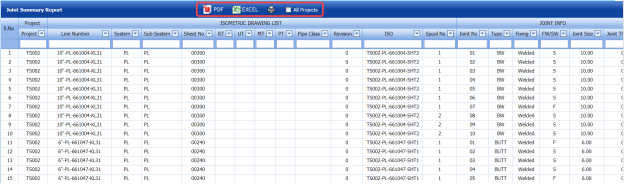](http://wiki.cuteinfocomm.com/uploads/images/gallery/2022-05/image-1651494915152.png)
**Figure 9.21: Joint Summary Report page**
#### **6.21.1 Export a Joint Summary Report**
You can export the joint summary report in both the pdf and excel formats by using [](http://wiki.cuteinfocomm.com/uploads/images/gallery/2022-05/image-1651494973329.png) (**PDF** button) and [](http://wiki.cuteinfocomm.com/uploads/images/gallery/2022-05/image-1651494982755.png) (**Excel** button) in the **Joint Summary Report** page. To know how to export, see the topic, “[**Export P&ID list**](http://wiki.cuteinfocomm.com/books/cuteqm/page/project-data/#bkmrk-3.1.4%C2%A0export-p%26id-li)”.
#### **6.21.2 View a Joint Summary Report**
If you want to view a joint summary report, click (print icon) provided in the **Joint Summary** **Report** page. See Fig 6.21.
### **6.22 Welding Application Report**
The **Welding Application Report** tab in the **Piping** menu shows a welding application report.
If you want to view a welding application report,
1. Click **Welding Application Report** in the **Piping** menu. The welding application report page opens with the details of welding application.
[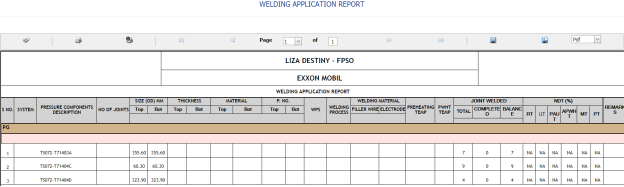](http://wiki.cuteinfocomm.com/uploads/images/gallery/2022-05/image-1651495097652.png)
**Figure 6.22: Welding Application Report page**
#### **6.22.1 Print a Welding Application Report**
If you want to print a welding application report, use [](http://wiki.cuteinfocomm.com/uploads/images/gallery/2022-05/image-1651497685540.png) and [](http://wiki.cuteinfocomm.com/uploads/images/gallery/2022-05/image-1651497698512.png) (print icons) provided in the **Welding Application Report** page. See Fig 6.22.
1. If you want to print the current page of the welding application report, click [](http://wiki.cuteinfocomm.com/uploads/images/gallery/2022-05/image-1651497718556.png) (print icon including the page number).
2. If you want to print all the pages of the welding application report, click [](http://wiki.cuteinfocomm.com/uploads/images/gallery/2022-05/image-1651497748592.png)(print icon).
#### **6.22.2 Export a Welding Application Report**
You can export the welding application report in various formats by using the option [](http://wiki.cuteinfocomm.com/uploads/images/gallery/2022-05/image-1651497789166.png) provided in the upper right corner of the **Welding Application Report** page.
### **6.23 Weld Rejection Rate**
Weld Rejection Rate is the difference between the tested length and repair length of the welded material, which are calculated using RT and UT inspection. The Weld Rejection Rate is used to calculate the weld success rate.
The **Weld Rejection Rate** tab in the **Piping** menu shows a weld rejection rate report including weekly and cumulative weld success rate summary details.
If you want to view a weld rejection rate report,
1. Click **Weld Rejection Rate** in the Piping menu. The weld rejection rate report page opens.
[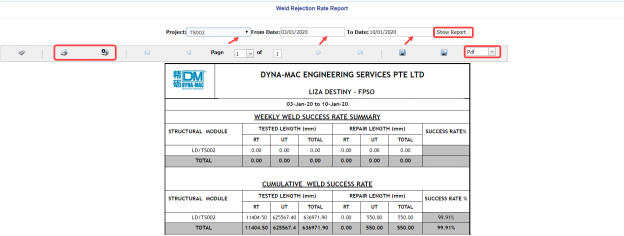](http://wiki.cuteinfocomm.com/uploads/images/gallery/2022-05/image-1651497859303.png)
**Figure 6.23: Weld Rejection Rate Report page**
2. In the ****Project**** box, select a project for which you want to view a weld rejection rate report, from a drop-down list.
3. In the **From Date** and **To Date** boxes, select the from and to dates in respectively.
4. Click **Show Report**.
The weld rejection rate report opens for the selected project.
#### **6.23.1 Print a Weld Rejection Rate Report**
If you want to print a weld rejection rate report, use [](http://wiki.cuteinfocomm.com/uploads/images/gallery/2022-05/image-1651498088555.png) and [](http://wiki.cuteinfocomm.com/uploads/images/gallery/2022-05/image-1651498276432.png) (print icons) provided in the **Weld Rejection Rate** **Report** page. See Fig 6.23.
1. If you want to print the current page of the weld rejection rate report, click [](http://wiki.cuteinfocomm.com/uploads/images/gallery/2022-05/image-1651498310342.png) (print icon including the page number).
2. If you want to print all the pages of the weld rejection rate report, click [](http://wiki.cuteinfocomm.com/uploads/images/gallery/2022-05/image-1651498338237.png) (print icon).
#### **6.23.2 Export a Weld Rejection Rate Report**
You can export the weld rejection rate report in various formats by using the option [](http://wiki.cuteinfocomm.com/uploads/images/gallery/2022-05/image-1651498407543.png) provided in the upper right corner of the **Weld Rejection Rate Report** page.
### **6.24 Weekly/Monthly DPWR**
The **Weekly/Monthly DPWR** tab in the **Piping** menu used to view a DPWR on a weekly or monthly basis. To view a DPWR,
1. Click **Weekly/Monthly DPWR** in the **Piping** menu.
The DPWR page opens.
[](http://wiki.cuteinfocomm.com/uploads/images/gallery/2022-05/image-1651498490263.png)
2. In the **Category** box, select the category from a drop-down list.
3. In the ****Start Date**** and ****End Date**** boxes, select the starting and ending date to view the DPWR.
4. Click ****Get Report****. The DPWR page shows the welder details for the selected category and period.
[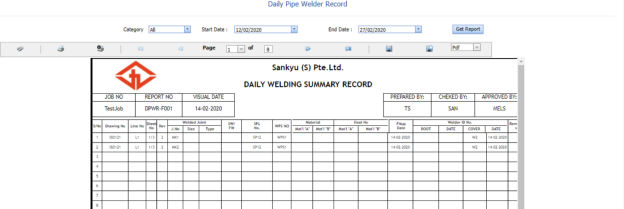](http://wiki.cuteinfocomm.com/uploads/images/gallery/2022-05/image-1651498533151.png)
#### **6.24.1 Print a Weekly/Monthly DPWR**
If you want to print the DPWR, use [](http://wiki.cuteinfocomm.com/uploads/images/gallery/2022-05/image-1651498590658.png) and [](http://wiki.cuteinfocomm.com/uploads/images/gallery/2022-05/image-1651498606050.png) (print icons) provided in the DPWR page. See Fig 6.24.
1. If you want to print the current page of the DPWR, click [](http://wiki.cuteinfocomm.com/uploads/images/gallery/2022-05/image-1651498656599.png) (print icon including the page number).
2. If you want to print all the pages of the DPWR, click [](http://wiki.cuteinfocomm.com/uploads/images/gallery/2022-05/image-1651498675442.png) (print icon).
#### **6.24.2 Export a Weekly/Monthly DPWR**
You can export the DPWR in various formats by using the option [](http://wiki.cuteinfocomm.com/uploads/images/gallery/2022-05/image-1651498737094.png)provided in the upper right corner of the DPWR page.
### **6.25 Piping Inspection Completion Status by System**
The **Status by System** tab in the **Piping** menu used to view the completed status of the piping inspection based on the system data. To view the status,
1. Click **Status by System** in the **Piping** menu. The **Piping Inspection Completion Status by System** page opens and shows the NDT inspection details.
[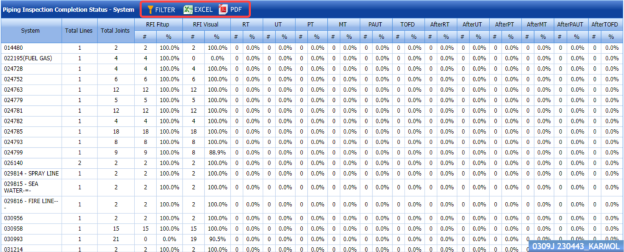](http://wiki.cuteinfocomm.com/uploads/images/gallery/2022-05/image-1651498832679.png)
**Figure 6.25: Piping Inspection Completion Status by System page**
#### **6.25.1 Export Piping Inspection Completion Status by System**
You can export the piping inspection completion status in the **Piping Inspection Completion Status by System** page in both the pdf and excel formats by using [](http://wiki.cuteinfocomm.com/uploads/images/gallery/2022-05/image-1651498938174.png) (**PDF** button) and [](http://wiki.cuteinfocomm.com/uploads/images/gallery/2022-05/image-1651498947234.png) (**Excel** button). To know how to export, see the topic, “[**Export P&ID list**](http://wiki.cuteinfocomm.com/books/cuteqm/page/project-data/#bkmrk-3.1.4%C2%A0export-p%26id-li)”.
#### **6.25.2 Filter Piping Inspection Completion Status by System**
If you want to filter any piping inspection completion status, you can use [](http://wiki.cuteinfocomm.com/uploads/images/gallery/2022-05/image-1651498997708.png) (**FILTER** button) in the **Piping Inspection Completion Status by System** page. To know how to filter, see the topic, “[**Filter P&ID**](http://wiki.cuteinfocomm.com/books/cuteqm/page/project-data/#bkmrk-3.1.5%C2%A0filter-a-p%26id)”.
### **6.26 Piping Inspection Completion Status by Sub System**
The **Status by Sub System** tab in the **Piping** menu used to view the completed status of the piping inspection based on the sub system data. To view the status,
1. Click **Status by Sub System** in the **Piping** menu. The **Piping Inspection Completion Status by Sub System** page opens and shows the NDT inspection details.
[](http://wiki.cuteinfocomm.com/uploads/images/gallery/2022-05/image-1651499055109.png)
**Figure 6.26: Piping Inspection Completion Status by Sub System page**
#### **6.26.1 Export Piping Inspection Completion Status by Sub System**
You can export the piping inspection completion status in the **Piping Inspection Completion Status by Sub System** page in both the pdf and excel formats by using [](http://wiki.cuteinfocomm.com/uploads/images/gallery/2022-05/image-1651499115460.png) (**PDF** button) and [](http://wiki.cuteinfocomm.com/uploads/images/gallery/2022-05/image-1651499128218.png) (**Excel** button). To know how to export, see the topic, “**[Export P&ID list](http://wiki.cuteinfocomm.com/books/cuteqm/page/project-data/#bkmrk-3.1.4%C2%A0export-p%26id-li)**”.
#### **6.26.2 Filter Piping Inspection Completion Status by Sub System**
If you want to filter any piping inspection completion status, you can use (**FILTER** button) in the **Piping Inspection Completion Status by Sub System** page. To know how to filter, see the topic, “[**Filter P&ID**](http://wiki.cuteinfocomm.com/books/cuteqm/page/project-data/#bkmrk-3.1.5%C2%A0filter-a-p%26id)”.
### **6.27 Piping Inspection Completion Status by Line**
The **Status by Line** tab in the **Piping** menu used to view the completed status of the piping inspection based on the Lines data. To view the status,
1. Click **Status by Line** in the **Piping** menu. The **Piping Inspection Completion Status by Line** page opens and shows the NDT inspection details.
[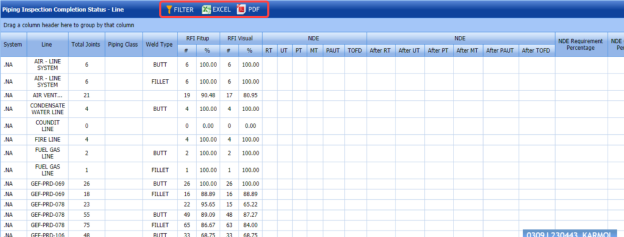](http://wiki.cuteinfocomm.com/uploads/images/gallery/2022-05/image-1651499296156.png)
**Figure 9.27: Piping Inspection Completion Status by Line page**
#### **6.27.1 Export Piping Inspection Completion Status by Line**
You can export the piping inspection completion status in the **Piping Inspection Completion Status by Line** page in both the pdf and excel formats by using [](http://wiki.cuteinfocomm.com/uploads/images/gallery/2022-05/image-1651499475217.png) (**PDF** button) and [](http://wiki.cuteinfocomm.com/uploads/images/gallery/2022-05/image-1651499484705.png) (**Excel** button). To know how to export, see the topic, “[**Export P&ID list**](http://wiki.cuteinfocomm.com/books/cuteqm/page/project-data/#bkmrk-3.1.4%C2%A0export-p%26id-li)”.
#### **6.27.2 Filter Piping Inspection Completion Status by Line**
If you want to filter any piping inspection completion status, you can use [](http://wiki.cuteinfocomm.com/uploads/images/gallery/2022-05/image-1651499528945.png) (**FILTER** button) in the **Piping Inspection Completion Status by Line** page. To know how to filter, see the topic, “[**Filter P&ID**](http://wiki.cuteinfocomm.com/books/cuteqm/page/project-data/#bkmrk-3.1.5%C2%A0filter-a-p%26id)”.
### **6.28 Piping Inspection Completion Status by ISO**
The **Status by ISO** tab in the **Piping** menu used to view the completed status of piping inspection based on the isometric drawing data. To view the status,
1. Click **Status by ISO** in the **Piping** menu. The **Piping Inspection Completion Status by ISO** page opens and shows the drawing status and NDT inspection details.
[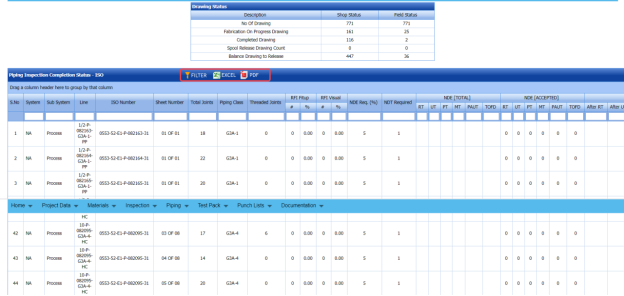](http://wiki.cuteinfocomm.com/uploads/images/gallery/2022-05/image-1651499583872.png)
**Figure 6.28: Piping Inspection Completion Status by ISO page**
#### **6.28.1 Export Piping Inspection Completion Status by ISO**
You can export the piping inspection completion status in the **Piping Inspection Completion Status by ISO** page in both the pdf and excel formats by using [](http://wiki.cuteinfocomm.com/uploads/images/gallery/2022-05/image-1651499648311.png) (**PDF** button) and [](http://wiki.cuteinfocomm.com/uploads/images/gallery/2022-05/image-1651499657976.png) (**Excel** button). To know how to export, see the topic, “[**Export P&ID list**](http://wiki.cuteinfocomm.com/books/cuteqm/page/project-data/#bkmrk-3.1.4%C2%A0export-p%26id-li)”.
#### **6.28.2 Filter Piping Inspection Completion Status by ISO**
If you want to filter any piping inspection completion status, you can use [](http://wiki.cuteinfocomm.com/uploads/images/gallery/2022-05/image-1651499693063.png) (**FILTER** button) in the **Piping Inspection Completion Status by ISO** page. To know how to filter, see the topic, “[**Filter P&ID**](http://wiki.cuteinfocomm.com/books/cuteqm/page/project-data/#bkmrk-3.1.5%C2%A0filter-a-p%26id)”.
### **6.29 Piping Inspection Completion Status by Spools**
The **Status by Spools** tab in the **Piping** menu used to view the completed status of piping inspection based on the spool data. To view the status,
1. Click **Status by Spools** in the **Piping** menu.
The **Piping Inspection Completion Status by Spools** page opens and shows the NDT inspection details.
[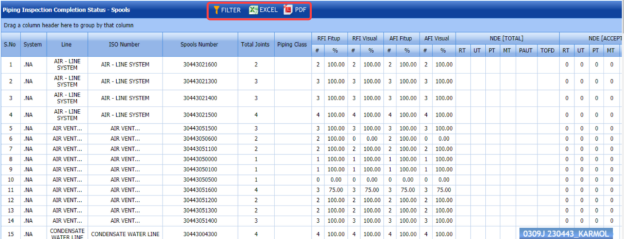](http://wiki.cuteinfocomm.com/uploads/images/gallery/2022-05/image-1651499754946.png)
**Figure 6.29: Piping Inspection Completion Status by Spools page**
#### **6.29.1 Export Piping Inspection Completion Status by Spools**
You can export the piping inspection completion status in the **Piping Inspection Completion Status by Spools** page in both the pdf and excel formats by using [](http://wiki.cuteinfocomm.com/uploads/images/gallery/2022-05/image-1651499835714.png)(**PDF** button) and [](http://wiki.cuteinfocomm.com/uploads/images/gallery/2022-05/image-1651499844906.png) (**Excel** button). To know how to export, see the topic, “**[Export P&ID list](http://wiki.cuteinfocomm.com/books/cuteqm/page/project-data/#bkmrk-3.1.4%C2%A0export-p%26id-li)**”.
#### **6.29.2 Filter Piping Inspection Completion Status by Spools**
If you want to filter any piping inspection completion status, you can use [](http://wiki.cuteinfocomm.com/uploads/images/gallery/2022-05/image-1651499886062.png) (**FILTER** button) in the **Piping Inspection Completion Status by Spools** page. To know how to filter, see the topic, “**[Filter P&ID](http://wiki.cuteinfocomm.com/books/cuteqm/page/project-data/#bkmrk-3.1.5%C2%A0filter-a-p%26id)**”.
### **6.30 Piping Inspection Completion Status by Test Pack**
The **Status by Test Pack** tab in the **Piping** menu used to view the completed status of piping inspection based on the test pack data. To view the status,
1. Click **Status by Test Pack** in the **Piping** menu. The **Piping Inspection Completion Status by Test Pack** page opens and shows the NDT inspection details.
[](http://wiki.cuteinfocomm.com/uploads/images/gallery/2022-05/image-1651500138294.png)
**Figure 6.30: Piping Inspection Completion Status by Test Pack page**
#### **6.30.1 Export Piping Inspection Completion Status by Test Pack**
You can export the piping inspection completion status in the **Piping Inspection Completion Status by Test Pack** page in both the pdf and excel formats by using [](http://wiki.cuteinfocomm.com/uploads/images/gallery/2022-05/image-1651500200778.png) (**PDF** button) and [](http://wiki.cuteinfocomm.com/uploads/images/gallery/2022-05/image-1651500211838.png) (**Excel** button). To know how to export, see the topic, “[**Export P&ID list**](http://wiki.cuteinfocomm.com/books/cuteqm/page/project-data/#bkmrk-3.1.4%C2%A0export-p%26id-li)”.
#### **6.30.2 Filter Piping Inspection Completion Status by Test Pack**
If you want to filter any piping inspection completion status, you can use [](http://wiki.cuteinfocomm.com/uploads/images/gallery/2022-05/image-1651500261626.png) (**FILTER** button) in the **Piping Inspection Completion Status by Test Pack** page. To know how to filter, see the topic, “[**Filter P&ID**](http://wiki.cuteinfocomm.com/books/cuteqm/page/project-data/#bkmrk-3.1.5%C2%A0filter-a-p%26id)”.
### **6.31 Outstanding Joints**
The **Outstanding Joints** tab in the **Piping** menu used to view and track the details of outstanding joints. To view the outstanding joints,
1. Click **Outstanding Joints** in the **Piping** menu. The **Outstanding Joints** page opens.
[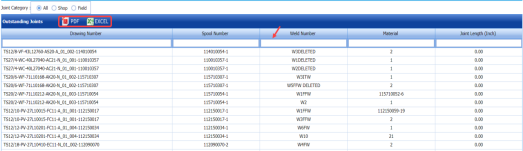](http://wiki.cuteinfocomm.com/uploads/images/gallery/2022-05/image-1651500314780.png)
**Figure 6.31: Outstanding Joints page**
2. Select the joint category from the given options such as All, Shop, and Field. The page shows the details of outstanding joints based on the selected category.
[](http://wiki.cuteinfocomm.com/uploads/images/gallery/2022-05/image-1651500354229.png)
#### **6.3.11 Export Outstanding Joints**
You can export the list of outstanding joints in the **Outstanding Joints** page in both the pdf and excel formats by using [](http://wiki.cuteinfocomm.com/uploads/images/gallery/2022-05/image-1651500397743.png) (**PDF** button) and [](http://wiki.cuteinfocomm.com/uploads/images/gallery/2022-05/image-1651500406196.png) (**Excel** button). To know how to export, see the topic, “[**Export P&ID list**](http://wiki.cuteinfocomm.com/books/cuteqm/page/project-data/#bkmrk-3.1.4%C2%A0export-p%26id-li)”.
#### **6.3.12 Filter Outstanding Joints**
If you want to filter any specific outstanding, you can use the filter box provided in each column of the **Outstanding Joints** page.
[](http://wiki.cuteinfocomm.com/uploads/images/gallery/2022-05/image-1651500443173.png)
### **6.32 Completed Drawings**
The **Completed Drawings** tab in the **Piping** menu used to view and track the details of completed drawings. To view the completed drawings details,
1. Click **Completed Drawings** in the **Piping** menu. The **Completed Drawings** page opens.
[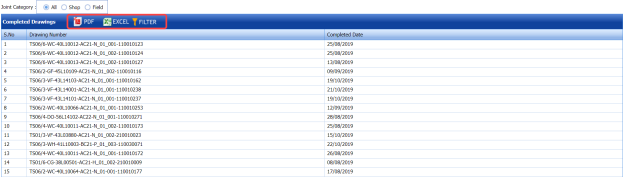](http://wiki.cuteinfocomm.com/uploads/images/gallery/2022-05/image-1651500482247.png)
**Figure 6.32: Completed Drawings page**
2. Select the joint category from the given options such as All, Shop, and Field. The page shows the details of completed drawings based on the selected category.
[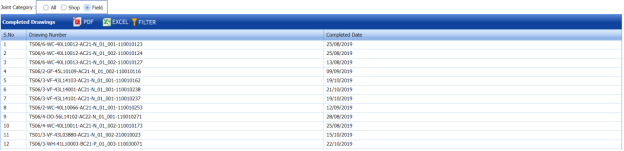](http://wiki.cuteinfocomm.com/uploads/images/gallery/2022-05/image-1651500535524.png)
#### **6.32.1 Export Completed Drawings**
You can export the list of completed drawings in the **Completed Drawings** page in both the pdf and excel formats by using [](http://wiki.cuteinfocomm.com/uploads/images/gallery/2022-05/image-1651503197101.png) (**PDF** button) and [](http://wiki.cuteinfocomm.com/uploads/images/gallery/2022-05/image-1651503208116.png) (**Excel** button). To know how to export, see the topic, “[**Export P&ID list**](http://wiki.cuteinfocomm.com/books/cuteqm/page/project-data/#bkmrk-3.1.4%C2%A0export-p%26id-li)”.
### **6.33 Weld Progress by Date**
The **Weld Progress by Date** tab in the **Piping** menu helps you to view the graphical representation of welding progress on a day basis. To view the welding progress detail,
1. Click **Weld Progress by Date** in the **Piping** menu. The **Welding Progress** page opens with a graphical representation.
[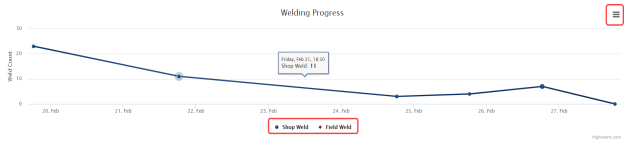](http://wiki.cuteinfocomm.com/uploads/images/gallery/2022-05/image-1651503271308.png)
The chart shows the number of welding such as shop weld and field weld, performed on every day.
2. If you want to view the progress detail of welding performed in the shop, click **Shop Weld**. The chart shows the shop welding progress details.
3. If you want to view the progress detail of welding performed in the field, click ****Field Weld****. The chart shows the field welding progress details.
#### **6.33.1 Print a Welding Progress chart**
If you want to print the welding progress chart,
1. Click (menu icon) in the Weld Progress page. [](http://wiki.cuteinfocomm.com/uploads/images/gallery/2022-05/image-1651503459767.png)
2. Click **Print Chart**.
The chart will be printed.
#### **6.33.2 Download a Welding Progress Chart**
You can download the welding progress chart in PNG image, JPEG image, SVG vector image, and PDF formats by using the respective options provided in the menu icon.
### **6.34 Inspection Request Summary Report**
The **Inspection Request Summary** tab in the **Piping** menu used to view the summary of inspection request. To view the inspection request summary report,
1. Click **Inspection Request Summary** in the **Piping** menu.
The **Inspection Request Summary Report** page opens.
[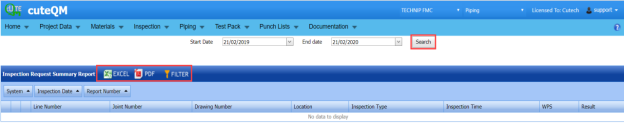](http://wiki.cuteinfocomm.com/uploads/images/gallery/2022-05/image-1651503573328.png)
**Figure 6.34: Inspection Request Summary Report page**
2. In the **Start Date** and **End Date** boxes, select the start and end dates.
3. Click **Search**.
The page shows the details of inspection request.
[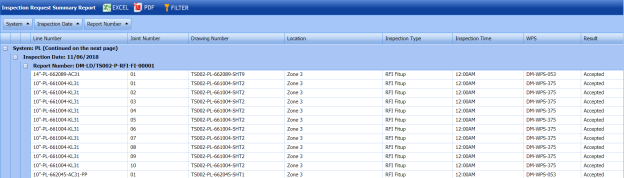](http://wiki.cuteinfocomm.com/uploads/images/gallery/2022-05/image-1651503620537.png)
#### **6.34.1 Export an Inspection Request Summary Report**
You can export the inspection request summary report in both the pdf and excel formats by using (**PDF** button) and (**Excel** button). To know how to export, see the topic, “[**Export P&ID list**](http://wiki.cuteinfocomm.com/books/cuteqm/page/project-data/#bkmrk-3.1.4%C2%A0export-p%26id-li)”.
#### **6.34.2 Filter an Inspection Request Summary**
If you want to filter any inspection request detail, you can use [](http://wiki.cuteinfocomm.com/uploads/images/gallery/2022-05/image-1651505498979.png) (**FILTER** button) in the **Inspection Request Summary Report** page. To know how to filter, see the topic, “[**Filter P&ID**](http://wiki.cuteinfocomm.com/books/cuteqm/page/project-data/#bkmrk-3.1.5%C2%A0filter-a-p%26id)”.
### **6.35 Piping Progress Status Report**
The **Piping Progress Status Report** tab in the **Piping** menu used to view the piping progress status report. To view the piping progress status report,
1. Click **Piping Progress Status Report** in the **Piping** menu.
The **Piping Progress Status Report** page opens.
[](http://wiki.cuteinfocomm.com/uploads/images/gallery/2022-05/image-1651505560536.png)
**Figure 9.35: Piping Progress Status Report page**
2. In the **From Date** and **To Date** boxes, select the from and to dates to view the piping progress status.
3. Click **Load Report**.
The page shows the details of piping progress status.
[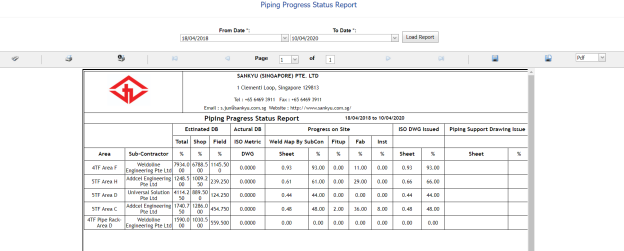](http://wiki.cuteinfocomm.com/uploads/images/gallery/2022-05/image-1651505637247.png)
#### **6.35.1 Print a Piping Progress Status Report**
If you want to print the piping progress status report, use [](http://wiki.cuteinfocomm.com/uploads/images/gallery/2022-05/image-1651505681173.png) and [](http://wiki.cuteinfocomm.com/uploads/images/gallery/2022-05/image-1651505696561.png) (print icons) provided in the **Piping Progress Status Report** page. See Fig 6.35.
1. If you want to print the current page of the piping progress status report, click [](http://wiki.cuteinfocomm.com/uploads/images/gallery/2022-05/image-1651505734940.png) (print icon including the page number).
2. If you want to print all the pages of the piping progress status report, click [](http://wiki.cuteinfocomm.com/uploads/images/gallery/2022-05/image-1651505759624.png)(print icon).
#### **6.35.2 Export a Piping Progress Status Report**
You can export the piping progress status report in various formats by using the option [](http://wiki.cuteinfocomm.com/uploads/images/gallery/2022-05/image-1651505802195.png) provided in the upper right corner of the **Piping Progress Status Report** page.
### **6.36 Welder Defect Analysis Report**
The **Welder Defect Analysis Report** tab in the **Piping** menu used to view the defect analysis report of the particular welder. To view the welder defect analysis report,
1. Click **Welder Defect Analysis Report** in the **Piping** menu.
The **Welder Defect Analysis** page opens.
[](http://wiki.cuteinfocomm.com/uploads/images/gallery/2022-05/image-1651505863398.png)
**Figure 9.36: Welder Defect Analysis page**
2. In the **Select Welder** box, select a welder from the list of welders.
3. Click **Generate Report**.
The page shows the defect analysis report of the selected welder.
[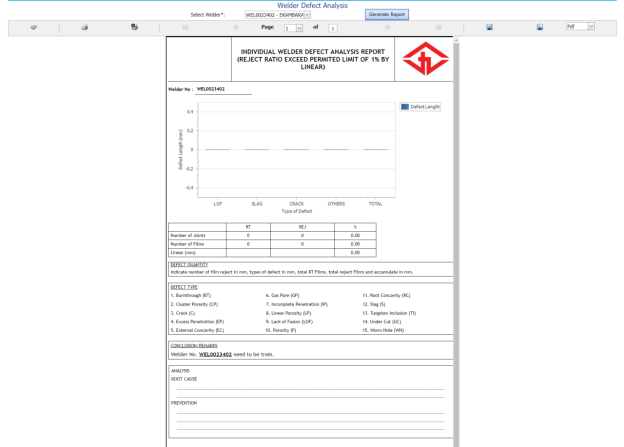](http://wiki.cuteinfocomm.com/uploads/images/gallery/2022-05/image-1651505908437.png)
#### **6.36.1 Print a Welder Defect Analysis Report**
If you want to print the welder defect analysis report, use [](http://wiki.cuteinfocomm.com/uploads/images/gallery/2022-05/image-1651505982090.png) and [](http://wiki.cuteinfocomm.com/uploads/images/gallery/2022-05/image-1651505991195.png) (print icons) provided in the **Welder Defect Analysis** page. See Fig 6.36.
1. If you want to print the current page of the welder defect analysis report, click [](http://wiki.cuteinfocomm.com/uploads/images/gallery/2022-05/image-1651506221443.png) (print icon including the page number).
2. If you want to print all the pages of the welder defect analysis report, click[](http://wiki.cuteinfocomm.com/uploads/images/gallery/2022-05/image-1651506250701.png) (print icon).
#### **6.36.2 Export a Welder Defect Analysis Report**
You can export the welder defect analysis report in various formats by using the option [](http://wiki.cuteinfocomm.com/uploads/images/gallery/2022-05/image-1651506309296.png) provided in the upper right corner of the **Welder Defect Analysis Report** page.
#### **6.37 Weld Traceability Record**
The **Weld Traceability Record** tab in the **Piping** menu used to add a weld traceability record and track welding records.
If you want add a weld traceability record, do the following,
1. Click **Weld Traceability Record** in the **Piping** menu.
The **Weld Traceability Record** page opens.
[](http://wiki.cuteinfocomm.com/uploads/images/gallery/2022-05/image-1651506585145.png)
**Figure 6.37: Weld Traceability Record page**
#### **6.37.1 Add a Weld Traceability Record**
If you want to add a weld traceability record, do the following,
1. Click [](http://wiki.cuteinfocomm.com/uploads/images/gallery/2022-05/image-1651508423614.png) (**ADD** button) in the **Weld Traceability Record** page. See Fig 6.37. The page opens a new window to add the details of a weld traceability record.
[](http://wiki.cuteinfocomm.com/uploads/images/gallery/2022-05/image-1651508471580.png)
[](http://wiki.cuteinfocomm.com/uploads/images/gallery/2022-05/image-1651508482284.png)**Note**: The field notified with a symbol (\*) is mandatory. You must enter the relevant details in that fields before saving.
[](http://wiki.cuteinfocomm.com/uploads/images/gallery/2022-05/image-1651512981166.png)**Tip**: A report number for a new weld traceability record will be updated automatically in the **Report Number** box. If you want to change the report number, you can change.
2. In the **Drawing Number** box, select a drawing number from a drop-down list.
3. In the **Date** box, enter the date of adding the weld traceability record.
4. In the **Prepared By** box, enter the name of a person who has prepared the weld traceability record.
5. In the **Prepared Date** box, select the prepared date of the weld traceability record.
6. In the **Reviewed By** box, enter the name of a person who has reviewed the weld traceability record.
7. In the **Reviewed Date** box, select the reviewed date of the weld traceability record.
8. In the **Approved By** boxes, enter the name of a person who has approved the weld traceability record.
9. In the **Approved Date** box, select the approved date of the weld traceability record.
10. Click **Save**.
The weld traceability record is successfully added.
#### **6.37.2 View a Weld Traceability Report**
If you want to view a weld traceability report, click [](http://wiki.cuteinfocomm.com/uploads/images/gallery/2022-05/image-1651513252508.png) (print icon) provided in the **Report** column in the Weld Traceability Record page. See Fig 6.37.
#### **6.37.3 Attach a File into a Weld Traceability Record**
If you want to attach any file with a weld traceability record listed in the **Weld Traceability Record** page, you can attach the file by using [](http://wiki.cuteinfocomm.com/uploads/images/gallery/2022-05/image-1651513297696.png) (Attach icon) in the **Attachment** column. To know how to attach, follow the procedures given in the topic “[**Attach a file into P&ID**](http://wiki.cuteinfocomm.com/books/cuteqm/page/project-data/#bkmrk-3.1.7%C2%A0attach-a-file-)”.
#### **6.37.4 Edit a Weld Traceability Record**
If you want to edit any existing weld traceability record in the **Weld Traceability Record** page, do the following,
1. Click [](http://wiki.cuteinfocomm.com/uploads/images/gallery/2022-05/image-1651513427021.png) (Edit icon) in the **Edit** column for the respective weld traceability record. The page shows the added details of the weld traceability record.
2. Click any box where you want to edit the details, and then edit the details in the respective box.
3. Click **Save**.
#### **6.37.5 Delete a Weld Traceability Record**
If you want to delete any existing system in the **System** page, you can use [](http://wiki.cuteinfocomm.com/uploads/images/gallery/2022-05/image-1651513492123.png) (Delete icon) provided in the **System** page. To know how to delete, see the topic, **“**[**Delete** **P&ID**](http://wiki.cuteinfocomm.com/books/cuteqm/page/project-data/#bkmrk-3.1.3%C2%A0delete-a-p%26id)”.
### **6.38 Add Non-Conformance Report (NCR)**
NCR used to document the details of a non-conformance identified in a quality audit or other process review. The **Add** **NCR** tab in the **Piping** menu helps you to add an NCR in the Piping project. Do the following steps to add an NCR,
1. Click **Add NCR** in the **Piping** menu. The **NCR** page opens.
[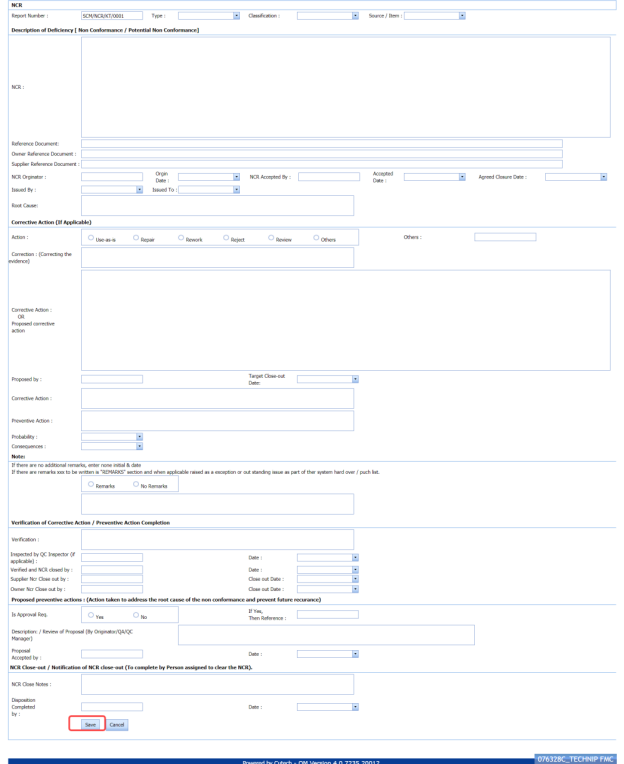](http://wiki.cuteinfocomm.com/uploads/images/gallery/2022-05/image-1651513589335.png)
**Figure 6.38: NCR page**
[](http://wiki.cuteinfocomm.com/uploads/images/gallery/2022-05/image-1651513634624.png)**Tip**: A report number for a new NCR will be updated automatically in the **Report Number** box. If you want to change the report number, you can change.
2. In the **Type** box, select the type of non-conformance from a drop-down list.
3. In the **Classification** box, select whether minor classification or major classification from a drop-down list.
4. In the **Source/ Item** box, select the source of NCR from a drop-down list.
5. In the **NCR** box, enter the description for the identified deficiency of the selected non-conformance type.
6. In the **Reference Document** box, enter the reference document detail.
7. In the **Owner Reference Document** box, enter the owner reference document detail.
8. In the **Supplier Reference Document** box, enter the supplier reference document detail.
9. In the **NCR originator** box, enter the originator of NCR.
10. In the **Origin** **Date** box, select the origin date of NCR.
11. In the **NCR Accepted By** box, enter the name of a person who has accepted the NCR.
12. In the **NCR Accepted Date** box, select the NCR accepted date.
13. In the **Agreed Closure Date** box, select the agreed closure date.
14. In the **Issued By** box, select the company who has issued the NCR.
15. In the **Issued To** box, select the company for which the NCR has issued.
16. In the **Root Cause** box, enter the root cause detail.
17. If you want to add the corrective action detail, do the following,
1. 1. In the **Action** box, select any corrective action from the given options.
2. In the **Corrective Action** box, enter the corrective action detail.
3. In the **Proposed by** box, enter the name of a person who has proposed the corrective action.
4. In the **Target Close-out Date** box, select the target close out date.
5. In the **Preventive Action** box, enter the preventive actions.
6. In the **Probability** box, select the probability percentage of non-conformance.
7. In the **consequences** box, select the consequences level you have faced.
18. If you want to add any remarks, click **Remarks** option and enter your remarks, otherwise click **No Remarks** option.
19. In the **Verification** box, enter the verification detail on completion of corrective action/ preventive action.
20. In the **Inspected by QC Inspector**, and **Date** boxes, enter the name of the QC inspector who has inspected the NCR, and date, respectively.
21. In the **Inspected by QC Inspector**, and **Date** boxes, enter the name of the QC inspector who has inspected the NCR, and date, respectively.
22. In the **Supplier NCR Close out by**, and **Close Out Date** boxes, enter the name of a person who has closed the supplier NCR, and close out date, respectively.
23. In the **Owner NCR Close out by**, and **Close Out Date** boxes, enter the name of a person who has closed the owner NCR, and close out date, respectively.
24. In the **Approval Req** box, if you need approval, click **Yes,** otherwise click
25. If you have selected **Yes**, you must enter the reference detail in the **If Yes, Then Reference**
26. In the **Description** box, enter the description of proposal.
27. In the **Proposal Accepted by**, and **Date** boxes, enter the name of a person who has accepted the proposal, and date, respectively.
28. In the NCR Close Notes box, enter the NCR close notes.
29. In the **Disposition Completed by,** and **Date** boxes, enter the name of a person who has completed the disposition, and date, respectively.
30. Click **Save**.
The NCR is successfully added.
### **6.39 View NCR**
The **View NCR** tab helps you to view and edit the details of added NCR. You can also add a new NCR by using the add option. To navigate to **View NCR,**
1. Click **View NCR** in the **NCR** menu.
The **View NCR** page opens with an added NCR.
[](http://wiki.cuteinfocomm.com/uploads/images/gallery/2022-05/image-1651514495076.png)
**Figure 6.39: View NCR page**
#### **6.39.1 Add an NCR**
If you want to add a new NCR, follow the same procedure in the topic, “[**Add NCR**](#bkmrk-6.38%C2%A0add-non-conform)”.
#### **6.39.2 View an NCR Log Summary Report**
If you want to view an NCR log summary report, click [](http://wiki.cuteinfocomm.com/uploads/images/gallery/2022-05/image-1651514642061.png) provided in the upper side of the **View NCR** page. See Fig 6.39.
#### **6.39.3 Attach a File into an NCR**
If you want to attach any file with an NCR listed in the **View NCR** page, you can attach the file by using [](http://wiki.cuteinfocomm.com/uploads/images/gallery/2022-05/image-1651514734111.png) (Attach icon) in the **Attachment** column. To know how to attach, follow the procedures given in the topic “[**Attach a file into P&ID**](http://wiki.cuteinfocomm.com/books/cuteqm/page/project-data/#bkmrk-3.1.7%C2%A0attach-a-file-)”.
#### **6.39.4 Update an NCR**
If you want to update any existing NCR in the **View** **NCR** page, click [](http://wiki.cuteinfocomm.com/uploads/images/gallery/2022-05/image-1651514809156.png)(Update icon) in the **Update** column for the respective NCR. Edit the details in the respective box you want.
#### **6.39.5 Export an NCR**
You can export a list of NCRs added in the **View NCR** page in both the pdf and excel formats by using [](http://wiki.cuteinfocomm.com/uploads/images/gallery/2022-05/image-1651514861183.png) (**PDF** button) and [](http://wiki.cuteinfocomm.com/uploads/images/gallery/2022-05/image-1651514876263.png) (**Excel** button). To know how to export, see the topic, “[**Export P&ID list**](http://wiki.cuteinfocomm.com/books/cuteqm/page/project-data/#bkmrk-3.1.4%C2%A0export-p%26id-li)”.
#### **6.39.6 Delete an NCR**
If you want to delete any existing NCR in the **View NCR** page, you can use [](http://wiki.cuteinfocomm.com/uploads/images/gallery/2022-05/image-1651514921299.png) (Delete icon) provided in the **View NCR** page. To know how to delete, see the topic, “[**Delete P&ID**](http://wiki.cuteinfocomm.com/books/cuteqm/page/project-data/#bkmrk-3.1.3%C2%A0delete-a-p%26id)”.
### **6.40 Spools Generate Barcode & QR Code**
By using the **Spools Generate Barcode & QR Code** tab in the **Piping** menu, you can generate the bar code and QR code for the spools for which you have added.
1. Click **Spools Generate Barcode & QR Code** in the **Piping** menu.
The **Spools Generate Barcode** page opens.
[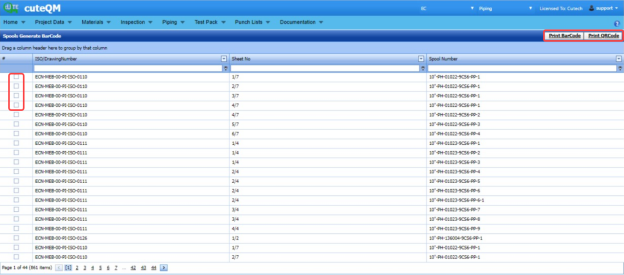](http://wiki.cuteinfocomm.com/uploads/images/gallery/2022-05/image-1651514986994.png)
**Figure 6.40: Spools Generate Barcode page**
2. Select the checkbox of the spool for which you want to generate barcode and QR code.
3. If you want to generate the barcode, click [](http://wiki.cuteinfocomm.com/uploads/images/gallery/2022-05/image-1651515058621.png) (**Print Barcode** button).
[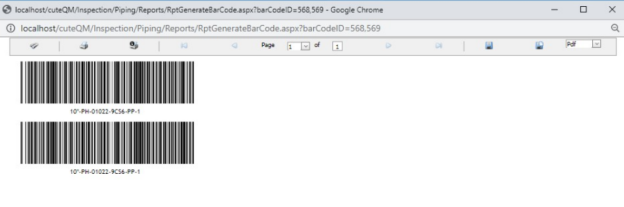](http://wiki.cuteinfocomm.com/uploads/images/gallery/2022-05/image-1651515048619.png)
4. If you want to generate the QR code, click [](http://wiki.cuteinfocomm.com/uploads/images/gallery/2022-05/image-1651515082114.png) (**Print QR code** button).
[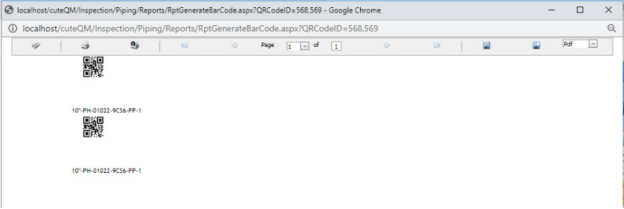](http://wiki.cuteinfocomm.com/uploads/images/gallery/2022-05/image-1651515094715.png)
### **6.41 RT Weekly Report**
The **RT Weekly Report** tab in the **Piping** menu used to view the week wise RT inspection status. To view the RT inspection status,
1. Click **RT Weekly Report** in the **Piping** menu. The **RT Weekly Report** page opens and shows the RT inspection status.
[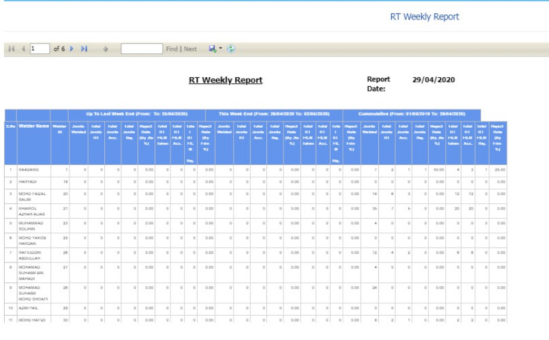](http://wiki.cuteinfocomm.com/uploads/images/gallery/2022-05/image-1651515152646.png)
#### **6.42 Weld Summary Sheet**
The **Weld Summary sheet** tab in the **Piping** menu used you to view a summary report of pipe welding inspection. To view the summary report,
1. Click **Weld Summary sheet** in the ****Piping menu.****The Piping Weld Inspection Log Sheet page opens.
[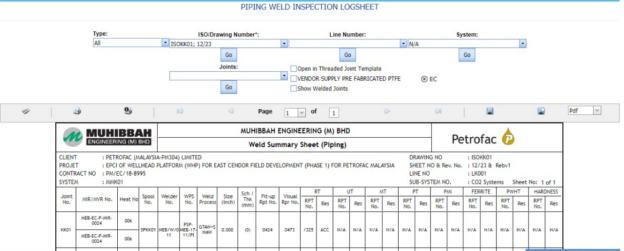](http://wiki.cuteinfocomm.com/uploads/images/gallery/2022-05/image-1651515211664.png)
**Figure 9.42: Piping Weld Inspection Log Sheet page**
2. In the **Type** box, select the type of joint.
3. Do one of the following steps,
1. 1. In the ****ISO Drawing Number**** box, select the isometric drawing number from a drop-down list.
2. In the ****Line Number**** box, select the line number from a drop-down list.
3. In the ****System**** box, select the system from a drop-down list.
4. In the ****Joints**** box, select a joint from a list of joints loaded based on the selected ISO.
5. Click **Go.**
6. If you want to open the log sheet in a threaded joint template, click the checkbox of the ****Open in Threaded Joint Template****
7. If you want to open the log sheet for Vendor supply pre-fabricated PTFE, click the checkbox of the ****VENDOR SUPPLY PRE-FABRICATED PTFE****
8. The pipe welding inspection log sheet opens for the selected option.[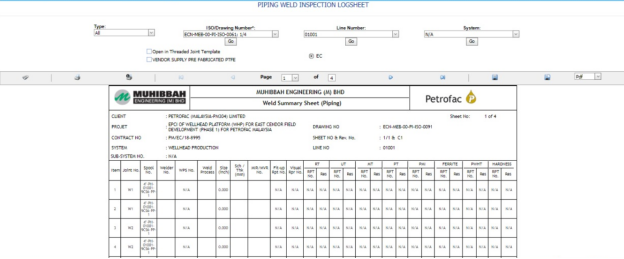](http://wiki.cuteinfocomm.com/uploads/images/gallery/2022-05/image-1651515370972.png)
#### **6.42.1 Print a Weld Summary Sheet**
If you want to print the weld summary sheet, use [](http://wiki.cuteinfocomm.com/uploads/images/gallery/2022-05/image-1651515487359.png)and [](http://wiki.cuteinfocomm.com/uploads/images/gallery/2022-05/image-1651515499193.png) (print icons) provided in the Weld Summary Sheet page.
1. If you want to print the current page of the weld summary sheet, click [](http://wiki.cuteinfocomm.com/uploads/images/gallery/2022-05/image-1651515524036.png) (print icon including the page number).
2. If you want to print all the pages of the weld summary sheet, click[](http://wiki.cuteinfocomm.com/uploads/images/gallery/2022-05/image-1651515559599.png) (print icon).
#### **6.42.2 View a Weld Summary Sheet**
You can view the weld summary sheet in various formats by using the option [](http://wiki.cuteinfocomm.com/uploads/images/gallery/2022-05/image-1651515622205.png) provided in the upper right corner of the Weld Summary Sheet page.
### **6.43 Inspection Status Report**
**Inspection Status Report** shows the overall inspection reports such as from fit-up inspection status to NDT inspection status.
If you want to view an inspection status report, do the following steps,
1. Click **Inspection Status Report** in the **Piping** menu. The **Inspection Status Report** page opens.
[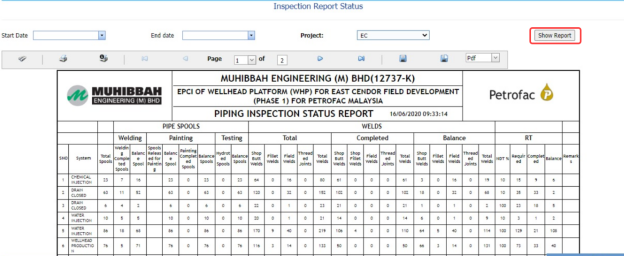](http://wiki.cuteinfocomm.com/uploads/images/gallery/2022-05/image-1651515692671.png)
**Figure 6.43: Inspection Status Report page**
2. In the **Start Date** and **End Date** boxes, select the start and end dates.
3. In the **Project** box, select the project from a drop-down list.
4. Click **Show Report**.
The **Inspection Status Report** page shows the spool information, RFI fit-up, RFI weld VI, and NDT inspection status.
#### **6.43.1 Print an Inspection Status Report**
If you want to print the inspection status report, use [](http://wiki.cuteinfocomm.com/uploads/images/gallery/2022-05/image-1651515800569.png)and [](http://wiki.cuteinfocomm.com/uploads/images/gallery/2022-05/image-1651515811999.png) (print icons) provided in the **Inspection Status Report** page. See Fig 6.43.
1. If you want to print the current page of the inspection status report, click [](http://wiki.cuteinfocomm.com/uploads/images/gallery/2022-05/image-1651515848688.png) (print icon including the page number).
2. If you want to print all the pages of the inspection status report, click [](http://wiki.cuteinfocomm.com/uploads/images/gallery/2022-05/image-1651515867800.png) (print icon).
#### **6.43.2 Export an Inspection Status Report**
You can export the inspection status report in various formats by using the option [](http://wiki.cuteinfocomm.com/uploads/images/gallery/2022-05/image-1651515926830.png) provided in the upper right corner of the **Inspection Status Report** page.
### **6.44 Surveillance Entry**
The **Surveillance Entry** tab in the **Piping** menu helps you to add the observation details of various category, which is done by an inspector.
If you want add a surveillance entry, do the following,
1. Click **Surveillance Entry** in the **Piping** menu.
The **Surveillance** page opens.
[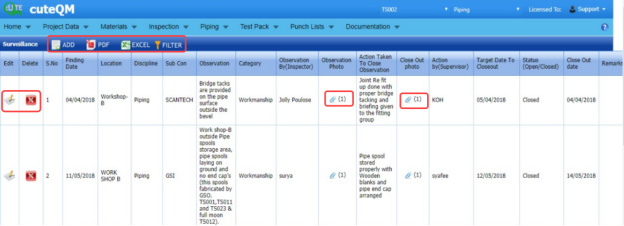](http://wiki.cuteinfocomm.com/uploads/images/gallery/2022-05/image-1651516003952.png)
**Figure 6.44: Surveillance page**
#### **6.44.1 Add a Surveillance Entry**
If you want to add a surveillance entry, do the following,
1. Click [](http://wiki.cuteinfocomm.com/uploads/images/gallery/2022-05/image-1651516158029.png) (**ADD** button) in the **Surveillance** page. See Fig 6.44.
A new window opens to add a surveillance entry.
[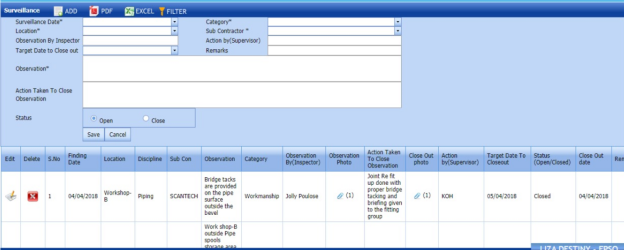](http://wiki.cuteinfocomm.com/uploads/images/gallery/2022-05/image-1651516182891.png)
[](http://wiki.cuteinfocomm.com/uploads/images/gallery/2022-05/image-1651516196536.png)**Note**: The fields notified with a symbol (\*) are mandatory. You must enter the relevant details in that fields before saving.
2. In the **Surveillance Date** box, select the surveillance date.
3. In the **Category** box, select a surveillance category from a drop-down list.
4. In the **Location** box, select a location where the surveillance has done.
5. In the **Sub Contractor** box, select the sub-contractor from a drop-down list.
6. In the **Observation By Inspector** box, enter the name of the inspector who has done the observation.
7. In the **Action by (Supervisor)** box, enter the name of the supervisor who has done the action.
8. In the **Target Date to Close ou**t box, select the target date to close out the observation.
9. In the **Remarks** box, enter your remarks if any.
10. In the **Observation** box, enter the observation’s description.
11. In the **Action Taken To Close Observation** box, enter the actions to close out the observation.
12. In the **Status** box, select the status Open or Close based on the observation.
13. Click **Save**.
The surveillance entry is successfully added.
#### **6.44.2 Attach a File into a Surveillance Entry**
If you want to attach any file with the surveillance entry listed in the **Surveillance** page, you can attach the file by using [](http://wiki.cuteinfocomm.com/uploads/images/gallery/2022-05/image-1651516385393.png)(Attach icon) in the **Attachment** column. To know how to attach, follow the procedures given in the topic “[**Attach a file into P&ID**](http://wiki.cuteinfocomm.com/books/cuteqm/page/project-data/#bkmrk-3.1.7%C2%A0attach-a-file-)”.
#### **6.44.3 Edit a Surveillance Entry**
If you want to edit any existing surveillance entry in the **Surveillance** page, do the following,
1. Click [](http://wiki.cuteinfocomm.com/uploads/images/gallery/2022-05/image-1651516449133.png)(Edit icon) in the **Edit** column for the respective surveillance entry. See Fig 6.44.
2. Click any box where you want to edit the details, and then edit the details in the respective box.
3. Click **Save**.
#### **6.44.4 Delete a Surveillance Entry**
If you want to delete any from the list, you can use (Delete icon) provided in the **Delete** column of the **Surveillance** page, See Fig 6.44. To know how to delete, see the topic, “[**Delete P&ID**](http://wiki.cuteinfocomm.com/books/cuteqm/page/project-data/#bkmrk-3.1.3%C2%A0delete-a-p%26id)”.
#### **6.44.5 Export a Surveillance Entry**
You can export a list of surveillance entry added in the **Surveillance** page in the pdf and excel formats by using [](http://wiki.cuteinfocomm.com/uploads/images/gallery/2022-05/image-1651516595441.png)(**PDF** button) and [](http://wiki.cuteinfocomm.com/uploads/images/gallery/2022-05/image-1651516608147.png) (**Excel** button). To know how to export, see the topic, “[**Export P&ID list**](http://wiki.cuteinfocomm.com/books/cuteqm/page/project-data/#bkmrk-3.1.4%C2%A0export-p%26id-li)”.
#### **6.44.6 Filter a Surveillance Entry**
If you want to filter any surveillance entry from the list in the **Surveillance** page, you can use [](http://wiki.cuteinfocomm.com/uploads/images/gallery/2022-05/image-1651516683319.png) (**FILTER** button) located on the **Surveillance** page. To know how to filter, see the topic, “[**Filter P&ID**](http://wiki.cuteinfocomm.com/books/cuteqm/page/project-data/#bkmrk-3.1.5%C2%A0filter-a-p%26id)”.
### **6.45 Surveillance Report**
Once you have added the surveillance entry by using the **Surveillance Entry** tab, you can view a surveillance report by using the **Surveillance Report** tab in the **Piping** menu. If you want to view a surveillance report, do the following steps,
1. Click **Surveillance Report** in the **Piping** menu. The **Surveillance Report** page opens.
[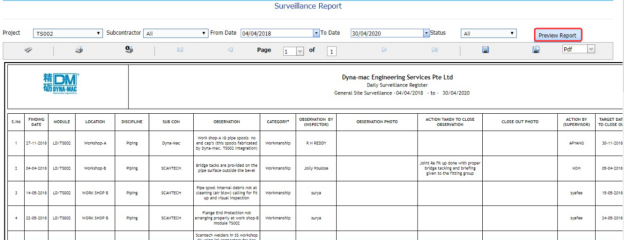](http://wiki.cuteinfocomm.com/uploads/images/gallery/2022-05/image-1651516750293.png) **Figure 6.45: Surveillance Report** **page**
2. In the **Project** box, select a project from a drop-down list.
3. In the **Subcontractor** box, select a sub-contractor from a drop-down list.
4. In the **From Date** and **To Date** boxes, select the from and to dates in respectively.
5. In the **Status** box, select the status from a drop-down list.
6. Click **Preview Report**.
The surveillance report will be displayed for the selected dates and status.
#### **6.45.1 Print a Surveillance Report**
If you want to print a surveillance report, use [](http://wiki.cuteinfocomm.com/uploads/images/gallery/2022-05/image-1651516884041.png)and [](http://wiki.cuteinfocomm.com/uploads/images/gallery/2022-05/image-1651516894340.png) (print icons) provided in the **Surveillance** **Report** page. See Fig 6.45.
1. If you want to print the current page of the surveillance report, click [](http://wiki.cuteinfocomm.com/uploads/images/gallery/2022-05/image-1651516946516.png) (print icon including the page number).
2. If you want to print all the pages of the surveillance report, click [](http://wiki.cuteinfocomm.com/uploads/images/gallery/2022-05/image-1651516967368.png)(print icon).
#### **6.45.2 Export a Surveillance Report**
You can export the surveillance report in various formats by using the option [](http://wiki.cuteinfocomm.com/uploads/images/gallery/2022-05/image-1651517050864.png) provided in the upper right corner of the **Surveillance** **Report** page.
### **6.46 Surveillance Category Report**
The **Surveillance Categories Report** tab in the **Piping** menu shows the surveillance report based on the category wise status.
1. Click **Surveillance Categories Report** in the **Piping** menu.
The **Surveillance Category Wise Status Report** page opens.
[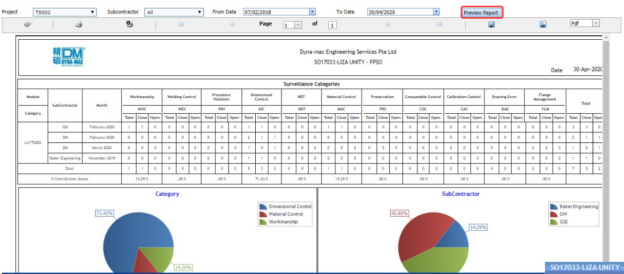](http://wiki.cuteinfocomm.com/uploads/images/gallery/2022-05/image-1651517111845.png)
**Figure 6.46: Surveillance Report** **page**
2. In the **Project** box, select a project from a drop-down list.
3. In the **Subcontractor** box, select a sub-contractor from a drop-down list.
4. In the **From Date** and **To Date** boxes, select the from and to dates in respectively.
5. In the **Status** box, select the status from a drop-down list.
6. Click **Preview Report**.
The surveillance report will be displayed based on the category wise status.
### **6.46.1 Print a Surveillance Category Wise Status Report**
If you want to print a surveillance report, use [](http://wiki.cuteinfocomm.com/uploads/images/gallery/2022-05/image-1651517717973.png)and [](http://wiki.cuteinfocomm.com/uploads/images/gallery/2022-05/image-1651517728798.png) (print icons) provided in the **Surveillance** **Category Wise Status Report** page. See Fig 6.46.
1. If you want to print the current page of the surveillance report, click [](http://wiki.cuteinfocomm.com/uploads/images/gallery/2022-05/image-1651517821687.png) (print icon including the page number).
2. If you want to print all the pages of the surveillance report, click [](http://wiki.cuteinfocomm.com/uploads/images/gallery/2022-05/image-1651517848488.png)(print icon).
#### **6.46.2 Export a Surveillance Category Wise Status Report**
You can export the surveillance report in various formats by using the option [](http://wiki.cuteinfocomm.com/uploads/images/gallery/2022-05/image-1651517946300.png) provided in the upper right corner of the **Surveillance** **Category Wise Status Report** page.
### **6.47 Blasting and Painting View**
The **Blasting and Painting View** tab in the **Piping** menu used to add the blasting and painting inspection report.
1. Click **Blasting and Painting View** in the **Piping** menu.
The **Blasting and Painting** page opens.
[](http://wiki.cuteinfocomm.com/uploads/images/gallery/2022-05/image-1651518079348.png)
**Figure 6.47: Blasting and Painting page**
#### **6.47.1 Add a Blasting and Painting Report**
If you want to add a blasting and painting report, do the following steps,
1. Click [](http://wiki.cuteinfocomm.com/uploads/images/gallery/2022-05/image-1651518173090.png) (**ADD** button) in the **Blasting and Painting** page. See Fig 6.47.
The page opens a new window to add the details of the blasting and painting report.
[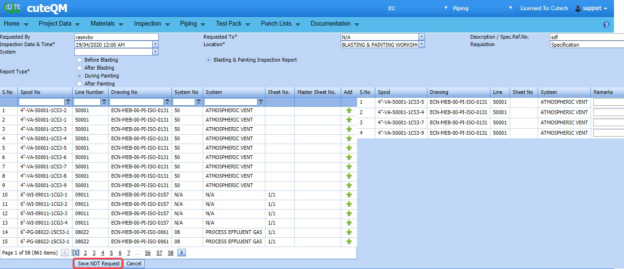](http://wiki.cuteinfocomm.com/uploads/images/gallery/2022-05/image-1651518193978.png)
2. In the **Requested by** box, enter the name of a person who has requested the blasting and painting report.
3. In the **Requested To** box, enter the name of a person for whom you want to send the blasting and painting report.
4. In the **Description / Spec,Ref.No** box, select the specification report number.
5. In the **Inspection Date & Time** box, select the inspection date and time.
6. In the **Location** box, select the inspection location.
7. In the **Requisition** box, enter the requisition detail.
8. In the **System** box, select the system.
9. In the **Report Type** field, select the report type which you want to create.
Before saving the added request, you must add the spools.
[](http://wiki.cuteinfocomm.com/uploads/images/gallery/2022-05/image-1651518540053.png)**Note**: You can add multiple spools for one request.
The page shows a list of spools. If you want to add spools for the request, do the following steps,
10. Click [](http://wiki.cuteinfocomm.com/uploads/images/gallery/2022-05/image-1651518577497.png)(Add icon) of the respective spools you want to add.
The added spools will be moved and listed in the right side of the page.
11. Click **Save NDT Request**.
The added report will be listed in the **Blasting and Painting** page.
#### **6.47.2 Edit a Blasting and Painting Report**
If you want to edit any existing blasting and painting report in the **Blasting and Painting** page, do the following steps,
1. Click [](http://wiki.cuteinfocomm.com/uploads/images/gallery/2022-05/image-1651518784195.png)(Edit icon) in the **Edit** column for the respective blasting and painting See Fig 6.47. The **Blasting and Painting** page opens with the details of the selected blasting and painting report.
2. Click any box where you want to edit the details, and then edit the details in the respective box.
3. Click **Save**.
#### **6.47.3 Submit and Approve a Blasting and Painting Report**
Once you have added the blasting and painting report, the **Submission** column in the **Blasting and Painting** page is appeared with [](http://wiki.cuteinfocomm.com/uploads/images/gallery/2022-05/image-1651518880356.png) (Submit and Reject icons).
1. If you want to submit the blasting and painting report, click [](http://wiki.cuteinfocomm.com/uploads/images/gallery/2022-05/image-1651518909051.png)(Submit icon) in the **Submission** Otherwise click [](http://wiki.cuteinfocomm.com/uploads/images/gallery/2022-05/image-1651518932798.png) (Reject icon) to reject the request.
Once you have submitted the blasting and painting report, the **Request Status** column in the **Blasting and Painting** page is appeared with [](http://wiki.cuteinfocomm.com/uploads/images/gallery/2022-05/image-1651518960906.png) (Approve and Reject icons).
2. If you want to approve the blasting and painting report, click [](http://wiki.cuteinfocomm.com/uploads/images/gallery/2022-05/image-1651519019335.png)(Approve icon) in the **Request Status** Otherwise click [ ](http://wiki.cuteinfocomm.com/uploads/images/gallery/2022-05/image-1651519038372.png)(Reject icon) to reject the request.
#### **6.47.4 Attach a File into a Blasting and Painting Report**
If you want to attach a file with any existing blasting and painting report listed in the **Blasting and Painting** page, you can attach the file by using [](http://wiki.cuteinfocomm.com/uploads/images/gallery/2022-05/image-1651519149148.png)(Attach icon) in the **Attachment** column. To know how to attach, follow the procedures given in the topic “[**Attach a file into P&ID**](http://wiki.cuteinfocomm.com/books/cuteqm/page/project-data/#bkmrk-3.1.7%C2%A0attach-a-file-)”.
### **6.48 NDT Summary Report**
The **NDT Summary Report** tab in the **Piping** menu shows the summary report of the NDT inspection.
1. Click **NDT Summary Report** in the **Piping** menu. The **NDT Summary Report** page opens.
[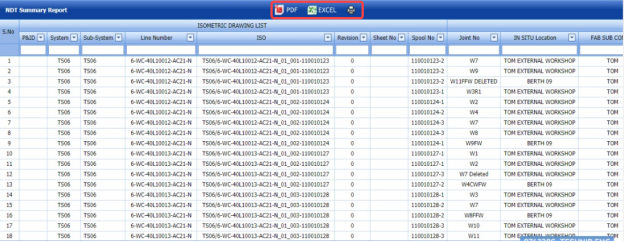](http://wiki.cuteinfocomm.com/uploads/images/gallery/2022-05/image-1651519234930.png)
**Figure 6.48: NDT Summary Report page**
#### **6.48.1 Print an NDT Summary Report**
If you want to print an NDT summary report, click [](http://wiki.cuteinfocomm.com/uploads/images/gallery/2022-05/image-1651519304378.png) (print icon) provided in the upper side of the **NDT Summary Report** page. See Fig 6.48.
#### **6.48.2 Export an NDT Summary Report**
You can export a list of NDT summary report added in the **NDT Summary Report** page in the pdf and excel formats by using[](http://wiki.cuteinfocomm.com/uploads/images/gallery/2022-05/image-1651519349018.png) (**PDF** button) and [](http://wiki.cuteinfocomm.com/uploads/images/gallery/2022-05/image-1651519359507.png) (**Excel** button). To know how to export, see the topic, “[**Export P&ID list**](http://wiki.cuteinfocomm.com/books/cuteqm/page/project-data/#bkmrk-3.1.4%C2%A0export-p%26id-li)”.
### **6.49 Component Summary Report**
Component Summary Report shows the component summary details. If you want to view a component summary report, do the following steps,
1. Click **Component Summary Report** in the **Piping** menu. The **Component Summary Report** page opens.
[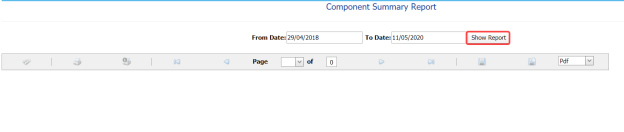](http://wiki.cuteinfocomm.com/uploads/images/gallery/2022-05/image-1651519423625.png)
**Figure 6.49: Component Summary Report page**
2. In the **From Date** and **To Date** boxes, select the from and to dates in respectively.
3. Click **Show Report**.
The component summary report opens for the selected dates.
#### **6.49.1 Print a Component Summary Report**
If you want to print a component summary report, use [](http://wiki.cuteinfocomm.com/uploads/images/gallery/2022-05/image-1651519505815.png) and [](http://wiki.cuteinfocomm.com/uploads/images/gallery/2022-05/image-1651519529914.png) (print icons) provided in the **Component Summary Report** page. See Fig 6.49.
1. If you want to print the current page of the component summary report, click [](http://wiki.cuteinfocomm.com/uploads/images/gallery/2022-05/image-1651519561128.png) (print icon including the page number).
2. If you want to print all the pages of the component summary report, click[](http://wiki.cuteinfocomm.com/uploads/images/gallery/2022-05/image-1651519584698.png) (print icon).
#### **6.49.2 Export a Component Summary Report**
You can export the component summary report in various formats by using the option [](http://wiki.cuteinfocomm.com/uploads/images/gallery/2022-05/image-1651519634162.png) provided in the upper right corner of the **Component Summary Report** page.
### **6.50 NDT Performance Report (RT & UT)**
NDT Performance Report shows the performance details of RT and UT. If you want to view an NDT performance report, do the following steps,
1. Click **NDT Performance Report** in the **Piping** menu. The **NDT Performance Report** page opens.
[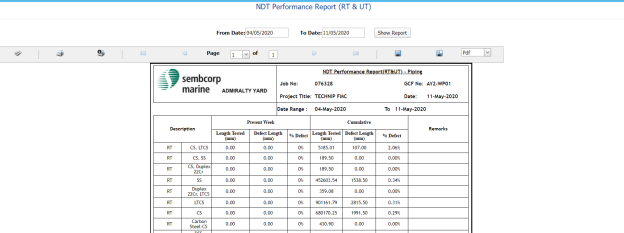](http://wiki.cuteinfocomm.com/uploads/images/gallery/2022-05/image-1651595514807.png)
**Figure 6.50: NDT Performance Report page**
2. In the **From Date** and **To Date** boxes, select the from and to dates in respectively.
3. Click **Show Report**.
The NDT performance report opens for the selected dates.
#### **6.50.1 Print an NDT Performance Report**
If you want to print an NDT performance report, use [](http://wiki.cuteinfocomm.com/uploads/images/gallery/2022-05/image-1651595624122.png)and [](http://wiki.cuteinfocomm.com/uploads/images/gallery/2022-05/image-1651595636905.png) (print icons) provided in the **NDT Performance Report** page. See Fig 6.50.
1. If you want to print the current page of the NDT performance report, click [](http://wiki.cuteinfocomm.com/uploads/images/gallery/2022-05/image-1651595664046.png) (print icon including the page number).
2. If you want to print all the pages of the NDT performance report, click [](http://wiki.cuteinfocomm.com/uploads/images/gallery/2022-05/image-1651595712461.png)(print icon).
#### **6.50.2 Export NDT Performance Report**
You can export the NDT performance report in various formats by using the option [](http://wiki.cuteinfocomm.com/uploads/images/gallery/2022-05/image-1651595753441.png) provided in the upper right corner of the **NDT Performance Report** page.
### **6.51 Pipe Flushing Check List**
The **Pipe Flushing Check List** tab in the **Piping** menu used to add the pipe flushing check list detail.
1. Click **Pipe Flushing Check List** in the **Piping** menu.
2. The **Pipe Flushing Check List** page opens.
[](http://wiki.cuteinfocomm.com/uploads/images/gallery/2022-05/image-1651595904511.png)
**Figure 6.51: Pipe Flushing Check List page**
#### **6.51.1 Add a Pipe Flushing Check List**
1. Click [](http://wiki.cuteinfocomm.com/uploads/images/gallery/2022-05/image-1651606641935.png) (****ADD**** button) in the ****Pipe Flushing Check List**** See Fig 6.51. A new window opens to add a pipe flushing check list.
[](http://wiki.cuteinfocomm.com/uploads/images/gallery/2022-05/image-1651606662976.png)
[](http://wiki.cuteinfocomm.com/uploads/images/gallery/2022-05/image-1651606699982.png)**Note**: The fields notified with a symbol (\*) are mandatory. You must enter the relevant details in that fields before saving.
2. In the **User Report** box, enter the user report number.
3. In the **Client Ref** box, enter the client reference number.
4. In the **Survey Ref** box, enter the survey reference number.
5. In the **Drawing** box, select a drawing number.
6. In the **Inspection Date** box, select the inspection date.
7. In the **Work Scope** box, enter the work scope detail.
8. In the **Remarks** box, enter your remarks if any.
9. In the **Description** box, enter the description for check list.
10. In the **Location** box, enter the name of a location.
11. In the **Acceptance Code** box, enter the acceptance code.
12. In the **Flushing Pressure** box, enter the flushing pressure value.
13. In the **Flushing Temperature** box, enter the flushing temperature value.
14. In the **Flushing Time** box, select the flushing time.
15. In the **Flushing Medium** box, enter the flushing medium name.
16. In the **Instrument Serial No** box, enter the instrument serial number.
17. Click **Save**.
The pipe flushing checklist is successfully added.
#### **6.51.2 Edit a Pipe Flushing Check List**
If you want to edit any existing pipe flushing check list in the **Pipe Flushing Check List** page, do the following steps,
1. Click [](http://wiki.cuteinfocomm.com/uploads/images/gallery/2022-05/image-1651606865709.png) (Edit icon) in the **Edit** column for the respective pipe flushing check list. See Fig 6.51. A new window opens with the added details of the pipe flushing check list.
2. Click any box where you want to edit the details, and then edit the details in the respective box.
3. Click **Save**.
#### **6.51.3 Export a Pipe Flushing Check List**
You can export a list of pipe flushing check list added in the **Pipe Flushing Check List** page in the pdf and excel formats by using [](http://wiki.cuteinfocomm.com/uploads/images/gallery/2022-05/image-1651606945375.png) (**PDF** button) and [](http://wiki.cuteinfocomm.com/uploads/images/gallery/2022-05/image-1651606956507.png) (**Excel** button). To know how to export, see the topic, “[**Export P&ID list”**](http://wiki.cuteinfocomm.com/books/cuteqm/page/project-data/#bkmrk-3.1.4%C2%A0export-p%26id-li).
#### **6.51.4 Filter a Pipe Flushing Check List**
If you want to filter any pipe flushing check list, you can use (**FILTER** button) in the **Pipe Flushing Check List** page. To know how to filter, see the topic, “[**Filter P&ID**](http://wiki.cuteinfocomm.com/books/cuteqm/page/project-data/#bkmrk-3.1.5%C2%A0filter-a-p%26id)”.
#### **6.51.5 Print a Pipe Flushing Check List**
If you want to print a pipe flushing check list, click (print icon) provided in the **Print** column of the **Pipe Flushing Check List** page. See Fig 6.51.
### **6.52 Pipe Inspection Check List**
The **Pipe Inspection Check List** tab in the **Piping** menu used to add the pipe inspection check list detail.
1. Click **Pipe Inspection Check List** in the **Piping** menu.
The **Pipe Inspection Check List** page opens.
[](http://wiki.cuteinfocomm.com/uploads/images/gallery/2022-05/image-1651646434211.png)
**Figure 6.52: Pipe Inspection Check List page**
#### **6.52.1 Add a Pipe Inspection Check List**
1. Click [](http://wiki.cuteinfocomm.com/uploads/images/gallery/2022-05/image-1651646535308.png) (**ADD** button) in the **Pipe Inspection Check List** page. See Fig 6.52.
A new window opens to add a pipe inspection check list.
[](http://wiki.cuteinfocomm.com/uploads/images/gallery/2022-05/image-1651646567001.png)
[](http://wiki.cuteinfocomm.com/uploads/images/gallery/2022-05/image-1651646577615.png)**Note**: The fields notified with a symbol (\*) are mandatory. You must enter the relevant details in that fields before saving.
2. In the **User Report Number** box, enter the user report number.
3. In the **Drawing** box, select a drawing number.
4. In the **Date** box, select the inspection date.
5. In the **Remarks** box, enter your remarks if any.
6. In the **Status** field, select the status of the check list.
7. In the **Report Type** box, select the report type of the check list.
8. Click **Save**.
The pipe inspection checklist is successfully added.
#### **6.52.2 Edit a Pipe Inspection Check List**
If you want to edit any existing pipe inspection check list in the **Pipe Inspection Check List** page, do the following steps,
1. Click [](http://wiki.cuteinfocomm.com/uploads/images/gallery/2022-05/image-1651646995460.png) (Edit icon) in the **Edit** column for the respective pipe inspection check list. See Fig 6.52. A new window opens with the added details of the pipe inspection check list.
2. Click any box where you want to edit the details, and then edit the details in the respective box.
3. Click **Save**.
#### **6.52.3 Export a Pipe Inspection Check List**
You can export a list of pipe inspection check list added in the **Pipe Inspection Check List** page in the pdf and excel formats by using [](http://wiki.cuteinfocomm.com/uploads/images/gallery/2022-05/image-1651647082184.png) (**PDF** button) and [](http://wiki.cuteinfocomm.com/uploads/images/gallery/2022-05/image-1651647094292.png) (**Excel** button). To know how to export, see the topic, “**[Export P&ID list](http://wiki.cuteinfocomm.com/books/cuteqm/page/project-data/#bkmrk-3.1.4%C2%A0export-p%26id-li)**”.
#### **6.52.4 Filter a Pipe Inspection Check List**
If you want to filter any pipe inspection check list, you can use [](http://wiki.cuteinfocomm.com/uploads/images/gallery/2022-05/image-1651647198790.png) (**FILTER** button) in the **Pipe Inspection Check List** page. To know how to filter, see the topic, “**[Filter P&ID](http://wiki.cuteinfocomm.com/books/cuteqm/page/project-data/#bkmrk-3.1.5%C2%A0filter-a-p%26id)**”.
#### **6.52.5 Print a Pipe Inspection Check List**
If you want to print a pipe Inspection check list, click[](http://wiki.cuteinfocomm.com/uploads/images/gallery/2022-05/image-1651647888162.png)(print icon) provided in the **Print** column of the **Pipe Inspection Check List** page. See Fig 6.52.
### **6.53 Warning Letter**
The **Warning Letter Report** tab in the **Piping** menu helps you to add a warning letter that addresses the performance issue of a worker. The warning letter explains about the mistakes done by the worker. If you want to add a warning letter against any worker, do the following,
1. Click **Warning Letter** in the **Piping** menu. The **Warning Letter Report** page opens.
[](http://wiki.cuteinfocomm.com/uploads/images/gallery/2022-05/image-1651647958957.png)
**Figure 6.53: Warning Letter Report page**
#### **6.53.1 Add a Warning Letter Report**
If you want to add a warning letter report,
1. Click [](http://wiki.cuteinfocomm.com/uploads/images/gallery/2022-05/image-1651648021092.png) (**ADD** button) in the **Warning Letter Report** See Fig 6.53. A new window opens to add a warning letter report.
[](http://wiki.cuteinfocomm.com/uploads/images/gallery/2022-05/image-1651648052345.png)
[](http://wiki.cuteinfocomm.com/uploads/images/gallery/2022-05/image-1651648063981.png)**Tip**: A report number for a new warning letter report will be updated automatically in the **Report Number** box.
2. In the ****Prepared By**** box, enter the name a person who has prepared the warning letter report.
3. In the **Prepared Date** box, enter the prepared date of the warning letter report.
4. In the **Reviewed By** box, enter the name a person who has reviewed the warning letter report.
5. In the **Reviewed Date** box, enter the reviewed date of the warning letter report.
6. In the **Approved By** box, enter the name a person who has approved the warning letter report.
7. In the **Approved Date** box, enter the approved date of the warning letter report.
8. Click **Save**.
The warning letter report is successfully added. Once you have added the warning letter report, you must add the warning letter details.
#### **6.53.2 Add Warning Letter Details**
1. Click [](http://wiki.cuteinfocomm.com/uploads/images/gallery/2022-05/image-1651648227693.png)(Edit icon) in the **Edit Report** column of the **Warning Letter Report** page. See Fig 6.53. The **Warning Letter Details** window opens including a default warning letter template.
[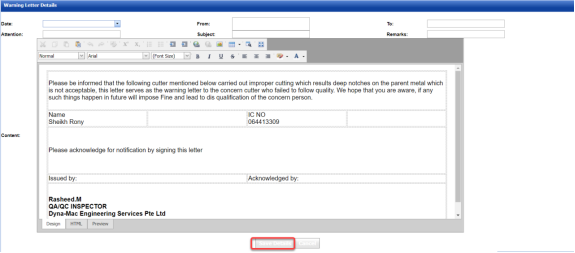](http://wiki.cuteinfocomm.com/uploads/images/gallery/2022-05/image-1651648256254.png)
2. In the **Date** box, select the date of issuing the warning letter.
3. In the **From** box, enter the name of a person who issues the warning letter.
4. In the **To** box, enter the name of a person who receives the warning letter.
5. In the **Attention** box, enter the relevant detail.
6. In the **Subject** box, enter the subject of this warning letter.
7. In the **Remarks** box, enter your remarks if any.
8. In the **Content** box, if you want to change any information given in the template, you can change.
9. Click **Save Details**.
#### **6.53.3 Print a Warning Letter Report**
If you want to print a warning letter report, click [](http://wiki.cuteinfocomm.com/uploads/images/gallery/2022-05/image-1651648375313.png) (print icon) provided in the **Report** column of the **Warning Letter Report** page. See Fig 6.53.
[](http://wiki.cuteinfocomm.com/uploads/images/gallery/2022-05/image-1651648393478.png)**Tip**: If you want to lock any warning letter report, click the check box provided in the **Lock Report?** column of the **Warning Letter Report** page. See Fig 6.53.
#### **6.53.4 Attach a File into a Warning Letter Report**
If you want to attach any file with any warning letter report listed in the **Warning Letter Report** page. To know how to attach, follow the procedures given in the topic “[**Attach a file into P&ID**](http://wiki.cuteinfocomm.com/books/cuteqm/page/project-data/#bkmrk-3.1.7%C2%A0attach-a-file-)”.
### **6.54 Welder Performance Summary**
The **Welder Performance Summary** tab in the **Piping** menu used to add welder performance record. To add the welder performance record,
1. Click **Welder Performance Summary** in the **Piping** menu. The **Welder Performance Record** page opens.
[](http://wiki.cuteinfocomm.com/uploads/images/gallery/2022-05/image-1651648500690.png)
**Figure 6.54: Welder Performance Record page**
#### **6.54.1 Add a Welder Performance Record**
1. Click [](http://wiki.cuteinfocomm.com/uploads/images/gallery/2022-05/image-1651648581903.png) (**ADD** button) in the **Welder Performance Record** See Fig 6.54. A new window opens to add a welder performance record.
[](http://wiki.cuteinfocomm.com/uploads/images/gallery/2022-05/image-1651648598586.png)
[](http://wiki.cuteinfocomm.com/uploads/images/gallery/2022-05/image-1651648608913.png)**Note**: The fields notified with a symbol (\*) are mandatory. You must enter the relevant details in that fields before saving.
2. In the **Start Date** and **End Date** boxes, select the start and end dates.
3. In the **Prepared By** box, enter the name a person who has prepared the welder performance record.
4. In the **Prepared Date** box, enter the prepared date of the welder performance record.
5. In the **Reviewed By** box, enter the name a person who has reviewed the welder performance record.
6. In the **Reviewed Date** box, enter the reviewed date of the welder performance record.
7. In the **Approved By** box, enter the name a person who has approved the welder performance record.
8. In the **Approved Date** box, enter the approved date of the welder performance record.
9. Click **Save**.
The welder performance record is successfully added.
#### **6.54.2 Edit a Welder Performance Record**
If you want to edit any existing welder performance record in the **Welder Performance Record** page, do the following steps,
1. Click [](http://wiki.cuteinfocomm.com/uploads/images/gallery/2022-05/image-1651648730805.png) (Edit icon) in the **Edit** column for the respective welder performance record. See Fig 6.54. A new window opens with the added details of the welder performance record.
2. Click any box where you want to edit the details, and then edit the details in the respective box.
3. Click **Save**.
#### **6.54.3 Export a Welder Performance Record**
You can export a list of welder performance records added in the **Welder Performance Record** page in the pdf and excel formats by using [](http://wiki.cuteinfocomm.com/uploads/images/gallery/2022-05/image-1651648819810.png) (**PDF** button) and [](http://wiki.cuteinfocomm.com/uploads/images/gallery/2022-05/image-1651648833418.png) (**Excel** button). To know how to export, see the topic, “**[Export P&ID list](http://wiki.cuteinfocomm.com/books/cuteqm/page/project-data/#bkmrk-3.1.4%C2%A0export-p%26id-li)**”.
#### **6.54.4 Filter a Welder Performance Record**
If you want to filter any welder performance record, you can use [](http://wiki.cuteinfocomm.com/uploads/images/gallery/2022-05/image-1651648960846.png) (**FILTER** button) in the **Welder Performance Record** page. To know how to filter, see the topic, “**[Filter P&ID](http://wiki.cuteinfocomm.com/books/cuteqm/page/project-data/#bkmrk-3.1.5%C2%A0filter-a-p%26id)**”.
#### **6.54.5 Print a Welder Performance Record**
If you want to print a welder performance record, click [](http://wiki.cuteinfocomm.com/uploads/images/gallery/2022-05/image-1651648948027.png) (print icon) provided in the **Print** column of the **Welder Performance Record** page. See Fig 6.54.
#### **6.54.5 Attach a File into a Welder Performance Record**
If you want to attach a file with any existing welder performance record listed in the **Welder Performance Record** page, you can attach the file by using (Attach icon) in the **Attachment** column. To know how to attach, follow the procedures given in the topic “[**Attach a file into P&ID**](http://wiki.cuteinfocomm.com/books/cuteqm/page/project-data/#bkmrk-3.1.7%C2%A0attach-a-file-)”.
### **6.55 Weld Repair Log Report**
Weld Repair Log Report shows the weld repair log details. If you want to view a weld repair log report, do the following steps,
1. Click **Weld Repair Log Report** in the **Piping** menu.
The **Weld Repair Log Report** page opens.
[](http://wiki.cuteinfocomm.com/uploads/images/gallery/2022-05/image-1651649042002.png)
**Figure 6.55: Weld Repair Log Report page**
#### **6.55.1 Print a Weld Repair Log Report**
If you want to print a weld repair log report, use [](http://wiki.cuteinfocomm.com/uploads/images/gallery/2022-05/image-1651649142665.png) and [](http://wiki.cuteinfocomm.com/uploads/images/gallery/2022-05/image-1651649161776.png) (print icons) provided in the **Weld Repair Log Report** page. See Fig 6.55.
1. If you want to print the current page of the weld repair log report, click [](http://wiki.cuteinfocomm.com/uploads/images/gallery/2022-05/image-1651649126422.png) (print icon including the page number).
2. If you want to print all the pages of the weld repair log report, click [](http://wiki.cuteinfocomm.com/uploads/images/gallery/2022-05/image-1651649182964.png)(print icon).
#### **6.55.2 Export a Weld Repair Log Report**
You can export the weld repair log report in various formats by using the option provided in the upper right corner of the **Weld Repair Log Report** page.
### **6.56 AFI Report Status**
The **AFI Report** **Status** tab in the **Piping** menu shows the AFI report status.
1. Click **AFI Report** **Status** in the **Piping** menu. The **AFI Report** **Status** page opens.
[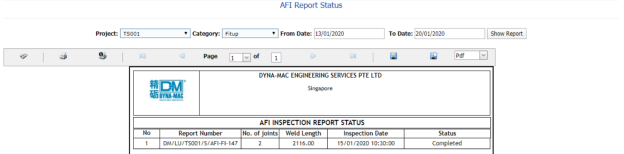](http://wiki.cuteinfocomm.com/uploads/images/gallery/2022-05/image-1651748426324.png)
**Figure 6.56: AFI Report Status page**
2. In the **Project** box, select a project from a drop-down list.
3. In the **Category** box, select a category from a drop-down list.
4. In the **From Date** and **To Date** boxes, select the from and to dates in respectively.
5. Click **Show Report**.
The AFI report status will be displayed.
#### **6.56.1 Print an AFI Report Status**
If you want to print an AFI report status, use [](http://wiki.cuteinfocomm.com/uploads/images/gallery/2022-05/image-1651748531942.png) and [ ](http://wiki.cuteinfocomm.com/uploads/images/gallery/2022-05/image-1651748545338.png) (print icons) provided in the **AFI Report** **Status** page. See Fig 6.56.
1. If you want to print the current page of the AFI report status, click [](http://wiki.cuteinfocomm.com/uploads/images/gallery/2022-05/image-1651748585464.png) (print icon including the page number).
2. If you want to print all the pages of the AFI report status, click [](http://wiki.cuteinfocomm.com/uploads/images/gallery/2022-05/image-1651748602784.png) (print icon).
#### **6.56.2 Export an AFI Report Status**
You can export the AFI report status in various formats by using the option provided in the upper right corner of the **AFI Report** **Status** page.
### **6.57 Status by ISO for NDT Requirement**
The **Status by ISO for NDT Requirement** tab in the **Piping** menu used to view the ISO status for NDT requirement.
1. Click **Status by ISO for NDT Requirement** in the **Piping** menu. The page shows the status by ISO for NDT requirement.
[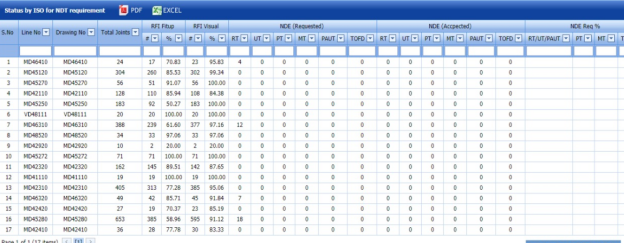](http://wiki.cuteinfocomm.com/uploads/images/gallery/2022-05/image-1651748698757.png)
**Figure 6.57: Status by ISO for NDT Requirement page**
#### **6.57.1 Export Status by ISO for NDT Requirement**
You can export the status in the **Status by ISO for NDT Requirement** page in the pdf and excel formats by using (**PDF** button) and (**Excel** button). To know how to export, see the topic, **“**[**Export P&ID list**](http://wiki.cuteinfocomm.com/books/cuteqm/page/project-data/#bkmrk-3.1.4%C2%A0export-p%26id-li)**”.**
### **6.58 Piping Widget**
The **Piping Widget** tab in the **Piping** menu used to view overall summary of the piping NDT, NDT number of joint status, and overall welder rejected status.
[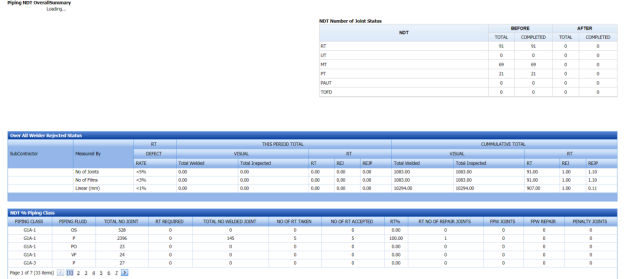](http://wiki.cuteinfocomm.com/uploads/images/gallery/2022-05/image-1651748853334.png)
### **6.59 Welder Not Welded List**
The **Welder Not Welded List** tab in the **Piping** menu used to view the list of welders who has not performing the welding work for more than 15 days. If you want to view the welder list,
1. Click **Welder Not Welded List** in the **Piping** menu. The **Welder Recently Not Welded List** page shows a list of welders including their NRIC and welder numbers, last weld date, and no of days not performing welding.
[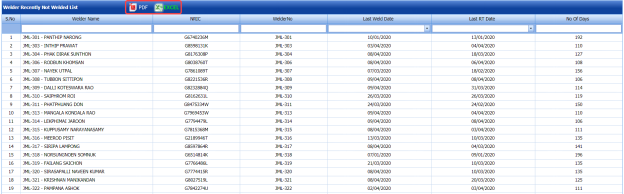](http://wiki.cuteinfocomm.com/uploads/images/gallery/2022-05/image-1651748920812.png)
**Figure 6.59: Welder Recently Not Welded List page**
#### **6.59.1 Export Welder Not Welded List**
You can export the welder list in the **Welder Recently Not Welded List** page in the pdf and excel formats by using [](http://wiki.cuteinfocomm.com/uploads/images/gallery/2022-05/image-1651748992439.png)(**PDF** button) and (**Excel** button). To know how to export, see the topic, “**[Export P&ID list](http://wiki.cuteinfocomm.com/books/cuteqm/page/project-data/#bkmrk-3.1.4%C2%A0export-p%26id-li)**”.
### **6.60 Daily Piping Production Log Report**
The **Daily Piping Production Log** **Report** tab in the **Piping** menu used to view the production details in the piping project on a daily basis. If you want to view the production log report,
1. Click **Daily Piping Production Log Report** in the **Piping** menu. The **Daily Piping Production Log** **Report** page shows production details in the piping project on a daily basis.
[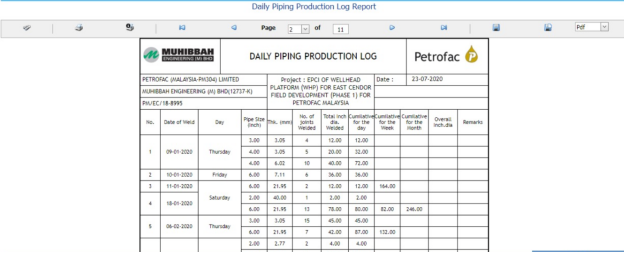](http://wiki.cuteinfocomm.com/uploads/images/gallery/2022-05/image-1651749109366.png)
**Figure 6.60: Daily Piping Production Log** **Report page**
#### **6.60.1 Print a Daily Piping Production Log Report**
If you want to print a daily piping production log report, use [](http://wiki.cuteinfocomm.com/uploads/images/gallery/2022-05/image-1651749213979.png) and [](http://wiki.cuteinfocomm.com/uploads/images/gallery/2022-05/image-1651749228663.png) (print icons) provided in the **Daily Piping Production Log** **Report** page. See Fig 6.60.
1. If you want to print the current page of the daily piping production log report, click [](http://wiki.cuteinfocomm.com/uploads/images/gallery/2022-05/image-1651749296303.png) (print icon including the page number).
2. If you want to print all the pages of the daily piping production log report, click [](http://wiki.cuteinfocomm.com/uploads/images/gallery/2022-05/image-1651749309040.png)(print icon).
#### **6.60.2 Export a Daily Piping Production Log Report**
You can export the daily piping production log report in various formats by using the option [](http://wiki.cuteinfocomm.com/uploads/images/gallery/2022-05/image-1651749373282.png) provided in the upper right corner of the **Daily Piping Production Log** **Report** page.
### **6.61 RFI Log Report**
### **6.62 NDT Log Report**
The **NDT Log** **Report** tab in the **Piping** menu used to view the NDT log report. If you want to view the NDT log report,
1. Click **NDT Log** **Report** in the **Piping** menu. The **NDT Log** **Report** page shows NDT log report.
2. In the **From Date** and **To Date** boxes, select the from and to dates.
3. Click **Load Report**.
[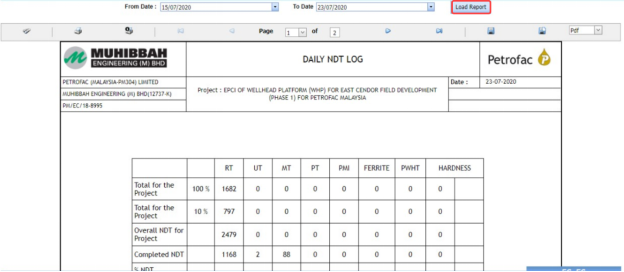](http://wiki.cuteinfocomm.com/uploads/images/gallery/2022-05/image-1651749488485.png)
**Figure 6.62: NDT Log** **Report page**
#### **6.62.1 Print an NDT Log Report**
If you want to print an NDT log report, use [](http://wiki.cuteinfocomm.com/uploads/images/gallery/2022-05/image-1651750158863.png) and [](http://wiki.cuteinfocomm.com/uploads/images/gallery/2022-05/image-1651750176142.png) (print icons) provided in the **NDT Log** **Report** page. See Fig 6.62.
1. If you want to print the current page of the NDT log report, click [](http://wiki.cuteinfocomm.com/uploads/images/gallery/2022-05/image-1651750143974.png) (print icon including the page number).
2. If you want to print all the pages of the NDT log report, click [](http://wiki.cuteinfocomm.com/uploads/images/gallery/2022-05/image-1651750208764.png)(print icon).
#### **6.62.2 Export an NDT Log Report**
You can export the NDT log report in various formats by using the option [](http://wiki.cuteinfocomm.com/uploads/images/gallery/2022-05/image-1651750421993.png) provided in the upper right corner of the **NDT Log** **Report** page.
### **6.63 DB Summary Report**
The **DB Summary** **Report** tab in the **Piping** menu used to view the DB summary report. If you want to view the DB summary report,
1. Click **DB Summary Report** in the **Piping** menu. The **Total Piping DB Summary** page shows the DB summary report.
[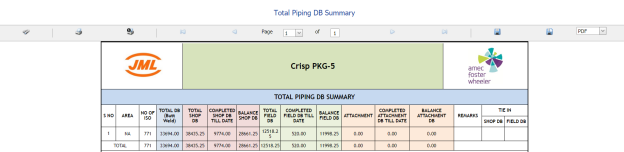](http://wiki.cuteinfocomm.com/uploads/images/gallery/2022-05/image-1651750679864.png)
**Figure 6.63: Total Piping DB Summary page**
#### **6.63.1 Print a DB Summary Report**
If you want to print a DB summary report, use [](http://wiki.cuteinfocomm.com/uploads/images/gallery/2022-05/image-1651750817968.png) and [](http://wiki.cuteinfocomm.com/uploads/images/gallery/2022-05/image-1651750873767.png) (print icons) provided in the **Total Piping DB Summary** page. See Fig 6.63.
1. If you want to print the current page of the DB summary report, click [](http://wiki.cuteinfocomm.com/uploads/images/gallery/2022-05/image-1651750895970.png) (print icon including the page number).
2. If you want to print all the pages of the DB summary report, click [](http://wiki.cuteinfocomm.com/uploads/images/gallery/2022-05/image-1651750923965.png) (print icon).
#### **6.63.2 Export a DB Summary Report**
You can export the DB summary report in various formats by using the option [](http://wiki.cuteinfocomm.com/uploads/images/gallery/2022-05/image-1651750964295.png) provided in the upper right corner of the **Total Piping DB Summary** page.
### **6.64 Weld Repair Report**
Weld Repair Report shows the weld repair details. If you want to view a weld repair report, do the following steps,
1. Click **Weld Repair Report** in the **Piping** menu.
The **Weld Repair Report** page opens.
2. In the **Repair No** box, select the repair number.
3. In the ****ISO/Drawing Number**** box, select the ISO drawing number.
4. Click **Go**.
The weld repair details open for the selected repair number.
[](http://wiki.cuteinfocomm.com/uploads/images/gallery/2022-05/image-1651751146401.png)
**Figure 6.64: Weld Repair Report page**
#### **6.64.1 Print a Weld Repair Report**
If you want to print a weld repair report, use [](http://wiki.cuteinfocomm.com/uploads/images/gallery/2022-05/image-1651751272809.png) and [](http://wiki.cuteinfocomm.com/uploads/images/gallery/2022-05/image-1651751530812.png) (print icons) provided in the **Weld Repair Report** page. See Fig 6.64.
1. If you want to print the current page of the weld repair report, click [](http://wiki.cuteinfocomm.com/uploads/images/gallery/2022-05/image-1651751510267.png) (print icon including the page number).
2. If you want to print all the pages of the weld repair report, click [](http://wiki.cuteinfocomm.com/uploads/images/gallery/2022-05/image-1651751567555.png)(print icon).
#### **6.64.2 Export a Weld Repair Report**
You can export the weld repair report in various formats by using the option [](http://wiki.cuteinfocomm.com/uploads/images/gallery/2022-05/image-1651751629536.png) provided in the upper right corner of the **Weld Repair Report** page.
### **6.65 Pending NDT Log Report**
Pending NDT Log Report shows the pending NDT log details. If you want to view the pending NDT log report, do the following steps,
1. Click **Pending NDT Log Report** in the **Piping** menu. The **Pending NDT Log** page opens.
2. In the **ISO/Drawing Number** box, select the ISO drawing number.
3. Click **Show Report**.
The pending NDT log details open for the selected ISO drawing number.
[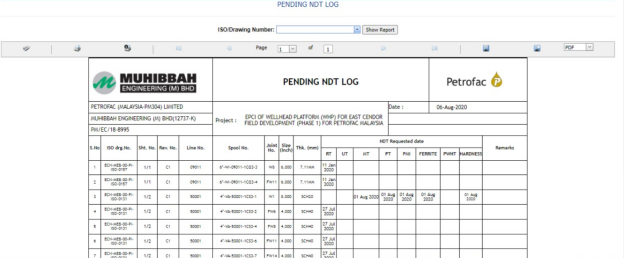](http://wiki.cuteinfocomm.com/uploads/images/gallery/2022-05/image-1651764468233.png)
**Figure 6.65: Pending NDT Log page**
#### **6.65.1 Print a Pending NDT Log Report**
If you want to print a pending NDT log report, use [](http://wiki.cuteinfocomm.com/uploads/images/gallery/2022-05/image-1651764552316.png) and [](http://wiki.cuteinfocomm.com/uploads/images/gallery/2022-05/image-1651764568047.png) (print icons) provided in the **Pending NDT Log** page. See Fig 6.65.
1. If you want to print the current page of the pending NDT log report, click [](http://wiki.cuteinfocomm.com/uploads/images/gallery/2022-05/image-1651764598993.png) (print icon including the page number).
2. If you want to print all the pages of the pending NDT log report, click [](http://wiki.cuteinfocomm.com/uploads/images/gallery/2022-05/image-1651764620957.png) (print icon).
#### **6.65.2 Export a Pending NDT Log Report**
You can export the pending NDT log report in various formats by using the option [](http://wiki.cuteinfocomm.com/uploads/images/gallery/2022-05/image-1651764853813.png) provided in the upper right corner of the **Pending NDT Log** page.
### **6.66 RT Films Status Report**
The **RT Film Status Report** tab in the **Piping** menu used to view the RT film status. If you want to view the RT film status report,
1. Click **RT Film Status Report** in the **Piping** menu. The **RT Film Report** page shows the RT film status.
[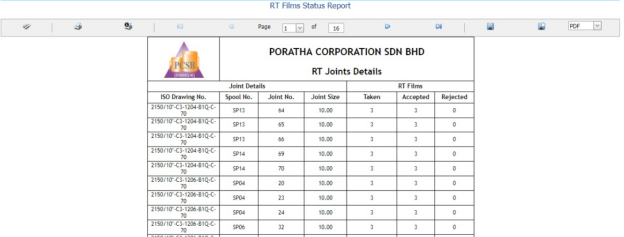](http://wiki.cuteinfocomm.com/uploads/images/gallery/2022-05/image-1651764909212.png)
**Figure 6.66: RT Film Status Report page**
#### **6.66.1 Print an RT Film Status Report**
If you want to print an RT film status report, use [](http://wiki.cuteinfocomm.com/uploads/images/gallery/2022-05/image-1651764981716.png) and [](http://wiki.cuteinfocomm.com/uploads/images/gallery/2022-05/image-1651764996485.png) (print icons) provided in the **RT Film Status Report** page. See Fig 6.66.
1. If you want to print the current page of the RT film status report, click [](http://wiki.cuteinfocomm.com/uploads/images/gallery/2022-05/image-1651765015334.png) (print icon including the page number).
2. If you want to print all the pages of the RT film status report, click [](http://wiki.cuteinfocomm.com/uploads/images/gallery/2022-05/image-1651765033658.png)(print icon).
#### **6.66.2 Export an RT Film Status Report**
You can export the RT film status report in various formats by using the option [](http://wiki.cuteinfocomm.com/uploads/images/gallery/2022-05/image-1651765119038.png) provided in the upper right corner of the **RT Film Status Report** page.