# NDT REPORTS
### **12.0 NDT REPORTS**
The **NDT REPORTS** tab allows you to check and update the NDT request raised in the web application, by adding and updating your inspection details. This feature automatically updates and synchronizes your inspection details with the NDT report that is uploaded in the web application.
[](http://wiki.cuteinfocomm.com/uploads/images/gallery/2022-05/image-1651724728567.png)
There are four main types of NDT Reports: **RT**, **UT**, **DPT**, and **MPT**.
[](http://wiki.cuteinfocomm.com/uploads/images/gallery/2022-05/image-1651724746255.png) **Note**: when you click the **NDT REPORTS** tab in the dashboard, the **NDT Reports page displays a list of reports corresponding to today and previous day. However, if you want to view the reports for other dates, you must navigate to the **TAKE OFFLINE DATA** option. (See " [**TAKE OFFLINE DATA**](http://wiki.cuteinfocomm.com/books/cuteqm/page/take-offline-data/#bkmrk-3.0-take-offline-dat)" for more details.)
1\. Tap **NDT REPORTS**.See Fig 2.3.
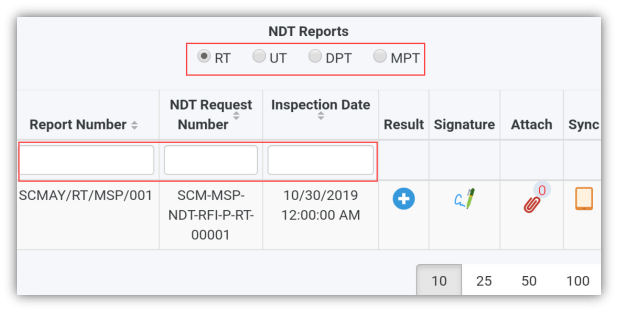
The **NDT Reports** page opens with a list of reports for the corresponding types such as **RT**, **UT**, **DPT**, and **MPT**. You must select the respective type to view the relevant reports.
[](http://wiki.cuteinfocomm.com/uploads/images/gallery/2022-05/image-1651724769042.png)
**Figure 13.1 NDT Reports page**
[](http://wiki.cuteinfocomm.com/uploads/images/gallery/2022-05/image-1651724786754.png) **Tip**: I. You can configure displaying of the number of reports per page by selecting **10**, **25**, **50** or **100**, accordingly.
1. If you want to filter one report among the list of reports, you must enter the report number, NDT request number or inspection date details in the respective boxes given in the **NDT Reports**page.
The **NDT Reports** page contains multiple fields such as **Report Number, NDT Request number, Inspection Date, Result**, **Signature**, **Attach, and Sync.** (See the topic “[The **MIR** page contains the following fields](http://wiki.cuteinfocomm.com/books/cuteqm/page/mir/#bkmrk-the-mir%C2%A0page-opens-w)“ for more details about each field in the **NDT Reports** page.)
[](http://wiki.cuteinfocomm.com/uploads/images/gallery/2022-05/image-1651724796738.png) **Tip**: In the **NDT Reports** option, the **Print** field is not available.
**To add your inspection result for NDT RT report**
1. Tap **RT**.
2. Once you find out the NDT RT report where you need to add your inspection details, tap [ ](http://wiki.cuteinfocomm.com/uploads/images/gallery/2022-05/image-1651724814358.png)(**Result** icon) to add your inspection results, See Fig 13.1.
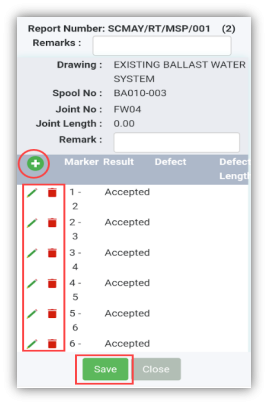
The **Result** page opens with a list of reports with the material details.
[](http://wiki.cuteinfocomm.com/uploads/images/gallery/2022-05/image-1651724834755.png)
Each report shows material specifications such as drawing number, spool number, joint number, and joint length.
3\. In the **Remarks**box, type your remarks if any.
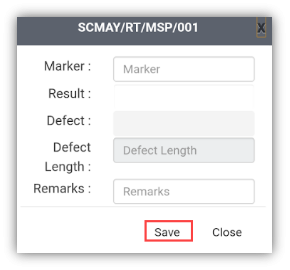
4\. If you want to add the new NDT RT report, tap [](http://wiki.cuteinfocomm.com/uploads/images/gallery/2022-05/image-1651724869487.png) (Add icon). A new window opens.
[](http://wiki.cuteinfocomm.com/uploads/images/gallery/2022-05/image-1651724886359.png)
- In the **Marker** box, enter the marker number.
- In the **Result**box, tap and choose **NA, Accepted, Rejected or Reshoot** from a drop-down list based on your inspection details.
- In the **Remarks**box, type your remarks if any.
- Tap **Save**.
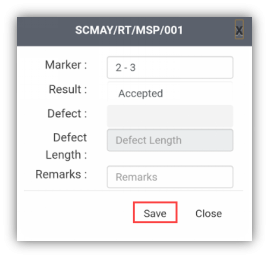
5\. If you want to edit the existing NDT RT report, tap [](http://wiki.cuteinfocomm.com/uploads/images/gallery/2022-05/image-1651725036927.png) (Edit icon). A new window opens.
[](http://wiki.cuteinfocomm.com/uploads/images/gallery/2022-05/image-1651725070898.png)
- In the **Marker** box, check and edit the marker number if you want.
- In the **Result**box, tap and choose **NA, Accepted, Rejected or Reshoot** from a drop-down list based on your inspection details.
- In the **Remarks**box, type your remarks if any.
- Tap **Save**.
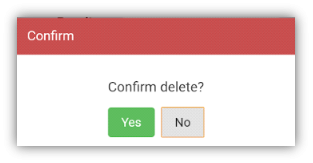
6\. If you want to delete any existing NDT RT report from a list, tap [](http://wiki.cuteinfocomm.com/uploads/images/gallery/2022-05/image-1651726402402.png) [ ](http://wiki.cuteinfocomm.com/uploads/images/gallery/2022-05/image-1651724984761.png)(Delete icon).
[](http://wiki.cuteinfocomm.com/uploads/images/gallery/2022-05/image-1651726418901.png)
You will receive the following notification: “**Confirm delete?**”. If you want to delete tab **Yes**, otherwise tab **No.**
7. Tap **Save**.
**To add your signature for NDT RT Report**
Once you have saved your inspection results, the **Result** page automatically redirects you into the **Signature** page. Otherwise, tap
[](http://wiki.cuteinfocomm.com/uploads/images/gallery/2022-05/image-1651726431481.png) (**Signature** icon), See Fig 10.1.
To know how to add your signature, see the topic “[**To add your signature**](http://wiki.cuteinfocomm.com/books/cuteqm/page/mir/#bkmrk-to-add-your-signatur)“.
**To add your inspection result for NDT UT, DPT, and MPT reports**
[](http://wiki.cuteinfocomm.com/uploads/images/gallery/2022-05/image-1651726442060.png)**Note**: Follow the same procedure to add result for the NDT UT, DPT or MPT reports.
1. Tap **UT**,**DPT** or **MPT,** See Fig 13.1.
2. Once you find out the NDT UT, DPT or MPT report, where you need to add your inspection details, tap [](http://wiki.cuteinfocomm.com/uploads/images/gallery/2022-05/image-1651726455537.png) (**Result** icon) to add your inspection results, See Fig 13.1.
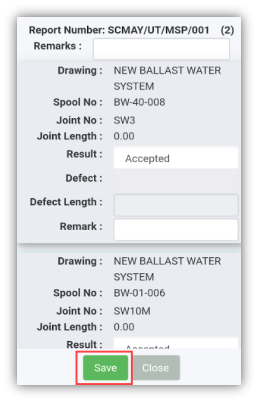
The **Result** page opens with a list of reports with the material details.
[](http://wiki.cuteinfocomm.com/uploads/images/gallery/2022-05/image-1651726478774.png)
Each report shows material specifications such as drawing number, spool number, joint number, and joint length.
3. In the **Remarks**box, type your remarks if any.
4. In the **Result**box, tab and choose **Accepted, Rejected or Cancelled** from a drop-down list based on your inspection details.
5. In the **Remarks**box, type your remarks if any.
6. Tap **Save**.
**To add your signature for NDT UT, DPT, and MPT reports**
Once you have saved your inspection results, the **Result** page automatically redirects you into the **Signature** page. Otherwise, tap
[](http://wiki.cuteinfocomm.com/uploads/images/gallery/2022-05/image-1651726493947.png) (**Signature** icon), See Fig 10.1.
To know how to add your signature, see the topic “[**To add your signature**](http://wiki.cuteinfocomm.com/books/cuteqm/page/mir/#bkmrk-to-add-your-signatur)“.