# MIR
# **6.0 MIR**
The **MIR** tab helps you to check and update a material verification report for the MIR requests, which are uploaded in the web application, by adding your inspection details. This MIR feature automatically updates and synchronizes your inspection details with the material verification report in the web application.
[](http://wiki.cuteinfocomm.com/uploads/images/gallery/2022-05/image-1651673391124.png)
[](http://wiki.cuteinfocomm.com/uploads/images/gallery/2022-05/image-1651673404205.png) **Note**: when you click the **MIR** tab in the dashboard, the **MIR** page displays a list of reports corresponding to today and previous day. However, if you want to view the reports for other dates, you must navigate to the **TAKE OFFLINE DATA** option. (See " [**TAKE OFFLINE DATA** ](http://wiki.cuteinfocomm.com/books/cuteqm/page/take-offline-data/#bkmrk-3.0-take-offline-dat)" for more details).
1\. Tap **MIR**. See Fig 2.3.
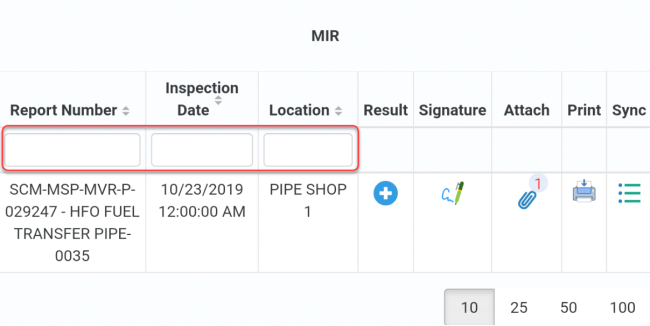
The **MIR** page opens with a list of reports for the selected date.
[](http://wiki.cuteinfocomm.com/uploads/images/gallery/2022-05/image-1651673464382.png)
**Figure 6.1 MIR page**
[](http://wiki.cuteinfocomm.com/uploads/images/gallery/2022-05/image-1651673486690.png) **Tip**: I. You can configure displaying of the number of reports per page by selecting **10**, **25**, **50** or **100**, accordingly.
1. If you want to filter one report among the list of reports, you must enter the report number, inspection date or location details in the respective boxes given in the **MIR** page.
The **MIR** page contains the following fields:
- **Report Number**– shows the request’s report number.
- **Inspection Date**– shows the date of inspection.
- **Location**– shows the location where the inspection to be performed.
- **Result**– you can add your inspection results.
- **Signature**– you can add your signature after completing the inspection.
- **Attach –** you can view any supporting document that is attached in the web application by tapping [](http://wiki.cuteinfocomm.com/uploads/images/gallery/2022-05/image-1651673505795.png) (**Attach** icon).
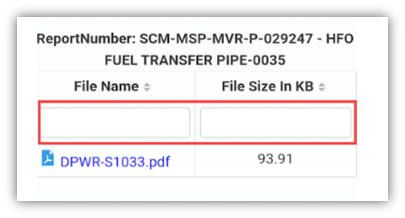
[](http://wiki.cuteinfocomm.com/uploads/images/gallery/2022-05/image-1651673543849.png) **Tip**: You can filter the supporting document by using the **File Name** and **File Size in KB** options provided in the **Attach** page. See Fig given below.
[](http://wiki.cuteinfocomm.com/uploads/images/gallery/2022-05/image-1651673560133.png)
- **Print**– you can download a copy of the report by tapping [](http://wiki.cuteinfocomm.com/uploads/images/gallery/2022-05/image-1651673571083.png) (**Print** icon). [](http://wiki.cuteinfocomm.com/uploads/images/gallery/2022-05/image-1651673620088.png) **Tip**: After adding your inspection details and signature into the MIR report, you can download a latest copy of the report by using the **Print** option to check whether your inspection details and signature are successfully updated with the report.
- **Sync –** notifieswhether your inspection details are automatically synchronized with the web application or not. This **Sync** section initially shows the Sync icon like [](http://wiki.cuteinfocomm.com/uploads/images/gallery/2022-05/image-1651673649444.png) . Once you add your inspection details the Sync icon appears in [](http://wiki.cuteinfocomm.com/uploads/images/gallery/2022-05/image-1651673681621.png). After synchronization of your inspection details, the **Sync** section changes the Sync icon into [ .](http://wiki.cuteinfocomm.com/uploads/images/gallery/2022-05/image-1651673708313.png)
[](http://wiki.cuteinfocomm.com/uploads/images/gallery/2022-05/image-1651673737396.png) **Tip**: If your inspection details are not automatically synchronized, navigate to the manual synchronization option. (See “[**Sync Data** ](http://wiki.cuteinfocomm.com/books/cuteqm/page/user-management-FuQ/#bkmrk-clear-storage---clea)“for more details.)
**To add your MIR inspection result**
1. Once you find out the report where you need to add your inspection details, tap [](http://wiki.cuteinfocomm.com/uploads/images/gallery/2022-05/image-1651673759065.png) (**Result** icon) to add your inspection results, See Fig 7.1.
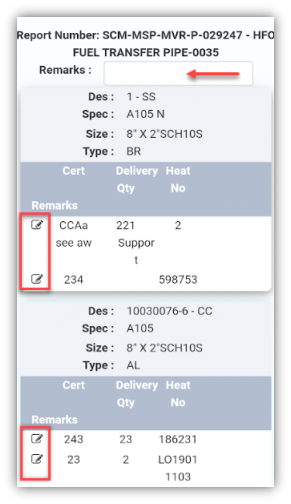
The **Result** page opens with a list of reports with the material details. Each report shows material specifications such as description, specification, size, and type.
[](http://wiki.cuteinfocomm.com/uploads/images/gallery/2022-05/image-1651673801652.png)
2. In the **Remarks**box, type your remarks if any.
3. In **Cert** column, [](http://wiki.cuteinfocomm.com/uploads/images/gallery/2022-05/image-1651673823588.png)tap (Edit icon) for the report you want to add your result.
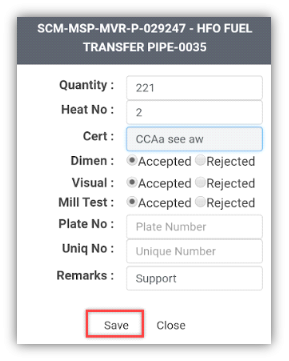
A new page for the selected report opens.
[](http://wiki.cuteinfocomm.com/uploads/images/gallery/2022-05/image-1651673846711.png)
4. Check and re-enter **Quantity** of the materials if you want.
5. In **Heat No** box, enter the heat number.
6. Checkthe certificate number in the **Cert
7. In **Dimen**, **Visual**, and **Mill Test**options, choose **Accepted** or **Rejected** based on your inspection details.
8. In **Plate No**box, enter the plate number.
9. In **Uniq No**box, enter the unique number.
10. In the **Remarks**box, type your remarks if any.
11. Tap **Save**.
**To add your signature**
Once you have saved your inspection results, you must add your signature in the **Signature** field.
[](http://wiki.cuteinfocomm.com/uploads/images/gallery/2022-05/image-1651673866018.png) **Note**: Make sure that you can add your signature if your role has assigned as QA, Subcontractor, Client or Owner, by the administrator.
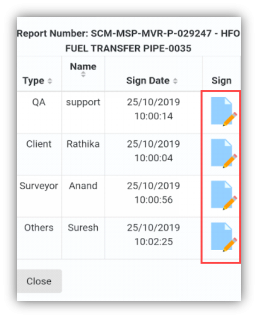
1. Tap [](http://wiki.cuteinfocomm.com/uploads/images/gallery/2022-05/image-1651673881470.png) (**Signature** icon), See Fig 7.1. The signature page opens.
[](http://wiki.cuteinfocomm.com/uploads/images/gallery/2022-05/image-1651673899480.png) **Note**: If you are a login user, you can directly do sign for the respective role in the signature box, otherwise you must login with your user id and password before signing.
[](http://wiki.cuteinfocomm.com/uploads/images/gallery/2022-05/image-1651673926231.png)
2. Tap [](http://wiki.cuteinfocomm.com/uploads/images/gallery/2022-05/image-1651673939066.png) (**Sign** icon) provided in the right-side pane for the corresponding **Type** based on your role.
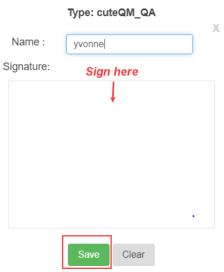
A new signature box opens.
[](http://wiki.cuteinfocomm.com/uploads/images/gallery/2022-05/image-1651673958191.png)
3. In the **Name** box, enter your name.
[](http://wiki.cuteinfocomm.com/uploads/images/gallery/2022-05/image-1651673974828.png) Note: If your role has assigned as QA, your name will be displayed automatically in the **Name** box. Other than QA, you must add your name before signing.
4. In the **Signature** box, write your signature, and tap **Save**.