# Materials
### **4.0 Materials**
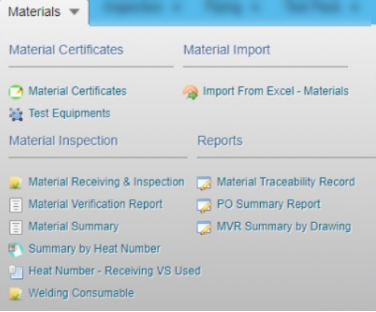
The **Materials** menu in the home page of the ***cuteQM*** app used to add the material details such as material certificates, material inspection details, material import details, and material summary and traceability record. Once you click the **Materials** menu, the following tabs open,
[](http://wiki.cuteinfocomm.com/uploads/images/gallery/2022-04/image-1651160222152.png)
The **Materials** menu appears with four options such as **Material Certificates, Material Import, Material Inspection,** and **Reports**.
- The ****Material Certificates**** option helps you to add certificates details of the materials to be in the piping project.
- The ****Material Import**** option helps you to add the bulk materials.
- The ****Material Inspection**** option helps you to add material receiving and inspection report, and material summary by heat number.
- The **Reports** option used to add material traceability record.
### **4.1 Material Certificates**
Material certificate (Mill certificate) is a certificate document used to certify that the product is produced by manufacturing standards of the mill. The material certificate contains the following information: component name, manufacturer name, certification ID, component dimension and heat numbers. Once you have received the materials from the manufacturer, you must enter the details of material certificates.
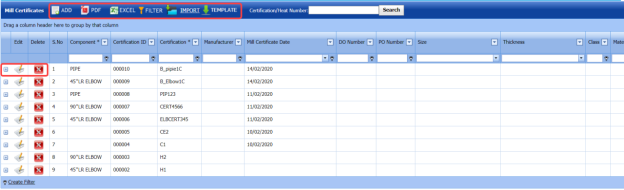
The **Mill Certificates** tab used to add the received material certificate details. If you want to add material certificate details, do the following,
1. Click ****Material Certificates**** in the ****Materials** menu. The **Mill Certificates** page opens.
[](http://wiki.cuteinfocomm.com/uploads/images/gallery/2022-04/image-1651160657192.png)
**Figure 4.1: Mill Certificates page**
#### **4.1.1 Add a Material Certificate**
If you want to add a material certificate, do the following,
1. Click [](http://wiki.cuteinfocomm.com/uploads/images/gallery/2022-04/image-1651160868230.png) (****ADD**** button) in the ****Mill Certificates**** See Fig 4.1.
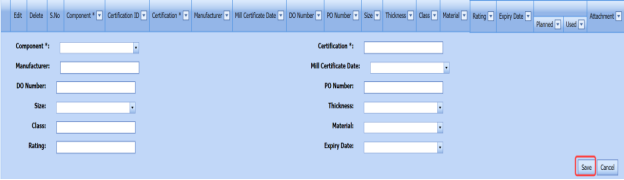
A new window opens to add a material certificate.
[](http://wiki.cuteinfocomm.com/uploads/images/gallery/2022-04/image-1651160894268.png)
[](http://wiki.cuteinfocomm.com/uploads/images/gallery/2022-04/image-1651160928288.png)**Note**: The field notified with a symbol (\*) is mandatory. You must enter the relevant details in that fields before saving.
2. In the ****Component**** box, select the received component from a drop-down list.
3. In the ****Certification**** box, enter the certification number of the component.
4. In the ****Manufacturer**** box, enter the name of the manufacturer.
5. In the ****Mill Certificate Date**** box, choose the mill certificate date.
6. In the ****Delivery Order (DO) Number**** box, enter the delivery order number of the component.
7. In the **Purchase Order (PO)** Number box, enter the purchase order number of the component.
8. In the ****Size**** box, select the size of the received component.
9. In the ****Thickness**** box, select the thickness of the received component.
10. In the ****Class**** box, enter the class of the received component.
11. In the ****Material**** box, select the type of material where the component is made from.
12. In the ****Rating**** box, enter the rating of the component.
13. In the ****Expiry Date**** box, choose the expiry date of the component.
14. Click **Save**.
The material certificate is successfully added. Once you have added the mill certificate, you must add heat numbers for the added component.
#### **4.1.2 Add Heat Numbers of Material**
If you want to add heat numbers, do the following steps,
1. Click[](http://wiki.cuteinfocomm.com/uploads/images/gallery/2022-04/image-1651161203160.png) (Add icon) of the respective mill certificate.
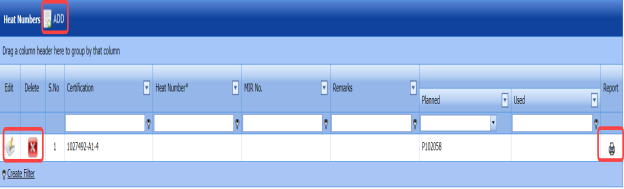
The **Heat Numbers** box opens.
[](http://wiki.cuteinfocomm.com/uploads/images/gallery/2022-04/image-1651161228682.png)
**Figure 4.1.1: Heat Numbers page**
2. Click [](http://wiki.cuteinfocomm.com/uploads/images/gallery/2022-04/image-1651161449804.png) (****ADD**** button) in the ****Heat Numbers**** box.
A new window opens to add the heat number.
[](http://wiki.cuteinfocomm.com/uploads/images/gallery/2022-04/image-1651161480411.png)
3. In the **planned Project** box, select a project you want from a drop-down list.
4. In the ****Heat Number**** box, enter the heat number.
5. In the ****Remarks**** box, enter your remarks if any.
6. Click ****Save****. The heat number is successfully added for the specific component.
[](http://wiki.cuteinfocomm.com/uploads/images/gallery/2022-04/image-1651161542724.png)**Note**: You can edit and delete the added heat numbers by using the respective [](http://wiki.cuteinfocomm.com/uploads/images/gallery/2022-04/image-1651161565571.png)(Edit icon) and [](http://wiki.cuteinfocomm.com/uploads/images/gallery/2022-04/image-1651161576340.png) (Delete icon).
#### **4.1.3 Edit a Mill Certificate**
If you want to edit any existing mill certificate in the **Mill Certificates** page, do the following,
1. Click [](http://wiki.cuteinfocomm.com/uploads/images/gallery/2022-04/image-1651161643799.png)(Edit icon) in the ****Edit**** column for the respective mill certificate. See Fig 4.1.
A new window opens including the added mill certificate details.
[](http://wiki.cuteinfocomm.com/uploads/images/gallery/2022-04/image-1651161683734.png)
2. Click any box where you want to edit the details, and then edit the details in the respective box.
3. Click **Save**.
#### **4.1.4 Delete a Mill Certificate**
If you want to delete any existing mill certificate in the **Mill Certificates** page, you can use (Delete icon) provided in the **Mill Certificates** page. To know how to delete, see the topic, “**[Delete P&ID](http://wiki.cuteinfocomm.com/books/cuteqm/page/project-data/#bkmrk-3.1.3%C2%A0delete-a-p%26id)**”.
#### **4.1.5 Export Mill Certificates List**
You can export a list of mill certificates added in the **Mill Certificates** page in both the pdf and excel formats by using [](http://wiki.cuteinfocomm.com/uploads/images/gallery/2022-04/image-1651161797978.png) (**PDF** button) and [](http://wiki.cuteinfocomm.com/uploads/images/gallery/2022-04/image-1651161814673.png) (**Excel** button). To know how to export, see the topic, “**[Export P&ID list](http://wiki.cuteinfocomm.com/books/cuteqm/page/project-data/#bkmrk-3.1.4%C2%A0export-p%26id-li)**”.
#### **4.1.6 Filter a Mill Certificate**
If you want to filter any specific mill certificate in the **Mill Certificates** page,
- you can use the filter box [](http://wiki.cuteinfocomm.com/uploads/images/gallery/2022-04/image-1651161878235.png)
provided in the upper side of the ****Mill Certificates**** To filter the mill certificate, enter the certification or heat number in the box and click ****Search****.
- you can also use [](http://wiki.cuteinfocomm.com/uploads/images/gallery/2022-04/image-1651161906470.png) (**FILTER** button) located on the **Mill Certificates To know how to filter using the **Filter** button, see the topic, “**[Filter P&ID](http://wiki.cuteinfocomm.com/books/cuteqm/page/project-data/#bkmrk-3.1.5%C2%A0filter-a-p%26id)**”.
#### **4.1.7 Import Multiple Mill Certificates**
If you want to import multiple mill certificates together, do the following,
1. Click [](http://wiki.cuteinfocomm.com/uploads/images/gallery/2022-04/image-1651161989979.png) (**TEMPLATE** button) on the **Mill Certificates** See Fig 4.1
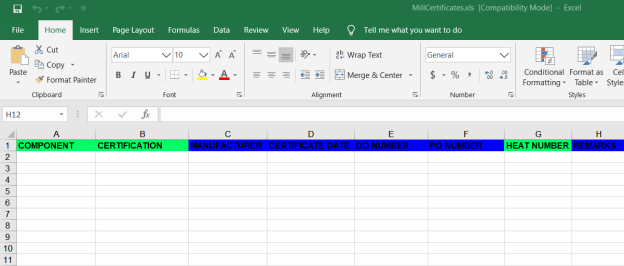
A template will be downloaded as an excel worksheet with a pre-defined template to enter the details of multiple mill certificates.
[](http://wiki.cuteinfocomm.com/uploads/images/gallery/2022-04/image-1651162060142.png)
2. Enter the relevant details in the required columns on the excel worksheet.
3. Once you have added the mill certificates details in the excel worksheet, save the excel worksheet on your computer.
4. Click [](http://wiki.cuteinfocomm.com/uploads/images/gallery/2022-04/image-1651162107209.png) (**IMPORT** button). See Fig 4.1.
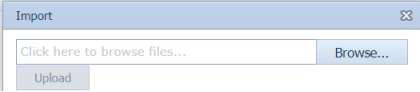
A new window opens for importing the excel worksheet saved on your computer.
[](http://wiki.cuteinfocomm.com/uploads/images/gallery/2022-04/image-1651162134967.png)
5. Click [](http://wiki.cuteinfocomm.com/uploads/images/gallery/2022-04/image-1651162144397.png) (**Browse** button) to select the excel worksheet to be uploaded.
6. Select the excel worksheet you want to upload from your computer.
7. Click [](http://wiki.cuteinfocomm.com/uploads/images/gallery/2022-04/image-1651162180854.png) (**Upload** button) to export the mill certificates that are included in the excel worksheet.
The details of the mill certificates in the worksheet will be displayed in the **Mill Certificates** page.
#### **4.1.8 Attach a File into a Mill Certificate**
If you want to attach any file with a mill certificate listed in the **Mill Certificates** page, you can attach the file by using [](http://wiki.cuteinfocomm.com/uploads/images/gallery/2022-04/image-1651162256071.png) (Attach icon) in the **Attachment** column. To know how to attach, follow the procedures given in the topic “[**Attach a file into P&ID**](http://wiki.cuteinfocomm.com/books/cuteqm/page/project-data/#bkmrk-3.1.7%C2%A0attach-a-file-)”.
### **4.2 Test Equipments**
The **Test Equipments** tab in the **Materials** menu used to add the details of a test equipment to be used in the piping project. To add a test equipment,
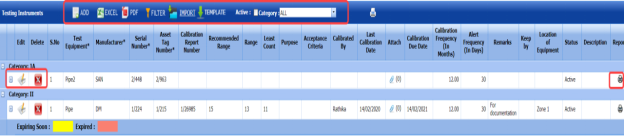
1. Click ****Test Equipments**** in the ****Materials** menu. The **Testing Equipments** page opens.
[](http://wiki.cuteinfocomm.com/uploads/images/gallery/2022-04/image-1651162347946.png)
**Figure 4.2: Testing Equipments page**
#### **4.2.1 Add a Test Equipment**
If you want to add a test equipment, do the following steps,
1. Click [](http://wiki.cuteinfocomm.com/uploads/images/gallery/2022-04/image-1651162410824.png) (**ADD** button) in the **Testing Equipments** See Fig 4.2.
A new window opens to add a test equipment.
[](http://wiki.cuteinfocomm.com/uploads/images/gallery/2022-04/image-1651162460513.png)
[](http://wiki.cuteinfocomm.com/uploads/images/gallery/2022-04/image-1651162503766.png)**Note**: The field notified with a symbol (\*) is mandatory. You must enter the relevant details in that fields before saving.
2. In the **Category** box, enter the category of the test equipment.
3. In the ****Test Equipment**** box, enter the name of the test equipment.
4. In the ****Manufacturer**** box, enter the name of the manufacturer.
5. In the ****Asset Tag Number**** box, enter the asset tag number of the test equipment.
6. In the ****Serial Number**** box, enter the serial number of the test equipment.
7. In the ****Recommended Range**** box, enter the recommended range of test equipment.
8. In the ****Range**** box, enter the actual range of test equipment.
9. In the ****Least Count**** box, enter the least count of the test equipment.
10. In the ****Purpose**** box, enter the purpose of the test equipment.
11. In the **Calibration Frequency (in Months)** box, the calibration frequency duration will be updated automatically. If you want to change the duration you can change.
12. In the ****Alert Frequency****(in Days)**** box, the alert frequency duration will be updated automatically. If you want to change the duration you can change.
13. In the ****Acceptance Criteria**** box, enter the acceptance criteria.
14. In the ****Remarks**** box, enter your remarks if any.
15. In the ****Status**** box, select the status of the test equipment.
16. In the ****Location of Equipment**** box, enter the equipment location detail.
17. In the ****Description**** box, enter the description for the test equipment.
18. Click ****Save****. The test equipment is successfully saved.
#### **4.2.2 Update Calibration Details**
Once you have added the test equipment, you must add the details of calibration, where the calibration is comparison between a standard measurement and the measurement using the test equipment. To add the calibration details,
1. Click [](http://wiki.cuteinfocomm.com/uploads/images/gallery/2022-04/image-1651162784258.png) (Add icon) of the respective test equipment.
The **Calibration** window opens.
[](http://wiki.cuteinfocomm.com/uploads/images/gallery/2022-04/image-1651162805576.png)
2. Click [](http://wiki.cuteinfocomm.com/uploads/images/gallery/2022-04/image-1651162823753.png) (**ADD** button) in the **Calibration** window.
A new window opens to add the calibration details.
[](http://wiki.cuteinfocomm.com/uploads/images/gallery/2022-04/image-1651162855335.png)
3. In the **Calibration Report Number** box, enter the calibration report number.
4. In the **Calibration Date** box, select the calibration date.
5. In the ****Calibration**** By box, enter the name of a person who has calculated the calibration.
6. In the ****Calibration Due Date**** box, select the due date of calibration.
7. In the **Preparation By** box, enter the name of a person who has prepared the calibration report.
8. In the ****Approved By**** box, enter the name of a person who has approved the calibration report.
9. Click ****Update****. The calibration details will be updated.
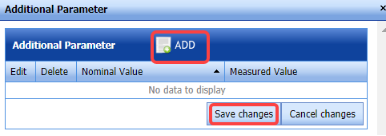
10. If you want to add additional data, click **Additional Data** option in the **Calibration** window.
The **Additional Parameter** window opens.
[](http://wiki.cuteinfocomm.com/uploads/images/gallery/2022-04/image-1651162953831.png)
1. 1. Click [](http://wiki.cuteinfocomm.com/uploads/images/gallery/2022-04/image-1651162985360.png) (**ADD** button) in the **Additional Parameter**
2. In the ****Nominal Value**** column, enter the nominal value.
3. In the ****Measured Value**** column, enter the measured value.
4. Click ****Save Changes****.
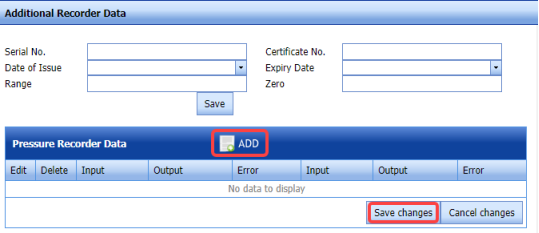
11. If you want to add pressure data, click **Pressure Data** option in the **Calibration** window.
The **Pressure Recorder Data** window opens.
[](http://wiki.cuteinfocomm.com/uploads/images/gallery/2022-04/image-1651163042694.png)
1. 1. In the ****Additional Recorder Data**** field, enter the details of additional recorder data.
2. Click [](http://wiki.cuteinfocomm.com/uploads/images/gallery/2022-04/image-1651163069039.png) (**ADD** button) in the **Pressure Recorder Data** window.
3. In the ****Input**** and ****Output**** columns, enter the input and output values.
4. In the ****Error**** column, enter the error value.
5. Click **Save Changes**.
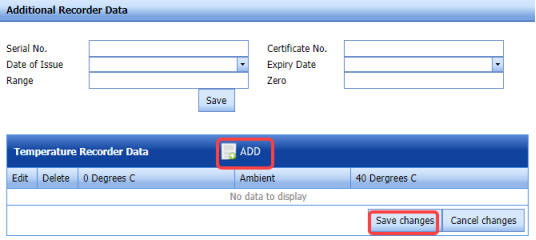
12. If you want to add temperature data, click ****Temperature Data**** option in the ******Calibration****** window. The **Temperature Recorder Data** window opens.
[](http://wiki.cuteinfocomm.com/uploads/images/gallery/2022-04/image-1651163190830.png)
1. 1. In the ****Additional Recorder Data**** field, enter the details of additional recorder data.
2. Click [](http://wiki.cuteinfocomm.com/uploads/images/gallery/2022-04/image-1651163229408.png) (**ADD** button) in the **Temperature Recorder Data** window.
3. In the ****0 Degrees C**** column, enter the calibration value at 0 degree.
4. In the ****Ambient**** column, enter the ambience value.
5. In the 4****0 Degrees C**** column, enter the calibration value at 40 degree.
6. Click ****Save Changes****.
#### **4.2.3 Edit a Test Equipment**
If you want to edit any existing test equipment in the **Testing Equipments** page,
1. Click [](http://wiki.cuteinfocomm.com/uploads/images/gallery/2022-04/image-1651163343682.png) (Edit icon) of the respective test equipment. See Fig 4.2.
The **Testing Equipment** page shows the details of the selected test equipment.
2. Edit the details where you want.
3. Click **Save**.
#### **4.2.4 Delete a Test Equipment**
If you want to delete any existing test equipment in the **Testing Equipment** page, you can use [](http://wiki.cuteinfocomm.com/uploads/images/gallery/2022-04/image-1651163416136.png) (Delete icon) provided in the **Testing Equipment** page. To know how to delete, see the topic, “[**Delete P&ID**](http://wiki.cuteinfocomm.com/books/cuteqm/page/project-data/#bkmrk-3.1.3%C2%A0delete-a-p%26id)”.
#### **4.2.5 Export Test Equipment list**
You can export a list of test equipments added in the **Test Equipment** page in both the pdf and excel formats by using [](http://wiki.cuteinfocomm.com/uploads/images/gallery/2022-04/image-1651163465862.png) (**PDF** button) and [](http://wiki.cuteinfocomm.com/uploads/images/gallery/2022-04/image-1651163476334.png) (**Excel** button). To know how to export, see the topic, “[**Export P&ID list**](http://wiki.cuteinfocomm.com/books/cuteqm/page/project-data/#bkmrk-3.1.4%C2%A0export-p%26id-li)”.
#### **4.2.6 Filter a Test Equipment**
If you want to filter any specific test equipment in the **Testing Equipment** page,
1. you can use the category wise filter box [](http://wiki.cuteinfocomm.com/uploads/images/gallery/2022-04/image-1651163518308.png) provided in the upper side of the **Testing Equipment** To filter the testing equipment, select the category from the drop-down list.
2. you can also use [](http://wiki.cuteinfocomm.com/uploads/images/gallery/2022-04/image-1651163568393.png) (**FILTER** button) located on the **Testing Equipment To know how to filter using the **Filter** button, see the topic, “[**Filter P&ID**](http://wiki.cuteinfocomm.com/books/cuteqm/page/project-data/#bkmrk-3.1.5%C2%A0filter-a-p%26id)”.
#### **4.2.7 Import Multiple Test Equipments**
If you want to import multiple test equipments together, do the following,
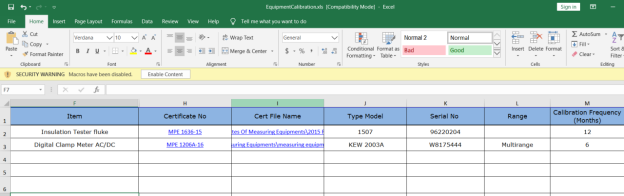
1. Click [](http://wiki.cuteinfocomm.com/uploads/images/gallery/2022-04/image-1651163686212.png) (**TEMPLATE** button). See Fig 4.2.
An excel worksheet will be downloaded with a predefined template to enter the details of test equipments.
[](http://wiki.cuteinfocomm.com/uploads/images/gallery/2022-04/image-1651163714989.png)
2. Enter the required test equipment details in the respective columns of the excel worksheet.
3. Once you have added the test equipment details in the excel worksheet, save the excel worksheet on your computer.
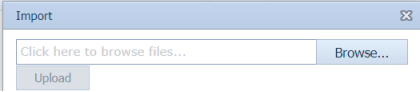
4. Click [](http://wiki.cuteinfocomm.com/uploads/images/gallery/2022-04/image-1651163752394.png) (**IMPORT** button). See Fig 4.2.
A new window opens for importing the excel worksheet saved on your computer.
[](http://wiki.cuteinfocomm.com/uploads/images/gallery/2022-04/image-1651163782872.png)
5. Click [](http://wiki.cuteinfocomm.com/uploads/images/gallery/2022-04/image-1651163789045.png) (**Browse** button) to select the excel worksheet to be uploaded.
6. Select the excel worksheet you want to upload from your computer.
7. Click [](http://wiki.cuteinfocomm.com/uploads/images/gallery/2022-04/image-1651163813900.png) (**Upload** button) to export the test equipment details that are included in the excel worksheet.
The details of the test equipments in the worksheet will be displayed in the **Testing Equipment** page.
#### **4.2.8 Attach a File into a Test Equipment**
If you want to attach any file with any existing test equipment listed in the **Testing Equipment** page, you can attach the file by using [](http://wiki.cuteinfocomm.com/uploads/images/gallery/2022-04/image-1651163889766.png)(Attach icon) in the **Attachment** column. To know how to attach, follow the procedures given in the topic “[**Attach a file into P&ID**](http://wiki.cuteinfocomm.com/books/cuteqm/page/project-data/#bkmrk-3.1.7%C2%A0attach-a-file-)”.
#### **4.2.9 View a Calibration History Card**
To view a calibration history card, click (Print icon) of the respective test equipment, which is provided in the **Report** column of the **Testing Equipment** page.
### **4.3 Material Receiving and Inspection (Heat Numbers)**
Material Receiving Inspection validates quality of purchased raw materials based on set acceptance criteria before the materials are used for the piping project.
The **Material Receiving and Inspection** tab in the **Materials** menu helps you to add an incoming material inspection report (MIR). Incoming MIR includes material name, material size, material specification, heat numbers, and material type.
If you want to add an incoming MIR, do the following,
1. Click the ****Material Receiving and Inspection**** tab in the ******Materials******The **Incoming Material Inspection Report** page opens.
[](http://wiki.cuteinfocomm.com/uploads/images/gallery/2022-04/image-1651164044201.png)
**Figure 4.3: Incoming Material Inspection Report page**
#### **4.3.1 Add an Incoming MIR**
If you want to add an incoming MIR,
1. Click [](http://wiki.cuteinfocomm.com/uploads/images/gallery/2022-04/image-1651164100256.png) (**ADD** button) in the **Incoming Material Inspection Report** page. See Fig 4.3.
A new window opens to add an incoming MIR.
[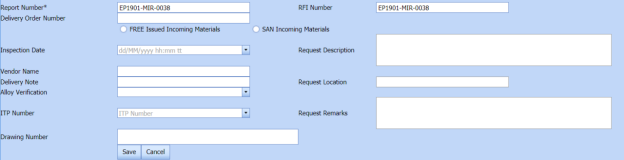](http://wiki.cuteinfocomm.com/uploads/images/gallery/2022-04/image-1651164143568.png)
[](http://wiki.cuteinfocomm.com/uploads/images/gallery/2022-04/image-1651164152732.png)**Note**: The fields notified with a symbol (\*) are mandatory. You must enter the relevant details in that fields before saving.
[](http://wiki.cuteinfocomm.com/uploads/images/gallery/2022-04/image-1651164177224.png)**Tip**: A report number and a Request for Inspection (RFI) number for a new MIR will be updated automatically in the **Report Number** and the **RFI Number** boxes, respectively.
2. In the ****Delivery Order Number**** box, enter the material’s delivery order number.
3. If the materials are received from a client, select the ****SAN Incoming Materials**** option, and then enter the relevant details in the respective boxes. [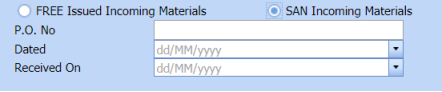](http://wiki.cuteinfocomm.com/uploads/images/gallery/2022-04/image-1651164323964.png)
1. 1. In the **P**.****O. No**** box, enter the purchase order number.
2. In the ****Dated**** box, choose the date of the purchase order.
3. In the ****Received On**** box, select the received date of materials.
4. If the materials are purchased from outside, select the ****FREE Issued Incoming Materials**** option, and then enter the relevant details in the respective boxes. [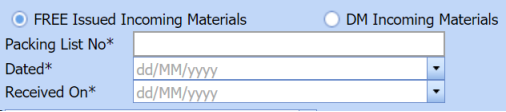](http://wiki.cuteinfocomm.com/uploads/images/gallery/2022-04/image-1651164391075.png)
1. 1. In the **Packing List No** box, enter the packing list number.
2. In the ****Dated**** box, choose the date of packing.
3. In the ****Received On**** box, choose the received date of materials.
5. In the ****Inspection Date**** box, choose the date of inspection.
6. In the ****Vendor Name**** box, enter the vendor name.
7. In the ****Request Description**** box, enter the request description.
8. In the ****ITP Number**** box, select an ITP number.
9. In the ****Delivery Note**** box, enter the delivery note.
10. In the ****Location**** box, enter the location name.
11. In the ****Sub Contractor**** box, select the subcontractor name from a drop-down list.
12. Click ****Save****. The incoming MIR is successfully added. Once you have added the MIR, you must add the material details for the added MIR.
#### **4.3.2 Add Materials for an Incoming MIR**
If you want to add the details of materials for the added incoming MIR, do the following steps,
1. Click[](http://wiki.cuteinfocomm.com/uploads/images/gallery/2022-04/image-1651166446901.png)(Edit icon) in the **Edit MIR** column of the **Incoming Material Inspection Report** See Fig 4.3.
The **Add/Edit - Materials** window opens.
[](http://wiki.cuteinfocomm.com/uploads/images/gallery/2022-04/image-1651166494934.png)
**Figure 4.3.1: Add/Edit – Materials window**
2. Click [](http://wiki.cuteinfocomm.com/uploads/images/gallery/2022-04/image-1651166566688.png) (**ADD** button) in the **Add/Edit - Materials** window,
A new window opens to add the material details.
[](http://wiki.cuteinfocomm.com/uploads/images/gallery/2022-04/image-1651166607288.png)
[](http://wiki.cuteinfocomm.com/uploads/images/gallery/2022-04/image-1651166623989.png)**Note**: The fields notified with a symbol (\*) are mandatory. You must enter the relevant details in that fields before saving.
3. In the ****Material Description**** box, enter the material description.
4. In the ****Material** **Size**** box, select the size of the material.
5. In the ****Material Specification**** box, enter the material specification.
6. In the ****Material Type**** box, enter the type of the material.
7. In the ****Quantity Required**** box, enter the required quantity of the material.
8. In the ****Item No**** box, enter the item number.
9. In the ****Weight**** box, enter the weight of the material.
10. In the ****Component**** box, select a component.
11. Click **Update**.
Once you have added the material details, you must add the heat numbers for the added materials.
#### **4.3.3 Add Heat Numbers**
1. Click[](http://wiki.cuteinfocomm.com/uploads/images/gallery/2022-04/image-1651166783881.png)(Add icon) of the respective material in the **Add/Edit - Materials** window. See Fig 4.3.1.
The **Heat Numbers** window opens.
[](http://wiki.cuteinfocomm.com/uploads/images/gallery/2022-04/image-1651166822333.png)
2. Click [](http://wiki.cuteinfocomm.com/uploads/images/gallery/2022-04/image-1651166831350.png) (**ADD** button) in the **Heat Numbers** window.
A new window opens to add a heat number.
[](http://wiki.cuteinfocomm.com/uploads/images/gallery/2022-04/image-1651166858067.png)
3. In the **Heat Number/Certificates** box, select the heat number from a drop-down list.
4. In the **Plate Number/Coil Number/ Tag Number** box, enter the plate number or coil number or tag number of the material.
5. In the ****Delivery Quantity (Total)**** box, enter the total delivery quantity of the material including UOM.
6. In the ****Delivery Quantity (Partial)**** box, enter the partial delivery quantity of the material including UOM.
7. In the ****Dimensions**** option, select ****Accepted**** or ****Rejected**** based on the inspection detail.
8. In the ****Visual**** option, select ****Accepted**** or ****Rejected**** based on the inspection detail.
9. In the ****Mill Test Certificates (MTC)**** option, select ****Accepted**** or ****Rejected**** based on the inspection detail.
10. In the ****Remarks**** box, enter your remarks if any.
11. If the heat treatment is required for the material, select ****YES**** in the ****Heat Treatment**** Otherwise select ****NO****.
12. In the NDE is required for the material, select ****YES**** in the ****NDE**** Otherwise select ****NO****.
13. Click **Update.**
[](http://wiki.cuteinfocomm.com/uploads/images/gallery/2022-04/image-1651166988046.png)**Note**: If you want to manage the review material TC, click [](http://wiki.cuteinfocomm.com/uploads/images/gallery/2022-04/image-1651167005116.png) (Add icon). The Review Material TC window opens to add the material checklist detail.
#### **4.3.4 Add MIR Details**
If you want to add the details of MIR,
1. Click[](http://wiki.cuteinfocomm.com/uploads/images/gallery/2022-04/image-1651167084279.png)(Add icon) in the ****Add**** See Fig 4.3.
The **MIR Details** window opens.
[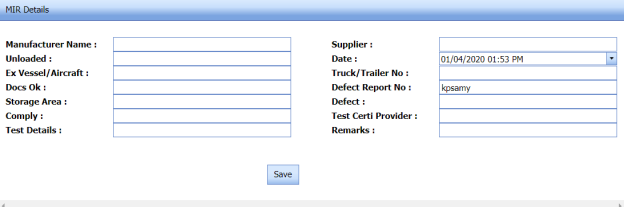](http://wiki.cuteinfocomm.com/uploads/images/gallery/2022-04/image-1651167099492.png)
2. In the ****Manufacturer**** Name box, enter the manufacturer name.
3. In the ****Supplier**** box, enter the supplier name.
4. In the ****Unloaded**** box, enter the unloaded detail.
5. In the ****Date**** box, select the date of MIR.
6. In the ****Truck/Trailer No**** box, enter the truck/trailer number.
7. In the ****Defect Report No**** box, enter the defect report number.
8. In the ****Storage Area**** box, enter the storage area name.
9. In the ****Defect**** box, enter the defect detail.
10. In the ****Remarks**** box, enter your remarks if any.
11. Click **Save**.
#### **4.3.5 Print an Incoming MIR Report**
If you want to print an incoming MIR report, click[](http://wiki.cuteinfocomm.com/uploads/images/gallery/2022-04/image-1651167434292.png) (print icon) provided in the **Report** column of the **Incoming Material Inspection Report** page. See Fig 4.3.
#### **4.3.6 Print a Report with MTC**
If you want to print an incoming MIR report including MTC, click [ ](http://wiki.cuteinfocomm.com/uploads/images/gallery/2022-04/image-1651167444941.png)(print icon) provided in the **Report** **with MTC** column of the **Incoming Material Inspection Report** page. See Fig 4.3.
#### **4.3.7 Print a Report Raw Material Offer List**
If you want to print a report raw material offer list, click [](http://wiki.cuteinfocomm.com/uploads/images/gallery/2022-04/image-1651167451162.png) (print icon) provided in the **Report** **Raw Material Offer List** column of the **Incoming Material Inspection Report** page. See Fig 4.3.
#### **4.3.8 Print a MIR Summary Report**
If you want to print a MIR summary report, click [](http://wiki.cuteinfocomm.com/uploads/images/gallery/2022-04/image-1651167500026.png) (print icon) provided in the upper side of the **Incoming Material Inspection Report** page. See Fig 4.3.
#### **4.3.9 Attach a File into an Added Incoming MIR**
If you want to attach any file with any incoming MIR listed in the **Incoming Material Inspection Report** page. To know how to attach, follow the procedures given in the topic “[**Attach a file into P&ID**](http://wiki.cuteinfocomm.com/books/cuteqm/page/project-data/#bkmrk-3.1.7%C2%A0attach-a-file-)”.
#### **4.3.10 Edit an Incoming MIR**
If you want to edit any existing incoming MIR in the **Incoming Material Inspection Report** page, do the following,
1. Click [](http://wiki.cuteinfocomm.com/uploads/images/gallery/2022-04/image-1651167595678.png) (Edit icon)in the **Edit** column for the respective MIR. See Fig 4.3.
A new window opens to edit the added incoming MIR.
2. Click any box where you want to edit the details, and then edit the details in the respective box.
3. Click ****Save****.
#### **4.3.11 Delete an Incoming MIR**
If you want to delete any specific incoming MIR from the list of MIRs, you can use [](http://wiki.cuteinfocomm.com/uploads/images/gallery/2022-04/image-1651167673732.png) (Delete icon) provided in the **Delete** column of the **Incoming Material Inspection Report** page. To know how to delete, see the topic, “**[Delete P&ID](http://wiki.cuteinfocomm.com/books/cuteqm/page/project-data/#bkmrk-3.1.3%C2%A0delete-a-p%26id)**”.
#### **4.3.12 Filter an incoming MIR**
If you want to filter any incoming MIR from the list of MIRs in the **Incoming Material Inspection Report** page,
1. you can use the request status wise filter box [](http://wiki.cuteinfocomm.com/uploads/images/gallery/2022-04/image-1651167798180.png)
provided in the upper side of the **Incoming Material Inspection Report** page.
2. you can also use [](http://wiki.cuteinfocomm.com/uploads/images/gallery/2022-04/image-1651167868058.png) (**FILTER** button) located on the **Incoming Material Inspection Report To know how to filter using the **Filter** button, see the topic, “[**Filter P&ID**](http://wiki.cuteinfocomm.com/books/cuteqm/page/project-data/#bkmrk-3.1.5%C2%A0filter-a-p%26id)”.
#### **4.3.13 Export incoming MIR list**
You can export a list of MIR added in the **Incoming Material Inspection Report** page in the pdf and excel formats by using [](http://wiki.cuteinfocomm.com/uploads/images/gallery/2022-04/image-1651167939332.png) (**PDF** button) and [](http://wiki.cuteinfocomm.com/uploads/images/gallery/2022-04/image-1651167951937.png) (**Excel** button). To know how to export, see the topic, “**[Export P&ID list](http://wiki.cuteinfocomm.com/books/cuteqm/page/project-data/#bkmrk-3.1.4%C2%A0export-p%26id-li)**”.
### **4.4 MVR Inspection Request (Heat Numbers)**
MVR will be used while go for material inspection. The **Material Verification Report** tab in the **Materials** menu helps you to add an MVR inspection request. If you want to add an MVR inspection request, do the following steps,
1. Click **Material Verification Report** in the **Materials** menu.
The **MVR Inspection Request** page opens.
[](http://wiki.cuteinfocomm.com/uploads/images/gallery/2022-04/image-1651168035514.png)
**Figure 4.4: MVR Inspection Request page**
#### **4.4.1 Add an MVR Inspection Request**
If you want to add an MVR inspection request,
1. Click [](http://wiki.cuteinfocomm.com/uploads/images/gallery/2022-04/image-1651168100181.png) (**ADD** button) in the **MVR Inspection Request** page. See Fig 4.4.
A new window opens to add an MVR inspection request.
[](http://wiki.cuteinfocomm.com/uploads/images/gallery/2022-04/image-1651168133266.png)
[](http://wiki.cuteinfocomm.com/uploads/images/gallery/2022-04/image-1651168146411.png)**Note**: The fields notified with a symbol (\*) are mandatory. You must enter the relevant details in that fields before saving.
[](http://wiki.cuteinfocomm.com/uploads/images/gallery/2022-04/image-1651168160833.png) **Tip**: A report number and an RFI report number for a new MVR will be updated automatically in the **Report Number** and the **RFI Report Number** boxes, respectively.
2. In the ****Inspection Date**** box, choose the date of inspection.
3. In the ****Description**** box, enter the description for the MVR.
4. In the ****Location**** box, select a location from a drop-down list.
5. Click ****Save****. The MVR is successfully added. Once you have added the MVR, you must add the RFI data for the added MVR.
#### **4.4.2 Add RFI Data for an Added MVR Inspection Request**
If you want to add the details of RFI data for the added MVR inspection request, do the following,
1. Click[](http://wiki.cuteinfocomm.com/uploads/images/gallery/2022-04/image-1651168356717.png) (Edit icon) in the **RFI Data** column of the **MVR Inspection Request** See Fig 4.4.
The **RFI Inspection Request List** window opens.
[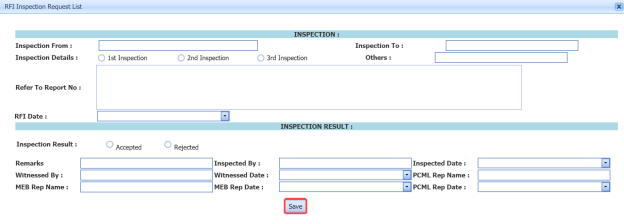](http://wiki.cuteinfocomm.com/uploads/images/gallery/2022-04/image-1651168393364.png)
2. In the **Inspection From** box, enter the detail from where the inspection should start.
3. In the ****Inspection To**** box, enter the detail to where the inspection should end.
4. In the ****Inspection Details**** option, select 1stInspection, 2nd Inspection or 3rd Inspection according to the inspection details.
5. In the ****Others**** box, enter any other inspection related details.
6. In the ****Refer to Report No**** box, enter the report number for reference.
7. In the ****RFI Date**** box, choose the RFI date.
8. In the ****Inspection Result**** option, if the inspection result is accepted, select ****Accepted**** otherwise select ****Rejected****.
9. In the ****Remarks**** box, enter your remarks if any.
10. In the ****Inspected by**** box, enter the name of a person who has done inspection.
11. In the ****Inspected Date**** box, choose the date of inspection.
12. In the ****Witnessed By**** box, enter the name of the witnessed person.
13. In the ****Witnessed Date**** box, choose the date of witnessed.
14. In the ****PCML Rep Name**** box, enter the representative name of PCML.
15. In the ****PCML Rep Date**** box, choose the PCML rep date.
16. In the ****MEB Rep Name**** box, enter the representative name of MEB.
17. In the ****MEB Rep Date box****, choose MEB rep date.
18. Click **Save**.
Once you have added the RFI data, you must add the result for the added MVR inspection request.
#### **4.4.3 View an RFI Report**
If you want to print an RFI report, click (print icon) provided in the **RFI** **Report** column of the **MVR Inspection Request** page. See Fig 4.4.
#### **4.4.4 Add Result for an Added MVR Inspection Request**
1. Click[](http://wiki.cuteinfocomm.com/uploads/images/gallery/2022-04/image-1651168754411.png) (Add icon) of the respective report number.
The **MVR Inspection Request Details** window opens.
[](http://wiki.cuteinfocomm.com/uploads/images/gallery/2022-04/image-1651168778600.png)
2. Click [](http://wiki.cuteinfocomm.com/uploads/images/gallery/2022-04/image-1651168861985.png) (**ADD** button) in the **MVR Inspection Request Details** window.
A new window opens to add result.
[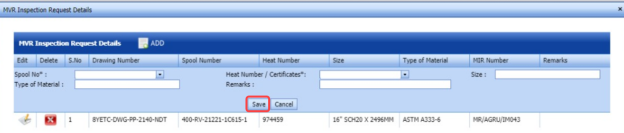](http://wiki.cuteinfocomm.com/uploads/images/gallery/2022-04/image-1651168913891.png)
3. In the **Spool No** box, select the spool number from a drop-down list.
4. In the ****Heat Number / Certificates**** box, select the heat number from a drop-down list.
5. In the ****Size**** box, enter the size of the material.
6. In the ****Type of Material**** box, enter the type of material.
7. In the ****Remarks**** box, enter your remarks if any.
8. Click ****Save****. Once you have added the result for the MVR inspection request, you must submit and approve the MVR inspection request.
#### **4.4.5 Submit and Approve an MVR Inspection Report**
Once you have added the result, the **Submission** column in the **MVR Inspection Request** page is appeared with [](http://wiki.cuteinfocomm.com/uploads/images/gallery/2022-04/image-1651169026911.png) (Submit and Reject icons).
1. If you want to submit the MVR inspection request, click [](http://wiki.cuteinfocomm.com/uploads/images/gallery/2022-04/image-1651169136572.png)(Submit icon) in the **Submission** column. Otherwise click [](http://wiki.cuteinfocomm.com/uploads/images/gallery/2022-04/image-1651169148110.png) (Reject icon) to reject the request.
Once you have submitted the MVR inspection request, the **Request Status** column in the **MVR Inspection Request** page is appeared with [](http://wiki.cuteinfocomm.com/uploads/images/gallery/2022-04/image-1651169081437.png) (Accept and Reject icons).
2. If you want to approve the MVR inspection request, click (Submit icon) in the **Request Status** column. Otherwise click
[](http://wiki.cuteinfocomm.com/uploads/images/gallery/2022-04/image-1651169240161.png) (Reject icon) to reject the request.
#### **4.4.6 Print an MVR Inspection Report**
If you want to print an MVR inspection report, click [](http://wiki.cuteinfocomm.com/uploads/images/gallery/2022-04/image-1651169336507.png)(print icon) in the **Report** column of the **MVR Inspection Request** page. See Fig 4.4.
#### **4.4.7 Attach a File into an MVR Inspection Request**
If you want to attach any file with an existing MVR inspection request listed in the **MVR Inspection Request** page, you can attach the file by using [](http://wiki.cuteinfocomm.com/uploads/images/gallery/2022-04/image-1651169377053.png) (Attach icon) in the **Attachment** column. To know how to attach, follow the procedures given in the topic “[**Attach a file into P&ID**](http://wiki.cuteinfocomm.com/books/cuteqm/page/project-data/#bkmrk-3.1.7%C2%A0attach-a-file-)”.
#### **4.4.8 Edit an MVR inspection request**
If you want to edit any existing MVR inspection request in the **MVR Inspection Request** page, do the following,
1. Click[](http://wiki.cuteinfocomm.com/uploads/images/gallery/2022-04/image-1651169424709.png)(Edit icon)in the **Edit** column for the respective MVR inspection request. See Fig 4.4.
A new window opens to edit the MVR inspection request.
[](http://wiki.cuteinfocomm.com/uploads/images/gallery/2022-04/image-1651169459926.png)
2. Click any box where you want to edit the details, and then edit the details in the respective box.
3. Click ****Save****.
#### **4.4.9 Filter an MVR inspection request**
If you want to filter any MVR request from the list of requests in the **MVR Inspection Request** page, you can use [](http://wiki.cuteinfocomm.com/uploads/images/gallery/2022-04/image-1651169546239.png) (**FILTER** button). To know how to filter, see the topic, “[**Filter P&ID**](http://wiki.cuteinfocomm.com/books/cuteqm/page/project-data/#bkmrk-3.1.5%C2%A0filter-a-p%26id)”.
#### **4.4.10 Export MVR inspection request list**
You can export a list of MVR inspection requests added in the **MVR Inspection Request** page in the pdf and excel formats by using [](http://wiki.cuteinfocomm.com/uploads/images/gallery/2022-04/image-1651169584615.png) (**PDF** button) and [](http://wiki.cuteinfocomm.com/uploads/images/gallery/2022-04/image-1651169596010.png) (**Excel** button). To know how to export, see the topic, “[**Export P&ID list**](http://wiki.cuteinfocomm.com/books/cuteqm/page/project-data/#bkmrk-3.1.4%C2%A0export-p%26id-li)”.
### **4.5 Material Summary**
The **Material Summary** tab in the **Materials** menu used to track the material summary details. If you want to track the summary details of the material, do the following steps,
1. Click the **Material Summary** tab in the **Materials** menu.
The **Material Summary Details** page opens.
[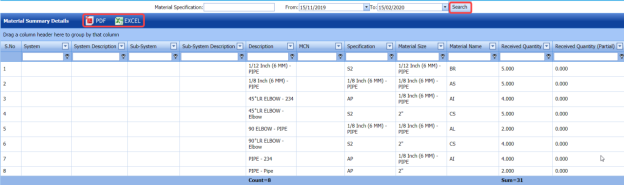](http://wiki.cuteinfocomm.com/uploads/images/gallery/2022-04/image-1651169670133.png)
**Figure 4.5: Material Summary Details page**
2. In the **Material Specification** box, enter the material specification.
3. In the **From** and **To** boxes, choose the from and to dates to get the material summary details.
4. Click **Search**.
The summary details of the added material specification will be displayed for the selected period.
#### **4.5.1 Export Material Summary Details**
You can export the material summary details in the **Material Summary Details** page in both the pdf and excel formats by using [](http://wiki.cuteinfocomm.com/uploads/images/gallery/2022-04/image-1651169773552.png) (**PDF** button) and [](http://wiki.cuteinfocomm.com/uploads/images/gallery/2022-04/image-1651169789150.png) (**Excel** button). To know how to export, see the topic, “**[Export P&ID list](http://wiki.cuteinfocomm.com/books/cuteqm/page/project-data/#bkmrk-3.1.4%C2%A0export-p%26id-li)**”.
### **4.6 Material Summary by Heat Number**
The **Summary by Heat Number** tab in the **Materials** menu used to track the material summary details by using the respective heat numbers. If you want to track the summary details of the material, do the following steps,
1. Click the **Summary by Heat Number** tab in the **Materials** menu.
The **Material Summary Details (By Heat Number)** page opens.
[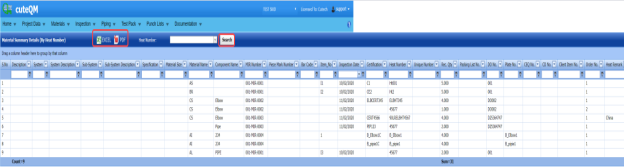](http://wiki.cuteinfocomm.com/uploads/images/gallery/2022-04/image-1651169845577.png)
**Fig 4.6:** **Material Summary Details (By Heat Number)** **page**
2. In the **Heat Number** box, select the heat number from a drop-down list.
3. Click **Search**.
The material summary details corresponding to the selected heat number will be displayed.
#### **4.6.1 Export Material Summary Details (by Heat Number)**
You can export the material summary details in the **Material Summary Details (By Heat Number)** page in both the pdf and excel formats by using [](http://wiki.cuteinfocomm.com/uploads/images/gallery/2022-04/image-1651169945083.png) (**PDF** button) and [](http://wiki.cuteinfocomm.com/uploads/images/gallery/2022-04/image-1651169954523.png) (**Excel** button). To know how to export, see the topic, “**[Export P&ID list](http://wiki.cuteinfocomm.com/books/cuteqm/page/project-data/#bkmrk-3.1.4%C2%A0export-p%26id-li)**”.
### **4.7 Heat Number – Receiving vs Used**
You can view the history of received and used heat numbers of materials by using this **Heat Number – Receiving vs Used** tab in the **Materials** menu.
1. Click ****Heat Number – Receiving vs Used**** in the ****Materials**** menu. The **Material** **Heat Number – Receiving vs Used** page opens.
[](http://wiki.cuteinfocomm.com/uploads/images/gallery/2022-04/image-1651170021878.png)
**Figure 4.7:** **Material** **Heat Number – Receiving vs Used page**
This page shows the details of component names, heat numbers, and number of quantities received and used.
#### **4.7.1 Export Material Heat Number Received vs Used History**
You can export the material heat number history in the **Material** **Heat Number – Receiving vs Used** page in both the pdf and excel formats by using [](http://wiki.cuteinfocomm.com/uploads/images/gallery/2022-04/image-1651170126530.png) (**PDF** button) and [](http://wiki.cuteinfocomm.com/uploads/images/gallery/2022-04/image-1651170135473.png) (**Excel** button). To know how to export, see the topic, “**[Export P&ID list](http://wiki.cuteinfocomm.com/books/cuteqm/page/project-data/#bkmrk-3.1.4%C2%A0export-p%26id-li)**”.
#### **4.7.2 Filter Material Heat Number Received vs Used History**
If you want to view the received vs used history of any specific heat number, you can use the filter box provided in each column of the **Material** **Heat Number – Receiving vs Used** page.
[](http://wiki.cuteinfocomm.com/uploads/images/gallery/2022-04/image-1651170185810.png)
Enter the relevant detail in the respective column to view the received vs used history of heat number you want.
### **4.8 Welding Consumable**
Welding Consumables are products used to create strong joints between two or more parts while welding. Welding Consumable are segmented based on welding technique, welding consumable type, end-use industry, and region.
The **Welding Consumable** tab in the **Materials** menu used to add a weld consumable. If you want to add a welding consumable, do the following,
1. Click ****Welding Consumable**** in the ****Materials**** menu. The **Welding Consumable** page opens.
[](http://wiki.cuteinfocomm.com/uploads/images/gallery/2022-04/image-1651170265897.png)
**Figure 4.8: Welding Consumable page**
#### **4.8.1 Add a Welding Consumable**
If you want to add a welding consumable, do the following steps,
1. Click [](http://wiki.cuteinfocomm.com/uploads/images/gallery/2022-04/image-1651170357472.png) (**ADD** button) in the **Welding Consumable** page. See Fig 4.8.
A new window opens to add a welding consumable.
[](http://wiki.cuteinfocomm.com/uploads/images/gallery/2022-04/image-1651170395028.png)
[](http://wiki.cuteinfocomm.com/uploads/images/gallery/2022-04/image-1651170403874.png) **Note**: A report number for a new welding consumable list will be updated automatically in the **Report Number** **/ Rev** box.
2. In the **Remarks** box, enter your remarks if any.
3. In the ****Supplier**** box, enter the name of a supplier of welding consumables.
4. In the ****Requested By**** box, enter the name of a person who has requested the welding consumable.
5. In the ****Reviewed By**** box, enter the name of a person who has reviewed the welding consumable.
6. In the ****Approved By**** box, enter the name of a person who has approved the welding consumable.
7. In the ****Requested Date**** box, choose the prepared date of the welding consumable.
8. In the ****Reviewed Date**** box, choose the reviewed date of the welding consumable.
9. In the ****Approved Date**** box, choose the approved date of the welding consumable list.
10. Click ****Save****. The welding consumable is successfully added. Once you have added the welding consumable, you must add the details of welding consumable.
#### **4.8.2 Add Welding Consumable Details for Added Consumable**
If you want to add the details of welding consumables for the added consumable, do the following,
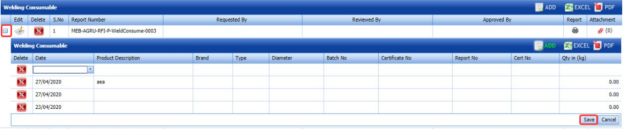
1. Click [](http://wiki.cuteinfocomm.com/uploads/images/gallery/2022-04/image-1651170705427.png) (Add icon) for the respective welding consumable. See Fig 4.8.
A new window opens to add the welding consumable details.
[](http://wiki.cuteinfocomm.com/uploads/images/gallery/2022-04/image-1651170726404.png)
2. In the ****Date**** box, select the date.
3. In the ****Product Description**** box, enter the product description detail.
4. In the **Brand** box, enter the brand name of welding consumable.
5. In the ****Type**** box, enter the type of the welding consumable.
6. In the ****Diameter**** box, enter the diameter of the welding consumable.
7. In the ****Batch No**** box, enter the batch number of the welding consumable.
8. In the ****Certificate No**** box, enter the certificate number.
9. In the ****Report No**** box, enter the report number.
10. In the ****Qty in Kg**** box, enter the quantity of the welding consumable.
11. Click ****Save****.
#### **4.8.3 Print a Welding Consumable Report**
If you want to print a welding consumable report, click [](http://wiki.cuteinfocomm.com/uploads/images/gallery/2022-04/image-1651171358797.png) (print icon) in the **Report** column of the **Welding Consumable** page. See Fig 4.8.
#### **4.8.4 Attach a File into a Welding Consumable**
If you want to attach any file with an existing MVR inspection request listed in the **MVR Inspection Request** page, you can attach the file by using [](http://wiki.cuteinfocomm.com/uploads/images/gallery/2022-04/image-1651171409493.png) (Attach icon) in the **Attachment** column. To know how to attach, follow the procedures given in the topic “[**Attach a file into P&ID**](http://wiki.cuteinfocomm.com/books/cuteqm/page/project-data/#bkmrk-3.1.7%C2%A0attach-a-file-)”.
#### **4.8.5 Edit a Welding Consumable**
If you want to edit any existing welding consumable in the **Welding Consumable** page, do the following,
1. Click [](http://wiki.cuteinfocomm.com/uploads/images/gallery/2022-04/image-1651171474733.png) (Edit icon)in the **Edit** column for the respective welding consumable. See Fig 4.8.
A new window opens and shows the added details of the welding consumable.
2. Click any box where you want to edit the details, and then edit the details in the respective box.
3. Click ****Save****.
#### **4.8.6 Delete a Welding Consumable**
If you want to delete any specific welding consumable, you can use [](http://wiki.cuteinfocomm.com/uploads/images/gallery/2022-04/image-1651171566905.png) (Delete icon) provided in the **Delete** column of the **Welding Consumable** page, See Fig 7.8. To know how to delete, see the topic, “[**Delete P&ID**](http://wiki.cuteinfocomm.com/books/cuteqm/page/project-data/#bkmrk-3.1.3%C2%A0delete-a-p%26id)”.
#### **4.8.7 Export Welding Consumable**
You can export a list of welding consumable added in the **Welding consumable** page in the pdf and excel formats by using [](http://wiki.cuteinfocomm.com/uploads/images/gallery/2022-04/image-1651171609134.png) (**PDF** button) and [](http://wiki.cuteinfocomm.com/uploads/images/gallery/2022-04/image-1651171619038.png) (**Excel** button). To know how to export, see the topic, “**[Export P&ID list](http://wiki.cuteinfocomm.com/books/cuteqm/page/project-data/#bkmrk-3.1.4%C2%A0export-p%26id-li)**”.
### **4.9 Import from Excel – Materials**
The **Import from Excel – Materials** tab helps you to upload various date related to materials for all fields included in the **Materials** menu instead of uploading data for each field individually.
If you want to import material data for different fields, do the following,
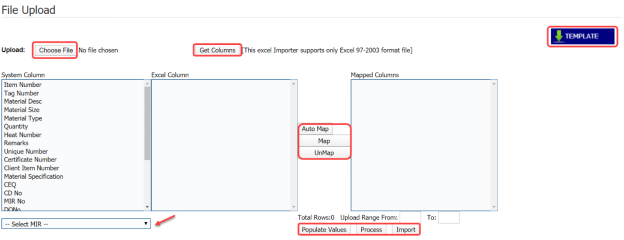
1. Click the **Import from Excel – Materials** tab in the **Materials** menu.
The **File Upload** page opens.
[](http://wiki.cuteinfocomm.com/uploads/images/gallery/2022-04/image-1651171825423.png)
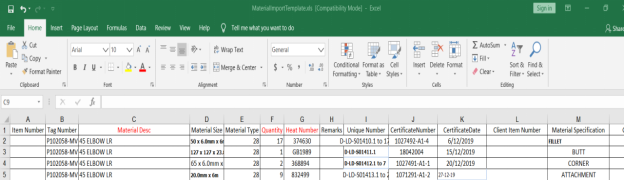
2. Download a template by using the [](http://wiki.cuteinfocomm.com/uploads/images/gallery/2022-04/image-1651171841178.png) (**TEMPLATE** button) to enter the details of data.
An excel worksheet will be downloaded.
[](http://wiki.cuteinfocomm.com/uploads/images/gallery/2022-04/image-1651171873265.png)
3. Enter the relevant details in the respective column of the excel worksheet based on the columns listed in the **System Column** field.
4. Click [](http://wiki.cuteinfocomm.com/uploads/images/gallery/2022-04/image-1651171896537.png) (**Choose File** button).
Once the file has been uploaded successfully, you receive a message, “**Successfully uploaded"**
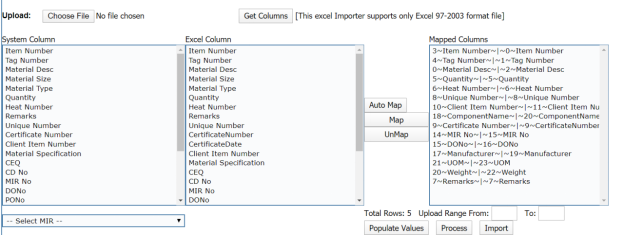
5. Click [](http://wiki.cuteinfocomm.com/uploads/images/gallery/2022-04/image-1651171937423.png) (**Get Columns** button).
The columns added in the excel worksheet will be listed in the **Excel Column** field. The system automatically maps the **Required Columns to Import** field and the **Excel Column** field and displays in the **Mapped Columns** field.
[](http://wiki.cuteinfocomm.com/uploads/images/gallery/2022-04/image-1651171989832.png)
6. If you want to map any columns or to un-map any mapped columns, select the respective columns and then click [](http://wiki.cuteinfocomm.com/uploads/images/gallery/2022-04/image-1651172013521.png) (**Map** button) and [](http://wiki.cuteinfocomm.com/uploads/images/gallery/2022-04/image-1651172023634.png) (**UnMap** button) accordingly.
7. If you want to upload the data for specific MIR, select the respective MIR from the drop-down list otherwise select **BULK IMPORT**.
[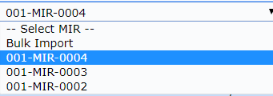](http://wiki.cuteinfocomm.com/uploads/images/gallery/2022-04/image-1651172051172.png)
8. Once you have completed the mapping and un-mapping of columns, in the **Upload Range From** and **To** fields, enter the range of rows you want to upload from the excel worksheet.
[](http://wiki.cuteinfocomm.com/uploads/images/gallery/2022-04/image-1651172073928.png) **Note**: In the **Total Rows** field, the system indicates the total number of rows filled in the excel worksheet.
[](http://wiki.cuteinfocomm.com/uploads/images/gallery/2022-04/image-1651172097678.png)**Tip**: You must enter the upload starting range as two in the **Upload Range From** field because a first row in the excel worksheet is having heading of the columns.
9. Click [](http://wiki.cuteinfocomm.com/uploads/images/gallery/2022-04/image-1651172119340.png) (**Populate Value** button).
The data added in the excel worksheet will be populated.
10. Click [](http://wiki.cuteinfocomm.com/uploads/images/gallery/2022-04/image-1651172144178.png) (**Process** button).
Once you have clicked the **Process** button, the system processes the columns and displays in the **Excel Import** page.
[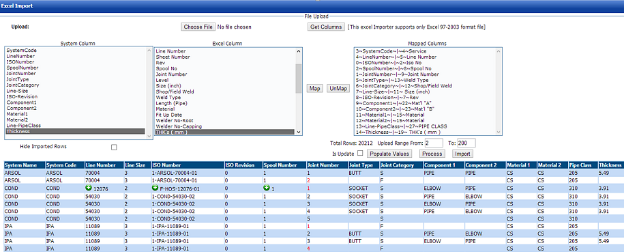](http://wiki.cuteinfocomm.com/uploads/images/gallery/2022-04/image-1651172173359.png)
11. Click [](http://wiki.cuteinfocomm.com/uploads/images/gallery/2022-04/image-1651172198729.png) (**Import** button) to import the data added in the excel worksheet.
The data will be successfully imported.
### **4.10 Material Traceability Record (MTR)**
The **Material Traceability Record** tab in the **Materials** menu helps you to view the MTR for the piping project. The MTR lists material specification, material size, joint number, unique number, and MIR number. To view the MTR,
1. Click **Material Traceability Record** in the **Materials** menu.
The **Piping Material Traceability Record** page opens.
[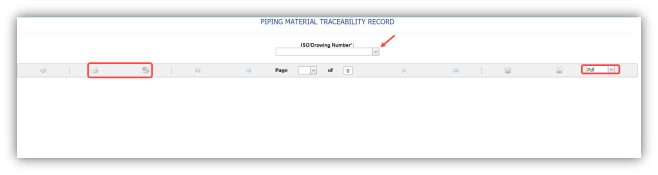](http://wiki.cuteinfocomm.com/uploads/images/gallery/2022-04/image-1651172270185.png)
2. In the ****ISO Drawing Number**** box, select an ISO drawing from a drop-down list. The **Piping Material Traceability Record** page shows the material details based on the selected ISO drawing number.
[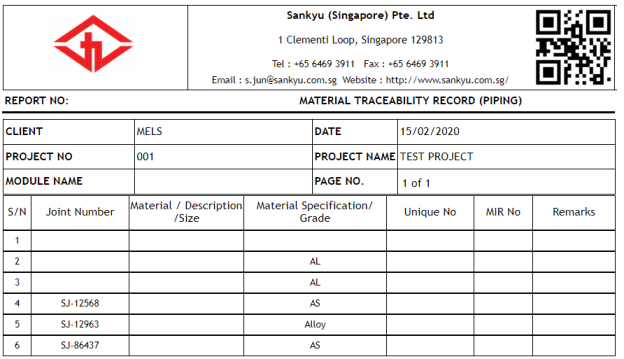](http://wiki.cuteinfocomm.com/uploads/images/gallery/2022-04/image-1651172330086.png)
#### **4.10.1 Print an MTR**
If you want to print an MTR, use [](http://wiki.cuteinfocomm.com/uploads/images/gallery/2022-04/image-1651172396029.png) and [](http://wiki.cuteinfocomm.com/uploads/images/gallery/2022-04/image-1651172405042.png) (print icons) provided in the **Piping Material Traceability Record** page.
1. If you want to print the current page of the MTR, click [](http://wiki.cuteinfocomm.com/uploads/images/gallery/2022-04/image-1651172424228.png) (print icon including the page number).
2. If you want to print all the pages of the MTR, click [](http://wiki.cuteinfocomm.com/uploads/images/gallery/2022-04/image-1651172442944.png) (print icon).
#### **4.10.2 Export an MTR**
You can export the MTR report in various formats by using the option [](http://wiki.cuteinfocomm.com/uploads/images/gallery/2022-04/image-1651172484613.png) provided in the upper right corner of the **Piping Material Traceability Record** page.
### **4.11 Purchase Order (PO) Summary Report**
The **PO Summary Report** tab in the **Material** menu used to view the purchase order summary report. To view the PO summary report,
1. Click **PO Summary Report** in the **Material** menu.
The **PO Summary Report** page opens.
[](http://wiki.cuteinfocomm.com/uploads/images/gallery/2022-04/image-1651172743997.png)
**Figure 7.11: PO Summary Report page**
2. In the **PO No** box, select the PO number.
3. In the **From Date** and **To Date** boxes, select the from and to dates to view the PO summary report.
4. Click ****Search****. The page shows the summary report for the purchase order.
#### **4.11.1 Print a PO Summary Report**
If you want to print the PO summary report, use and (print icons) provided in the DPWR page. See Fig 4.11.
1. If you want to print the current page of the PO summary report, click [](http://wiki.cuteinfocomm.com/uploads/images/gallery/2022-04/image-1651172944071.png) (print icon including the page number).
2. If you want to print all the pages of the PO summary report, click [](http://wiki.cuteinfocomm.com/uploads/images/gallery/2022-04/image-1651172966863.png) (print icon).
#### **4.11.2 Export a PO Summary Report**
You can export the PO Summary Report in various formats by using the option [](http://wiki.cuteinfocomm.com/uploads/images/gallery/2022-04/image-1651173144994.png) provided in the upper right corner of the page.
### **4.12 MVR Summary by Drawing**
The **MVR Summary by Drawing** tab in the **Materials** menu used to view the MVR summary report. To view an MVR summary report,
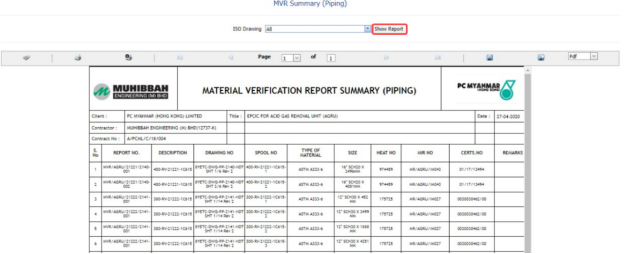
1. Click ****MVR Summary by Drawing**** in the ****Materials**** menu. The **MVR Summary (Piping)** page opens.
[](http://wiki.cuteinfocomm.com/uploads/images/gallery/2022-04/image-1651173372495.png)
**Figure 4.12: MVR Summary (Piping) page**
2. In the ****ISO Drawing**** box, select an ISO drawing from a drop-down list.
3. Click ****Show Report****. The page shows the summary details for the MVR.
#### **4.12.1 Print an MVR Summary Report**
If you want to print the MVR summary report, use [](http://wiki.cuteinfocomm.com/uploads/images/gallery/2022-04/image-1651173465960.png)and [](http://wiki.cuteinfocomm.com/uploads/images/gallery/2022-04/image-1651173476881.png) (print icons) provided in the **MVR Summary (Piping)** page. See Fig 4.12.
1. If you want to print the current page of the MVR summary report, click [](http://wiki.cuteinfocomm.com/uploads/images/gallery/2022-04/image-1651173521311.png) (print icon including the page number).
2. If you want to print all the pages of the MVR summary report, click [](http://wiki.cuteinfocomm.com/uploads/images/gallery/2022-04/image-1651173546811.png) (print icon).
#### **4.12.2 Export an MVR Summary Report**
You can export the MVR summary report in various formats by using the option [](http://wiki.cuteinfocomm.com/uploads/images/gallery/2022-04/image-1651173600742.png) provided in the upper right corner of the **MVR Summary (Piping)** page.
### **4.13 Unique Number Usage Details**
The **Unique Number Usage Details** tab in the **Materials** menu used to view the usage details of the particular unique number.
1. Click **Unique Number Usage Details** in the **Materials** menu.
The **Unique Number Usage Details** page opens.
[](http://wiki.cuteinfocomm.com/uploads/images/gallery/2022-04/image-1651173656747.png)
**Figure 4.13: Unique Number Usage Details page**
2. In the ****MIR Report Number**** box, enter the MIR report number.
3. In the ****Component Name**** box, enter the component name.
4. In the ****Heat Number**** box, enter the heat number.
5. In the ****Unique Number**** box, enter the unique number.
6. Click ****Get Details****. [](http://wiki.cuteinfocomm.com/uploads/images/gallery/2022-04/image-1651173727666.png)
### **4.14 RFI Material Substitution**
An RFI could be issued requesting for material substitutions if certain material is not available or cost exorbitantly high. Various subcontractors could be provided with these requests to find who has the best quality materials for the project.
You can add an RFI for material substitution by using the **RFI Material Substitution** tab in the **Materials** menu.
#### **4.14.1 Add an RFI Material Substitution Request**
If you want to add an RFI material substitution request, do the following steps,
1. Click **RFI Material Substitution** in the **Materials** menu.
The **RFI Material Substitution** page opens.
[](http://wiki.cuteinfocomm.com/uploads/images/gallery/2022-04/image-1651173849823.png)
**Figure 7.14: RFI Material Substitution page**
2. In the ****Requested By**** box, enter the name of a person who has requested the material substitution.
3. In the **Sub Contractor** box, select a sub-contractor from a drop-down list.
4. In the ****Inspection Date & Time**** box, select the inspection date and time.
5. In the ****Location**** box, enter the location name.
6. In the ****Center**** box, enter the center name.
7. In the ****Details of Work**** box, enter the work details.
8. In the ****Comments**** box, enter your comments if any. Before saving the added material substitution request, you must add the material substitution detail.
9. Click [](http://wiki.cuteinfocomm.com/uploads/images/gallery/2022-04/image-1651173943860.png) (**ADD** button) in the **Material Substitution Detail**
10. In the **Type** box, select the type of material substitution.
11. In the **Material** box, enter the name of the material.
12. In the **DWG.** **Ref** box, enter the drawing reference number.
13. In the **Original Size** box, enter the original size of the material.
14. In the **Original Grade** box, enter the original grade of the material.
15. In the **Item** box, select an item.
16. In the **QTY** box, enter the quantity of the material.
17. Click ****Save.****The material substitution details will be added and listed in the **Material Substitution Detail** window.
[](http://wiki.cuteinfocomm.com/uploads/images/gallery/2022-04/image-1651174091098.png)
If you want to add the proposed material substitution detail,
18. Click [](http://wiki.cuteinfocomm.com/uploads/images/gallery/2022-04/image-1651174112890.png)(Add icon) in the **Material Substitution Detail** window.
[](http://wiki.cuteinfocomm.com/uploads/images/gallery/2022-04/image-1651174124654.png)
19. Click [](http://wiki.cuteinfocomm.com/uploads/images/gallery/2022-04/image-1651174134786.png) (**ADD** button).
[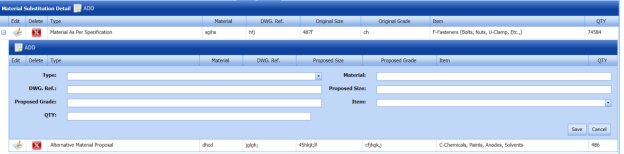](http://wiki.cuteinfocomm.com/uploads/images/gallery/2022-04/image-1651174160563.png)
20. Enter the details of proposed material substitution.
21. Click **Save**.
The request for material substitution will be added and listed in the **View RFI Material Substitution** page.
### **4.15 View RFI Material Substitution**
The **View RFI Material Substitution** tab helps you to view and edit the material substitution request, which is added by using the **RFI Material Substitution** tab. This tab also allows you to add a new material substitution request.
1. Click **View RFI Material Substitution** in the **Materials** menu. The **View RFI Material Substitution** page opens with a list of added material substitution requests.
[](http://wiki.cuteinfocomm.com/uploads/images/gallery/2022-04/image-1651174251969.png)
**Figure 4.15: View RFI Material Substitution page**
#### **4.15.1 Add an RFI Material Substitution Request**
If you want to add a material substitution request, do the following steps,
1. Click [](http://wiki.cuteinfocomm.com/uploads/images/gallery/2022-04/image-1651174312687.png) (**ADD** button) in the **View RFI Material Substitution page.
The system redirects you to a new page to add a new material substitution request. To know how to add a material substitution request, See the topic, “[**Add an RFI Material Substitution**](http://wiki.cuteinfocomm.com/books/cuteqm/page/materials/#bkmrk-4.14.1%C2%A0add-an-rfi-ma)”.
Once you have added the material substitution request, you must submit the added request to perform material substitution inspection.
#### **4.15.2 Edit an RFI Material Substitution Request**
If you want to edit any existing material substitution inspection request in the **View RFI Material Substitution page, do the following,
1. Click [](http://wiki.cuteinfocomm.com/uploads/images/gallery/2022-04/image-1651174420374.png)(Edit icon) in the **Edit** column for the respective material substitution inspection request. See Fig 4.15.
The **RFI Material Substitution** page opens with the details of the selected material substitution inspection request.
2. Click any box where you want to edit the details, and then edit the details in the respective box.
3. Click ****Save****.
#### **4.15.3 Submit and Approve an RFI Material Substitution Request**
Once you have added the material substitution inspection request, the **Submission** column in the **View RFI Material Substitution** page is appeared with [](http://wiki.cuteinfocomm.com/uploads/images/gallery/2022-04/image-1651174486749.png) (Submit and Reject icons).
1. If you want to submit the material substitution inspection request, click[](http://wiki.cuteinfocomm.com/uploads/images/gallery/2022-04/image-1651174511920.png) (Submit icon) in the ****Submission**** Otherwise click [](http://wiki.cuteinfocomm.com/uploads/images/gallery/2022-04/image-1651174535278.png) (Reject icon) to reject the request. Once you have submitted the material substitution inspection request, the **Request Status** column in the **View RFI Material Substitution** page is appeared with (Approve and Reject icons).
2. If you want to approve the material substitution inspection request, click[](http://wiki.cuteinfocomm.com/uploads/images/gallery/2022-04/image-1651174584110.png) (Approve icon) in the **Request Status** Otherwise click [](http://wiki.cuteinfocomm.com/uploads/images/gallery/2022-04/image-1651174601201.png) (Reject icon) to reject the request.
#### **4.15.4 Add Results of Material Substitution Inspection**
After completing the material inspection for the added request, you can add the inspection result details. To add results, do the following steps,
1. Click[](http://wiki.cuteinfocomm.com/uploads/images/gallery/2022-04/image-1651174675792.png)(Add icon) in the ****Results**** column of the respective request. The Result window opens with the details of proposed and original materials.
[](http://wiki.cuteinfocomm.com/uploads/images/gallery/2022-04/image-1651174670502.png)
2. In the ****Result**** column, select the result of each material from the given result options in the drop-down list.
3. In the ****Remarks**** column, enter your remarks if any.
4. Click ****Approve All &**** ****Save****.
#### **4.15.5 View a Material Substitution Report**
If you want to view a material substitution report, click [](http://wiki.cuteinfocomm.com/uploads/images/gallery/2022-04/image-1651176530008.png)(print icon) provided in the **Print** column of the **View RFI Material Substitution** page. See Fig 7.15.
#### **4.15.6 Attach a File into an RFI Material Substitution Request**
If you want to attach a file with any existing material substitution inspection request listed in the **View RFI Material Substitution** page, you can attach the file by using [](http://wiki.cuteinfocomm.com/uploads/images/gallery/2022-04/image-1651176569090.png) (Attach icon) in the **Attachment** column. To know how to attach, follow the procedures given in the topic “[**Attach a file into P&ID**](http://wiki.cuteinfocomm.com/books/cuteqm/page/project-data/#bkmrk-3.1.7%C2%A0attach-a-file-)”.
#### **4.15.7 View Signature Details of Inspectors**
You can view the sign details of the inspectors such as QA, Sub contractor, Client, and Owner, once they completed the material substitution inspection and submitted the inspection result details including their signature. To view the signature details, click[](http://wiki.cuteinfocomm.com/uploads/images/gallery/2022-04/image-1651176617884.png) (Sign icon) in the **Sign Details** column in the **View RFI Material Substitution** page.
#### **4.15.8 Export an RFI Material Substitution List**
You can export a list of material substitution requests added in the **View RFI Material Substitution** page in both the pdf and excel formats by using [](http://wiki.cuteinfocomm.com/uploads/images/gallery/2022-04/image-1651176655486.png) (**PDF** button) and [](http://wiki.cuteinfocomm.com/uploads/images/gallery/2022-04/image-1651176664815.png) (**Excel** button). To know how to export, see the topic, “[**Export P&ID list**](http://wiki.cuteinfocomm.com/books/cuteqm/page/project-data/#bkmrk-3.1.4%C2%A0export-p%26id-li)”.
#### **4.15.9 Filter an RFI Material Substitution Request**
If you want to filter any specific material substitution inspection request in the **View RFI Material Substitution** page, you can use [](http://wiki.cuteinfocomm.com/uploads/images/gallery/2022-04/image-1651176709098.png) (**FILTER** button) located on the **View RFI Material Substitution** page. To know how to filter, see the topic, “**[Filter P&ID](http://wiki.cuteinfocomm.com/books/cuteqm/page/project-data/#bkmrk-3.1.5%C2%A0filter-a-p%26id)**”.
### **4.16 Material Verification Report (MVR) (Unique Numbers)**
Material Inspection is nothing but validating the quality of purchased raw materials based on the set acceptance criteria before the materials are used in the piping project.
Material Inspection is nothing but validating the quality of purchased raw materials based on the set acceptance criteria before the materials are used in the piping project.
If you want to add a MIR request, do the following,
1. Click ****Material Receiving and Inspection**** in the ****Materials**** menu. The **Material Verification Report** page opens.
[](http://wiki.cuteinfocomm.com/uploads/images/gallery/2022-04/image-1651176827519.png)
**Figure 4.16: Material Verification Report page**
#### **4.16.1 Add a MIR Request**
If you want to add a MIR request,
1. Click [](http://wiki.cuteinfocomm.com/uploads/images/gallery/2022-04/image-1651176899284.png) (**ADD** button) in the **Material Verification Report** See Fig 4.16.
A new window opens to add a MIR request.
[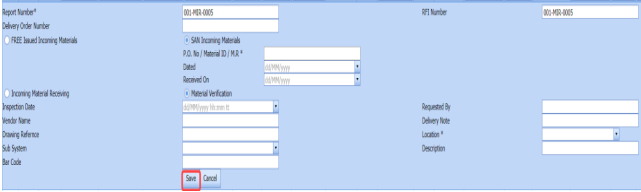](http://wiki.cuteinfocomm.com/uploads/images/gallery/2022-04/image-1651176933606.png)
[](http://wiki.cuteinfocomm.com/uploads/images/gallery/2022-04/image-1651176948784.png)**Note**: The fields notified with a symbol (\*) are mandatory. You must enter the relevant details in that fields before saving.
[](http://wiki.cuteinfocomm.com/uploads/images/gallery/2022-04/image-1651176965440.png)**Tip**: A report number and a Request for Inspection (RFI) number for a new MIR will be updated automatically in the **Report Number** and the **RFI Number** boxes, respectively.
2. In the ****Delivery Order Number**** box, enter the material’s delivery order number.
3. If the materials are received from a client, select the ****SAN Incoming Materials**** option, and then enter the relevant details in the respective boxes. [](http://wiki.cuteinfocomm.com/uploads/images/gallery/2022-04/image-1651177011912.png)
1. 1. In the ****O. No/Material ID/M. R**** box, enter the purchase order/material id number/ material receiving number.
2. In the ****Dated**** box, choose the date of the purchase order.
3. In the ****Received On**** box, select the received date of materials.
4. If the materials are purchased from outside, select the **FREE Issued Incoming Materials** option, and then enter the relevant details in the respective boxes.
[](http://wiki.cuteinfocomm.com/uploads/images/gallery/2022-04/image-1651177088895.png)
1. 1. In the **Packing List No** box, enter the packing list number.
2. In the ****Dated**** box, choose the date of packing.
3. In the ****Received On**** box, choose the received date of materials.
5. In the ****Inspection Date**** box, choose the date of inspection.
6. In the ****Requested By**** box, enter the name of a person who has requested the MIR.
7. In the ****Vendor Name**** box, enter the vendor name.
8. In the ****Delivery Note**** box, enter the delivery note.
9. In the ****Drawing Reference**** box, enter the reference drawing detail.
10. In the ****Location**** box, enter the location name.
11. In the ****Sub System**** box, select a sub system from a drop-down list.
12. In the ****Description**** box, enter the description for the MIR.
13. In the ****Bar Code**** box, enter the bar code of the material.
14. Click ****Save****. The MIR request is successfully added. Once you have added the MIR request, you must add the material details for the added MIR.
#### **4.16.2 Add Materials for MIR**
To add the details of materials for the added MIR request, do the following steps,
1. Click[](http://wiki.cuteinfocomm.com/uploads/images/gallery/2022-04/image-1651177270374.png)(Edit icon) of the respective MIR. See Fig 4.16.
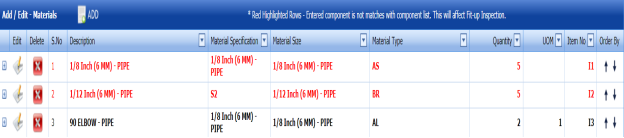
The **Add/Edit - Materials** window opens.
[](http://wiki.cuteinfocomm.com/uploads/images/gallery/2022-04/image-1651177298644.png)
**Figure 4.16.1: Add/Edit – Materials window**
2. Click [](http://wiki.cuteinfocomm.com/uploads/images/gallery/2022-04/image-1651177327481.png) (**ADD** button) in the **Add/Edit - Materials** window.
A new window opens to add the material details.
[](http://wiki.cuteinfocomm.com/uploads/images/gallery/2022-04/image-1651177354826.png)
[](http://wiki.cuteinfocomm.com/uploads/images/gallery/2022-04/image-1651177370583.png)**Note**: The fields notified with a symbol (\*) are mandatory. You must enter the relevant details in that fields before saving.
3. In the ****Material Description**** box, select the material from a drop-down list and enter the component details.
4. In the ****Material Size**** box, select the size of the material from a drop-down list.
5. In the ****Material Specification**** box, enter the material specification.
6. In the **Material Type** box, select the type of material.
7. In the ****Quantity Required**** box, enter the required quantity of the material.
8. In the Unit of Measurement (****UOM****) box, enter the UOM detail.
9. In the ****Item No**** box, enter the item number.
10. In the ****Material Remarks**** box, enter your remarks if any.
11. Click ****Update****. The added material will be listed in the **Add/Edit – Materials** window.
[](http://wiki.cuteinfocomm.com/uploads/images/gallery/2022-04/image-1651177485394.png)**Note**: If **Add/Edit – Materials** window shows the added material in the in red color means that the added component is not matched with the component list. See Fig 4.16.1.
Once you have added the material details, you must add the heat numbers for the added materials.
#### **4.16.3 Add Heat/Unique numbers for materials**
To add heat numbers,
1. Click[](http://wiki.cuteinfocomm.com/uploads/images/gallery/2022-04/image-1651177615998.png) (Add icon) of the respective material in the ****Add/Edit - Materials**** See Fig 4.16.1. The **Heat Numbers** window opens.
[](http://wiki.cuteinfocomm.com/uploads/images/gallery/2022-04/image-1651177647183.png)
2. Click [](http://wiki.cuteinfocomm.com/uploads/images/gallery/2022-04/image-1651177679829.png) (**ADD** button) in the **Heat Numbers** window.
A new window opens to add a heat number.
[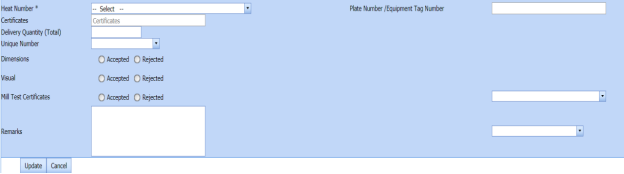](http://wiki.cuteinfocomm.com/uploads/images/gallery/2022-04/image-1651177708469.png)
3. In the ****Heat Number**** box, select the heat number from a drop-down list.
4. In the ****Certificates**** box, enter the certificate name.
5. In the ****Plate Number/Equipment Tag Number**** box, enter the plate number or equipment tag number of the material.
6. In the ****Delivery Quantity (Total)**** box, enter the total delivery quantity of the material.
7. In the ****Unique Number**** box, enter the unique number of the material.
8. In the ****Dimensions**** option, update the dimensions result by selecting ****Accepted**** or ****Rejected**** based on the inspection detail.
9. In the **Visual** option, update the visual result by selecting **Accepted** or **Rejected** based on the inspection detail.
10. In the ****Mill Test Certificates (MTC)**** option, update the mill test certificates result by selecting ****Accepted**** or ****Rejected**** based on the inspection detail.
11. In the **Remarks** option, enter your remarks if any.
12. Click **Update.**
The heat numbers are updated. Once you have added the MIR request, you must submit the added request for inspection.
#### **4.16.4 Submit and Approve an MIR Request**
Once you have added the MIR request, the **Submission** column in the **Material Verification Report** page is appeared with [](http://wiki.cuteinfocomm.com/uploads/images/gallery/2022-04/image-1651177877286.png) (Submit and Reject icons).
1. If you want to submit the MIR request, click[](http://wiki.cuteinfocomm.com/uploads/images/gallery/2022-04/image-1651177929342.png) (Submit icon) in the ****Submission**** Otherwise click [](http://wiki.cuteinfocomm.com/uploads/images/gallery/2022-04/image-1651177949434.png) (Reject icon) to reject the request. Once you have submitted the MIR request, the **Request Status** column in the **Material Verification Report** page is appeared with [](http://wiki.cuteinfocomm.com/uploads/images/gallery/2022-04/image-1651177977558.png)(Approve and Reject icons).
2. If you want to approve the MIR request, click [](http://wiki.cuteinfocomm.com/uploads/images/gallery/2022-04/image-1651178010785.png)(Approve icon) in the **Request Status** column. Otherwise click [](http://wiki.cuteinfocomm.com/uploads/images/gallery/2022-04/image-1651178021406.png)(Reject icon) to reject the request.
The MIR request will be moved for MIR inspection.
#### **4.16.5 Edit an MIR Request**
If you want to edit any existing MIR request in the **Material Verification Report** page,
1. Click[](http://wiki.cuteinfocomm.com/uploads/images/gallery/2022-04/image-1651178096286.png)(Edit icon) of the respective MIR request. See Fig 4.16.
The **Material Verification Report** page shows the details of the selected MIR request.
2. Edit the details where you want.
3. Click **Save**.
#### **4.16.6 Delete an MIR Request**
If you want to delete any existing MIR request in the **Material Verification Report** page, you can use [](http://wiki.cuteinfocomm.com/uploads/images/gallery/2022-04/image-1651178183446.png) (Delete icon) provided in the **Material Verification Report** page. To know how to delete, see the topic, “[**Delete P&ID**](http://wiki.cuteinfocomm.com/books/cuteqm/page/project-data/#bkmrk-3.1.3%C2%A0delete-a-p%26id)”.
#### **4.16.7 Export MIR List**
You can export a list of MIR requests added in the **Material Verification Report** page in both the pdf and excel formats by using [](http://wiki.cuteinfocomm.com/uploads/images/gallery/2022-04/image-1651178222326.png) (**PDF** button) and [](http://wiki.cuteinfocomm.com/uploads/images/gallery/2022-04/image-1651178236615.png) (**Excel** button). To know how to export, see the topic, “**[Export P&ID list](http://wiki.cuteinfocomm.com/books/cuteqm/page/project-data/#bkmrk-3.1.4%C2%A0export-p%26id-li)**”.
#### **4.16.8 Filter an MIR Request**
If you want to filter any specific test equipment in the **Material Verification Report page,
- you can use the request status wise filter box [](http://wiki.cuteinfocomm.com/uploads/images/gallery/2022-04/image-1651178294205.png) provided in the upper side of the **Material Verification Report page.
- You can also use [](http://wiki.cuteinfocomm.com/uploads/images/gallery/2022-04/image-1651178339536.png) (****FILTER**** button) located on the ****Material Verification Report** To know how to filter using the ****Filter**** button, see the topic, “[**Filter P&ID**](http://wiki.cuteinfocomm.com/books/cuteqm/page/project-data/#bkmrk-3.1.5%C2%A0filter-a-p%26id)”.
#### **4.16.9 View a Material Receiving Inspection Report**
To view a material receiving inspection report, click [](http://wiki.cuteinfocomm.com/uploads/images/gallery/2022-04/image-1651178394403.png)(Print icon) provided in the **Report** column of the **Material Verification Report** page.
#### **4.16.10 View a Material Test Certificate (MTC) Report**
To view an MTC report, click (Print icon) provided in the **Report** **with MTC** column of the **Material Verification Report** page.
#### **4.16.11 View Signature Details of Inspectors**
You can view the sign details of the inspectors such as QA, Sub contractor, Client, and Owner, once they completed the MIR inspection and submitted the inspection result details including their signature. To view the signature details, click [](http://wiki.cuteinfocomm.com/uploads/images/gallery/2022-04/image-1651178480749.png)(Sign icon) in the **Sign Details** column in the **Material Verification Report** page.
### **4.17 Material Receiving and Inspection (Unique Numbers)**
The **Material Receiving and Inspection** tab in the **Materials** menu helps you to add an incoming material inspection report (MIR). Incoming MIR includes material name, material size, material specification, and material type.
If you want to add an incoming MIR, do the following,
1. Click the ****Material Receiving and Inspection**** tab in the ******Materials****** menu. The **Incoming Material Inspection Report** page opens.
[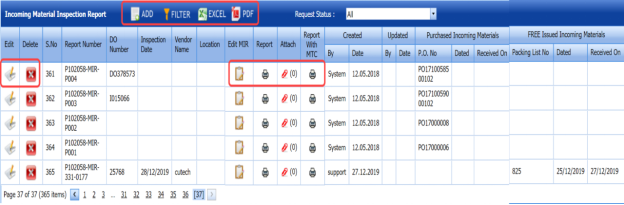](http://wiki.cuteinfocomm.com/uploads/images/gallery/2022-04/image-1651178572494.png)
**Figure 4.17: Incoming Material Inspection Report page**
#### **4.17.1 Add an Incoming MIR**
If you want to add an incoming MIR,
1. Click [](http://wiki.cuteinfocomm.com/uploads/images/gallery/2022-04/image-1651178643329.png) (**ADD** button) in the **Incoming Material Inspection Report** page. See Fig 4.17.
A new window opens to add an incoming MIR.
[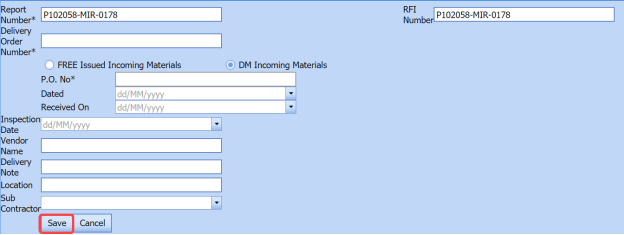](http://wiki.cuteinfocomm.com/uploads/images/gallery/2022-04/image-1651178708770.png)
[](http://wiki.cuteinfocomm.com/uploads/images/gallery/2022-04/image-1651178721984.png)**Note**: The fields notified with a symbol (\*) are mandatory. You must enter the relevant details in that fields before saving.
[](http://wiki.cuteinfocomm.com/uploads/images/gallery/2022-04/image-1651178741438.png) **Tip**: A report number and an Request for Inspection (RFI) number for a new MIR will be updated automatically in the **Report Number** and the **RFI Number** boxes, respectively.
2. In the ****Delivery Order Number**** box, enter the material’s delivery order number.
3. If the materials are received from a client, select the ****DM Incoming Materials**** option, and then enter the relevant details in the respective boxes. [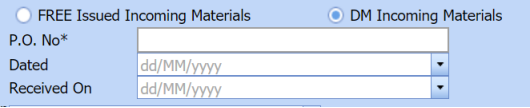](http://wiki.cuteinfocomm.com/uploads/images/gallery/2022-04/image-1651178791116.png)
1. 1. In the **P**.****O. No**** box, enter the purchase order number.
2. In the ****Dated**** box, choose the date of the purchase order.
3. In the ****Received On**** box, select the received date of materials.
4. If the materials are purchased from outside, select the ****FREE Issued Incoming Materials**** option, and then enter the relevant details in the respective boxes. [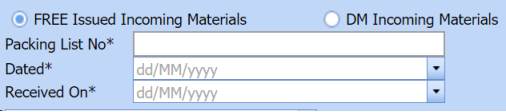](http://wiki.cuteinfocomm.com/uploads/images/gallery/2022-04/image-1651178857813.png)
1. 1. In the ****Packing List No**** box, enter the packing list number.
2. In the ****Dated**** box, choose the date of packing.
3. In the ****Received On**** box, choose the received date of materials.
5. In the ****Inspection Date**** box, choose the date of inspection.
6. In the ****Vendor Name**** box, enter the vendor name.
7. In the **Delivery Note** box, enter the delivery note.
8. In the **Location** box, enter the location name.
9. In the ****Sub Contractor**** box, select the subcontractor name from a drop-down list.
10. Click **Save**.
The incoming MIR is successfully added. Once you have added the MIR, you must add the material details for the added MIR.
#### **4.17.2 Add materials for an incoming MIR**
If you want to add the details of materials for the added incoming MIR, do the following,
1. Click [](http://wiki.cuteinfocomm.com/uploads/images/gallery/2022-04/image-1651179000275.png) (Edit icon) in the **Edit MIR** column of the **Incoming Material Inspection Report** page. See Fig 4.17.
The **Add/Edit - Materials** window opens.
[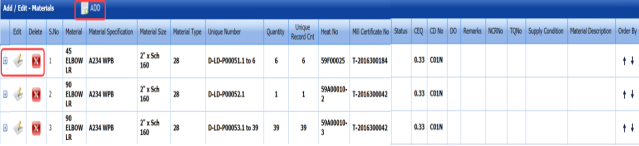](http://wiki.cuteinfocomm.com/uploads/images/gallery/2022-04/image-1651179041751.png)
**Figure 4.17.1: Add/Edit – Materials window**
2. Click [](http://wiki.cuteinfocomm.com/uploads/images/gallery/2022-04/image-1651179073530.png) (**ADD** button) in the **Add/Edit - Materials** window.
A new window opens to add the material details.
[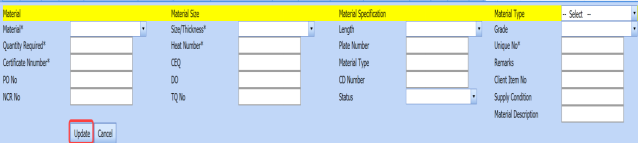](http://wiki.cuteinfocomm.com/uploads/images/gallery/2022-04/image-1651179119233.png)
[](http://wiki.cuteinfocomm.com/uploads/images/gallery/2022-04/image-1651179138535.png)**Note**: The fields notified with a symbol (\*) are mandatory. You must enter the relevant details in that fields before saving.
3. In the ****Material**** box, select the name of the material from a drop-down list.
4. In the ****Quantity Required**** box, enter the required quantity of the material.
5. In the ****Certificate Number**** box, enter the certificate number.
6. In the ****PO No**** box, enter the purchase order number.
7. In the ****Non-Conformance Report (NCR) No**** box, enter the NCR number.
8. In the ****Size/Thickness**** box, select the size/thickness of the received material from a drop-down list.
9. In the ****Heat Number**** box, enter the heat number of the material.
10. In the ****CEQ**** box, enter the CEQ number.
11. In the ****DO**** box, enter the deliver order number.
12. In the ****TQ No**** box, enter the TQ number.
13. In the ****Length**** box, select the length of the material from a drop-down list.
14. In the ****Plate Number**** box, enter the plate number of the material.
15. In the ****Material Type**** box, enter the type of the material.
16. In the **CD Number** box, enter the CD number.
17. In the ****Status**** box, select the status of the received material.
18. In the ****Material Type**** box, select the type of material from a drop-down list.
19. In the ****Grade**** box, select the grade of the material.
20. In the ****Unique No**** box, enter the unique number of the material.
21. In the ****Remarks**** box, enter your remarks if any.
22. In the ****Client Item No**** box, enter the client item number.
23. In the ****Supply Condition**** box, enter the supply condition details of the material.
24. In the ****Material Description**** box, enter the material description.
25. Click ****Update****. Once you have added the material details, you must add the heat numbers for the added materials.
#### **4.17.3 Add Heat Numbers**
1. Click[](http://wiki.cuteinfocomm.com/uploads/images/gallery/2022-04/image-1651199735802.png)(Add icon) of the respective material in the ****Add/Edit - Materials**** See Fig 4.17.1. The **Heat Numbers** window opens.
[](http://wiki.cuteinfocomm.com/uploads/images/gallery/2022-04/image-1651199765779.png)
2. Click [](http://wiki.cuteinfocomm.com/uploads/images/gallery/2022-04/image-1651199799583.png) (**ADD** button) in the **Heat Numbers** window.
A new window opens to add a heat number.
[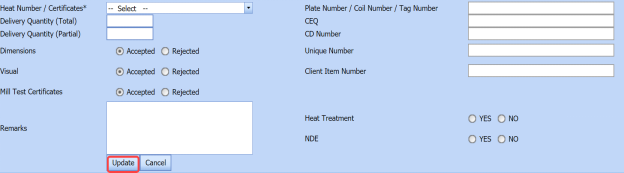](http://wiki.cuteinfocomm.com/uploads/images/gallery/2022-04/image-1651199834687.png)
3. In the **Heat Number/Certificates** box, select the heat number from a drop-down list.
4. In the **Plate Number/Coil Number/ Tag Number** box, enter the plate number or coil number or tag number of the material.
5. In the ****Delivery Quantity (Total)**** box, enter the total delivery quantity of the material.
6. In the ****Delivery Quantity (Partial)**** box, enter the partial delivery quantity of the material.
7. In the ****CEQ**** box, enter the CEQ number.
8. In the ****CD Number**** box, enter the CD number.
9. In the ****Unique Number**** box, enter the unique number of the material.
10. In the ****Client Item Number**** box, enter the client item number.
11. In the ****Dimensions**** option, select ****Accepted**** or ****Rejected**** based on the inspection detail.
12. In the ****Visual**** option, select ****Accepted**** or ****Rejected**** based on the inspection detail.
13. In the ****Mill Test Certificates (MTC)**** option, select ****Accepted**** or ****Rejected**** based on the inspection detail.
14. In the ****Remarks**** option, enter your remarks if any.
15. If the heat treatment is required for the material, select **YES** in the **Heat Treatment** option. Otherwise select **NO**.
16. In the NDE is required for the material, select ****YES**** in the ****NDE**** Otherwise select ****NO****.
17. Click **Update**. Once you have added the heat numbers, you must add unique numbers for the material.
#### **4.17.4 Add Unique Numbers**
1. Click[](http://wiki.cuteinfocomm.com/uploads/images/gallery/2022-04/image-1651200085506.png) (Add icon) of the respective heat number in the [**Heat Numbers **box](#HN).
The **Unique Numbers** box opens.
[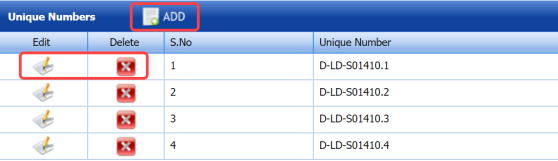](http://wiki.cuteinfocomm.com/uploads/images/gallery/2022-04/image-1651200119677.png)
2. Click [](http://wiki.cuteinfocomm.com/uploads/images/gallery/2022-04/image-1651200132564.png) (**ADD** button) in the **Unique Numbers** window.
A new window opens to add a unique number.
[](http://wiki.cuteinfocomm.com/uploads/images/gallery/2022-04/image-1651200165681.png)
3. In the ****Unique Number**** box, enter a unique number for the respective heat number.
4. In the **Original Number** box, enter the original number of the material.
5. In the ****Size**** box, enter the size of the material.
6. Click **Update**.
#### **4.17.5 Print an Incoming MIR**
If you want to print an incoming MIR report, click [](http://wiki.cuteinfocomm.com/uploads/images/gallery/2022-04/image-1651200271306.png)(print icon) provided in the **Report** column of the **Incoming Material Inspection Report** page. See Fig 4.17.
#### **4.17.6 Print a Report with MTC**
If you want to print an incoming MIR report including MTC, click[](http://wiki.cuteinfocomm.com/uploads/images/gallery/2022-04/image-1651200328292.png)(print icon) provided in the **Report** **with MTC** column of the **Incoming Material Inspection Report** page. See Fig 4.17.
#### **4.17.7 Attach a File into an Added Incoming MIR**
If you want to attach any file with any incoming MIR listed in the **Incoming Material Inspection Report** page. To know how to attach, follow the procedures given in the topic “[**Attach a file into P&ID**](http://wiki.cuteinfocomm.com/books/cuteqm/page/project-data/#bkmrk-3.1.7%C2%A0attach-a-file-)”.
#### **4.17.8 Edit an Incoming MIR**
If you want to edit any existing incoming MIR in the **Incoming Material Inspection Report** page, do the following,
1. Click[](http://wiki.cuteinfocomm.com/uploads/images/gallery/2022-04/image-1651200432832.png) (Edit icon)in the **Edit** column for the respective MIR. See Fig 4.17.
A new window opens to edit the added incoming MIR.
2. Click any box where you want to edit the details, and then edit the details in the respective box.
3. Click **Save**.
#### **4.17.9 Delete an Incoming MIR**
If you want to delete any specific incoming MIR from the list of MIRs, you can use [](http://wiki.cuteinfocomm.com/uploads/images/gallery/2022-04/image-1651200514617.png) (Delete icon) provided in the **Delete** column of the **Incoming Material Inspection Report** page. To know how to delete, see the topic, “[**Delete P&ID**](http://wiki.cuteinfocomm.com/books/cuteqm/page/project-data/#bkmrk-3.1.3%C2%A0delete-a-p%26id)”.
#### **4.17.10 Filter an Incoming MIR**
If you want to filter any incoming MIR from the list of MIRs in the **Incoming Material Inspection Report** page,
- you can use the request status wise filter box [](http://wiki.cuteinfocomm.com/uploads/images/gallery/2022-04/image-1651200586384.png) provided in the upper side of the **Incoming Material Inspection Report** page.
- You can also use [](http://wiki.cuteinfocomm.com/uploads/images/gallery/2022-04/image-1651200611102.png) (****FILTER**** button) located on the ****Incoming Material Inspection Report** To know how to filter using the ****Filter**** button, see the topic, “[**Filter P&ID**](http://wiki.cuteinfocomm.com/books/cuteqm/page/project-data/#bkmrk-3.1.5%C2%A0filter-a-p%26id)”.
#### **4.17.11 Export Incoming MIR List**
You can export a list of MIR added in the **Incoming Material Inspection Report** page in the pdf and excel formats by using [](http://wiki.cuteinfocomm.com/uploads/images/gallery/2022-04/image-1651200717968.png) (**PDF** button) and (**Excel** button). To know how to export, see the topic, “[**Export P&ID list**](http://wiki.cuteinfocomm.com/books/cuteqm/page/project-data/#bkmrk-3.1.4%C2%A0export-p%26id-li)”.