# Inspection
### **5.0 Inspection**
The **Inspection** menu in the home page of the ***cuteQM*** app used to add a Request for Inspection (RFI) fit up request, an RFI weld VI request, and an NDT inspection request.
#### **5.1 RFI Fit Up Request Generic**
If you want to add an RFI fit up request generic, do the following,
1. Click [](http://wiki.cuteinfocomm.com/uploads/images/gallery/2022-05/image-1651805620926.png) (**ADD** button) in the **RFI Fit up Request Generic** page. A new window opens to add an RFI fit up request generic.
[](http://wiki.cuteinfocomm.com/uploads/images/gallery/2022-05/image-1651805632560.png)
[](http://wiki.cuteinfocomm.com/uploads/images/gallery/2022-05/image-1651805679460.png) **Tip**: A report number for a new RFI fit up request generic will be updated automatically in the **Report Number** box.
2. In the **Description** box, enter the description for the RFI fit up request generic.
3. In the **System** box, select a system from a drop-down list.
4. In the **Inspection Date** box, choose the date of inspection.
5. In the **Frame No** box, enter the frame number.
6. In the **Elevation** box, enter the elevation value.
7. In the **Longitudinal** box, enter the longitudinal value.
8. In the **Location** box, enter the location where the inspection to be done.
9. In the **Drawing No** box, select the drawing number from a drop-down list.
10. In the **Sub Contractor** box, select the sub-contractor from a drop-down list.
11. In the **Remarks** box, enter your remarks if any.
12. Click **Save**.
The RFI fit up request generic is inserted successfully. Once you have added the RFI fit up request generic, you must add the RFI data for the added request.
#### **5.1.2 Add RFI Data for an Added RFI Fit Up Request Generic**
If you want to add RFI data for the added RFI fit up request generic, do the following,
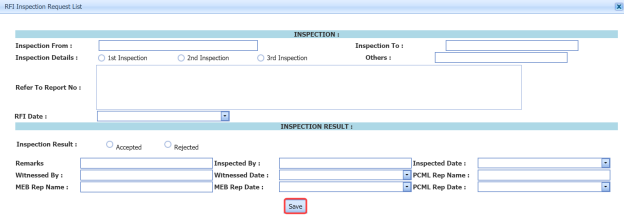
1. Click [](http://wiki.cuteinfocomm.com/uploads/images/gallery/2022-05/image-1651805788288.png) (Edit icon) in the **RFI Data** column of the **RFI Fit up Request Generic** See Fig 5.1. The **RFI Inspection Request List** window opens.
[](http://wiki.cuteinfocomm.com/uploads/images/gallery/2022-05/image-1651805817685.png)
2. In the **Inspection From** box, enter the detail from where the inspection should start.
3. In the **Inspection To** box, enter the detail to where the inspection should end.
4. In the ****Inspection Details**** option, select 1stInspection, 2nd Inspection or 3rd Inspection according to the inspection details.
5. In the **Others** box, enter any other inspection related details.
6. In the **Refer to Report No** box, enter the report number for reference.
7. In the **RFI Date** box, choose the RFI date.
8. In the Inspection Result option, if the inspection result is accepted, select **Accepted** otherwise select **Rejected**.
9. In the **Remarks** box, enter your remarks if any.
10. In the **Inspected by** box, enter the name of a person who has done inspection.
11. In the **Inspected Date** box, choose the date of inspection.
12. In the **Witnessed By** box, enter the name of the witnessed person.
13. In the **Witnessed Date** box, choose the date of witnessed.
14. In the **PCML Rep Name** box, enter the representative name of PCML.
15. In the **PCML Rep Date** box, choose the PCML rep date.
16. In the **MEB Rep Name** box, enter the representative name of MEB.
17. In the **MEB Rep Date box**, choose MEB rep date.
18. Click **Save**.
The RFI data is successfully added.
#### **5.1.3 Clone an RFI Fit Up Request Generic**
The **Clone** option in the **RFI Fit up Request Generic** page used to create a RFI weld VI generic request in the [**RFI Weld VI Generic**](http://wiki.cuteinfocomm.com/link/69#bkmrk-5.28%C2%A0view-applicatio) page, as a copy of RFI fit up request generic, See Fig 5.4.
If you click [](http://wiki.cuteinfocomm.com/uploads/images/gallery/2022-05/image-1651806045627.png) (Clone icon) in the **Clone** column of the **RFI Fit up Request Generic** page, an RFI weld VI generic request is added in the **RFI weld VI generic** page.
[](http://wiki.cuteinfocomm.com/uploads/images/gallery/2022-05/image-1651806061978.png) **Tip**: You can create multiple copies of RFI weld VI generic request for a single RFI fit up request generic.
#### **5.1.4 Print an RFI Report**
If you want to print an RFI report, click [](http://wiki.cuteinfocomm.com/uploads/images/gallery/2022-05/image-1651806095929.png) (print icon) provided in the **RFI** **Report** column of the **RFI Fit up Request Generic** page. See Fig 5.1.
#### **5.1.5 Submit an RFI Fit Up Request Generic**
Once you have added the RFI fit up request generic, the **Submission** column in the **RFI Fit up Request Generic** page is appeared with [](http://wiki.cuteinfocomm.com/uploads/images/gallery/2022-05/image-1651806136539.png) (Submit and Reject icons).
1. If you want to submit the RFI fit up request generic, click [](http://wiki.cuteinfocomm.com/uploads/images/gallery/2022-05/image-1651806160602.png) (Submit icon) in the **Submission** column. Otherwise click [](http://wiki.cuteinfocomm.com/uploads/images/gallery/2022-05/image-1651806171691.png) (Reject icon) to reject the request.
#### **5.1.6 Print an RFI Fit Up Request Generic Report**
If you want to print an RFI fit up request generic report, click[](http://wiki.cuteinfocomm.com/uploads/images/gallery/2022-05/image-1651806208317.png) (print icon) provided in the **Report** column of the **RFI Fit up Request Generic** page. See Fig 5.1.
#### **5.1.7 Attach a File into an RFI Fit Up Request Generic**
If you want to attach any file with any RFI fit up request generic added in the **RFI Fit up Request Generic page, follow the procedures given in the topic “[**Attach a file into a client master drawing**](http://wiki.cuteinfocomm.com/books/cuteqm/page/project-data-qXJ/#bkmrk-3.2.2%C2%A0attach-a-file-)” in the **Client Master Drawing** section.
#### **5.1.8 View Signature Details of QA User, Surveyor, and Client**
Once the RFI fit up inspection has completed, the QA, surveyor, and client add their signature based on their corresponding roles. You can view their signature by using [](http://wiki.cuteinfocomm.com/uploads/images/gallery/2022-05/image-1651806406456.png) (Sign icon) in the **Sign Details** column in the **RFI Fit up Request Generic** page.
#### **5.1.9 Edit Any RFI Fit Up Request Generic**
If you want to edit any existing RFI fit up request generic in the **RFI Fit up Request Generic** page, do the following,
1. Click [](http://wiki.cuteinfocomm.com/uploads/images/gallery/2022-05/image-1651806477011.png)(Edit icon) in the **Edit** column for the respective RFI fit up request generic. See Fig 5.1. A new window opens to edit the RFI fit up request generic.
2. Click any box where you want to edit the details, and then edit the details in the respective box.
3. Click **Save**.
#### **5.1.10 Export RFI Fit Up Request Generic List**
You can export a list of RFI fit up request generic added in the **RFI Fit up Request Generic** page in the pdf and excel formats. To know how to export, see the topic, “[**Export Areas list**](http://wiki.cuteinfocomm.com/books/cuteqm/page/project-data-qXJ/#bkmrk-3.1.4%C2%A0export-areas-l)” in the **Area** option.
#### **5.1.11 Filter Any RFI Fit Up Request Generic**
If you want to filter any RFI fit up request generic from the list of RFI fit up request generic in the **RFI Fit up Request Generic** page, you can use the (**FILTER** button). To know how to filter, see the topic, ”**Filter Any Area**”.
### **5.2 RFI Fit up Request (Heat Numbers)**
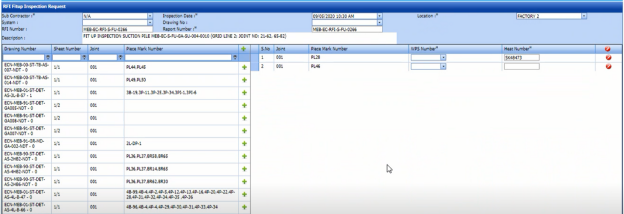
The **RFI Fit up Request** tab allows you add an RFI fit up request to check the fit-up quality of pipes and joints used in the Structural project by a sub-contractor. To navigate to the RFI fit up request adding page,
1. Click **RFI Fit up Request** in the **Inspection** menu. The **RFI Fit up Inspection Request** page opens.
[](http://wiki.cuteinfocomm.com/uploads/images/gallery/2022-05/image-1651806657279.png)
**Figure 4.2: RFI Fit up Inspection Request page**
#### **5.2.1 Add an RFI Fit Up Request**
If you want to add an RFI fit up request, do the following steps,
1. In the **Sub Contractor** box, select a sub-contractor from a drop-down list.
2. In the **Inspection Date** box, select the inspection date.
[](http://wiki.cuteinfocomm.com/uploads/images/gallery/2022-05/image-1651806762299.png)**Note:** The inspection date should be as current date or upcoming dates. The system will not accept if you have given the previous dates.
3. In the **Location** box, select a location from a drop-down list.
4. In the **System** box, select a system from a drop-down list.
5. In the **Drawing No** box, select a drawing number.
6. In the **Description** box, enter the description for the RFI fit up request. Before saving the added fit up request, you must add joints for the fit-up request.
7. Click [](http://wiki.cuteinfocomm.com/uploads/images/gallery/2022-05/image-1651806862939.png)(Add icon) of the respective joints you want to add.
The added joints will be moved and listed in the right side of the page.
[](http://wiki.cuteinfocomm.com/uploads/images/gallery/2022-05/image-1651806950910.png)
8. In the **Heat No 1** box, enter the heat number of the first component if you know.
9. In the **Heat No 2** box, enter the heat number of the second component if you know.
[](http://wiki.cuteinfocomm.com/uploads/images/gallery/2022-05/image-1651806967931.png)**Tip**: If you want to remove any added joint, click[](http://wiki.cuteinfocomm.com/uploads/images/gallery/2022-05/image-1651806983021.png)(**Remove** icon) of the respective joint.
10. Click **Save**.
The RFI fit up request is successfully added. If you want to view the added request, navigate to t the **View RFI Fit up** page.
### **5.3 View RFI Fit up (Heat Numbers)**
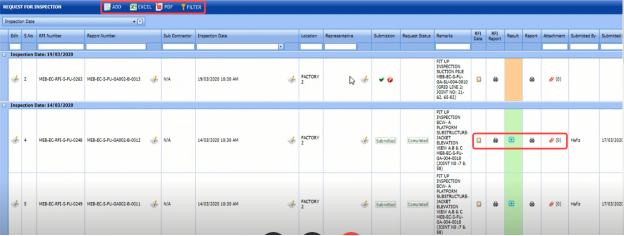
The **View RFI Fit up** tab helps you to view and edit the RFI fit up requests, which are added by using the **RFI Fit up Request** tab. This tab also allows you to add a new RFI fit up request.
1. Click **View RFI Fit up** in the **Inspection** menu. The **Request for Inspection** page opens with a list of added RFI fit up requests.
[](http://wiki.cuteinfocomm.com/uploads/images/gallery/2022-05/image-1651807142281.png)
**Figure 5.3: Request for Inspection page**
#### **5.3.1 Add an RFI Fit Up Request**
If you want to add an RFI fit up request, do the following,
1. Click [](http://wiki.cuteinfocomm.com/uploads/images/gallery/2022-05/image-1651807194442.png) (**ADD** button) in the **RFI Fit up Request List** page.
The system redirects you into **RFI Fit up Inspection Request** page. To know how to add an RFI fit up request, See the topic, “[**Add an RFI Fit up Request**](http://wiki.cuteinfocomm.com/link/69#bkmrk-5.2.1-add-an-rfi-fit)”.
Once you have added the RFI fit up request, you must submit the added request for inspection.
#### **5.3.2 Add Representative for Added RFI Fit Up Request**
If you want to add a representative for any added RFI fit up request,
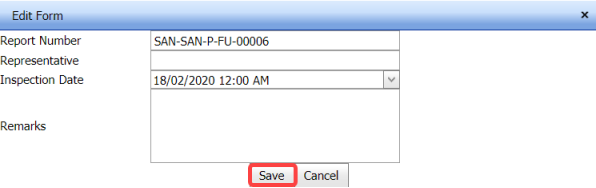
1. Click [](http://wiki.cuteinfocomm.com/uploads/images/gallery/2022-05/image-1651807855116.png) (Edit icon) in the **Representative** column for the respective RFI fit up request. The **Edit Form** window opens.
[](http://wiki.cuteinfocomm.com/uploads/images/gallery/2022-05/image-1651807868464.png)
2. In the **Representative** box, enter the name of a representative.
3. In the **Inspection Date** box, select the date of inspection.
4. In the **Remarks** box, enter your remarks if any.
5. Click **Save**.
#### **5.3.3 Edit Any RFI Fit Up Request**
If you want to edit any existing RFI fit up request in the **Request for Inspection** page, do the following,
1. Click [](http://wiki.cuteinfocomm.com/uploads/images/gallery/2022-05/image-1651807927297.png)(Edit icon) in the **Edit** column for the respective RFI fit up request. See Fig 5.3. The **RFI Fit up Inspection Request** page opens with the details of the selected RFI fit up request.
2. Click any box where you want to edit the details, and then edit the details in the respective box.
3. Click **Save**.
#### **5.3.4 Submit and Approve an RFI Fit Up Request**
Once you have added the RFI fit up request, the **Submission** column in the **RFI Fit up Request Lists** page is appeared with [](http://wiki.cuteinfocomm.com/uploads/images/gallery/2022-05/image-1651808019268.png)(Submit and Reject icons). See Fig 5.3.
1. If you want to submit the RFI fit up request, click [](http://wiki.cuteinfocomm.com/uploads/images/gallery/2022-05/image-1651808071397.png)(Submit icon) in the **Submission** Otherwise click [](http://wiki.cuteinfocomm.com/uploads/images/gallery/2022-05/image-1651808080397.png) (Reject icon) to reject the request. Once you have submitted the RFI fit up request, the **Request Status** column in the **RFI Fit up Requests List** page is appeared with [](http://wiki.cuteinfocomm.com/uploads/images/gallery/2022-05/image-1651808114368.png) (Approve and Reject icons).
2. If you want to approve the RFI fit up request, click [](http://wiki.cuteinfocomm.com/uploads/images/gallery/2022-05/image-1651808166180.png) (Submit icon) in the ****Request Status**** Otherwise click [](http://wiki.cuteinfocomm.com/uploads/images/gallery/2022-05/image-1651808175651.png) (Reject icon) to reject the request.
The approved request will be moved to for inspection.
#### **5.3.5 Add Results of RFI Fit Up Inspection**
After completing the RFI fit up inspection for the added request, you can add the inspection result details. To add results, do the following steps,
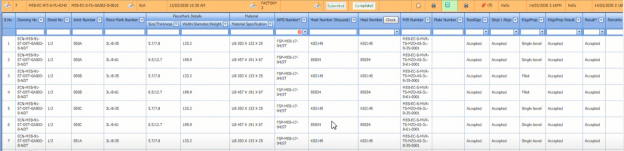
1. Click [ ](http://wiki.cuteinfocomm.com/uploads/images/gallery/2022-05/image-1651808356907.png)(Add icon) in the **Results** column of the respective request. The **RFI Fit up Request List** window opens with a list of joints.
[](http://wiki.cuteinfocomm.com/uploads/images/gallery/2022-05/image-1651808378174.png)
2. If you want to update the heat numbers and piece mark details, click on the respective box and update.
3. If you want to update the WPS number in the **WPS Number** column, you can change the WPS number from a drop-down list.
4. Update the result for root gap by selecting ****Accepted**** or ****Rejected**** in the ****Root Gap**** column based on the inspection.
5. Update the result for straight/ alignment by selecting ****Accepted**** or ****Rejected**** in the ****Strgt/Align**** column based on the inspection.
6. In the **Edge Prep** column, select the type of the edge preparation from a drop-down list.
7. In the **Result** column, update the RFI fit up inspection result by selecting **Pending**, **Accepted**, **Rejected**, or **Cancelled**.
8. In the **Remarks** column, enter you remarks if any.
#### **5.3.6 View an RFI Fit Up Report**
If you want to view an RFI fit up report, click [](http://wiki.cuteinfocomm.com/uploads/images/gallery/2022-05/image-1651808508303.png) (print icon) provided in the **Report** column of the **Request for Inspection** page. See Fig 5.3.
#### **5.3.7 View Signature Details of Inspectors**
You can view the sign details of the inspectors such as QA, Sub contractor, Client, and Owner, once they completed the RFI fit up inspection and submitted the inspection result details including their signature. To view the signature details, click [](http://wiki.cuteinfocomm.com/uploads/images/gallery/2022-05/image-1651808856444.png)(Sign icon) in the **Sign Details** column in the **Request for Inspection** page.
#### **5.3.8 Attach a File into an RFI Fit up Request**
If you want to attach a file with any existing RFI fit up request listed in the **RFI Fit up Requests List** page, you can attach the file by using[](http://wiki.cuteinfocomm.com/uploads/images/gallery/2022-05/image-1651814106867.png)(Attach icon) in the **Attachment** column. To know how to attach, follow the procedures given in the topic “[**Attach a file into a client master drawing**](http://wiki.cuteinfocomm.com/books/cuteqm/page/project-data-qXJ/#bkmrk-3.2.2%C2%A0attach-a-file-)”.
#### **5.3.9 Export RFI Fit up Request List**
You can export a list of RFI fit up requests added in the **RFI Fit up Requests List** page in both the pdf and excel formats by using [](http://wiki.cuteinfocomm.com/uploads/images/gallery/2022-05/image-1651814160755.png) (**PDF** button) and [](http://wiki.cuteinfocomm.com/uploads/images/gallery/2022-05/image-1651814170329.png) (**Excel** button). To know how to export, see the topic, “[**Export Areas list**](http://wiki.cuteinfocomm.com/books/cuteqm/page/project-data-qXJ/#bkmrk-3.1.4%C2%A0export-areas-l)”.
#### **5.3.10 Filter RFI Fit up Request**
If you want to filter any specific RFI fit up request in the **RFI Fit up Requests List** page,
- you can use the filter box [](http://wiki.cuteinfocomm.com/uploads/images/gallery/2022-05/image-1651814511402.png) provided in the upper side of the **RFI Fit up Requests List** To filter the any specific RFI fit up request, select the **Drawing Number** and **Date** in the boxes and click **Search**.
- you can use [](http://wiki.cuteinfocomm.com/uploads/images/gallery/2022-05/image-1651814541939.png) (FILTER button) located on the RFI Fit up Requests List page. To know how to filter, see the topic, ”****Filter Any Area****”.
### **5.4 RFI Weld VI Generic**
Once the RFI fit up inspection process has completed, the materials are moved for weld inspection process. The **RFI Weld VI Generic** tab in the **Inspection** menu helps you to add an RFI weld VI generic.
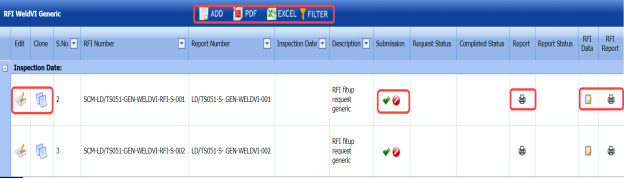
1. Click the ****RFI Weld VI Generic**** tab in the ******Inspection****** menu. The **RFI Weld VI Generic** page opens.
[](http://wiki.cuteinfocomm.com/uploads/images/gallery/2022-05/image-1651818337672.png)
[](http://wiki.cuteinfocomm.com/uploads/images/gallery/2022-05/image-1651818349509.png)
[](http://wiki.cuteinfocomm.com/uploads/images/gallery/2022-05/image-1651818360288.png)
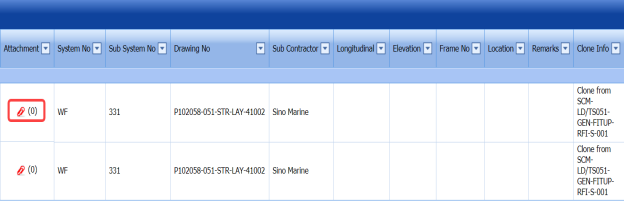
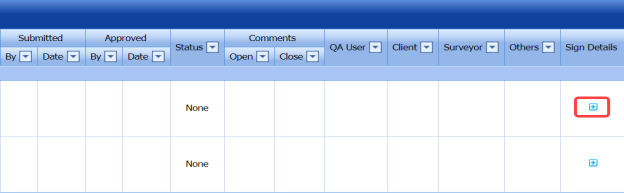
**Figure 5.4: RFI Weld VI Generic page**
#### **5.4.1 Add an RFI Weld VI Generic**
If you want to add an RFI weld VI generic, do the following,
1. Click [](http://wiki.cuteinfocomm.com/uploads/images/gallery/2022-05/image-1651819746364.png) (**ADD** button) in the **RFI Weld VI Generic** page. A new window opens to add an RFI weld VI generic.
[](http://wiki.cuteinfocomm.com/uploads/images/gallery/2022-05/image-1651819758491.png)
[](http://wiki.cuteinfocomm.com/uploads/images/gallery/2022-05/image-1651819769739.png) **Note**: The fields notified with a symbol (\*) are mandatory. You must enter the relevant details in that fields before saving.
[](http://wiki.cuteinfocomm.com/uploads/images/gallery/2022-05/image-1651819781665.png) **Tip**: A report number for a new RFI weld VI generic will be updated automatically in the **Report Number** box.
2. In the **Description** box, enter the description for the RFI weld VI generic.
3. In the **System** box, select a system from a drop-down list.
4. In the **Inspection Date** box, choose the date of inspection.
5. In the **Frame No** box, enter the frame number.
6. In the **Elevation** box, enter the elevation value.
7. In the **Longitudinal** box, enter the longitudinal value.
8. In the **Location** box, enter the location where the inspection to be done.
9. In the **Drawing No** box, select the drawing number from a drop-down list.
10. In the **Sub Contractor** box, select the sub-contractor from a drop-down list.
11. In the **Remarks** box, enter your remarks if any.
12. Click **Save**.
The RFI weld VI generic is added successfully. Once you have added the RFI weld VI generic, you must add the RFI data for the added request.
#### **5.4.2 Add RFI Data for the Added RFI Weld VI Generic**
If you want to add RFI data for the added RFI weld VI generic, do the following,
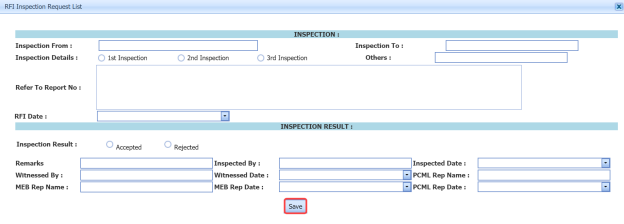
1. Click [](http://wiki.cuteinfocomm.com/uploads/images/gallery/2022-05/image-1651819888124.png) (Edit icon) in the **RFI Data** column of the **RFI Weld VI Generic** See Fig 5.4. The **RFI Inspection Request List** window opens.
[](http://wiki.cuteinfocomm.com/uploads/images/gallery/2022-05/image-1651820184413.png)
2. In the **Inspection From** box, enter the detail from where the inspection should start.
3. In the **Inspection To** box, enter the detail to where the inspection should end.
4. In the **Inspection Details** option, select 1st Inspection, 2nd Inspection or 3rd Inspection according to the inspection details.
5. In the **Others** box, enter any other inspection related details.
6. In the **Refer to Report No** box, enter the report number for reference.
7. In the **RFI Date** box, choose the RFI date.
8. In the Inspection Result option, if the inspection result is accepted, select ****Accepted**** otherwise select ****Rejected****.
9. In the **Remarks** box, enter your remarks if any.
10. In the **Inspected by** box, enter the name of a person who has done inspection.
11. In the **Inspected Date** box, choose the date of inspection.
12. In the **Witnessed By** box, enter the name of the witnessed person.
13. In the **PCML Rep Name** box, enter the representative name of PCML.
14. In the **PCML Rep Date** box, choose the PCML rep date.
15. In the **MEB Rep Name** box, enter the representative name of MEB.
16. In the **MEB Rep Date box**, choose MEB rep date.
17. Click **Save**.
The RFI data is successfully added.
#### **5.4.3 Clone an RFI Weld VI Generic**
The **Clone** option in the **RFI Weld VI Generic** page used to create a vacuum test request, an air test request, a hydrostatic test request, and an NDT request, as a copy of RFI weld VI generic request.
1. Click [](http://wiki.cuteinfocomm.com/uploads/images/gallery/2022-05/image-1651820497116.png) (Clone icon) in the **Clone** column of the **RFI Weld VI Generic** page. The Clone box opens.
2. Select any test from the given list.
3. Click [](http://wiki.cuteinfocomm.com/uploads/images/gallery/2022-05/image-1652096451071.png) (**Add** button).
A new request for the selected test will be added in the respective pages.
#### **5.4.4 Print an RFI Report**
If you want to print an RFI report, click [](http://wiki.cuteinfocomm.com/uploads/images/gallery/2022-05/image-1651820553875.png) (print icon) provided in the **RFI** **Report** column of the **RFI Weld VI Generic** page. See Fig 5.4.
#### **5.4.5 Submit an RFI Weld VI Generic**
Once you have added the RFI weld VI generic, the **Submission** column in the **RFI Weld VI Generic** page is appeared with [](http://wiki.cuteinfocomm.com/uploads/images/gallery/2022-05/image-1651820613399.png)(Submit and Reject icons).
1. If you want to submit the RFI weld VI generic, click [](http://wiki.cuteinfocomm.com/uploads/images/gallery/2022-05/image-1651820633241.png) (Submit icon) in the **Submission** column. Otherwise click[](http://wiki.cuteinfocomm.com/uploads/images/gallery/2022-05/image-1651820644265.png) (Reject icon) to reject the request.
#### **5.4.6 Print an RFI Weld VI Generic Report**
If you want to print an RFI weld VI generic report, click [](http://wiki.cuteinfocomm.com/uploads/images/gallery/2022-05/image-1651820676007.png) (print icon) provided in the **Report** column of the **RFI Weld VI Generic** page. See Fig 5.4.
#### **5.4.7 View Signature Details of QA User, Surveyor, and Client**
Once the weld VI inspection has completed, the QA, surveyor, and client add their signature based on their corresponding roles. You can view their signature by using[](http://wiki.cuteinfocomm.com/uploads/images/gallery/2022-05/image-1651820729015.png) (Sign icon) in the **Sign Details** column in the **RFI Weld VI Generic** page.
#### **5.4.8 Attach a File into an RFI Weld VI Generic**
If you want to attach any file with any RFI weld VI generic added in the **RFI Weld VI Generic page, follow the procedures given in the topic “[**Attach a file into a client master drawing**](http://wiki.cuteinfocomm.com/books/cuteqm/page/project-data-qXJ/#bkmrk-3.2.2%C2%A0attach-a-file-)” in the **Client Master Drawing** section.
#### **5.4.9 Edit Any RFI Weld VI Generic**
If you want to edit any existing RFI weld VI generic in the **RFI Weld VI Generic** page, do the following,
1. Click [](http://wiki.cuteinfocomm.com/uploads/images/gallery/2022-05/image-1651822747960.png) (Edit icon) in the **Edit** column for the respective RFI weld VI generic. See Fig 5.4. A new window opens to edit the RFI weld VI generic.
2. Click any box where you want to edit the details, and then edit the details in the respective box.
3. Click **Save**.
#### **5.4.10 Export RFI Weld VI Generic List**
You can export a list of RFI weld VI generic added in the **RFI Weld VI Generic** page in the pdf and excel formats. To know how to export, see the topic, “[**Export Areas list**](http://wiki.cuteinfocomm.com/books/cuteqm/page/project-data-qXJ/#bkmrk-3.1.4%C2%A0export-areas-l)” in the **Area** option.
#### **5.4.11 Filter Any RFI Weld VI Generic**
If you want to filter any RFI weld VI generic from the list of RFI weld VI generic in the **RFI Weld VI Generic** page, you can use the [ ](http://wiki.cuteinfocomm.com/uploads/images/gallery/2022-05/image-1651822860270.png) (**FILTER** button). To know how to filter, see the topic, ”**Filter Any Area**”.
### **5.5 RFI Weld VI Request (Heat Numbers)**
The **RFI Weld VI Request** tab in the **Inspection** menu allows you to add an RFI weld VI request to perform visual inspection of welded pipes and joints used in the Structural project. To navigate to the RFI weld VI request adding page,
1. Click **RFI Weld VI Request** in the **Inspection** menu. The **RFI Weld Visual Request** page opens.
[](http://wiki.cuteinfocomm.com/uploads/images/gallery/2022-05/image-1651823246690.png)
**Figure 5.5: RFI Weld Visual Request page**
#### **5.5.1 Add an RFI Weld VI Request**
If you want to add an RFI weld VI request, do the following steps,
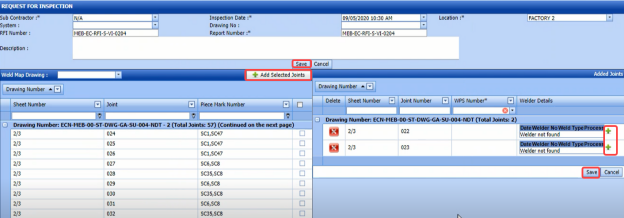
1. In the **Sub Contractor** box, select the name of a sub-contractor from a drop-down list.
2. In the **Inspection Date** box, select the inspection date.
[](http://wiki.cuteinfocomm.com/uploads/images/gallery/2022-05/image-1651823533393.png) **Note:** The inspection date should be as current date or upcoming dates. The system will not accept if you have given the previous dates.
3. In the **Location** box, select a location from a drop-down list.
4. In the **System** box, select a system from a drop-down list.
5. In the **Drawing No** box, select the drawing number from a drop-down list.
6. In the **Description** box, enter the description for the request.
Before saving the added weld VI request, you must add joints for the weld VI request.
[](http://wiki.cuteinfocomm.com/uploads/images/gallery/2022-05/image-1651823772249.png)**Note**: You can add multiple joints for one request.
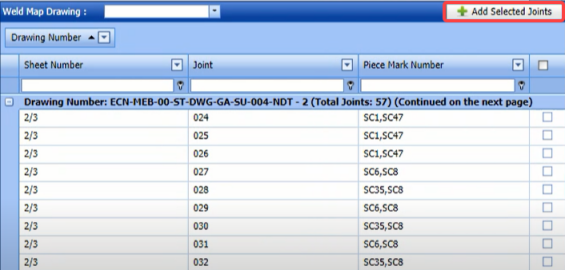
The **RFI Weld Visual Request** page shows a list of joints including the corresponding sheet and piece mark numbers. If you want to add joints for the RFI weld VI request, do the following steps,
[](http://wiki.cuteinfocomm.com/uploads/images/gallery/2022-05/image-1651824001781.png)
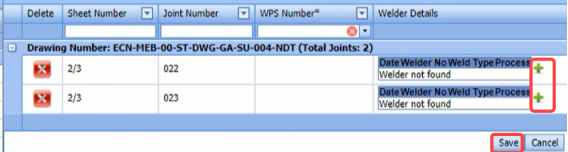
7. Select the checkbox of the respective joints you want to add. The added joints will be moved and listed in the right side of the page.
[](http://wiki.cuteinfocomm.com/uploads/images/gallery/2022-05/image-1651824182325.png)
8. Update the welder details by using (Add icon) provided in the ****Welder Details**** column.
1. 1. Click (Add icon) of the respective joint number.
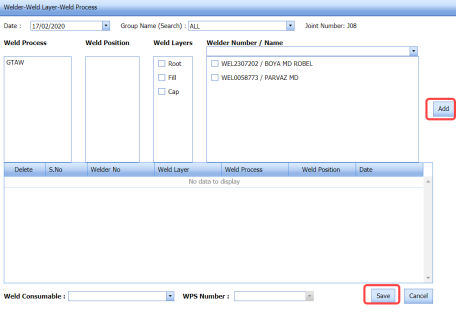
The **Welder- Weld Layer- Weld Process** window opens.
[](http://wiki.cuteinfocomm.com/uploads/images/gallery/2022-05/image-1651824230871.png)
2. In the **Date** box, select the date.
3. In the **Group Name** box, select the group name from a drop-down list.
4. In the **Weld Process** field, select a weld process.
5. In the **Weld Position** field, select the welding position.
6. In the **Weld Layers** field, select the weld layers you want add.
7. In the **Welder Number/ Name** field, select the welders you want to add.
8. Click **Add**.
The selected welders will be added and listed in the below table. See the above figure.
9. In the **Weld Consumable** box, select the weld consumable from a drop-down list.
10. In the **WPS Number** box, select the WPS number from a drop-down list.
11. Click **Save**.
[](http://wiki.cuteinfocomm.com/uploads/images/gallery/2022-05/image-1651824304754.png)**Tip**: If you want to remove any added joint, click (**Remove** icon) of the respective joint.
9. Click **Save**.
The RFI weld VI request is successfully added. If you want to view the added request, navigate to **View RFI Weld VI**.
### **5.6 View RFI Weld VI (Heat Numbers)**
The **View RFI Weld VI** tab helps you to view and edit the RFI weld VI request, which is added by using the **RFI Weld VI Request** tab. This tab also allows you to add a new RFI weld VI request.
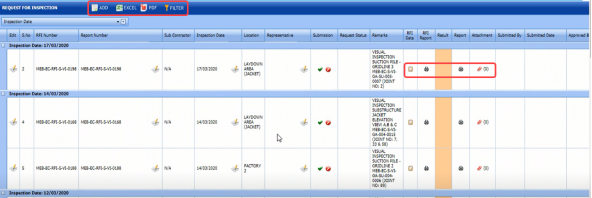
1. Click **View RFI Weld VI** in the **Inspection** menu. The **Request for Inspection** page opens with a list of added RFI weld VI requests.
[](http://wiki.cuteinfocomm.com/uploads/images/gallery/2022-05/image-1651824518475.png)
**Figure 5.6: Request for Inspection page**
#### **5.6.1 Add an RFI Weld VI Request**
If you want to add an RFI weld VI request, do the following,
1. Click [](http://wiki.cuteinfocomm.com/uploads/images/gallery/2022-05/image-1651824728863.png) (**ADD** button) in the **Request for Inspection** page. The system redirects you into **Request** **for Inspection** page. To know how to add an RFI weld VI request, See the topic, “**Add an RFI Weld VI Request**”.
Once you have added the RFI weld VI request, you must submit the added request for weld visual inspection.
#### **5.6.2 Add Representative for Added RFI Weld VI Request**
If you want to add a representative for any added RFI weld VI request,
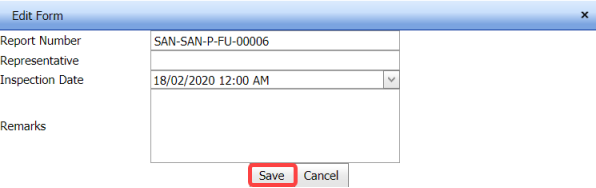
1. Click [](http://wiki.cuteinfocomm.com/uploads/images/gallery/2022-05/image-1651824800467.png) (Edit icon) in the **Representative** column for the respective RFI weld VI request. The **Edit Form** window opens.
[](http://wiki.cuteinfocomm.com/uploads/images/gallery/2022-05/image-1651824820417.png)
2. In the **Representative** box, enter the name of a representative.
3. In the **Inspection Date** box, select the date of inspection.
4. In the **Remarks** box, enter your remarks if any.
5. Click **Save**.
#### **5.6.3 Edit Any RFI Weld VI Request**
If you want to edit any existing RFI weld VI request in the **Request for Inspection** page, do the following,
1. Click [](http://wiki.cuteinfocomm.com/uploads/images/gallery/2022-05/image-1651824877355.png) (Edit icon) in the **Edit** column for the respective RFI weld VI request. See Fig 5.6. The **Request** **for Inspection** page opens with the details of the selected RFI weld VI request.
2. Click any box where you want to edit the details, and then edit the details in the respective box.
3. Click **Save**.
#### **5.6.4 Submit and Approve an RFI Weld VI Request**
Once you have added the RFI weld VI request, the **Submission** column in the **Requests for Inspection** page is appeared with [](http://wiki.cuteinfocomm.com/uploads/images/gallery/2022-05/image-1651824942944.png) (Submit and Reject icons). See Fig 5.6.
1. If you want to submit the RFI weld VI request, click [](http://wiki.cuteinfocomm.com/uploads/images/gallery/2022-05/image-1651824975040.png) (Submit icon) in the **Submission** column. Otherwise click [](http://wiki.cuteinfocomm.com/uploads/images/gallery/2022-05/image-1651824985927.png) (Reject icon) to reject the request.
Once you have submitted the RFI weld VI request, the **Request Status** column in the **Request for Inspection** page is appeared with [](http://wiki.cuteinfocomm.com/uploads/images/gallery/2022-05/image-1651825025798.png) (Approve and Reject icons).
2. If you want to approve the RFI weld VI request, click [](http://wiki.cuteinfocomm.com/uploads/images/gallery/2022-05/image-1651825063577.png) (Submit icon) in the ****Request Status**** Otherwise click [](http://wiki.cuteinfocomm.com/uploads/images/gallery/2022-05/image-1651825073218.png) (Reject icon) to reject the request.
The approved request will be moved to for inspection.
#### **5.6.5 Add Results of RFI weld Visual Inspection**
After completing the RFI weld visual inspection for the added request, you can add the inspection result details. To add results, do the following steps,
1. Click [](http://wiki.cuteinfocomm.com/uploads/images/gallery/2022-05/image-1651825147956.png) (Add icon) in the **Results** column of the respective request. The **Request for Inspection** window opens with a list of joints added for the particular request.
[](http://wiki.cuteinfocomm.com/uploads/images/gallery/2022-05/image-1651825174023.png)
2. In the ****Result**** column, select the result for each joint from the given result options in the drop-down list.
3. In the **Remarks** box, enter your remarks if any.
4. Click **Save**.
#### **5.6.6 View an RFI Weld VI Report**
If you want to view an RFI weld VI report, click [](http://wiki.cuteinfocomm.com/uploads/images/gallery/2022-05/image-1651825233051.png) (print icon) provided in the **Report** column of the **RFI Weld Visual Requests List** page. See Fig 5.6.
#### **5.6.7 View Signature Details of Inspectors**
You can view the sign details of the inspectors such as QA, Sub contractor, Client, and Owner, once they completed the RFI weld visual inspection and submitted the inspection result details including their signature. To view the signature details, click[](http://wiki.cuteinfocomm.com/uploads/images/gallery/2022-05/image-1651825274978.png) (Sign icon) in the **Sign Details** column in the **RFI Weld Visual Requests List** page.
#### **5.6.8 Attach a File into an RFI Weld VI Request**
If you want to attach a file with any existing RFI weld VI request listed in the **RFI Weld Visual Requests List** page, you can attach the file by using [](http://wiki.cuteinfocomm.com/uploads/images/gallery/2022-05/image-1651825316304.png) (Attach icon) in the **Attachment** column. To know how to attach, follow the procedures given in the topic “[**Attach a file into a client master drawing**](http://wiki.cuteinfocomm.com/books/cuteqm/page/project-data-qXJ/#bkmrk-3.2.2%C2%A0attach-a-file-)”.
#### **5.6.9 Export RFI Weld VI Request List**
You can export a list of RFI weld VI requests added in the **RFI Weld Visual Requests List** page in both the pdf and excel formats by using [](http://wiki.cuteinfocomm.com/uploads/images/gallery/2022-05/image-1651825353910.png) (**PDF** button) and [](http://wiki.cuteinfocomm.com/uploads/images/gallery/2022-05/image-1651825365357.png) (**Excel** button). To know how to export, see the topic, “[**Export Areas list**](http://wiki.cuteinfocomm.com/books/cuteqm/page/project-data-qXJ/#bkmrk-3.1.4%C2%A0export-areas-l)”.
#### **5.6.10 Filter RFI Weld VI Request**
If you want to filter any specific RFI weld VI request in the **RFI Weld Visual Requests List** page,
- you can use the filter box [](http://wiki.cuteinfocomm.com/uploads/images/gallery/2022-05/image-1651825412432.png) provided in the upper side of the **RFI Weld Visual Requests List** To filter the any specific RFI weld VI request, select the **Drawing Number** and **Date** in the boxes and click **Search**.
- you can use [](http://wiki.cuteinfocomm.com/uploads/images/gallery/2022-05/image-1651825433459.png) (FILTER button) located on the RFI Weld Visual Requests List page. To know how to filter, see the topic ”Filter Any Area”.
### **5.7 NDT Inspection Generic**
NDT inspection used to find out welding defects of the materials. Once the fit up and welding process of the materials has completed, the materials will be moved for the NDT inspection. The currently following NDT inspection methods are RT, UT, MT, PT, Ultrasonic Thickness Gaging (UTG), Magnetic Particle Inspection (MPI) after load test, UT/MT, and PT after load test.
The **NDT Inspection Generic** tab in the **Inspection** menu helps you to add an NDT inspection generic. If you want to navigate the NDT inspection generic,
1. Click the **NDT Inspection Generic** in the **Inspection** menu. The **NDT Inspection Generic** page opens.
[](http://wiki.cuteinfocomm.com/uploads/images/gallery/2022-05/image-1651825529646.png)
[](http://wiki.cuteinfocomm.com/uploads/images/gallery/2022-05/image-1651825535975.png)
[](http://wiki.cuteinfocomm.com/uploads/images/gallery/2022-05/image-1651825541098.png)
**Figure 5.7: NDT Inspection Generic page**
#### **5.7.1 Add an NDT Inspection Generic**
If you want to add an NDT inspection generic, do the following,
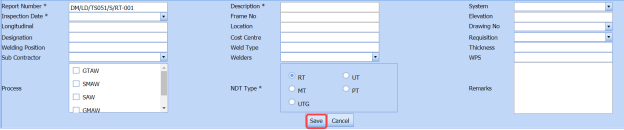
1. Click [](http://wiki.cuteinfocomm.com/uploads/images/gallery/2022-05/image-1651825641028.png) (**ADD** button) in the **NDT Inspection Generic** page. A new window opens to add an NDT Inspection generic.
[](http://wiki.cuteinfocomm.com/uploads/images/gallery/2022-05/image-1651825651460.png)
[](http://wiki.cuteinfocomm.com/uploads/images/gallery/2022-05/image-1651825674586.png)**Note**: The fields notified with a symbol (\*) are mandatory. You must enter the relevant details in that fields before saving.
[](http://wiki.cuteinfocomm.com/uploads/images/gallery/2022-05/image-1651825686394.png)**Tip**: A report number for a new NDT inspection generic will be updated automatically in the **Report Number** box.
2. In the **Description** box, enter the description for the RFI weld VI generic.
3. In the **System** box, select a system from a drop-down list.
4. In the **Inspection Date** box, choose the date of inspection.
5. In the **Frame No** box, enter the frame number.
6. In the **Elevation** box, enter the elevation value.
7. In the **Longitudinal** box, enter the longitudinal value.
8. In the **Location** box, enter the location where the inspection to be done.
9. In the **Drawing No** box, select the drawing number from a drop-down list.
10. In the **Designation** box, enter the designation detail.
11. In the **Cost Centre** box, enter the cost centre detail.
12. In the **Requisition** box, select the type of request from a drop-down list.
13. In the **Welding Position** box, enter the position of welding.
14. In the **Weld Type** box, enter the type of welding.
15. In the **Thickness** box, enter the thickness of the welding.
16. In the **Sub Contractor** box, select the sub-contractor from a drop-down list.
17. In the **Welder** box, select the name of a welder from a drop-down list.
18. In the **WPS** box, enter the WPS detail.
19. In the **Process** box, select the welding process to be done from a specified category.
20. In the **NDT Type** box, select the type of NDT to be done from a specified category.
21. In the **Remarks** box, enter your remarks if any.
22. Click **Save**.
The NDT inspection generic is added successfully. Once you have added the NDT inspection generic, you must add the RFI data for the added NDT inspection generic.
#### **5.7.2 Add RFI Data for the Added NDT Inspection Generic**
If you want to add RFI data for the added NDT inspection generic, do the following,
1. Click [](http://wiki.cuteinfocomm.com/uploads/images/gallery/2022-05/image-1651825825779.png) (Edit icon) in the **RFI Data** column of the **NDT Inspection Generic** See Fig 5.7. The **RFI Inspection Request List** window opens.
[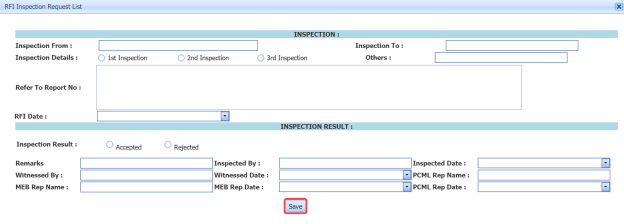](http://wiki.cuteinfocomm.com/uploads/images/gallery/2022-05/image-1651825841901.png)
2. In the **Inspection From** box, enter the detail from where the inspection should start.
3. In the **Inspection To** box, enter the detail to where the inspection should end.
4. In the **Inspection Details** option, select 1st Inspection, 2nd Inspection or 3rd Inspection according to the inspection details.
5. In the **Others** box, enter any other inspection related details.
6. In the **Refer to Report No** box, enter the report number for reference.
7. In the **RFI Date** box, choose the RFI date.
8. In the **Inspection Result** option, if the inspection result is accepted, select **Accepted** otherwise select **Rejected**.
9. In the **Remarks** box, enter your remarks if any.
10. In the **Inspected by** box, enter the name of a person who has done inspection.
11. In the **Inspected Date** box, choose the date of inspection.
12. In the **Witnessed By** box, enter the name of the witnessed person.
13. In the **Witnessed Date** box, choose the date of witnessed.
14. In the **PCML Rep Name** box, enter the representative name of PCML.
15. In the **PCML Rep Date** box, choose the PCML rep date.
16. In the **MEB Rep Name** box, enter the representative name of MEB.
17. In the **MEB Rep Date box**, choose MEB rep date.
18. Click **Save**.
The RFI data is successfully added.
#### **5.7.3 Print an RFI Report**
If you want to print an RFI report, click[](http://wiki.cuteinfocomm.com/uploads/images/gallery/2022-05/image-1651826055818.png) (print icon) provided in the **RFI** **Report** column of the **NDT Inspection Generic** page. See Fig 5.7.
#### **5.7.4 Submit an NDT Inspection Generic**
Once you have added the NDT inspection generic, the **Submission** column in the **NDT Inspection Generic** page is appeared with [](http://wiki.cuteinfocomm.com/uploads/images/gallery/2022-05/image-1651826167628.png) (Submit and Reject icons).
If you want to submit the added NDT inspection generic, click[](http://wiki.cuteinfocomm.com/uploads/images/gallery/2022-05/image-1651826214645.png) (Submit icon) in the **Submission** column. Otherwise click [](http://wiki.cuteinfocomm.com/uploads/images/gallery/2022-05/image-1651826225150.png)(Reject icon) to reject the request.
#### **5.7.5 Print an NDT Inspection Generic Report**
If you want to print an NDT inspection generic report, click[](http://wiki.cuteinfocomm.com/uploads/images/gallery/2022-05/image-1651826332425.png) (print icon) provided in the **Report** column of the **NDT Inspection Generic** page. See Fig 5.7.
#### **5.7.6 View Signature Details of QA User, Surveyor, and Client**
Once the NDT inspection has completed, the QA, surveyor, and client add their signature based on their corresponding roles. You can view their signature by using [](http://wiki.cuteinfocomm.com/uploads/images/gallery/2022-05/image-1651826371886.png) (Sign icon) in the **Sign Details** column in the **NDT Inspection Generic** page.
#### **5.7.7 Attach a File into an NDT Inspection Generic**
If you want to attach any file with any NDT inspection generic added in the **NDT Inspection Generic page, follow the procedures given in the topic “[**Attach a file into a client master drawing**](http://wiki.cuteinfocomm.com/books/cuteqm/page/project-data-qXJ/#bkmrk-3.2.2%C2%A0attach-a-file-)” in the **Client Master Drawing** section.
#### **5.7.8 Edit Any NDT Inspection Generic**
If you want to edit any existing NDT inspection generic in the **NDT Inspection Generic** page, do the following,
1. Click [](http://wiki.cuteinfocomm.com/uploads/images/gallery/2022-05/image-1651826479141.png) (Edit icon) in the **Edit** column for the respective NDT inspection generic. See Fig 5.7. A new window opens to edit the NDT inspection generic.
2. Click any box where you want to edit the details, and then edit the details in the respective box.
3. Click **Save**.
#### **5.7.9 Export NDT Inspection Generic List**
You can export a list of NDT inspection generic added in the **NDT Inspection Generic** page in the pdf and excel formats. To know how to export, see the topic, “[**Export Areas list**](http://wiki.cuteinfocomm.com/books/cuteqm/page/project-data-qXJ/#bkmrk-3.1.4%C2%A0export-areas-l)” in the **Area** option.
#### **5.7.10 Filter Any NDT Inspection Generic**
If you want to filter any NDT inspection generic from the list of NDT inspection generic in the **NDT Inspection Generic** page, you can use the [](http://wiki.cuteinfocomm.com/uploads/images/gallery/2022-05/image-1651826596765.png) (**FILTER** button). To know how to filter, see the topic, ”**Filter Any Area**”.
### **5.8 NDT Inspection Request**
The **NDT Inspection Request** tab in the **Inspection** menu helps you to add an NDT inspection request to perform the NDT inspection.
#### **5.8.1 Add an NDT Inspection Request**
If you want to add an NDT inspection request, do the following
1. Click the **NDT Inspection Request** tab in the **Inspection** menu. A new page opens to add an NDT inspection request.
[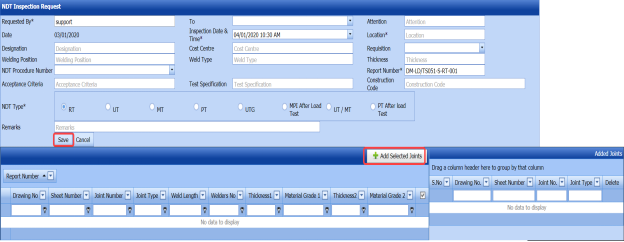](http://wiki.cuteinfocomm.com/uploads/images/gallery/2022-05/image-1651826755259.png)
**Figure 5.8: NDT Inspection Request page**
[](http://wiki.cuteinfocomm.com/uploads/images/gallery/2022-05/image-1651826778999.png) **Tip**: A report number and the request adding date for a new NDT inspection request will be updated automatically in the **Report Number** and the **Date** boxes, respectively.
[](http://wiki.cuteinfocomm.com/uploads/images/gallery/2022-05/image-1651826800152.png)**Note**: The fields notified with a symbol (\*) are mandatory. You must enter the relevant details in that fields before saving.
2. In the **Requested By** box, enter the name of person who has requested for the inspection.
3. In the **To** box, select the name of a sub-contractor from a drop-down list.
4. In the **Attention** box, enter any note if you want for attention.
5. In the **Inspection Date & Time** box, select the date of inspection.
6. In the **Location** box, enter the location where the inspection to be done.
7. In the **Designation** box, enter the designation detail.
8. In the **Cost Centre** box, enter the cost centre detail.
9. In the **Requisition** box, select the type of request from a drop-down list.
10. In the **Welding Position** box, enter the position of welding.
11. In the **Weld Type** box, enter the type of welding.
12. In the **Thickness** box, enter the thickness of the welding.
13. In the **NDT Procedure Number**, select the NDT procedure number from a drop-down list.
14. In the **Acceptance Criteria** box, enter the detail of acceptance criteria.
15. In the **Test Specification** box, enter the test specification detail.
16. In the **Construction Code** box, enter the construction code.
17. In the **NDT Type** box, select any type of NDT you want to add.
18. In the **Remarks** box, enter your remarks if any.
[](http://wiki.cuteinfocomm.com/uploads/images/gallery/2022-05/image-1651826902770.png) **Note**: Before saving the added NDT request, you must add the details of joints. You can add multiple joints for any added NDT inspection request by using a box provided in the left side of the page. To know how to add joints, see the topic “[**Add joints for an NDT inspection request**](http://wiki.cuteinfocomm.com/link/69#bkmrk-5.8.2%C2%A0add-joints-for)”.
19. Click **Save**.
#### **5.8.2 Add Joints for an NDT Inspection Request**
If you want to add joints for any added NDT inspection request, do the following,
[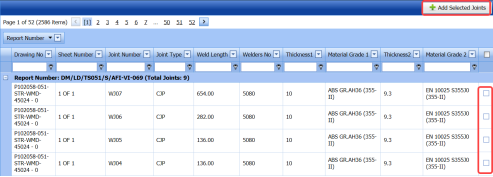](http://wiki.cuteinfocomm.com/uploads/images/gallery/2022-05/image-1651826974438.png)
1. Click the check box of the respective joints.
2. Click [](http://wiki.cuteinfocomm.com/uploads/images/gallery/2022-05/image-1651827303530.png) (**Add Selected Joints** button).
The selected joints are moved into the **Added Joints** box located in the right side of the page.
[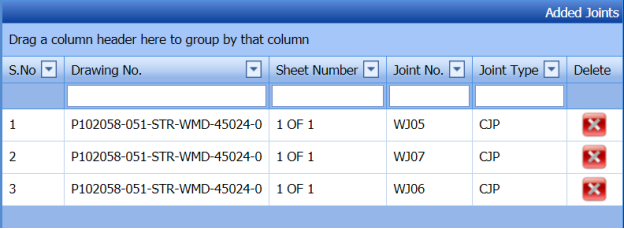](http://wiki.cuteinfocomm.com/uploads/images/gallery/2022-05/image-1651827318760.png)
The selected joints are successfully added for the NDT inspection request.
### **5.9 View NDT Request**
The **View NDT Request** tab helps you to view and edit the added NDT inspection request, which is added by using the **NDT Inspection Request** tab.
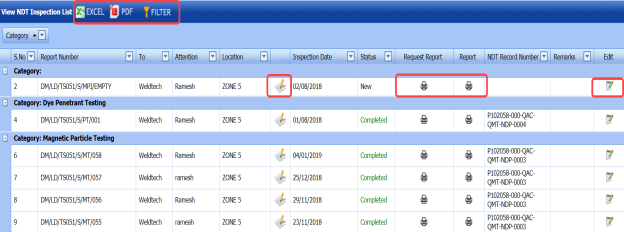
1. Click the **View NDT Request** tab in the **Inspection** menu. The **View NDT Inspection List** page opens with a list of added NDT inspection requests.
[](http://wiki.cuteinfocomm.com/uploads/images/gallery/2022-05/image-1651827398000.png)
**Figure 5.9: View NDT Inspection List page**
#### **5.9.1 Change the Inspection Date for Any Added NDT Inspection Request**
If you want to change the inspection date of any added NDT inspection request,
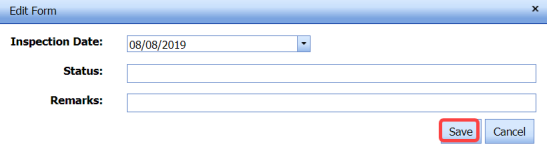
1. Click [](http://wiki.cuteinfocomm.com/uploads/images/gallery/2022-05/image-1651827458444.png) (Edit icon) in the ****Inspection Date**** column for the respective NDT inspection request, See Fig 5.9. The **Edit Form** window opens.
[](http://wiki.cuteinfocomm.com/uploads/images/gallery/2022-05/image-1651827474618.png)
1. 1. In the **Inspection Date** box, select the date of inspection.
2. Click **Save**.
#### **5.9.2 Print an NDT Inspection Request Report**
If you want to print an NDT inspection request report, click[](http://wiki.cuteinfocomm.com/uploads/images/gallery/2022-05/image-1651827538972.png) (print icon) provided in the **Report** column of the **View NDT Inspection List** page. See Fig 5.9.
#### **5.9.3 Edit Any NDT Inspection Request**
If you want to edit any existing NDT Inspection request in the **View NDT Inspection List** page, do the following,
1. Click [](http://wiki.cuteinfocomm.com/uploads/images/gallery/2022-05/image-1651827596549.png)(Edit icon) in the **Edit** column for the respective NDT inspection request. See Fig 5.9. The **NDT Inspection Request** page opens to edit the NDT Inspection request.
2. Click any box where you want to edit the details, and then edit the details in the respective box.
3. Click **Save**.
#### **5.9.4 Export NDT Inspection Request List**
You can export a list of NDT inspection request added in the **View NDT Inspection List** page in the pdf and excel formats. To know how to export, see the topic, “[**Export Areas list**](http://wiki.cuteinfocomm.com/books/cuteqm/page/project-data-qXJ/#bkmrk-3.1.4%C2%A0export-areas-l)” in the **Area** option.
#### **5.9.5 Filter Any NDT Inspection Request**
If you want to filter any NDT inspection request from the list of NDT inspection requests in the **View NDT Inspection List** page, you can use the [](http://wiki.cuteinfocomm.com/uploads/images/gallery/2022-05/image-1651827676180.png) (**FILTER** button). To know how to filter, see the topic, ”**Filter Any Area**”.
### **5.10 RFI Request for Post Weld Heat Treatment (PWHT)**
PWHT is defined as a heat treatment after welding performed to strengthen the weld metal and heat affected zone. Thus, decreasing hardness and improving toughness, and decreasing the residual stresses associated with welding.
The **RFI Request** **for PWHT** tab in the **Inspection** menu used to add an RFI request for PWHT.
1. Click the **RFI Request** **for PWHT** tab in the **Inspection** menu. The **RFI Request** **for PWHT** page opens.
[](http://wiki.cuteinfocomm.com/uploads/images/gallery/2022-05/image-1651827779135.png)
**Figure 5.10: RFI Request** **for PWHT page**
#### **5.10.1 Add an RFI Request for PWHT**
If you want to add an RFI request for PWHT, do the following,
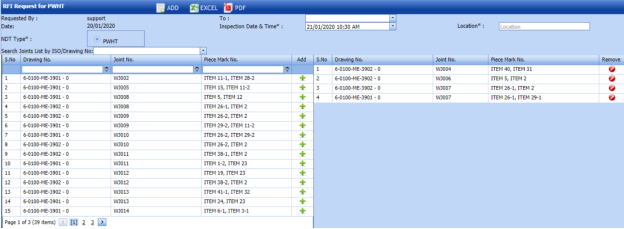
1. Click [](http://wiki.cuteinfocomm.com/uploads/images/gallery/2022-05/image-1651827838749.png) (**ADD** button) in the **RFI Request** **for PWHT** page. See Fig 5.10. A new window opens to add an RFI request for PWHT.
[](http://wiki.cuteinfocomm.com/uploads/images/gallery/2022-05/image-1651827872721.png)
[](http://wiki.cuteinfocomm.com/uploads/images/gallery/2022-05/image-1651827882542.png) **Note**: The fields notified with a symbol (\*) are mandatory. You must enter the relevant details in that fields before saving.
2. **Note**: The fields notified with a symbol (\*) are mandatory. You must enter the relevant details in that fields before saving.
3. In the **Location** box, enter a location where the inspection to be done.
4. In the **Inspection** **Date** box, select the date of inspection.
5. In the **NDT Type** box, select **PWHT**.
6. In the ****Search Joints List by ISO/ Drawing No**** box, select a drawing number from a drop-down list. The Joint numbers and the piece mark numbers will be listed for the selected drawing number.
7. If you want to add joints, click [ ](http://wiki.cuteinfocomm.com/uploads/images/gallery/2022-05/image-1651828471923.png)(****Add**** icon) of the respective joint number. The added joints will be moved into the left side window of the **RFI Request for PWHT** page.
8. Click **Save AFI Request**.
The RFI request for PWHT is successfully added.
#### **5.10.2 Submit and Approve an RFI Request for PWHT**
Once you have added the RFI request for PWHT, the **Request Status** column in the **RFI Request for PWHT page is appeared with[](http://wiki.cuteinfocomm.com/uploads/images/gallery/2022-05/image-1651828599274.png) (Submit and Reject icons).
1. If you want to submit the RFI request for PWHT, click [](http://wiki.cuteinfocomm.com/uploads/images/gallery/2022-05/image-1651828645465.png) (Submit icon) in the **Request Status** column. Otherwise click [](http://wiki.cuteinfocomm.com/uploads/images/gallery/2022-05/image-1651828661988.png) (Reject icon) to reject the request.
Once you have submitted the RFI request for PWHT, the **Completed Status** column in the **RFI Request for PWHT** page is appeared with [](http://wiki.cuteinfocomm.com/uploads/images/gallery/2022-05/image-1651828724896.png) (Accept and Reject icons).
2. If you want to approve the RFI request for PWHT, click [](http://wiki.cuteinfocomm.com/uploads/images/gallery/2022-05/image-1651828802200.png) (Submit icon) in the ****Completed Status**** Otherwise click [](http://wiki.cuteinfocomm.com/uploads/images/gallery/2022-05/image-1651828790594.png) (Reject icon) to reject the request.
#### **5.10.3 Attach a File into an RFI Request for PWHT**
If you want to attach any file with any RFI request for PWHT listed in the **RFI Request for PWHT** page, follow the procedures given in the topic “[**Attach a file into a client master drawing**](http://wiki.cuteinfocomm.com/books/cuteqm/page/project-data-qXJ/#bkmrk-3.2.2%C2%A0attach-a-file-)” in the **Client Master Drawing** section.
#### **5.10.4 Print an RFI Request for PWHT Report**
If you want to print an RFI request for PWHT report, click [](http://wiki.cuteinfocomm.com/uploads/images/gallery/2022-05/image-1651828939299.png) (print icon) provided in the **Report** column of the **RFI Request for PWHT** page. See Fig 5.12.
#### **5.10.5 Edit Any RFI Request for PWHT**
If you want to edit any existing RFI request for PWHT in the **RFI Request for PWHT** page, do the following,
1. Click [](http://wiki.cuteinfocomm.com/uploads/images/gallery/2022-05/image-1651829052996.png) (Edit icon) in the **Edit** column for the respective RFI request for PWHT. See Fig 5.10. A new window opens to edit the RFI request for PWHT.
2. Click any box where you want to edit the details, and then edit the details in the respective box.
3. Click **Save AFI Request**.
#### **5.10.6 Export RFI Request for PWHT**
You can export a list of RFI request for PWHT added in the **RFI Request for PWHT** page in the pdf and excel formats. To know how to export, see the topic, “[**Export Areas list**](http://wiki.cuteinfocomm.com/books/cuteqm/page/project-data-qXJ/#bkmrk-3.1.4%C2%A0export-areas-l)” in the **Area** option.
### **5.11 NDT Job Order**
The **NDT Job Order** tab in the **Inspection** menu allows you to add a job order for a specific NDT-contractor to carry out the NDT inspection. Once you have added the job order, you can add the NDT request including the quantity and schedule date to complete the NDT inspection.
If you want to navigate **NDT Job Order**,
1. Click the **NDT Job Order** tab in the **Inspection** menu.
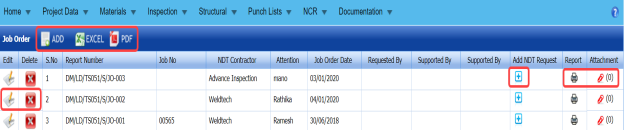
The **Job Order** page opens.
[](http://wiki.cuteinfocomm.com/uploads/images/gallery/2022-05/image-1651829189141.png)
**Figure 5.11: Job Order page**
#### **5.11.1 Add NDT Job Order**
If you want to add an NDT job order, do the following,
1. Click [](http://wiki.cuteinfocomm.com/uploads/images/gallery/2022-05/image-1651829306598.png) (**ADD** button) in the **Job Order** page. See Fig 5.11. A new window opens to add an NDT job order.
[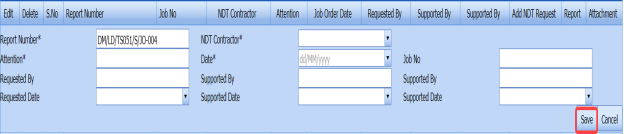](http://wiki.cuteinfocomm.com/uploads/images/gallery/2022-05/image-1651829323945.png)
[](http://wiki.cuteinfocomm.com/uploads/images/gallery/2022-05/image-1651829333579.png) **Note**: The fields notified with a symbol (\*) are mandatory. You must enter the relevant details in that fields before saving.
[](http://wiki.cuteinfocomm.com/uploads/images/gallery/2022-05/image-1651829363867.png) **Tip**: A report number for a new job order will be updated automatically in the **Report Number** box.
2. In the **NDT Contractor** box, select the name of an NDT contractor from a drop-down list.
3. In the **Attention** box, enter any note if you want for attention.
4. In the **Date** box, select the date of adding an NDT job order.
5. In the **Job No** box, enter the job number.
6. In the **Requested By** box, enter the name of a person who has requested for an NDT job order.
7. In the **Requested Date** box, select requested date of an NDT job order.
8. In the **Supported By** boxes, enter the name of a project lead and a HOD, respectively.
9. Click **Save**.
The NDT job order is successfully added.
#### **5.11.2 Add an NDT request**
1. Click [](http://wiki.cuteinfocomm.com/uploads/images/gallery/2022-05/image-1651829494834.png) (Add icon) of the respective job order in the **Add NDT Request** column of the **Job Order** See Fig 5.13. A new window shows a list of added NDT request.
[](http://wiki.cuteinfocomm.com/uploads/images/gallery/2022-05/image-1651829512197.png)
2. If you want to add any request, click [](http://wiki.cuteinfocomm.com/uploads/images/gallery/2022-05/image-1651829567471.png) (Add icon) of the respective request.
The added NDT request will be assigned under the respective job order.
3. If you want to delete any request, click [](http://wiki.cuteinfocomm.com/uploads/images/gallery/2022-05/image-1651829558594.png) (Delete icon) of the respective request.
#### **5.11.3 Attach a File into an NDT Job Order**
If you want to attach any file with any NDT job order listed in the **Job Order** page, follow the procedures given in the topic “[**Attach a file into a client master drawing**](http://wiki.cuteinfocomm.com/books/cuteqm/page/project-data-qXJ/#bkmrk-3.2.2%C2%A0attach-a-file-)” in the **Client Master Drawing** section.
#### **5.11.4 Print an NDT Job Order Report**
If you want to print an NDT job order report, click [](http://wiki.cuteinfocomm.com/uploads/images/gallery/2022-05/image-1651829685976.png) (print icon) provided in the **Report** column of the **Job Order** page. See Fig 5.11.
#### **5.11.5 Edit Any NDT Job Order**
If you want to edit any existing NDT job order in the **Job Order** page, do the following,
1. Click [](http://wiki.cuteinfocomm.com/uploads/images/gallery/2022-05/image-1651829755981.png) (Edit icon) in the **Edit** column for the respective NDT job order. See Fig 5.11.
A new window opens to edit the job order.
2. Click any box where you want to edit the details, and then edit the details in the respective box.
3. Click **Save**.
#### **5.11.6 Export NDT Job Order List**
You can export a list of NDT job order added in the **Job Order** page in the pdf and excel formats. To know how to export, see the topic, “[**Export Areas list**](http://wiki.cuteinfocomm.com/books/cuteqm/page/project-data-qXJ/#bkmrk-3.1.4%C2%A0export-areas-l)” in the **Area** option.
### **5.12 NDT Job Verification**
The **NDT Job Verification** tab helps you to add an NDT job verification request. This tab helps the NDT contractor to verify the quantity of job done based on the request issued. If you want to navigate **NDT Job Verification**,
1. Click the **NDT Job Verification** tab in the **Inspection** menu. The **Job Verification** page opens.
[](http://wiki.cuteinfocomm.com/uploads/images/gallery/2022-05/image-1651829889189.png)
**Figure 5.12: Job Verification page**
#### **5.12.1 Add NDT Job Verification**
If you want to add an NDT job verification, do the following,
1. Click [](http://wiki.cuteinfocomm.com/uploads/images/gallery/2022-05/image-1651829975202.png) (**ADD** button) in the **Job Verification** page. See Fig 5.12. A new window opens to add an NDT job verification request.
[](http://wiki.cuteinfocomm.com/uploads/images/gallery/2022-05/image-1651829997771.png)
[](http://wiki.cuteinfocomm.com/uploads/images/gallery/2022-05/image-1651830007041.png) **Note**: The fields notified with a symbol (\*) are mandatory. You must enter the relevant details in that fields before saving.
[](http://wiki.cuteinfocomm.com/uploads/images/gallery/2022-05/image-1651830020667.png)**Tip**: A report number for a new job verification will be updated automatically in the **Report Number** box.
2. In the **NDT Contractor** box, select the name of an NDT contractor from a drop-down list.
3. In the **Date** box, select the date of adding an NDT job verification request.
4. In the **Job No** box, enter the job number.
5. In the **Prepared By** box, enter the name of a person who prepared the NDT job verification request.
6. In the **Prepared Date** box, select prepared date of the NDT job verification request.
7. In the **Checked By** box, enter the name of a person who has checked the request.
8. In the **Checked Date** box, select checked date of the request.
9. In the ****Verified By**** box, enter the name of a person who has verified the request.
10. Click **Save**.
The NDT job verification request is successfully added.
#### **5.12.2 Attach a File into an NDT Job Verification Request**
If you want to attach any file with any NDT job verification request listed in the **Job Verification** page, follow the procedures given in the topic “[**Attach a file into a client master drawing**](http://wiki.cuteinfocomm.com/books/cuteqm/page/project-data-qXJ/#bkmrk-3.2.2%C2%A0attach-a-file-)” in the **Client Master Drawing** section.
#### **5.12.3 Print an NDT Job Verification Report**
If you want to print an NDT job verification report, click[](http://wiki.cuteinfocomm.com/uploads/images/gallery/2022-05/image-1651830207157.png) (print icon) provided in the **Report** column of the **Job Verification** page. See Fig 5.12.
#### **5.12.4 Edit Any NDT Job Verification Request**
If you want to edit any existing NDT job verification request in the **Job Verification** page, do the following,
1. Click [](http://wiki.cuteinfocomm.com/uploads/images/gallery/2022-05/image-1651830268726.png) (Edit icon) in the **Edit** column for the respective NDT job verification request. See Fig 5.12. A new window opens to edit the job order.
2. Click any box where you want to edit the details, and then edit the details in the respective box.
3. Click **Save**.
#### **5.12.5 Export NDT Job Verification Request List**
You can export a list of NDT job verification request added in the **Job Verification** page in the pdf and excel formats. To know how to export, see the topic, “[**Export Areas list**](http://wiki.cuteinfocomm.com/books/cuteqm/page/project-data-qXJ/#bkmrk-3.1.4%C2%A0export-areas-l)” in the **Area** option.
### **5.13 Survey form**
The **Survey form** tab in the **Inspection** menu helps you to add a survey form. To navigate the **Survey form**,
1. Click the **Survey form** tab in the **Inspection** menu. The **Survey form** page opens.
[](http://wiki.cuteinfocomm.com/uploads/images/gallery/2022-05/image-1651830448638.png)
**Figure 5.13: Survey form page**
#### **5.13.1 Add a Survey Form**
If you want to add a survey form, do the following,
1. Click [](http://wiki.cuteinfocomm.com/uploads/images/gallery/2022-05/image-1651830510089.png) (**ADD** button) in the **Survey form** page. See Fig 5.13. A new window opens to add a survey form.
[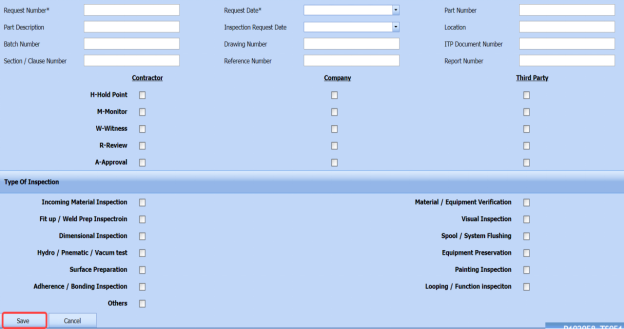](http://wiki.cuteinfocomm.com/uploads/images/gallery/2022-05/image-1651830526378.png)
[](http://wiki.cuteinfocomm.com/uploads/images/gallery/2022-05/image-1651830538113.png) **Note**: The fields notified with a symbol (\*) are mandatory. You must enter the relevant details in that fields before saving.
2. In the **Report Number** box, enter the report number of the survey form.
3. In the **Request** **Date** box, select the request date of the survey form.
4. In the **Part Number** box, enter the part number for the survey form.
5. In the **Part Description** box, enter the description for the added part number.
6. In the **Inspection Request Date** box, select the inspection request date.
7. In the **Location** box, enter the location where the inspection to be done.
8. In the **Batch Number** box, enter the batch number for the survey form.
9. In the **Drawing Number** box, enter the drawing number for the survey form.
10. In the **Inspection and Test Plan (ITP) Document Number** box, enter ITP document number.
11. In the **Section / Clause Number** box, enter the section / clause number.
12. In the **Reference Number** box, enter the reference number.
13. In the **Report Number** box, enter the report number.
14. In the **Report Number** box, enter the report number.
15. In the **Type of Inspection** option, select the required inspection types from the given inspection type list.
16. Click **Save**.
The survey form is successfully added.
#### **5.13.2 Attach a File into a Survey Form**
If you want to attach any file with any survey form added in the **Survey form** page, follow the procedures given in the topic “[**Attach a file into a client master drawing**](http://wiki.cuteinfocomm.com/books/cuteqm/page/project-data-qXJ/#bkmrk-3.2.2%C2%A0attach-a-file-)” in the **Client Master Drawing** section.
#### **5.13.3 Submit and Approve a Survey Form**
Once you have added the surveyor, the **Submission** column in the **Survey form** page is appeared with [](http://wiki.cuteinfocomm.com/uploads/images/gallery/2022-05/image-1651830705341.png) (Submit and Reject icons).
1. If you want to submit the survey form, click [](http://wiki.cuteinfocomm.com/uploads/images/gallery/2022-05/image-1651830726910.png) (Submit icon) in the **Submission** column. Otherwise click [](http://wiki.cuteinfocomm.com/uploads/images/gallery/2022-05/image-1651830735618.png) (Reject icon) to reject the survey form.
Once you have submitted the survey form, the **Approval** column in the **Survey form** page is appeared with [](http://wiki.cuteinfocomm.com/uploads/images/gallery/2022-05/image-1651830787696.png) (Accept and Reject icons).
2. If you want to approve the survey form, click [](http://wiki.cuteinfocomm.com/uploads/images/gallery/2022-05/image-1651830812125.png) (Submit icon) in the ****Approval**** Otherwise click [](http://wiki.cuteinfocomm.com/uploads/images/gallery/2022-05/image-1651830823985.png) (Reject icon) to reject the survey form.
#### **5.13.4 Print a Structural Survey Report**
If you want to print a structural survey report, click [](http://wiki.cuteinfocomm.com/uploads/images/gallery/2022-05/image-1651830878218.png) (print icon) provided in the **Report** column of the **Survey form** page. See Fig 5.13.
#### **5.13.5 Edit Any Survey Form**
If you want to edit any existing survey form in the **Survey form** page, do the following,
1. Click [](http://wiki.cuteinfocomm.com/uploads/images/gallery/2022-05/image-1651830956172.png) (Edit icon) in the ****Edit**** column for the respective survey form. See Fig 5.13. A new window opens to edit the survey form.
2. Click any box where you want to edit the details, and then edit the details in the respective box.
3. Click **Save**.
#### **5.13.6 Export Survey Form List**
You can export a list of survey forms added in the **Survey Form** page in the pdf and excel formats. To know how to export, see the topic, “[**Export Areas list**](http://wiki.cuteinfocomm.com/books/cuteqm/page/project-data-qXJ/#bkmrk-3.1.4%C2%A0export-areas-l)” in the **Area** option.
### **5.14 Dimensional Inspection Request**
The **Dimensional Inspection Request** tab in the **Inspection** menu helps you to add a dimensional inspection request. To navigate to the dimensional inspection request adding page,
1. Click **Dimensional Inspection Request** in the **Inspection** menu. The **Dimensional Inspection Request** page opens.
[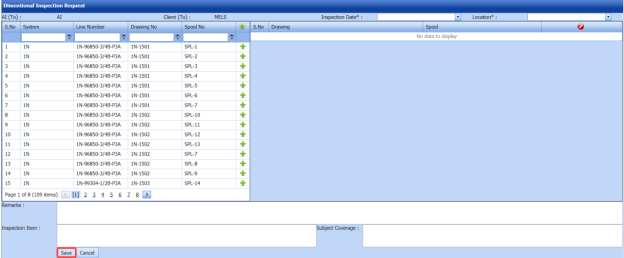](http://wiki.cuteinfocomm.com/uploads/images/gallery/2022-05/image-1651831183622.png)
**Figure 5.14: Dimensional Inspection Request page**
#### **5.14.1 Add a Dimensional Inspection Request**
If you want to add a new dimensional inspection request, do the following steps.
1. In the **Inspection Date** box, select the date of dimensional inspection.
2. In the **Location** box, select the location where the dimensional inspection to be performed.
Before saving the added dimensional inspection request, you must add spools. You can add multiple spools for one dimensional inspection request.
[](http://wiki.cuteinfocomm.com/uploads/images/gallery/2022-05/image-1651831273703.png) **Note**: The page shows a list of added spools. If you want to view the specific spools, use the filter options provided in the **System**, **Line Number**, **Drawing Number**, and **Spool Number** columns.
3. Click [](http://wiki.cuteinfocomm.com/uploads/images/gallery/2022-05/image-1651831300876.png) (Add icon) of the respective spool which you want to add. The added spools will be moved to the right side of the page.
4. In the **Remarks** box, enter your remarks if any.
5. In the **Inspection Item** box, enter the details of inspection items.
6. Click **Save**.
The dimensional inspection request will be added and listed in the **Dimensional Inspection List** page.
### **5.15 Dimensional Inspection List**
The **Dimensional Inspection List** tab helps you to view and edit the dimensional inspection request, which is added by using the **Dimensional Inspection Request** tab. This tab also allows you to add a new dimensional inspection request.
1. Click **Dimensional Inspection List** in the **Inspection** menu. The **Dimensional Inspection List** page opens with a list of added dimensional inspection requests.
[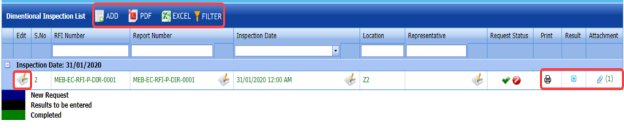](http://wiki.cuteinfocomm.com/uploads/images/gallery/2022-05/image-1651831411887.png)
**Figure 5.15: Dimensional Inspection List page**
#### **5.15.1 Add a Dimensional Inspection Request**
If you want to add a dimensional inspection request, do the following steps,
1. Click [](http://wiki.cuteinfocomm.com/uploads/images/gallery/2022-05/image-1651831537724.png) (**ADD** button) in the **Dimensional Inspection List** page. The system redirects you into the **Dimensional Inspection Request** page. To know how to add a dimensional inspection request, See the topic, “[**Add a Dimensional Inspection Request**](http://wiki.cuteinfocomm.com/link/69#bkmrk-5.14.1%C2%A0add-a-dimensi)”.
Once you have added the dimensional inspection request, you must submit the added request to perform the dimensional inspection.
#### **5.15.2 Add Representative for Added Dimensional Inspection Request**
If you want to add a representative for any added dimensional inspection request,
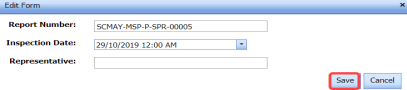
1. Click [](http://wiki.cuteinfocomm.com/uploads/images/gallery/2022-05/image-1651831627889.png) (Edit icon) in the **Representative** column for the respective spool release request. The **Edit Form** window opens.
[](http://wiki.cuteinfocomm.com/uploads/images/gallery/2022-05/image-1651831641317.png)
2. In the **Inspection Date** box, select the date of inspection.
3. In the **Representative** box, enter the name of a representative.
4. Click **Save**.
#### **5.15.3 Edit Any Dimensional Inspection Request**
If you want to edit any existing dimensional inspection request in the **Dimensional Inspection List** page, do the following,
1. Click [](http://wiki.cuteinfocomm.com/uploads/images/gallery/2022-05/image-1651831716330.png) (Edit icon) in the **Edit** column for the respective dimensional inspection request. See Fig 5.15. The page opens with the details of the selected dimensional inspection request.
2. Click any box where you want to edit the details, and then edit the details in the respective box.
3. Click **Save**.
#### **5.15.4 Submit a Dimensional Inspection Request**
Once you have added the dimensional inspection request, the **Request Status** column in the **Dimensional Inspection List** page is appeared with[](http://wiki.cuteinfocomm.com/uploads/images/gallery/2022-05/image-1651831788208.png) (Submit and Reject icons). See Fig 5.15.
1. If you want to submit the dimensional inspection request, click [](http://wiki.cuteinfocomm.com/uploads/images/gallery/2022-05/image-1651831817658.png) (Submit icon) in the **Request Status** Otherwise click [](http://wiki.cuteinfocomm.com/uploads/images/gallery/2022-05/image-1651831830061.png) (Reject icon) to reject the request.
The submitted request will be moved to for the dimensional inspection.
#### **5.15.5 Add Results of Dimensional Inspection**
After completing the dimensional inspection for the added request, you can add the inspection result details. To add results, do the following steps,
1. Click [](http://wiki.cuteinfocomm.com/uploads/images/gallery/2022-05/image-1651832248438.png) (Add icon) in the **Results** column of the respective request. The **Dimensional Inspection List** window opens with a list of added spools.
[](http://wiki.cuteinfocomm.com/uploads/images/gallery/2022-05/image-1651832262309.png)
2. In the **Result** column, select the result for each spool from the given result options.
3. In the **Pipe Size** column, select the result of pipe size.
4. In the **Dimension** column, select the result of pipe dimension.
5. In the **Flange** column, select the result of flange.
6. In the **Orientation** column, select the result of orientation.
7. In the **Remarks** box, enter your remarks if any.
8. Click **Save**.
#### **5.15.6 View a Dimensional Inspection Report**
If you want to view a dimensional inspection report, click (print icon) provided in the **Print** column of the **Dimensional Inspection List** page. See Fig 5.15.
#### **5.15.7 Attach a File into a Dimensional Inspection Request**
If you want to attach a file with an existing dimensional inspection request listed in the **Dimensional Inspection List** page, you can attach the file by using [](http://wiki.cuteinfocomm.com/uploads/images/gallery/2022-05/image-1651832487057.png) (Attach icon) in the **Attachment** column. To know how to attach, follow the procedures given in the topic “[**Attach a file into a client master drawing**](http://wiki.cuteinfocomm.com/books/cuteqm/page/project-data-qXJ/#bkmrk-3.2.2%C2%A0attach-a-file-)”.
#### **5.15.8 Export Dimensional Inspection Request List**
You can export a list of dimensional inspection requests added in the **Dimensional Inspection List** page in both the pdf and excel formats by using [](http://wiki.cuteinfocomm.com/uploads/images/gallery/2022-05/image-1651832584178.png) (**PDF** button) and [](http://wiki.cuteinfocomm.com/uploads/images/gallery/2022-05/image-1651832593857.png) (**Excel** button). To know how to export, see the topic, “[**Export Areas list**](http://wiki.cuteinfocomm.com/books/cuteqm/page/project-data-qXJ/#bkmrk-3.1.4%C2%A0export-areas-l)”.
#### **5.15.9 Filter Dimensional Inspection Request**
If you want to filter any dimensional inspection request in the **Dimensional Inspection List** page, you can use [](http://wiki.cuteinfocomm.com/uploads/images/gallery/2022-05/image-1651833096628.png) (**FILTER** button) located on the **Dimensional Inspection List** page. To know how to filter, see the topic, ”**Filter Any Area**”.
### **5.16 Inspection Release Note**
The **Inspection Release Note** tab in the **Inspection** menu helps you to add an inspection release note. If you want to navigate the inspection release note adding page,
1. Click **Inspection Release Note** in the **Inspection** menu. The **Inspection Release Note** page opens.
[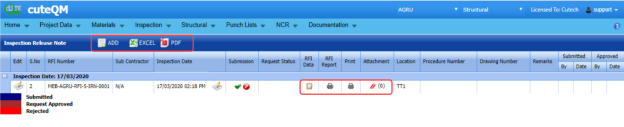](http://wiki.cuteinfocomm.com/uploads/images/gallery/2022-05/image-1651833603254.png)
**Figure 5.16: Inspection Release Note page**
#### **5.16.1 Add an Inspection Release Note**
If you want to add an inspection release note, do the following,
1. Click [](http://wiki.cuteinfocomm.com/uploads/images/gallery/2022-05/image-1651844276065.png) (**ADD** button) in the **Inspection Release Note** page. A new window opens to add an Inspection release note.
[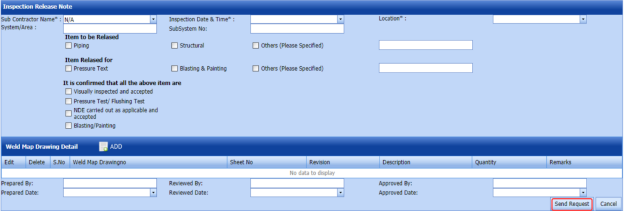](http://wiki.cuteinfocomm.com/uploads/images/gallery/2022-05/image-1651844288657.png)
[](http://wiki.cuteinfocomm.com/uploads/images/gallery/2022-05/image-1651844353022.png)**Note**: The fields notified with a symbol (\*) are mandatory. You must enter the relevant details in that fields before saving.
2. In the **Sub Contractor Name** box, select a sub-contractor from a drop-down list.
3. In the **Inspection Date & Time** box, select the date and time of inspection.
4. In the **Location** box, select a location where the inspection to be held.
5. In the **System/Area** box, enter the name of area/system.
6. In the **Sub System No** box, enter the sub system number.
7. In the ****Item to be Released**** field, select the detail of the item to be released that is whether ****Piping**** or ****Structural****. If another item means select the checkbox of ****Others**** and enter the item detail.
8. In the ****Item to be Released for**** field, select the reason of the item to be released for that is whether for ****Pressure Test**** or ****Blasting & Painting****. If any other reason means select the checkbox of ****Others**** and enter the reason.
9. In the **Sheet No** box, enter the sheet number.
10. In the **Revision** box, enter the revision for the weld map drawing.
11. In the **Description** box, enter the description for the weld map drawing.
12. In the **Quantity** box, enter the quantity of the weld map drawing.
13. In the **Remarks** box, enter your remarks if any.
14. Click **Update**.
The weld map drawing is updated.
15. In the **Prepared By** box, enter the name of a person who has prepared the inspection release note.
16. In the ****Prepared Date**** box, select the prepared date of the inspection release note.
17. In the **Reviewed By** box, enter the name of a person who has reviewed the inspection release note.
18. In the ****Reviewed Date**** box, select the reviewed date of the inspection release note.
19. In the ****Approved By**** box, enter the name of a person who has approved the inspection release note.
20. In the ****Approved Date**** box, select the approved date of the inspection release note.
21. In the **Remarks** box, enter your remarks if any.
22. Click **Send Request**.
The inspection release will be added and listed in the **Inspection Release Note** page.
#### **5.16.2 Add RFI Data for the Added Inspection Release Note**
If you want to add RFI data for the added inspection release note, do the following,
1. Click [](http://wiki.cuteinfocomm.com/uploads/images/gallery/2022-05/image-1651858047227.png)(Edit icon) in the **RFI Data** column of the **Inspection Release Note** See Fig 5.16. The **RFI Inspection Request List** window opens.
[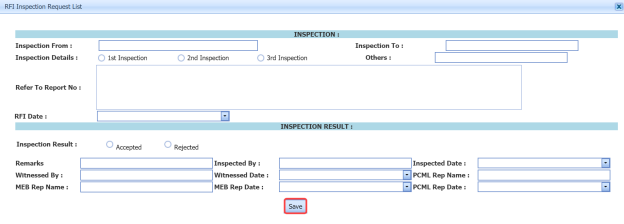](http://wiki.cuteinfocomm.com/uploads/images/gallery/2022-05/image-1651858070087.png)
2. In the **Inspection From** box, enter the detail from where the inspection should start.
3. In the **Inspection To** box, enter the detail to where the inspection should end.
4. In the **Inspection Details** option, select 1st Inspection, 2nd Inspection or 3rd Inspection according to the inspection details.
5. In the **Others** box, enter any other inspection related details.
6. In the **Refer to Report No** box, enter the report number for reference.
7. In the **RFI Date** box, choose the RFI date.
8. In the ****Inspection Result**** option, if the inspection result is accepted, select ****Accepted**** otherwise select ****Rejected****.
9. In the **Remarks** box, enter your remarks if any.
10. In the **Inspected by** box, enter the name of a person who has done inspection.
11. In the **Inspected Date** box, choose the date of inspection.
12. In the **Witnessed By** box, enter the name of the witnessed person.
13. In the **Witnessed Date** box, choose the date of witnessed.
14. In the **PCML Rep Name** box, enter the representative name of PCML.
15. In the **PCML Rep Date** box, choose the PCML rep date.
16. In the **MEB Rep Name** box, enter the representative name of MEB.
17. In the **MEB Rep Date box**, choose MEB rep date.
18. Click **Save**.
The RFI data is successfully added.
#### **5.16.3 Submit and Approve an NDT Inspection Generic**
Once you have added the inspection release note, the **Submission** column in the **Inspection Release Note** page is appeared with [](http://wiki.cuteinfocomm.com/uploads/images/gallery/2022-05/image-1651858331817.png) (Submit and Reject icons).
1. If you want to submit the inspection release note, click [](http://wiki.cuteinfocomm.com/uploads/images/gallery/2022-05/image-1651858357053.png)(Submit icon) in the **Submission** Otherwise click [](http://wiki.cuteinfocomm.com/uploads/images/gallery/2022-05/image-1651858386272.png) (Reject icon) to reject the request. Once you have submitted the inspection release note, the **Request Status** column in the **Inspection Release Note** page is appeared with [](http://wiki.cuteinfocomm.com/uploads/images/gallery/2022-05/image-1651858509564.png) (Approve and Reject icons).
2. If you want to approve the inspection release note, click [](http://wiki.cuteinfocomm.com/uploads/images/gallery/2022-05/image-1651858544843.png) (Approve icon) in the ****Request Status**** Otherwise click [](http://wiki.cuteinfocomm.com/uploads/images/gallery/2022-05/image-1651858557369.png)(Reject icon) to reject the request.
#### **5.16.4 Print an RFI Report**
If you want to print an RFI report, click [](http://wiki.cuteinfocomm.com/uploads/images/gallery/2022-05/image-1651860449118.png) (print icon) provided in the **RFI** **Report** column of the **Inspection Release Note** page. See Fig 5.16.
#### **5.16.5 Print an Inspection Release Note**
If you want to print an inspection release note, click [](http://wiki.cuteinfocomm.com/uploads/images/gallery/2022-05/image-1651860488133.png) (print icon) provided in the **Print** column of the **Inspection Release Note** page. See Fig 5.16.
#### **5.16.6 Attach a File into an Inspection Release Note**
If you want to attach a file with an inspection release note added in the **Inspection Release Note** page, follow the procedures given in the topic “[**Attach a file into a client master drawing**](http://wiki.cuteinfocomm.com/books/cuteqm/page/project-data-qXJ/#bkmrk-3.2.2%C2%A0attach-a-file-)” in the **Client Master Drawing** section.
#### **5.16.7 Edit Any Inspection Release Note**
If you want to edit any existing inspection release note in the **Inspection Release Note** page, do the following,
1. Click [](http://wiki.cuteinfocomm.com/uploads/images/gallery/2022-05/image-1651860584541.png) (Edit icon) in the ****Edit**** column for the respective NDT inspection generic. See Fig 5.16. A new window opens to edit the inspection release note.
2. Click any box where you want to edit the details, and then edit the details in the respective box.
3. Click **Save**.
#### **5.16.8 Export Inspection Release Note List**
You can export a list of inspection release notes added in the **Inspection Release Note** page in the pdf and excel formats. To know how to export, see the topic, “[**Export Areas list**](http://wiki.cuteinfocomm.com/books/cuteqm/page/project-data-qXJ/#bkmrk-3.1.4%C2%A0export-areas-l)” in the **Area** option.
### **5.17 Blasting and Painting Inspection Report**
The **Blasting and Painting** **Inspection Report** tab in the **Inspection** menu helps you to add a blasting and painting inspection report. If you want to navigate the blasting and painting inspection report adding page,
1. Click **Blasting and Painting** **Inspection Report** in the **Inspection** menu. The **Blasting and Painting** **Inspection** **List** page opens.
[](http://wiki.cuteinfocomm.com/uploads/images/gallery/2022-05/image-1651860701743.png)
**Figure 5.17: Blasting and Painting Inspection List page**
#### **5.17.1 Add a Blasting and Painting Inspection Report**
If you want to add a blasting and painting inspection report, do the following,
1. Click [](http://wiki.cuteinfocomm.com/uploads/images/gallery/2022-05/image-1651860755536.png) (**ADD** button) in the **Blasting and Painting** **Inspection** **List** page. A new window opens to add the blasting and painting inspection report details.
[](http://wiki.cuteinfocomm.com/uploads/images/gallery/2022-05/image-1651860768979.png)
[](http://wiki.cuteinfocomm.com/uploads/images/gallery/2022-05/image-1651860793508.png) **Note**: The fields notified with a symbol (\*) are mandatory. You must enter the relevant details in that fields before saving.
2. In the **Sub Contractor Name** box, select a sub-contractor from a drop-down list.
3. In the **Inspection Date & Time** box, select the date and time of inspection.
4. In the **Location** box, select a location where the inspection to be held.
5. In the **Paint System No** box, enter the paint system number.
6. In the **System/Area** box, enter the name of area/system.
7. In the **Sub System No** box, enter the sub system number.
Before saving the blasting and painting inspection report, you must add the weld map drawing detail.
8. Click [](http://wiki.cuteinfocomm.com/uploads/images/gallery/2022-05/image-1651860856192.png) (**ADD** button) in the **Weld Map Drawing Detail** window.
The **Edit Form** window shows a new window to add the details of weld map drawing.
[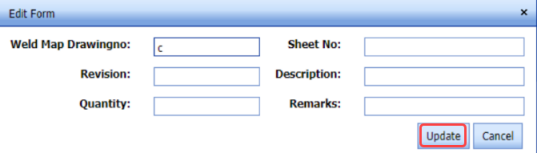](http://wiki.cuteinfocomm.com/uploads/images/gallery/2022-05/image-1651860870946.png)
9. In the **Weld Map Drawing No** box, enter the weld map drawing number.
10. In the **Sheet No** box, enter the sheet number.
11. In the **Revision** box, enter the revision for the weld map drawing.
12. In the **Description** box, enter the description for the weld map drawing.
13. In the **Quantity** box, enter the quantity of the weld map drawing.
14. In the **Remarks** box, enter your remarks if any.
15. Click **Update**.
The weld map drawing is updated.
16. In the ****Prepared By**** box, enter the name of a person who has prepared the blasting and painting inspection report.
17. In the **Prepared Date** box, select the prepared date of the blasting and painting inspection report.
18. In the **Reviewed By** box, enter the name of a person who has reviewed the blasting and painting inspection report.
19. In the **Reviewed By** box, enter the name of a person who has reviewed the blasting and painting inspection report.
20. In the **Approved By** box, enter the name of a person who has approved the blasting and painting inspection report.
21. In the **Approved Date** box, select the approved date of the blasting and painting inspection report.
22. In the **Remarks** box, enter your remarks if any.
23. Click **Send Request**.
The blasting and painting inspection report will be added and listed in the **Blasting and Painting Inspection List** page.
#### **5.17.2 Add RFI Data for the Added Blasting and Painting Inspection Report**
If you want to add RFI data for the added blasting and painting inspection report, do the following,
1. Click [](http://wiki.cuteinfocomm.com/uploads/images/gallery/2022-05/image-1651861075294.png)(Edit icon) in the **RFI Data** column of the **Blasting and Painting** **Inspection List** See Fig 5.17. The **RFI Inspection Request List** window opens.
[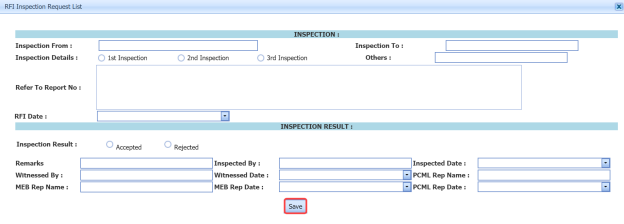](http://wiki.cuteinfocomm.com/uploads/images/gallery/2022-05/image-1651861097600.png)
2. In the **Inspection From** box, enter the detail from where the inspection should start.
3. In the **Inspection To** box, enter the detail to where the inspection should end.
4. In the ****Inspection Details**** option, select 1stInspection, 2nd Inspection or 3rd Inspection according to the inspection details.
5. In the **Others** box, enter any other inspection related details.
6. In the **Refer to Report No** box, enter the report number for reference.
7. In the **RFI Date** box, choose the RFI date.
8. In the **Inspection Result** option, if the inspection result is accepted, select **Accepted** otherwise select **Rejected**.
9. In the **Remarks** box, enter your remarks if any.
10. In the **Inspected by** box, enter the name of a person who has done inspection.
11. In the **Inspected Date** box, choose the date of inspection.
12. In the **Witnessed By** box, enter the name of the witnessed person.
13. In the **Witnessed Date** box, choose the date of witnessed.
14. In the **PCML Rep Name** box, enter the representative name of PCML.
15. In the **PCML Rep Date** box, choose the PCML rep date.
16. In the **MEB Rep Name** box, enter the representative name of MEB.
17. In the **MEB Rep Date box**, choose MEB rep date.
18. Click **Save**.
The RFI data is successfully added.
#### **5.17.3 The RFI data is successfully added.**
Once you have added the blasting and painting inspection report, the **Submission** column in the **Blasting and Painting Inspection List** page is appeared with [](http://wiki.cuteinfocomm.com/uploads/images/gallery/2022-05/image-1651861264888.png) (Submit and Reject icons).
1. If you want to submit the blasting and painting inspection report, click [](http://wiki.cuteinfocomm.com/uploads/images/gallery/2022-05/image-1651861284811.png) (Submit icon) in the **Submission** Otherwise click [](http://wiki.cuteinfocomm.com/uploads/images/gallery/2022-05/image-1651861296625.png) (Reject icon) to reject the request. Once you have submitted the blasting and painting inspection report, the **Request Status** column in the **Blasting and Painting** **Inspection List** page is appeared with (Approve and Reject icons).
2. If you want to approve the blasting and painting inspection report, click [ ](http://wiki.cuteinfocomm.com/uploads/images/gallery/2022-05/image-1651861369071.png)(Approve icon) in the ****Request Status**** Otherwise click [](http://wiki.cuteinfocomm.com/uploads/images/gallery/2022-05/image-1651861379239.png) (Reject icon) to reject the request. Once you have approved the blasting and painting inspection report, the **Result** column will be enabled with (Add icon) to add the blasting and painting inspection results.
[](http://wiki.cuteinfocomm.com/uploads/images/gallery/2022-05/image-1651861421664.png)
#### **517.4 Add Blasting and Painting Inspection Results**
If you want to add the blasting and painting inspection results,
1. Click [](http://wiki.cuteinfocomm.com/uploads/images/gallery/2022-05/image-1651861496065.png) (Add icon) in the **Result** column of the **Blasting and Painting** **Inspection List** page. The page shows a new window.
[](http://wiki.cuteinfocomm.com/uploads/images/gallery/2022-05/image-1651861530088.png)
2. Click [](http://wiki.cuteinfocomm.com/uploads/images/gallery/2022-05/image-1651861556306.png) (Edit icon) in the ****Edit**** column. The page shows the **Surface Preparation**, **Paint Preparation**, and **Paint Application** windows.
[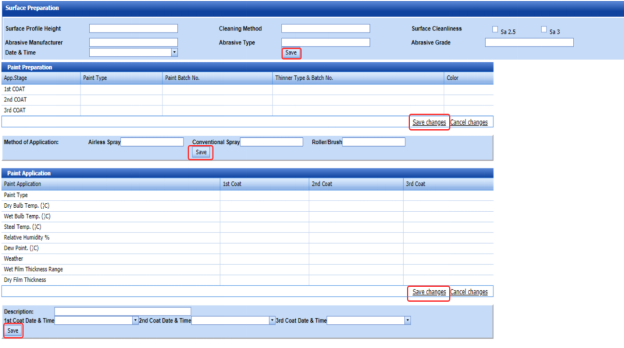](http://wiki.cuteinfocomm.com/uploads/images/gallery/2022-05/image-1651861585452.png)
3. In the **Surface Profile Height** box, enter the surface profile height value.
4. In the **Cleaning Method** box, enter the cleaning method detail.
5. In the **Surface Cleanliness** box, select the surface cleanliness level.
6. In the **Abrasive Manufacturer** box, enter the abrasive manufacturer detail.
7. In the **Abrasive Type** box, enter the type name of abrasive.
8. In the **Abrasive Grade** box, enter the grade level of abrasive.
9. In the **Date & Time** box, select the date and time.
10. Click **Save**.
11. In the ****Paint Preparation**** window, enter the detail of 1st coat, 2nd coat and 3rd coat in the respective columns.
12. Click **Save changes**.
13. In the **Airless Spray** box, enter the airless spray method detail.
14. In the **Conventional Spray** box, enter the conventional spray method detail.
15. In the **Roller/Brush** box, enter the roller/brush detail.
16. Click **Save**.
17. In the **Paint Application** window, enter the detail of 1st coat, 2nd coat and 3rd coat in the respective columns.
18. Click **Save changes**.
19. In the **Description** box, enter the description for the inspection.
20. In the **1st Coat Date & Time** box, select the date and time of 1st coat.
21. In the **2nd** **Coat Date & Time** box, select the date and time of 2nd coat.
22. In the **3rd** **Coat Date & Time** box, select the date and time of 3rd coat.
23. Click **Save**.
#### **5.17.5 Print an RFI Report**
If you want to print an RFI report, click [](http://wiki.cuteinfocomm.com/uploads/images/gallery/2022-05/image-1651861750015.png) (print icon) provided in the **RFI** **Report** column of the **Blasting and Painting** **Inspection List page. See Fig 5.17.
#### **5.17.6 Print a Blasting and Painting Inspection Report**
If you want to print a blasting and painting inspection report, click [](http://wiki.cuteinfocomm.com/uploads/images/gallery/2022-05/image-1651862511970.png) (print icon) provided in the **Print** column of the **Blasting and Painting** **Inspection List** page. See Fig 5.17.
#### **5.17.7 Attach a File into a Blasting and Painting Inspection Report**
If you want to attach a file with a blasting and painting inspection report added in the **Blasting and Painting** **Inspection List page, follow the procedures given in the topic “[**Attach a file into a client master drawing**](http://wiki.cuteinfocomm.com/books/cuteqm/page/project-data-qXJ/#bkmrk-3.2.2%C2%A0attach-a-file-)” in the **Client Master Drawing** section.
#### **5.17.8 Edit Any Blasting and Painting Inspection Report**
If you want to edit any existing blasting and painting inspection report in the **Blasting and Painting** **Inspection List** page, do the following,
1. Click [](http://wiki.cuteinfocomm.com/uploads/images/gallery/2022-05/image-1651862700242.png)(Edit icon) in the **Edit** column for the respective blasting and painting inspection report. See Fig 5.17. A new window opens to edit the blasting and painting inspection report.
2. Click any box where you want to edit the details, and then edit the details in the respective box.
3. Click **Save**.
#### **5.17.9 Export Blasting and Painting Inspection Report List**
You can export a list of blasting and painting inspection reports added in the **Blasting and Painting** **Inspection List** page in the pdf and excel formats. To know how to export, see the topic, “[**Export Areas list**](http://wiki.cuteinfocomm.com/books/cuteqm/page/project-data-qXJ/#bkmrk-3.1.4%C2%A0export-areas-l)” in the **Area** option.
### **5.18 Painting and Coating Final Inspection Report**
The **Painting** **and Coating FIR** tab in the **Inspection** menu helps you to add a painting and coating inspection report. If you want to navigate the painting and coating inspection report adding page,
1. Click **Painting** **and Coating FIR** in the **Inspection** menu. The **Painting** **and Coating FIR** page opens.
[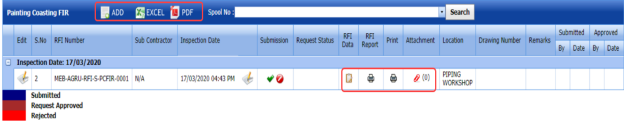](http://wiki.cuteinfocomm.com/uploads/images/gallery/2022-05/image-1651864383761.png)
**Figure 5.18: Painting and Coating FIR page**
#### **5.18.1 Add a Painting and Coating FIR**
If you want to add a painting and coating FIR, do the following,
1. Click [ ](http://wiki.cuteinfocomm.com/uploads/images/gallery/2022-05/image-1651864502478.png)(**ADD** button) in the **Painting and Coating FIR** page. A new window opens to add the painting and coating inspection report details.
[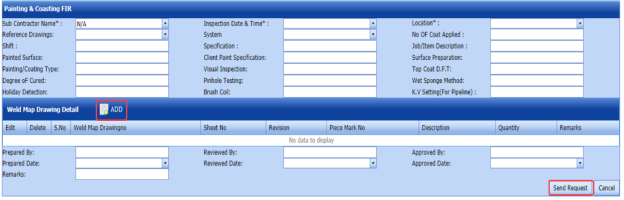](http://wiki.cuteinfocomm.com/uploads/images/gallery/2022-05/image-1651864517097.png)
[](http://wiki.cuteinfocomm.com/uploads/images/gallery/2022-05/image-1651864529431.png)**Note**: The fields notified with a symbol (\*) are mandatory. You must enter the relevant details in that fields before saving.
2. In the ****Sub Contractor Name**** box, select a sub-contractor from a drop-down list.
3. In the ****Sub Contractor Name**** box, select a sub-contractor from a drop-down list.
4. In the **Location** box, select the location where the painting and coating inspection to be performed.
5. In the ****Reference** **Drawing**** box, select a reference drawing from a drop-down list.
6. In the **System** box, select a system from a drop-down list.
7. In the **No** **of Coat Applied** box, enter the number of applied coating.
8. In the **Shift** box, enter the shift detail.
9. In the **Specification** box, enter the specification detail.
10. In the **Job/Item Description** box, enter the description for the job/item.
11. In the **Painted Surface** box, enter the painted surface detail.
12. In the **Client Paint Specification** box, enter the client paint specification detail.
13. In the **Surface Preparation** box, enter the surface preparation detail.
14. In the **Painting/Coating Type** box, enter the painting/coating type.
15. In the **Visual Inspection** box, enter the visual inspection detail.
16. In the **Top Coat D.F.T** box, enter the top coat detail.
17. In the **Degree of Cured** box, enter the degree of cured.
18. In the **Pinhole Testing** box, enter the pinhole testing detail.
19. In the **Wet Sponge Method** box, enter the wet sponge method detail.
20. In the **Holiday Detection** box, enter the holiday detection detail.
21. In the **Brush Coil** box, enter the brush coil detail.
22. In the **K.V Setting (For Pipeline)** box, enter the K.V setting detail for pipeline.
Before saving the painting and coating inspection report, you must add the weld map drawing detail.
23. Click [](http://wiki.cuteinfocomm.com/uploads/images/gallery/2022-05/image-1651864680218.png) (****ADD**** button) in the ******Weld Map Drawing Detail******The **Edit Form** window shows a new window to add the details of weld map drawing.
[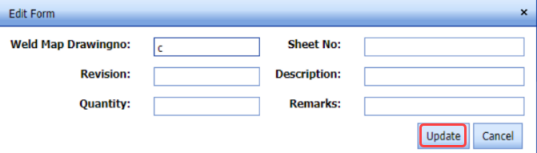](http://wiki.cuteinfocomm.com/uploads/images/gallery/2022-05/image-1651864722745.png)
24. In the **Weld Map Drawing No** box, enter the weld map drawing number.
25. In the **Sheet No** box, enter the sheet number.
26. In the **Revision** box, enter the revision for the weld map drawing.
27. In the **Description** box, enter the description for the weld map drawing.
28. In the **Quantity** box, enter the quantity of the weld map drawing.
29. In the **Remarks** box, enter your remarks if any.
30. Click **Update**.
The weld map drawing is updated.
31. In the **Prepared By** box, enter the name of a person who has prepared the painting and coating inspection report.
32. In the **Prepared By** box, enter the name of a person who has prepared the painting and coating inspection report.
33. In the ****Reviewed By**** box, enter the name of a person who has reviewed the painting and coating inspection report.
34. In the ****Reviewed Date**** box, select the reviewed date of the painting and coating inspection report.
35. In the **Approved By** box, enter the name of a person who has approved the painting and coating inspection report.
36. In the ****Approved Date**** box, select the approved date of the painting and coating inspection report.
37. In the **Remarks** box, enter your remarks if any.
38. Click **Send Request**.
The painting and coating inspection report will be added and listed in the **Painting and Coating FIR** page.
#### **5.18.2 Add RFI Data for the Added Painting and Coating FIR**
If you want to add RFI data for the added painting and coating inspection report, do the following,
1. Click [](http://wiki.cuteinfocomm.com/uploads/images/gallery/2022-05/image-1651864905115.png) (Edit icon) in the **RFI Data** column of the **Painting** **and Coating** **FIR** page. See Fig 5.18. The **RFI Inspection Request List** window opens.
[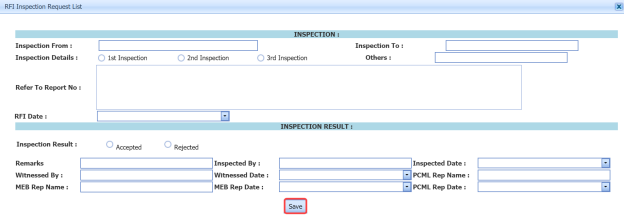](http://wiki.cuteinfocomm.com/uploads/images/gallery/2022-05/image-1651864924449.png)
2. In the **Inspection From** box, enter the detail from where the inspection should start.
3. In the **Inspection To** box, enter the detail to where the inspection should end.
4. In the **Inspection Details** option, select 1stInspection, 2nd Inspection or 3rd Inspection according to the inspection details.
5. In the **Others** box, enter any other inspection related details.
6. In the **Refer to Report No** box, enter the report number for reference.
7. In the **RFI Date** box, choose the RFI date.
8. In the ****Inspection Result**** option, if the inspection result is accepted, select ****Accepted**** otherwise select ****Rejected****.
9. In the **Remarks** box, enter your remarks if any.
10. In the **Inspected by** box, enter the name of a person who has done inspection.
11. In the **Inspected Date** box, choose the date of inspection.
12. In the **Witnessed By** box, enter the name of the witnessed person.
13. In the **Witnessed Date** box, choose the date of witnessed.
14. In the **PCML Rep Name** box, enter the representative name of PCML.
15. In the **PCML Rep Date** box, choose the PCML rep date.
16. In the **MEB Rep Name** box, enter the representative name of MEB.
17. In the **MEB Rep Date box**, choose MEB rep date.
18. Click **Save**.
The RFI data is successfully added.
#### **5.18.3 Submit and Approve a Painting and Coating FIR**
Once you have added the painting and coating inspection report, the **Submission** column in the **Painting and Coating FIR** page is appeared with[](http://wiki.cuteinfocomm.com/uploads/images/gallery/2022-05/image-1651865091527.png)(Submit and Reject icons).
1. If you want to submit the painting and coating inspection report, click [](http://wiki.cuteinfocomm.com/uploads/images/gallery/2022-05/image-1651865125002.png) (Submit icon) in the **Submission** column. Otherwise click [](http://wiki.cuteinfocomm.com/uploads/images/gallery/2022-05/image-1651865135401.png) (Reject icon) to reject the request. Once you have submitted the painting and coating inspection report, the **Request Status** column in the **Painting** **and Coating** **FIR** page is appeared with [](http://wiki.cuteinfocomm.com/uploads/images/gallery/2022-05/image-1651865188380.png) (Approve and Reject icons).
2. If you want to approve the painting and coating inspection report, click [](http://wiki.cuteinfocomm.com/uploads/images/gallery/2022-05/image-1651865231804.png) (Approve icon) in the **Request Status** Otherwise click [](http://wiki.cuteinfocomm.com/uploads/images/gallery/2022-05/image-1651865240711.png) (Reject icon) to reject the request.
#### **5.18.4 Print an RFI report**
If you want to print an RFI report, click[](http://wiki.cuteinfocomm.com/uploads/images/gallery/2022-05/image-1651865297442.png) (print icon) provided in the **RFI** **Report** column of the **Painting** **and Coating** **FIR** page. See Fig 5.18.
#### **5.18.5 Print a Painting and Coating FIR**
If you want to print a painting and coating inspection report, click [](http://wiki.cuteinfocomm.com/uploads/images/gallery/2022-05/image-1651865335098.png) (print icon) provided in the **Print** column of the **Painting** **and Coating** **FIR** page. See Fig 5.18.
#### **5.18.6 Attach a File into a Painting and Coating Inspection Report**
If you want to attach a file with a painting and coating inspection report added in the **Painting and Coating FIR** page, follow the procedures given in the topic “[**Attach a file into a client master drawing**](http://wiki.cuteinfocomm.com/books/cuteqm/page/project-data-qXJ/#bkmrk-3.2.2%C2%A0attach-a-file-)” in the **Client Master Drawing** section.
#### **5.18.7 Edit Any Painting and Coating FIR**
If you want to edit any existing painting and coating inspection report in the **Painting** **and Coating** **FIR** page, do the following,
1. Click [](http://wiki.cuteinfocomm.com/uploads/images/gallery/2022-05/image-1651865437635.png)(Edit icon) in the **Edit** column for the respective painting and coating inspection report. See Fig 5.18. A new window opens to edit the painting and coating inspection report.
2. Click any box where you want to edit the details, and then edit the details in the respective box.
3. Click **Save**.
#### **5.18.8 Export Painting and Coating FIR list**
You can export a list of painting and coating inspection reports added in the **Painting and Coating FIR** page in the pdf and excel formats. To know how to export, see the topic, “[**Export Areas list**](http://wiki.cuteinfocomm.com/books/cuteqm/page/project-data-qXJ/#bkmrk-3.1.4%C2%A0export-areas-l)” in the **Area** option.
#### **5.18.9 Filter Painting and Coating FIR**
If you want to filter any specific painting and blasting inspection request in the **Painting and Coating FIR** page, you can filter the request based on the **Spool No** filter box. [](http://wiki.cuteinfocomm.com/uploads/images/gallery/2022-05/image-1651865549340.png)
### **5.19 RFI Hydro Pressure**
Hydro Pressure Inspection is the technique in which pipes used in the structural project, are tested at required design pressure of the pipes to check the leak and strength. You can add a request for hydro pressure inspection by using the **RFI Hydro Pressure** tab in the **Inspection** menu.
#### **5.19.1 Add an RFI Hydro Pressure Request**
If you want to add an RFI hydro pressure request, do the following steps,
1. Click **RFI Hydro Pressure** in the **Inspection** menu. The **RFI Hydro Pressure** page opens.
[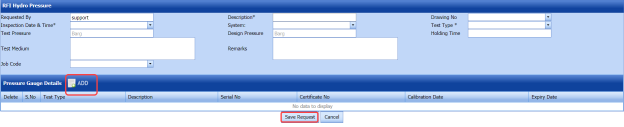](http://wiki.cuteinfocomm.com/uploads/images/gallery/2022-05/image-1651865631016.png)
**Figure 5.19: RFI Hydro Pressure page**
2. In the **Inspection Date & Time** box, select the inspection date and time.
3. In the **Description** box, enter the description for the hydro pressure inspection.
4. In the **Drawing No** box, select a drawing number.
5. In the **System** box, select a system.
6. In the **Test Type** box, select a test type.
7. In the **Test Pressure** box, enter the test pressure value.
8. In the **Design Pressure** box, enter the design pressure value.
9. In the **Classification** box, enter the classification detail.
10. In the **Holding Time** box, enter the holding time range.
11. In the **Test Medium** box, enter the test medium detail.
12. In the **Job Code** box, enter the job code.
13. In the **Remarks** box, enter your remarks if any.
Before saving the added NDT request, you must add the pressure gauge details.
14. Click [](http://wiki.cuteinfocomm.com/uploads/images/gallery/2022-05/image-1651865718338.png) (**ADD** button) in the **Pressure Gauge Details** window.
[](http://wiki.cuteinfocomm.com/uploads/images/gallery/2022-05/image-1651865728886.png)
15. In the **Type of Test** box, select a type of test.
16. In the **Description** box, enter the description detail.
17. In the **Serial No** box, enter the serial number.
18. In the **Certificate No** box, enter the certificate number.
19. In the **Calibration Date** box, select the calibration date.
20. In the **Expiry Date** box, select the expiry date.
21. Click **Save Request**.
The hydro pressure inspection request will be added and listed in the **RFI Hydro Pressure** page.
### **5.20 View RFI Hydro Pressure**
The **View RFI Hydro Pressure** tab helps you to view and edit the hydro pressure inspection request, which is added by using the **RFI Hydro Pressure** tab. This tab also allows you to add a new hydro pressure request.
1. Click **View RFI Hydro Pressure** in the **Inspection** menu. The **RFI Hydro Pressure** page opens with a list of added hydro pressure requests.
[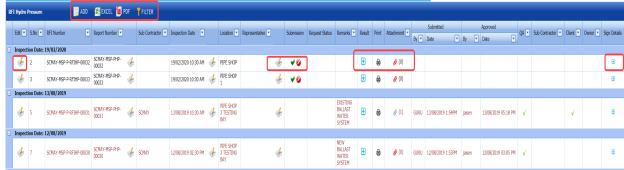](http://wiki.cuteinfocomm.com/uploads/images/gallery/2022-05/image-1651865816283.png)
**Figure 5.20: RFI Hydro Pressure page**
#### **5.20.1 Add a Hydro Pressure Inspection Request**
If you want to add a hydro pressure inspection request, do the following steps,
1. Click [](http://wiki.cuteinfocomm.com/uploads/images/gallery/2022-05/image-1651865874271.png) (**ADD** button) in the **RFI Hydro Pressure** page. The system redirects you to a new page to add a new hydro pressure inspection request. To know how to add a hydro pressure inspection request, See the topic, “[**Add a Hydro Pressure Inspection Request**](http://wiki.cuteinfocomm.com/link/69#bkmrk-5.19.1%C2%A0add-an-rfi-hy)”.
The system redirects you to a new page to add a new hydro pressure inspection request. To know how to add a hydro pressure inspection request, See the topic, “[**Add a Hydro Pressure Inspection Request**](http://wiki.cuteinfocomm.com/link/69#bkmrk-5.19.1%C2%A0add-an-rfi-hy)”.
#### **5.20.2 Edit Any Existing Hydro Pressure Inspection Request**
If you want to edit any existing hydro pressure inspection request in the **RFI Hydro Pressure page, do the following,
1. Click [](http://wiki.cuteinfocomm.com/uploads/images/gallery/2022-05/image-1651865959322.png) (Edit icon) in the **Edit** column for the respective hydro pressure inspection request. See Fig 5.20. The **RFI Hydro Pressure** page opens with the details of the selected hydro pressure inspection request.
2. Click any box where you want to edit the details, and then edit the details in the respective box.
3. Click **Save**.
#### **5.20.3 Submit and Approve a Hydro Pressure Inspection Request**
Once you have added the hydro pressure inspection request, the **Submission** column in the **RFI Hydro Pressure** page is appeared with[](http://wiki.cuteinfocomm.com/uploads/images/gallery/2022-05/image-1651866095070.png) (Submit and Reject icons).
1. If you want to submit the hydro pressure inspection request, click [](http://wiki.cuteinfocomm.com/uploads/images/gallery/2022-05/image-1651866113296.png) (Submit icon) in the **Submission** Otherwise click [](http://wiki.cuteinfocomm.com/uploads/images/gallery/2022-05/image-1651866125621.png) (Reject icon) to reject the request. Once you have submitted the hydro pressure inspection request, the **Request Status** column in the **RFI Hydro Pressure** page is appeared with [](http://wiki.cuteinfocomm.com/uploads/images/gallery/2022-05/image-1651866145893.png) (Approve and Reject icons).
2. If you want to approve the hydro pressure inspection request, click [](http://wiki.cuteinfocomm.com/uploads/images/gallery/2022-05/image-1651866163849.png) (Approve icon) in the ****Request Status**** Otherwise click [](http://wiki.cuteinfocomm.com/uploads/images/gallery/2022-05/image-1651866172603.png) (Reject icon) to reject the request.
The hydro pressure inspection request will be moved for hydro pressure inspection.
#### **5.20.4 View a Hydro Pressure Inspection Report**
If you want to view a hydro pressure inspection report, click [](http://wiki.cuteinfocomm.com/uploads/images/gallery/2022-05/image-1651866246126.png) (print icon) provided in the **Print** column of the **RFI Hydro Pressure** page. See Fig 5.20.
#### **5.20.5 Attach a File into a hydro pressure inspection Request**
If you want to attach a file with any existing hydro pressure inspection request listed in the **RFI Hydro Pressure** page, you can attach the file by using [](http://wiki.cuteinfocomm.com/uploads/images/gallery/2022-05/image-1651866291793.png) (Attach icon) in the **Attachment** column. To know how to attach, follow the procedures given in the topic “[**Attach a file into a client master drawing**](http://wiki.cuteinfocomm.com/books/cuteqm/page/project-data-qXJ/#bkmrk-3.2.2%C2%A0attach-a-file-)”.
#### **5.20.6 View Signature Details of Inspectors**
You can view the sign details of the inspectors such as QA, Sub contractor, Client, and Owner, once they completed the hydro pressure inspection and submitted the inspection result details including their signature. To view the signature details, click [](http://wiki.cuteinfocomm.com/uploads/images/gallery/2022-05/image-1651866335073.png)(Sign icon) in the **Sign Details** column in the **RFI Hydro Pressure** page.
#### **5.20.7 Export Hydro Pressure Inspection Request List**
You can export a list of hydro pressure requests added in the **RFI Hydro Pressure** page in both the pdf and excel formats by using [](http://wiki.cuteinfocomm.com/uploads/images/gallery/2022-05/image-1651866375958.png) (**PDF** button) and [](http://wiki.cuteinfocomm.com/uploads/images/gallery/2022-05/image-1651866384994.png) (**Excel** button). To know how to export, see the topic, “[**Export Areas list**](http://wiki.cuteinfocomm.com/books/cuteqm/page/project-data-qXJ/#bkmrk-3.1.4%C2%A0export-areas-l)”.
#### **5.20.8 Filter Hydro Pressure Inspection Request**
If you want to filter any specific hydro pressure inspection request in the **RFI Hydro Pressure** page, you can use [](http://wiki.cuteinfocomm.com/uploads/images/gallery/2022-05/image-1651866418962.png) (**FILTER** button) located on the **RFI Hydro Pressure** page. To know how to filter, see the topic, ”**Filter Any Area**”.
### **5.21 RFI Mechanical Completion Request**
Mechanical completion takes place through all phases of the piping project, starting at equipment supplier and continuing through fabrication up to commissioning phase. Mechanical completion encompasses all disciplines. If you want to add an RFI mechanical completion request,
1. Click **RFI Mechanical Completion Request** in the **Inspection** menu. The **RFI Mechanical Completion Request** page opens.
[](http://wiki.cuteinfocomm.com/uploads/images/gallery/2022-05/image-1651866475456.png)
**Figure 5.21: RFI Mechanical Completion Request page**
#### **5.21.1 Add an RFI Mechanical Completion Request**
If you want to add an RFI mechanical completion request, do the following steps,
1. In the **Sub Contractor** box, select a sub-contractor from a drop-down list.
2. In the **Inspection Date** box, select the date of inspection.
3. In the **Location** box, enter the name of the location.
Before saving the added RFI mechanical completion request, you must add a system. You can add multiple system for one request.
[](http://wiki.cuteinfocomm.com/uploads/images/gallery/2022-05/image-1651866553268.png) **Note**: The page shows a list of added systems. If you want to view the specific system, use the filter options provided in the **System**, **Sub System**, **Drawing Number**, **Equipment Number** and **Check Records** columns.
4. Select [](http://wiki.cuteinfocomm.com/uploads/images/gallery/2022-05/image-1651866579615.png) (Add icon) of the respective system which you want to add.
The added system will be moved into the right side of the page.
5. In the **Remarks** box, enter your remarks if any.
6. In the **Description** box, enter the description for the request.
7. In the **Work Scope** box, enter the work scope detail.
8. Click **Save**.
The RFI mechanical completion request will be added and listed in the **View RFI Mechanical Completion** page.
### **5.22 View RFI Mechanical Completion**
The **View RFI Mechanical Completion** tab helps you to view and edit the RFI mechanical completion request, which is added by using the **RFI Mechanical Completion Request** tab. This tab also allows you to add a new RFI mechanical completion request.
1. Click **View RFI Mechanical Completion** in the **Inspection** menu. The **View RFI Mechanical Completion List** page opens with a list of added RFI mechanical completion requests.
[](http://wiki.cuteinfocomm.com/uploads/images/gallery/2022-05/image-1651866702007.png)
**Figure 5.22: View RFI Mechanical Completion List page**
#### **5.22.1 Add an RFI Mechanical Completion Request**
If you want to add an RFI mechanical completion request, do the following steps,
1. Click [](http://wiki.cuteinfocomm.com/uploads/images/gallery/2022-05/image-1651866758888.png) (**ADD** button) in the **View RFI Mechanical Completion List** page. The system redirects you to a new page to add a new RFI mechanical completion request. To know how to add an RFI mechanical completion request, See the topic, “[**Add an RFI Mechanical Completion Request**](http://wiki.cuteinfocomm.com/link/69#bkmrk-5.21.1%C2%A0add-an-rfi-me)”.
Once you have added the RFI mechanical completion request, you must submit the added request to perform mechanical completion inspection.
#### **5.22.2 Edit Any RFI Mechanical Completion Request**
If you want to edit any existing mechanical completion request in the **View RFI Mechanical Completion List** page, do the following,
1. Click [](http://wiki.cuteinfocomm.com/uploads/images/gallery/2022-05/image-1651866861961.png) (Edit icon) in the **Edit** column for the respective RFI mechanical completion request. See Fig 5.22. The **RFI Mechanical Completion Request** page opens with the details of the selected RFI mechanical completion request.
2. Click any box where you want to edit the details, and then edit the details in the respective box.
3. Click **Save**.
#### **5.22.3 Submit and Approve an RFI Mechanical Completion Request**
Once you have added the RFI mechanical completion request, the **Submission** column in the **RFI Mechanical Completion Request** page is appeared with [](http://wiki.cuteinfocomm.com/uploads/images/gallery/2022-05/image-1651866943782.png) (Submit and Reject icons).
1. If you want to submit the mechanical completion request, click [](http://wiki.cuteinfocomm.com/uploads/images/gallery/2022-05/image-1651866972041.png) (Submit icon) in the **Submission** Otherwise click [](http://wiki.cuteinfocomm.com/uploads/images/gallery/2022-05/image-1651866984816.png)(Reject icon) to reject the request. Once you have submitted the mechanical completion request, the **Request Status** column in the **View RFI Mechanical Completion List** page is appeared with [](http://wiki.cuteinfocomm.com/uploads/images/gallery/2022-05/image-1651867037163.png) (Approve and Reject icons).
2. If you want to approve the mechanical completion request, click [](http://wiki.cuteinfocomm.com/uploads/images/gallery/2022-05/image-1651867068229.png) (Approve icon) in the ****Request Status**** Otherwise click [](http://wiki.cuteinfocomm.com/uploads/images/gallery/2022-05/image-1651867079600.png) (Reject icon) to reject the request. The mechanical completion request will be moved for mechanical completion inspection.
#### **5.22.4 Add Results of Mechanical Completion Inspection**
After completing the mechanical completion inspection for the added request, you can add the inspection result details. To add results, do the following steps,
1. Click [](http://wiki.cuteinfocomm.com/uploads/images/gallery/2022-05/image-1651867139655.png) (Add icon) in the **Results** column of the respective request. The Result window opens a list of test pack added for the particular request.
[](http://wiki.cuteinfocomm.com/uploads/images/gallery/2022-05/image-1651867153258.png)
2. In the ****Result**** column, select the result of each test pack from the given result options in the drop-down list.
3. In the **Remarks** column, enter your remarks if any.
4. Click **Approve All &** **Save**.
#### **5.22.5 View a Mechanical Completion Inspection Report**
If you want to view a mechanical completion inspection report, click [](http://wiki.cuteinfocomm.com/uploads/images/gallery/2022-05/image-1651867211491.png) (print icon) provided in the **Print** column of the **View RFI Mechanical Completion List** page. See Fig 5.22.
#### **5.22.6 Attach a File into a Mechanical Completion inspection Request**
If you want to attach a file with any existing mechanical completion inspection request listed in the **View RFI Mechanical Completion List** page, you can attach the file by using [](http://wiki.cuteinfocomm.com/uploads/images/gallery/2022-05/image-1651867252315.png) (Attach icon) in the **Attachment** column. To know how to attach, follow the procedures given in the topic “[**Attach a file into a client master drawing**](http://wiki.cuteinfocomm.com/books/cuteqm/page/project-data-qXJ/#bkmrk-3.2.2%C2%A0attach-a-file-)”.
#### **5.22.7 Export Mechanical Completion Inspection Request List**
You can export a list of mechanical completion inspection requests added in the **View RFI Mechanical Completion List** page in both the pdf and excel formats by using [](http://wiki.cuteinfocomm.com/uploads/images/gallery/2022-05/image-1651867296920.png) (**PDF** button) and [  ](http://wiki.cuteinfocomm.com/uploads/images/gallery/2022-05/image-1651867307893.png) (**Excel** button). To know how to export, see the topic, “[**Export Areas list**](http://wiki.cuteinfocomm.com/books/cuteqm/page/project-data-qXJ/#bkmrk-3.1.4%C2%A0export-areas-l)”
#### **5.22.8 Filter Any Mechanical Completion Inspection Request**
If you want to filter any specific mechanical completion inspection request in the **View RFI Mechanical Completion List** page, you can use [](http://wiki.cuteinfocomm.com/uploads/images/gallery/2022-05/image-1651867357204.png) (**FILTER** button) located on the **View RFI Mechanical Completion List page. To know how to filter, see the topic, ”**Filter Any Area**”.
### **5.23 RFI Static Commissioning**
Static Commissioning take place when Mechanical completion is completed for a system or part of a system. If you want to add an RFI static commissioning request,
1. Click **RFI Static Commissioning** in the **Inspection** menu. The **RFI Static Commissioning Request** page opens.
[](http://wiki.cuteinfocomm.com/uploads/images/gallery/2022-05/image-1651890708264.png)
**Figure 5.23: RFI Static Commissioning Request page**
#### **8.23.1 Add an RFI Static Commissioning Request**
If you want to add an RFI static commissioning request, do the following steps,
1. In the **Sub Contractor** box, select a sub-contractor from a drop-down list.
2. In the **Inspection Date** box, select the date of inspection.
3. In the **Location** box, enter the name of the location.
Before saving the added RFI static commissioning request, you must add a system. You can add multiple systems for one request.
[](http://wiki.cuteinfocomm.com/uploads/images/gallery/2022-05/image-1651890813732.png)**Note**: The page shows a list of added systems. If you want to view the specific system, use the filter options provided in the **System**, **Sub System**, **Drawing Number**, **Equipment Number** and **Check Records** columns.
4. Select the checkbox of the respective system which you want to add. The added systems will be moved into the right side of the page.
5. In the **Remarks** box, enter your remarks if any.
6. In the **Description** box, enter the description for the request.
7. In the **Work Scope** box, enter the work scope detail.
8. Click **Save**.
The RFI mechanical completion request will be added and listed in the **View RFI Static Commissioning** page.
### **5.24 View RFI Static Commissioning**
The **View RFI Static Commissioning** tab helps you to view and edit the RFI static commissioning request, which is added by using the **RFI Static Commissioning** tab. This tab also allows you to add a new RFI static commissioning request.
1. Click **View RFI Static Commissioning** in the **Inspection** menu. The **View RFI Static Commissioning List** page opens with a list of added RFI static commissioning requests.
[](http://wiki.cuteinfocomm.com/uploads/images/gallery/2022-05/image-1651890938822.png)
**Figure 5.24: View RFI Static Commissioning List page**
#### **5.24.1 Add an RFI Static Commissioning Request**
If you want to add an RFI static commissioning request, do the following steps,
1. Click [](http://wiki.cuteinfocomm.com/uploads/images/gallery/2022-05/image-1651891011183.png) (**ADD** button) in the **View RFI Static Commissioning List** page. The system redirects you to a new page to add a new RFI static commissioning request. To know how to add an RFI static commissioning request, See the topic, “[**Add an RFI Static Commissioning Request**](http://wiki.cuteinfocomm.com/link/69#bkmrk-8.23.1%C2%A0add-an-rfi-st)”.
Once you have added the RFI static commissioning request, you must submit the added request to perform the static commissioning.
#### **5.24.2 Edit Any RFI Static Commissioning Request**
If you want to edit any existing static commissioning request in the **View RFI Static Commissioning List** page, do the following,
1. Click [](http://wiki.cuteinfocomm.com/uploads/images/gallery/2022-05/image-1651891392942.png)(Edit icon) in the **Edit** column for the respective RFI static commissioning request. See Fig 5.24. The **RFI Static Commissioning Request** page opens with the details of the selected RFI request.
2. Click any box where you want to edit the details, and then edit the details in the respective box.
3. Click **Save**.
#### **5.24.3 Submit and Approve an RFI Static Commissioning Request**
Once you have added the RFI static commissioning request, the **Submission** column in the **RFI Static Commissioning Request** page is appeared with[](http://wiki.cuteinfocomm.com/uploads/images/gallery/2022-05/image-1651891502533.png) (Submit and Reject icons).
1. If you want to submit the static commissioning request, click [](http://wiki.cuteinfocomm.com/uploads/images/gallery/2022-05/image-1651891520406.png) (Submit icon) in the **Submission** Otherwise click [](http://wiki.cuteinfocomm.com/uploads/images/gallery/2022-05/image-1651891531767.png) (Reject icon) to reject the request. Once you have submitted the static commissioning request, the **Request Status** column in the **View RFI Static Commissioning List** page is appeared with [](http://wiki.cuteinfocomm.com/uploads/images/gallery/2022-05/image-1651891557433.png)(Approve and Reject icons).
2. If you want to approve the static commissioning request, click [](http://wiki.cuteinfocomm.com/uploads/images/gallery/2022-05/image-1651891583630.png) (Approve icon) in the **Request Status** Otherwise click [](http://wiki.cuteinfocomm.com/uploads/images/gallery/2022-05/image-1651891596391.png) (Reject icon) to reject the request.
The static commissioning request will be moved for static commissioning inspection.
#### **5.24.4 Add Results of Static Commissioning Inspection**
After completing the static commissioning inspection for the added request, you can add the inspection result details. To add results, do the following steps,
1. Click [](http://wiki.cuteinfocomm.com/uploads/images/gallery/2022-05/image-1651891931990.png) (Add icon) in the **Results** column of the respective request. The Result window opens a list of system added for the particular request.
[](http://wiki.cuteinfocomm.com/uploads/images/gallery/2022-05/image-1651891944579.png)
2. In the **Result** column, select the result of each system from the given result options in the drop-down list.
3. In the **Remarks** column, enter your remarks if any.
4. Click **Approve All &** **Save**.
#### **5.24.5 View a Static Commissioning Inspection Report**
If you want to view a static commissioning inspection report, click [](http://wiki.cuteinfocomm.com/uploads/images/gallery/2022-05/image-1651892038656.png)(print icon) provided in the **Print** column of the **View RFI Static Commissioning List** page. See Fig 5.24.
#### **5.24.6 Attach a File into a Static Commissioning Inspection Request**
If you want to attach a file with any existing static commissioning inspection request listed in the **View RFI Static Commissioning List** page, you can attach the file by using [](http://wiki.cuteinfocomm.com/uploads/images/gallery/2022-05/image-1651892198883.png) (Attach icon) in the **Attachment** column. To know how to attach, follow the procedures given in the topic “[**Attach a file into a client master drawing**](http://wiki.cuteinfocomm.com/books/cuteqm/page/project-data-qXJ/#bkmrk-3.2.2%C2%A0attach-a-file-)”.
#### **5.24.7 Export Static Commissioning Inspection Request List**
You can export a list of static commissioning inspection requests added in the **View RFI Static Commissioning List** page in both the pdf and excel formats by using [](http://wiki.cuteinfocomm.com/uploads/images/gallery/2022-05/image-1651892445010.png) **PDF** button) and [](http://wiki.cuteinfocomm.com/uploads/images/gallery/2022-05/image-1651892453652.png) (**Excel** button). To know how to export, see the topic, “[**Export Areas list**](http://wiki.cuteinfocomm.com/books/cuteqm/page/project-data-qXJ/#bkmrk-3.1.4%C2%A0export-areas-l)”.
#### **5.24.8 Filter Any Static Commissioning Inspection Request**
If you want to filter any specific static commissioning inspection request in the **View RFI Static Commissioning List** page, you can use [](http://wiki.cuteinfocomm.com/uploads/images/gallery/2022-05/image-1651892495629.png) (**FILTER** button) located on the **View RFI Static Commissioning List page. To know how to filter, see the topic, ”**Filter Any Area**”.
### **5.25 Weekly Welders Performance Record**
The **Weekly Welders Performance Record** tab in the **Inspection** menu helps you to view the welders performance record on a weekly basis. To view the report,
1. Click **Weekly Welders Performance Record** in the **Inspection** menu. The **Weekly Welders Performance Record** page opens.
[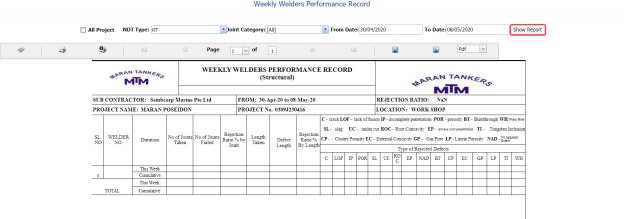](http://wiki.cuteinfocomm.com/uploads/images/gallery/2022-05/image-1651892594158.png)
**Figure 5.25: Weekly Welders Performance Record page**
2. If you want to view the weekly welders performance record for all project, select the checkbox of the **All Project** option.
3. In the **NDT Type** box, select an NDT type.
4. In the **Joint Category** box, select a joint category.
5. In the ****From Date**** and ****To Date**** boxes, select the from and to dates.
6. Click **Show Report**.
#### **5.25.1 Print Weekly Welders Performance Record**
If you want to print a weekly welders performance record, use [](http://wiki.cuteinfocomm.com/uploads/images/gallery/2022-05/image-1651892686181.png) and [](http://wiki.cuteinfocomm.com/uploads/images/gallery/2022-05/image-1651892698067.png) (print icons) provided in the **Weekly Welders Performance Record** page.
1. If you want to print the current page of the weekly welders performance record, click [](http://wiki.cuteinfocomm.com/uploads/images/gallery/2022-05/image-1651892719058.png) (print icon including the page number).
2. If you want to print all the pages of the weekly welders performance record, click [](http://wiki.cuteinfocomm.com/uploads/images/gallery/2022-05/image-1651892737106.png) (print icon).
#### **5.25.2 View Weekly Welders Performance Record**
You can view the weekly welders performance record in various formats by using the option [](http://wiki.cuteinfocomm.com/uploads/images/gallery/2022-05/image-1651892780272.png) provided in the upper right corner of the **Weekly Welders Performance Record** page.
### **5.26 RFI Fit up Request (Unique Numbers)**
The **RFI Fit up Request** tab in the **Inspection** menu allows you to add an RFI fit up request to check the fit-up quality of pipes and joints used in the structural project by a sub-contractor.
#### **5.26.1 Add an RFI Fit up Request**
If you want to add an RFI fit up request, do the following
1. Click the **RFI Fit up Request** tab in the **Inspection** menu. A new page opens to add an RFI fit up request.
[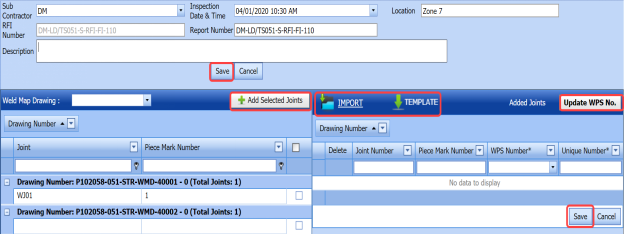](http://wiki.cuteinfocomm.com/uploads/images/gallery/2022-05/image-1651892856893.png)
**Figure 5.26: A page for adding an RFI fit up request**
[](http://wiki.cuteinfocomm.com/uploads/images/gallery/2022-05/image-1651892885747.png) **Tip**: A report number and an RFI number for a new RFI fit up request will be updated automatically in the **Report Number** and the **RFI Number** boxes, respectively.
2. In the **Sub Contractor** box, select the name of a sub-contractor from a drop-down list.
3. In the **Inspection Date & Time** box, select the date of inspection.
4. In the **Location** box, enter the location detail.
5. In the **Description** box, enter the description for the inspection.
[](http://wiki.cuteinfocomm.com/uploads/images/gallery/2022-05/image-1651892928906.png)**Note**: Before saving the added RFI fit up request, you must add the details of joints. You can add multiple joints for any added fit up request by using a box provided in the left side of the page. To know how to add joints, see the topic “[**Add joints for an RFI fit up request**](http://wiki.cuteinfocomm.com/link/69#bkmrk-5.26.2%C2%A0add-joints-fo)”.
6. Click **Save**.
#### **5.26.2 Add Joints for an RFI Fit up Request**
This page shows a list of joints for the corresponding weld map drawing. If you want to add joints for any added RFI Fit up request, do the following,
[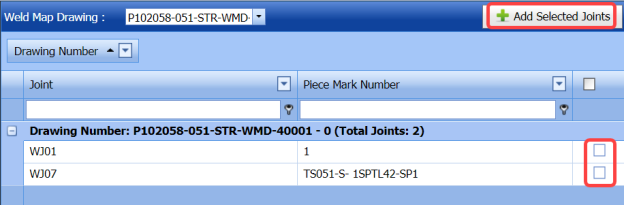](http://wiki.cuteinfocomm.com/uploads/images/gallery/2022-05/image-1651892978672.png)
1. In the **Weld Map Drawing** box, select a weld map drawing number from a drop-down list. A list of joints including the piece mark numbers opens for the selected weld map drawing.
2. Click the check box of the respective joints.
3. Click [](http://wiki.cuteinfocomm.com/uploads/images/gallery/2022-05/image-1651893058080.png) (**Add Selected Joints** button).
The selected joints are moved into the **Added Joints** box located in the right side of the page.
[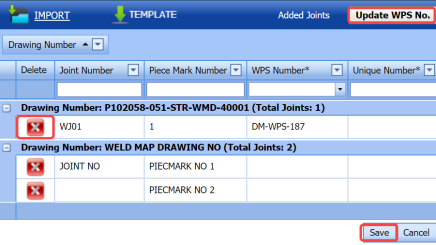](http://wiki.cuteinfocomm.com/uploads/images/gallery/2022-05/image-1651893075968.png)
4. To update WPS number and unique number for the added joints, do one of the following steps,
1. 1. If you want to update the WPS number for any joint, click the **WPS Number** column for the respective joint and then select the WPS number from a drop-down list.
[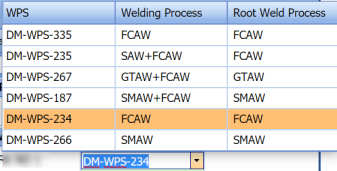](http://wiki.cuteinfocomm.com/uploads/images/gallery/2022-05/image-1651893103848.png)
2. Enter the unique number for the corresponding joint number in the respective **Unique Number** column. [](http://wiki.cuteinfocomm.com/uploads/images/gallery/2022-05/image-1651893141188.png)**Note**: If you want to update the same WPS number of first joint to other joints, click (**Update WPS No** button). The WPS number for the first joint will be updated for other joints.
5. If you want to update the WPS number, unique number, piece mark number details together, do the following,
1. 1. Click [](http://wiki.cuteinfocomm.com/uploads/images/gallery/2022-05/image-1651893176716.png) (**TEMPLATE** button) on the **Added Joints** box.
An excel worksheet will be downloaded with a pre-defined template. The template contains a list of added joints.
[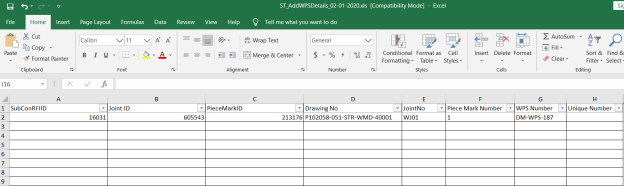](http://wiki.cuteinfocomm.com/uploads/images/gallery/2022-05/image-1651893194594.png)
2. Enter the relevant details in the required columns on the excel worksheet.
3. Once you have added the WPS, piece mark and other details in the excel worksheet, save the excel worksheet on your computer.
4. Click [](http://wiki.cuteinfocomm.com/uploads/images/gallery/2022-05/image-1651893220607.png) (**IMPORT** button).
A new window opens for importing the excel worksheet saved on your computer.
[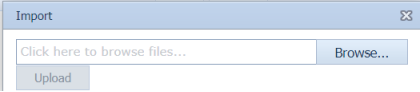](http://wiki.cuteinfocomm.com/uploads/images/gallery/2022-05/image-1651893239309.png)
5. Click [](http://wiki.cuteinfocomm.com/uploads/images/gallery/2022-05/image-1651893252738.png) (**Browse** button) to select the excel worksheet to be uploaded.
6. Select the excel worksheet you want to upload from your computer.
7. Click [ ](http://wiki.cuteinfocomm.com/uploads/images/gallery/2022-05/image-1651893273707.png) (****Upload**** button) to export the joint details that are included in the excel worksheet. The details of the joints in the worksheet will be updated.
8. Click **Save**.
The RFI Fit up request is successfully added and moved to the **View RFI Fit up** tab.
### **5.27 View RFI Fit up (Unique Numbers)**
The **View RFI Fit up** tab helps you to view and edit the RFI fit up request, which added by using the **RFI Fit up Request** tab. This tab also allows you to add a new RFI fit up request.
1. Click the **View RFI Fit up** tab in the **Inspection** menu. The **REQUEST FOR INSPECTION** page opens with a list of added RFI fit up requests.
[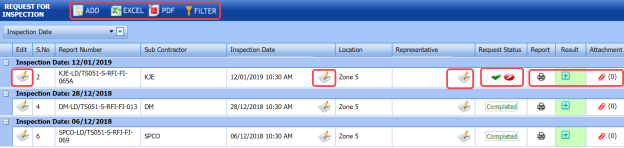](http://wiki.cuteinfocomm.com/uploads/images/gallery/2022-05/image-1651893381842.png)
**Figure 5.27: Request for Inspection page**
#### **5.27.1 Add an RFI Fit up Request**
If you want to add an RFI fit up request, do the following,
1. Click [](http://wiki.cuteinfocomm.com/uploads/images/gallery/2022-05/image-1651893453168.png) (**ADD** button) in the **REQUEST FOR INSPECTION** page. A new page opens to add an RFI fit up request. To know how to add an RFI fit up request, see the topic, “[**Add an RFI fit up request**](http://wiki.cuteinfocomm.com/link/69#bkmrk-5.26.1%C2%A0add-an-rfi-fi)”.
Once you have added the RFI fit up request, you must submit the added request for inspection.
#### **5.27.2 Submit an RFI Fit up Request**
Once you have added the RFI fit up request, the **Request Status** column in the **REQUEST FOR INSPECTION** page is appeared with [](http://wiki.cuteinfocomm.com/uploads/images/gallery/2022-05/image-1651893507020.png) (Submit and Reject icons). See Fig 5.27.
1. If you want to submit the RFI fit up request, click [](http://wiki.cuteinfocomm.com/uploads/images/gallery/2022-05/image-1651893531324.png) (Submit icon) in the **Request Status** Otherwise click [](http://wiki.cuteinfocomm.com/uploads/images/gallery/2022-05/image-1651893541233.png) (Reject icon) to reject the request.
#### **5.27.3 Add a Representative for Any RFI Fit up Request**
If you want to add a representative for any added RFI fit up request,
1. Click [](http://wiki.cuteinfocomm.com/uploads/images/gallery/2022-05/image-1651893618434.png) (Edit icon) in the **Representative** column for the respective RFI fit up request. The **Edit Form** window opens.
[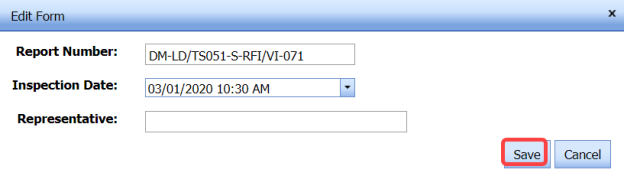](http://wiki.cuteinfocomm.com/uploads/images/gallery/2022-05/image-1651893635634.png)
2. In the **Representative** box, enter the name of a representative.
3. Click **Save**.
#### **5.27.4 Print an RFI Fit up Report**
If you want to print an RFI fit up report, click [](http://wiki.cuteinfocomm.com/uploads/images/gallery/2022-05/image-1651893686121.png) (print icon) provided in the **Report** column of the **REQUEST FOR INSPECTION** page. See Fig 5.27.
#### **5.27.5 Add Result Details of RFI Fit up Inspection**
If you want to add the inspection results details of an added RFI fit up inspection request, do the following,
1. Click [](http://wiki.cuteinfocomm.com/uploads/images/gallery/2022-05/image-1651893728587.png) (Add icon) in the **Results** column of the **REQUEST FOR INSPECTION** page. The **Joint Details** window opens.
[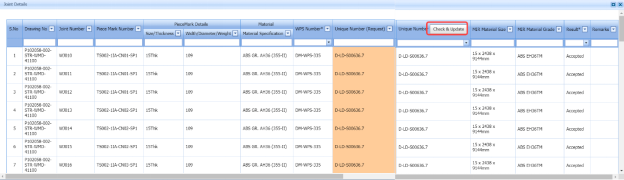](http://wiki.cuteinfocomm.com/uploads/images/gallery/2022-05/image-1651893740838.png)
2. If you want to check and update the joint details automatically, click (Check and update button).
3. If you want to update the joint details manually, do the following steps,
1. 1. Click the respective number in the ****WPS Number**** column and change the WPS number from a drop-down list.
2. Click the respective number in the ****Unique Number**** column and change the unique number from a drop-down list.
3. Click **Save changes**.
#### **5.27.6 Attach a File into an RFI Fit up Request**
If you want to attach any file with any RFI fit up request listed in the **REQUEST FOR INSPECTION** page, follow the procedures given in the topic “[**Attach a file into a client master drawing**](http://wiki.cuteinfocomm.com/books/cuteqm/page/project-data-qXJ/#bkmrk-3.2.2%C2%A0attach-a-file-)” in the **Client Master Drawing** section.
#### **5.27.7 Edit Any RFI Fit up Request**
If you want to edit any existing RFI fit up request in the **REQUEST FOR INSPECTION** page, do the following,
1. Click [](http://wiki.cuteinfocomm.com/uploads/images/gallery/2022-05/image-1651893868567.png) (Edit icon) in the **Edit** column for the respective RFI fit up request. See Fig 5.27. The page shows the added details of the RFI fit up request.
2. Click any box where you want to edit the details, and then edit the details in the respective box.
3. Click ****Save****.
#### **5.27.8 Export RFI Fit up Request List**
You can export a list of RFI fit up request added in the **REQUEST FOR INSPECTION** page in the pdf and excel formats. To know how to export, see the topic, “[**Export Areas list**](http://wiki.cuteinfocomm.com/books/cuteqm/page/project-data-qXJ/#bkmrk-3.1.4%C2%A0export-areas-l)” in the **Area** option.
#### **5.27.9 Filter Any RFI Fit up Request**
If you want to filter any RFI fit up request from the list of RFI fit up requests in the **REQUEST FOR INSPECTION** page, you can use [](http://wiki.cuteinfocomm.com/uploads/images/gallery/2022-05/image-1651893957189.png) the (**FILTER** button). To know how to filter, see the topic, ”**Filter Any Area**”.
### **5.28 View Application for Inspection (AFI) Fit up (Unique Numbers)**
The **View AFI Fit up** allows you to add a new AFI fit up request. This tab also helps you to view and edit the added AFI fit up request.
1. Click the **View AFI Fit up** tab in the **Inspection** menu. The **INSPECTION REQUEST (AFI)** page opens.
[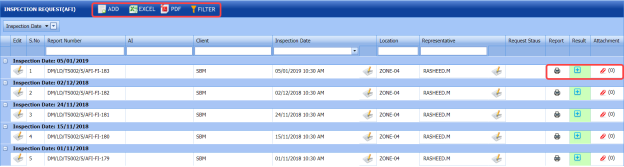](http://wiki.cuteinfocomm.com/uploads/images/gallery/2022-05/image-1651894010107.png)
**Figure 5.28: INSPECTION REQUEST (AFI) page**
#### **5.28.1 Add an AFI Fit up Request**
If you want to add an AFI fit up request, do the following,
1. Click [](http://wiki.cuteinfocomm.com/uploads/images/gallery/2022-05/image-1651894061003.png) (**ADD** button) in the **INSPECTION REQUEST (AFI)** page. The **AFI Request** page opens to add an AFI fit up request.
[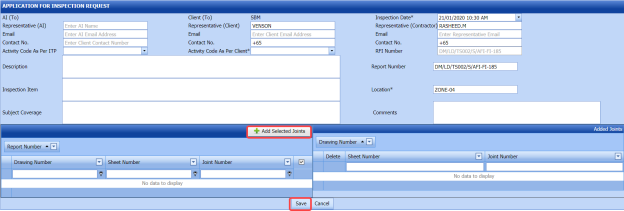](http://wiki.cuteinfocomm.com/uploads/images/gallery/2022-05/image-1651894082333.png)
[](http://wiki.cuteinfocomm.com/uploads/images/gallery/2022-05/image-1651894091654.png) **Tip**: A report number and RFI number for a new AFI fit up request will be updated automatically in the **Report Number** and **RFI Number** boxes.
2. In the **Representative (AI)** box, enter representative name for the application inspection and enter their email id and contact number in the **Email** and **Contact No** boxes, respectively.
3. In the **Representative (Client)** box, enter representative name from the client and enter their email id and contact number in the **Email** and **Contact No** boxes, respectively.
4. In the **Inspection Date** box, select the date of inspection.
5. In the **Representative (Contractor)** box, enter representative name from the contractor and enter their email id and contact number in the **Email** and **Contact No** boxes, respectively.
6. In the **Activity Code As Per ITP** box, select the activity code as per ITP from a drop-down list.
7. In the **Activity Code As Per Client** box, select the activity code as per client from a drop-down list.
8. In the **Location** box, enter the location detail.
9. In the **Description** box, enter the description for the inspection.
10. In the **Inspection Item** box, enter the details of items to be inspected.
11. In the **Subject Coverage** box, enter the subject coverage detail.
12. In the **Comments** box, enter your comments if any.
[](http://wiki.cuteinfocomm.com/uploads/images/gallery/2022-05/image-1651894246216.png) **Note**: Before saving the added AFI fit up request, you must add the details of joints. You can add multiple joints for any added fit up request by using a box provided in the left side of the page. To know how to add joints, see the topic “[**Add joints for an AFI fit up request**](http://wiki.cuteinfocomm.com/link/69#bkmrk-5.28.2-add-joints-fo)”.
13. Click **Save**.
#### **5.28.2 Add Joints for an AFI Fit up Request**
If you want to add joints for any added AFI fit up request, do the following,
[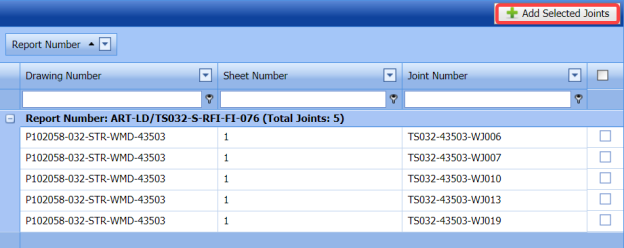](http://wiki.cuteinfocomm.com/uploads/images/gallery/2022-05/image-1651894295511.png)
Once you enter the details to add an AFI fit up request, a list of joints including the joint numbers, sheet numbers, and drawing numbers opens.
1. Click the check box of the respective joints.
2. Click [](http://wiki.cuteinfocomm.com/uploads/images/gallery/2022-05/image-1651894335943.png) (**Add Selected Joints** button).
The selected joints are moved into the **Added Joints** box located in the right side of the page.
[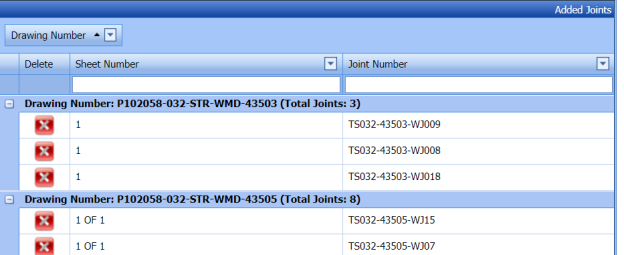](http://wiki.cuteinfocomm.com/uploads/images/gallery/2022-05/image-1651894360466.png)
3. Click **Save**.
The selected joints are successfully added for the AFI fit up request.
Once you have added the RFI fit up request, you must submit the added request for inspection.
#### **5.28.3 Submit an AFI Fit up Request**
Once you have added the AFI fit up request, the **Request Status** column in the **INSPECTION** **REQUEST (AFI)** page is appeared with[](http://wiki.cuteinfocomm.com/uploads/images/gallery/2022-05/image-1651894423857.png)(Submit and Reject icons). See Fig 5.28.
1. If you want to submit the AFI fit up request, click [](http://wiki.cuteinfocomm.com/uploads/images/gallery/2022-05/image-1651894443922.png) (Submit icon) in the **Request Status** Otherwise click [](http://wiki.cuteinfocomm.com/uploads/images/gallery/2022-05/image-1651894476196.png) (Reject icon) to reject the request.
#### **5.28.4 Change the Added Representative for Any AFI Fit up Request**
If you want to change the added representative for any AFI fit up request,
1. Click [](http://wiki.cuteinfocomm.com/uploads/images/gallery/2022-05/image-1651894514557.png) (Edit icon) in the **Representative** column for the respective AFI fit up request. The **Edit Form** window opens.
[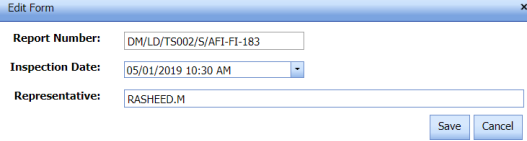](http://wiki.cuteinfocomm.com/uploads/images/gallery/2022-05/image-1651894531476.png)
2. In the **Representative** box, edit the name of a representative.
3. Click **Save**.
#### **5.28.5 Print an AFI Fit up Report**
If you want to print an AFI fit up report, click [](http://wiki.cuteinfocomm.com/uploads/images/gallery/2022-05/image-1651894691736.png) (print icon) provided in the **Report** column of the **INSPECTION** **REQUEST (AFI)** page. See Fig 5.28.
#### **5.28.6 Add Result Details of AFI Fit up Inspection**
If you want to update results for the AFI fit up inspection request, do the following,
1. Click [](http://wiki.cuteinfocomm.com/uploads/images/gallery/2022-05/image-1651894733695.png) (Add icon) in the **Results** column of the **INSPECTION** **REQUEST (AFI)** page. A new window opens.
[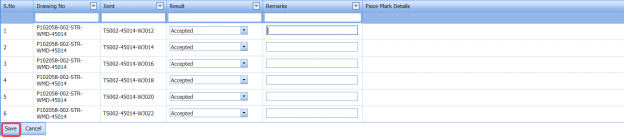](http://wiki.cuteinfocomm.com/uploads/images/gallery/2022-05/image-1651894753035.png)
2. In the ****Result**** column, select the results of AFI inspection from a drop-down list, for the respective drawing and joint numbers.
3. In the **Remarks** column, enter your remarks if any.
4. Click **Save**.
#### **5.28.7 Attach a File into an AFI Fit up Request**
If you want to attach any file with any AFI fit up request listed in the **INSPECTION REQUEST (AFI)** page, follow the procedures given in the topic “[**Attach a file into a client master drawing**](http://wiki.cuteinfocomm.com/books/cuteqm/page/project-data-qXJ/#bkmrk-3.2.2%C2%A0attach-a-file-)” in the **Client Master Drawing** section.
#### **5.28.8 Edit Any AFI Fit up Request**
If you want to edit any existing AFI fit up request in the **INSPECTION** **REQUEST (AFI)** page, do the following,
1. Click [](http://wiki.cuteinfocomm.com/uploads/images/gallery/2022-05/image-1651894888603.png) (Edit icon) in the **Edit** column for the respective AFI fit up request. See Fig 5.28. The page shows the added details of the AFI fit up request.
2. Click any box where you want to edit the details, and then edit the details in the respective box.
3. Click **Save**.
#### **5.28.9 Export AFI Fit up Request List**
You can export a list of AFI fit up request added in the **INSPECTION REQUEST (AFI)** page in the pdf and excel formats. To know how to export, see the topic, “[**Export Areas list**](http://wiki.cuteinfocomm.com/books/cuteqm/page/project-data-qXJ/#bkmrk-3.1.4%C2%A0export-areas-l)” in the **Area** option.
#### **5.28.10 Filter Any AFI Fit up Request**
If you want to filter any AFI fit up request from the list of AFI fit up requests in the **INSPECTION** **REQUEST (AFI)** page, you can use the (**FILTER** button). To know how to filter, see the topic, ”**Filter Any Area**”.
### **5.29 RFI Weld VI Request (Unique Numbers)**
The **RFI Weld VI Request** tab in the **Inspection** menu allows you to add an RFI weld VI request to perform visual inspection of welded pipes and joints used in the structural project by a sub-contractor.
#### **5.29.1 Add an RFI weld VI request**
If you want to add an RFI weld VI request, do the following,
1. Click the **RFI Weld VI Request** tab in the **Inspection** menu. The **REQUEST FOR INSPECTION** page opens to add an RFI weld VI request.
[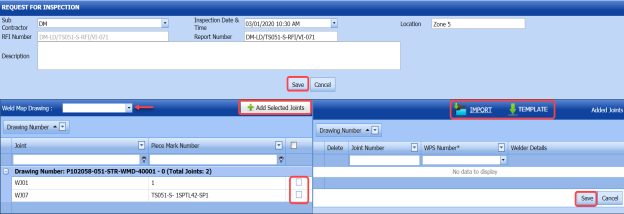](http://wiki.cuteinfocomm.com/uploads/images/gallery/2022-05/image-1651895029877.png)
**Figure 5.29: REQUEST FOR INSPECTION** **page**
[](http://wiki.cuteinfocomm.com/uploads/images/gallery/2022-05/image-1651895055512.png)**Tip**: A report number and an RFI number for a new RFI weld VI request will be updated automatically in the **Report Number** and the **RFI Number** boxes, respectively.
2. In the **Sub Contractor** box, select the name of a sub-contractor from a drop-down list.
3. In the **Inspection Date & Time** box, select the date of inspection.
4. In the **Location** box, enter the location detail.
5. In the **Description** box, enter the description for the inspection.
[](http://wiki.cuteinfocomm.com/uploads/images/gallery/2022-05/image-1651895100657.png) **Note**: Before saving the added RFI weld VI request, you must add the details of joints. You can add multiple joints for any added RFI weld VI request by using a box provided in the left side of the **REQUEST FOR INSPECTION** page. To know how to add joints, see the topic “[**Add joints for an RFI weld VI request**](http://wiki.cuteinfocomm.com/link/69#bkmrk-5.29.2%C2%A0add-joints-fo)”.
6. Click **Save**.
#### **5.29.2 Add Joints for an RFI Weld VI Request**
This page shows a list of joints for the corresponding weld map drawing. If you want to add joints for any added RFI weld VI request, do the following,
[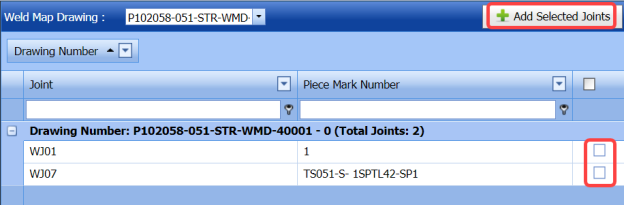](http://wiki.cuteinfocomm.com/uploads/images/gallery/2022-05/image-1651895145225.png)
1. In the **Weld Map Drawing** box, select a weld map drawing number from a drop-down list. A list of joints including the piece mark numbers opens for the selected weld map drawing.
2. Click the check box of the respective joints.
3. Click [](http://wiki.cuteinfocomm.com/uploads/images/gallery/2022-05/image-1651895193011.png) (**Add Selected Joints** button).
The selected joints are moved into the **Added Joints** box located in the right side of the page.
[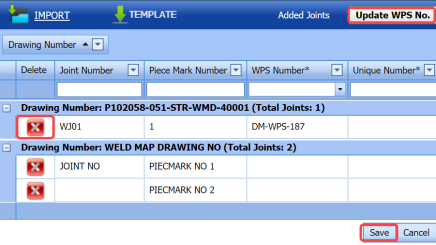](http://wiki.cuteinfocomm.com/uploads/images/gallery/2022-05/image-1651895210681.png)
4. To update WPS number and unique number for the added joints, do one of the following steps,
1. 1. If you want to update the WPS number for any joint, click the **WPS Number** column for the respective joint and then select the WPS number from a drop-down list.
[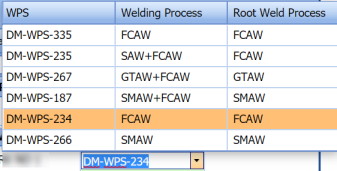](http://wiki.cuteinfocomm.com/uploads/images/gallery/2022-05/image-1651895250281.png)
2. Enter the unique number for the corresponding joint number in the respective **Unique Number column.**
[](http://wiki.cuteinfocomm.com/uploads/images/gallery/2022-05/image-1651895276427.png) **Note**: If you want to update the same WPS number of first joint to other joints, click [](http://wiki.cuteinfocomm.com/uploads/images/gallery/2022-05/image-1651895290875.png) (**Update WPS No** button). The WPS number for the first joint will be updated for other joints.
5. If you want to update the WPS number, unique number, piece mark number details together, do the following,
1. 1. Click [](http://wiki.cuteinfocomm.com/uploads/images/gallery/2022-05/image-1651895391280.png) (**TEMPLATE** button) on the **Added Joints** box.
An excel worksheet will be downloaded with a pre-defined template. The template contains a list of added joints.
[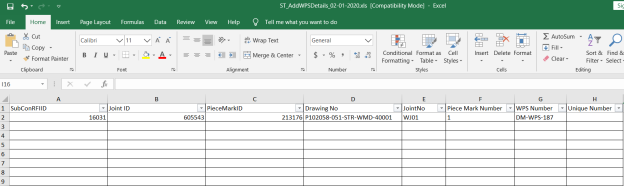](http://wiki.cuteinfocomm.com/uploads/images/gallery/2022-05/image-1651895420922.png)
2. Enter the relevant details in the required columns on the excel worksheet.
3. Once you have added the WPS, piece mark and other details in the excel worksheet, save the excel worksheet on your computer.
4. Click [](http://wiki.cuteinfocomm.com/uploads/images/gallery/2022-05/image-1651895442768.png) (**IMPORT** button).
A new window opens for importing the excel worksheet saved on your computer.
[](http://wiki.cuteinfocomm.com/uploads/images/gallery/2022-05/image-1651895457563.png)
5. Click [](http://wiki.cuteinfocomm.com/uploads/images/gallery/2022-05/image-1651895475955.png) (**Browse** button) to select the excel worksheet to be uploaded.
6. Select the excel worksheet you want to upload from your computer.
7. Click [](http://wiki.cuteinfocomm.com/uploads/images/gallery/2022-05/image-1651895497148.png) (**Upload** button) to export the joint details that are included in the excel worksheet.
The details of the joints in the worksheet will be updated.
6. Click **Save**.
The RFI weld VI request is successfully added.
### **5.30 View RFI Weld VI (Unique Numbers)**
The **View RFI Weld VI** tab helps you to view and edit the RFI weld VI request, which added by using the **RFI Weld VI Request** tab. This tab also allows you to add a new RFI weld VI request.
1. Click the **View RFI Weld VI** tab in the **Inspection** menu. The **REQUEST FOR INSPECTION** page opens with a list of added RFI weld VI requests.
[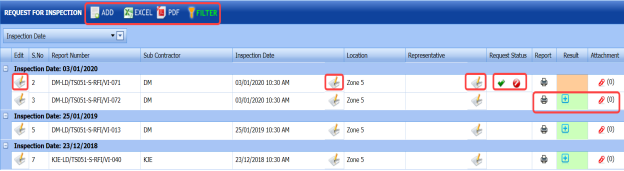](http://wiki.cuteinfocomm.com/uploads/images/gallery/2022-05/image-1651895579880.png)
**Figure 5.30: REQUEST FOR INSPECTION page**
#### **5.30.1 Add an RFI Weld VI Request**
If you want to add an RFI weld VI request, do the following,
1. Click [](http://wiki.cuteinfocomm.com/uploads/images/gallery/2022-05/image-1651895641312.png) (**ADD** button) in the **REQUEST FOR INSPECTION** page. A new page opens to add an RFI weld VI request. To know how to add an RFI weld VI request, see the topic, “[**Add an RFI weld VI request**](#_Add_an_RFI_1)”.
Once you have added the RFI weld VI request, you must submit the added request for inspection.
#### **5.30.2 Submit an RFI Weld VI Request**
Once you have added the RFI weld VI request, the **Request Status** column in the **REQUEST FOR INSPECTION** page is appeared with[](http://wiki.cuteinfocomm.com/uploads/images/gallery/2022-05/image-1651895696598.png) (Submit and Reject icons). See Fig 5.30.
1. If you want to submit the RFI weld VI request, click [](http://wiki.cuteinfocomm.com/uploads/images/gallery/2022-05/image-1651895715617.png)(Submit icon) in the **Request Status** Otherwise click [](http://wiki.cuteinfocomm.com/uploads/images/gallery/2022-05/image-1651895724147.png) (Reject icon) to reject the request.
#### **5.30.3 Add a Representative for Any RFI Weld VI Request**
If you want to add a representative for any added RFI weld VI request,
1. Click [](http://wiki.cuteinfocomm.com/uploads/images/gallery/2022-05/image-1651895780942.png)(Edit icon) in the **Representative** column for the respective RFI weld VI request. The **Edit Form** window opens.
[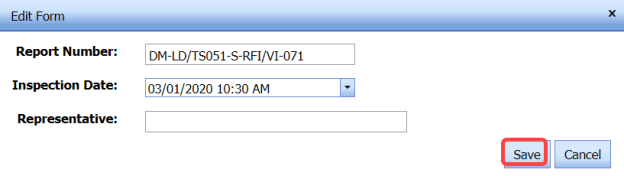](http://wiki.cuteinfocomm.com/uploads/images/gallery/2022-05/image-1651896527099.png)
2. In the **Representative** box, enter the name of a representative.
3. Click **Save**.
#### **5.30.4 Add Result for an RFI Weld VI Request**
If you want to add for the added RFI weld VI inspection request, do the following,
1. Click [](http://wiki.cuteinfocomm.com/uploads/images/gallery/2022-05/image-1651896588550.png) (Add icon) in the **Results** column of the **REQUEST FOR INSPECTION** page, for the respective RFI weld VI request. See Fig 5.30. A new window opens including the drawing number, joint number and WPS number for the respective RFI weld VI request.
[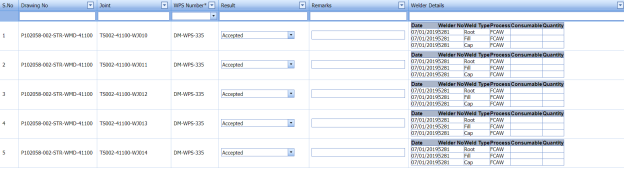](http://wiki.cuteinfocomm.com/uploads/images/gallery/2022-05/image-1651896617342.png)
2. In the **Result** column, select the results from a drop-down list based on your inspection.
#### **5.30.5 Print an RFI Weld VI Report**
If you want to print an RFI weld VI report, click [](http://wiki.cuteinfocomm.com/uploads/images/gallery/2022-05/image-1651896655616.png)(print icon) provided in the **Report** column of the **REQUEST FOR INSPECTION** page. See Fig 5.30.
#### **5.30.6 Attach a File into an RFI Weld VI Request**
If you want to attach any file with any RFI weld VI request listed in the **REQUEST FOR INSPECTION** page, follow the procedures given in the topic “[**Attach a file into a client master drawing**](http://wiki.cuteinfocomm.com/books/cuteqm/page/project-data-qXJ/#bkmrk-3.2.2%C2%A0attach-a-file-)” in the **Client Master Drawing** section.
#### **5.30.7 Edit Any RFI Weld VI Request**
If you want to edit any existing RFI weld VI request in the **REQUEST FOR INSPECTION** page, do the following,
1. Click [](http://wiki.cuteinfocomm.com/uploads/images/gallery/2022-05/image-1651896744473.png)(Edit icon) in the **Edit** column for the respective RFI weld VI request. See Fig 5.30. The page shows the added details of the RFI weld VI request.
2. Click any box where you want to edit the details, and then edit the details in the respective box.
3. Click **Save**.
#### **5.30.8 Export RFI Weld VI Request List**
You can export a list of RFI weld VI request added in the **REQUEST FOR INSPECTION** page in the pdf and excel formats. To know how to export, see the topic, “[**Export Areas list**](http://wiki.cuteinfocomm.com/books/cuteqm/page/project-data-qXJ/#bkmrk-3.1.4%C2%A0export-areas-l)” in the **Area** option.
#### **5.30.9 Filter Any RFI Weld VI Request**
If you want to filter any RFI weld VI request from the list of RFI weld VI requests in the **REQUEST FOR INSPECTION** page, you can use the [](http://wiki.cuteinfocomm.com/uploads/images/gallery/2022-05/image-1651897196423.png) (**FILTER** button). To know how to filter, see the topic, ”**Filter Any Area**”.
### **5.31 View AFI Weld VI (Unique Numbers)**
The **View AFI Weld VI** allows you to add a new AFI weld VI request. This tab also helps you to view and edit the added AFI weld VI request.
1. Click the **View AFI Weld VI** tab in the **Inspection** menu. The **WELD VI** **INSPECTION REQUEST** page opens.
[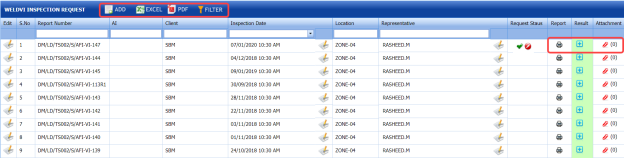](http://wiki.cuteinfocomm.com/uploads/images/gallery/2022-05/image-1651897246840.png)
**Figure 5.31: WELD VI INSPECTION REQUEST page**
#### **5.31.1 Add an AFI Weld VI Request**
If you want to add an AFI weld VI request, do the following,
1. Click [ ](http://wiki.cuteinfocomm.com/uploads/images/gallery/2022-05/image-1651897318313.png)(**ADD** button) in the **WELD VI INSPECTION REQUEST** page. The **WELD VI** **- AFI Request** page opens to add an AFI weld VI request.
[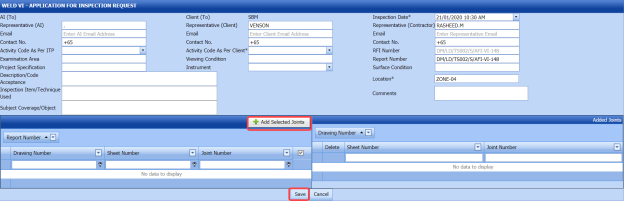](http://wiki.cuteinfocomm.com/uploads/images/gallery/2022-05/image-1651897340537.png)
[](http://wiki.cuteinfocomm.com/uploads/images/gallery/2022-05/image-1651897358028.png) **Tip**: A report number and RFI number for a new AFI weld VI request will be updated automatically in the **Report Number** and **RFI Number** boxes.
2. In the **Representative (AI)** box, enter representative name for the application inspection and enter their email id and contact number in the **Email** and **Contact No** boxes, respectively.
3. In the **Representative (Client)** box, enter representative name from the client and enter their email id and contact number in the **Email** and **Contact No** boxes, respectively.
4. In the **Inspection Date** box, select the date of inspection.
5. In the **Representative (Contractor)** box, enter representative name from the contractor and enter their email id and contact number in the **Email** and **Contact No** boxes, respectively.
6. In the **Activity Code As Per ITP** box, select the activity code as per ITP from a drop-down list.
7. In the **Activity Code As Per Client** box, select the activity code as per client from a drop-down list.
8. In the **Examination Area** box, enter the detail of examination area.
9. In the **Viewing Condition** box, enter the viewing condition detail.
10. In the **Project Specification** box, enter the project specification detail.
11. In the **Instrument** box, select an instrument from a drop-down list.
12. In the **Surface Condition** box, enter the surface condition detail.
13. In the **Location** box, enter the location detail.
14. In the **Description/ Code Acceptance** box, enter the description or the code acceptance detail for the inspection.
15. In the **Inspection Item/ Technique Used** box, enter the details of items to be inspected or used technique detail.
16. In the **Subject Coverage/ Object** box, enter the subject coverage or object detail.
17. In the **Comments** box, enter your comments if any.
[](http://wiki.cuteinfocomm.com/uploads/images/gallery/2022-05/image-1651897515969.png)**Note**: Before saving the added AFI weld VI request, you must add the details of joints. You can add multiple joints for any added weld VI request by using a box provided in the left side of the page. To know how to add joints, see the topic “[**Add joints for an AFI fit up request**](http://wiki.cuteinfocomm.com/link/69#bkmrk-5.28.2-add-joints-fo)”.
18. Click **Save**.
#### **5.31.2 Add Joints for an AFI Weld VI Request**
If you want to add joints for any added AFI weld VI request, do the following,
[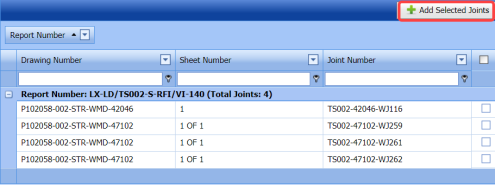](http://wiki.cuteinfocomm.com/uploads/images/gallery/2022-05/image-1651897564408.png)
Once you enter the details to add an AFI weld VI request, a list of joints including the joint numbers, sheet numbers, and drawing numbers opens.
1. Click the check box of the respective joints.
2. Click [](http://wiki.cuteinfocomm.com/uploads/images/gallery/2022-05/image-1651897598754.png) (**Add Selected Joints** button). The selected joints are moved into the **Added Joints** box located in the right side of the page.
[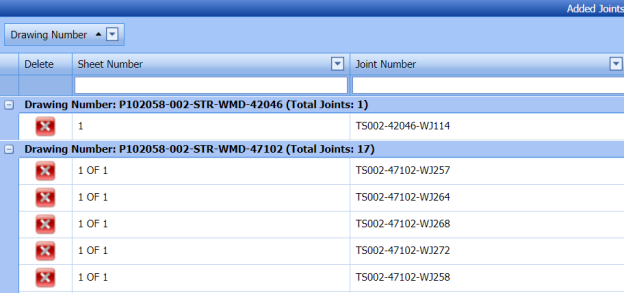](http://wiki.cuteinfocomm.com/uploads/images/gallery/2022-05/image-1651897618995.png)
3. Click **Save**.
The selected joints are successfully added for the AFI weld VI request.
The AFI weld VI request is successfully added. Once you have added the AFI weld VI request, you must submit the added weld VI request for inspection.
#### **5.31.3 Submit an AFI Weld VI Request**
Once you have added the AFI weld VI request, the **Request Status** column in the **WELD VI** **INSPECTION** **REQUEST** page is appeared with[](http://wiki.cuteinfocomm.com/uploads/images/gallery/2022-05/image-1651897679303.png) (Submit and Reject icons). See Fig 5.31.
1. If you want to submit the RFI weld VI request, click [](http://wiki.cuteinfocomm.com/uploads/images/gallery/2022-05/image-1651897705144.png) (Submit icon) in the **Request Status** column. Otherwise click [](http://wiki.cuteinfocomm.com/uploads/images/gallery/2022-05/image-1651897725095.png) (Reject icon) to reject the request.
#### **5.31.4 Change a Representative for Any AFI Weld VI Request**
If you want to change a representative for any added AFI weld VI request,
1. Click [](http://wiki.cuteinfocomm.com/uploads/images/gallery/2022-05/image-1651897769209.png) (Edit icon) in the **Representative** column for the respective AFI weld VI request. The **Edit Form** window opens.
[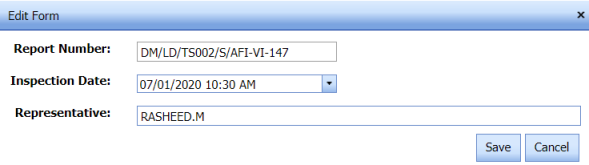](http://wiki.cuteinfocomm.com/uploads/images/gallery/2022-05/image-1651897786502.png)
2. In the **Representative** box, enter the name of a representative.
3. Click **Save**.
#### **5.31.5 Add Result for an AFI Weld VI Request**
If you want to add result for the added AFI weld VI inspection request, do the following,
1. Click [](http://wiki.cuteinfocomm.com/uploads/images/gallery/2022-05/image-1651897840474.png) (Add icon) in the **Results** column of the **WELD VI INSPECTION** **REQUEST** page, for the respective AFI weld VI request. See Fig 5.31. A new window opens including the drawing number and joint number for the respective AFI weld VI request.
[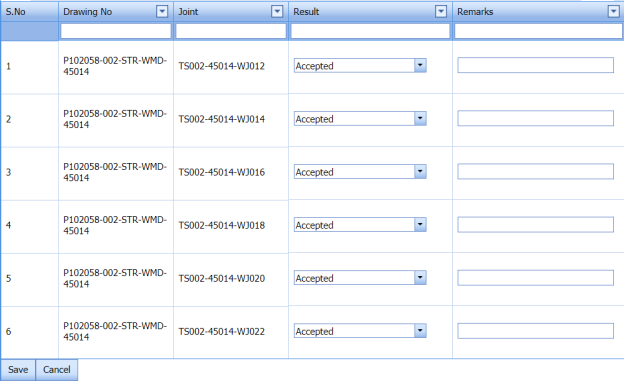](http://wiki.cuteinfocomm.com/uploads/images/gallery/2022-05/image-1651897861414.png)
2. In the **Result** column, select the results from a drop-down list based on your inspection.
3. Click **Save**.
#### **5.31.6 Print an AFI Weld VI Report**
If you want to print an AFI weld VI report, click[](http://wiki.cuteinfocomm.com/uploads/images/gallery/2022-05/image-1651897913191.png) (print icon) provided in the **Report** column of the **WELD VI INSPECTION** **REQUEST** page. See Fig 5.31.
#### **5.31.7 Attach a File into an AFI Weld VI Request**
If you want to attach any file with any AFI weld VI request listed in the **WELD VI INSPECTION REQUEST** page, follow the procedures given in the topic “[**Attach a file into a client master drawing**](http://wiki.cuteinfocomm.com/books/cuteqm/page/project-data-qXJ/#bkmrk-3.2.2%C2%A0attach-a-file-)” in the **Client Master Drawing** section.
#### **5.31.8 Edit Any AFI Weld VI Request**
If you want to edit any existing AFI weld VI request in the **WELD VI INSPECTION** **REQUEST** page, do the following,
1. Click [](http://wiki.cuteinfocomm.com/uploads/images/gallery/2022-05/image-1651898065391.png)(Edit icon) in the **Edit** column for the respective AFI weld VI request. See Fig 5.31. The page shows the added details of the AFI weld VI request.
2. Click any box where you want to edit the details, and then edit the details in the respective box.
3. Click **Save**.
#### **5.31.9 Export AFI weld VI Request List**
You can export a list of AFI weld VI request added in the **WELD VI INSPECTION REQUEST** page in the pdf and excel formats. To know how to export, see the topic, “[**Export Areas list**](http://wiki.cuteinfocomm.com/books/cuteqm/page/project-data-qXJ/#bkmrk-3.1.4%C2%A0export-areas-l)” in the **Area** option.
#### **5.31.10 Filter Any AFI Weld VI Request**
If you want to filter any AFI weld VI request from the list of AFI weld VI requests in the **WELD VI INSPECTION** **REQUEST** page, you can use the [](http://wiki.cuteinfocomm.com/uploads/images/gallery/2022-05/image-1651898185092.png) (**FILTER** button). To know how to filter, see the topic, ”**Filter Any Area**”.
### **5.32 Dust Level**
Dust level test is performed to check the dust level. The **Dust Level** tab in the **Inspection** menu used to perform the dust level in the **Structural** project.
1. Click **Dust Level** in the **Inspection** menu. The **Dust Level** page opens.
[](http://wiki.cuteinfocomm.com/uploads/images/gallery/2022-05/image-1651898231679.png)
**Figure 5.32: Dust Level page**
#### **5.32.1 Add a Dust Level**
If you want to add a dust level,
1. Click [](http://wiki.cuteinfocomm.com/uploads/images/gallery/2022-05/image-1651898288939.png) (**ADD** button) in the **Dust Level** See Fig 5.32. The page shows a new window to add the details of the dust level.
[](http://wiki.cuteinfocomm.com/uploads/images/gallery/2022-05/image-1651898305216.png)
2. In the **Painting System** box, enter the painting system name.
3. In the **Item No** box, enter the item number.
4. In the **Date of Testing** box, select the dust level testing date.
5. In the **Abrasives Used** box, enter the detail of abrasives used in the dust level testing.
6. In the **Equipment Used** box, enter the detail of equipment used in the dust level testing.
7. In the **Acceptable Level** box, enter the acceptable level detail.
8. Click **Save**.
The added dust level test will be listed in the **Dust Level** page.
#### **5.32.2 Edit a Dust Level**
If you want to edit any existing dust level in the **Dust Level** page,
1. Click [](http://wiki.cuteinfocomm.com/uploads/images/gallery/2022-05/image-1651898391905.png) (Edit icon) of the respective dust level. See Fig 5.32. The **Dust Level** page shows the details of the selected dust level.
2. Edit the details where you want.
3. Click **Save**.
#### **5.32.3 Delete a Dust Level**
If you want to delete any existing dust level in the **Dust Level** page, you can use [](http://wiki.cuteinfocomm.com/uploads/images/gallery/2022-05/image-1651898442682.png) (Delete icon) provided in the **Dust Level** page. To know how to delete, see the topic, “**Delete Any Area**”.
#### **5.32.4 Attach a File into a Dust Level**
If you want to attach any file with any dust level listed in the **Dust Level** page, follow the procedures given in the topic “[**Attach a file into a client master drawing**](http://wiki.cuteinfocomm.com/books/cuteqm/page/project-data-qXJ/#bkmrk-3.2.2%C2%A0attach-a-file-)” in the **Client Master Drawing** section.
#### **5.32.5 Print a Dust Level Report**
If you want to print a dust level report, click[](http://wiki.cuteinfocomm.com/uploads/images/gallery/2022-05/image-1651901548669.png) (print icon) provided in the **Report** column of the **Dust Level** page. See Fig 5.32.
#### **5.32.6 Export Dust Level List**
You can export a list of dust levels added in the **Dust Level** page in both the pdf and excel formats by using [](http://wiki.cuteinfocomm.com/uploads/images/gallery/2022-05/image-1651901624609.png) (**PDF** button) and [](http://wiki.cuteinfocomm.com/uploads/images/gallery/2022-05/image-1651901641936.png) (**Excel** button). To know how to export, see the topic, “[**Export Areas list**](http://wiki.cuteinfocomm.com/books/cuteqm/page/project-data-qXJ/#bkmrk-3.1.4%C2%A0export-areas-l)” in the **Area** option.
#### **5.32.7 Filter Any Dust Level**
If you want to filter any specific dust level, you can use [](http://wiki.cuteinfocomm.com/uploads/images/gallery/2022-05/image-1651901682828.png) (**FILTER** button) located on the **Dust Level** page. To know how to filter, see the topic, ”**Filter Any Area**”.
### **5.33 Blotter Test**
Blotter test is used to check the cleanliness of the compressed air, where the compressed air free from any form of contaminants is necessary before its usage. The **Blotter Test** tab in the **Inspection** menu helps you to add the results of blotter test.
1. Click **Blotter Test** in the **Inspection** menu. The **Blotter Test** page opens.
[](http://wiki.cuteinfocomm.com/uploads/images/gallery/2022-05/image-1651901737456.png)
**Figure 5.33: Blotter Test page**
#### **5.33.1 Add a Blotter Test Report**
If you want to add a blotter test report, do the following steps,
1. Click [](http://wiki.cuteinfocomm.com/uploads/images/gallery/2022-05/image-1651901793616.png) (**ADD** button) in the **Blotter Test** page. The page shows a new window to add the details of the blotter test report.
[](http://wiki.cuteinfocomm.com/uploads/images/gallery/2022-05/image-1651901814469.png)
2. In the **Location** box, enter the location name.
3. In the **Date of Testing** box, select the date of blotter test.
4. In the **Test Method** box, enter the test method detail.
5. In the **Acceptable Level** box, enter the acceptable level detail.
6. In the **Remarks** box, enter your remarks if any.
7. Click **Save**.
The blotter test report will be added and listed in the **Blotter Test** page. Once you have added the blotter test report, you must add the results of blotter test.
#### **5.33.2 Add Results of Blotter Test**
After completing the blotter test, you can add the blotter test result details. To add results, do the following steps,
1. Click [](http://wiki.cuteinfocomm.com/uploads/images/gallery/2022-05/image-1651901892500.png) (Add icon) in the **Results** column of the respective report. The Result window opens with the test readings.
[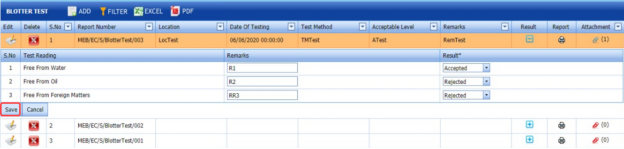](http://wiki.cuteinfocomm.com/uploads/images/gallery/2022-05/image-1651901906016.png)
2. In the **Result** column, select the result of each test reading from the given result options in the drop-down list.
3. In the **Remarks** column, enter your remarks if any.
4. Click **Save**.
#### **5.33.3 Edit Any Blotter Test Report**
If you want to edit any existing blotter test report in the **Blotter Test** page, do the following,
1. Click [](http://wiki.cuteinfocomm.com/uploads/images/gallery/2022-05/image-1651901964504.png)(Edit icon) in the **Edit** column for the respective blotter test report. See Fig 5.33. The **Blotter Test** page opens with the details of the selected blotter test report.
2. Click any box where you want to edit the details, and then edit the details in the respective box.
3. Click **Save**.
#### **5.33.4 View a Blotter Test Report**
If you want to view a blotter test report, click[](http://wiki.cuteinfocomm.com/uploads/images/gallery/2022-05/image-1651902047167.png) (print icon) provided in the **Print** column of the **Blotter Test** page. See Fig 5.33.
#### **5.33.5 Attach a File into a Blotter Test Report**
If you want to attach a file with any existing blotter test report listed in the **Blotter Test** page, you can attach the file by using [](http://wiki.cuteinfocomm.com/uploads/images/gallery/2022-05/image-1651902100292.png) (Attach icon) in the **Attachment** column. To know how to attach, follow the procedures given in the topic “[**Attach a file into a client master drawing**](http://wiki.cuteinfocomm.com/books/cuteqm/page/project-data-qXJ/#bkmrk-3.2.2%C2%A0attach-a-file-)”.
#### **5.33.6 Export Blotter Test Report List**
You can export a list of blotter test report list added in the **Blotter Test** page in both the pdf and excel formats by using (**PDF** button) and (**Excel** button). To know how to export, see the topic, “[**Export Areas list**](http://wiki.cuteinfocomm.com/books/cuteqm/page/project-data-qXJ/#bkmrk-3.1.4%C2%A0export-areas-l)”.
#### **5.33.7 Filter Any Blotter Test Report**
If you want to filter any specific blotter test report in the **Blotter Test** page, you can use [](http://wiki.cuteinfocomm.com/uploads/images/gallery/2022-05/image-1651902178629.png) (**FILTER** button) located on the **Blotter Test** page. To know how to filter, see the topic, ”**Filter Any Area**”.
### **5.34 Fairing Report**
The **Fairing Report** tab in the **Inspection** menu helps you to add the results of fairing test.
1. Click **Fairing Report** in the **Inspection** menu. The **Fairing Report** page opens.
[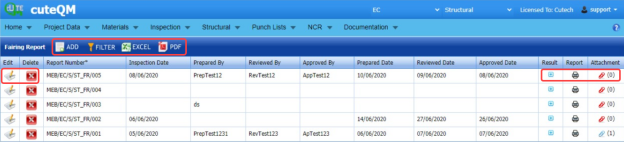](http://wiki.cuteinfocomm.com/uploads/images/gallery/2022-05/image-1651902229076.png)
**Figure 5.34: Fairing Report page**
#### **5.34.1 Add a Fairing Report**
If you want to add a fairing report, do the following steps,
1. Click [ ](http://wiki.cuteinfocomm.com/uploads/images/gallery/2022-05/image-1651902347564.png)(**ADD** button) in the **Fairing Report** page. The page shows a new window to add the details of the fairing report.
[](http://wiki.cuteinfocomm.com/uploads/images/gallery/2022-05/image-1651902368876.png)
2. In the **Inspection** **Date** box, select the date of inspection.
3. In the **Prepared By** box, enter the name of a person who has prepared the fairing report.
4. In the **Prepared Date** box, select the prepared date of the fairing report.
5. In the **Reviewed By** box, enter the name of a person who has reviewed the fairing report.
6. In the **Reviewed Date** box, select the reviewed date of the fairing report.
7. In the **Approved By** box, enter the name of a person who has approved the fairing report.
8. In the **Approved Date** box, select the approved date of the fairing report.
9. Click **Save**.
The fairing report will be added and listed in the **Fairing Report** page. Once you have added the fairing report, you must add the results of fairing test.
#### **5.34.2 Add Results of Fairing Test**
After completing the fairing test, you can add the fairing test result details. To add results, do the following steps,
1. Click [](http://wiki.cuteinfocomm.com/uploads/images/gallery/2022-05/image-1651912474698.png) (Add icon) in the **Results** column of the respective report. The **Fairing Request Details** window opens.
[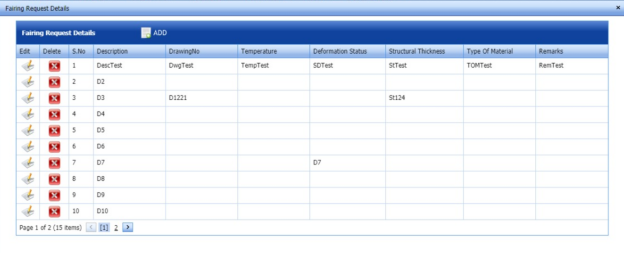](http://wiki.cuteinfocomm.com/uploads/images/gallery/2022-05/image-1651912488947.png)
2. Click [](http://wiki.cuteinfocomm.com/uploads/images/gallery/2022-05/image-1651912521284.png) (**ADD** button) in the **Fairing Request Details** window.
[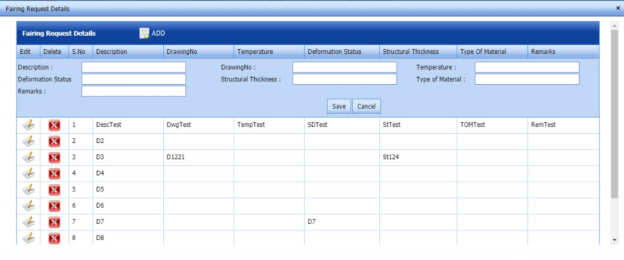](http://wiki.cuteinfocomm.com/uploads/images/gallery/2022-05/image-1651912549936.png)
3. In the **Description** box, enter the description for the fairing test.
4. In the **Drawing No** box, enter the drawing number.
5. In the **Temperature** box, enter the temperature value.
6. In the **Deformation Status** box, enter the deformation status detail.
7. In the **Structural Thickness** box, enter the structural thickness value.
8. In the **Structural Thickness** box, enter the structural thickness value.
9. In the **Type of Material** box, enter the type of material.
10. Click **Save**.
#### **5.34.3 Edit Any Fairing Report**
If you want to edit any existing fairing report in the **Fairing Report** page, do the following,
1. Click [](http://wiki.cuteinfocomm.com/uploads/images/gallery/2022-05/image-1651912698020.png)(Edit icon) in the **Edit** column for the respective fairing report. See Fig 5.34. The **Fairing Report** page opens with the details of the selected fairing report.
2. Click any box where you want to edit the details, and then edit the details in the respective box.
3. Click **Save**.
#### **5.34.4 View a Fairing Report**
If you want to view a fairing report, click [](http://wiki.cuteinfocomm.com/uploads/images/gallery/2022-05/image-1651912778699.png) (print icon) provided in the **Print** column of the **Fairing Report** page. See Fig 5.34.
#### **5.34.5 Attach a File into a Fairing Report**
If you want to attach a file with any existing fairing report listed in the **Fairing Report** page, you can attach the file by using (Attach icon) in the **Attachment** column. To know how to attach, follow the procedures given in the topic “[**Attach a file into a client master drawing**](http://wiki.cuteinfocomm.com/books/cuteqm/page/project-data-qXJ/#bkmrk-3.2.2%C2%A0attach-a-file-)”.
#### **5.34.6 Export Fairing Report List**
You can export a list of fairing report list added in the **Fairing Report** page in both the pdf and excel formats by using [](http://wiki.cuteinfocomm.com/uploads/images/gallery/2022-05/image-1651912857186.png) (**PDF** button) and [](http://wiki.cuteinfocomm.com/uploads/images/gallery/2022-05/image-1651912925607.png) (**Excel** button). To know how to export, see the topic, “[**Export Areas list**](http://wiki.cuteinfocomm.com/books/cuteqm/page/project-data-qXJ/#bkmrk-3.1.4%C2%A0export-areas-l)”.
#### **5.34.7 Filter Any Fairing Report**
If you want to filter any specific fairing report in the **Fairing Report** page, you can use [](http://wiki.cuteinfocomm.com/uploads/images/gallery/2022-05/image-1651913154457.png) (**FILTER** button) located on the **Fairing Report** page. To know how to filter, see the topic, ”**Filter Any Area**”.
### **5.35 Chloride Test**
The **Chloride Test** tab in the **Inspection** menu helps you to add the results of chloride test.
1. Click **Chloride Test** in the **Inspection** menu. The **Chloride Test** page opens.
[](http://wiki.cuteinfocomm.com/uploads/images/gallery/2022-05/image-1651913236408.png)
**Figure 5.35: Chloride Test page**
#### **5.35.1 Add a Chloride Test Report**
If you want to add a chloride test report, do the following steps,
1. Click [](http://wiki.cuteinfocomm.com/uploads/images/gallery/2022-05/image-1651913308606.png) (**ADD** button) in the **Chloride Test** page. The page shows a new window to add the details of the chloride test report.
[](http://wiki.cuteinfocomm.com/uploads/images/gallery/2022-05/image-1651913322779.png)
2. In the **Surface Preparation** box, enter the surface preparation detail.
3. In the **Location** box, enter the location detail.
4. In the **Date of Testing** box, select the date of chloride test.
5. In the **Test Method** box, enter the test method detail.
6. In the **Acceptance Level** box, enter the acceptance level detail.
7. In the **Remarks** box, enter your remarks if any.
8. Click **Save**.
The chloride test report will be added and listed in the **Chloride Test** page. Once you have added the chloride test report, you must add the results of chloride test.
#### **5.35.2 Add Results of Chloride Test**
After completing the chloride test, you can add the chloride test result details. To add results, do the following steps,
1. Click [](http://wiki.cuteinfocomm.com/uploads/images/gallery/2022-05/image-1651913429145.png) (Add icon) in the **Results** column of the respective report. The **Chloride Request Details** window opens.
[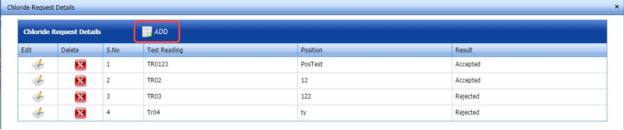](http://wiki.cuteinfocomm.com/uploads/images/gallery/2022-05/image-1651913575631.png)
2. Click [](http://wiki.cuteinfocomm.com/uploads/images/gallery/2022-05/image-1651913590897.png) **ADD** button) in the **Chloride Request Details** window.
[](http://wiki.cuteinfocomm.com/uploads/images/gallery/2022-05/image-1651913611112.png)
3. In the **Test Reading** box, enter the test reading detail.
4. In the **Position** box, enter the position detail.
5. In the **Result** box, select the result of the chloride test.
6. Click **Save**.
#### **5.35.3 Edit Any Chloride Test Report**
If you want to edit any existing chloride test report in the **Chloride Test** page, do the following,
1. Click [](http://wiki.cuteinfocomm.com/uploads/images/gallery/2022-05/image-1651913730100.png)(Edit icon) in the **Edit** column for the respective chloride test report. See Fig 5.35. The **Chloride Test** page opens with the details of the selected chloride test report.
2. Click any box where you want to edit the details, and then edit the details in the respective box.
3. Click **Save**.
#### **5.35.4 View a Chloride Test Report**
If you want to view a chloride test report, click [](http://wiki.cuteinfocomm.com/uploads/images/gallery/2022-05/image-1651913826379.png) (print icon) provided in the **Print** column of the **Chloride Test** page. See Fig 5.34.
#### **5.35.5 Attach a File into a Chloride Test Report**
If you want to attach a file with any existing chloride test report listed in the **Chloride Test** page, you can attach the file by using [](http://wiki.cuteinfocomm.com/uploads/images/gallery/2022-05/image-1651913869575.png) (Attach icon) in the **Attachment** column. To know how to attach, follow the procedures given in the topic “[**Attach a file into a client master drawing**](http://wiki.cuteinfocomm.com/books/cuteqm/page/project-data-qXJ/#bkmrk-3.2.2%C2%A0attach-a-file-)”.
#### **5.35.6 Export Chloride Test Report List**
You can export a list of chloride test report list added in the **Chloride Test** page in both the pdf and excel formats by using [](http://wiki.cuteinfocomm.com/uploads/images/gallery/2022-05/image-1651914072033.png)(**PDF** button) and [](http://wiki.cuteinfocomm.com/uploads/images/gallery/2022-05/image-1651914092636.png) (**Excel** button). To know how to export, see the topic, “[**Export Areas list**](http://wiki.cuteinfocomm.com/books/cuteqm/page/project-data-qXJ/#bkmrk-3.1.4%C2%A0export-areas-l)”.
#### **5.35.7 Filter Any Chloride Test Report**
If you want to filter any specific chloride test report in the **Chloride Test** page, you can use [](http://wiki.cuteinfocomm.com/uploads/images/gallery/2022-05/image-1651914209307.png) (**FILTER** button) located on the **Chloride Test** page. To know how to filter, see the topic, ”**Filter Any Area**”.
### **5.36 Inspection Requisition Summary Report**
The **Inspection Requisition Summary** tab in the **Inspection** menu used to view the inspection requisition summary report for a particular period.
1. Click **Inspection Requisition Summary** in the **Inspection** menu. The **Requisition Inspection Summary** page opens.
[](http://wiki.cuteinfocomm.com/uploads/images/gallery/2022-05/image-1651914291795.png)
**Figure 5.36: Requisition Inspection Summary page**
2. In the **Start Date** and **End Date** boxes, select the start and end dates.
3. Click **Get Report**.
The inspection requisition summary report for the selected period will be opened.
[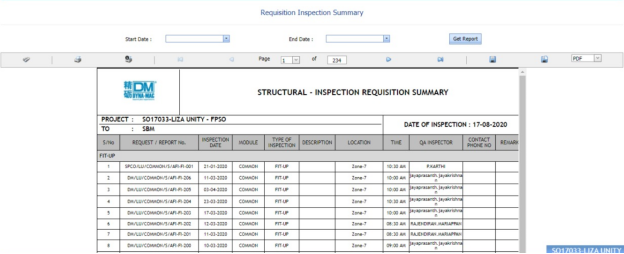](http://wiki.cuteinfocomm.com/uploads/images/gallery/2022-05/image-1651914343114.png)
#### **5.36.1 Print an Inspection Requisition Summary Report**
If you want to print an inspection requisition summary report, use [](http://wiki.cuteinfocomm.com/uploads/images/gallery/2022-05/image-1651914395188.png) and [](http://wiki.cuteinfocomm.com/uploads/images/gallery/2022-05/image-1651914414647.png) (print icons) provided in the **Requisition Inspection Summary** page.
1. If you want to print the current page of the inspection requisition summary report, click [](http://wiki.cuteinfocomm.com/uploads/images/gallery/2022-05/image-1651914484636.png) (print icon including the page number).
2. If you want to print all the pages of the inspection requisition summary report, click [](http://wiki.cuteinfocomm.com/uploads/images/gallery/2022-05/image-1651914505680.png)(print icon).
#### **5.36.2 Export an Inspection Requisition Summary Report**
You can export the inspection requisition summary report in various formats by using the option [](http://wiki.cuteinfocomm.com/uploads/images/gallery/2022-05/image-1651914626034.png) provided in the upper right corner of the **Requisition Inspection Summary** page.