# Home & Project
The home menu in the ***cuteQM*** used to provide access to view the dashboard and switch board of a project. This menu also helps you to change project to work on. Also some of the approval dashboards and daily operational job issuance menu items are shown here for easy access.
All users assigned with any roles can view **Switch Board** and access **Switch Project** in the **Home** menu.
#### **Switch Board**
The **Switch Board** tab in the **Home** menu show the consolidated view of various tabs listed in multiple menus in the menu bar.
Once you have successfully logged in into the ***cuteQM***, you can view the Home Page. In the Home Page, the menu bar appears with multiple menus, otherwise you can select the **Switch Board** tab to view all the menus.
To select the **Switch Board** tab,
1. Navigate to **Home**.
2. Click **Switch Board**.
The **Switch Board** tab includes multiple options such as **Welder & WPQ, Calibration, Engineering, Inspection, Stage Inspection, NDE & Other NDE Reports, and Reports.**
[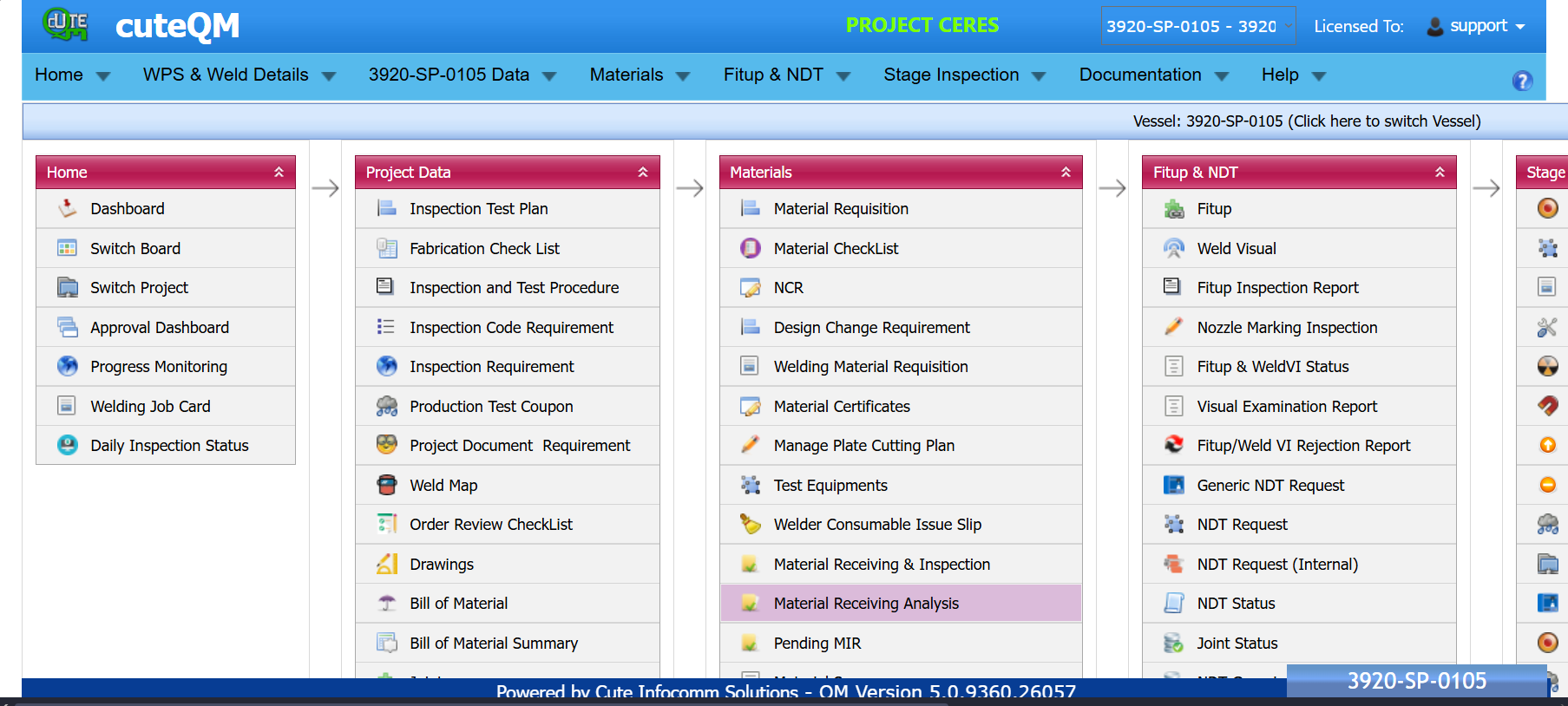](https://wiki.cuteinfocomm.com/uploads/images/gallery/2025-08/image-1756000025736.png)
The menu will be shown are accessible. For users with limited access, they will see limited items in the switch board and menu too.
[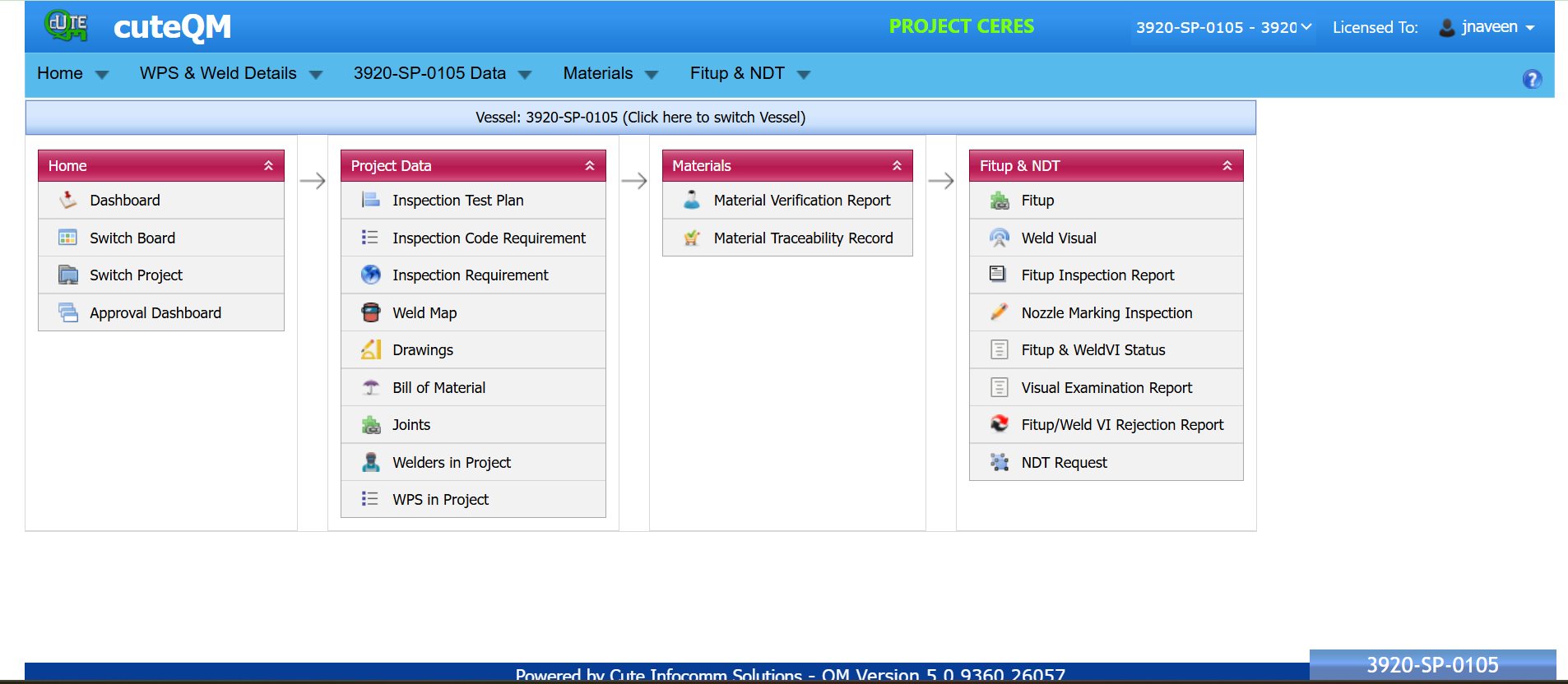](https://wiki.cuteinfocomm.com/uploads/images/gallery/2025-08/image-1756090545205.png)
#### **Switch Project**
The **Switch Project** tab in the **Home** menu helps you to add a new project/equipment and switch between various projects and equipment added in the app.
#### **Switch between Various Projects and** **Equipment's**
1. Navigate to the **Home**
2. Click **Switch Project**.
The switch project window opens with a list of projects and equipment's that are already added in the web.
[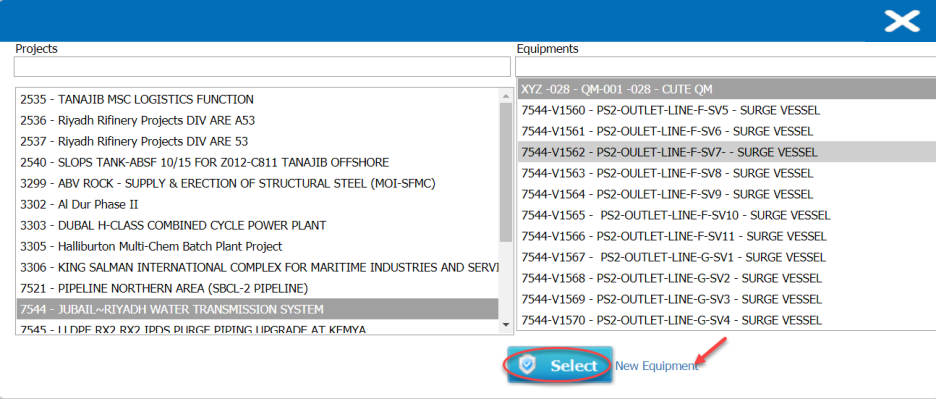](http://wiki.cuteinfocomm.com/uploads/images/gallery/2022-04/image-1651037564931.png)
**Figure 2.1: Switch project window**
3\. If you want to switch between various projects and equipments,
a. Select a project you want from multiple projects listed in the left side of the window.
Once you have selected the project, a list of equipments related to the project is displayed.
b. Select an equipment you want from multiple equipments listed in the right side of the window.
4\. Click **Select**.
To know how to add a new project, see the topic, “[Projects](https://wiki.cuteinfocomm.com/books/cuteqm/page/master-data#bkmrk-3.6-projects "Projects")”.
To know how to add a new equipment, see the topic, “[**Equipments**](https://wiki.cuteinfocomm.com/books/cuteqm/page/master-data#bkmrk-3.7-equipments "Equipments")”.