# Documentation
### **9.0 Documentation**
The **Documentation** menu used to combine the number of files, which are attached to every menu of this ***cuteQM*** app. The combined files will be shown as a pdf file. This menu also used to attach a new file to a module that is not provided with an attachment option to attach any file.
### **9.1 Document Category**
The **Document Category** tab in the **Documentation** menu used to attach a file to any module which has no attachment option to attach the file. Before attaching a file for any module, you must add the relevant category name of the module.
#### **9.1.1 Add a Document Category**
1. Click **Document Category** in the **Documentation** menu. The **Document Category** page opens.
[](http://wiki.cuteinfocomm.com/uploads/images/gallery/2022-05/image-1651570310375.png)
**Figure 9.1: Document Category page**
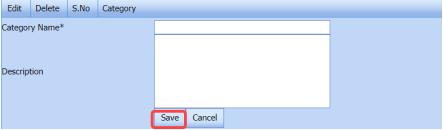
2. Click [](http://wiki.cuteinfocomm.com/uploads/images/gallery/2022-05/image-1651570333634.png) (**ADD** button) in the **Document Category** page. A new window opens to add a document category.
[](http://wiki.cuteinfocomm.com/uploads/images/gallery/2022-05/image-1651570506319.png)
3. In the **Category Name** box, enter the relevant category name for the module for which you want to attach a file.
4. In the **Description** box, enter the description for the added category.
5. Click **Save**.
(OR)
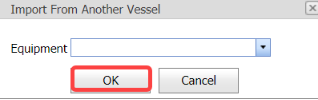
6. If you want to import any document category from another vessel, Click ****Import from Another Vessel****. The **Import from Another Vessel** window opens.
[](http://wiki.cuteinfocomm.com/uploads/images/gallery/2022-05/image-1651570554836.png)
1. 1. In the **Equipment** box, select an equipment from a drop-down list.
2. Click **Save**.
7. The added category name will be listed in the **Document Category** page. Once you have added the document category, you can attach any file to the added category.
#### **9.1.2 Attach a File into an Added Category**
If you want to attach any file with the added category listed in the **Document Category** page, you can attach the file by using [](http://wiki.cuteinfocomm.com/uploads/images/gallery/2022-05/image-1651570732592.png)(Attach icon) in the **Attachment** column. To know how to attach, follow the procedures given in the topic “[**Attach a file into P&ID**](http://wiki.cuteinfocomm.com/books/cuteqm/page/project-data/#bkmrk-3.1.7%C2%A0attach-a-file-)”.
#### **9.1.3 Edit a Category**
If you want to edit any existing category in the **Document Category** page, click [](http://wiki.cuteinfocomm.com/uploads/images/gallery/2022-05/image-1651570769266.png)(Edit icon) for the respective category, and then edit the details in the respective box.
#### **9.1.4 Delete a category**
If you want to delete any specific added category from the list, you can use [](http://wiki.cuteinfocomm.com/uploads/images/gallery/2022-05/image-1651570809674.png) (Delete icon) provided in the **Delete** column of the **Document Category** page, See Fig 9.1.
### **9.2 Hierarchical Report**
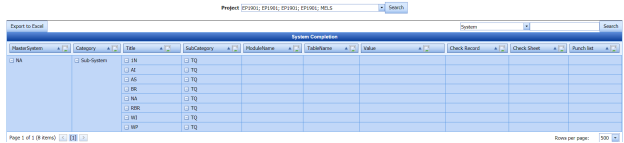
The **Hierarchical Report** tab in the **Documentation** menu helps you to view a hierarchical report of a project. If you want to view the hierarchical report,
1. Click **Hierarchical Report** in the **Documentation** menu.
The hierarchical report page opens.
[](http://wiki.cuteinfocomm.com/uploads/images/gallery/2022-05/image-1651571079057.png)
2. In the **Project** box, select a project for which you want to view he hierarchical report.
3. Select a category that is whether **System**, **Sub-System**, or **Tag No**.
4. Click **Search**.
The page shows the hierarchical report for the selected project and category.
[](http://wiki.cuteinfocomm.com/uploads/images/gallery/2022-05/image-1651571105084.png)
[](http://wiki.cuteinfocomm.com/uploads/images/gallery/2022-05/image-1651571114254.png)**Note**: If you want to export the hierarchical report as excel file, click **Export to Excel**.
### **9.3 Manufacture Data Report (MDR) Settings**
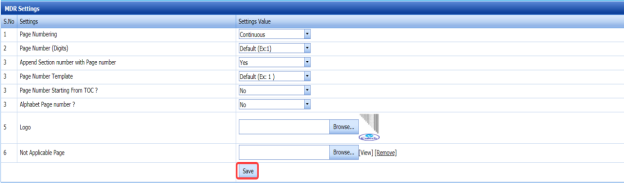
The **MDR** **Settings** tab in the **Documentation** menu helps you to do page setup for the pdf file which will be shown after combining the attached files.
1. Click the **MDR Settings** tab. The **MDR Settings** page opens.
[](http://wiki.cuteinfocomm.com/uploads/images/gallery/2022-05/image-1651572679436.png)
**Figure 9.3: MDR Settings page**
2. In the **Page Numbering** box, select the page numbering option that is whether **Section wise** or **Continuous**.
3. In the ****Page Number (Digits)**** box, select the page number displaying format from a drop-down list.
4. If you want to append the section number with the page number, click **Yes,** otherwise click **No** in the **Append Section number with Page number** box.
5. In the ****Page Number Template**** box, select the page number template from a drop-down list.
6. If you want to add the starting page numbers from TOC, click ****Yes,**** otherwise click ****No**** in the ****Page Number Starting From TOC?**** box.
7. If you want to add alphabet page numbers, click **Yes,** otherwise click **No** in the **Alphabet Page number?** box.
8. In the **Logo** box, attach your logo by using (**Browse** button).
9. Click **Save**.
### **9.4 One Click Documentation**
The **One Click Documentation** tab used to combine the attached file of the various module.
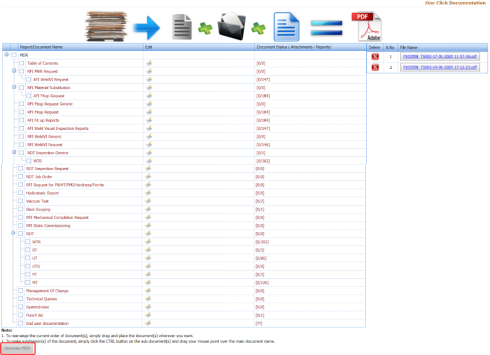
1. Click **One Click Documentation** in the **Documentation** menu. The **One Click Documentation** page opens.
[](http://wiki.cuteinfocomm.com/uploads/images/gallery/2022-05/image-1651572938916.png)
**Figure 9.4: One Click Documentation page**
The **One Click Documentation** page shows a list of reports name of each module including the attachment file counts. This page also shows the list of document categories including their attachments, which are added using the [**Document Category**](http://wiki.cuteinfocomm.com/books/cuteqm/page/inspection/#bkmrk-9.1%C2%A0document-categor) tab.
[](http://wiki.cuteinfocomm.com/uploads/images/gallery/2022-05/image-1651572973671.png)**Note**: If you want to edit any existing category in the **Document Category** page, click (Edit icon) for the respective category, and then edit the details in the respective box.
2. Click the check box of the respective reports which you want to combine.
3. Click **Generate MDR**.
The system combines the selected files and shows as the pdf file in the left side of the **One Click Documentation** page, See Fig 9.4.
[](http://wiki.cuteinfocomm.com/uploads/images/gallery/2022-05/image-1651573017690.png)**Tip**: You can view the pdf file by clicking the respective pdf file. The file will be opened including the data in the combined files.
### **9.5 Document Upload**
The **Document Upload** tab in the **Documentation** menu used to upload documents for various process.
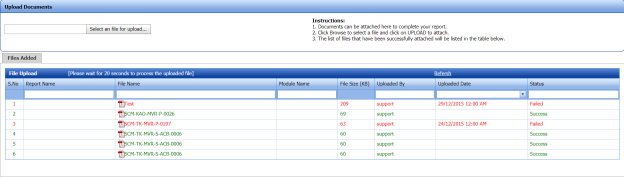
1. Click **Document Upload** in the **Documentation** menu. The **Upload Documents** page opens.
[](http://wiki.cuteinfocomm.com/uploads/images/gallery/2022-05/image-1651573070510.png)
**Figure 9.5: Upload Documents page**
2. Select a file which you want to upload by click **Select a file for upload**. The selected file will be added in the **File Upload** window.