# 2. RFI
### **2.1. Glanding & Termination RFI**
#### **2.1.1.RFI Glanding Add**
[  ](https://wiki.cuteinfocomm.com/uploads/images/gallery/2024-08/image-1724379663208.png)[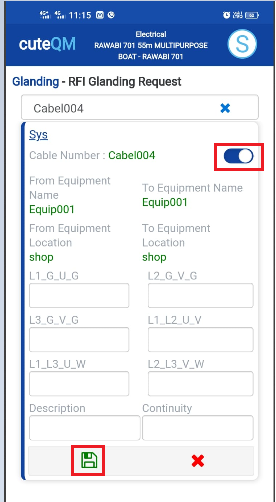](https://wiki.cuteinfocomm.com/uploads/images/gallery/2024-08/image-1724379677647.png)
[ ](https://wiki.cuteinfocomm.com/uploads/images/gallery/2024-08/image-1724334273188.png)
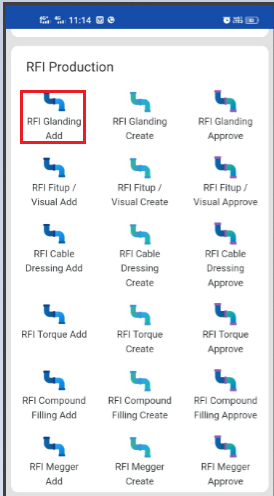
1. Click **RFI Glanding Add** menu .This menu helps to add the cables for the RFI Glanding request.
2. Select cable no in the dropdown list.
3. Toggle **ON** the appropriate cable
4. Enter L1,L2,L3..Values
5. Enter **description**.
6. Enter **Continuity**
7. Click [S](https://wiki.cuteinfocomm.com/uploads/images/gallery/2024-08/image-1724334603626.png)**ave** icon.
**Glanding request added successfully.**
#### **2.1.2.RFI Glanding Create**
[ ](https://wiki.cuteinfocomm.com/uploads/images/gallery/2024-08/image-1724379823938.png)[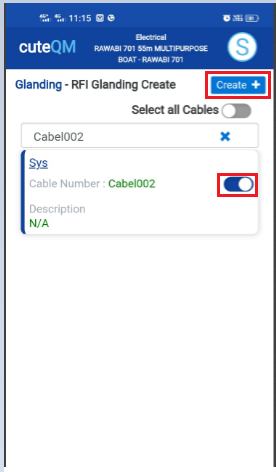](https://wiki.cuteinfocomm.com/uploads/images/gallery/2024-08/image-1724379844669.png)
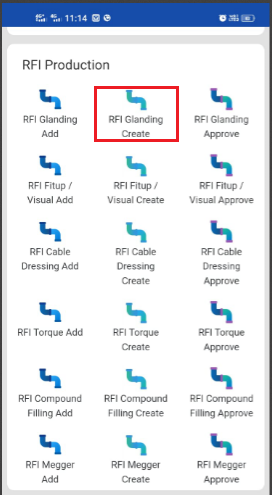
1. Click **RFI Glanding create** menu.This menu helps to create RFI requests from added cables.
2. Select the cable no from dropdown list
3. Toggle **ON** the required cable
4. Click **Create** button at the top
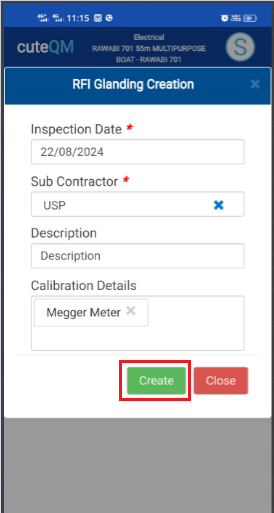
5. After create button clicked,a popup will open to key in **inspection date,subcontractor ,description & calibration details.**
[ ](https://wiki.cuteinfocomm.com/uploads/images/gallery/2024-08/image-1724379931286.png)
6\. Click **Create** button.
**RFI Glanding request created successfully.**
#### **2.1.3.RFI Glanding Approve**
[ ](https://wiki.cuteinfocomm.com/uploads/images/gallery/2024-08/image-1724379975132.png)[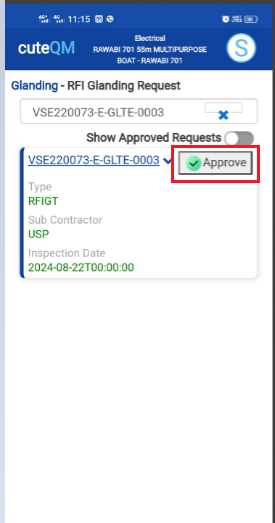](https://wiki.cuteinfocomm.com/uploads/images/gallery/2024-08/image-1724379988437.png)
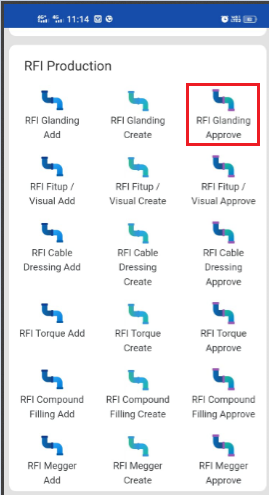
1. Click **RFI Glanding approve** menu
2. Select the RFI request no from dropdown list
3. Click **Approve** button.
**Glanding request approved successfully.**
#### **2.1.4.RFI Glanding Inspection**
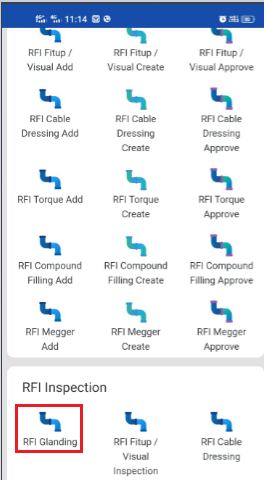
1.Click **RFI Glanding** menu in Inspection.
[](https://wiki.cuteinfocomm.com/uploads/images/gallery/2024-08/image-1724380036667.png)
2.Click [ button .It will redirected to new page](https://wiki.cuteinfocomm.com/uploads/images/gallery/2024-08/image-1724304171025.png)
[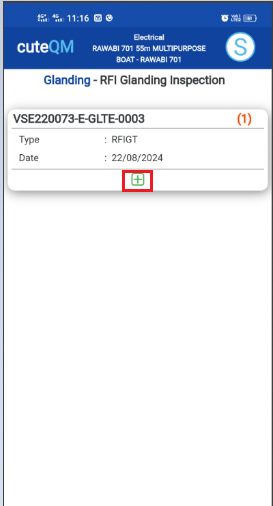 ](https://wiki.cuteinfocomm.com/uploads/images/gallery/2024-08/image-1724380355083.png)[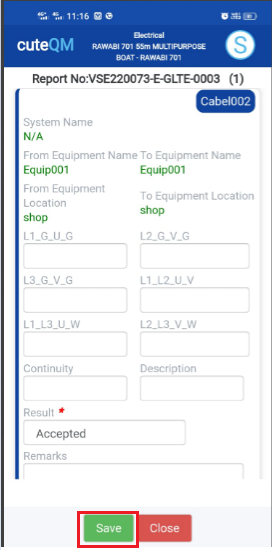](https://wiki.cuteinfocomm.com/uploads/images/gallery/2024-08/image-1724380396970.png)[ ](https://wiki.cuteinfocomm.com/uploads/images/gallery/2024-08/image-1724335418846.png)
1. Result will be defaultly accepted,If need to reject,you can change the dropdown as Reject
2. Enter **Description**
3. Enter **Remarks**
4. Click **Save** button. **RFI** **Glanding inspection approved successfully.**
### **2.2. Fitup/Visual RFI**
#### **2.2.1.RFI Fitup/Visual Add**
[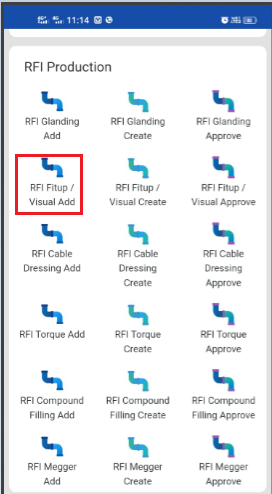 ](https://wiki.cuteinfocomm.com/uploads/images/gallery/2024-08/image-1724380758169.png)[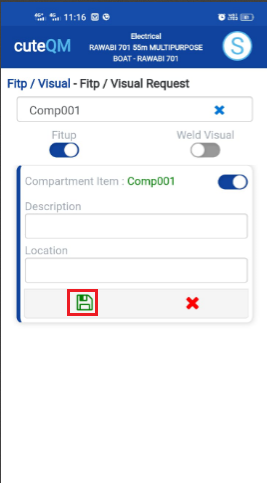](https://wiki.cuteinfocomm.com/uploads/images/gallery/2024-08/image-1724380804851.png)
1. Click **RFI Fitup/visual Add** menu .This menu helps to add the compartments for the RFI Fitup/visual request.
2. Select compartment no in the dropdown list.
3. Toggle ON Fitup or weld as required
4. Toggle **ON** the appropriate compartment
5. Enter **description**.
6. Enter **location**.
7. Click [S](https://wiki.cuteinfocomm.com/uploads/images/gallery/2024-08/image-1724334603626.png)**ave** icon.
**Fitup/visual request added successfully.**
#### **2.2.2.RFI Fitup/Visual Create**
[ ](https://wiki.cuteinfocomm.com/uploads/images/gallery/2024-08/image-1724380973668.png)[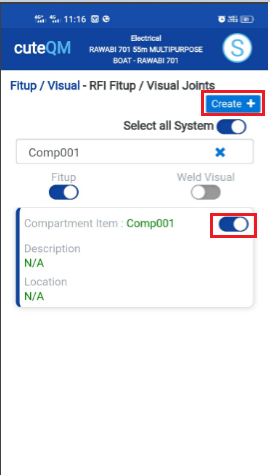](https://wiki.cuteinfocomm.com/uploads/images/gallery/2024-08/image-1724380998744.png)
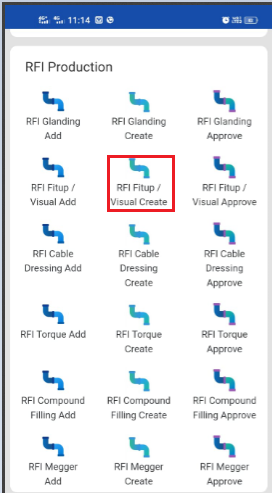
1. Click **RFI Fitup/visual create** menu.This menu helps to create RFI requests from added compartments.
2. Select the compartment no from dropdown list
3. Toggle **ON** the required comprtment
4. Click **Create** button at the top
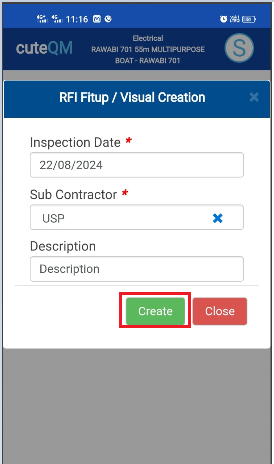
5. After create button clicked,a popup will open to key in **inspection date,subcontractor and description.**
[ ](https://wiki.cuteinfocomm.com/uploads/images/gallery/2024-08/image-1724381091581.png)
6\. Click **Create** button.
**RFI Fitup/visual request created successfully.**
#### **2.2.3.RFI Fitup/Visual Approve**
[ ](https://wiki.cuteinfocomm.com/uploads/images/gallery/2024-08/image-1724381207373.png)[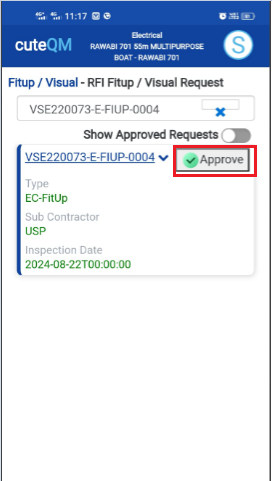](https://wiki.cuteinfocomm.com/uploads/images/gallery/2024-08/image-1724381219349.png)
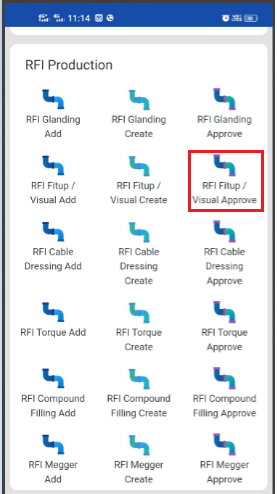
1. Click **RFI Fitup/visual approve** menu
2. Select the RFI request no from dropdown list
3. Click **Approve** button.
**Fitup/visual request approved successfully.**
#### **2.2.4.RFI Fitup/Visual Inspection**
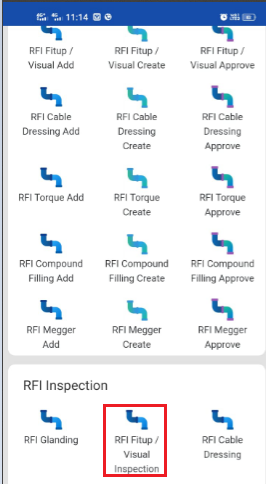
1.Click **RFI Fitup/visual** menu in Inspection.
[](https://wiki.cuteinfocomm.com/uploads/images/gallery/2024-08/image-1724381269824.png)
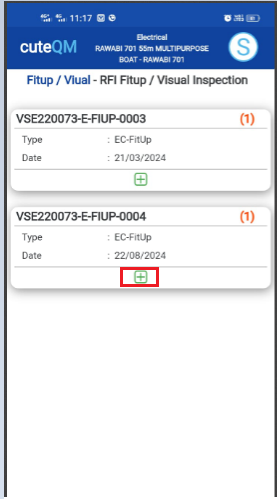
2.Click [ button .It will redirected to new page](https://wiki.cuteinfocomm.com/uploads/images/gallery/2024-08/image-1724304171025.png)
[ ](https://wiki.cuteinfocomm.com/uploads/images/gallery/2024-08/image-1724381319997.png)[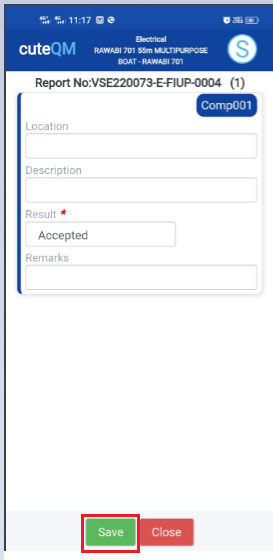](https://wiki.cuteinfocomm.com/uploads/images/gallery/2024-08/image-1724381364646.png)
1. Result will be defaultly accepted,If need to reject,you can change the dropdown as Reject
2. Enter **Description**
3. Enter **Remarks**
4. Click **Save** button. **RFI** **Fitup/visual inspection approved successfully.**
### **2.3. Cable dressing & Banding RFI**
#### **2.3.1.Cable dressing Add**
[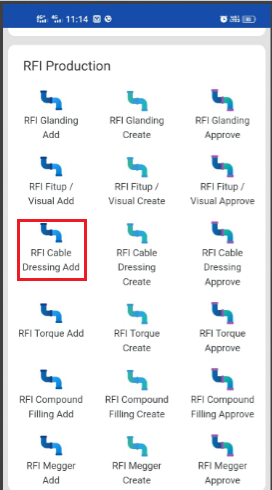 ](https://wiki.cuteinfocomm.com/uploads/images/gallery/2024-08/image-1724387281177.png)[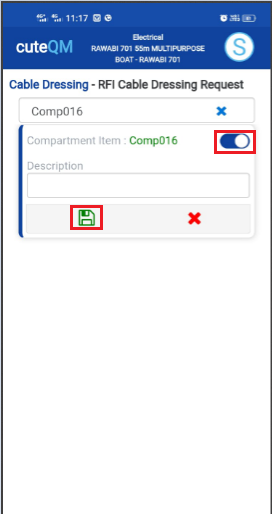](https://wiki.cuteinfocomm.com/uploads/images/gallery/2024-08/image-1724387294002.png)
1. Click **RFI** **Cable dressing Add** menu .This menu helps to add the compartments for the RFI cable dressing request.
2. Select compartment no in the dropdown list.
3. Toggle **ON** the appropriate compartment
4. Enter **description**.
5. Click [S](https://wiki.cuteinfocomm.com/uploads/images/gallery/2024-08/image-1724334603626.png)**ave** icon.
**Cable dressing & Banding request added successfully.**
#### **2.3.2.RFI Cable dressing Create**
[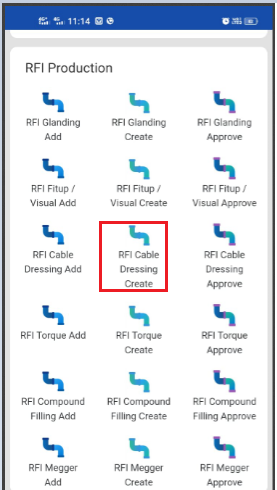 ](https://wiki.cuteinfocomm.com/uploads/images/gallery/2024-08/image-1724387447832.png)[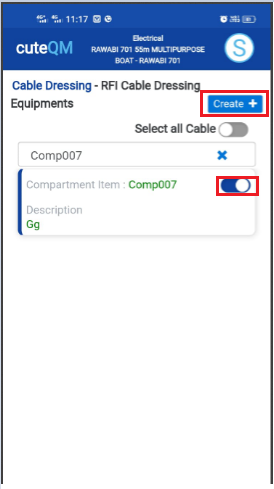](https://wiki.cuteinfocomm.com/uploads/images/gallery/2024-08/image-1724387458092.png)
1. Click RFI **Cable dressing** create menu.This menu helps to create RFI requests from added compartments.
2. Select the compartment no from dropdown list
3. Toggle **ON** the required comprtment
4. Click **Create** button at the top
5. After create button clicked,a popup will open to key in **inspection date,subcontractor and description.**
[ ](https://wiki.cuteinfocomm.com/uploads/images/gallery/2024-08/image-1724381091581.png)
6\. Click **Create** button.
**RFI Cable dressing & Banding request created successfully.**
#### **2.3.3.RFI Cable dressing Approve**
[ ](https://wiki.cuteinfocomm.com/uploads/images/gallery/2024-08/image-1724387585574.png)[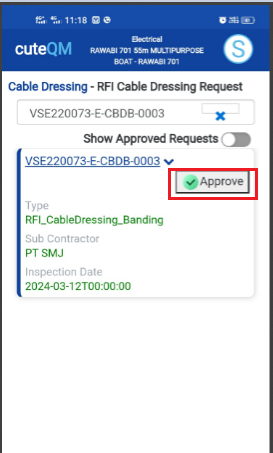](https://wiki.cuteinfocomm.com/uploads/images/gallery/2024-08/image-1724387596462.png)
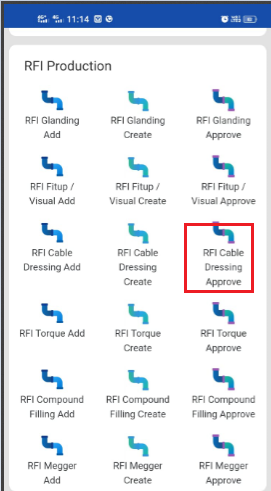
1. Click **RFI Cable dressing approve** menu
2. Select the RFI request no from dropdown list
3. Click **Approve** button.
**Cable dressing & Banding request approved successfully.**
#### **2.3.4.RFI Cable dressing & Banding Inspection**
1.Click **RFI** **Cable dressing** menu in Inspection.
[](https://wiki.cuteinfocomm.com/uploads/images/gallery/2024-08/image-1724387727098.png)
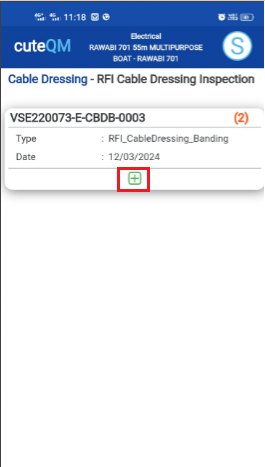
2.Click [ button .It will redirected to new page](https://wiki.cuteinfocomm.com/uploads/images/gallery/2024-08/image-1724304171025.png)
[](https://wiki.cuteinfocomm.com/uploads/images/gallery/2024-08/image-1724387750459.png) [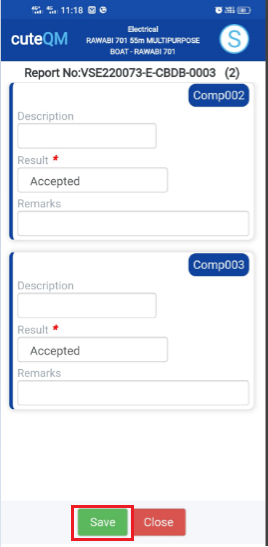](https://wiki.cuteinfocomm.com/uploads/images/gallery/2024-08/image-1724387792561.png)
1. Result will be defaultly accepted,If need to reject,you can change the dropdown as Reject
2. Enter **Description**
3. Enter **Remarks**
4. Click **Save** button. **RFI** **Cable dressing & Banding inspection approved successfully.**
### **2.4. Torque Tightening RFI**
#### **2.4.1.RFI Torque Add**
[ ](https://wiki.cuteinfocomm.com/uploads/images/gallery/2024-08/image-1724388730306.png)[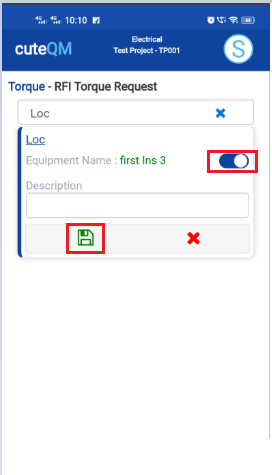](https://wiki.cuteinfocomm.com/uploads/images/gallery/2024-08/image-1724388743656.png)[ ](https://wiki.cuteinfocomm.com/uploads/images/gallery/2024-08/image-1724379663208.png)[ ](https://wiki.cuteinfocomm.com/uploads/images/gallery/2024-08/image-1724334273188.png)
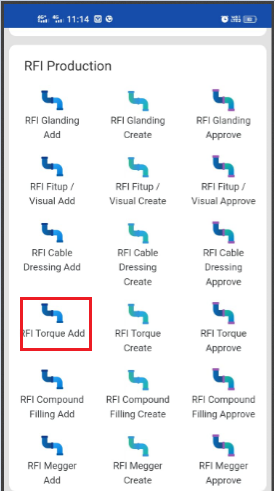
1. Click **RFI Torque Add** menu .This menu helps to add the equipments for the RFI Torque request.
2. Select equipment location in the dropdown list.
3. Toggle **ON** the appropriate equipment
4. Enter **description**.
5. Click [**S**](https://wiki.cuteinfocomm.com/uploads/images/gallery/2024-08/image-1724334603626.png)**ave** icon.
**Torque RFI request added successfully.**
#### **2.4.2.RFI Torque Create**
[ ](https://wiki.cuteinfocomm.com/uploads/images/gallery/2024-08/image-1724388911125.png)[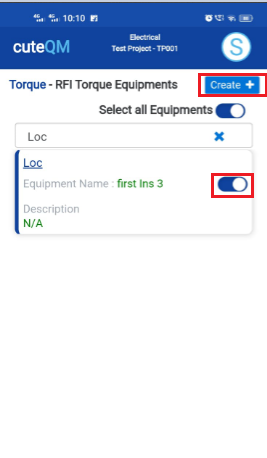](https://wiki.cuteinfocomm.com/uploads/images/gallery/2024-08/image-1724388922855.png)
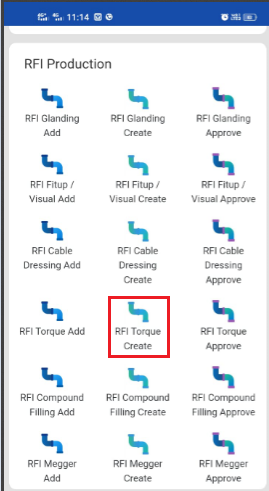
1. Click **RFI Torque create** menu.This menu helps to create RFI requests from added equipments.
2. Select the equipment location from dropdown list
3. Toggle **ON** the required equipment
4. Click **Create** button at the top
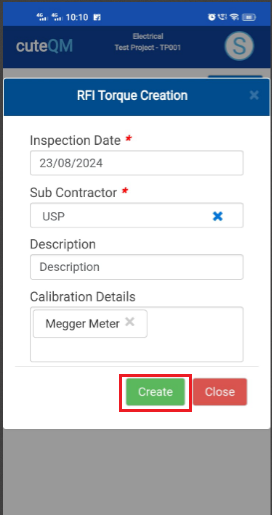
5. After create button clicked,a popup will open to key in **inspection date,subcontractor ,description & calibration details.**
[](https://wiki.cuteinfocomm.com/uploads/images/gallery/2024-08/image-1724389019172.png)
6\. Click **Create** button.
**RFI Torque request created successfully.**
#### **2.4.3.RFI Torque Approve**
[ ](https://wiki.cuteinfocomm.com/uploads/images/gallery/2024-08/image-1724389507428.png)[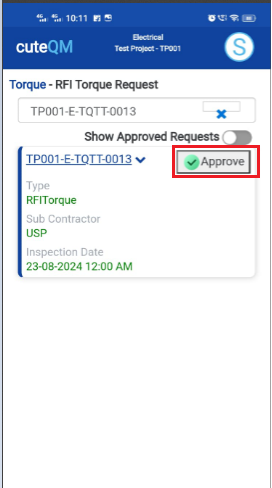](https://wiki.cuteinfocomm.com/uploads/images/gallery/2024-08/image-1724389524560.png)
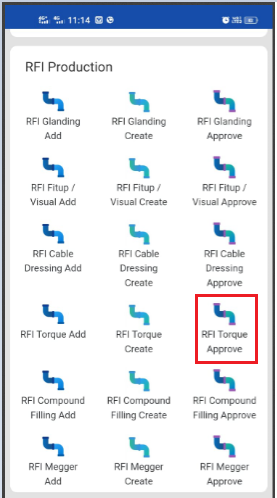
1. Click **RFI Torque approve** menu
2. Select the RFI request no from dropdown list
3. Click **Approve** button.
**Torque RFI request approved successfully.**
#### **2.4.4.RFI Torque Inspection**
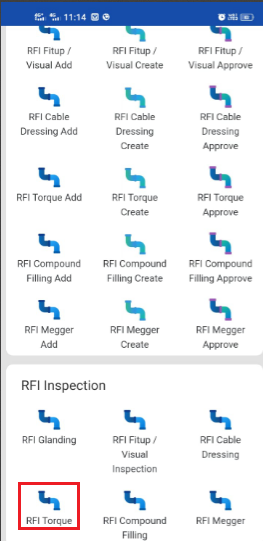
1.Click **RFI Torque** menu in Inspection.
[](https://wiki.cuteinfocomm.com/uploads/images/gallery/2024-08/image-1724389609711.png)
2.Click [ button .It will redirected to new page](https://wiki.cuteinfocomm.com/uploads/images/gallery/2024-08/image-1724304171025.png)
[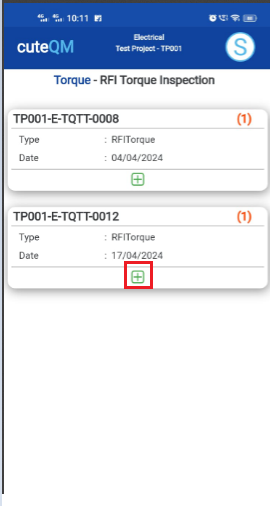 ](https://wiki.cuteinfocomm.com/uploads/images/gallery/2024-08/image-1724389651648.png)[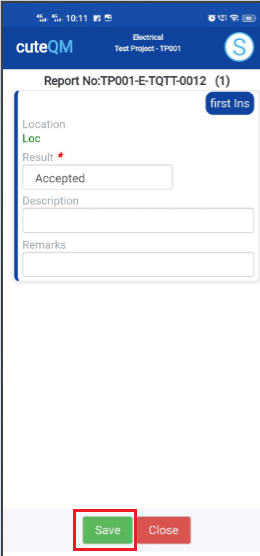](https://wiki.cuteinfocomm.com/uploads/images/gallery/2024-08/image-1724389689295.png)[ ](https://wiki.cuteinfocomm.com/uploads/images/gallery/2024-08/image-1724335418846.png)
1. Result will be defaultly accepted,If need to reject,you can change the dropdown as Reject
2. Enter **Description**
3. Enter **Remarks**
4. Click **Save** button. **RFI** **Torque inspection approved successfully.**
### **2.5. Compound filling/MCT Packing RFI**
#### **2.5.1.Compound filling Add**
[ ](https://wiki.cuteinfocomm.com/uploads/images/gallery/2024-08/image-1724390162223.png)[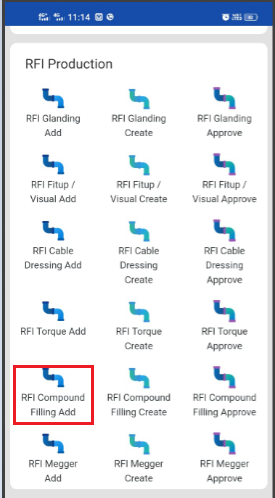 ](https://wiki.cuteinfocomm.com/uploads/images/gallery/2024-08/image-1724390181419.png)[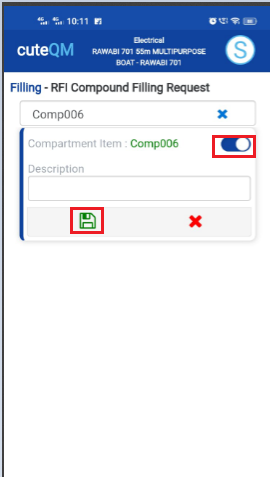](https://wiki.cuteinfocomm.com/uploads/images/gallery/2024-08/image-1724390248943.png)
1. Click **RFI** **Compound filling Add** menu .This menu helps to add the compartments for the RFI **Compound filling** request.
2. Select compartment no in the dropdown list.
3. Toggle **ON** the appropriate compartment
4. Enter **description**.
5. Click [S](https://wiki.cuteinfocomm.com/uploads/images/gallery/2024-08/image-1724334603626.png)**ave** icon.
**Compound filling request added successfully.**
#### **2.5.2.RFI Compound filling Create**
[ ](https://wiki.cuteinfocomm.com/uploads/images/gallery/2024-08/image-1724390326343.png)[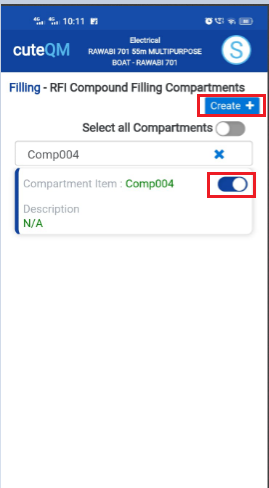](https://wiki.cuteinfocomm.com/uploads/images/gallery/2024-08/image-1724390337585.png)
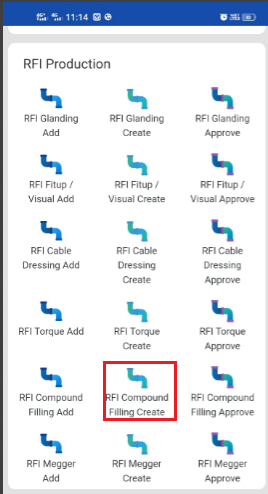
1. Click **RFI** **Compound filling create** menu.This menu helps to create RFI requests from added compartments.
2. Select the compartment no from dropdown list
3. Toggle **ON** the required comprtment
4. Click **Create** button at the top
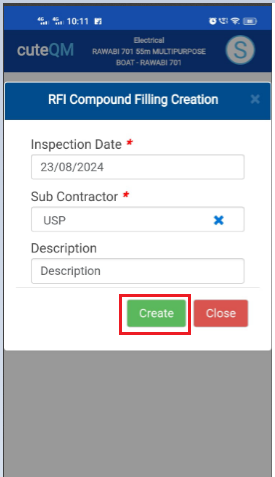
5. After create button clicked,a popup will open to key in **inspection date,subcontractor and description.**
[ ](https://wiki.cuteinfocomm.com/uploads/images/gallery/2024-08/image-1724390402874.png)
6\. Click **Create** button.
**RFI Compound filling request created successfully.**
#### **2.5.3.RFI Compound filling Approve**
[ ](https://wiki.cuteinfocomm.com/uploads/images/gallery/2024-08/image-1724390493896.png)[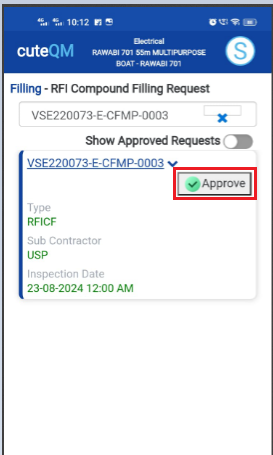](https://wiki.cuteinfocomm.com/uploads/images/gallery/2024-08/image-1724390506160.png)
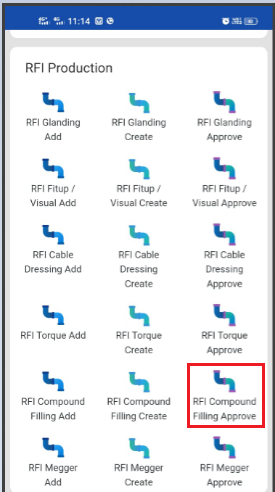
1. Click ****RFI Compound filling** approve** menu
2. Select the RFI request no from dropdown list
3. Click **Approve** button.
**Compound Filling /MCT Packing RFI request approved successfully.**
#### **2.5.4.RFI Compound Filling /MCT Packing Inspection**
1.Click **RFI** **Cable dressing** menu in Inspection.
[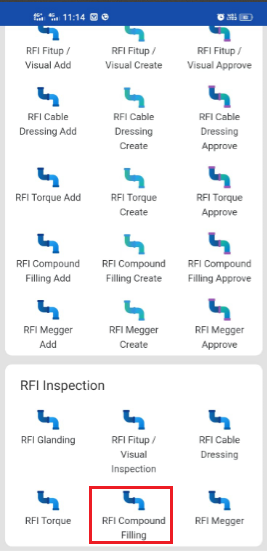](https://wiki.cuteinfocomm.com/uploads/images/gallery/2024-08/image-1724390548821.png)
2.Click [ button .It will redirected to new page](https://wiki.cuteinfocomm.com/uploads/images/gallery/2024-08/image-1724304171025.png)
[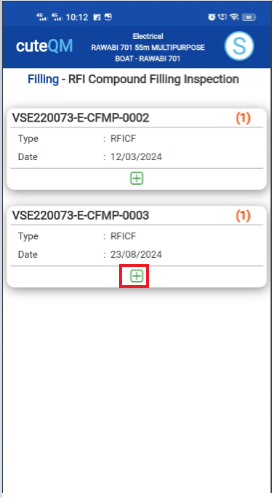 ](https://wiki.cuteinfocomm.com/uploads/images/gallery/2024-08/image-1724390589035.png)[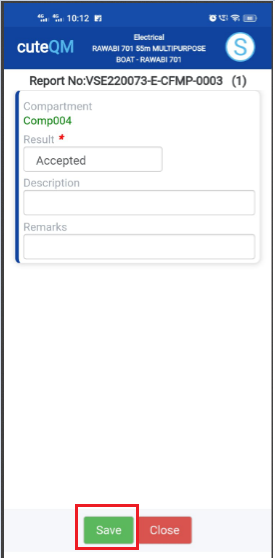](https://wiki.cuteinfocomm.com/uploads/images/gallery/2024-08/image-1724390662330.png)
1. Result will be defaultly accepted,If need to reject,you can change the dropdown as Reject
2. Enter **Description**
3. Enter **Remarks**
4. Click **Save** button. **RFI** **Compound Filling /MCT Packing inspection approved successfully.**
### **2.6. Equipment Megger Test RFI**
#### **2.6.1.RFI Megger Add**
[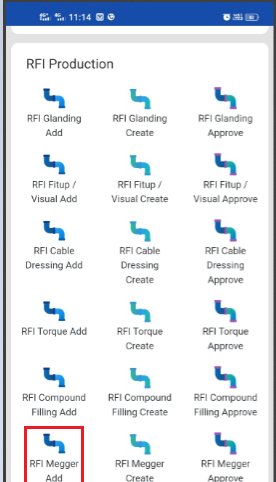 ](https://wiki.cuteinfocomm.com/uploads/images/gallery/2024-08/image-1724390977542.png)[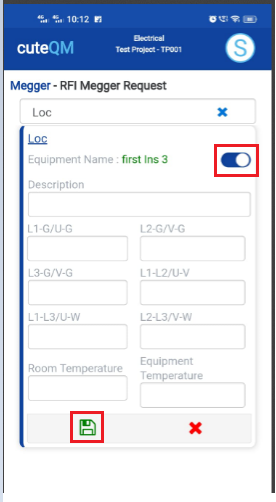](https://wiki.cuteinfocomm.com/uploads/images/gallery/2024-08/image-1724390993104.png)
1. Click **RFI Torque Add** menu .This menu helps to add the equipments for the RFI megger request.
2. Select equipment location in the dropdown list.
3. Toggle **ON** the appropriate equipment
4. Enter **description**.
5. Enter **L1,L2,L3** Values
6. Enter **room temperature**
7. Enter **Equipment temperature**
8. Click [S](https://wiki.cuteinfocomm.com/uploads/images/gallery/2024-08/image-1724334603626.png)**ave** icon.
**RFI Megger request added successfully.**
#### **2.6.2.RFI Megger Create**
[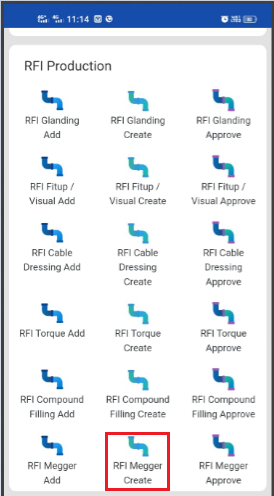 ](https://wiki.cuteinfocomm.com/uploads/images/gallery/2024-08/image-1724391204048.png)[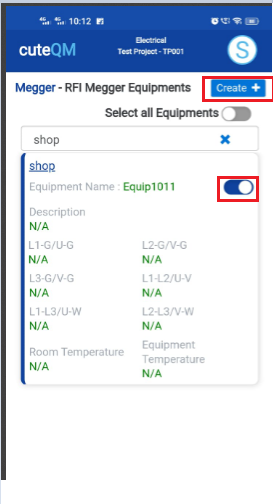](https://wiki.cuteinfocomm.com/uploads/images/gallery/2024-08/image-1724391227504.png)
1. Click **RFI Megger create** menu.This menu helps to create RFI requests from added equipments.
2. Select the equipment location from dropdown list
3. Toggle **ON** the required equipment
4. Click **Create** button at the top
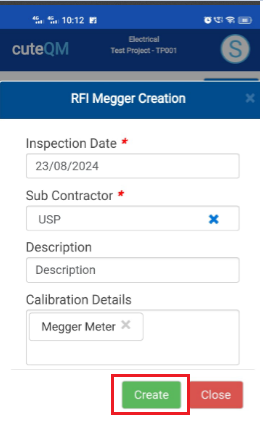
5. After create button clicked,a popup will open to key in **inspection date,subcontractor ,description & calibration details.**
[](https://wiki.cuteinfocomm.com/uploads/images/gallery/2024-08/image-1724391300447.png)
6\. Click **Create** button.
**RFI Megger request created successfully.**
#### **2.6.3.RFI Megger Approve**
[ ](https://wiki.cuteinfocomm.com/uploads/images/gallery/2024-08/image-1724391358240.png)[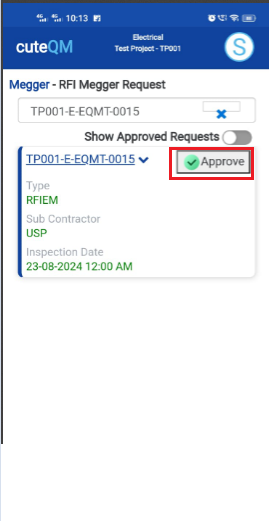](https://wiki.cuteinfocomm.com/uploads/images/gallery/2024-08/image-1724391370876.png)
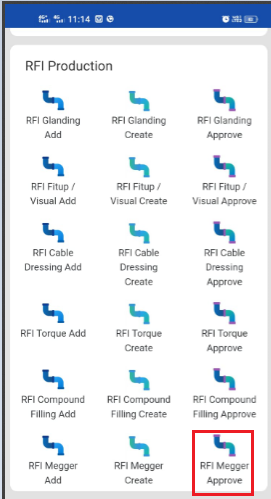
1. Click **RFI Megger approve** menu
2. Select the RFI request no from dropdown list
3. Click **Approve** button.
**Equipment megger RFI request approved successfully.**
#### **2.6.4.RFI Megger Inspection**
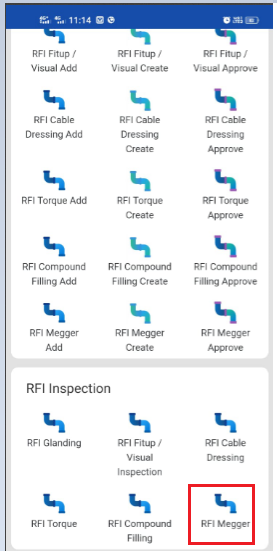
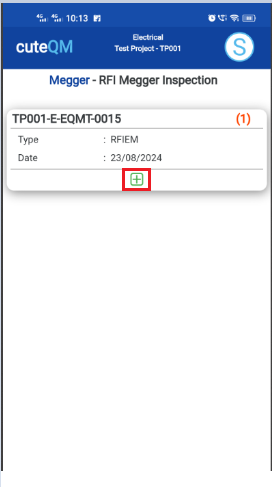
1.Click **RFI Megger** menu in Inspection.
[](https://wiki.cuteinfocomm.com/uploads/images/gallery/2024-08/image-1724391428485.png)
2.Click [ button .It will redirected to new page](https://wiki.cuteinfocomm.com/uploads/images/gallery/2024-08/image-1724304171025.png)
[ ](https://wiki.cuteinfocomm.com/uploads/images/gallery/2024-08/image-1724391462495.png)[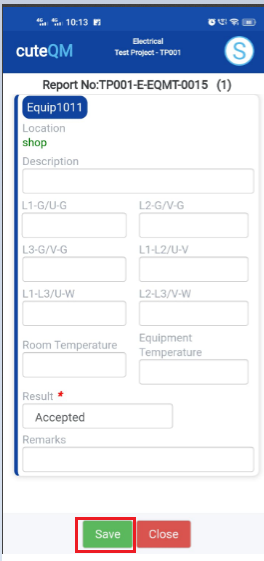](https://wiki.cuteinfocomm.com/uploads/images/gallery/2024-08/image-1724391501387.png)
1. Result will be defaultly accepted,If need to reject,you can change the dropdown as Reject
2. Enter **Description**
3. Enter **L1,L2,L3,Room temperature & Equipment temperature** values
4. Enter **Remarks**
5. Click **Save** button. **RFI** **Equipment megger test inspection approved successfully.**