# 2. RFI
### **2.1.RFI Fitup Inspection**
#### **2.1.1.RFI Fitup Add**
[ ](https://wiki.cuteinfocomm.com/uploads/images/gallery/2024-08/image-1724393381980.png)[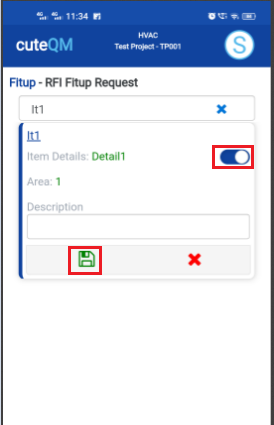](https://wiki.cuteinfocomm.com/uploads/images/gallery/2024-08/image-1724393436973.png)
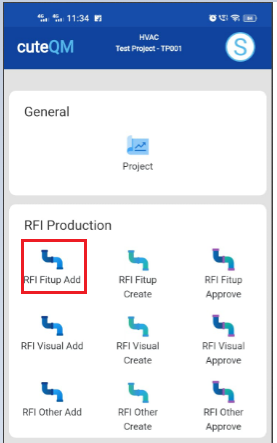
1. Click **RFI** **Fitup Add** menu .This menu helps to add the items for the RFI **Fitup** request.
2. Select item no in the dropdown list.
3. Toggle **ON** the appropriate item
4. Enter **description**.
5. Click [S](https://wiki.cuteinfocomm.com/uploads/images/gallery/2024-08/image-1724334603626.png)**ave** icon.
**Fitup request added successfully.**
#### **2.1.2.RFI Fitup Create**
[ ](https://wiki.cuteinfocomm.com/uploads/images/gallery/2024-08/image-1724393538903.png)[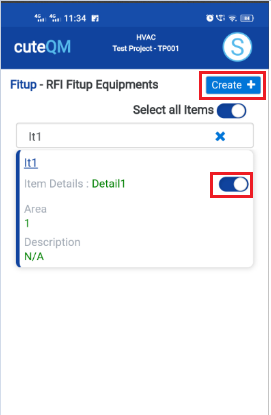](https://wiki.cuteinfocomm.com/uploads/images/gallery/2024-08/image-1724393551372.png)
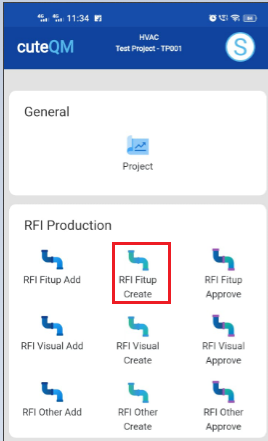
1. Click **RFI** **Fitup create** menu.This menu helps to create RFI requests from added items.
2. Select the item no from dropdown list
3. Toggle **ON** the required item
4. Click **Create** button at the top
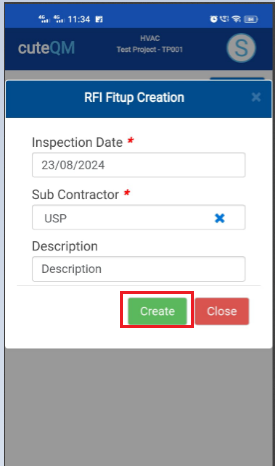
5. After create button clicked,a popup will open to key in **inspection date,subcontractor and description.**
[](https://wiki.cuteinfocomm.com/uploads/images/gallery/2024-08/image-1724393631856.png)
6\. Click **Create** button.
**RFI Fitup request created successfully.**
#### **2.1.3.RFI Fitup Approve**
[ ](https://wiki.cuteinfocomm.com/uploads/images/gallery/2024-08/image-1724393687453.png)[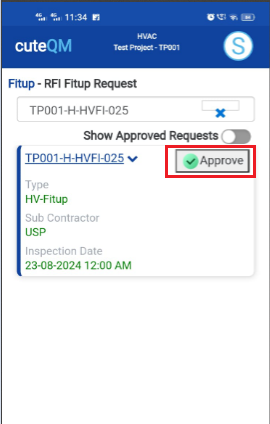](https://wiki.cuteinfocomm.com/uploads/images/gallery/2024-08/image-1724393712734.png)
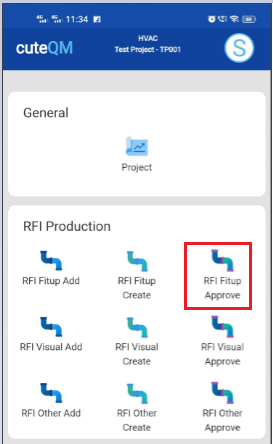
1. Click **RFI Fitup approve** menu
2. Select the RFI request no from dropdown list
3. Click **Approve** button.
**Fitup RFI request approved successfully.**
#### **2.1.4.RFI Fitup Inspection**
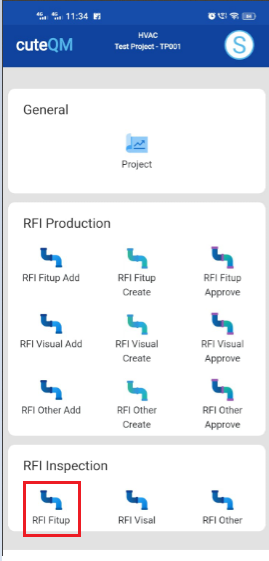
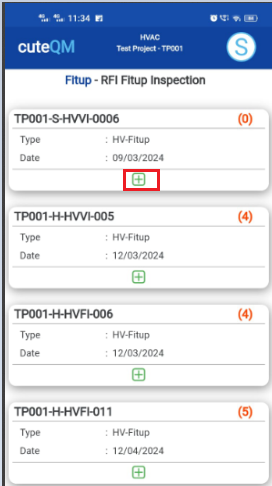
1.Click **RFI** **Fitup** menu in Inspection.
[](https://wiki.cuteinfocomm.com/uploads/images/gallery/2024-08/image-1724394260753.png)
2.Click [ button .It will redirected to new page](https://wiki.cuteinfocomm.com/uploads/images/gallery/2024-08/image-1724304171025.png)
[ ](https://wiki.cuteinfocomm.com/uploads/images/gallery/2024-08/image-1724394300059.png)[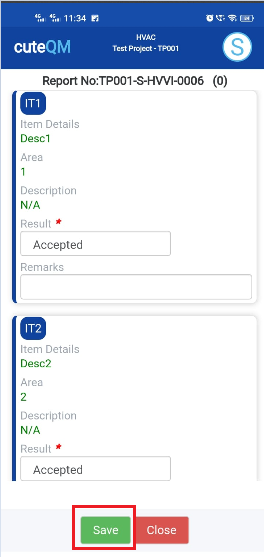](https://wiki.cuteinfocomm.com/uploads/images/gallery/2024-08/image-1724394339896.png)
1. Result will be defaultly accepted,If need to reject,you can change the dropdown as Reject
2. Enter **Description**
3. Enter **Remarks**
4. Click **Save** button. **RFI** **Fitup inspection approved successfully.**
### **2.1.RFI Visual Inspection**
#### **2.1.1.RFI Visual Add**
[ ](https://wiki.cuteinfocomm.com/uploads/images/gallery/2024-08/image-1724394566285.png)[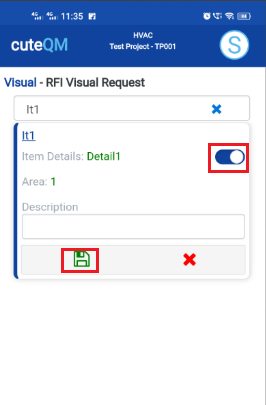](https://wiki.cuteinfocomm.com/uploads/images/gallery/2024-08/image-1724394576202.png)
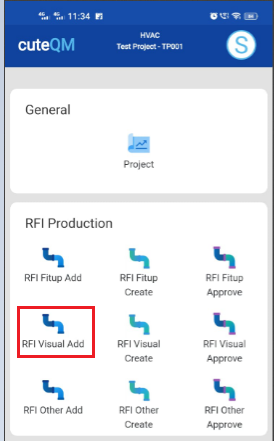
1. Click **RFI** **Visual** **Add** menu .This menu helps to add the items for the RFI **Visual** request.
2. Select item no in the dropdown list.
3. Toggle **ON** the appropriate item
4. Enter **description**.
5. Click [S](https://wiki.cuteinfocomm.com/uploads/images/gallery/2024-08/image-1724334603626.png)**ave** icon.
**Visual request added successfully.**
#### **2.1.2.RFI Visual Create**
[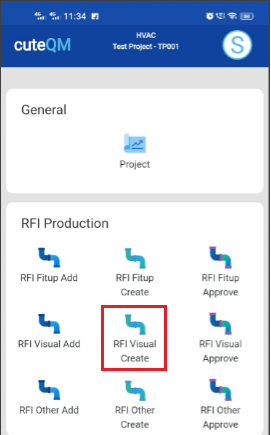 ](https://wiki.cuteinfocomm.com/uploads/images/gallery/2024-08/image-1724394659261.png)[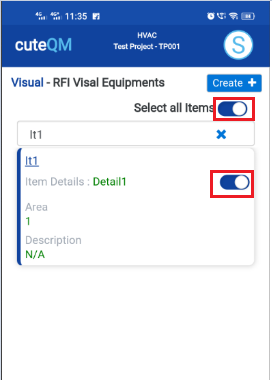](https://wiki.cuteinfocomm.com/uploads/images/gallery/2024-08/image-1724394669128.png)
1. Click **RFI** **Fitup create** menu.This menu helps to create RFI requests from added items.
2. Select the item no from dropdown list
3. Toggle **ON** the required item
4. Click **Create** button at the top
5. After create button clicked,a popup will open to key in **inspection date,subcontractor and description.**
[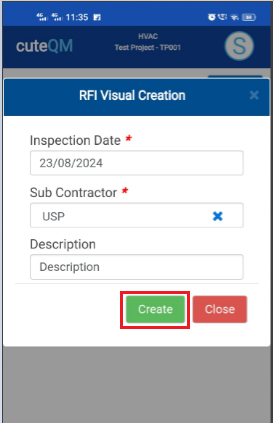](https://wiki.cuteinfocomm.com/uploads/images/gallery/2024-08/image-1724394722469.png)
6\. Click **Create** button.
**RFI Visual request created successfully.**
#### **2.1.3.RFI Visual Approve**
[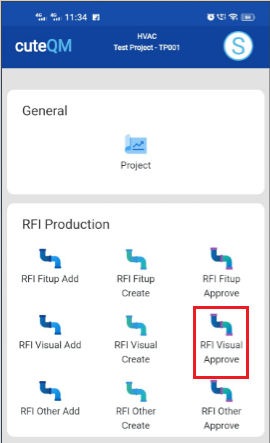 ](https://wiki.cuteinfocomm.com/uploads/images/gallery/2024-08/image-1724394769598.png)[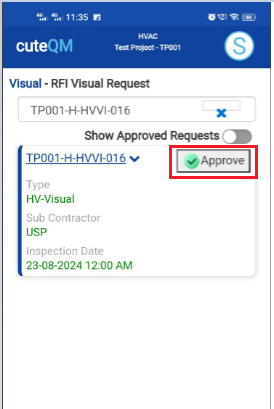](https://wiki.cuteinfocomm.com/uploads/images/gallery/2024-08/image-1724394782258.png)
1. Click **RFI Fitup approve** menu
2. Select the RFI request no from dropdown list
3. Click **Approve** button.
**Visual RFI request approved successfully.**
#### **2.2.4.RFI Visual Inspection**
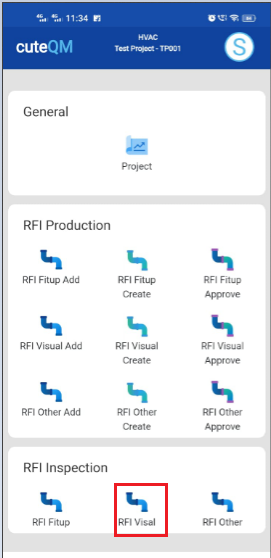
1.Click **RFI** **Visual** menu in Inspection.
[](https://wiki.cuteinfocomm.com/uploads/images/gallery/2024-08/image-1724394845270.png)
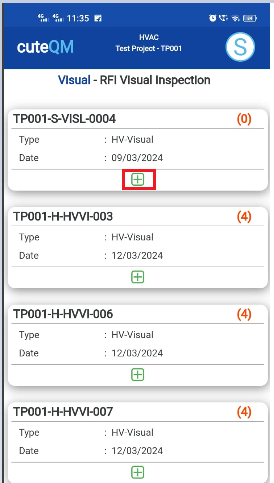
2.Click [ button .It will redirected to new page](https://wiki.cuteinfocomm.com/uploads/images/gallery/2024-08/image-1724304171025.png)
[ ](https://wiki.cuteinfocomm.com/uploads/images/gallery/2024-08/image-1724394866216.png)[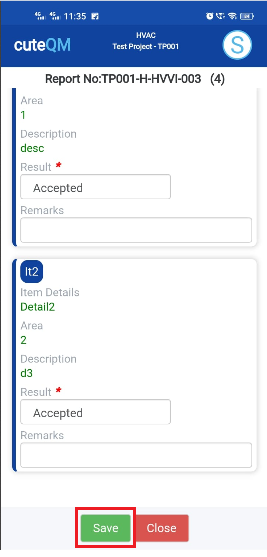](https://wiki.cuteinfocomm.com/uploads/images/gallery/2024-08/image-1724394917378.png)
1. Result will be defaultly accepted,If need to reject,you can change the dropdown as Reject
2. Enter **Remarks**
3. Click **Save** button. **RFI** **Visual inspection approved successfully.**
### **2.3.Other RFI Inspection**
#### **2.3.1.RFI OtherAdd**
[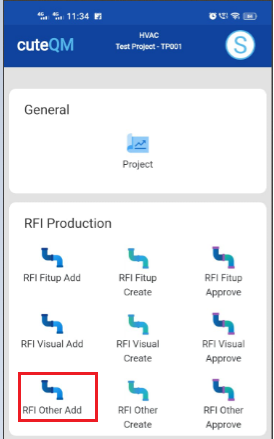 ](https://wiki.cuteinfocomm.com/uploads/images/gallery/2024-08/image-1724395207539.png)[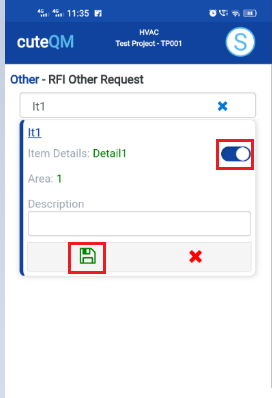](https://wiki.cuteinfocomm.com/uploads/images/gallery/2024-08/image-1724395221386.png)
1. Click **RFI** **Other Add** menu .This menu helps to add the items for the RFI **Other** request.
2. Select item no in the dropdown list.
3. Toggle **ON** the appropriate item
4. Enter **description**.
5. Click [S](https://wiki.cuteinfocomm.com/uploads/images/gallery/2024-08/image-1724334603626.png)**ave** icon.
**Other RFI request added successfully.**
#### **2.3.2.RFI Other Create**
[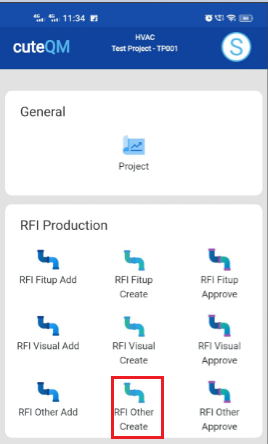 ](https://wiki.cuteinfocomm.com/uploads/images/gallery/2024-08/image-1724395326075.png)[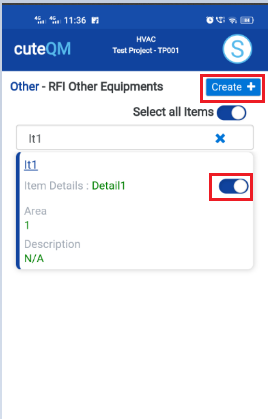](https://wiki.cuteinfocomm.com/uploads/images/gallery/2024-08/image-1724395376131.png)
1. Click **RFI** **other create** menu.This menu helps to create RFI requests from added items.
2. Select the item no from dropdown list
3. Toggle **ON** the required item
4. Click **Create** button at the top
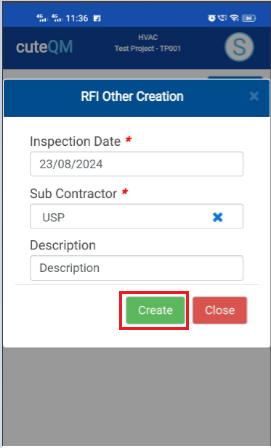
5. After create button clicked,a popup will open to key in **inspection date,subcontractor and description.**
[](https://wiki.cuteinfocomm.com/uploads/images/gallery/2024-08/image-1724395423650.png)
6\. Click **Create** button.
**Other RFI request created successfully.**
#### **2.3.3.RFI Other Approve**
[ ](https://wiki.cuteinfocomm.com/uploads/images/gallery/2024-08/image-1724395467842.png)[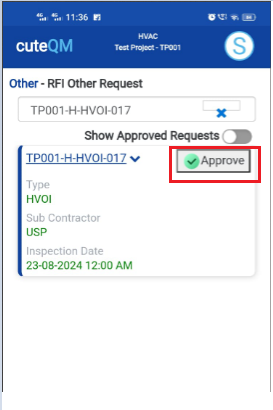](https://wiki.cuteinfocomm.com/uploads/images/gallery/2024-08/image-1724395476434.png)
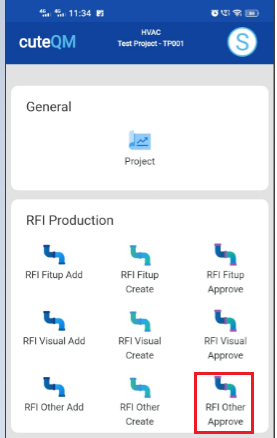
1. Click **RFI Orher approve** menu
2. Select the RFI request no from dropdown list
3. Click **Approve** button.
**Other RFI request approved successfully.**
#### **2.3.4.RFI Other Inspection**
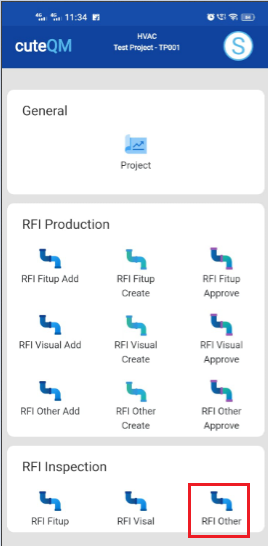
1.Click **RFI** **Fitup** menu in Inspection.
[](https://wiki.cuteinfocomm.com/uploads/images/gallery/2024-08/image-1724395555690.png)
2.Click [ button .It will redirected to new page](https://wiki.cuteinfocomm.com/uploads/images/gallery/2024-08/image-1724304171025.png)
[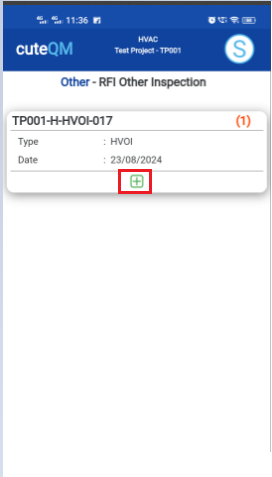 ](https://wiki.cuteinfocomm.com/uploads/images/gallery/2024-08/image-1724395573677.png)[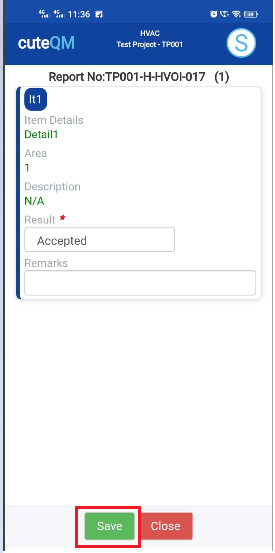](https://wiki.cuteinfocomm.com/uploads/images/gallery/2024-08/image-1724395607070.png)
1. Result will be defaultly accepted,If need to reject,you can change the dropdown as Reject
2. Enter **Remarks**
3. Click **Save** button. **RFI** **Other inspection approved successfully.**