# Mobile App - Mechanical
# 1.User Management
### **1.1 Downloading *cuteQM* app**
To use the ***cuteQM*** app you must first download it from the **Play Store**.
1. Open the **Play Store** and search for “***cuteQM***”.
2. Download and install the ***cuteQM*** app on your mobile phone.
3. After installation, open the ***cuteQM***
***You are ready to go!***
### **1.2 Log in**
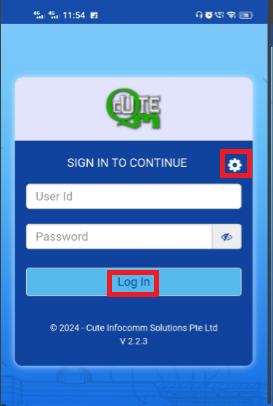
**After installation, when you open the *cuteQM* app you may be asked to Login. Follow the steps to successfully log into your account.**
[ ](https://wiki.cuteinfocomm.com/uploads/images/gallery/2024-08/image-1724221885734.png)[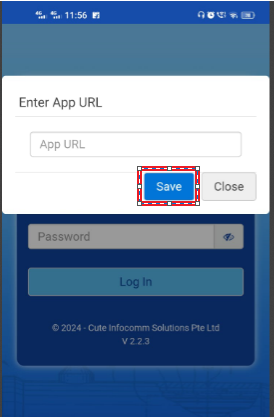](https://wiki.cuteinfocomm.com/uploads/images/gallery/2024-08/image-1724221798542.png)
1\. Before enter your user id and password, tap [ ](http://wiki.cuteinfocomm.com/uploads/images/gallery/2022-05/image-1651671754003.png)(Settings icon) and enter the app URL http://www.cuteqm.com/cuteQMPTUSPAPI.
2\. Tap **Save**.
3\. Enter your user id and password in the allocated fields.
4\. Tap **Log in** to complete the process.
The home screen of the ***cuteQM*** app is appeared.
### **1.3 Home screen of *cuteQM* app**
[ ](https://wiki.cuteinfocomm.com/uploads/images/gallery/2024-08/image-1724222407954.png)[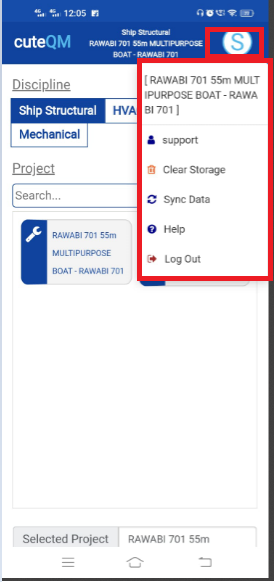](https://wiki.cuteinfocomm.com/uploads/images/gallery/2024-08/image-1724222471135.png)
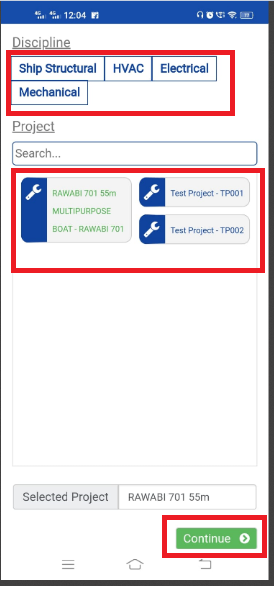
1. **Module** – helps to select the module. Select Mechanical module
2. **Project** – Helps to select the project. select the project.
3. Click **Save** button to go to the menu screen.
[](https://wiki.cuteinfocomm.com/uploads/images/gallery/2024-08/image-1724239800309.png)(show/hide icon) helps to show/hide the user id information that is displayed in the right panel of the home screen. if you touch this icon the information appears on, if you touch this icon again the information goes off.
- **Clear Storage** - clears all data in this app. Tap the **Clear Storage** option to delete all the data.
- **Sync Data**- synchronizes your inspection results with the respective reports in the web application. If your inspection results are not automatically synchronized with the web application, tap the **Sync Data** option for manual synchronization.
- **Log out** - To log out from the cuteQM app.
# 2. RFI
### **2.1. Pre-Alignment RFI**
#### **2.1.1.RFI Pre-Alignment Add**
[  ](https://wiki.cuteinfocomm.com/uploads/images/gallery/2024-08/image-1724334273188.png)[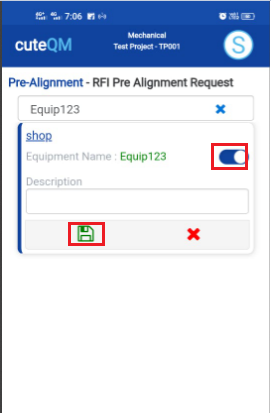](https://wiki.cuteinfocomm.com/uploads/images/gallery/2024-08/image-1724334313905.png)[ ](https://wiki.cuteinfocomm.com/uploads/images/gallery/2024-08/image-1724321887473.png)
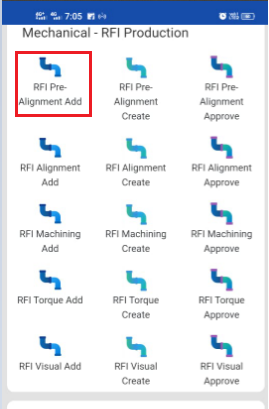
1. Click **RFI Pre alignment Add** menu .This menu helps to add theequipments for the RFI pre alignment request.
2. Select Equipment no in the dropdown list.
3. Toggle ON the appropriate Equipment
4. Enter **description**.
5. Click [S](https://wiki.cuteinfocomm.com/uploads/images/gallery/2024-08/image-1724334603626.png)**ave** icon.
**Pre alignment request added successfully.**
#### **2.1.2.RFI Pre alignment Create**
[ ](https://wiki.cuteinfocomm.com/uploads/images/gallery/2024-08/image-1724334842799.png)[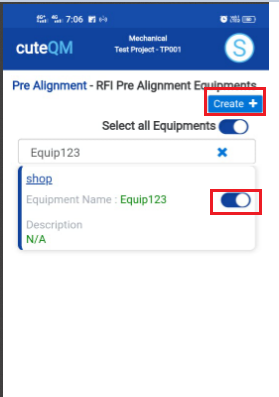](https://wiki.cuteinfocomm.com/uploads/images/gallery/2024-08/image-1724334932899.png)
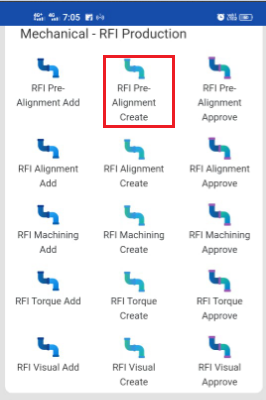
1. Click **RFI Pre alignment create** menu.This menu helps to create RFI requests from added equipments.
2. Select the equipment no from dropdown list
3. Toggle **ON** the required equipment
4. Click **Create** button at the top
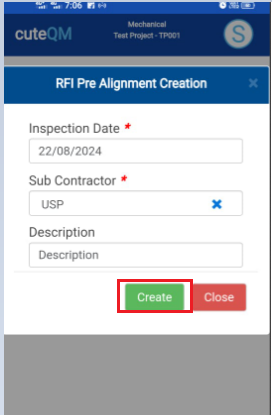
5. After create button clicked,a popup will open to key in **inspection date,subcontractor and description.**
[](https://wiki.cuteinfocomm.com/uploads/images/gallery/2024-08/image-1724335152096.png)
6\. Click **Create** button.
**RFI Pre alignment request created successfully.**
#### **2.1.3.RFI Pre alignment Approve**
[ ](https://wiki.cuteinfocomm.com/uploads/images/gallery/2024-08/image-1724335188639.png)[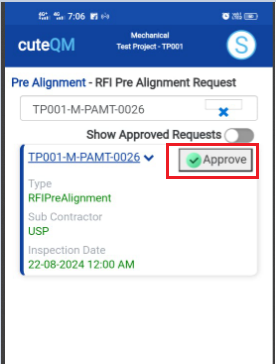](https://wiki.cuteinfocomm.com/uploads/images/gallery/2024-08/image-1724335232848.png)
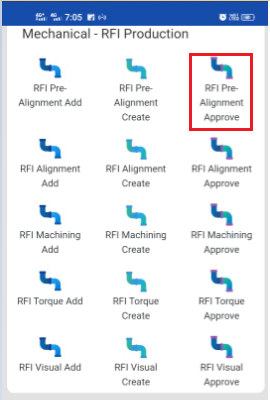
1. Click **RFI Pre alignment approve** menu
2. Select the RFI request no from dropdown list
3. Click **Approve** button.
**Pre alignment request approved successfully.**
#### **2.1.4.RFI Pre Alignment Inspection**
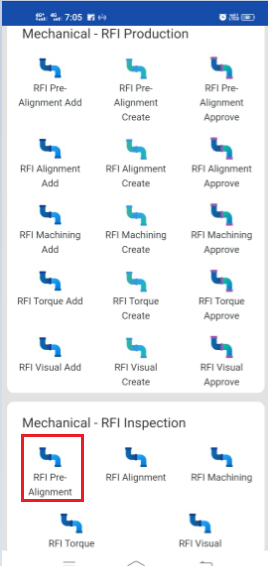
1.Click **RFI Pre alignment** menu in Inspection.
[ ](https://wiki.cuteinfocomm.com/uploads/images/gallery/2024-08/image-1724335360005.png)
2.Click [ button .It will redirected to new page](https://wiki.cuteinfocomm.com/uploads/images/gallery/2024-08/image-1724304171025.png)
[ 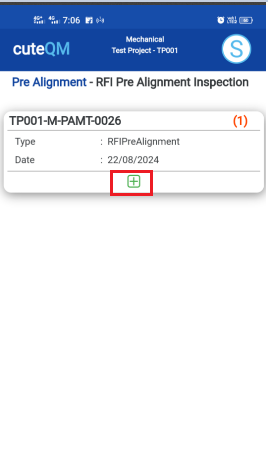 ](https://wiki.cuteinfocomm.com/uploads/images/gallery/2024-08/image-1724335418846.png)[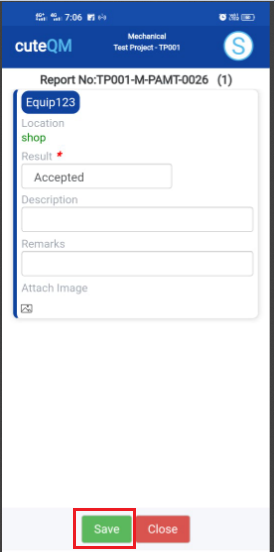](https://wiki.cuteinfocomm.com/uploads/images/gallery/2024-08/image-1724335456295.png)
1. Result will be defaultly accepted,If need to reject,you can change the dropdown as Reject
2. Enter **Description**
3. Enter **Remarks**
4. Click **Save** button. **RFI** **Pre alignment inspection approved successfully.**
### **2.2. Alignment RFI**
#### **2.2.1.RFI Alignment Add**
**[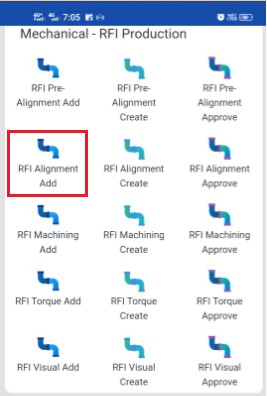 ](https://wiki.cuteinfocomm.com/uploads/images/gallery/2024-08/image-1724335629840.png)[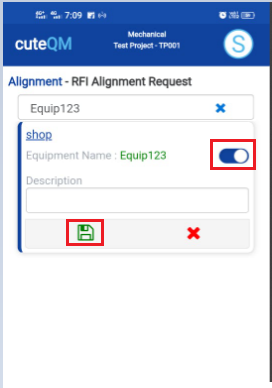](https://wiki.cuteinfocomm.com/uploads/images/gallery/2024-08/image-1724335666039.png)**
1. Click **RFI Alignment Add** menu .This menu helps to add theequipments for the RFI alignment request.
2. Select Equipment no in the dropdown list.
3. Toggle ON the appropriate Equipment
4. Enter **description**.
5. Click [S](https://wiki.cuteinfocomm.com/uploads/images/gallery/2024-08/image-1724334603626.png)**ave** icon.
**Alignment request added successfully.**
#### **2.2.2.RFI Alignment Create**
[ ](https://wiki.cuteinfocomm.com/uploads/images/gallery/2024-08/image-1724335831343.png)[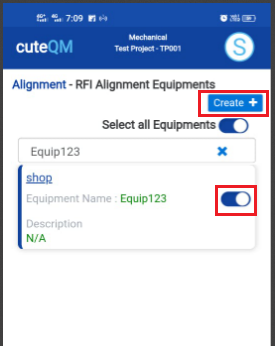](https://wiki.cuteinfocomm.com/uploads/images/gallery/2024-08/image-1724335869238.png)
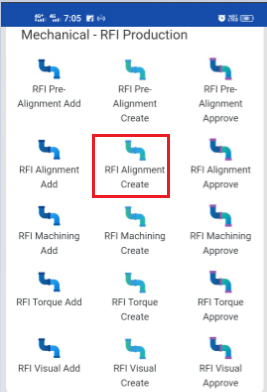
1. Click **RFI Alignment create** menu.This menu helps to create RFI requests from added equipments.
2. Select the equipment no from dropdown list
3. Toggle **ON** the required equipment
4. Click **Create** button at the top
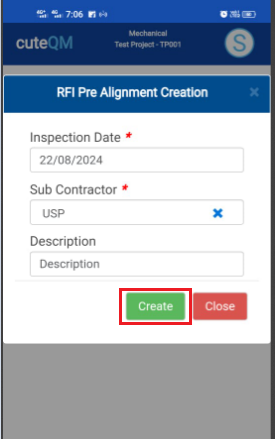
5. After create button clicked,a popup will open to key in **inspection date,subcontractor and description.**
[ ](https://wiki.cuteinfocomm.com/uploads/images/gallery/2024-08/image-1724336002199.png)
6\. Click **Create** button.
**RFI Alignment request created successfully.**
#### **2.2.3.RFI Alignment Approve**
[ ](https://wiki.cuteinfocomm.com/uploads/images/gallery/2024-08/image-1724336066298.png)[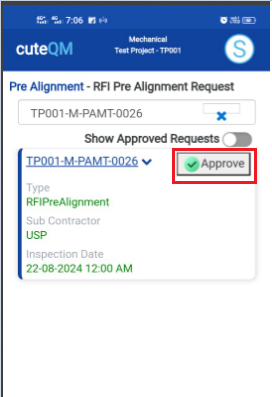](https://wiki.cuteinfocomm.com/uploads/images/gallery/2024-08/image-1724336098529.png)
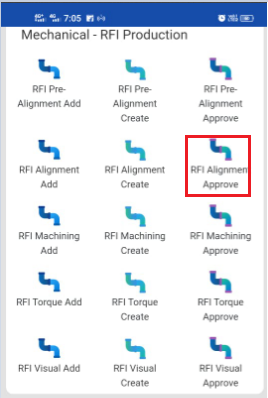
1. Click **RFI Alignment approve** menu
2. Select the RFI request no from dropdown list
3. Click **Approve** button.
**Alignment request approved successfully.**
#### **2.2.4.RFI Alignment Inspection**
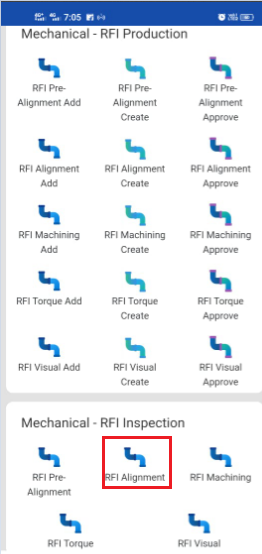
1.Click **RFI Alignment** menu in Inspection.
[ ](https://wiki.cuteinfocomm.com/uploads/images/gallery/2024-08/image-1724336180489.png)
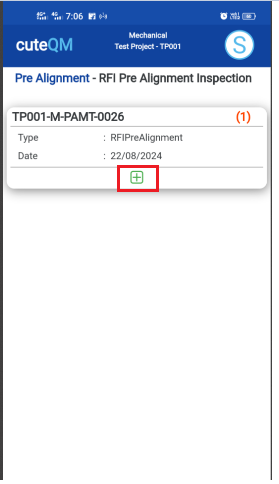
2.Click [ button .It will redirected to new page](https://wiki.cuteinfocomm.com/uploads/images/gallery/2024-08/image-1724304171025.png)
[ ](https://wiki.cuteinfocomm.com/uploads/images/gallery/2024-08/image-1724336237281.png)[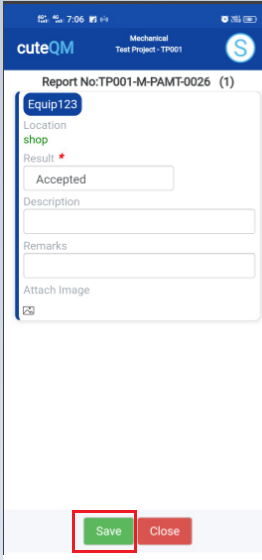](https://wiki.cuteinfocomm.com/uploads/images/gallery/2024-08/image-1724336265573.png)[ ](https://wiki.cuteinfocomm.com/uploads/images/gallery/2024-08/image-1724335418846.png)
1. Result will be defaultly accepted,If need to reject,you can change the dropdown as Reject
2. Enter **Description**
3. Enter **Remarks**
4. Click **Save** button. **RFI** **Alignment inspection approved successfully.**
### **2.3. Machining RFI**
#### **2.3.1.RFI Machining Add**
[ ](https://wiki.cuteinfocomm.com/uploads/images/gallery/2024-08/image-1724340666565.png)[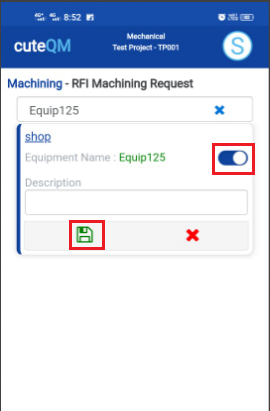](https://wiki.cuteinfocomm.com/uploads/images/gallery/2024-08/image-1724340689978.png)
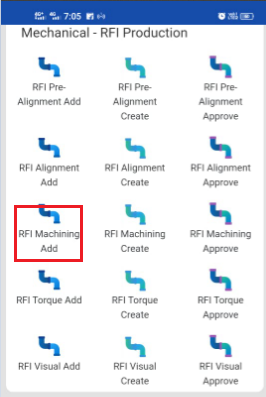
1. Click **RFI Machining Add** menu .This menu helps to add the equipments for the RFI Machining request.
2. Select Equipment no in the dropdown list.
3. Toggle **ON** the appropriate Equipment
4. Enter **description**.
5. Click [S](https://wiki.cuteinfocomm.com/uploads/images/gallery/2024-08/image-1724334603626.png)**ave** icon.
**Machining RFI request added successfully.**
#### **2.3.2.RFI Machining Create**
[ ](https://wiki.cuteinfocomm.com/uploads/images/gallery/2024-08/image-1724340784666.png)[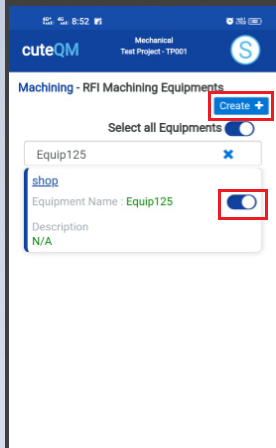](https://wiki.cuteinfocomm.com/uploads/images/gallery/2024-08/image-1724340799806.png)
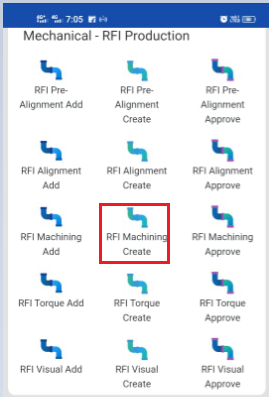
1. Click **RFI Machining create** menu.This menu helps to create RFI requests from added equipments.
2. Select the equipment no from dropdown list
3. Toggle **ON** the required equipment
4. Click **Create** button at the top
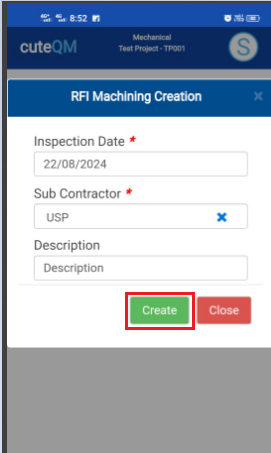
5. After create button clicked,a popup will open to key in **inspection date,subcontractor and description.**
[](https://wiki.cuteinfocomm.com/uploads/images/gallery/2024-08/image-1724340885094.png)
6\. Click **Create** button.
**RFI Maching request created successfully.**
#### **2.3.3.RFI Machining Approve**
[ ](https://wiki.cuteinfocomm.com/uploads/images/gallery/2024-08/image-1724340964086.png)[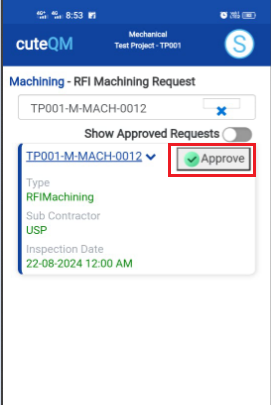](https://wiki.cuteinfocomm.com/uploads/images/gallery/2024-08/image-1724340979097.png)
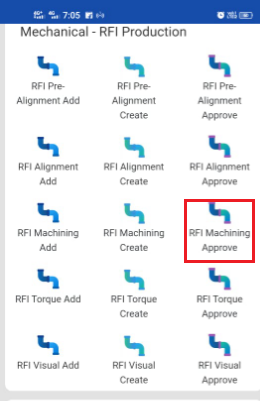
1. Click **RFI Machining approve** menu
2. Select the RFI request no from dropdown list
3. Click **Approve** button.
**Machining RFI request approved successfully.**
#### **2.3.4.RFI Machining Inspection**
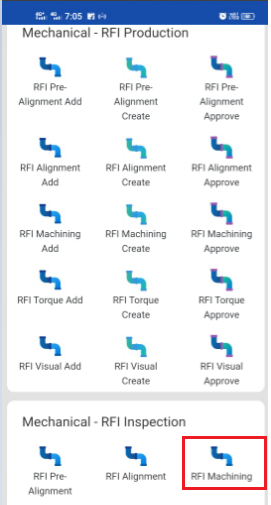
1.Click **RFI Machining** menu in Inspection.
[](https://wiki.cuteinfocomm.com/uploads/images/gallery/2024-08/image-1724341053347.png)
2.Click [ button .It will redirected to new page](https://wiki.cuteinfocomm.com/uploads/images/gallery/2024-08/image-1724304171025.png)
[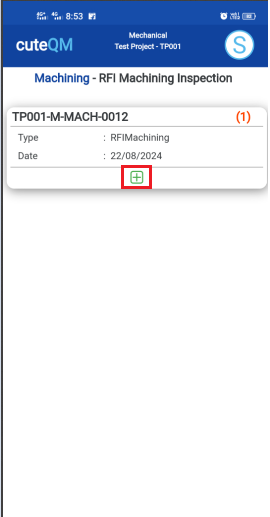 ](https://wiki.cuteinfocomm.com/uploads/images/gallery/2024-08/image-1724341118892.png)[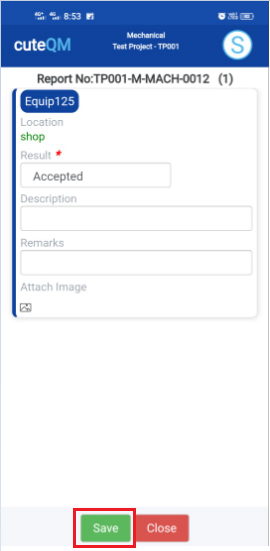](https://wiki.cuteinfocomm.com/uploads/images/gallery/2024-08/image-1724341173689.png)
1. Result will be defaultly accepted,If need to reject,you can change the dropdown as Reject
2. Enter **Description**
3. Enter **Remarks**
4. Click **Save** button. **RFI Machining** **inspection approved successfully.**
### **2.4. Torque Tightening RFI**
#### **2.4.1.RFI Torque Tightening Add**
[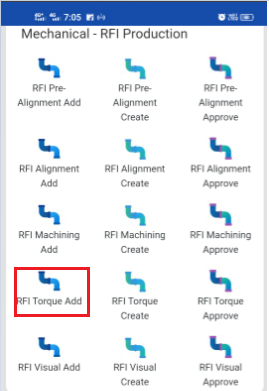 ](https://wiki.cuteinfocomm.com/uploads/images/gallery/2024-08/image-1724341432462.png)[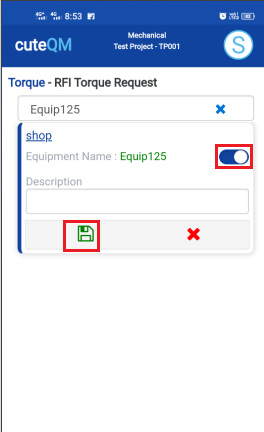](https://wiki.cuteinfocomm.com/uploads/images/gallery/2024-08/image-1724341447064.png)
1. Click **RFI Torque Add** menu .This menu helps to add the equipments for the RFI Torque request.
2. Select Equipment no in the dropdown list.
3. Toggle **ON** the appropriate Equipment
4. Enter description.
5. Click [S](https://wiki.cuteinfocomm.com/uploads/images/gallery/2024-08/image-1724334603626.png)**ave** icon.
**Torque RFI request added successfully.**
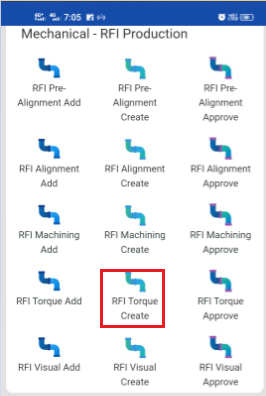
#### **2.4.2.RFI Torque Create**
[ ](https://wiki.cuteinfocomm.com/uploads/images/gallery/2024-08/image-1724341533603.png)[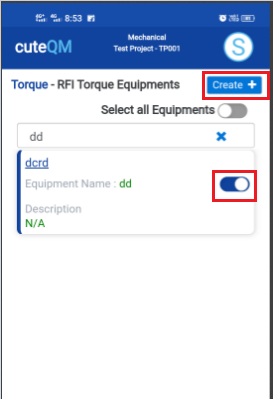](https://wiki.cuteinfocomm.com/uploads/images/gallery/2024-08/image-1724341549121.png)
1. Click **RFI Torque create** menu.This menu helps to create RFI requests from added equipments.
2. Select the equipment no from dropdown list
3. Toggle **ON** the required equipment
4. Click **Create** button at the top
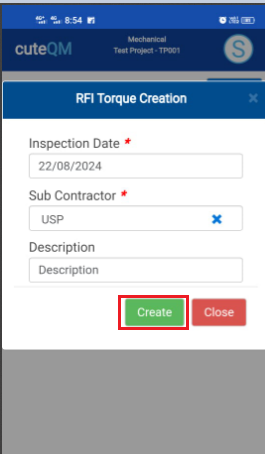
5. After create button clicked,a popup will open to key in **inspection date,subcontractor and description.**
[ ](https://wiki.cuteinfocomm.com/uploads/images/gallery/2024-08/image-1724341637863.png)
6\. Click **Create** button.
**RFI Torque request created successfully.**
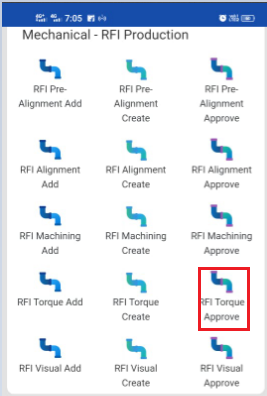
#### **2.4.3.RFI Torque Approve**
[ ](https://wiki.cuteinfocomm.com/uploads/images/gallery/2024-08/image-1724341719726.png)[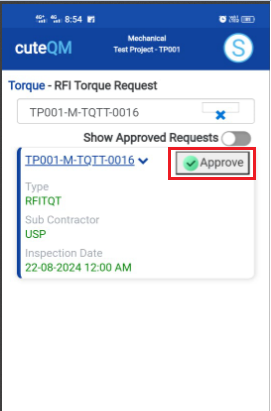](https://wiki.cuteinfocomm.com/uploads/images/gallery/2024-08/image-1724341732401.png)
1. Click **RFI Torque approve** menu
2. Select the RFI request no from dropdown list
3. Click **Approve** button.
**Torque RFI request approved successfully.**
#### **2.4.4.RFI Torque Inspection**
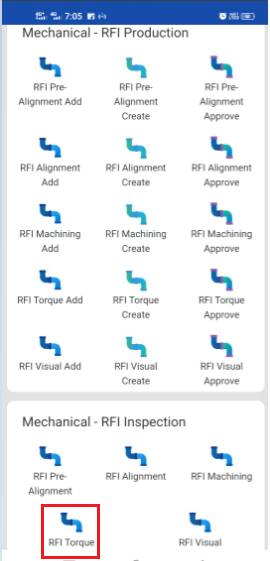
1.Click **RFI Torque** menu in Inspection.
[](https://wiki.cuteinfocomm.com/uploads/images/gallery/2024-08/image-1724341792666.png)
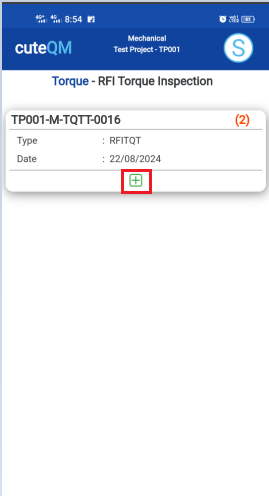
2.Click [ button .It will redirected to new page](https://wiki.cuteinfocomm.com/uploads/images/gallery/2024-08/image-1724304171025.png)
[ ](https://wiki.cuteinfocomm.com/uploads/images/gallery/2024-08/image-1724341833461.png)[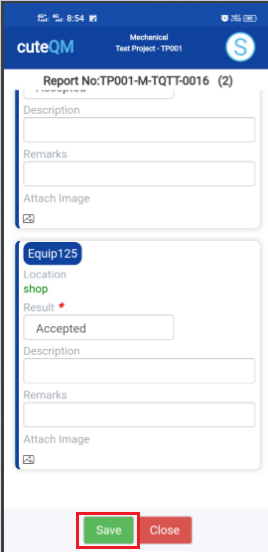](https://wiki.cuteinfocomm.com/uploads/images/gallery/2024-08/image-1724341879205.png)
1. Result will be defaultly accepted,If need to reject,you can change the dropdown as Reject
2. Enter **Description**
3. Enter **Remarks**
4. Click **Save** button. **RFI Torque** **inspection approved successfully.**
### **2.5. Visual RFI**
#### **2.5.1.RFI Visual Add**
[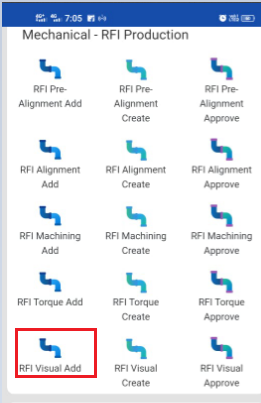 ](https://wiki.cuteinfocomm.com/uploads/images/gallery/2024-08/image-1724342341647.png)[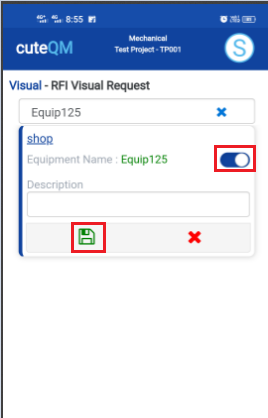](https://wiki.cuteinfocomm.com/uploads/images/gallery/2024-08/image-1724342362571.png)
1. Click **RFI Visual Add** menu .This menu helps to add the equipments for the RFI visual request.
2. Select Equipment no in the dropdown list.
3. Toggle **ON** the appropriate Equipment
4. Enter **description**.
5. Click [S](https://wiki.cuteinfocomm.com/uploads/images/gallery/2024-08/image-1724334603626.png)**ave** icon.
**Visual RFI request added successfully.**
#### **2.5.2.RFI Visual Create**
[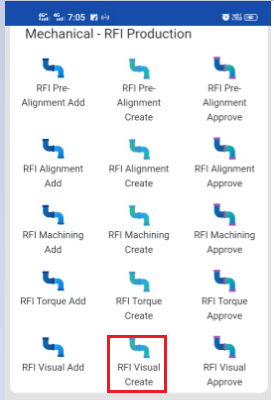 ](https://wiki.cuteinfocomm.com/uploads/images/gallery/2024-08/image-1724342444303.png)[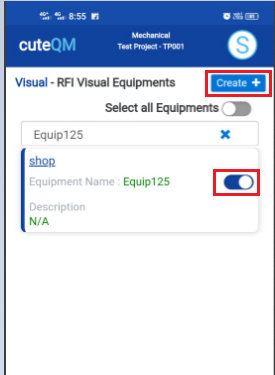](https://wiki.cuteinfocomm.com/uploads/images/gallery/2024-08/image-1724342454103.png)
1. Click **RFI Visual create** menu.This menu helps to create RFI requests from added equipments.
2. Select the equipment no from dropdown list
3. Toggle **ON** the required equipment
4. Click **Create** button at the top
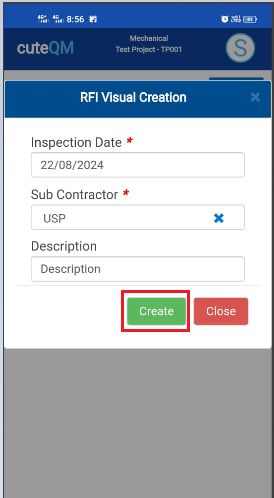
5. After create button clicked,a popup will open to key in **inspection date,subcontractor and description.**
[](https://wiki.cuteinfocomm.com/uploads/images/gallery/2024-08/image-1724342833202.png)
6\. Click **Create** button.
**RFI Visual request created successfully.**
#### **2.5.3.RFI Visual Approve**
[ ](https://wiki.cuteinfocomm.com/uploads/images/gallery/2024-08/image-1724342937943.png)[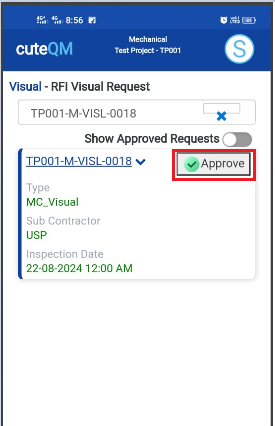](https://wiki.cuteinfocomm.com/uploads/images/gallery/2024-08/image-1724343032700.png)
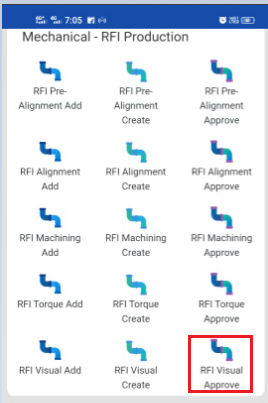
1. Click **RFI Torque approve** menu
2. Select the RFI request no from dropdown list
3. Click **Approve** button.
**Visual RFI request approved successfully.**
#### **2.5.4.RFI Visual Inspection**
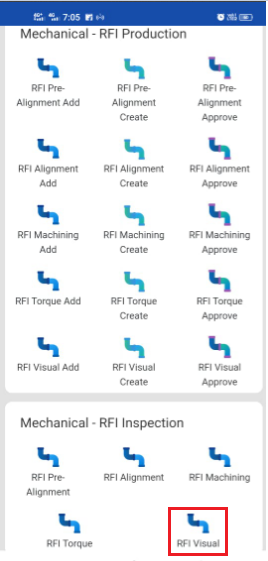
1.Click **RFI Visual** menu in Inspection.
[](https://wiki.cuteinfocomm.com/uploads/images/gallery/2024-08/image-1724343142113.png)
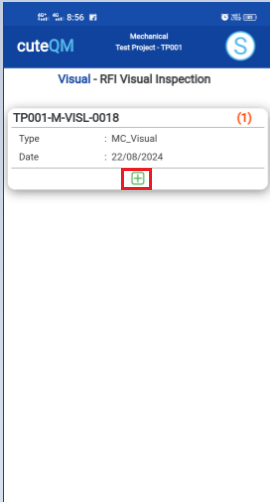
2.Click [ button .It will redirected to new page](https://wiki.cuteinfocomm.com/uploads/images/gallery/2024-08/image-1724304171025.png)
[ ](https://wiki.cuteinfocomm.com/uploads/images/gallery/2024-08/image-1724343250717.png)[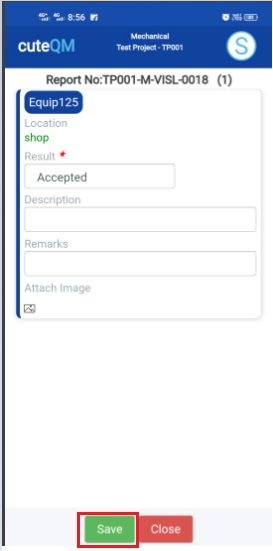](https://wiki.cuteinfocomm.com/uploads/images/gallery/2024-08/image-1724343288907.png)
1. Result will be defaultly accepted,If need to reject,you can change the dropdown as Reject
2. Enter **Description**
3. Enter **Remarks**
4. Click **Save** button. **RFI Visual** **inspection approved successfully.**