# Material Feasibility - Piping
# Login
### **1.1 Login**
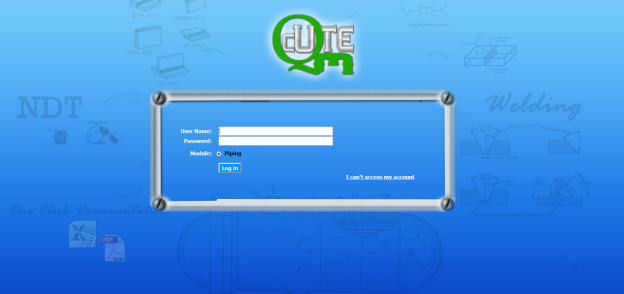
To login into the ***cuteQM*** application,
1\. Open your web browser.
2.Type the URL provided by your administrator, in the address bar of your web browser.
The login page appears.
[](http://wiki.cuteinfocomm.com/uploads/images/gallery/2022-05/image-1651709538772.png)
3\. In the login page, enter your user name and password in the respective boxes.
[ ](http://wiki.cuteinfocomm.com/uploads/images/gallery/2022-05/image-1651709712073.png)**Note**: If you forgot your password, click “**I can’t access my account**”. You will be redirected into a new web page. Enter your username to receive your password.
4\. In the **Module** section, select **Piping**.
5\. Click **Login**.
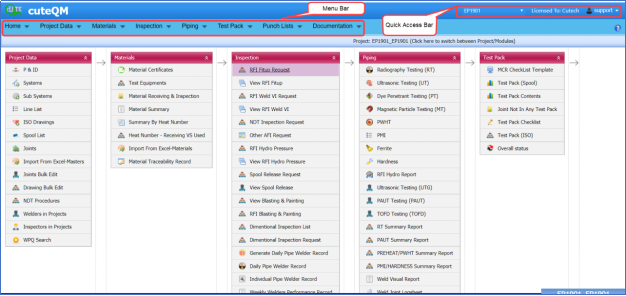
Once you have successfully logged in into the ***cuteQM*** application, the home page of the ***cuteQM*** application opens.
[](http://wiki.cuteinfocomm.com/uploads/images/gallery/2022-05/image-1651710552676.png)
**Figure 4.1 Home page of *cuteQM application***
[ ](http://wiki.cuteinfocomm.com/uploads/images/gallery/2022-05/image-1651710988718.png)**Note**: The user name you have entered, the project you have been assigned, and the module you have selected are displayed in the upper right corner of the home page.
### **1.2 Change Password**
If you want to change your current password,
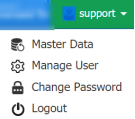
1\. Click your user name displayed on the quick access bar of the home page. See Fig 4.1.
A drop-down list opens with multiple options.
[  ](http://wiki.cuteinfocomm.com/uploads/images/gallery/2022-05/image-1651710826679.png)
2\. Click the **Change Password**
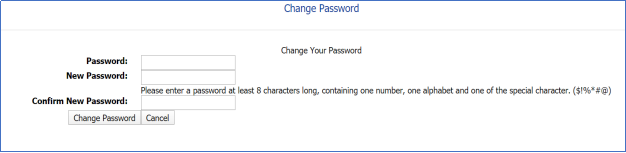
The **Change Password** page opens.
[ ](http://wiki.cuteinfocomm.com/uploads/images/gallery/2022-05/image-1651710864900.png)
[ ](http://wiki.cuteinfocomm.com/uploads/images/gallery/2022-05/image-1651711016244.png)**Note**: Before changing your password read the conditions specified in the **Change Password** page.
3\. In the **Password**box, enter your current password.
4\. In the **NewPassword** box, enter your new password.
5\. In the **ConfirmNew** **Password** box, enter your new password again.
6\. Click **Change Password**.
Your password will be successfully changed.
### **1.3 Log Out**
If you want to log out from the app,
1\. Click your user name displayed on the quick access bar of the home page. See Fig 4.1.
A drop-down list opens with multiple options.
2\. Click **Log out**.
Your current session ends now. The home page appears.
# Materials
### **2.0** **Materials**
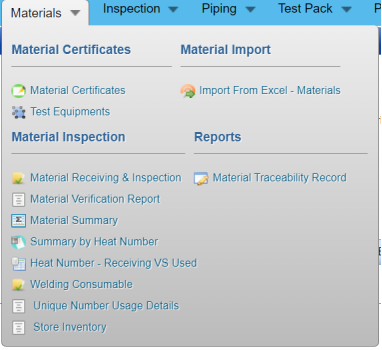
The **Materials** menu in the home page of the ***cuteQM*** app used to add the material details such as material certificates, material inspection details, material import details, and material summary and traceability record. Once you click the **Materials** menu, the following tabs open,
[](http://wiki.cuteinfocomm.com/uploads/images/gallery/2022-05/image-1651728778134.png)
### **2.1 Material Receiving and Inspection (Heat Numbers)**
Material Receiving Inspection validates quality of purchased raw materials based on set acceptance criteria before the materials are used for the piping project.
The **Material Receiving and Inspection** tab in the **Materials** menu helps you to add an incoming material inspection report (MIR). Incoming MIR includes material name, material size, material specification, heat numbers, and material type.
If you want to add an incoming MIR, do the following,
1\. Click the **Material Receiving and Inspection**tab in the **Materials**
The **Incoming Material Inspection Report** page opens.
[ ](http://wiki.cuteinfocomm.com/uploads/images/gallery/2022-05/image-1651728877961.png)
**Figure 2.1: Incoming Material Inspection Report page**
#### **2.1.1 Add an Incoming MIR**
If you want to add an incoming MIR,
1\. Click [ ](http://wiki.cuteinfocomm.com/uploads/images/gallery/2022-05/image-1651728973224.png)(**ADD** button) in the **Incoming Material Inspection Report** See Fig 2.1.
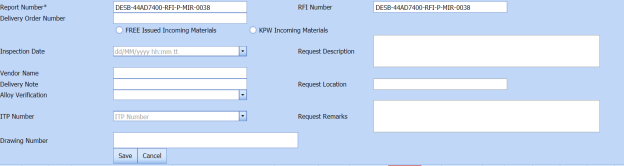
A new window opens to add an incoming MIR.
[](http://wiki.cuteinfocomm.com/uploads/images/gallery/2022-05/image-1651729102514.png)
[ ](http://wiki.cuteinfocomm.com/uploads/images/gallery/2022-05/image-1651729139461.png)**Note**: The fields notified with a symbol (\*) are mandatory. You must enter the relevant details in that fields before saving.
[ ](http://wiki.cuteinfocomm.com/uploads/images/gallery/2022-05/image-1651729225130.png)**Tip**: A report number and a Request for Inspection (RFI) number for a new MIR will be updated automatically in the **Report Number** and the **RFI Number** boxes, respectively.
2\. In the **Delivery Order Number** box, enter the material’s delivery order number.
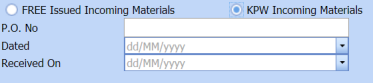
3\. If materials are purchased from outside, select the **KPW Incoming Materials** option, and then enter the relevant details in the respective boxes. KPW incoming materials will be added to **StoreInventory** after MIR submission.
[ ](http://wiki.cuteinfocomm.com/uploads/images/gallery/2022-05/image-1651729261846.png)
a. In the **O. No**box, enter the purchase order number.
b. In the **Dated**box, choose the date of the purchase order.
c. In the **Received On**box, select the received date of materials.
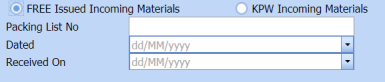
4\. If the materials are received from a client, select the **FREE Issued Materials**option, and then enter the relevant details in the respective boxes. Free issued Materials will be added to **Store Inventory** after MIR submission
[ ](http://wiki.cuteinfocomm.com/uploads/images/gallery/2022-05/image-1651729350029.png)
a. In the **Packing List No**box, enter the packing list number.
b. In the **Dated**box, choose the date of packing.
c. In the **Received On**box, choose the received date of materials.
5\. In the **Inspection Date**box, choose the date of inspection.
6\. In the **Vendor Name** box, enter the vendor name.
7\. In the **Request Description**box, enter the request description.
8\. In the **ITP Number**box, select an ITP number.
9\. In the **Delivery Note** box, enter the delivery note.
10\. In the **Location** box, enter the location name.
11\. In the **Sub Contractor**box, select the subcontractor name from a drop-down list.
12 . Click **Save**.
The incoming MIR is successfully added. Once you have added the MIR, you must add the material details for the added MIR.
#### **2.1.2 Add Materials for an MIR**
If you want to add the details of materials for the added incoming MIR, do the following steps,
1\. Click [](http://wiki.cuteinfocomm.com/uploads/images/gallery/2022-05/image-1651736968322.png) (Edit icon) in the **Edit MIR** column of the **Incoming Material Inspection Report** See Fig 2.1.
The **Add/Edit - Materials** window opens.
[ ](http://wiki.cuteinfocomm.com/uploads/images/gallery/2022-05/image-1651729497724.png)
**Figure 2.1.2: Add/Edit – Materials window**
2\. Click [](http://wiki.cuteinfocomm.com/uploads/images/gallery/2022-05/image-1651737038359.png) (**ADD** button) in the **Add/Edit - Materials**
A new window opens to add the material details.
[](http://wiki.cuteinfocomm.com/uploads/images/gallery/2022-05/image-1651729605215.png)
[ ](http://wiki.cuteinfocomm.com/uploads/images/gallery/2022-05/image-1651729637958.png)**Note**: The fields notified with a symbol (\*) are mandatory. You must enter the relevant details in that fields before saving.
3\. In the **Material Description**box, enter the material description.
4\. In the **MaterialSize** box, select the size of the material.
5\. In the **Material Specification** box, enter the material specification.
6\. In the **Material Type**box, enter the type of the material.
7\. In the **Quantity Required**box, enter the required quantity of the material.
8\. In the **Item No**box, enter the item number. This will be added as Item code in the store inventory
9\. In the **Weight**box, enter the weight of the material.
10\. In the **Component**box, select a component.
11\. Click **Update**.
Once you have added the material details, you must add the heat numbers for the added materials.
#### **2.1.3 Add Heat Numbers**
1\. Click [](http://wiki.cuteinfocomm.com/uploads/images/gallery/2022-05/image-1651737308407.png) (Add icon) of the respective material in the **Add/Edit - Materials** See Fig 2.1.2.
The **Heat Numbers** window opens.
[](http://wiki.cuteinfocomm.com/uploads/images/gallery/2022-05/image-1651729786244.png)
2\. Click [](http://wiki.cuteinfocomm.com/uploads/images/gallery/2022-05/image-1651737380511.png) (**ADD** button) in the **Heat Numbers**
A new window opens to add a heat number.
[](http://wiki.cuteinfocomm.com/uploads/images/gallery/2022-05/image-1651729878479.png)
3\. In the **Heat Number/Certificates**box, select the heat number from a drop-down list. This heat number can be used in Fit up after Material Issuance.
4\. In the **Plate Number/Coil Number/ Tag Number**box, enter the plate number or coil number or tag number of the material.
5\. In the **Delivery Quantity (Total)**box, enter the total delivery quantity of the material including UOM. This quantity can be added in store inventory after MIR submission and it cannot change after added in store inventory.
6\. In the **Delivery Quantity (Partial)**box, enter the partial delivery quantity of the material including UOM.
7\. In the **Dimensions** option, select **Accepted**or **Rejected** based on the inspection detail.
8\. In the **Visual** option, select **Accepted**or **Rejected** based on the inspection detail.
9\. In the **Mill Test Certificates (MTC)** option, select **Accepted**or **Rejected** based on the inspection detail.
10\. In the **Remarks** box, enter your remarks if any.
11\. If the heat treatment is required for the material, select **YES**in the **Heat Treatment** Otherwise select **NO**.
12\. In the NDE is required for the material, select **YES**in the **NDE** Otherwise select **NO**.
13\. Click **Update.**
[ ](http://wiki.cuteinfocomm.com/uploads/images/gallery/2022-05/image-1651729948933.png) **Note**: If you want to manage the review material TC, click [](http://wiki.cuteinfocomm.com/uploads/images/gallery/2022-05/image-1651737526888.png) (Add icon). The Review Material TC window opens to add the material checklist detail.
### **1.1.4 Add MIR Details**
If you want to add the optional details of MIR,
1\. Click [](http://wiki.cuteinfocomm.com/uploads/images/gallery/2022-05/image-1651737631703.png) (Add icon) in the **Add** See Fig 2.1.
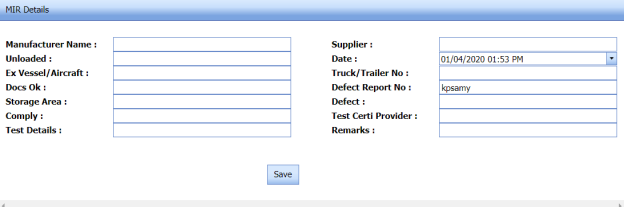
The **MIR Details** window opens.
[](http://wiki.cuteinfocomm.com/uploads/images/gallery/2022-05/image-1651731323439.png)
2\. In the **Manufacturer**Name box, enter the manufacturer name.
3\. In the **Supplier**box, enter the supplier name.
4\. In the **Unloaded**box, enter the unloaded detail.
5\. In the **Date**box, select the date of MIR.
6\. In the **Truck/Trailer No**box, enter the truck/trailer number.
7\. In the **Defect Report No**box, enter the defect report number.
8\. In the **Storage Area**box, enter the storage area name.
9\. In the **Defect**box, enter the defect detail.
10\. In the **Remarks**box, enter your remarks if any.
11\. Click **Save**.
### **2.2 Store Inventory**
The **Store Inventory** tab in the **Materials** menu used to add an item code including quantity in the store inventory. To add item code in the store inventory,
1\. Click **Store Inventory**in the **Materials**
The **Store Inventory** page opens.
[](http://wiki.cuteinfocomm.com/uploads/images/gallery/2022-05/image-1651731683056.png)
**Figure 2.2: Store Inventory page**
#### **2.2.1 Add a Store Inventory**
If you want to add a Store Inventory,
1\. Select Inventory type KPW/FIM/Offcut.
2\. Click [](http://wiki.cuteinfocomm.com/uploads/images/gallery/2022-05/image-1651737910826.png) (**ADD** button) in the **Store Inventory** See Fig 2.2.
The page opens a new window to add the details of Store Inventory.
[ ](http://wiki.cuteinfocomm.com/uploads/images/gallery/2022-05/image-1651733531758.png)
[ ](http://wiki.cuteinfocomm.com/uploads/images/gallery/2022-05/image-1651733562042.png)**Note**: The field notified with a symbol (\*) is mandatory. You must enter the relevant details in that fields before saving.
In the **Item Code** box, enter an item code.
3. In the **Description**box, enter the description of an item code.
4. Click **Save**.
An item code including the quantity is successfully added and listed in the **Store Inventory** page.
#### **2.2.2 Edit a Store Inventory**
If you want to edit any existing item code quantity in the **Store Inventory** page, do the following,
1\. Click [](http://wiki.cuteinfocomm.com/uploads/images/gallery/2022-05/image-1651738165123.png) (Edit icon) in the **Edit** column for the respective Store Inventory. See Fig 2.4.
The page shows the details of the selected item code.
2\. Click stock quantity box, and then edit the quantity.
3\. Click **Save**.
#### **2.2.3 Export Store Inventory List**
You can export a list of Item codes added in the **Store Inventory** page in both the pdf and excel formats.
1\. If you want to export the store inventory list in the pdf format, click [](http://wiki.cuteinfocomm.com/uploads/images/gallery/2022-05/image-1651735007203.png) (**PDF** button).
The Store Inventory list will be downloaded as a pdf file.
2\. If you want to export the store inventory list in the excel format, click [](http://wiki.cuteinfocomm.com/uploads/images/gallery/2022-05/image-1651735109052.png) (**Excel** button).
The Store Inventory list will be downloaded as an excel file.
#### **2.2.4 Filter a Store Inventory**
If you want to filter any Store Inventory from the list of Item codes in the **Store Inventory** page, do the following,
1\. Click [](http://wiki.cuteinfocomm.com/uploads/images/gallery/2022-05/image-1651735398657.png) (**FILTER** button) located on the **Store Inventory** See Fig 2.2.
Once you clicked the **Filter** button, the filter box opens in each column of the **Store Inventory** page.
[](http://wiki.cuteinfocomm.com/uploads/images/gallery/2022-05/image-1651735479005.png)
2. Enter relevant detail in the respective column’s filter box to filter a Store Inventory you want.
#### **2.2.5 Import Store Inventory**
If you want to import multiple Item codes in store inventory together, do the following,
1\. Click [](http://wiki.cuteinfocomm.com/uploads/images/gallery/2022-05/image-1651735532878.png) (**IMPORT** button). See Fig 2.2.
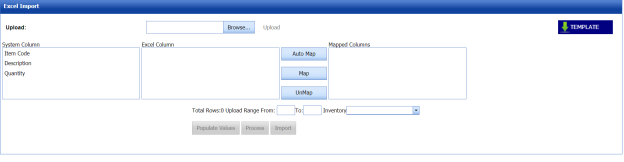
The **Excel Import** page opens.
[](http://wiki.cuteinfocomm.com/uploads/images/gallery/2022-05/image-1651735599460.png)
2\. Click [](http://wiki.cuteinfocomm.com/uploads/images/gallery/2022-05/image-1651735626265.png) (**TEMPLATE** button).
An excel worksheet will be downloaded with a predefined template to enter the details of store inventory.
3\. Enter the required store inventory details in the respective columns of the excel worksheet.
4\. Once you have added the store inventory details in the excel worksheet, save the excel worksheet on your computer.
5\. Click [](http://wiki.cuteinfocomm.com/uploads/images/gallery/2022-05/image-1651735656260.png) (**Browse** button) to select the excel worksheet to be uploaded.
6\. Select the excel worksheet you want to upload from your computer.
7\. Click [](http://wiki.cuteinfocomm.com/uploads/images/gallery/2022-05/image-1651735681065.png) (**Upload** button) to export the BOM details that are included in the excel worksheet.
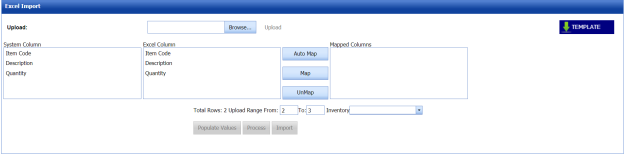
The columns added in the excel worksheet will be listed in the **Excel Column** field.
[](http://wiki.cuteinfocomm.com/uploads/images/gallery/2022-05/image-1651735704105.png)
[  ](http://wiki.cuteinfocomm.com/uploads/images/gallery/2022-05/image-1651735758999.png)**Note**: Make sure that the **Excel Column** field must have all the columns as in the **System Column** field.
8\. To map the columns in the **System Column**and **Excel Column** fields, do one of the following,
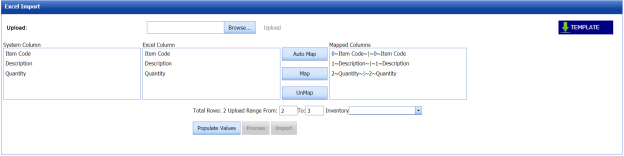
a. If you want to map the columns automatically, click [](http://wiki.cuteinfocomm.com/uploads/images/gallery/2022-05/image-1651735785813.png) (**AutoMap** button).
The columns will be mapped automatically and displayed in the **Mapped Columns** field.
b. If you want to map each column manually, select the respective columns in both the **System Column**and **Excel Column** fields and then click [](http://wiki.cuteinfocomm.com/uploads/images/gallery/2022-05/image-1651735818608.png) (**Map** button).The selected columns will be mapped and displayed in the **Mapped Columns** field.
[](http://wiki.cuteinfocomm.com/uploads/images/gallery/2022-05/image-1651735852799.png)
9\. To un-map the columns in the **Mapped Columns**field, select the respective column and then click [](http://wiki.cuteinfocomm.com/uploads/images/gallery/2022-05/image-1651735867915.png) (**UnMap** button).
[  ](http://wiki.cuteinfocomm.com/uploads/images/gallery/2022-05/image-1651735885966.png)**Note**: In the **Total Rows** field, the range for uploading the data from the excel worksheet will be updated automatically.
10\. Select Inventory type KPW/FIM
11\. Click [](http://wiki.cuteinfocomm.com/uploads/images/gallery/2022-05/image-1651735908599.png) (**Populate Values** button).
The data are populated.
12\. Click [](http://wiki.cuteinfocomm.com/uploads/images/gallery/2022-05/image-1651735929970.png) (**Process** button).
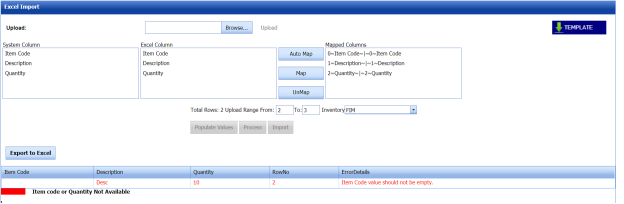
The system processes all the uploaded data and shows if any error with the uploaded data. You can download the error details in the excel worksheet by clicking [](http://wiki.cuteinfocomm.com/uploads/images/gallery/2022-05/image-1651735950669.png) (**Export to Excel** button).
[](http://wiki.cuteinfocomm.com/uploads/images/gallery/2022-05/image-1651735979335.png)
13\. Once you have rectified the identified error in the excel worksheet, follow the above procedures to upload the worksheet.
13. Click [](http://wiki.cuteinfocomm.com/uploads/images/gallery/2022-05/image-1651735995065.png) (**Import** button) to import the uploaded data.
The data will be successfully imported.
# Planning
### **3.0 Planning**
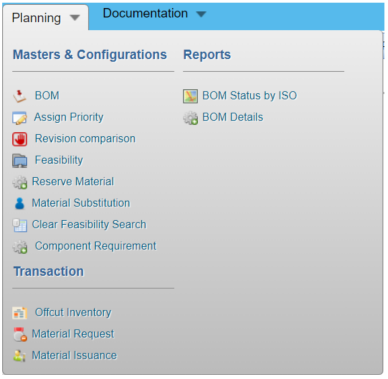
The **Planning** menu in the home page of the ***cuteQM*** app is mainly used to search for the piping feasibility of the projects and to assign priority. This menu also helps to add the bill of materials and material request.
Here, you can manage the material reservation, material substitution, offcut inventory, material requisition, and material issuance.
Once you click the **Planning** menu, the following tabs open,
[](http://wiki.cuteinfocomm.com/uploads/images/gallery/2022-05/image-1651784892301.png)
#### **3.1 Bill of Material (BOM)**
The **BOM** tab in the **Planning** menu used to add a BOM including quantity of items needed for the piping fabrication from the overall quantity in the inventory. To add BOM,
1\. Click **BOM** in the **Planning**
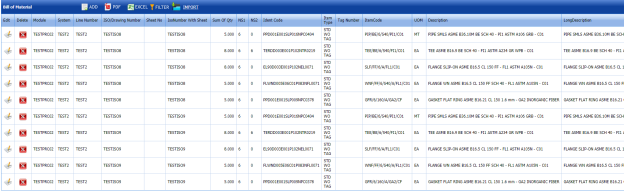
The **Bill of Material** page opens.
[](http://wiki.cuteinfocomm.com/uploads/images/gallery/2022-05/image-1651785111568.png)
**Figure 3.1: Bill of Material page**
#### **3.1.1 Add a BOM**
If you want to add a BOM,
1\. Click [](http://wiki.cuteinfocomm.com/uploads/images/gallery/2022-05/image-1651785224129.png) (**ADD** button) in the **Bill of Material** See Fig 3.1.
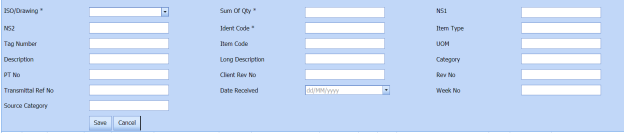
The page opens a new window to add the details of BOM.
[ ](http://wiki.cuteinfocomm.com/uploads/images/gallery/2022-05/image-1651785258023.png)
[ ](http://wiki.cuteinfocomm.com/uploads/images/gallery/2022-05/image-1651785308707.png)**Note**: The field notified with a symbol (\*) is mandatory. You must enter the relevant details in that fields before saving.
2\. In the **ISO Drawing** box, select an ISO drawing from a drop-down list.
3\. In the **Sum of Qty** box, enter the BOM quantity you want to take from the inventory.
4\. In the **NS1**and **NS2** boxes, enter the NS1 and NS2 information.
5\. In the **Ident Code** box, enter the code of item you want take from the inventory.
6\. In the **Item Type** box, enter the item type.
7\. In the **Tag Number** box, enter the tag number.
8\. In the **Item Code** box, enter the client item code.
9\. In the **UOM** box, enter the unit of measurement.
10\. In the **Description** box, enter the description.
11\. In the **Long Description** box, enter the long description.
12\. In the **Category** box, enter the item category whether Fab or Erection.
13\. In the **PT No** box, enter the PT number.
14\. In the **Client Rev No** box, enter the client revision number.
15\. In the **Rev No** box, enter the revision number.
16\. In the **Transmittal Ref** No box, enter the transmittal reference number.
17\. In the **Date Received** box, choose the received date.
18\. In the **Week No** box, enter the week number.
19\. Click **Save**.
The BOM including the item quantity is successfully added and listed in the **Bill of Material** page.
#### **3.1.2 Edit a BOM**
1\. If you want to edit any existing BOM in the **Bill of Material** page, do the following,
Click [](http://wiki.cuteinfocomm.com/uploads/images/gallery/2022-05/image-1651785536978.png) (Edit icon) in the **Edit** column for the respective BOM. See Fig 3.1.
The page shows the details of the selected BOM.
2\. Click any box where you want to edit the details, and then edit the details in the respective box.
3\. Click **Save**.
#### **3.1.3 Delete a BOM**
If you want to delete any existing BOM in the **Bill of Material** page, you can use [](http://wiki.cuteinfocomm.com/uploads/images/gallery/2022-05/image-1651785654707.png) (Delete icon) provided in the **Bill of Material** page.
#### **3.1.4 Export BOM List**
You can export a list of BOMs added in the **Bill of Material** page in both the pdf and excel formats.
1. If you want to export the BOM list in the pdf format, click [](http://wiki.cuteinfocomm.com/uploads/images/gallery/2022-05/image-1651785805717.png) (**PDF** button).
a. The BOM list will be downloaded as a pdf file.
2. If you want to export the BOM list in the excel format, click [](http://wiki.cuteinfocomm.com/uploads/images/gallery/2022-05/image-1651785922614.png) (**Excel** button).
b. The BOM list will be downloaded as an excel file.
#### **3.1.5 Filter a BOM**
If you want to filter any BOM from the list of BOMs in the **Bill of Material** page, do the following,
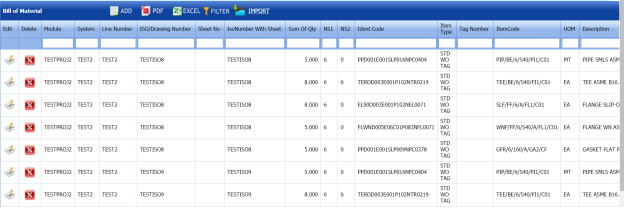
1\. Click [](http://wiki.cuteinfocomm.com/uploads/images/gallery/2022-05/image-1651786022116.png) (**FILTER** button) located on the **Bill of Material** See Fig 3.1.
Once you clicked the **Filter** button, the filter box opens in each column of the **Bill of Material** page.
[ ](http://wiki.cuteinfocomm.com/uploads/images/gallery/2022-05/image-1651786850889.png)
2\. Enter relevant detail in the respective column’s filter box to filter a BOM you want.
#### **3.1.6 Import Multiple BOMs**
If you want to import multiple BOM together, do the following,
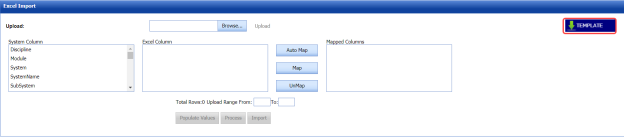
1\. Click [](http://wiki.cuteinfocomm.com/uploads/images/gallery/2022-05/image-1651787100130.png) (**IMPORT** button). See Fig 3.1.
The **Excel Import** page opens.
[](http://wiki.cuteinfocomm.com/uploads/images/gallery/2022-05/image-1651787142650.png)
2\. Click [](http://wiki.cuteinfocomm.com/uploads/images/gallery/2022-05/image-1651787173258.png) (**TEMPLATE** button).
3\. An excel worksheet will be downloaded with a predefined template to enter the details of BOM.
4\. Enter the required BOM details in the respective columns of the excel worksheet.
5\. Once you have added the BOM details in the excel worksheet, save the excel worksheet on your computer.
6\. Click [](http://wiki.cuteinfocomm.com/uploads/images/gallery/2022-05/image-1651787198325.png) (**Browse** button) to select the excel worksheet to be uploaded.
7\. Select the excel worksheet you want to upload from your computer.
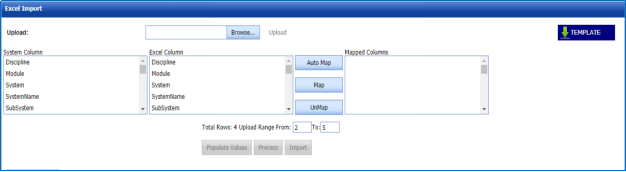
8\. Click [](http://wiki.cuteinfocomm.com/uploads/images/gallery/2022-05/image-1651787225797.png) (**Upload** button) to export the BOM details that are included in the excel worksheet.
9\. The columns added in the excel worksheet will be listed in the **Excel Column**
[](http://wiki.cuteinfocomm.com/uploads/images/gallery/2022-05/image-1651787250537.png)
**Note**: Make sure that the **Excel Column** field must have all the columns as in the **System Column** field.
10. To map the columns in the **System Column** and **Excel Column** fields, do one of the following,
11. If you want to map the columns automatically, click [](http://wiki.cuteinfocomm.com/uploads/images/gallery/2022-05/image-1651787530516.png) (**AutoMap** button). a. The columns will be mapped automatically and displayed in the **Mapped Columns**
12. If you want to map each column manually, select the respective columns in both the **System Column** and **Excel Column** fields and then click [](http://wiki.cuteinfocomm.com/uploads/images/gallery/2022-05/image-1651790556450.png) (**Map** button). a. The selected columns will be mapped and displayed in the **Mapped Columns** Field**.** b.[ 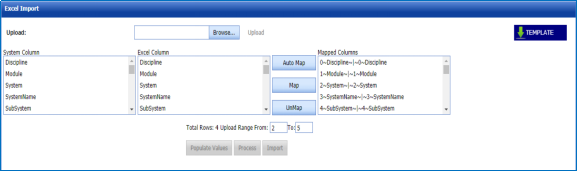](http://wiki.cuteinfocomm.com/uploads/images/gallery/2022-05/image-1651790716046.png)
13. To un-map the columns in the **Mapped Columns** field, select the respective column and then click [](http://wiki.cuteinfocomm.com/uploads/images/gallery/2022-05/image-1651790874155.png) (**UnMap** button).
[  ](http://wiki.cuteinfocomm.com/uploads/images/gallery/2022-05/image-1651787364384.png)**Note**: In the **Total Rows** field, the range for uploading the data from the excel worksheet will be updated automatically.
14. Click [](http://wiki.cuteinfocomm.com/uploads/images/gallery/2022-05/image-1651790901954.png) (**Populate Values** button).
15. The data are populated.
16. Click [](http://wiki.cuteinfocomm.com/uploads/images/gallery/2022-05/image-1651790927781.png) (**Process** button).
17. The system processes all the uploaded data and shows if any error with the uploaded data. You can download the error details in the excel worksheet by clicking [](http://wiki.cuteinfocomm.com/uploads/images/gallery/2022-05/image-1651790964638.png) (**Export to Excel** button). **Note**: Different color code explains the different type of errors.
18. Once you have rectified the identified error in the excel worksheet, follow the above procedures to upload the worksheet.
19. Click (**Import** button) to import the uploaded data.
20. The data will be successfully imported.
### **3.2 Assign Priority**
The **Assign Priority** tab in the **Planning** menu helps to assign the priority for KPW, Offcut, and FIM warehouses. Likewise, you can assign priority for Module, Test Pack, System, Line, and ISO. For example, once you have assigned the high priority for any warehouse, the materials from the high priority warehouse will be taken initially for performing piping feasibility.
To assign priority,
1\. Click **Assign Priority** in the **Planning**
The **Assign Priority** page opens.
[ ](http://wiki.cuteinfocomm.com/uploads/images/gallery/2022-05/image-1651791016497.png)
**Figure 3.2: Assign Priority page**
[ ](http://wiki.cuteinfocomm.com/uploads/images/gallery/2022-05/image-1651791041794.png)**Note:** You can assign the priority by giving the numbers from 1 to 99.
2\. If you want to assign priority for warehouses,
a. Select the **Warehouse**
The added warehouses will be listed.
[](http://wiki.cuteinfocomm.com/uploads/images/gallery/2022-05/image-1651791747191.png)
b. In the **Priority** column, enter the priority numbers for the respective warehouse.
c. Click **Save Changes**.
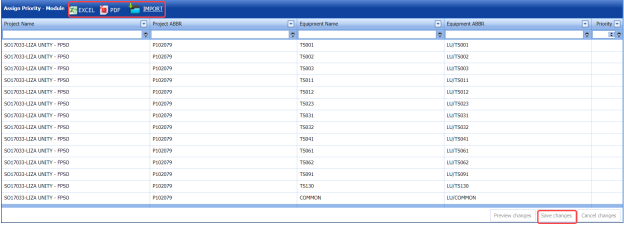
3\. If you want to assign priority for project modules,
a. Select the **Module**
The added project modules will be listed.
[ ](http://wiki.cuteinfocomm.com/uploads/images/gallery/2022-05/image-1651791974584.png)
b. In the **Priority** column, enter the priority numbers for the respective module.
c. Click **Save Changes**.
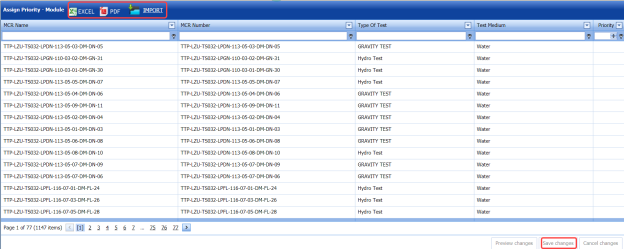
4\. If you want to assign priority for test packs,
a. Select the **Test Pack**
The added test packs will be listed.
[](http://wiki.cuteinfocomm.com/uploads/images/gallery/2022-05/image-1651792138093.png)
b. In the **Priority** column, enter the priority numbers for the respective test pack.
c. Click **Save Changes**.
Once you have set the priority for a particular test pack, the piping feasibility will be loaded based on a list of spools included in the test pack.
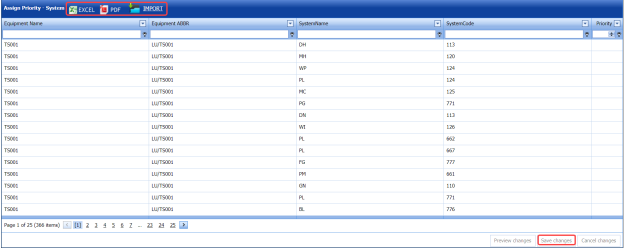
5\. If you want to assign priority for systems,
a. Select the **System**
The added systems will be listed.
[](http://wiki.cuteinfocomm.com/uploads/images/gallery/2022-05/image-1651792455221.png)
b. In the **Priority** column, enter the priority numbers for the respective system.
c. Click **Save Changes**.
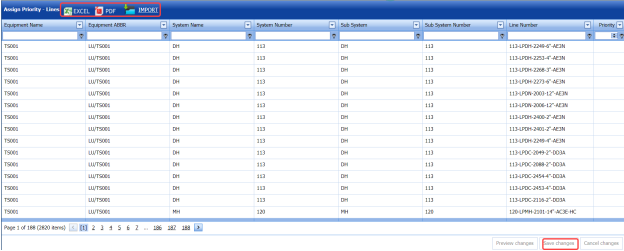
6\. If you want to assign priority for lines,
a. Select the **Line**
The added lines will be listed.
[](http://wiki.cuteinfocomm.com/uploads/images/gallery/2022-05/image-1651792618564.png)
a. In the **Priority** column, enter the priority numbers for the respective line.
c. Click **Save Changes**.
7\. If you want to assign priority for ISO,
a. Select the **ISO**
The added ISO will be listed.
[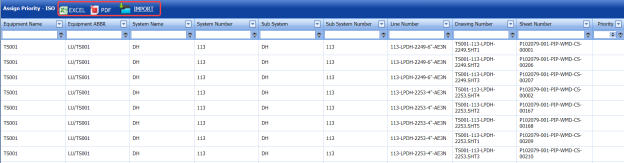](http://wiki.cuteinfocomm.com/uploads/images/gallery/2022-05/image-1651792935243.png)
b. In the **Priority** column, enter the priority numbers for the respective ISO.
c. Click **Save Changes**.
#### **3.2.1 Export Assigned Priority List**
You can export the assigned priority list in the **Assign Priority** page in the pdf and excel formats by using [](http://wiki.cuteinfocomm.com/uploads/images/gallery/2022-05/image-1651793445455.png) (**PDF** button) and [](http://wiki.cuteinfocomm.com/uploads/images/gallery/2022-05/image-1651793596393.png) (**Excel** button). To know how to export, see the topic, “[**Export BOM List**](#bkmrk-3.1.4-export-bom-lis)”.
### **2.3 Reserve Material**
The **Reserve Material** tab in the **Planning** menu helps to reserve the material from the inventory quantity. To reserve the material,
1\. Click **Reserve Material** in the **Planning**
The **Reserve Material** page opens.
[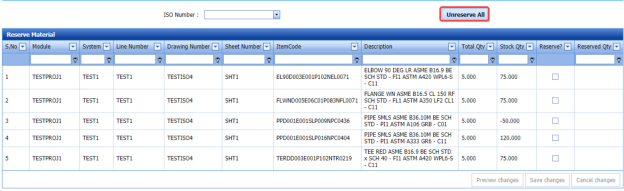](http://wiki.cuteinfocomm.com/uploads/images/gallery/2022-05/image-1651793812674.png)
**Figure 2.3: Reserve Material page**
#### **2.3.1 Reserve a Material**
If you want to reserve a material,
1\. In the **ISO Number** box, select an ISO number from a drop-down list. See Fig 5.3.
The page shows a list of BOM item codes including the BOM quantity and inventory stock quantity for this corresponding ISO number.
[ ](http://wiki.cuteinfocomm.com/uploads/images/gallery/2022-05/image-1651794125541.png)**Note**: The quantity you want to reserve should be less than the BOM quantity.
2\. In the **Reserved Qty** column, enter the number of quantity of items you want to reserve.
3\. Once you have entered the reserve quantity, select the respective checkbox in the **Reserve?**
4\. Click **Save changes**.
The entered material quantity will be reserved. While feasibility reserved quantity used against the reserved ISO.
[  ](http://wiki.cuteinfocomm.com/uploads/images/gallery/2022-05/image-1651794193179.png)**Note**: If you want to unreserve all the reserved material quantity, click [](http://wiki.cuteinfocomm.com/uploads/images/gallery/2022-05/image-1651794225158.png) (**Unreserve All** button).
### **3.4 Revision Comparison**
In BOM, when you subsequently revise the quantity of items added against the ISO number, the revision number will be changed. The revision history will be maintained in the back end.
The **Revision Comparison** tab in the **Planning** menu helps you to view the revision history of items added in the BOM.
1\. Click **Revision Comparison** in the **Planning**
The **Revision Comparison** page opens.
[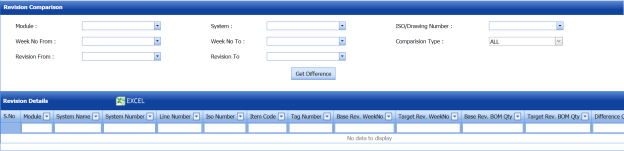](http://wiki.cuteinfocomm.com/uploads/images/gallery/2022-05/image-1651794289214.png)
**Figure 3.4: Revision Comparison page**
[ ](http://wiki.cuteinfocomm.com/uploads/images/gallery/2022-05/image-1651794346721.png)**Note**: The field notified with a symbol (\*) is mandatory. You must enter the relevant details.
2\. In the **Module** box, select a module from a drop-down list.
3\. In the **System** box, select a system from a drop-down list.
4\. In the **ISO / Drawing Number** box, select an ISO number from a drop-down list.
5\. In the **Week No From** and **Week No To** boxes, select the week numbers.
a. In the **Comparison Type** box, select one of the following,
b. If you want to view the revision history for all items, select
c. If you want to view the revision history for added items, select
d. If you want to view the revision history for removed items, select
6\. If you want to view the difference in comparison, select **Difference Only.**
7\. In the **Revision From** and **Revision To** boxes, select the revision numbers.
8\. Click **Get Difference**.
The revision history opens based on the given criteria. The revision history shows the total quantity and difference quantity after completing the revision.
[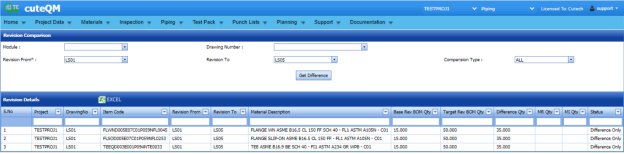](http://wiki.cuteinfocomm.com/uploads/images/gallery/2022-05/image-1651794633902.png)
#### **3.4.1 Export Revision Comparison Detail**
You can export the revision detail generated in the **Revision Comparison** page in the pdf and excel formats by using [](http://wiki.cuteinfocomm.com/uploads/images/gallery/2022-05/image-1651795800845.png) (**PDF** button) and [](http://wiki.cuteinfocomm.com/uploads/images/gallery/2022-05/image-1651795821993.png) (**Excel** button). To know how to export, see the topic, “[**Export BOM List**](#bkmrk-3.1.4-export-bom-lis)”.
### **3.5 Material Substitution**
The **Material Substitution** tab in the **Planning** menu helps to do substitute one item for another item. To perform the material substitution,
1\. Click **Material Substitution** in the **Planning**
The **Material Substitution** page opens.
[](http://wiki.cuteinfocomm.com/uploads/images/gallery/2022-05/image-1651795961192.png)
**Figure 3.5: Material Substitution**
#### **3.5.1 Add Material Substitution**
If you want to do material substitution,
1\. Click [](http://wiki.cuteinfocomm.com/uploads/images/gallery/2022-05/image-1651796042584.png) (**ADD** button) in the **Material Substitution** See Fig 3.5.
The page opens a new window to add the details of material substitution.
[](http://wiki.cuteinfocomm.com/uploads/images/gallery/2022-05/image-1651796082749.png)
[ ](http://wiki.cuteinfocomm.com/uploads/images/gallery/2022-05/image-1651796101101.png)**Note**: The field notified with a symbol (\*) is mandatory. You must enter the relevant details in that fields before saving.
2\. In the **Item Code** box, select an item code from a drop-down list.
[  ](http://wiki.cuteinfocomm.com/uploads/images/gallery/2022-05/image-1651796120725.png)**Note**: In the **Item Code** box, a list of item codes added in the BOM will be listed.
3\. In the **Substitute Item Code** box, select a substitute item code from a drop-down list.
[ ](http://wiki.cuteinfocomm.com/uploads/images/gallery/2022-05/image-1651796153781.png) **Note**: In the **Substitute Item Code** box, a list of item codes added in the inventory will be listed.
4\. In the **Quantity** box, select the quantity of items you want to substitute.
5\. Click **Save**.
The entered quantity of items will be substituted successfully. After completing the material substitution, you can do the feasibility search to check the feasibility percentage of the substituted materials.
#### **3.5.2 Export Material Substitution List**
You can export a list of material substitutions added in the **Material** **Substitution** page in the pdf and excel formats by using [](http://wiki.cuteinfocomm.com/uploads/images/gallery/2022-05/image-1651796246847.png) (**PDF** button) and [](http://wiki.cuteinfocomm.com/uploads/images/gallery/2022-05/image-1651796266270.png) (**Excel** button). To know how to export, see the topic, “[**Export BOM List**](#bkmrk-3.1.4-export-bom-lis)”.
#### **3.5.3 Filter a Material Substitution**
If you want to filter any material substitution from the list of material substitutions in the **Material** **Substitution** page, you can use [](http://wiki.cuteinfocomm.com/uploads/images/gallery/2022-05/image-1651796328582.png) (**FILTER** button). To know how to filter, see the topic, “[**Filter a BOM**](#bkmrk-3.1.5-filter-a-bom%C2%A0)”.
### **3.6 Component Requirement**
The **Component Requirement** tab in the **Planning** menu help to add the components required for the feasibility search. To add the component requirement,
1\. Click **Component Requirement** in the **Planning**
The **Component Requirement** page opens with a list of components.
[ 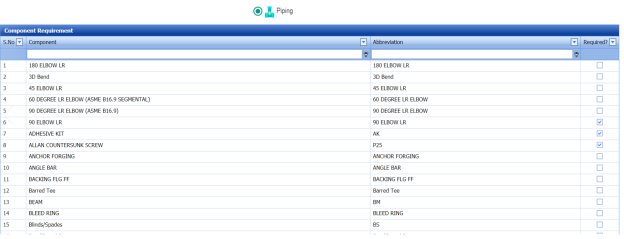](http://wiki.cuteinfocomm.com/uploads/images/gallery/2022-05/image-1651796430744.png)
**Figure 3.6: Component Requirement page**
2\. Select the module whether **Piping**
3\. Select the checkbox of the component you require.
4\. Click **Save changes**.
### **3.7 Offcut Inventory**
When a material issuance has been created with the Offcut material, we need to add the offcut material details in the Offcut inventory. To add the offcut material details,
1\. Click **Offcut Inventory** in the **Planning**
The **Offcut Inventory** page opens.
[](http://wiki.cuteinfocomm.com/uploads/images/gallery/2022-05/image-1651796517477.png)
**Figure 3.7: Offcut Inventory page**
#### **3.7.1 Add Offcut Material Detail**
To add the offcut material detail,
1\. Click [](http://wiki.cuteinfocomm.com/uploads/images/gallery/2022-05/image-1651796573363.png) (**ADD** button) in the **Offcut Inventory** See Fig 3.7.
A new window opens to add the details of offcut material.
[ 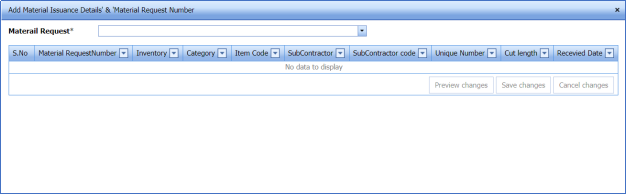](http://wiki.cuteinfocomm.com/uploads/images/gallery/2022-05/image-1651796589115.png)
2\. In the **Material Request** box, select a material request from a drop-down list.
The cut length for the selected material request opens.
[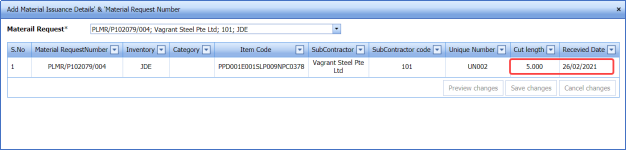](http://wiki.cuteinfocomm.com/uploads/images/gallery/2022-05/image-1651796637417.png)
3\. In the **Cut Length** column, change the cut length of the offcut item if you want.
[  ](http://wiki.cuteinfocomm.com/uploads/images/gallery/2022-05/image-1651796663958.png)**Note**: The cut length should not be exceeded the material issuance quantity.
4\. In the **Received Date** box, choose the date when the offcut material received in the Offcut inventory.
5\. Click **Save changes**.
The offcut material is added.
#### **3.7.2 Adjust Cut Length Quantity**
To adjust the cut length quantity,
1\. Click [](http://wiki.cuteinfocomm.com/uploads/images/gallery/2022-05/image-1651796730160.png) (Add icon) in the **Adjustment**
The **Adjustment** window opens.
[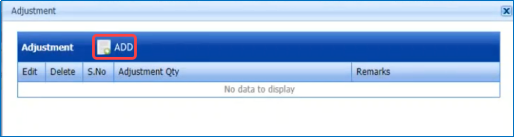](http://wiki.cuteinfocomm.com/uploads/images/gallery/2022-05/image-1651796750559.png)
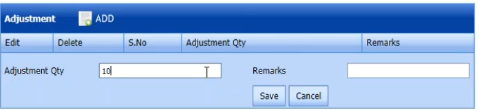
2\. Click [](http://wiki.cuteinfocomm.com/uploads/images/gallery/2022-05/image-1651796774001.png) (**ADD** button) in the **Adjustment**
[](http://wiki.cuteinfocomm.com/uploads/images/gallery/2022-05/image-1651796795228.png)
3\. In the **Adjustment Qty** box, enter the adjustment cut length quantity.
4\. In the **Remarks** box, enter your remarks if any.
5\. Click **Save**.
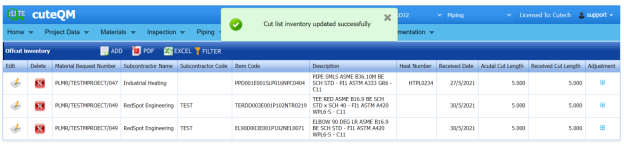
The adjusted cut length quantity will be updated.
[](http://wiki.cuteinfocomm.com/uploads/images/gallery/2022-05/image-1651797352201.png)
#### **3.7.3 Export Offcut Inventory List**
You can export a list of offcut materials added in the **Offcut Inventory** page in the pdf and excel formats by using [](http://wiki.cuteinfocomm.com/uploads/images/gallery/2022-05/image-1651797418652.png) (**PDF** button) and [](http://wiki.cuteinfocomm.com/uploads/images/gallery/2022-05/image-1651797441064.png) (**Excel** button). To know how to export, see 1the topic, “[**Export BOM List**](#bkmrk-3.1.4-export-bom-lis)”.
#### **3.7.4 Filter an Offcut Material**
If you want to filter any offcut material from the list of offcut materials in the **Offcut Inventory** page, you can use [](http://wiki.cuteinfocomm.com/uploads/images/gallery/2022-05/image-1651797513157.png) (**FILTER** button). To know how to filter, see the topic, “[**Filter a BOM**](#bkmrk-3.1.5-filter-a-bom%C2%A0)”.
### **3.8 Feasibility**
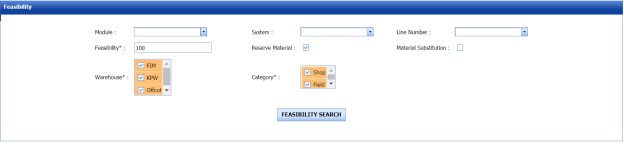
The **Feasibility** tab in the **Planning** menu helps to search the feasibility percentage of items available in the warehouses. Based on the feasibility search percentage, the inspectors will move furtherly for material requisition and material issuance.
To navigate into the Feasibility page,
1\. Click **Feasibility** in the **Planning**
[ ](http://wiki.cuteinfocomm.com/uploads/images/gallery/2022-05/image-1651797586405.png)
**Figure 3.8: Feasibility page**
[  ](http://wiki.cuteinfocomm.com/uploads/images/gallery/2022-05/image-1651797618216.png)**Note**: The feasibility result displayed in different color explains that status of ISO feasibility.
- The feasibility result displayed in Red color shows that the ISO has reserved items.
- The feasibility result displayed in Green color shows that the ISO has 100 percentage feasibility.
- The feasibility result displayed in Blue color shows that the ISO has less than 100 percentage feasibility.
#### **3.8.1 To do Feasibility Search**
To search the feasibility percentage, do the following steps in the **Feasibility** page,
1\. In the **Module** box, select the modules you want.
[  ](http://wiki.cuteinfocomm.com/uploads/images/gallery/2022-05/image-1651797787653.png)**Note**: According to the selection of modules, the system list will be updated in the **System** box.
2\. In the **System** box, select the systems you want.
[  ](http://wiki.cuteinfocomm.com/uploads/images/gallery/2022-05/image-1651798334603.png)**Note**: According to the selection of systems, the line list will be updated in the **Line** box.
3\. In the **Line Number** box, select the line numbers you want.
4\. In the **Feasibility** box, enter the feasibility percentage.
[  ](http://wiki.cuteinfocomm.com/uploads/images/gallery/2022-05/image-1651798407022.png)**Tip**: If you enter 100, the items which have the feasibility percentage of 100 will be listed. If you enter 10, the items which have the feasibility percentage above 10 will be listed.
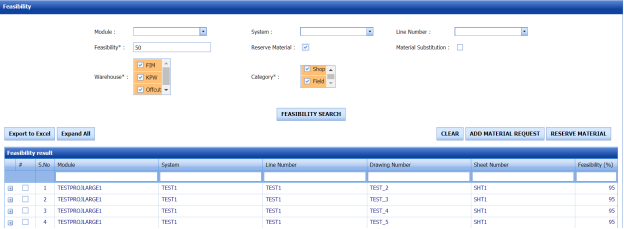
5\. Select the checkbox of **Reserve Material** option if you want to filter the reserve material items.
The page shows the feasibility of the reserved materials.
[](http://wiki.cuteinfocomm.com/uploads/images/gallery/2022-05/image-1651798466606.png)
Select the checkbox of **Material** **Substitution** option if you want to filter the material substitution items.
6\. If you want to see the feasibility percentage for any particular warehouse, select the warehouse listed in the **Warehouse**
a. If you want to view the feasibility percentage for the items in the KPW warehouse, select the checkbox of **KPW**.
b. If you want to view the feasibility percentage for the items in the Offcut warehouse, select the checkbox of **Offcut**.
c. If you want to view the feasibility percentage for the items in the FIM warehouse, select the checkbox of **FIM**.
7\. In the **Category** field, select the category whether **Shop** or **Field**.
[](http://wiki.cuteinfocomm.com/uploads/images/gallery/2022-05/image-1651798598804.png)**Note**: If you want clear the given input data, click [](http://wiki.cuteinfocomm.com/uploads/images/gallery/2022-05/image-1651798625902.png) (**CLEAR** button).
8\. Click **FEASIBILTY SEARCH**.
The feasibility result opens based on the given feasibility percentage.
[ 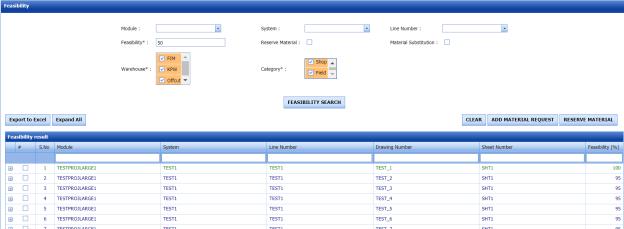](http://wiki.cuteinfocomm.com/uploads/images/gallery/2022-05/image-1651798670305.png)
9\. Click [](http://wiki.cuteinfocomm.com/uploads/images/gallery/2022-05/image-1651798715508.png) (Expand icon) of the respective module to view the items included in the module or click [](http://wiki.cuteinfocomm.com/uploads/images/gallery/2022-05/image-1651798743710.png) (**Expand All** button) to view the items included in each module .A new window opens and shows a list of items included in the module.
[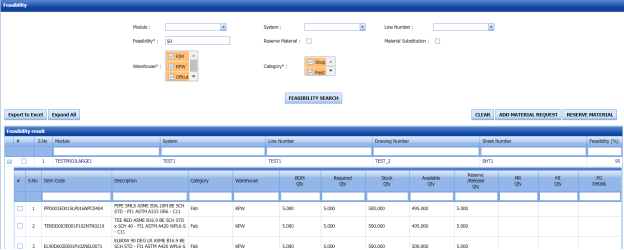](http://wiki.cuteinfocomm.com/uploads/images/gallery/2022-05/image-1651798773607.png)
- **BOM Qty** – shows the item’s quantity added in the BOM.
- **Required Qty** – shows the required quantity of item.
- **Stock Qty** – shows the overall quantity of stock available in all the inventory.
- **Available Qty** – shows the available quantity of item. The available quantity will be changed based on the reserve quantity. Once you reserve any quantity, the same will be reduced from the available quantity.
- **Reserve/Release Qty** – shows the reserve/release quantity of item.
You can reserve the item here while doing feasibility itself by entering the reserve quantity in the respective field.
Make sure that the reserve quantity should not be exceeded the BOM quantity.
To reserve the items,
1. Select the checkbox of item for which you want to reserve the quantity.
2. Enter the reserve quantity in the **Reserve/Release Qty**
3. Click [](http://wiki.cuteinfocomm.com/uploads/images/gallery/2022-05/image-1651798987753.png) (**RESERVE MATERIAL** button).
The added quantity will be reserved and updated in the [**Reserve Material**](#_Reserve_Material) page.
- **MR Qty**– shows the quantity of item for which the material requests has added.
- **MI Qty**– shows the quantity of item for which the material issuance has done.
- The feasibility percentage is calculated based on the available quantity. For example, in the below figure, the given BOM quantity is higher than the available quantity, so the feasibility percentage will be less than 100.
[ 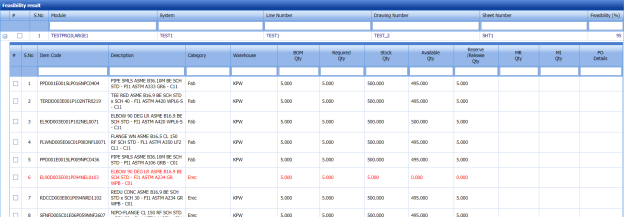](http://wiki.cuteinfocomm.com/uploads/images/gallery/2022-05/image-1651799022785.png)
10\. If you want to give purchase order details, enter in the **PODetails**
11\. Click **Save changes**.
#### **3.8.2 Clear Feasibility Search Data**
If you want to clear the data of feasibility search done by any of the user, you can use this clear feasibility search data functionality.
Users assign with Admin role only have access to view the **Clear Feasibility Search Data** tab in the **Planning** menu.
To clear the feasibility search data,
1\. Click **Clear Feasibility Search Data** in the **Planning**
The **Feasibility Search Clear** page opens.
[ ](http://wiki.cuteinfocomm.com/uploads/images/gallery/2022-05/image-1651799143050.png)
**Figure 3.8.2: Feasibility Search Clear page**
The page shows the feasibility search data of all the users.
2\. Click [ ](http://wiki.cuteinfocomm.com/uploads/images/gallery/2022-05/image-1651799196741.png)(Clear icon) of the respective user to clear the feasibility search data.
The feasibility search data of the selected user will be cleared.
### **6.9 Material Request**
The **Material Request** tab in the **Planning** menu helps to manage the material requests added in the **Feasibility** page.
#### **6.9.1 Add a Material Request**
If you want to create a material request, do the following steps,
1\. Navigate to the generated feasibility results in the ****Feasibility.****
[ 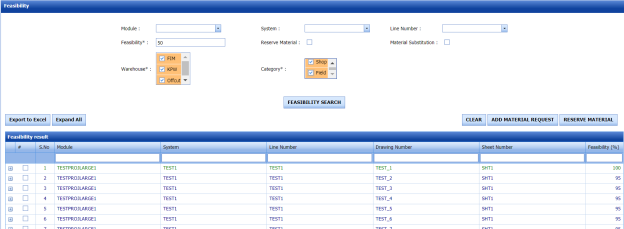](http://wiki.cuteinfocomm.com/uploads/images/gallery/2022-05/image-1651799405776.png)
2\. Select the checkbox of the project for which you want to add the material requests.
3\. Click [](http://wiki.cuteinfocomm.com/uploads/images/gallery/2022-05/image-1651799432663.png) (**ADD MATERIAL REQUEST** button).
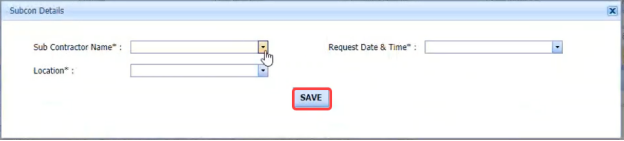
The **Subcon Details** window opens.
[ ](http://wiki.cuteinfocomm.com/uploads/images/gallery/2022-05/image-1651799456826.png)
4\. In the **Sub Contractor Name** box, select a sub-contractor.
5\. In the **Request Date & Time**box, choose the request date and time.
6\. In the **Location** box, select a location.
7\. Click **SAVE**.
The material request will be added in the **Material Request** page.
[ ](http://wiki.cuteinfocomm.com/uploads/images/gallery/2022-05/image-1651799510584.png)**Note**: For each item code included in the project, one material request will be created individually.
For example, The BOM quantity is 18 and you set the high priority for KPW and the least priority for Offcut. A material request will be created with the KPW inventory if the KPW has the same quantity of 18. If the KPW is available with quantity of 10, then two material requests will be created separately for quantity of 10 in KPW and quantity of 8 in Offcut.
8\. Click **Material Request** in the **Planning**
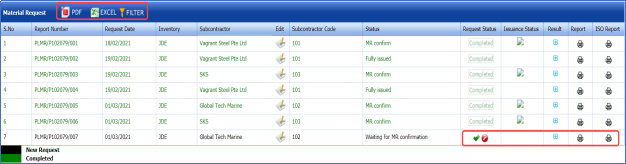
The **Material Request** page opens and shows the list of created material requests.
[](http://wiki.cuteinfocomm.com/uploads/images/gallery/2022-05/image-1651799543045.png)
**Figure 3.9.1: Material Request page**
[ ](http://wiki.cuteinfocomm.com/uploads/images/gallery/2022-05/image-1651799568459.png) **Note**: The material request displayed in different color explains the status of the request.
- The material request displayed in Black color indicates a new material request. The **Status** column shows **Waiting for MR confirmation**.
- If the **Status** column shows **Fully Issued,** which means that the item’s quantity is issued fully.
- If the **Status** column shows **Partially Issued,** which means that the item’s quantity is issued partially.
- The material request displayed in Green color indicates the completed material request.
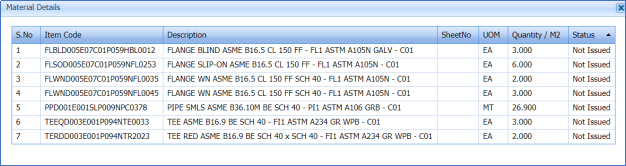
9\. If you want to view the material details, click (Expand icon) of the respective request.
The **Material Details** window opens and shows the material details including their issuance status.
[](http://wiki.cuteinfocomm.com/uploads/images/gallery/2022-05/image-1651799592726.png)
#### **3.9.2 Approve a Material Request**
Once you have added the material request, the **Request Status** column in the **Material Request** page is appeared with [](http://wiki.cuteinfocomm.com/uploads/images/gallery/2022-05/image-1651799665117.png) (Submit and Reject icons).
1\. If you want to approve the material request, click [](http://wiki.cuteinfocomm.com/uploads/images/gallery/2022-05/image-1651799689945.png) (Approve icon) in the **Request Status** Otherwise click [](http://wiki.cuteinfocomm.com/uploads/images/gallery/2022-05/image-1651799720470.png) (Reject icon) to reject the request.
The approved material request will be moved for Material issuance. The **Status** column shows **MR confirm**.
#### **3.9.3 Cancel a Material Issuance**
If you want to cancel the material issuance,
[ ](http://wiki.cuteinfocomm.com/uploads/images/gallery/2022-05/image-1651799770705.png)**Note**: If the material’s quantity is fully issued, the [](http://wiki.cuteinfocomm.com/uploads/images/gallery/2022-05/image-1651799802154.png) (Cancel icon) will not be displayed in the **Issuance Status** column for the respective report number. Partially
1. Click [](http://wiki.cuteinfocomm.com/uploads/images/gallery/2022-05/image-1651799848940.png) (Cancel icon) provided in the **Issuance Status**
Once you have cancelled the issuance, the **Status** column shows **Cancel**.
#### **3.9.4 View a Material Request Report**
If you want to view a material request report, click [](http://wiki.cuteinfocomm.com/uploads/images/gallery/2022-05/image-1651799909378.png) (Report icon) provided in the **Report** column of the **Material Request** page.
#### **3.9.5 Export Material Request List**
You can export a list of material requests added in the **Material Request** page in the pdf and excel formats by using [](http://wiki.cuteinfocomm.com/uploads/images/gallery/2022-05/image-1651799948979.png) (**PDF** button) and [](http://wiki.cuteinfocomm.com/uploads/images/gallery/2022-05/image-1651799971660.png) (**Excel** button). To know how to export, see the topic, “[**Export BOM List**](#bkmrk-3.1.4-export-bom-lis)”.
#### **3.9.6 Export Material Request List**
If you want to filter any material request from the list of material requests in the **Material** **Request** page, you can use [](http://wiki.cuteinfocomm.com/uploads/images/gallery/2022-05/image-1651800229961.png)(**FILTER** button). To know how to filter, see the topic, “[**Filter a BOM**](#bkmrk-3.1.5-filter-a-bom%C2%A0)”.
### **3.10 Material Issuance**
When a material request has been created, we need to issue materials from the inventory for the created request.
The **Material Issuance** tab in the **Planning** menu helps to issue the materials from the inventory based on the added material request.
1\. Click **Material Issuance** in the **Planning**
The **Material Issuance** page opens.
[](http://wiki.cuteinfocomm.com/uploads/images/gallery/2022-05/image-1651800287979.png)
**Figure 3.10: Material Issuance**
#### **3.10.1 Add a Material Issuance Report**
If you want to add a material issuance report,
1\. Click [](http://wiki.cuteinfocomm.com/uploads/images/gallery/2022-05/image-1651800358128.png) (**ADD** button) in the **Material Issuance** See Fig 3.10.
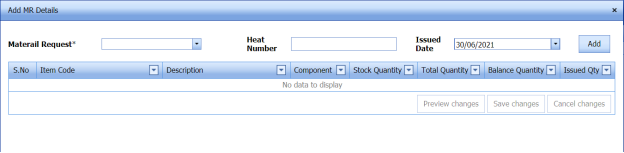
The **Add MR details** window opens.
[ ](http://wiki.cuteinfocomm.com/uploads/images/gallery/2022-05/image-1651800391416.png)
[  ](http://wiki.cuteinfocomm.com/uploads/images/gallery/2022-05/image-1651800414045.png)**Note**: The field notified with a symbol (\*) is mandatory. You must enter the relevant details in that fields before saving.
2\. In the **Material Request Number** box, select a material request number from a drop-down list.
3\. In the **Heat Number** box, enter the heat number.
4\. In the **Issued Date** box, choose the issued date.
5\. Click [](http://wiki.cuteinfocomm.com/uploads/images/gallery/2022-05/image-1651800455890.png) (**Add** button).
The material issuance request will be added.
[](http://wiki.cuteinfocomm.com/uploads/images/gallery/2022-05/image-1651800482428.png)
The **Add MR Details** window shows the total and balance quantity of the item.
6\. In the **Issued Qty** column, enter the issued quantity detail.
[ ](http://wiki.cuteinfocomm.com/uploads/images/gallery/2022-05/image-1651800510680.png)**Note**: The issued quantity can be higher than the total quantity.
The material issuance report is added.
[](http://wiki.cuteinfocomm.com/uploads/images/gallery/2022-05/image-1651800528143.png)
#### **3.10.2 Approve a Material Issuance**
Once you have added the material issuance, the **Issue Status** column in the **Material Issuance** page is appeared with [](http://wiki.cuteinfocomm.com/uploads/images/gallery/2022-05/image-1651800596512.png) (Submit and Reject icons).
1\. If you want to approve the material issuance,[](http://wiki.cuteinfocomm.com/uploads/images/gallery/2022-05/image-1651800629438.png) click (Approve icon) in the **Issue Status** Otherwise click [](http://wiki.cuteinfocomm.com/uploads/images/gallery/2022-05/image-1651800665230.png) (Reject icon) to reject the request.
After Material Issuance, Heat number can be used in Fit up.
#### **3.10.3 View a Material Issuance Report**
If you want to view a material issuance report, click [](http://wiki.cuteinfocomm.com/uploads/images/gallery/2022-05/image-1651800744472.png) (Report icon) provided in the **Report** column of the **Material Issuance** page.
#### **3.10.4 Export Material Issuance List**
You can export a list of material issuances added in the **Material Issuance** page in the pdf and excel formats by using [](http://wiki.cuteinfocomm.com/uploads/images/gallery/2022-05/image-1651800798308.png)
(**PDF** button) and [](http://wiki.cuteinfocomm.com/uploads/images/gallery/2022-05/image-1651800815153.png) (**Excel** button). To know how to export, see the topic, “[**Export BOM List**](#bkmrk-3.1.4-export-bom-lis)”.
#### **3.10.5 Filter a Material Issuance**
If you want to filter any material issuance from the list of material issuances in the **Material** **Issuance** page, you can use [](http://wiki.cuteinfocomm.com/uploads/images/gallery/2022-05/image-1651800875999.png)
(**FILTER** button). To know how to filter, see the topic, “[**Filter a BOM**](#bkmrk-3.1.5-filter-a-bom%C2%A0)”.
### **3.11 BOM Status by ISO**
The **BOM Status by ISO** tab in the **Planning** menu helps to view the BOM status added against the ISO number. To view the BOM status,
1\. Click **BOM Status by ISO** in the **Planning**
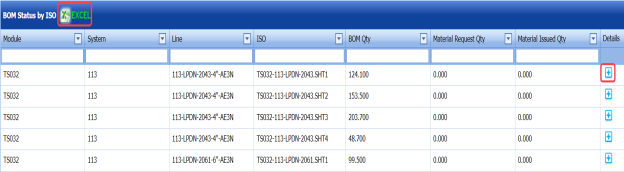
The **BOM Status by ISO page opens and shows a list of modules with their ISO numbers.
[ ](http://wiki.cuteinfocomm.com/uploads/images/gallery/2022-05/image-1651800939238.png)
**Figure 3.11: BOM Status by ISO page**
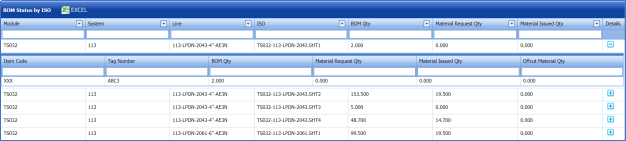
2\. Click [](http://wiki.cuteinfocomm.com/uploads/images/gallery/2022-05/image-1651801010989.png) (Expand icon) in the **Details**
The page shows the items included in the respective module including the BOM quantity, material request quantity, material issued quantity, and offcut material quantity.
[ ](http://wiki.cuteinfocomm.com/uploads/images/gallery/2022-05/image-1651801037926.png)
#### **3.11.1 Export BOM Status**
You can export the BOM generated in the **BOM Status by ISO** page in an excel format by using [](http://wiki.cuteinfocomm.com/uploads/images/gallery/2022-05/image-1651801099747.png) (**Excel** button). To know how to export, see the topic, “[**Export BOM List**](#bkmrk-3.1.4-export-bom-lis)”.
### **3.12 BOM Details**
The **BOM Details** tab in the **Planning** menu helps to view the added BOM details. To view the BOM details,
1\. Click **BOM Details** in the **Planning**
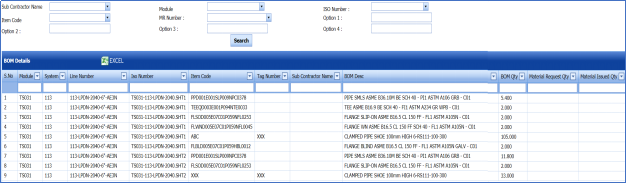
The **BOM Details** page opens.
[ ](http://wiki.cuteinfocomm.com/uploads/images/gallery/2022-05/image-1651801166668.png)
**Figure 3.12: BOM Details page**
2\. If you want to view any particular BOM details, you can use the filter options (Explained below) given in the page,
- If you want to view the BOM details of any sub-contractor, select a sub-contractor in the **Sub Contractor Name**
- If you want to view the BOM details of any module, select a module in the **Module**
- If you want to view the BOM details against an ISO number, select an ISO number in the **ISO Number**
- If you want to view the BOM details for any item code, select an item code in the **Item Code**
- If you want to view the BOM details against a MR number, select a MR number in the **MR Number**
- The **Option 1**, **Option 2**, **Option 3**, and **Option 4**boxes are provided to filter the BOM details by giving the BOM description.
3\. Click **Search**.
The BOM will be displayed based on the given data in the filter boxes.
#### **3.12.1 Export BOM Details**
You can export the BOM details generated in the **BOM Details** page in an excel format by using [](http://wiki.cuteinfocomm.com/uploads/images/gallery/2022-05/image-1651801239041.png) (**Excel** button). To know how to export, see the topic, “[**Export BOM List**](#bkmrk-3.1.4-export-bom-lis)”.