# Electrical and Instrumentation
Electrical and Instrumentation
# Electrical
### 1. Project Data
The **Project Data** menu in the ***cuteQM*** app helps you to add the master data. Once you click the **Project Data** menu, the following tabs open,[](http://wiki.cuteinfocomm.com/uploads/images/gallery/2024-01/image-1705845133069.png)
#### **1.0 Systems**
You can add the details of systems to be used in the Electrical project by using the Systems tab in the Project Data menu. If you
want to navigate to Systems,
1.Click **Systems** in the **Project Data** menu,
The **System** page opens.[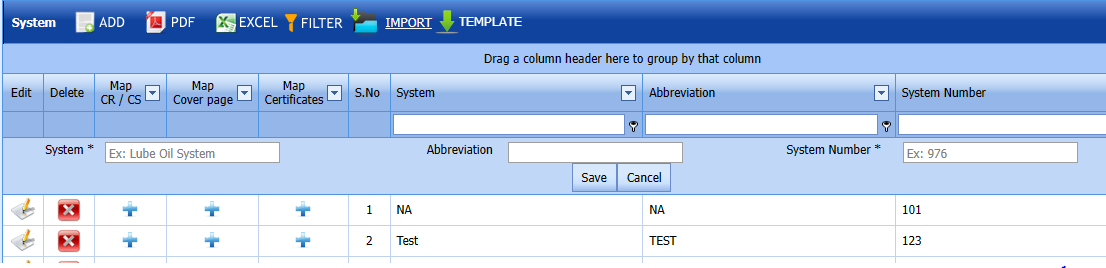](http://wiki.cuteinfocomm.com/uploads/images/gallery/2024-01/image-1705848048461.png) Fig 1.0 Systems Page
##### **1.1.1 Add a System**
If you want to add a new system, do the following steps,
1\. Click [](http://wiki.cuteinfocomm.com/uploads/images/gallery/2022-05/image-1651659058478.png) (ADD button) in the **System** page. See Fig 1.1.1
A new window opens to add a new system.[](http://wiki.cuteinfocomm.com/uploads/images/gallery/2024-01/image-1705848201964.png)
Fig 1.1.1 Add a System Page
1. [](http://wiki.cuteinfocomm.com/uploads/images/gallery/2022-05/image-1651659093576.png) Note: The fields notified with a symbol (\*) are mandatory. You must enter the relevant details in that fields before saving.
2. In the **System** box, enter the system name.
3. In the **Abbreviation** box, enter the abbreviation for the system name.
4. In the **System Number** box, enter the system number.
5. Click **Save**.
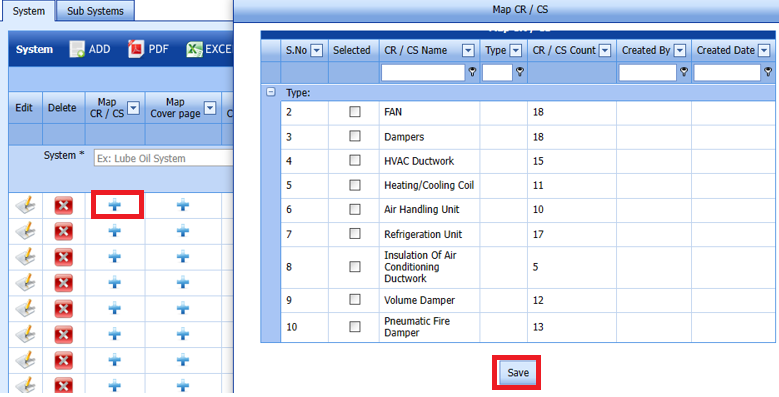
The **system** is successfully added and listed in the System page.
[](http://wiki.cuteinfocomm.com/uploads/images/gallery/2024-01/image-1705848480733.png)
6. [](http://wiki.cuteinfocomm.com/uploads/images/gallery/2022-05/image-1651659141800.png)Note: If you want to map cover page for any added system, click the respective [](http://wiki.cuteinfocomm.com/uploads/images/gallery/2022-05/image-1651659166560.png)(Add icon) provided in the Map Cover Page column and add the cover pages.
7. If you want to map certificates for any added system, click the respective (Add icon) provided in the Map Certificates column and add the cover pages.
8. If you want to map Check Record/Check Sheet (CR/CS) for any added system, click the respective (Add icon) provided in the Map CR/CS column and add the cover pages.
##### **1.1.2 Edit a System**
If you want to edit any existing system in the System page,[](http://wiki.cuteinfocomm.com/uploads/images/gallery/2024-01/image-1706597639457.png)
Fig 1.1.2 Edit a System Page
1. Click [](http://wiki.cuteinfocomm.com/uploads/images/gallery/2022-05/image-1651659256503.png)(Edit icon) of the respective System. Fig See 1.1.2 The System page shows the details of the selected system.
[](http://wiki.cuteinfocomm.com/uploads/images/gallery/2024-01/image-1706597575286.png)
2. Edit the details of system,Abbreviation and System number as required.
3. Click Save. System updated successfully.
##### **1.1.3 Delete a System**
If you want to delete any existing system in the System page, you can use [](http://wiki.cuteinfocomm.com/uploads/images/gallery/2022-05/image-1651659320550.png) (Delete icon) provided in the System page. By click confirm delete
[](http://wiki.cuteinfocomm.com/uploads/images/gallery/2024-01/image-1706597344901.png)
Fig 1.1.3 Delete a System Page
1. Click [](http://wiki.cuteinfocomm.com/uploads/images/gallery/2022-05/image-1651603839749.png) (Delete icon) for the corresponding area.
You receive a Alert message “Confirm Delete?”.
2. Click **OK**. System deleted successfully.
##### **1.1.4 Export in System List**
You can export a list of systems added in the System page in both the pdf and excel formats by using[](http://wiki.cuteinfocomm.com/uploads/images/gallery/2022-05/image-1651659355160.png) (PDF button) and [](http://wiki.cuteinfocomm.com/uploads/images/gallery/2022-05/image-1651659366247.png) (Excel button). Fig See 1.1.4 page [](http://wiki.cuteinfocomm.com/uploads/images/gallery/2024-01/image-1706629649819.png)
Fig 1.1.4 Export System List Page
##### **1.1.5 Filter a System**
If you want to filter any specific system in the System page, you can use [](http://wiki.cuteinfocomm.com/uploads/images/gallery/2022-05/image-1651659424215.png) (FILTER button) located on the System page.[](http://wiki.cuteinfocomm.com/uploads/images/gallery/2024-01/image-1706629846392.png)
Fig 1.1.5 Filter a System Page
##### **1.1.6 Import Multiple Systems**
If you want to import multiple systems together, do the following,
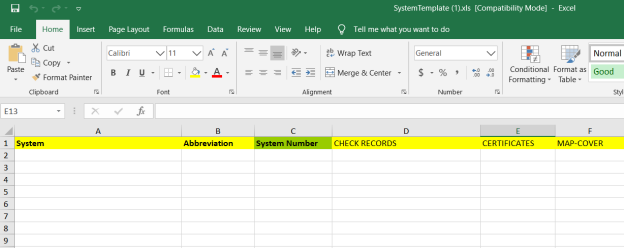
1. Click [](http://wiki.cuteinfocomm.com/uploads/images/gallery/2022-05/image-1651659462780.png) (TEMPLATE button). See Fig 1.1.6 An excel worksheet will be downloaded with a predefined template to enter the details of systems.
[](http://wiki.cuteinfocomm.com/uploads/images/gallery/2022-05/image-1651659480729.png)
2. Enter the required system details in the respective columns of the excel worksheet.
3. Once you have added the system details in the excel worksheet, save the excel worksheet on your computer.
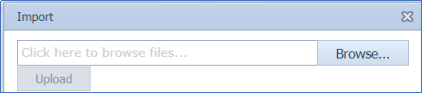
4. Click [](http://wiki.cuteinfocomm.com/uploads/images/gallery/2022-05/image-1651659510503.png) (IMPORT button). See Fig
A new window opens for importing the excel worksheet saved on your computer.
[](http://wiki.cuteinfocomm.com/uploads/images/gallery/2022-05/image-1651659540075.png)
5. Click [](http://wiki.cuteinfocomm.com/uploads/images/gallery/2022-05/image-1651659552512.png) (Browse button) to select the excel worksheet to be uploaded.
6. Select the excel worksheet you want to upload from your computer.
7. Click [](http://wiki.cuteinfocomm.com/uploads/images/gallery/2022-05/image-1651659573527.png) (Upload button) to export the systems that are included in the excel worksheet.
The details of the systems in the worksheet will be displayed in the System page.
##### **1.1.7 Attach a File into a System**
If you want to attach any file with any system listed in the System page, you can attach the file by using [](http://wiki.cuteinfocomm.com/uploads/images/gallery/2022-05/image-1651659636106.png) (Attach icon) in the Attachment column.[](http://wiki.cuteinfocomm.com/uploads/images/gallery/2024-01/image-1706629975839.png)
#### **1.2 Sub Systems**
The Sub Systems tab in the Project Data menu helps you to add the details of sub systems to be in used in the Electrical Project. If you want to navigate to Sub Systems,[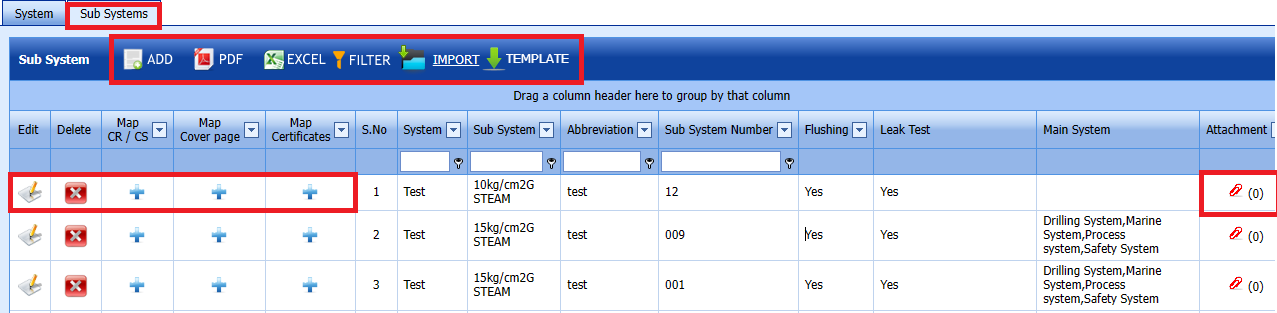](http://wiki.cuteinfocomm.com/uploads/images/gallery/2024-01/image-1705850290245.png)
Fig 1.2 Sub System Page.
##### **1.2.1 Add a Sub System**
If you want to add a **new sub system**, do the following steps,
Click [](http://wiki.cuteinfocomm.com/uploads/images/gallery/2022-05/image-1651659747623.png) (ADD button) in the Sub System page. See Fig 1.2.1
A new window opens to add a **new sub system**.[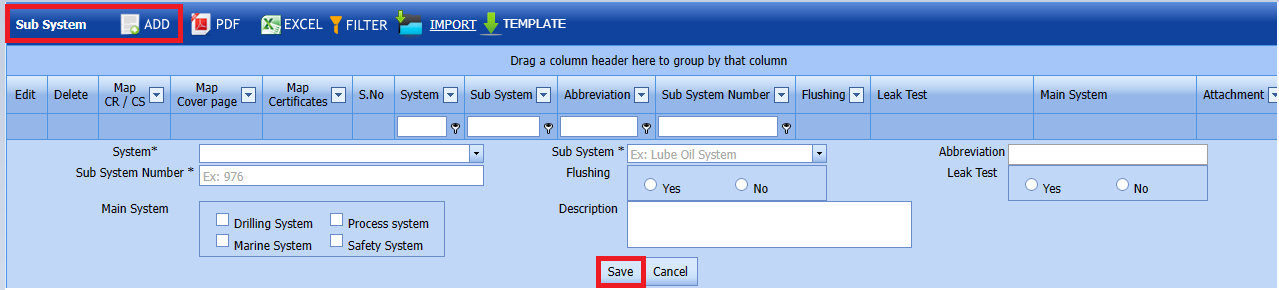](http://wiki.cuteinfocomm.com/uploads/images/gallery/2024-01/image-1705850498394.png)
Fig 1.2.1 Add a Sub System
[](http://wiki.cuteinfocomm.com/uploads/images/gallery/2022-05/image-1651659788121.png)Note: The fields notified with a symbol (\*) are mandatory. You must enter the relevant details in that fields before saving.
1. In the System box, select a system from a drop-down list.
2. In the Sub System box, select a sub system from a drop-down list.
3. In the Abbreviation box, enter the abbreviation for the sub system.
4. In the Sub System Number box, enter the sub system number.
5. If the added subsystem needs to be flushed, select Yes in the Flushing option otherwise select No.
6. If there is need to perform the leakage test for the added subsystem, select Yes in the Leak Test option otherwise select No.
7. In the Description box, enter the description for the added sub system.
8. Click Save.
The sub system is successfully added and listed in the Sub System page.
##### **1.2.2 Edit a Sub System**
If you want to edit any existing sub system in the Sub System page,[](http://wiki.cuteinfocomm.com/uploads/images/gallery/2024-01/image-1706611974111.png)
Fig 1.2.2 Edit a Sub System
1. Click [](http://wiki.cuteinfocomm.com/uploads/images/gallery/2022-05/image-1651659889101.png)(Edit icon) of the respective sub system. See Fig 1.2.2
[](http://wiki.cuteinfocomm.com/uploads/images/gallery/2024-01/image-1706597538423.png)
The Sub System page shows the details of the selected sub system.
2. Edit the details of system,subsystem,abbreviation and sub system number as required.
3. Click Save.
##### **1.2.3 Delete a Sub System**
If you want to delete any existing sub system in the Sub System page, you can use [](http://wiki.cuteinfocomm.com/uploads/images/gallery/2022-05/image-1651660397600.png) (Delete icon) provided in the Sub System page.
[](http://wiki.cuteinfocomm.com/uploads/images/gallery/2024-02/image-1707094228276.png)
1. Click [](http://wiki.cuteinfocomm.com/uploads/images/gallery/2022-05/image-1651603839749.png) (Delete icon) for the corresponding area.
You receive a notification message “Confirm Delete?”.
2. Click **OK**.
Sub System deleted successfully
##### **1.2.4 Import a Multiple Sub Systems**
If you want to import multiple sub systems together, do the following,
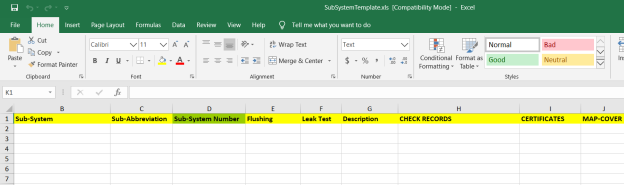
Click [](http://wiki.cuteinfocomm.com/uploads/images/gallery/2022-05/image-1651660524739.png) (TEMPLATE button). See Fig 1.2.4
An excel worksheet will be downloaded with a predefined template to enter the details of sub systems.
[](http://wiki.cuteinfocomm.com/uploads/images/gallery/2022-05/image-1651660604610.png)
1. Enter the required sub system details in the respective columns of the excel worksheet.
2. Once you have added the sub system details in the excel worksheet, save the excel worksheet on your computer.
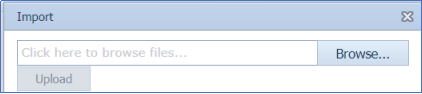
3. Click [](http://wiki.cuteinfocomm.com/uploads/images/gallery/2022-05/image-1651660633001.png) (IMPORT button). See Fig 1.2.4 A new window opens for importing the excel worksheet saved on your computer.
[](http://wiki.cuteinfocomm.com/uploads/images/gallery/2022-05/image-1651660653449.png)
4. Click [](http://wiki.cuteinfocomm.com/uploads/images/gallery/2022-05/image-1651660666611.png) (Browse button) to select the excel worksheet to be uploaded.
5. Select the excel worksheet you want to upload from your computer.
6. Click [](http://wiki.cuteinfocomm.com/uploads/images/gallery/2022-05/image-1651660691446.png) (Upload button) to export the sub systems that are included in the excel worksheet.
The details of the sub systems in the worksheet will be displayed in the Sub System page.
##### **1.2.5 Attach a File into a Sub System**
If you want to attach any file with any sub system listed in the Sub System page, you can attach the file by using [](http://wiki.cuteinfocomm.com/uploads/images/gallery/2022-05/image-1651660738631.png) (Attach icon) in the Attachment column. [](http://wiki.cuteinfocomm.com/uploads/images/gallery/2024-01/image-1706630367610.png)
#### **1.3 Cabel Master**
The Cabel Master tab in the Project Data menu helps you to add the details of cable master to be in used in the Electrical Project. If you want to navigate to Cabel Master, [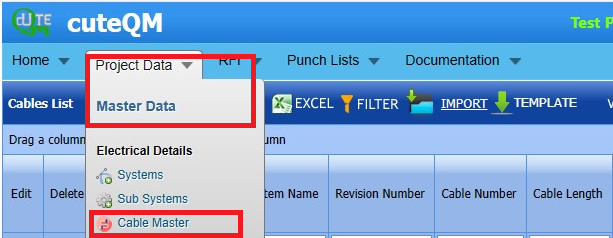](http://wiki.cuteinfocomm.com/uploads/images/gallery/2024-01/image-1705851376330.png)
Fig 1.3 Cable Master Page
##### **1.3.0 Cabel List**
The **Cabel List tab** in the Project Data menu helps you to add the details of **Cabel List** to be in used in the Electrical Project. If you want to navigate to C**abel list.**[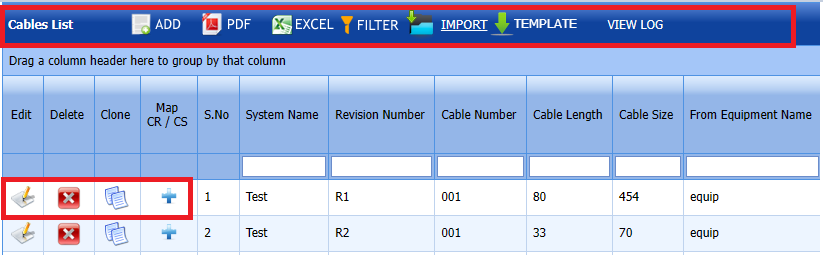](http://wiki.cuteinfocomm.com/uploads/images/gallery/2024-01/image-1705853630871.png)
Fig 1.3.0 Cable List Page
##### **1.3.1 Add a Cabel List**
If you want to add a new cable list, do the following steps,
Click [](http://wiki.cuteinfocomm.com/uploads/images/gallery/2022-05/image-1651659747623.png) (ADD button) in cable list page. See Fig 1.3.1
A new window opens to add a new cable list.[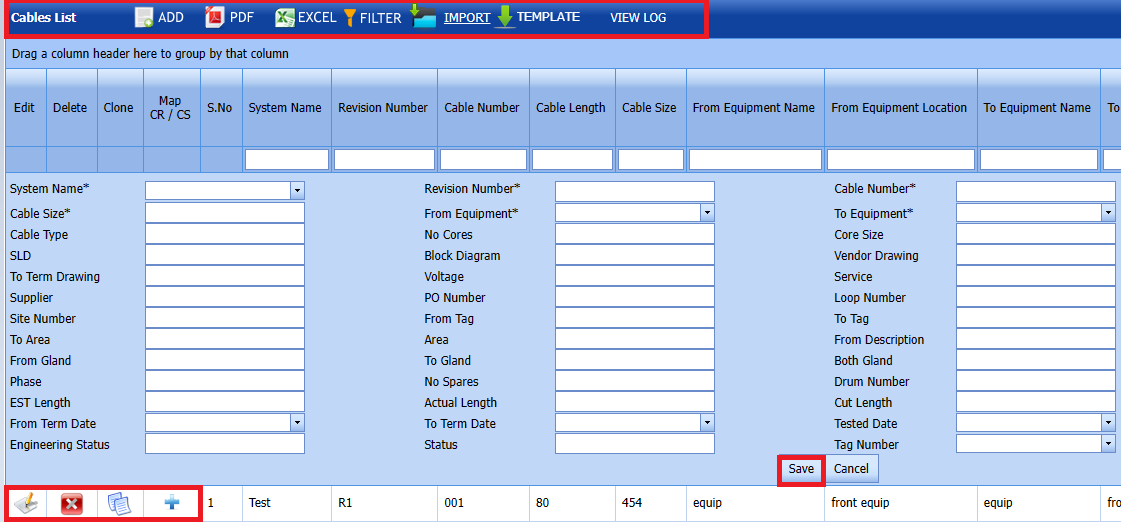](http://wiki.cuteinfocomm.com/uploads/images/gallery/2024-01/image-1705853516128.png)
Fig 1.31 Add Cable List Page
1. [](http://wiki.cuteinfocomm.com/uploads/images/gallery/2022-05/image-1651633190623.png)**Note**: The fields notified with a symbol (\*) are mandatory. You must enter the relevant details in that fields before saving.
2. In the **System Name** box, select a system name from a drop-down list.
3. In the **Revision** **No** box, select a system no from the drop-down list.
4. In the **Cable No** box, enter the cable number.
5. In the **Cable Length** box, select a system name from a drop-down list.
6. In the **Cabel Size** box, enter the cable size number.
7. in the **From Equipment** box, select a system name from a drop-down list.
8. In the **To Equipment** box, select a system name from a drop-down list.
9. Click **Save**.
The Cable List is successfully added.
##### **1.3.2 Edit a Cable List**
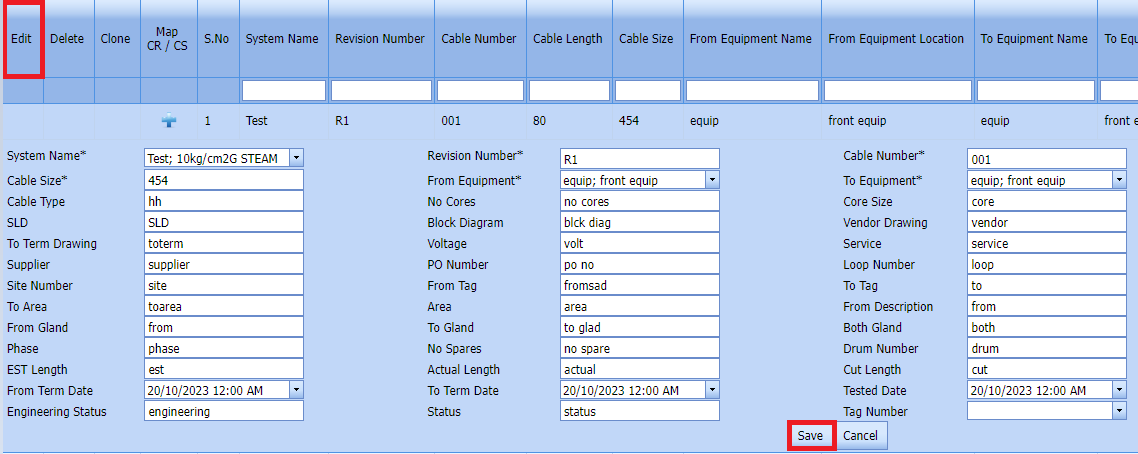
If you want to edit any existing Cable List in Edit Cable List page, do the following,[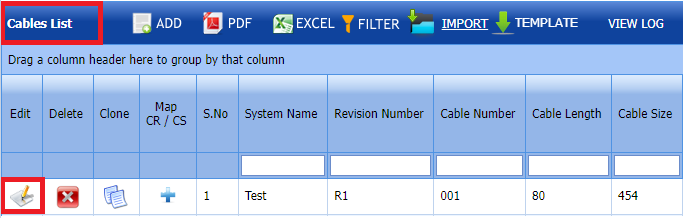](http://wiki.cuteinfocomm.com/uploads/images/gallery/2024-01/image-1706598083803.png)
Fig 1.3.2 Edit a Cable List
1. Click [](http://wiki.cuteinfocomm.com/uploads/images/gallery/2022-05/image-1651605573165.png)(Edit icon) in the **Edit** column for the respective cable list. See Fig 3.3. A new window opens to edit the cable list.
[](http://wiki.cuteinfocomm.com/uploads/images/gallery/2024-01/image-1706598196594.png)
2. Click any box where you want to edit the details, and then edit the details in the respective box.
3. Click **Save**. The Cable List is successfully updated.
##### **1.3.3 Delete a Cable List**
If you want to delete any specific **Cable List** from the list of **cable list**, you can use (Delete icon) provided in the [](http://wiki.cuteinfocomm.com/uploads/images/gallery/2022-05/image-1651605636955.png)**Delete** column of the **Cable List** page, [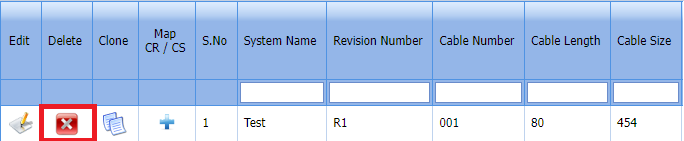](http://wiki.cuteinfocomm.com/uploads/images/gallery/2024-01/image-1706598359854.png)
1. Click [](http://wiki.cuteinfocomm.com/uploads/images/gallery/2022-05/image-1651605663402.png) (Delete icon) for the corresponding master drawing.
You receive a notification message “**Confirm delete?**”.
2. Click **OK**. The Cable List is successfully deleted.
##### **1.3.4 Clone a Cable list**
The Clone option provided in the Cable master page used to add a new clone from previously added clone. If a clone to be added
is having the same specifications of any clone already listed in the clone page, you can add the new clone by using [](http://wiki.cuteinfocomm.com/uploads/images/gallery/2022-04/image-1651131717921.png) (Clone icon).
1\. Click[](http://wiki.cuteinfocomm.com/uploads/images/gallery/2022-04/image-1651131989751.png)(Clone icon) of the respective Clone.[](http://wiki.cuteinfocomm.com/uploads/images/gallery/2024-01/image-1706598484453.png)
2\. If you want to change any details, you can change in the respective boxes.
3\. Click **Save**
The new clone is successfully added and listed in the Clone page.
##### **1.3.5 Add a Map CR/CS**
If you want to map CR/CS, do the following steps,
[](http://wiki.cuteinfocomm.com/uploads/images/gallery/2022-05/image-1651659141800.png)Note: If you want to map cover page for any added system, click the respective [](http://wiki.cuteinfocomm.com/uploads/images/gallery/2022-05/image-1651659166560.png)(Add icon) provided in the Map Cover Page column and add the cover pages.[](http://wiki.cuteinfocomm.com/uploads/images/gallery/2024-01/image-1706598709815.png)
Fig 1.3.5 Add a Map CR/ CS Page
1. If you want to map certificates for any added cable master, click the respective (Add icon) provided in the Map Certificates column and add the cover pages.
2. If you want to map Check Record/Check Sheet (CR/CS) for any added cable master, click the respective (Add icon) provided in the Map CR/CS column and add the cover pages.
##### **1.3.6 Export a Cable List**
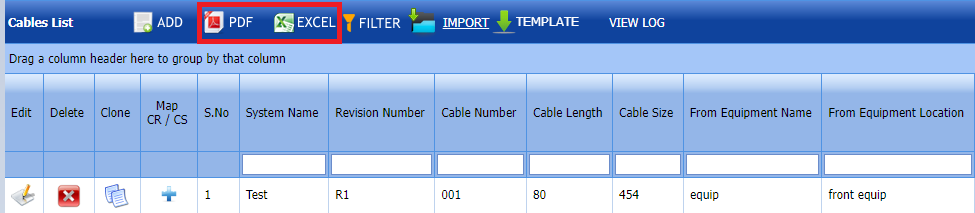
You can export a list of cable added in the cable page in both the pdf and excel formats by using[](http://wiki.cuteinfocomm.com/uploads/images/gallery/2022-05/image-1651659355160.png) (PDF button) and [](http://wiki.cuteinfocomm.com/uploads/images/gallery/2022-05/image-1651659366247.png) (Excel button).
[](http://wiki.cuteinfocomm.com/uploads/images/gallery/2024-01/image-1706713361267.png)
##### **1.3.7 Filter a Cable List**
If you want to filter any specific Cable list in the Cable master page, you can use [](http://wiki.cuteinfocomm.com/uploads/images/gallery/2022-05/image-1651659424215.png) (FILTER button) located on the Cable list page.[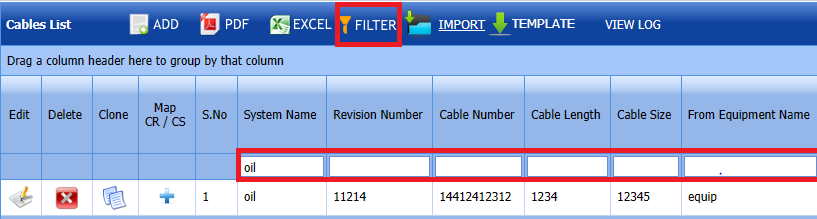](http://wiki.cuteinfocomm.com/uploads/images/gallery/2024-01/image-1705940291282.png)
##### **1.3.7 Import Multiple Cable list**
If you want to import multiple cable list together, do the following,
1. Click [](http://wiki.cuteinfocomm.com/uploads/images/gallery/2022-04/image-1651128469532.png) (**TEMPLATE** button).
An excel worksheet will be downloaded with a predefined template to enter the details of cable no.
[](http://wiki.cuteinfocomm.com/uploads/images/gallery/2024-01/image-1705940625349.png)
2. Enter the required cable no details in the respective columns of the excel worksheet.
3. Once you have added the cable list details in the excel worksheet, save the excel worksheet on your computer.
4. Click [](http://wiki.cuteinfocomm.com/uploads/images/gallery/2022-04/image-1651128544505.png) (**IMPORT** button).
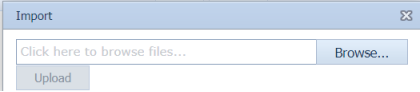
A new window opens for importing the excel worksheet saved on your computer.
[](http://wiki.cuteinfocomm.com/uploads/images/gallery/2022-04/image-1651128572672.png)
5. Click [](http://wiki.cuteinfocomm.com/uploads/images/gallery/2022-04/image-1651128597761.png) (**Browse** button) to select the excel worksheet to be uploaded.
6. Select the excel worksheet you want to upload from your computer.
7. Click [](http://wiki.cuteinfocomm.com/uploads/images/gallery/2022-04/image-1651128627885.png) (**Upload** button) to export the cable list that are added in the excel worksheet.
The details of the cable list in the worksheet will be displayed in the cable list page.
#### **1.4 Type**
The **Type** tab in the Project Data (Electrical) menu helps you add the **type** details.
If you want to navigate to **Type List,**
1\. Click Type **List** in the **Project Data (Electrical)** menu.
The Type **List** page opens.[](http://wiki.cuteinfocomm.com/uploads/images/gallery/2024-01/image-1705941360918.png) Fig 1.4 Type Page
##### **1.4.1 Add a Type**
If you want to add a new **type**, do the following steps,
1\. Click [](http://wiki.cuteinfocomm.com/uploads/images/gallery/2022-05/image-1651659058478.png) (ADD button) in the **type** of page. See Fig 1.4.1
A new window opens to add a new **Type** [](http://wiki.cuteinfocomm.com/uploads/images/gallery/2024-01/image-1705947569533.png)
Fig 1.4.1 Add A Type Page
1. **[](http://wiki.cuteinfocomm.com/uploads/images/gallery/2022-04/image-1651155136829.png)Note**: The fields notified with a symbol (\*) are mandatory. You must enter the relevant details in that fields before saving.
2. In the **Type** box, enter the type .
3. In the **Description** box, enter the description for the type.
4. Click ****Save.****The type is successfully added.
##### **1.4.2 Edit a Type**
If you want to edit any existing type in the type of page,[](http://wiki.cuteinfocomm.com/uploads/images/gallery/2024-01/image-1706615709735.png)
Fig 1.4.2 Edit Page
1. Click [](http://wiki.cuteinfocomm.com/uploads/images/gallery/2022-04/image-1651155657115.png)(Edit icon) of the respective valve.
The **Type List** page shows the details of the selected type.
[](http://wiki.cuteinfocomm.com/uploads/images/gallery/2024-01/image-1706599720125.png)
2. Edit the details of Type and description as required.
3. Click **Save**.
4. The type is successfully updated.
##### **1.4.3 Delete a Type**
If you want to delete any specific **Type** from the list of Type you can use (Delete icon) provided in the [](http://wiki.cuteinfocomm.com/uploads/images/gallery/2022-05/image-1651605636955.png)**Delete** column of the **Type** page,
[](http://wiki.cuteinfocomm.com/uploads/images/gallery/2024-01/image-1706599807618.png)
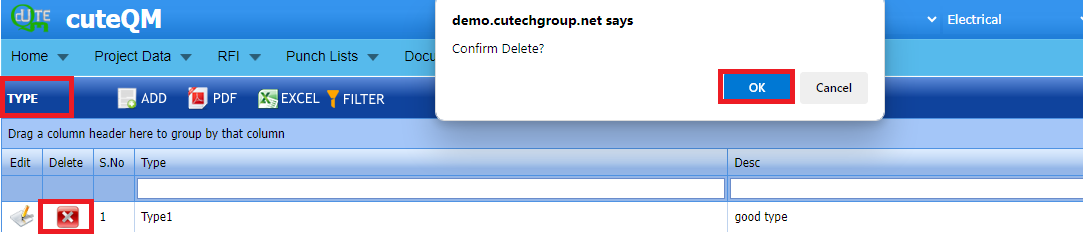
1. Click [](http://wiki.cuteinfocomm.com/uploads/images/gallery/2022-05/image-1651605663402.png) (Delete icon) for the corresponding type.
You receive a notification message “**Confirm delete?**”.
[](http://wiki.cuteinfocomm.com/uploads/images/gallery/2024-01/image-1706615816554.png)
2. Click **OK**.
3. The type is successfully deleted.
##### **1.4.4 Export a Type**
You can export a list of Type added in the Type List page in both the pdf and excel formats by using [](http://wiki.cuteinfocomm.com/uploads/images/gallery/2022-04/image-1651155777359.png) (PDF button) and [](http://wiki.cuteinfocomm.com/uploads/images/gallery/2022-04/image-1651155792745.png) (Excel button). [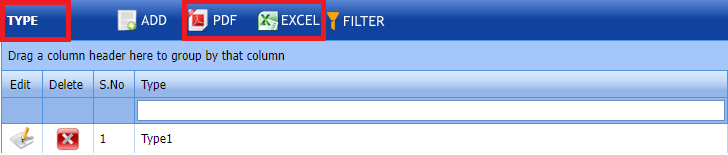](http://wiki.cuteinfocomm.com/uploads/images/gallery/2024-01/image-1706616096319.png)
##### **1.4.5Filter a Type**
If you want to filter any type in the Type List page, you can use [](http://wiki.cuteinfocomm.com/uploads/images/gallery/2022-04/image-1651155842391.png) (FILTER button) provided on the Type List page. [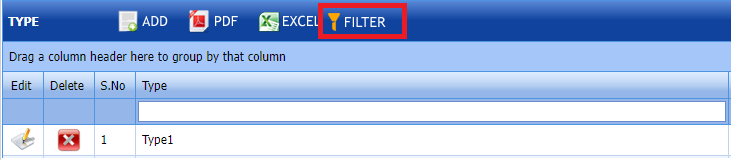](http://wiki.cuteinfocomm.com/uploads/images/gallery/2024-01/image-1706616173982.png)
#### **1.5 Equipements List**
The Equipements tab in the Project Data menu used to add the details of equipment to be used in the Electrical project. To add equipment,
1\. Click **Equipements List** in the Project Data menu.
The **Equipements** page opens[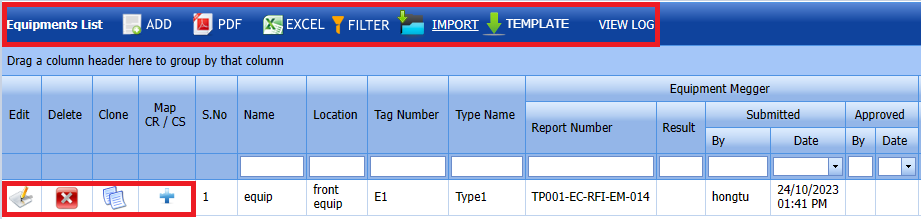](http://wiki.cuteinfocomm.com/uploads/images/gallery/2024-01/image-1705949438958.png)
Fig 1.5 Equipements List
##### **1.5.1 Add an Equipment**
If you want to add an equipment list, do the following steps,
1\. Click [](http://wiki.cuteinfocomm.com/uploads/images/gallery/2022-04/image-1651162410824.png) (**ADD** button) in the **Equipements List** See Fig 1.5.1
A new window opens to add an equipment List.[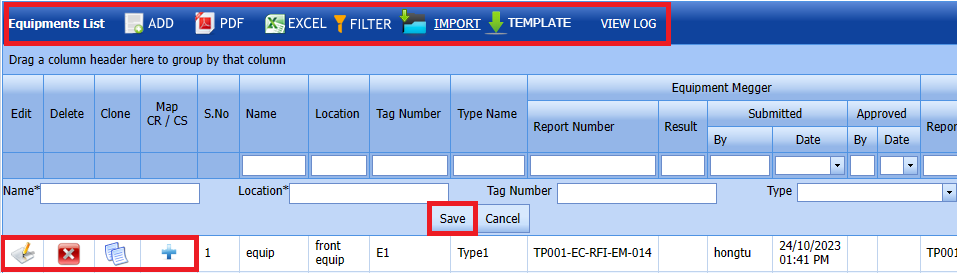](http://wiki.cuteinfocomm.com/uploads/images/gallery/2024-01/image-1705949677843.png)
Fig 1.5.1 Add an Equipment List
1. [](http://wiki.cuteinfocomm.com/uploads/images/gallery/2022-04/image-1651162503766.png)**Note**: The field notified with a symbol (\*) is mandatory. You must enter the relevant details in that fields before saving.
2. In the **Name** box, enter the name of the equipment list.
3. In the **Location** box, enter the location of the equipment list.
4. In the **Tag Number** box, enter the number of the equipment list.
5. In the **Type** box, select the type of the equipment list.
6. Click ****Save****. The equipment list is successfully saved.
##### **1.5.2 Edit an Equipment List**
If you want to edit any existing an equipment in the **Equipment List** page,[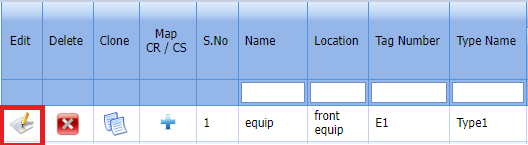](http://wiki.cuteinfocomm.com/uploads/images/gallery/2024-01/image-1706600230078.png)
Fig 1.5.2 Edit an Equipment List
1\. Click [](http://wiki.cuteinfocomm.com/uploads/images/gallery/2022-04/image-1651163343682.png) (Edit icon) of the respective test equipment. See Fig 1.5.2[](http://wiki.cuteinfocomm.com/uploads/images/gallery/2024-01/image-1706616323083.png)
2\. Edit the details of equipment name,location,tag number and type as required where you want.
3\. Click **Save**.
The equipment list is successfully updated.
##### **1.5.3 Delete an Equipment List**
If you want to delete any existing an equipment list in the Equipment list page, you can use [](http://wiki.cuteinfocomm.com/uploads/images/gallery/2022-04/image-1651163416136.png) (Delete icon) provided in the Equipment List page.[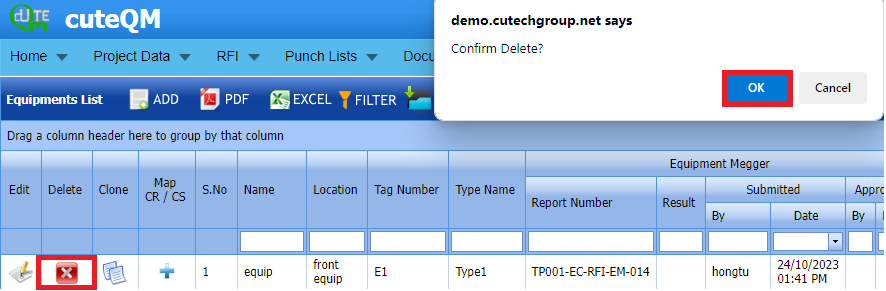](http://wiki.cuteinfocomm.com/uploads/images/gallery/2024-01/image-1706613183000.png)
1. Click [](http://wiki.cuteinfocomm.com/uploads/images/gallery/2022-05/image-1651603839749.png) (Delete icon) for the corresponding Equipment.
You receive a confirmation message “**Confirm** **delete?**”.
2. Click **OK .** Selected Equipment List deleted successfully.
##### **1.5.4 Clone an Equipment List**
1\. Click[](http://wiki.cuteinfocomm.com/uploads/images/gallery/2022-04/image-1651131989751.png)(Clone icon) of the respective Clone.
[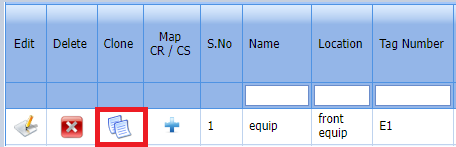](http://wiki.cuteinfocomm.com/uploads/images/gallery/2024-01/image-1706613398621.png)
Fig 1.5.4 Clone an Equipment List
2\. If you want to change any details, you can change in the respective boxes. [](http://wiki.cuteinfocomm.com/uploads/images/gallery/2024-01/image-1706613482445.png)3. Click **Save**
The new clone is successfully added and listed in the Clone Equipment list page.
##### **1.5.5 Add a Map CR/CS**
If you want to add a new Map, do the following steps,
[](http://wiki.cuteinfocomm.com/uploads/images/gallery/2024-01/image-1706602507928.png)
[](http://wiki.cuteinfocomm.com/uploads/images/gallery/2022-05/image-1651659141800.png)Note: If you want to map cover page for any added equipment click the respective [](http://wiki.cuteinfocomm.com/uploads/images/gallery/2022-05/image-1651659166560.png)(Add icon) provided in the Map Cover Page column and add the cover pages.
1. If you want to map certificates for any added equipment master, click the respective (Add icon) provided in the Map Certificates column and add the cover pages.
2. If you want to map Check Record/Check Sheet (CR/CS) for any added equipment master, click the respective (Add icon) provided in the Map CR/CS column and add the cover pages.
##### **1.5.6 Export an Equipment List**
You can export a list of test equipment list added in the **Equipment List** page in both the pdf and excel formats by using [](http://wiki.cuteinfocomm.com/uploads/images/gallery/2022-04/image-1651163465862.png) (**PDF** button) and [](http://wiki.cuteinfocomm.com/uploads/images/gallery/2022-04/image-1651163476334.png) (**Excel** button).[](http://wiki.cuteinfocomm.com/uploads/images/gallery/2024-01/image-1706616597122.png)
##### **1.5.7 Filter an Equipment List**
You can also use [](http://wiki.cuteinfocomm.com/uploads/images/gallery/2022-04/image-1651163568393.png) (FILTER button) located on the Equipment list.[](http://wiki.cuteinfocomm.com/uploads/images/gallery/2024-01/image-1706616871638.png)
##### **1.5.8 Import Multiple Equipment List**
If you want to import multiple equipment list together, do the following,
1. Click [](http://wiki.cuteinfocomm.com/uploads/images/gallery/2022-04/image-1651163686212.png) (**TEMPLATE** button). See Fig1.5.8
2. An excel worksheet will be downloaded with a predefined template to enter the details of equipment list.
1. Enter the required equipment details in the respective columns of the excel worksheet.
2. Once you have added the equipment details in the excel worksheet, save the excel worksheet on your computer.
3. Click [](http://wiki.cuteinfocomm.com/uploads/images/gallery/2022-04/image-1651163752394.png) (**IMPORT** button). See Fig 1.5.8
A new window opens for importing the excel worksheet saved on your computer.
[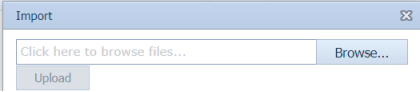](http://wiki.cuteinfocomm.com/uploads/images/gallery/2022-04/image-1651163782872.png)
4. Click [](http://wiki.cuteinfocomm.com/uploads/images/gallery/2022-04/image-1651163789045.png) (**Browse** button) to select the excel worksheet to be uploaded.
5. Select the excel worksheet you want to upload from your computer.
6. Click [](http://wiki.cuteinfocomm.com/uploads/images/gallery/2022-04/image-1651163813900.png) (**Upload** button) to export the equipment list details that are included in the excel worksheet.
The details of the equipment list in the worksheet will be displayed in the **Equipment List** page.
#### **1.6 Drawings**
Drawing can be added through ADD or import of Drawing Master command.
1\. Click Drawing Master in the Project Data menu.
The Drawing Master page opens[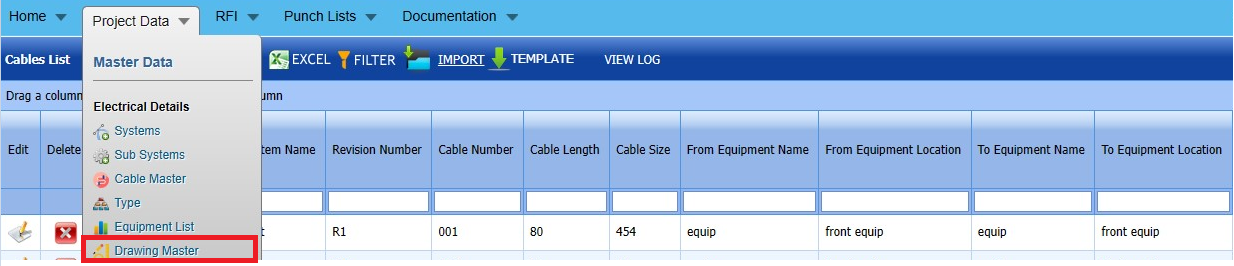](http://wiki.cuteinfocomm.com/uploads/images/gallery/2024-01/image-1706617148248.png)
Fig 1.6 Drawing Page
##### **1.6.1 Add a Drawing Master**
If you want to Add Drawing Master, do the following steps.
1. Click [](http://wiki.cuteinfocomm.com/uploads/images/gallery/2022-04/image-1651119261792.png) (**ADD** button) in the **Drawing type** page. See Fig 1.6.1 A new window opens to add a new Drawing Master. [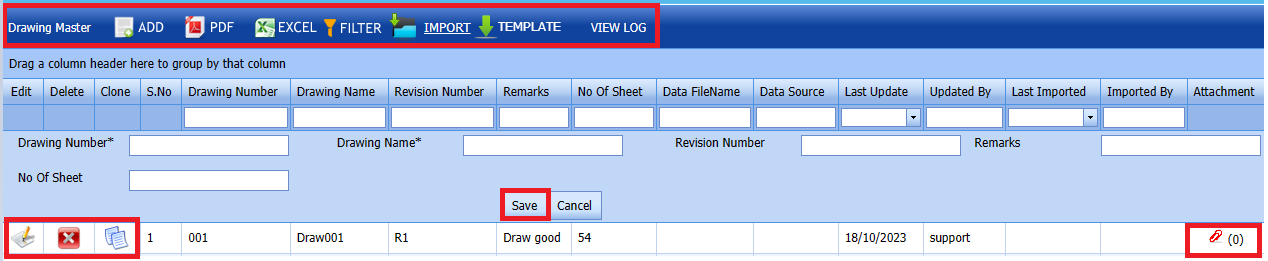](http://wiki.cuteinfocomm.com/uploads/images/gallery/2024-01/image-1706094108880.png)
[ ](http://wiki.cuteinfocomm.com/uploads/images/gallery/2024-01/image-1705028582770.png) **Figure 1.6.1 Drawing Master page.**
[](http://wiki.cuteinfocomm.com/uploads/images/gallery/2022-05/image-1651603678108.png)**Note**: The field notified with a symbol (\*) is mandatory. You must enter the relevant details in that fields before saving.
2. In the **Drawing Number** box, you must enter the drawing number.
3. In the **Drawing Name** box, enter the drawing name.
4. In the **Revision Number** box, enter the revision number.
5. Click **Save**. The **Drawing Master** is successfully added.
##### **1.6.2 Edit a Drawing Type
If you want to edit any existing Drawing master in the **Drawing master page**, do the following, steps
1. Click [](http://wiki.cuteinfocomm.com/uploads/images/gallery/2022-05/image-1651603749311.png)(Edit icon) in the **Edit** column for the respective drawing master. See Fig 1.6.2 A new window opens to edit the saved one. [](http://wiki.cuteinfocomm.com/uploads/images/gallery/2024-01/image-1706094543858.png)
Fig 1.6.2 Edit a Drawing Type
2. **Edit** the details of Drawing number,Drawing name,Revision number,No of sheet and remarks as required.
3. Click **Save**. Selected Drawing Master updated successfully.
##### **1.6.3 Delete a Drawing Master**
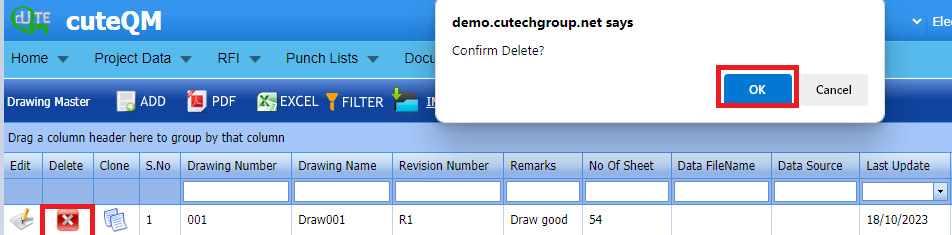
If you want to delete any specific drawing from the drawing master, you can use (Delete icon) provided in the Delete column of the Drawing master page.
1. Click [](http://wiki.cuteinfocomm.com/uploads/images/gallery/2022-05/image-1651603839749.png) (Delete icon) for the corresponding Drawing master.
[](http://wiki.cuteinfocomm.com/uploads/images/gallery/2024-01/image-1706617277694.png)
You receive a confirmation message “**Confirm** **delete?**”.
2. Click **OK .** Selected Drawing master deleted successfully.
##### **1.6.4 Clone**
1\. Click[](http://wiki.cuteinfocomm.com/uploads/images/gallery/2022-04/image-1651131989751.png)(Clone icon) of the respective Clone.[](http://wiki.cuteinfocomm.com/uploads/images/gallery/2024-01/image-1706602925869.png)
2\. If you want to change any details, you can change in the respective boxes.
3\. Click **Save**
The new clone is successfully added and listed in the Clone drawing master page.
##### **1.6.5 Attachments**
User can upload multiple documents through attachment screen. [](http://wiki.cuteinfocomm.com/uploads/images/gallery/2024-01/image-1706096676782.png)
2\. It will be redirected to new attachment screen. [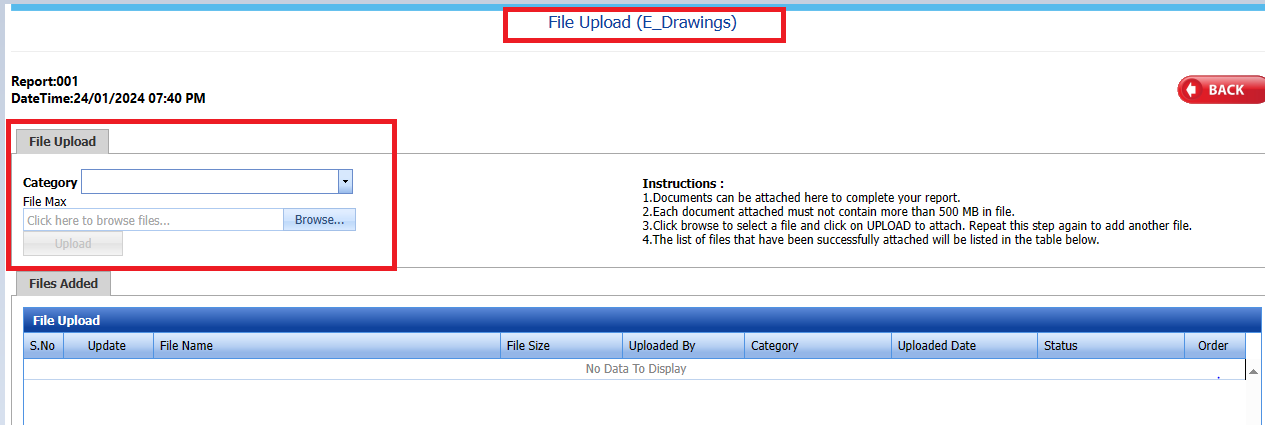](http://wiki.cuteinfocomm.com/uploads/images/gallery/2024-01/image-1706096508586.png)
3\. Here user can select category of the document and browse & upload the document.
4\. Document successfully downloaded
##### **1.6.6 Export a Drawing master list**
You can export a list of drawing master list added in the Drawing master **List** page in both the pdf and excel formats by using [](http://wiki.cuteinfocomm.com/uploads/images/gallery/2022-04/image-1651163465862.png) (**PDF** button) and [](http://wiki.cuteinfocomm.com/uploads/images/gallery/2022-04/image-1651163476334.png) (**Excel** button).[](http://wiki.cuteinfocomm.com/uploads/images/gallery/2024-01/image-1706617354744.png)
##### **1.6.7 Filter a Drawing Master**
[](http://wiki.cuteinfocomm.com/uploads/images/gallery/2024-01/image-1706617426864.png)1. Click [](http://wiki.cuteinfocomm.com/uploads/images/gallery/2022-05/image-1651604010559.png) (**FILTER** button) located on the Drawing Master page.
Once you clicked the **Filter** button, the filter box opens for the Drawing Number**, Drawing Name, Revision number** columns. If you want to filter any Drawing master from the list of Drawing master , do the following steps,
##### **1.6.8 Import Multiple Drawing Master**
If you want to import multiple Drawing master together, do the following steps,[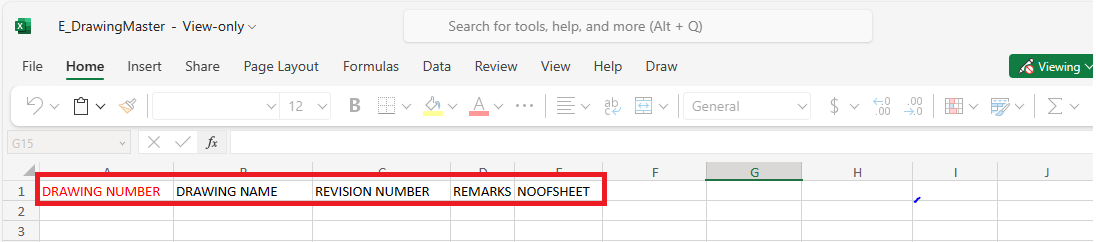](http://wiki.cuteinfocomm.com/uploads/images/gallery/2024-01/image-1706095868688.png)
1. Click [](http://wiki.cuteinfocomm.com/uploads/images/gallery/2022-04/image-1651120365377.png) (**TEMPLATE** button). See Fig 1.6.8
2. An excel worksheet will be downloaded with a predefined template to enter the details of Drawing master.
3. Enter the required Drawing master and category details in the respective columns of the excel worksheet.
4. Once you have added the details in the excel worksheet, save the excel worksheet on your computer.
5. Click [](http://wiki.cuteinfocomm.com/uploads/images/gallery/2022-05/image-1651604149198.png) (**IMPORT** button). See Fig 1.6.8
6. A new window opens for importing the excel worksheet saved on your computer.[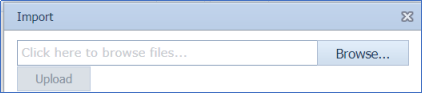](http://wiki.cuteinfocomm.com/uploads/images/gallery/2022-05/image-1651604180432.png)
7. Click [](http://wiki.cuteinfocomm.com/uploads/images/gallery/2022-04/image-1651120579811.png) (**Browse** button) to select the excel worksheet to be uploaded.
8. Click [](http://wiki.cuteinfocomm.com/uploads/images/gallery/2022-05/image-1651604210730.png) (**Upload** button) to export the drawing master that are included in the excel worksheet.
Imported successfully. The details of the Drawing master in the worksheet will be displayed in the Drawing master page.
#### **1.7 Tags**
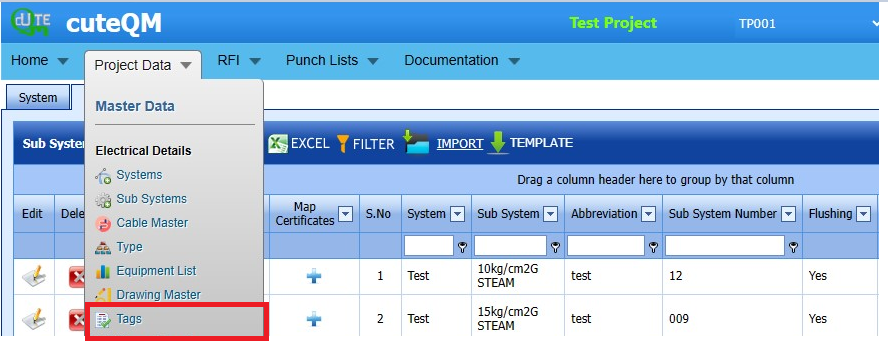
1\. Click **Tags** in the **Project Data** menu.
The **Tags** page opens.
[](http://wiki.cuteinfocomm.com/uploads/images/gallery/2024-01/image-1706618033509.png)
Fig 1.7 Tags Page
##### **1.7.1 Add a Tags**
If you want to add a material certificate, do the following,
Click [](http://wiki.cuteinfocomm.com/uploads/images/gallery/2022-04/image-1651160868230.png) (**ADD** button) in the **Tags** See Fig 1.7.1
A new window opens to add a Tags.[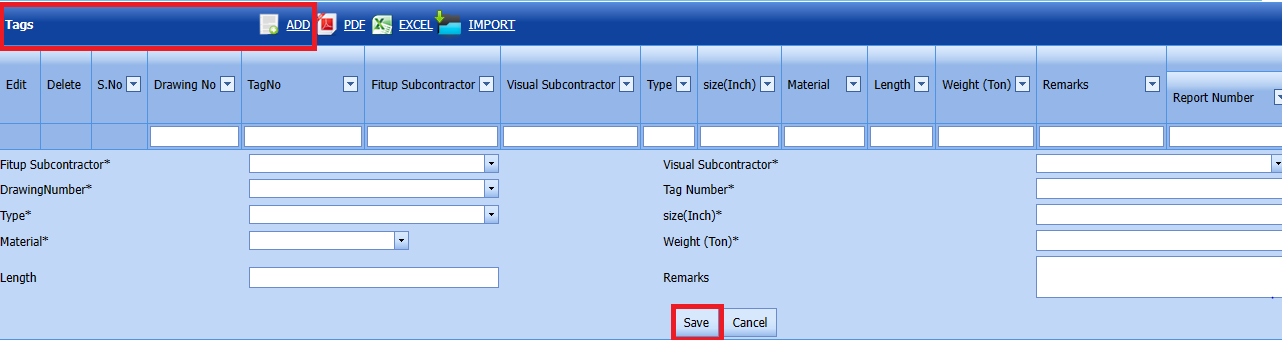](http://wiki.cuteinfocomm.com/uploads/images/gallery/2024-01/image-1706097369477.png)
Fig 1.7.1 Add Tags Page
1. [](http://wiki.cuteinfocomm.com/uploads/images/gallery/2022-04/image-1651160928288.png)**Note**: The field notified with a symbol (\*) is mandatory. You must enter the relevant details in that fields before saving.
2. In the **Fit up Subcontractor box**, select the component from a drop-down list.
3. In the **Visual Subcontractor** box, select the number from the drop-down list.
4. In the **Drawing Number** box, select the number from the drop- down list.
5. In the **Tag number** box, enter the Tag number.
6. In the **Type** box, select the type from the drop-down list.
7. In the **Size** box enter the size.
8. In the **Material** box, select the number from the drop-down list
9. In the **Weight** box, enter the weight number.
10. In the **Length** box, enter the Length number.
11. In the **Remarks**, enter the remarks iif any.
12. Click **Save**.
The Tags is successfully saved.
##### **1.7.2 Edit a Tags**
[](http://wiki.cuteinfocomm.com/uploads/images/gallery/2024-01/image-1706098139953.png)
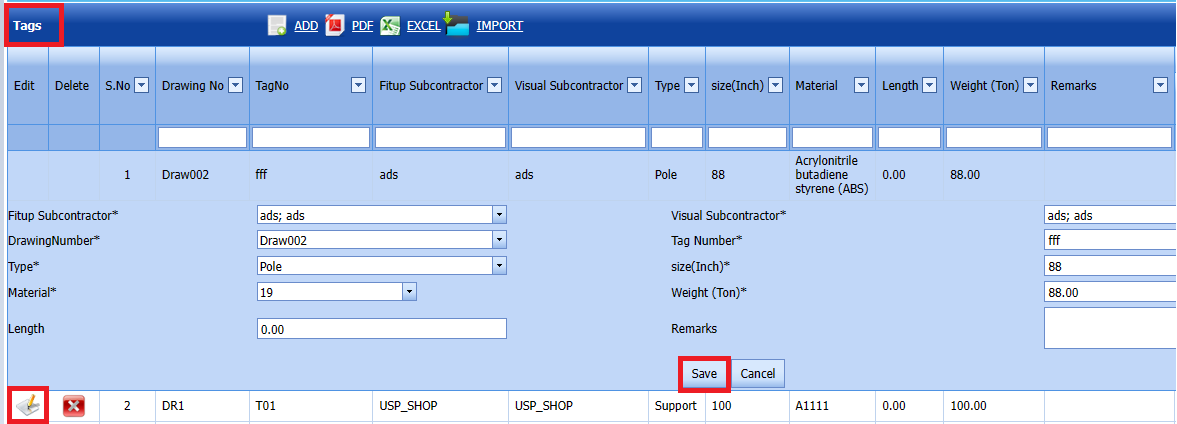
Fig 1.7.2 Edit a Tags
If you want to edit any existing Tags in the Tags page,
1. Click [](http://wiki.cuteinfocomm.com/uploads/images/gallery/2022-04/image-1651163343682.png) (Edit icon) of the respective test equipment. See Fig
The **Tags** page shows the details of the selected Tags.
2. **Edit** the details of Fitup subcontractor,visual subcontractor,Drawing number,Tag number,type,size,material,weight,length and remarks as required.
3. Click **Save**.
4. Tags is successfully updated.
##### **1.7.3 Delete a Tags**
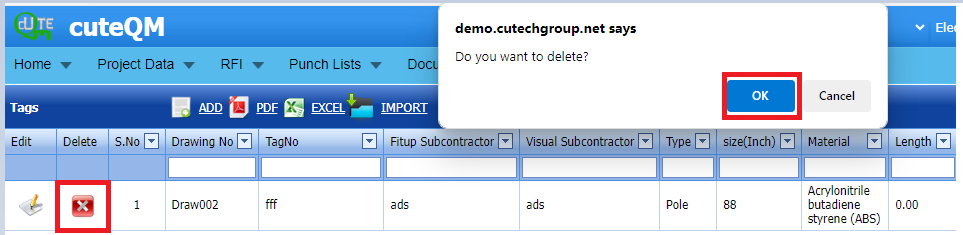
If you want to delete any existing tags in the Tags page, you can use [](http://wiki.cuteinfocomm.com/uploads/images/gallery/2022-04/image-1651163416136.png) (Delete icon) provided in the Tags page**.
**
[](http://wiki.cuteinfocomm.com/uploads/images/gallery/2024-01/image-1706617571578.png)
1. Click [](http://wiki.cuteinfocomm.com/uploads/images/gallery/2022-05/image-1651603839749.png) (Delete icon) for the corresponding Tags.
You receive a confirmation message “**Confirm** **delete?**”.
2. Click **OK .** Selected Tags is deleted successfully.
##### **1.7.4 Export a Tag**
You can export a list of Tags added in the Tags page in both the pdf and excel formats by using [](http://wiki.cuteinfocomm.com/uploads/images/gallery/2022-04/image-1651163465862.png) (PDF button) and [](http://wiki.cuteinfocomm.com/uploads/images/gallery/2022-04/image-1651163476334.png) (Excel button).
[](http://wiki.cuteinfocomm.com/uploads/images/gallery/2024-01/image-1706617773256.png)
##### **1.7.5 Import Multiple Tags**
If you want to import multiple Tags together, do the following,
Click [](http://wiki.cuteinfocomm.com/uploads/images/gallery/2022-05/image-1651787100130.png) (**IMPORT** button).
[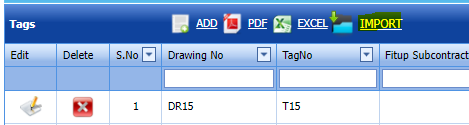](https://wiki.cuteinfocomm.com/uploads/images/gallery/2024-08/image-1724253107681.png)
The **Excel Import** page opens. [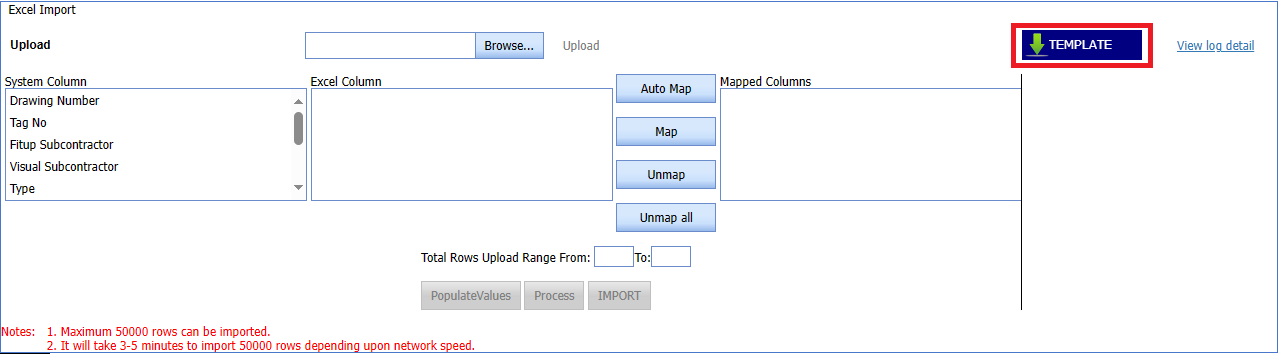](http://wiki.cuteinfocomm.com/uploads/images/gallery/2024-01/image-1706099104713.png)
1\. Click [](http://wiki.cuteinfocomm.com/uploads/images/gallery/2022-05/image-1651787173258.png) (**TEMPLATE** button).[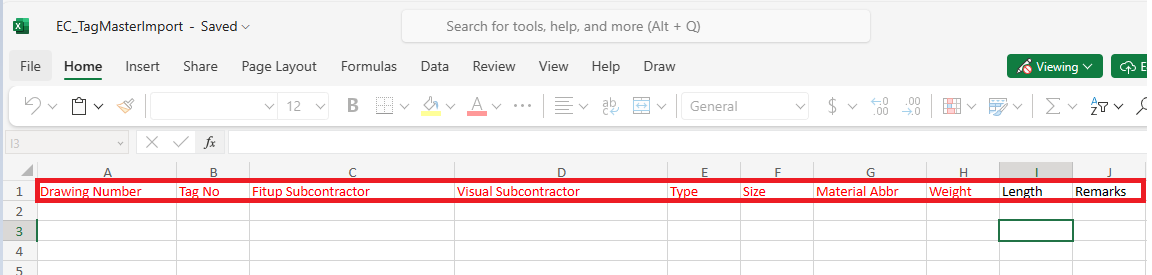](http://wiki.cuteinfocomm.com/uploads/images/gallery/2024-01/image-1706099646334.png)
1. An excel worksheet will be downloaded with a predefined template to enter the details of Tags.
2. Enter the required Tags details in the respective columns of the excel worksheet.
3. Once you have added the Tags details in the excel worksheet, save the excel worksheet on your computer.
4. Click [](http://wiki.cuteinfocomm.com/uploads/images/gallery/2022-05/image-1651787198325.png) (**Browse** button) to select the excel worksheet to be uploaded.
5. Select the excel worksheet you want to upload from your computer.
6. Click [](http://wiki.cuteinfocomm.com/uploads/images/gallery/2022-05/image-1651787225797.png) (**Upload** button) to export the Tags details that are included in the excel worksheet.
7.
8. Automap -This function is used to map system columns and excel columns automatically.
9. Map - This function is used to map each system and excel columns manually
10. Unmap - This is used to remove the mapped column
11. Unmap all -This is used to remove the all mapped columns
12. Click populate values ,process and Import buttons. [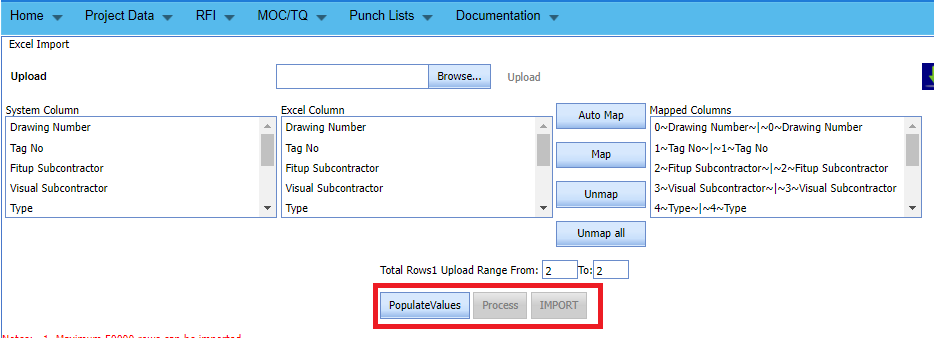](https://wiki.cuteinfocomm.com/uploads/images/gallery/2024-08/image-1724253232493.png)
13. Tags imported successfully.
#### **1.8 Compartment**
1\. Click **Compartment** in the Project Data menu.
The **Compartment** page opens. [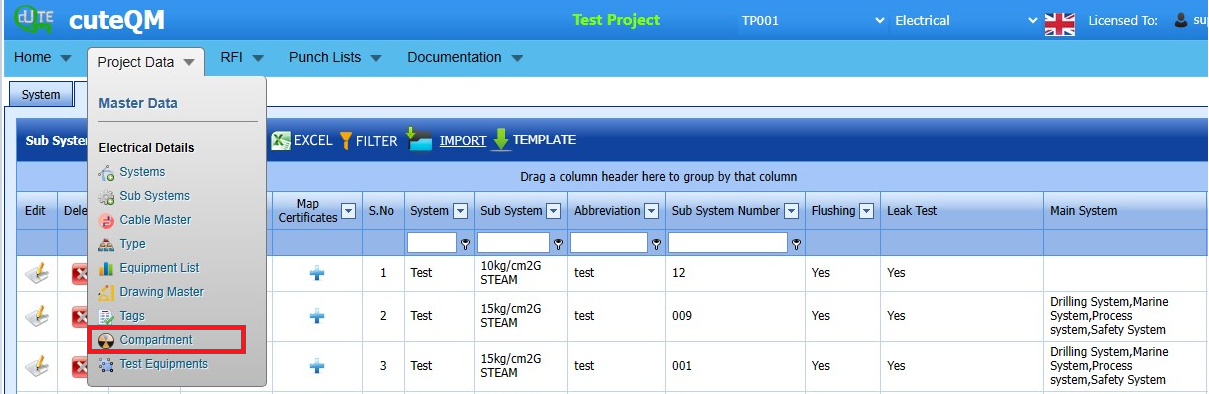](http://wiki.cuteinfocomm.com/uploads/images/gallery/2024-01/image-1706618165226.png)
Fig 1.8 Compartment Page
##### **1.8.1 Add a Compartment**
If you want to add a material certificate, do the following,
1. Click [](http://wiki.cuteinfocomm.com/uploads/images/gallery/2022-04/image-1651160868230.png) (**ADD** button) in the Compartment See Fig 1.8.1
A new window opens to add a compartment.
[](http://wiki.cuteinfocomm.com/uploads/images/gallery/2024-01/image-1706100864067.png)
Fig 1.8.1 Add a Compartment Page
1. [](http://wiki.cuteinfocomm.com/uploads/images/gallery/2022-04/image-1651160928288.png)**Note**: The field notified with a symbol (\*) is mandatory. You must enter the relevant details in that fields before saving.
2. In the **Compartment Item** box, enter the compartment item.
3. In the **Subcontractor** box, select the subcontractor from the drop-down list.
4. Click **Save**.
The Compartment is successfully added.
[](http://wiki.cuteinfocomm.com/uploads/images/gallery/2022-04/image-1651161542724.png)**Note**: You can edit and delete the added Compartment by using the respective [](http://wiki.cuteinfocomm.com/uploads/images/gallery/2022-04/image-1651161565571.png)(Edit icon) and [](http://wiki.cuteinfocomm.com/uploads/images/gallery/2022-04/image-1651161576340.png) (Delete icon).
##### **1.8.2 Export a Compartment**
You can export a list of drawing master list added in the compartment page in both the pdf and excel formats by using [](http://wiki.cuteinfocomm.com/uploads/images/gallery/2022-04/image-1651163465862.png) (**PDF** button) and [](http://wiki.cuteinfocomm.com/uploads/images/gallery/2022-04/image-1651163476334.png) (**Excel** button). See Fig 1.8.2[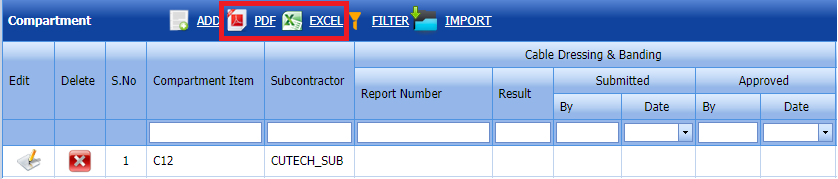](http://wiki.cuteinfocomm.com/uploads/images/gallery/2024-01/image-1706618310336.png)
##### **1.8.3 Filter a Compartment**[](http://wiki.cuteinfocomm.com/uploads/images/gallery/2024-01/image-1706101494242.png)
1. Click [](http://wiki.cuteinfocomm.com/uploads/images/gallery/2022-05/image-1651604010559.png) (**FILTER** button) located on the compartment page.
Once you clicked the **Filter** button, the filter box opens for the **Compartment Item****, Subcontractor columns. If you want to filter any compartment from the list of Compartment, do the following steps,
2\. Click **Save**.
##### **1.8.4 Import Multiple Compartments**
If you want to import multiple Compartments together, do the following,
Click [](http://wiki.cuteinfocomm.com/uploads/images/gallery/2022-05/image-1651787100130.png) (**IMPORT** button). See Fig 1.8.4[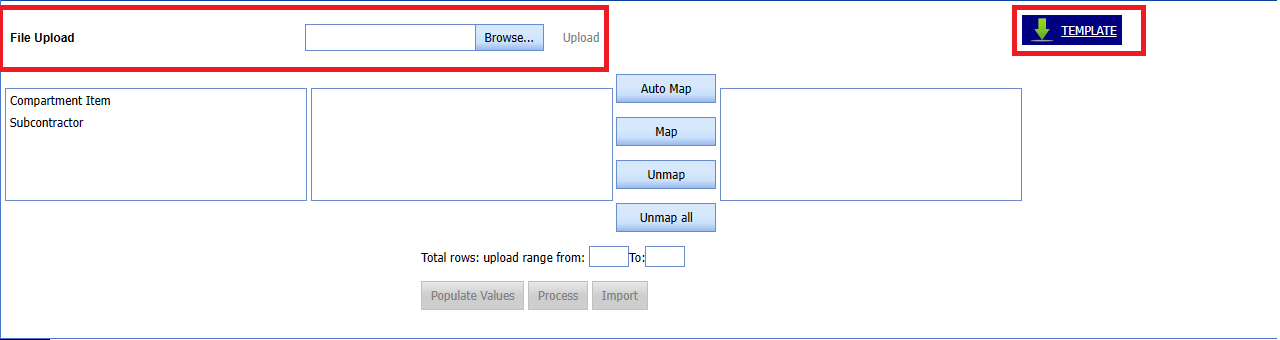](http://wiki.cuteinfocomm.com/uploads/images/gallery/2024-01/image-1706101795489.png)
The **Excel Import** page opens. 
1\. Click [](http://wiki.cuteinfocomm.com/uploads/images/gallery/2022-05/image-1651787173258.png) (**TEMPLATE** button).[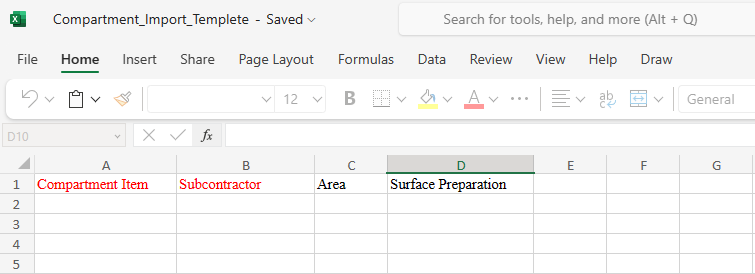](http://wiki.cuteinfocomm.com/uploads/images/gallery/2024-01/image-1706101830274.png)
1. An excel worksheet will be downloaded with a predefined template to enter the details of Compartment Item.
2. Enter the required compartment item details in the respective columns of the excel worksheet.
3. Once you have added the compartment item details in the excel worksheet, save the excel worksheet on your computer.
4. Click [](http://wiki.cuteinfocomm.com/uploads/images/gallery/2022-05/image-1651787198325.png) (**Browse** button) to select the excel worksheet to be uploaded.
5. Select the excel worksheet you want to upload from your computer.
6. Click [](http://wiki.cuteinfocomm.com/uploads/images/gallery/2022-05/image-1651787225797.png) (**Upload** button) to export the Tags details that are included in the excel worksheet.
7. Automap -This function is used to map system columns and excel columns automatically.
8. Map - This function is used to map each system and excel columns manually
9. Unmap - This is used to remove the mapped column
10. Unmap all -This is used to remove the all mapped columns
11. Click populate values ,process and Import buttons. [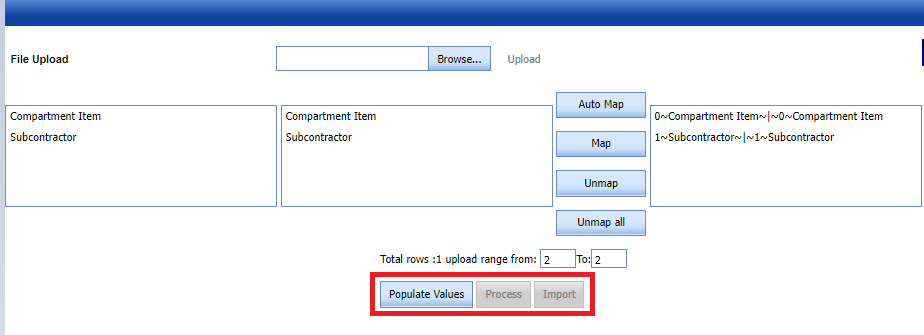](https://wiki.cuteinfocomm.com/uploads/images/gallery/2024-08/image-1724253484235.png)
12. Compartment imported successfully.
#### **1.9 Test Equipment**
The Test Equipment's tab in the Materials menu used to add the details of a test equipment to be used in the Electrical project. To add a test equipment,
1\. Click **Test Equipment's** in the **Materials menu**.
The **Testing Equipment's** page opens.[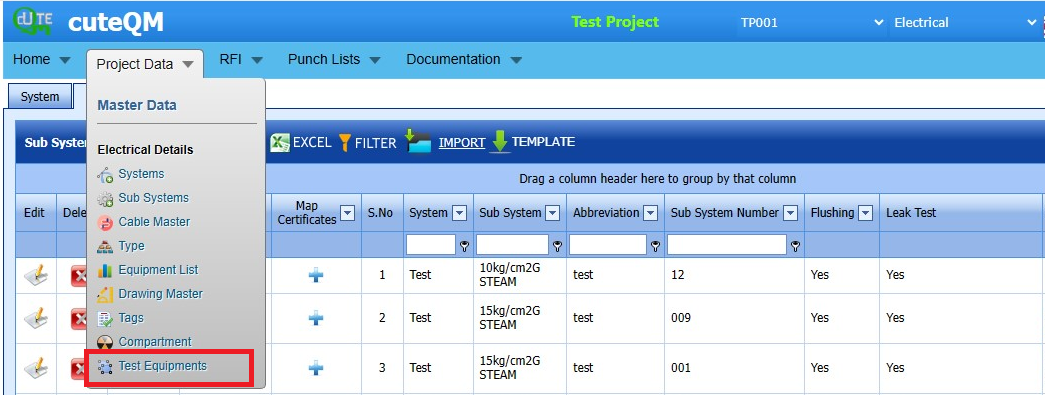](http://wiki.cuteinfocomm.com/uploads/images/gallery/2024-01/image-1706618461785.png)
Fig 1.9 Test Equipment Page
##### **1.9.1 Add a Test Equipment**
If you want to add a test equipment, do the following steps,
Click [](http://wiki.cuteinfocomm.com/uploads/images/gallery/2022-04/image-1651162410824.png) (**ADD** button) in the **Testing Equipment's** See Fig 1.9.1
A new window opens to add a test equipment.[](http://wiki.cuteinfocomm.com/uploads/images/gallery/2024-01/image-1706102303677.png)
Fig 1.9.1 Add a Test Equipment Page
1. [](http://wiki.cuteinfocomm.com/uploads/images/gallery/2022-04/image-1651162503766.png)**Note**: The field notified with a symbol (\*) is mandatory. You must enter the relevant details in that fields before saving.
2. In the **Category** box, enter the category of the test equipment.
3. In the **Test Equipment** box, enter the name of the test equipment.
4. In the **Manufacturer** box, enter the name of the manufacturer.
5. In the **Asset Tag Number** box, enter the asset tag number of the test equipment.
6. In the **Recommended Range** box, enter the recommended range of test equipment.
7. In the **Range** box, enter the actual range of test equipment.
8. In the **Least Count** box, enter the least count of the test equipment.
9. In the **Purpose** box, enter the purpose of the test equipment.
10. In the **Alert Frequency (in Days)** box, the alert frequency duration will be updated automatically. If you want to change the duration you can change.
11. In the **Acceptance Criteria** box, enter the acceptance criteria.
12. In the **Remarks** box, enter your remarks if any.
13. In the **Status** box, select the status of the test equipment.
14. In the **Location of Equipment** box, enter the equipment location detail.
15. In the **Description** box, enter the description for the test equipment.
16. In the **Equipment Batch no** box, enter the equipment batch no location detail.
17. In the **Model No** box, enter the model no.
18. Click **Save**. The test equipment is successfully saved.
##### **1.9.2 Edit a Test Equipment**
If you want to edit any existing test equipment in the **Testing Equipment** page,
1. Click [](http://wiki.cuteinfocomm.com/uploads/images/gallery/2022-04/image-1651163343682.png) (Edit icon) of the respective test equipment.
The **Testing Equipment** page shows the details of the selected test equipment.
[](http://wiki.cuteinfocomm.com/uploads/images/gallery/2024-01/image-1706604193830.png)
Fig 1.9.2 Edit a Test Equipment Page
2. Edit the details where you want.
3. Click **Save**.
##### **1.9.3 Delete a Test Equipment**
If you want to delete any existing test equipment in the **Testing Equipment** page, you can use [](http://wiki.cuteinfocomm.com/uploads/images/gallery/2022-04/image-1651163416136.png) (Delete icon) provided in the **Testing Equipment** page. See Fig 1.9.3[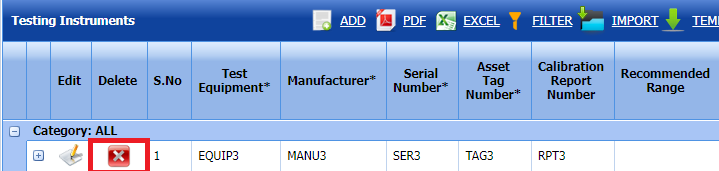](http://wiki.cuteinfocomm.com/uploads/images/gallery/2024-01/image-1706618719588.png)
1. Click [](http://wiki.cuteinfocomm.com/uploads/images/gallery/2022-05/image-1651603839749.png) (Delete icon) for the corresponding Test Equipment
Selected deleted Test Equipment successfully.
##### **1.9.4 Export Test Equipment list**
You can export a list of test equipment's added in the **Test Equipment** page in both the pdf and excel formats by using [](http://wiki.cuteinfocomm.com/uploads/images/gallery/2022-04/image-1651163465862.png) (**PDF** button) and [](http://wiki.cuteinfocomm.com/uploads/images/gallery/2022-04/image-1651163476334.png) (**Excel** button). See Fig 1.9.4[](http://wiki.cuteinfocomm.com/uploads/images/gallery/2024-01/image-1706618988603.png)
##### **1.9.5 Filter a Test Equipment**
If you want to filter any specific test equipment in the **Testing Equipment** page, See Fig 1.9.5
1. you can use the category wise filter box [](http://wiki.cuteinfocomm.com/uploads/images/gallery/2022-04/image-1651163518308.png) provided in the upper side of the **Testing Equipment** To filter the testing equipment, select the category from the drop-down list.
2. you can also use [](http://wiki.cuteinfocomm.com/uploads/images/gallery/2022-04/image-1651163568393.png) (**FILTER** button) located on the **Testing Equipment.**
[](http://wiki.cuteinfocomm.com/uploads/images/gallery/2024-01/image-1706619022931.png)
##### **1.9.6 Import Multiple Test Equipements**
If you want to import multiple test equipment together, do the following,
1. Click [](http://wiki.cuteinfocomm.com/uploads/images/gallery/2022-04/image-1651163686212.png) (**TEMPLATE** button). See Fig 1.9.6
An excel worksheet will be downloaded with a predefined template to enter the details of test equipments.
[](http://wiki.cuteinfocomm.com/uploads/images/gallery/2024-01/image-1706102898255.png)
2. Enter the required test equipment details in the respective columns of the excel worksheet.
3. Once you have added the test equipment details in the excel worksheet, save the excel worksheet on your computer.
4. Click [](http://wiki.cuteinfocomm.com/uploads/images/gallery/2022-04/image-1651163752394.png) (**IMPORT** button). See Fig 1.9.6
A new window opens for importing the excel worksheet saved on your computer.
[](http://wiki.cuteinfocomm.com/uploads/images/gallery/2022-04/image-1651163782872.png)
5. Click [](http://wiki.cuteinfocomm.com/uploads/images/gallery/2022-04/image-1651163789045.png) (**Browse** button) to select the excel worksheet to be uploaded.
6. Select the excel worksheet you want to upload from your computer.
7. Click [](http://wiki.cuteinfocomm.com/uploads/images/gallery/2022-04/image-1651163813900.png) (**Upload** button) to export the test equipment details that are included in the excel worksheet.
The details of the test equipment's in the worksheet will be displayed in the **Testing Equipment** page.
##### **1.9.7 Attach a File into a Test Equipment**
If you want to attach any file with any existing test equipment listed in the Testing Equipment page, you can attach the file by using [](http://wiki.cuteinfocomm.com/uploads/images/gallery/2022-04/image-1651163889766.png)(Attach icon) in the Attachment column.
### **2.0 RFI**
The **RFI** menu in the home page of the ***cuteQM*** app used add a Request for RFI Glanding & Termination List, RFI fit up visual, Cable dressing and banding request, Torque request, Compound Filling and MCT Packing, RFI Equipment Megger Test.
#### **2.1 RFI Glanding and termination List**
The **RFI Glanding and termination List** up Request tab allows you add an **RFI Glanding and termination** request to check the fit-up quality of pipes and joints used in the piping project by a sub-contractor. To navigate to the **RFI Glanding and Termination** **List** up request adding page.
1\. Click **RFI Glanding and Termination List** in the **RFI** menu.
The **RFI Glanding and Termination** page opens. [](http://wiki.cuteinfocomm.com/uploads/images/gallery/2024-01/image-1706619206905.png)
Fig 2.0 RFI Glanding and Termination List
##### **2.1.1 Add a RFI Glanding and Termination request.**
If you want to add an RFI Glanding and Termination request, do the following steps,[](http://wiki.cuteinfocomm.com/uploads/images/gallery/2024-01/image-1706631803099.png)
Fig 2.1.1 Add a RFI Glanding & Termination List
1. cuteQM\_Production role user only can add a RFI request
2. Click add button.Refer fig.2.1.1 above
3. In the **Inspection Date and Time** box, select the inspection date and time.
4. In the **Subcontractor** box, select a subcontractor from a drop-down list.
5. In the **Calibration details** box, select a calibration detail from a drop-down list. Before saving the added RFI Glanding & Termination request, you must add joints for the for the RFI Glanding and termination list request.
[](http://wiki.cuteinfocomm.com/uploads/images/gallery/2022-04/image-1651201027630.png)**Note**: You can add multiple cables for one request.
Click[](http://wiki.cuteinfocomm.com/uploads/images/gallery/2022-04/image-1651201285984.png) (Add Selected Cables) of the respective joints you want to add.
The added cables will be moved and listed in the right side of the page. [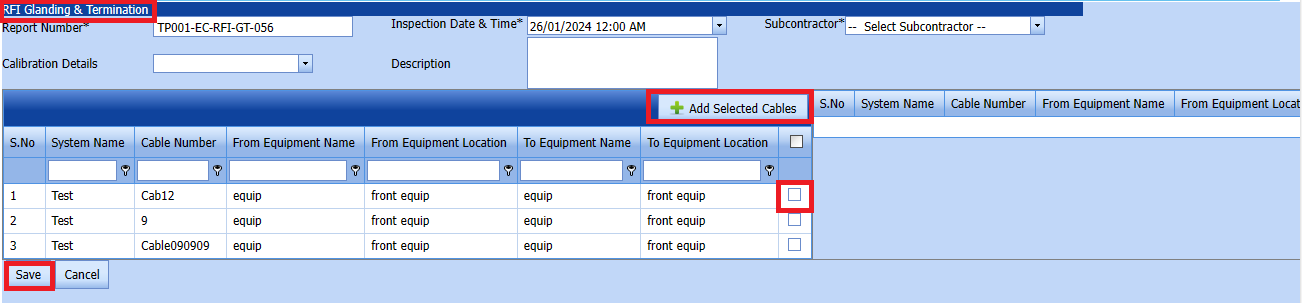](http://wiki.cuteinfocomm.com/uploads/images/gallery/2024-01/image-1706166334849.png)
The added cable will be moved and listed in the right side of the page[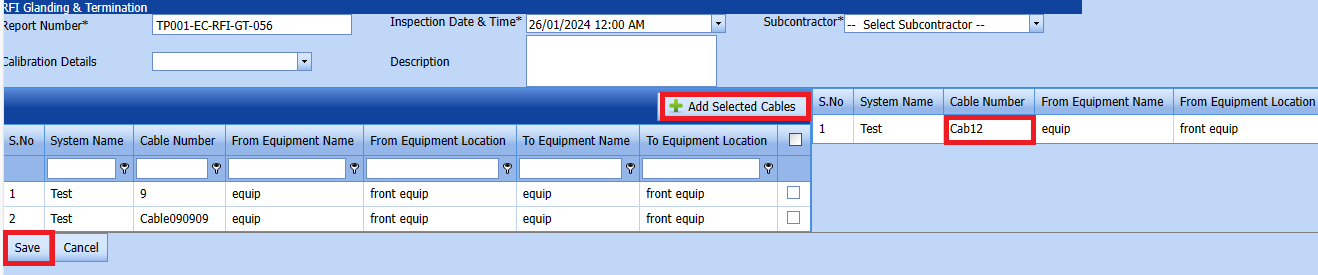](http://wiki.cuteinfocomm.com/uploads/images/gallery/2024-01/image-1706166727431.png)
1. [](http://wiki.cuteinfocomm.com/uploads/images/gallery/2022-04/image-1651201433945.png) **Tip**: If you want to remove any added joint, click [](http://wiki.cuteinfocomm.com/uploads/images/gallery/2022-04/image-1651201449656.png)(**Remove** icon) of the respective joint.
2. In the **Description** box, enter the description for the added RFI Glanding & Termination request.
3. Click **Save**.
4. RFI Glanding & Termination Request created successfully.
##### **2.1.2 Edit a RFI Glanding & Termination List**
If you want to edit any existing RFI Glanding & Termination request in the **RFI** glanding & Termination list page, do the following,[](http://wiki.cuteinfocomm.com/uploads/images/gallery/2024-01/image-1706619412490.png)
Fig 2.1.2 Edit a RFI Glanding & Termination Page
Click[ ](http://wiki.cuteinfocomm.com/uploads/images/gallery/2024-01/image-1706339797366.png)(Edit icon) in the **Edit** column for the respective RFI Glanding & Termination List. See Fig 2.1.2
The **RFI Glanding & Termination list** page opens with the details of the selected RFI Glanding & Termination list.
[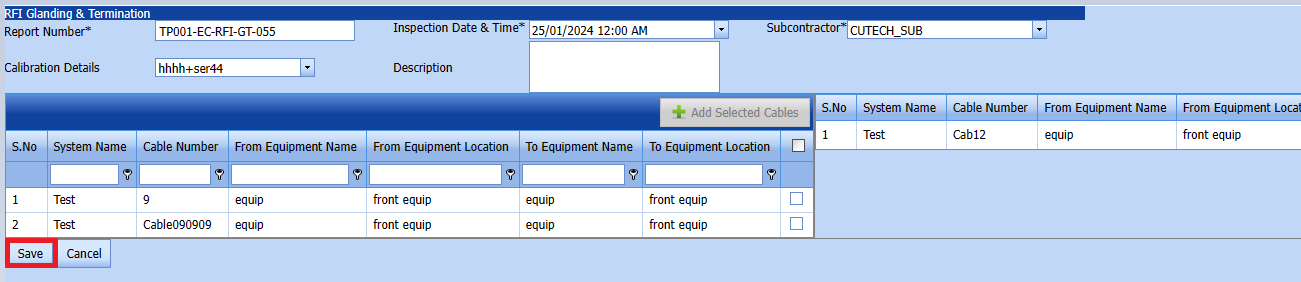](http://wiki.cuteinfocomm.com/uploads/images/gallery/2024-01/image-1706619279164.png)
1. Click any box where you want to edit the details, and then edit the details in the respective box.
Click Save.
2. RFI Glanding & Termination Request updated successfully.
##### **2.1.3 Submit a RFI Glanding & Termination List**
[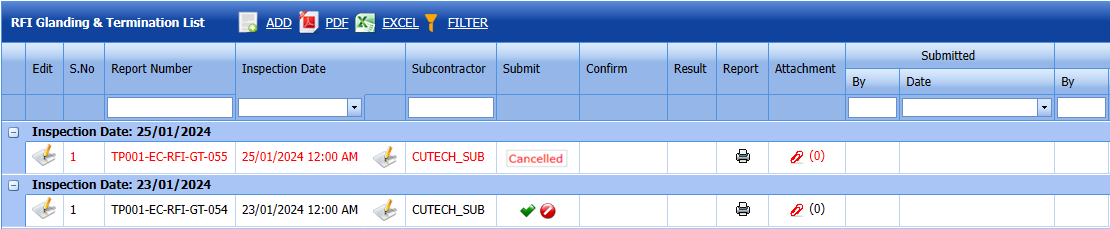](http://wiki.cuteinfocomm.com/uploads/images/gallery/2024-01/image-1706169423191.png)
Fig 2.1.3 Submit a RFI Glanding and Termination List
Once you have added the **RFI Glanding & Termination list** request list, the **Submit** column in the **RFI Glanding & Termination Requests List** page is appeared [](http://wiki.cuteinfocomm.com/uploads/images/gallery/2022-04/image-1651203728786.png)with (Submit and Reject icons).
1. If you want to submit the **RFI Glanding & Termination list** request, click[](http://wiki.cuteinfocomm.com/uploads/images/gallery/2022-04/image-1651203762346.png) (Submit icon) in the **Request Status** Otherwise click [](http://wiki.cuteinfocomm.com/uploads/images/gallery/2022-04/image-1651203792080.png) (cancel icon) to cancel the request.
The submitted request will be moved to for **RFI Glanding & Termination list** inspection.
##### **2.1.4 Approve a RFI Glanding & Termination List**
**cuteQM\_Licensee\_QA user only can approve the RFI request.**
1. If you want to approve the **RFI Glanding & Termination list** request, click[](http://wiki.cuteinfocomm.com/uploads/images/gallery/2022-04/image-1651203762346.png) (confirm icon) in the **Request Status** Otherwise click [](http://wiki.cuteinfocomm.com/uploads/images/gallery/2022-04/image-1651203792080.png) (Reject icon) to reject the request.
2. Once RFI request approved [](http://wiki.cuteinfocomm.com/uploads/images/gallery/2024-01/image-1706614735279.png) icon will be enabled to put result.
3. Click icon [](http://wiki.cuteinfocomm.com/uploads/images/gallery/2024-01/image-1706632325743.png) result popup will open. Refer below fig ##### [](http://wiki.cuteinfocomm.com/uploads/images/gallery/2024-01/image-1706698141408.png)
4. User can update the result (Accept/Reject) and Description,L1,L2,L3,Remarks[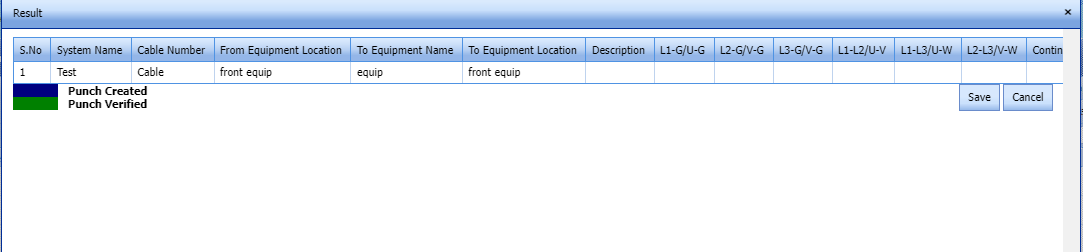](http://wiki.cuteinfocomm.com/uploads/images/gallery/2024-01/image-1706615099833.png)
Fig 2.1.4 Approve a RFI Glanding & Termination List
2. Click **Save.**
3. RFI result is updated successfully.
4. If Accepted with comments selected then punch list will be created, and this will be shown in view punch list screen.
5. If need to upload documents against equipment's, then click attachment icon at the result popup and upload documents.
#### **2.1.5 View a RFI Glanding & Termination List Report**
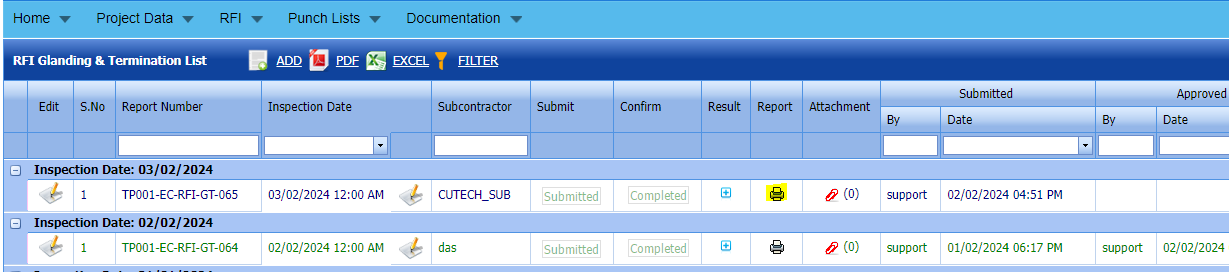
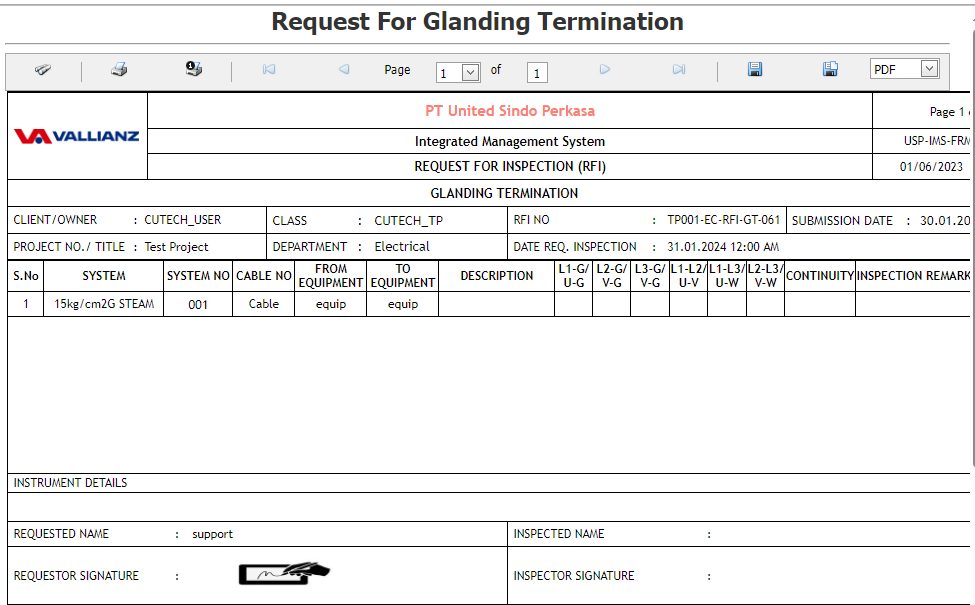
If you want to view an RFI Glanding & Termination report, click [](http://wiki.cuteinfocomm.com/uploads/images/gallery/2022-05/image-1651808508303.png) (print icon) provided in the **Result** column of the RFI Glanding & Termination List page.
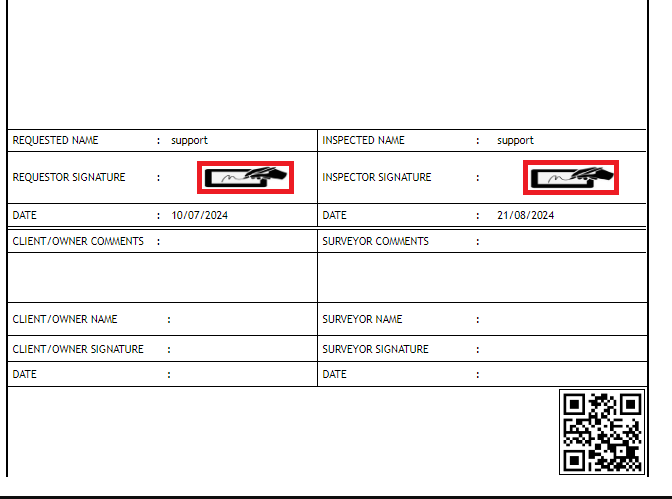
**In the print, user can see the signature of both the production user and QC . Requestor signature mapped with Production and Inspector signature mapped with QC**
**[Click here to find the steps to upload Digital signature](https://wiki.cuteinfocomm.com/books/cuteqm/page/user-management-qg8#bkmrk-1.3%C2%A0%C2%A0%C2%A0%C2%A0%C2%A0%C2%A0%C2%A0%C2%A0%C2%A0%C2%A0-log-ou "Steps to upload Digital signature")**
[](http://wiki.cuteinfocomm.com/uploads/images/gallery/2024-02/image-1706935851178.png)
Fig 2.1.5 View a RFI Glanding and Termination List
[](http://wiki.cuteinfocomm.com/uploads/images/gallery/2024-01/image-1706695570186.png)
[](https://wiki.cuteinfocomm.com/uploads/images/gallery/2024-08/image-1724300107434.png)
##### **2.1.6 Attach a File into an RFI Glanding & Termination list.**
If you want to attach a file with any existing RFI glanding & termination listed in the **RFI Glanding & Termination List** page, you can attach the file by using [](http://wiki.cuteinfocomm.com/uploads/images/gallery/2022-04/image-1651223269890.png) (Attach icon) in the **Attachment** column. [](http://wiki.cuteinfocomm.com/uploads/images/gallery/2024-01/image-1706694064683.png)
##### **2.1.7 Export a RFI Glanding & Termination Request**
You can export a list of RFI glanding & Termination requests added in the **RFI Glanding & Termination Requests List** page in both the pdf and excel formats by using [](http://wiki.cuteinfocomm.com/uploads/images/gallery/2022-04/image-1651202537414.png) (**PDF** button) and [](http://wiki.cuteinfocomm.com/uploads/images/gallery/2022-04/image-1651202548613.png) (**Excel** button).[](http://wiki.cuteinfocomm.com/uploads/images/gallery/2024-01/image-1706619943312.png)
Fig 2.1.7 Export a RFI Glanding & Termination List
##### **2.1.8 Filter a RFI Glanding & Termination Request**
If you want to filter any specific RFI glanding and termination in the **RFI glanding and termination List** page, [](http://wiki.cuteinfocomm.com/uploads/images/gallery/2024-01/image-1706620114904.png)
- you can use the filter box provided in the upper side of the **RFI Glanding & Termination List To** filter the any specific RFI Glanding and Termination request, select the Report Number, Inspection Date and **Date** in the boxes and click.
- you can use [](http://wiki.cuteinfocomm.com/uploads/images/gallery/2022-04/image-1651202662798.png) (**FILTER** button) located on the **RFI Glanding & Termination List.**
#### **2.2 RFI Fit up/ Visual List**
The RFI Fit up/ Visual List tab allows you add an RFI fit up/ Visual List to check the fit-up quality of pipes and joints used in the piping project by a sub-contractor. To navigate to the RFI fit up / Visual List adding page,
Click **RFI Fit up Request** in the **RFI** menu.
The **RFI Fit up / Visual list** page opens. [](http://wiki.cuteinfocomm.com/uploads/images/gallery/2024-01/image-1706632704495.png)
Fig 2.2 RFI Fit up / Visual Page
#### **2.2.1 Add a RFI Fit up/ Visual List**
If you want to add an RFI fit up / Visual list, do the following steps,
[cuteQM\_Production role user only can Add a RFI request](http://wiki.cuteinfocomm.com/uploads/images/gallery/2024-01/image-1706632593436.png)
Fig 2.2.1 Add a RFI Fit up / Visual List
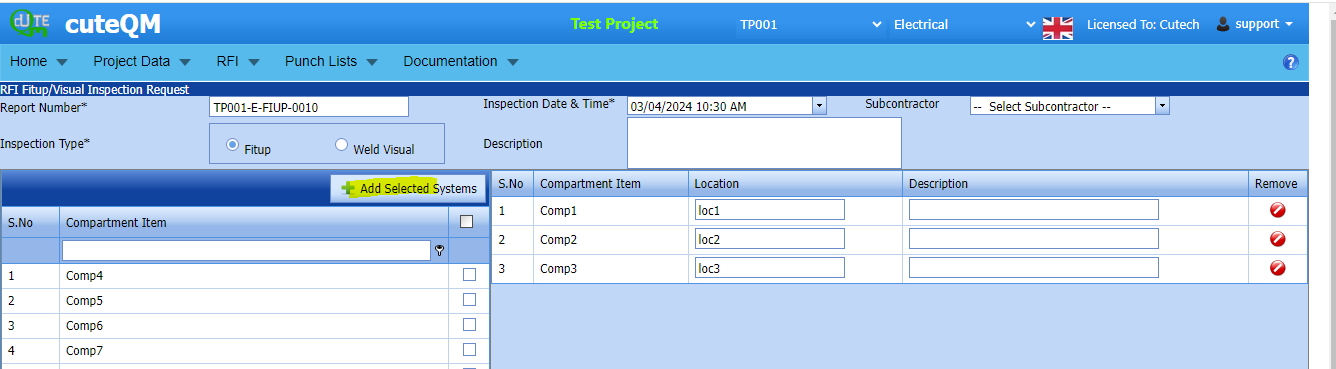
1. Click [](http://wiki.cuteinfocomm.com/uploads/images/gallery/2022-05/image-1651427486684.png) (**ADD** button) in the **RFI fit up / Visual List** page. A new page opens to add an RFI fit up / Visual request. 
[](http://wiki.cuteinfocomm.com/uploads/images/gallery/2024-04/image-1712044638634.png)
1. In the **Inspection Date and Time** box, select the inspection date and time.
2. In the **Subcontractor** box, select a subcontractor from a drop-down list.
3. In the **Inspection Type** box, choose an inspection type from given list. Before saving the added fit up request, you must add joints for the fit-up / visual list request.
[](http://wiki.cuteinfocomm.com/uploads/images/gallery/2022-04/image-1651201027630.png)**Note**: You can add multiple System for one request.
Click[](http://wiki.cuteinfocomm.com/uploads/images/gallery/2022-04/image-1651201285984.png) (Add Selected System) of the respective system you want to add.
The added compartment will be moved and listed in the right side of the page.
1. [](http://wiki.cuteinfocomm.com/uploads/images/gallery/2022-04/image-1651201433945.png) **Tip**: If you want to remove any added system, click [](http://wiki.cuteinfocomm.com/uploads/images/gallery/2022-04/image-1651201449656.png)(**Remove** icon) of the respective joint.
2. In the **Description** box, enter the description for the added RFI fit up request.
3. Click **Save**.
The RFI fit up / visual list request is successfully added.
#### **2.2.2 Edit a RFI Fit up / Visual Request**
If you want to edit any existing RFI fit up request in the **RFI** **Fit up / Visual list** page, do the following,
Click (Edit icon) in the **Edit** column for the respective RFI fit up request. See Fig 2.2.2
[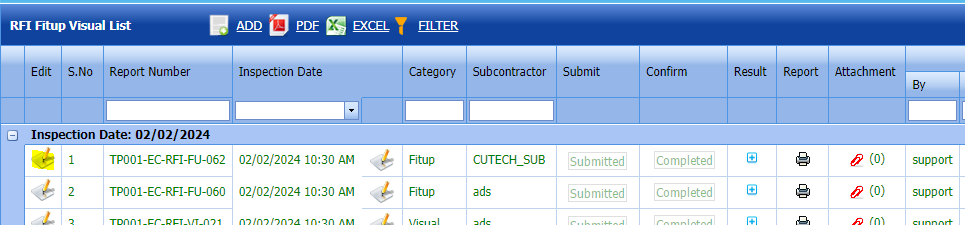](http://wiki.cuteinfocomm.com/uploads/images/gallery/2024-02/image-1706936136420.png)
The **RFI Fit up Visual list** page opens with the details of the selected RFI fit up visual page list.
[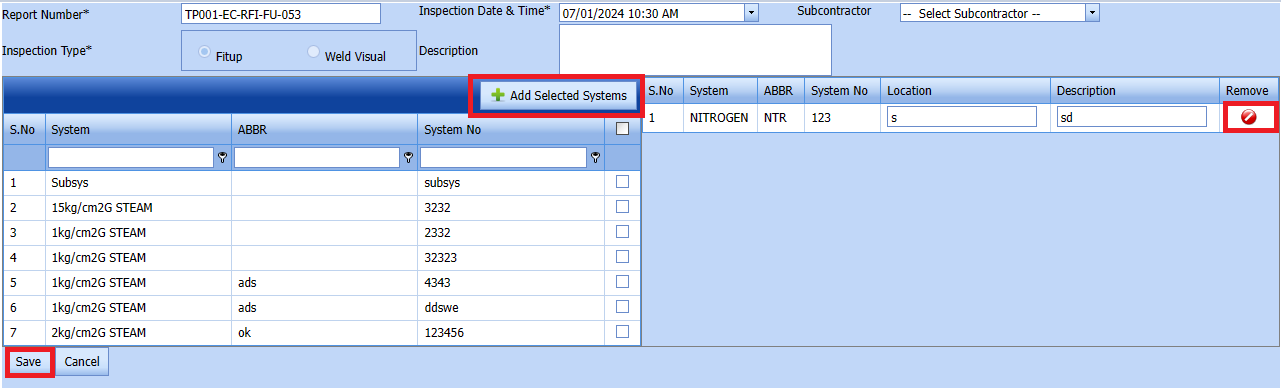](http://wiki.cuteinfocomm.com/uploads/images/gallery/2024-01/image-1706195407680.png)
Fig 2.2.2 Edit a RFI Fit up / Visual Page
1. Click any box where you want to edit the details, and then edit the details in the respective box.
2. Click **Save**.
##### **2.2.3 Submit an RFI Fit up Request.**
Once you have added the RFI fit up request, the **Submission** column in the **RFI Fit up visual Lists** page is appeared with[](http://wiki.cuteinfocomm.com/uploads/images/gallery/2022-04/image-1651201968441.png)(Submit and Reject icons). See Fig 2.2.3[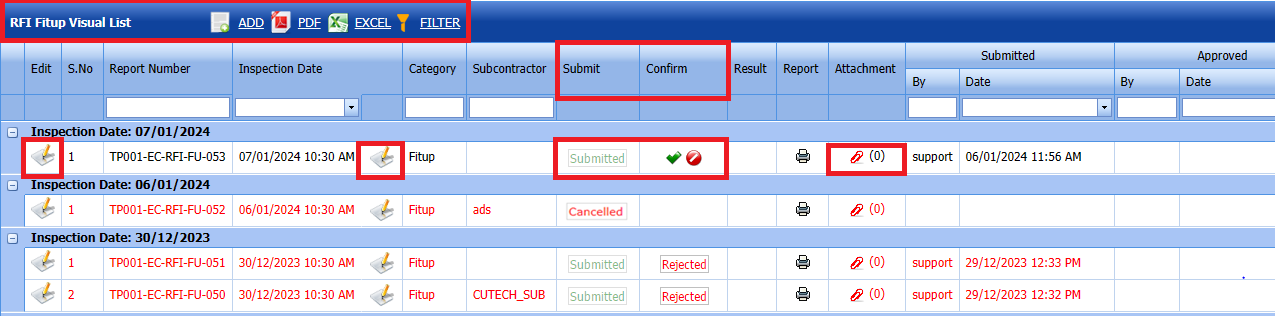](http://wiki.cuteinfocomm.com/uploads/images/gallery/2024-01/image-1706195636354.png)
Fig 2.2.3 Submit & Approve a RFI Fit up / Visual Page
1. If you want to submit the RFI fit up request, click [](http://wiki.cuteinfocomm.com/uploads/images/gallery/2022-04/image-1651201981884.png)(Submit icon) in the **Submit** column. Otherwise click [](http://wiki.cuteinfocomm.com/uploads/images/gallery/2022-04/image-1651201995224.png)(Reject icon) to reject the request.
Once you have submitted the RFI fit up visual list request, in the **Confirm** **Status** column in the **RFI Fit up visual List** page is appeared with[](http://wiki.cuteinfocomm.com/uploads/images/gallery/2022-04/image-1651202048663.png)(Confirm and Reject icons).
The approved request will be moved to for inspection.
##### **2.2.4 Approve RFI Fit up visual List**
**cuteQM\_Licensee\_QA user only can approve the RFI request.**
1. If you want to approve the **RFI Fit up visual list** request, click[](http://wiki.cuteinfocomm.com/uploads/images/gallery/2022-04/image-1651203762346.png) (confirm icon) in the **Confirm Status** Otherwise click [](http://wiki.cuteinfocomm.com/uploads/images/gallery/2022-04/image-1651203792080.png) (Reject icon) to reject the request.
2. Once RFI request approved [](http://wiki.cuteinfocomm.com/uploads/images/gallery/2024-01/image-1706614735279.png) icon will be enabled to put result. [](http://wiki.cuteinfocomm.com/uploads/images/gallery/2024-02/image-1706936227503.png)
3. Click icon [](http://wiki.cuteinfocomm.com/uploads/images/gallery/2024-01/image-1706632325743.png) result popup will open.
[](http://wiki.cuteinfocomm.com/uploads/images/gallery/2024-01/image-1706698360568.png)
Fig 2.2.4 Approve RFI Fit up / Visual List page.
2. Click **Save**
3. RFI result is updated successfully.
4. If Accepted with comments given as result, then punch list will be created, and this will be shown in view punch list screen.
5. If need to upload documents against system No, then click attachment icon at the result popup and upload documents.
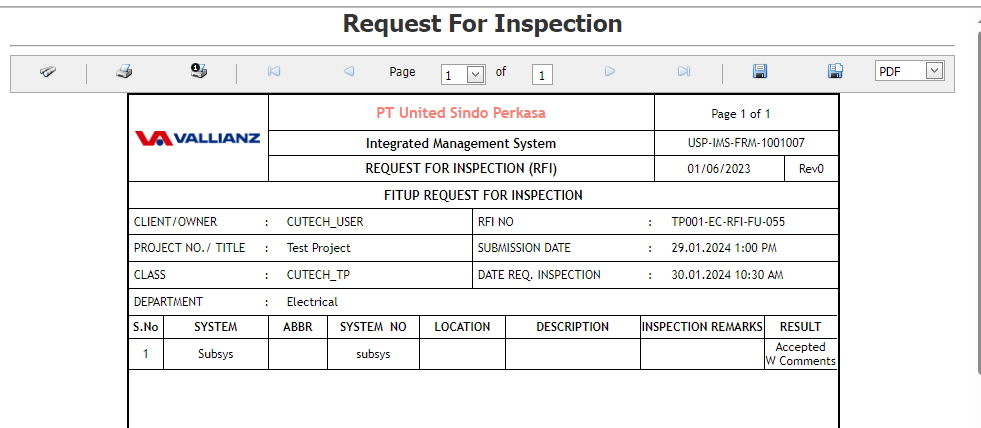
##### **2.2.5 Print a RFI Fit Up / Visual list report.**
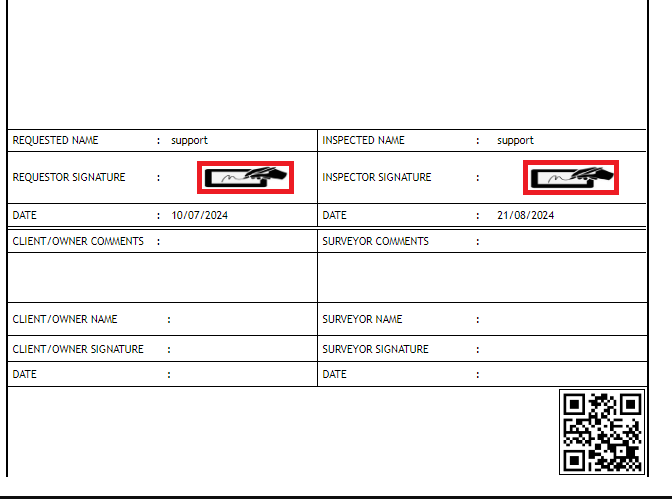
If you want to view an RFI fit up report, click [](http://wiki.cuteinfocomm.com/uploads/images/gallery/2022-05/image-1651808508303.png) (print icon) provided in the **Report** column of the RFI Fit up / Visual page.
**In the print, user can see the signature of both the production user and QC . Requestor signature mapped with Production and Inspector signature mapped with QC**
**[Click here to find the steps to upload Digital signature](https://wiki.cuteinfocomm.com/books/cuteqm/page/user-management-qg8#bkmrk-1.3%C2%A0%C2%A0%C2%A0%C2%A0%C2%A0%C2%A0%C2%A0%C2%A0%C2%A0%C2%A0-log-ou "Steps to upload Digital signature")**
[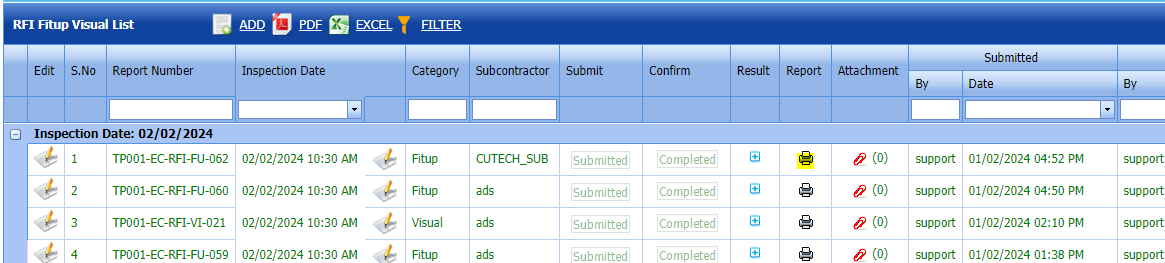](http://wiki.cuteinfocomm.com/uploads/images/gallery/2024-02/image-1706936103593.png)
Fig 2.2.5 Print a RFI Fit up / Visual Page
[](http://wiki.cuteinfocomm.com/uploads/images/gallery/2024-01/image-1706695488214.png)
[](https://wiki.cuteinfocomm.com/uploads/images/gallery/2024-08/image-1724300084247.png)
##### **2.2.6 Attach a File into a RFI Fit up Visual List**
If you want to attach a file with any existing RFI fit up visual list listed in the **RFI Fit up visual List** page, you can attach the file by using [](http://wiki.cuteinfocomm.com/uploads/images/gallery/2022-04/image-1651202499153.png) (Attach icon) in the **Attachment** column.[](http://wiki.cuteinfocomm.com/uploads/images/gallery/2024-01/image-1706697070366.png)
##### **2.2.7 Export a RFI Fit up Visual List**
You can export a list of RFI fit up visual list requests added in the **RFI Fit up visual List** page in both the pdf and excel formats by using [](http://wiki.cuteinfocomm.com/uploads/images/gallery/2022-04/image-1651202537414.png) (**PDF** button) and [](http://wiki.cuteinfocomm.com/uploads/images/gallery/2022-04/image-1651202548613.png) (**Excel** button).[](http://wiki.cuteinfocomm.com/uploads/images/gallery/2024-01/image-1706697342637.png)
Fig 2.2.7 Export a RFI Glanding & Termination List
##### **2.2.8 Filter a RFI Fit up Visual List**
If you want to filter any specific RFI fit up request in the RFI Fit up Requests List page,
- you can use [](http://wiki.cuteinfocomm.com/uploads/images/gallery/2022-04/image-1651202662798.png) (**FILTER** button) located on the **RFI Fit up visual List. [](http://wiki.cuteinfocomm.com/uploads/images/gallery/2024-01/image-1706714109739.png)
#### **2.3 RFI Cable Dressing & Banding Request**
Click **RFI Cable Dressing & Banding Request** in the RFI menu.
The **RFI Fit up Requests List** page opens. [](http://wiki.cuteinfocomm.com/uploads/images/gallery/2024-01/image-1706196442648.png)
Fig 2.3 RFI Cable Dressing & Banding Request Page
##### **2.3.1 Add a RFI Cable Dressing & Banding Request**
If you want to add an RFI Cable Dressing & Banding request, do the following,
[cuteQM\_Production role user only can Add a RFI request.](http://wiki.cuteinfocomm.com/uploads/images/gallery/2024-01/image-1706633206536.png)
Fig 2.3.1 Add an RFI Cable Dressing & banding request Page
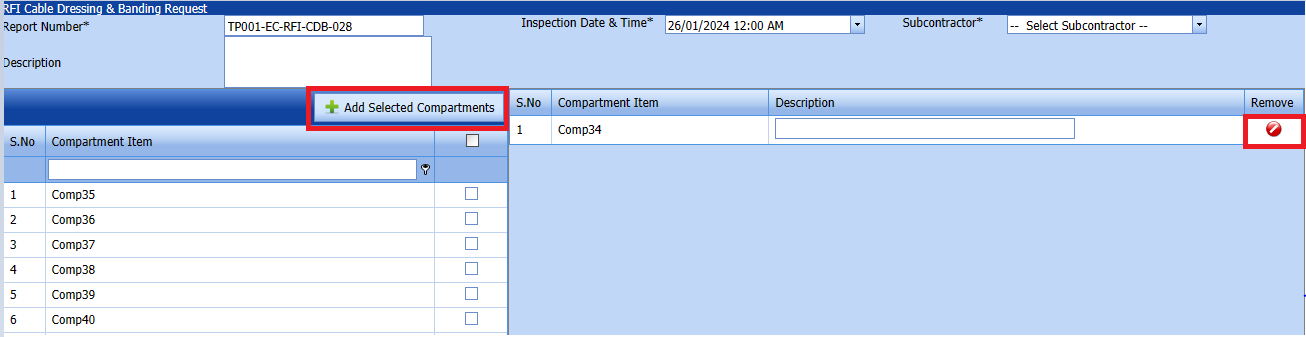
1. Click [](http://wiki.cuteinfocomm.com/uploads/images/gallery/2022-05/image-1651427486684.png) (**ADD** button) in the **RFI Cable dressing & Banding request List** page. A new page opens to add an RFI Cable Dressing & Banding request.
2. [](http://wiki.cuteinfocomm.com/uploads/images/gallery/2024-02/image-1706936409084.png)
1. [](http://wiki.cuteinfocomm.com/uploads/images/gallery/2022-05/image-1651427557166.png) **Tip**: A report number and an RFI number for a new RFI Cable Dressing & Banding request will be updated automatically
2. In the **Subcontractor** box, select the name of a sub-contractor from a drop-down list.
3. In the **Inspection Date & Time** box, select the date of inspection.
4. In the **Description** box, enter the description for the inspection.
5. Click the check box of the respective compartments.
6. Click [](http://wiki.cuteinfocomm.com/uploads/images/gallery/2024-01/image-1706197735824.png) (**Add Selected Systems** button).
7. Click **Save**.
##### **2.3.2 Submit a Cable Dressing & Banding Request**
Once you have added the RFI Cable Dressings, the **result** column in the **RFI Cable Dressing & Banding request** page is appeared with[](http://wiki.cuteinfocomm.com/uploads/images/gallery/2022-04/image-1651201968441.png)(Submit and Reject icons). See Fig 2.3.2[](http://wiki.cuteinfocomm.com/uploads/images/gallery/2024-01/image-1706698804696.png)
Fig 2.3.2 RFI Cable Dressing & Banding Request Page
1. If you want to submit the RFI fit up request, click [](http://wiki.cuteinfocomm.com/uploads/images/gallery/2022-04/image-1651201981884.png)(Submit icon) in the **Submit** column. Otherwise click [](http://wiki.cuteinfocomm.com/uploads/images/gallery/2022-04/image-1651201995224.png)(Reject icon) to reject the request.
The submitted request will be moved to for inspection.
##### **2.3.3 Approve RFI Cable Dressing & banding request List**
**cuteQM\_Licensee\_QA user only can approve the RFI request.**
1. If you want to approve the RFI **Cable Dressing & Banding** request, click[](http://wiki.cuteinfocomm.com/uploads/images/gallery/2022-04/image-1651203762346.png) (confirm icon) in the **Confirm Status** Otherwise click [](http://wiki.cuteinfocomm.com/uploads/images/gallery/2022-04/image-1651203792080.png) (Reject icon) to reject the request.
2. Once RFI request approved [](http://wiki.cuteinfocomm.com/uploads/images/gallery/2024-01/image-1706614735279.png) icon will be enabled to put result. ##### [](http://wiki.cuteinfocomm.com/uploads/images/gallery/2024-01/image-1706698425048.png)
3. Click icon [](http://wiki.cuteinfocomm.com/uploads/images/gallery/2024-01/image-1706632325743.png) result popup will open.
[](http://wiki.cuteinfocomm.com/uploads/images/gallery/2024-01/image-1706699816693.png)
Fig 2.3.3 Approve RFI Cable Dressing & Banding request List
2. Click **Save**
3. RFI result is updated successfully.
4. If Accepted with comments given as result, then punch list will be created, and this will be shown in view punch list screen.
5. If need to upload documents against system No, then click attachment icon at the result popup and upload documents.
##### **2.3.4 View a RFI Cable Dressing & Banding Report**
If you want to view an RFI Cable Dressing & Banding request, click [](http://wiki.cuteinfocomm.com/uploads/images/gallery/2022-05/image-1651808508303.png) (print icon) provided in the **Report** column of the RFI Cable dressing & Banding request page. See Fig 2.3.4 View a RFI Cable Dressing & Banding Report
**In the print, user can see the signature of both the production user and QC . Requestor signature mapped with Production and Inspector signature mapped with QC**
**[Click here to find the steps to upload Digital signature](https://wiki.cuteinfocomm.com/books/cuteqm/page/user-management-qg8#bkmrk-1.3%C2%A0%C2%A0%C2%A0%C2%A0%C2%A0%C2%A0%C2%A0%C2%A0%C2%A0%C2%A0-log-ou "Steps to upload Digital signature")**
[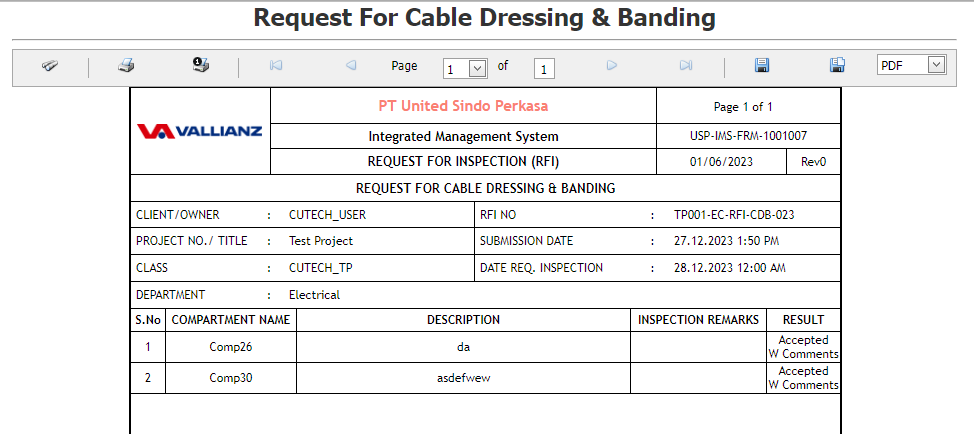](http://wiki.cuteinfocomm.com/uploads/images/gallery/2024-01/image-1706700155175.png)
[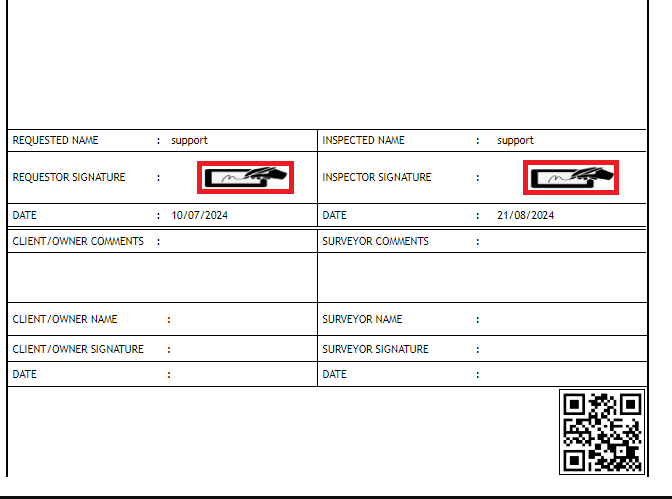](https://wiki.cuteinfocomm.com/uploads/images/gallery/2024-08/image-1724300059051.png)
##### **2.3.5 Export a RFI Cable Dressing & Banding request List**
You can export a list of RFI Cable Dressing & banding list visual list requests added in the **RFI Cable Dressing & banding request** page in both the pdf and excel formats by using [](http://wiki.cuteinfocomm.com/uploads/images/gallery/2022-04/image-1651202537414.png) (**PDF** button) and [](http://wiki.cuteinfocomm.com/uploads/images/gallery/2022-04/image-1651202548613.png) (**Excel** button).[](http://wiki.cuteinfocomm.com/uploads/images/gallery/2024-01/image-1706707558784.png) Fig 2.3.5 Export a CabIe Dressing & Banding request Page.
##### **2.3.6 Filter a RFI Cable dressing & Banding request List**
If you want to filter any RFI Cable dressing & Banding request from the list of RFI requests in the **RFI Cable dressing & Banding request List** page, you can use [](http://wiki.cuteinfocomm.com/uploads/images/gallery/2022-05/image-1651432698911.png) (**FILTER** button). [](http://wiki.cuteinfocomm.com/uploads/images/gallery/2024-01/image-1706714379307.png)
Fig 2.3.6 Filter a RFI Cable Dressing & Banding request Page
#### **2.4 RFI Torque Request**
Click **RFI Torque Request** in the **RFI** menu.
The RFI Torque Request page opens.[](http://wiki.cuteinfocomm.com/uploads/images/gallery/2024-01/image-1706633404834.png)
Fig 2.4 Torque Tightening Page
##### **2.4.1 Add a RFI Torque Request**
If you want to add an RFI Torque request, do the following steps,
[cuteQM\_Production role user only can ADD a RFI request.](http://wiki.cuteinfocomm.com/uploads/images/gallery/2024-01/image-1706633336348.png)
Fig 2.4.1 Add a RFI Torque Request page.
1. Click [](http://wiki.cuteinfocomm.com/uploads/images/gallery/2022-05/image-1651427486684.png) (**ADD** button) in the **RFI Torque request page** A new page opens to add an RFI fit Torque request. [](http://wiki.cuteinfocomm.com/uploads/images/gallery/2024-01/image-1706202045236.png)
1. In the **Inspection Date and Time** box, select the inspection date and time.
2. In the **Subcontractor** box, select a subcontractor from a drop-down list.
3. In the **Calibration Details** box, select a calibration detail from a drop-down list.
4. In the **Description** box, enter the description for the inspection.
Before saving the added RFI Torque request, you must equipment **list** request.
[](http://wiki.cuteinfocomm.com/uploads/images/gallery/2022-04/image-1651201027630.png)**Note**: You can add multiple equipment for one request.
[](http://wiki.cuteinfocomm.com/uploads/images/gallery/2024-01/image-1706202518388.png)
1\. Click[](http://wiki.cuteinfocomm.com/uploads/images/gallery/2022-04/image-1651201285984.png) (Add Selected Equipment) of the respective equipment you want to add.
The added equipment will be moved and listed in the right side of the page.
1. [](http://wiki.cuteinfocomm.com/uploads/images/gallery/2022-04/image-1651201433945.png) **Tip**: If you want to remove any added equipment, click [](http://wiki.cuteinfocomm.com/uploads/images/gallery/2022-04/image-1651201449656.png)(**Remove** icon) of the respective equipment.
2. In the **Description** box, enter the description for the added RFI Torque request.
3. Click **Save**.
##### **2.4.2 Edit a RFI Torque Request**
If you want to edit any existing RFI torque request in the **RFI** torque request page, do the following,[](http://wiki.cuteinfocomm.com/uploads/images/gallery/2024-01/image-1706604581743.png)
Fig 2.4.2 Edit a RFI Torque Request Page
Click (Edit icon) in the **Edit** column for the respective RFI torque request.
The **RFI Torque request** page opens with the details of the selected RFI torque request page list.[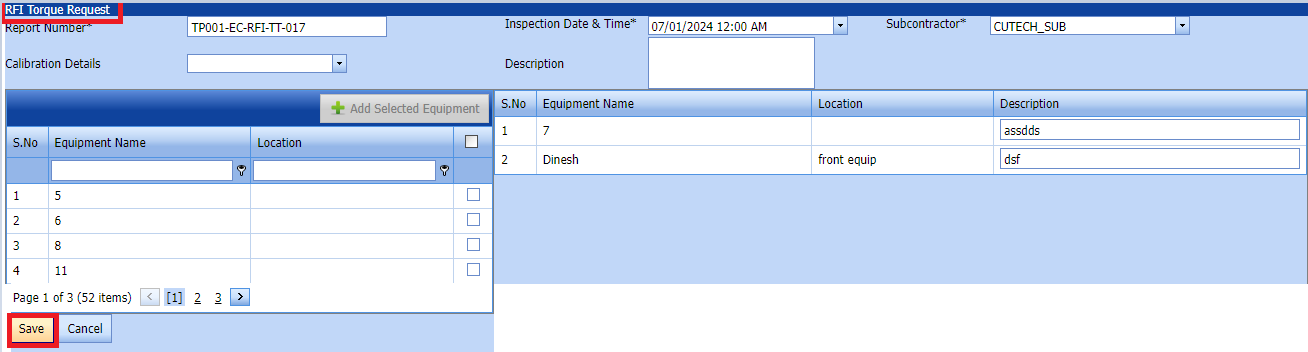](http://wiki.cuteinfocomm.com/uploads/images/gallery/2024-01/image-1706604720626.png)
Click **Save.**
##### **2.4.3 Submit a RFI Torque Request**
Once you have added the RFI Cable Dressings, the **result** column in the **RFI** torque request page is appeared with[](http://wiki.cuteinfocomm.com/uploads/images/gallery/2022-04/image-1651201968441.png)(Submit and Reject icons). See Fig 2.4.3[](http://wiki.cuteinfocomm.com/uploads/images/gallery/2024-01/image-1706708306106.png)
Fig 2.4.3 Submit RFI torque Request Page
1. If you want to submit the RFI torque request, click [](http://wiki.cuteinfocomm.com/uploads/images/gallery/2022-04/image-1651201981884.png)(Submit icon) in the **Submit** column. Otherwise click [](http://wiki.cuteinfocomm.com/uploads/images/gallery/2022-04/image-1651201995224.png)(Reject icon) to reject the request.
Once you have submitted the RFI torque request visual list request, in the **Confirm** **Status** column in the **RFI Cable Dressing & banding request List** page is appeared with[](http://wiki.cuteinfocomm.com/uploads/images/gallery/2022-04/image-1651202048663.png)(Confirm and Reject icons).
The submitted request will be moved to for inspection.
##### **2.4.4 Approve a RFI Torque Request**
**cuteQM\_Licensee\_QA user only can approve the RFI request.**
1. If you want to approve the **RFI **torque request List** page** request, click[](http://wiki.cuteinfocomm.com/uploads/images/gallery/2022-04/image-1651203762346.png) (confirm icon) in the **Request Status** Otherwise click [](http://wiki.cuteinfocomm.com/uploads/images/gallery/2022-04/image-1651203792080.png) (Reject icon) to reject the request.
2. Once RFI request approved [](http://wiki.cuteinfocomm.com/uploads/images/gallery/2024-01/image-1706614735279.png) icon will be enabled to put result. ##### [](http://wiki.cuteinfocomm.com/uploads/images/gallery/2024-01/image-1706698141408.png)
3. Click icon [](http://wiki.cuteinfocomm.com/uploads/images/gallery/2024-01/image-1706632325743.png) result popup will open.
[](http://wiki.cuteinfocomm.com/uploads/images/gallery/2024-01/image-1706708773256.png)
Fig 2.4.4 Approve a RFI torque request List page.
2. Click **Save.**
3. RFI result is updated successfully.
4. If Accepted with comments givenas result then punch list will be created, and this will be shown in view punch list screen.
5. If need to upload documents against equipment's, then click attachment icon at the result popup and upload documents.
##### **2.4.5 Print a RFI Torque request Report**
If you want to view an RFI torque request List page, click [](http://wiki.cuteinfocomm.com/uploads/images/gallery/2022-05/image-1651808508303.png) (print icon) provided in the **Result** column of the RFI torque request List page.
**In the print, user can see the signature of both the production user and QC . Requestor signature mapped with Production and Inspector signature mapped with QC**
**[Click here to find the steps to upload Digital signature](https://wiki.cuteinfocomm.com/books/cuteqm/page/user-management-qg8#bkmrk-1.3%C2%A0%C2%A0%C2%A0%C2%A0%C2%A0%C2%A0%C2%A0%C2%A0%C2%A0%C2%A0-log-ou "Steps to upload Digital signature")**
[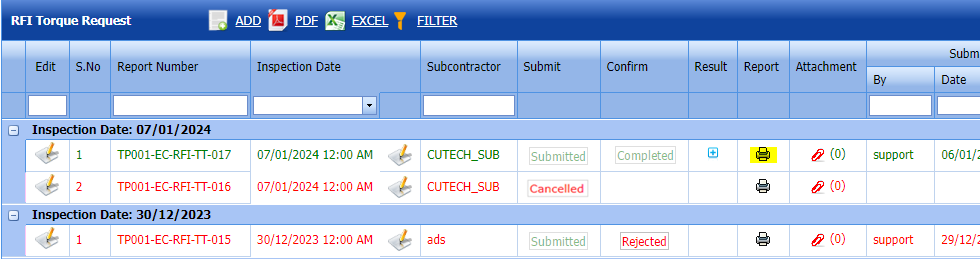](http://wiki.cuteinfocomm.com/uploads/images/gallery/2024-02/image-1706936955793.png)
Fig 2.4.5 View a RFI RFI torque request.
[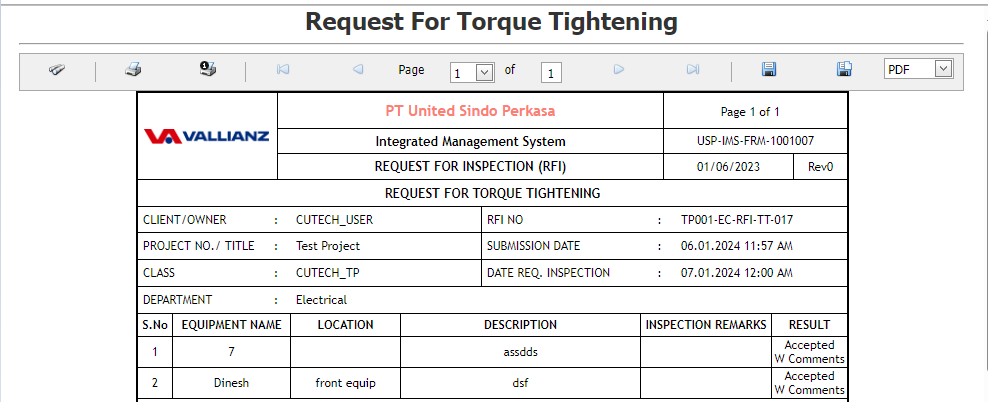](http://wiki.cuteinfocomm.com/uploads/images/gallery/2024-01/image-1706709302230.png)
[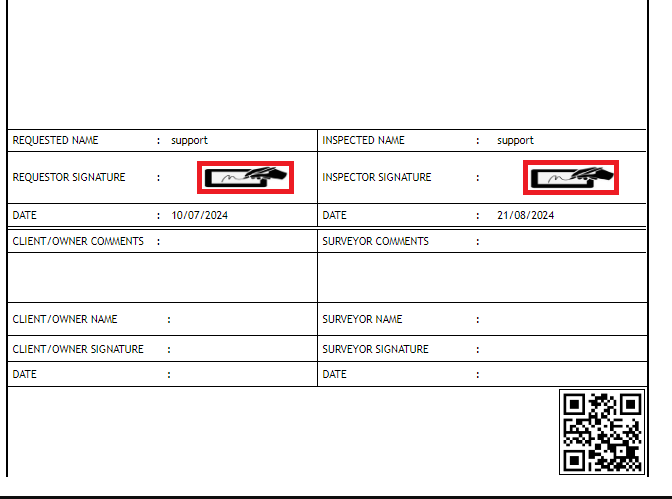](https://wiki.cuteinfocomm.com/uploads/images/gallery/2024-08/image-1724300029054.png)
##### **2.4.6 Attach a File into an RFI Torque request Result.**
If you want to attach a file with any existing RFI Torgue request listed in the **RFI **torque request List** page**, you can attach the file by using [](http://wiki.cuteinfocomm.com/uploads/images/gallery/2022-04/image-1651223269890.png) (Attach icon) in the **Attachment** column. [](http://wiki.cuteinfocomm.com/uploads/images/gallery/2024-01/image-1706694064683.png)
##### **2.4.7 Export RFI Torque Request**
You can export a list of RFI torque requests added in the RFI Torque Requests List page in both the pdf and excel formats by using [](http://wiki.cuteinfocomm.com/uploads/images/gallery/2022-04/image-1651202537414.png) (PDF button) and [](http://wiki.cuteinfocomm.com/uploads/images/gallery/2022-04/image-1651202548613.png) (Excel button).[](http://wiki.cuteinfocomm.com/uploads/images/gallery/2024-01/image-1706714541535.png)
Fig 2.4.7 Export RFI Torque Request Page
##### **2.4.8 Filter an RFI Torque Request**
If you want to filter any RFI Torque request from the list of RFI fit up requests in the **RFI Torque Requests List** page, you can use [](http://wiki.cuteinfocomm.com/uploads/images/gallery/2022-05/image-1651432698911.png) (**FILTER** button). [](http://wiki.cuteinfocomm.com/uploads/images/gallery/2024-01/image-1706714642597.png)
#### **2.5 RFI Compound filling / MCT Packing**
Click **RFI Compound filling / MCT Packing** in the **RFI** menu.
The **RFI compound filling / MCT packing** page opens.[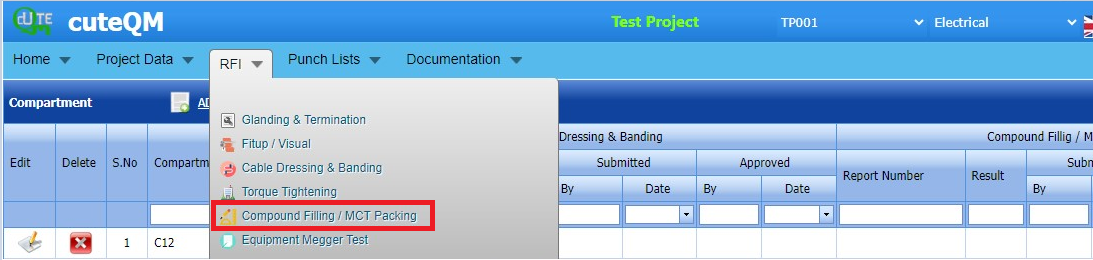](http://wiki.cuteinfocomm.com/uploads/images/gallery/2024-01/image-1706633905099.png)
Fig 2.5 RFI Compound Filling / MCT Packing page
##### **2.5.1 Add a RFI Compound filling / MCT Packing**
If you want to add an RFI Compounding filling / MCT Packing, do the following steps,
cuteQM\_Production role users only can ADD a RFI request
[](http://wiki.cuteinfocomm.com/uploads/images/gallery/2024-01/image-1706203922272.png)
Fig 2.5.1 Add A RFI Compound Filling / MCT packing Page.
1. Click [](http://wiki.cuteinfocomm.com/uploads/images/gallery/2022-05/image-1651427486684.png) (**ADD** button) in the **RFI Compound Filling / MCT Packing page.**
A new page opens to add an RFI compound filling / MCT packing request. [](http://wiki.cuteinfocomm.com/uploads/images/gallery/2024-01/image-1706204011234.png)
1. In the **Inspection Date and Time** box, select the inspection date and time.
2. In the **Subcontractor** box, select a subcontractor from a drop-down list.
3. In the **Description** box, enter the description for the inspection.
Before saving the added RFI compound filling / MCT Packing, you must add Compartments list request.
[](http://wiki.cuteinfocomm.com/uploads/images/gallery/2022-04/image-1651201027630.png)**Note**: You can add multiple compartments for one request.
[](http://wiki.cuteinfocomm.com/uploads/images/gallery/2024-01/image-1706204232093.png)
1\. Click[](http://wiki.cuteinfocomm.com/uploads/images/gallery/2022-04/image-1651201285984.png) (Add Selected Compartments) of the respective joints you want to add.
The added compartments will be moved and listed in the right side of the page.
1. [](http://wiki.cuteinfocomm.com/uploads/images/gallery/2022-04/image-1651201433945.png) **Tip**: If you want to remove any addedcompartment, click [](http://wiki.cuteinfocomm.com/uploads/images/gallery/2022-04/image-1651201449656.png)(**Remove** icon) of the respective joint.
2. In the **Description** box, enter the description for the added RFI fit up request.
3. Click **Save**.
##### **2.5.2 Edit a RFI Compound Filling / MCT Packing**
If you want to edit any existing RFI Compound filling / MCT packing request in the **RFI** Compound filling / MCT packing request page, do the following,
Click (Edit icon) in the **Edit** column for the respective RFI torque request. [](http://wiki.cuteinfocomm.com/uploads/images/gallery/2024-01/image-1706604922373.png)
Fig 2.5.2 Edit a RFI Compound Filling / MCT Packing Page
The **RFI Compound Filling / MCT Packing** page opens with the details of the selected RFI Compound Filling / MCT Packing page list.[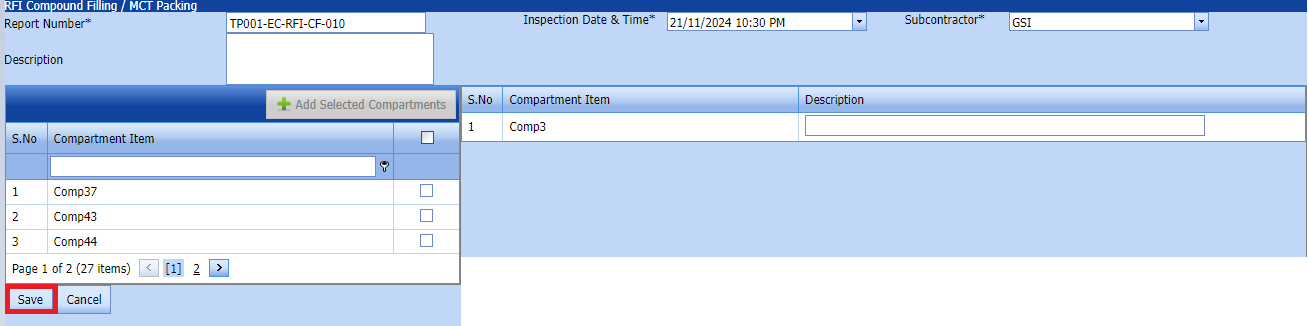](http://wiki.cuteinfocomm.com/uploads/images/gallery/2024-01/image-1706605042816.png)
Click **Save**.
##### **2.5.3 Submit a RFI Compound Filling / MCT Packing**
[](http://wiki.cuteinfocomm.com/uploads/images/gallery/2024-01/image-1706169423191.png)
Fig 2.5.3 Submit a RFI Compound Filling / MCT Packing list.
Once you have added the **RFI Compound Filling / MCT Packing** request list, the **Submit** column in the **RFI Compound Filling / MCT Packing page is appeared [](http://wiki.cuteinfocomm.com/uploads/images/gallery/2022-04/image-1651203728786.png)with (Submit and Reject icons).
1. If you want to submit the **RFI Compound Filling / MCT Packing** request, click[](http://wiki.cuteinfocomm.com/uploads/images/gallery/2022-04/image-1651203762346.png) (Submit icon) in the **Request Status** Otherwise click [](http://wiki.cuteinfocomm.com/uploads/images/gallery/2022-04/image-1651203792080.png) (cancel icon) to cancel the request.
The submitted request will be moved to for **RFI Compound Filling / MCT Packing** inspection.
##### **2.5.4 Approve a RFI Compound Filling / MCT Packing**
**cuteQM\_Licensee\_QA user only can approve the RFI request.**
1. If you want to approve the **RFI Glanding & Termination list** request, click[](http://wiki.cuteinfocomm.com/uploads/images/gallery/2022-04/image-1651203762346.png) (confirm icon) in the **Request Status** Otherwise click [](http://wiki.cuteinfocomm.com/uploads/images/gallery/2022-04/image-1651203792080.png) (Reject icon) to reject the request.
2. Once RFI request approved [](http://wiki.cuteinfocomm.com/uploads/images/gallery/2024-01/image-1706614735279.png) icon will be enabled to put result. ##### [](http://wiki.cuteinfocomm.com/uploads/images/gallery/2024-01/image-1706710397911.png)
3. Click icon [](http://wiki.cuteinfocomm.com/uploads/images/gallery/2024-01/image-1706632325743.png) result popup will open.
4. User can update the result and Description, Remarks
[](http://wiki.cuteinfocomm.com/uploads/images/gallery/2024-01/image-1706710868058.png)
Fig 2.5.4 Approve a RFI Compound Filling / MCT Packing
2. Click **Save.**
##### **2.5.5Print a RFI Compound Filling / MCT Packing Report**
If you want to view an RFI Compound Filling / MCT Packing report, click [](http://wiki.cuteinfocomm.com/uploads/images/gallery/2022-05/image-1651808508303.png) (print icon) provided in the **Result** column of the RFI Compound Filling / MCT Packing List page.
**In the print, user can see the signature of both the production user and QC . Requestor signature mapped with Production and Inspector signature mapped with QC**
**[Click here to find the steps to upload Digital signature](https://wiki.cuteinfocomm.com/books/cuteqm/page/user-management-qg8#bkmrk-1.3%C2%A0%C2%A0%C2%A0%C2%A0%C2%A0%C2%A0%C2%A0%C2%A0%C2%A0%C2%A0-log-ou "Steps to upload Digital signature")**
[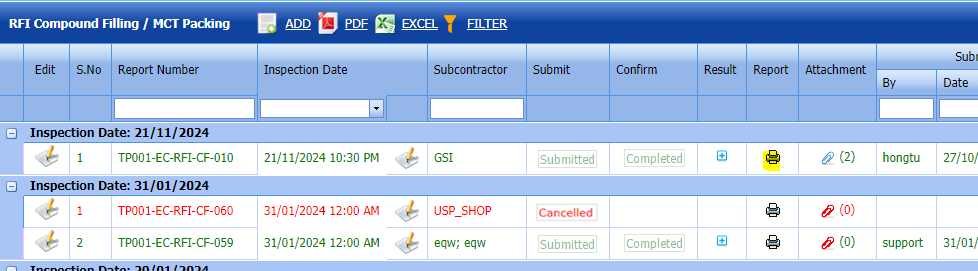](http://wiki.cuteinfocomm.com/uploads/images/gallery/2024-02/image-1706937131290.png)
See Fig 2.5.5 Print RFI Compound Filling/ MCT Packing Report
[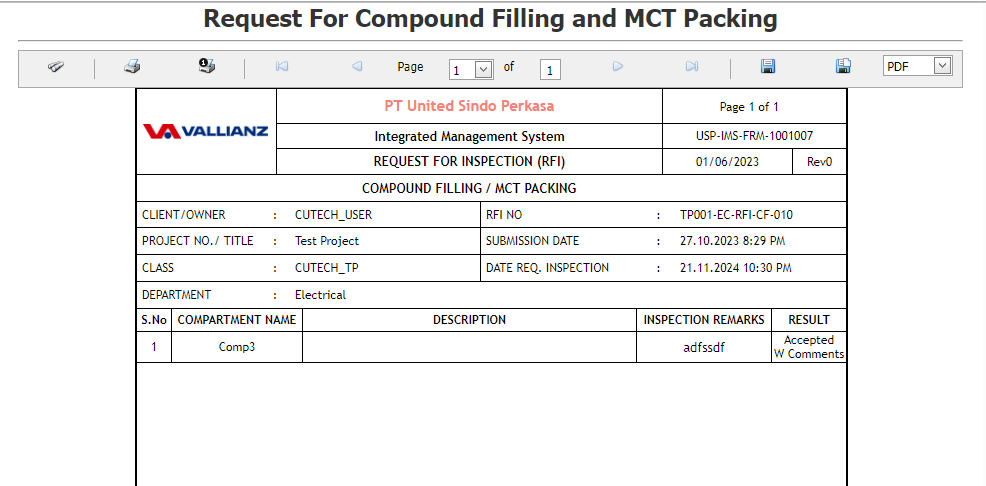](http://wiki.cuteinfocomm.com/uploads/images/gallery/2024-01/image-1706711360346.png)
[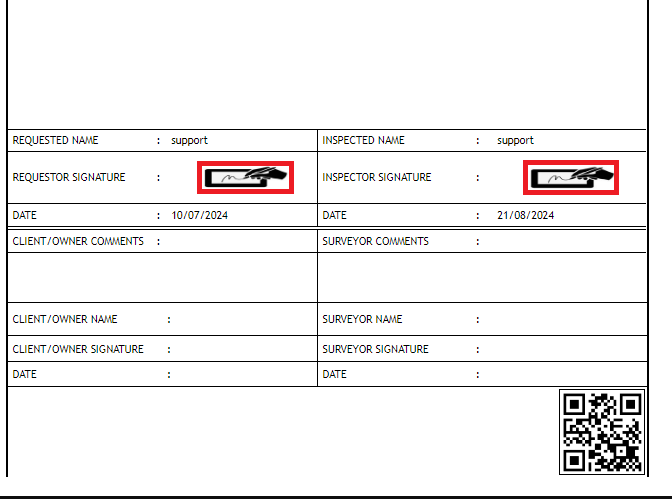](https://wiki.cuteinfocomm.com/uploads/images/gallery/2024-08/image-1724300009807.png)
##### **2.5.6 Attach a File into RFI Compound Filling / MCT Packing**
If you want to attach a file with any existing RFI compound filling / MCT Packing requests in the RFI compound filling / MCT Packing requests **List** page, you can attach the file by using [](http://wiki.cuteinfocomm.com/uploads/images/gallery/2022-04/image-1651223269890.png) (Attach icon) in the **Attachment** column. [](http://wiki.cuteinfocomm.com/uploads/images/gallery/2024-01/image-1706715659831.png) Fig 2.5.6 Attach RFI Compound Filling / MCT Packing Page
##### **2.5.7 Export RFI Compound Filling / MCT Packing**
You can export a list of RFI compound filling / MCT Packing requests added in the RFI compound Filling / MCT Packing List page in both the pdf and excel formats by using [](http://wiki.cuteinfocomm.com/uploads/images/gallery/2022-04/image-1651202537414.png) (PDF button) and [](http://wiki.cuteinfocomm.com/uploads/images/gallery/2022-04/image-1651202548613.png) (Excel button).[](http://wiki.cuteinfocomm.com/uploads/images/gallery/2024-01/image-1706711530604.png)
See Fig 2.5.7 Export RFI Compound Filling/ MCT Packing Report
##### **2.5.8 Filter a RFI Compound Filling / MCT Packing**
If you want to filter any RFI compound filling / MCT Packing request from the list of RFI compound filling / MCT Packing in the RFI compound filling / MCT Packing List page, you can use [](http://wiki.cuteinfocomm.com/uploads/images/gallery/2022-05/image-1651432698911.png) (FILTER button). [](http://wiki.cuteinfocomm.com/uploads/images/gallery/2024-01/image-1706711656089.png)
#### **2.6 RFI Equipment Megger List**
Click **RFI** **Equipment Megger List** in the **RFI** menu.
The RFI Equipment Megger List page opens.[](http://wiki.cuteinfocomm.com/uploads/images/gallery/2024-01/image-1706634150577.png) Fig 2.6 RFI Equpment Megger List Page.
##### **2.6.1 Add a RFI Equipment Megger List**
If you want to add an RFI Equipment Megger List, do the following steps,
[cuteQM\_Production user only can ADD a RFI request.](http://wiki.cuteinfocomm.com/uploads/images/gallery/2024-01/image-1706205191379.png)
Fig 2.6.1 Add RFI Equipment Megger List Page
1. Click [](http://wiki.cuteinfocomm.com/uploads/images/gallery/2022-05/image-1651427486684.png) (**ADD** button) in the **RFI Equipment Megger List.**
A new page opens to add an RFI Equipment Megger request. [](http://wiki.cuteinfocomm.com/uploads/images/gallery/2024-01/image-1706337773839.png)
1. In the **Inspection Date and Time** box, select the inspection date and time.
2. In the **Subcontractor** box, select a subcontractor from a drop-down list.
3. In the **Description** box, enter the description for the inspection.
Before saving the added RFI Equipment Megger request, you must add Equipment list request.
[](http://wiki.cuteinfocomm.com/uploads/images/gallery/2022-04/image-1651201027630.png)**Note**: You can add multiple Equipment for one request.
[](http://wiki.cuteinfocomm.com/uploads/images/gallery/2024-01/image-1706205796508.png)
1\. Click[](http://wiki.cuteinfocomm.com/uploads/images/gallery/2022-04/image-1651201285984.png) (Add Selected Equipements) of the respective equipment you want to add.
The added equipment will be moved and listed in the right side of the page.
1. [](http://wiki.cuteinfocomm.com/uploads/images/gallery/2022-04/image-1651201433945.png) **Tip**: If you want to remove any added equipments, click [](http://wiki.cuteinfocomm.com/uploads/images/gallery/2022-04/image-1651201449656.png)(**Remove** icon) of the respective joint.
2. In the **Description** box, enter the description for the added RFI equipment megger request.
3. Click **Save**.
#### **2.6.2 Edit a RFI Equipment Megger List**
If you want to edit any existing RFI Equipment Megger List request in the RFI Equipment Megger request page, do the following,[](http://wiki.cuteinfocomm.com/uploads/images/gallery/2024-01/image-1706609071467.png)
Fig 2.6.2 Edit RFI Equipment Megger List page.
Click (Edit icon) in the **Edit** column for the respective RFI Equipment Megger. See Fig 2.6.2
The **RFI Equipment Megger** page opens with the details of the selected RFI Equipment Megger page list.[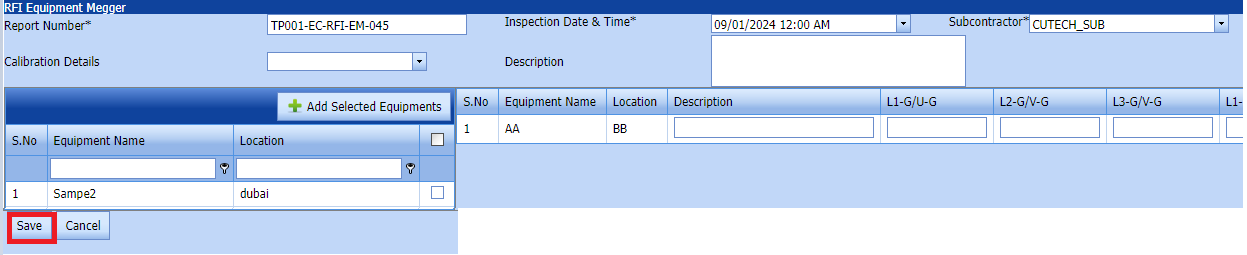](http://wiki.cuteinfocomm.com/uploads/images/gallery/2024-01/image-1706609187069.png)
Click **Save**.
##### **2.6.3 Submit a RFI Equipment Megger List**
[](http://wiki.cuteinfocomm.com/uploads/images/gallery/2024-01/image-1706169423191.png)
Fig 2.6.3 Submit a RFI Equipment Megger List
Once you have added the **RFI Equipment Megger** request list, the **Submit** column in the **RFI Equipment Megger List** page is appeared [](http://wiki.cuteinfocomm.com/uploads/images/gallery/2022-04/image-1651203728786.png)with (Submit and Reject icons).
1. If you want to submit the **RFI Equipment Megger** request, click[](http://wiki.cuteinfocomm.com/uploads/images/gallery/2022-04/image-1651203762346.png) (Submit icon) in the **Request Status** Otherwise click [](http://wiki.cuteinfocomm.com/uploads/images/gallery/2022-04/image-1651203792080.png) (cancel icon) to cancel the request.
The submitted request will be moved to for **RFI Equipment Megger** inspection.
##### **2.6.4 Approve a RFI Equipment Megger List**
**cuteQM\_Licensee\_QA user only can approve the RFI request.**
1. If you want to approve the **Equipment Megger** request, click[](http://wiki.cuteinfocomm.com/uploads/images/gallery/2022-04/image-1651203762346.png) (confirm icon) in the **Request Status** Otherwise click [](http://wiki.cuteinfocomm.com/uploads/images/gallery/2022-04/image-1651203792080.png) (Reject icon) to reject the request.
2. Once RFI request approved [](http://wiki.cuteinfocomm.com/uploads/images/gallery/2024-01/image-1706614735279.png) icon will be enabled to put result. ##### [](http://wiki.cuteinfocomm.com/uploads/images/gallery/2024-01/image-1706698141408.png)
3. Click icon [](http://wiki.cuteinfocomm.com/uploads/images/gallery/2024-01/image-1706632325743.png) result popup will open.
4. User can update the result (Accept/Reject) and Description,L1,L2,L3,Remarks
[](http://wiki.cuteinfocomm.com/uploads/images/gallery/2024-01/image-1706712518207.png)
Fig 2.6.4 Approve a RFI Equipment Megger List page
2. Click **Save.**
3. RFI result is updated successfully.
4. If Acceped with comments given as result then punch list will be created, and this will be shown in view punch list screen.
5. If need to upload documents against equipment's, then click attachment icon at the result popup and upload documents.
#### **2.6.5 View a RFI Equipment Megger List Report**
If you want to view an **RFI Equipment Megger**, click [](http://wiki.cuteinfocomm.com/uploads/images/gallery/2022-05/image-1651808508303.png) (print icon) provided in the Result column of the **RFI Equipment Megger** List page.
**In the print, user can see the signature of both the production user and QC . Requestor signature mapped with Production and Inspector signature mapped with QC**
**[Click here to find the steps to upload Digital signature](https://wiki.cuteinfocomm.com/books/cuteqm/page/user-management-qg8#bkmrk-1.3%C2%A0%C2%A0%C2%A0%C2%A0%C2%A0%C2%A0%C2%A0%C2%A0%C2%A0%C2%A0-log-ou "Steps to upload Digital signature")**
[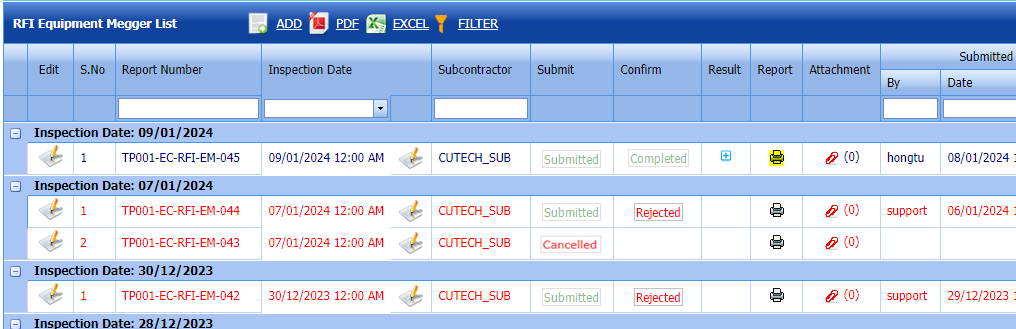](http://wiki.cuteinfocomm.com/uploads/images/gallery/2024-02/image-1706937277595.png)
[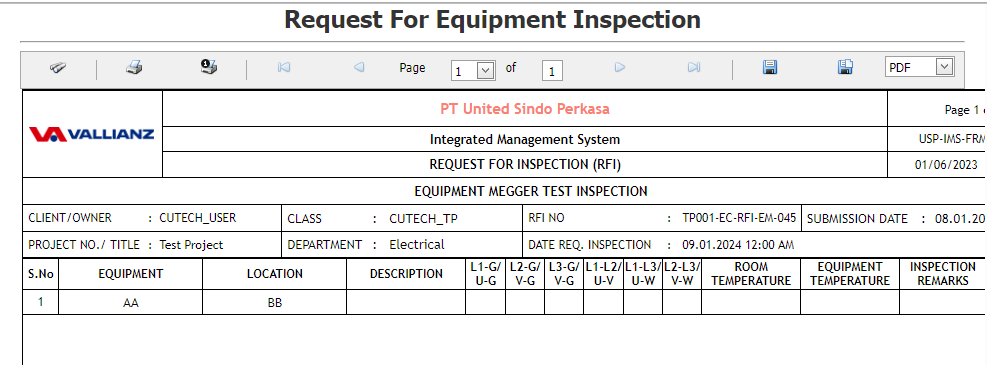](http://wiki.cuteinfocomm.com/uploads/images/gallery/2024-01/image-1706712754278.png)
[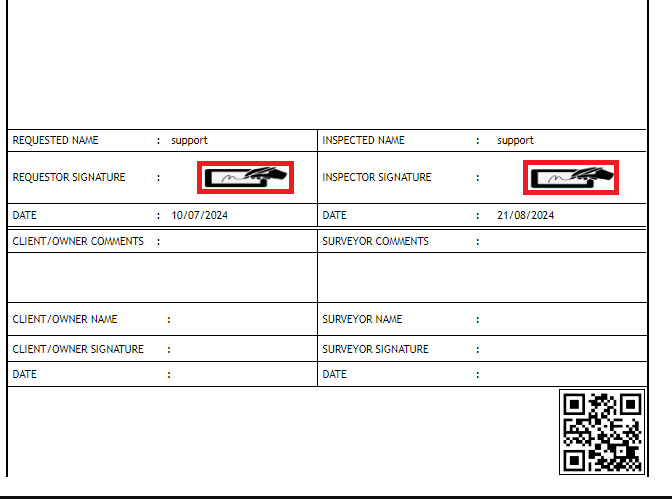](https://wiki.cuteinfocomm.com/uploads/images/gallery/2024-08/image-1724299962645.png)
##### **2.6.6 Attach a File into an RFI Equipment Megger List**
If you want to attach a file with any existing RFI Equipment listed in the **RFI Equipment Megger List** page, you can attach the file by using [](http://wiki.cuteinfocomm.com/uploads/images/gallery/2022-04/image-1651223269890.png) (Attach icon) in the **Attachment** column. [](http://wiki.cuteinfocomm.com/uploads/images/gallery/2024-01/image-1706713051531.png)
Fig 2.6.6 Attach file RFI Equipment Megger List
##### **2.6.7 Export a RFI Equipment Megger List**
You can export a list of RRFI Equipment Megger requests added in the RFI Equipment Megger List page in both the pdf and excel formats by using [](http://wiki.cuteinfocomm.com/uploads/images/gallery/2022-04/image-1651202537414.png) (PDF button) and [](http://wiki.cuteinfocomm.com/uploads/images/gallery/2022-04/image-1651202548613.png) (Excel button).[](http://wiki.cuteinfocomm.com/uploads/images/gallery/2024-01/image-1706715881910.png)
Fig 2.6.7 Export RFI Equipment Megger List
##### **2.6.8 Filter a RFI Equipment Megger List**
If you want to filter any RFI Equipment Megge request from the list of RFI Equipment Megge in the RFI Equipment Megger page, you can use [](http://wiki.cuteinfocomm.com/uploads/images/gallery/2022-05/image-1651432698911.png) (FILTER button). [](http://wiki.cuteinfocomm.com/uploads/images/gallery/2024-01/image-1706715965505.png)
Fig 2.6.8 Filter RFI Equipment Megger List.
####
#####
####
###