# Document Progress
Document Progress
# Document Progress
### **1.0 Document Progress**
The document progress menu in the ***cuteQM*** app helps you to add collection of drawings or the documents which can be approved in multiple levels. Once you click the **Document Progress menu**, the following tabs open,
#### **1.1 Drawing Type**
Drawing type can be added through ADD or import of Drawing Type command.
1\. Click Drawing Type in the **Document Progress** menu.
The **Drawing Type** page opens.
[](http://wiki.cuteinfocomm.com/uploads/images/gallery/2024-01/image-1705027322984.png)
**Figure 1.1: Drawing Type page**
##### **1.1.1 Add a Drawing Type**
If you want to Add Drawing type, do the following steps
1. Click [](http://wiki.cuteinfocomm.com/uploads/images/gallery/2022-04/image-1651119261792.png) (**ADD** button) in the **Drawing type** page. See Fig 1.1.1 A new window opens to add a new Drawing type. [](http://wiki.cuteinfocomm.com/uploads/images/gallery/2024-01/image-1705640112298.png)
[ ](http://wiki.cuteinfocomm.com/uploads/images/gallery/2024-01/image-1705028582770.png) **Figure 1.1.1 Drawing Type page** [](http://wiki.cuteinfocomm.com/uploads/images/gallery/2022-05/image-1651603678108.png)**Note**: The field notified with a symbol (\*) is mandatory. You must enter the relevant details in that fields before saving.
2. In the **Category** box, you must select the drawing category.
3. In the **Drawing Type** box, enter the drawing type.
4. Click **Save**. The Drawing type is successfully added.
##### **1.1.2 Edit a Drawing Type
If you want to edit any existing Drawing type in the **Drawing Type page**, do the following, steps
1. Click [](http://wiki.cuteinfocomm.com/uploads/images/gallery/2022-05/image-1651603749311.png)(Edit icon) in the **Edit** column for the respective drawing type. See Fig 1.1.2 A new window opens to edit the saved one. [](http://wiki.cuteinfocomm.com/uploads/images/gallery/2024-01/image-1705639647476.png)
**Figure 1.1:2 Edit Page**[](http://wiki.cuteinfocomm.com/uploads/images/gallery/2024-01/image-1705029714304.png)
2. Click any box where you want to edit the details, and then update the details in the respective box.
3. Click **Save**. Selected Drawing type updated successfully.
##### **1.1.3 Delete a Drawing Type**
If you want to delete any specific drawing from the list of drawing, you can use (Delete icon) provided in the Delete column of the Drawing Type page. See Fig below
**[](http://wiki.cuteinfocomm.com/uploads/images/gallery/2024-01/image-1705403147510.png)**
1. Click [](http://wiki.cuteinfocomm.com/uploads/images/gallery/2022-05/image-1651603839749.png) (Delete icon) for the corresponding Drawing type.
You receive a confirmation message “**Confirm** **delete?**”.
2. Click **OK .** Selected Drawing type deleted successfully.
##### **1.1.4 Export Drawing Type**
You can export a list of Drawing type added in the Drawing type page in both the pdf and excel formats.
1. If you want to export the Drawing type list in the pdf format, click [](http://wiki.cuteinfocomm.com/uploads/images/gallery/2022-04/image-1651119905005.png)(**PDF** button).
The Drawing type list will be downloaded as a pdf file.
2. If you want to export the Drawing type list in the excel format, click [](http://wiki.cuteinfocomm.com/uploads/images/gallery/2022-04/image-1651119961686.png) (**Excel** button).
The Drawing type will be downloaded as an excel file.
[](http://wiki.cuteinfocomm.com/uploads/images/gallery/2024-01/image-1705640414332.png)
##### **1.1.5 Filter a Drawing Type**
If you want to filter any category and drawing Type from the list of Drawing Type in the page, do the following,
1\. Click [](http://wiki.cuteinfocomm.com/uploads/images/gallery/2022-05/image-1651604010559.png) (FILTER button) located on the Drawing Type. See Fig below
Once you clicked the **Filter** button, the filter box opens for the **Category,** and **Drawing Type** columns. [](http://wiki.cuteinfocomm.com/uploads/images/gallery/2024-01/image-1705403991661.png)2. Enter relevant detail in the respective column’s filter box to filter any Category or Drawing type.
##### **1.1.6 Import Multiple Drawing Types**
If you want to import multiple Drawing Types together, do the following steps,
1. Click [](http://wiki.cuteinfocomm.com/uploads/images/gallery/2022-04/image-1651120365377.png) (**TEMPLATE** button).
2. An excel worksheet will be downloaded with a predefined template to enter the details of Drawing types.[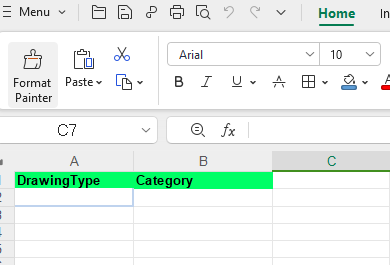](http://wiki.cuteinfocomm.com/uploads/images/gallery/2024-01/image-1705640875664.png)
3. Enter the required Drawing type and category details in the respective columns of the excel worksheet.
4. Once you have added the details in the excel worksheet, save the excel worksheet on your computer.
5. Click [](http://wiki.cuteinfocomm.com/uploads/images/gallery/2022-05/image-1651604149198.png) (**IMPORT** button).
6. A new window opens for importing the excel worksheet saved on your computer.[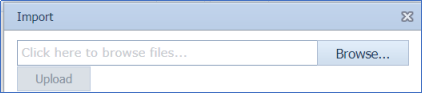](http://wiki.cuteinfocomm.com/uploads/images/gallery/2022-05/image-1651604180432.png)
7. Click [](http://wiki.cuteinfocomm.com/uploads/images/gallery/2022-04/image-1651120579811.png) (**Browse** button) to select the excel worksheet to be uploaded.
8. Click [](http://wiki.cuteinfocomm.com/uploads/images/gallery/2022-05/image-1651604210730.png) (**Upload** button) to export the drawing type that are included in the excel worksheet.
Imported successfully. The details of the Drawing Type in the worksheet will be displayed in the Drawing Type page.
#### **1.2 Basic Drawings**
DPM\_Basic role users can add Basic drawings and can create revisions.
##### **1.2.1 Add a Basic Drawing**
If you want to add a **Basic Drawing**, do the following steps,
[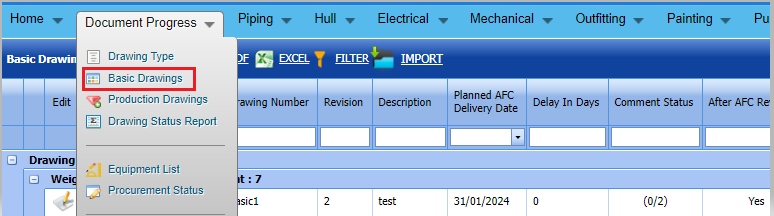](http://wiki.cuteinfocomm.com/uploads/images/gallery/2024-01/image-1705641583946.png)
Click [](http://wiki.cuteinfocomm.com/uploads/images/gallery/2022-05/image-1651604374952.png) (**ADD** button) in the **Add Basic Drawings.** See Fig 1.2.1[](http://wiki.cuteinfocomm.com/uploads/images/gallery/2024-01/image-1705423608913.png) **Figure 1.2. 1 Add Basic drawing page**
[](http://wiki.cuteinfocomm.com/uploads/images/gallery/2022-05/image-1651604404786.png)**Note**: The fields notified with a symbol (\*) are mandatory. You must enter the relevant details in that fields before saving.
1. **DPM\_Basic** role user only can add Basic drawings
2. In the **Basic Drawings** box, enter the Drawing Type number.
3. In the **Revision** box, enter the revision number.
4. In the **Drawing Number** box, enter the drawing number of the basic drawing.
5. In the **Planned AFC/Delivery Date** box, select the delivery date from drop-down list.
6. In the **Description** box, enter your description if any.
7. Click Save.
##### **1.2.2.Edit a Basic Drawing**
If you want to edit any existing Basic drawing in the **Basic drawing list** page, do the following steps
1. Click [](http://wiki.cuteinfocomm.com/uploads/images/gallery/2022-05/image-1651603749311.png)(Edit icon) in the **Edit** column for the respective drawing. See Fig 1.2.2 A new window opens to edit the saved one. [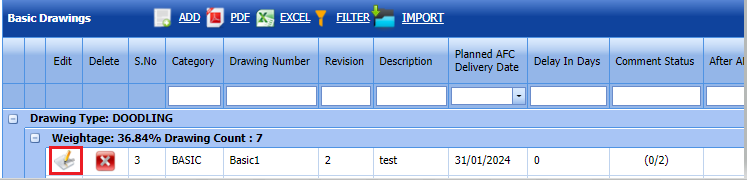](http://wiki.cuteinfocomm.com/uploads/images/gallery/2024-01/image-1705642072803.png)
****Figure 1.2:2 Edit Page****[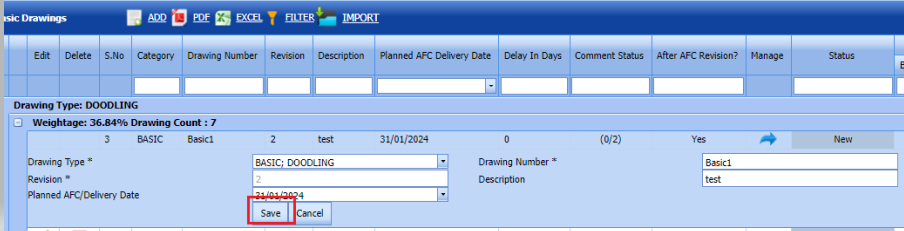](http://wiki.cuteinfocomm.com/uploads/images/gallery/2024-01/image-1705642162067.png)
2. Click any box where you want to edit the details, and then update the details in the respective box.
3. Click **Save**. Selected Basic drawing updated successfully.
##### **1.2.3.Delete a Basic Drawing**
If you want to delete any specific Basic drawing from the list of drawings, you can use (Delete icon) provided in the Delete column of the Basic Drawing page. See Fig below
[](http://wiki.cuteinfocomm.com/uploads/images/gallery/2024-01/image-1705642386892.png)
1. Click [](http://wiki.cuteinfocomm.com/uploads/images/gallery/2022-05/image-1651603839749.png) (Delete icon) for the corresponding Basic Drawing .
You receive a confirmation message “**Confirm** **delete?**”.
2. Click **OK .** Selected Basic Drawing deleted successfully.
##### **1.2.4.Export Basic Drawing**
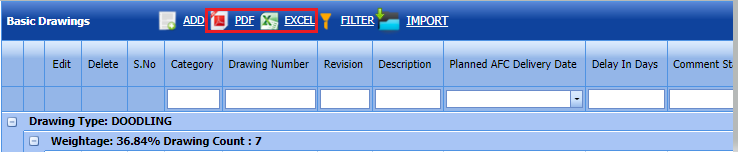
You can export a list of Basic Drawings added in the Basic drawing page in both the pdf and excel formats.
1. If you want to export the Basic Drawings list in the pdf format, click [](http://wiki.cuteinfocomm.com/uploads/images/gallery/2022-04/image-1651119905005.png)(**PDF** button).
The Basic Drawings list will be downloaded as a pdf file.
2. If you want to export the Basic Drawings list in the excel format, click [](http://wiki.cuteinfocomm.com/uploads/images/gallery/2022-04/image-1651119961686.png) (**Excel** button).
The Basic Drawings will be downloaded as an excel file.
[](http://wiki.cuteinfocomm.com/uploads/images/gallery/2024-01/image-1705642569365.png)
##### **1.2.5 Filter a Basic Drawing**
If you want to filter any Basic Drawings from the list of Basic Drawing , do the following steps,
Click [](http://wiki.cuteinfocomm.com/uploads/images/gallery/2022-05/image-1651604010559.png) (**FILTER** button) located on the Basic Drawing page. See Fig below
Once you clicked the **Filter** button, the filter box opens for the Drawing Type**, Drawing Number,Description** and **Revision** columns. [](http://wiki.cuteinfocomm.com/uploads/images/gallery/2024-01/image-1705425555312.png)
##### **1.2.6 Import multiple Basic Drawings**
If you want to **Import** multiple Basic drawings together, do the following steps,[](http://wiki.cuteinfocomm.com/uploads/images/gallery/2024-01/image-1705426378596.png)
1. Click [](http://wiki.cuteinfocomm.com/uploads/images/gallery/2022-05/image-1651604149198.png) (**IMPORT** button) in the Basic drawing screen. Refer above fig
2. It will redirected to import page
3. Click [](http://wiki.cuteinfocomm.com/uploads/images/gallery/2022-04/image-1651120365377.png) (**TEMPLATE** button) . An excel worksheet will be downloaded with a predefined template to enter the details of Basic Drawing details.[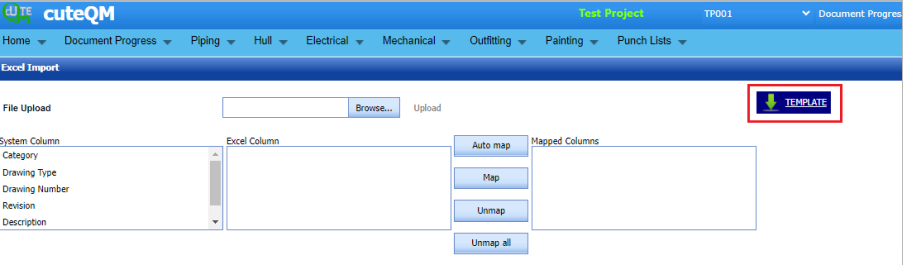](http://wiki.cuteinfocomm.com/uploads/images/gallery/2024-01/image-1705593670101.png)
4. Enter the required Drawing type and category details in the respective columns of the excel worksheet.
5. Once you have added the details in the excel worksheet, save the excel worksheet on your computer.[](http://wiki.cuteinfocomm.com/uploads/images/gallery/2024-01/image-1705593775731.png)
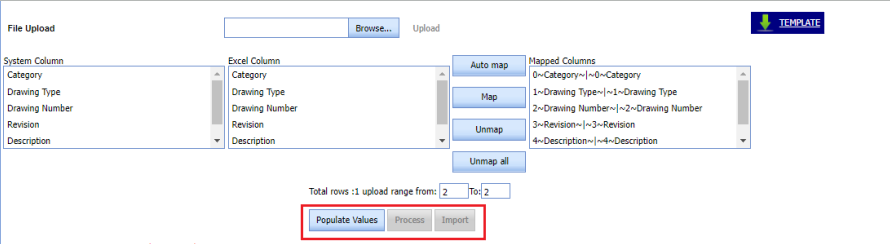
6. After saved the excel, browse and upload the excel,
7. Click populate values ,process and Import buttons. Refer below fig
8. [](http://wiki.cuteinfocomm.com/uploads/images/gallery/2024-01/image-1705593998835.png)
9. Imported successfully, imported data will be shown in Basic drawings list screen
#### **1.3.Basic Drawings Workflow Approval**
Multiple workflow levels are there to approve Basic drawings. DPM\_Basic role users only can initiate the workflow by creating basic drawings. See Fig 1.2.6
[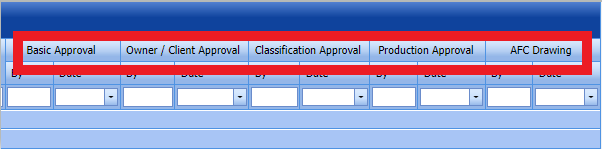 ](http://wiki.cuteinfocomm.com/uploads/images/gallery/2024-01/image-1705580913489.png)**Fig 1.2.6 Workflow approvals of Basic drawings**
##### **1.3.1.Basic Approval**
1. DPM\_Basic role users can do Basic approval
2. Login as DPM\_Basic role user and click Manage button placed against the basic drawing. It will redirected to details screen of the basic drawing. Refer below fig[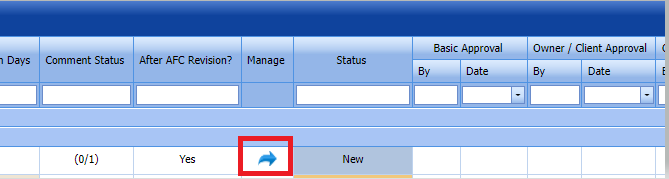](http://wiki.cuteinfocomm.com/uploads/images/gallery/2024-01/image-1705581637526.png)
3. Upload the Basic drawing which is going to approve. Refer below Fig.[](http://wiki.cuteinfocomm.com/uploads/images/gallery/2024-01/image-1705581948326.png)
4. User can add comments and additional documents in this details screen. Refer below fig.[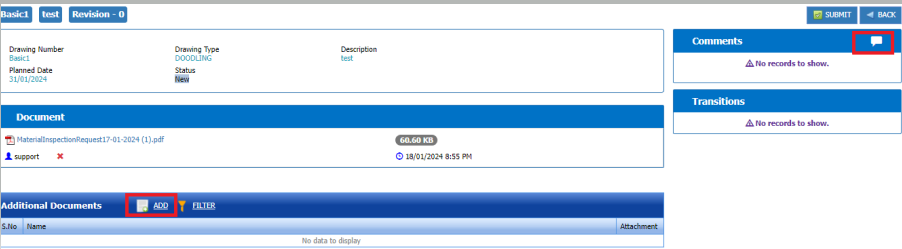](http://wiki.cuteinfocomm.com/uploads/images/gallery/2024-01/image-1705582695399.png)
5. User can submit the added basic drawing by click the submit button placed at the top right.After Refer below fig.[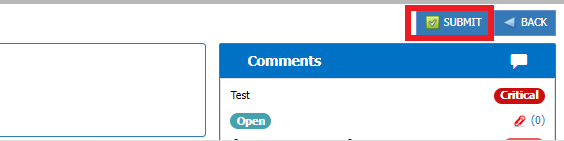](http://wiki.cuteinfocomm.com/uploads/images/gallery/2024-01/image-1705583071496.png)
6. After submission, status of the basic drawing will be changed to **Waiting for Owner Approval/Classification Approval.**Then we can do **Parallel approval for Owner/client approval or Classification approval .**
7. Email notification will be sent to Owner and classification users
##### **1.3.2.Owner/Client Approval**
1. **DPM\_Owner** role users can do Owner/Client approval.
2. Login as **DPM\_Owner** user and click [](http://wiki.cuteinfocomm.com/uploads/images/gallery/2024-01/image-1705583630675.png)manage button to view the drawing details
3. Now user can see **Owner/client approve** and **Return** buttons at the top. Refer below fig[](http://wiki.cuteinfocomm.com/uploads/images/gallery/2024-01/image-1705584248874.png)
4. If **Return** [](http://wiki.cuteinfocomm.com/uploads/images/gallery/2024-01/image-1705584335789.png)clicked it will redirected to popup window to enter return comments, priority and attachments.Refer below fig.[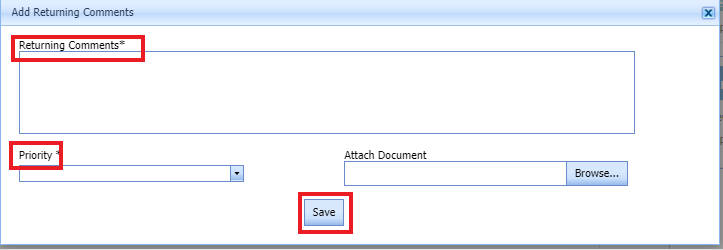](http://wiki.cuteinfocomm.com/uploads/images/gallery/2024-01/image-1705584763755.png)
5. After entering mandatory fields click **save** button. Refer above fig. Then **New revision** will be created for that drawing.
6. Status will be changed to **New** and email notification will be sent to **Creator** user to submit the drawing.
7. If **Owner/Client approve** [ ](http://wiki.cuteinfocomm.com/uploads/images/gallery/2024-01/image-1705585264891.png)clicked, then status will be changed to **Waiting for Classification Approval.**
8. Email notification will be sent to **DPM\_Classification** role users to approve the drawing
##### **1.3.3.Classification Approval**
1. **DPM\_Classification** role users can do classification approval.
2. Login as **DPM\_Classification** role user and click [](http://wiki.cuteinfocomm.com/uploads/images/gallery/2024-01/image-1705583630675.png)manage button to view the drawing details .
3. Now user can see **Classification approve** and **Return** buttons at the top.Refer below fig.[](http://wiki.cuteinfocomm.com/uploads/images/gallery/2024-01/image-1705588858326.png)
4. If **Return** [](http://wiki.cuteinfocomm.com/uploads/images/gallery/2024-01/image-1705584335789.png)clicked it will redirected to popup window to enter return comments, priority and attachments. Refer below fig.[](http://wiki.cuteinfocomm.com/uploads/images/gallery/2024-01/image-1705584763755.png)
5. After entering mandatory fields click **save** button. Refer above fig. Then **New revision** will be created for that drawing.
6. Status will be changed to **New** and email notification will be sent to **Creator** user to submit the drawing.
7. If **Classification approve**[ ](http://wiki.cuteinfocomm.com/uploads/images/gallery/2024-01/image-1705589047116.png)clicked , then status will be changed to **Waiting for Production Approval.**
8. Email notification will be sent to **DPM\_Production** role users to approve the drawing.
##### **1.3.4.Production Approval**
1. **DPM\_Production** role user can do Production approval.
2. Login as **DPM\_Production** role user and click [](http://wiki.cuteinfocomm.com/uploads/images/gallery/2024-01/image-1705583630675.png)manage button to view the drawing details.
3. Now user can see **Production approve** and **Return** buttons at the top. Refer below fig.[](http://wiki.cuteinfocomm.com/uploads/images/gallery/2024-01/image-1705589416167.png)
4. If **Return** [](http://wiki.cuteinfocomm.com/uploads/images/gallery/2024-01/image-1705584335789.png)clicked it will redirected to popup window to enter return comments, priority and attachments. Refer below fig.[](http://wiki.cuteinfocomm.com/uploads/images/gallery/2024-01/image-1705584763755.png)
5. After entering mandatory fields click **save** button. Refer above fig. Then **New revision** will be created for that drawing.
6. Status will be changed to **New** and email notification will be sent to **Creator** user to submit the drawing.
7. If **Production Approve**[](http://wiki.cuteinfocomm.com/uploads/images/gallery/2024-01/image-1705589507691.png)clicked , then status will be changed to **Waiting for AFC .**
8. Email notification will be sent to **DPM\_AFC** role users to approve the drawing.
##### **1.3.5.AFC Approval**
1. **DPM\_AFC** user can approve drawing at any stage of the workflow .
2. Login as **DPM\_AFC** role user and click [](http://wiki.cuteinfocomm.com/uploads/images/gallery/2024-01/image-1705583630675.png)manage button to view the drawing details.
3. Now user can see **AFC** and **Return** buttons at the top. Refer below fig[](http://wiki.cuteinfocomm.com/uploads/images/gallery/2024-01/image-1705589847714.png)
4. If **Return** [](http://wiki.cuteinfocomm.com/uploads/images/gallery/2024-01/image-1705584335789.png)clicked it will redirected to popup window to enter return comments, priority and attachments. Refer below fig.[](http://wiki.cuteinfocomm.com/uploads/images/gallery/2024-01/image-1705584763755.png)
5. After entering mandatory fields click **save** button. Refer above fig. Then **New revision** will be created for that drawing.
6. Status will be changed to **New** and email notification will be sent to **Creator** user to submit the drawing.
7. If **AFC** [](http://wiki.cuteinfocomm.com/uploads/images/gallery/2024-01/image-1705589960423.png)clicked , then status will be changed to **Approved .**
8. Email notification will be sent to creator user.
##### **1.3.6.Revision**
1. **DPM\_Basic** role user only can Revise the Basic drawing.
2. Once Basic drawing approved, Revision button button will be enabled for **DPM\_Basic** role users.
3. Login as **DPM\_Basic** role user and click manage button to view the drawing details.
4. Click Revision button at the top. Refer below fig. [](http://wiki.cuteinfocomm.com/uploads/images/gallery/2024-01/image-1705590544318.png)
5. A confirmation msg will be prompted.Click **Ok .**Refer below fig[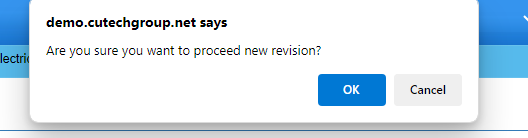](http://wiki.cuteinfocomm.com/uploads/images/gallery/2024-01/image-1705590888807.png)
6. New **Revision** of the drawing will be created. Status changed to **New.**
7. Repeat the steps **1.3** to approve the revised drawing.
### **1.4 Production Drawings**
DPM\_Receiver role users can add Basic drawings and can create revisions.
##### **1.4.1 Add a Production Drawing**
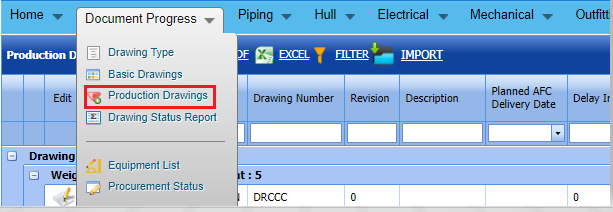
If you want to add a **Production Drawing**, do the following steps.
[](http://wiki.cuteinfocomm.com/uploads/images/gallery/2024-01/image-1705650747201.png)
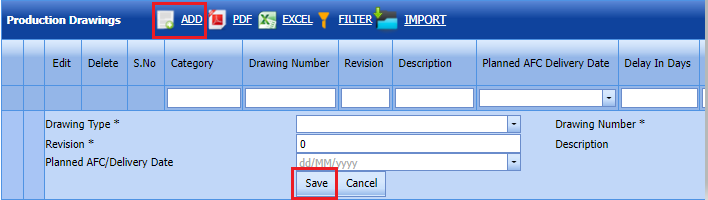
Click [](http://wiki.cuteinfocomm.com/uploads/images/gallery/2022-05/image-1651604374952.png) (**ADD** button) in the **Add Production Drawings.** See Fig 1.4.1
[](http://wiki.cuteinfocomm.com/uploads/images/gallery/2024-01/image-1705650890751.png)
**Figure 1.4. 1 Add Production drawing page**
[](http://wiki.cuteinfocomm.com/uploads/images/gallery/2022-05/image-1651604404786.png)**Note**: The fields notified with a symbol (\*) are mandatory. You must enter the relevant details in that fields before saving.
1. **DPM\_Receiver** role user only can add Basic drawings
2. In the **Production Drawings** box, enter the Drawing Type number.
3. In the **Revision** box, enter the revision number.
4. In the **Drawing Number** box, enter the drawing number of the basic drawing.
5. In the **Planned AFC/Delivery Date** box, select the delivery date from drop-down list.
6. In the **Description** box, enter your description if any.
7. Click Save.
##### **1.4.2.Edit a Production Drawing**
If you want to edit any existing Basic drawing in the **Production drawing list** page, do the following steps
1. Click [](http://wiki.cuteinfocomm.com/uploads/images/gallery/2022-05/image-1651603749311.png)(Edit icon) in the **Edit** column for the respective drawing. See Fig 1.4.2 A new window opens to edit the saved one. [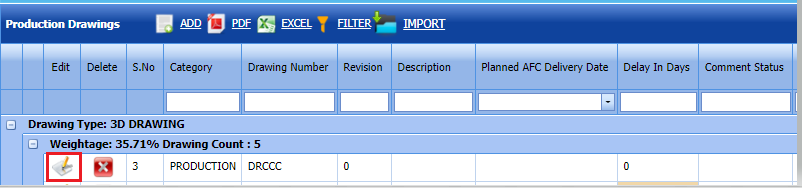](http://wiki.cuteinfocomm.com/uploads/images/gallery/2024-01/image-1705650995801.png)
**Figure 1.4:2 Edit Page**[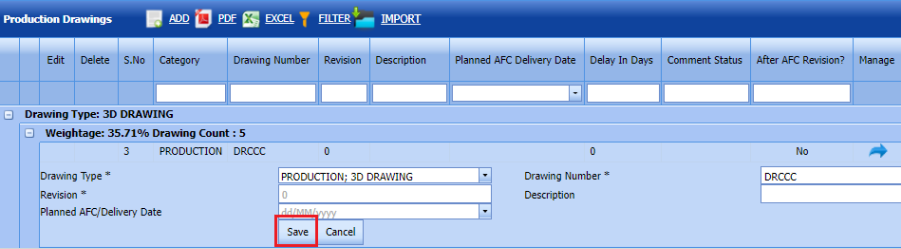](http://wiki.cuteinfocomm.com/uploads/images/gallery/2024-01/image-1705651094782.png)
2. Click any box where you want to edit the details, and then update the details in the respective box.
3. Click **Save**. Selected Production drawing updated successfully.
##### **1.4.3.Delete a Production Drawing**
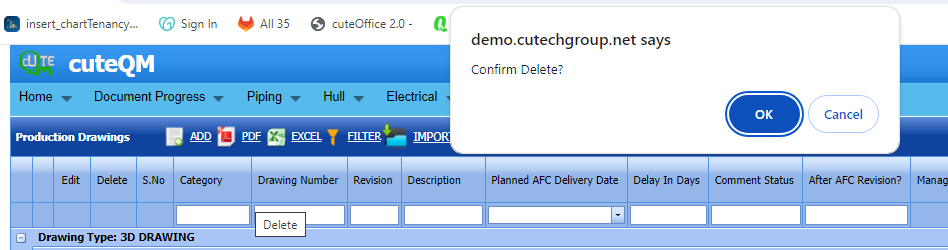
If you want to delete any specific Production drawing from the list of drawings, you can use (Delete icon) provided in the Delete column of the Production Drawing page. See Fig below
[](http://wiki.cuteinfocomm.com/uploads/images/gallery/2024-01/image-1705651178511.png)
1. Click [](http://wiki.cuteinfocomm.com/uploads/images/gallery/2022-05/image-1651603839749.png) (Delete icon) for the corresponding Basic Drawing .
You receive a confirmation message “**Confirm** **delete?**”.
2. Click **OK .** Selected Production Drawing deleted successfully.
##### **1.4.4.Export Production Drawing**
You can export a list of Production Drawings added in the Production drawing page in both the pdf and excel formats.
1. If you want to export the Production Drawings list in the pdf format, click [](http://wiki.cuteinfocomm.com/uploads/images/gallery/2022-04/image-1651119905005.png)(**PDF** button).
The Production Drawings list will be downloaded as a pdf file.
2. If you want to export the Production Drawings list in the excel format, click [](http://wiki.cuteinfocomm.com/uploads/images/gallery/2022-04/image-1651119961686.png) (**Excel** button).
The Production Drawings will be downloaded as an excel file.
[](http://wiki.cuteinfocomm.com/uploads/images/gallery/2024-01/image-1705642569365.png)
##### **1.4.5 Filter a Production Drawing**
If you want to filter any Basic Drawings from the list of Production Drawing , do the following steps,
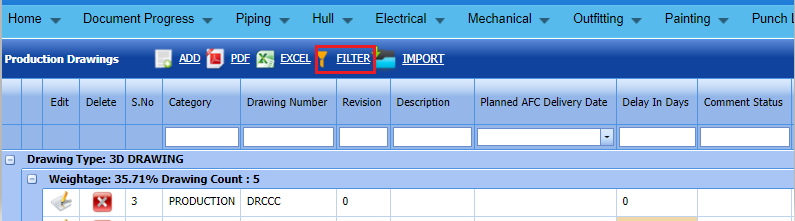
Click [](http://wiki.cuteinfocomm.com/uploads/images/gallery/2022-05/image-1651604010559.png) (**FILTER** button) located on the Production Drawing page. See Fig below
Once you clicked the **Filter** button, the filter box opens for the Drawing Type**, Drawing Number,Description** and **Revision** columns.
[](http://wiki.cuteinfocomm.com/uploads/images/gallery/2024-01/image-1705652735099.png)
##### **1.4.6 Import multiple Production Drawings**
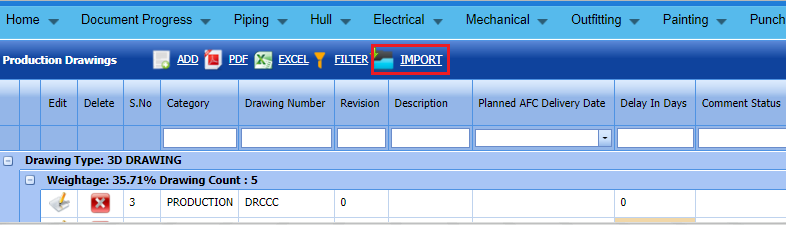
If you want to **Import** multiple Production drawings together, do the following steps,
[](http://wiki.cuteinfocomm.com/uploads/images/gallery/2024-01/image-1705652790293.png)
1. Click [](http://wiki.cuteinfocomm.com/uploads/images/gallery/2022-05/image-1651604149198.png) (**IMPORT** button) in the Production drawing screen. Refer above fig.
2. It will redirected to import page.
3. Click [](http://wiki.cuteinfocomm.com/uploads/images/gallery/2022-04/image-1651120365377.png) (**TEMPLATE** button) . An excel worksheet will be downloaded with a predefined template to enter the details of Production Drawing details.[](http://wiki.cuteinfocomm.com/uploads/images/gallery/2024-01/image-1705593670101.png)
4. Enter the required Drawing type and category details in the respective columns of the excel worksheet.
5. Once you have added the details in the excel worksheet, save the excel worksheet on your computer.[](http://wiki.cuteinfocomm.com/uploads/images/gallery/2024-01/image-1705593775731.png)
6. After saved the excel, click browse and upload the excel.
7. Click populate values ,process and Import buttons. Refer below fig.
8. [](http://wiki.cuteinfocomm.com/uploads/images/gallery/2024-01/image-1705593998835.png)
9. Imported successfully, imported data will be shown in Production drawings list screen.
#### **1.5.Production Drawings Workflow Approval**
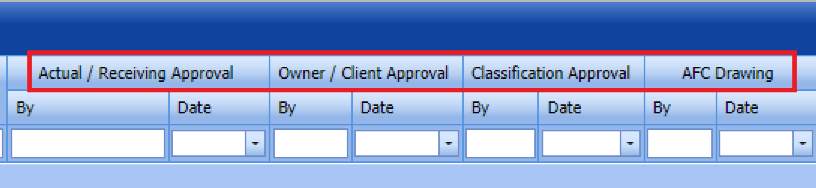
Multiple workflow levels are there to approve Production drawings. DPM\_Receiver role users only can initiate the workflow by creating Production drawings. See Fig 1.5.
[](http://wiki.cuteinfocomm.com/uploads/images/gallery/2024-01/image-1705654336666.png)
[ ](http://wiki.cuteinfocomm.com/uploads/images/gallery/2024-01/image-1705580913489.png)**Fig 1.5.Workflow approvals of Basic drawings**
##### **1.5.1.Actual/Receiving Approval**
1. DPM\_Receiver role users can do Basic approval
2. Login as DPM\_Receiver role user and click Manage button placed against the Production drawing. It will redirected to details screen of the Production drawing. Refer below fig [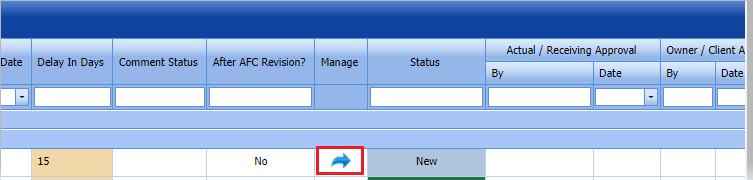](http://wiki.cuteinfocomm.com/uploads/images/gallery/2024-01/image-1705654634209.png)
3. Upload the Production drawing which is going to approve. Refer below Fig.[](http://wiki.cuteinfocomm.com/uploads/images/gallery/2024-01/image-1705581948326.png)
4. User can add comments and additional documents in this details screen. Refer below fig.[](http://wiki.cuteinfocomm.com/uploads/images/gallery/2024-01/image-1705582695399.png)
5. User can submit the added Production drawing by click the submit button placed at the top right.After Refer below fig.[](http://wiki.cuteinfocomm.com/uploads/images/gallery/2024-01/image-1705583071496.png)
6. After submission, status of the Production drawing will be changed to **Waiting for Owner Approval/Classification Approval.**Then we can do **Parallel approval for Owner/client approval or Classification approval .**
7. Email notification will be sent to Owner and classification users
##### **1.5.2.Owner/Client Approval**
1. **DPM\_Owner** role users can do Owner/Client approval.
2. Login as **DPM\_Owner** user and click [](http://wiki.cuteinfocomm.com/uploads/images/gallery/2024-01/image-1705583630675.png)manage button to view the drawing details
3. Now user can see **Owner/client approve** and **Return** buttons at the top. Refer below fig[](http://wiki.cuteinfocomm.com/uploads/images/gallery/2024-01/image-1705584248874.png)
4. If **Return** [](http://wiki.cuteinfocomm.com/uploads/images/gallery/2024-01/image-1705584335789.png)clicked it will redirected to popup window to enter return comments, priority and attachments.Refer below fig.[](http://wiki.cuteinfocomm.com/uploads/images/gallery/2024-01/image-1705584763755.png)
5. After entering mandatory fields click **save** button. Refer above fig. Then **New revision** will be created for that drawing.
6. Status will be changed to **New** and email notification will be sent to **Creator** users to submit the drawing.
7. If **Owner/Client approve** [ ](http://wiki.cuteinfocomm.com/uploads/images/gallery/2024-01/image-1705585264891.png)clicked, then status will be changed to **Waiting for Classification Approval.**
8. Email notification will be sent to **DPM\_Classification** role users to approve the drawing
##### **1.5.3.Classification Approval**
1. **DPM\_Classification** role users can do classification approval.
2. Login as **DPM\_Classification** role user and click [](http://wiki.cuteinfocomm.com/uploads/images/gallery/2024-01/image-1705583630675.png)manage button to view the drawing details .
3. Now user can see **Classification approve** and **Return** buttons at the top.Refer below fig.[](http://wiki.cuteinfocomm.com/uploads/images/gallery/2024-01/image-1705588858326.png)
4. If **Return** [](http://wiki.cuteinfocomm.com/uploads/images/gallery/2024-01/image-1705584335789.png)clicked it will redirected to popup window to enter return comments, priority and attachments. Refer below fig.[](http://wiki.cuteinfocomm.com/uploads/images/gallery/2024-01/image-1705584763755.png)
5. After entering mandatory fields click **save** button. Refer above fig. Then **New revision** will be created for that drawing.
6. Status will be changed to **New** and email notification will be sent to **creator** users to submit the drawing.
7. If **Classification approve**[ ](http://wiki.cuteinfocomm.com/uploads/images/gallery/2024-01/image-1705589047116.png)clicked , then status will be changed to **Waiting for AFC.**
8. Email notification will be sent to **DPM\_AFC** role users to approve the drawing.
##### **1.5.4.AFC Approval**
1. **DPM\_AFC** user can approve drawing at any stage of the workflow .
2. Login as **DPM\_AFC** role user and click [](http://wiki.cuteinfocomm.com/uploads/images/gallery/2024-01/image-1705583630675.png)manage button to view the drawing details.
3. Now user can see **AFC** and **Return** buttons at the top. Refer below fig[](http://wiki.cuteinfocomm.com/uploads/images/gallery/2024-01/image-1705589847714.png)
4. If **Return** [](http://wiki.cuteinfocomm.com/uploads/images/gallery/2024-01/image-1705584335789.png)clicked it will redirected to popup window to enter return comments, priority and attachments. Refer below fig.[](http://wiki.cuteinfocomm.com/uploads/images/gallery/2024-01/image-1705584763755.png)
5. After entering mandatory fields click **save** button. Refer above fig. Then **New revision** will be created for that drawing.
6. Status will be changed to **New** and email notification will be sent to **creator** user to submit the drawing.
7. If **AFC** [](http://wiki.cuteinfocomm.com/uploads/images/gallery/2024-01/image-1705589960423.png)clicked , then status will be changed to **Approved .**
8. Email notification will be sent to **creator** user.
##### **1.5.5.Revision**
1. **DPM\_Receiver** role user only can Revise the Productionc drawing.
2. Once Production drawing approved, Revision button button will be enabled for **DPM\_Receiver** role users.
3. Login as **DPM\_Basic** role user and click manage button to view the drawing details.
4. Click Revision button at the top. Refer below fig. [](http://wiki.cuteinfocomm.com/uploads/images/gallery/2024-01/image-1705590544318.png)
5. A confirmation msg will be prompted.Click **Ok .**Refer below fig[](http://wiki.cuteinfocomm.com/uploads/images/gallery/2024-01/image-1705590888807.png)
6. New **Revision** of the drawing will be created. Status changed to **New.**
7. Repeat the steps **1.5** to approve the revised drawing.
#### **1.6 Drawing Status Report**
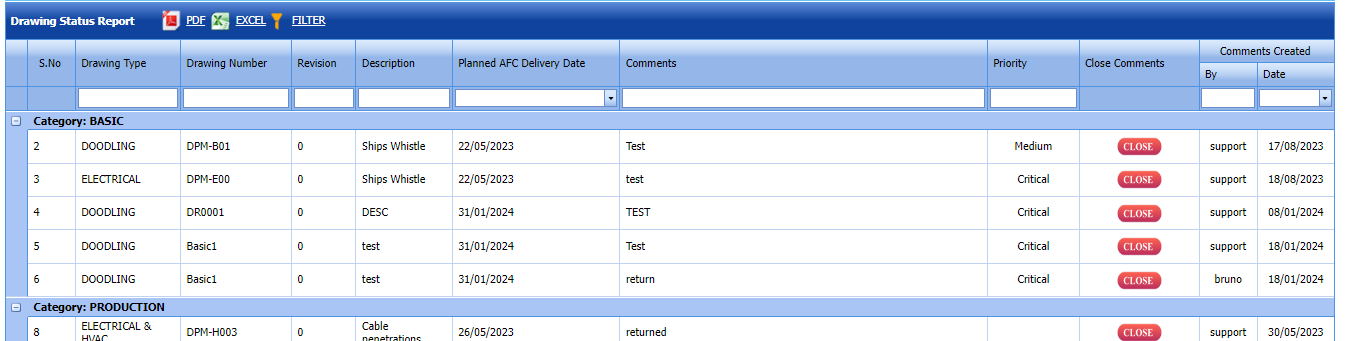
Drawing status report shown the comments to be closed for both Basic and Production drawings. Refer below fig
[](http://wiki.cuteinfocomm.com/uploads/images/gallery/2024-01/image-1705595775604.png)
##### **1.6.1.Export PDF & Excel**
1. If you want to export the Drawing status report list in the pdf format, click [ ](http://wiki.cuteinfocomm.com/uploads/images/gallery/2024-01/image-1705593162729.png)(PDF button).Drawing status report list will be downloaded as pdf format.
2. If you want to export the Drawing status report in the excel format, click [](http://wiki.cuteinfocomm.com/uploads/images/gallery/2022-04/image-1651119961686.png) (**Excel** button). Drawing status report list will be downloaded in excel format.
[](http://wiki.cuteinfocomm.com/uploads/images/gallery/2024-01/image-1705595961837.png)
##### **1.6.2 Filter**
If you want to filter any Drawings status from the list of Drawings , do the following,
Click [](http://wiki.cuteinfocomm.com/uploads/images/gallery/2022-05/image-1651604010559.png) (**FILTER** button) located on the Drawing status report page. See below fig
Once you clicked the **Filter** button, the filter box opens for the **Drawing Type, Drawing Number,** and **Revision ,Description ,priority & comments** columns.
[](http://wiki.cuteinfocomm.com/uploads/images/gallery/2024-01/image-1705596491997.png)
##### **1.6.3 Close Comments**
1.If you want to close the comments for any of the drawings, click **close** [](http://wiki.cuteinfocomm.com/uploads/images/gallery/2024-01/image-1705596646398.png)button .Refer below fig
[](http://wiki.cuteinfocomm.com/uploads/images/gallery/2024-01/image-1705596796036.png)
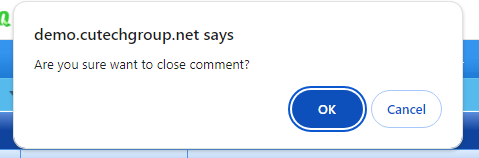
2.Once Close button clicked, confirmation msg will be prompted and click **ok**. Refer below fig
[](http://wiki.cuteinfocomm.com/uploads/images/gallery/2024-01/image-1705596875954.png)
3.Comment closed successfully. It will updated against drawing in Basic drawing and Production drawing screens
#### **1.7 Equipment List**
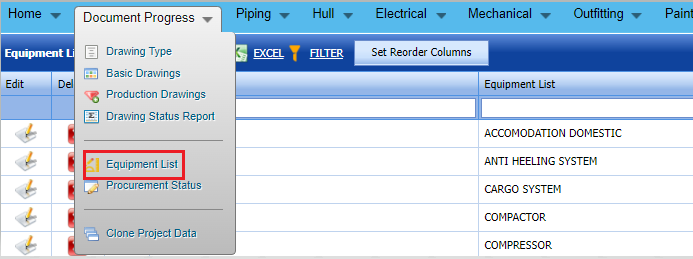
Equipment list screen shown the added equipments.
[](http://wiki.cuteinfocomm.com/uploads/images/gallery/2024-01/image-1705598286140.png)
##### **1.7.1 Add a Equipment**
If you want to add a Equipment, do the following,
Click [](http://wiki.cuteinfocomm.com/uploads/images/gallery/2022-05/image-1651603646996.png) (**ADD** button) in the Equipment list page. See Fig below
The new window open to Add Equipment
[](http://wiki.cuteinfocomm.com/uploads/images/gallery/2024-01/image-1705598484023.png)
[ ](http://wiki.cuteinfocomm.com/uploads/images/gallery/2024-01/image-1705028582770.png)
1. [](http://wiki.cuteinfocomm.com/uploads/images/gallery/2022-05/image-1651603678108.png)**Note**: The field notified with a symbol (\*) is mandatory. You must enter the relevant details in that fields before saving.
2. In the Equipment list box, you must enter equipment name
3. In the ABBR box, enter the ABBR of the equipment
4. In the Remarks text box, enter remarks
5. Click **Save**.
The Equipment list successfully added.
##### **1.7.2.Edit a Equipment**
If you want to edit any existing Equipments in the Equipment list page, do the following steps
1. Click [](http://wiki.cuteinfocomm.com/uploads/images/gallery/2022-05/image-1651603749311.png)(Edit icon) in the **Edit** column for the respective Equipment. See Fig 1.7.2 A new window opens to edit the saved one. [](http://wiki.cuteinfocomm.com/uploads/images/gallery/2024-01/image-1705656089840.png)
**Figure 1.7.2 Edit Page**[](http://wiki.cuteinfocomm.com/uploads/images/gallery/2024-01/image-1705656222546.png)
2. Click any box where you want to edit the details, and then update the details in the respective box.
3. Click **Save**. Selected Equipment updated successfully.
##### **1.7.3.Delete a Equipment**
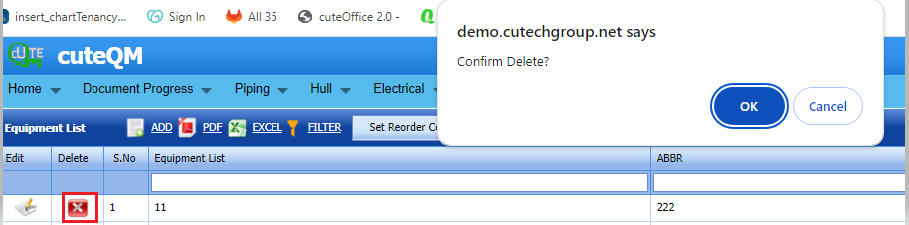
If you want to delete any specific Equipment from the list of equipments , you can use (Delete icon) provided in the Delete column of the Equipment list page. See Fig below
[](http://wiki.cuteinfocomm.com/uploads/images/gallery/2024-01/image-1705656360219.png)
1. Click [](http://wiki.cuteinfocomm.com/uploads/images/gallery/2022-05/image-1651603839749.png) (Delete icon) for the corresponding Equipment. .
You receive a confirmation message “**Confirm** **delete?**”.
2. Click **OK .** Selected Equipment deleted successfully.
##### **1.7.4 Export Equipment list**
1. If you want to export the Equipment list in the pdf format, click [ ](http://wiki.cuteinfocomm.com/uploads/images/gallery/2024-01/image-1705593162729.png)(PDF button).Equipment list will be downloaded as pdf format.
2. If you want to export the Equipment list in the excel format, click [](http://wiki.cuteinfocomm.com/uploads/images/gallery/2022-04/image-1651119961686.png) (**Excel** button). Equipment list will be downloaded in excel format.
[](http://wiki.cuteinfocomm.com/uploads/images/gallery/2024-01/image-1705598725351.png)
##### **1.7.5 Filter a Equipment**
If you want to filter any Equipment from the list of equipments , do the following,
Click [](http://wiki.cuteinfocomm.com/uploads/images/gallery/2022-05/image-1651604010559.png) (**FILTER** button) located on the Equipment list page. See below fig
Once you clicked the **Filter** button, the filter box opens for the **Equipment, ABBR & Remarks columns.
[](http://wiki.cuteinfocomm.com/uploads/images/gallery/2024-01/image-1705598931988.png)
##### **1.7.6 Set Reorder Columns**
To Rearrange the order of the columns this button is used
[](http://wiki.cuteinfocomm.com/uploads/images/gallery/2024-01/image-1705599262501.png)
Drag and change the order of the column name.Then click Set Reorder Columns [ ](http://wiki.cuteinfocomm.com/uploads/images/gallery/2024-01/image-1705599193525.png)button.Then the new column order will be saved.
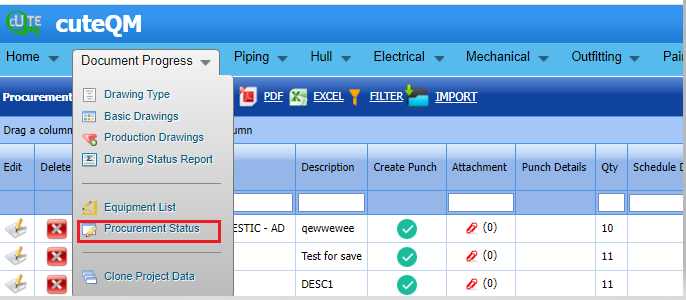
#### **1.6 Procurement Status**
Here we can create procurements and can create punchlists against the procurement status
[](http://wiki.cuteinfocomm.com/uploads/images/gallery/2024-01/image-1705600286549.png)
##### **1.6.1 Add a Procurement**
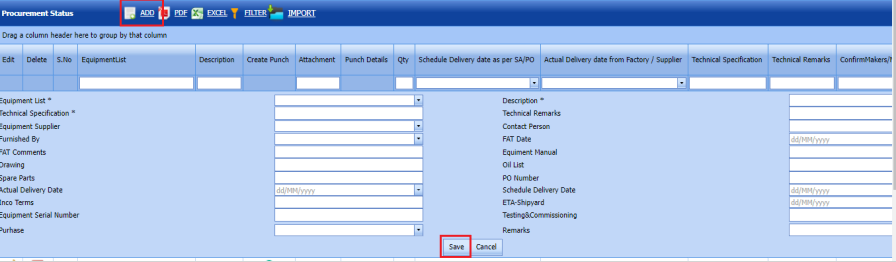
If you want to add a Procurement status, do the following,
Click [](http://wiki.cuteinfocomm.com/uploads/images/gallery/2022-05/image-1651603646996.png) (**ADD** button) in the Procurement status page. See Fig below
The new window open to Add Procurement status
[](http://wiki.cuteinfocomm.com/uploads/images/gallery/2024-01/image-1705600542181.png)
[ ](http://wiki.cuteinfocomm.com/uploads/images/gallery/2024-01/image-1705028582770.png)
1. [](http://wiki.cuteinfocomm.com/uploads/images/gallery/2022-05/image-1651603678108.png)**Note**: The field notified with a symbol (\*) is mandatory. You must enter the relevant details in that fields before saving.
2. Fill all the fields
3. Click **Save**.
4. The Procurement status successfully added.
##### **1.6.2.Edit a Procurement**
If you want to edit any existing Procurement in the **Procurement status list** page, do the following steps
1. Click [](http://wiki.cuteinfocomm.com/uploads/images/gallery/2022-05/image-1651603749311.png)(Edit icon) in the **Edit** column for the respective Procurement. See Fig 1.6.2 A new window opens to edit the saved one. [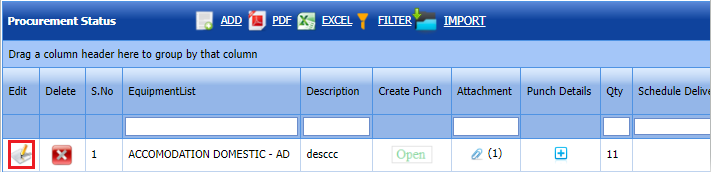](http://wiki.cuteinfocomm.com/uploads/images/gallery/2024-01/image-1705656769516.png)
**Figure 1.6:2 Edit Page**[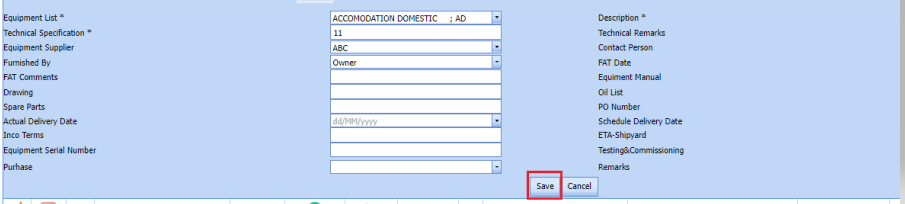](http://wiki.cuteinfocomm.com/uploads/images/gallery/2024-01/image-1705656881682.png)
2. Click any box where you want to edit the details, and then update the details in the respective box.
3. Click **Save**. Selected Procurement updated successfully.
##### **1.6.3.Delete a Procurement**
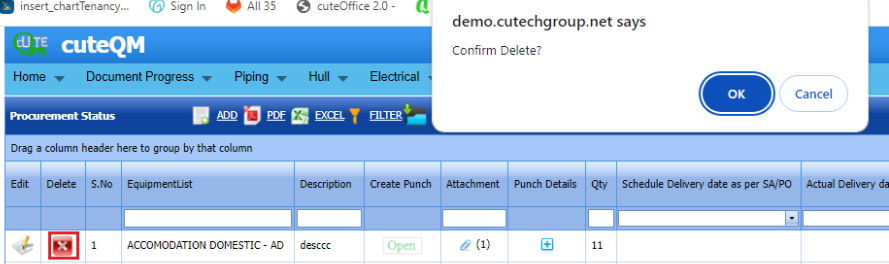
If you want to delete any specific Procurement from the list of drawings, you can use (Delete icon) provided in the Delete column of the Procurement status page. See Fig below.
[](http://wiki.cuteinfocomm.com/uploads/images/gallery/2024-01/image-1705657044474.png)
1. Click [](http://wiki.cuteinfocomm.com/uploads/images/gallery/2022-05/image-1651603839749.png) (Delete icon) for the corresponding Procurement .
You receive a confirmation message “**Confirm** **delete?**”.
2. Click **OK .** Selected Procurement deleted successfully.
##### **1.6.4 Export Procurement**
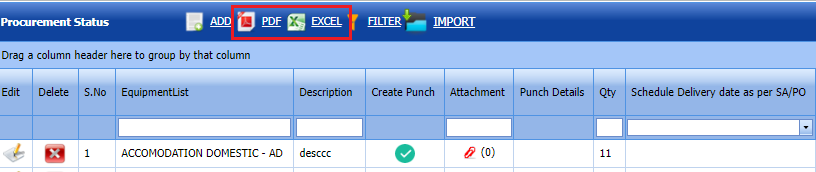
1. If you want to export the Procurement status in the pdf format, click [ ](http://wiki.cuteinfocomm.com/uploads/images/gallery/2024-01/image-1705593162729.png)(PDF button).Procurement status list will be downloaded as pdf format.
2. If you want to export the Procurement status in the excel format, click [](http://wiki.cuteinfocomm.com/uploads/images/gallery/2022-04/image-1651119961686.png) (**Excel** button). Procurement status list will be downloaded in excel format.
[](http://wiki.cuteinfocomm.com/uploads/images/gallery/2024-01/image-1705600649746.png)
##### **1.6.5 Filter a Procurement**
If you want to filter any Procurement status from the list of Procurement status , do the following,
Click [](http://wiki.cuteinfocomm.com/uploads/images/gallery/2022-05/image-1651604010559.png) (**FILTER** button) located on the Procurement status list page. See below fig
Once you clicked the **Filter** button, the filter box opens for all the columns.
[](http://wiki.cuteinfocomm.com/uploads/images/gallery/2024-01/image-1705600832628.png)
##### **1.6.6 Import multiple Procurements**
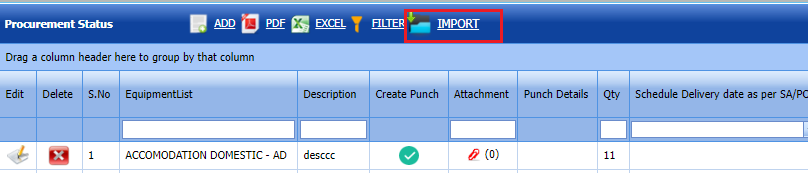
If you want to **Import** multiple Procurement status together, do the following steps,
[](http://wiki.cuteinfocomm.com/uploads/images/gallery/2024-01/image-1705601074612.png)
1. Click [](http://wiki.cuteinfocomm.com/uploads/images/gallery/2022-05/image-1651604149198.png) (**IMPORT** button) in the Basic drawing screen. Refer above fig.
2. It will redirected to import page.
3. Click [](http://wiki.cuteinfocomm.com/uploads/images/gallery/2022-04/image-1651120365377.png) (**TEMPLATE** button) . An excel worksheet will be downloaded with a predefined template to enter the details of Procurement details.[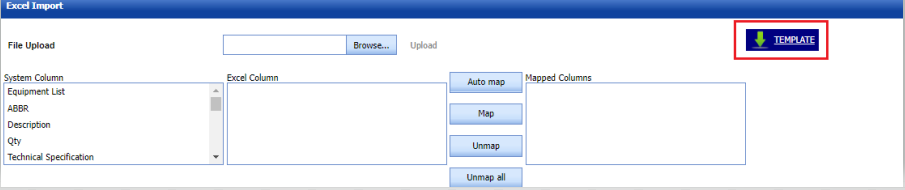](http://wiki.cuteinfocomm.com/uploads/images/gallery/2024-01/image-1705601164885.png)
4. Enter the required details in the respective columns of the excel worksheet.
5. Once you have added the details in the excel worksheet, save the excel worksheet on your computer.[](http://wiki.cuteinfocomm.com/uploads/images/gallery/2024-01/image-1705601252240.png)
6. After saved the excel, browse and upload the excel.
7. Click populate values, process and Import buttons. Refer below fig
8. [](http://wiki.cuteinfocomm.com/uploads/images/gallery/2024-01/image-1705593998835.png)
9. After Imported successfully, imported data will be shown in Procurement status list screen
##### **1.6.7 Create Punch**
1. Punchlist can be created by clicking create punch button in Procurement status list screen. Refer below fig.[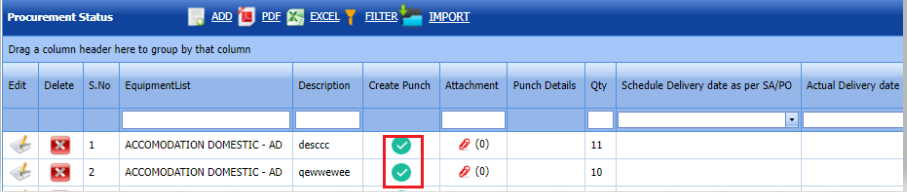](http://wiki.cuteinfocomm.com/uploads/images/gallery/2024-01/image-1705601506273.png)
2. Click Create punch [ ](http://wiki.cuteinfocomm.com/uploads/images/gallery/2024-01/image-1705601648957.png)button .Popup will be shown .Refer below fig.[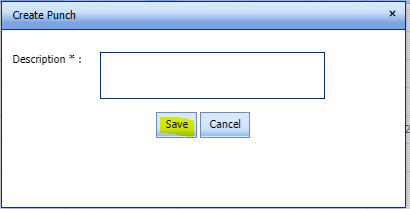](http://wiki.cuteinfocomm.com/uploads/images/gallery/2024-01/image-1705601705152.png)
3. Enter Description and click **save.**
4. Status of the punch list changed to **open.[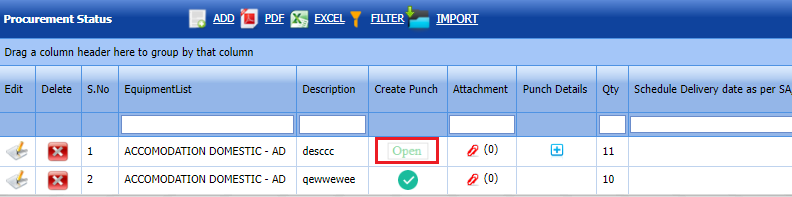](http://wiki.cuteinfocomm.com/uploads/images/gallery/2024-01/image-1705601943628.png)**
5. Go to View punch list screen and close the punch list (Refer 2.2)
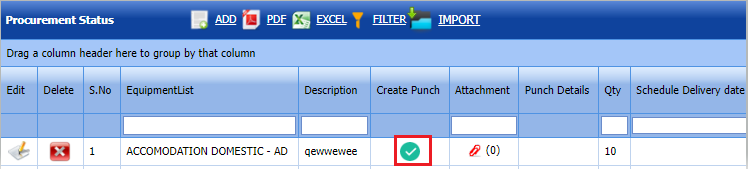
6. Create punch list button again enabled in Procurement list screen once punch closed in view punch list screen .
[](http://wiki.cuteinfocomm.com/uploads/images/gallery/2024-01/image-1705658000127.png)
##### **1.6.8 Punch Details**
1.Click punch details[ ](http://wiki.cuteinfocomm.com/uploads/images/gallery/2024-01/image-1705602882343.png)button in the Procurement status list screen. Refer below fig.
[](http://wiki.cuteinfocomm.com/uploads/images/gallery/2024-01/image-1705602941801.png)
2.Punch status history details will be shown
[](http://wiki.cuteinfocomm.com/uploads/images/gallery/2024-01/image-1705603032242.png)
##### **1.6.9 Attachments**
User can upload multiple documents through attachment screen
1. Click Attachment button in the Procurement status list screen. Refer below fig.[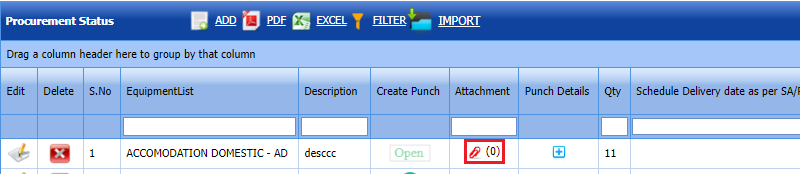](http://wiki.cuteinfocomm.com/uploads/images/gallery/2024-01/image-1705602174532.png)
2. It will redirected to new attachment screen. Refer below fig.[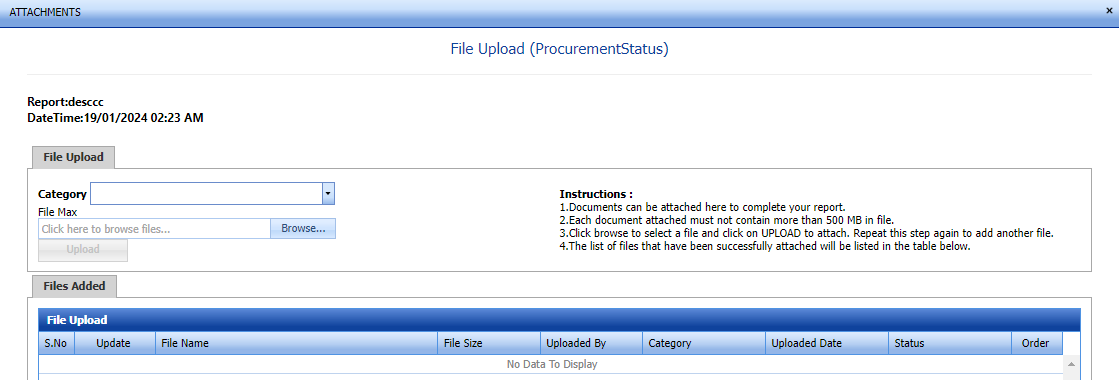](http://wiki.cuteinfocomm.com/uploads/images/gallery/2024-01/image-1705602243062.png)
3. Here user can select category of the document and browse & upload the document.[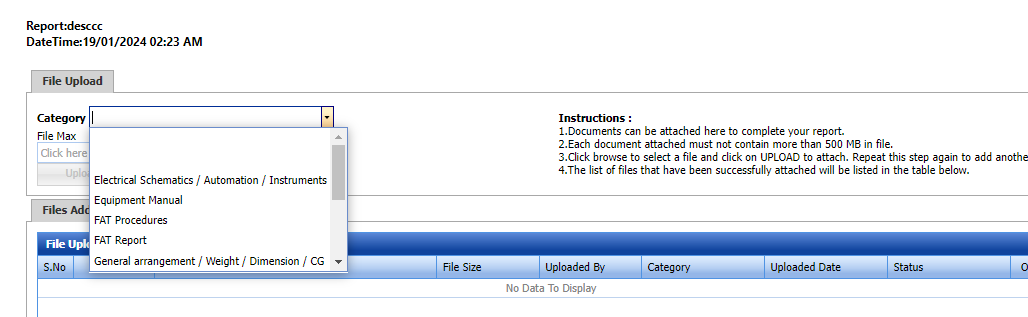](http://wiki.cuteinfocomm.com/uploads/images/gallery/2024-01/image-1705602331158.png)
4. Document uploaded successfully.[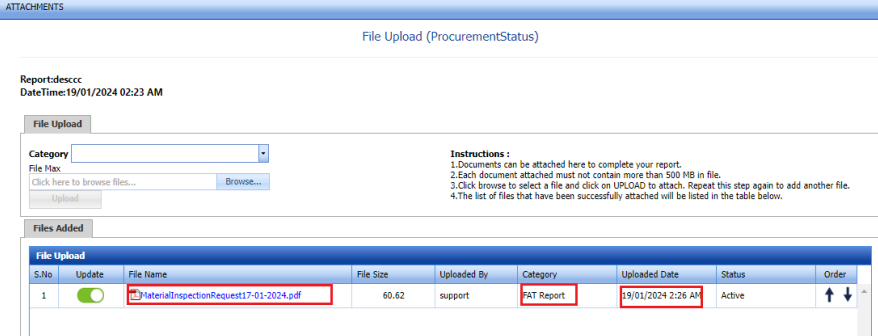](http://wiki.cuteinfocomm.com/uploads/images/gallery/2024-01/image-1705602632621.png)
5. Once document uploaded date & document name will be updated for corresponding category in the Procurement status list screen
[](http://wiki.cuteinfocomm.com/uploads/images/gallery/2024-01/image-1705602693878.png)
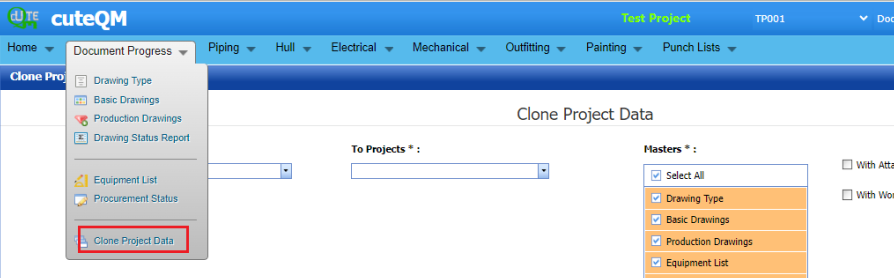
#### **1.7 Clone Project Data**
This page is used to copy the project data from one skid project to another skid project with attachments and workflow details
[](http://wiki.cuteinfocomm.com/uploads/images/gallery/2024-01/image-1705633447451.png)
1. Select From project and To project from dropdown list
2. Select the master screens which are going to clone
3. Select attachments and workflow check boxes if this also need to copy
4. Click **clone .**[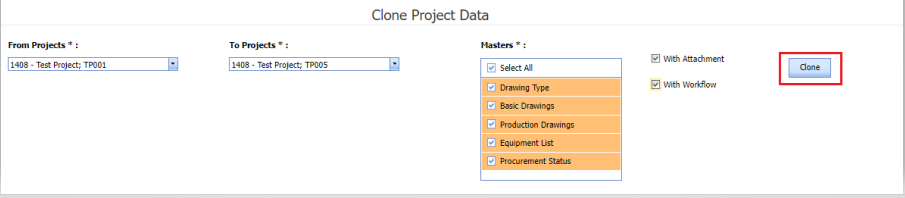](http://wiki.cuteinfocomm.com/uploads/images/gallery/2024-01/image-1705635389213.png)
5. Project data cloned successfully.
### **2.0 Punch Lists**
A punch list is a list of items or tasks that need to be done before a Document progress project is completed. The **Punch Lists** menu in the home page of the ***cuteQM*** app helps to create and view the punch lists in Document progress project.
#### **2.1** **Create a New Punch List**
If you want to create a punch list, do the following steps,
1. Click Create punch list from punch list menu.[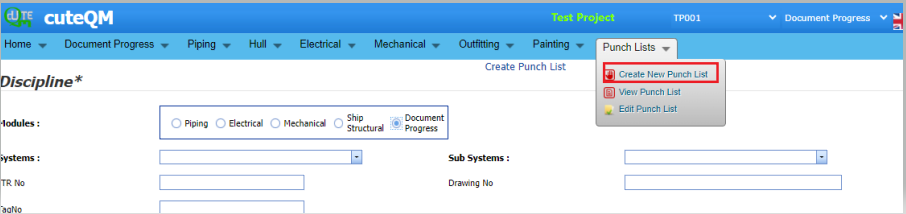](http://wiki.cuteinfocomm.com/uploads/images/gallery/2024-01/image-1705661408085.png)
2. It will redirected to punch list create page.
3. Fill all the fields in the create page.[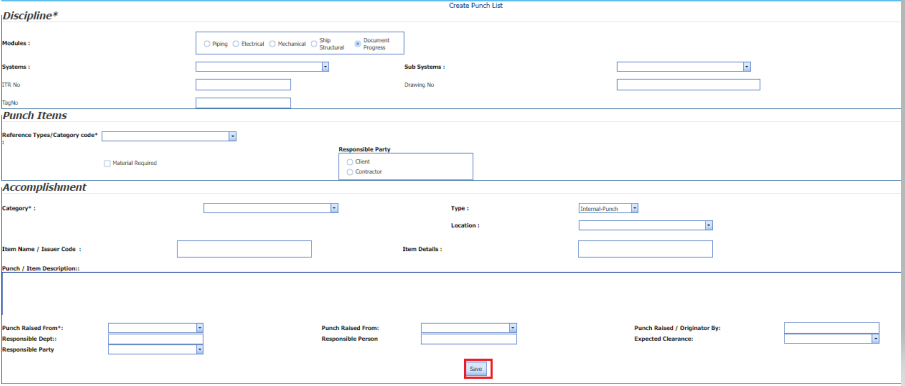](http://wiki.cuteinfocomm.com/uploads/images/gallery/2024-01/image-1705661558955.png)
4. In the **Modules** box, select a module from the given modules.
5. In the **Systems** box, select a system from a drop-down list.
6. In the **Sub-Systems** box, select a sub-system from a drop-down list.
7. In the **ITR No** box, enter the ITR number.
8. In the **Drawing No** box, enter the drawing number.
9. In the **Test Pack** box, select a test pack from a drop-down list.
10. In the **Tag No** box, enter the tag number.
11. In the **Reference Types** box, select the reference type from the given options.
12. In the **Select Project** box, select a project from a drop-down list.
13. In the **Category** box, select any category from the given categories such as **A**, **B**, **C & D.**
14. In the **Type** box, select the type of punch such as whether internal or external.
15. In the **Item details** box, enter the item details.
16. In the **Location** box, select a location from a drop-down list.
17. In the **Item name/ Issuer code** box, enter the description for the punch list.
18. In the **Punch Raised From** box, select the detail such as from where the punch has been raised.
19. In the **Date Raised** box, select the date when the punch has been raised.
20. In the **Punch Raised** By box, enter the name of a person who has raised the punch.
21. In the **Responsible party** box, select the responsible party for the punch.
22. In the **Responsible Dept** box, enter the department name, which is responsible for the punch.
23. In the **Responsible Person** box, enter the name of a person who is responsible for the punch.
24. In the **Expected Clearance** box, select the expected date of clearing the punch list.
25. Click **Save.**The punch list is successfully added.
#### **2.2 View Punch Lists**
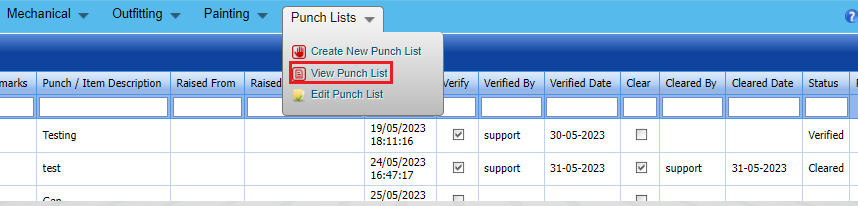
The **View Punch Lists** tab helps you to view the punch list, which is added by using the **Create New Punch List** tab.
1. Click **View Punch Lists** in the **Punch Lists** menu.
[](http://wiki.cuteinfocomm.com/uploads/images/gallery/2024-01/image-1705663003563.png)
1. The **Punch List** page opens with added punch lists.
[](http://wiki.cuteinfocomm.com/uploads/images/gallery/2024-01/image-1705663323141.png)
[](http://wiki.cuteinfocomm.com/uploads/images/gallery/2022-05/image-1651564462498.png)**Note**: If you want to verify the added punch list item, click the checkbox provided in the **Verify** column.
If you want to clear the added punch list item, click the checkbox provided in the **Clear** column.
##### **2.2.1 Export Punch lists**
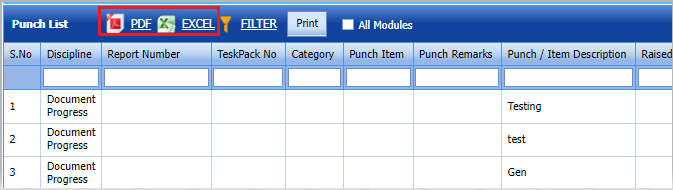
You can export added punch lists in the Punch lists page in both the pdf and excel formats.
1. If you want to export the punch lists in the pdf format, click [](http://wiki.cuteinfocomm.com/uploads/images/gallery/2022-04/image-1651119905005.png)(**PDF** button).
The punch lists will be downloaded as a pdf file.
2. If you want to export the punch lists in the excel format, click [](http://wiki.cuteinfocomm.com/uploads/images/gallery/2022-04/image-1651119961686.png) (**Excel** button).
The punch lists will be downloaded as an excel file.
[](http://wiki.cuteinfocomm.com/uploads/images/gallery/2024-01/image-1705663443466.png)
##### **2.2.2 Filter a Punch list**
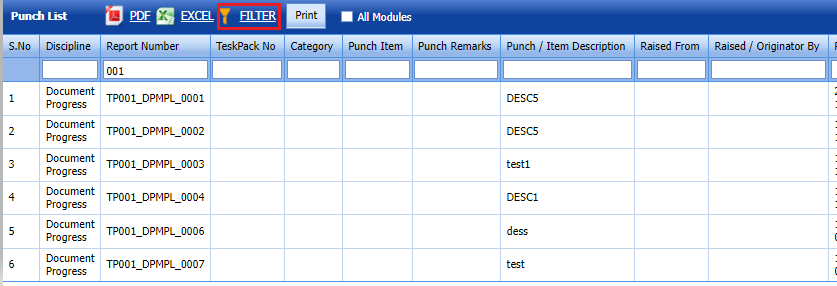
If you want to filter any Punch list from the punch lists page, do the following,
1\. Click [](http://wiki.cuteinfocomm.com/uploads/images/gallery/2022-05/image-1651604010559.png) (FILTER button) located on the punch lists screen. See Fig below
Once you clicked the **Filter** button, the filter box opens for all the columns.
[](http://wiki.cuteinfocomm.com/uploads/images/gallery/2024-01/image-1705663665377.png)
2\. Enter relevant detail in the respective column’s filter box to filter any punch lists.
##### **2.2.3 View a Punch List Report**
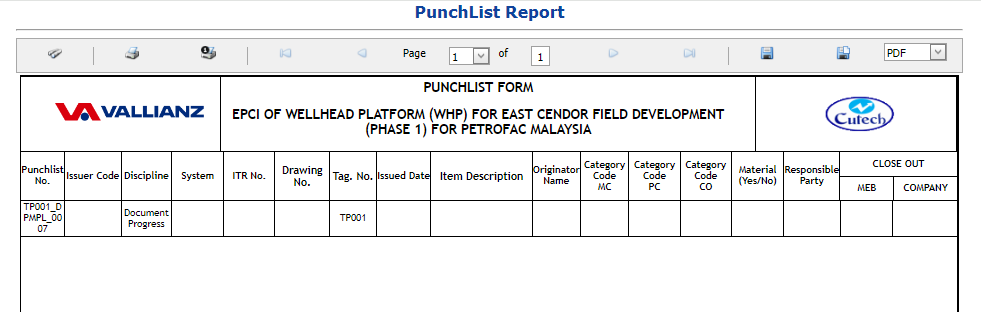
1. ##### If you want to view a punch list report, click[](http://wiki.cuteinfocomm.com/uploads/images/gallery/2024-01/image-1705664063638.png)(**Print** button) provided in the **Punch List** page. See fig below. [ ](http://wiki.cuteinfocomm.com/uploads/images/gallery/2024-01/image-1705664138258.png)
2. It will redirected to new report page. And here report for the punch list shown. See fig below
[](http://wiki.cuteinfocomm.com/uploads/images/gallery/2024-01/image-1705664255283.png)
##### **2.2.4 Attach a File into a Punch List**
1. ##### If you want to attach any file with any punch list listed in the **Punch List** page, you can attach the file by using [](http://wiki.cuteinfocomm.com/uploads/images/gallery/2022-05/image-1651564697424.png) (Attach icon) in the **Attachment** column. [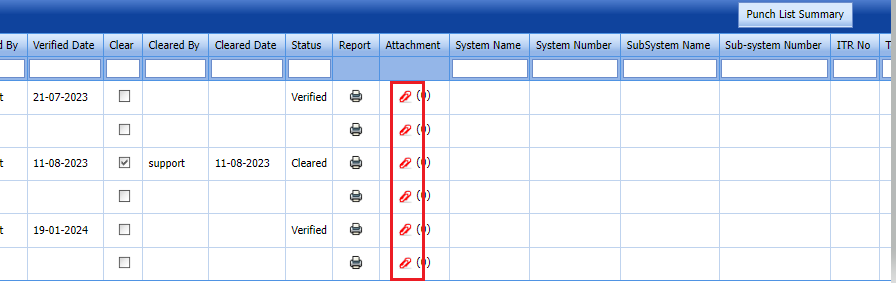](http://wiki.cuteinfocomm.com/uploads/images/gallery/2024-01/image-1705664402400.png)
2. It will redirected to new attachment page to attach files.[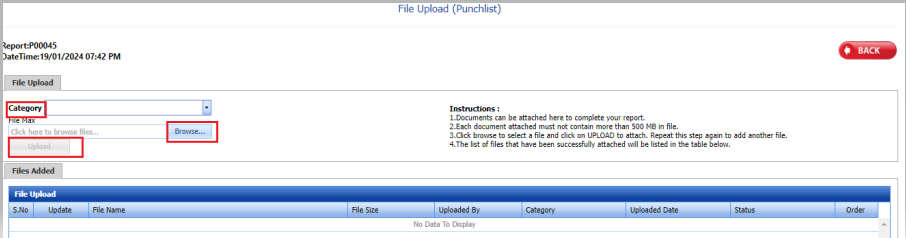](http://wiki.cuteinfocomm.com/uploads/images/gallery/2024-01/image-1705664601938.png)[](http://wiki.cuteinfocomm.com/uploads/images/gallery/2022-04/image-1651120969847.png)**Note**: Before uploading any file, read the instructions given in the **File Upload (Punchlist)** page.
3. Click category dropdown and enter category
4. Click [](http://wiki.cuteinfocomm.com/uploads/images/gallery/2022-04/image-1651120997251.png) (**Browse** button).
5. Select a file which you want to upload from your computer.
6. Click [](http://wiki.cuteinfocomm.com/uploads/images/gallery/2022-04/image-1651121030903.png) (**Upload** button) to attach the file.
The uploaded file will be displayed in the **File Upload** table.
[](http://wiki.cuteinfocomm.com/uploads/images/gallery/2024-01/image-1705665159422.png)
##### **2.2.5.View Punch list summary**
1. If you want to view a punch list summary, click [](http://wiki.cuteinfocomm.com/uploads/images/gallery/2022-05/image-1651564654001.png) (**Punch List Summary** button) provided in the upper side of the **Punch List** page. See below fig[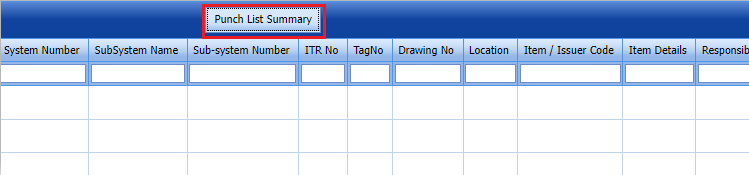](http://wiki.cuteinfocomm.com/uploads/images/gallery/2024-01/image-1705664948716.png)
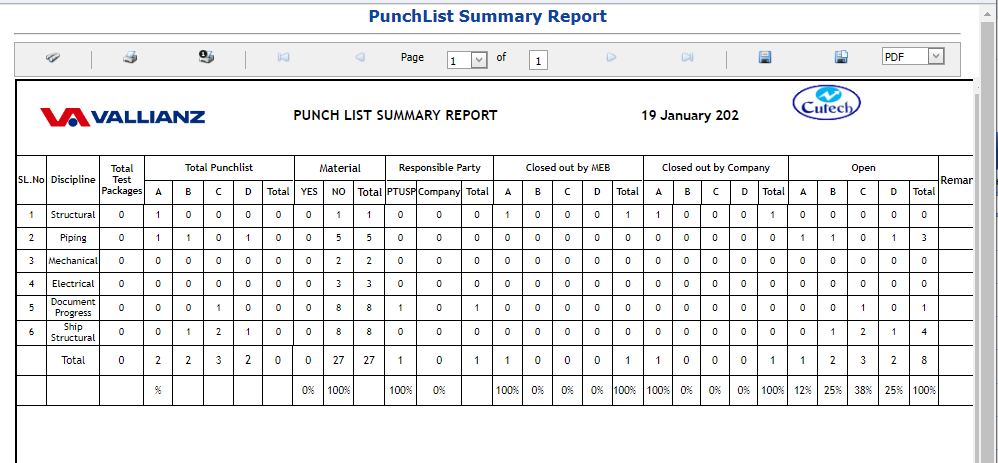
2. It will redirected to new report page and displayed the punch list report
[](http://wiki.cuteinfocomm.com/uploads/images/gallery/2024-01/image-1705665259700.png)
#### **2.3 Edit a Punch List**
If you want to edit a existing punch list, click Edit punch list in punch lists menu
[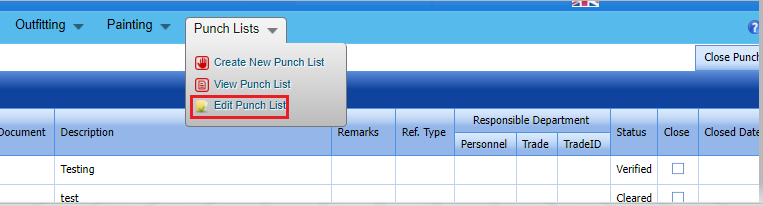](http://wiki.cuteinfocomm.com/uploads/images/gallery/2024-01/image-1705665874063.png)
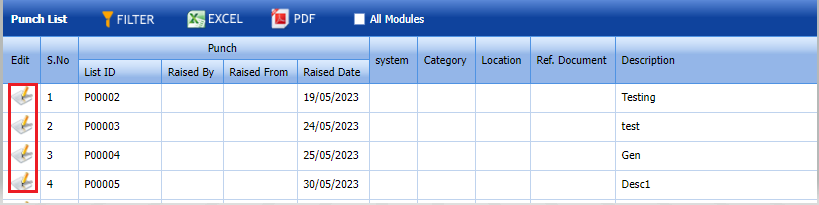
Click [(](http://wiki.cuteinfocomm.com/uploads/images/gallery/2024-01/image-1705665978865.png)edit icon) in the **Edit** column for the respective punch list.. Edit the details in the respective box you want.
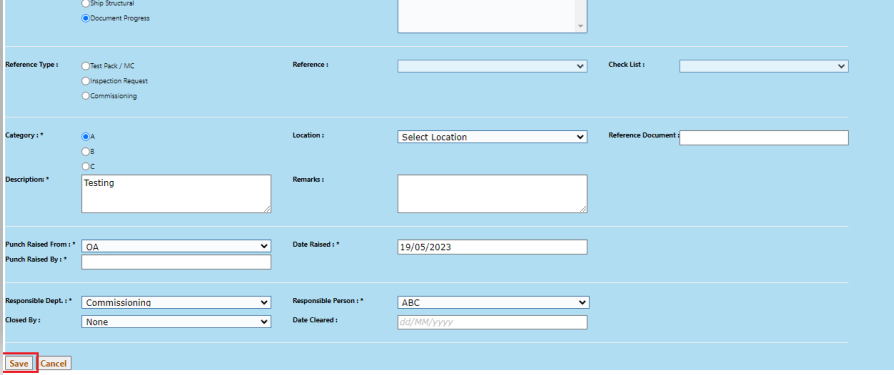
[](http://wiki.cuteinfocomm.com/uploads/images/gallery/2024-01/image-1705666160391.png)
Update the details you want to change. Then click **save**
[](http://wiki.cuteinfocomm.com/uploads/images/gallery/2024-01/image-1705666289392.png)
Punch list updated successfully.
##### **2.3.1 Close a punch list**
1. If you want to close the added punch list item, click the checkbox provided in the Close column.
2. Click the [ ](http://wiki.cuteinfocomm.com/uploads/images/gallery/2024-01/image-1705666582684.png)close punch button at the top right.[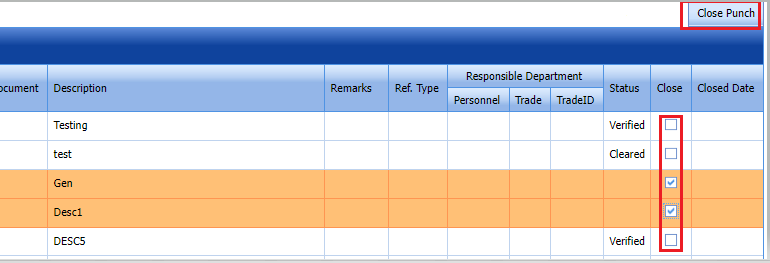](http://wiki.cuteinfocomm.com/uploads/images/gallery/2024-01/image-1705666555183.png)
3. Punch list closed successfully.
##### **2.3.2 Filter a Punch list**
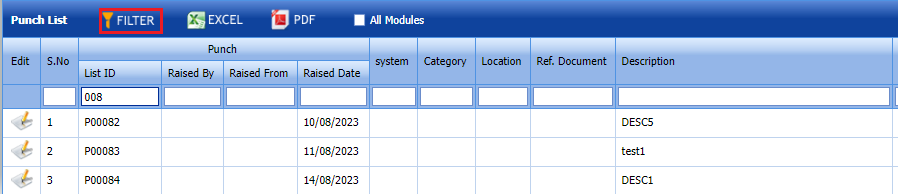
If you want to filter any Punch list from the punch lists page, do the following,
1\. Click [](http://wiki.cuteinfocomm.com/uploads/images/gallery/2022-05/image-1651604010559.png) (FILTER button) located on the punch lists screen. See Fig below
Once you clicked the **Filter** button, the filter box opens for all the columns.
[](http://wiki.cuteinfocomm.com/uploads/images/gallery/2024-01/image-1705666884181.png)
2\. Enter relevant detail in the respective column’s filter box to filter any punch lists.
##### **2.3.3 Export Punch lists**
You can export added punch lists in the Punch lists page in both the pdf and excel formats.
1. If you want to export the punch lists in the pdf format, click [](http://wiki.cuteinfocomm.com/uploads/images/gallery/2022-04/image-1651119905005.png)(**PDF** button).
The punch lists will be downloaded as a pdf file.
2. If you want to export the punch lists in the excel format, click [](http://wiki.cuteinfocomm.com/uploads/images/gallery/2022-04/image-1651119961686.png) (**Excel** button).
The punch lists will be downloaded as an excel file.
[](http://wiki.cuteinfocomm.com/uploads/images/gallery/2024-01/image-1705666951159.png)