# Monthly Reports
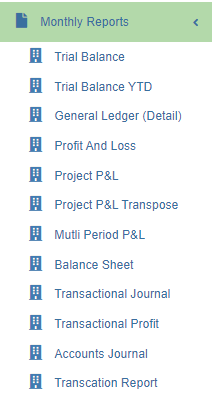
Monthly finance reports include below reports: Trial Balance, Trial Balance YTD, General Ledger(Detail), Profit and Loss, Project P&L, Project P&L Transpose, Multi Period P&L, Balance Sheet, Transactional Journal, Transactional Profit, Accounts Journal, Transaction Report.
[](http://wiki.cuteinfocomm.com/uploads/images/gallery/2023-03/image-1679954482085.png)
## Trial Balance Report
To generate trial balance report,
1. Navigate to Monthly Reports menu in finance module, click **Trial Balance** to open trial balance report page.
2. user can select period from calendar field 1, or if user wants to generate report by calendar month, tick Show monthly box. [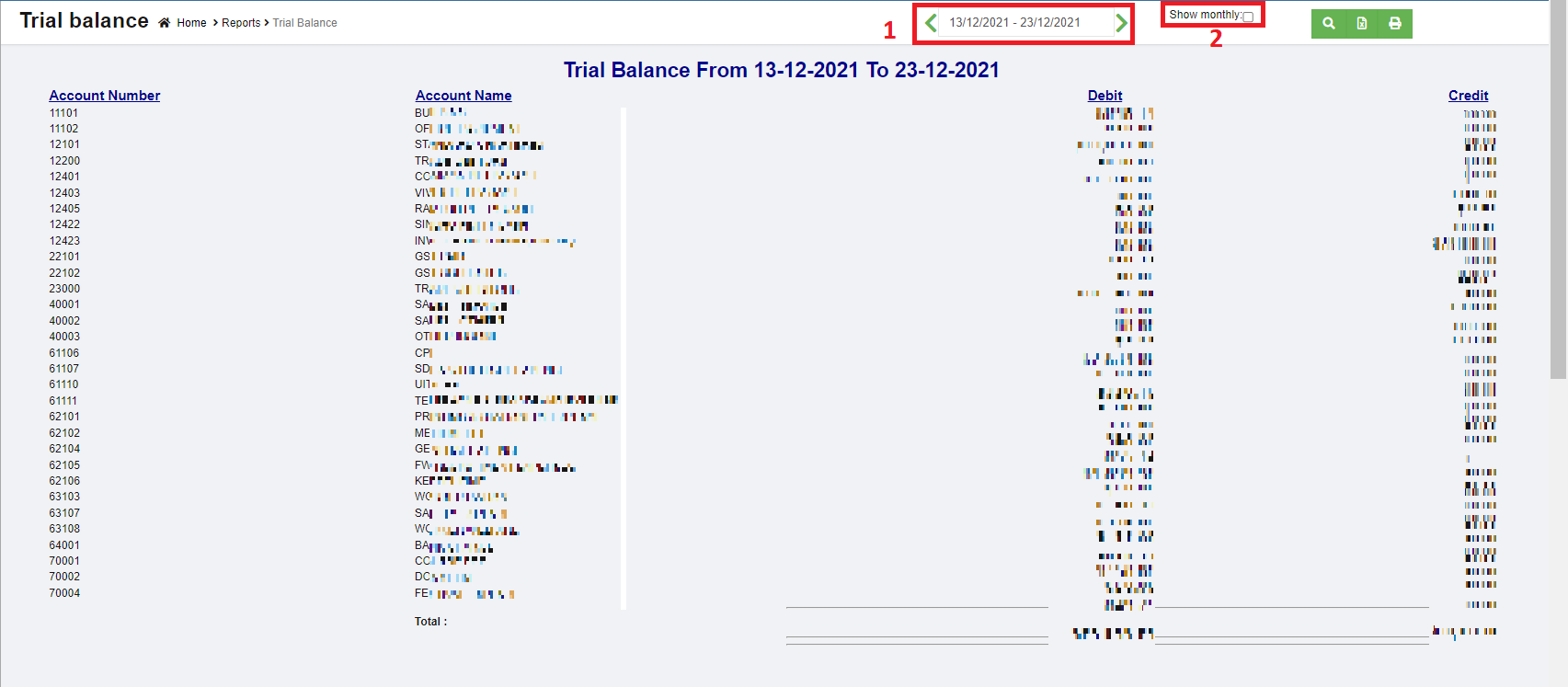](http://wiki.cuteinfocomm.com/uploads/images/gallery/2023-04/image-1682094779867.png)
3. Click [](http://wiki.cuteinfocomm.com/uploads/images/gallery/2023-03/image-1679955186159.png)search icon, the trial balance report for selected period will show in screen.
4. Click[](http://wiki.cuteinfocomm.com/uploads/images/gallery/2023-03/image-1679955198941.png) to download report in xlsx format, click[](http://wiki.cuteinfocomm.com/uploads/images/gallery/2023-03/image-1679955209790.png) to download report in PDF format.
## Trial Balance YTD (Year-to-date) Report
To generate trial balance YTD report,
1. Navigate to Monthly Reports menu in finance module, click **Trial Balance YTD** to open trial balance YTD report page.
2. user can select date period from calendar field 1, or if user wants to generate report by calendar month, tick Show monthly box. [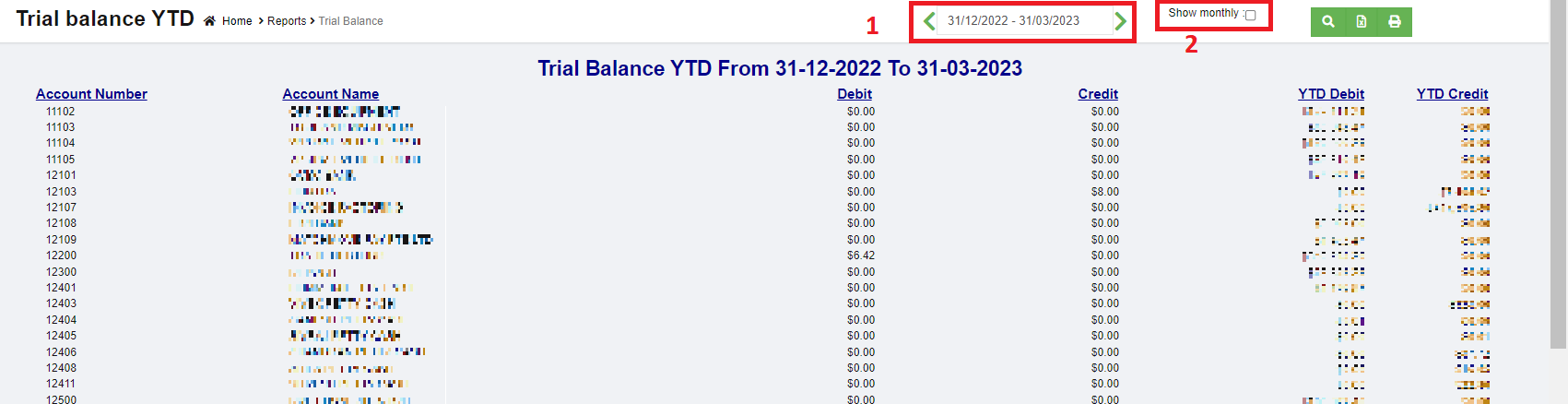](http://wiki.cuteinfocomm.com/uploads/images/gallery/2023-03/image-1680038628060.png)
3. Click [](http://wiki.cuteinfocomm.com/uploads/images/gallery/2023-03/image-1679955186159.png)search icon, the trial balance YTD report for selected period will show in screen.
4. Click[](http://wiki.cuteinfocomm.com/uploads/images/gallery/2023-03/image-1679955198941.png) to download report in xlsx format, click[](http://wiki.cuteinfocomm.com/uploads/images/gallery/2023-03/image-1679955209790.png) to download report in PDF format.
## General Ledger (Detail) Report
To generate general ledger detail report,
1. Navigate to Monthly Reports menu in finance module, click **General Ledger (Detail)** to open report page.
2. user can select date period from calendar field.[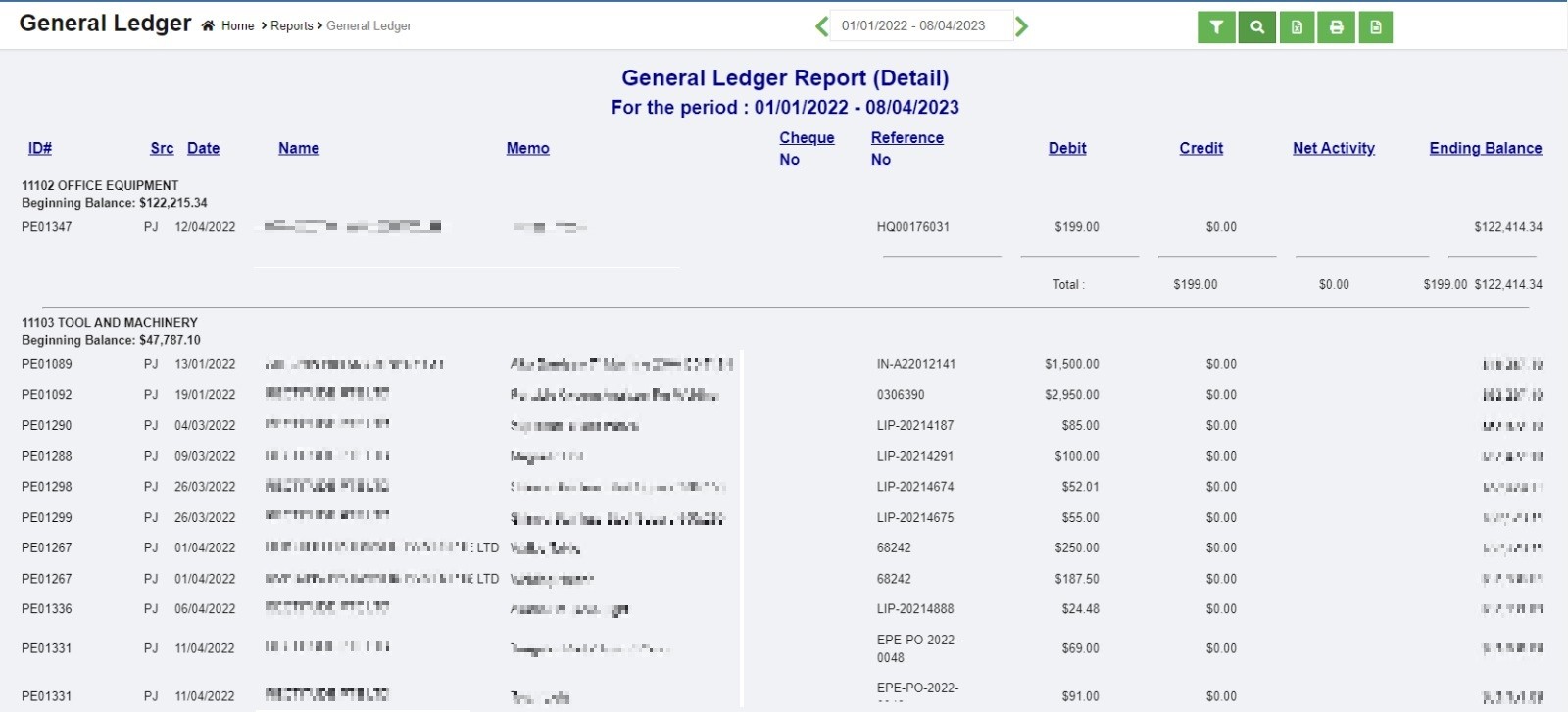](http://wiki.cuteinfocomm.com/uploads/images/gallery/2023-04/image-1681142900496.jpg)
3. Click [](http://wiki.cuteinfocomm.com/uploads/images/gallery/2023-03/image-1679955186159.png)search icon, the general ledger detail report for selected period will show in screen.
4. Click[](http://wiki.cuteinfocomm.com/uploads/images/gallery/2023-03/image-1679955198941.png) to download report in xlsx format, click[](http://wiki.cuteinfocomm.com/uploads/images/gallery/2023-03/image-1679955209790.png) to download report in PDF format.
## Profit And Loss Report
To generate profit and loss report,
1. Navigate to Monthly Reports menu in finance module, click **Profit and Loss** to open report page.
2. user can select date period from calendar field 1 to generate profit and loss report for selected date range.
3. In field 2, select account type to generate report (user can select all accounts or accounts with value). [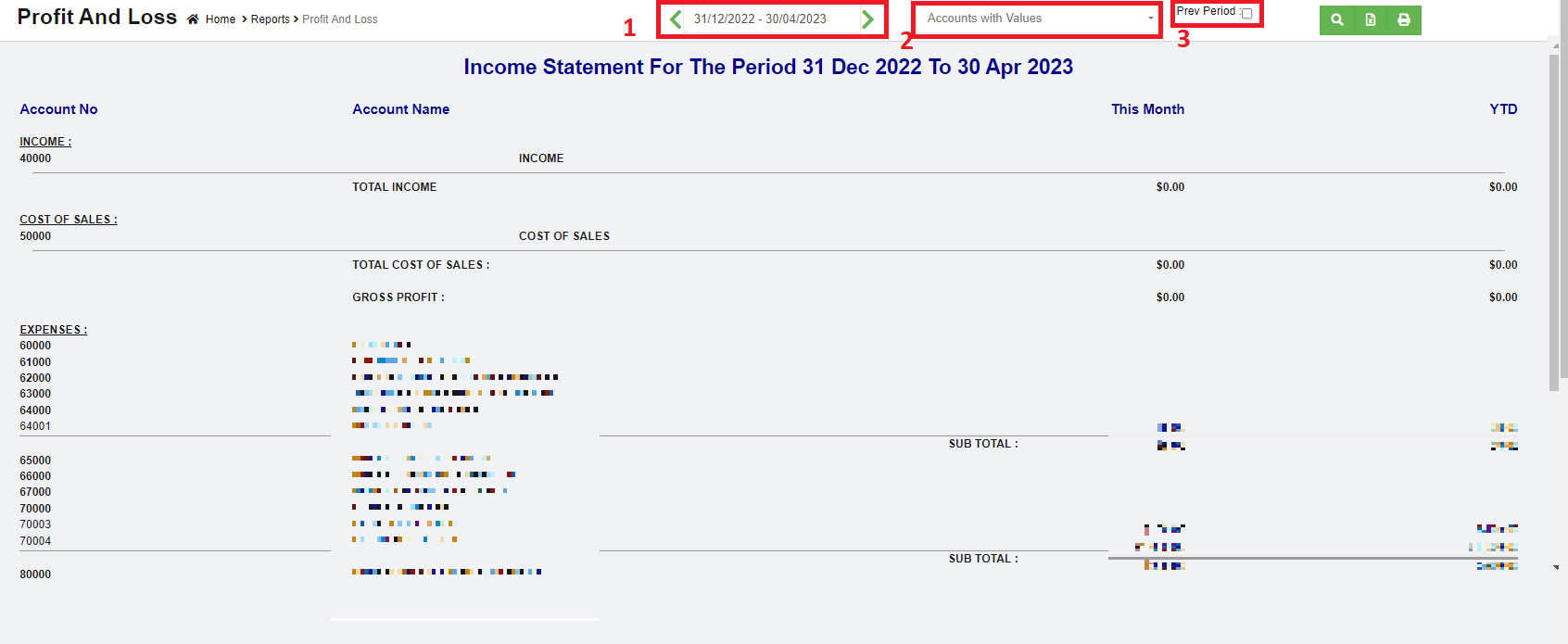](http://wiki.cuteinfocomm.com/uploads/images/gallery/2023-04/image-1681163605404.png)
4. Or if user wants to view and compare variance between current month and the previous period, tick the Pre Period box in field 3. Then select month & year. [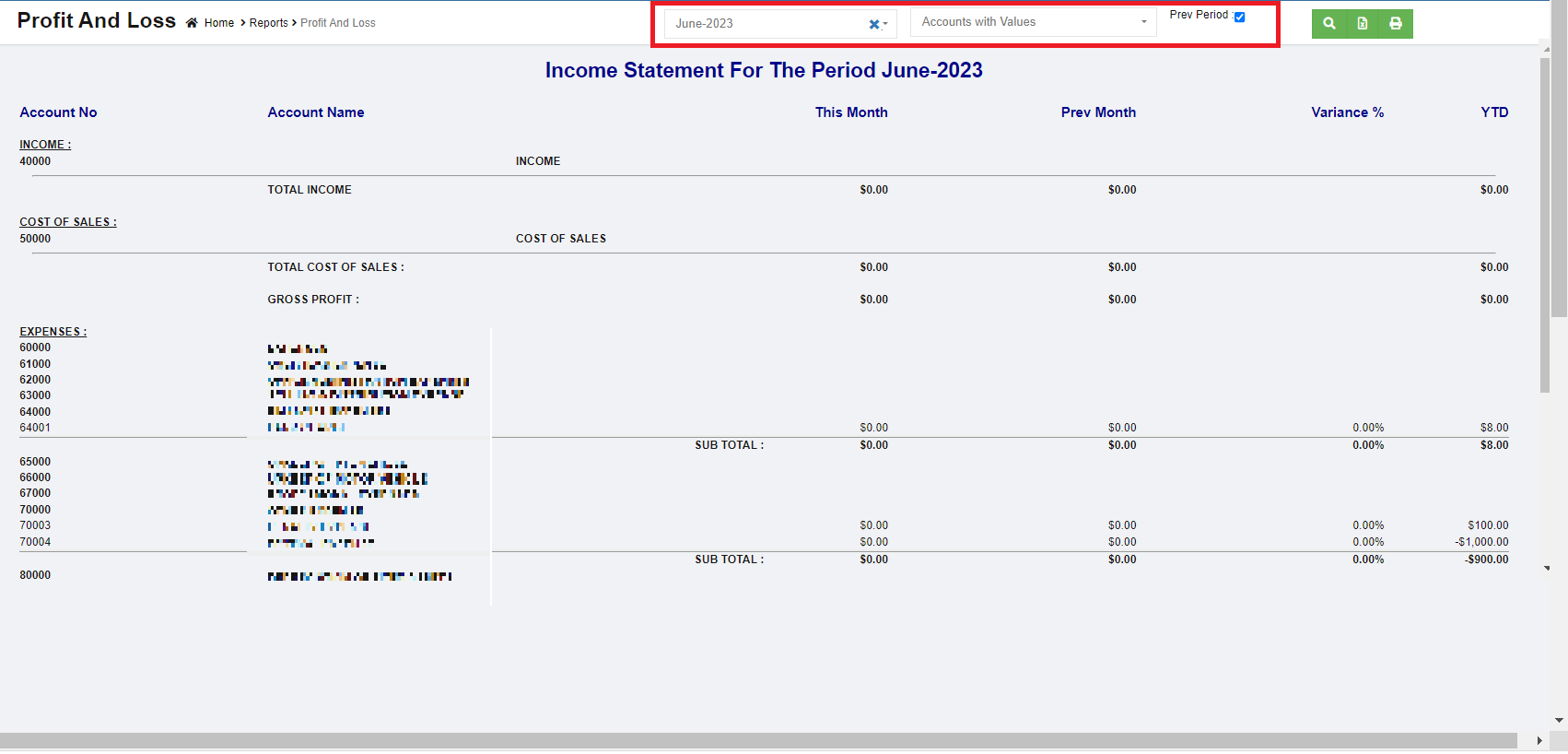](http://wiki.cuteinfocomm.com/uploads/images/gallery/2023-04/image-1681163815487.png)
5. Once month and year are selected, click [](http://wiki.cuteinfocomm.com/uploads/images/gallery/2023-03/image-1679955186159.png)search icon, the profit and loss report for selected period and previous month and the variance will show in screen.
6. Click[](http://wiki.cuteinfocomm.com/uploads/images/gallery/2023-03/image-1679955198941.png) to download report in xlsx format, click[](http://wiki.cuteinfocomm.com/uploads/images/gallery/2023-03/image-1679955209790.png) to download report in PDF format.
## Project P&L
To generate project profit and loss report,
1. Navigate to Monthly Reports menu in finance module, click **Project P&L** to open report page.
2. In project field, click to select project.
3. In calendar field, select date range.
4. In report type, select summary or detail report. [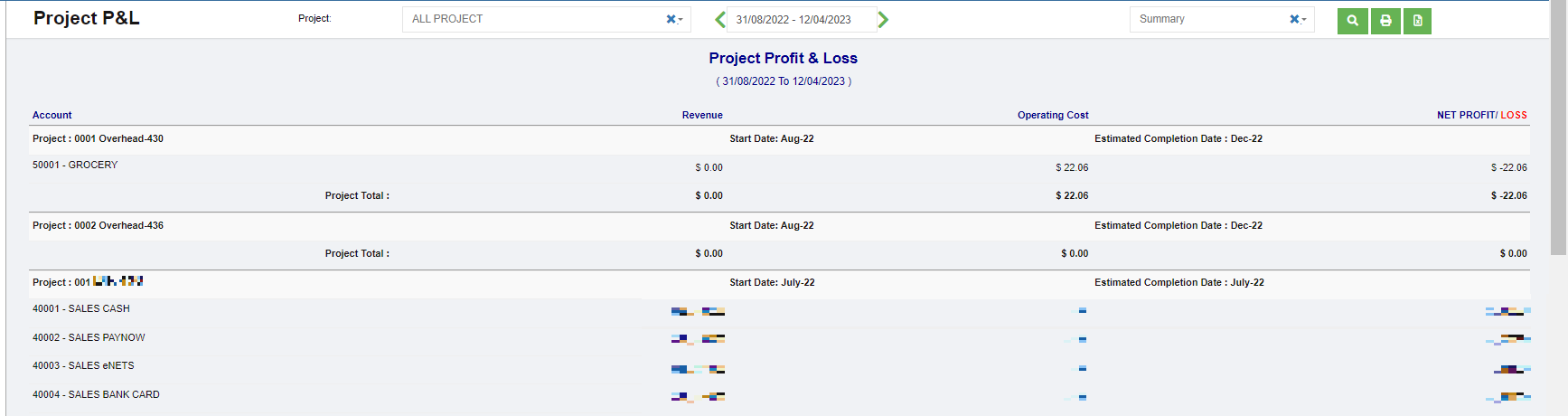](http://wiki.cuteinfocomm.com/uploads/images/gallery/2023-04/image-1681361473891.png)
5. Click [](http://wiki.cuteinfocomm.com/uploads/images/gallery/2023-03/image-1679955186159.png)search icon, the project P&L report for selected period will show in screen.
6. Click[](http://wiki.cuteinfocomm.com/uploads/images/gallery/2023-03/image-1679955198941.png) to download report in xlsx format, click[](http://wiki.cuteinfocomm.com/uploads/images/gallery/2023-03/image-1679955209790.png) to download report in PDF format.
## Project P&L Transpose
To generate project profit and loss report transpose,
1. Navigate to Monthly Reports menu in finance module, click **Project P&L Transpose** to open report page.
2. In project field, click to select project.
3. In calendar field, select date range.[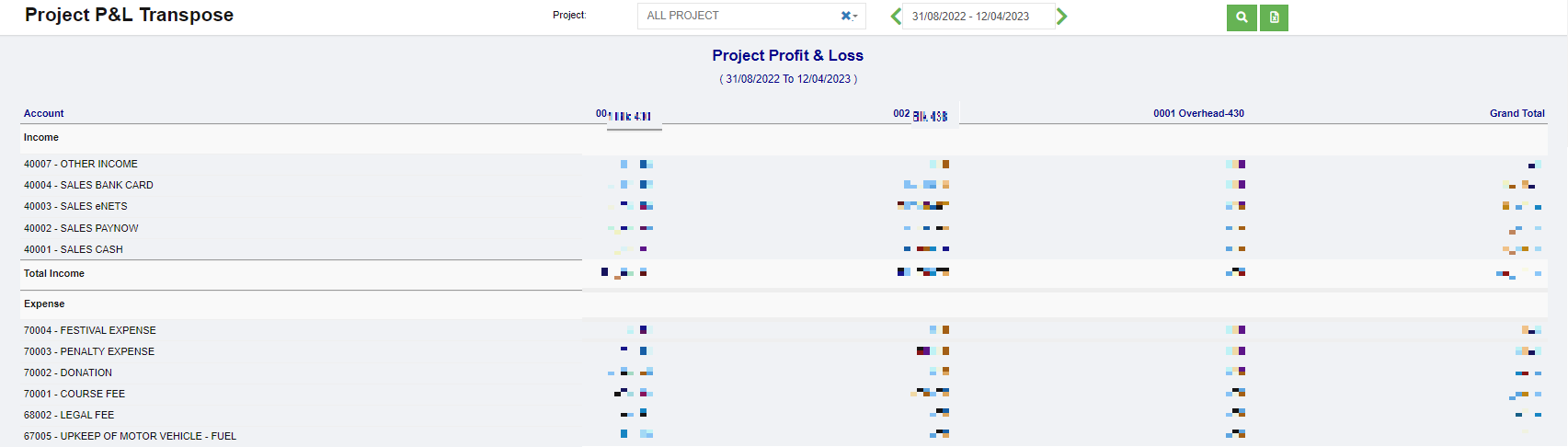](http://wiki.cuteinfocomm.com/uploads/images/gallery/2023-04/image-1681361613570.png)
4. Click [](http://wiki.cuteinfocomm.com/uploads/images/gallery/2023-03/image-1679955186159.png)search icon, the project P&L transpose report for selected period will show in screen.
5. Click[](http://wiki.cuteinfocomm.com/uploads/images/gallery/2023-03/image-1679955198941.png) to download report in xlsx format.
## Multi Period P&L
To generate multi period profit and loss report,
1. Navigate to Monthly Reports menu in finance module, click **Multi Period P&L** to open report page.
2. In calendar field, click to select date range to view P&L report.[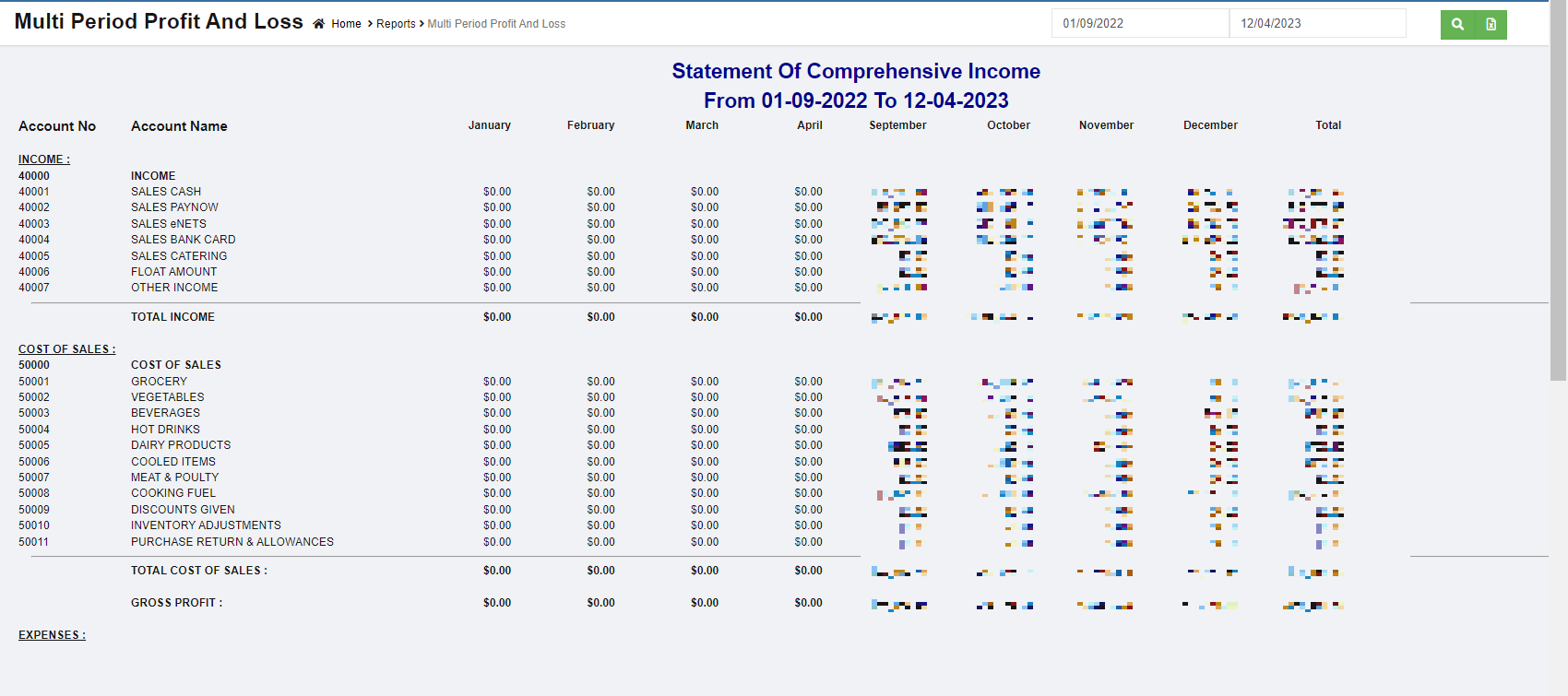](http://wiki.cuteinfocomm.com/uploads/images/gallery/2023-04/image-1681360988435.png)
3. Click [](http://wiki.cuteinfocomm.com/uploads/images/gallery/2023-03/image-1679955186159.png)search icon, the multi period P&L report for selected period will show details of income, cost of sales, expense, other income, other expenses and net profits by month as in above screenshot.
4. Click[](http://wiki.cuteinfocomm.com/uploads/images/gallery/2023-03/image-1679955198941.png) to download report in xlsx format. not working check
## Balance Sheet
To generate balance sheet report,
1. Navigate to Monthly Reports menu in finance module, click **Balance Sheet** to open report page.
2. In calendar field, select date and year.
3. Click [](http://wiki.cuteinfocomm.com/uploads/images/gallery/2023-03/image-1679955186159.png)search icon, the balance sheet report for selected period will show in screen. [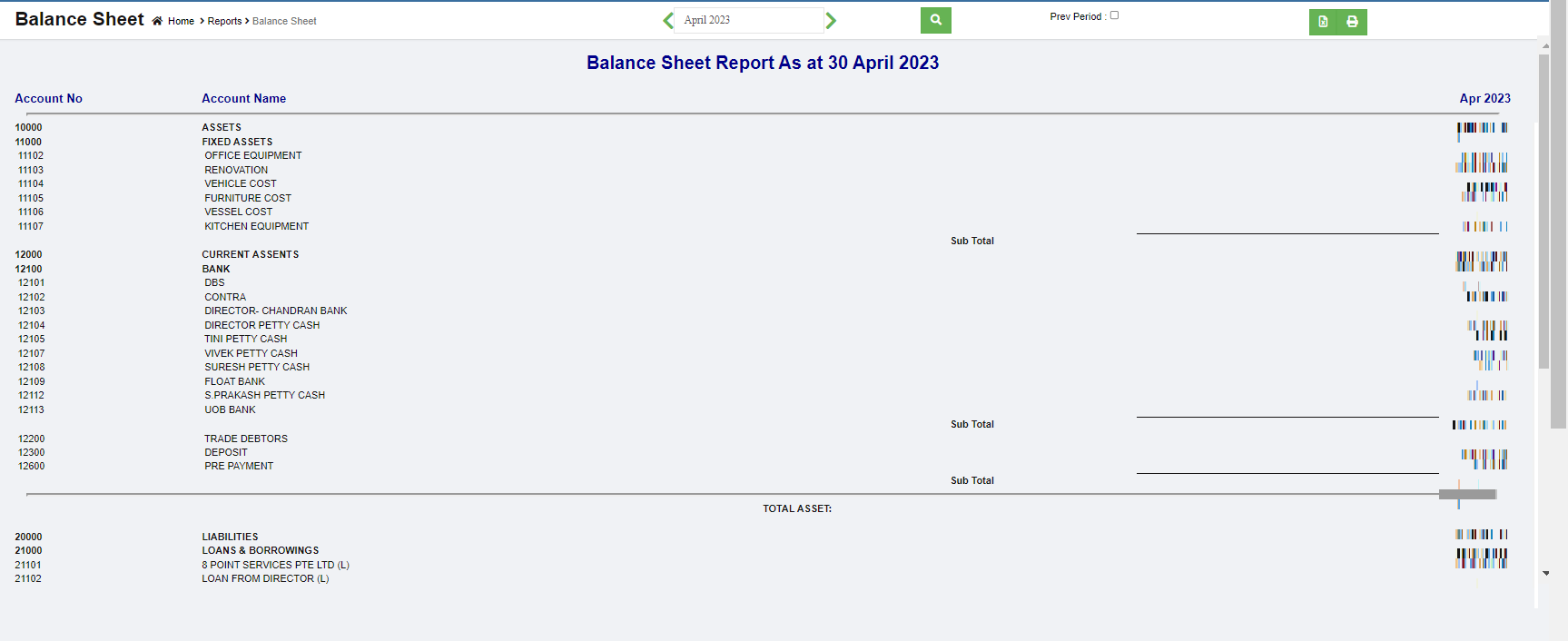](http://wiki.cuteinfocomm.com/uploads/images/gallery/2023-04/image-1681362893908.png)
4. Or if user wants to view previous month balance sheet and the variance, tick the Pre Period box, the selected month and previous month and variance data will show as below, [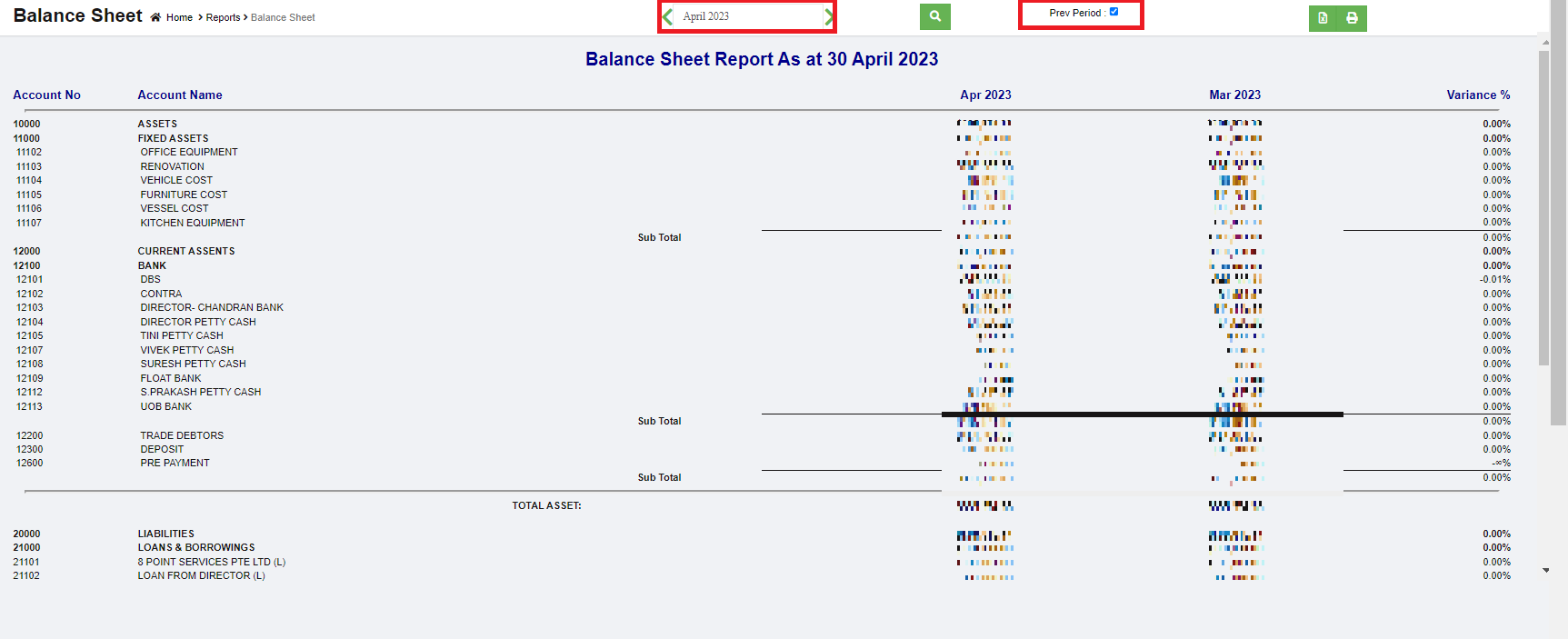](http://wiki.cuteinfocomm.com/uploads/images/gallery/2023-04/image-1681363071486.png)
5. Click[](http://wiki.cuteinfocomm.com/uploads/images/gallery/2023-03/image-1679955198941.png) to download report in xlsx format, click[](http://wiki.cuteinfocomm.com/uploads/images/gallery/2023-03/image-1679955209790.png) to download report in PDF format.
## Transaction Journal
The Transaction Journal Report **shows debits and credits for each transaction** and provides a more focused view of amounts and accounts.
To generate transaction journal report,
1. Navigate to Monthly Reports menu in finance module, click **Transaction Journal** to open report page.
2. In calendar field, select date range,
3. In transaction type field, select type of transaction to view.[](http://wiki.cuteinfocomm.com/uploads/images/gallery/2023-04/image-1681363317475.png)
4. Click [](http://wiki.cuteinfocomm.com/uploads/images/gallery/2023-03/image-1679955186159.png)search icon, the transaction journal that meets criteria will show in screen. [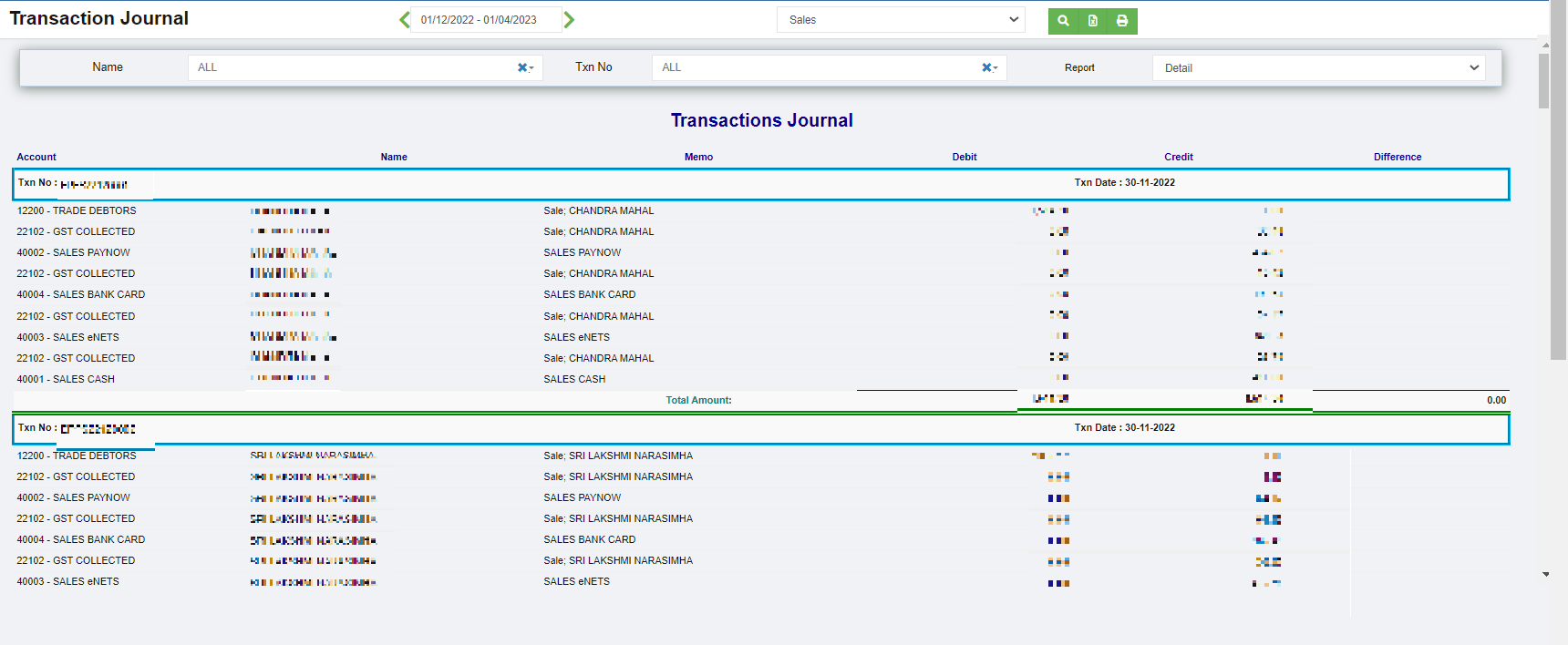](http://wiki.cuteinfocomm.com/uploads/images/gallery/2023-04/image-1681364087269.png)
5. Or user can use filters to customize the transaction journal report(filter options including name, Txn number, report type), [](http://wiki.cuteinfocomm.com/uploads/images/gallery/2023-04/image-1681364157852.png)
6. Click[](http://wiki.cuteinfocomm.com/uploads/images/gallery/2023-03/image-1679955198941.png) to download report in xlsx format, click[](http://wiki.cuteinfocomm.com/uploads/images/gallery/2023-03/image-1679955209790.png) to download report in PDF format.
## Transactional Profit Report
To generate transaction profit report,
1. Navigate to Monthly Reports menu in finance module, click **Transaction Profit** to open report page. [](http://wiki.cuteinfocomm.com/uploads/images/gallery/2023-04/image-1681536994021.png)
2. In calendar field, select date range.
3. In Job Code, click to select project.
4. Click [](http://wiki.cuteinfocomm.com/uploads/images/gallery/2023-03/image-1679955186159.png)search icon, the transaction profit report for selected period and project will show in screen.
5. Click[](http://wiki.cuteinfocomm.com/uploads/images/gallery/2023-03/image-1679955198941.png) to download report in xlsx format, click[](http://wiki.cuteinfocomm.com/uploads/images/gallery/2023-03/image-1679955209790.png) to download report in PDF format.
## Accounts Journal
To generate accounts journal report,
1. Navigate to Monthly Reports menu in finance module, click **Accounts Journal** to open report page.
2. In calendar field, select date range,
3. In Accounts field, select account or all accounts,
4. Click [](http://wiki.cuteinfocomm.com/uploads/images/gallery/2023-03/image-1679955186159.png)search icon, the accounts journal report for selected period will show details of income, cost of sales, expense, other income, other expenses and net profits by month as in below screenshot.[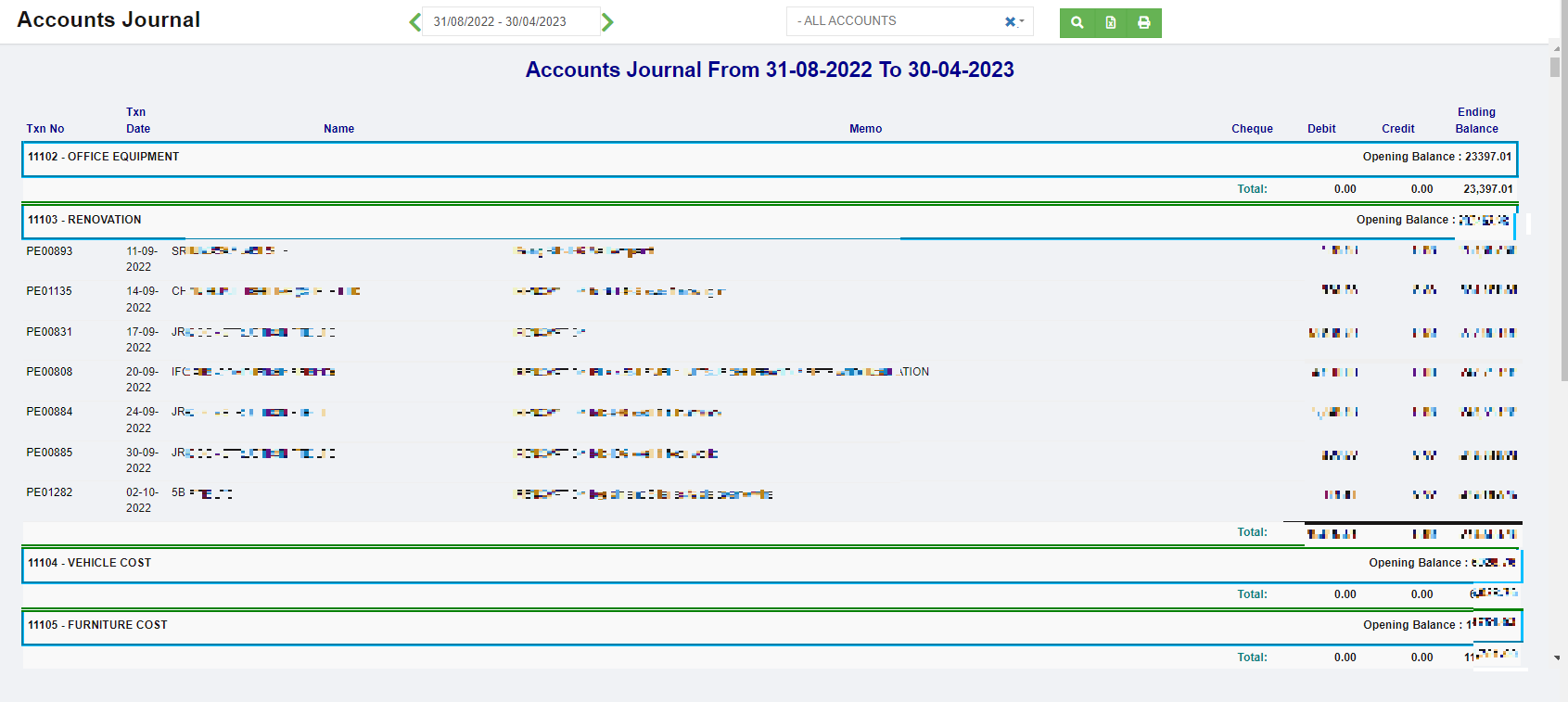](http://wiki.cuteinfocomm.com/uploads/images/gallery/2023-04/image-1681365536398.png)
5. Click[](http://wiki.cuteinfocomm.com/uploads/images/gallery/2023-03/image-1679955198941.png) to download report in xlsx format, click[](http://wiki.cuteinfocomm.com/uploads/images/gallery/2023-03/image-1679955209790.png) to download report in PDF format.
## Transaction Report
To generate transaction report,
1. Navigate to Monthly Reports menu in finance module, click **Transaction Report** to open report page. [](http://wiki.cuteinfocomm.com/uploads/images/gallery/2023-04/image-1681537537020.png)
2. In calendar field 1, select date range,
3. Or user can click filter icon in area 2 to open report filter page, and select column filters, then click Show to show selected filters,[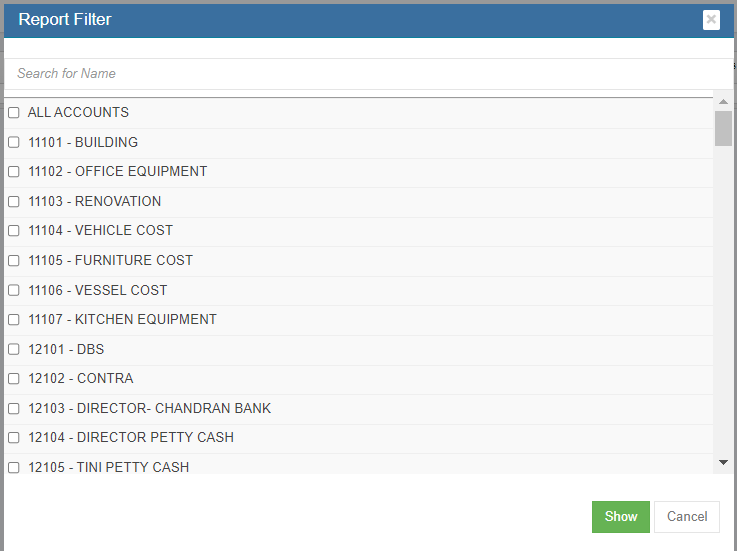](http://wiki.cuteinfocomm.com/uploads/images/gallery/2023-04/image-1681537487776.png)
4. Click [](http://wiki.cuteinfocomm.com/uploads/images/gallery/2023-03/image-1679955186159.png)search icon, the transaction report for selected period will show, click[](http://wiki.cuteinfocomm.com/uploads/images/gallery/2023-03/image-1679955198941.png) to download report in xlsx format, click[](http://wiki.cuteinfocomm.com/uploads/images/gallery/2023-03/image-1679955209790.png) to download report in PDF format.