Login
🧾 cuteOffice Login Page
📍 Website
URL: https://<your company>.cuteoffice.net
🔐 Purpose of the Login Page
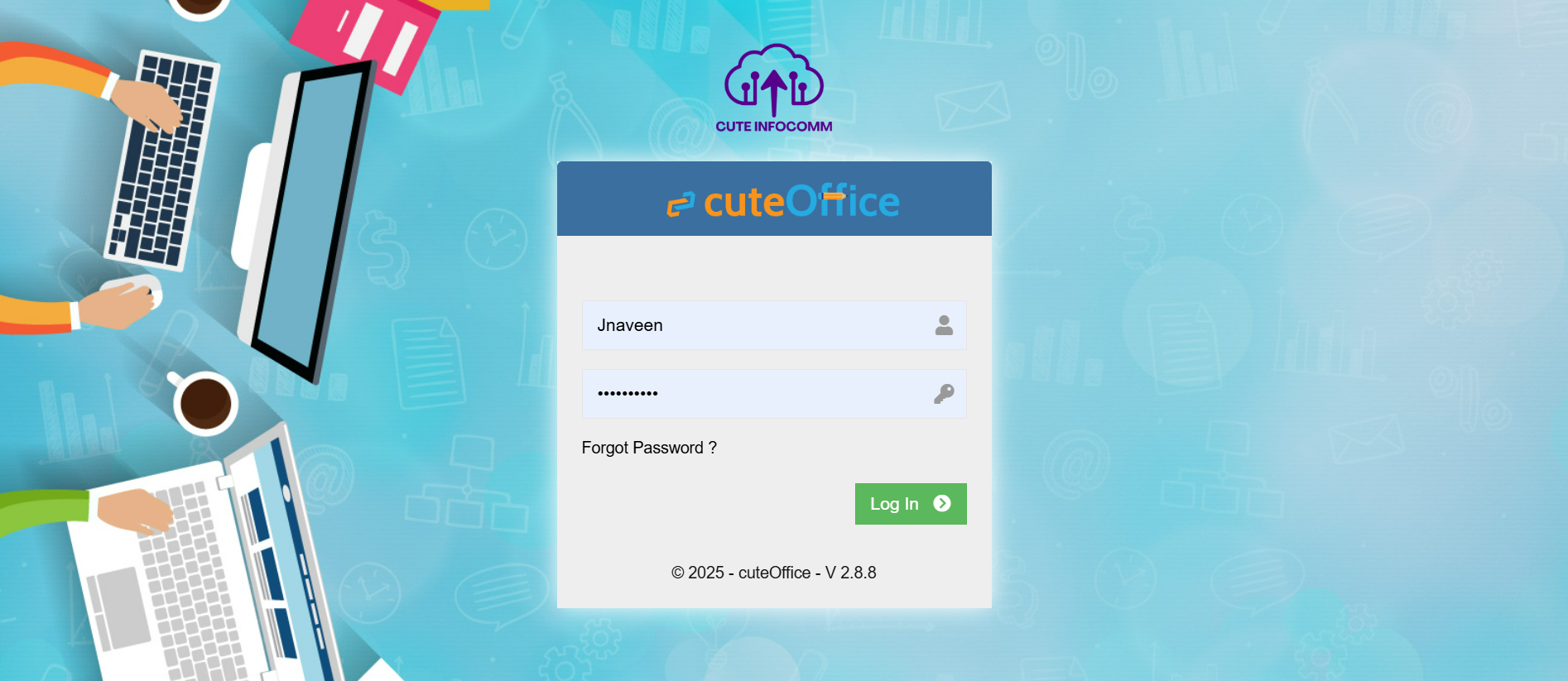
The login page is the secure gateway to access your organization’s cuteOffice modules. Only authorized users with valid credentials can log in.
Make sure your company logo displays.
👣 Steps to Log In
-
Open the Website:
-
Visit https://<your company>.cuteoffice.net on your browser.
-
-
Enter Your Credentials:
-
Username / Email: Enter your registered username or email ID.
-
Password: Enter your secure password.
-
-
Click ‘Login’:
-
Hit the Login button to proceed.
-
-
Two-Factor Authentication (if enabled):
-
Follow the instructions below in 2FA section.
-
🆘 Forgot Password?
-
Click on the “Forgot Password?” link.
-
Enter your email address.
-
You will receive a OTP in your email which you can enter to reset your password.
-
Follow the instructions to reset your password.
✅ Login Success
-
Upon successful login, you will be redirected to your Dashboard.
-
From here, you can access modules like Payroll, Procurement, Sales, Accounting, Scaffolding, HR, Maintenance, and more based on your role and the modules the company has purchased.
❌ Login Errors
-
Invalid Username/Password: Double-check credentials.
-
Account Locked: Too many failed attempts? Contact your system administrator.
🔐 Security Notes
-
Your credentials are encrypted and transmitted over HTTPS.
-
Ensure you're using a secure network.
-
Do not share your password with anyone.
-
Always log out after use, especially on shared devices.
📞 Need Help?
If you're having trouble logging in, contact your cuteOffice administrator or email us at cuteofficesupport@cuteinfocomm.com.
🔐 Two-Factor Authentication (2FA)
If your organization has enabled Two-Factor Authentication (2FA), you will need to complete an additional verification step during login.
🛠️ Setting Up 2FA (First-Time Only)
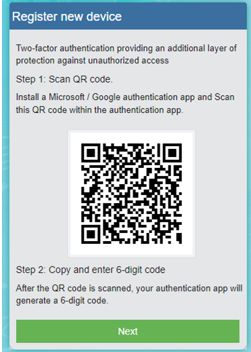
On your first login, the system will prompt you to enable 2FA. Follow these steps:
-
Download an Authenticator App:
-
Install Google Authenticator or Microsoft Authenticator from the Play Store (Android) or App Store (iOS).
-
-
Scan the QR Code:
-
Open the app and scan the QR code displayed on your screen.

-
-
Enter the Generated OTP:
-
The app will generate a 6-digit code. Enter it in the provided field to complete setup.
-
🔁 Using 2FA During Login
After setup, you will be required to enter a new 6-digit OTP from the authenticator app each time you log in.
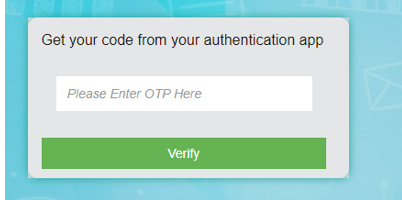
This ensures that only authorized users with access to both the password and the registered mobile device can log in.