# HRM Reports
## Reports
The **Reports** submenu in the **HUMAN RESOURCES** page helps you to view the added details of employee as a report.
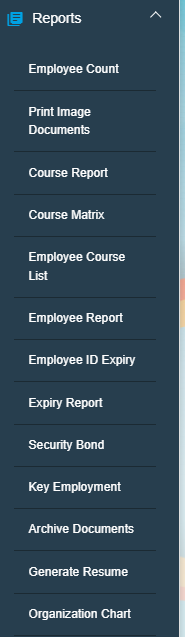
The **Reports** submenu contains the following tabs,
[](http://wiki.cuteinfocomm.com/uploads/images/gallery/2022-09/image-1662091255945.png)
### View Employee Count
The **Employee Count** tab in the **Reports** submenu helps you to view the employee count based on the employee’s mode of working and status of working.
1. Click the **Employee Count** tab in the **Reports.** The **Employee Count** page opens. [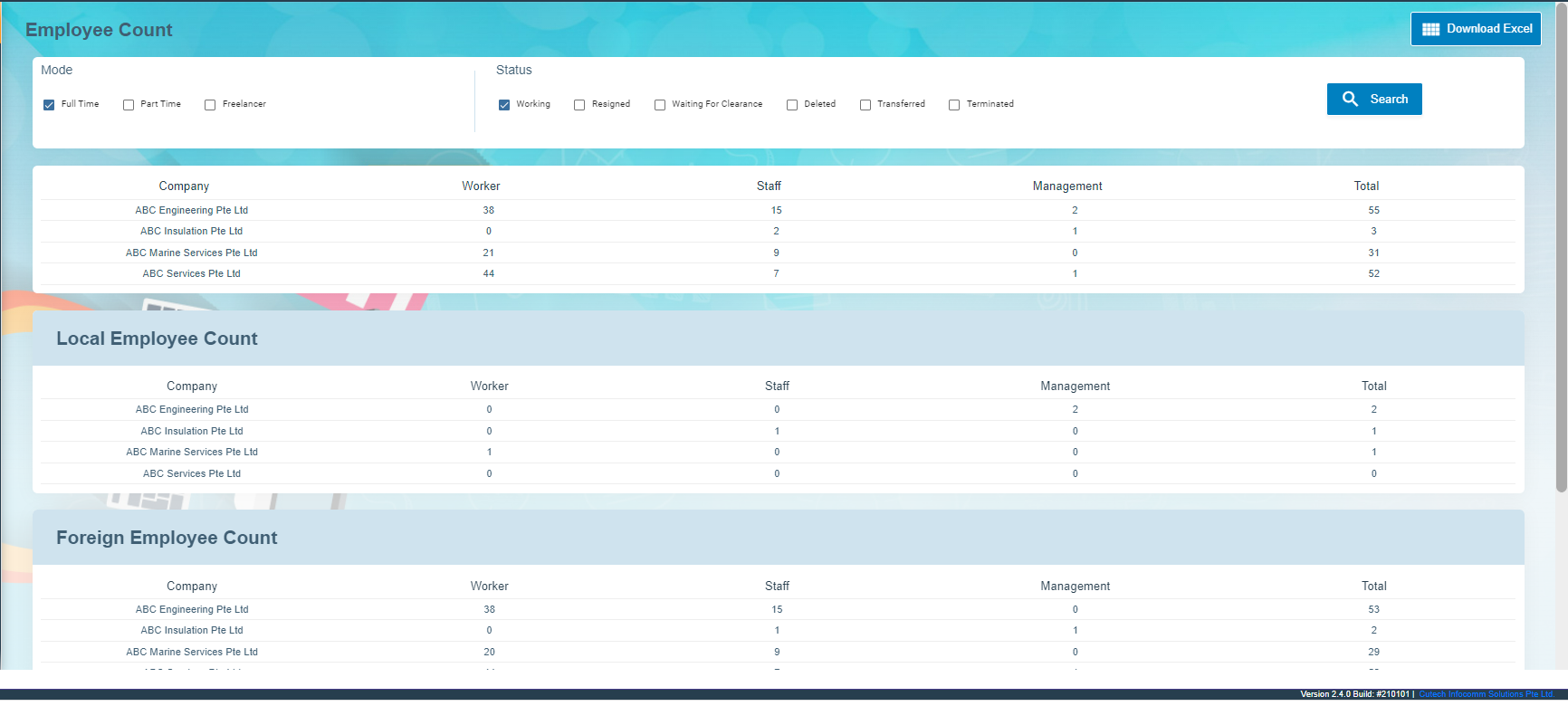](http://wiki.cuteinfocomm.com/uploads/images/gallery/2022-09/image-1662093000429.png)
2. In the **Mode** box, select the working mode of the employee whether **Full Time**, **Part-Time** or **Freelancer**.
3. In the **Status** box, select the working status of the employee whether **Working**, **Resigned**, or others from the given options.
**Note**: You can select more than one working mode and working status to view the combined employee count.
4. Click **Search**. The **Employee Count** page shows the employee count based on the selected working mode and status. [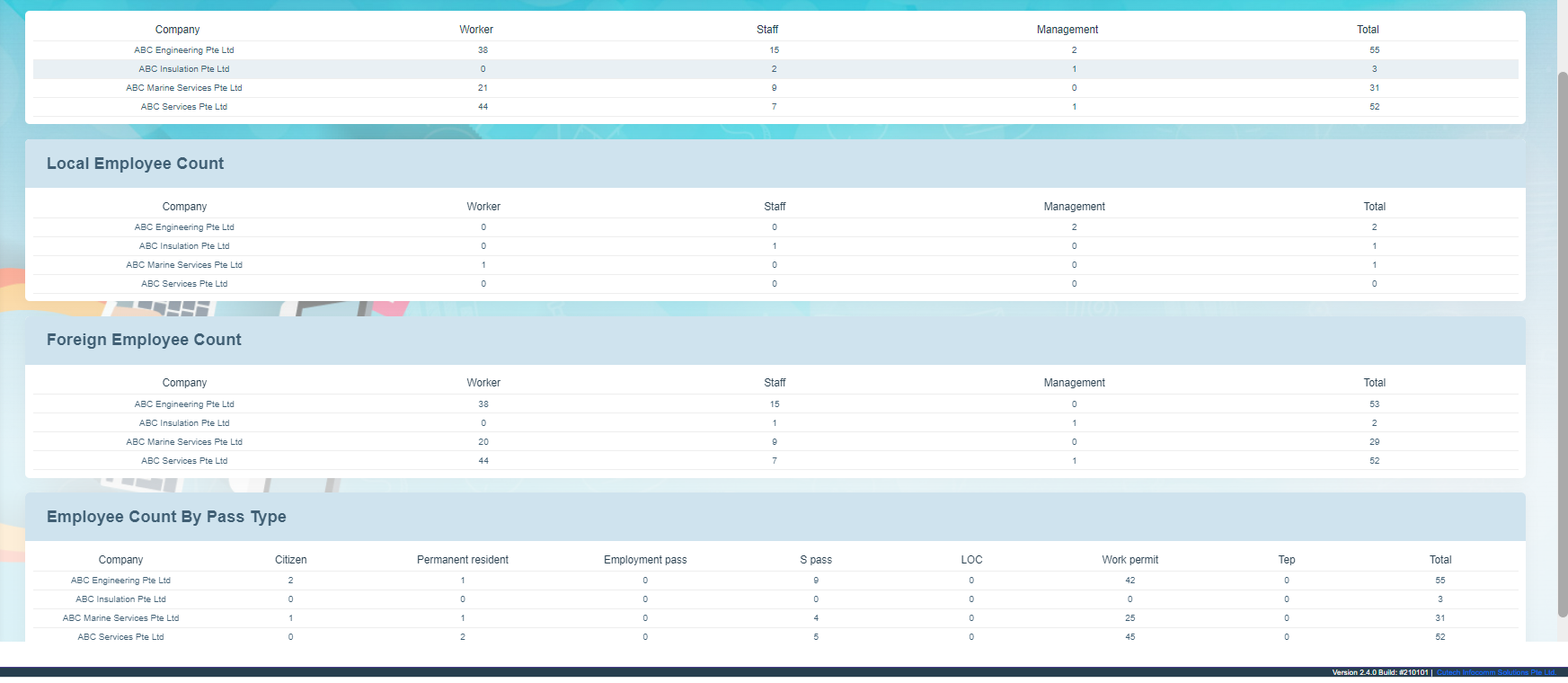](http://wiki.cuteinfocomm.com/uploads/images/gallery/2022-09/image-1662093052146.png)
### Print Image Documents
The **Print Image Documents** tab in the **Reports** submenu helps you to generate and view the employee’s photo, ID document, passport document, course ID, and certificates. To print the image documents,
1. Click the **Print Image Documents** tab in the **Reports.** The **Employee Document Download** page opens. [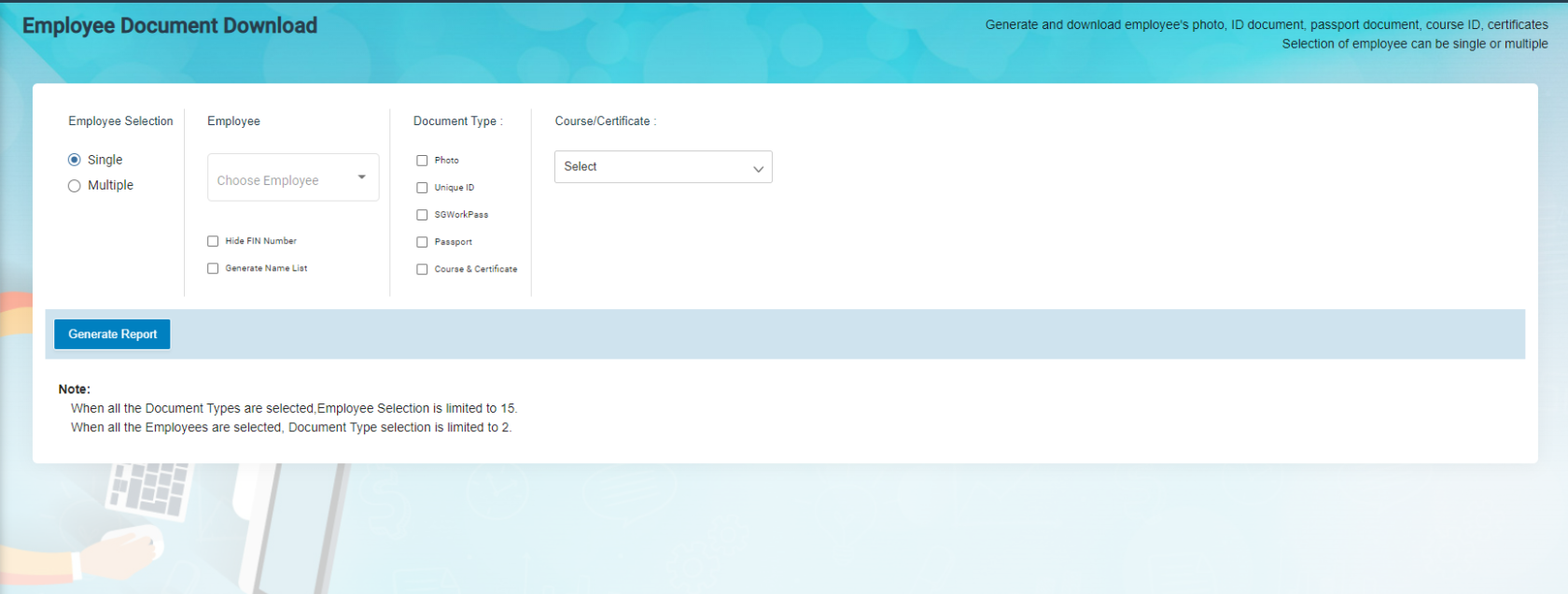](http://wiki.cuteinfocomm.com/uploads/images/gallery/2022-09/image-1662090787623.png)
2. In the **Employee** **selection** box,
- If you want single employee, choose single in employee selection, then search and select an employee from employee dropdown list.
- If you want to see multiple employees, choose multiple in the employee selection and select multiple employees in the check box. Or else you can click select all employee to show all employees print image documents.
3. Select the document type to be printed. If select course/certificate, then specify the course title from the course dropdown list.
4. Click **Generate Report**.
### View Course Report
You can view the course details of any particular employee or all employees by using this **Course Report** tab. To view the employee course report,
1. Click the **Course Report** tab in the **Reports**. The **Course Report** page opens. [](http://wiki.cuteinfocomm.com/uploads/images/gallery/2022-09/image-1662093089092.png)
2. If you want to view the course details for any particular employee, in the **Employee** box, select the employee from a drop-down list. Or If you want to view the course details for all employees, select the checkbox of the **Show All Employee**
3. Click **Search**. The employee course report opens. [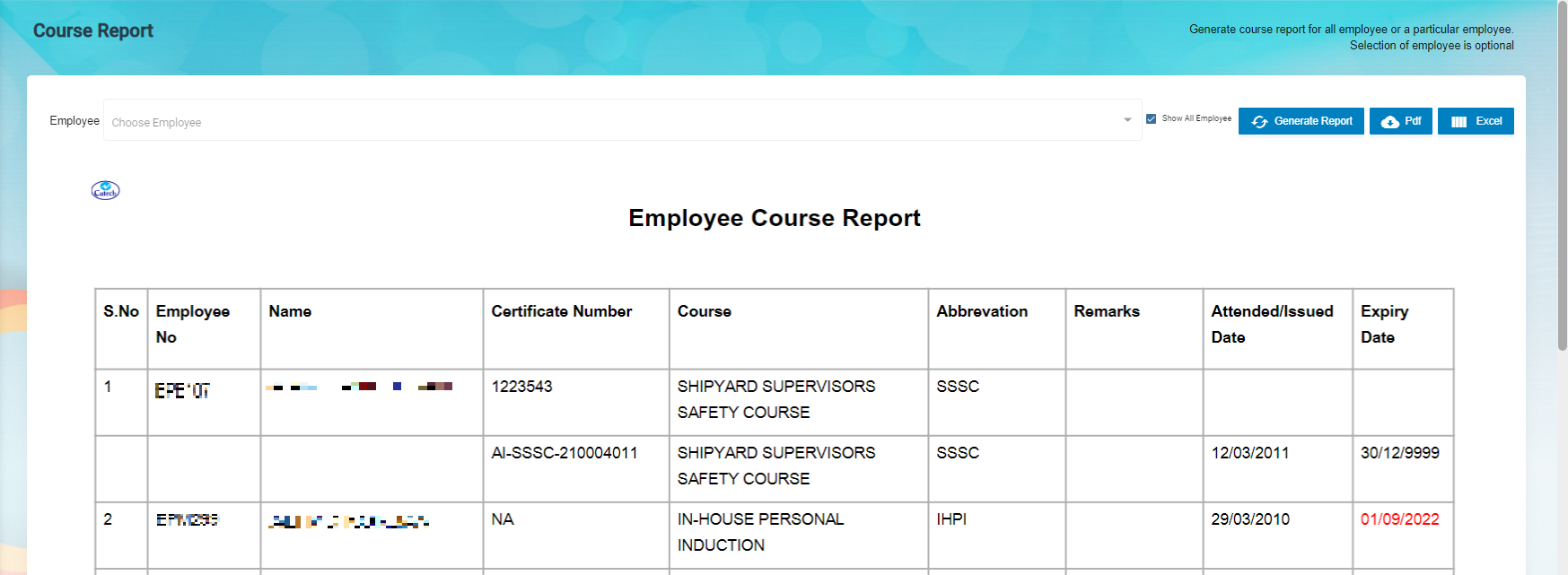](http://wiki.cuteinfocomm.com/uploads/images/gallery/2023-04/image-1682095648070.png)
**Note**: If you want to download the employee course report in pdf format, click 
(**PDF download** button). The pdf report will be downloaded.
### View Courses Matrix
The **Courses Matrix** tab in the **Reports** submenu helps you to generate and view the employee’s course attendance report. To view the course attendance report,
1. Click the **Courses Matrix** tab in the **Reports**. The **Courses Matrix** page opens. [](http://wiki.cuteinfocomm.com/uploads/images/gallery/2022-09/image-1662093188842.png)
2. In the **Select Employees** box, select the employees for whom you want to view the course attendance report.
3. In the **Select Courses** box, select the courses.
**Note**: The maximum number of selection of employees is 10. You cannot select the more than 10 employees.
4. Click **Submit**. The employee’s course matrix report opens. [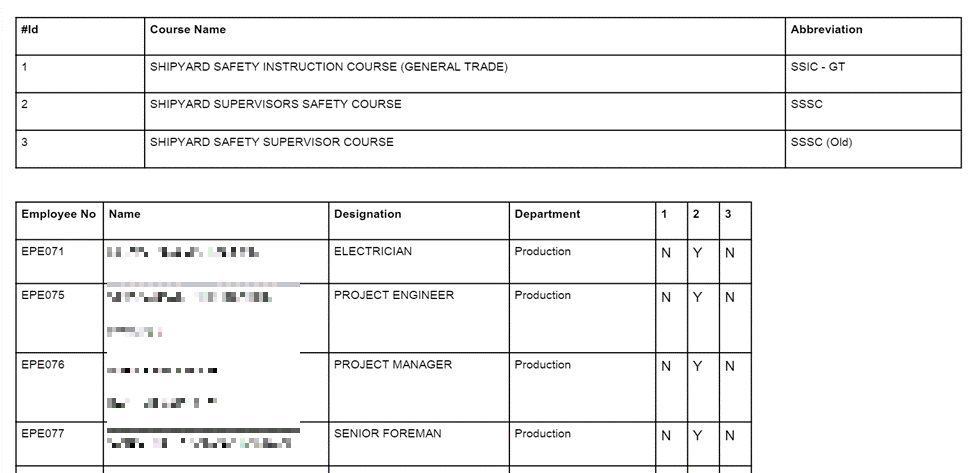](http://wiki.cuteinfocomm.com/uploads/images/gallery/2023-04/image-1682095691372.png)
**Note**: If you want to download the employee course and matrix report in pdf format, click  (**PDF download** button). The pdf report will be downloaded.
### View Employee Course List
The **Employee Course List** tab in the **Reports** submenu helps you to view the courses which are completed by the employees. To view the course list,
1. Click the **Employee Course List** tab in the **Reports.** The **Employee Course List** page opens, [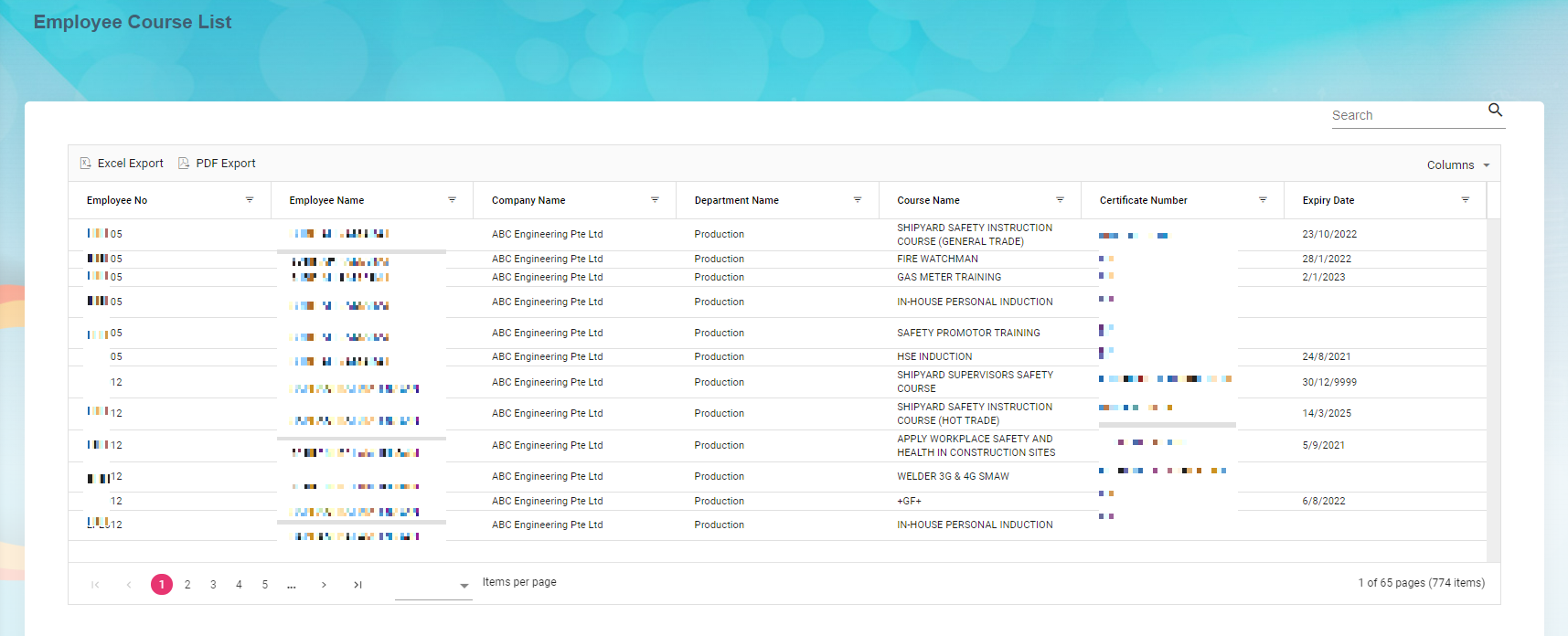](http://wiki.cuteinfocomm.com/uploads/images/gallery/2023-04/image-1682095753850.png)
**To Customize the** **Employee Course List** **page**:
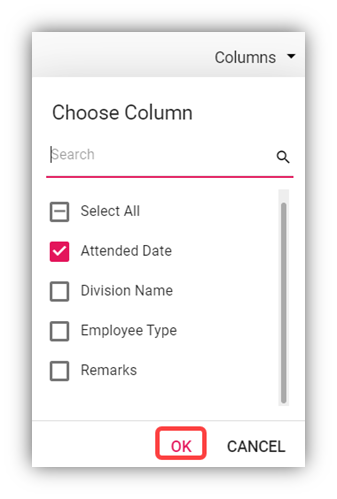
You can customize the **Employee Course List** page by using the **Columns** option. In the **Columns** option, select the columns which you want to add in the **Employee Course List.** The selected columns will be added the Employee Course List page.
2. In the **Course Name** box, select a course from the list of courses added using the [Course Master](#_Course). The page shows a list of employees who has completed the selected course.
- **Export course list**
The application has a feature to download the course list as an excel file. You can use (**Export Excel** button) to download the course list details. To download the course list details, select the desired format and click[](http://wiki.cuteinfocomm.com/uploads/images/gallery/2022-09/image-1662091449802.png)(**Export Excel** or **PDF** button). The course list in the **Employee Course List** page will be downloaded.
- **Filter Course List**
If you want to view any specific course completed details among multiple completed courses listed in the **Employee** **Course List** page, you can use the filter option provided below each column in the **Employee** **Course List** page.
### View Employee Report
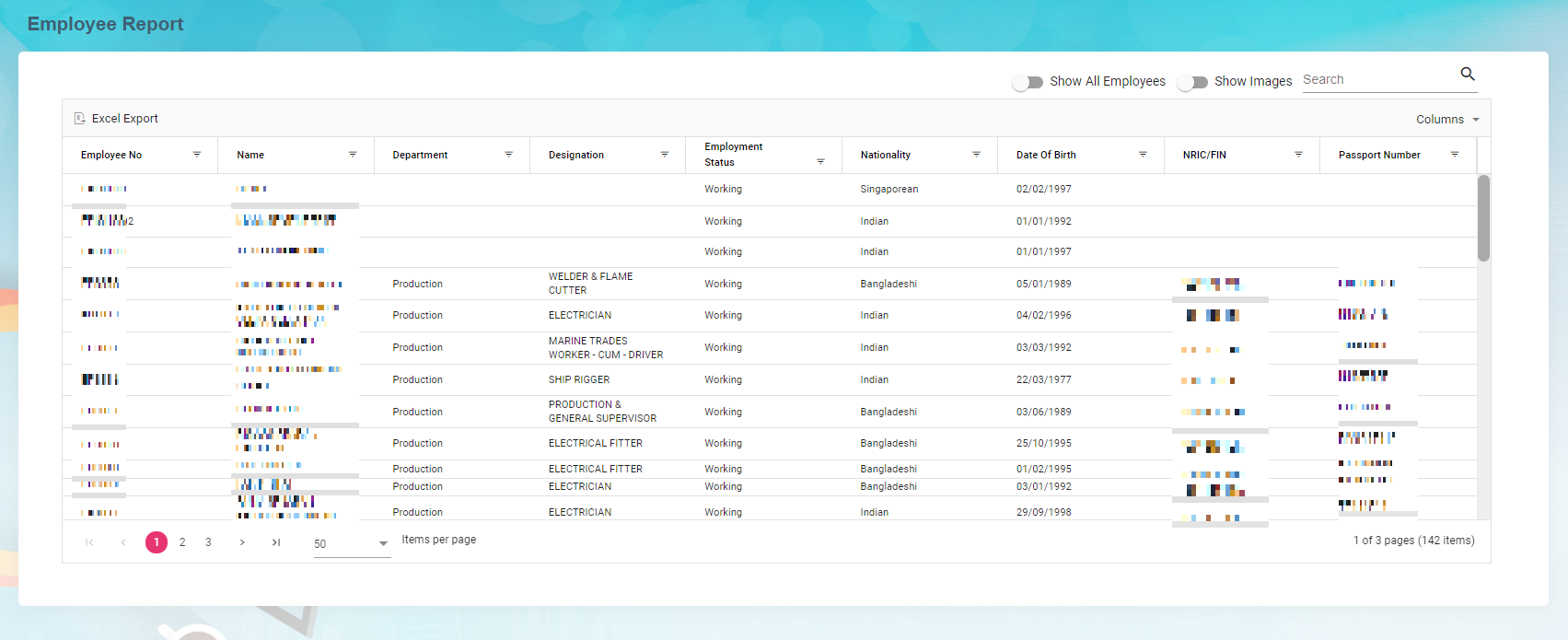
You can view the list of added employees including their details such as employee number, company, and so on by using the **Employee Report** tab in the **Reports** submenu. Click the **Employee Report** tab in the **Reports**. The **Employee Report** page opens with a list of added employees including their details.
[](http://wiki.cuteinfocomm.com/uploads/images/gallery/2023-04/image-1682095806683.png)
**To Customize the** **Employee Report** **page**:
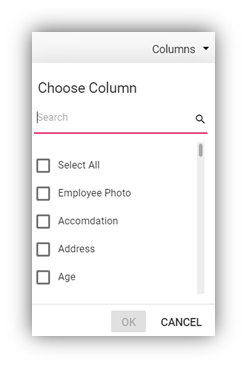
You can customize the **Employee Report** page by using the **Columns** option. In the **Columns** option, select the columns which you want to add in the **Employee Report.** The selected columns will be added the Employee Report page.
- **Export Employee Report**
The application has a feature to download the employee report as an excel file. You can use (**Export Excel** button) to download the employee report. To download the employee report, select the desired format and click[](http://wiki.cuteinfocomm.com/uploads/images/gallery/2022-09/image-1662091449802.png)(**Export Excel** or **PDF** button). The employee details in the **Employee Report** page will be downloaded.
- **Filter Employee Report**
If you want to view any specific employee details among multiple employees listed in the **Employee** **Report** page, you can use the filter option provided below each column in the **Employee** **Report** page.
### View Employee’s Security Bond Report
The **Security Bond Report** tab in the **Reports** menu used to generate and view the security bond (work permit) report of the employee. To view the security bond report,
1. Click the **Security Bond Report** tab in the **Reports.** The **Employee’s (Work Permit) Security Bond Report** page opens. [](http://wiki.cuteinfocomm.com/uploads/images/gallery/2022-09/image-1662091589178.png)
2. In the **Employee** box, select an employee from a drop-down list. Or if you want to view the security bond report for all the employees, click the checkbox of the **Show All Employee**
3. Click **Generate Report**. The security bond report for the selected employee opens. [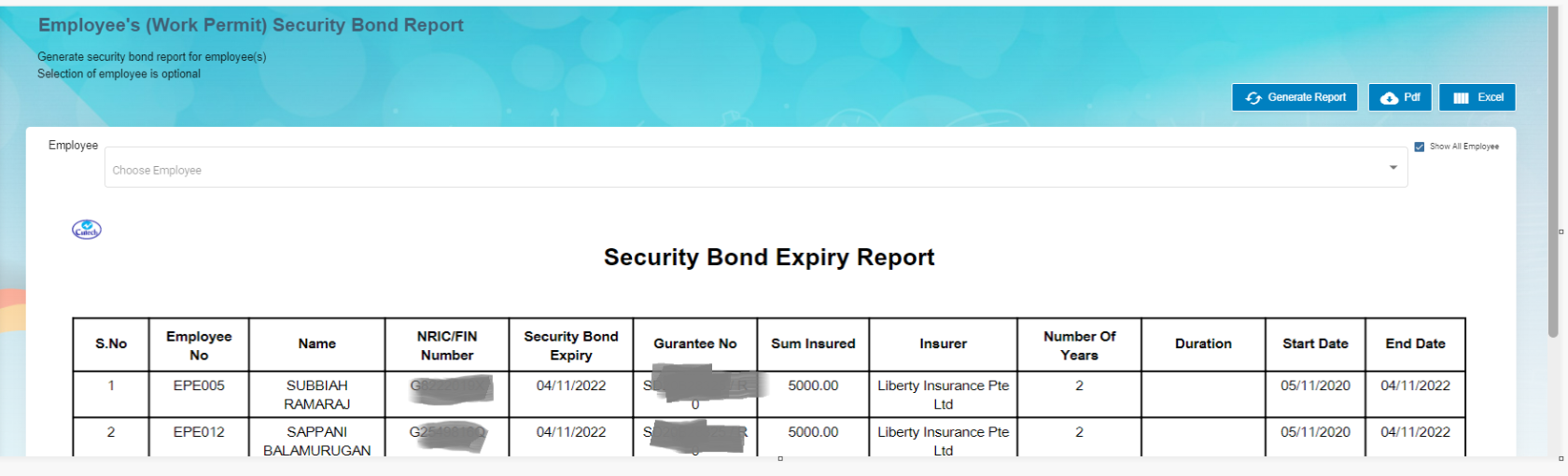](http://wiki.cuteinfocomm.com/uploads/images/gallery/2022-09/image-1662093468267.png)
**Note**: If you want to download the employee’s security bond report in pdf format, click[](http://wiki.cuteinfocomm.com/uploads/images/gallery/2022-09/image-1662093519391.png)(**PDF download** button). The pdf report will be downloaded.
### View Employee’s Key Employment Terms Report
The **Key Employment Terms Report** tab in the **Reports** menu used to view the key employment terms report of the employee. To view the key employment terms report,
1. Click the **Key Employment Terms Report** tab in the **Reports.** The **Employee’s Key Employment Terms Report** page opens. [](http://wiki.cuteinfocomm.com/uploads/images/gallery/2022-09/image-1662093552003.png)
2. In the **Employee** box, select an employee from a drop-down list.
3. Click **Generate Report**. The key employment terms report for the selected employee opens, [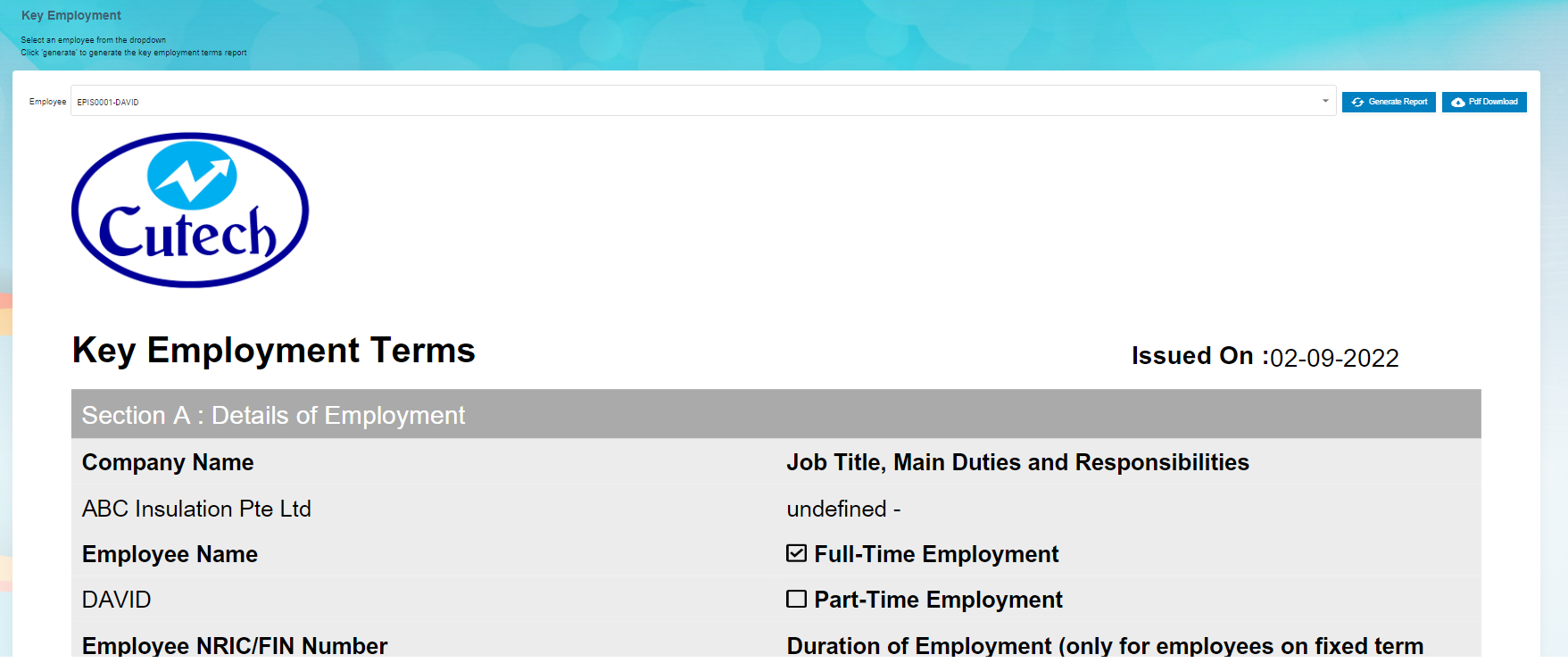](http://wiki.cuteinfocomm.com/uploads/images/gallery/2022-09/image-1662093626807.png)
**Note**: If you want to download the employee’s key employment terms report in pdf format, click [](http://wiki.cuteinfocomm.com/uploads/images/gallery/2022-09/image-1662093519391.png) (**PDF download** button). The pdf report will be downloaded.
### View Archived Documents
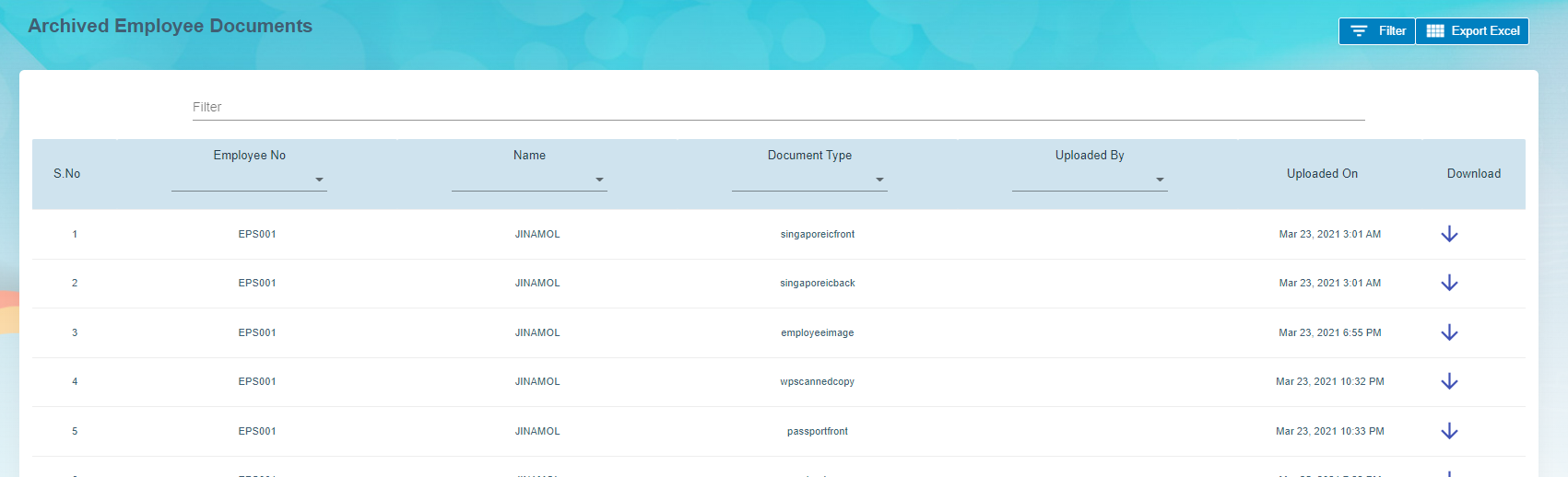
The **Archive Documents** in the **Reports** submenu used to view the archived documents of the employee. To view the archived documents of the employee, click the **Archive Documents** tab in the **Reports.** The **Archived Employee Documents** page opens with a list of archived documents of the employees.
[](http://wiki.cuteinfocomm.com/uploads/images/gallery/2022-09/image-1662093691058.png)
- **Download an Archived Document of Employee**
If you want to download the detail of the archived document of any employee, click  (Download icon provided in the **Download** column) of the respective employee. The archived document of the selected employee will be downloaded.
- **Export Archived Employee Documents**
The application has a feature to download the archived employee documents list as an excel file. You can click[](http://wiki.cuteinfocomm.com/uploads/images/gallery/2022-09/image-1663356992223.png) (**Export Excel** button) to download the documents list. The archived document list in the **Archived** **Employee Documents** page will be downloaded as an excel file.
- **Filter Archived Document of Employee**
If you want to view the archived document of any specific employee among multiple employees listed in the **Archived** **Employee** **Documents** page, click[](http://wiki.cuteinfocomm.com/uploads/images/gallery/2022-09/image-1663357019209.png)(**Filter** button) provided in the upper side of the **Archived** **Employee** **Documents** page. The **Filter** option will be enabled in the **Archived** **Employee** **Documents** page to filter the specific archived document.
### Employee ID Expiry
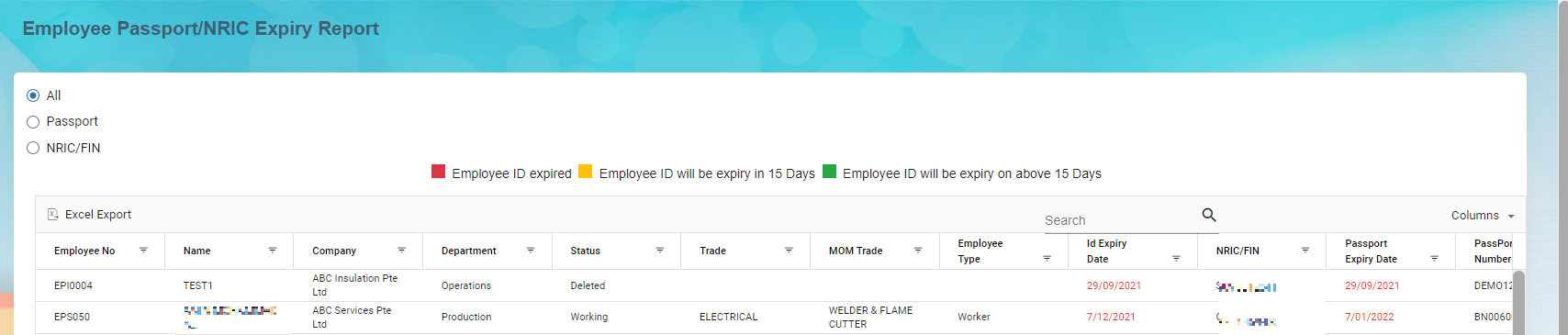
This report allows user to check passport/NRIC expiry date. Click **Employee ID Expiry** in **Reports** menu, below page opens,
[](http://wiki.cuteinfocomm.com/uploads/images/gallery/2023-04/image-1682095928241.png)
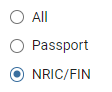
To generate report, select below option to generate relevant report,
[](http://wiki.cuteinfocomm.com/uploads/images/gallery/2022-09/image-1663097946870.png)
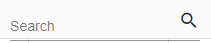
Or you can use the search option to search for particular record,
[](http://wiki.cuteinfocomm.com/uploads/images/gallery/2022-09/image-1663098099433.png)
To export the report, you can use the export button located on the up left corner of the report page.
[](http://wiki.cuteinfocomm.com/uploads/images/gallery/2022-09/image-1663107739432.png)
### Expiry Report
Expiry report allows user to generate all kinds of expiry reports such as employee passport expiry, employee contract expiry, probation expiry report etc.. Click Expiry Report, below page opens,
[](http://wiki.cuteinfocomm.com/uploads/images/gallery/2022-09/image-1662093786271.png)
To generate expiry report,
1. In **Report Type** field, select the type from dropdown list, [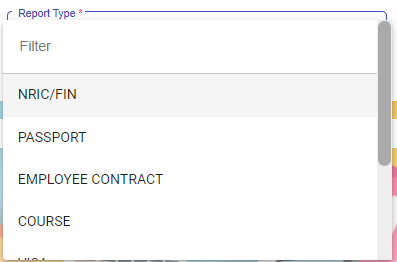](http://wiki.cuteinfocomm.com/uploads/images/gallery/2022-09/image-1663108091496.png)
2. In Expires In field, select the expiring period, [](http://wiki.cuteinfocomm.com/uploads/images/gallery/2022-09/image-1663108139289.png)
3. In Company field, select the company name. [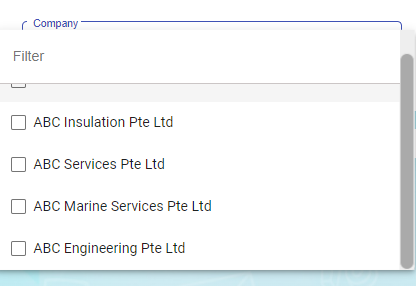](http://wiki.cuteinfocomm.com/uploads/images/gallery/2022-09/image-1663108166958.png)
4. Click[](http://wiki.cuteinfocomm.com/uploads/images/gallery/2022-09/image-1663108186010.png) button to generate report.
5. To download report, click the download icon. [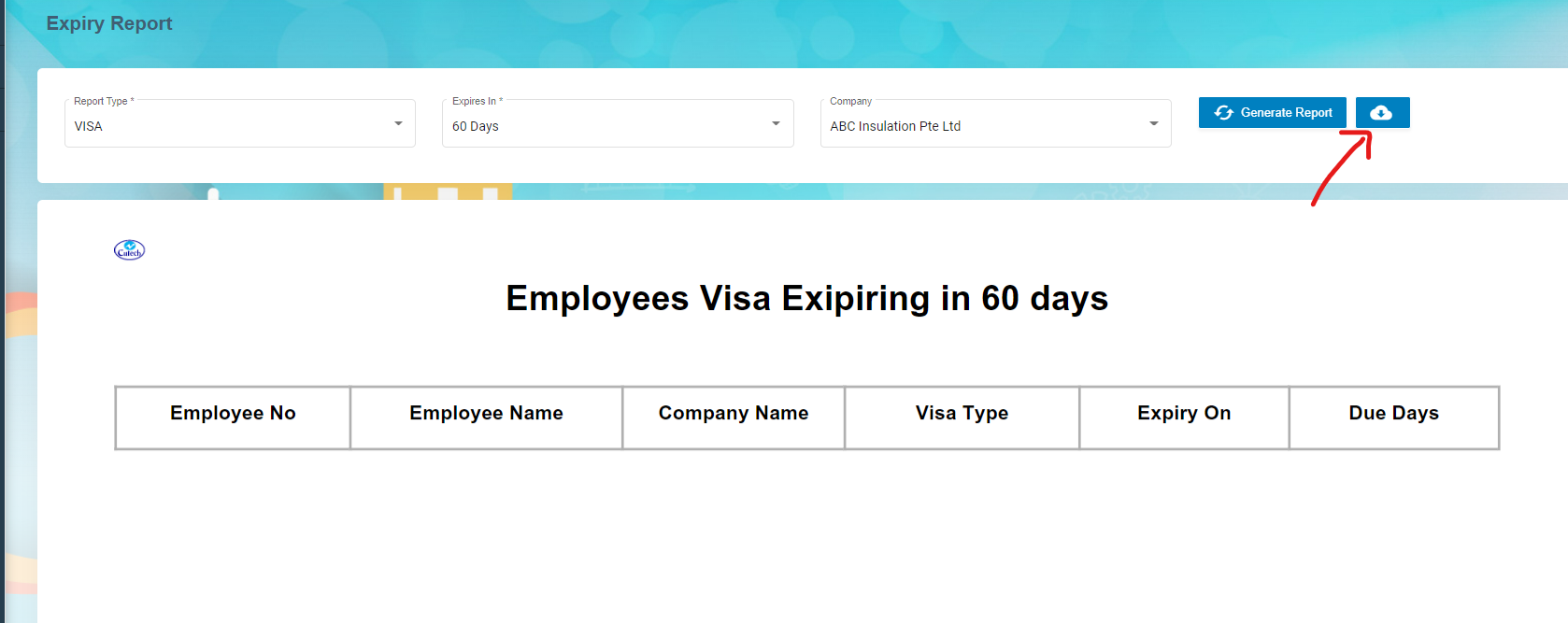](http://wiki.cuteinfocomm.com/uploads/images/gallery/2022-09/image-1663108289105.png)
### Generate Resume
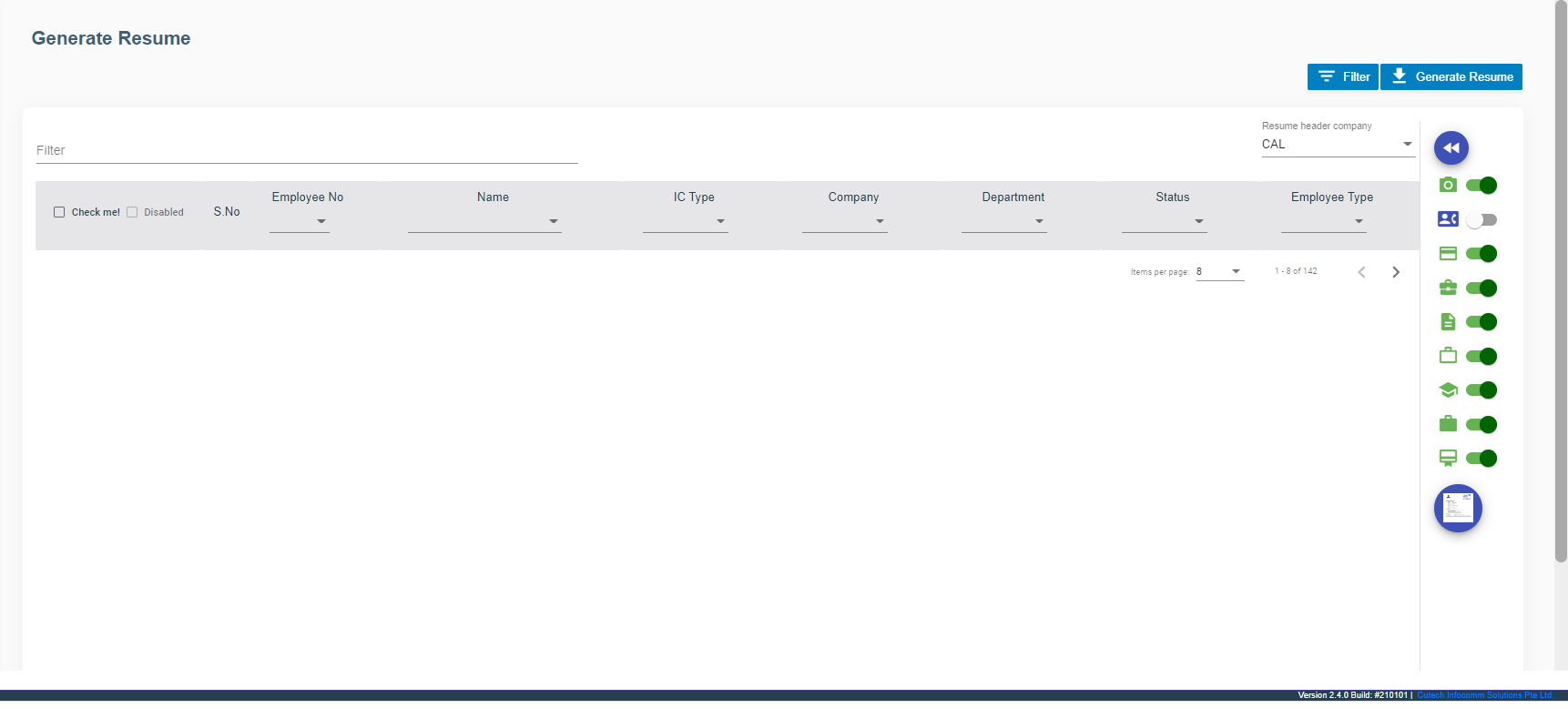
User can generate employee resume in this section. Click Generate Resume submenu,
[](http://wiki.cuteinfocomm.com/uploads/images/gallery/2022-09/image-1662093819289.png)
### Organization Chart
[](http://wiki.cuteinfocomm.com/uploads/images/gallery/2022-09/image-1662093868981.png)
.