# HRM Master Data
## Masters
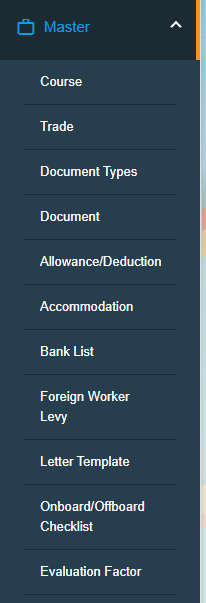
The **Masters** submenu in the **HUMAN RESOURCES** page helps you to add the master data like details of employee’s skill set, job categories, and allowances, and company’s general document.
The **Masters** submenu contains the following tabs,
[](http://wiki.cuteinfocomm.com/uploads/images/gallery/2022-09/image-1663313292019.png)
- Course
- Trade
- Document Type
- Document
- Addition/Deduction
- Bank list
- Foreign Worker Levy
- Letter Template
- Onboard/Offboard Checklist
- Evaluation Factor
### Course
The **Course** tab in the **Masters** submenu helps you to add the course details. Once you have added the course, you can assign the added course for the for the respective employees while adding the employee course details. Click the Course tab in the Masters submenu. The Course Master page opens. [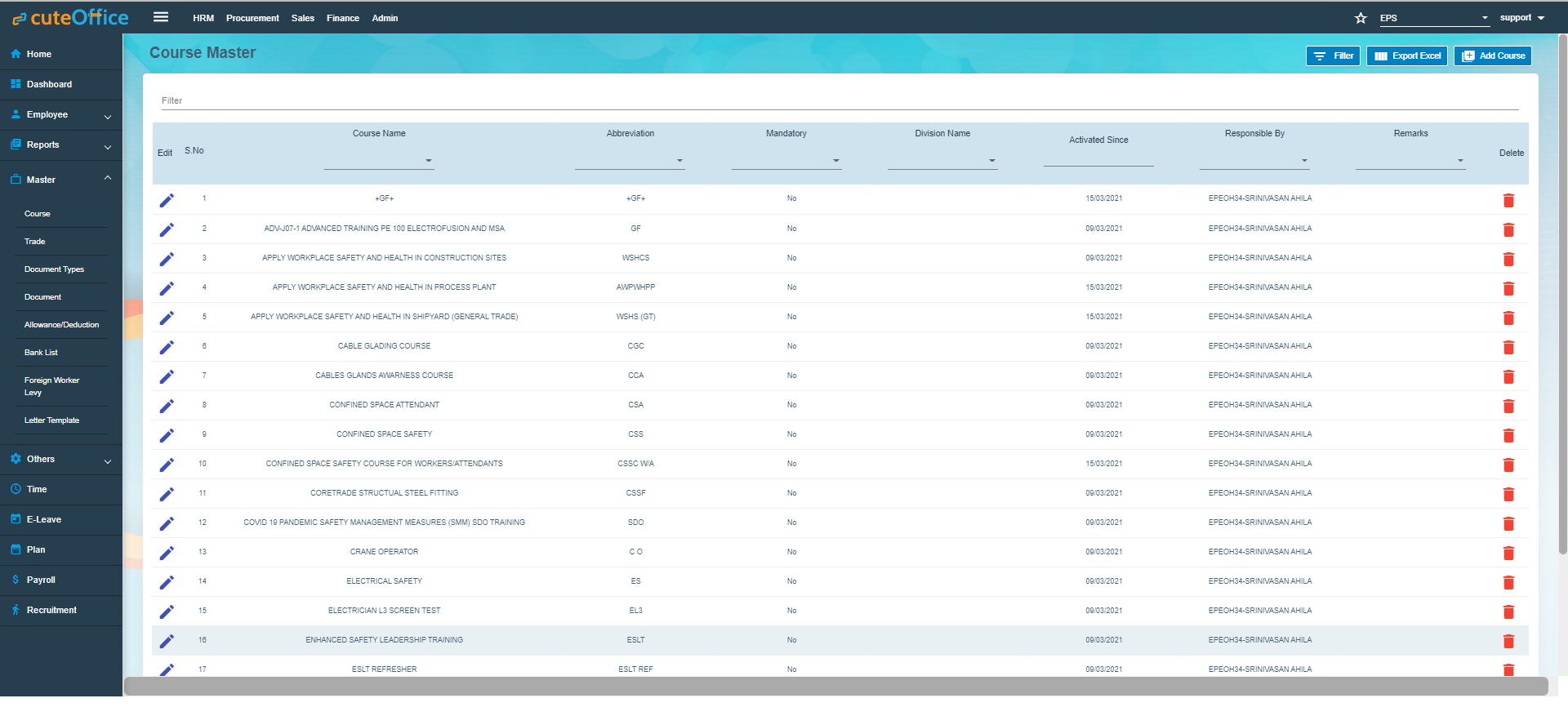](http://wiki.cuteinfocomm.com/uploads/images/gallery/2022-09/image-1662112456589.png)
#### Add Course.
To add a new course,
1. Click (**Add Course** button) in the **Course Master.** The **Add Course** window opens. [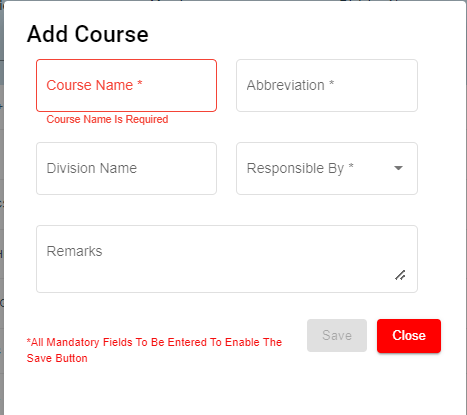](http://wiki.cuteinfocomm.com/uploads/images/gallery/2022-09/image-1662093911337.png)
**Note**: The fields notified with a symbol (\*) are mandatory. You must enter the relevant details in that fields before saving.
2. In the **Course** **Name** box, enter the name of course.
3. In the **Abbreviation** box, enter the abbreviation for the course name.
4. In the **Division Name** box, enter the division name.
5. In the **Responsible By** box, select the name of a person who is responsible for the course.
6. In the **Remarks** box, enter your remarks if any.
7. Click **Save**. The course is successfully added and listed in the **Course Master** page.
#### Edit Course
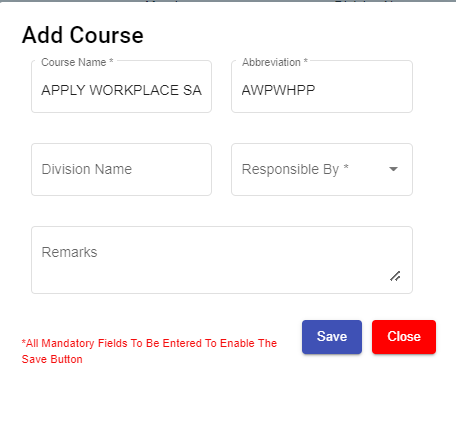
You can edit the details of the added course by using (Edit icon) provided in the **Edit** column of the **Course Master** page. Click (Edit icon) of the respective course you have added. The **Add Course** window opens with the added course details. Edit the course details where you want. Then click **Save**.
[](http://wiki.cuteinfocomm.com/uploads/images/gallery/2022-09/image-1662093937047.png)
#### Delete Course
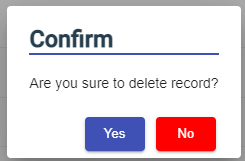
You can delete the added course by using (Delete icon) provided in the **Delete** column of the **Course Master** page. Click (Delete icon) of the respective course. The **Confirm** dialogue box opens with the following notification: “**Are you sure to delete record?**”. If you want to delete the course, click **Yes** otherwise click **No**.
[](http://wiki.cuteinfocomm.com/uploads/images/gallery/2022-09/image-1662093999766.png)
#### Filter Course
If you want to view any specific course details among multiple courses listed in the **Course Master** page, you can use the filter option provided in the upper left corner of the **Course Master** page. Click (Filter button). The filter option opens. Type any one of the details of course name, abbreviation, division name, active date, responsible by, and remarks which you know. The course which you want to view is filtered now.
#### Export Course
The application has a feature to download the added course details as an excel file. You can use (**Export Excel** button) to download the added course details. Click (**Export Excel** button). The course details in the **Course Master** page will be downloaded as an excel file.
### Trade
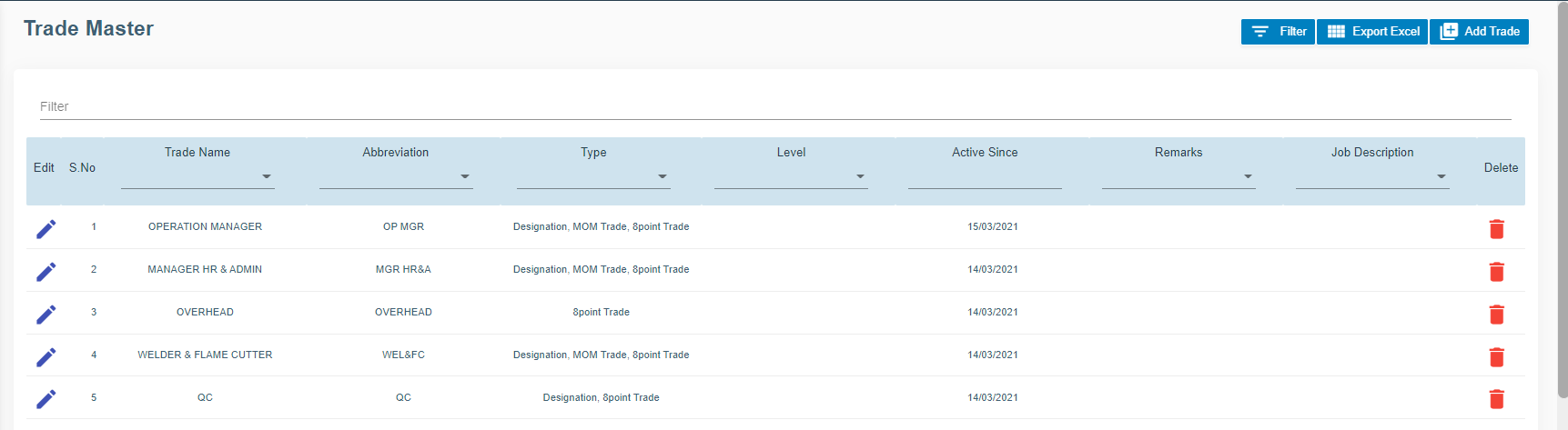
The **Trade** tab in the **Masters** submenu helps you to add the trade (Job category of employee) details. Once you have added the trade, you can assign the added trade for the respective employees while adding the employee details. If you want to add a trade, click the **Trade** tab in the **Masters** submenu. The **Trade Master** page opens.
[](http://wiki.cuteinfocomm.com/uploads/images/gallery/2022-09/image-1662094037340.png)
#### Add Trade
To add a new trade,
1. Click (**Add Trade** button) in the **Trade Master.** The **Add Trade** window opens.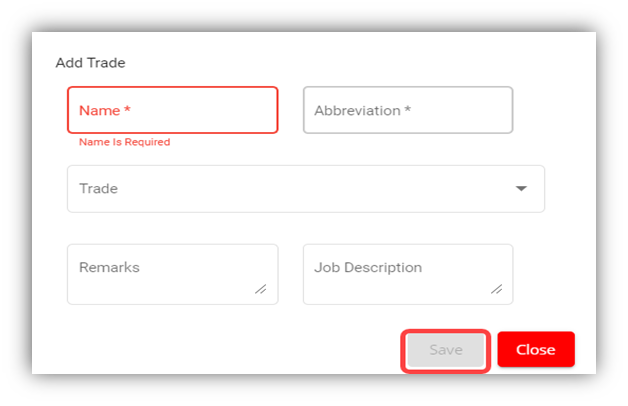
**Note**: The fields notified with a symbol (\*) are mandatory. You must enter the relevant details in that fields before saving.
2. In the **Name** box, enter the name of trade.
3. In the **Abbreviation** box, enter the abbreviation for the trade name.
4. In the **Trade** box, select the type of trade from a drop-down list.
5. In the **Remarks** box, enter your remarks if any.
6. In the **Job Description** box, enter the job description detail.
7. Click **Save**. The trade is successfully added and listed in the **Trade Master** page.
#### Edit Trade
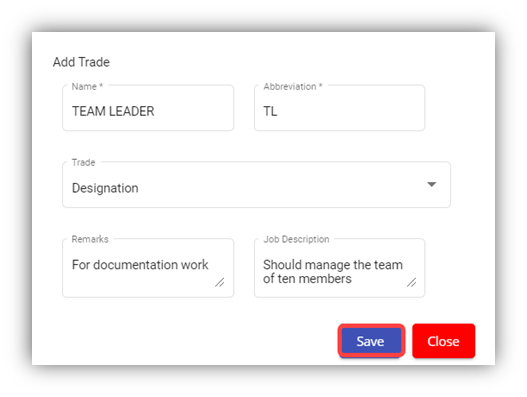
You can edit the details of the added trade by using (Edit icon) provided in the **Edit** column of the **Trade Master** page. Click (Edit icon) of the respective trade you have added. The **Add Trade** window opens with the trade details. Edit the trade details where you want. Click **Save**.
#### Delete Trade
You can click the  (Delete icon) in the **Delete** column of the **Trade Master** page. The Confirm dialogue box opens with the following notification: “Are you sure to delete record?”. If you want to delete the trade, click **Yes** otherwise click **No**.
#### Filter Trade
If you want to view any specific trade details among multiple trades listed in the **Trade Master** page, you can use the filter option provided in the upper left corner of the **Trade Master** page. Click (Filter button). The filter option opens.
#### Export Trade
The application has a feature to download the added trade details as an excel file. You can click  (**Export Excel** button) to download the added trade details. The trade details in the **Trade Master** page will be downloaded as an excel file.
### Document Types
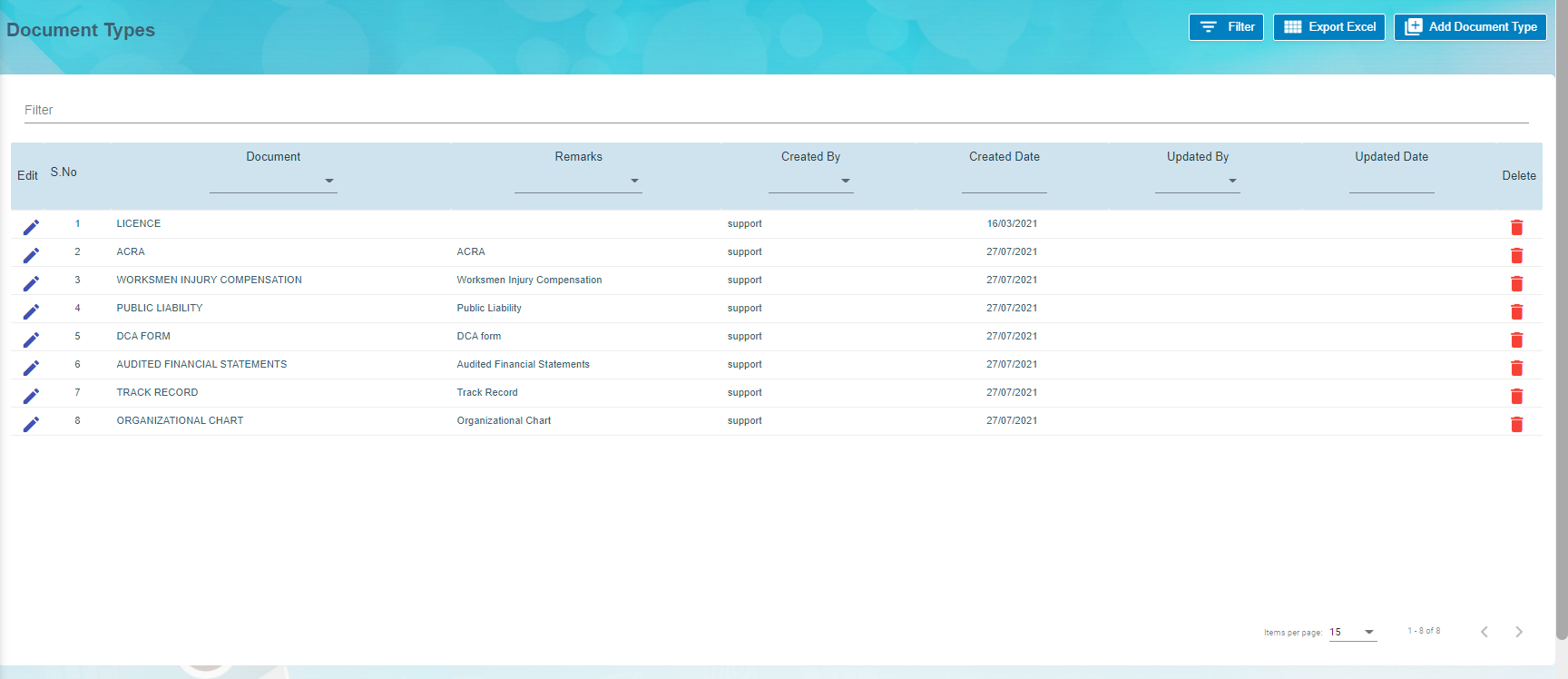
Document types manages the types of documents to be added to system. Click Document Types in the Master menu, the document types opens,
[](http://wiki.cuteinfocomm.com/uploads/images/gallery/2022-09/image-1662596033703.png)
#### Add Document Type
To add a new document type,
1. Click[](http://wiki.cuteinfocomm.com/uploads/images/gallery/2022-09/image-1662094737267.png), the document type window opens, [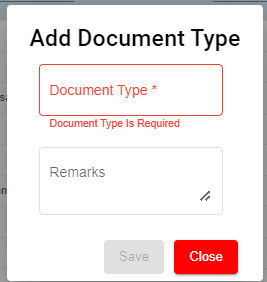](http://wiki.cuteinfocomm.com/uploads/images/gallery/2022-09/image-1662094780149.png)
2. Enter document type name and any remarks if necessary.
3. Click **Save**. A new document type will be created and saved.
#### Edit Document Type
You can edit the details of a document type by using edit option provided in the **Edit** column of the **Document Types** page. Click [](http://wiki.cuteinfocomm.com/uploads/images/gallery/2022-09/image-1662094942497.png)(Edit icon) of the respective document type. The **Add Document** window opens with the document details. Edit the document type details where you want. Click **Save**.
#### Delete Document Type
You can delete a document type by using (Delete icon) provided in the **Delete** column of the **Document Types** page. If you want to delete the document type, click **Yes** otherwise click **No**.
#### Filter Document Type
If you want to view any specific document type details among multiple document types listed in the **Document Types** page, you can use the filter option provided in the upper left corner of the **Document Types** page. Click (Filter button). The filter option opens.
#### Export Document Type
The application has a feature to download the added document type details as an excel file. You can use (**Export Excel** button) to download the added document type details. Click (**Export Excel** button). The document details in the **Document Types** page will be downloaded as an excel file.
### Document
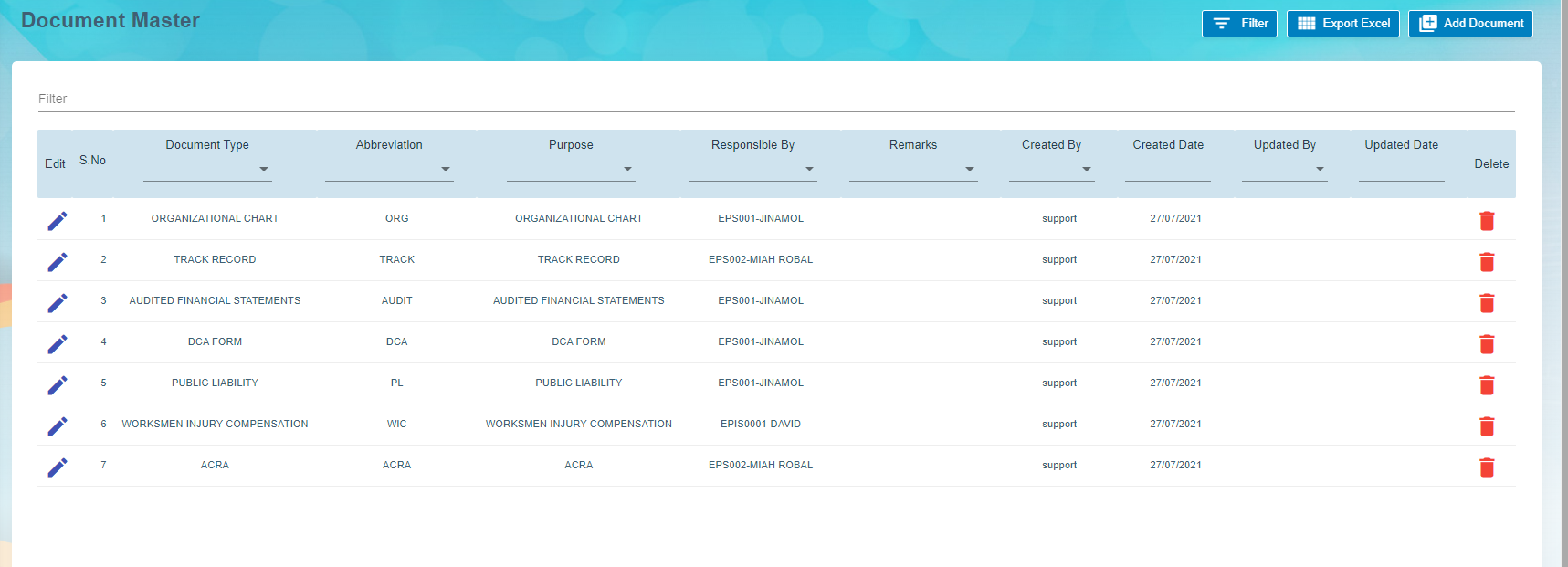
The **Document** tab in the **Masters** submenu helps you to add the type of company’s general documents like ISO certificates, product certificates and so on. The added document type will be used while adding the document name. Click the **Document Master** tab in the **Masters.** The **Document Master** page opens.
[](http://wiki.cuteinfocomm.com/uploads/images/gallery/2022-09/image-1662596005861.png)
#### Add Document
To add any document,
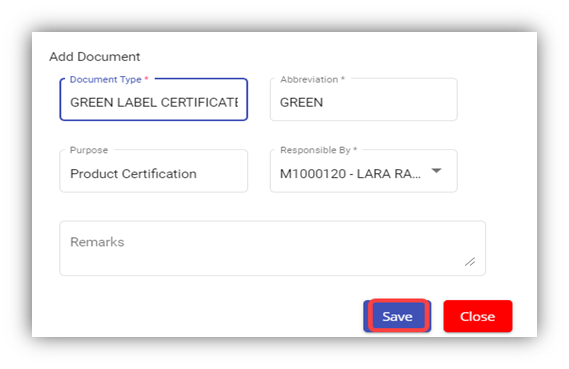
1. Click (**Add Document** button) in the **Document Master.** The **Add Document** window opens.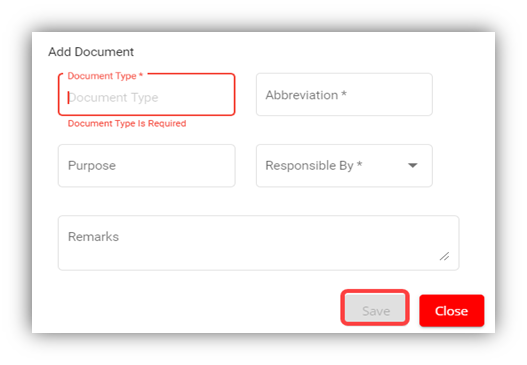
**Note**: The fields notified with a symbol (\*) are mandatory. You must enter the relevant details in that fields before saving.
2. In the **Document Type** box, select the type of document.
3. In the **Abbreviation** box, enter the abbreviation for the document type.
4. In the **Purpose** box, enter the purpose of adding the document.
5. In the **Responsible By** box, enter the name of a person who is responsible for the document.
6. In the **Remarks** box, enter your remarks if any.
7. Click **Save**. The document type is successfully added and listed in the **Document Master** page.
#### Edit Document
You can edit the details of the added document type by using (Edit icon) provided in the **Edit** column of the **Document Master** page. Click (Edit icon) of the respective document type you have added. The **Add Document** window opens with the document details. Edit the document type details where you want. Click **Save**.
#### Delete Document
You can delete the added document by using (Delete icon) provided in the **Delete** column of the **Document Master** page. If you want to delete the document type, click **Yes** otherwise click **No**.
#### Filter Document
If you want to view any specific document type details among multiple document types listed in the **Document Master** page, you can use the filter option provided in the upper left corner of the **Document Master** page. Click (Filter button). The filter option opens.
#### Export Document
The application has a feature to download the added document type details as an excel file. You can use (**Export Excel** button) to download the added document type details. Click (**Export Excel** button). The document details in the **Document Master** page will be downloaded as an excel file.
### Allowance/Deduction Master
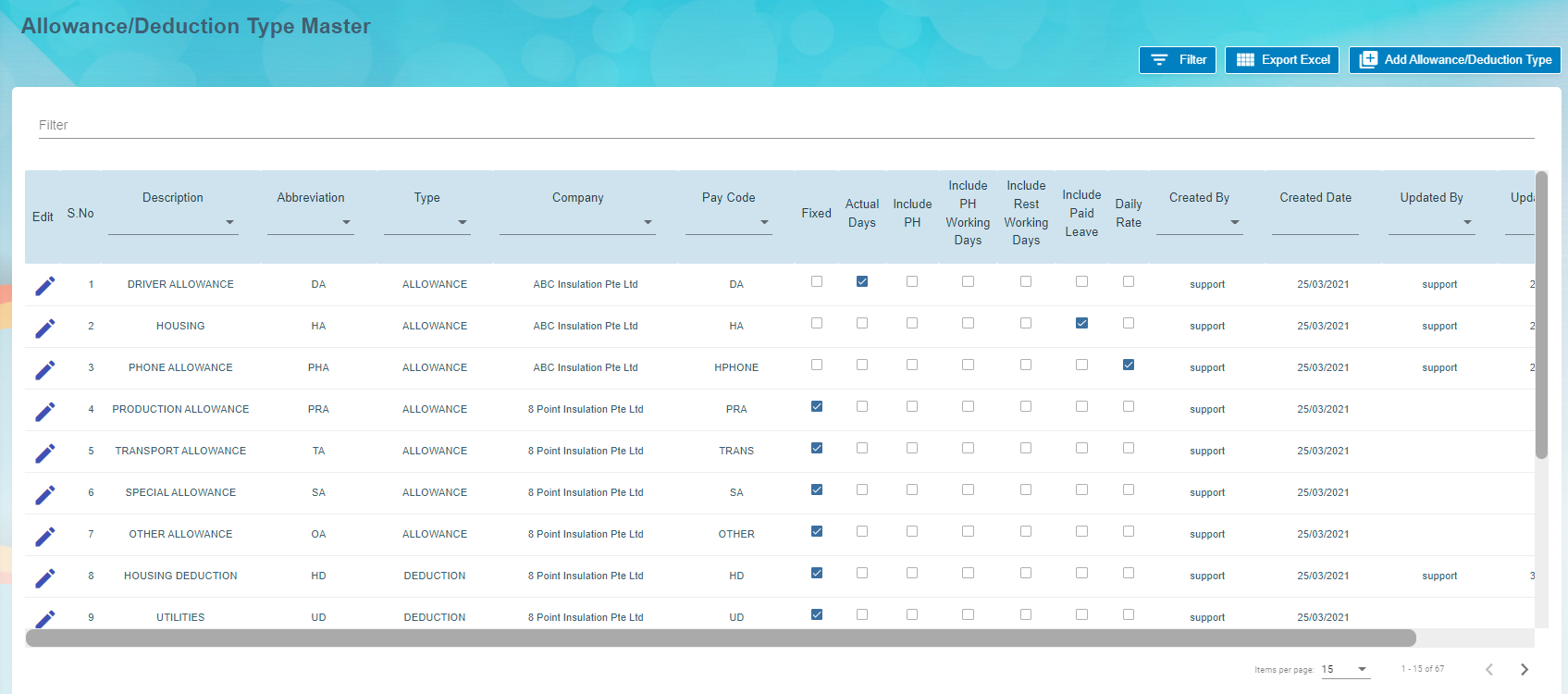
The **Allowance/Deduction Master** tab in the **Masters** submenu helps you to add the allowance, addition, or deduction type master data. Click the **Allowance/Deduction Master** tab in the **Masters.** The **Allowance/Deduction Type Master** page opens.
[](http://wiki.cuteinfocomm.com/uploads/images/gallery/2022-09/image-1662596114277.png)
#### Add Allowance/Addition/Deduction Master
If you want to add allowance/deduction master, do the following steps,
1. Click (**Add Allowance/Deduction Type** button) in the **Allowance/Deduction Type Master**. The **Add Allowance/Deduction Type** window opens. [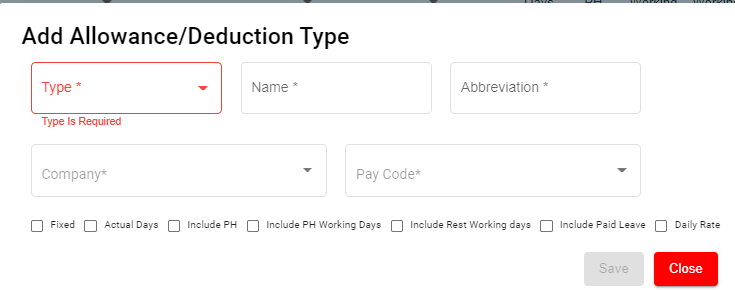](http://wiki.cuteinfocomm.com/uploads/images/gallery/2022-09/image-1662596144102.png)
**Note**: The fields notified with a symbol (\*) are mandatory. You must enter the relevant details in that fields before saving.
1. In the **Type** box, select the type of master data you want to add whether Allowance, Addition, or Deduction.
2. In the **Name** box, enter the name of the master type.
3. In the **Abbreviation** box, enter the abbreviation for the added master type.
4. In the **Company** box, select a company.
5. In the **Pay Code** box, select the pay code from a drop-down list.
6. If creating allowance master data, user must select one of the following option of pay period where applicable ,
- - - If the allowance is fixed one, select the checkbox of the **Fixed**
- If the allowance is paid only for actual working days, select the checkbox of the **Actual Days**
- If the allowance is paid for Public Holidays, select the checkbox of the **Include PH**
- If the allowance is paid when employee works in PH, select **Include PH Working Days**
- If the allowance is paid when employee works during rest days, select **Include Rest Working days**
- If the allowance is paid when employee on paid leave, select **Include Paid Leave**
- If the allowance is daily rate, select **Daily rate.**
7. Click **Save**. The added master type is successfully added and listed in the Allowance/Deduction Type Master page.
#### Edit Allowance/Addition/Deduction Master
You can edit the details of the added master type by using edit option provided in the **Edit** column of the **Allowance/Deduction Master** page. Click  (Edit icon) of the respective allowance type you have added. The **Add Allowance/Deduction** window opens with the added details. Edit the master details where you want. Click **Save**.
#### Delete Allowance/Addition/Deduction Master
You can delete the added master type by using  (Delete icon) provided in the **Delete** column of the **Allowance/Deduction Master** page. If you want to delete the Allowance/Addition/Deduction, click **Yes** otherwise click **No**.
#### Filter Allowance/Addition/Deduction Master
If you want to view any specific master type details listed in the **Allowance/Deduction Master** page, you can use the filter option provided in the upper left corner of the **Allowance/Deduction Master** page. Click (Filter button). The filter option opens.
#### Export Allowance/Addition/Deduction Master
The application has a feature to download the added master type details as an excel file. You can use (**Export Excel** button) to download the added master details. Click (**Export Excel** button). The allowance type details in the **Allowance/Deduction Master** page will be downloaded as an excel file.
### Bank List
The **Bank List** tab in the HRM **Masters** menu helps you to add all the bank details of employees that are used to receive salary payment. Click **Bank List** in the **Masters,** the **Banks List** page opens.[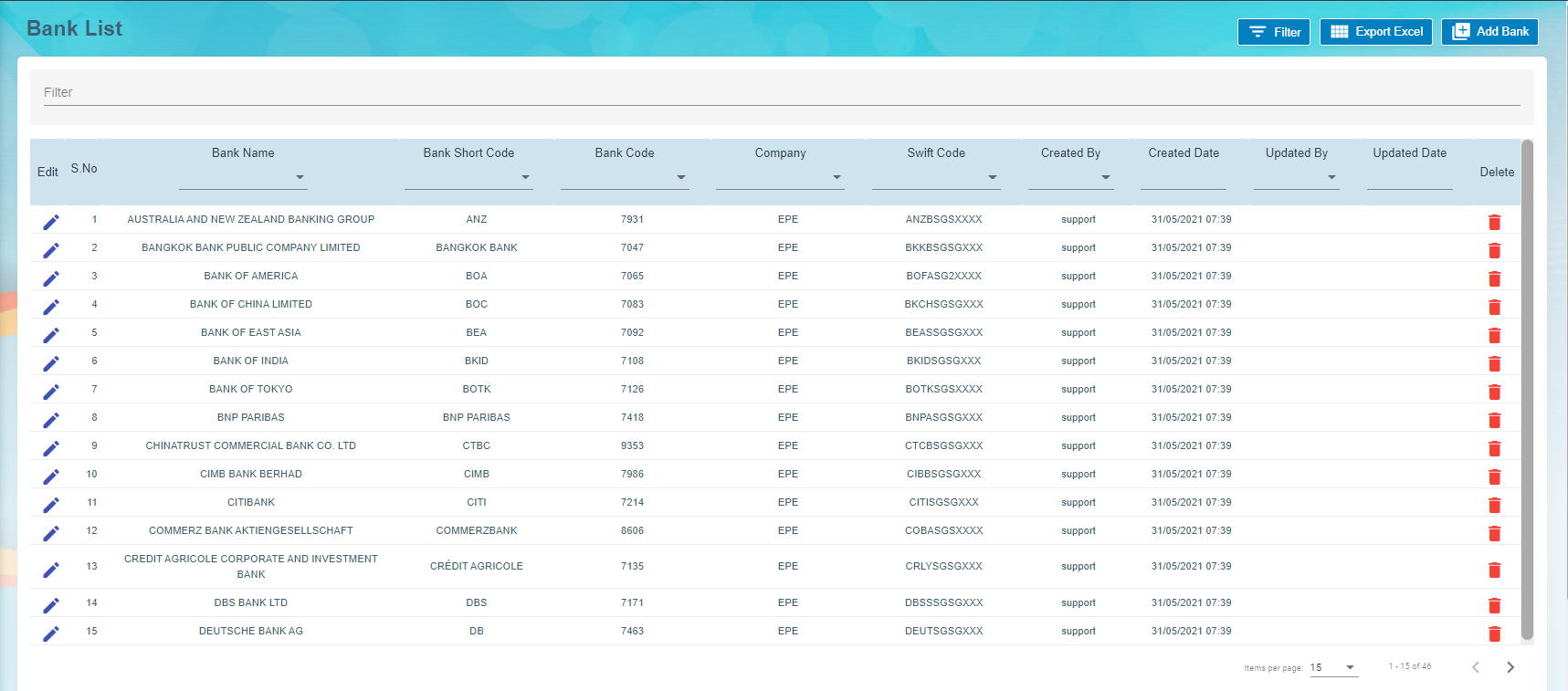](http://wiki.cuteinfocomm.com/uploads/images/gallery/2022-09/image-1663094930977.png)
#### Add a Bank Account
To add a new bank account,
1. Click[](http://wiki.cuteinfocomm.com/uploads/images/gallery/2022-09/image-1663095073003.png)(**Add New Bank** button) in the **Banks List, t**he **Bank** window opens. [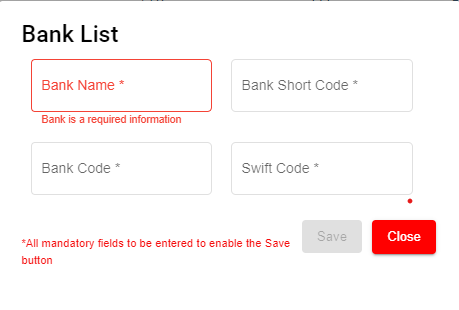](http://wiki.cuteinfocomm.com/uploads/images/gallery/2022-09/image-1663095181971.png)
- **Note**: The fields notified with a symbol (\*) are mandatory. You must enter the relevant details in that fields before saving.
2. In the **Bank Name** box, enter the bank name.
3. In the **Bank Short Code** box, enter the short code for the added bank.
4. In the **Bank Code** box, enter the bank code.
5. In the **Swift Code** box, enter the bank swift code.
6. Click **Save**. The Bank Name is successfully added and listed in the Bank List Master page.
#### Edit the Bank Account Details
You can edit the details of the added bank account by using edit option provided in the **Edit** column of the **Bank List** page. To edit the added bank account details,
1. Click (Edit icon) of the respective bank account you have added. The **Bank** window shows the added bank account details.
[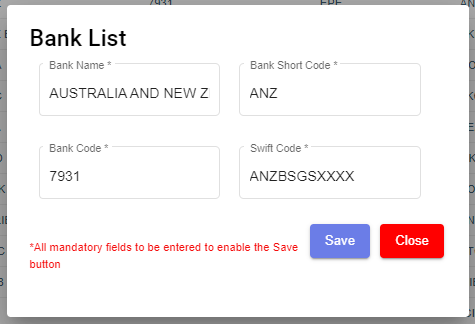](http://wiki.cuteinfocomm.com/uploads/images/gallery/2022-09/image-1663095296856.png)
2. Edit the bank account details where you want.
3. Click **Save**.
#### Delete a Bank Account
You can delete any added bank account by using (Delete icon) provided in the **Delete** column of the **Bank List** page.
#### Filter a Bank Account
If you want to filter any bank account in the **Bank List** page, you can use[ ](http://wiki.cuteinfocomm.com/uploads/images/gallery/2022-09/image-1663095417308.png)(**filter** button) on the **Bank List** page.
#### Export to Excel
If you want to export the **Bank List** page, you can use[](http://wiki.cuteinfocomm.com/uploads/images/gallery/2022-09/image-1663095384875.png) (**export** button) on the **Bank List** page.
### Foreign Worker Levy
Foreign Worker Levy is a mechanism to regulate the number of foreign workers in Singapore. The employer need not to pay CPF contributions for their foreign workers. However, they must pay a monthly levy for Work Permit and S Pass holders to government.
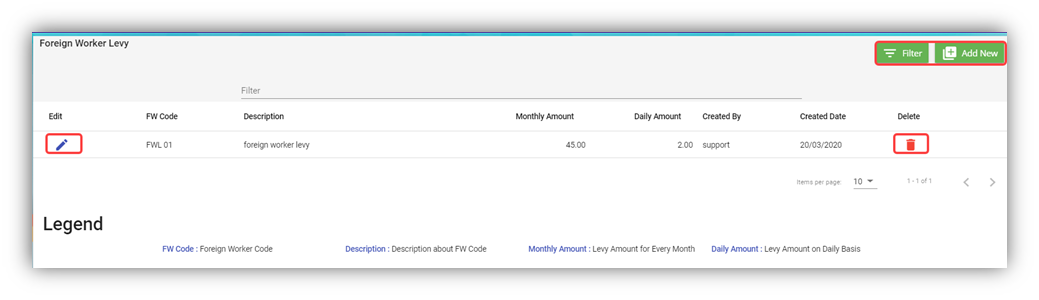
The **Foreign Worker Levy** tab in the **Masters** submenu used to add a foreign worker levy code. The added foreign worker levy code will be used in the further payroll process. Click **Foreign Worker Levy** in the **Masters,** the **Foreign Worker Levy** page opens.
#### Add a Foreign Worker Levy Code
If you want to add a foreign worker levy code,
1. Click (**Add New** button) in the **Foreign Worker Levy.** The **Foreign Worker Levy Information** window opens.
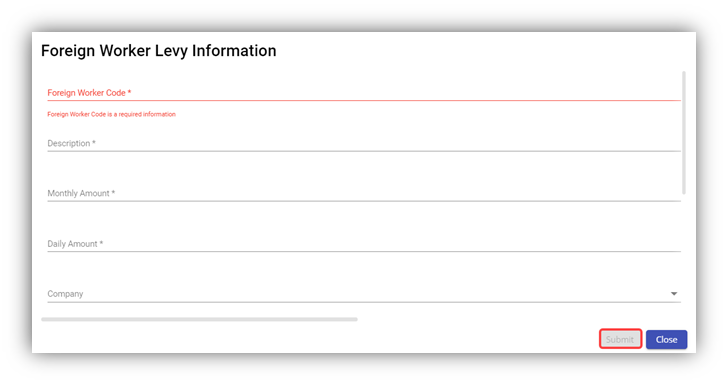
**Note**: The fields notified with a symbol (\*) are mandatory. You must enter the relevant details in that fields before saving.
2. In the **Foreign Worker Code** box, enter the code for the foreign worker levy you want to create.
3. In the **Description** box, enter the description for the added foreign worker levy code.
4. In the **Monthly Amount** box, enter the monthly amount to be paid for the foreign worker levy.
5. In the **Daily Amount** box, enter the daily amount to be paid for the foreign worker levy.
6. In the **Company** box, select a company from a drop-down list.
**Note**: If you want to select all the companies in the list, select the checkbox of the **ALL**.
7. Click **Submit**. The foreign worker levy code is added and listed in the **Foreign Worker Levy** page.
#### Edit the Foreign Worker Levy Code
You can edit the details of the added foreign worker levy code by using edit option provided in the **Edit** column of the **Foreign Worker Levy** page. To edit the added foreign worker levy code details,
1. Click (Edit icon) of the respective foreign worker levy code you have added. The **Foreign Worker Levy Information** window shows the added foreign worker levy code details.
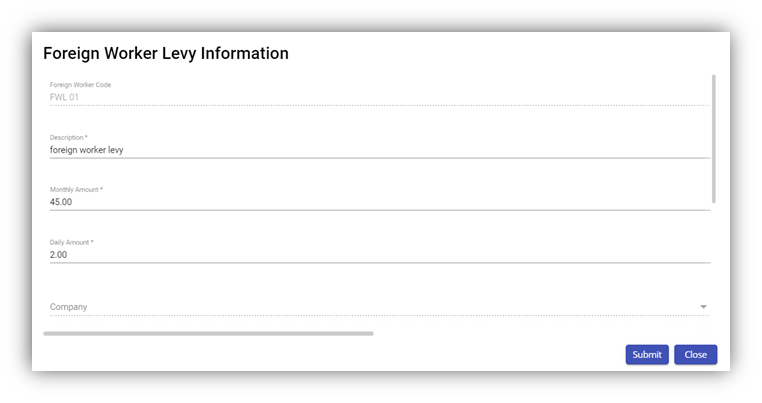
2. Edit the foreign worker levy code details where you want.
3. Click **Save**.
#### Delete a Foreign Worker Levy Code
You can delete the foreign worker levy code by using (Delete icon) provided in the **Delete** column of the **Foreign Worker Levy** page.
#### Filter Foreign Worker Levy Code
If you want to filter any foreign worker levy code in the **Foreign Worker Levy** page, you can use  (**FILTER** button) located on the **Generate Payroll** page.
### Letter Template
All HR and admin related letter templates can be configured and managed in this section. Click **Letter Template** in **Master** menu, the current templates will show as below,
[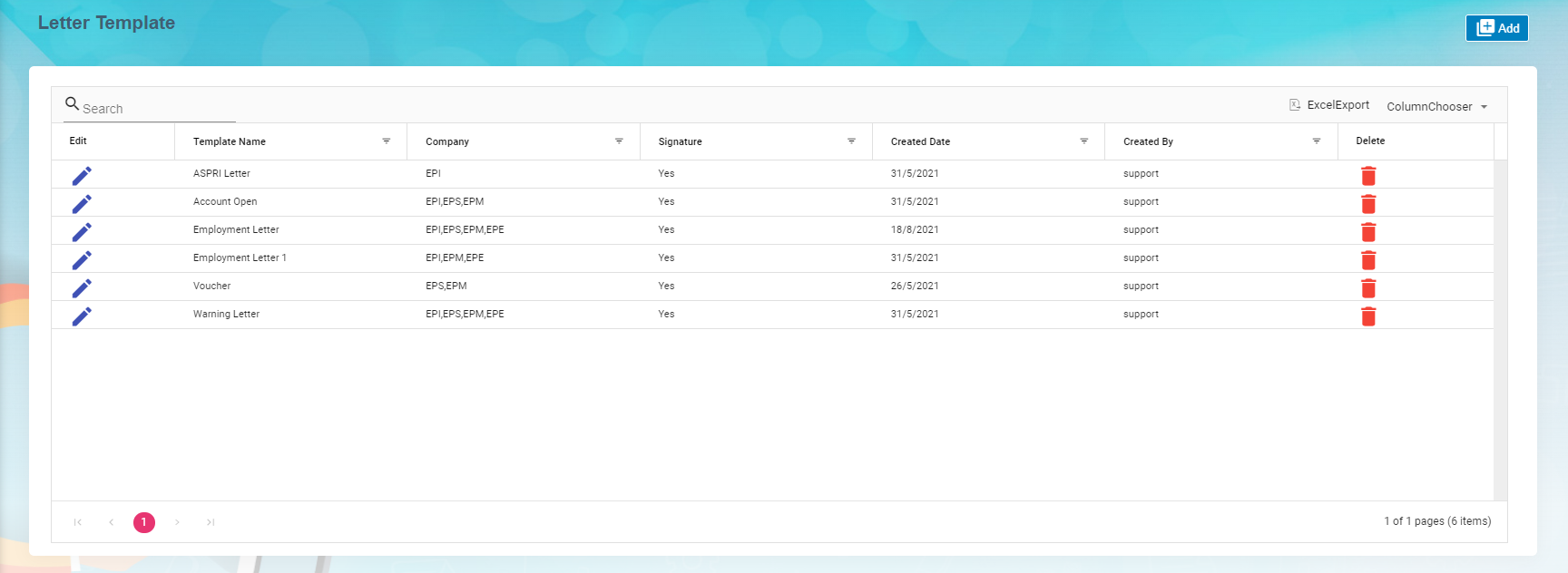](http://wiki.cuteinfocomm.com/uploads/images/gallery/2022-09/image-1662601030622.png)
#### View Letter Template
To view current letter templates,
1. Click[ ](http://wiki.cuteinfocomm.com/uploads/images/gallery/2022-09/image-1662690942077.png)edit icon of the template that user wants to view, the template will open,
2. Click Preview button or Download button in the top right corner to view or download the template as pdf file. [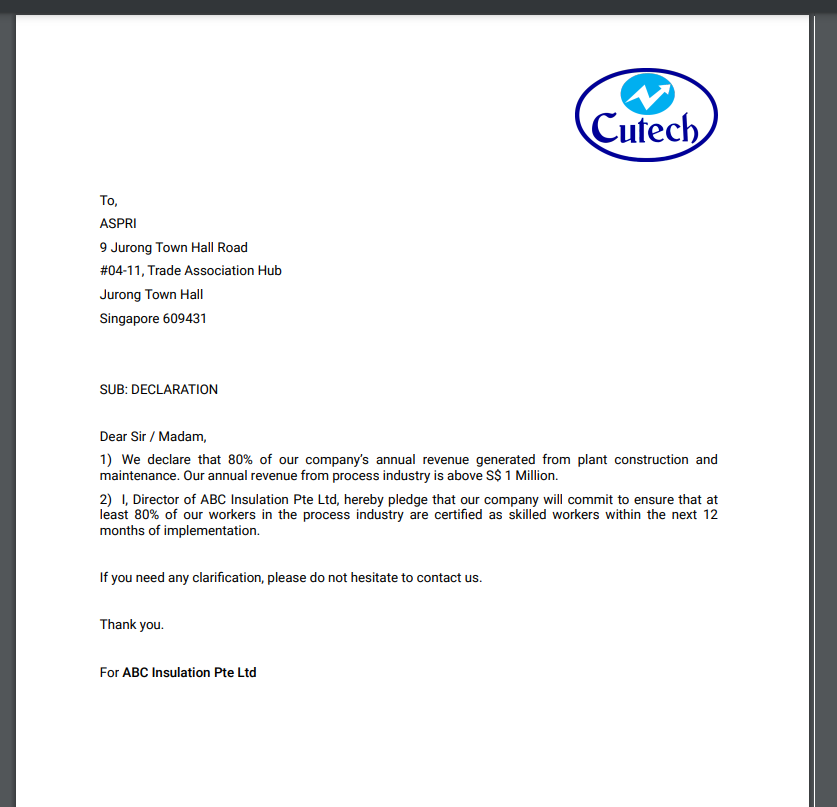](http://wiki.cuteinfocomm.com/uploads/images/gallery/2022-09/image-1662691076281.png)
#### Add A New Letter Template
To add a new letter template,
1. Click [](http://wiki.cuteinfocomm.com/uploads/images/gallery/2022-09/image-1662604025739.png) add button in the top right corner in the template list page, the template creation page opens,[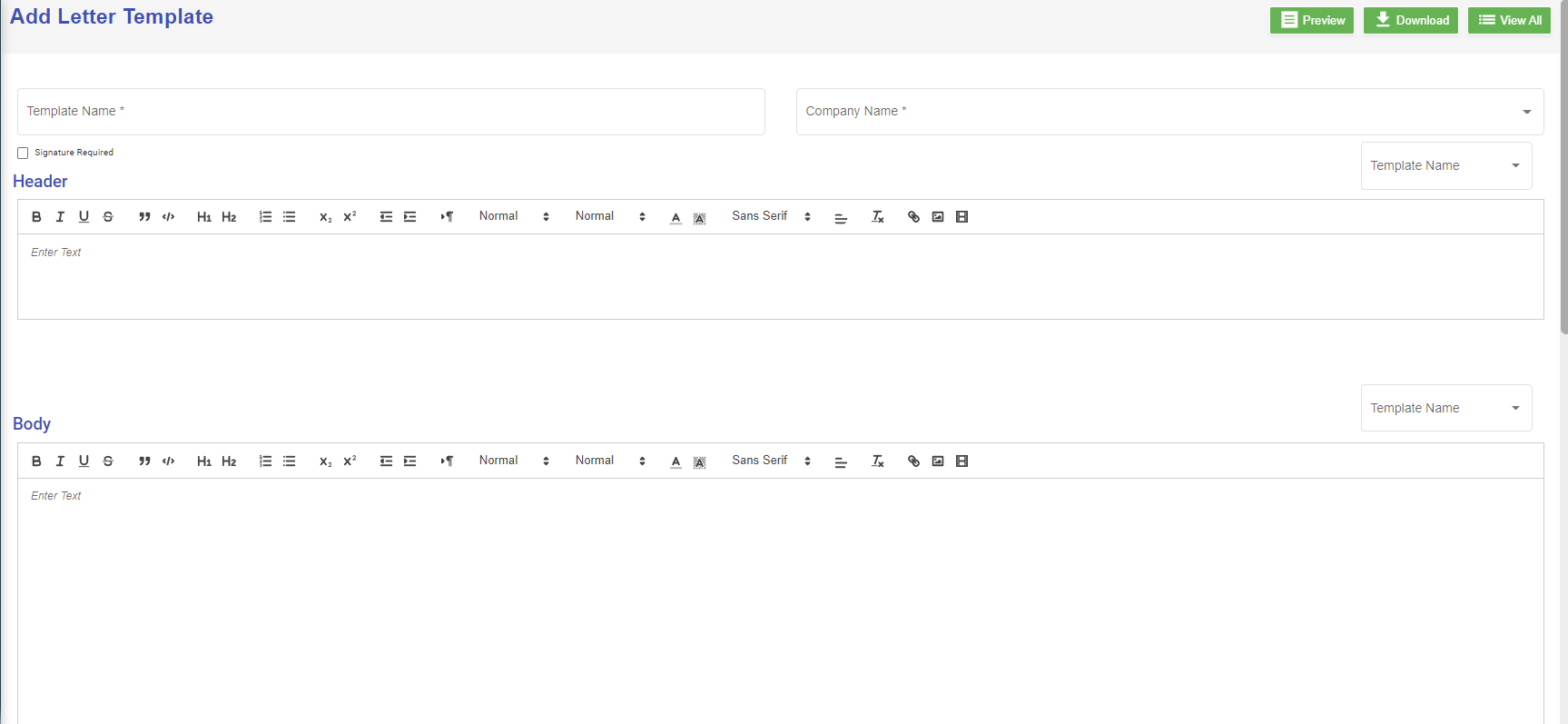](http://wiki.cuteinfocomm.com/uploads/images/gallery/2022-09/image-1662691308170.png)
2. Enter the details of the new letter template:
- In **Template Name**, enter the letter template name
- In **Company Name**, select company name from dropdown list
- If letter require signature, tick the **Signature Required** checkbox
- In **Header** section, enter the letter header content, or you can copy from existing template-select the template name, the header content of the selected template will automatically populated,
- In **Body** section, enter the body content, or you can copy from existing template-select the template name, the body content of the selected template will automatically populated,
- In **Footer** section, enter the footer content, or you can copy from existing template-select the template name, the footer content of the selected template will automatically populated,
- In **Signature** section, enter the signature format or you can copy from existing template-select the template name, the signature format of the selected template will automatically populated,
3. Click **Save** to create and save new letter template.
#### Edit Letter Template
To edit letter template,
1. Click[ ](http://wiki.cuteinfocomm.com/uploads/images/gallery/2022-09/image-1662690942077.png)edit icon of the template that user wants to view, the template will open as below, [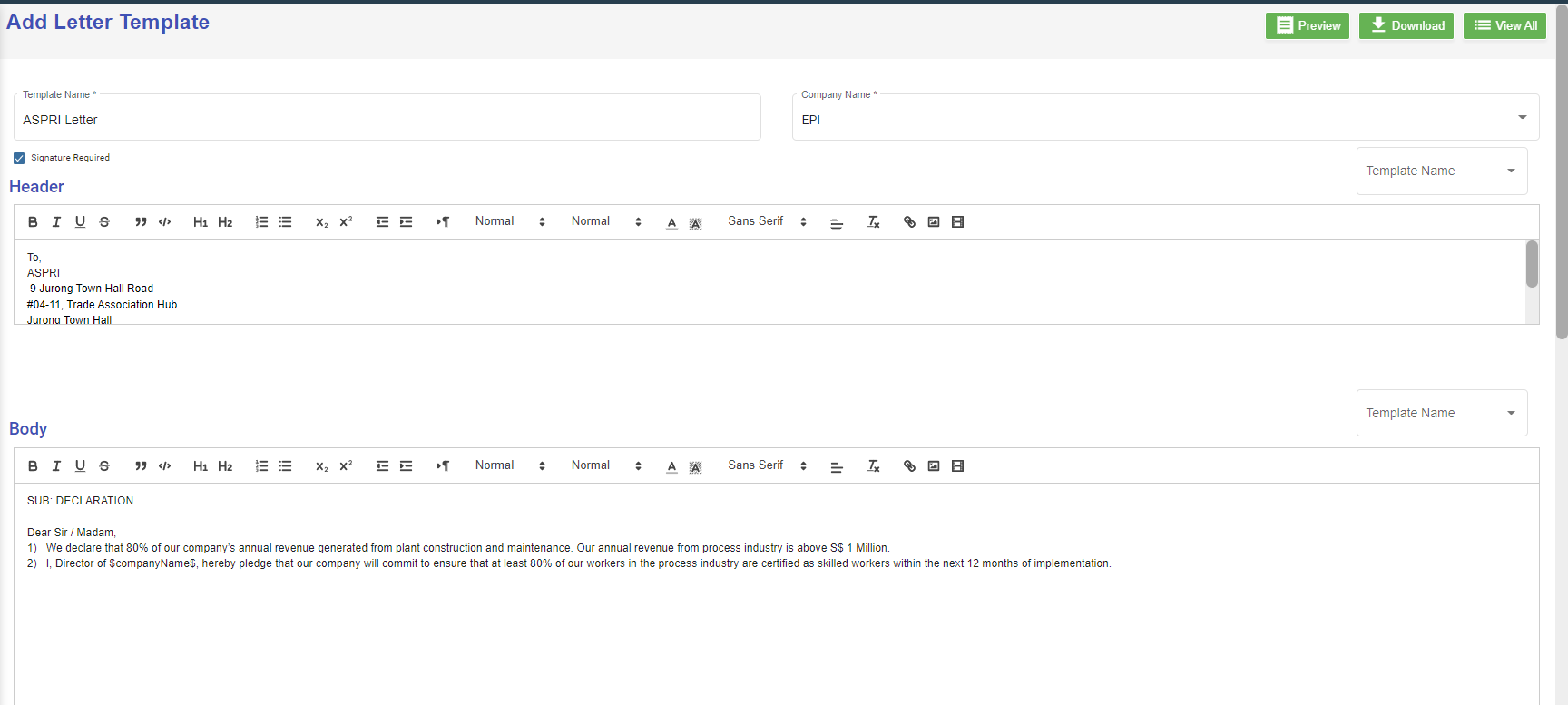](http://wiki.cuteinfocomm.com/uploads/images/gallery/2022-09/image-1662690921723.png)
2. Edit the details where needed.
3. Click **Save** to save edits.
#### Delete Letter Template
User can use the delete option to delete letter template that is no longer in use or need to remove. Click [](http://wiki.cuteinfocomm.com/uploads/images/gallery/2022-09/image-1662695579815.png) in the delete column of the template. The template will be removed.
### Onboard/Offboard Checklist
Onboard/Offboard Checklist master manages different type of checklist which contains list of task that the employee needs to perform before onboarding process/offboarding process.
#### Add Onboard Checklist
1. Click [](http://wiki.cuteinfocomm.com/uploads/images/gallery/2022-09/image-1662604025739.png) add button in the top right corner in the Onboard Checklist page, the Edit category page opens to enter questions in checklist template.[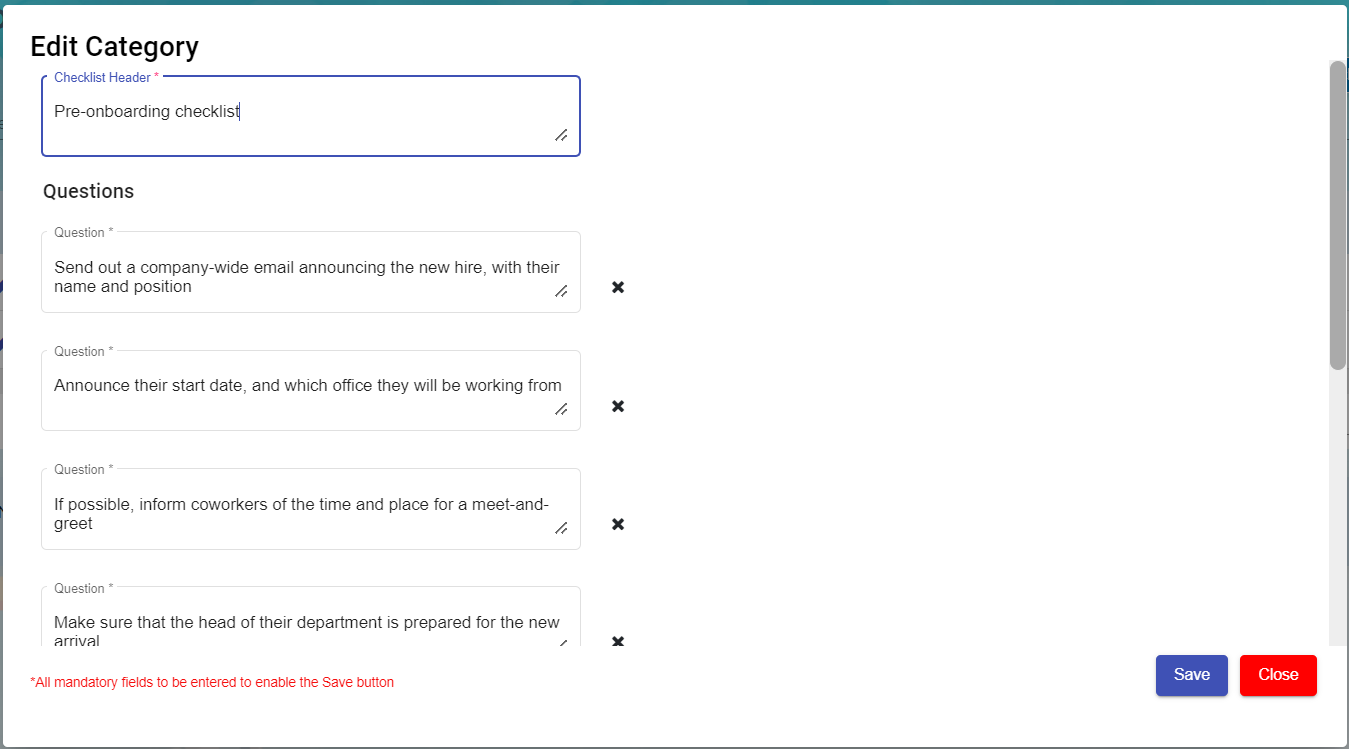](http://wiki.cuteinfocomm.com/uploads/images/gallery/2022-09/image-1663306419297.png)
2. Enter Checklist Header
3. Add or Delete the mandatory questions to be asked during Onboard processing.
4. Click save to create new Onboard checklist template.
#### Add Offboard Checklist
1. Click [](http://wiki.cuteinfocomm.com/uploads/images/gallery/2022-09/image-1662604025739.png) add button in the top right corner in the Offboard Checklist page, the Edit category page opens to enter questions in checklist template.[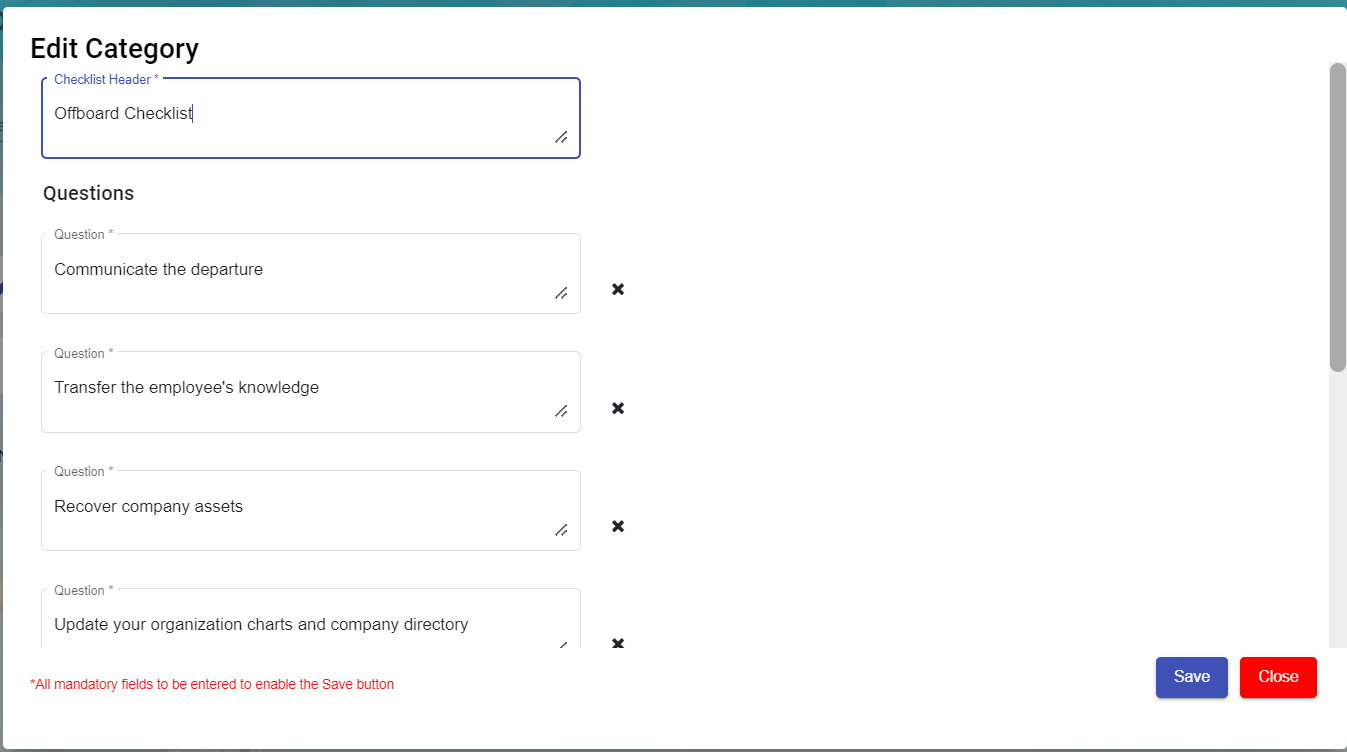](http://wiki.cuteinfocomm.com/uploads/images/gallery/2022-09/image-1663306374492.png)
2. Enter Checklist Header
3. Add or Delete the mandatory questions to be asked during Offboard processing.
4. Click save to create new Offboard checklist template.
#### Edit the Checklist
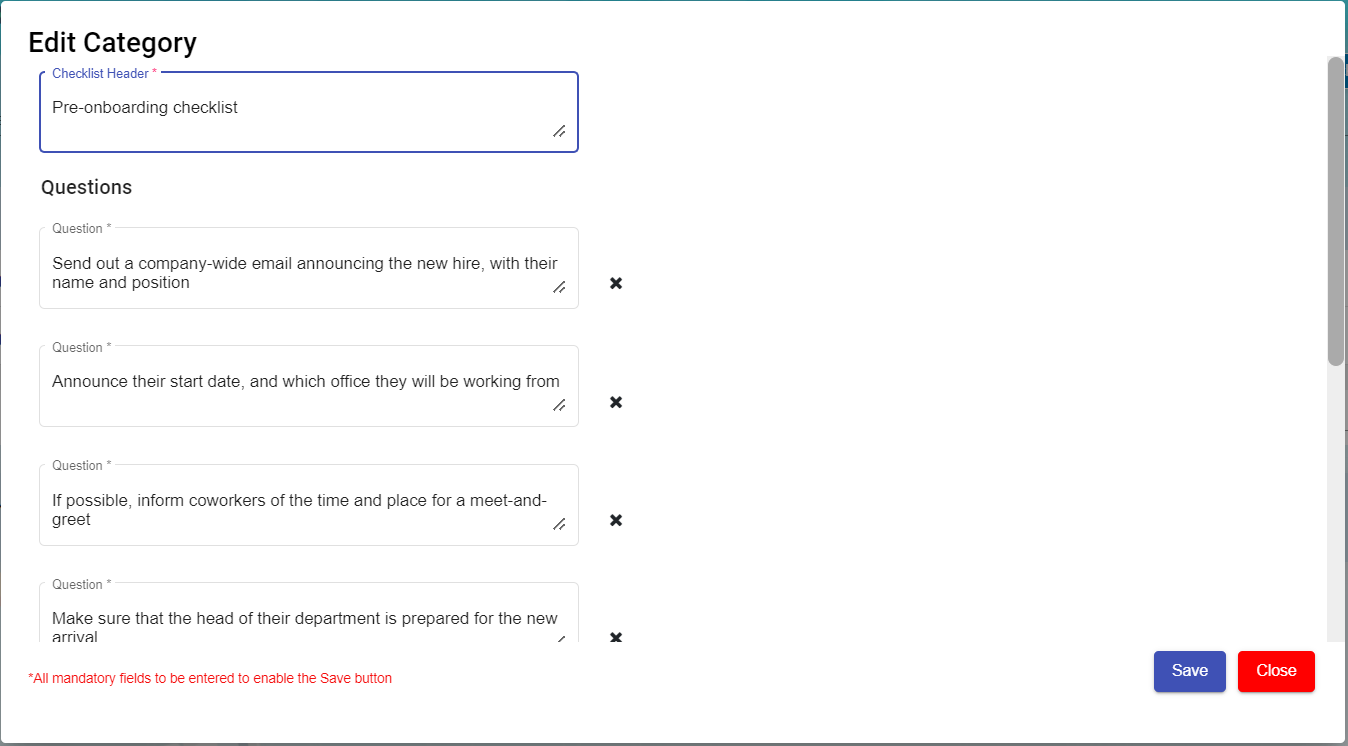
To edit the checklist, click[ ](http://wiki.cuteinfocomm.com/uploads/images/gallery/2022-09/image-1662690942077.png)edit icon of the checklist to edit the questions in the edit category page. Then click **Save** to save edits.
[](http://wiki.cuteinfocomm.com/uploads/images/gallery/2022-09/image-1663311260051.png)
#### Delete Checklist
User can use the delete option to delete the Onboard/Offboard checklist which is not in use or need to remove. Click [](http://wiki.cuteinfocomm.com/uploads/images/gallery/2022-09/image-1662695579815.png) in the delete column of the checklist. The checklist will be removed.
#### Filter a Onboard/Offboard Checklist
If you want to filter any checklist in the Onboard/Offboard Checklist page, you can use[ ](http://wiki.cuteinfocomm.com/uploads/images/gallery/2022-09/image-1663095417308.png)(**filter** button) on the page.
### Evaluation Factor
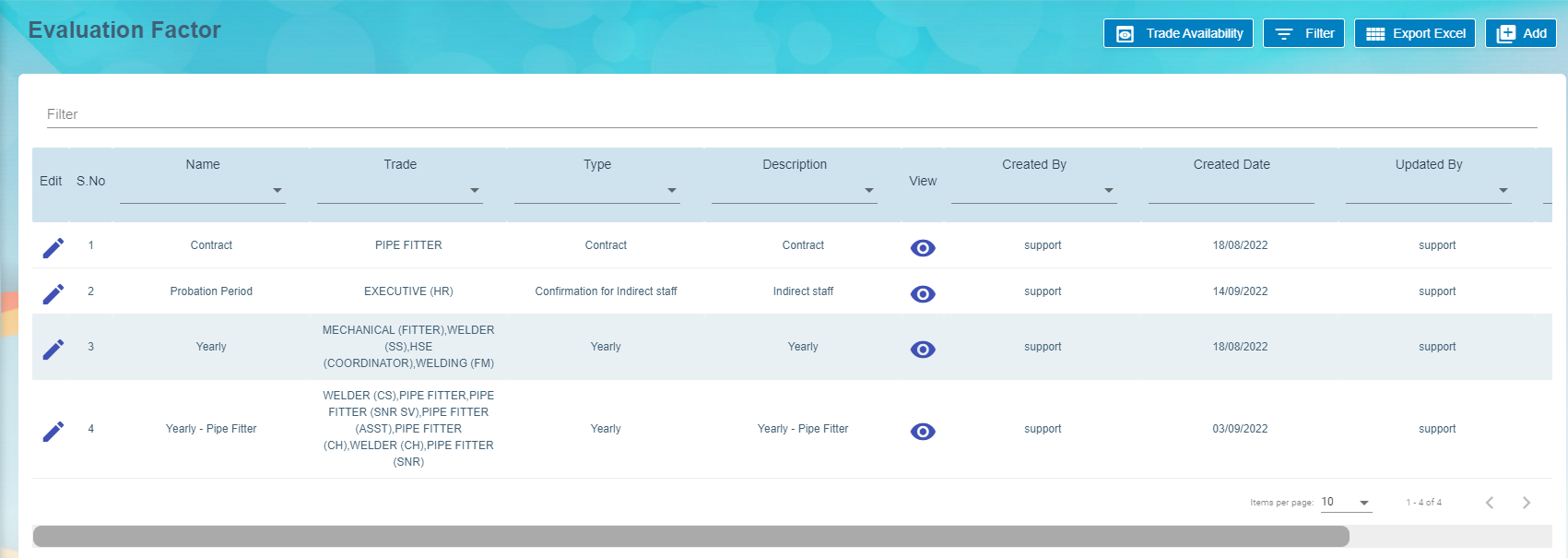
Evaluation Factor master manages all the different evaluation factors based on period, type and trade. Click Evaluation factor, the created list will open as below,
[](http://wiki.cuteinfocomm.com/uploads/images/gallery/2022-09/image-1663314194284.png)
#### Add A New Evaluation Factor
To add a new evaluation template,
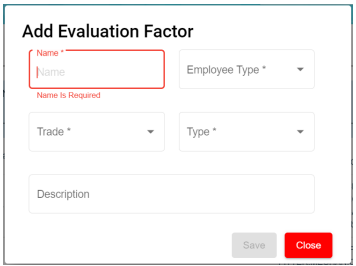
1. Click the [](http://wiki.cuteinfocomm.com/uploads/images/gallery/2022-09/image-1662604025739.png), a new evaluation factor details window opens,
[](http://wiki.cuteinfocomm.com/uploads/images/gallery/2022-10/image-1666651774377.png)
2. Enter all the details of the new evaluation factor:
- At Name field, type the name of this new evaluation template.
- At Employee Type, select from the dropdown list i.e. Staff, Worker, Management
- At Trade field, select from the dropdown list of which trade is applicable for this new evaluation
template. User can also use filter to search for the trade name. User can select more than 1 trade by ticking the given checkbox beside the trade.
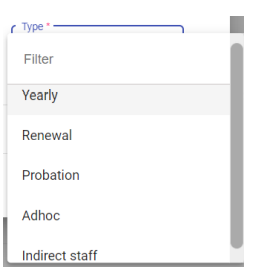
- At Type field, select the type for this new evaluation template. This list is setup at Admin ->
Options -> HRM - Evaluation Type.
[](http://wiki.cuteinfocomm.com/uploads/images/gallery/2022-10/image-1666652325245.png)
1. - At Description field, type a brief description for this new evaluation template. [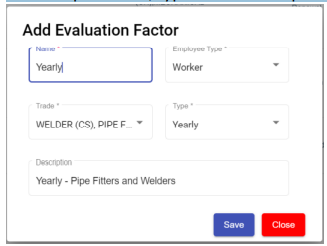](http://wiki.cuteinfocomm.com/uploads/images/gallery/2022-10/image-1666652423855.png)
2. Click **Save** button to create the new evaluation template and it will be shown as below, [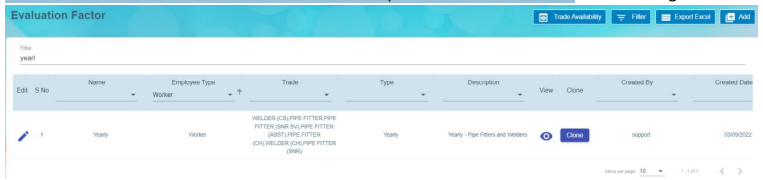](http://wiki.cuteinfocomm.com/uploads/images/gallery/2022-10/image-1666652551302.png)
3. The New Evaluation factor added on the main page. Click[](http://wiki.cuteinfocomm.com/uploads/images/gallery/2022-09/image-1663315743260.png)view icon to add details in Part I, Part II, Part III, Designation & Skill Level and Rating. **Note:** Part II and Part III are optional.
#### Add Details in New Evaluation Template
##### Part I of Evaluation Factor
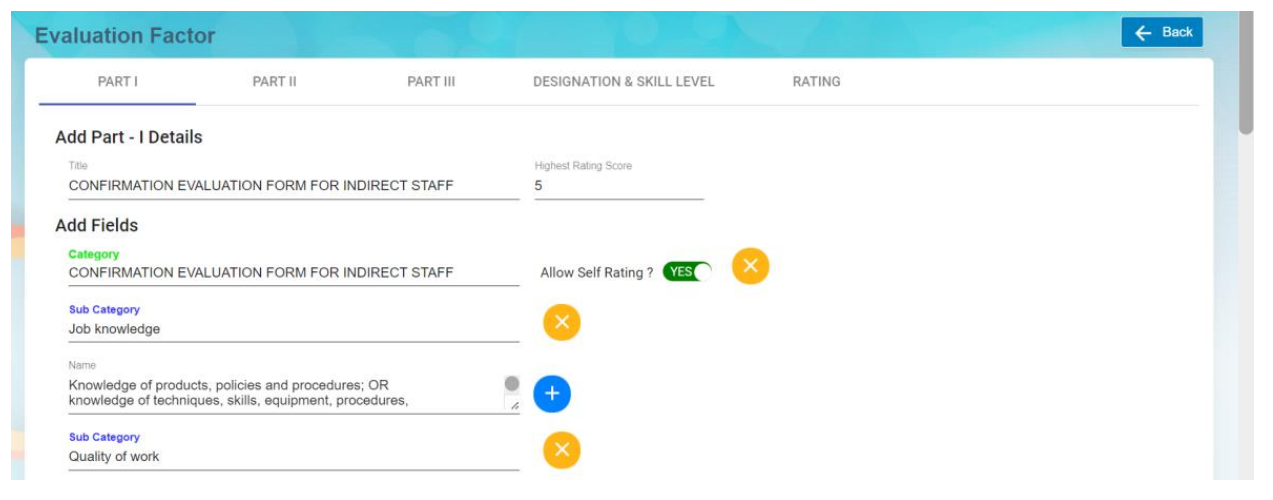
Click on Part I tab, the part I detail page opens.
[](http://wiki.cuteinfocomm.com/uploads/images/gallery/2022-10/image-1666731836689.png)
1. In **Add Part I Details,** enter the Title and Highest Rating Score of this evaluation,
- **Title** – enter the title and this will display at the beginning of the evaluation form as
shown in the below screenshot highlighted in yellow of an employee evaluation form
using this evaluation factor template. [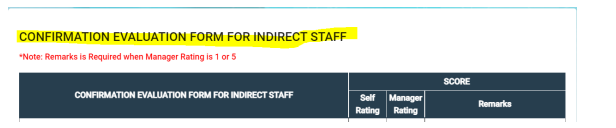](http://wiki.cuteinfocomm.com/uploads/images/gallery/2022-10/image-1666731803557.png)
- **Highest Rating Score** – enter the number score columns in the evaluation form.
2. In **Add Fields,** enter details as below:
- **Category**, it will be the column header in the evaluation table.
- **Sub Category,** it will be the sub Header of criteria setup in the evaluation form
- **Name**, it will be the detailed perspectives of each criteria under the sub category.
- **Allow Self Rating,** if set to Yes, it means employee needs to do self rating. **Note:** Users can click [](http://wiki.cuteinfocomm.com/uploads/images/gallery/2022-09/image-1663562038610.png) **add** icon to add (category, subcategory and, name). If click add icon at the Category level, system will create a new category with new sub category and new name under this new category. If click add icon at sub category level, system will create a new sub category including the name that falls under this new sub category. If click add icon at name level, then system will create a new name.
Users can click [](http://wiki.cuteinfocomm.com/uploads/images/gallery/2022-10/image-1664858181194.png) **delete** icon to remove (category, subcategory and, name). If click the delete icon at the Category level, system will delete the entire category including
the sub category and name belonging to this category. If click the delete icon at sub category level, system will delete this sub category including the name that falls under this sub category. If click the delete icon at name level, then system will delete only this name.
3. Click **Save** to save the Part I details.
##### Part II of Evaluation Factor
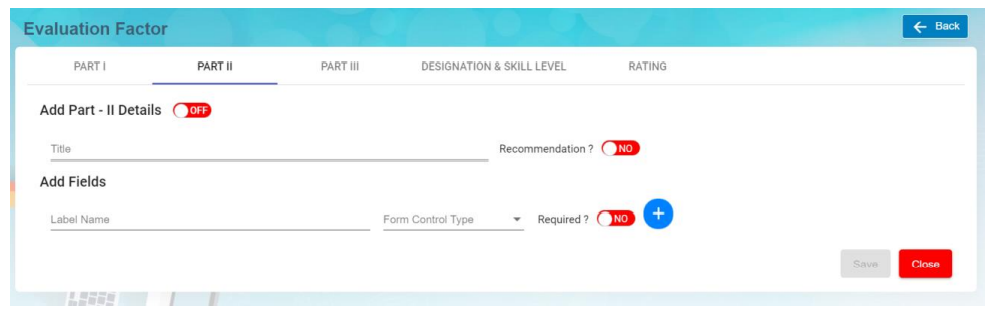
Click on Part II tab, it opens as below. If the "Add Part-II Details" is set to ON, system will display this Part II details as part of the
employee evaluation; If it's set to OFF, then the Part II details will be omitted from the employee evaluation form.
[](http://wiki.cuteinfocomm.com/uploads/images/gallery/2022-10/image-1666735475830.png)
1. In **Add Part – II Details** section, enter below details. Note: The flag "**OFF"** next to Part II details need to set to **ON** hence this Part II will be displayed in the employee evaluation form.
- **Title** – Input the title and this will be displayed as the header of the section in the employee
evaluation form as shown below. [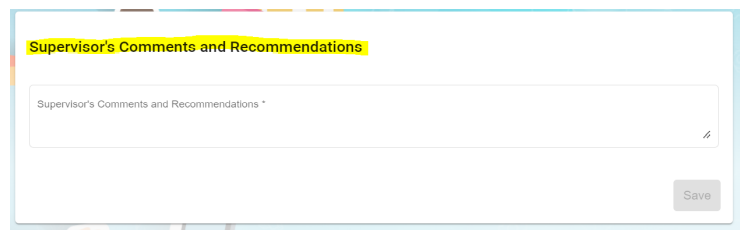](http://wiki.cuteinfocomm.com/uploads/images/gallery/2022-10/image-1666736290274.png)
- When **"Recommendation?"** icon is set to YES, system will display this Recommendation with a list of dropdown values for user to select as shown below, [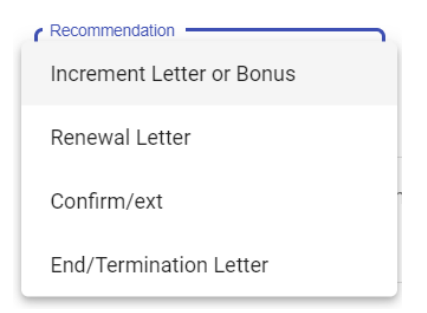](http://wiki.cuteinfocomm.com/uploads/images/gallery/2022-10/image-1666837488254.png)
2. In **Add Felids,** enter below details,
- **Label Name**-enter the label name.
- **Form control type**-choose type of control (Text/Text Area/Checkbox) for this Label Name
- **Required?**- if this icon is set to YES, it is mandatory for user to select or type some text into this form control
field.
- Click [ ](http://wiki.cuteinfocomm.com/uploads/images/gallery/2022-09/image-1663562038610.png)icon to add more label name field if needed. **Note:** Users can click [](http://wiki.cuteinfocomm.com/uploads/images/gallery/2022-09/image-1663562038610.png) **add** icon to add (category, subcategory and, name). If click add icon at the Category level, system will create a new category with new sub category and new name under this new category. If click add icon at sub category level, system will create a new sub category including the name that falls under this new sub category. If click add icon at name level, then system will create a new name.
Users can click [](http://wiki.cuteinfocomm.com/uploads/images/gallery/2022-10/image-1664858181194.png) **delete** icon to remove (category, subcategory and, name). If click the delete icon at the Category level, system will delete the entire category including
the sub category and name belonging to this category. If click the delete icon at sub category level, system will delete this sub category including the name that falls under this sub category. If click the delete icon at name level, then system will delete only this name.
3. Click **Save** to save the Part II details.
##### Part III of Evaluation Factor
Click on Part III tab, it opens as below. If the "Add Part- III Details" is set to ON, system will display this Part III details as part of the
employee evaluation; If it's set to OFF, then the Part III details will be omitted from the employee evaluation form.
[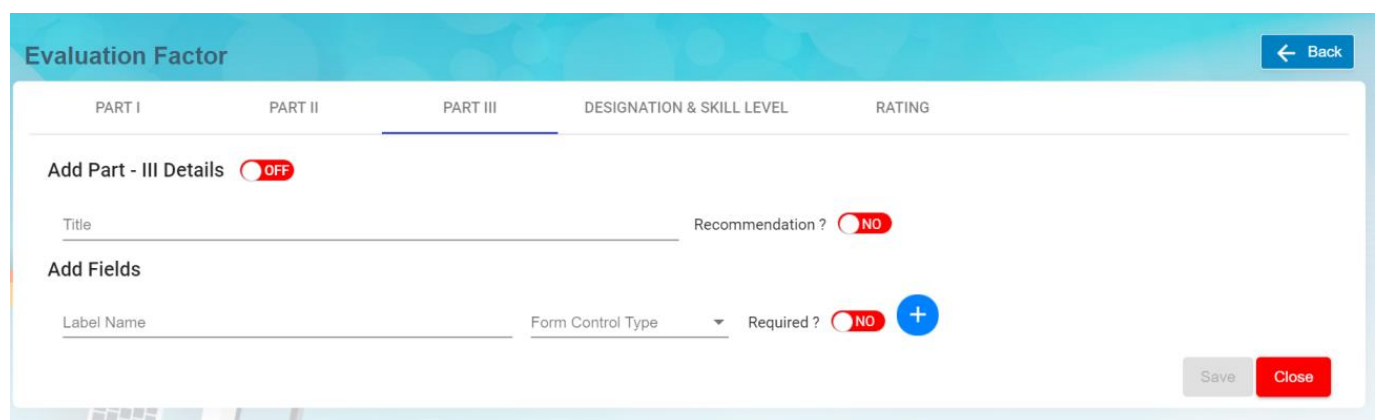](http://wiki.cuteinfocomm.com/uploads/images/gallery/2022-10/image-1666838712207.png)
1. In **Add Part- III Details** section, enter below details. Note: The flag "**OFF"** next to Part III details need to set to **ON** hence this Part III will be displayed in the employee evaluation form.
- **Title** – Input the title and this will be displayed as the header of the section in the employee evaluation form as shown below. [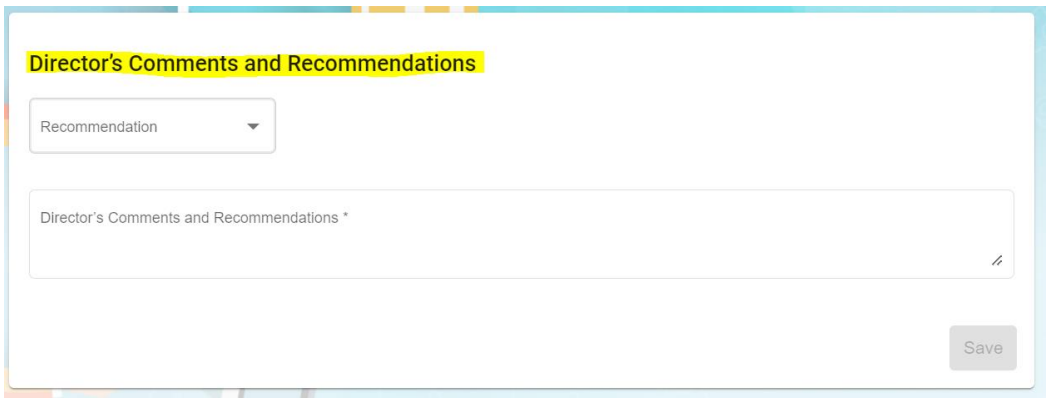](http://wiki.cuteinfocomm.com/uploads/images/gallery/2022-10/image-1666898672606.png)
- When **"Recommendation?"** icon is set to YES, system will display this Recommendation with a list of dropdown values for user to select as shown below, [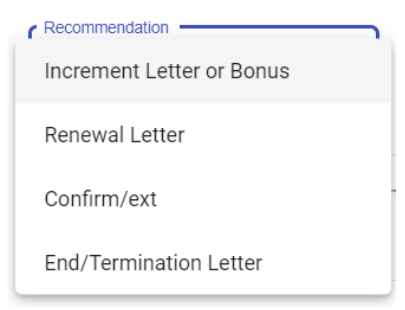](http://wiki.cuteinfocomm.com/uploads/images/gallery/2022-10/image-1666898726651.png)
2. In **Add Felids,**
- **Label Name**-enter the label name.
- **Form control type**-choose type of control (Text/Text Area/Checkbox) for this Label Name
- **Required?**- if this icon is set to YES, it is mandatory for user to select or type some text into this form control
field.
- Click [ ](http://wiki.cuteinfocomm.com/uploads/images/gallery/2022-09/image-1663562038610.png)icon to add more label name field if needed. **Note:** Users can click [](http://wiki.cuteinfocomm.com/uploads/images/gallery/2022-09/image-1663562038610.png) **add** icon to add (category, subcategory and, name). If click add icon at the Category level, system will create a new category with new sub category and new name under this new category. If click add icon at sub category level, system will create a new sub category including the name that falls under this new sub category. If click add icon at name level, then system will create a new name.
Users can click [](http://wiki.cuteinfocomm.com/uploads/images/gallery/2022-10/image-1664858181194.png) **delete** icon to remove (category, subcategory and, name). If click the delete icon at the Category level, system will delete the entire category including
the sub category and name belonging to this category. If click the delete icon at sub category level, system will delete this sub category including the name that falls under this sub category. If click the delete icon at name level, then system will delete only this name.
3. Click **Save** to save the Part III details.
##### Designation & Skill Level
The Designation & Skill Level section is to show the salary guide and job description of the selected trade(s) and this will serve as a benchmark when supervisors conduct employee evaluations. Click on DESIGNATION & SKILL LEVEL tab, it opens as below,
[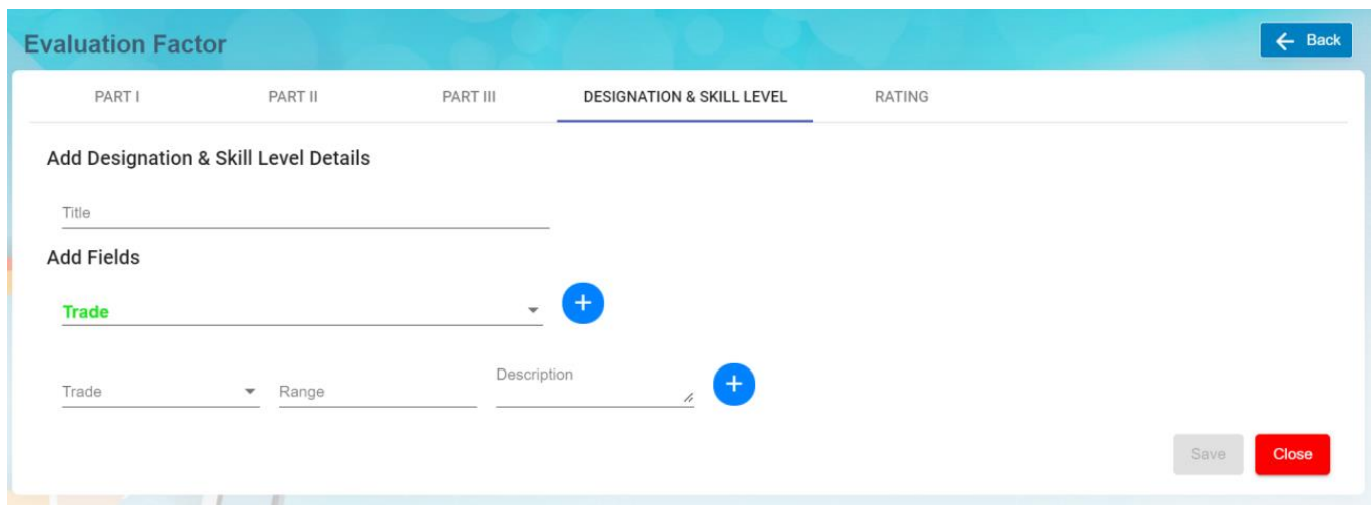](http://wiki.cuteinfocomm.com/uploads/images/gallery/2022-10/image-1666898957434.png)
1. In **Add Designation & Skill Level Details** section,
- **Title** – enter the title and this will be displayed as the header of this Designation & Skill Level
section in the employee evaluation form.
2. In **Add Fields** section, enter below details,
- ****Trade[](http://wiki.cuteinfocomm.com/uploads/images/gallery/2022-10/image-1666899946456.png)****-Click on the field to select trades in the dropdown list. Users can select multiple trades. Tick on the checkbox as shown in the below screenshot,
[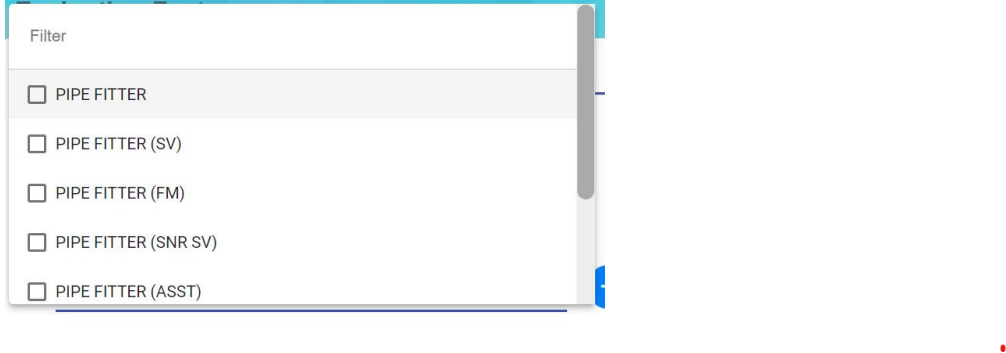](http://wiki.cuteinfocomm.com/uploads/images/gallery/2022-10/image-1666899834308.png)
- After the above trade selection, you need to select each individual trade and input the
salary range for this selected trade and job description of this selected trade. Refer to
below screenshot, [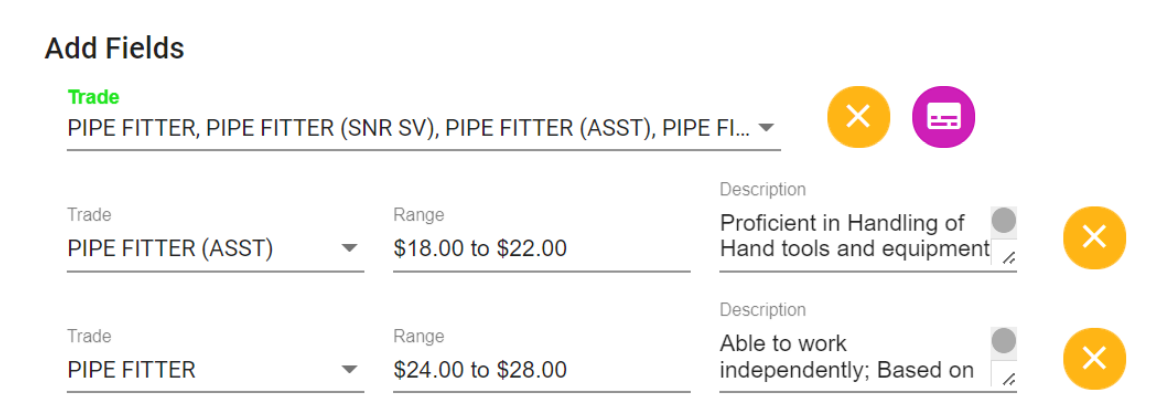](http://wiki.cuteinfocomm.com/uploads/images/gallery/2022-10/image-1666900049792.png)
**Note:** Users can click [](http://wiki.cuteinfocomm.com/uploads/images/gallery/2022-09/image-1663562038610.png) **add** icon to add more trades is required.
Users can click [](http://wiki.cuteinfocomm.com/uploads/images/gallery/2022-10/image-1664858181194.png) **delete** icon to remove trade. If click the delete icon at the **[](http://wiki.cuteinfocomm.com/uploads/images/gallery/2022-10/image-1666899946456.png)**level, system will delete whole section within this Trade field. If click the delete icon at trade after this Trade , then system will delete this selected trade.
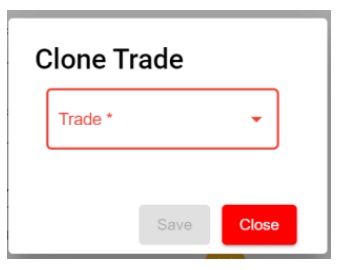
- User can[](http://wiki.cuteinfocomm.com/uploads/images/gallery/2022-10/image-1666900364286.png)icon to clone a trade as shown in the below screenshot. Note that the dropdown list at this Clone Trade is based on the selected trades shown at the Evaluation Factor list page. This Clone Trade option is basically to duplicate the whole section of this selected**[](http://wiki.cuteinfocomm.com/uploads/images/gallery/2022-10/image-1666899946456.png)** and its sub trades (salary scale and job description). Once selected, click[ ](http://wiki.cuteinfocomm.com/uploads/images/gallery/2022-10/image-1666900541340.png)icon to save this clone trade and you will notice that system create another separate section
[](http://wiki.cuteinfocomm.com/uploads/images/gallery/2022-10/image-1666900448965.png)
3. Click **Save** to save this Part of the evaluation factor.
##### Rating
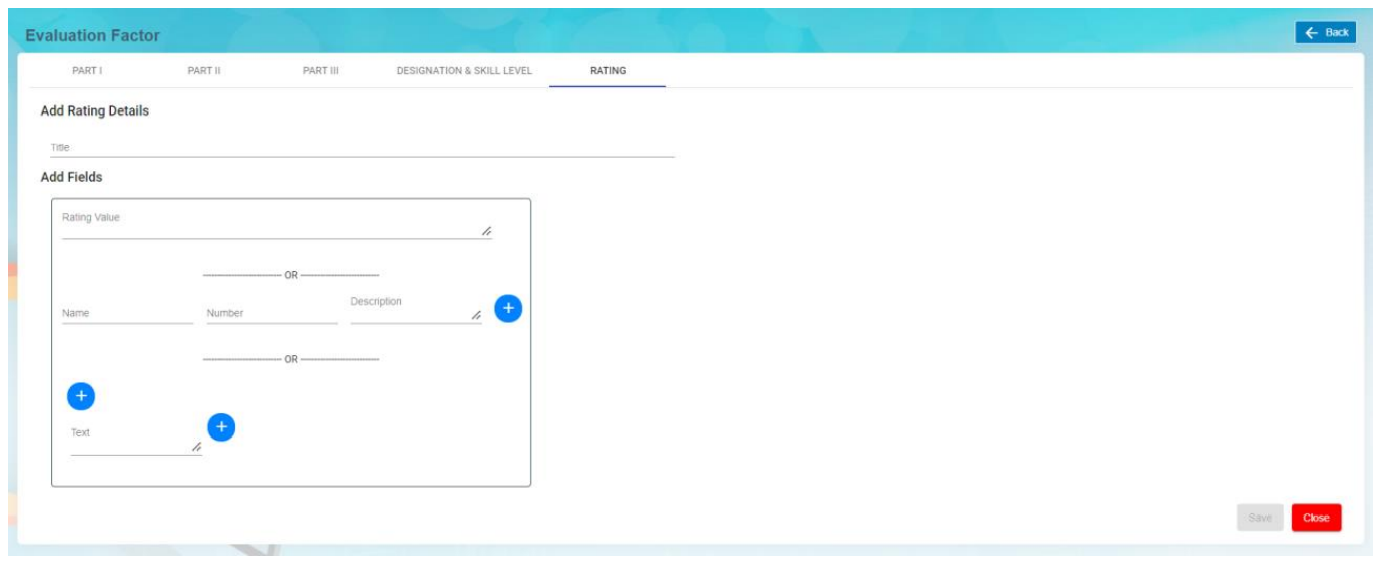
The Rating section is optional to be setup. Based on your evaluation form format, if rating is required to be shown in the evaluation form then it can be setup as per below. Click on Rating tab, Rating details window opens,
[](http://wiki.cuteinfocomm.com/uploads/images/gallery/2022-10/image-1666900907041.png)
1. In **Add Rating Details** section,
- **Title** – enter the title and this will be displayed as the header of this Rating section in the
employee evaluation form.
2. In **Add Fields** section, there are three options to creating the rating section to be displayed in the
employee evaluation form.
- **Option 1**: **Rating Value** – Input text to describe this rating value.[](http://wiki.cuteinfocomm.com/uploads/images/gallery/2022-10/image-1666901144339.png)
- ****Option 2****[](http://wiki.cuteinfocomm.com/uploads/images/gallery/2022-10/image-1666901229373.png)
- **Name** – enter text to describe this name.
- **Number** – enter a numeric value.
- **Description** – enter long description to describe this name.
Click on [](http://wiki.cuteinfocomm.com/uploads/images/gallery/2022-09/image-1663562038610.png)add icon to add if a different name, number and description is required
1. - ****Option 3****[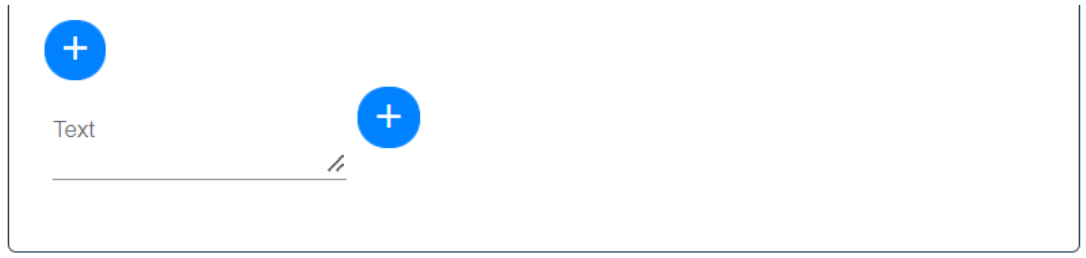](http://wiki.cuteinfocomm.com/uploads/images/gallery/2022-10/image-1666901321736.png)
- Click on [](http://wiki.cuteinfocomm.com/uploads/images/gallery/2022-09/image-1663562038610.png) icon before the Text field to add column horizontally.
Click on [](http://wiki.cuteinfocomm.com/uploads/images/gallery/2022-09/image-1663562038610.png) icon after the Text field to add column vertically.
Click on [](http://wiki.cuteinfocomm.com/uploads/images/gallery/2022-10/image-1664858181194.png) icon above the Text field will delete the column horizontally.
Click on [](http://wiki.cuteinfocomm.com/uploads/images/gallery/2022-10/image-1664858181194.png) icon beside the Text field will delete the column vertically. [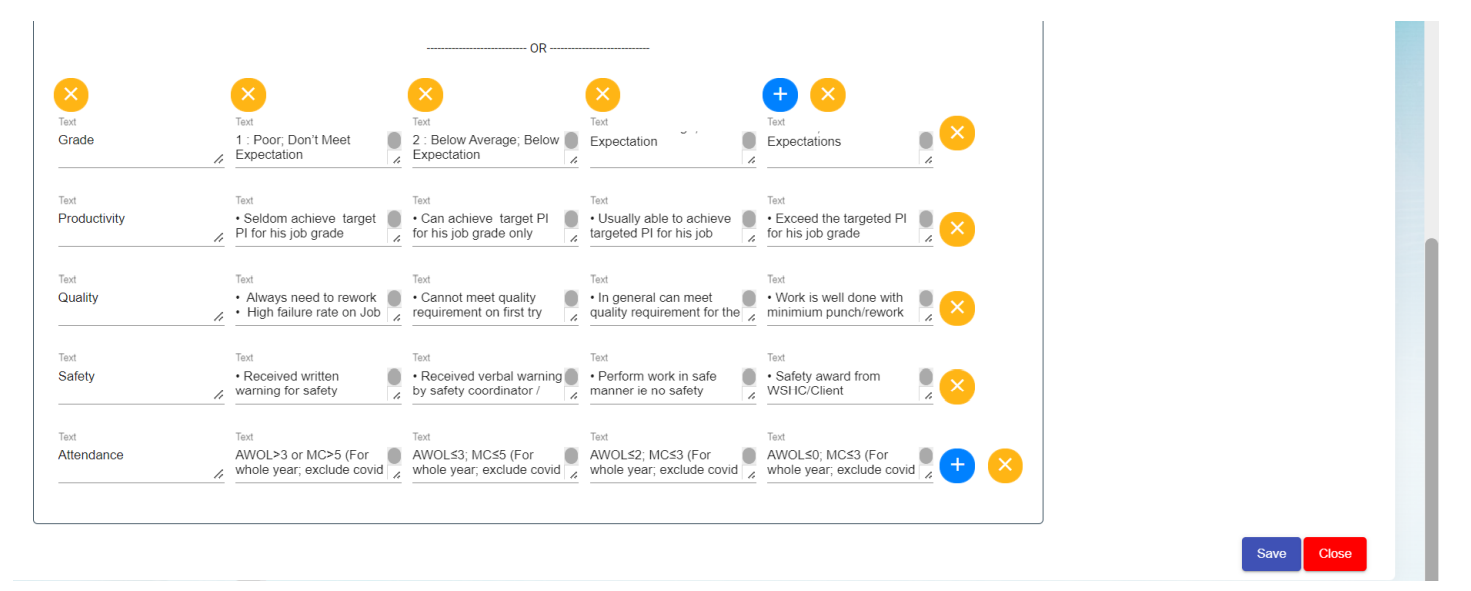](http://wiki.cuteinfocomm.com/uploads/images/gallery/2022-10/image-1666901449416.png)
2. Click **Save** to save the rating setup of the evaluation factor.
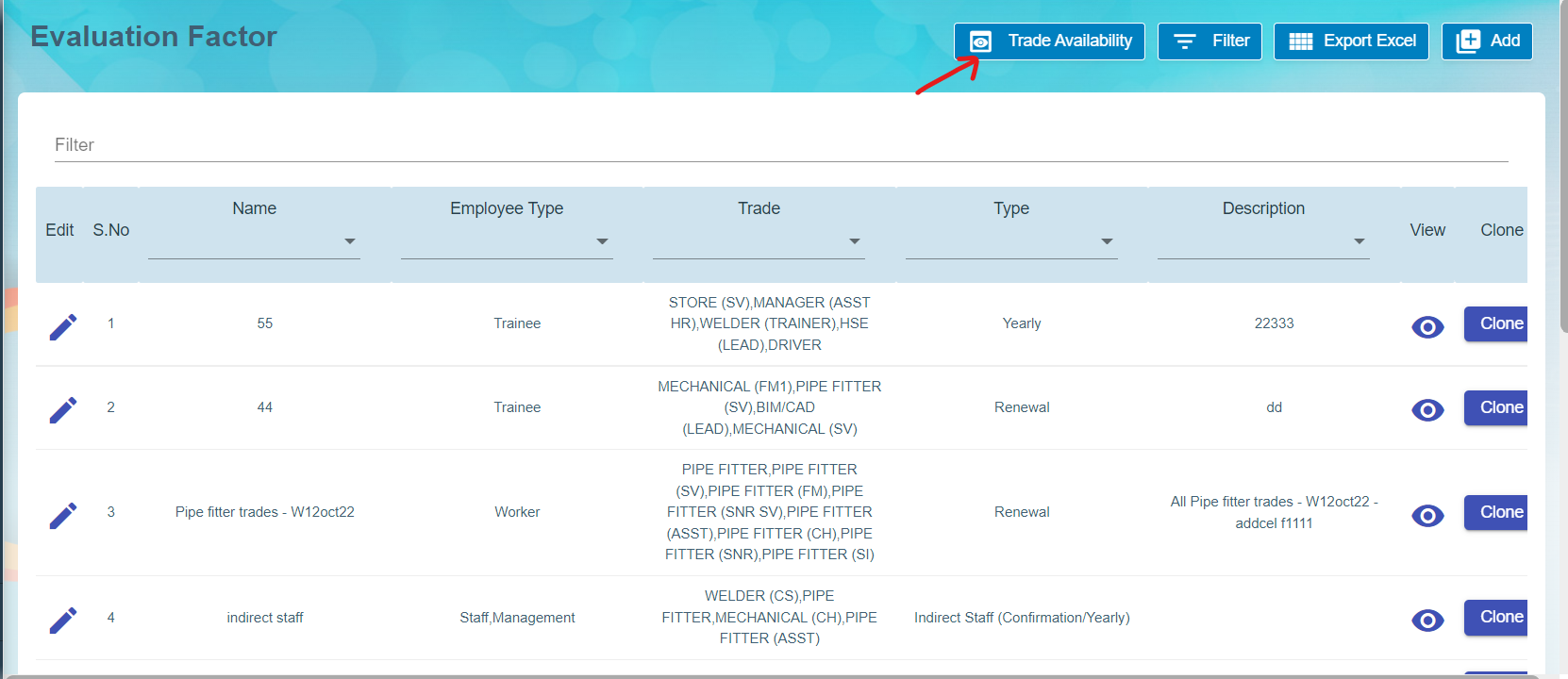
#### View Trade Availability
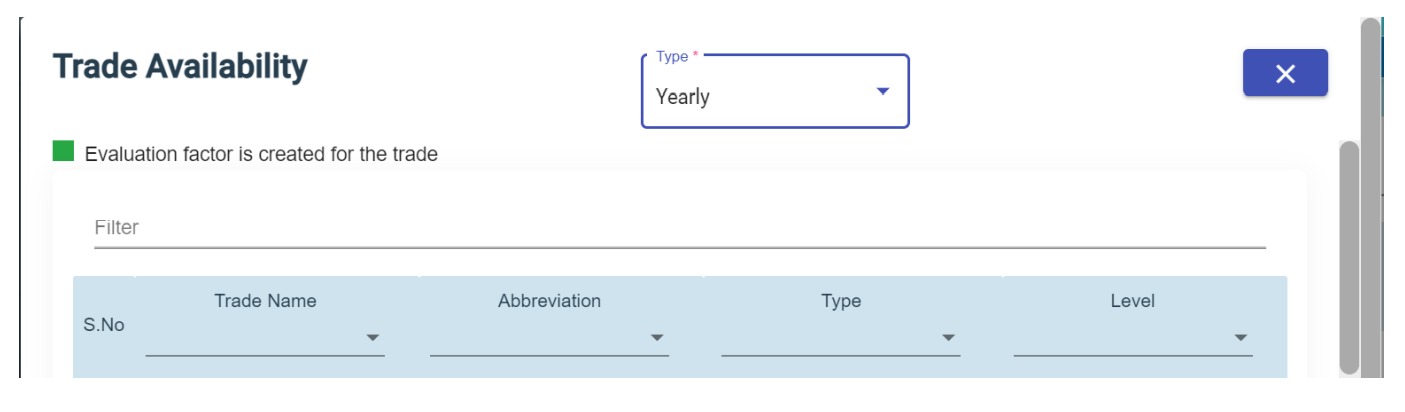
User can view the available trades used in evaluation by clicking on the Trade Availability icon in the Evaluation Factor page.
[](http://wiki.cuteinfocomm.com/uploads/images/gallery/2022-10/image-1666901811821.png)
Click [](http://wiki.cuteinfocomm.com/uploads/images/gallery/2022-10/image-1666901951872.png), below page opens for view,
[](http://wiki.cuteinfocomm.com/uploads/images/gallery/2022-10/image-1666901926753.png)
#### Filter Evaluation Factor
User can click [](http://wiki.cuteinfocomm.com/uploads/images/gallery/2022-10/image-1666902066314.png) icon in the evaluation factor page to filter evaluation factor on different columns.
#### Export Evaluation Factor
User can click [](http://wiki.cuteinfocomm.com/uploads/images/gallery/2022-10/image-1666902547424.png)icon to export this list of Evaluation Factor into an excel file.