# Employee Data
The HRM module in the ***cuteOffice*** application helps HR admins in streamlining the entire functions within an organization like managing the employee related information and company related information. Functionality present in the HRM module helps you to add employee’s basic data, employee’s and company’s master data, and company’s property details.
If you want to navigate to the **HRM** module, do the following,
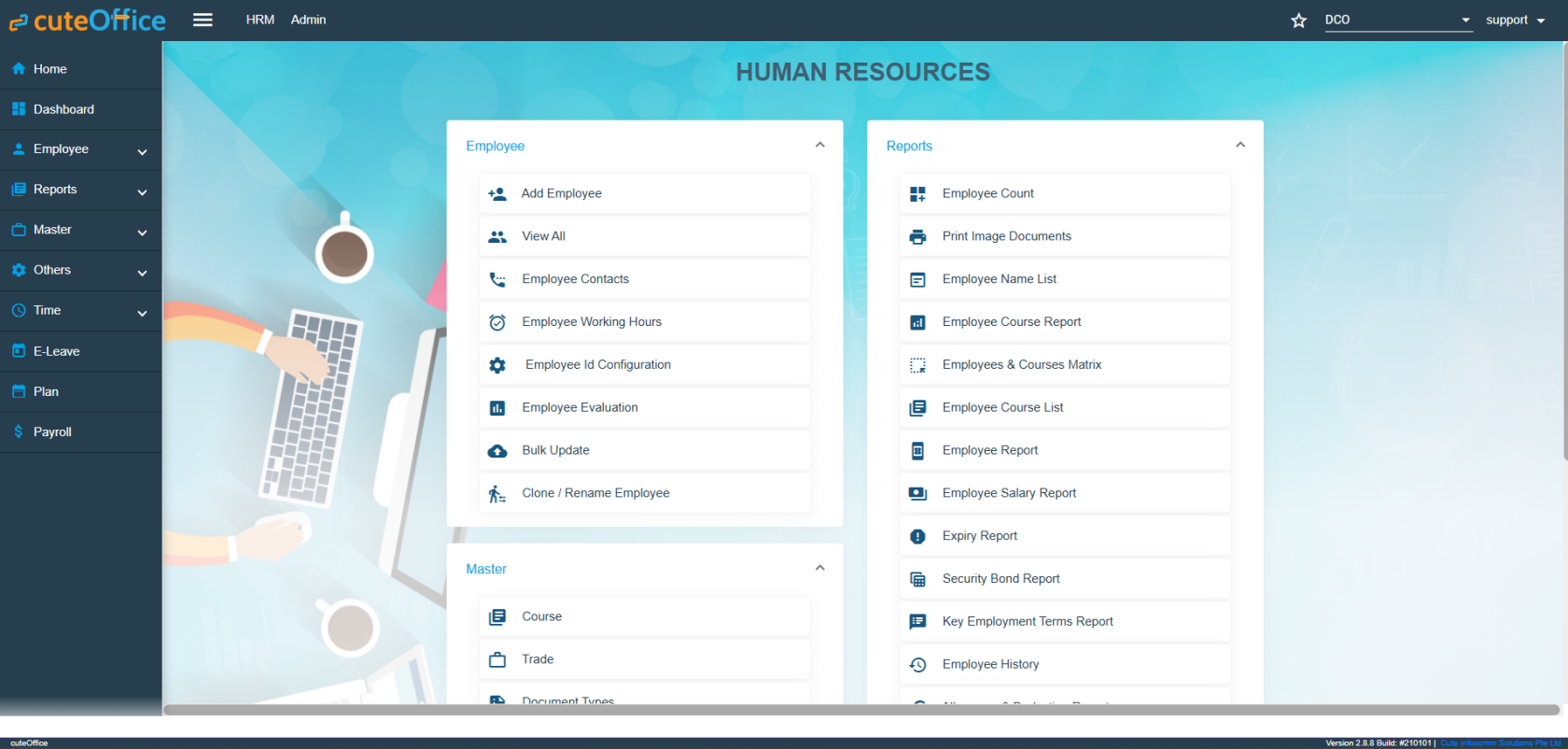
Click the **HRM** menu in the menu bar. The **HUMAN RESOURCES** page opens.
[](https://wiki.cuteinfocomm.com/uploads/images/gallery/2026-05/image-1778224644440.png)
Humane Resource Menu Page
The **HUMAN RESOURCES** page consists the following sub menus:
- **Employee -** Allows HR admin to add employee’s basic details such as Name, DOB, Employee Type, Nationality and so on.
- **Reports –** Helps HR admin to view the various reports corresponding to the employee’s data.
- **Master** - Allows HR admin to add master data details of employee and company.
- **Others** - Allows HR admin to add the details of vehicles belongs to company, insurance details of employees, and salary addition and deduction details.
## Employee
The **Employee** submenu in the **HRM** menu helps you to add the employee details that is both personal and professional details. The **Employee** submenu contains the following tabs,
- Employee ID config
- Add Employee
- View All
- View Employee Contacts
- Employee Working Hours
### Employee ID Configuration
When creating the new employees in the system, the employee ID is automatically generated. How the employee number to be generated is configurable by the administrator.
- Click and select the company in the **Employee ID Configuration** page, it shows the current settings for the ID generator. [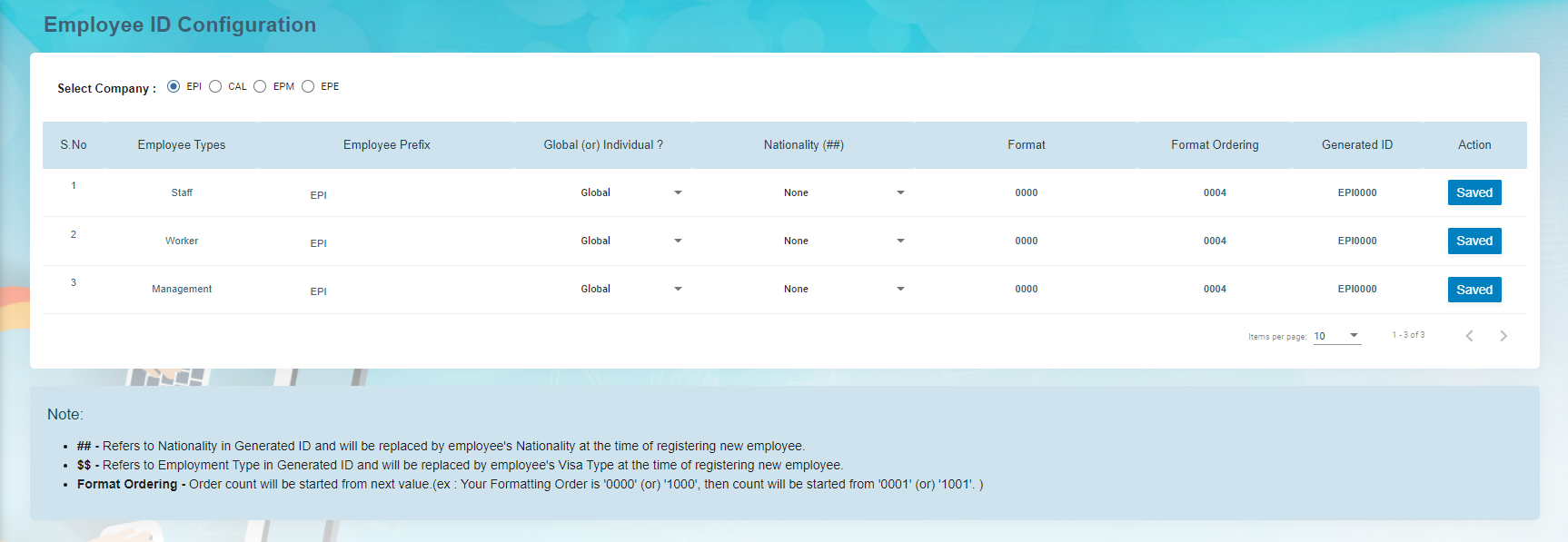](http://wiki.cuteinfocomm.com/uploads/images/gallery/2022-09/image-1662065090441.png)
- The following are the currently supported variables that can be used for the ID generator.
1. 1. Employee Type – Based on the Over-all Type configured for the company
2. Employee Prefix – Defaulted to company abbreviation and can be changed.
3. Global/Individual – Employee Number is globally increased by Employee Type or Individually managed by employee type
- - Global means the number will be global for the company irrespective of the employee type.
- Individual means, the employee ID running number will be maintained individually for each employee type.
4. Nationality None / Before Employee ID / After Employee ID – If the nationality to be as part of the employee number where it should be appearing. Choose None if the employee ID does not have the country code.
5. Set the number with which the employee ID should be incremented next when a new employee is created. The current number shown is already used for the previous employee created in the system.
**Note:** For new company, complete the initial employee id configuration before importing or adding the employees records.
### Add Employee Data
The **View All** tab in the **Employee** submenu helps you to add the details of a new employee and view the added employee details including their profile percentage. The profile percentage of the employee lets you easily identify the incomplete details of employee.
To add a new employee, do the following steps,
1. Click the **View All** tab in the **Employee** . The **View All Employee page** opens. [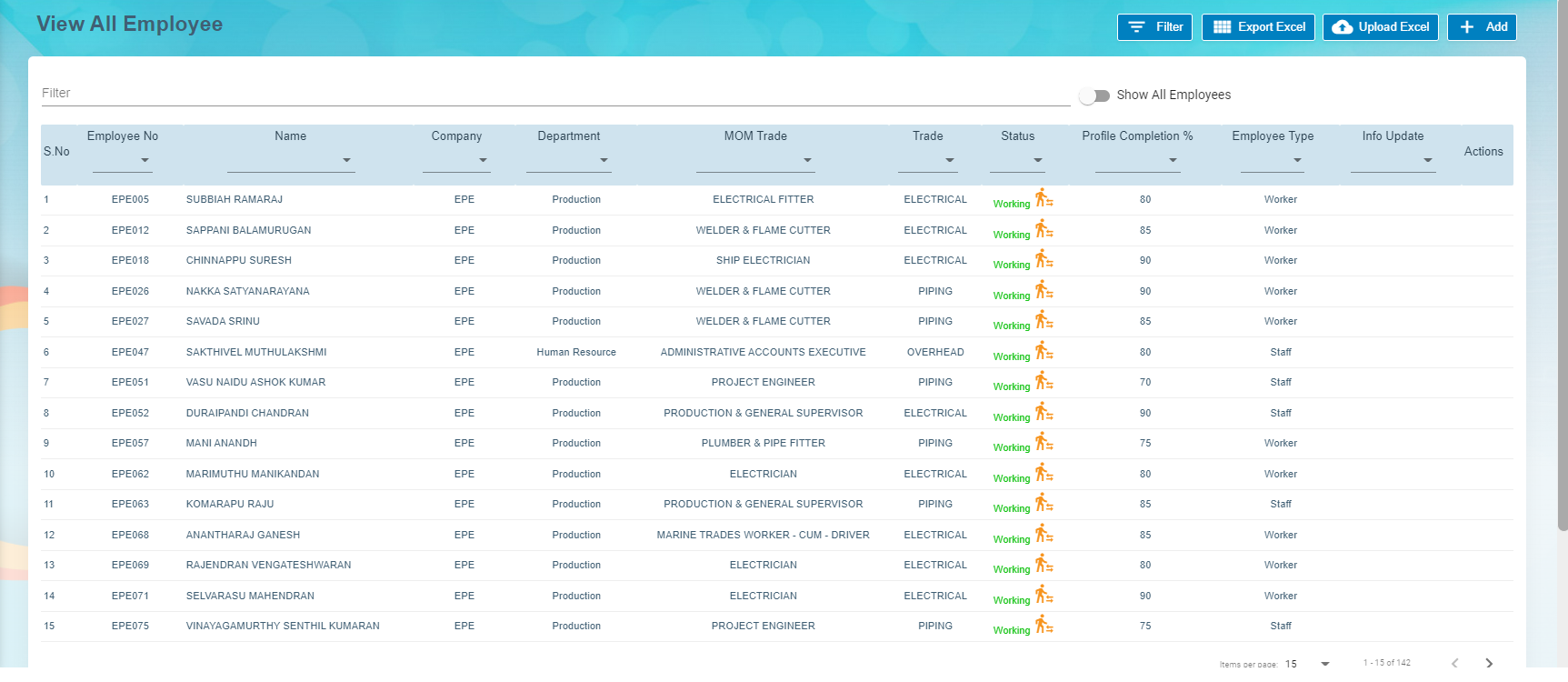](http://wiki.cuteinfocomm.com/uploads/images/gallery/2022-09/image-1662065050636.png)
2. Click (**Add** button) in the **View All Employee**. The **Add Employee** window opens. [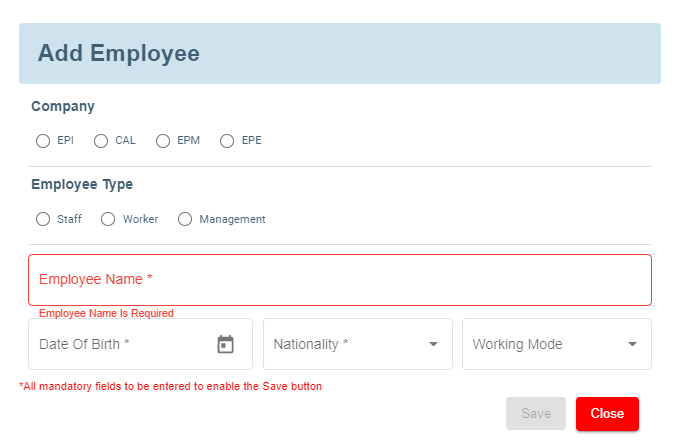](http://wiki.cuteinfocomm.com/uploads/images/gallery/2022-09/image-1662065171103.png)
**Note**: The fields notified with a symbol (\*) are mandatory. You must enter the relevant details in that fields before saving.
3. In the **Company** field, select a company from the given list of companies.
4. In the **Employee Type** field, select the employee type.
5. In the **Employee Name** box, enter the employee name.
6. In the **Date of Birth** box, enter the birth date of the employee.
7. In the **Nationality** box, select the nationality of the employee.
8. Click **Save**. The employee is created and a new employee ID is assigned to the employee. The **Photo ID Document Management** page opens.
#### Add Photo ID Information of Employee
In the **Photo ID Document Management** page, you can enter the employee’s information according to the photo ID given by the employee.
**Note**: Before adding the employee’s photo ID information, make sure that the company you have selected using the [**Company**](#company) field is in Singapore or other country.
If the selected company is in Singapore, the **Photo ID Document Management** page contains the **Singapore Photo ID Management** field. See below figure.
[](http://wiki.cuteinfocomm.com/uploads/images/gallery/2022-09/image-1662071606998.png)
If the selected company is in other country, the **Photo ID Document Management** page contains the **Other Photo ID Management** field. See below figure. (Note: In Company Settings, change the default value "N/A" to the company’s country name (other than Singapore)).
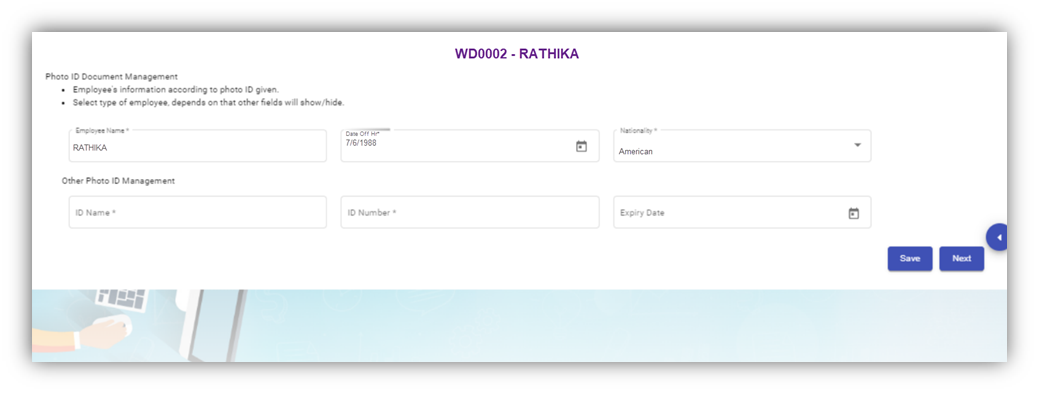
Photo ID Management (Non-Singapore)
##### **Singapore Photo ID Management**
Do one of the following steps to enter the relevant details in the **Singapore Photo ID Management** field based on the selection of type of employee in the **Employee Type** box.
- If the employee is citizen of Singapore, select the **Citizen** option in the **Employee Type.** The **Singapore Photo ID Management** field shows the following boxes based on the selected **Citizen** option. Fill the relevant information in the following boxes,[](http://wiki.cuteinfocomm.com/uploads/images/gallery/2022-09/image-1662071606998.png)
- 1. In the **NRIC/FIN Number** box, enter the NRIC/FIN number.
2. In the **Photo Id Barcode**, enter the barcode scanned result.
3. In the **Issued Date** box, select the issued date of citizenship.
4. In the **Sector** box, select the sector from a drop-down list.
5. Click **Save**. The employee’s photo ID information will be added successfully in the system.
- If the employee is permanent resident of Singapore, select the **Permanent Resident** option in the **Employee Type.** The **Singapore Photo ID Management** field shows the following boxes based on the selected **Permanent Resident** option. Fill the relevant information in the following boxes,
1. In the **NRIC/FIN Number** box, enter the NRIC/FIN number.
2. In the **Photo Id Barcode**, enter the barcode scanned result.
3. In the **Issued Date** box, select the issued date of permanent resident.
4. In the **Sector** box, select the sector from a drop-down list.
5. Click **Save**. The employee’s photo ID information will be added successfully in the system.
- If the employee is an employment pass holder, select the **Employment Pass** option in the **Employee Type.** The **Singapore Photo ID Management** field shows the following boxes based on the selected **Employment Pass** option. Fill the relevant information in the following boxes,
1. In the **NRIC/FIN Number** box, enter the NRIC/FIN number.
2. In the **Photo Id Barcode**, enter the barcode scanned result.
3. In the **Issued Date** box, select the issued date of employment pass.
4. In the **Sector** box, select the sector from a drop-down list.
5. In the **Date of Application** box, select the applied date of employment pass.
6. In the **ID Expiry Date** box, select the expiry date of the employment pass ID.
7. Click **Save**. The employee’s photo ID information will be added successfully in the system.
- If the employee is a S pass holder, select the **S Pass** option in the **Employee Type.** The **Singapore Photo ID Management** field shows the following boxes based on the selected **S Pass** option. Fill the relevant information in the following boxes,
1. In the **NRIC/FIN Number** box, enter the NRIC/FIN number.
2. In the **Photo Id Barcode**, enter the barcode scanned result.
3. In the **Issued Date** box, select the issued date of S pass.
4. In the **Sector** box, select the sector from a drop-down list.
5. In the **Date of Application** box, select the applied date of S pass.
6. In the **ID Expiry Date** box, select the expiry date of the S pass ID.
7. In the **Levy Type** box, select the levy type from a drop-down list.
8. In the **Levy Amount Type** box, select the levy amount type from a drop-down list.
9. In the **Levy Amount** box, enter the levy amount.
10. Click **Save**. The employee’s photo ID information will be added successfully in the system.
- If the employee is a student pass holder, select the **Student Pass** option in the **Employee Type.** The **Singapore Photo ID Management** field shows the following boxes based on the selected **Student Pass** option. Fill the relevant information in the following boxes,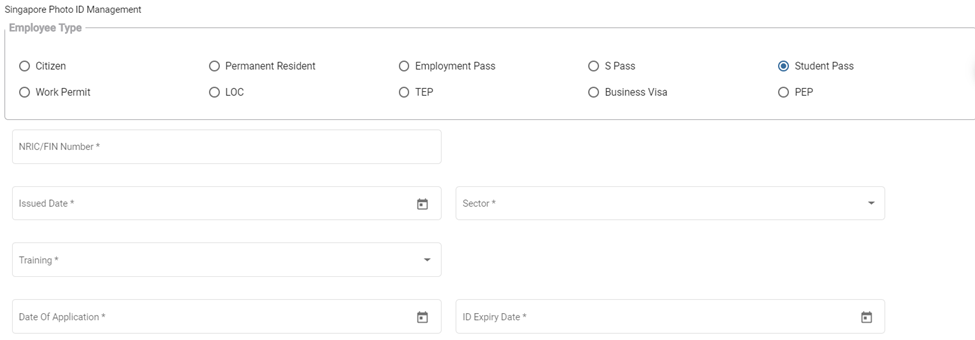
1. In the **NRIC/FIN Number** box, enter the NRIC/FIN number.
2. In the **Photo Id Barcode**, enter the barcode scanned result.
3. In the **Issued Date** box, select the issued date of student pass.
4. In the **Sector** box, select the sector from a drop-down list.
5. In the **Training** box, select the training type from a drop-down list.
6. In the **Date of Application** box, select the applied date of student pass.
7. In the **ID Expiry Date** box, select the expiry date of the student pass ID.
8. Click **Save**. The employee’s photo ID information will be added successfully in the system.
- If the employee is a work permit holder, select the **Work Permit** option in the **Employee Type.** The **Singapore Photo ID Management** field shows the following boxes based on the selected **Work Permit** option. Fill the relevant information in the following boxes,
1. In the **NRIC/FIN Number** box, enter the NRIC/FIN number.
2. In the **Photo Id Barcode**, enter the barcode scanned result.
3. In the **Issued Date** box, select the issued date of work permit.
4. In the **Sector** box, select the sector from a drop-down list.
5. In the **Date of Application** box, select the applied date of work permit.
6. In the **ID Expiry Date** box, select the expiry date of the work permit ID.
7. In the **Levy Type** box, select the levy type from a drop-down list.
8. In the **Levy Amount Type** box, select the levy amount type from a drop-down list.
9. In the **Levy Amount** box, enter the levy amount.
10. In the **Security Bond Expiry** box, select the expiry date of security bond.
11. In the **Security Bond Guarantee Number** box, enter the guarantee number of security bond.
12. In the **Sum Insured** box, enter the insured amount.
13. In the **Insurer** box, enter the name of insurer.
14. In the **Number of Years** box, enter insurance coverage years.
15. In the **Duration** box, enter the duration of the insurance.
16. In the **Start Date** and **End Date** boxes, select the start and end date of the insurance.
17. If the indemnity is received, select the checkbox of the **Is Indemnity Received** option.
18. If the indemnity is postre, select the checkbox of the **Is Indemnity Postre** option.
19. If the discharge status is available, select the checkbox of the **Discharge status** option.
20. Click **Save**. The employee’s photo ID information will be added successfully in the system.
- If the employee is a LOC holder, select the **LOC** option in the **Employee Type.** The **Singapore Photo ID Management** field shows the following boxes based on the selected **LOC** option. Fill the relevant information in the following boxes,
1. In the **NRIC/FIN Number** box, enter the NRIC/FIN number.
2. In the **Photo Id Barcode**, enter the barcode scanned result.
3. In the **Issued Date** box, select the issued date of LOC.
4. In the **Sector** box, select the sector from a drop-down list.
5. In the **Date of Application** box, select the applied date of LOC.
6. In the **ID Expiry Date** box, select the expiry date of the LOC ID.
7. Click **Save**. The employee’s photo ID information will be added successfully in the system.
- If the employee is a TEP holder, select the **TEP** option in the **Employee Type.** The **Singapore Photo ID Management** field shows the following boxes based on the selected **TEP** option. Fill the relevant information in the following boxes,
1. In the **NRIC/FIN Number** box, enter the NRIC/FIN number.
2. In the **Photo Id Barcode**, enter the barcode scanned result.
3. In the **Issued Date** box, select the issued date of TEP.
4. In the **Sector** box, select the sector from a drop-down list.
5. In the **Training** box, select the training type from a drop-down list.
6. In the **Date of Application** box, select the applied date of TEP.
7. In the **ID Expiry Date** box, select the expiry date of the TEP ID.
8. Click **Save**. The employee’s photo ID information will be added successfully in the system.
- If the employee is a business visa holder, select the **Business Visa** option in the **Employee Type.** The **Singapore Photo ID Management** field shows the following boxes based on the selected **Business Visa** option. Fill the relevant information in the following boxes,
1. In the **Issued Date** box, select the issued date of business visa.
2. In the **Sector** box, select the sector from a drop-down list.
3. In the **Type of Visa** box, enter the visa type.
4. In the **Sponsorship Particulars** box, enter the sponsorship details.
5. In the **Training** box, select the training type from a drop-down list.
6. In the **Date of Application** box, select the applied date of business visa.
7. In the **Expiry Date** box, select the expiry date of the business visa.
8. In the **Purpose** box, enter the purpose of getting business visa.
9. In the **Remarks** box, enter your remarks if any.
10. Click **Save**. The employee’s photo ID information will be added successfully in the system.
- If the employee is a PEP holder, select the **PEP** option in the **Employee Type.** The **Singapore Photo ID Management** field shows the following boxes based on the selected **PEP** option. Fill the relevant information in the following boxes,
1. In the **NRIC/FIN Number** box, enter the NRIC/FIN number.
2. In the **Photo Id Barcode**, enter the barcode scanned result.
3. In the **Issued Date** box, select the issued date of PEP.
4. In the **Sector** box, select the sector from a drop-down list.
5. In the **Date of Application** box, select the applied date of PEP.
6. In the **ID Expiry Date** box, select the expiry date of the PEP ID.
7. Click **Save**. The employee’s photo ID information will be added successfully in the system.
##### **Other Photo ID Management (Non-Singapore)**
To add employee’s photo ID information in the Other Photo ID Management field
Enter the relevant details in the Other Photo ID Management field based on the selection of type of employee in the Employee Type box.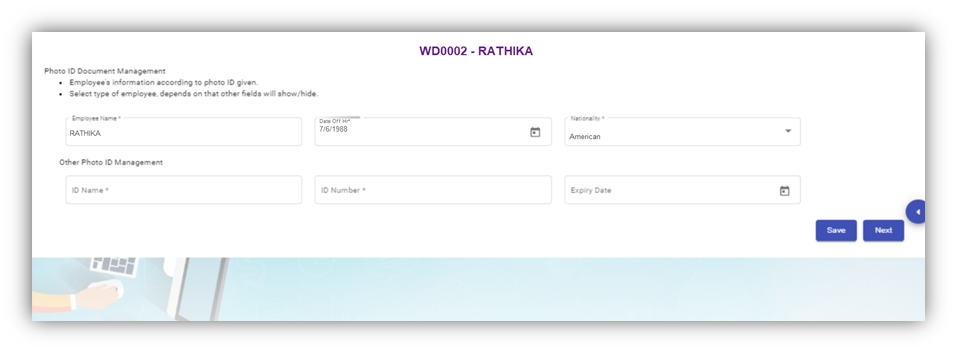
- 1. In the **ID Name** box, enter the name of the employee ID.
2. In the **ID Number** box, enter the number of the employee ID.
3. In the **Expiry Date** box, select the expiry date of the employee ID.
4. Click **Save**. The employee’s photo ID information related with the company located in other country is successfully added.
5. Click **Next**. The **photo ID Image Management** page opens.
#### Add Photo ID Image of Employee
In the **Photo ID Image Management** page, you can upload the image of the photo ID which is the national identification card given to the employee. You can upload both the front and back side images of the photo ID, and the Singapore SGWorkPass images.
**Note**: The photo ID image you want to upload should be in PNG or JPEG format. The image size should not be more than 1 MB.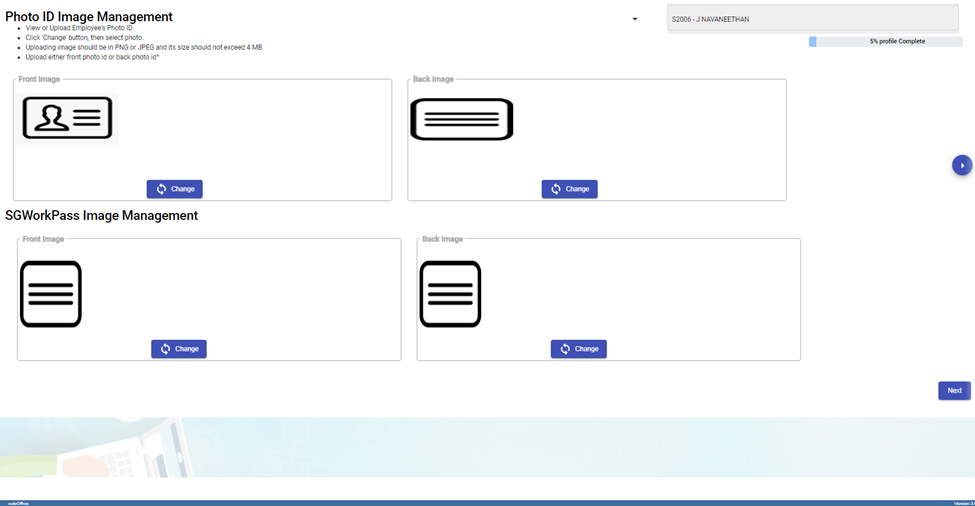
1. Click (**Change** button) in the **Front Image** field and select a front image of the phot ID or drag and drop the image.

There is an option provided to trim the image as required. Click Save. The selected front image of the photo ID will be displayed in the **Front Image** field.
2. Click (**Change** button) in the **Back-Image** field and select a back image of the phot ID and do the same operations. The selected back image of the photo ID will be displayed in the **Back-Image** field.
3. Click **Next**. The **Photo Management** page opens.
#### Add Photo of Employee
In the **Photo Management** page, you can upload an image of the employee.
**Note**: The image you want to upload should be in PNG or JPEG format. The image size should not be more than 1 MB.
1. Click (**Change** button) in the **Employee Image** field and select an image of the employee. The selected image of the employee will be displayed in the **Employee** **Image** field.
2. Click **Next**. The **Passport Information** page opens.
#### Add Passport Information of Employee
In the **Passport Information** page, you can add information of the employee’s passport.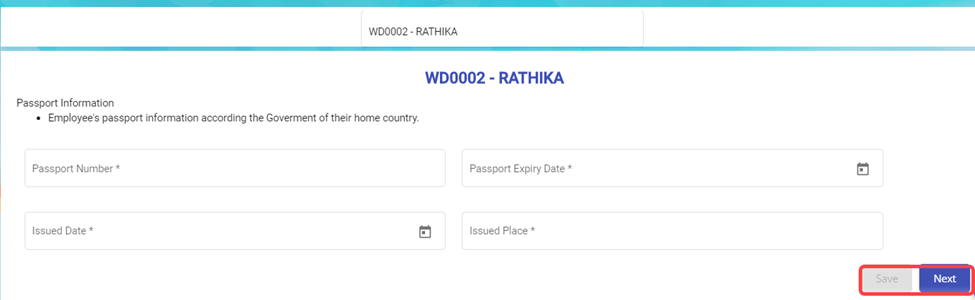
1. In the Passport Number box, enter the number of the employee’s passport.
2. In the Passport Expiry Date box, enter the expiry date of the passport.
3. In the Issued Date box, select the passport issued date.
4. In the Issued Place box, enter the passport issued place.
5. Click **Save**. The added passport information is successfully saved.
6. Click **Next**. The **Passport Image Management** page opens.
#### Add Image of Employee’s Passport
In the **Passport Image Management** page, you can add an image of the employee’s passport. You can upload both the front and back side images of the passport.
**Note**: The passport image you want to upload should be in PNG or JPEG format. The image size should not be more than 200 KB.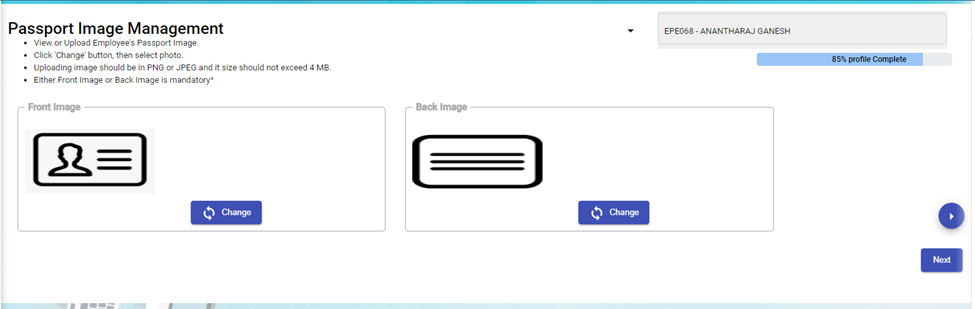
1. Click (**Change** button) in the **Front Image** field and select a front image of the passport. The selected front image of the passport will be displayed in the **Front Image** field.
2. Click (**Change** button) in the **Back-Image** field and select a back image of the passport. The selected back image of the passport will be displayed in the **Back-Image** field.
3. Click **Next**. The **Passport Collection and Issuance** page opens.
#### Add Collection and Issuance Details of Employee’s Passport
In the **Passport Collection and Issuance** page, you can add the collection and issuance details of the employee passport. If you have added the collection and issuance details like collection date and issuance date, you can track the employee’s passport issuance and return history.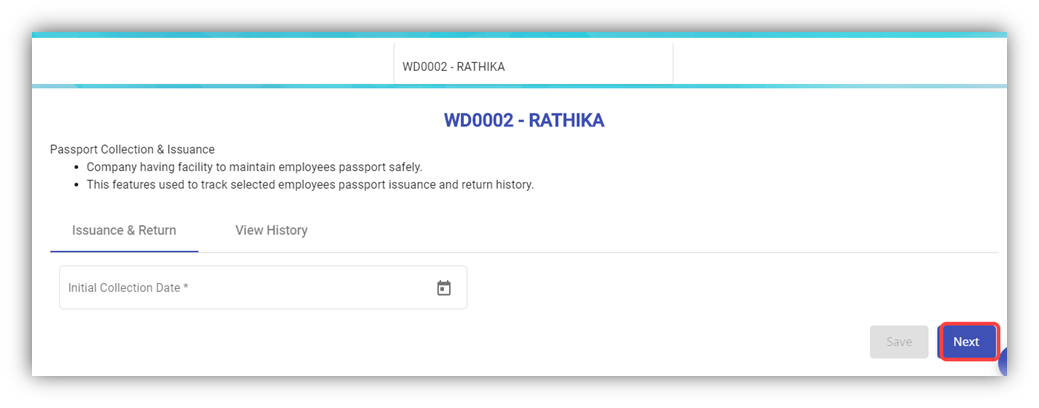
1. In the **Initial Collection Date** box, select the date when the passport has collected from the employee.
2. Click **Next**. The **Employee Passport Issuance Details** field opens.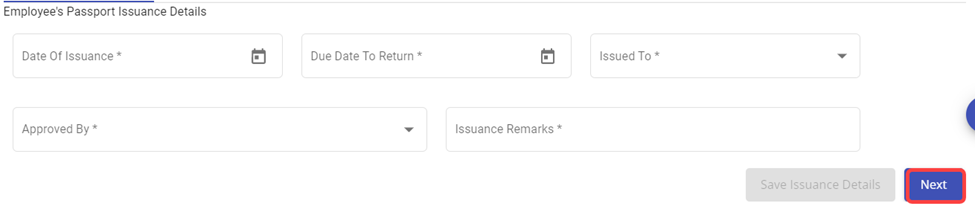
3. In the **Date of Issuance** box, select the date when the passport to be issued to the employee.
4. In the **Due Date to Return** box, select the due date to return the passport.
5. In the **Issued To** box, select the name of a person to whom the passport should be issued.
6. In the **Approved By** box, select the name of a person who should approve the issuance of passport.
7. In the **Issuance Remarks** box, enter your remarks if any.
8. Once issued, it can be returned back for safe keeping again.
9. Click **Next**. The **Official Information** page opens.
#### Add Official Information of Employee
In the **Official Information** page, you can add the official information of the employee.
1. In the **Official Information** field,
- In the **Working Mode** box, select the working mode of the employee from a drop-down list.
- In the **Department** box, select a department which the employee belongs to.
- In the **Designation** box, select the designation of the employee.
- In the **Date of Join** box, select the date of joining of the employee.
- In the **Supervisor** box, select the supervisor of the employee from a drop-down list.
- In the **First DOJ** box, select the first date of joining.
- In the **Employment Status** box:
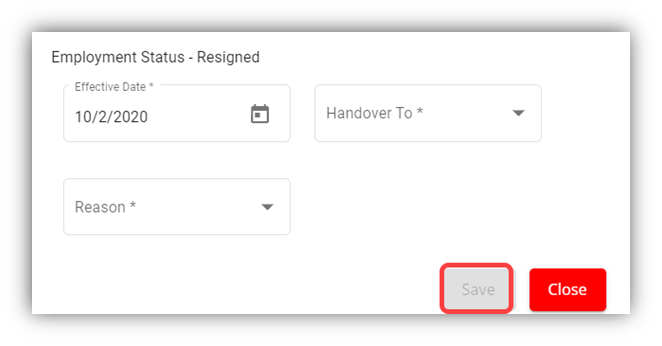
- **Resigned Staff.** If the employee has resigned, select the **Resigned** option in the **Employment Status.** A new pop-up window opens to enter the resignation details while saving the added official information. In the Effective Date box, enter the date of relieving; In the Handover To box, select an employee to handover the resigned employee work; In the Reason box, select the reason of relieving. Click Save.
- - - Waiting for Clearance
- Deleted
- Terminated
**Note**: If you have selected **Resigned**, **Deleted**, and **Terminated** options in the **Employment Status** of the employee, you cannot add more details about employee and edit the added details of the employee.
1. -
- In the **Employment Type** box, select the type of employment whether **Permanent** or **Term Contract**.
- **Note**: If you have selected **Term Contract**, enter the duration of employment in the **Duration of Employment** box.
- In the **Probation Days** box, enter the probation period detail.
- In the **ARE Trade** box, select the trade of the employee from a drop-down list.
- **Note**: The **ARE Trade** may change according to the company.
- In the **Contract Expiry** box, select the contract expiry date.
- if you want to exclude the employee from cuteTime, select the checkbox of the **Exclude from cuteTime?**
- In the **MOM Trade** box, select the MOM trade from a drop-down list.
- In the **Official Email Id** box, enter the official email id of the employee.
- In the **Attendance Id** box, enter the attendance id of the employee.
- In the **Public Holiday Group** box, select the country you want to follow the holidays of the same.
- In the **Is NS eligible?** Box, select **Yes** if the employee is eligible to serve NS otherwise select
- In the **Grade** box, enter the grade number of the employee.
- In the **Batch** box, enter the batch number of the employee.
- In the **Supplier Company** box, select the supplier company from a drop-down list.
- In the **Before Probation** box, enter the notice period days for termination of employee before completing the probation period.
- In the **After-Probation** box, enter the notice period days for termination of employee after completing the probation period.
- If the employee is working under the employment act, select the checkbox of the **Is Under Employment Act**
2. In the **PPE and Size** field,
- In the **PPE Size** box, select the required size of PPE.
- In the **Shoe Size** box, select the shoe size of the employee.
- In the **PPE and Shoe Remarks** box, enter your remarks if any.
3. In the **Bank Information** field, enter the bank account information of employee.
- In the **Bank Name** box, enter the bank name.
- In the **Bank Account Number** box, enter the bank account number.
- In the **Bank Account Type** box, enter the type of bank account.
4. If you want to attach any file to add extra information about the employee, click **Choose File** and select the respective file.
5. Click **Save**.
6. Click **Next**. The **Experience and Qualification** page opens with the **Experience** and **Educational Qualification** options.
#### Add Experience and Qualification Details of Employee
In the **Experience and Qualification** page, you can add working experience and educational qualification details of the employee.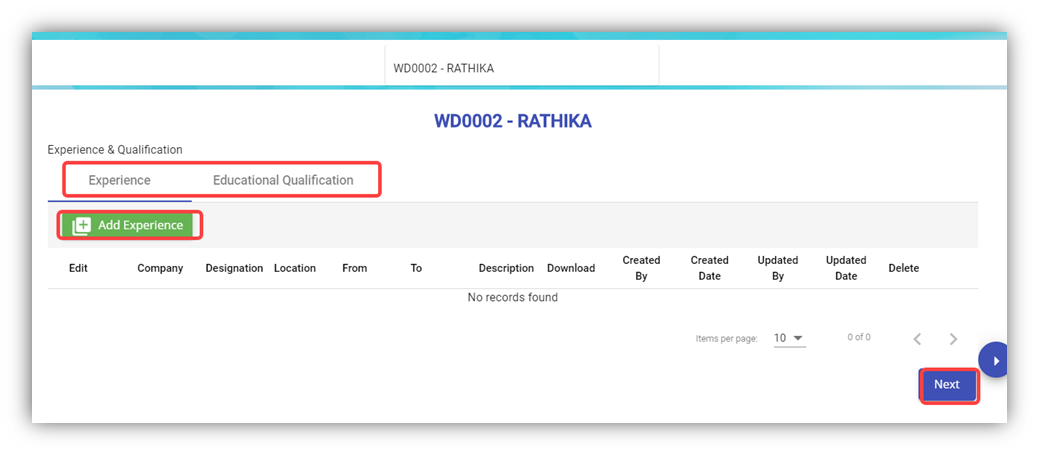
- To add work experience details of the employee, click (**Add Experience** button). The Add Experience window opens.
1. In the **Company** box, enter the company name.
2. In the **Designation** box, enter the designation of the employee.
3. In the **From** and **To** boxes, select the working period of the employee.
4. In the **Location** box, enter the location of the company.
5. In the **Description** box, enter the description about the job nature.
6. If you want to attach any file to add extra information about the work experience, click **Choose File** and select the respective file.
7. Click **Save**. The work experience details of the employee are successfully added and listed in the **Experience and Qualification** page.
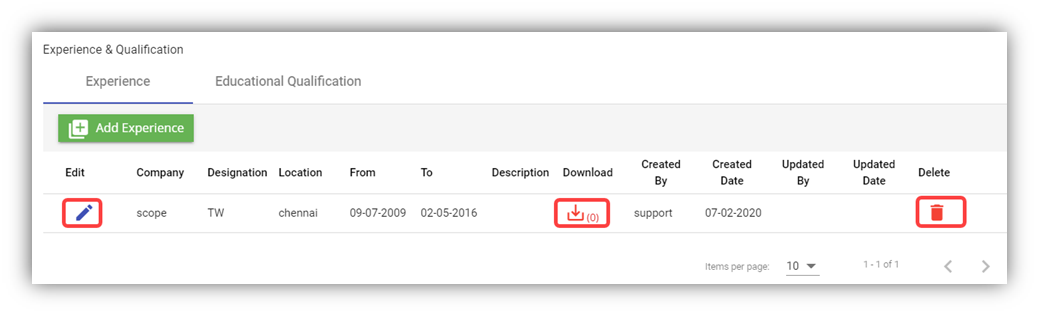**Note**: If you want to edit the added work experience details, click (Edit icon). If you want to download the added work experience details, click (Download icon). If you want to delete the added work experience details, click  (Delete icon).
- To add the educational qualification of the employee, click the **Educational Qualification** option in the upper of the **Experience and Qualification**
1. 1. Click (**Add Qualification** button). The **Add Qualification** Window opens.
2. In the **Qualification** box, enter the educational qualification of the employee.
3. In the **Specialization** box, enter the specialization in education.
4. In the **University** box, enter the name of the university.
5. In the **Country** box, enter the country name.
6. In the **Year of Graduation** box, select the year when the employee gets graduated.
7. In the **Description** box, enter the description about the employee’s education.
8. If you want to attach any file to add extra information about the educational qualification, click **Choose File** and select the respective file.
9. Click **Save**. The educational qualification details of the employee are successfully added and listed in the **Experience and Qualification** page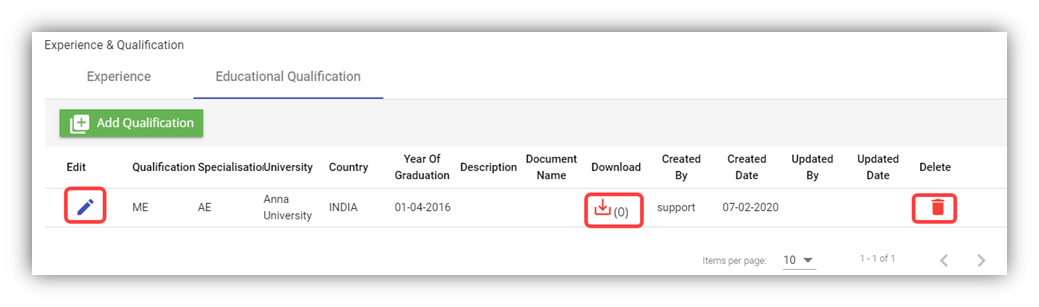**Note**: If you want to edit the added educational qualification details, click (Edit icon). If you want to download the added educational qualification details, click (Download icon). If you want to delete the added educational qualification details, click  (Delete icon).
10. Click **Next**. The **Pay Eligibility** page opens including the **Salary Details** and **View History** options.
#### Add Pay Eligibility Details of Employee
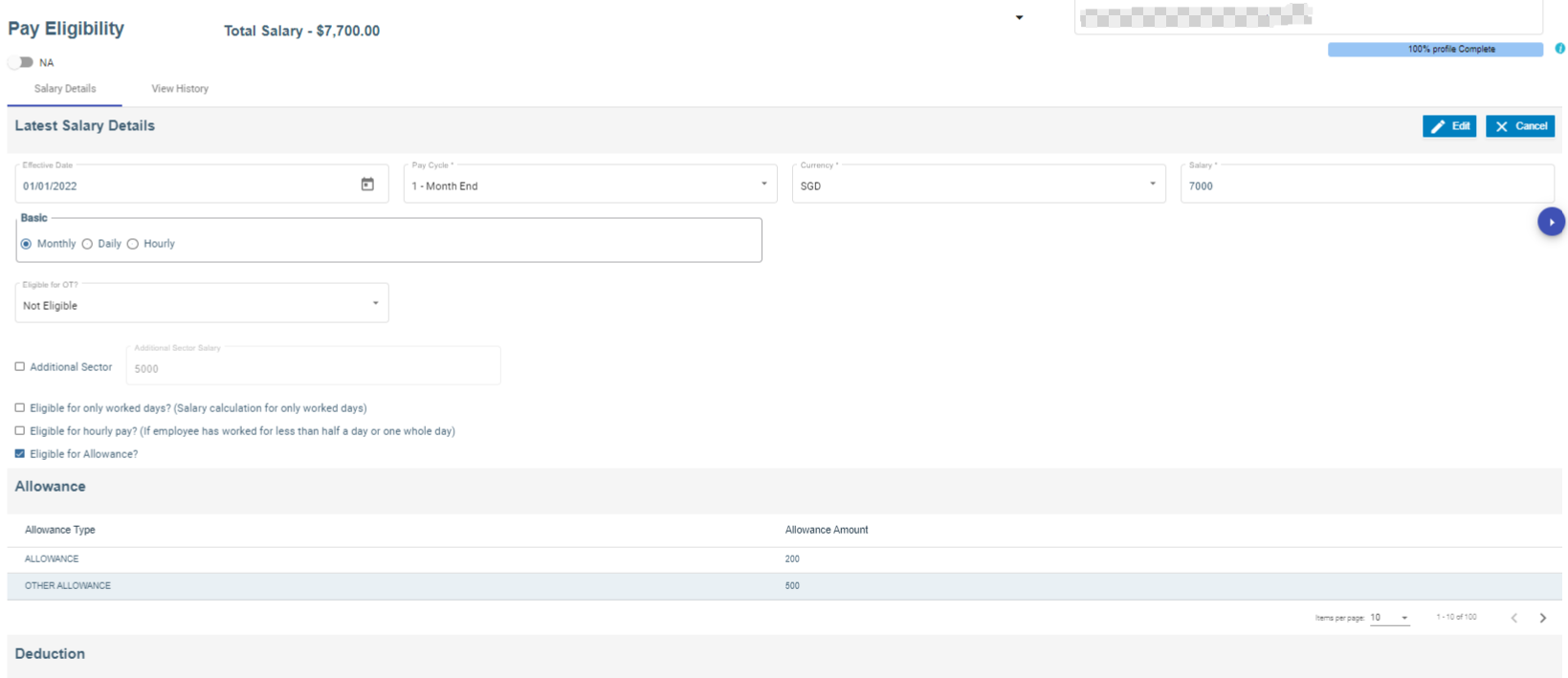
In the **Pay Eligibility** page, you can add the salary details of the employee.
[](http://wiki.cuteinfocomm.com/uploads/images/gallery/2024-02/image-1708494832932.png)
1. In the **Effective Date** box, select the effective date for calculating salary for the employee.
2. In the **Pay Cycle** box, select the pay cycle type.
3. In the **Currency** box, select the currency from a drop-down list.
4. In the **Salary** box, enter the salary amount.
5. In the **Basic** box, select the basic pay method that is whether **Monthly**, **Daily** or **Hourly**
6. If the employee is eligible to get pay only for worked days, select the checkbox of the **Eligible for only worked days?**
7. If the employee is eligible to get hourly pay, select the checkbox of the **Eligible for hourly pay?**
8. In the **Eligible for OT?** Box, select the OT option from a drop-down list.
9. If the employee is eligible to get allowance, select the checkbox of the **Eligible for Allowance?**
10. If an employee holding either PR or citizenship pass type and have additional salary, enable additional sector box with salary amount. (We have to configure Additional CPF account in the payroll information page).
11. In the **Remarks** box, enter your remarks if any.
12. If you want to attach any file to add extra information about the salary details, click **Choose File** and select the respective file.
13. Click **Save**. The salary details are added successfully.
14. Click **Next**. The **Payroll information** page opens.
#### Add Payroll Salary Configuration details of an employee
Salary Configuration page is meant to add pay mode, advance salary, withhold tax in percentage or fixed amount etc.,
1. Under Payment & Rates, choose Pay mode from the drop-down list
2. Add Advance Salary amount, if required. (To pay a portion of basic salary as an advance)
3. Under With-Hold Tax, either add percentage or fixed amount.
4. Enable check box to enter capping amount for tax.
5. Under Others, employee groups, finance groups and working as available to configure.
6. Enable check box for late minimum deduction, PH payable hrs and allow to compute salary from other Modules (ex : Scaffold module) along with that add addition allowance if necessary.
7. Save button enabled automatically after all the mandatory fields are entered.
##### Settings to add Pay Mode, Employee Groups and Finance Groups
Pay Mode
1. Click Admin
2. Click options
3. In the name field, choose mode of payment
4. Click add button to add pay mode
5. Click Save to save the record.
Employee Groups
1. Click Admin
2. Click Company menu
3. Edit Company and click Settings tab
4. Click add to add "EmpGroups" in the name field
5. Enter Employee groups value
6. Click "+" icon to add multiple Employee groups
7. Click Save to save the data. [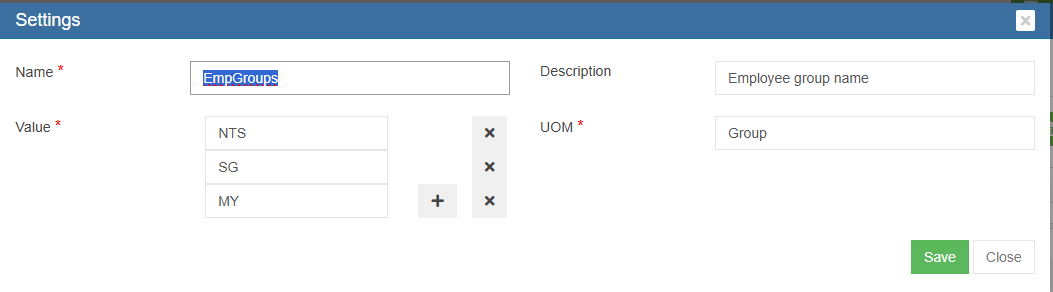](https://wiki.cuteinfocomm.com/uploads/images/gallery/2025-05/image-1746432048537.png)
Finance Groups
1. Click Admin
2. Click Company menu
3. Edit Company and click Settings tab
4. Click add to add "Financial Groups" in the name field
5. Enter Finance groups value
6. Click "+" icon to add multiple Finance groups
7. Click Save to save the data. [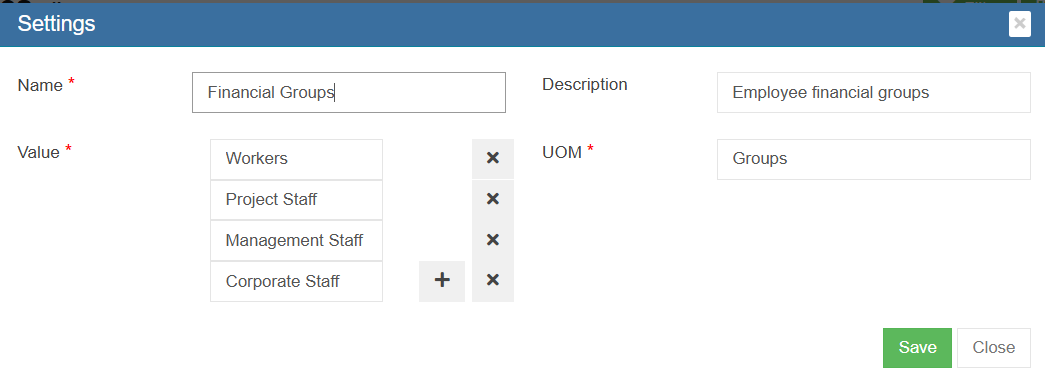](https://wiki.cuteinfocomm.com/uploads/images/gallery/2025-05/image-1746432250364.png)
#### Add Payroll information details of an employee
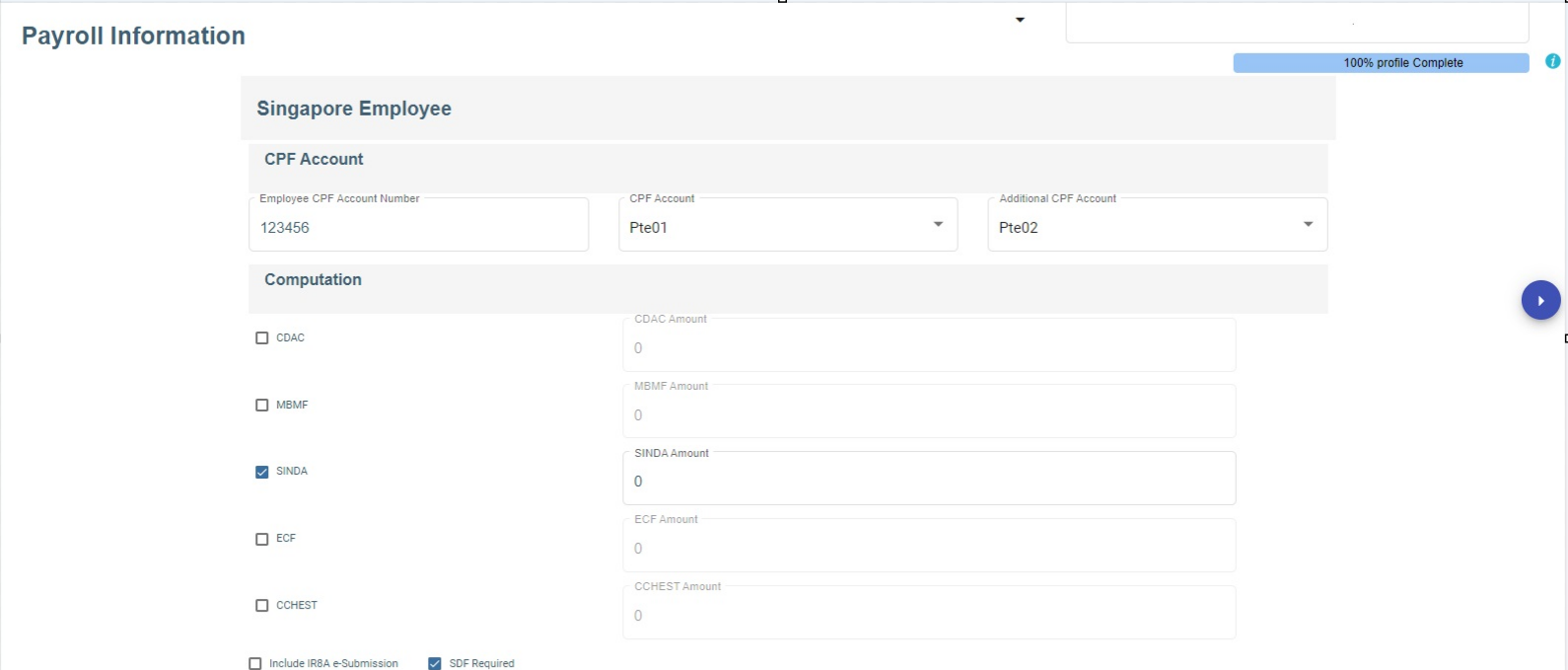
In the payroll information page, you can add the Singapore Employee CPF account information, Donation such as SINDA, CDAC, etc., and Personal Particulars.
1. In the employee CPF account number, enter the account number.
2. In CPF account, select CPF account from the drop-down list.
3. In the Additional CPF account, choose the additional CPF account from the drop down list
4. In computation, choose the donation and enter the amount or it has auto deduction of the amount.
5. If required, enable IRAS e-submission and SDF,
6. In the personal particular, enter the address details.
7. Enable email payslip to send the payslip via email.
8. Click **Save.** The payroll information details are added successfully.
9. Click **Next.** The Leave details of employee page opens.
[](http://wiki.cuteinfocomm.com/uploads/images/gallery/2024-02/image-1708493624581.png)
[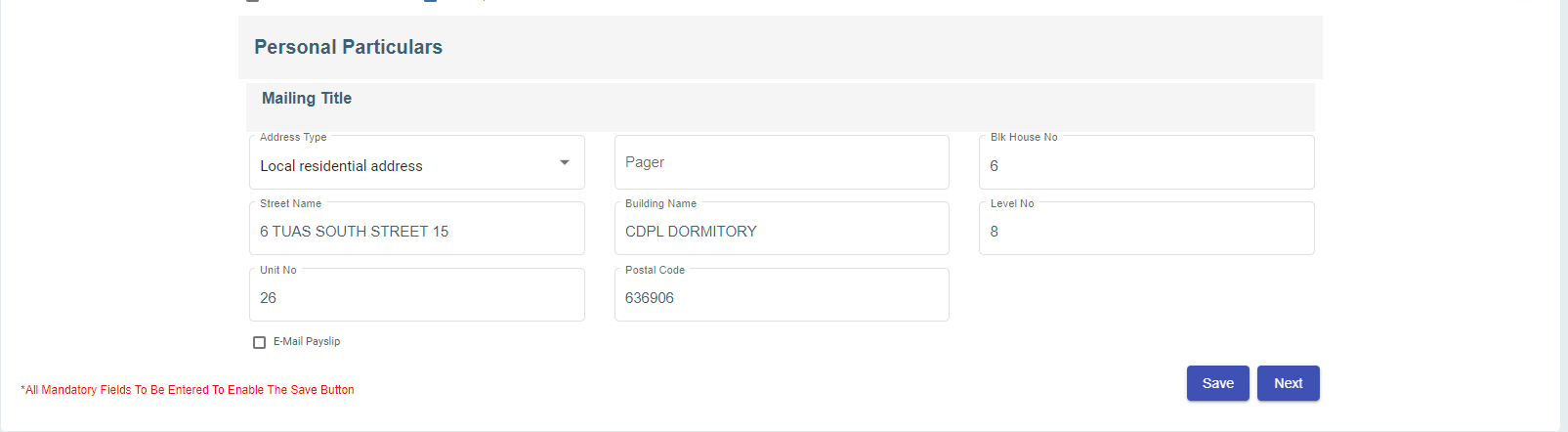](http://wiki.cuteinfocomm.com/uploads/images/gallery/2024-02/image-1708493693782.png)
#### Add Leave Details of Employee
In the **Employee Leave Details** page, you can add the annual leave entitlement details of the employee.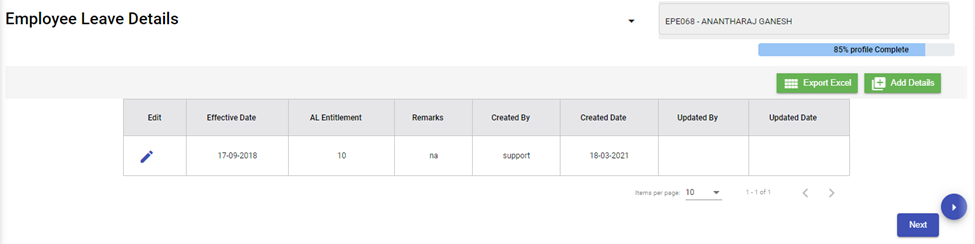
1. Click (**Add** button) in the **Employee Leave Details.** The Leave Details window opens.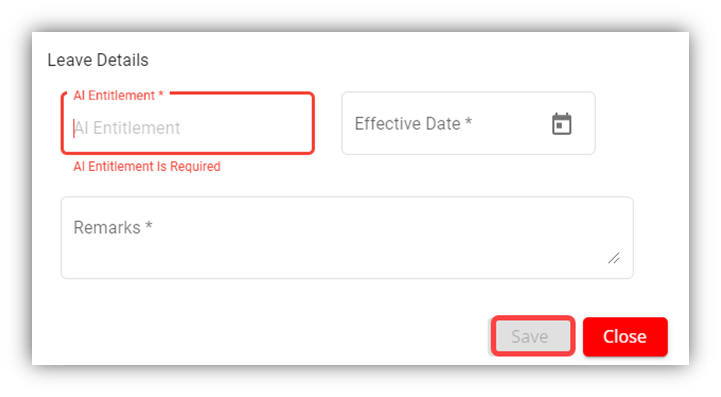
2. In the **AL Entitlement** box, enter the number of annual leave.
3. In the **Effective Date** box, select the effective date of the annual leave.
4. In the **Remarks** box, enter your remarks if any.
5. Click **Save**.
6. Click **Next**. The **Key Employment Report** page opens.
#### Add Key Employment Report for Employee
In the **Key Employment Report** page, you can add key employment details such as sick leave and paid medical examination details of the employee.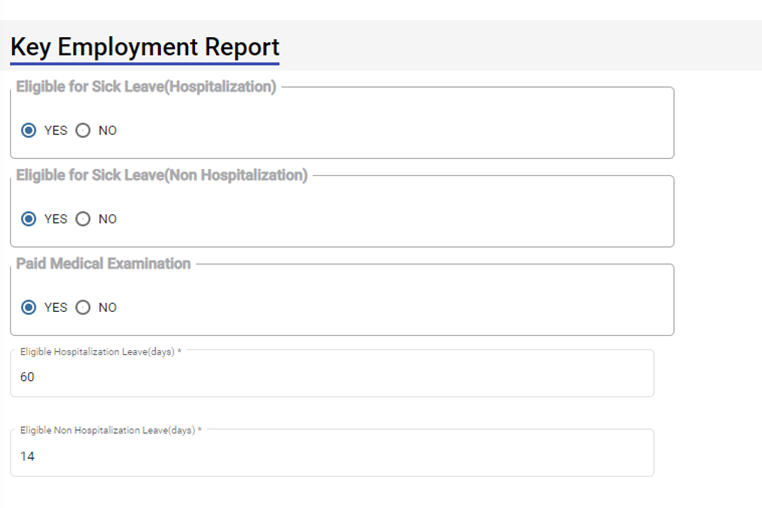
1. If the employee is eligible to take sick leave even in case of non-hospitalization, select **YES** in the **Eligible for Sick Leave (Non-Hospitalization)** option otherwise select **NO**.
2. If the employee is eligible to avail the paid medical examination, select **YES** in the **Paid Medical Examination** option otherwise select **NO**.
3. In the **Eligible Hospitalization Leave (days)** box, enter the number of eligible hospitalization leaves.
4. In the **Eligible Non-Hospitalization Leave (days)** box, enter the number of eligible non-hospitalization leaves.
5. In the **Exclude Time and Leave** box, select the option based on the employee’s leave and permission status.
6. Click **Save**.
7. Click **Next**. The **Employee Minimum Working Hours** page opens.
#### Add Minimum Working Hours of Employee
In the **Employee Minimum Working Hours** page, you can add the minimum working hours details of the employee.
[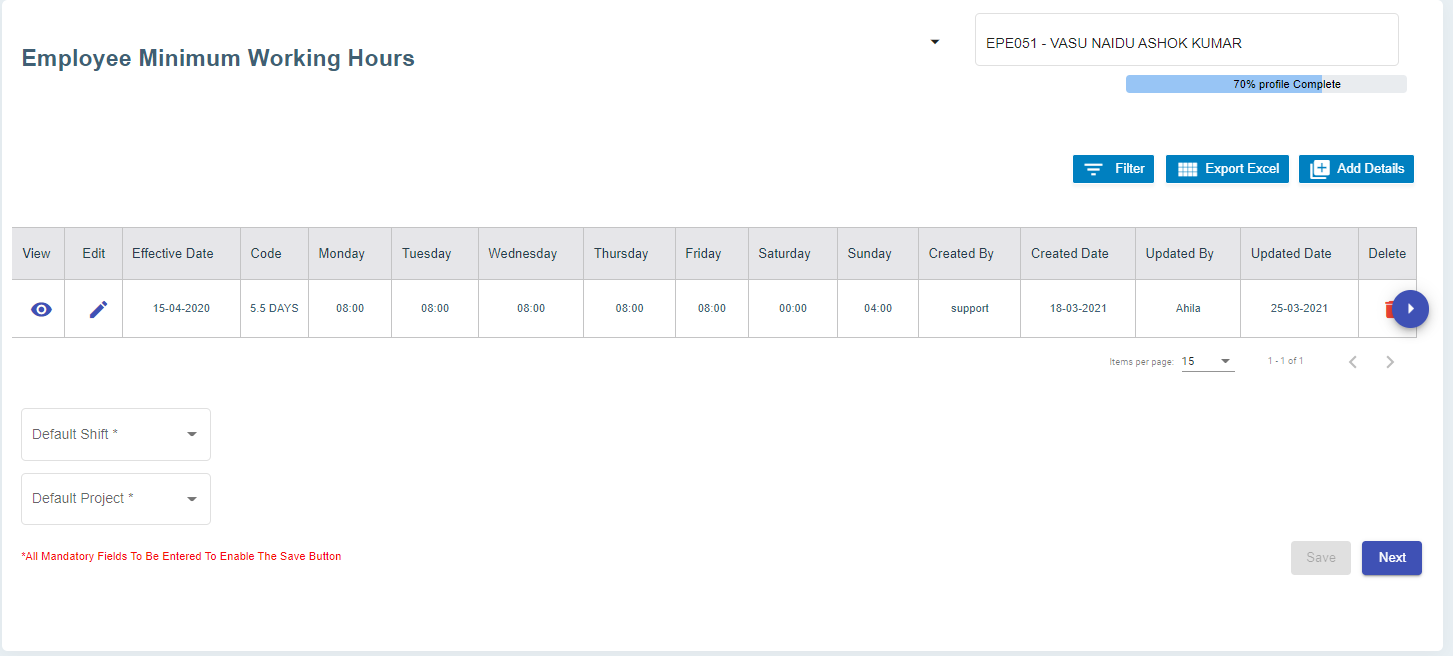](http://wiki.cuteinfocomm.com/uploads/images/gallery/2022-09/image-1662072519478.png)
1. Click (Add Details button). The **Minimum Working Hours** window opens. [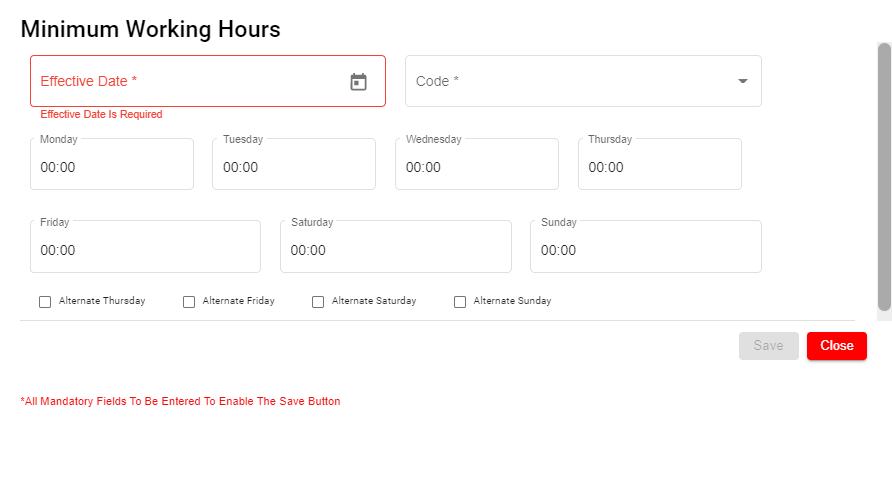](http://wiki.cuteinfocomm.com/uploads/images/gallery/2022-09/image-1662072541484.png)
2. In the **Effective Date** box, select the effective date to follow the minimum working hours by the employee.
3. In the **Code** box, select relevant working day code.
4. In the **Monday** to **Sunday** boxes, for each day, select the minimum hours to be worked by the employee.
5. If the setting **Off day** is enabled, it helps to calculate the rest day in OT1. [](http://wiki.cuteinfocomm.com/uploads/images/gallery/2024-03/image-1709278145553.png)
#### Add Contracts and Other Document of Employee
In the **Contracts and Other Document** page, you can add the contract document or other document of the employee.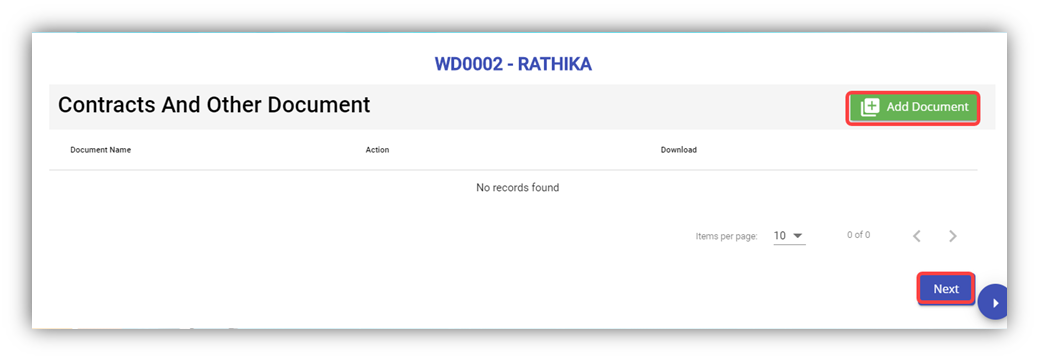
1. Click (**Add Document** button) in the **Contracts and Other Document.** The **Contracts and Other Document** window opens.
2. In the **Document Type** box, select the document type from a drop-down list.
3. In the **Document** **Name** box, enter the document name.
4. Click the **Choose File** option to select the document you want to add.
5. Click **Save.** The selected document is successfully uploaded and listed in the **Contracts and Other Document** page.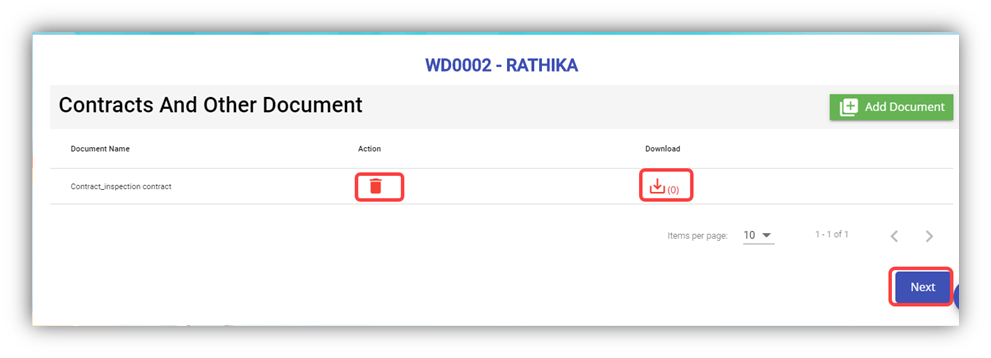 **Note**: If you want to download the added document details, click[](http://wiki.cuteinfocomm.com/uploads/images/gallery/2022-05/download.png) (Download icon).
If you want to delete the added document details, click [](http://wiki.cuteinfocomm.com/uploads/images/gallery/2022-05/delete.png) (Delete icon).
6. Click **Next**. The **Courses, Certificates, and Other Documents** page opens.
#### Add Courses, Certificates, and Other Documents of Employee
In the **Courses, Certificates, and Other Documents** page, you can add the details of courses, certificates, and other documents of the employee. The **Courses, Certificates, and Other Documents** page shows the **Courses and Certificates** and **Other Documents** options.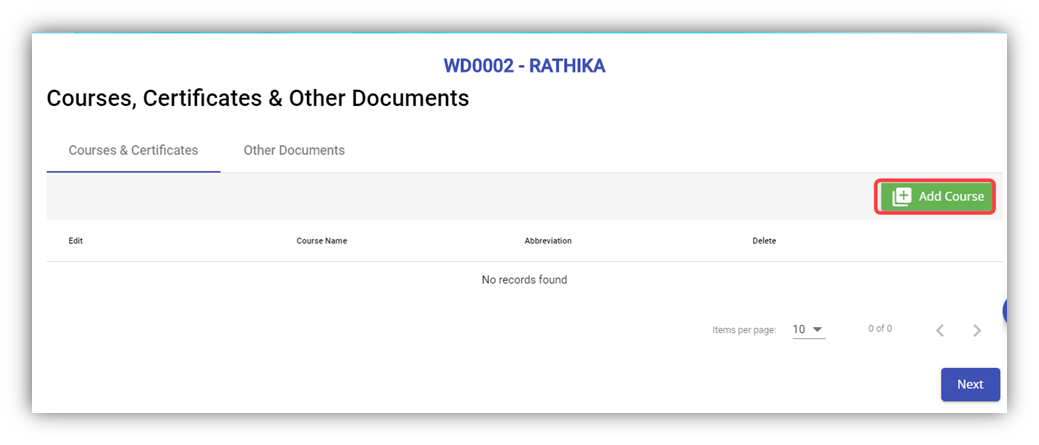
1. To add courses and certificates details of the employee, click (**Add Course** button).
2. In the **Select Course/Certificate** box, select the course/certificate from a drop-down list.
3. In the **Certificate Number** box, enter the course/certificate number.
4. In the **Expiry Date** box, select the expiry date of the added course/certificate.
5. In the **Date Attended** box, select the attended date of the course.
6. If you want to view the employee’s course certificate in the landscape format, select the checkbox of the **Landscape**
7. In the **Remarks** box, enter your remarks if any.
8. Click
9. Navigate to the **Other Documents** option to add documents other than courses and certificates, and then click (**Add Documents** button). The **Add Document** window opens.
10. In the Document Name box, enter the name of the document.
11. If you want to attach the document, click **Choose File,** and select the respective document.
12. Click Save. The selected document is successfully uploaded and listed in the **Courses, Certificates, and Other Documents** page. **Note**: If you want to download the added document details, click[](http://wiki.cuteinfocomm.com/uploads/images/gallery/2022-05/download.png) (Download icon).
If you want to delete the added document details, click [](http://wiki.cuteinfocomm.com/uploads/images/gallery/2022-05/delete.png) (Delete icon).
13. Click **Next**. The **Personal Particulars** page opens.
#### Add Personal Particulars of Employee
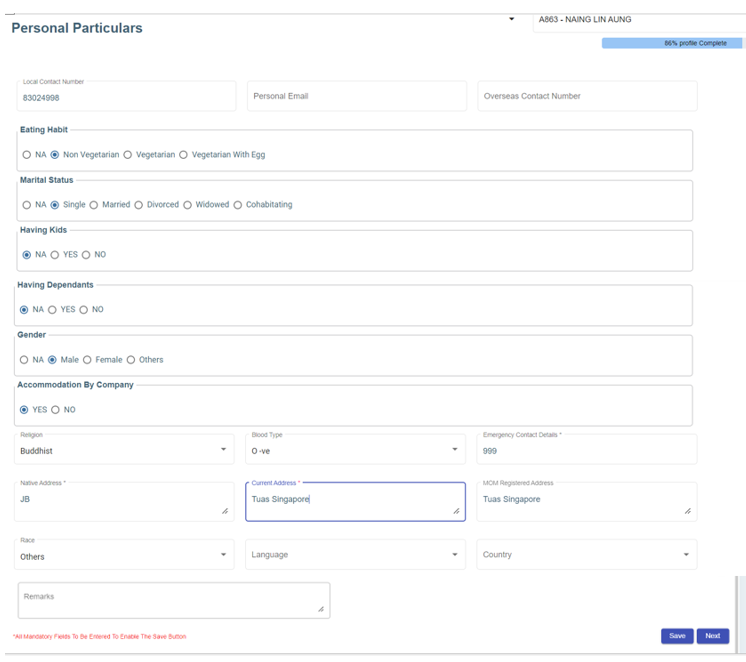
In the **Personal Particulars** page, you can add the personal details of the employee.
[](http://wiki.cuteinfocomm.com/uploads/images/gallery/2024-03/image-1709624449366.png)
1. In the **Local Contact Number** box, enter the local contact number of employee.
2. In the **Personal Email** box, enter the personal email of the employee.
3. In the **Overseas Contact Number** box, enter the overseas contact number of the employee.
4. In the **Eating Habit** box, select the eating habit of the employee.
5. In the **Marital Status** box, select the marital status of the employee.
6. In the **Having Kids** box, select **YES** if the employee is having kids otherwise select **NO**.
7. In the **Having Dependants** box, select **YES** if the employee is having any dependants otherwise select **NO**.
8. In the **Gender** box, select the gender of the employee.
9. In the **Accommodation By Company** box, select **Yes** if the company provides accommodation to the employee.
10. In the **Religion** box, select the religion of the employee from a drop-down list.
11. In the **Blood Type** box, select the blood group of the employee.
12. In the **Emergency Contact Details** box, enter the emergency contact details of the employee.
13. In the **Native Address** box, enter the native address of the employee.
14. In the **Current Address** box, enter the present address of the employee.
15. In the **MOM Registered Address** box, enter the address that is registered on MOM.
16. In the **Remarks** box, enter your remarks if any.
17. Click **Save**. The employee’s personal details are successfully added.
18. Click **Next**. If you have selected **YES** in the [**Having Kids**](#Kid) box, the **Kids Details** page opens or If you have selected **YES** in the [**Having Dependants**](#Dependent) box, the [**Dependant Details**](#_Add_Dependent_Details) page opens. Otherwise, the [**Visa Details**](#_Add_Visa_Details) page opens.
#### Add Kids Details of Employee
In the **Kids Details** page, you can add the details employee’s kids. You can add multiple kids details by repeating the following procedure.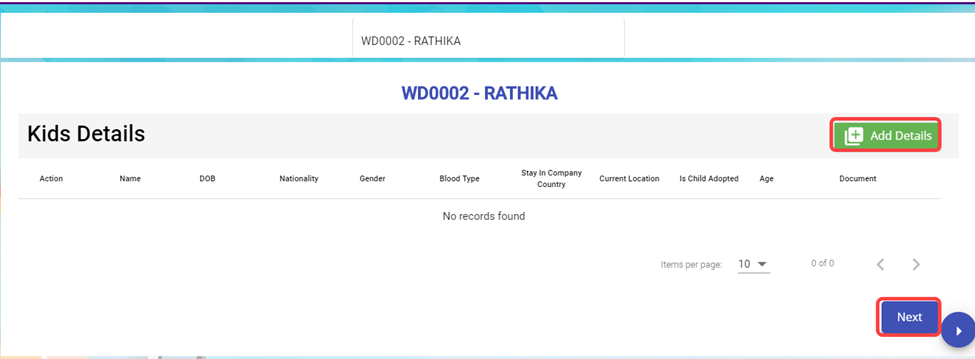
1. Click (**Add Details** button). The **Kids Details** window opens.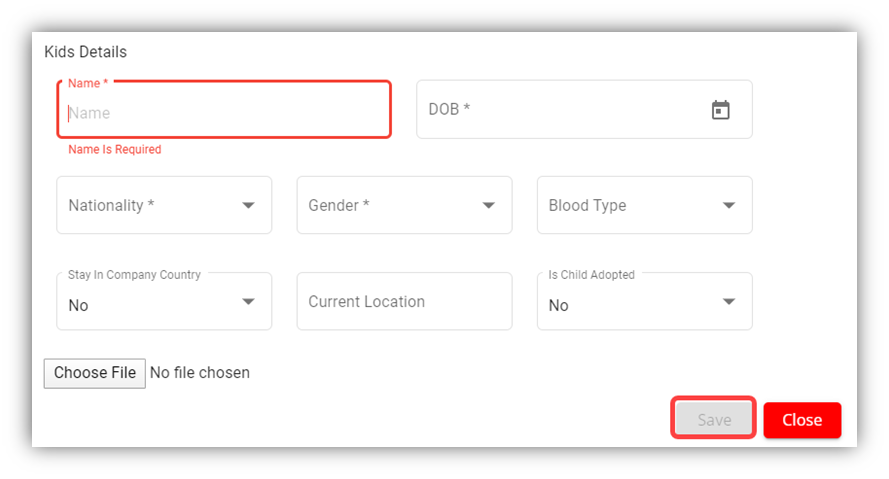
2. In the **Name** box, enter the name of a kid.
3. In the **DOB** box, select the birth date of the kid.
4. In the **Nationality** box, select the nationality of the kid.
5. In the **Gender** box, select the gender of the kid.
6. In the **Blood Type** box, select the blood group of the kid.
7. In the **Stay in Company Country** box, If the kid is residing at the country where the company located, select **Yes** otherwise select **No**.
8. In the **Current Location** box, enter the current location of the kid.
9. In the **Is Child Adopted** box, if the kid is an adopted one, select **Yes** otherwise select **No**.
10. If you want to attach any document to add extra information about the kid, click **Choose File,** and select and attach the respective document.
11. Click **Save**. The kid’s details are successfully added.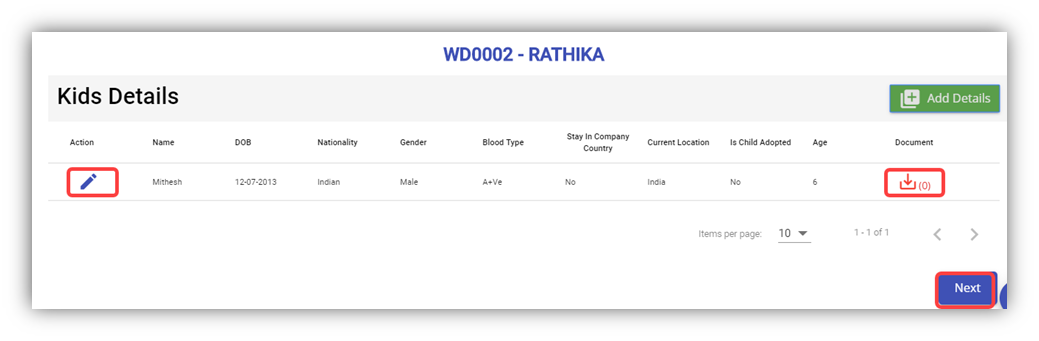**Note**: If you want to edit the added kid’s details, click  (Edit icon). If you want to download the added kid’s details, click  (Download icon).
12. Click **Next**.
#### Add Dependant Details of Employee
In the **Dependant Details** page, you can add the details of the dependants of the employee. 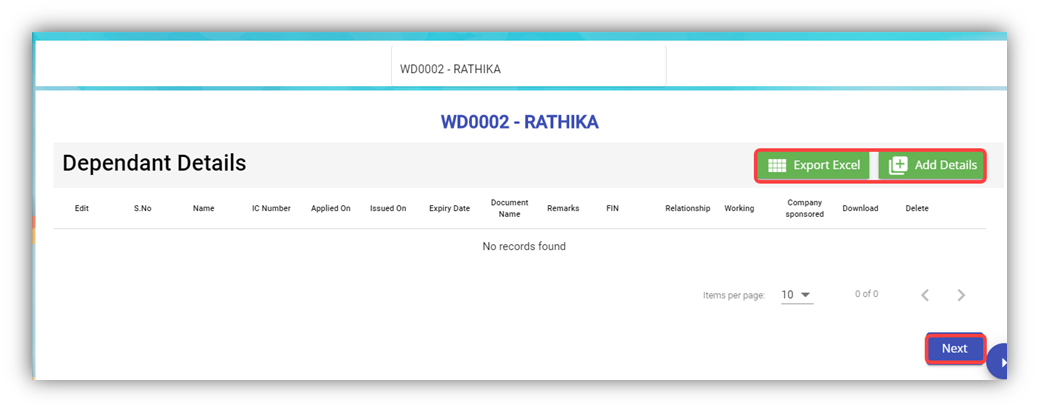
1. Click (**Add Details** button). The **Dependent Details** window opens.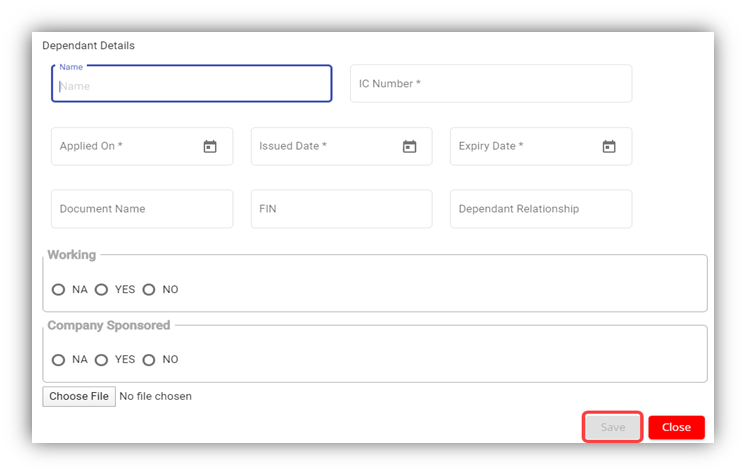
2. In the **Name** box, enter the name of the dependant.
3. In the **IC Number** box, enter the IC number of the dependant.
4. In the **Applied-On** box, select the applied date for the dependant pass.
5. In the **Issued Date** box, select the issued date of the dependant pass.
6. In the **Expiry Date** box, select the expiry date of the independent pass.
7. In the **Document Name** box, enter the name of the document.
8. In the **FIN** box, enter the FIN number.
9. In the **Dependant Relationship** box, enter the relationship of dependant with the employee.
10. In the **Working** box, if the dependant is working select **YES** otherwise select **NO**.
11. In the **Company Sponsored** box, if the dependant pass has sponsored by the company means select **YES** otherwise select **NO**. If the dependant pass is not applicable, select **NA**.
12. If you want to attach any document to add extra information about the dependant, click **Choose File,** and select the respective document.
13. Click **Save**. The dependant’s details are successfully added.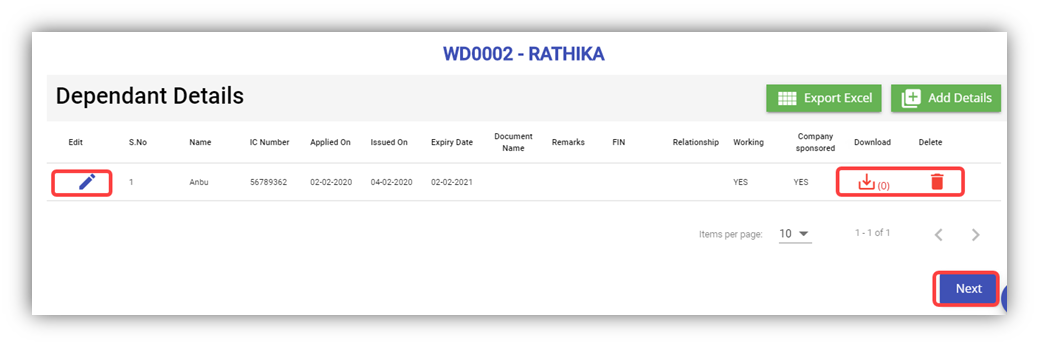**Note**: If you want to edit the added dependant’s details, click  (Edit icon). If you want to download the added dependant’s details, click (Download icon). If you want to delete the added dependant’s details, click  (Delete icon). If you want to download the added dependant’s details as an excel file, click  (Export Excel button). The dependant details are downloaded as an excel file.
14. Click **Next**. The **Visa Details** page opens.
#### Add Visa Details of Employee
In the **Visa Details** page, you can add the visa details of the employee.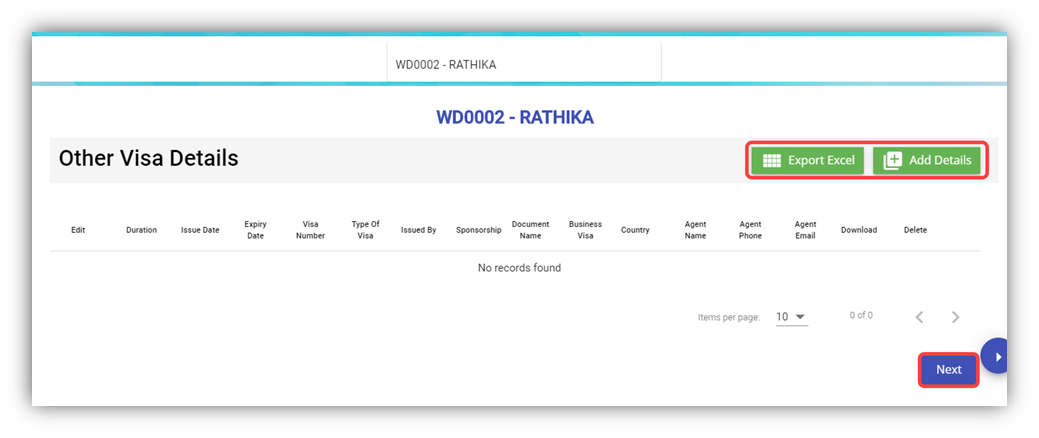
1. Click (**Add Details** button). The **Other Visa Details** window opens.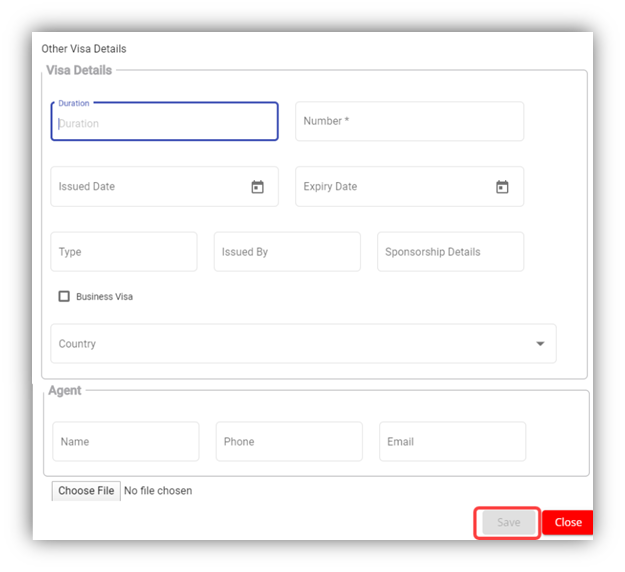
2. In the **Duration** box, enter the duration of visa.
3. In the **Number** box, enter the visa number.
4. In the **Issued Date** box, select the issued date of visa.
5. In the **Expiry Date** box, select the expiry date of visa.
6. In the **Type** box, enter the type of visa.
7. In the **Issued By** box, enter the detail of visa issued authority.
8. In the **Sponsorship Details** box, enter the detail of sponsorship.
9. If the visa is business type of visa, select the checkbox of the **Business Visa**
10. In the **Country** box, select the country from a drop-down list.
11. In the **Agent** box, enter the name, phone number, and email of the agent.
12. If you want to attach any document to add extra information about the visa, click **Choose File,** and select the respective document.
13. Click **Save**. The visa details are added successfully.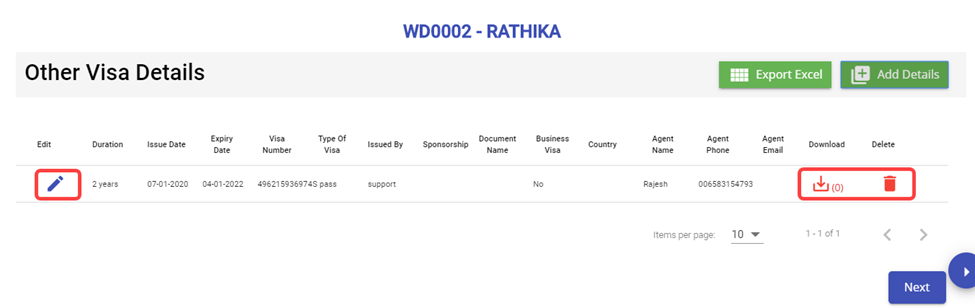
**Note**: If you want to edit the added visa details, click  (Edit icon). If you want to download the added visa details, click  (Download icon). If you want to delete the added visa details, click  (Delete icon). If you want to download the added visa details as an excel file, click  (Export Excel button). The visa details are downloaded as an excel file.
14. Click **Next**. The employee details are successfully added and listed in the **View All Employee** page.
### View Employee Data
#### View All Employees
Once you have added the employee details, the added employee data will be available in the **View All Employee** page. You can view the added employee details in the **View All Employee** page.
[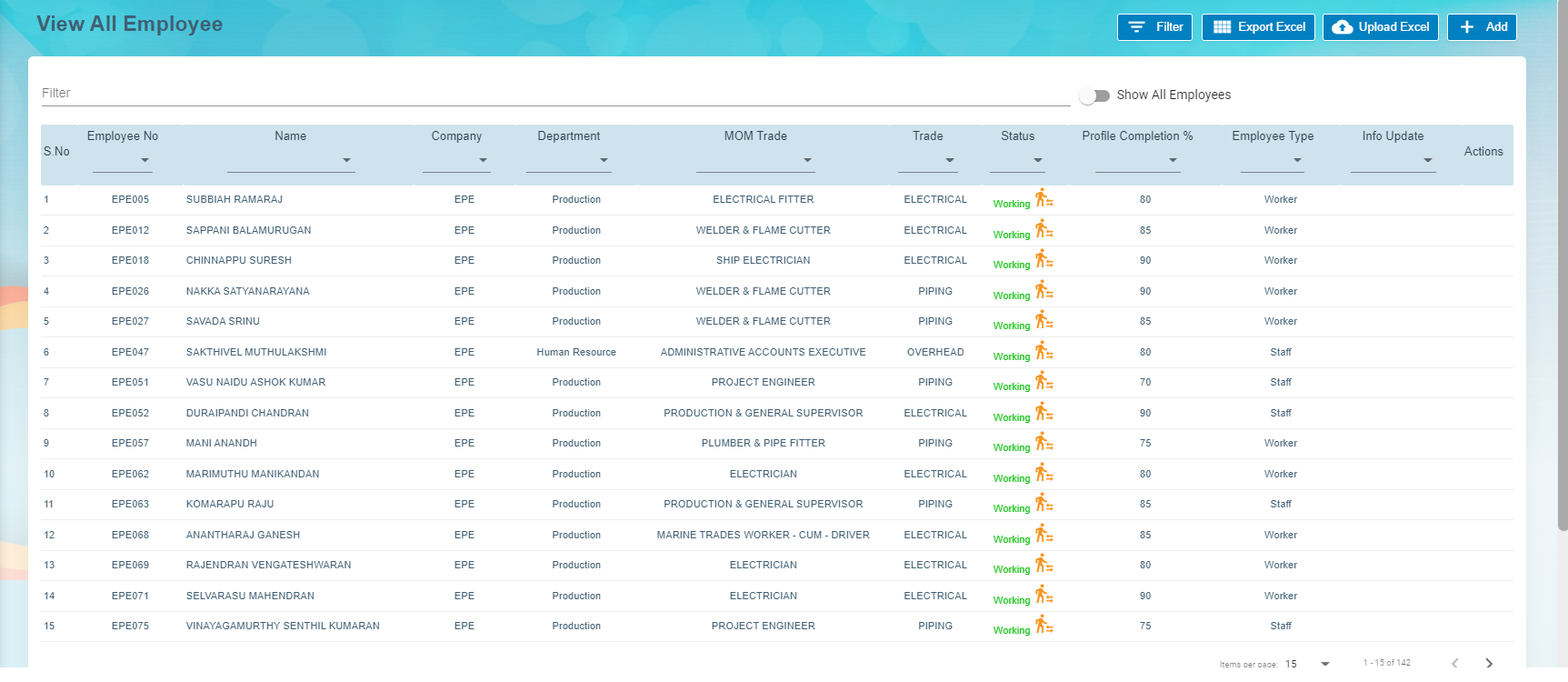](http://wiki.cuteinfocomm.com/uploads/images/gallery/2022-09/image-1662065614373.png)
**Note**: To view and edit the added employee details, click the respective employee in the list.
#### Transfer Employee
**Transfer Staff.** In employee-view all page, there is an option to transfer employee to another company.
1. Click[](http://wiki.cuteinfocomm.com/uploads/images/gallery/2022-09/image-1662065916245.png)(transfer icon), a new pop-up window opens to enter the transfer details, [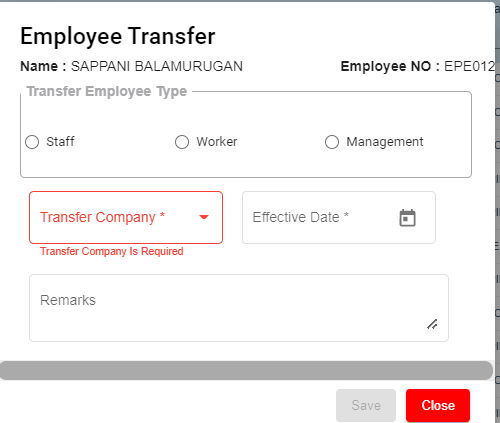](http://wiki.cuteinfocomm.com/uploads/images/gallery/2022-09/image-1662072701471.png)
- - In the **Transferred Employee Type** box, select the type of transferred employee.
- In the **Transfer Company** box, select the company where the employee is going to be transferred.
- In the **Effective Date** box, select the effective date of the transfer.
- In the **Remarks** box, enter your remarks if any.
- Click **Save**.
**Note**: When **Transferred** the employee, all the data also will be transferred from old employee ID to new employee ID.
#### Export Employees Data
The application has a feature to download the added employee details as an excel file. You can click  (**Export Excel** button). The employee details in the **View All Employee** page will be downloaded as an excel file.
### View Employee Contacts
The **View** **Employee Contacts** tab in the **Employee** submenu helps you to view the employee contact details. To view the employee contact details, click the **View** **Employee Contacts** tab in the **Employee.** The **View** **Employee Contacts** page shows the contact details of the added employees.
[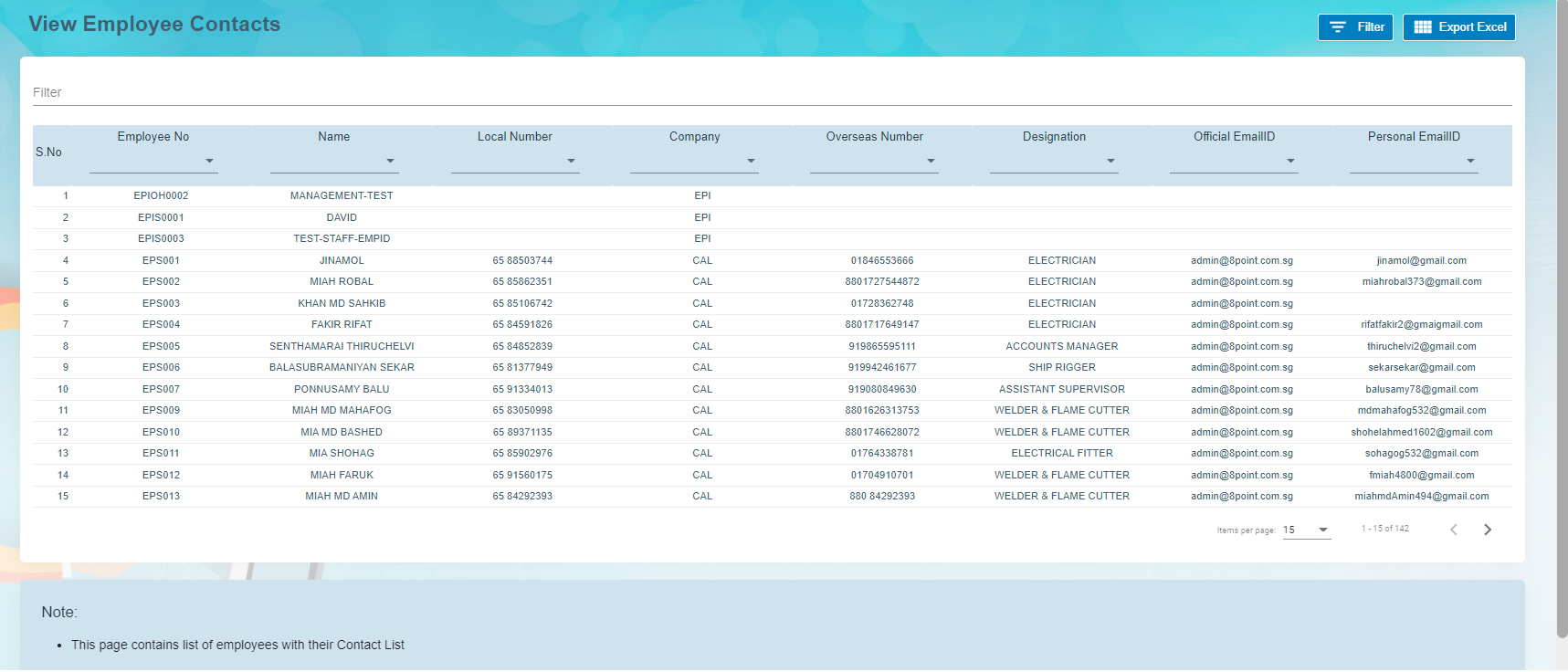](http://wiki.cuteinfocomm.com/uploads/images/gallery/2022-09/image-1662092941716.png)
- **Export Employee Contacts**
The application has a feature to download the employee contacts details as an excel file. You can click  (Export Excel button). The contact details in the View Employee Contacts page will be downloaded as an excel file.
- **Filter Employee Contact**
If you want to view the contact details of any specific employee, click  (Filter button) provided in the upper side of the View Employee Contacts page.
The Filter option will be enabled in the View Employee Contacts page to filter the specific contact detail.
### View Employee Minimum Working Hours
The **Employee Working Hours** tab in the **Employee** submenu helps you to view the employee’s minimum working hours. To view the employee’s minimum working hours, click the **Employee Working Hours** tab in the **Employee.** The **Employee Minimum Working Hours** page shows the minimum working hours details of the added employees.
[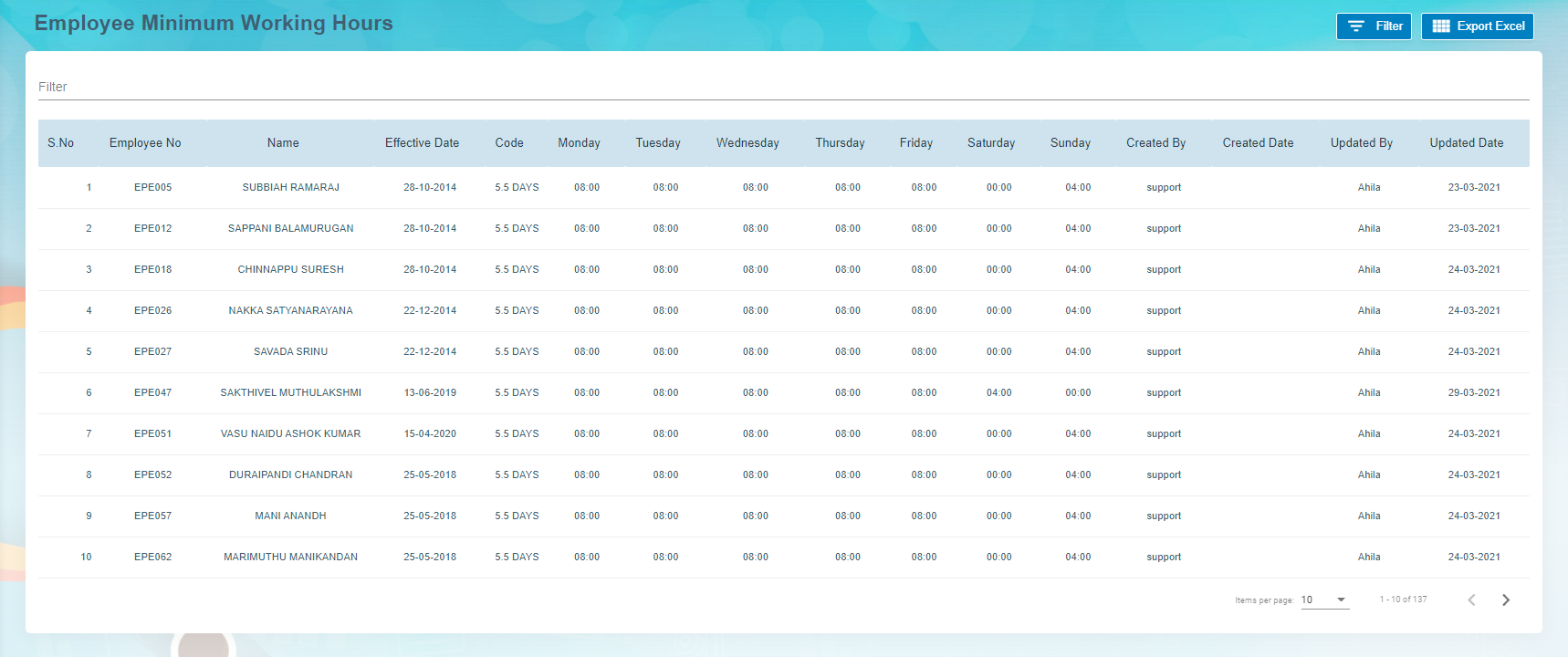](http://wiki.cuteinfocomm.com/uploads/images/gallery/2022-09/image-1662092919543.png)
- **Export Employee Minimum Working Hour Details**The application has a feature to download the employee’s minimum working hour details as an excel file. You can click (**Export Excel** button) to download the minimum working hour details. The minimum working hour details in the **Employee Minimum Working Hours** page will be downloaded as an excel file.
- **Filter Minimum Working Hour Details of Any Employee**If you want to view the minimum working hour details of any specific employee among multiple employees listed in the **Employee** **Minimum Working Hours** page, click[(Filter button) provided in the upper side of the Employee Minimum Working Hours page. The Filter option will be enabled in the Employee Minimum Working Hours page to filter the specific minimum working hour detail.](http://wiki.cuteinfocomm.com/uploads/images/gallery/2022-05/image-1652207986748.png)
### Pay Revision
In Pay Revision, authorized user can revise employee's pay in this section. Click **Pay Revision** in the **Reports** menu, employees' pay revisions records with status will show in list as below,[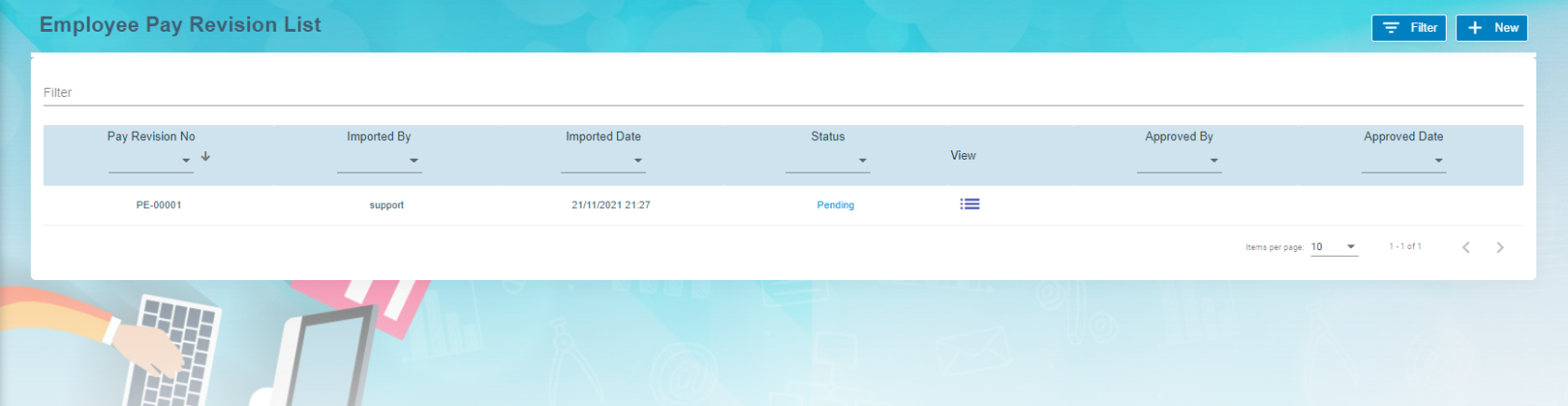](http://wiki.cuteinfocomm.com/uploads/images/gallery/2022-09/image-1662073192791.png)
To add a new pay revision,
1. Click[](http://wiki.cuteinfocomm.com/uploads/images/gallery/2022-09/image-1662073580758.png) add new button in the up right corner of the employee pay revision list page,
2. Click **Filter** and select employees that need to revise pay,[](http://wiki.cuteinfocomm.com/uploads/images/gallery/2022-09/image-1662073606376.png)
3. Then click **Download the template** for the above selected employee we are going to do pay revision. The pay revision excel template will be downloaded.
4. Fill up all the column in downloaded excel and Save the file. **Note: user must enter new effective date**.
5. Then click **Import** button to import above excel file. Pay revision is uploaded against the employee.
6. Click Back [](http://wiki.cuteinfocomm.com/uploads/images/gallery/2022-09/image-1664268372878.png)button in View all Employee.
7. In Employee Pay Revision List window , click View icon[ ](http://wiki.cuteinfocomm.com/uploads/images/gallery/2022-09/image-1664269246085.png) to view the changes against the employee. [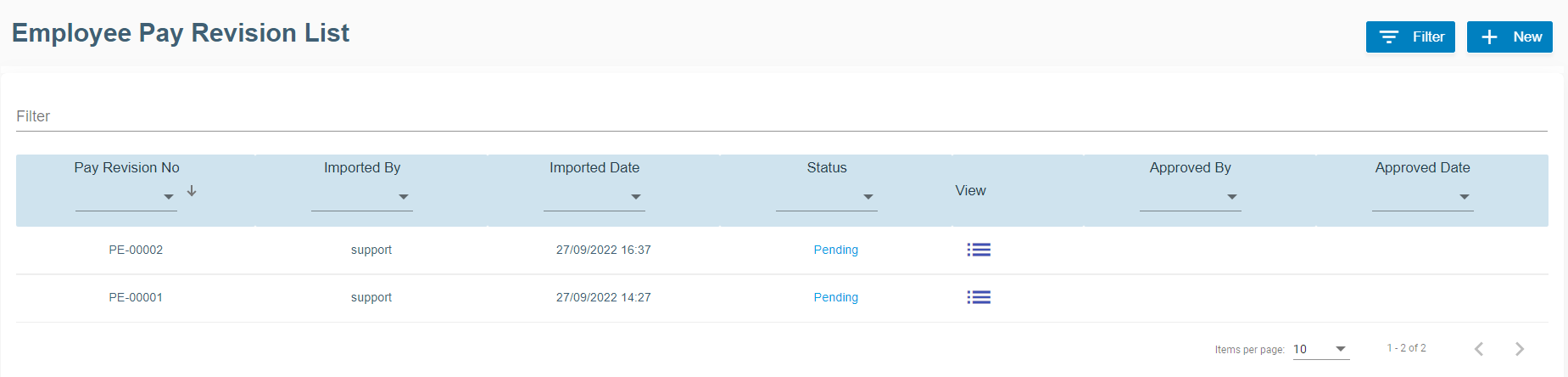](http://wiki.cuteinfocomm.com/uploads/images/gallery/2022-09/image-1664269507284.png)
8. New window open with Pay Revision No. [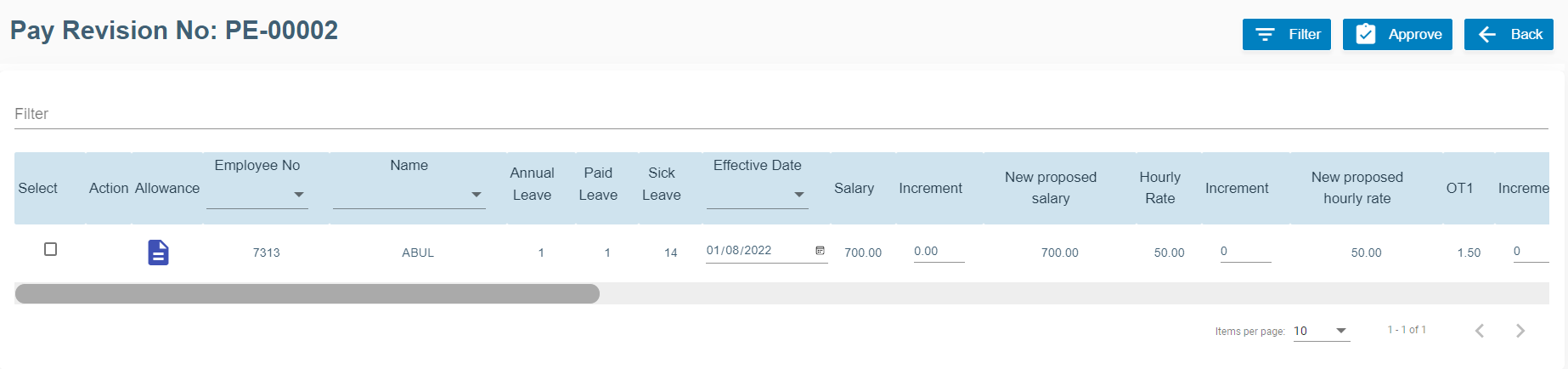](http://wiki.cuteinfocomm.com/uploads/images/gallery/2022-09/image-1664268931845.png)
[](http://wiki.cuteinfocomm.com/uploads/images/gallery/2022-09/image-1664270072295.png)
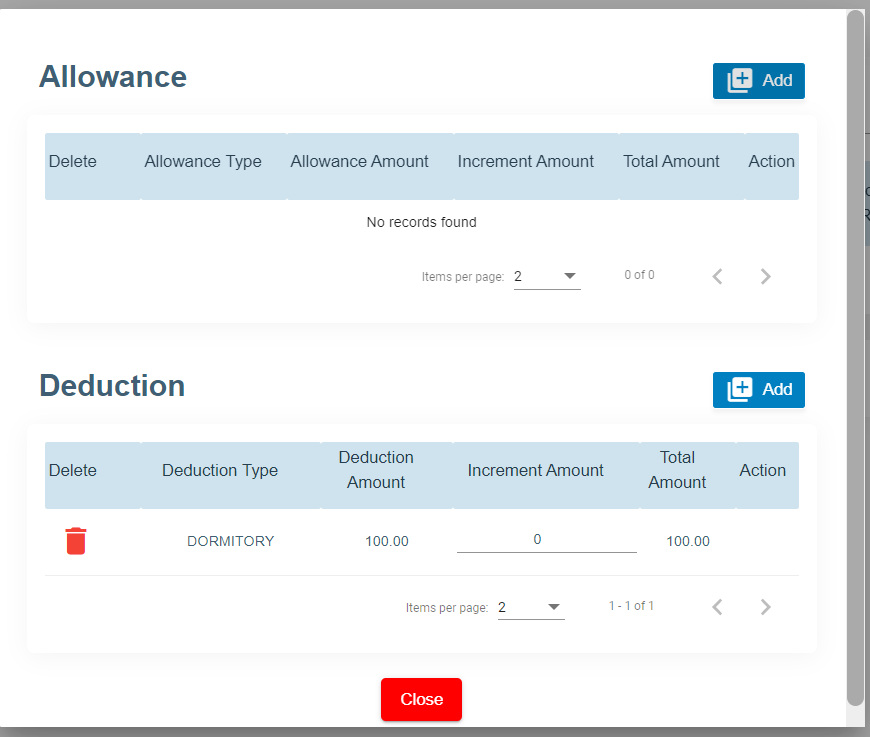
9. Click Action Allowance [ ](http://wiki.cuteinfocomm.com/uploads/images/gallery/2022-09/image-1664270149565.png)to add new allowance and deduction items and amounts.
[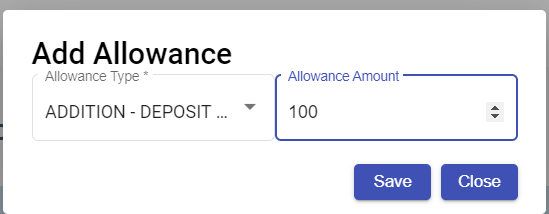](http://wiki.cuteinfocomm.com/uploads/images/gallery/2022-09/image-1664270369274.png)
10. Click Save for each items added for allowance and deduction.
11. Delete option[](http://wiki.cuteinfocomm.com/uploads/images/gallery/2022-09/image-1664270991221.png)available to delete the previously added allowance and deduction.
12. Click Close button at the end.
13. Now click **Approve[](http://wiki.cuteinfocomm.com/uploads/images/gallery/2022-09/image-1664271138712.png)** button at the top right corner to approve it.
14. The confirmation window will open as below when user clicks **Approve**, click **Yes** to confirm approval of pay revision. [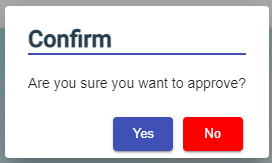](http://wiki.cuteinfocomm.com/uploads/images/gallery/2022-09/image-1663094058782.png)
15. Eventually, the pay revision will be effective from the new date mentioned.
### Employee Evaluation
Employee evaluation page manages evaluation for all employees. Click Evaluation tab in Employee menu, the employee evaluation list page shows as below
#### Add A New Evaluation
To add a new evaluation,
1. Click [](http://wiki.cuteinfocomm.com/uploads/images/gallery/2022-10/image-1664824676986.png)Add button. Add New Employee Evaluation window opens, [](http://wiki.cuteinfocomm.com/uploads/images/gallery/2022-09/image-1663580391250.png)
2. Select Employee No from the drop down list, select the Period of Evaluation from the drop down list. The period of evaluation corresponds to the employee's trade.
3. Click Save. The add evaluation page will be redirect to evaluation list page. A new evaluation request will be created for selected employee.
4. Click the key of the new evaluation request, the evaluation detail page will open, [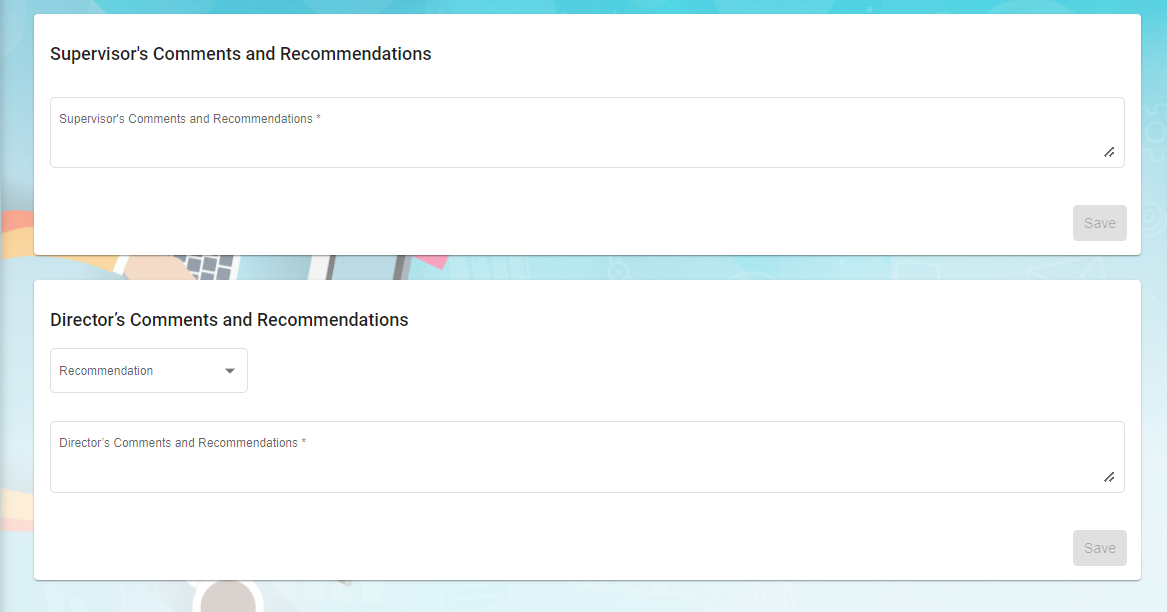](http://wiki.cuteinfocomm.com/uploads/images/gallery/2022-10/image-1664832391707.png)
- In evaluation form, employee and manager can enter the rating details
- In supervisor's comments and recommendations, enter comment if any
- In director's comments and recommendations, enter comment if any
5\. Users can also update below employee's details based on evaluation: Leave details, Proposed Designation, Proposed Leave Entitlement, Latest Salary Details and Learning & Development. Note: these are optional to update.
[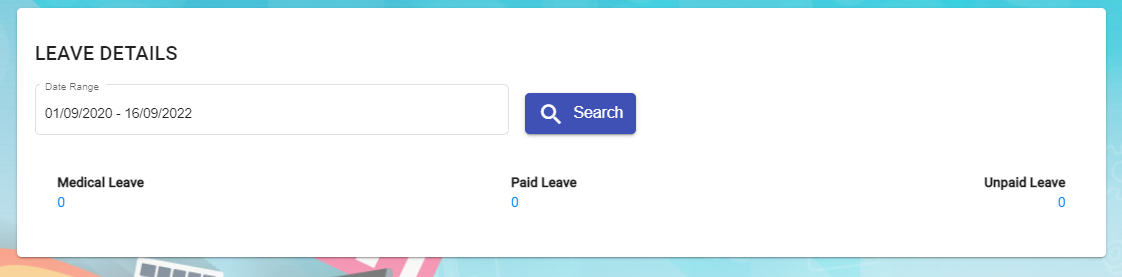](http://wiki.cuteinfocomm.com/uploads/images/gallery/2022-09/image-1663322070039.png)
[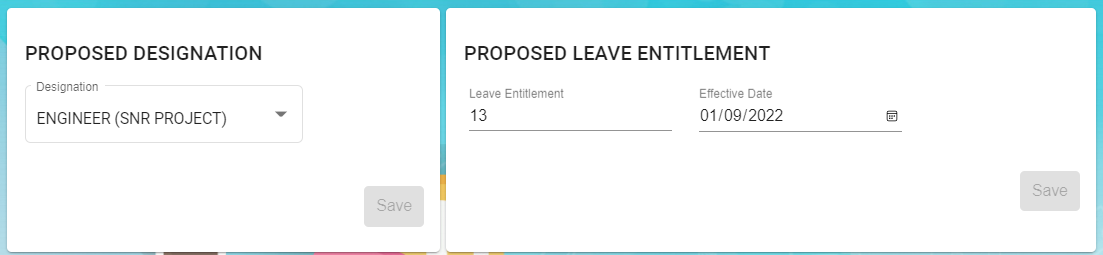](http://wiki.cuteinfocomm.com/uploads/images/gallery/2022-09/image-1663322103137.png)
[](http://wiki.cuteinfocomm.com/uploads/images/gallery/2022-09/image-1663322142772.png)
[](http://wiki.cuteinfocomm.com/uploads/images/gallery/2022-09/image-1663322177585.png)
#### Add Evaluations in Bulk
To add evaluations in bulk,
1. Click[](http://wiki.cuteinfocomm.com/uploads/images/gallery/2022-10/image-1664833503135.png)add in bulk button, below window opens,
2. Select employees by ticking the box in front of the employee names. Note: please check the color code in the top right corner of the page for those employees that are not in selection list.
3. Click Save. The add evaluation page will be redirect to evaluation list page. New evaluation requests will be created for selected employees.
4. Click the key of each new evaluation request added, and fill up the the evaluation details in the evaluation request detail page. (Note: follow the same steps of adding details in single evaluation request)
##### Evaluation Request Approval -pending for update
### Learning and Development
Learning and development manage employees' learning and development plans. Click Learning & Development tab in Employee menu, below page opens,
#### Add New Course Plan
To add a new course plan,
1. Click [](http://wiki.cuteinfocomm.com/uploads/images/gallery/2022-09/image-1664352774264.png) Add Course Plan icon in Learning and Development request list page, a new window opens, [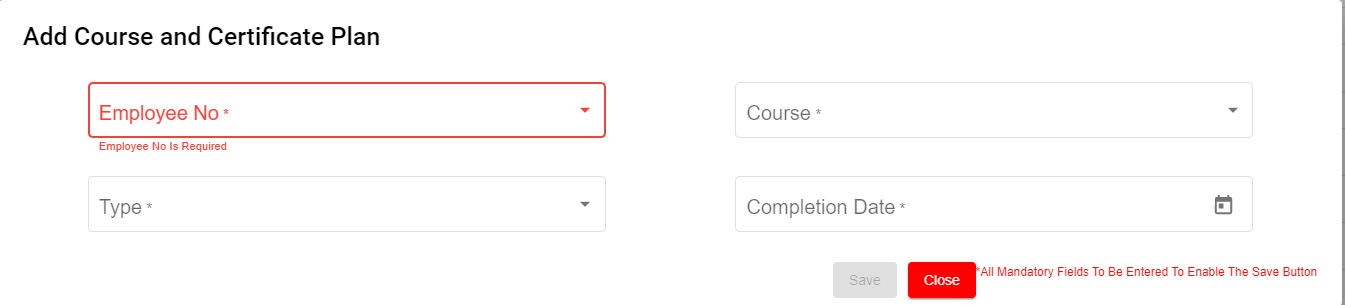](http://wiki.cuteinfocomm.com/uploads/images/gallery/2022-09/image-1664352638622.png)
2. Fill up details in add course and certificate plan page:
- In Employee No. box, select Employee No from the drop down list.
- In Course box, Choose one course or multiple courses from course list.
- In Type box, select Mandatory or Non-Mandatory based on the course requirement.
- In Completion Date box, select expected completion date of the course in the calendar selection.
3. Click Save. A new learning and development request is created, and the page will be directed to learning and development list page,
4. Click the request Key to view employee course details.
5. Click edit button in the Course Details section as shown in above screenshot. A Course detail page open as below, [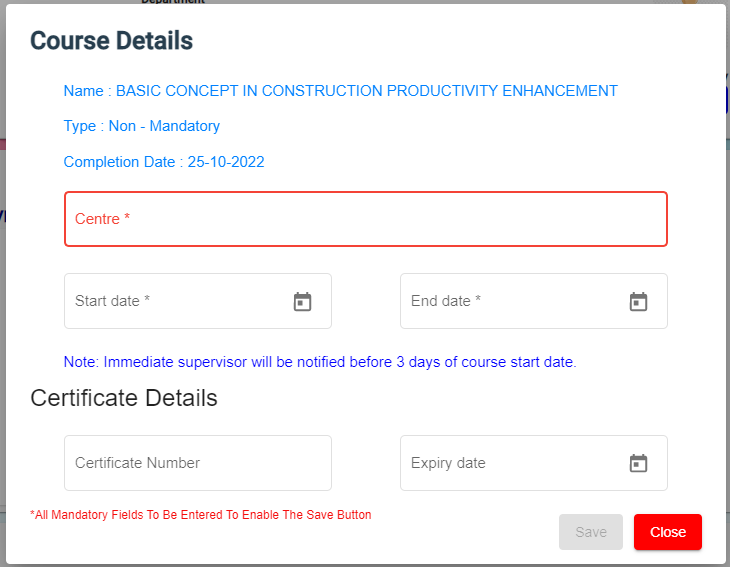](http://wiki.cuteinfocomm.com/uploads/images/gallery/2022-10/image-1664841046897.png)
6. Enter course conduction centre name, start date and end date of course. And click Save. Once request is approved, Immediate Supervisor will be notified before 3 days of course start date.
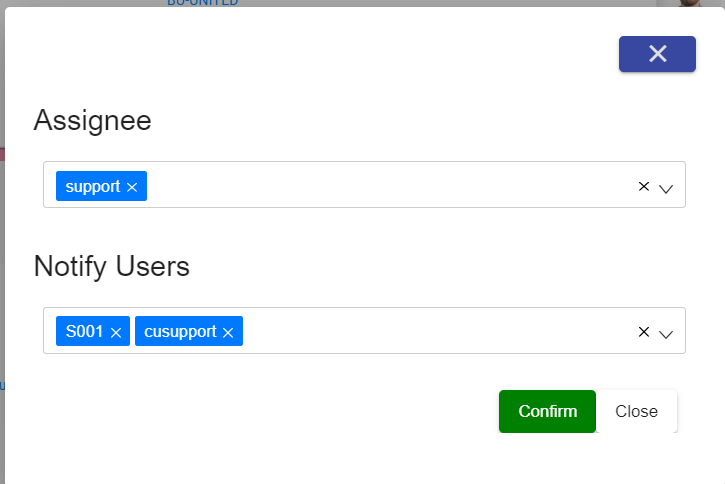
7. Click [](http://wiki.cuteinfocomm.com/uploads/images/gallery/2022-09/image-1664357163504.png) Submit button at the top right corner. The notification confirm window opens to enter Assignee and Notify users.
[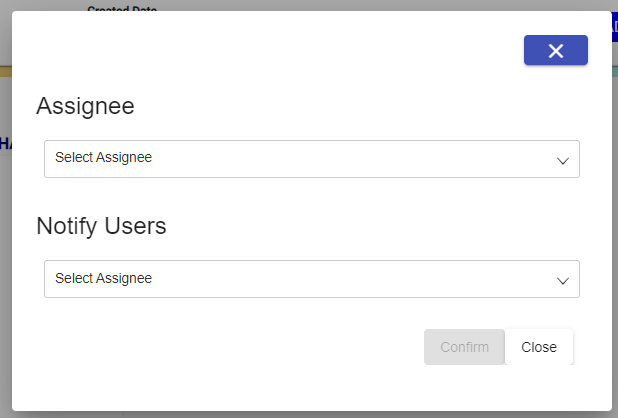](http://wiki.cuteinfocomm.com/uploads/images/gallery/2022-10/image-1664841314457.png)
8. Click Confirm[](http://wiki.cuteinfocomm.com/uploads/images/gallery/2022-09/image-1664357955969.png) to confirm submission of learning and development request.
9. After course got completed by the employee, Supervisor/Worker will enter certificate number and expiry date.
10.
11. To be updated
12\. After course got completed by the employee, Supervisor/Worker will enter certificate number and expiry date.
9\.
12\.
13\. Click Save and Close
14\. Click attachment to attach the course certificate
[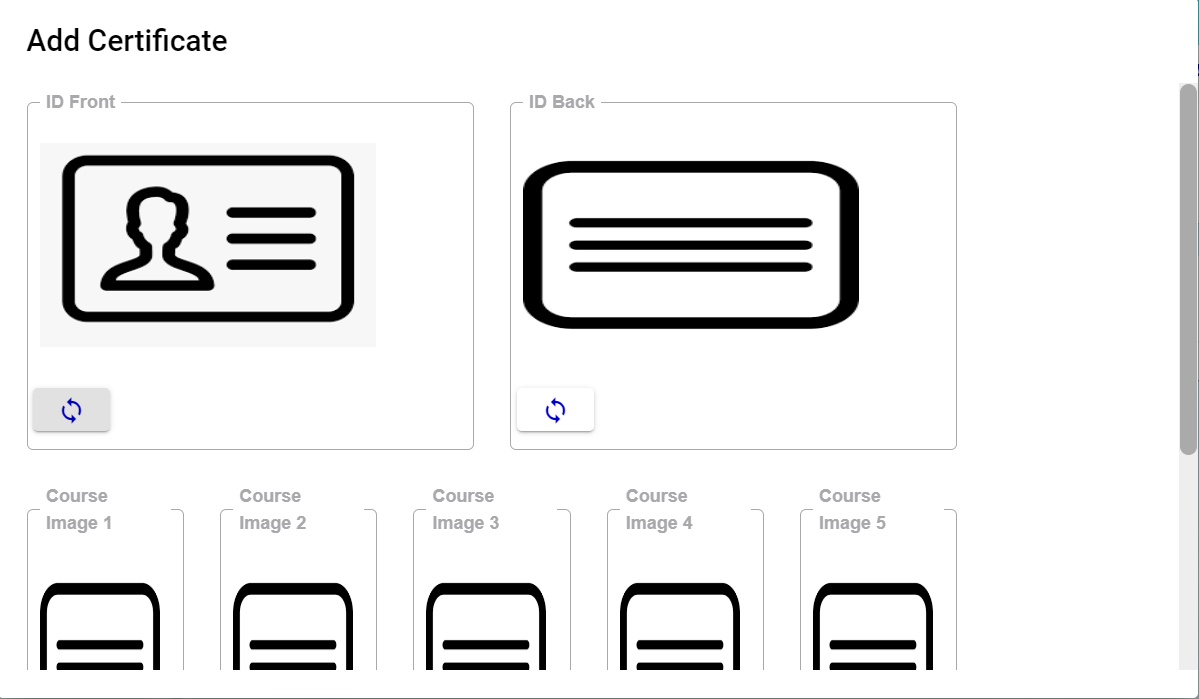](http://wiki.cuteinfocomm.com/uploads/images/gallery/2022-09/image-1664366544017.png)
14\. Click Close
15\. If applicable enter Training Bond Details of the employee in the Bond Details. Bond details have a link to Offboard checklist. For instance, If the employee resigned before the Training bond, Offboard will throw alert message for refusal of the resignation.
16\. Click Sent for HR on the top right corner of the page
[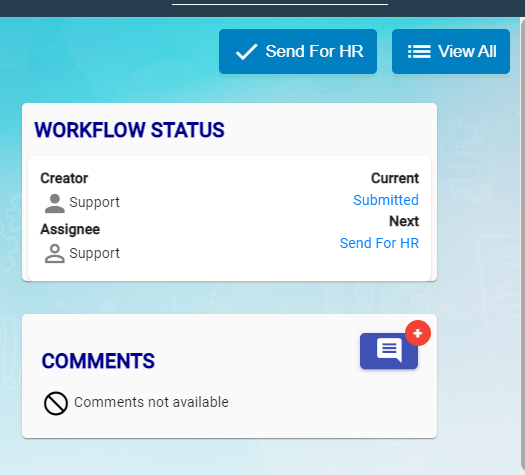](http://wiki.cuteinfocomm.com/uploads/images/gallery/2022-09/image-1664367537696.png)
17\. Next Window opens to enter Assignee and Notify user
[](http://wiki.cuteinfocomm.com/uploads/images/gallery/2022-09/image-1664367639710.png)
18.Click Confirm button
19\. HR will check and he will either Approve or Return
20.Click approve icon to approve.
[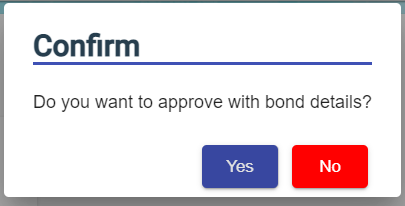](http://wiki.cuteinfocomm.com/uploads/images/gallery/2022-09/image-1664367945687.png)
21\. Confirmation Box open to approve with bond details or not.
22\. Click Yes or No
[](http://wiki.cuteinfocomm.com/uploads/images/gallery/2022-09/image-1664368064372.png)
23\. Enter Assignee and Notify User and Confirm.
24\. LAD status Approved against the employee.
### Onboard/Offboard
The Onboard / Offboard Checklist module is used to manage employee onboarding and offboarding activities through a structured checklist process. It ensures that all required tasks are completed, tracked, and documented for every employee joining or leaving the organization.
##### Onboard/Offboard Checklist
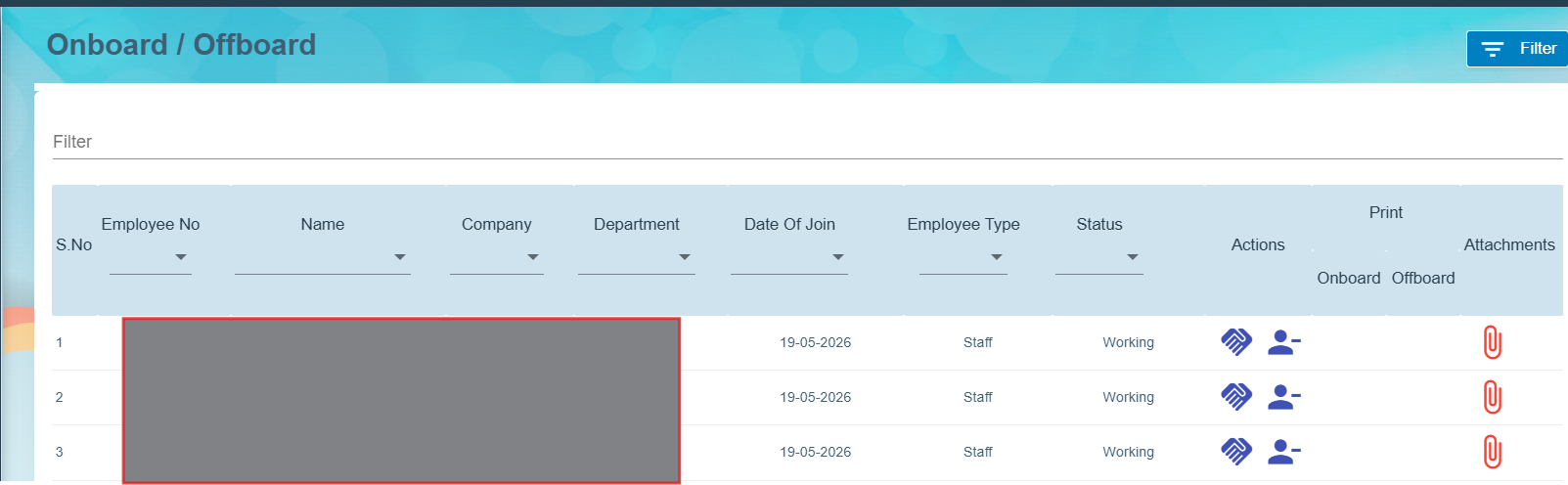
All the employees are listed to perform either onboarding or offboarding checklist process.
[](https://wiki.cuteinfocomm.com/uploads/images/gallery/2026-05/image-1778827926095.png)
1. Action column contains two icons to perform Onboard [](https://wiki.cuteinfocomm.com/uploads/images/gallery/2026-05/image-1778828135612.png)or Offboard [](https://wiki.cuteinfocomm.com/uploads/images/gallery/2026-05/image-1778828336198.png)
2. Click Onboard and perform the Pre-Onboarding checklist
3. Click Save to store checklist updates
4. Print Column contains Print icon [](https://wiki.cuteinfocomm.com/uploads/images/gallery/2026-05/image-1778829530156.png)to take print out
5. Click Offboard and perform offboard checklist.
6. Click Save to store checklist updates
7. Based on checklist completion, the color code of the Onboard/Offboard displayed. [](https://wiki.cuteinfocomm.com/uploads/images/gallery/2026-05/image-1778833690638.png)
#### Settings
##### HRM Alert mail - Disable menus settings
##### Revoke birthday menu
- Go to global settings and choose **disableBirthdayInHRMAlertEmail**
- Set the value to true to hide the birthday portion in **HRM\_Alert\_Mail**
##### Revoke course menu
- Go to global settings and choose **courseEmailAlertResponsibleBy**
- Set the value to true to hide the course portion in **HRM\_Alert\_Mail**
### **Project Incentive**
#### **Settings Key used**
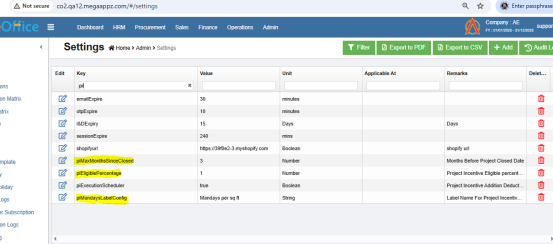
piMaxMonthsSinceClosed - Configuration to control how many months after closure a project should be displayed to add.
piEligiblePercentage - Configures the minimum participation percentage required for an employee to be displayed on the details screen.
piMandaysLabelConfig - Configures the label name displayed on the Add screen.
[](https://wiki.cuteinfocomm.com/uploads/images/gallery/2026-07/image-1783528495689.png)
#### **Add incentive**
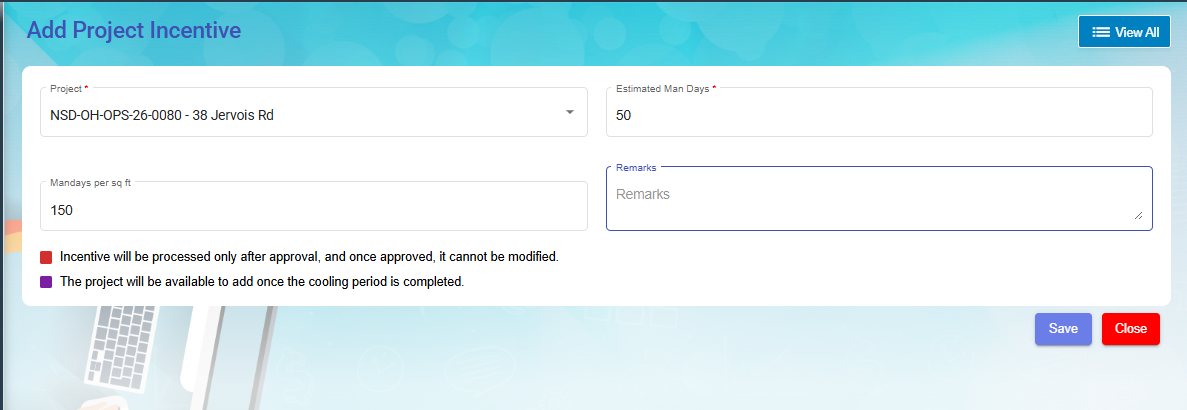
1. Select the project (Closed projects only displayed to add)
2. Enter estimated mandays to complete the project
3. Mandays per sq ft
4. Remarks
[](https://wiki.cuteinfocomm.com/uploads/images/gallery/2026-07/image-1783528779800.png)
#### **Details screen**
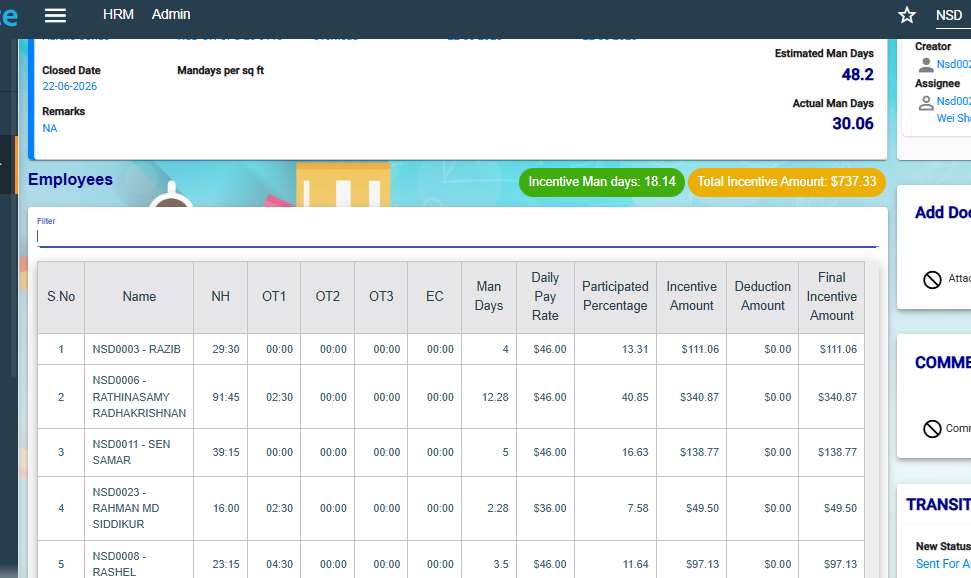
1. Actual mandays - Total worked days - Taken from the timelog entries of the selected project. Refresh button also provided to recalculate.
2. Total incentive amount to be calculated based on the estimated man days and Actual man days.Incentive man days = Estimated man days -Actual man days
[](https://wiki.cuteinfocomm.com/uploads/images/gallery/2026-07/image-1783570691286.png)
3. NH,OT1,OT1,EC,Man days -Showing from timelog entry
4. Daily Pay Rate- Showing from pay eligibility
5. Participated percentage- (Employee man days/Actual man days)\*100
6. Incentive amount -(Participated percentage\*Incentive man days\*Pay rate) /100
7. Deduction amount- Can enter deduction amount if required
8. Final incentive amount =Incentive amount - Deduction amount
9. Please note that incentive enable toggle for the trade should be ON to appear the data in details [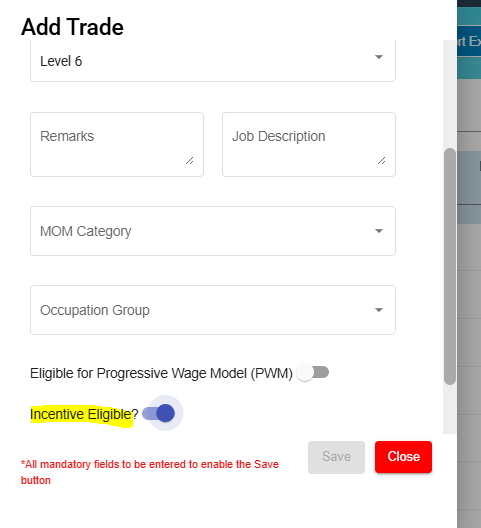](https://wiki.cuteinfocomm.com/uploads/images/gallery/2026-07/image-1783564751941.png)
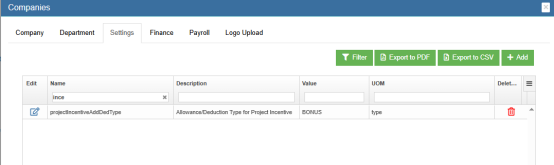
After the request is approved,based on the , scheduler will put one entry in addition/deduction screen.
This addition type can be configured in company settings key -projectIncentiveAddDedType.
[](https://wiki.cuteinfocomm.com/uploads/images/gallery/2026-07/image-1783528937376.png)
#### **Permissions**
1. piMenu -Menu permission
2. piCreator - Create request
3. piApprover - Approve request