# Customer Reports

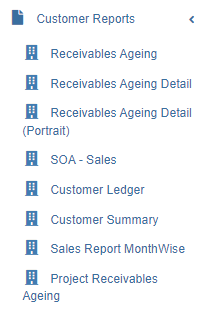
Customer reports include below reports: Receivables Ageing, Receivables Ageing Detail, Receivables Ageing Detail (Portrait), SOA-Sales, Customer Ledger, Customer Summary, Sales Report MonthWise, Project Receivables Ageing.

[![image-1681537866849.png](http://wiki.cuteinfocomm.com/uploads/images/gallery/2023-04/scaled-1680-/image-1681537866849.png)](http://wiki.cuteinfocomm.com/uploads/images/gallery/2023-04/image-1681537866849.png)
## Receivables Ageing Summary Report

To generate receivables ageing report,

<div class="pointer-container" id="bkmrk-%C2%A0"><div class="pointer anim is-page-editable"><svg class="svg-icon" data-icon="link" role="presentation" viewbox="0 0 24 24" xmlns="http://www.w3.org/2000/svg"></svg><div class="input-group inline block"><input id="bkmrk--1" placeholder="url" readonly="readonly" type="text"></input> <button class="button outline icon" data-clipboard-target="#pointer-url" title="Copy Link" type="button"><svg class="svg-icon" data-icon="copy" role="presentation" viewbox="0 0 24 24" xmlns="http://www.w3.org/2000/svg"></svg></button></div><svg class="svg-icon" data-icon="edit" role="presentation" viewbox="0 0 24 24" xmlns="http://www.w3.org/2000/svg"></svg></div></div>1. Navigate to Customer Reports menu in finance module, click **Receivables Ageing** to open report page.[![image-1681538264366.png](http://wiki.cuteinfocomm.com/uploads/images/gallery/2023-04/scaled-1680-/image-1681538264366.png)](http://wiki.cuteinfocomm.com/uploads/images/gallery/2023-04/image-1681538264366.png)
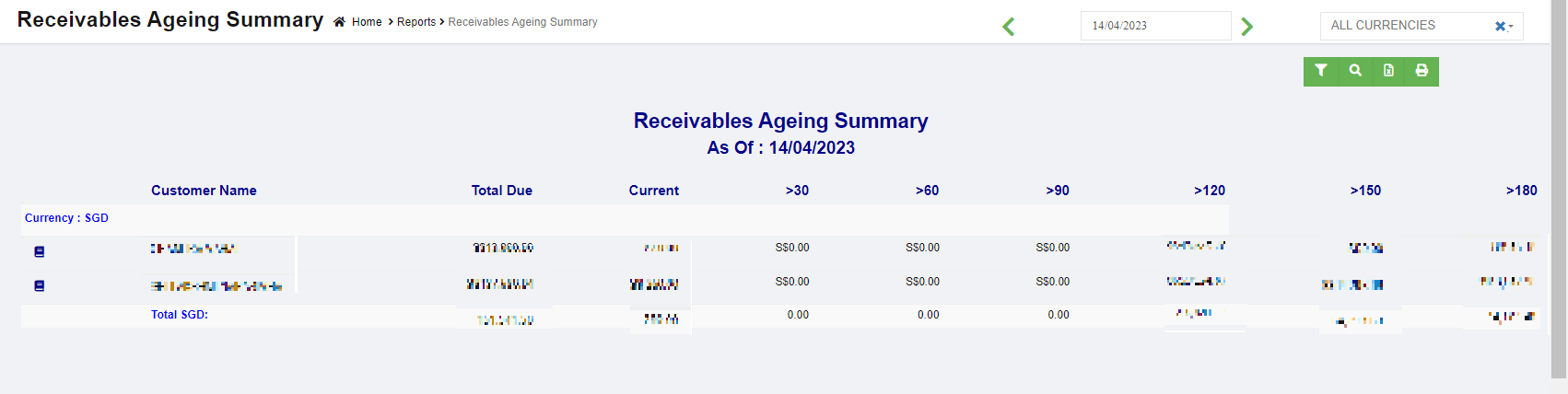
2. In calendar field, click to select a date as ageing report by date.
3. In Currency type field, select all currencies or a specific currency type.
4. Click [![image-1679955186159.png](http://wiki.cuteinfocomm.com/uploads/images/gallery/2023-03/scaled-1680-/image-1679955186159.png) ](http://wiki.cuteinfocomm.com/uploads/images/gallery/2023-03/image-1679955186159.png)search icon, the receivables ageing report for selected period will show in screen, click[![image-1679955198941.png](http://wiki.cuteinfocomm.com/uploads/images/gallery/2023-03/scaled-1680-/image-1679955198941.png)](http://wiki.cuteinfocomm.com/uploads/images/gallery/2023-03/image-1679955198941.png) to download report in xlsx format, click[![image-1679955209790.png](http://wiki.cuteinfocomm.com/uploads/images/gallery/2023-03/scaled-1680-/image-1679955209790.png)](http://wiki.cuteinfocomm.com/uploads/images/gallery/2023-03/image-1679955209790.png) to download report in PDF format.
5. Click[![image-1681538625102.png](http://wiki.cuteinfocomm.com/uploads/images/gallery/2023-04/scaled-1680-/image-1681538625102.png)](http://wiki.cuteinfocomm.com/uploads/images/gallery/2023-04/image-1681538625102.png) filter icon to open customer filter, and select customer name, then click show, the selected customer(s)' receivables ageing report will show.

## Receivables Ageing Detail Report

To generate receivables ageing detail report,

<div class="pointer-container" id="bkmrk-%C2%A0-0"><div class="pointer anim is-page-editable"><svg class="svg-icon" data-icon="link" role="presentation" viewbox="0 0 24 24" xmlns="http://www.w3.org/2000/svg"></svg><div class="input-group inline block"><input id="bkmrk--2" placeholder="url" readonly="readonly" type="text"></input> <button class="button outline icon" data-clipboard-target="#pointer-url" title="Copy Link" type="button"><svg class="svg-icon" data-icon="copy" role="presentation" viewbox="0 0 24 24" xmlns="http://www.w3.org/2000/svg"></svg></button></div><svg class="svg-icon" data-icon="edit" role="presentation" viewbox="0 0 24 24" xmlns="http://www.w3.org/2000/svg"></svg></div></div>1. Navigate to Customer Reports menu in finance module, click **Receivables Ageing Detail** to open report page.
2. In calendar field, click to select a date as ageing report by date.
3. In Currency type field, select all currencies or a specific currency type.
4. Click [![image-1679955186159.png](http://wiki.cuteinfocomm.com/uploads/images/gallery/2023-03/scaled-1680-/image-1679955186159.png) ](http://wiki.cuteinfocomm.com/uploads/images/gallery/2023-03/image-1679955186159.png)search icon, the receivables ageing report for selected period will show in screen, click[![image-1679955198941.png](http://wiki.cuteinfocomm.com/uploads/images/gallery/2023-03/scaled-1680-/image-1679955198941.png)](http://wiki.cuteinfocomm.com/uploads/images/gallery/2023-03/image-1679955198941.png) to download report in xlsx format, click[![image-1679955209790.png](http://wiki.cuteinfocomm.com/uploads/images/gallery/2023-03/scaled-1680-/image-1679955209790.png)](http://wiki.cuteinfocomm.com/uploads/images/gallery/2023-03/image-1679955209790.png) to download report in PDF format. [![image-1681943121177.png](http://wiki.cuteinfocomm.com/uploads/images/gallery/2023-04/scaled-1680-/image-1681943121177.png)](http://wiki.cuteinfocomm.com/uploads/images/gallery/2023-04/image-1681943121177.png)
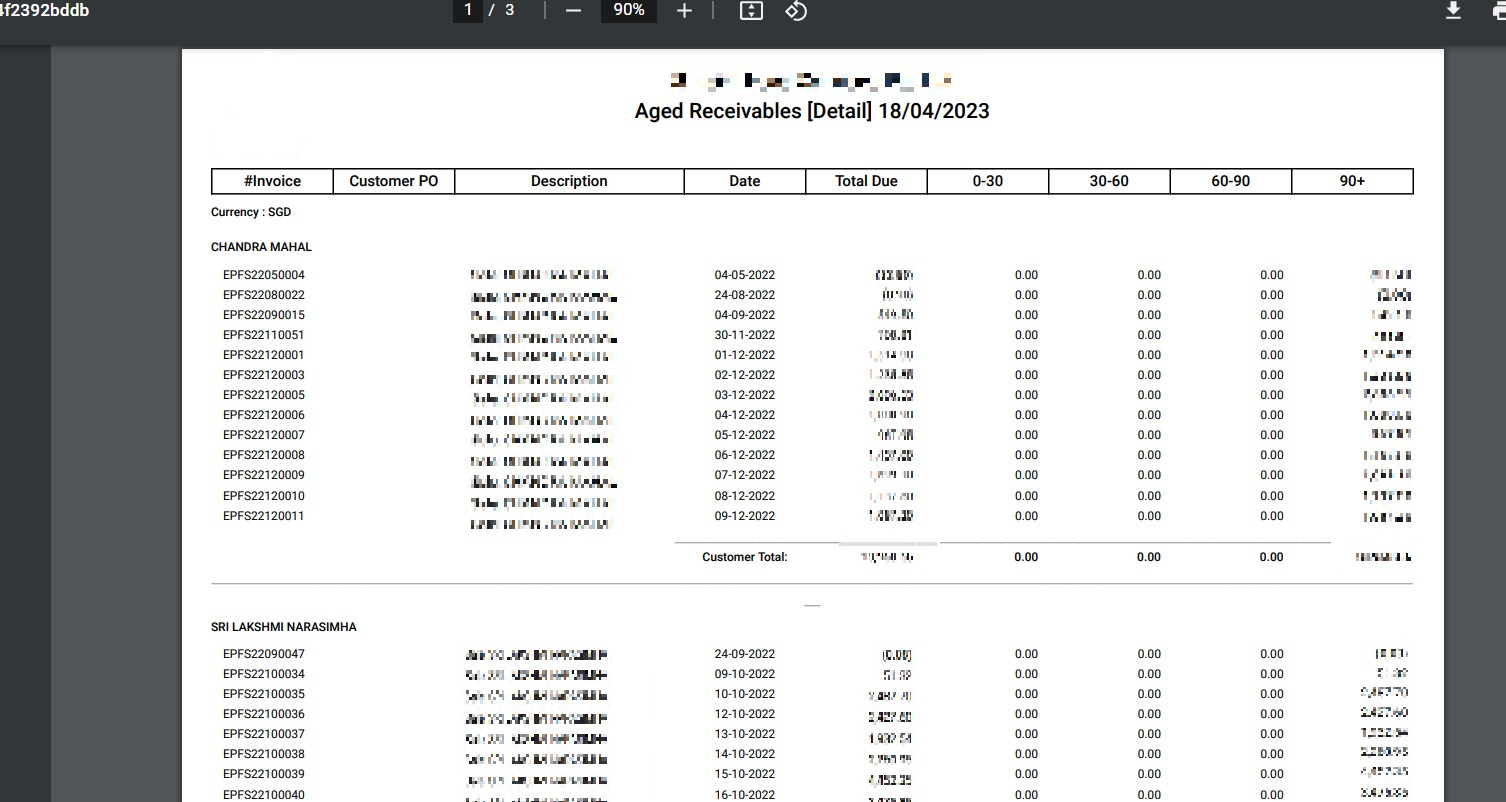
5. Click[![image-1681538625102.png](http://wiki.cuteinfocomm.com/uploads/images/gallery/2023-04/scaled-1680-/image-1681538625102.png)](http://wiki.cuteinfocomm.com/uploads/images/gallery/2023-04/image-1681538625102.png) filter icon to open customer filter, and select customer name, then click show, the selected customer(s)' receivables ageing detail report will show.

## Receivables Ageing Detail Portrait Report

To generate receivables ageing detail report in portrait format,

<div class="pointer-container" id="bkmrk-%C2%A0-1"><div class="pointer anim is-page-editable"><svg class="svg-icon" data-icon="link" role="presentation" viewbox="0 0 24 24" xmlns="http://www.w3.org/2000/svg"></svg><div class="input-group inline block"><input id="bkmrk--3" placeholder="url" readonly="readonly" type="text"></input> <button class="button outline icon" data-clipboard-target="#pointer-url" title="Copy Link" type="button"><svg class="svg-icon" data-icon="copy" role="presentation" viewbox="0 0 24 24" xmlns="http://www.w3.org/2000/svg"></svg></button></div><svg class="svg-icon" data-icon="edit" role="presentation" viewbox="0 0 24 24" xmlns="http://www.w3.org/2000/svg"></svg></div></div>1. Navigate to Customer Reports menu in finance module, click **Receivables Ageing Detail (Portrait)** to open report page.
2. In calendar field, click to select a date as ageing report by date.
3. In Currency type field, select all currencies or a specific currency type.
4. Click [![image-1679955186159.png](http://wiki.cuteinfocomm.com/uploads/images/gallery/2023-03/scaled-1680-/image-1679955186159.png) ](http://wiki.cuteinfocomm.com/uploads/images/gallery/2023-03/image-1679955186159.png)search icon, the receivables ageing report for selected period will show in screen, click[![image-1679955198941.png](http://wiki.cuteinfocomm.com/uploads/images/gallery/2023-03/scaled-1680-/image-1679955198941.png)](http://wiki.cuteinfocomm.com/uploads/images/gallery/2023-03/image-1679955198941.png) to download report in xlsx format, click[![image-1679955209790.png](http://wiki.cuteinfocomm.com/uploads/images/gallery/2023-03/scaled-1680-/image-1679955209790.png)](http://wiki.cuteinfocomm.com/uploads/images/gallery/2023-03/image-1679955209790.png) to download report in PDF format. [![image-1681943236069.jpg](http://wiki.cuteinfocomm.com/uploads/images/gallery/2023-04/scaled-1680-/image-1681943236069.jpg)](http://wiki.cuteinfocomm.com/uploads/images/gallery/2023-04/image-1681943236069.jpg)
5. Click[![image-1681538625102.png](http://wiki.cuteinfocomm.com/uploads/images/gallery/2023-04/scaled-1680-/image-1681538625102.png)](http://wiki.cuteinfocomm.com/uploads/images/gallery/2023-04/image-1681538625102.png) filter icon to open customer filter, and select customer name, then click show, the selected customer(s)' receivables ageing detail portrait report will show.

## Statement of Account (SOA)-Sales Report

To generate SOA-Sales report,

<div class="pointer-container" id="bkmrk-%C2%A0-2"><div class="pointer anim is-page-editable"><svg class="svg-icon" data-icon="link" role="presentation" viewbox="0 0 24 24" xmlns="http://www.w3.org/2000/svg"></svg><div class="input-group inline block"><input id="bkmrk--4" placeholder="url" readonly="readonly" type="text"></input> <button class="button outline icon" data-clipboard-target="#pointer-url" title="Copy Link" type="button"><svg class="svg-icon" data-icon="copy" role="presentation" viewbox="0 0 24 24" xmlns="http://www.w3.org/2000/svg"></svg></button></div><svg class="svg-icon" data-icon="edit" role="presentation" viewbox="0 0 24 24" xmlns="http://www.w3.org/2000/svg"></svg></div></div>1. Navigate to Customer Reports menu in finance module, click **SOA-Sales** to open report page.[![image-1681759687232.png](http://wiki.cuteinfocomm.com/uploads/images/gallery/2023-04/scaled-1680-/image-1681759687232.png)](http://wiki.cuteinfocomm.com/uploads/images/gallery/2023-04/image-1681759687232.png)

2. In calendar field, click to select a date as report by date.
3. Click [![image-1679955186159.png](http://wiki.cuteinfocomm.com/uploads/images/gallery/2023-03/scaled-1680-/image-1679955186159.png) ](http://wiki.cuteinfocomm.com/uploads/images/gallery/2023-03/image-1679955186159.png)search icon, the sales report for selected period will show in screen, click[![image-1679955198941.png](http://wiki.cuteinfocomm.com/uploads/images/gallery/2023-03/scaled-1680-/image-1679955198941.png)](http://wiki.cuteinfocomm.com/uploads/images/gallery/2023-03/image-1679955198941.png) to download report in xlsx format, click[![image-1679955209790.png](http://wiki.cuteinfocomm.com/uploads/images/gallery/2023-03/scaled-1680-/image-1679955209790.png)](http://wiki.cuteinfocomm.com/uploads/images/gallery/2023-03/image-1679955209790.png) to download report in PDF format.
4. Click[![image-1681538625102.png](http://wiki.cuteinfocomm.com/uploads/images/gallery/2023-04/scaled-1680-/image-1681538625102.png)](http://wiki.cuteinfocomm.com/uploads/images/gallery/2023-04/image-1681538625102.png) filter icon to open customer filter, and select customer name, then click show, the selected customer(s)' SOA-sales report will show.

## Customer Ledger

To generate customer ledger report,

<div class="pointer-container" id="bkmrk-%C2%A0-3"><div class="pointer anim is-page-editable"><svg class="svg-icon" data-icon="link" role="presentation" viewbox="0 0 24 24" xmlns="http://www.w3.org/2000/svg"></svg><div class="input-group inline block"><input id="bkmrk--5" placeholder="url" readonly="readonly" type="text"></input> <button class="button outline icon" data-clipboard-target="#pointer-url" title="Copy Link" type="button"><svg class="svg-icon" data-icon="copy" role="presentation" viewbox="0 0 24 24" xmlns="http://www.w3.org/2000/svg"></svg></button></div><svg class="svg-icon" data-icon="edit" role="presentation" viewbox="0 0 24 24" xmlns="http://www.w3.org/2000/svg"></svg></div></div>1. Navigate to Customer Reports menu in finance module, click **Customer Ledger** to open report page. [![image-1681759933771.png](http://wiki.cuteinfocomm.com/uploads/images/gallery/2023-04/scaled-1680-/image-1681759933771.png)](http://wiki.cuteinfocomm.com/uploads/images/gallery/2023-04/image-1681759933771.png)
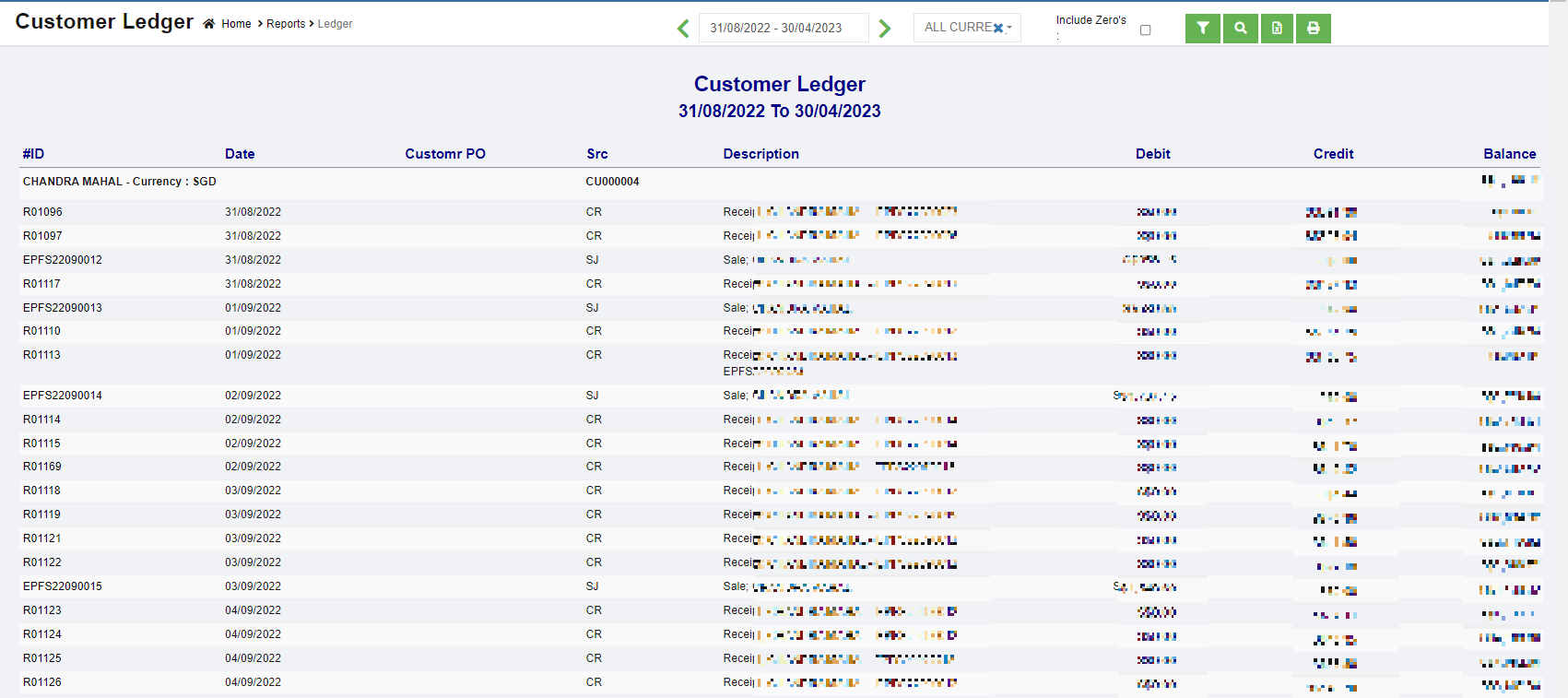
2. In calendar field, click to select date range to view customer ledger.
3. In Currency type field, select all currencies or a specific currency type.
4. If user wants to view customer ledger that includes zero value accounts, tick the Include Zero's box.
5. Click [![image-1679955186159.png](http://wiki.cuteinfocomm.com/uploads/images/gallery/2023-03/scaled-1680-/image-1679955186159.png) ](http://wiki.cuteinfocomm.com/uploads/images/gallery/2023-03/image-1679955186159.png)search icon, the customer ledger report for selected period will show in screen, click[![image-1679955198941.png](http://wiki.cuteinfocomm.com/uploads/images/gallery/2023-03/scaled-1680-/image-1679955198941.png)](http://wiki.cuteinfocomm.com/uploads/images/gallery/2023-03/image-1679955198941.png) to download report in xlsx format, click[![image-1679955209790.png](http://wiki.cuteinfocomm.com/uploads/images/gallery/2023-03/scaled-1680-/image-1679955209790.png)](http://wiki.cuteinfocomm.com/uploads/images/gallery/2023-03/image-1679955209790.png) to download report in PDF format.
6. Click[![image-1681538625102.png](http://wiki.cuteinfocomm.com/uploads/images/gallery/2023-04/scaled-1680-/image-1681538625102.png)](http://wiki.cuteinfocomm.com/uploads/images/gallery/2023-04/image-1681538625102.png) filter icon to open customer filter, and select customer name, then click show, the selected customer(s)' ledger report will show.

## Customer Summary Report

To generate customer summary report,

<div class="pointer-container" id="bkmrk-%C2%A0-4"><div class="pointer anim is-page-editable"><svg class="svg-icon" data-icon="link" role="presentation" viewbox="0 0 24 24" xmlns="http://www.w3.org/2000/svg"></svg><div class="input-group inline block"><input id="bkmrk--6" placeholder="url" readonly="readonly" type="text"></input> <button class="button outline icon" data-clipboard-target="#pointer-url" title="Copy Link" type="button"><svg class="svg-icon" data-icon="copy" role="presentation" viewbox="0 0 24 24" xmlns="http://www.w3.org/2000/svg"></svg></button></div><svg class="svg-icon" data-icon="edit" role="presentation" viewbox="0 0 24 24" xmlns="http://www.w3.org/2000/svg"></svg></div></div>1. Navigate to Customer Reports menu in finance module, click **Customer Summary** to open report page. [![image-1681760208136.png](http://wiki.cuteinfocomm.com/uploads/images/gallery/2023-04/scaled-1680-/image-1681760208136.png)](http://wiki.cuteinfocomm.com/uploads/images/gallery/2023-04/image-1681760208136.png)

2. In calendar field, click to select date range to view customer ledger.
3. In report type field, select summary or detail report type.
4. Click [![image-1679955186159.png](http://wiki.cuteinfocomm.com/uploads/images/gallery/2023-03/scaled-1680-/image-1679955186159.png) ](http://wiki.cuteinfocomm.com/uploads/images/gallery/2023-03/image-1679955186159.png)search icon, the customer summary report for selected period will show in screen, click[![image-1679955198941.png](http://wiki.cuteinfocomm.com/uploads/images/gallery/2023-03/scaled-1680-/image-1679955198941.png)](http://wiki.cuteinfocomm.com/uploads/images/gallery/2023-03/image-1679955198941.png) to download report in xlsx format, click[![image-1679955209790.png](http://wiki.cuteinfocomm.com/uploads/images/gallery/2023-03/scaled-1680-/image-1679955209790.png)](http://wiki.cuteinfocomm.com/uploads/images/gallery/2023-03/image-1679955209790.png) to download report in PDF format.

## Sales Report MonthWise Report

To sales month wise report,

<div class="pointer-container" id="bkmrk-%C2%A0-5"><div class="pointer anim is-page-editable"><svg class="svg-icon" data-icon="link" role="presentation" viewbox="0 0 24 24" xmlns="http://www.w3.org/2000/svg"></svg><div class="input-group inline block"><input id="bkmrk--7" placeholder="url" readonly="readonly" type="text"></input> <button class="button outline icon" data-clipboard-target="#pointer-url" title="Copy Link" type="button"><svg class="svg-icon" data-icon="copy" role="presentation" viewbox="0 0 24 24" xmlns="http://www.w3.org/2000/svg"></svg></button></div><svg class="svg-icon" data-icon="edit" role="presentation" viewbox="0 0 24 24" xmlns="http://www.w3.org/2000/svg"></svg></div></div>1. Navigate to Customer Reports menu in finance module, click **Sales Report MonthWise** to open report page. [![image-1681853419125.png](http://wiki.cuteinfocomm.com/uploads/images/gallery/2023-04/scaled-1680-/image-1681853419125.png)](http://wiki.cuteinfocomm.com/uploads/images/gallery/2023-04/image-1681853419125.png)

2. In Multi Period box, tick if user wants to view sales report for selected period; untick if user wants to view by month.
3. In With Ex-Rate box, tick if want to include exchange rate.
4. In calendar field, if multi period is ticked, user will be able to select a date range; if multi period is not ticked, user will be able to select month and year to generate report.
5. In Currency type field, select all currencies or a specific currency type.
6. Click [![image-1679955186159.png](http://wiki.cuteinfocomm.com/uploads/images/gallery/2023-03/scaled-1680-/image-1679955186159.png) ](http://wiki.cuteinfocomm.com/uploads/images/gallery/2023-03/image-1679955186159.png)search icon, the sales report for selected period will show in screen, click[![image-1679955198941.png](http://wiki.cuteinfocomm.com/uploads/images/gallery/2023-03/scaled-1680-/image-1679955198941.png)](http://wiki.cuteinfocomm.com/uploads/images/gallery/2023-03/image-1679955198941.png) to download report in xlsx format, click[![image-1679955209790.png](http://wiki.cuteinfocomm.com/uploads/images/gallery/2023-03/scaled-1680-/image-1679955209790.png)](http://wiki.cuteinfocomm.com/uploads/images/gallery/2023-03/image-1679955209790.png) to download report in PDF format.
7. Click[![image-1681538625102.png](http://wiki.cuteinfocomm.com/uploads/images/gallery/2023-04/scaled-1680-/image-1681538625102.png)](http://wiki.cuteinfocomm.com/uploads/images/gallery/2023-04/image-1681538625102.png) filter icon to open customer filter, and select customer name, then click show, the selected customer(s)' sales month wise report will show.

## Project Receivables Ageing Report

To generate Project Receivables Ageing report,

<div class="pointer-container" id="bkmrk-%C2%A0-6"><div class="pointer anim is-page-editable"><svg class="svg-icon" data-icon="link" role="presentation" viewbox="0 0 24 24" xmlns="http://www.w3.org/2000/svg"></svg><div class="input-group inline block"><input id="bkmrk--8" placeholder="url" readonly="readonly" type="text"></input> <button class="button outline icon" data-clipboard-target="#pointer-url" title="Copy Link" type="button"><svg class="svg-icon" data-icon="copy" role="presentation" viewbox="0 0 24 24" xmlns="http://www.w3.org/2000/svg"></svg></button></div><svg class="svg-icon" data-icon="edit" role="presentation" viewbox="0 0 24 24" xmlns="http://www.w3.org/2000/svg"></svg></div></div>1. Navigate to Customer Reports menu in finance module, click **Project Receivables Ageing** to open report page. [![image-1681853982648.png](http://wiki.cuteinfocomm.com/uploads/images/gallery/2023-04/scaled-1680-/image-1681853982648.png)](http://wiki.cuteinfocomm.com/uploads/images/gallery/2023-04/image-1681853982648.png)

2. In Project field, click to select all project or a specific project.
3. In calendar field, click to select a date as ageing report by date.
4. In Currency type field, select all currencies or a specific currency type.
5. Click [![image-1679955186159.png](http://wiki.cuteinfocomm.com/uploads/images/gallery/2023-03/scaled-1680-/image-1679955186159.png) ](http://wiki.cuteinfocomm.com/uploads/images/gallery/2023-03/image-1679955186159.png)search icon, the receivables ageing report for selected period will show in screen, click[![image-1679955198941.png](http://wiki.cuteinfocomm.com/uploads/images/gallery/2023-03/scaled-1680-/image-1679955198941.png)](http://wiki.cuteinfocomm.com/uploads/images/gallery/2023-03/image-1679955198941.png) to download report in xlsx format.
6. Click[![image-1681538625102.png](http://wiki.cuteinfocomm.com/uploads/images/gallery/2023-04/scaled-1680-/image-1681538625102.png)](http://wiki.cuteinfocomm.com/uploads/images/gallery/2023-04/image-1681538625102.png) filter icon to open customer filter, and select customer name, then click show, the selected customer(s)' receivables ageing detail portrait report will show.