# Human Resource

Human Resource (HRM) management. Employee data, leave details, attendance, planning, performance appraisal, expense claim are all part of HR module.

# Employee Data

The HRM module in the ***cuteOffice*** application helps HR admins in streamlining the entire functions within an organization like managing the employee related information and company related information. Functionality present in the HRM module helps you to add employee’s basic data, employee’s and company’s master data, and company’s property details.

If you want to navigate to the **HRM** module, do the following,

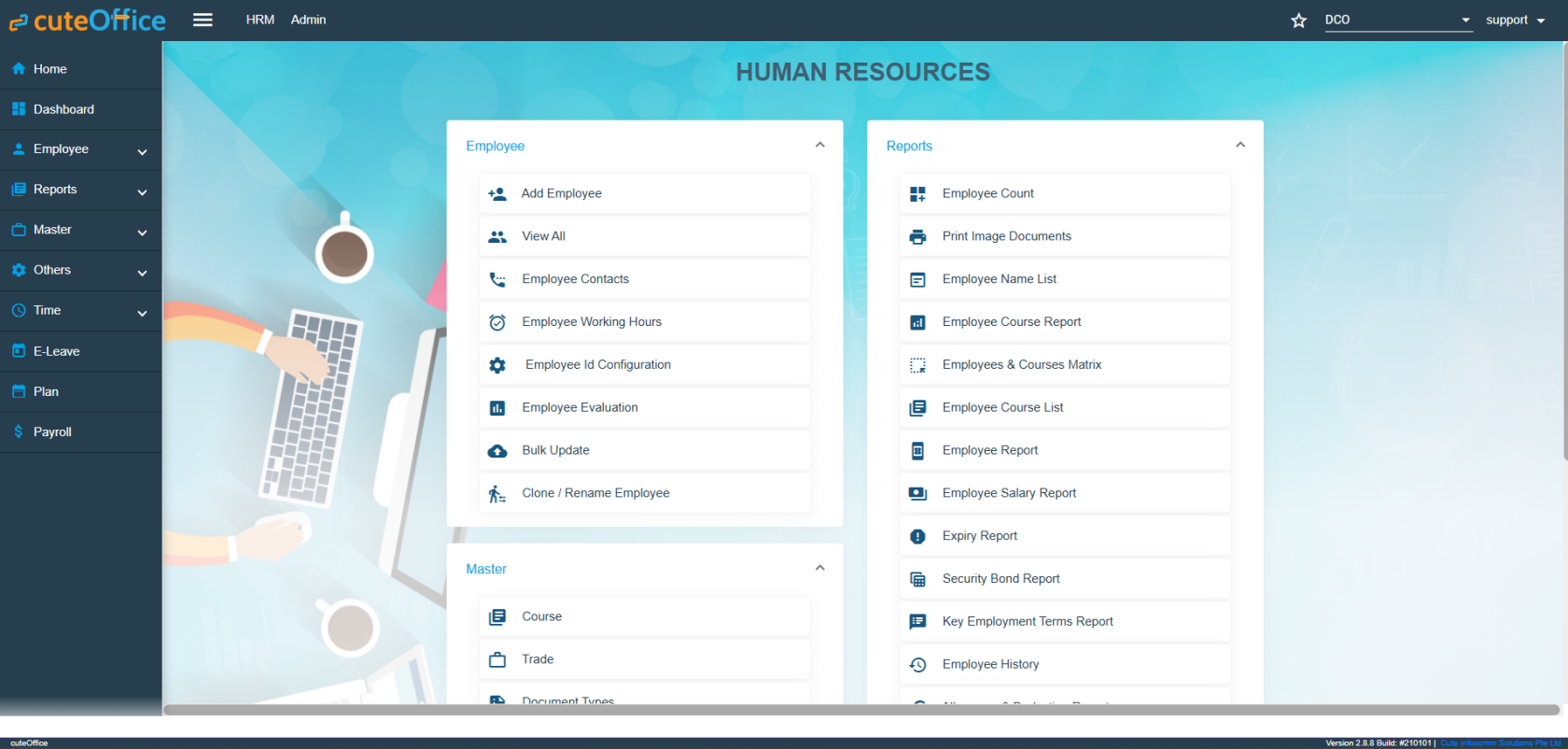
Click the **HRM** menu in the menu bar. The **HUMAN RESOURCES** page opens.

![](http://wiki.cuteinfocomm.com/uploads/images/gallery/2022-05/embedded-image-obqwlkpz.png)Humane Resource Menu Page

The **HUMAN RESOURCES** page consists the following sub menus:

- **Employee -** Allows HR admin to add employee’s basic details such as Name, DOB, Employee Type, Nationality and so on.
- **Reports –** Helps HR admin to view the various reports corresponding to the employee’s data.
- **Master** - Allows HR admin to add master data details of employee and company.
- **Others** - Allows HR admin to add the details of vehicles belongs to company, insurance details of employees, and salary addition and deduction details.

## Employee

The **Employee** submenu in the **HRM** menu helps you to add the employee details that is both personal and professional details. The **Employee** submenu contains the following tabs,

- Employee ID config
- Add Employee
- View All
- View Employee Contacts
- Employee Working Hours

### Employee ID Configuration

When creating the new employees in the system, the employee ID is automatically generated. How the employee number to be generated is configurable by the administrator.

- Click and select the company in the **Employee ID Configuration** page, it shows the current settings for the ID generator. [![image-1662065090441.png](http://wiki.cuteinfocomm.com/uploads/images/gallery/2022-09/scaled-1680-/image-1662065090441.png)](http://wiki.cuteinfocomm.com/uploads/images/gallery/2022-09/image-1662065090441.png)
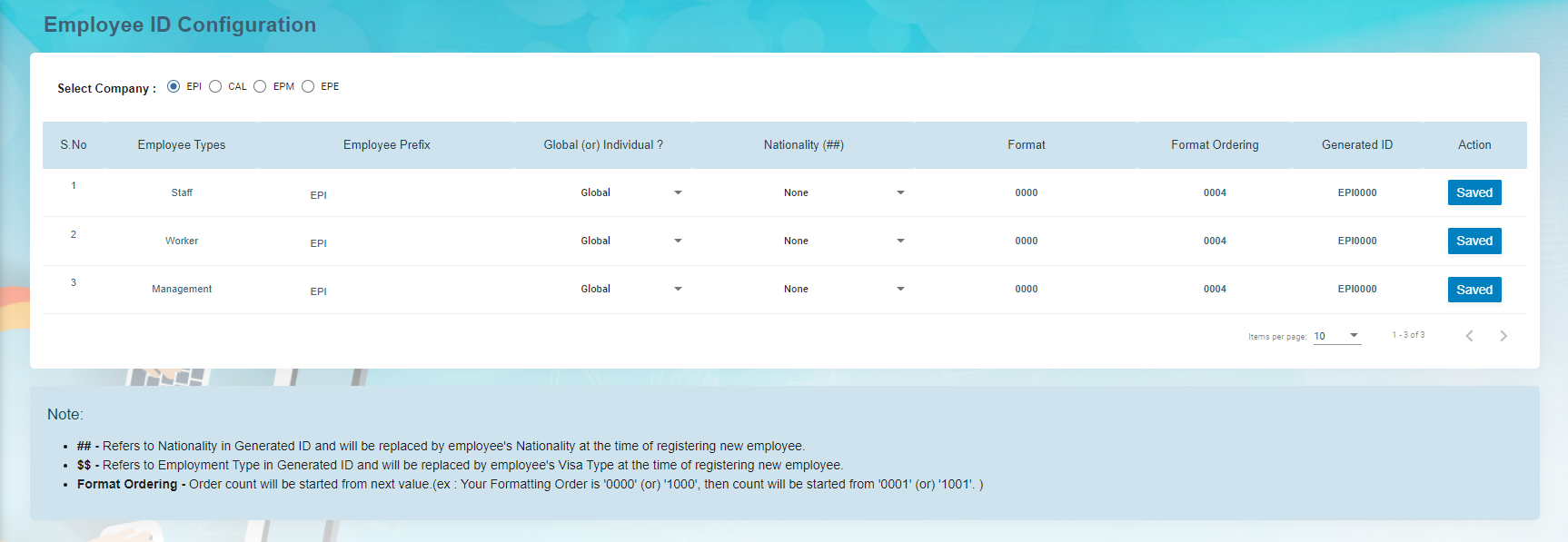
- The following are the currently supported variables that can be used for the ID generator.

1. 1. Employee Type – Based on the Over-all Type configured for the company
    2. Employee Prefix – Defaulted to company abbreviation and can be changed.
    3. Global/Individual – Employee Number is globally increased by Employee Type or Individually managed by employee type 
        - - Global means the number will be global for the company irrespective of the employee type.
            - Individual means, the employee ID running number will be maintained individually for each employee type.
    4. Nationality None / Before Employee ID / After Employee ID – If the nationality to be as part of the employee number where it should be appearing. Choose None if the employee ID does not have the country code.
    5. Set the number with which the employee ID should be incremented next when a new employee is created. The current number shown is already used for the previous employee created in the system.

**Note:**  For new company, complete the initial employee id configuration before importing or adding the employees records.

### <span style="color: #000000;">Add Employee Data</span>

The **View All** tab in the **Employee** submenu helps you to add the details of a new employee and view the added employee details including their profile percentage. The profile percentage of the employee lets you easily identify the incomplete details of employee.

To add a new employee, do the following steps,

1. Click the **View All** tab in the **Employee** . The **View All Employee page** opens. [![image-1662065050636.png](http://wiki.cuteinfocomm.com/uploads/images/gallery/2022-09/scaled-1680-/image-1662065050636.png)](http://wiki.cuteinfocomm.com/uploads/images/gallery/2022-09/image-1662065050636.png)
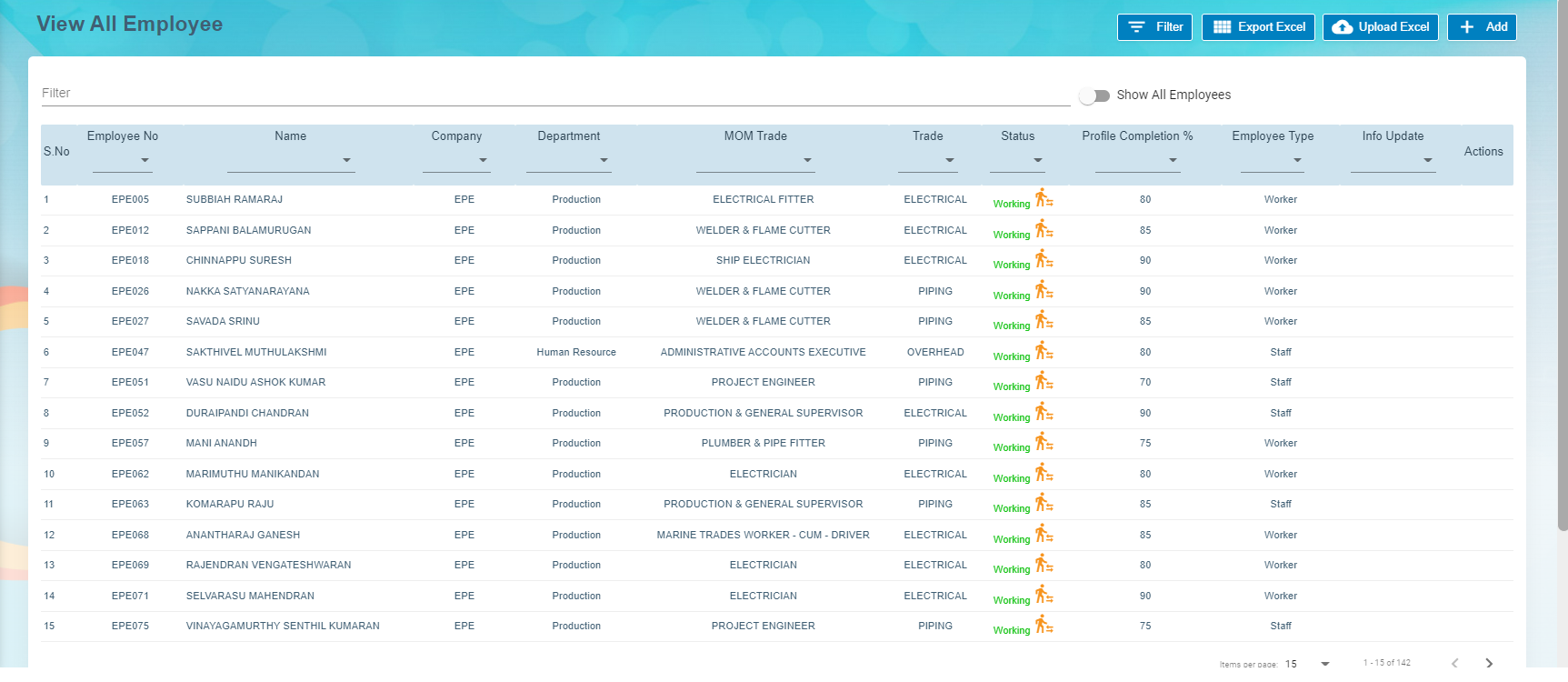
2. Click (**Add** button) in the **View All Employee**. The **Add Employee** window opens. [![image-1662065171103.png](http://wiki.cuteinfocomm.com/uploads/images/gallery/2022-09/scaled-1680-/image-1662065171103.png)](http://wiki.cuteinfocomm.com/uploads/images/gallery/2022-09/image-1662065171103.png)
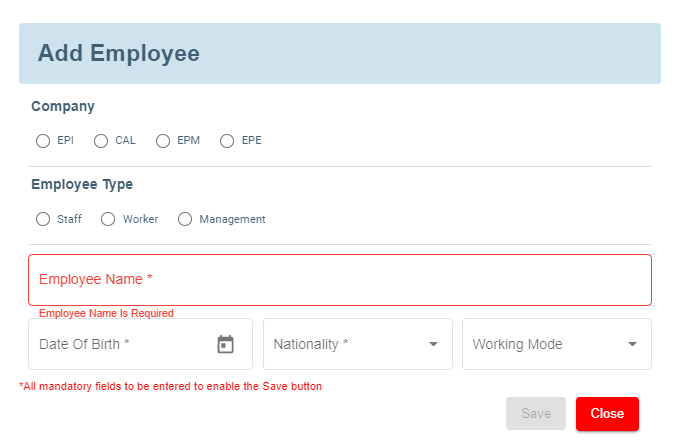
    
      
     **Note**: The fields notified with a symbol (\*) are mandatory. You must enter the relevant details in that fields before saving.
3. In the **Company** field, select a company from the given list of companies.
4. In the **Employee Type** field, select the employee type.
5. In the **Employee Name** box, enter the employee name.
6. In the **Date of Birth** box, enter the birth date of the employee.
7. In the **Nationality** box, select the nationality of the employee.
8. Click **Save**. The employee is created and a new employee ID is assigned to the employee. The **Photo ID Document Management** page opens.


#### <span style="color: #000000;">Add Photo ID Information of Employee</span>

In the **Photo ID Document Management** page, you can enter the employee’s information according to the photo ID given by the employee.

 **Note**: Before adding the employee’s photo ID information, make sure that the company you have selected using the [**Company**](#company) field is in Singapore or other country.

<span style="text-decoration: underline;">If the selected company is in Singapore, the **Photo ID Document Management** page contains the **Singapore Photo ID Management** field. See below figure.</span>

[![image-1662071606998.png](http://wiki.cuteinfocomm.com/uploads/images/gallery/2022-09/scaled-1680-/image-1662071606998.png)](http://wiki.cuteinfocomm.com/uploads/images/gallery/2022-09/image-1662071606998.png)

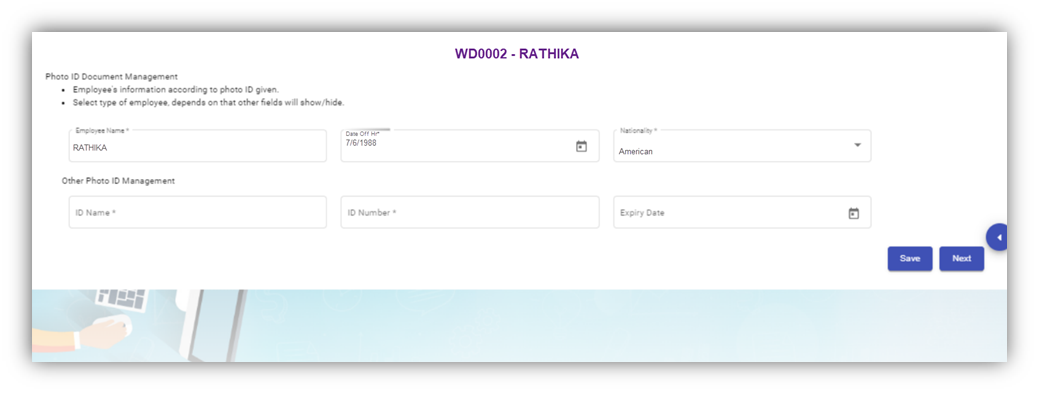
<span style="text-decoration: underline;">If the selected company is in other country, the **Photo ID Document Management** page contains the **Other Photo ID Management** field. See below figure.</span>

<span style="text-decoration: underline;"><span style="text-decoration: underline;">![](http://wiki.cuteinfocomm.com/uploads/images/gallery/2022-05/embedded-image-dsdtzxtc.png)</span></span>

Photo ID Management (Non-Singapore)

##### <span style="color: #3598db;">**Singapore Photo ID Management**</span>

Do one of the following steps to enter the relevant details in the **Singapore Photo ID Management** field based on the selection of type of employee in the **Employee Type** box.

- If the employee is citizen of Singapore, select the **Citizen** option in the **Employee Type.** The **Singapore Photo ID Management** field shows the following boxes based on the selected **Citizen** option. Fill the relevant information in the following boxes,[![image-1662071606998.png](http://wiki.cuteinfocomm.com/uploads/images/gallery/2022-09/scaled-1680-/image-1662071606998.png)](http://wiki.cuteinfocomm.com/uploads/images/gallery/2022-09/image-1662071606998.png)

- 1. In the **NRIC/FIN Number** box, enter the NRIC/FIN number.
    2. In the **Photo Id Barcode**, enter the barcode scanned result.
    3. In the **Issued Date** box, select the issued date of citizenship.
    4. In the **Sector** box, select the sector from a drop-down list.
    5. Click **Save**. The employee’s photo ID information will be added successfully in the system.
- If the employee is permanent resident of Singapore, select the **Permanent Resident** option in the **Employee Type.** The **Singapore Photo ID Management** field shows the following boxes based on the selected **Permanent Resident** option. Fill the relevant information in the following boxes, 
    1. In the **NRIC/FIN Number** box, enter the NRIC/FIN number.
    2. In the **Photo Id Barcode**, enter the barcode scanned result.
    3. In the **Issued Date** box, select the issued date of permanent resident.
    4. In the **Sector** box, select the sector from a drop-down list.
    5. Click **Save**. The employee’s photo ID information will be added successfully in the system.
- If the employee is an employment pass holder, select the **Employment Pass** option in the **Employee Type.** The **Singapore Photo ID Management** field shows the following boxes based on the selected **Employment Pass** option. Fill the relevant information in the following boxes, 
    1. In the **NRIC/FIN Number** box, enter the NRIC/FIN number.
    2. In the **Photo Id Barcode**, enter the barcode scanned result.
    3. In the **Issued Date** box, select the issued date of employment pass.
    4. In the **Sector** box, select the sector from a drop-down list.
    5. In the **Date of Application** box, select the applied date of employment pass.
    6. In the **ID Expiry Date** box, select the expiry date of the employment pass ID.
    7. Click **Save**. The employee’s photo ID information will be added successfully in the system.
- If the employee is a S pass holder, select the **S Pass** option in the **Employee Type.** The **Singapore Photo ID Management** field shows the following boxes based on the selected **S Pass** option. Fill the relevant information in the following boxes, 
    1. In the **NRIC/FIN Number** box, enter the NRIC/FIN number.
    2. In the **Photo Id Barcode**, enter the barcode scanned result.
    3. In the **Issued Date** box, select the issued date of S pass.
    4. In the **Sector** box, select the sector from a drop-down list.
    5. In the **Date of Application** box, select the applied date of S pass.
    6. In the **ID Expiry Date** box, select the expiry date of the S pass ID.
    7. In the **Levy Type** box, select the levy type from a drop-down list.
    8. In the **Levy Amount Type** box, select the levy amount type from a drop-down list.
    9. In the **Levy Amount** box, enter the levy amount.
    10. Click **Save**. The employee’s photo ID information will be added successfully in the system.

- If the employee is a student pass holder, select the **Student Pass** option in the **Employee Type.** The **Singapore Photo ID Management** field shows the following boxes based on the selected **Student Pass** option. Fill the relevant information in the following boxes,![](http://wiki.cuteinfocomm.com/uploads/images/gallery/2022-05/embedded-image-vyhhsswq.png)
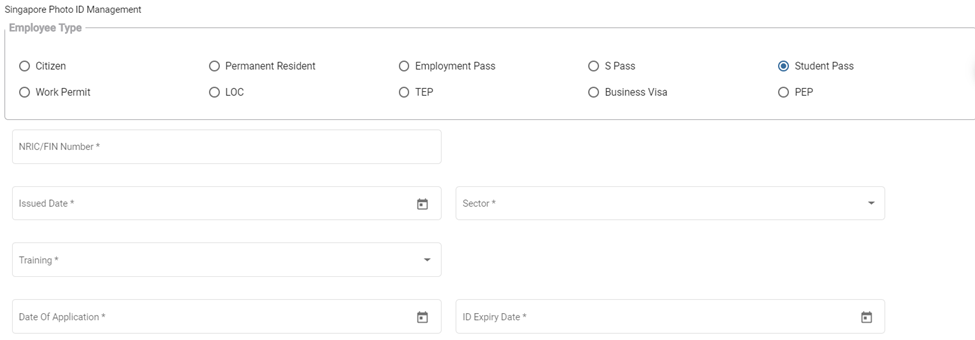
    1. In the **NRIC/FIN Number** box, enter the NRIC/FIN number.
    2. In the **Photo Id Barcode**, enter the barcode scanned result.
    3. In the **Issued Date** box, select the issued date of student pass.
    4. In the **Sector** box, select the sector from a drop-down list.
    5. In the **Training** box, select the training type from a drop-down list.
    6. In the **Date of Application** box, select the applied date of student pass.
    7. In the **ID Expiry Date** box, select the expiry date of the student pass ID.
    8. Click **Save**. The employee’s photo ID information will be added successfully in the system.

- If the employee is a work permit holder, select the **Work Permit** option in the **Employee Type.** The **Singapore Photo ID Management** field shows the following boxes based on the selected **Work Permit** option. Fill the relevant information in the following boxes, 
    1. In the **NRIC/FIN Number** box, enter the NRIC/FIN number.
    2. In the **Photo Id Barcode**, enter the barcode scanned result.
    3. In the **Issued Date** box, select the issued date of work permit.
    4. In the **Sector** box, select the sector from a drop-down list.
    5. In the **Date of Application** box, select the applied date of work permit.
    6. In the **ID Expiry Date** box, select the expiry date of the work permit ID.
    7. In the **Levy Type** box, select the levy type from a drop-down list.
    8. In the **Levy Amount Type** box, select the levy amount type from a drop-down list.
    9. In the **Levy Amount** box, enter the levy amount.
    10. In the **Security Bond Expiry** box, select the expiry date of security bond.
    11. In the **Security Bond Guarantee Number** box, enter the guarantee number of security bond.
    12. In the **Sum Insured** box, enter the insured amount.
    13. In the **Insurer** box, enter the name of insurer.
    14. In the **Number of Years** box, enter insurance coverage years.
    15. In the **Duration** box, enter the duration of the insurance.
    16. In the **Start Date** and **End Date** boxes, select the start and end date of the insurance.
    17. If the indemnity is received, select the checkbox of the **Is Indemnity Received** option.
    18. If the indemnity is postre, select the checkbox of the **Is Indemnity Postre** option.
    19. If the discharge status is available, select the checkbox of the **Discharge status** option.
    20. Click **Save**. The employee’s photo ID information will be added successfully in the system.

- If the employee is a LOC holder, select the **LOC** option in the **Employee Type.** The **Singapore Photo ID Management** field shows the following boxes based on the selected **LOC** option. Fill the relevant information in the following boxes, 
    1. In the **NRIC/FIN Number** box, enter the NRIC/FIN number.
    2. In the **Photo Id Barcode**, enter the barcode scanned result.
    3. In the **Issued Date** box, select the issued date of LOC.
    4. In the **Sector** box, select the sector from a drop-down list.
    5. In the **Date of Application** box, select the applied date of LOC.
    6. In the **ID Expiry Date** box, select the expiry date of the LOC ID.
    7. Click **Save**. The employee’s photo ID information will be added successfully in the system.

- If the employee is a TEP holder, select the **TEP** option in the **Employee Type.** The **Singapore Photo ID Management** field shows the following boxes based on the selected **TEP** option. Fill the relevant information in the following boxes, 
    1. In the **NRIC/FIN Number** box, enter the NRIC/FIN number.
    2. In the **Photo Id Barcode**, enter the barcode scanned result.
    3. In the **Issued Date** box, select the issued date of TEP.
    4. In the **Sector** box, select the sector from a drop-down list.
    5. In the **Training** box, select the training type from a drop-down list.
    6. In the **Date of Application** box, select the applied date of TEP.
    7. In the **ID Expiry Date** box, select the expiry date of the TEP ID.
    8. Click **Save**. The employee’s photo ID information will be added successfully in the system.

- If the employee is a business visa holder, select the **Business Visa** option in the **Employee Type.** The **Singapore Photo ID Management** field shows the following boxes based on the selected **Business Visa** option. Fill the relevant information in the following boxes, 
    1. In the **Issued Date** box, select the issued date of business visa.
    2. In the **Sector** box, select the sector from a drop-down list.
    3. In the **Type of Visa** box, enter the visa type.
    4. In the **Sponsorship Particulars** box, enter the sponsorship details.
    5. In the **Training** box, select the training type from a drop-down list.
    6. In the **Date of Application** box, select the applied date of business visa.
    7. In the **Expiry Date** box, select the expiry date of the business visa.
    8. In the **Purpose** box, enter the purpose of getting business visa.
    9. In the **Remarks** box, enter your remarks if any.
    10. Click **Save**. The employee’s photo ID information will be added successfully in the system.

- If the employee is a PEP holder, select the **PEP** option in the **Employee Type.** The **Singapore Photo ID Management** field shows the following boxes based on the selected **PEP** option. Fill the relevant information in the following boxes, 
    1. In the **NRIC/FIN Number** box, enter the NRIC/FIN number.
    2. In the **Photo Id Barcode**, enter the barcode scanned result.
    3. In the **Issued Date** box, select the issued date of PEP.
    4. In the **Sector** box, select the sector from a drop-down list.
    5. In the **Date of Application** box, select the applied date of PEP.
    6. In the **ID Expiry Date** box, select the expiry date of the PEP ID.
    7. Click **Save**. The employee’s photo ID information will be added successfully in the system.

##### <span style="color: #3598db;">**Other Photo ID Management (Non-Singapore)**</span>

To add employee’s photo ID information in the Other Photo ID Management field  
Enter the relevant details in the Other Photo ID Management field based on the selection of type of employee in the Employee Type box.![](http://wiki.cuteinfocomm.com/uploads/images/gallery/2022-05/embedded-image-hsqifztp.png)
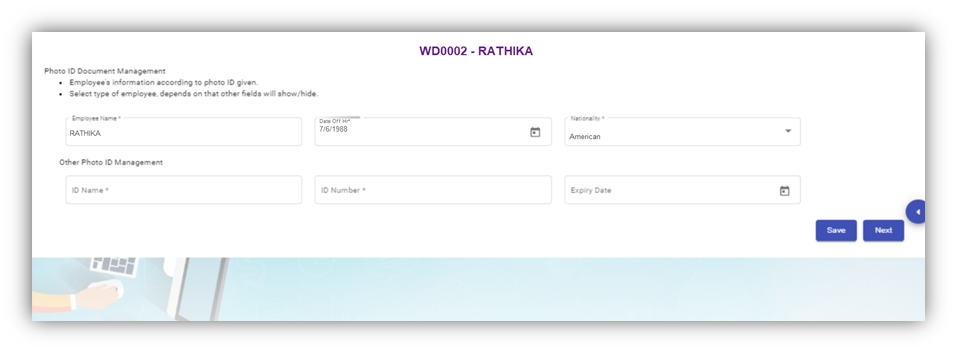
- 1. In the **ID Name** box, enter the name of the employee ID.
    2. In the **ID Number** box, enter the number of the employee ID.
    3. In the **Expiry Date** box, select the expiry date of the employee ID.
    4. Click **Save**. The employee’s photo ID information related with the company located in other country is successfully added.
    5. Click **Next**. The **photo ID Image Management** page opens.

#### Add Photo ID Image of Employee

In the **Photo ID Image Management** page, you can upload the image of the photo ID which is the national identification card given to the employee. You can upload both the front and back side images of the photo ID, and the Singapore SGWorkPass images.

 **Note**: The photo ID image you want to upload should be in PNG or JPEG format. The image size should not be more than 1 MB.![](http://wiki.cuteinfocomm.com/uploads/images/gallery/2022-05/embedded-image-6oztelrz.png)
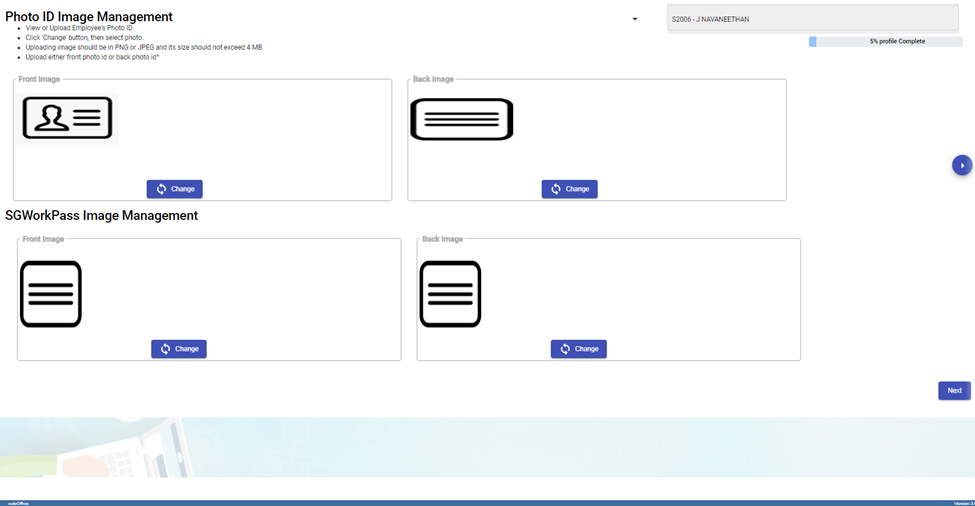
1. Click (**Change** button) in the **Front Image** field and select a front image of the phot ID or drag and drop the image.

![](http://wiki.cuteinfocomm.com/uploads/images/gallery/2022-05/embedded-image-wdgkirzu.png)

There is an option provided to trim the image as required. Click Save. The selected front image of the photo ID will be displayed in the **Front Image** field.![](http://wiki.cuteinfocomm.com/uploads/images/gallery/2022-05/embedded-image-qulg5ot5.png)

2. Click (**Change** button) in the **Back-Image** field and select a back image of the phot ID and do the same operations. The selected back image of the photo ID will be displayed in the **Back-Image** field.

3. Click **Next**. The **Photo Management** page opens.


#### Add Photo of Employee

In the **Photo Management** page, you can upload an image of the employee.

 **Note**: The image you want to upload should be in PNG or JPEG format. The image size should not be more than 1 MB.![](http://wiki.cuteinfocomm.com/uploads/images/gallery/2022-05/embedded-image-rckeu1bx.png)

1. Click (**Change** button) in the **Employee Image** field and select an image of the employee. The selected image of the employee will be displayed in the **Employee** **Image** field.

2. Click **Next**. The **Passport Information** page opens.

#### Add Passport Information of Employee

In the **Passport Information** page, you can add information of the employee’s passport.![](http://wiki.cuteinfocomm.com/uploads/images/gallery/2022-05/embedded-image-3wxibv0o.png)
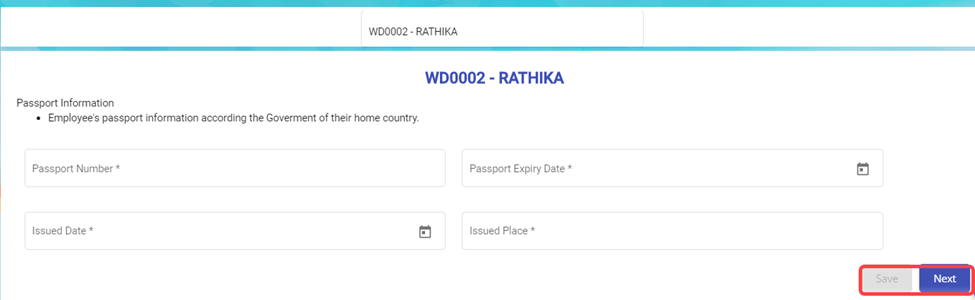
1. In the Passport Number box, enter the number of the employee’s passport.
2. In the Passport Expiry Date box, enter the expiry date of the passport.
3. In the Issued Date box, select the passport issued date.
4. In the Issued Place box, enter the passport issued place.
5. Click **Save**. The added passport information is successfully saved.
6. Click **Next**. The **Passport Image Management** page opens.

#### Add Image of Employee’s Passport

In the **Passport Image Management** page, you can add an image of the employee’s passport. You can upload both the front and back side images of the passport.

 **Note**: The passport image you want to upload should be in PNG or JPEG format. The image size should not be more than 200 KB.![](http://wiki.cuteinfocomm.com/uploads/images/gallery/2022-05/embedded-image-likojl1n.png)
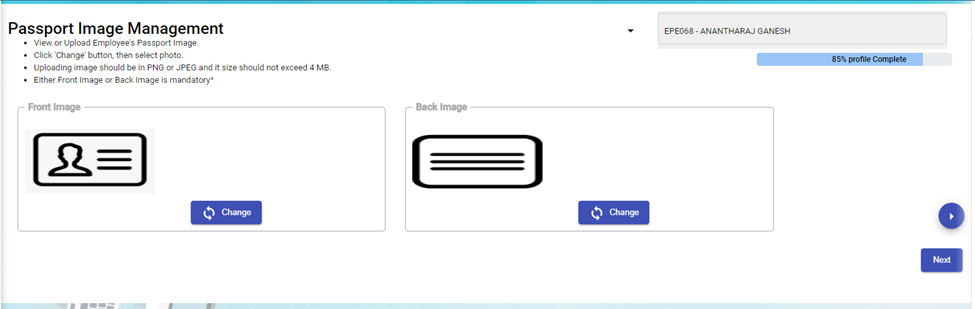
1. Click (**Change** button) in the **Front Image** field and select a front image of the passport. The selected front image of the passport will be displayed in the **Front Image** field.

2. Click (**Change** button) in the **Back-Image** field and select a back image of the passport. The selected back image of the passport will be displayed in the **Back-Image** field.

3. Click **Next**. The **Passport Collection and Issuance** page opens.

#### Add Collection and Issuance Details of Employee’s Passport

In the **Passport Collection and Issuance** page, you can add the collection and issuance details of the employee passport. If you have added the collection and issuance details like collection date and issuance date, you can track the employee’s passport issuance and return history.![](http://wiki.cuteinfocomm.com/uploads/images/gallery/2022-05/embedded-image-v5tdwgss.png)
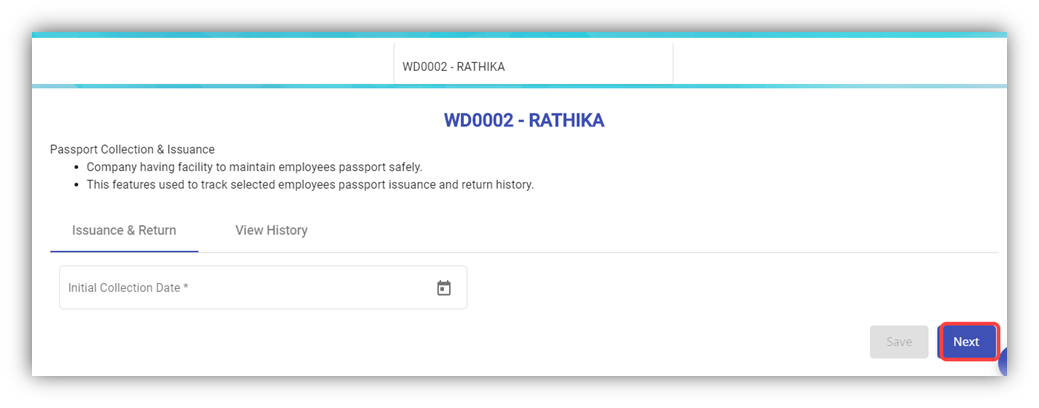
1. In the **Initial Collection Date** box, select the date when the passport has collected from the employee.
2. Click **Next**. The **Employee Passport Issuance Details** field opens.![](http://wiki.cuteinfocomm.com/uploads/images/gallery/2022-05/embedded-image-yfkjwv89.png)
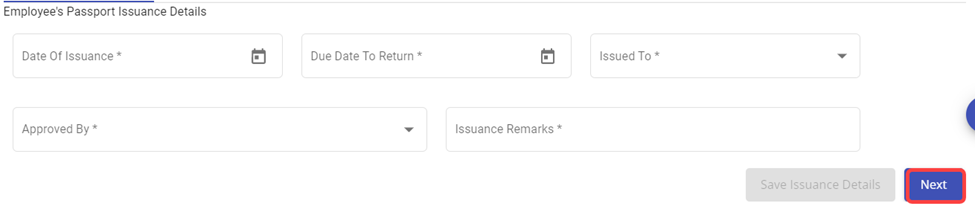
3. In the **Date of Issuance** box, select the date when the passport to be issued to the employee.
4. In the **Due Date to Return** box, select the due date to return the passport.
5. In the **Issued To** box, select the name of a person to whom the passport should be issued.
6. In the **Approved By** box, select the name of a person who should approve the issuance of passport.
7. In the **Issuance Remarks** box, enter your remarks if any.
8. Once issued, it can be returned back for safe keeping again.
9. Click **Next**. The **Official Information** page opens.

#### Add Official Information of Employee

In the **Official Information** page, you can add the official information of the employee.![](http://wiki.cuteinfocomm.com/uploads/images/gallery/2022-05/embedded-image-ubnasprp.png)

1. In the **Official Information** field, 
    - In the **Working Mode** box, select the working mode of the employee from a drop-down list.
    - In the **Department** box, select a department which the employee belongs to.
    - In the **Designation** box, select the designation of the employee.
    - In the **Date of Join** box, select the date of joining of the employee.
    - In the **Supervisor** box, select the supervisor of the employee from a drop-down list.
    - In the **First DOJ** box, select the first date of joining.
    - In the **Employment Status** box: 
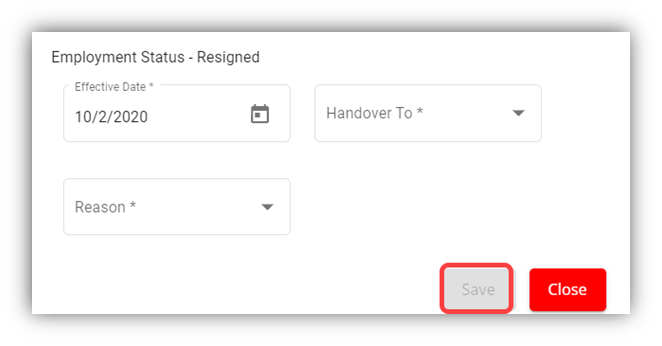
        - **Resigned Staff.** If the employee has resigned, select the **Resigned** option in the **Employment Status.** A new pop-up window opens to enter the resignation details while saving the added official information. In the Effective Date box, enter the date of relieving; In the Handover To box, select an employee to handover the resigned employee work; In the Reason box, select the reason of relieving. Click Save.
![](http://wiki.cuteinfocomm.com/uploads/images/gallery/2022-05/embedded-image-corh0med.png)

- - - Waiting for Clearance
        - Deleted
        - Terminated

**Note**: If you have selected **Resigned**, **Deleted**, and **Terminated** options in the **Employment Status** of the employee, you cannot add more details about employee and edit the added details of the employee.

1. - 
    - In the **Employment Type** box, select the type of employment whether **Permanent** or **Term Contract**.
    - **Note**: If you have selected **Term Contract**, enter the duration of employment in the **Duration of Employment** box.
    - In the **Probation Days** box, enter the probation period detail.
    - In the **ARE Trade** box, select the trade of the employee from a drop-down list.
    - **Note**: The **ARE Trade** may change according to the company.
    - In the **Contract Expiry** box, select the contract expiry date.
    - if you want to exclude the employee from cuteTime, select the checkbox of the **Exclude from cuteTime?**
    - In the **MOM Trade** box, select the MOM trade from a drop-down list.
    - In the **Official Email Id** box, enter the official email id of the employee.
    - In the **Attendance Id** box, enter the attendance id of the employee.
    - In the **Public Holiday Group** box, select the country you want to follow the holidays of the same.
    - In the **Is NS eligible?** Box, select **Yes** if the employee is eligible to serve NS otherwise select
    - In the **Grade** box, enter the grade number of the employee.
    - In the **Batch** box, enter the batch number of the employee.
    - In the **Supplier Company** box, select the supplier company from a drop-down list.
    - In the **Before Probation** box, enter the notice period days for termination of employee before completing the probation period.
    - In the **After-Probation** box, enter the notice period days for termination of employee after completing the probation period.
    - If the employee is working under the employment act, select the checkbox of the **Is Under Employment Act**
2. In the **PPE and Size** field, 
    - In the **PPE Size** box, select the required size of PPE.
    - In the **Shoe Size** box, select the shoe size of the employee.
    - In the **PPE and Shoe Remarks** box, enter your remarks if any.
3. In the **Bank Information** field, enter the bank account information of employee. 
    - In the **Bank Name** box, enter the bank name.
    - In the **Bank Account Number** box, enter the bank account number.
    - In the **Bank Account Type** box, enter the type of bank account.
4. If you want to attach any file to add extra information about the employee, click **Choose File** and select the respective file.
5. Click **Save**.
6. Click **Next**. The **Experience and Qualification** page opens with the **Experience** and **Educational Qualification** options.

#### Add Experience and Qualification Details of Employee

In the **Experience and Qualification** page, you can add working experience and educational qualification details of the employee.![](http://wiki.cuteinfocomm.com/uploads/images/gallery/2022-05/embedded-image-1a1ll3b4.png)
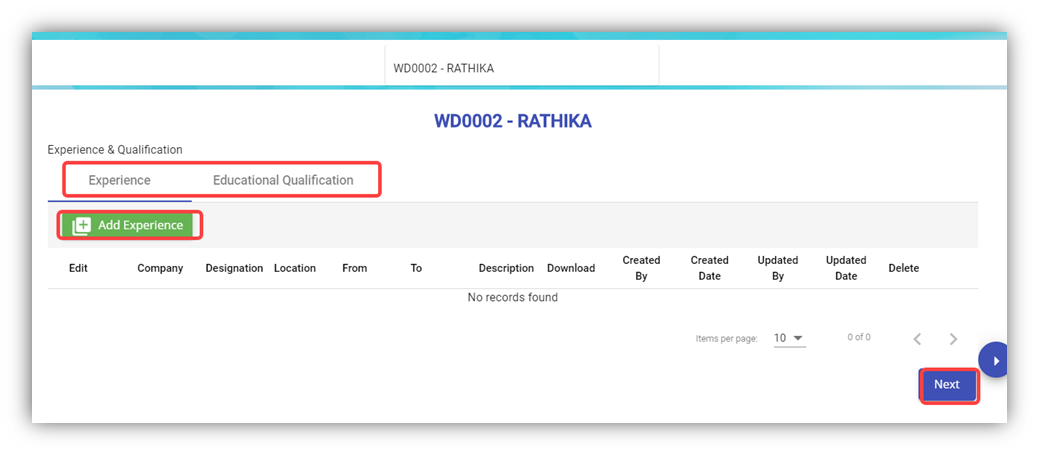
- To add work experience details of the employee, click (**Add Experience** button). The Add Experience window opens.![](http://wiki.cuteinfocomm.com/uploads/images/gallery/2022-05/embedded-image-dxykmdr0.png)
    1. In the **Company** box, enter the company name.
    2. In the **Designation** box, enter the designation of the employee.
    3. In the **From** and **To** boxes, select the working period of the employee.
    4. In the **Location** box, enter the location of the company.
    5. In the **Description** box, enter the description about the job nature.
    6. If you want to attach any file to add extra information about the work experience, click **Choose File** and select the respective file.
    7. Click **Save**. The work experience details of the employee are successfully added and listed in the **Experience and Qualification** page.
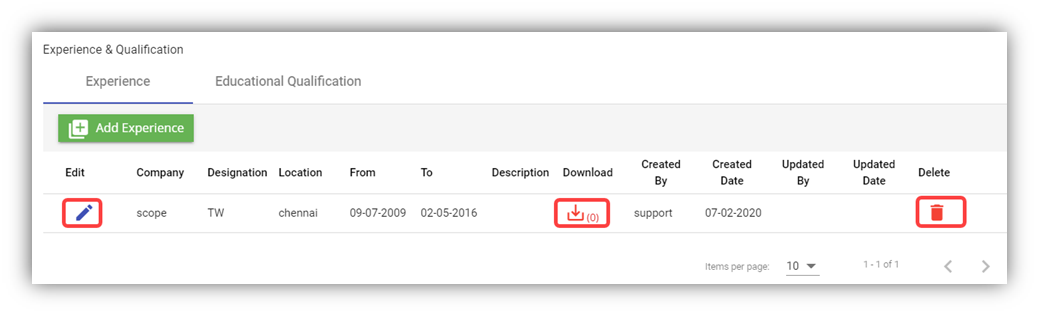
![](http://wiki.cuteinfocomm.com/uploads/images/gallery/2022-05/embedded-image-mpchbaas.png)**Note**: If you want to edit the added work experience details, click ![](http://wiki.cuteinfocomm.com/uploads/images/gallery/2022-05/embedded-image-ybqtt2rk.png)(Edit icon). If you want to download the added work experience details, click ![](http://wiki.cuteinfocomm.com/uploads/images/gallery/2022-05/embedded-image-q6u0ivxg.png)(Download icon). If you want to delete the added work experience details, click ![](http://wiki.cuteinfocomm.com/uploads/images/gallery/2022-05/embedded-image-naigk0dp.png) (Delete icon).

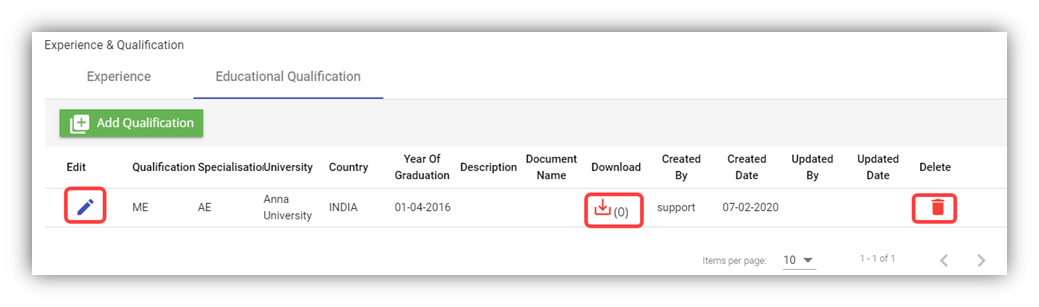
- To add the educational qualification of the employee, click the **Educational Qualification** option in the upper of the **Experience and Qualification**

1. 1. Click (**Add Qualification** button). The **Add Qualification** Window opens.
    2. In the **Qualification** box, enter the educational qualification of the employee.
    3. In the **Specialization** box, enter the specialization in education.
    4. In the **University** box, enter the name of the university.
    5. In the **Country** box, enter the country name.
    6. In the **Year of Graduation** box, select the year when the employee gets graduated.
    7. In the **Description** box, enter the description about the employee’s education.
    8. If you want to attach any file to add extra information about the educational qualification, click **Choose File** and select the respective file.
    9. Click **Save**. The educational qualification details of the employee are successfully added and listed in the **Experience and Qualification** page![](http://wiki.cuteinfocomm.com/uploads/images/gallery/2022-05/embedded-image-cctvqjwm.png)**Note**: If you want to edit the added educational qualification details, click ![](http://wiki.cuteinfocomm.com/uploads/images/gallery/2022-05/embedded-image-ybqtt2rk.png)(Edit icon). If you want to download the added educational qualification details, click ![](http://wiki.cuteinfocomm.com/uploads/images/gallery/2022-05/embedded-image-q6u0ivxg.png)(Download icon). If you want to delete the added educational qualification details, click ![](http://wiki.cuteinfocomm.com/uploads/images/gallery/2022-05/embedded-image-naigk0dp.png) (Delete icon).
    10. Click **Next**. The **Pay Eligibility** page opens including the **Salary Details** and **View History** options.

#### Add Pay Eligibility Details of Employee

In the **Pay Eligibility** page, you can add the salary details of the employee.

[![image-1708494832932.png](http://wiki.cuteinfocomm.com/uploads/images/gallery/2024-02/scaled-1680-/image-1708494832932.png)](http://wiki.cuteinfocomm.com/uploads/images/gallery/2024-02/image-1708494832932.png)
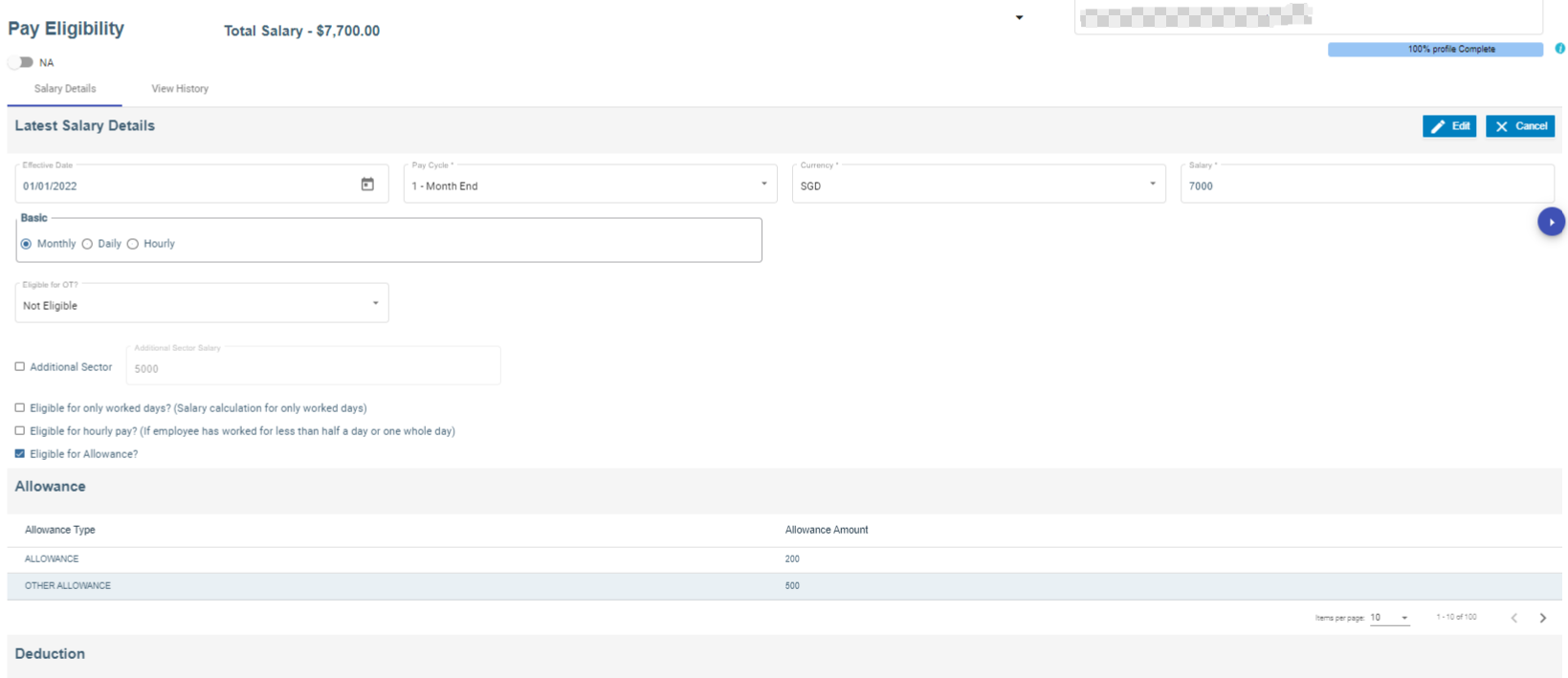
1. In the **Effective Date** box, select the effective date for calculating salary for the employee.
2. In the **Pay Cycle** box, select the pay cycle type.
3. In the **Currency** box, select the currency from a drop-down list.
4. In the **Salary** box, enter the salary amount.
5. In the **Basic** box, select the basic pay method that is whether **Monthly**, **Daily** or **Hourly**
6. If the employee is eligible to get pay only for worked days, select the checkbox of the **Eligible for only worked days?**
7. If the employee is eligible to get hourly pay, select the checkbox of the **Eligible for hourly pay?**
8. In the **Eligible for OT?** Box, select the OT option from a drop-down list.
9. If the employee is eligible to get allowance, select the checkbox of the **Eligible for Allowance?**
10. If an employee holding either PR or citizenship pass type and have additional salary, enable additional sector box with salary amount. (We have to configure Additional CPF account in the payroll information page).
11. In the **Remarks** box, enter your remarks if any.
12. If you want to attach any file to add extra information about the salary details, click **Choose File** and select the respective file.
13. Click **Save**. The salary details are added successfully.
14. Click **Next**. The **Payroll information** page opens.

#### Add Payroll Salary Configuration details of an employee

Salary Configuration page is meant to add pay mode, advance salary, withhold tax in percentage or fixed amount etc.,

1. Under Payment &amp; Rates, choose Pay mode from the drop-down list
2. Add Advance Salary amount, if required. (To pay a portion of basic salary as an advance)
3. Under With-Hold Tax, either add percentage or fixed amount.
4. Enable check box to enter capping amount for tax.
5. Under Others, employee groups, finance groups and working as available to configure.
6. Enable check box for late minimum deduction, PH payable hrs and allow to compute salary from other Modules (ex : Scaffold module) along with that add addition allowance if necessary.
7. Save button enabled automatically after all the mandatory fields are entered.

##### Settings to add Pay Mode, Employee Groups and Finance Groups

Pay Mode

1. Click Admin
2. Click options
3. In the name field, choose mode of payment
4. Click add button to add pay mode
5. Click Save to save the record.

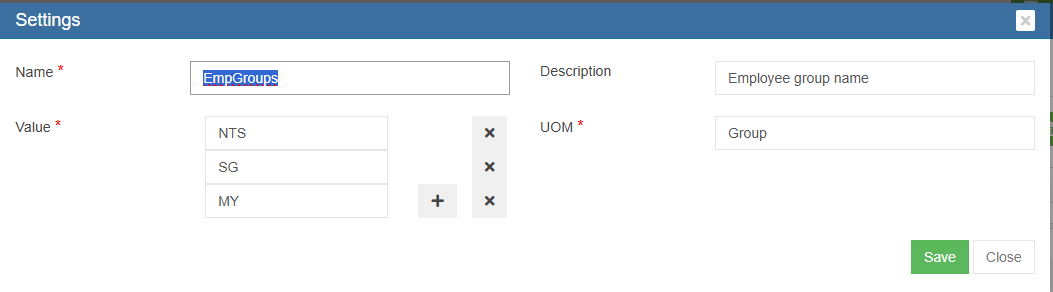
Employee Groups

1. Click Admin
2. Click Company menu
3. Edit Company and click Settings tab
4. Click add to add "EmpGroups" in the name field
5. Enter Employee groups value
6. Click "+" icon to add multiple Employee groups
7. Click Save to save the data. [![image-1746432048537.png](https://wiki.cuteinfocomm.com/uploads/images/gallery/2025-05/scaled-1680-/image-1746432048537.png)](https://wiki.cuteinfocomm.com/uploads/images/gallery/2025-05/image-1746432048537.png)
Finance Groups

1. Click Admin
2. Click Company menu
3. Edit Company and click Settings tab
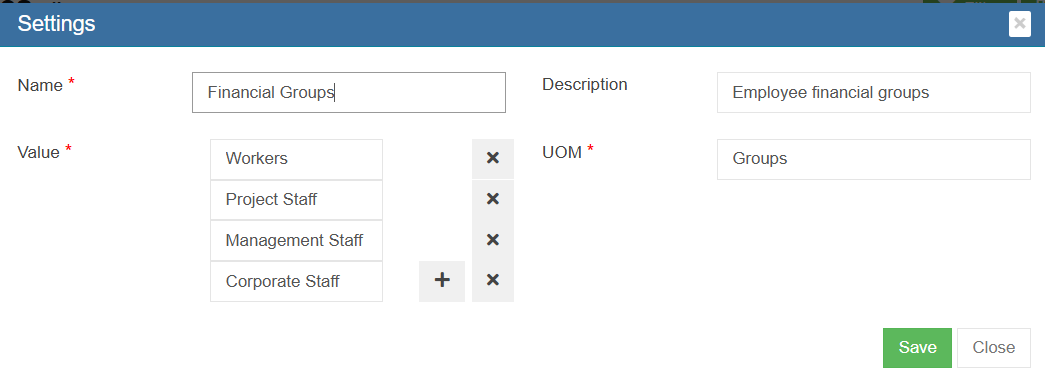
4. Click add to add "Financial Groups" in the name field
5. Enter Finance groups value
6. Click "+" icon to add multiple Finance groups
7. Click Save to save the data. [![image-1746432250364.png](https://wiki.cuteinfocomm.com/uploads/images/gallery/2025-05/scaled-1680-/image-1746432250364.png)](https://wiki.cuteinfocomm.com/uploads/images/gallery/2025-05/image-1746432250364.png)
#### Add Payroll information details of an employee

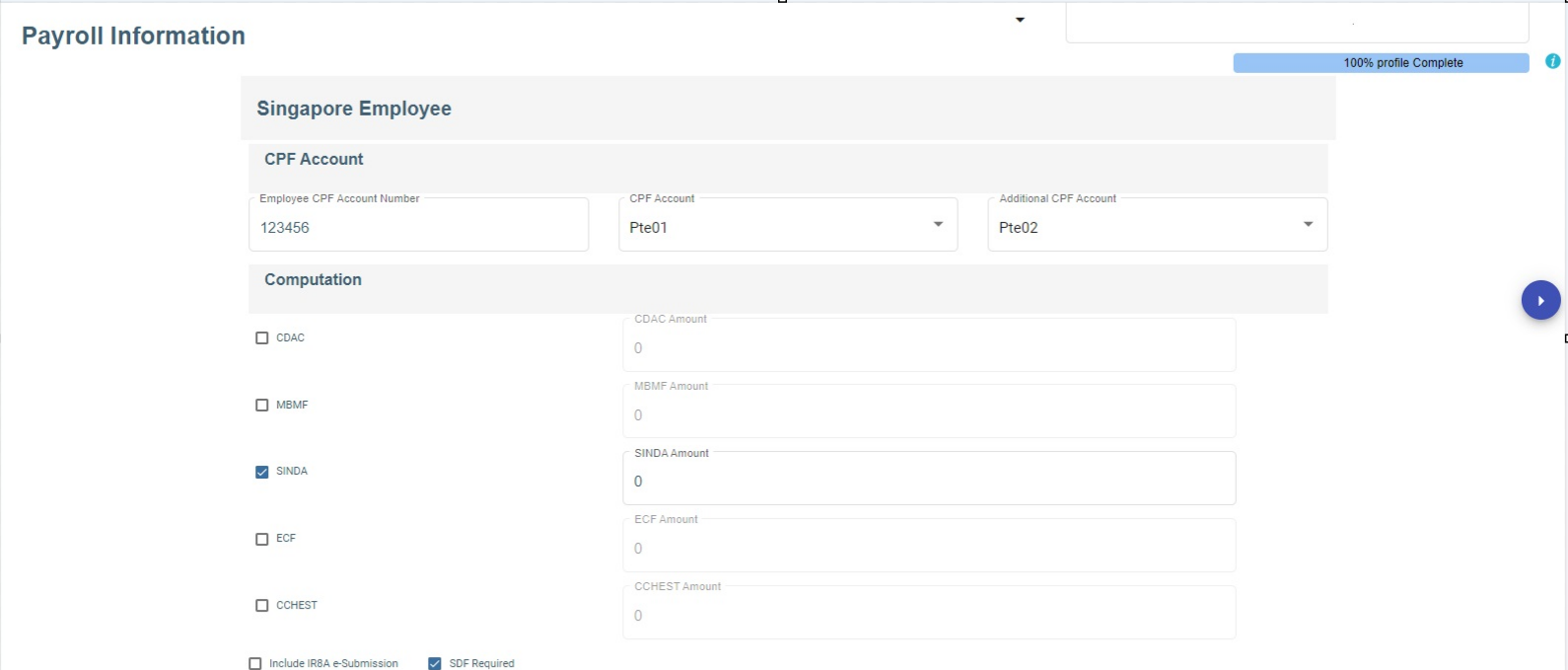
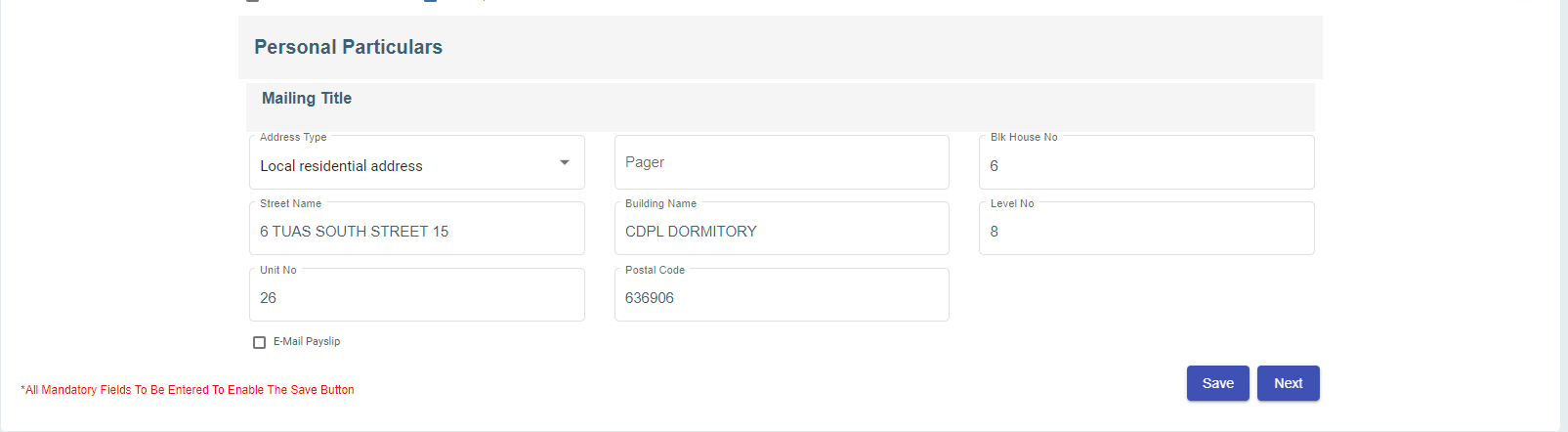
In the payroll information page, you can add the Singapore Employee CPF account information, Donation such as SINDA, CDAC, etc., and Personal Particulars.

1. In the employee CPF account number, enter the account number.
2. In CPF account, select CPF account from the drop-down list.
3. In the Additional CPF account, choose the additional CPF account from the drop down list
4. In computation, choose the donation and enter the amount or it has auto deduction of the amount.
5. If required, enable IRAS e-submission and SDF,
6. In the personal particular, enter the address details.
7. Enable email payslip to send the payslip via email.
8. Click **Save.**  The payroll information details are added successfully.
9. Click **Next.** The Leave details of employee page opens.

[![image-1708493624581.png](http://wiki.cuteinfocomm.com/uploads/images/gallery/2024-02/scaled-1680-/image-1708493624581.png)](http://wiki.cuteinfocomm.com/uploads/images/gallery/2024-02/image-1708493624581.png)
[![image-1708493693782.png](http://wiki.cuteinfocomm.com/uploads/images/gallery/2024-02/scaled-1680-/image-1708493693782.png)](http://wiki.cuteinfocomm.com/uploads/images/gallery/2024-02/image-1708493693782.png)
#### Add Leave Details of Employee

In the **Employee Leave Details** page, you can add the annual leave entitlement details of the employee.![](http://wiki.cuteinfocomm.com/uploads/images/gallery/2022-05/embedded-image-adct16z9.png)
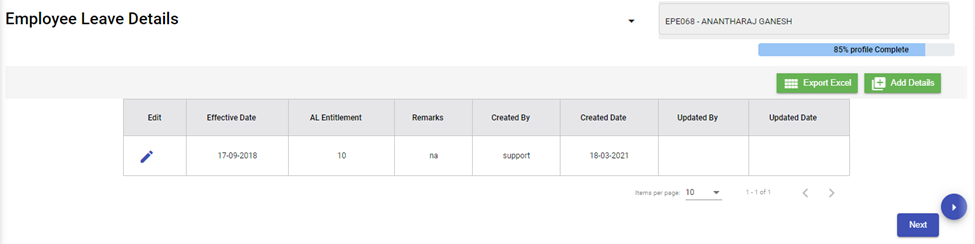
1. Click (**Add** button) in the **Employee Leave Details.** The Leave Details window opens.![](http://wiki.cuteinfocomm.com/uploads/images/gallery/2022-05/embedded-image-ly719ufe.png)
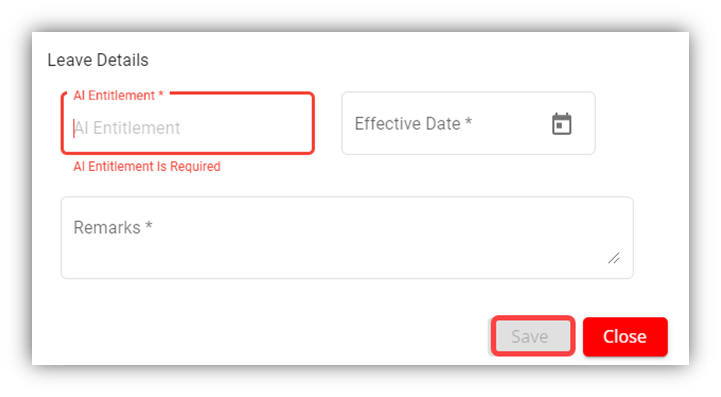
2. In the **AL Entitlement** box, enter the number of annual leave.
3. In the **Effective Date** box, select the effective date of the annual leave.
4. In the **Remarks** box, enter your remarks if any.
5. Click **Save**.
6. Click **Next**. The **Key Employment Report** page opens.

#### Add Key Employment Report for Employee

In the **Key Employment Report** page, you can add key employment details such as sick leave and paid medical examination details of the employee.![](http://wiki.cuteinfocomm.com/uploads/images/gallery/2022-05/embedded-image-yzmt4uli.png)
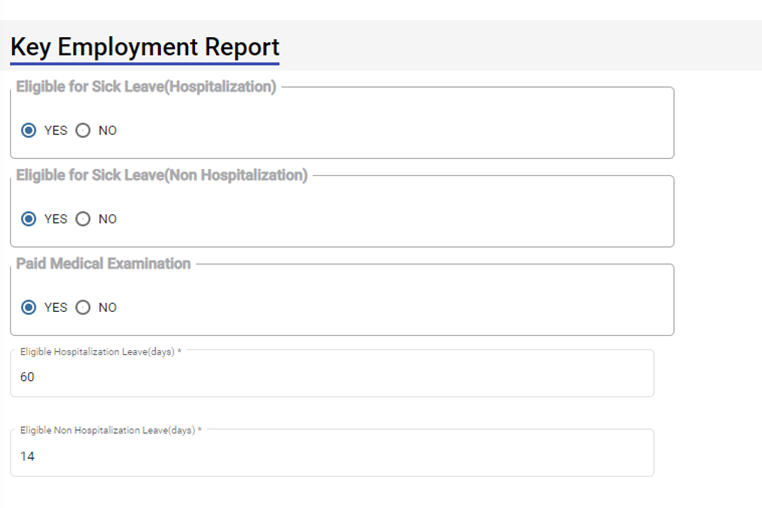
1. If the employee is eligible to take sick leave even in case of non-hospitalization, select **YES** in the **Eligible for Sick Leave (Non-Hospitalization)** option otherwise select **NO**.
2. If the employee is eligible to avail the paid medical examination, select **YES** in the **Paid Medical Examination** option otherwise select **NO**.
3. In the **Eligible Hospitalization Leave (days)** box, enter the number of eligible hospitalization leaves.
4. In the **Eligible Non-Hospitalization Leave (days)** box, enter the number of eligible non-hospitalization leaves.
5. In the **Exclude Time and Leave** box, select the option based on the employee’s leave and permission status.
6. Click **Save**.
7. Click **Next**. The **Employee Minimum Working Hours** page opens.

#### Add Minimum Working Hours of Employee 

In the **Employee Minimum Working Hours** page, you can add the minimum working hours details of the employee.

[![image-1662072519478.png](http://wiki.cuteinfocomm.com/uploads/images/gallery/2022-09/scaled-1680-/image-1662072519478.png)](http://wiki.cuteinfocomm.com/uploads/images/gallery/2022-09/image-1662072519478.png)
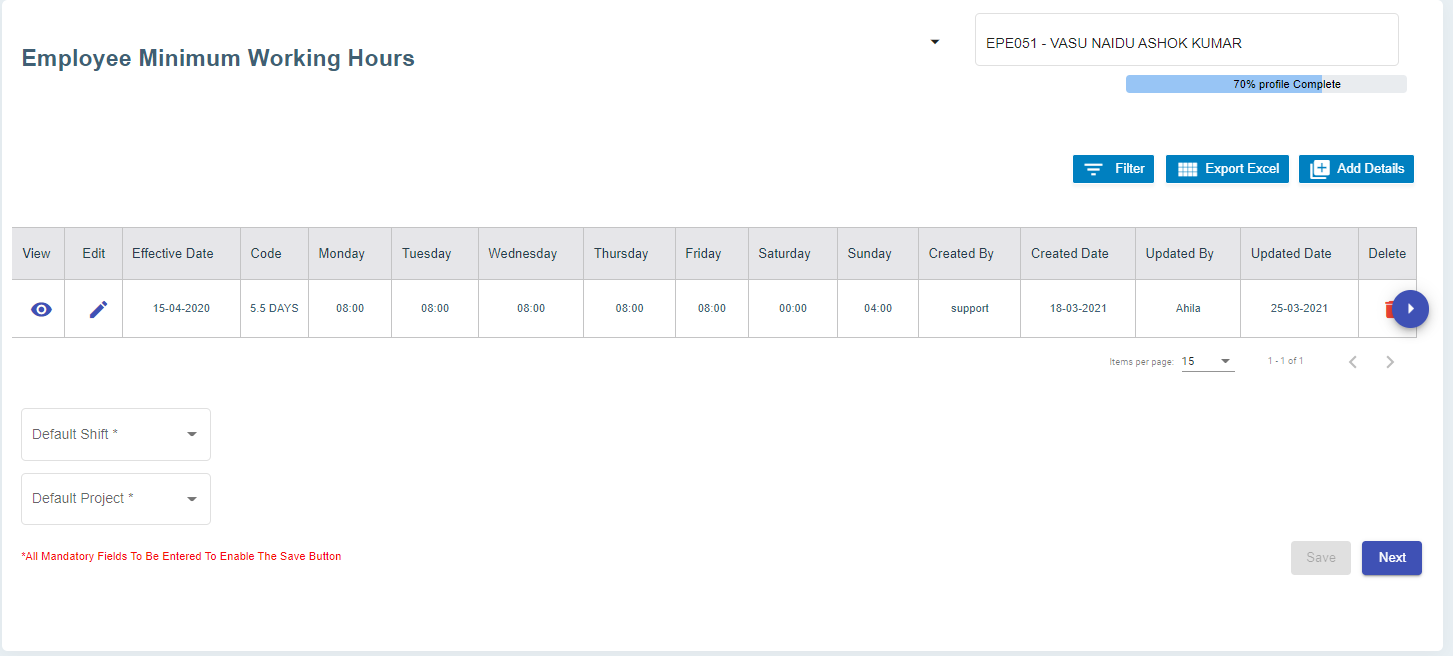
1. Click (Add Details button). The **Minimum Working Hours** window opens. [![image-1662072541484.png](http://wiki.cuteinfocomm.com/uploads/images/gallery/2022-09/scaled-1680-/image-1662072541484.png)](http://wiki.cuteinfocomm.com/uploads/images/gallery/2022-09/image-1662072541484.png)
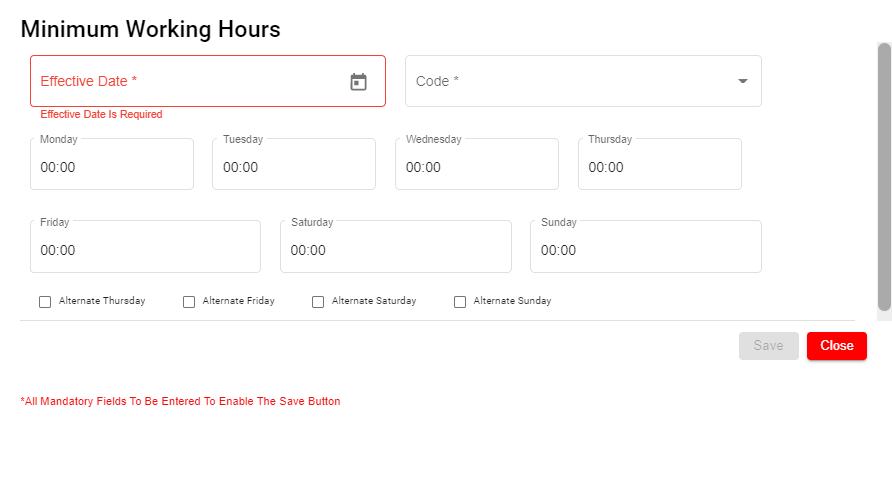
2. In the **Effective Date** box, select the effective date to follow the minimum working hours by the employee.
3. In the **Code** box, select relevant working day code.
4. In the **Monday** to **Sunday** boxes, for each day, select the minimum hours to be worked by the employee.
5. If the setting **Off day** is enabled, it helps to calculate the rest day in OT1. [![image-1709278145553.png](http://wiki.cuteinfocomm.com/uploads/images/gallery/2024-03/scaled-1680-/image-1709278145553.png)](http://wiki.cuteinfocomm.com/uploads/images/gallery/2024-03/image-1709278145553.png)

#### Add Contracts and Other Document of Employee

In the **Contracts and Other Document** page, you can add the contract document or other document of the employee.![](http://wiki.cuteinfocomm.com/uploads/images/gallery/2022-05/embedded-image-5crgeovz.png)
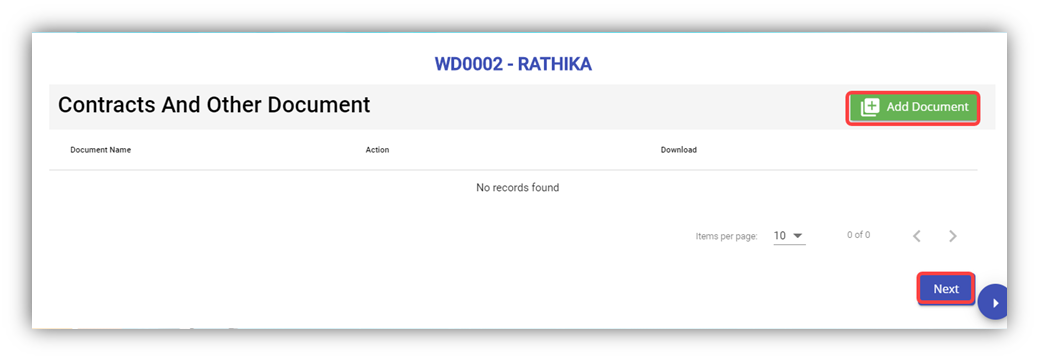
1. Click (**Add Document** button) in the **Contracts and Other Document.** The **Contracts and Other Document** window opens.![](http://wiki.cuteinfocomm.com/uploads/images/gallery/2022-05/embedded-image-v7zzjkze.png)
2. In the **Document Type** box, select the document type from a drop-down list.
3. In the **Document** **Name** box, enter the document name.
4. Click the **Choose File** option to select the document you want to add.
5. Click **Save.** The selected document is successfully uploaded and listed in the **Contracts and Other Document** page.![](http://wiki.cuteinfocomm.com/uploads/images/gallery/2022-05/embedded-image-v2hiexbh.png) **Note**: If you want to download the added document details, click[![download.png](http://wiki.cuteinfocomm.com/uploads/images/gallery/2022-05/scaled-1680-/download.png)](http://wiki.cuteinfocomm.com/uploads/images/gallery/2022-05/download.png) (Download icon).
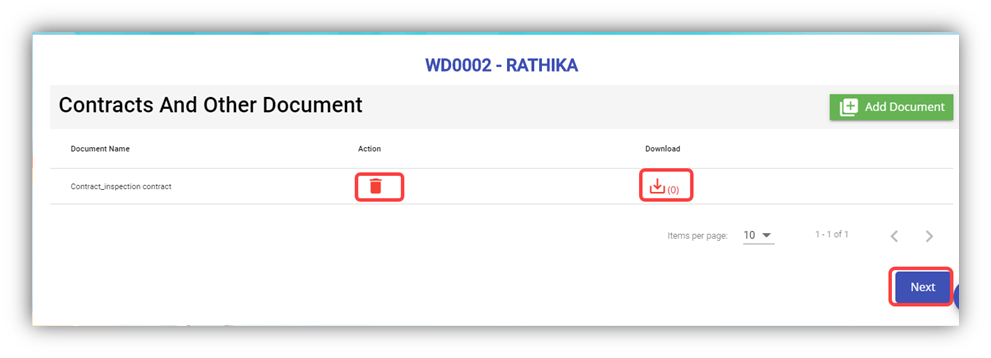
    
    If you want to delete the added document details, click [![delete.png](http://wiki.cuteinfocomm.com/uploads/images/gallery/2022-05/scaled-1680-/delete.png)](http://wiki.cuteinfocomm.com/uploads/images/gallery/2022-05/delete.png) (Delete icon).
6. Click **Next**. The **Courses, Certificates, and Other Documents** page opens.

#### Add Courses, Certificates, and Other Documents of Employee

In the **Courses, Certificates, and Other Documents** page, you can add the details of courses, certificates, and other documents of the employee. The **Courses, Certificates, and Other Documents** page shows the **Courses and Certificates** and **Other Documents** options.![](http://wiki.cuteinfocomm.com/uploads/images/gallery/2022-05/embedded-image-d2klyagd.png)
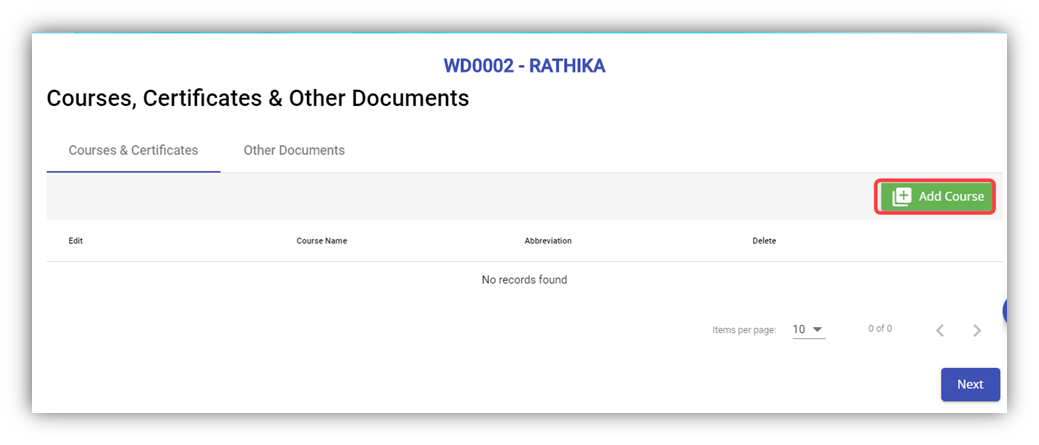
1. To add courses and certificates details of the employee, click (**Add Course** button).
2. In the **Select Course/Certificate** box, select the course/certificate from a drop-down list.
3. In the **Certificate Number** box, enter the course/certificate number.
4. In the **Expiry Date** box, select the expiry date of the added course/certificate.
5. In the **Date Attended** box, select the attended date of the course.
6. If you want to view the employee’s course certificate in the landscape format, select the checkbox of the **Landscape**
7. In the **Remarks** box, enter your remarks if any.
8. Click
9. Navigate to the **Other Documents** option to add documents other than courses and certificates, and then click (**Add Documents** button). The **Add Document** window opens.
10. In the Document Name box, enter the name of the document.
11. If you want to attach the document, click **Choose File,** and select the respective document.
12. Click Save. The selected document is successfully uploaded and listed in the **Courses, Certificates, and Other Documents** page. **Note**: If you want to download the added document details, click[![download.png](http://wiki.cuteinfocomm.com/uploads/images/gallery/2022-05/scaled-1680-/download.png)](http://wiki.cuteinfocomm.com/uploads/images/gallery/2022-05/download.png) (Download icon).
    
    If you want to delete the added document details, click [![delete.png](http://wiki.cuteinfocomm.com/uploads/images/gallery/2022-05/scaled-1680-/delete.png)](http://wiki.cuteinfocomm.com/uploads/images/gallery/2022-05/delete.png) (Delete icon).
13. Click **Next**. The **Personal Particulars** page opens.

#### Add Personal Particulars of Employee

In the **Personal Particulars** page, you can add the personal details of the employee.

[![image-1709624449366.png](http://wiki.cuteinfocomm.com/uploads/images/gallery/2024-03/scaled-1680-/image-1709624449366.png)](http://wiki.cuteinfocomm.com/uploads/images/gallery/2024-03/image-1709624449366.png)
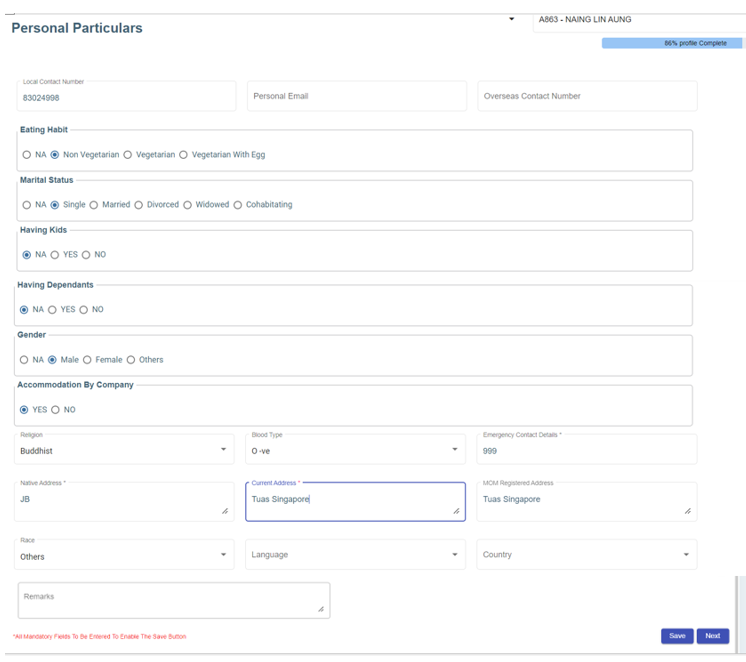
1. In the **Local Contact Number** box, enter the local contact number of employee.
2. In the **Personal Email** box, enter the personal email of the employee.
3. In the **Overseas Contact Number** box, enter the overseas contact number of the employee.
4. In the **Eating Habit** box, select the eating habit of the employee.
5. In the **Marital Status** box, select the marital status of the employee.
6. In the **Having Kids** box, select **YES** if the employee is having kids otherwise select **NO**.
7. In the **Having Dependants** box, select **YES** if the employee is having any dependants otherwise select **NO**.
8. In the **Gender** box, select the gender of the employee.
9. In the **Accommodation By Company** box, select **Yes** if the company provides accommodation to the employee.
10. In the **Religion** box, select the religion of the employee from a drop-down list.
11. In the **Blood Type** box, select the blood group of the employee.
12. In the **Emergency Contact Details** box, enter the emergency contact details of the employee.
13. In the **Native Address** box, enter the native address of the employee.
14. In the **Current Address** box, enter the present address of the employee.
15. In the **MOM Registered Address** box, enter the address that is registered on MOM.
16. In the **Remarks** box, enter your remarks if any.
17. Click **Save**. The employee’s personal details are successfully added.
18. Click **Next**. If you have selected **YES** in the [**Having Kids**](#Kid) box, the **Kids Details** page opens or If you have selected **YES** in the [**Having Dependants**](#Dependent) box, the [**Dependant Details**](#_Add_Dependent_Details) page opens. Otherwise, the [**Visa Details**](#_Add_Visa_Details) page opens.

#### Add Kids Details of Employee

In the **Kids Details** page, you can add the details employee’s kids. You can add multiple kids details by repeating the following procedure.![](http://wiki.cuteinfocomm.com/uploads/images/gallery/2022-05/embedded-image-bgehwig8.png)
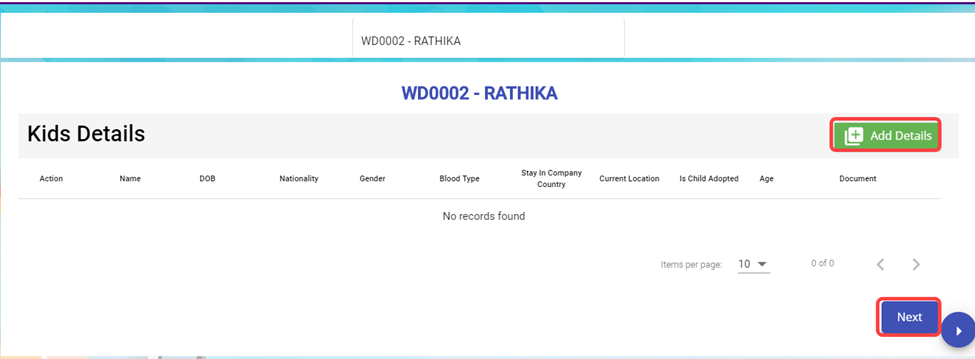
1. Click (**Add Details** button). The **Kids Details** window opens.![](http://wiki.cuteinfocomm.com/uploads/images/gallery/2022-05/embedded-image-rpzfafuu.png)
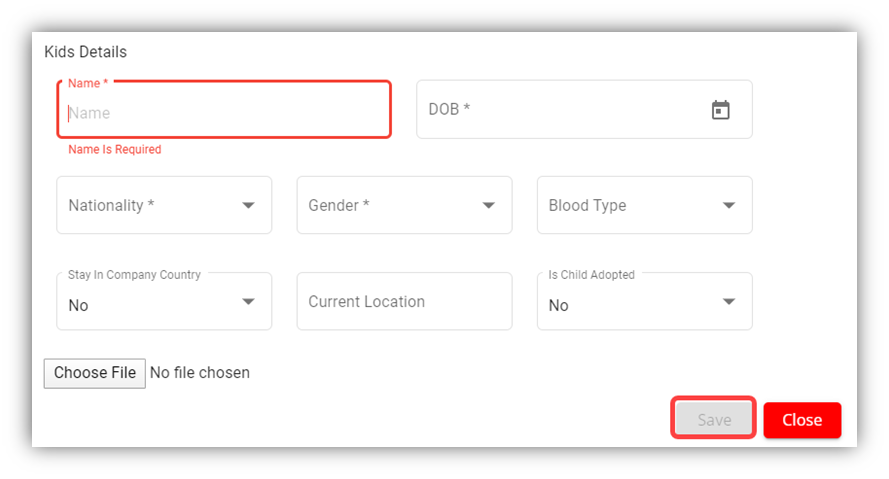
2. In the **Name** box, enter the name of a kid.
3. In the **DOB** box, select the birth date of the kid.
4. In the **Nationality** box, select the nationality of the kid.
5. In the **Gender** box, select the gender of the kid.
6. In the **Blood Type** box, select the blood group of the kid.
7. In the **Stay in Company Country** box, If the kid is residing at the country where the company located, select **Yes** otherwise select **No**.
8. In the **Current Location** box, enter the current location of the kid.
9. In the **Is Child Adopted** box, if the kid is an adopted one, select **Yes** otherwise select **No**.
10. If you want to attach any document to add extra information about the kid, click **Choose File,** and select and attach the respective document.
11. Click **Save**. The kid’s details are successfully added.![](http://wiki.cuteinfocomm.com/uploads/images/gallery/2022-05/embedded-image-1zo5lira.png)**Note**: If you want to edit the added kid’s details, click ![](http://wiki.cuteinfocomm.com/uploads/images/gallery/2022-05/embedded-image-oqs2dfux.png) (Edit icon). If you want to download the added kid’s details, click ![](http://wiki.cuteinfocomm.com/uploads/images/gallery/2022-05/embedded-image-qtpzvlmq.png) (Download icon).
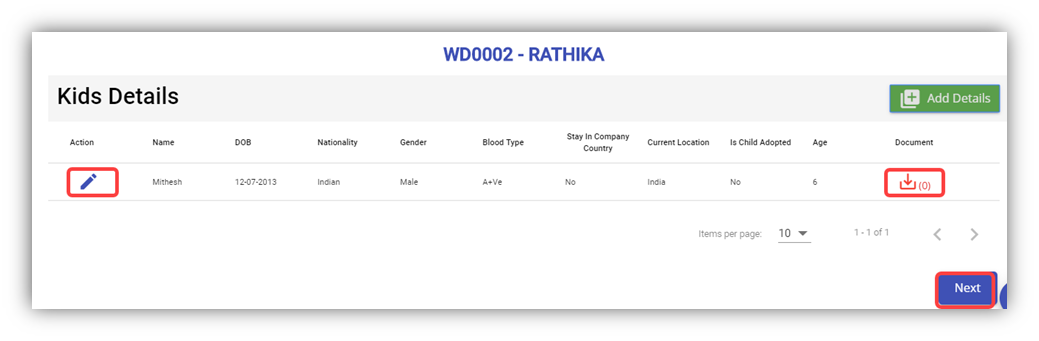
12. Click **Next**.

#### Add Dependant Details of Employee

In the **Dependant Details** page, you can add the details of the dependants of the employee. ![](http://wiki.cuteinfocomm.com/uploads/images/gallery/2022-05/embedded-image-12mwznoq.png)
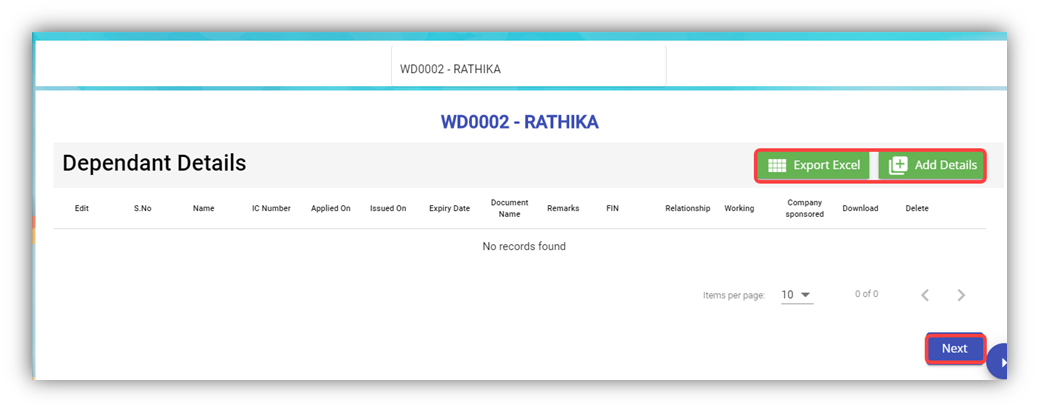
1. Click (**Add Details** button). The **Dependent Details** window opens.![](http://wiki.cuteinfocomm.com/uploads/images/gallery/2022-05/embedded-image-1effjhnp.png)
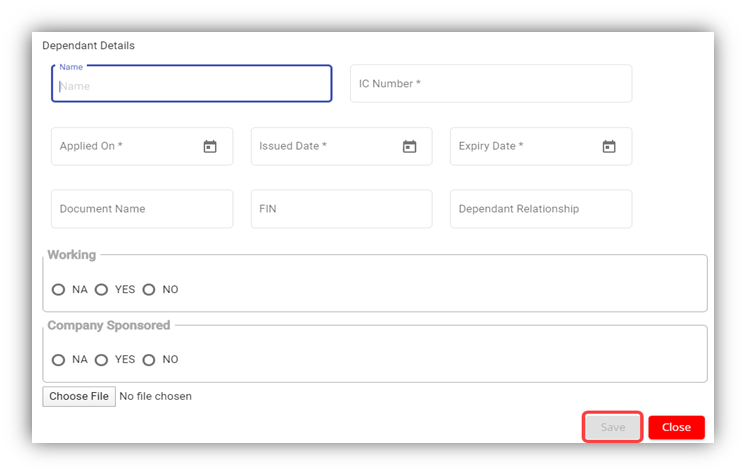
2. In the **Name** box, enter the name of the dependant.
3. In the **IC Number** box, enter the IC number of the dependant.
4. In the **Applied-On** box, select the applied date for the dependant pass.
5. In the **Issued Date** box, select the issued date of the dependant pass.
6. In the **Expiry Date** box, select the expiry date of the independent pass.
7. In the **Document Name** box, enter the name of the document.
8. In the **FIN** box, enter the FIN number.
9. In the **Dependant Relationship** box, enter the relationship of dependant with the employee.
10. In the **Working** box, if the dependant is working select **YES** otherwise select **NO**.
11. In the **Company Sponsored** box, if the dependant pass has sponsored by the company means select **YES** otherwise select **NO**. If the dependant pass is not applicable, select **NA**.
12. If you want to attach any document to add extra information about the dependant, click **Choose File,** and select the respective document.
13. Click **Save**. The dependant’s details are successfully added.![](http://wiki.cuteinfocomm.com/uploads/images/gallery/2022-05/embedded-image-j8rs0zhi.png)**Note**: If you want to edit the added dependant’s details, click ![](http://wiki.cuteinfocomm.com/uploads/images/gallery/2022-05/embedded-image-vmlsfxdl.png) (Edit icon). If you want to download the added dependant’s details, click ![](http://wiki.cuteinfocomm.com/uploads/images/gallery/2022-05/embedded-image-al7d7dx7.png)(Download icon). If you want to delete the added dependant’s details, click ![](http://wiki.cuteinfocomm.com/uploads/images/gallery/2022-05/embedded-image-jvdjtvop.png) (Delete icon). If you want to download the added dependant’s details as an excel file, click ![](http://wiki.cuteinfocomm.com/uploads/images/gallery/2022-05/embedded-image-yashyvmq.png) (Export Excel button). The dependant details are downloaded as an excel file.
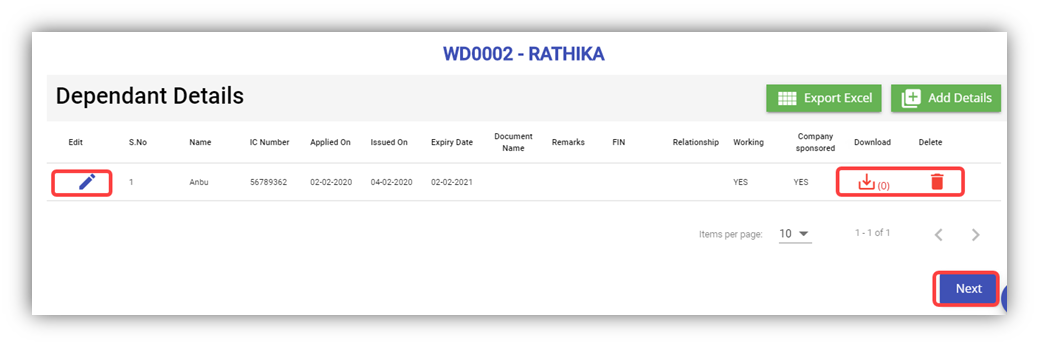

14. Click **Next**. The **Visa Details** page opens.

#### Add Visa Details of Employee

In the **Visa Details** page, you can add the visa details of the employee.![](http://wiki.cuteinfocomm.com/uploads/images/gallery/2022-05/embedded-image-plovv8pu.png)
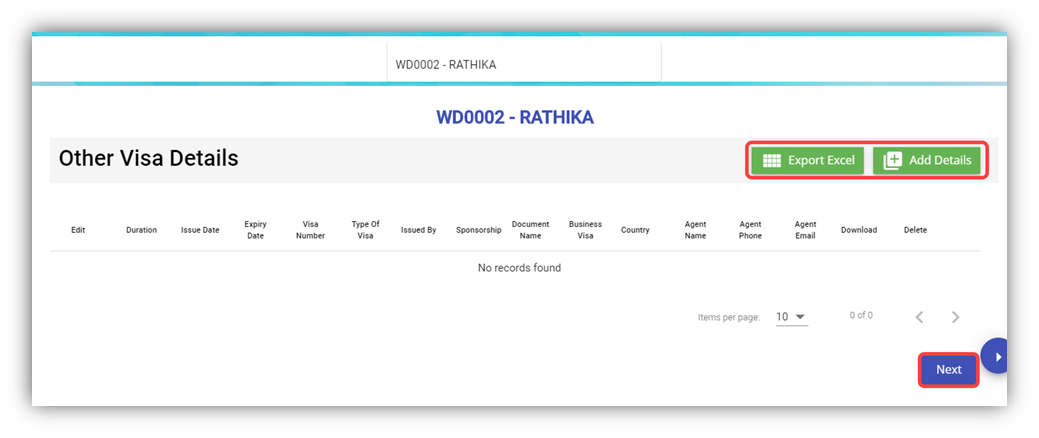
1. Click (**Add Details** button). The **Other Visa Details** window opens.![](http://wiki.cuteinfocomm.com/uploads/images/gallery/2022-05/embedded-image-qrbyf225.png)
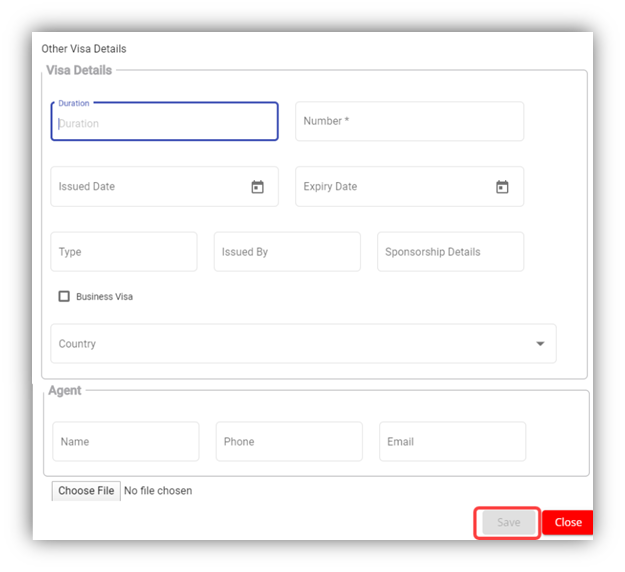
2. In the **Duration** box, enter the duration of visa.
3. In the **Number** box, enter the visa number.
4. In the **Issued Date** box, select the issued date of visa.
5. In the **Expiry Date** box, select the expiry date of visa.
6. In the **Type** box, enter the type of visa.
7. In the **Issued By** box, enter the detail of visa issued authority.
8. In the **Sponsorship Details** box, enter the detail of sponsorship.
9. If the visa is business type of visa, select the checkbox of the **Business Visa**
10. In the **Country** box, select the country from a drop-down list.
11. In the **Agent** box, enter the name, phone number, and email of the agent.
12. If you want to attach any document to add extra information about the visa, click **Choose File,** and select the respective document.
13. Click **Save**. The visa details are added successfully.![](http://wiki.cuteinfocomm.com/uploads/images/gallery/2022-05/embedded-image-ocnbaucj.png)
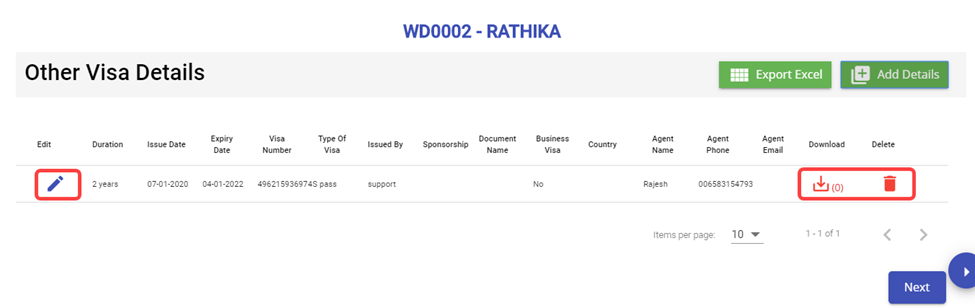
 **Note**: If you want to edit the added visa details, click ![](http://wiki.cuteinfocomm.com/uploads/images/gallery/2022-05/embedded-image-lm66zjmo.png) (Edit icon). If you want to download the added visa details, click ![](http://wiki.cuteinfocomm.com/uploads/images/gallery/2022-05/embedded-image-burunujp.png) (Download icon). If you want to delete the added visa details, click ![](http://wiki.cuteinfocomm.com/uploads/images/gallery/2022-05/embedded-image-8eflmb9v.png) (Delete icon). If you want to download the added visa details as an excel file, click ![](http://wiki.cuteinfocomm.com/uploads/images/gallery/2022-05/embedded-image-6gq7nh68.png) (Export Excel button). The visa details are downloaded as an excel file.

14. Click **Next**. The employee details are successfully added and listed in the **View All Employee** page.

### View Employee Data

#### View All Employees

Once you have added the employee details, the added employee data will be available in the **View All Employee** page. You can view the added employee details in the **View All Employee** page.

[![image-1662065614373.png](http://wiki.cuteinfocomm.com/uploads/images/gallery/2022-09/scaled-1680-/image-1662065614373.png)](http://wiki.cuteinfocomm.com/uploads/images/gallery/2022-09/image-1662065614373.png)
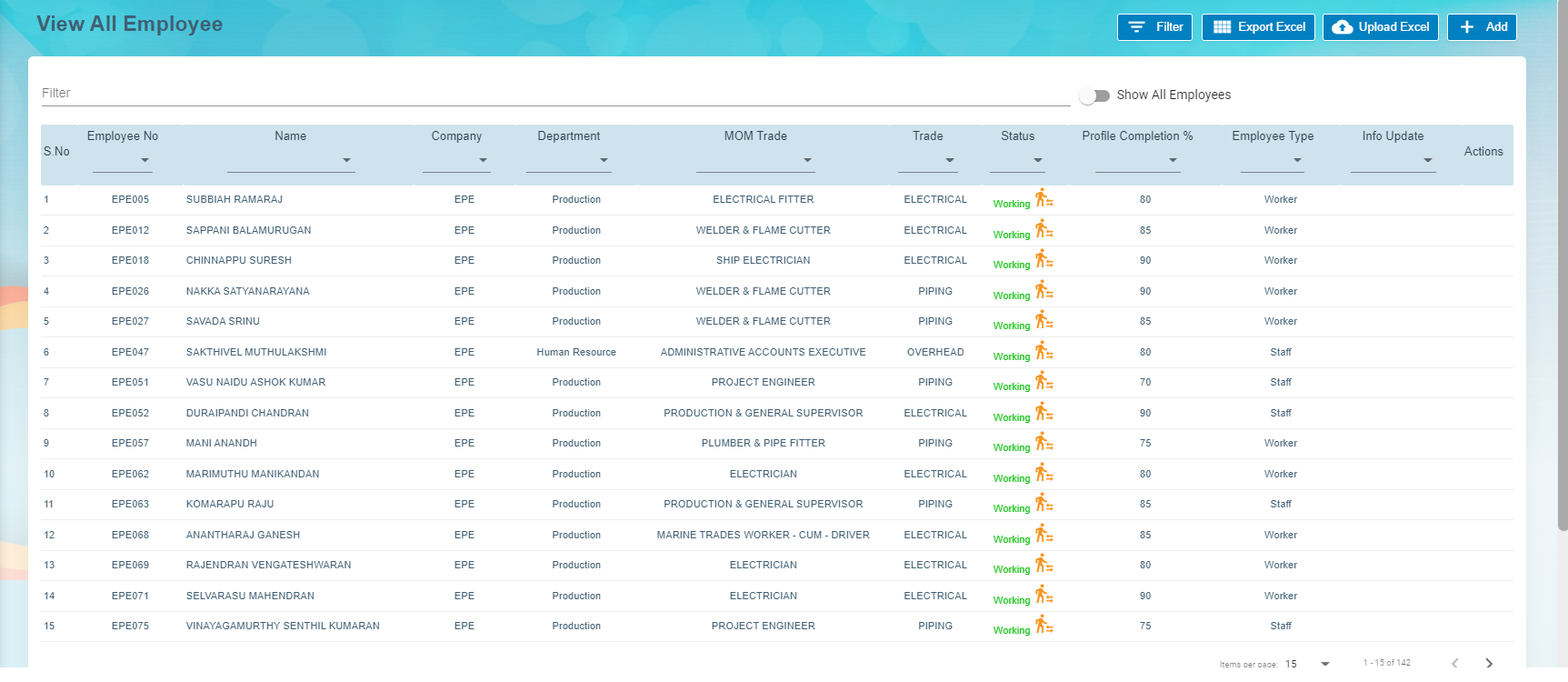
**Note**: To view and edit the added employee details, click the respective employee in the list.

#### Transfer Employee

**Transfer Staff.** In employee-view all page, there is an option to transfer employee to another company.

1. Click[![image-1662065916245.png](http://wiki.cuteinfocomm.com/uploads/images/gallery/2022-09/scaled-1680-/image-1662065916245.png)](http://wiki.cuteinfocomm.com/uploads/images/gallery/2022-09/image-1662065916245.png)(transfer icon), a new pop-up window opens to enter the transfer details, [![image-1662072701471.png](http://wiki.cuteinfocomm.com/uploads/images/gallery/2022-09/scaled-1680-/image-1662072701471.png)](http://wiki.cuteinfocomm.com/uploads/images/gallery/2022-09/image-1662072701471.png)
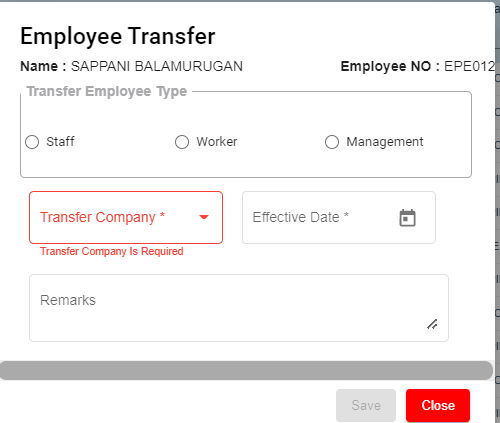
- - In the **Transferred Employee Type** box, select the type of transferred employee.
    - In the **Transfer Company** box, select the company where the employee is going to be transferred.
    - In the **Effective Date** box, select the effective date of the transfer.
    - In the **Remarks** box, enter your remarks if any.
    - Click **Save**.

**Note**: When **Transferred** the employee, all the data also will be transferred from old employee ID to new employee ID.

#### Export Employees Data

The application has a feature to download the added employee details as an excel file. You can click ![](http://wiki.cuteinfocomm.com/uploads/images/gallery/2022-05/embedded-image-csbdprem.png) (**Export Excel** button). The employee details in the **View All Employee** page will be downloaded as an excel file.

### View Employee Contacts

The **View** **Employee Contacts** tab in the **Employee** submenu helps you to view the employee contact details. To view the employee contact details, click the **View** **Employee Contacts** tab in the **Employee.** The **View** **Employee Contacts** page shows the contact details of the added employees.

[![image-1662092941716.png](http://wiki.cuteinfocomm.com/uploads/images/gallery/2022-09/scaled-1680-/image-1662092941716.png)](http://wiki.cuteinfocomm.com/uploads/images/gallery/2022-09/image-1662092941716.png)
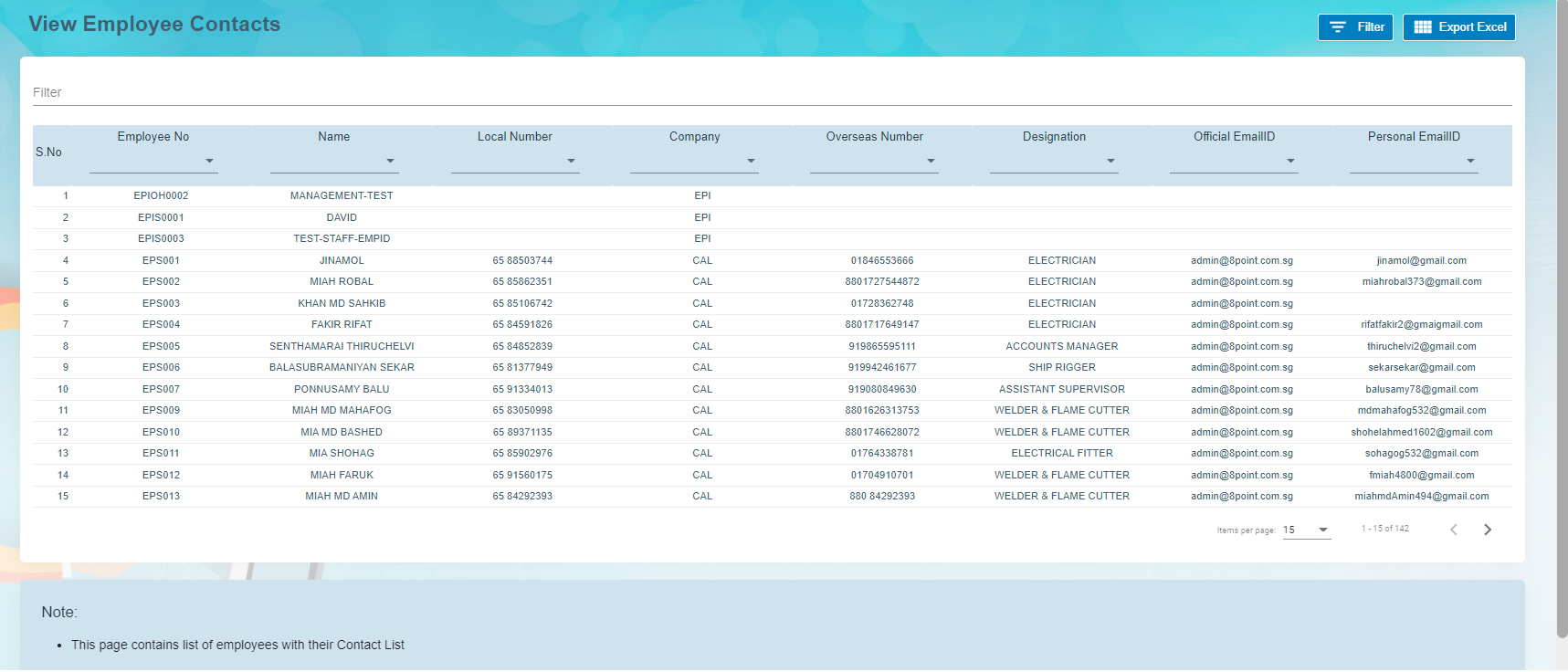
- **Export Employee Contacts**  
    The application has a feature to download the employee contacts details as an excel file. You can click ![](http://wiki.cuteinfocomm.com/uploads/images/gallery/2022-05/embedded-image-y8uxlqrh.png) (Export Excel button). The contact details in the View Employee Contacts page will be downloaded as an excel file.

- **Filter Employee Contact**  
    If you want to view the contact details of any specific employee, click ![](http://wiki.cuteinfocomm.com/uploads/images/gallery/2022-05/embedded-image-6ydruh0d.png) (Filter button) provided in the upper side of the View Employee Contacts page.   

    The Filter option will be enabled in the View Employee Contacts page to filter the specific contact detail.

### View Employee Minimum Working Hours

The **Employee Working Hours** tab in the **Employee** submenu helps you to view the employee’s minimum working hours. To view the employee’s minimum working hours, click the **Employee Working Hours** tab in the **Employee.** The **Employee Minimum Working Hours** page shows the minimum working hours details of the added employees.

[![image-1662092919543.png](http://wiki.cuteinfocomm.com/uploads/images/gallery/2022-09/scaled-1680-/image-1662092919543.png)](http://wiki.cuteinfocomm.com/uploads/images/gallery/2022-09/image-1662092919543.png)
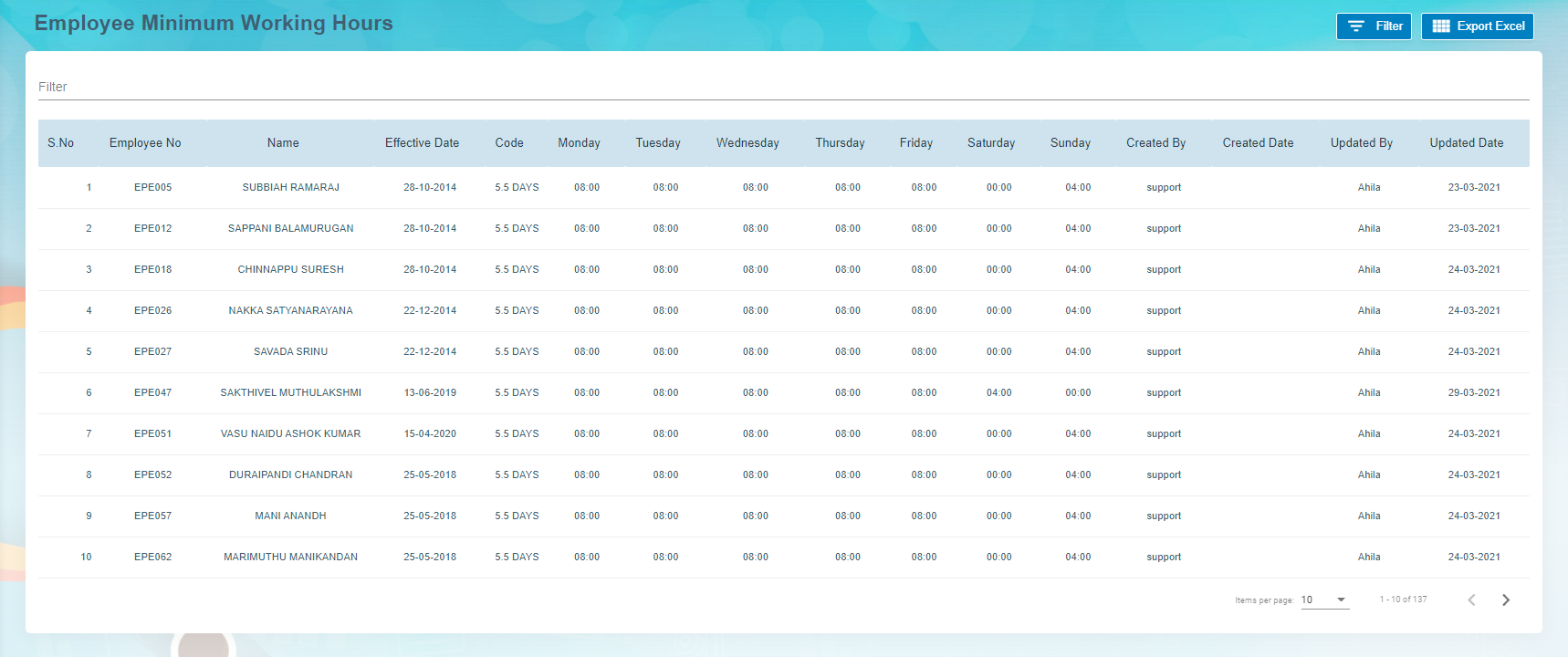
- **Export Employee Minimum Working Hour Details**The application has a feature to download the employee’s minimum working hour details as an excel file. You can click ![](http://wiki.cuteinfocomm.com/uploads/images/gallery/2022-05/embedded-image-c65kgbko.png)(**Export Excel** button) to download the minimum working hour details. The minimum working hour details in the **Employee Minimum Working Hours** page will be downloaded as an excel file.

- **Filter Minimum Working Hour Details of Any Employee**If you want to view the minimum working hour details of any specific employee among multiple employees listed in the **Employee** **Minimum Working Hours** page, click[![image-1652207986748.png](http://wiki.cuteinfocomm.com/uploads/images/gallery/2022-05/scaled-1680-/image-1652207986748.png)<span style="color: #000000;">(Filter button) provided in the upper side of the Employee Minimum Working Hours page. The Filter option will be enabled in the Employee Minimum Working Hours page to filter the specific minimum working hour detail.</span>](http://wiki.cuteinfocomm.com/uploads/images/gallery/2022-05/image-1652207986748.png)

### Pay Revision

In Pay Revision, authorized user can revise employee's pay in this section. Click **Pay Revision** in the **Reports** menu, employees' pay revisions records with status will show in list as below,[![image-1662073192791.png](http://wiki.cuteinfocomm.com/uploads/images/gallery/2022-09/scaled-1680-/image-1662073192791.png)](http://wiki.cuteinfocomm.com/uploads/images/gallery/2022-09/image-1662073192791.png)
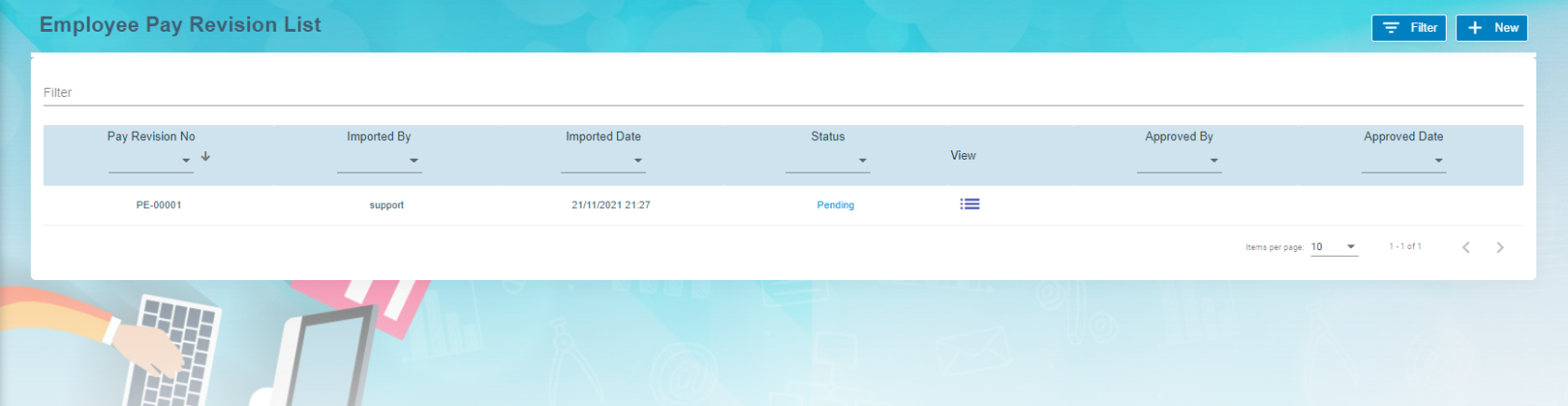
To add a new pay revision,

1. Click[![image-1662073580758.png](http://wiki.cuteinfocomm.com/uploads/images/gallery/2022-09/scaled-1680-/image-1662073580758.png)](http://wiki.cuteinfocomm.com/uploads/images/gallery/2022-09/image-1662073580758.png) add new button in the up right corner of the employee pay revision list page,
2. Click **Filter** and select employees that need to revise pay,[![image-1662073606376.png](http://wiki.cuteinfocomm.com/uploads/images/gallery/2022-09/scaled-1680-/image-1662073606376.png)](http://wiki.cuteinfocomm.com/uploads/images/gallery/2022-09/image-1662073606376.png)

3. Then click **Download the template** for the above selected employee we are going to do pay revision. The pay revision excel template will be downloaded.
4. Fill up all the column in downloaded excel and Save the file. **Note: user must enter new effective date**.
5. Then click **Import** button to import above excel file. Pay revision is uploaded against the employee.
6. Click Back [![image-1664268372878.png](http://wiki.cuteinfocomm.com/uploads/images/gallery/2022-09/scaled-1680-/image-1664268372878.png)](http://wiki.cuteinfocomm.com/uploads/images/gallery/2022-09/image-1664268372878.png)button in View all Employee.
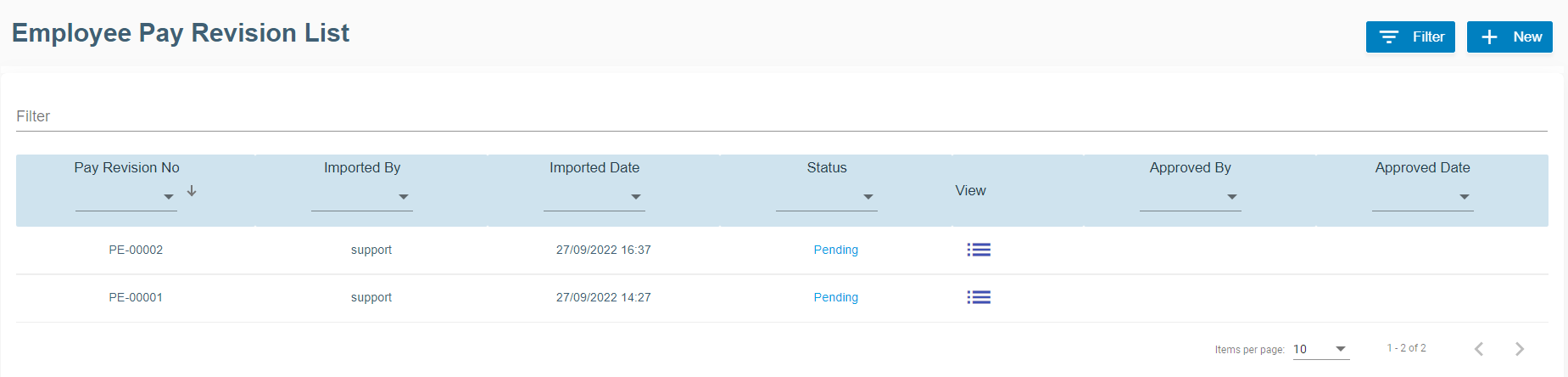
7. In Employee Pay Revision List window , click View icon[![image-1664269246085.png](http://wiki.cuteinfocomm.com/uploads/images/gallery/2022-09/scaled-1680-/image-1664269246085.png) ](http://wiki.cuteinfocomm.com/uploads/images/gallery/2022-09/image-1664269246085.png) to view the changes against the employee. [![image-1664269507284.png](http://wiki.cuteinfocomm.com/uploads/images/gallery/2022-09/scaled-1680-/image-1664269507284.png)](http://wiki.cuteinfocomm.com/uploads/images/gallery/2022-09/image-1664269507284.png)
8. New window open with Pay Revision No. [![image-1664268931845.png](http://wiki.cuteinfocomm.com/uploads/images/gallery/2022-09/scaled-1680-/image-1664268931845.png)](http://wiki.cuteinfocomm.com/uploads/images/gallery/2022-09/image-1664268931845.png)
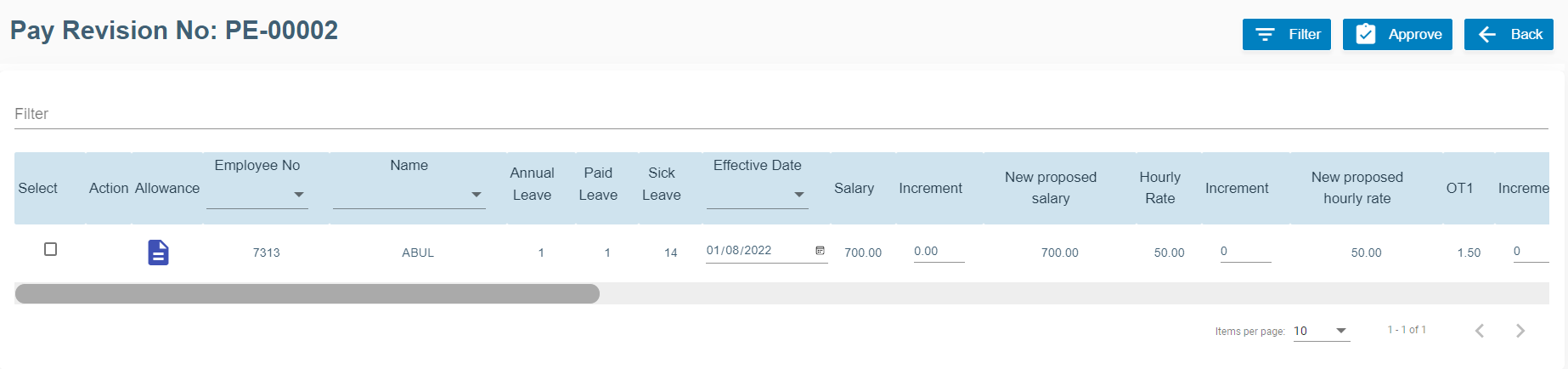
    
      
    [![image-1664270072295.png](http://wiki.cuteinfocomm.com/uploads/images/gallery/2022-09/scaled-1680-/image-1664270072295.png)](http://wiki.cuteinfocomm.com/uploads/images/gallery/2022-09/image-1664270072295.png)
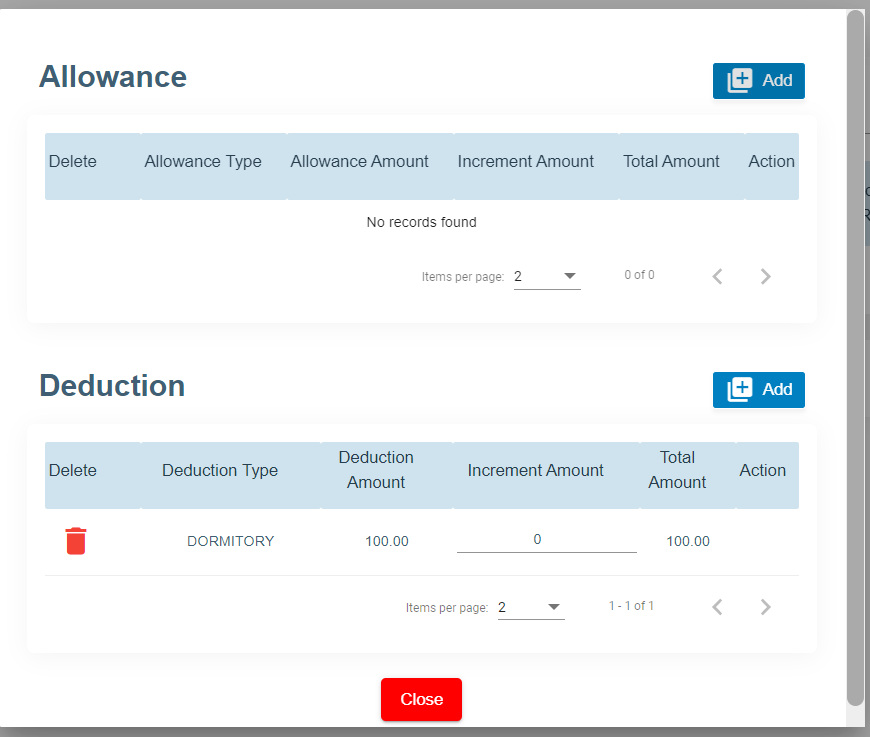
9. Click Action Allowance [![image-1664270149565.png](http://wiki.cuteinfocomm.com/uploads/images/gallery/2022-09/scaled-1680-/image-1664270149565.png) ](http://wiki.cuteinfocomm.com/uploads/images/gallery/2022-09/image-1664270149565.png)to add new allowance and deduction items and amounts.
    
    [![image-1664270369274.png](http://wiki.cuteinfocomm.com/uploads/images/gallery/2022-09/scaled-1680-/image-1664270369274.png)](http://wiki.cuteinfocomm.com/uploads/images/gallery/2022-09/image-1664270369274.png)
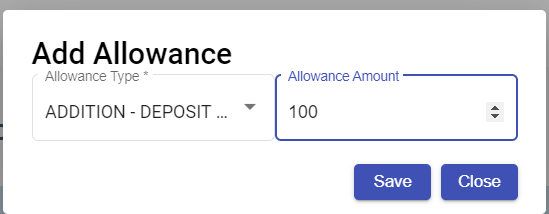
10. Click Save for each items added for allowance and deduction.
11. Delete option[![image-1664270991221.png](http://wiki.cuteinfocomm.com/uploads/images/gallery/2022-09/scaled-1680-/image-1664270991221.png)](http://wiki.cuteinfocomm.com/uploads/images/gallery/2022-09/image-1664270991221.png)available to delete the previously added allowance and deduction.
12. Click Close button at the end.
13. Now click **Approve[![image-1664271138712.png](http://wiki.cuteinfocomm.com/uploads/images/gallery/2022-09/scaled-1680-/image-1664271138712.png)](http://wiki.cuteinfocomm.com/uploads/images/gallery/2022-09/image-1664271138712.png)** button at the top right corner to approve it.
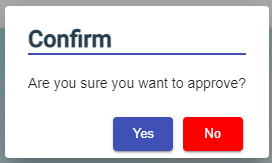
14. The confirmation window will open as below when user clicks **Approve**, click **Yes** to confirm approval of pay revision. [![image-1663094058782.png](http://wiki.cuteinfocomm.com/uploads/images/gallery/2022-09/scaled-1680-/image-1663094058782.png)](http://wiki.cuteinfocomm.com/uploads/images/gallery/2022-09/image-1663094058782.png)
15. Eventually, the pay revision will be effective from the new date mentioned.

### Employee Evaluation

Employee evaluation page manages evaluation for all employees. Click Evaluation tab in Employee menu, the employee evaluation list page shows as below

#### Add A New Evaluation

To add a new evaluation,

1. Click [![image-1664824676986.png](http://wiki.cuteinfocomm.com/uploads/images/gallery/2022-10/scaled-1680-/image-1664824676986.png)](http://wiki.cuteinfocomm.com/uploads/images/gallery/2022-10/image-1664824676986.png)Add button. Add New Employee Evaluation window opens, [![image-1663580391250.png](http://wiki.cuteinfocomm.com/uploads/images/gallery/2022-09/scaled-1680-/image-1663580391250.png)](http://wiki.cuteinfocomm.com/uploads/images/gallery/2022-09/image-1663580391250.png)

2. Select Employee No from the drop down list, select the Period of Evaluation from the drop down list. The period of evaluation corresponds to the employee's trade.
3. Click Save. The add evaluation page will be redirect to evaluation list page. A new evaluation request will be created for selected employee.
4. Click the key of the new evaluation request, the evaluation detail page will open, [![image-1664832391707.png](http://wiki.cuteinfocomm.com/uploads/images/gallery/2022-10/scaled-1680-/image-1664832391707.png)](http://wiki.cuteinfocomm.com/uploads/images/gallery/2022-10/image-1664832391707.png)
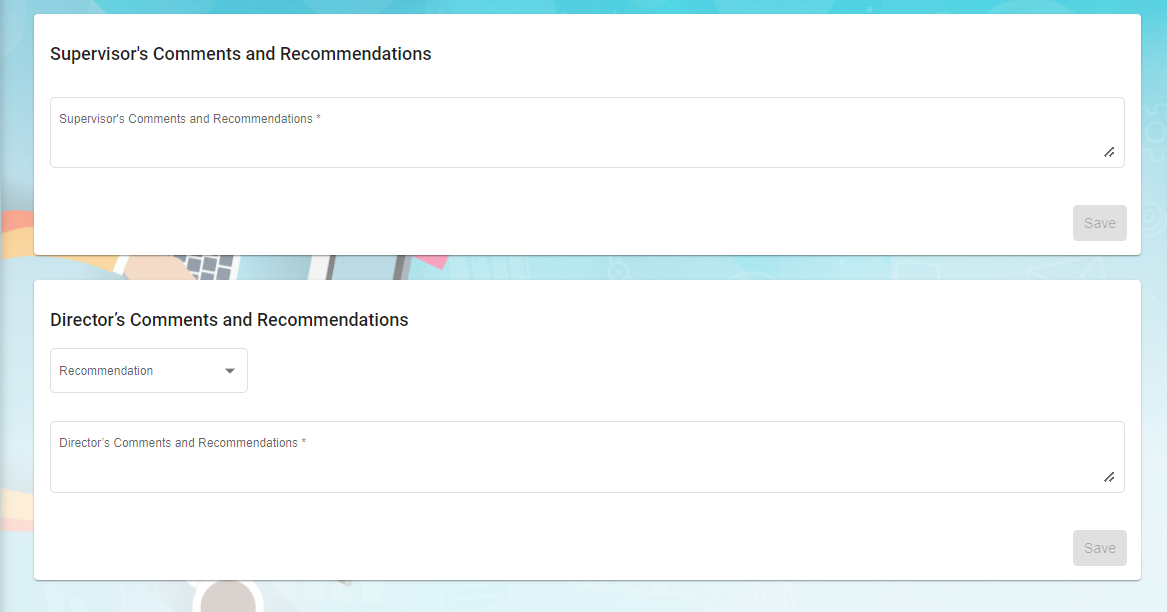
    
    
    - In evaluation form, employee and manager can enter the rating details
    - In supervisor's comments and recommendations, enter comment if any
    - In director's comments and recommendations, enter comment if any

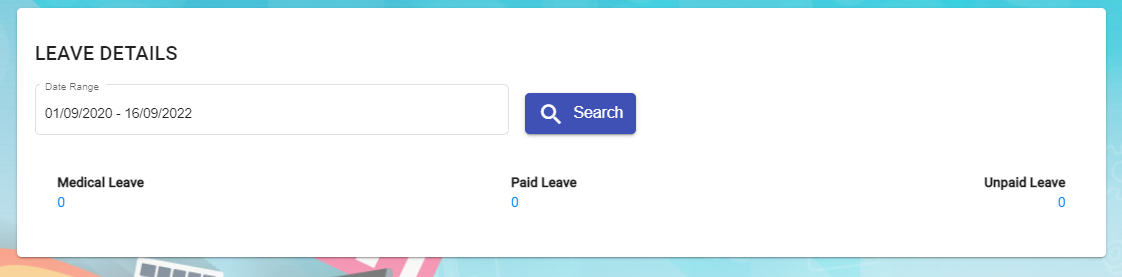
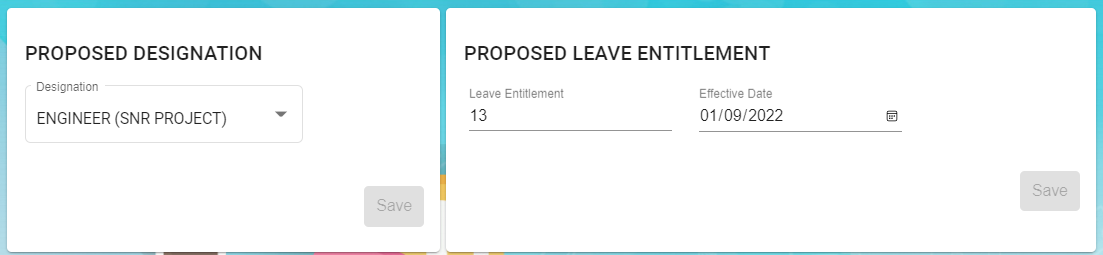
5\. Users can also update below employee's details based on evaluation: Leave details, Proposed Designation, Proposed Leave Entitlement, Latest Salary Details and Learning &amp; Development. Note: these are optional to update.

[![image-1663322070039.png](http://wiki.cuteinfocomm.com/uploads/images/gallery/2022-09/scaled-1680-/image-1663322070039.png)](http://wiki.cuteinfocomm.com/uploads/images/gallery/2022-09/image-1663322070039.png)
[![image-1663322103137.png](http://wiki.cuteinfocomm.com/uploads/images/gallery/2022-09/scaled-1680-/image-1663322103137.png)](http://wiki.cuteinfocomm.com/uploads/images/gallery/2022-09/image-1663322103137.png)
[![image-1663322142772.png](http://wiki.cuteinfocomm.com/uploads/images/gallery/2022-09/scaled-1680-/image-1663322142772.png)](http://wiki.cuteinfocomm.com/uploads/images/gallery/2022-09/image-1663322142772.png)

[![image-1663322177585.png](http://wiki.cuteinfocomm.com/uploads/images/gallery/2022-09/scaled-1680-/image-1663322177585.png)](http://wiki.cuteinfocomm.com/uploads/images/gallery/2022-09/image-1663322177585.png)

#### Add Evaluations in Bulk

To add evaluations in bulk,

1. Click[![image-1664833503135.png](http://wiki.cuteinfocomm.com/uploads/images/gallery/2022-10/scaled-1680-/image-1664833503135.png)](http://wiki.cuteinfocomm.com/uploads/images/gallery/2022-10/image-1664833503135.png)add in bulk button, below window opens,

2. Select employees by ticking the box in front of the employee names. Note: please check the color code in the top right corner of the page for those employees that are not in selection list.
3. Click Save. The add evaluation page will be redirect to evaluation list page. New evaluation requests will be created for selected employees.
4. Click the key of each new evaluation request added, and fill up the the evaluation details in the evaluation request detail page. (Note: follow the same steps of adding details in single evaluation request)

##### <span style="background-color: #e03e2d;">Evaluation Request Approval -pending for update</span>

### Learning and Development

Learning and development manage employees' learning and development plans. Click Learning &amp; Development tab in Employee menu, below page opens,

#### Add New Course Plan

To add a new course plan,

1. Click [![image-1664352774264.png](http://wiki.cuteinfocomm.com/uploads/images/gallery/2022-09/scaled-1680-/image-1664352774264.png)](http://wiki.cuteinfocomm.com/uploads/images/gallery/2022-09/image-1664352774264.png) Add Course Plan icon in Learning and Development request list page, a new window opens, [![image-1664352638622.png](http://wiki.cuteinfocomm.com/uploads/images/gallery/2022-09/scaled-1680-/image-1664352638622.png)](http://wiki.cuteinfocomm.com/uploads/images/gallery/2022-09/image-1664352638622.png)

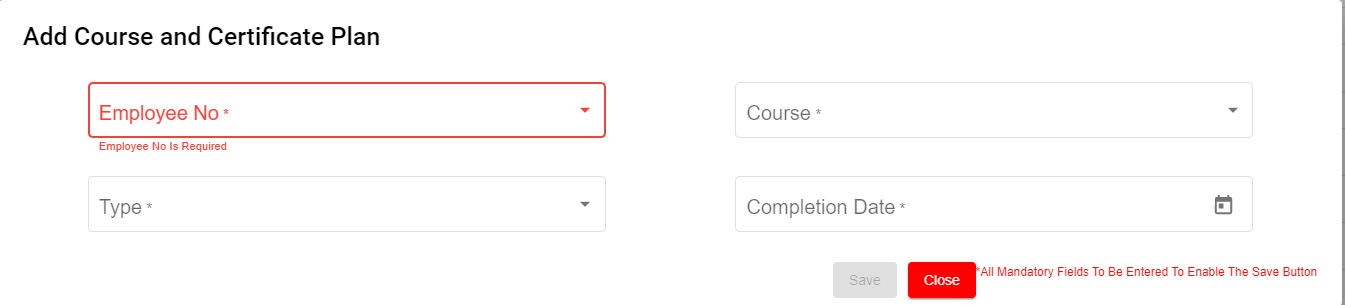
2. Fill up details in add course and certificate plan page: 
    - In Employee No. box, select Employee No from the drop down list.
    - In Course box, Choose one course or multiple courses from course list.
    - In Type box, select Mandatory or Non-Mandatory based on the course requirement.
    - In Completion Date box, select expected completion date of the course in the calendar selection.
3. Click Save. A new learning and development request is created, and the page will be directed to learning and development list page,
4. Click the request Key to view employee course details.
5. Click edit button in the Course Details section as shown in above screenshot. A Course detail page open as below, [![image-1664841046897.png](http://wiki.cuteinfocomm.com/uploads/images/gallery/2022-10/scaled-1680-/image-1664841046897.png)](http://wiki.cuteinfocomm.com/uploads/images/gallery/2022-10/image-1664841046897.png)
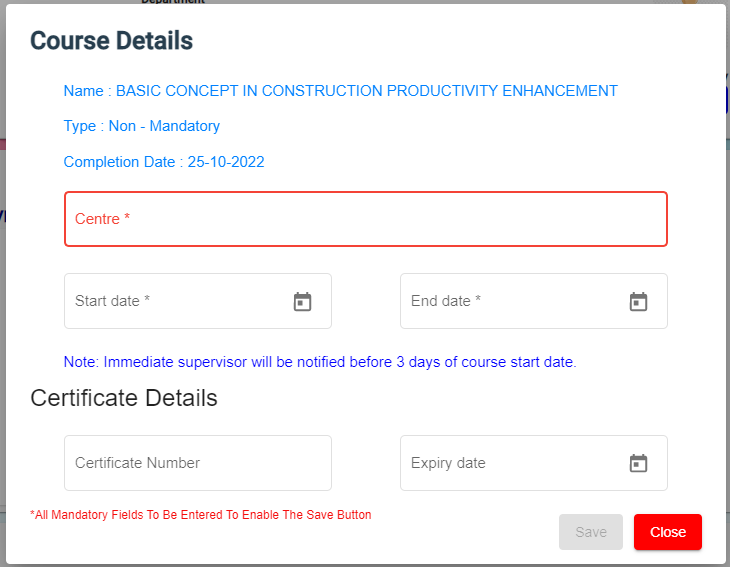
6. Enter course conduction centre name, start date and end date of course. And click Save. Once request is approved, Immediate Supervisor will be notified before 3 days of course start date.
7. Click [![image-1664357163504.png](http://wiki.cuteinfocomm.com/uploads/images/gallery/2022-09/scaled-1680-/image-1664357163504.png)](http://wiki.cuteinfocomm.com/uploads/images/gallery/2022-09/image-1664357163504.png) Submit button at the top right corner. The notification confirm window opens to enter Assignee and Notify users.
    
    [![image-1664841314457.png](http://wiki.cuteinfocomm.com/uploads/images/gallery/2022-10/scaled-1680-/image-1664841314457.png)](http://wiki.cuteinfocomm.com/uploads/images/gallery/2022-10/image-1664841314457.png)
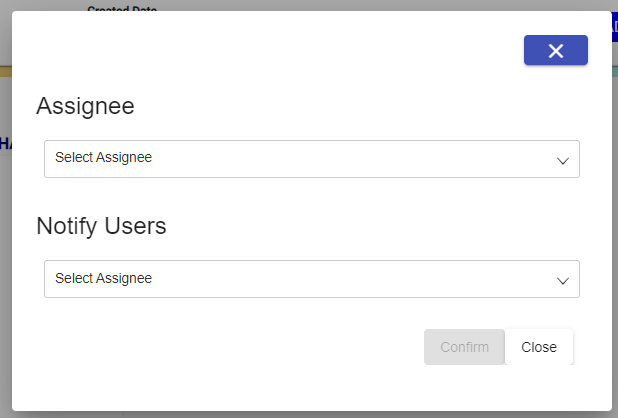
8. Click Confirm[![image-1664357955969.png](http://wiki.cuteinfocomm.com/uploads/images/gallery/2022-09/scaled-1680-/image-1664357955969.png)](http://wiki.cuteinfocomm.com/uploads/images/gallery/2022-09/image-1664357955969.png) to confirm submission of learning and development request.
9. After course got completed by the employee, Supervisor/Worker will enter certificate number and expiry date.
10. 
11. <span style="background-color: #e03e2d;">To be updated</span>
    
    12\. After course got completed by the employee, Supervisor/Worker will enter certificate number and expiry date.

9\.

12\.

13\. Click Save and Close

14\. Click attachment to attach the course certificate

[![image-1664366544017.png](http://wiki.cuteinfocomm.com/uploads/images/gallery/2022-09/scaled-1680-/image-1664366544017.png)](http://wiki.cuteinfocomm.com/uploads/images/gallery/2022-09/image-1664366544017.png)
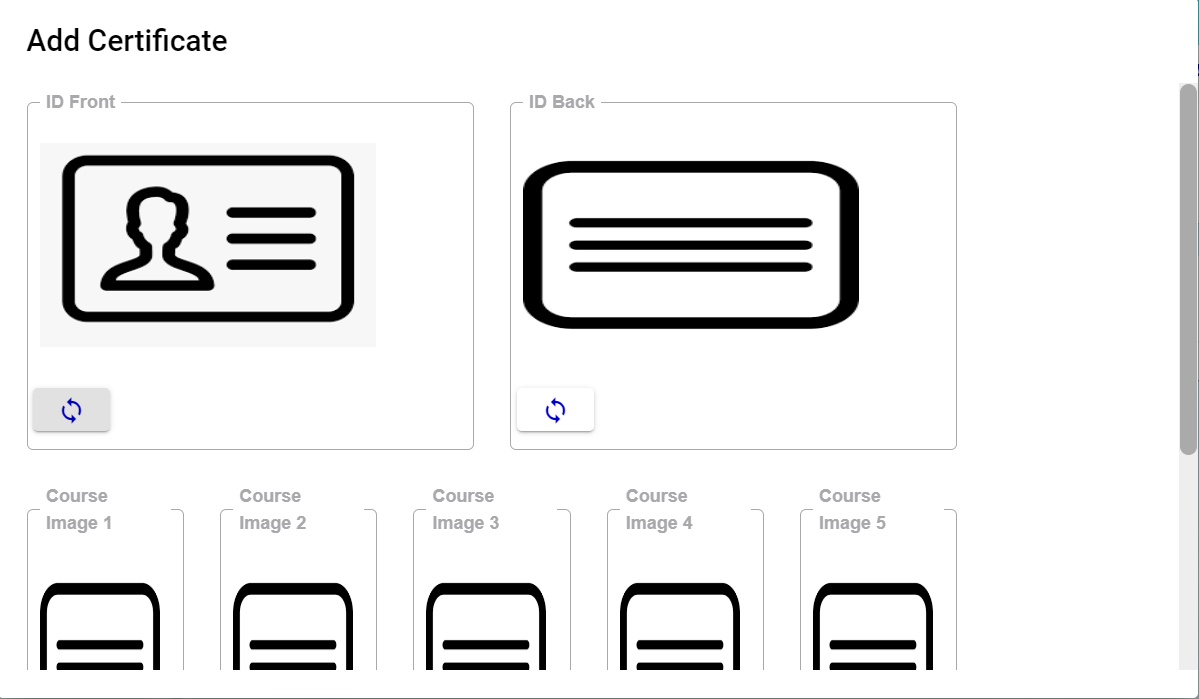
14\. Click Close

15\. If applicable enter Training Bond Details of the employee in the Bond Details. Bond details have a link to Offboard checklist. For instance, If the employee resigned before the Training bond, Offboard will throw alert message for refusal of the resignation.

16\. Click Sent for HR on the top right corner of the page

[![image-1664367537696.png](http://wiki.cuteinfocomm.com/uploads/images/gallery/2022-09/scaled-1680-/image-1664367537696.png)](http://wiki.cuteinfocomm.com/uploads/images/gallery/2022-09/image-1664367537696.png)
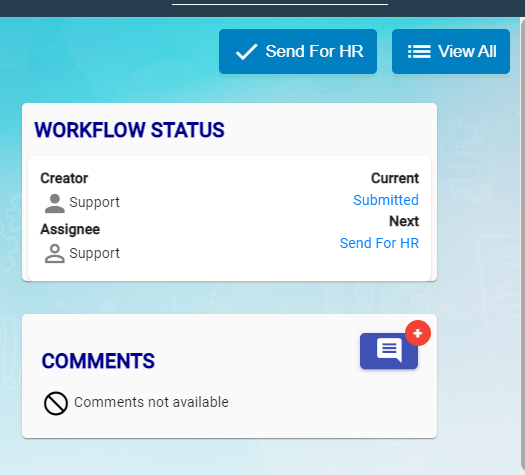
17\. Next Window opens to enter Assignee and Notify user

[![image-1664367639710.png](http://wiki.cuteinfocomm.com/uploads/images/gallery/2022-09/scaled-1680-/image-1664367639710.png)](http://wiki.cuteinfocomm.com/uploads/images/gallery/2022-09/image-1664367639710.png)

18.Click Confirm button

19\. HR will check and he will either Approve or Return

20.Click approve icon to approve.

[![image-1664367945687.png](http://wiki.cuteinfocomm.com/uploads/images/gallery/2022-09/scaled-1680-/image-1664367945687.png)](http://wiki.cuteinfocomm.com/uploads/images/gallery/2022-09/image-1664367945687.png)
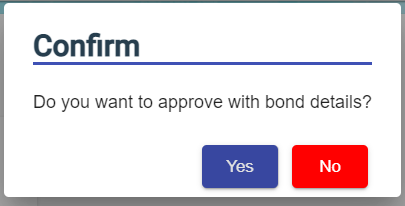
21\. Confirmation Box open to approve with bond details or not.

22\. Click Yes or No

[![image-1664368064372.png](http://wiki.cuteinfocomm.com/uploads/images/gallery/2022-09/scaled-1680-/image-1664368064372.png)](http://wiki.cuteinfocomm.com/uploads/images/gallery/2022-09/image-1664368064372.png)
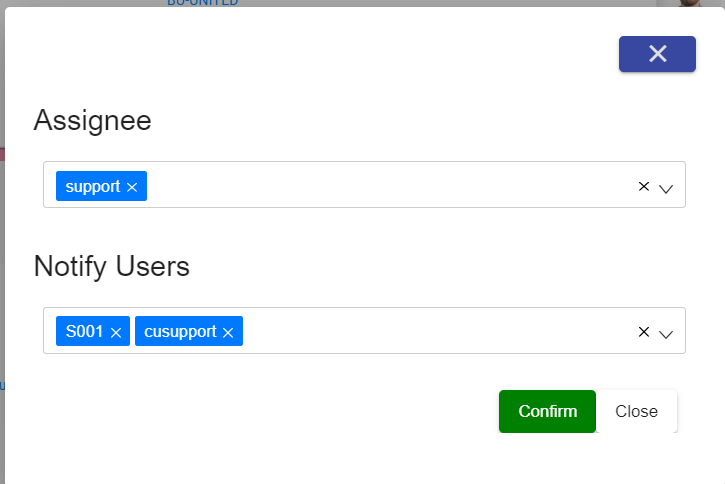
23\. Enter Assignee and Notify User and Confirm.

24\. LAD status Approved against the employee.

#### Settings

##### HRM Alert mail - Disable menus settings

##### Revoke birthday menu

- <span data-teams="true">Go to global settings and choose **disableBirthdayInHRMAlertEmail**</span>
- Set the value to true to hide the birthday portion in **HRM\_Alert\_Mail**

##### Revoke course menu

- <span data-teams="true">Go to global settings and choose **courseEmailAlertResponsibleBy**</span>
- Set the value to true to hide the course portion in **HRM\_Alert\_Mail**

# HRM Reports

## Reports

The **Reports** submenu in the **HUMAN RESOURCES** page helps you to view the added details of employee as a report.

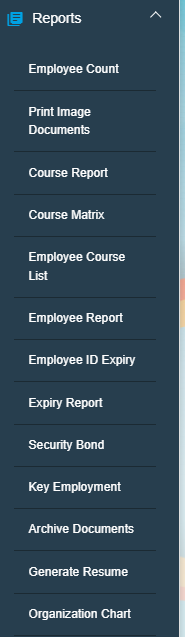
The **Reports** submenu contains the following tabs,

[![image-1662091255945.png](http://wiki.cuteinfocomm.com/uploads/images/gallery/2022-09/scaled-1680-/image-1662091255945.png)](http://wiki.cuteinfocomm.com/uploads/images/gallery/2022-09/image-1662091255945.png)
### View Employee Count

The **Employee Count** tab in the **Reports** submenu helps you to view the employee count based on the employee’s mode of working and status of working.

1. Click the **Employee Count** tab in the **Reports.** The **Employee Count** page opens. [![image-1662093000429.png](http://wiki.cuteinfocomm.com/uploads/images/gallery/2022-09/scaled-1680-/image-1662093000429.png)](http://wiki.cuteinfocomm.com/uploads/images/gallery/2022-09/image-1662093000429.png)
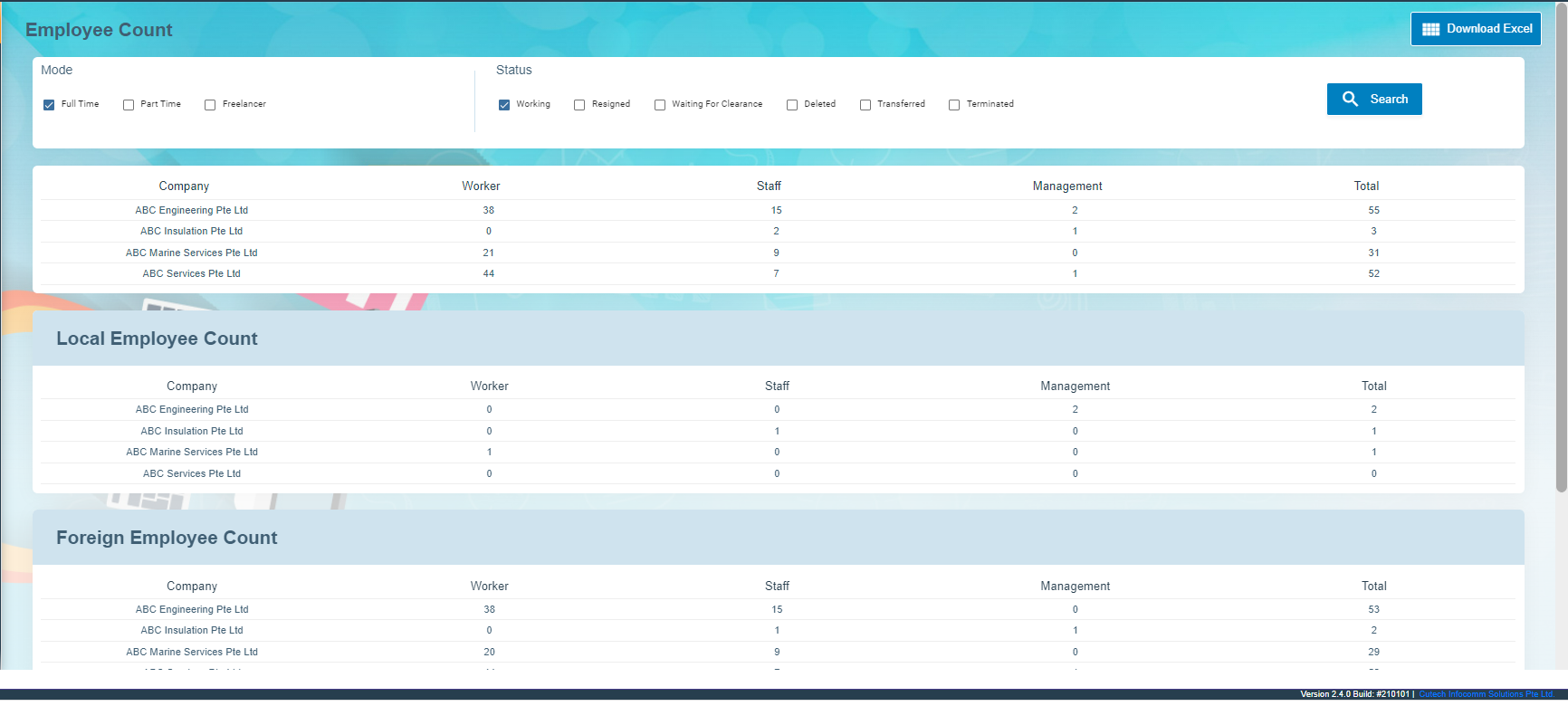
2. In the **Mode** box, select the working mode of the employee whether **Full Time**, **Part-Time** or **Freelancer**.
3. In the **Status** box, select the working status of the employee whether **Working**, **Resigned**, or others from the given options.

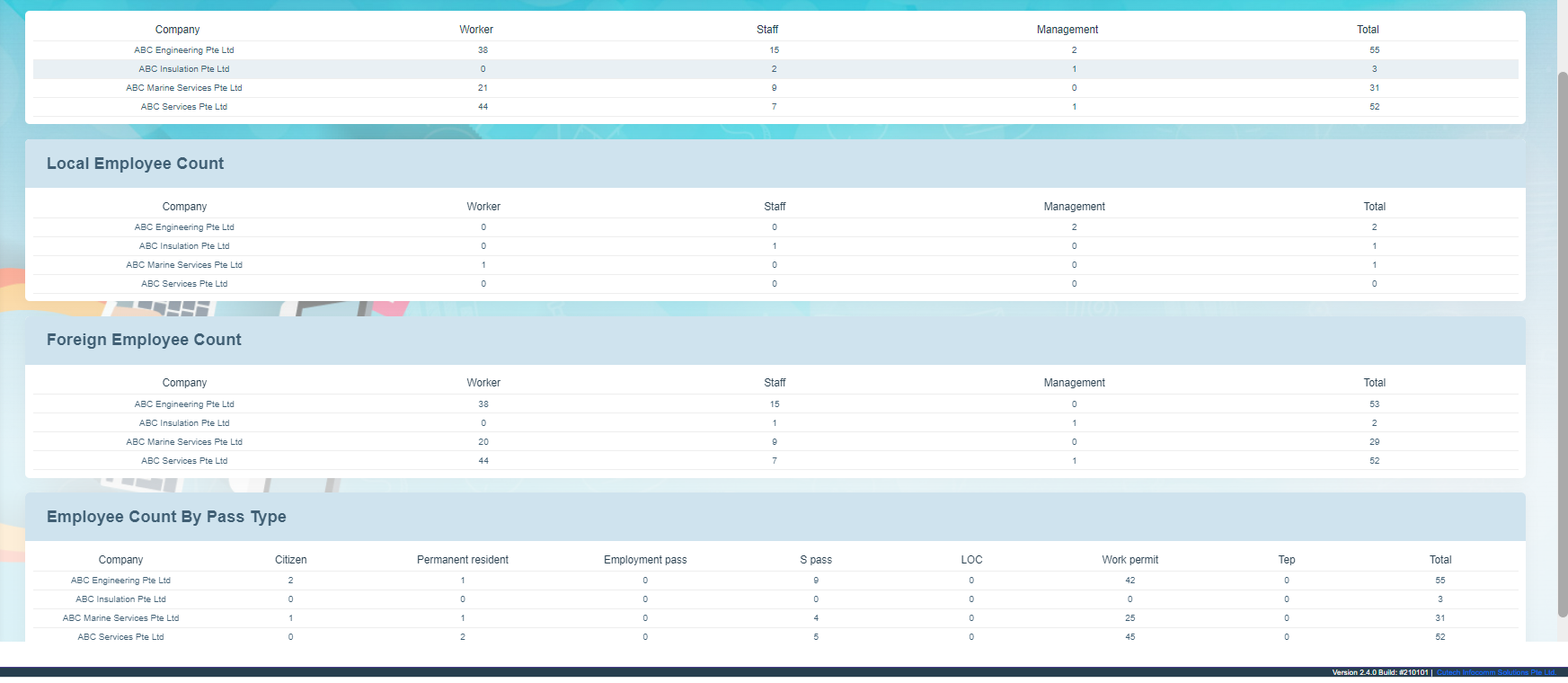
**Note**: You can select more than one working mode and working status to view the combined employee count.

4. Click **Search**. The **Employee Count** page shows the employee count based on the selected working mode and status. [![image-1662093052146.png](http://wiki.cuteinfocomm.com/uploads/images/gallery/2022-09/scaled-1680-/image-1662093052146.png)](http://wiki.cuteinfocomm.com/uploads/images/gallery/2022-09/image-1662093052146.png)
### Print Image Documents

The **Print Image Documents** tab in the **Reports** submenu helps you to generate and view the employee’s photo, ID document, passport document, course ID, and certificates. To print the image documents,

1. Click the **Print Image Documents** tab in the **Reports.** The **Employee Document Download** page opens. [![image-1662090787623.png](http://wiki.cuteinfocomm.com/uploads/images/gallery/2022-09/scaled-1680-/image-1662090787623.png)](http://wiki.cuteinfocomm.com/uploads/images/gallery/2022-09/image-1662090787623.png)
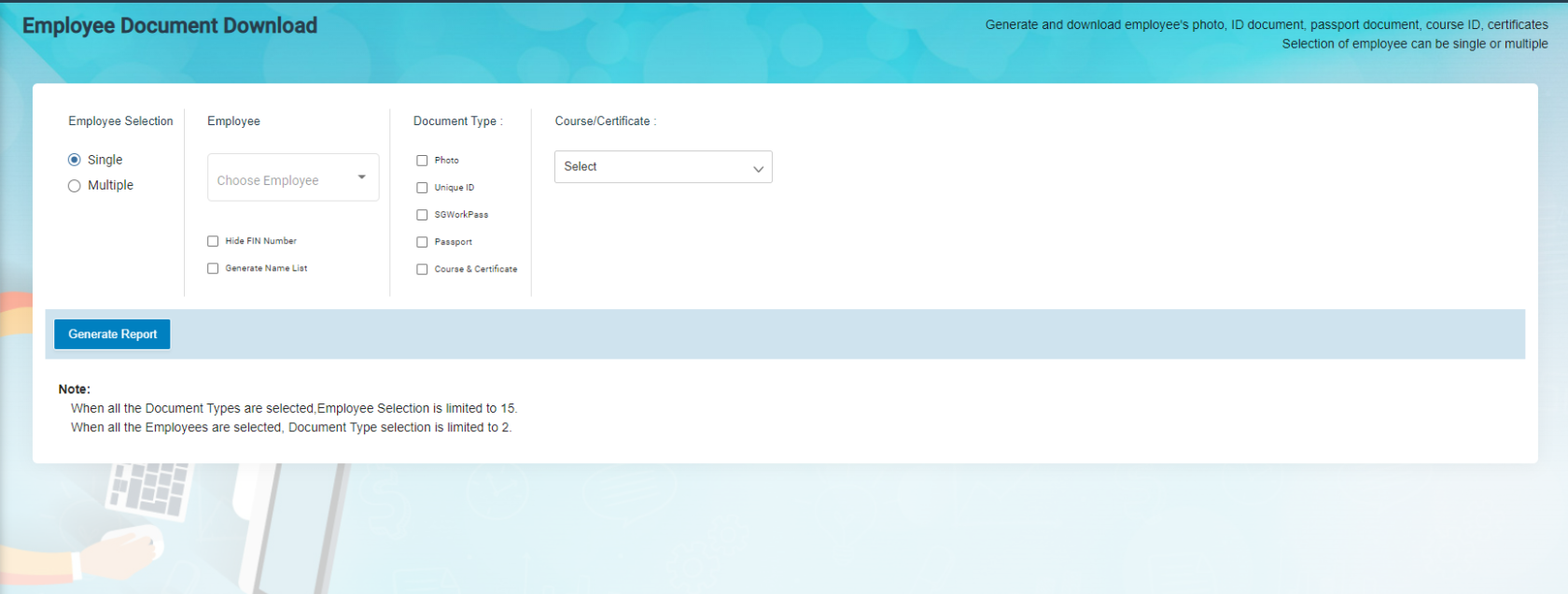
2. In the **Employee** **selection** box, 
    - If you want single employee, choose single in employee selection, then search and select an employee from employee dropdown list.
    - If you want to see multiple employees, choose multiple in the employee selection and select multiple employees in the check box. Or else you can click select all employee to show all employees print image documents.
3. Select the document type to be printed. If select course/certificate, then specify the course title from the course dropdown list.
4. Click **Generate Report**.

### View Course Report

You can view the course details of any particular employee or all employees by using this  **Course Report** tab. To view the employee course report,

1. Click the **Course Report** tab in the **Reports**. The **Course Report** page opens. [![image-1662093089092.png](http://wiki.cuteinfocomm.com/uploads/images/gallery/2022-09/scaled-1680-/image-1662093089092.png)](http://wiki.cuteinfocomm.com/uploads/images/gallery/2022-09/image-1662093089092.png)

2. If you want to view the course details for any particular employee, in the **Employee** box, select the employee from a drop-down list. Or If you want to view the course details for all employees, select the checkbox of the **Show All Employee**
3. Click **Search**. The employee course report opens. [![image-1682095648070.png](http://wiki.cuteinfocomm.com/uploads/images/gallery/2023-04/scaled-1680-/image-1682095648070.png)](http://wiki.cuteinfocomm.com/uploads/images/gallery/2023-04/image-1682095648070.png)
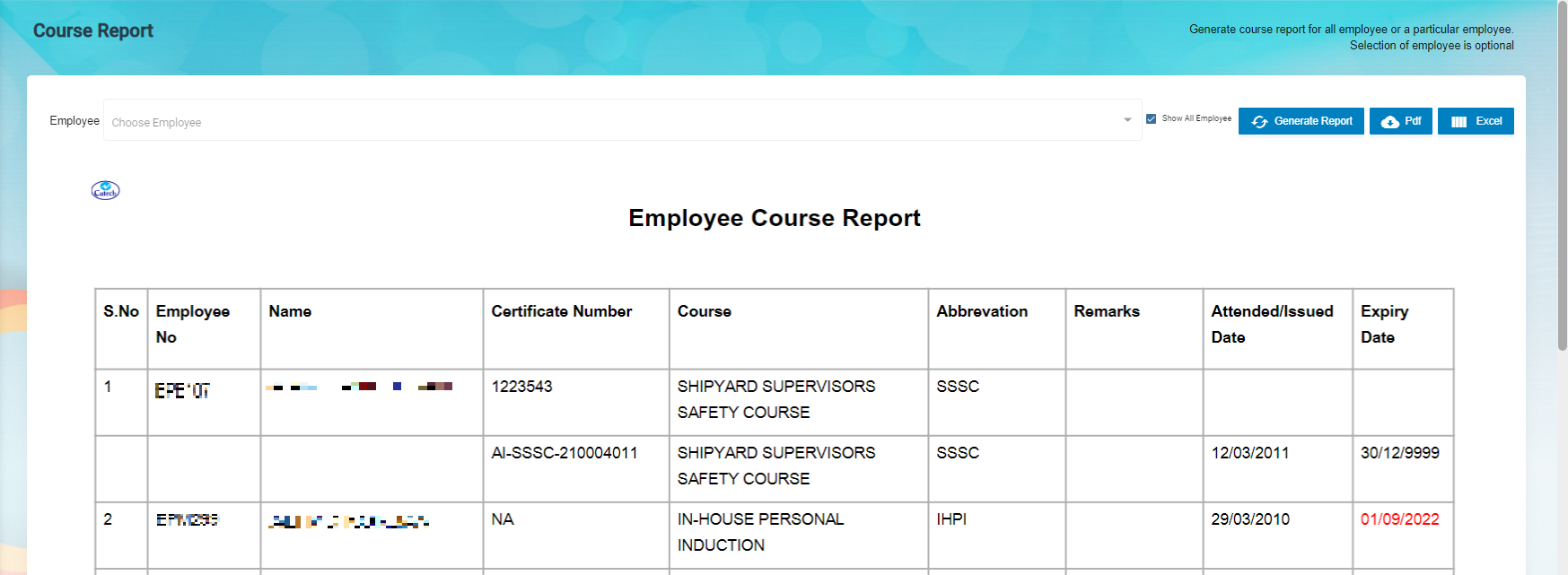
    
    **Note**: If you want to download the employee course report in pdf format, click ![](http://wiki.cuteinfocomm.com/uploads/images/gallery/2022-05/embedded-image-6dichlts.png)
    
    (**PDF download** button). The pdf report will be downloaded.

### View Courses Matrix

The  **Courses Matrix** tab in the **Reports** submenu helps you to generate and view the employee’s course attendance report. To view the course attendance report,

1. Click the **Courses Matrix** tab in the **Reports**. The **Courses Matrix** page opens. [![image-1662093188842.png](http://wiki.cuteinfocomm.com/uploads/images/gallery/2022-09/scaled-1680-/image-1662093188842.png)](http://wiki.cuteinfocomm.com/uploads/images/gallery/2022-09/image-1662093188842.png)

2. In the **Select Employees** box, select the employees for whom you want to view the course attendance report.
3. In the **Select Courses** box, select the courses.

 **Note**: The maximum number of selection of employees is 10. You cannot select the more than 10 employees.

4. Click **Submit**. The employee’s course matrix report opens. [![image-1682095691372.png](http://wiki.cuteinfocomm.com/uploads/images/gallery/2023-04/scaled-1680-/image-1682095691372.png)](http://wiki.cuteinfocomm.com/uploads/images/gallery/2023-04/image-1682095691372.png)
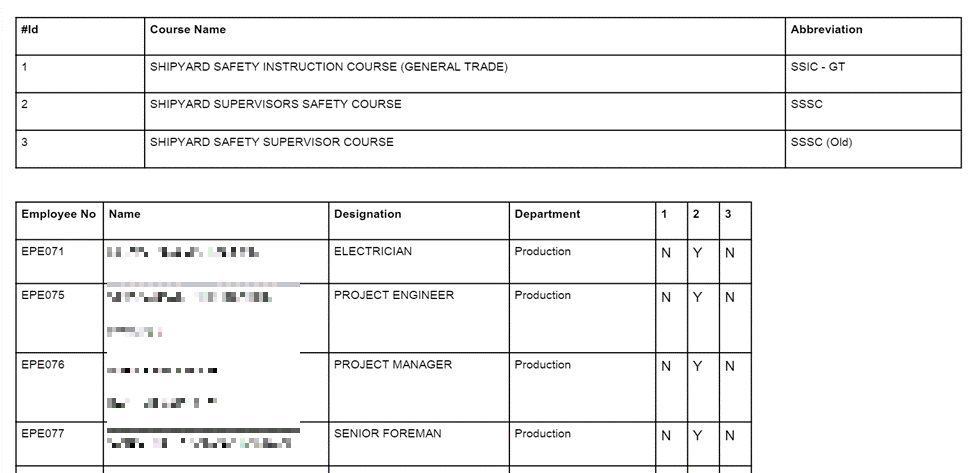
**Note**: If you want to download the employee course and matrix report in pdf format, click ![](http://wiki.cuteinfocomm.com/uploads/images/gallery/2022-05/embedded-image-ynon590j.png) (**PDF download** button). The pdf report will be downloaded.

### View Employee Course List

The **Employee Course List** tab in the **Reports** submenu helps you to view the courses which are completed by the employees. To view the course list,

1. Click the **Employee Course List** tab in the **Reports.** The **Employee Course List** page opens, [![image-1682095753850.png](http://wiki.cuteinfocomm.com/uploads/images/gallery/2023-04/scaled-1680-/image-1682095753850.png)](http://wiki.cuteinfocomm.com/uploads/images/gallery/2023-04/image-1682095753850.png)
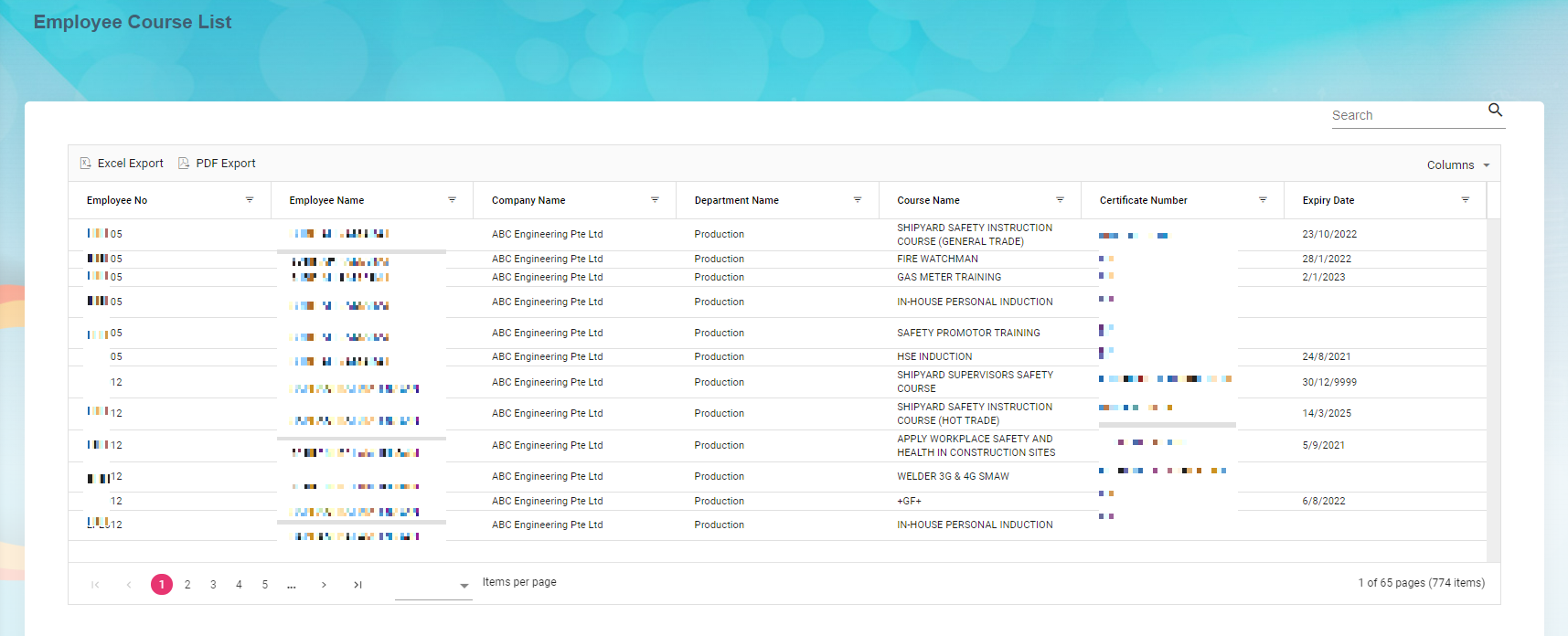
    
    **<u>To Customize the</u>**<u> **Employee Course List** **page**:</u>

You can customize the **Employee Course List** page by using the **Columns** option. In the **Columns** option, select the columns which you want to add in the **Employee Course List.** The selected columns will be added the Employee Course List page.
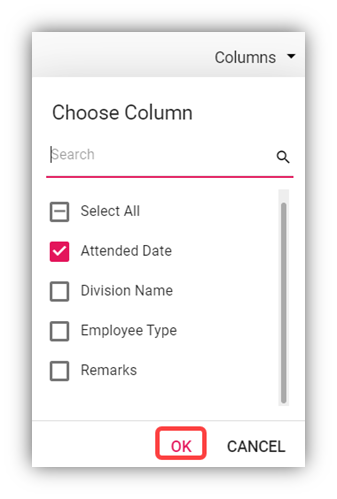
![](http://wiki.cuteinfocomm.com/uploads/images/gallery/2022-05/embedded-image-7otbiqcs.png)

2. In the **Course Name** box, select a course from the list of courses added using the [Course Master](#_Course). The page shows a list of employees who has completed the selected course.

- **Export course list**

The application has a feature to download the course list as an excel file. You can use (**Export Excel** button) to download the course list details. To download the course list details, select the desired format and click[![image-1662091449802.png](http://wiki.cuteinfocomm.com/uploads/images/gallery/2022-09/scaled-1680-/image-1662091449802.png)](http://wiki.cuteinfocomm.com/uploads/images/gallery/2022-09/image-1662091449802.png)(**Export Excel** or **PDF** button). The course list in the **Employee Course List** page will be downloaded.

- **Filter Course List**

If you want to view any specific course completed details among multiple completed courses listed in the **Employee** **Course List** page, you can use the filter option provided below each column in the **Employee** **Course List** page.![](http://wiki.cuteinfocomm.com/uploads/images/gallery/2022-05/embedded-image-m116odg3.png)

### View Employee Report

You can view the list of added employees including their details such as employee number, company, and so on by using the **Employee Report** tab in the **Reports** submenu. Click the **Employee Report** tab in the **Reports**. The **Employee Report** page opens with a list of added employees including their details.

[![image-1682095806683.png](http://wiki.cuteinfocomm.com/uploads/images/gallery/2023-04/scaled-1680-/image-1682095806683.png)](http://wiki.cuteinfocomm.com/uploads/images/gallery/2023-04/image-1682095806683.png)
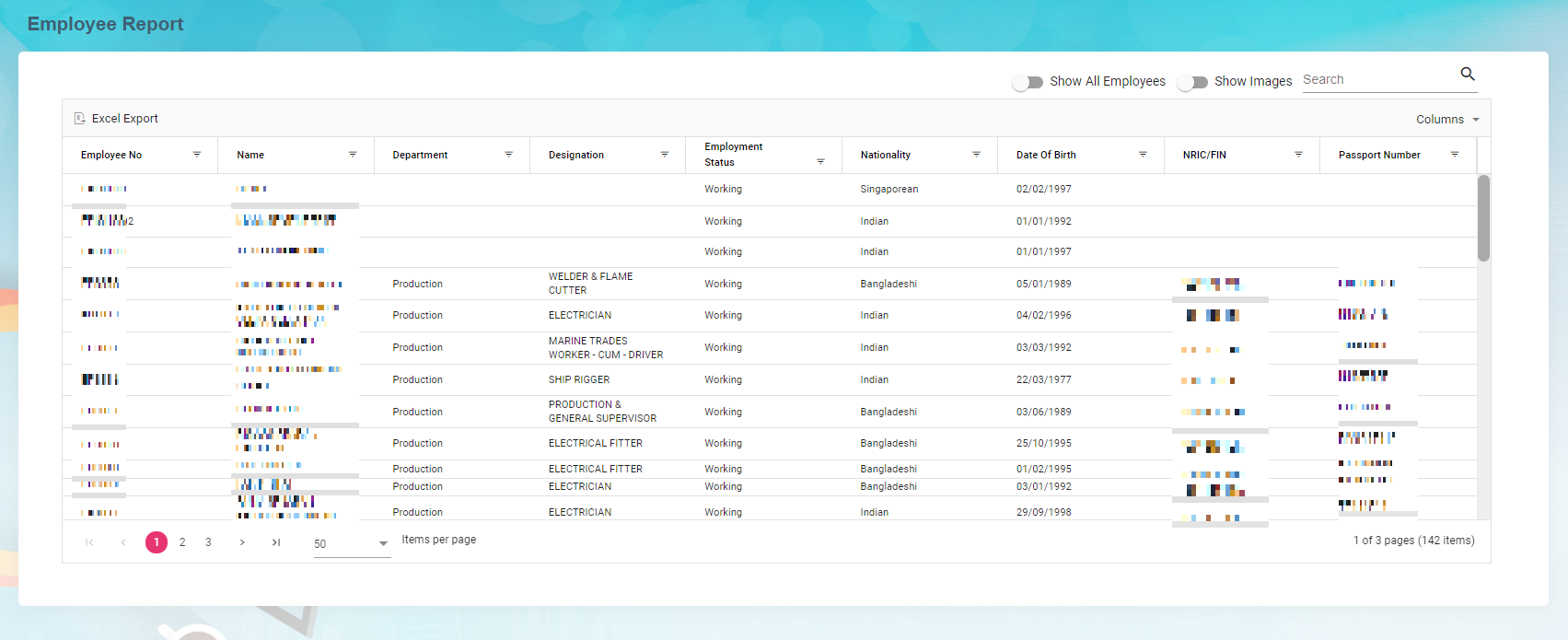
**<u>To Customize the</u>**<u> **Employee Report** **page**: </u>

You can customize the **Employee Report** page by using the **Columns** option. In the **Columns** option, select the columns which you want to add in the **Employee Report.** The selected columns will be added the Employee Report page.
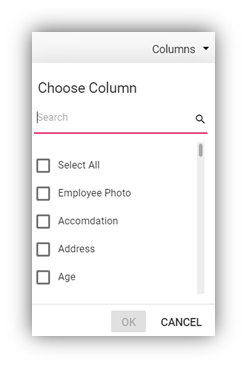
![](http://wiki.cuteinfocomm.com/uploads/images/gallery/2022-05/embedded-image-v2cryjow.png)

- **Export Employee Report**

The application has a feature to download the employee report as an excel file. You can use (**Export Excel** button) to download the employee report. To download the employee report, select the desired format and click[![image-1662091449802.png](http://wiki.cuteinfocomm.com/uploads/images/gallery/2022-09/scaled-1680-/image-1662091449802.png)](http://wiki.cuteinfocomm.com/uploads/images/gallery/2022-09/image-1662091449802.png)(**Export Excel** or **PDF** button). The employee details in the **Employee Report** page will be downloaded.

- **Filter Employee Report**

If you want to view any specific employee details among multiple employees listed in the **Employee** **Report** page, you can use the filter option provided below each column in the **Employee** **Report** page.![](http://wiki.cuteinfocomm.com/uploads/images/gallery/2022-05/embedded-image-jqeid1jv.png)

### View Employee’s Security Bond Report

The **Security Bond Report** tab in the **Reports** menu used to generate and view the security bond (work permit) report of the employee. To view the security bond report,

1. Click the **Security Bond Report** tab in the **Reports.** The **Employee’s (Work Permit) Security Bond Report** page opens. [![image-1662091589178.png](http://wiki.cuteinfocomm.com/uploads/images/gallery/2022-09/scaled-1680-/image-1662091589178.png)](http://wiki.cuteinfocomm.com/uploads/images/gallery/2022-09/image-1662091589178.png)

2. In the **Employee** box, select an employee from a drop-down list. Or if you want to view the security bond report for all the employees, click the checkbox of the **Show All Employee**
3. Click **Generate Report**. The security bond report for the selected employee opens. [![image-1662093468267.png](http://wiki.cuteinfocomm.com/uploads/images/gallery/2022-09/scaled-1680-/image-1662093468267.png)](http://wiki.cuteinfocomm.com/uploads/images/gallery/2022-09/image-1662093468267.png)
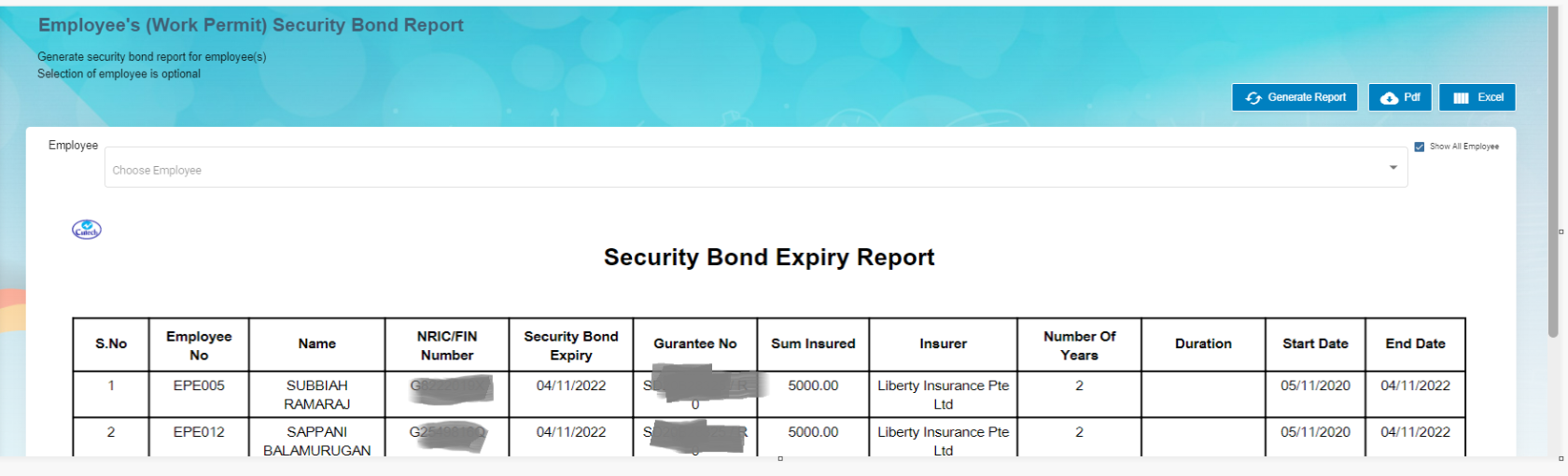
**Note**: If you want to download the employee’s security bond report in pdf format, click[![image-1662093519391.png](http://wiki.cuteinfocomm.com/uploads/images/gallery/2022-09/scaled-1680-/image-1662093519391.png)](http://wiki.cuteinfocomm.com/uploads/images/gallery/2022-09/image-1662093519391.png)(**PDF download** button). The pdf report will be downloaded.

### View Employee’s Key Employment Terms Report

The **Key Employment Terms Report** tab in the **Reports** menu used to view the key employment terms report of the employee. To view the key employment terms report,

1. Click the **Key Employment Terms Report** tab in the **Reports.** The **Employee’s Key Employment Terms Report** page opens. [![image-1662093552003.png](http://wiki.cuteinfocomm.com/uploads/images/gallery/2022-09/scaled-1680-/image-1662093552003.png)](http://wiki.cuteinfocomm.com/uploads/images/gallery/2022-09/image-1662093552003.png)

2. In the **Employee** box, select an employee from a drop-down list.
3. Click **Generate Report**. The key employment terms report for the selected employee opens, [![image-1662093626807.png](http://wiki.cuteinfocomm.com/uploads/images/gallery/2022-09/scaled-1680-/image-1662093626807.png)](http://wiki.cuteinfocomm.com/uploads/images/gallery/2022-09/image-1662093626807.png)
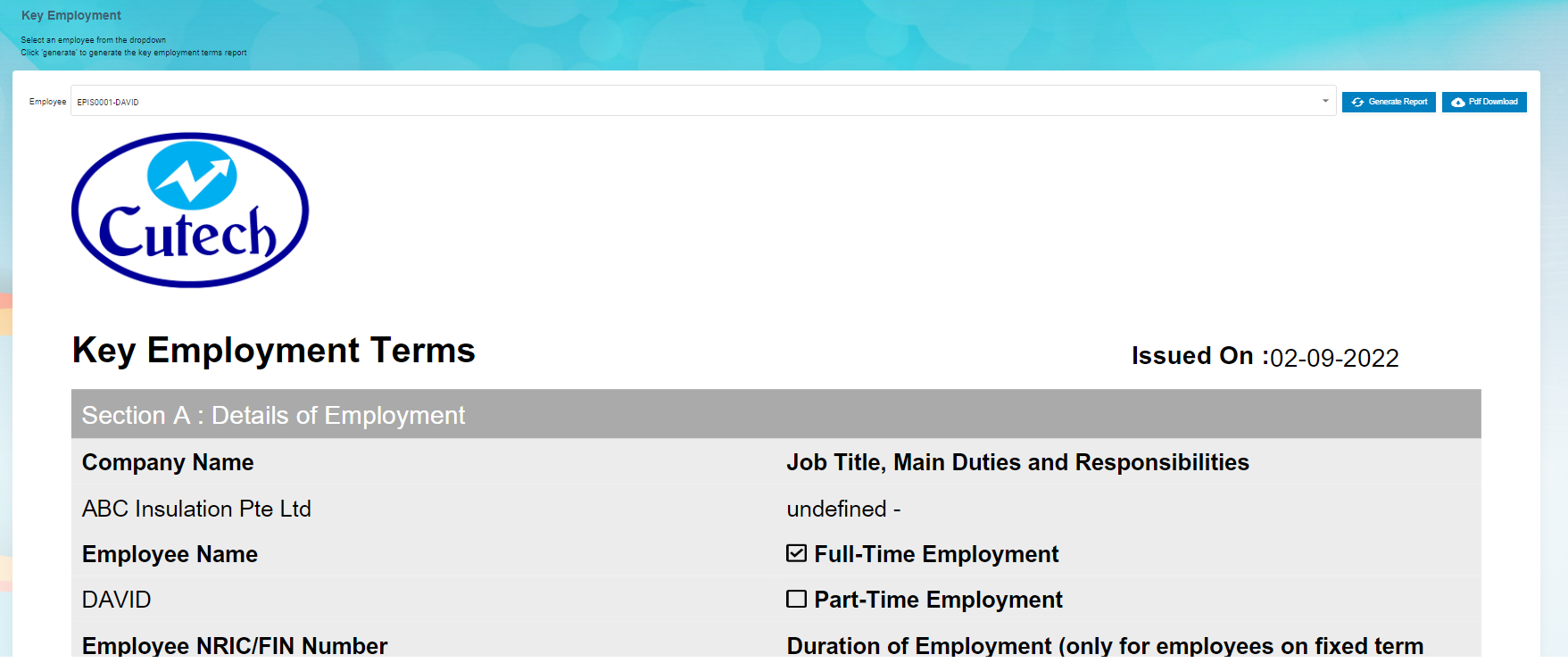
    
    **Note**: If you want to download the employee’s key employment terms report in pdf format, click [![image-1662093519391.png](http://wiki.cuteinfocomm.com/uploads/images/gallery/2022-09/scaled-1680-/image-1662093519391.png)](http://wiki.cuteinfocomm.com/uploads/images/gallery/2022-09/image-1662093519391.png) (**PDF download** button). The pdf report will be downloaded.

### View Archived Documents

The **Archive Documents** in the **Reports** submenu used to view the archived documents of the employee. To view the archived documents of the employee, click the **Archive Documents** tab in the **Reports.** The **Archived Employee Documents** page opens with a list of archived documents of the employees.

[![image-1662093691058.png](http://wiki.cuteinfocomm.com/uploads/images/gallery/2022-09/scaled-1680-/image-1662093691058.png)](http://wiki.cuteinfocomm.com/uploads/images/gallery/2022-09/image-1662093691058.png)
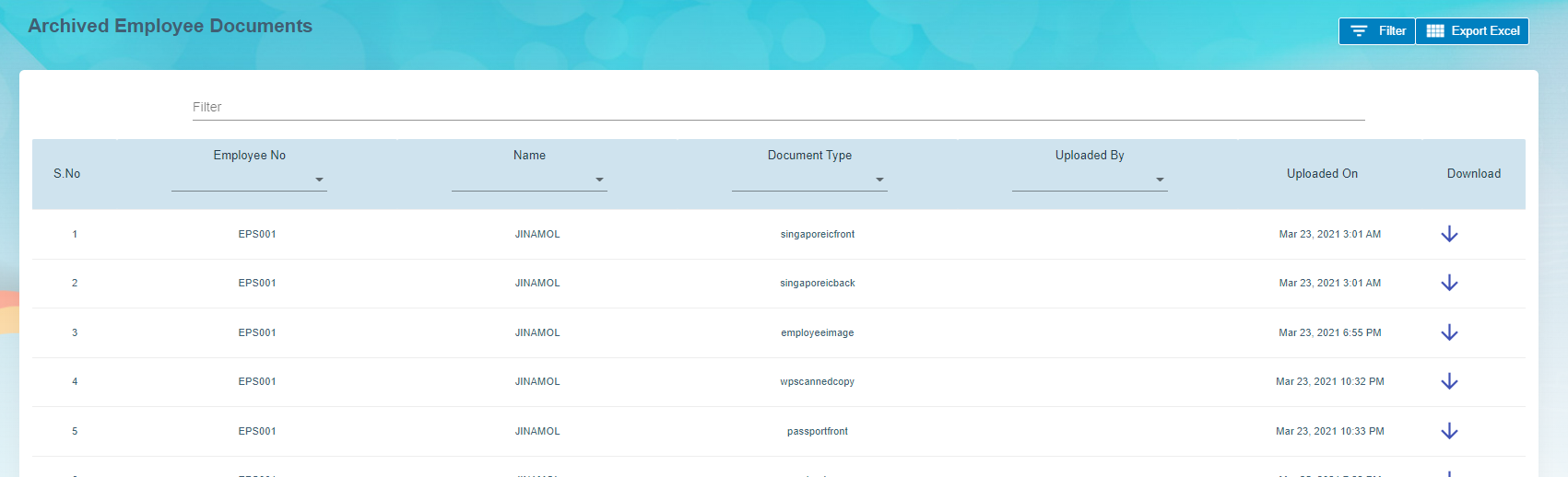
- **Download an Archived Document of Employee**

If you want to download the detail of the archived document of any employee, click ![](http://wiki.cuteinfocomm.com/uploads/images/gallery/2022-05/embedded-image-zxrqcpm9.png) (Download icon provided in the **Download** column) of the respective employee. The archived document of the selected employee will be downloaded.

- **Export Archived Employee Documents**

The application has a feature to download the archived employee documents list as an excel file. You can click[![image-1663356992223.png](http://wiki.cuteinfocomm.com/uploads/images/gallery/2022-09/scaled-1680-/image-1663356992223.png)](http://wiki.cuteinfocomm.com/uploads/images/gallery/2022-09/image-1663356992223.png) (**Export Excel** button) to download the documents list. The archived document list in the **Archived** **Employee Documents** page will be downloaded as an excel file.

- **Filter Archived Document of Employee**

If you want to view the archived document of any specific employee among multiple employees listed in the **Archived** **Employee** **Documents** page, click[![image-1663357019209.png](http://wiki.cuteinfocomm.com/uploads/images/gallery/2022-09/scaled-1680-/image-1663357019209.png)](http://wiki.cuteinfocomm.com/uploads/images/gallery/2022-09/image-1663357019209.png)(**Filter** button) provided in the upper side of the **Archived** **Employee** **Documents** page. The **Filter** option will be enabled in the **Archived** **Employee** **Documents** page to filter the specific archived document.

### Employee ID Expiry

This report allows user to check passport/NRIC expiry date. Click **Employee ID Expiry** in **Reports** menu, below page opens,

[![image-1682095928241.png](http://wiki.cuteinfocomm.com/uploads/images/gallery/2023-04/scaled-1680-/image-1682095928241.png)](http://wiki.cuteinfocomm.com/uploads/images/gallery/2023-04/image-1682095928241.png)
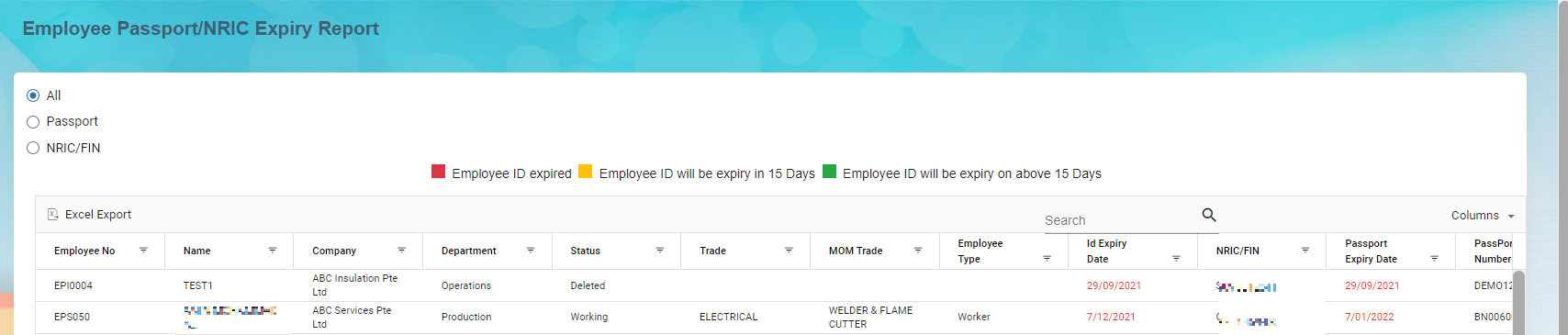
To generate report, select below option to generate relevant report,

[![image-1663097946870.png](http://wiki.cuteinfocomm.com/uploads/images/gallery/2022-09/scaled-1680-/image-1663097946870.png)](http://wiki.cuteinfocomm.com/uploads/images/gallery/2022-09/image-1663097946870.png)
Or you can use the search option to search for particular record,

[![image-1663098099433.png](http://wiki.cuteinfocomm.com/uploads/images/gallery/2022-09/scaled-1680-/image-1663098099433.png)](http://wiki.cuteinfocomm.com/uploads/images/gallery/2022-09/image-1663098099433.png)
To export the report, you can use the export button located on the up left corner of the report page.

[![image-1663107739432.png](http://wiki.cuteinfocomm.com/uploads/images/gallery/2022-09/scaled-1680-/image-1663107739432.png)](http://wiki.cuteinfocomm.com/uploads/images/gallery/2022-09/image-1663107739432.png)
### Expiry Report

Expiry report allows user to generate all kinds of expiry reports such as employee passport expiry, employee contract expiry, probation expiry report etc.. Click Expiry Report, below page opens,

[![image-1662093786271.png](http://wiki.cuteinfocomm.com/uploads/images/gallery/2022-09/scaled-1680-/image-1662093786271.png)](http://wiki.cuteinfocomm.com/uploads/images/gallery/2022-09/image-1662093786271.png)

To generate expiry report,

1. In **Report Type** field, select the type from dropdown list, [![image-1663108091496.png](http://wiki.cuteinfocomm.com/uploads/images/gallery/2022-09/scaled-1680-/image-1663108091496.png)](http://wiki.cuteinfocomm.com/uploads/images/gallery/2022-09/image-1663108091496.png)
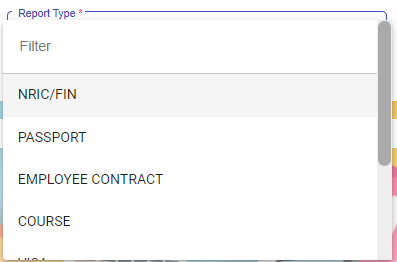
2. In Expires In field, select the expiring period, [![image-1663108139289.png](http://wiki.cuteinfocomm.com/uploads/images/gallery/2022-09/scaled-1680-/image-1663108139289.png)](http://wiki.cuteinfocomm.com/uploads/images/gallery/2022-09/image-1663108139289.png)
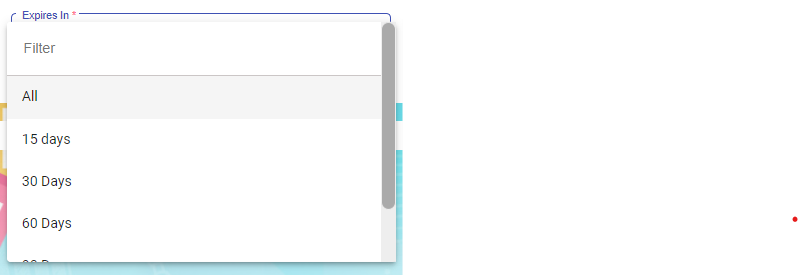
3. In Company field, select the company name. [![image-1663108166958.png](http://wiki.cuteinfocomm.com/uploads/images/gallery/2022-09/scaled-1680-/image-1663108166958.png)](http://wiki.cuteinfocomm.com/uploads/images/gallery/2022-09/image-1663108166958.png)
4. Click[![image-1663108186010.png](http://wiki.cuteinfocomm.com/uploads/images/gallery/2022-09/scaled-1680-/image-1663108186010.png)](http://wiki.cuteinfocomm.com/uploads/images/gallery/2022-09/image-1663108186010.png) button to generate report.

5. To download report, click the download icon. [![image-1663108289105.png](http://wiki.cuteinfocomm.com/uploads/images/gallery/2022-09/scaled-1680-/image-1663108289105.png)](http://wiki.cuteinfocomm.com/uploads/images/gallery/2022-09/image-1663108289105.png)
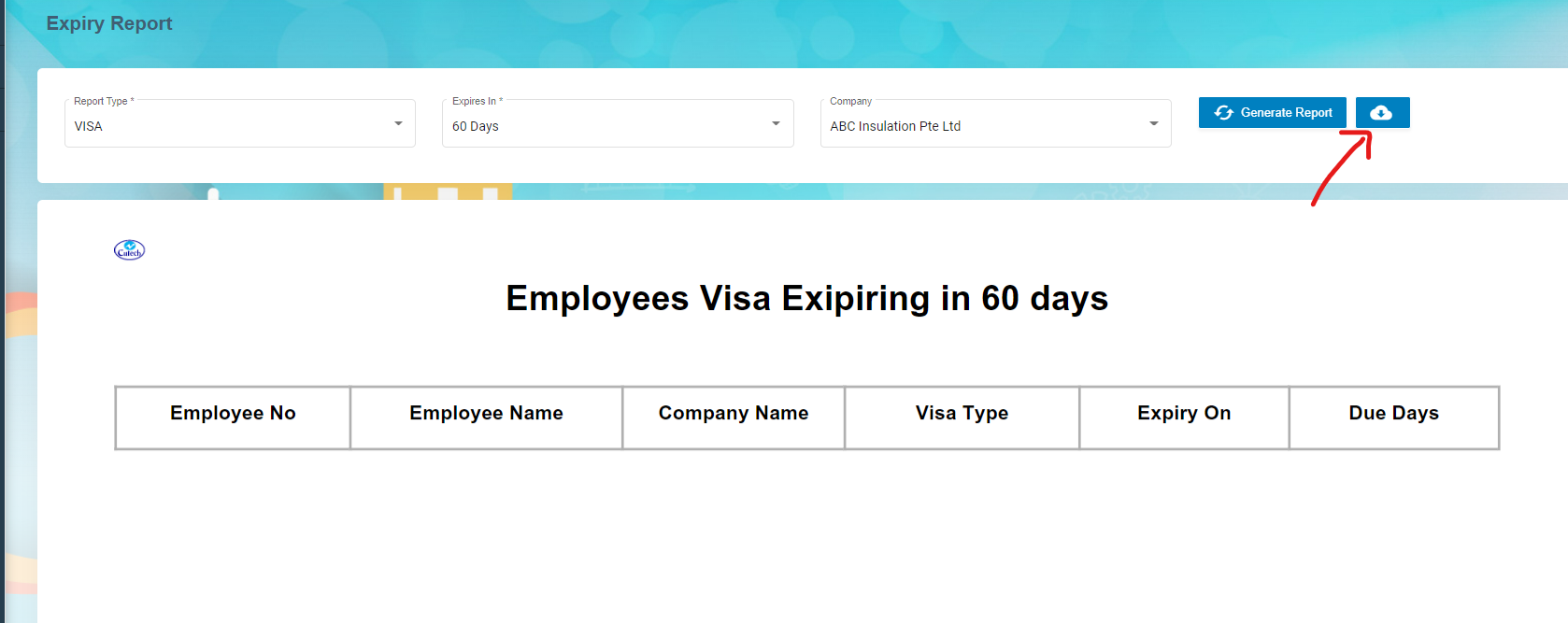
### Generate Resume

User can generate employee resume in this section. Click Generate Resume submenu,

[![image-1662093819289.png](http://wiki.cuteinfocomm.com/uploads/images/gallery/2022-09/scaled-1680-/image-1662093819289.png)](http://wiki.cuteinfocomm.com/uploads/images/gallery/2022-09/image-1662093819289.png)
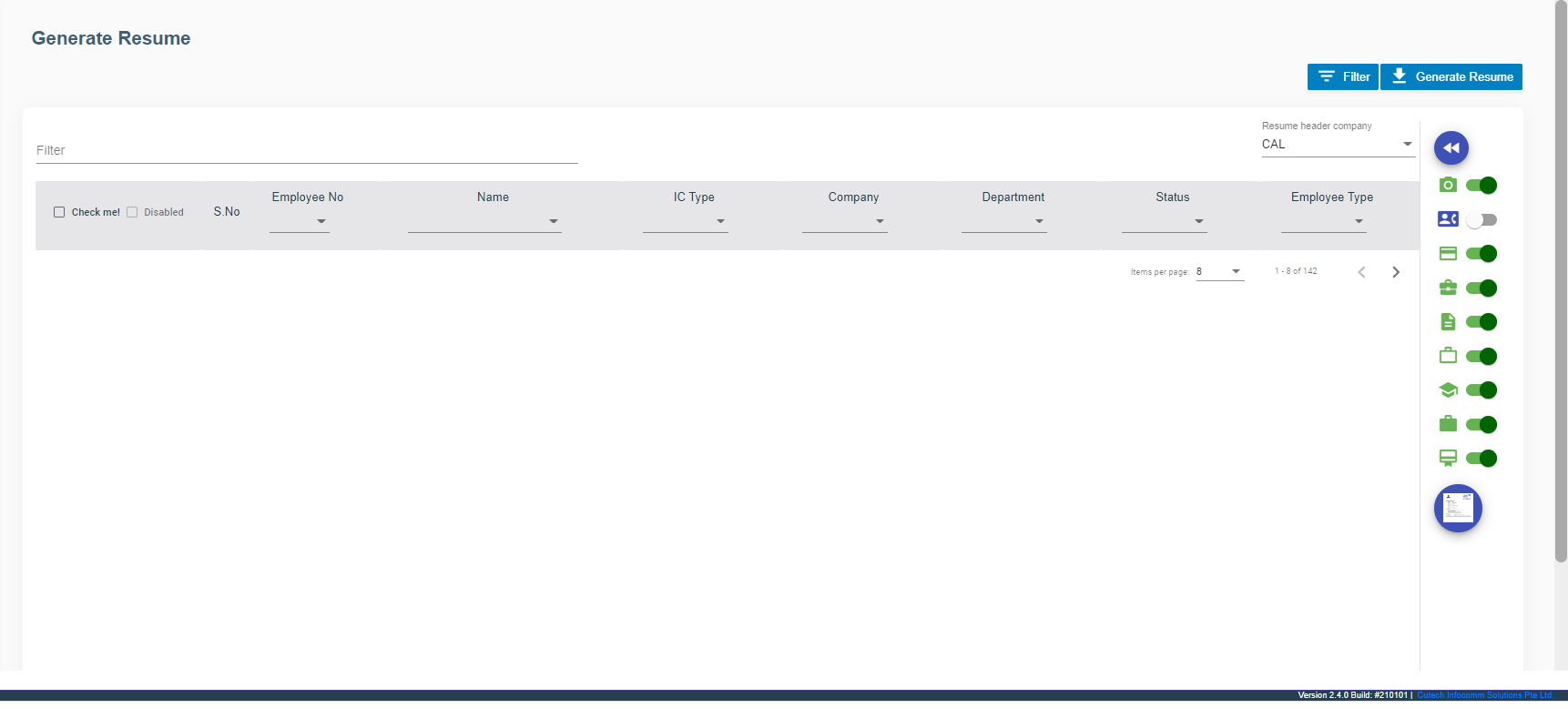

### Organization Chart

[![image-1662093868981.png](http://wiki.cuteinfocomm.com/uploads/images/gallery/2022-09/scaled-1680-/image-1662093868981.png)](http://wiki.cuteinfocomm.com/uploads/images/gallery/2022-09/image-1662093868981.png)

.

# HRM Master Data

## Masters

The **Masters** submenu in the **HUMAN RESOURCES** page helps you to add the master data like details of employee’s skill set, job categories, and allowances, and company’s general document.

The **Masters** submenu contains the following tabs,

[![image-1663313292019.png](http://wiki.cuteinfocomm.com/uploads/images/gallery/2022-09/scaled-1680-/image-1663313292019.png)](http://wiki.cuteinfocomm.com/uploads/images/gallery/2022-09/image-1663313292019.png)
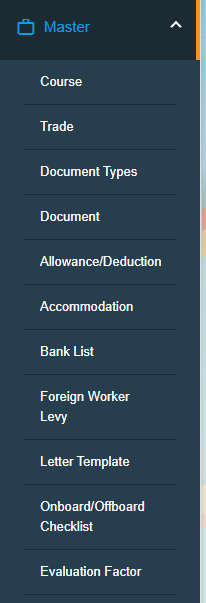
- Course
- Trade
- Document Type
- Document
- Addition/Deduction
- Bank list
- Foreign Worker Levy
- Letter Template
- Onboard/Offboard Checklist
- Evaluation Factor

### Course

The **Course** tab in the **Masters** submenu helps you to add the course details. Once you have added the course, you can assign the added course for the for the respective employees while adding the employee course details. Click the Course tab in the Masters submenu. The Course Master page opens. [![image-1662112456589.png](http://wiki.cuteinfocomm.com/uploads/images/gallery/2022-09/scaled-1680-/image-1662112456589.png)](http://wiki.cuteinfocomm.com/uploads/images/gallery/2022-09/image-1662112456589.png)
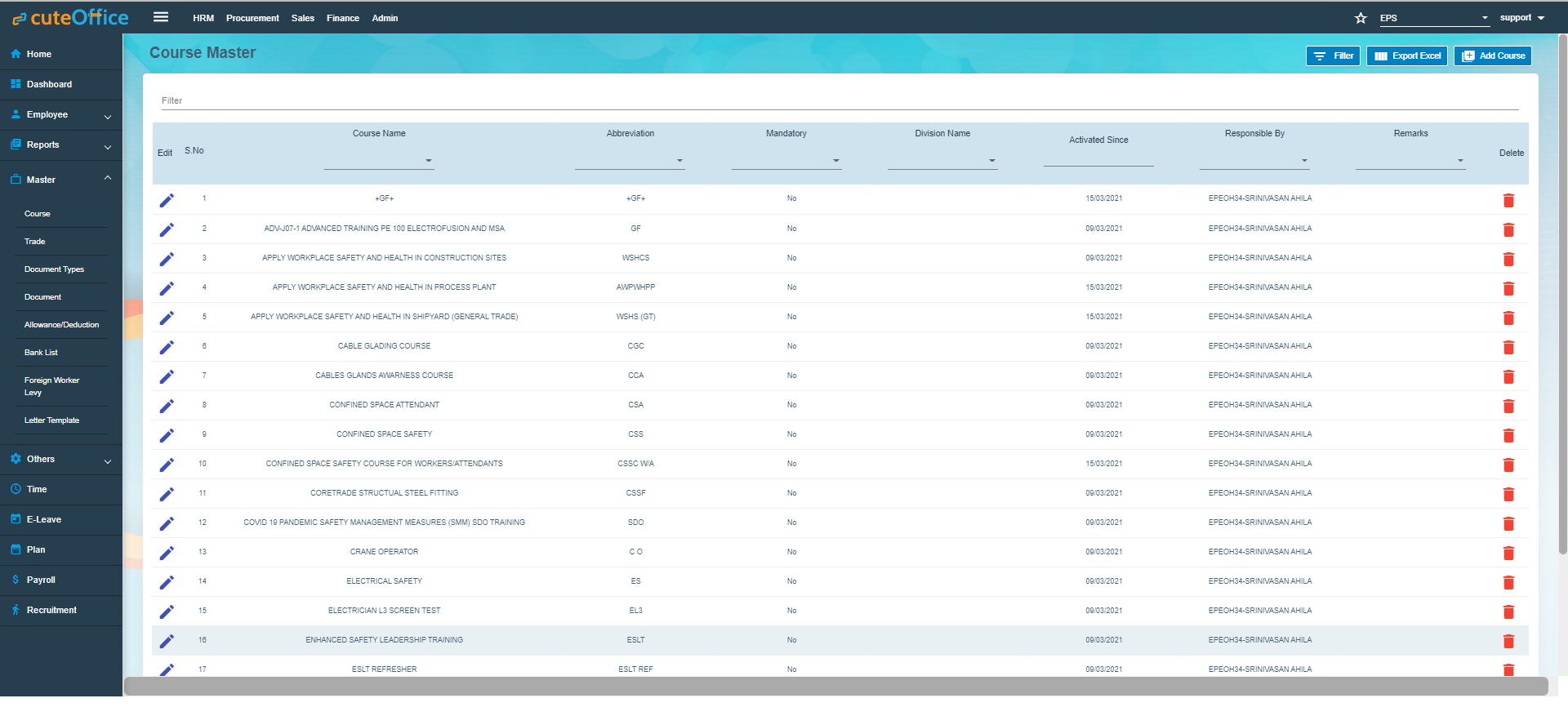
#### Add Course.

To add a new course,

1. Click (**Add Course** button) in the **Course Master.** The **Add Course** window opens. [![image-1662093911337.png](http://wiki.cuteinfocomm.com/uploads/images/gallery/2022-09/scaled-1680-/image-1662093911337.png)](http://wiki.cuteinfocomm.com/uploads/images/gallery/2022-09/image-1662093911337.png)
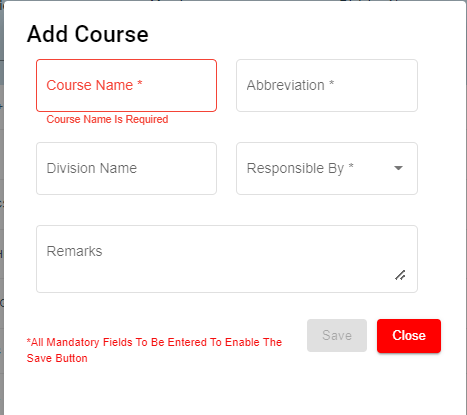
**Note**: The fields notified with a symbol (\*) are mandatory. You must enter the relevant details in that fields before saving.

2. In the **Course** **Name** box, enter the name of course.
3. In the **Abbreviation** box, enter the abbreviation for the course name.
4. In the **Division Name** box, enter the division name.
5. In the **Responsible By** box, select the name of a person who is responsible for the course.
6. In the **Remarks** box, enter your remarks if any.
7. Click **Save**. The course is successfully added and listed in the **Course Master** page.

#### Edit Course

You can edit the details of the added course by using (Edit icon) provided in the **Edit** column of the **Course Master** page. Click (Edit icon) of the respective course you have added. The **Add Course** window opens with the added course details. Edit the course details where you want. Then click **Save**.

[![image-1662093937047.png](http://wiki.cuteinfocomm.com/uploads/images/gallery/2022-09/scaled-1680-/image-1662093937047.png)](http://wiki.cuteinfocomm.com/uploads/images/gallery/2022-09/image-1662093937047.png)
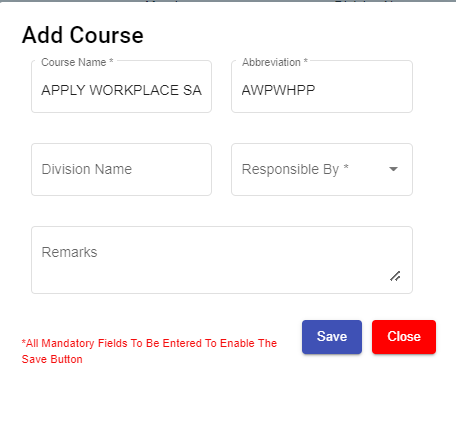
#### Delete Course

You can delete the added course by using (Delete icon) provided in the **Delete** column of the **Course Master** page. Click ![](http://wiki.cuteinfocomm.com/uploads/images/gallery/2022-05/embedded-image-k5tps8o4.png)(Delete icon) of the respective course. The **Confirm** dialogue box opens with the following notification: “**Are you sure to delete record?**”. If you want to delete the course, click **Yes** otherwise click **No**.

[![image-1662093999766.png](http://wiki.cuteinfocomm.com/uploads/images/gallery/2022-09/scaled-1680-/image-1662093999766.png)](http://wiki.cuteinfocomm.com/uploads/images/gallery/2022-09/image-1662093999766.png)
#### Filter Course

If you want to view any specific course details among multiple courses listed in the **Course Master** page, you can use the filter option provided in the upper left corner of the **Course Master** page. Click ![](http://wiki.cuteinfocomm.com/uploads/images/gallery/2022-05/embedded-image-kjgm33yp.png)(Filter button). The filter option opens. Type any one of the details of course name, abbreviation, division name, active date, responsible by, and remarks which you know. The course which you want to view is filtered now.

#### Export Course

The application has a feature to download the added course details as an excel file. You can use (**Export Excel** button) to download the added course details. Click ![](http://wiki.cuteinfocomm.com/uploads/images/gallery/2022-05/embedded-image-paellfyt.png)(**Export Excel** button). The course details in the **Course Master** page will be downloaded as an excel file.

### Trade

The **Trade** tab in the **Masters** submenu helps you to add the trade (Job category of employee) details. Once you have added the trade, you can assign the added trade for the respective employees while adding the employee details. If you want to add a trade, click the **Trade** tab in the **Masters** submenu. The **Trade Master** page opens.

[![image-1662094037340.png](http://wiki.cuteinfocomm.com/uploads/images/gallery/2022-09/scaled-1680-/image-1662094037340.png)](http://wiki.cuteinfocomm.com/uploads/images/gallery/2022-09/image-1662094037340.png)
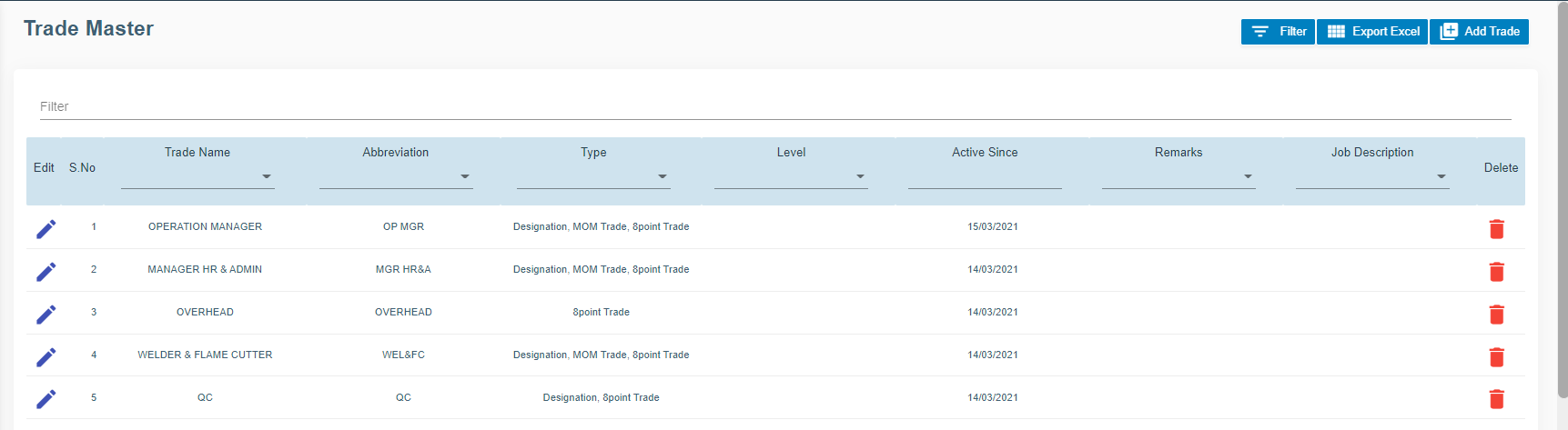
#### Add Trade

To add a new trade,

1. Click (**Add Trade** button) in the **Trade Master.** The **Add Trade** window opens.![](http://wiki.cuteinfocomm.com/uploads/images/gallery/2022-05/embedded-image-vlkxg1xh.png)
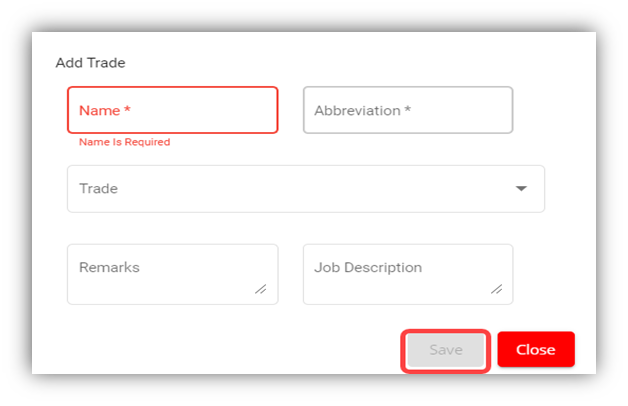
**Note**: The fields notified with a symbol (\*) are mandatory. You must enter the relevant details in that fields before saving.

2. In the **Name** box, enter the name of trade.
3. In the **Abbreviation** box, enter the abbreviation for the trade name.
4. In the **Trade** box, select the type of trade from a drop-down list.
5. In the **Remarks** box, enter your remarks if any.
6. In the **Job Description** box, enter the job description detail.
7. Click **Save**. The trade is successfully added and listed in the **Trade Master** page.

#### Edit Trade

You can edit the details of the added trade by using (Edit icon) provided in the **Edit** column of the **Trade Master** page. Click (Edit icon) of the respective trade you have added. The **Add Trade** window opens with the trade details. Edit the trade details where you want. Click **Save**.
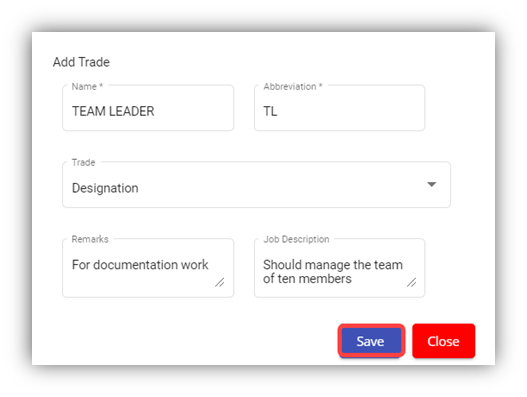
![](http://wiki.cuteinfocomm.com/uploads/images/gallery/2022-05/embedded-image-cjpllaur.png)

#### Delete Trade

You can click the ![](http://wiki.cuteinfocomm.com/uploads/images/gallery/2022-05/embedded-image-wlxc1ojs.png) (Delete icon) in the **Delete** column of the **Trade Master** page. The Confirm dialogue box opens with the following notification: “Are you sure to delete record?”. If you want to delete the trade, click **Yes** otherwise click **No**.

#### Filter Trade

If you want to view any specific trade details among multiple trades listed in the **Trade Master** page, you can use the filter option provided in the upper left corner of the **Trade Master** page. Click ![](http://wiki.cuteinfocomm.com/uploads/images/gallery/2022-05/embedded-image-kjgm33yp.png)(Filter button). The filter option opens.

#### Export Trade

The application has a feature to download the added trade details as an excel file. You can click ![](http://wiki.cuteinfocomm.com/uploads/images/gallery/2022-05/embedded-image-l4tprzsa.png) (**Export Excel** button) to download the added trade details. The trade details in the **Trade Master** page will be downloaded as an excel file.

### Document Types

Document types manages the types of documents to be added to system. Click Document Types in the Master menu, the document types opens,

[![image-1662596033703.png](http://wiki.cuteinfocomm.com/uploads/images/gallery/2022-09/scaled-1680-/image-1662596033703.png)](http://wiki.cuteinfocomm.com/uploads/images/gallery/2022-09/image-1662596033703.png)
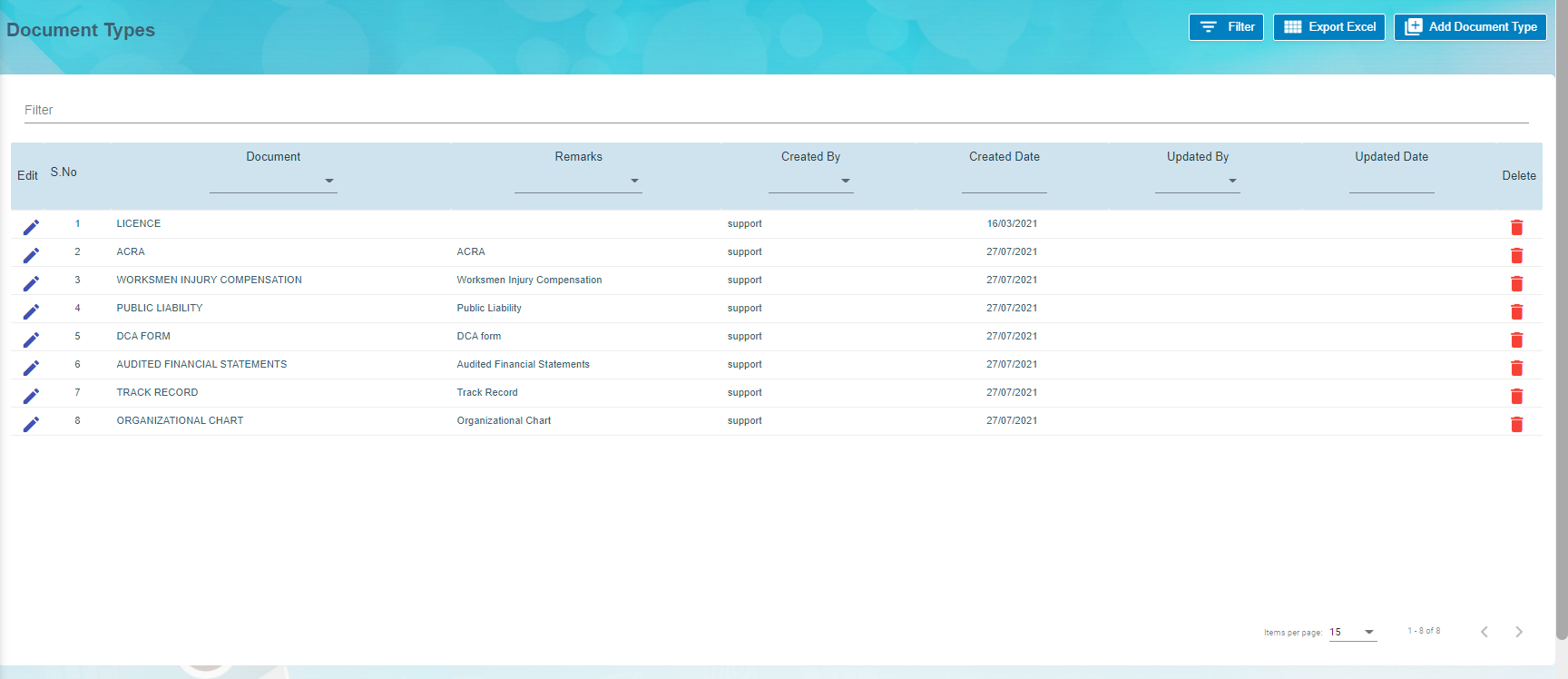
#### Add Document Type

To add a new document type,

1. Click[![image-1662094737267.png](http://wiki.cuteinfocomm.com/uploads/images/gallery/2022-09/scaled-1680-/image-1662094737267.png)](http://wiki.cuteinfocomm.com/uploads/images/gallery/2022-09/image-1662094737267.png), the document type window opens, [![image-1662094780149.png](http://wiki.cuteinfocomm.com/uploads/images/gallery/2022-09/scaled-1680-/image-1662094780149.png)](http://wiki.cuteinfocomm.com/uploads/images/gallery/2022-09/image-1662094780149.png)

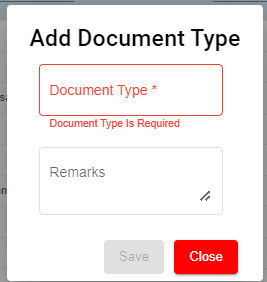
2. Enter document type name and any remarks if necessary.
3. Click **Save**. A new document type will be created and saved.

#### Edit Document Type 

You can edit the details of a document type by using edit option provided in the **Edit** column of the **Document Types** page. Click [![image-1662094942497.png](http://wiki.cuteinfocomm.com/uploads/images/gallery/2022-09/scaled-1680-/image-1662094942497.png)](http://wiki.cuteinfocomm.com/uploads/images/gallery/2022-09/image-1662094942497.png)(Edit icon) of the respective document type. The **Add Document** window opens with the document details. Edit the document type details where you want. Click **Save**.

#### Delete Document Type

You can delete a document type by using (Delete icon) provided in the **Delete** column of the **Document Types** page. If you want to delete the document type, click **Yes** otherwise click **No**.

#### Filter Document Type

If you want to view any specific document type details among multiple document types listed in the **Document Types** page, you can use the filter option provided in the upper left corner of the **Document Types** page. Click ![](http://wiki.cuteinfocomm.com/uploads/images/gallery/2022-05/embedded-image-kjgm33yp.png)(Filter button). The filter option opens.

#### Export Document Type

The application has a feature to download the added document type details as an excel file. You can use (**Export Excel** button) to download the added document type details. Click![](http://wiki.cuteinfocomm.com/uploads/images/gallery/2022-05/embedded-image-ms5hftnj.png) (**Export Excel** button). The document details in the **Document Types** page will be downloaded as an excel file.

### Document 

The **Document** tab in the **Masters** submenu helps you to add the type of company’s general documents like ISO certificates, product certificates and so on. The added document type will be used while adding the document name. Click the **Document Master** tab in the **Masters.** The **Document Master** page opens.

[![image-1662596005861.png](http://wiki.cuteinfocomm.com/uploads/images/gallery/2022-09/scaled-1680-/image-1662596005861.png)](http://wiki.cuteinfocomm.com/uploads/images/gallery/2022-09/image-1662596005861.png)
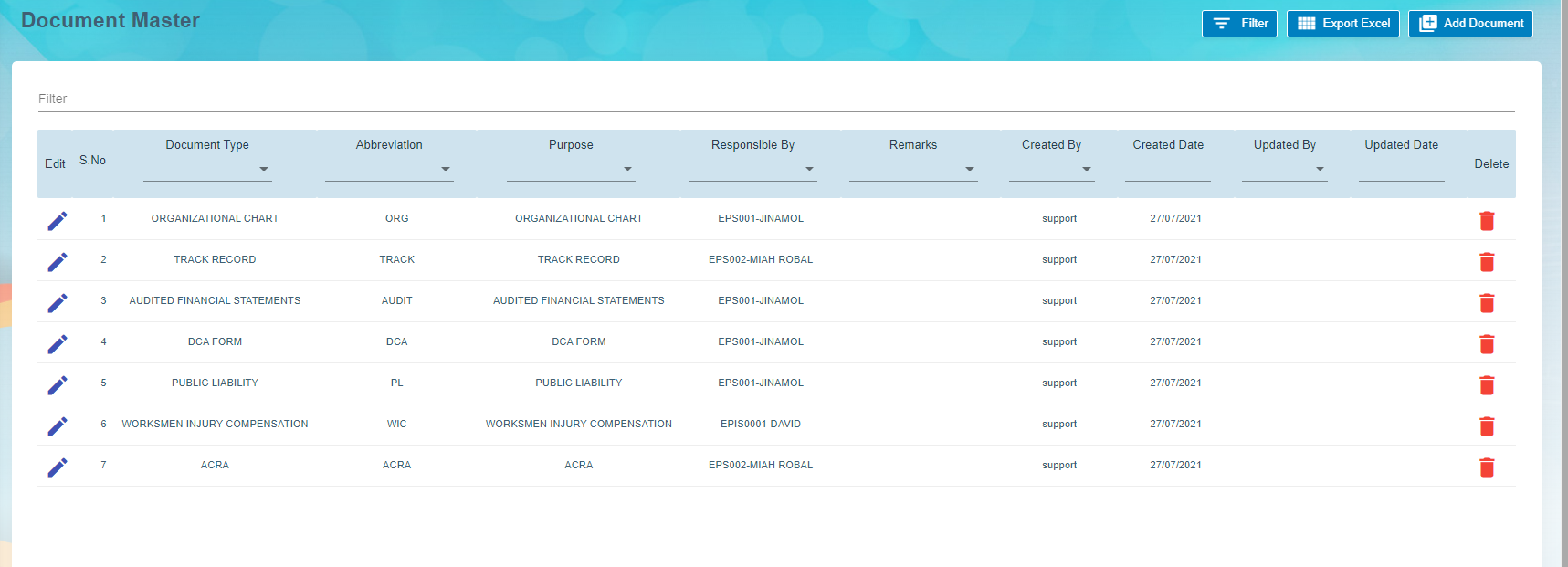
#### Add Document

To add any document,

1. Click (**Add Document** button) in the **Document Master.** The **Add Document** window opens.![](http://wiki.cuteinfocomm.com/uploads/images/gallery/2022-05/embedded-image-hpz7qf9r.png)
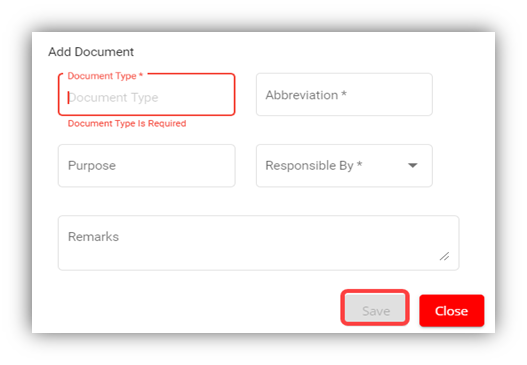
 **Note**: The fields notified with a symbol (\*) are mandatory. You must enter the relevant details in that fields before saving.

2. In the **Document Type** box, select the type of document.
3. In the **Abbreviation** box, enter the abbreviation for the document type.
4. In the **Purpose** box, enter the purpose of adding the document.
5. In the **Responsible By** box, enter the name of a person who is responsible for the document.
6. In the **Remarks** box, enter your remarks if any.
7. Click **Save**. The document type is successfully added and listed in the **Document Master** page.

#### Edit Document

You can edit the details of the added document type by using (Edit icon) provided in the **Edit** column of the **Document Master** page. Click (Edit icon) of the respective document type you have added. The **Add Document** window opens with the document details. Edit the document type details where you want. Click **Save**.
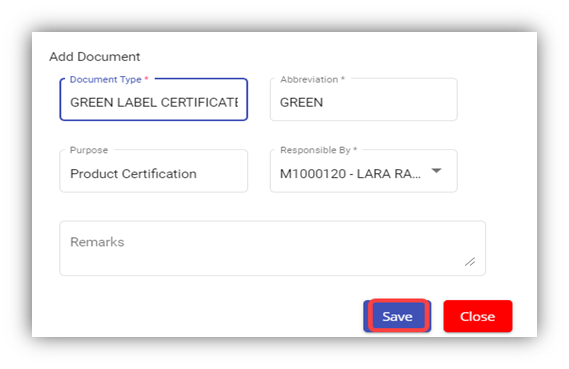
![](http://wiki.cuteinfocomm.com/uploads/images/gallery/2022-05/embedded-image-lh0hsun2.png)

#### Delete Document 

You can delete the added document by using (Delete icon) provided in the **Delete** column of the **Document Master** page. If you want to delete the document type, click **Yes** otherwise click **No**.

#### Filter Document 

If you want to view any specific document type details among multiple document types listed in the **Document Master** page, you can use the filter option provided in the upper left corner of the **Document Master** page. Click ![](http://wiki.cuteinfocomm.com/uploads/images/gallery/2022-05/embedded-image-kjgm33yp.png)(Filter button). The filter option opens.

#### Export Document 

The application has a feature to download the added document type details as an excel file. You can use (**Export Excel** button) to download the added document type details. Click![](http://wiki.cuteinfocomm.com/uploads/images/gallery/2022-05/embedded-image-ms5hftnj.png) (**Export Excel** button). The document details in the **Document Master** page will be downloaded as an excel file.

### Allowance/Deduction Master

The **Allowance/Deduction Master** tab in the **Masters** submenu helps you to add the allowance, addition, or deduction type master data. Click the **Allowance/Deduction Master** tab in the **Masters.** The **Allowance/Deduction Type Master** page opens.

[![image-1662596114277.png](http://wiki.cuteinfocomm.com/uploads/images/gallery/2022-09/scaled-1680-/image-1662596114277.png)](http://wiki.cuteinfocomm.com/uploads/images/gallery/2022-09/image-1662596114277.png)
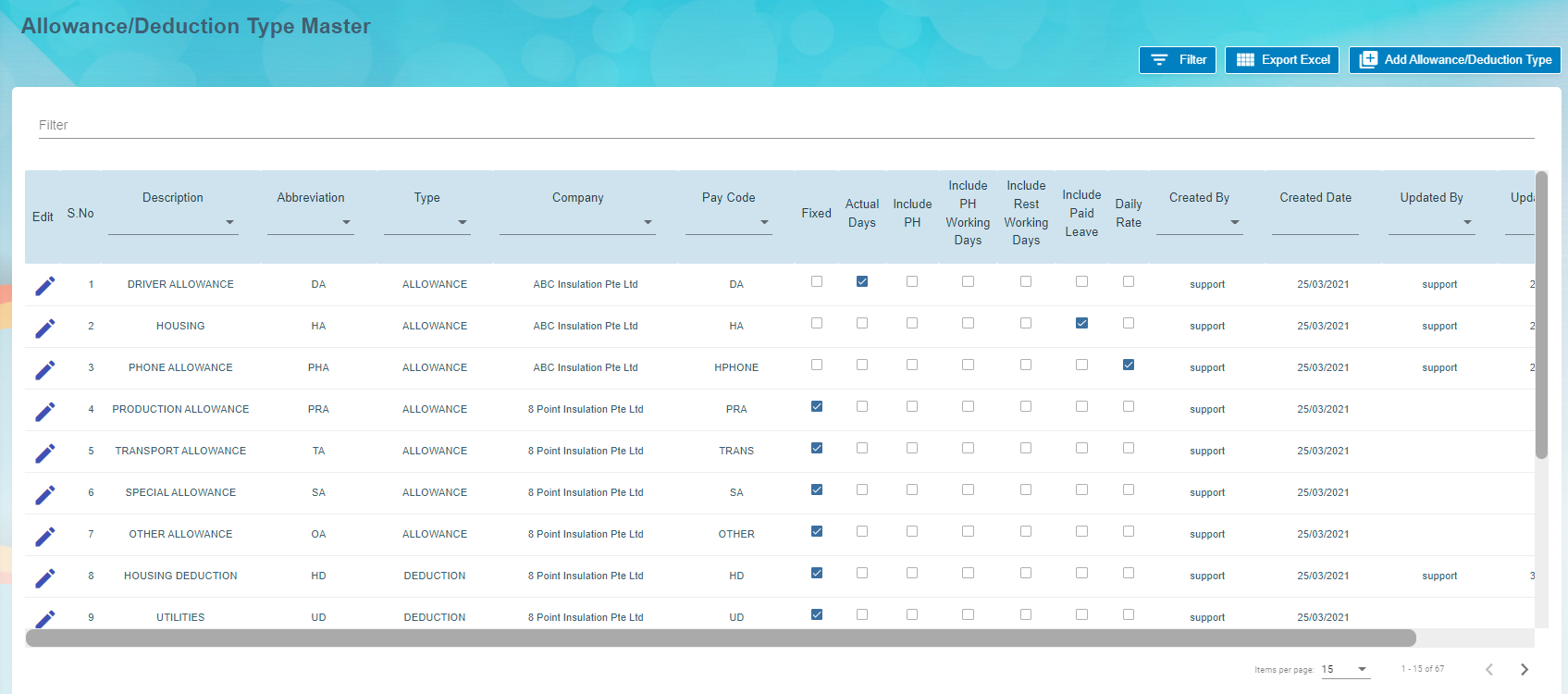
#### Add Allowance/Addition/Deduction Master

If you want to add allowance/deduction master, do the following steps,

1. Click (**Add Allowance/Deduction Type** button) in the **Allowance/Deduction Type Master**. The **Add Allowance/Deduction Type** window opens. [![image-1662596144102.png](http://wiki.cuteinfocomm.com/uploads/images/gallery/2022-09/scaled-1680-/image-1662596144102.png)](http://wiki.cuteinfocomm.com/uploads/images/gallery/2022-09/image-1662596144102.png)
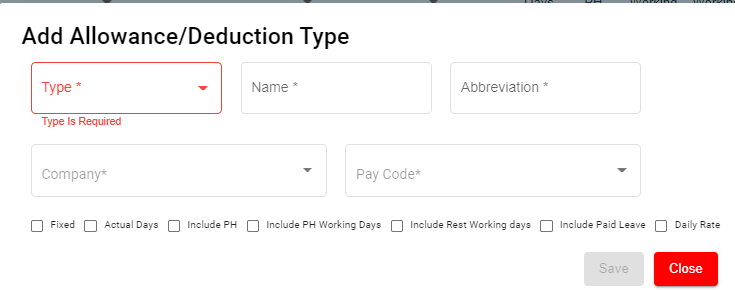
**Note**: The fields notified with a symbol (\*) are mandatory. You must enter the relevant details in that fields before saving.

1. In the **Type** box, select the type of master data you want to add whether Allowance, Addition, or Deduction.
2. In the **Name** box, enter the name of the master type.
3. In the **Abbreviation** box, enter the abbreviation for the added master type.
4. In the **Company** box, select a company.
5. In the **Pay Code** box, select the pay code from a drop-down list.
6. If creating allowance master data, user must select one of the following option of pay period where applicable , 
    - - - If the allowance is fixed one, select the checkbox of the **Fixed**
            - If the allowance is paid only for actual working days, select the checkbox of the **Actual Days**
            - If the allowance is paid for Public Holidays, select the checkbox of the **Include PH**
            - If the allowance is paid when employee works in PH, select **Include PH Working Days**
            - If the allowance is paid when employee works during rest days, select **Include Rest Working days**
            - If the allowance is paid when employee on paid leave, select **Include Paid Leave**
            - If the allowance is daily rate, select **Daily rate.**
7. Click **Save**. The added master type is successfully added and listed in the Allowance/Deduction Type Master page.

#### Edit Allowance/Addition/Deduction Master

You can edit the details of the added master type by using edit option provided in the **Edit** column of the **Allowance/Deduction Master** page. Click ![](http://wiki.cuteinfocomm.com/uploads/images/gallery/2022-05/embedded-image-cweperr4.png) (Edit icon) of the respective allowance type you have added. The **Add Allowance/Deduction** window opens with the added details. Edit the master details where you want. Click **Save**.

#### Delete Allowance/Addition/Deduction Master

You can delete the added master type by using ![](http://wiki.cuteinfocomm.com/uploads/images/gallery/2022-05/embedded-image-av9hryuk.png) (Delete icon) provided in the **Delete** column of the **Allowance/Deduction Master** page. If you want to delete the Allowance/Addition/Deduction, click **Yes** otherwise click **No**.

#### Filter Allowance/Addition/Deduction Master

If you want to view any specific master type details listed in the **Allowance/Deduction Master** page, you can use the filter option provided in the upper left corner of the **Allowance/Deduction Master** page. Click ![](http://wiki.cuteinfocomm.com/uploads/images/gallery/2022-05/embedded-image-kjgm33yp.png)(Filter button). The filter option opens.

#### Export Allowance/Addition/Deduction Master

The application has a feature to download the added master type details as an excel file. You can use (**Export Excel** button) to download the added master details. Click ![](http://wiki.cuteinfocomm.com/uploads/images/gallery/2022-05/embedded-image-xuew2mid.png)(**Export Excel** button). The allowance type details in the **Allowance/Deduction Master** page will be downloaded as an excel file.

### Bank List

The **Bank List** tab in the HRM **Masters** menu helps you to add all the bank details of employees that are used to receive salary payment. Click **Bank List** in the **Masters,** the **Banks List** page opens.[![image-1663094930977.png](http://wiki.cuteinfocomm.com/uploads/images/gallery/2022-09/scaled-1680-/image-1663094930977.png)](http://wiki.cuteinfocomm.com/uploads/images/gallery/2022-09/image-1663094930977.png)
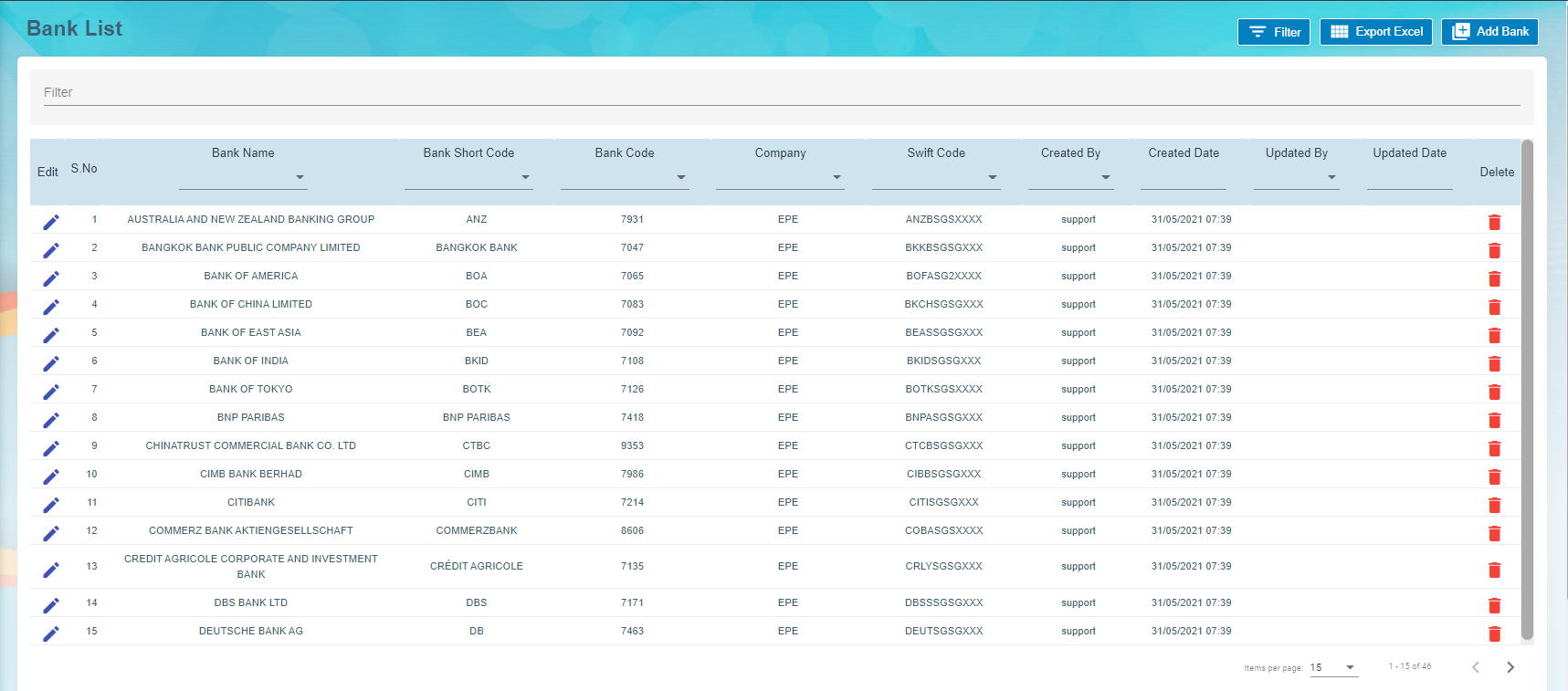
#### Add a Bank Account

To add a new bank account,

1. Click[![image-1663095073003.png](http://wiki.cuteinfocomm.com/uploads/images/gallery/2022-09/scaled-1680-/image-1663095073003.png)](http://wiki.cuteinfocomm.com/uploads/images/gallery/2022-09/image-1663095073003.png)(**Add New Bank** button) in the **Banks List, t**he **Bank** window opens. [![image-1663095181971.png](http://wiki.cuteinfocomm.com/uploads/images/gallery/2022-09/scaled-1680-/image-1663095181971.png)](http://wiki.cuteinfocomm.com/uploads/images/gallery/2022-09/image-1663095181971.png)

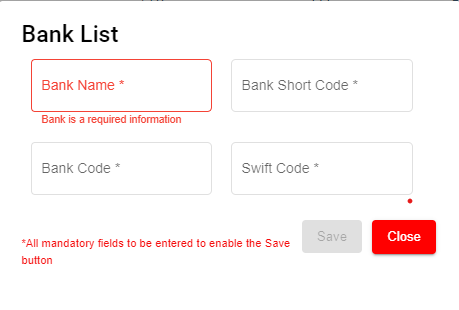


    - **Note**: The fields notified with a symbol (\*) are mandatory. You must enter the relevant details in that fields before saving.

2. In the **Bank Name** box, enter the bank name.
3. In the **Bank Short Code** box, enter the short code for the added bank.
4. In the **Bank Code** box, enter the bank code.
5. In the **Swift Code** box, enter the bank swift code.
6. Click **Save**. The Bank Name is successfully added and listed in the Bank List Master page.

#### Edit the Bank Account Details

You can edit the details of the added bank account by using edit option provided in the **Edit** column of the **Bank List** page. To edit the added bank account details,

1. Click ![](http://wiki.cuteinfocomm.com/uploads/images/gallery/2022-07/embedded-image-xzgtm37s.png)(Edit icon) of the respective bank account you have added. The **Bank** window shows the added bank account details.

[![image-1663095296856.png](http://wiki.cuteinfocomm.com/uploads/images/gallery/2022-09/scaled-1680-/image-1663095296856.png)](http://wiki.cuteinfocomm.com/uploads/images/gallery/2022-09/image-1663095296856.png)
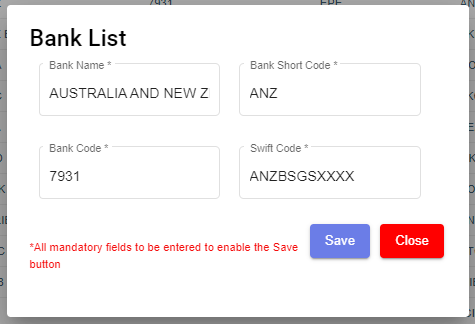
2. Edit the bank account details where you want.
3. Click **Save**.

#### Delete a Bank Account

You can delete any added bank account by using ![](http://wiki.cuteinfocomm.com/uploads/images/gallery/2022-07/embedded-image-evcwzc9a.png)(Delete icon) provided in the **Delete** column of the **Bank List** page.

#### Filter a Bank Account

If you want to filter any bank account in the **Bank List** page, you can use[![image-1663095417308.png](http://wiki.cuteinfocomm.com/uploads/images/gallery/2022-09/scaled-1680-/image-1663095417308.png) ](http://wiki.cuteinfocomm.com/uploads/images/gallery/2022-09/image-1663095417308.png)(**filter** button) on the **Bank List** page.

#### Export to Excel

If you want to export the **Bank List** page, you can use[![image-1663095384875.png](http://wiki.cuteinfocomm.com/uploads/images/gallery/2022-09/scaled-1680-/image-1663095384875.png)](http://wiki.cuteinfocomm.com/uploads/images/gallery/2022-09/image-1663095384875.png) (**export** button) on the **Bank List** page.

### Foreign Worker Levy

Foreign Worker Levy is a mechanism to regulate the number of foreign workers in Singapore. The employer need not to pay CPF contributions for their foreign workers. However, they must pay a monthly levy for Work Permit and S Pass holders to government.

The **Foreign Worker Levy** tab in the **Masters** submenu used to add a foreign worker levy code. The added foreign worker levy code will be used in the further payroll process. Click **Foreign Worker Levy** in the **Masters,** the **Foreign Worker Levy** page opens.
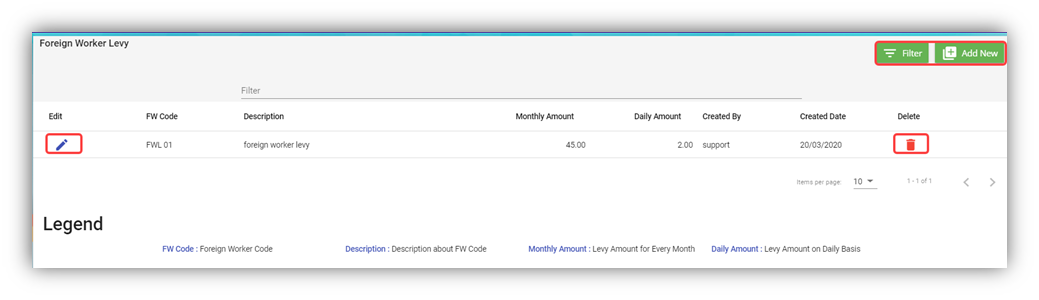
![](http://wiki.cuteinfocomm.com/uploads/images/gallery/2022-07/embedded-image-alcmykqa.png)

#### Add a Foreign Worker Levy Code

If you want to add a foreign worker levy code,

1. Click![](http://wiki.cuteinfocomm.com/uploads/images/gallery/2022-07/embedded-image-vgaevj1v.png) (**Add New** button) in the **Foreign Worker Levy.** The **Foreign Worker Levy Information** window opens.

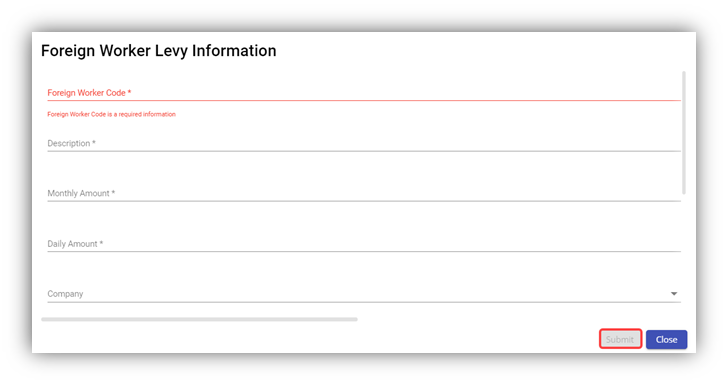
![](http://wiki.cuteinfocomm.com/uploads/images/gallery/2022-07/embedded-image-dhmo8rm4.png)

**Note**: The fields notified with a symbol (\*) are mandatory. You must enter the relevant details in that fields before saving.

2. In the **Foreign Worker Code** box, enter the code for the foreign worker levy you want to create.
3. In the **Description** box, enter the description for the added foreign worker levy code.
4. In the **Monthly Amount** box, enter the monthly amount to be paid for the foreign worker levy.
5. In the **Daily Amount** box, enter the daily amount to be paid for the foreign worker levy.
6. In the **Company** box, select a company from a drop-down list.

**Note**: If you want to select all the companies in the list, select the checkbox of the **ALL**.

7. Click **Submit**. The foreign worker levy code is added and listed in the **Foreign Worker Levy** page.

#### Edit the Foreign Worker Levy Code

You can edit the details of the added foreign worker levy code by using edit option provided in the **Edit** column of the **Foreign Worker Levy** page. To edit the added foreign worker levy code details,

1. Click ![](http://wiki.cuteinfocomm.com/uploads/images/gallery/2022-07/embedded-image-4q2cb6pa.png)(Edit icon) of the respective foreign worker levy code you have added. The **Foreign Worker Levy Information** window shows the added foreign worker levy code details.
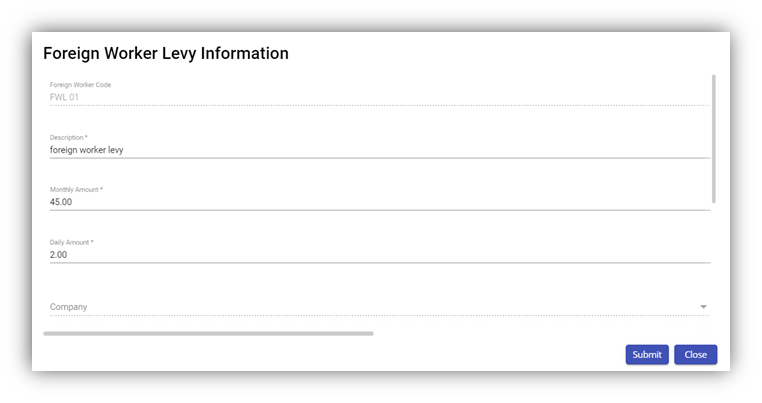
![](http://wiki.cuteinfocomm.com/uploads/images/gallery/2022-07/embedded-image-pi8bpv8h.png)

2. Edit the foreign worker levy code details where you want.
3. Click **Save**.

#### Delete a Foreign Worker Levy Code

You can delete the foreign worker levy code by using![](http://wiki.cuteinfocomm.com/uploads/images/gallery/2022-07/embedded-image-dkya6shu.png) (Delete icon) provided in the **Delete** column of the **Foreign Worker Levy** page.

#### Filter Foreign Worker Levy Code

If you want to filter any foreign worker levy code in the **Foreign Worker Levy** page, you can use ![](http://wiki.cuteinfocomm.com/uploads/images/gallery/2022-07/embedded-image-p5ux8q1b.png) (**FILTER** button) located on the **Generate Payroll** page.

### Letter Template

All HR and admin related letter templates can be configured and managed in this section. Click **Letter Template** in **Master** menu, the current templates will show as below,

[![image-1662601030622.png](http://wiki.cuteinfocomm.com/uploads/images/gallery/2022-09/scaled-1680-/image-1662601030622.png)](http://wiki.cuteinfocomm.com/uploads/images/gallery/2022-09/image-1662601030622.png)
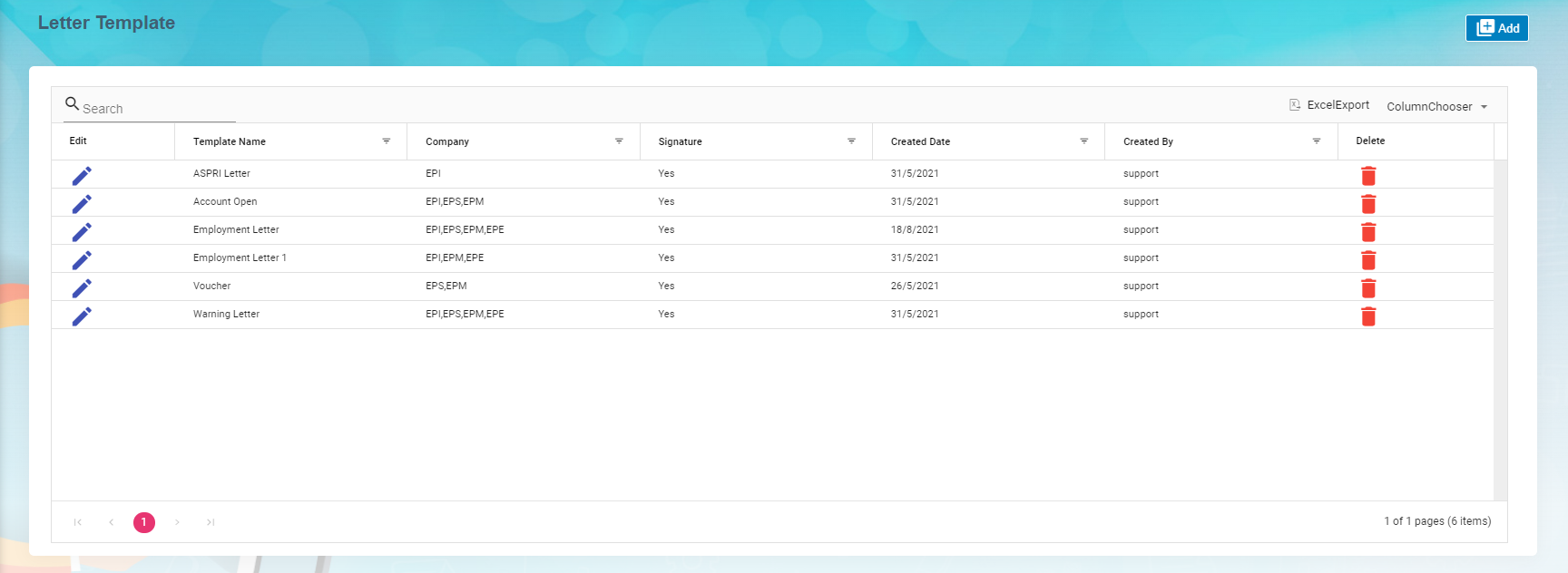
#### View Letter Template

To view current letter templates,

1. Click[![image-1662690942077.png](http://wiki.cuteinfocomm.com/uploads/images/gallery/2022-09/scaled-1680-/image-1662690942077.png) ](http://wiki.cuteinfocomm.com/uploads/images/gallery/2022-09/image-1662690942077.png)edit icon of the template that user wants to view, the template will open,
2. Click Preview button or Download button in the top right corner to view or download the template as pdf file. [![image-1662691076281.png](http://wiki.cuteinfocomm.com/uploads/images/gallery/2022-09/scaled-1680-/image-1662691076281.png)](http://wiki.cuteinfocomm.com/uploads/images/gallery/2022-09/image-1662691076281.png)
#### Add A New Letter Template

To add a new letter template,

1. Click [![image-1662604025739.png](http://wiki.cuteinfocomm.com/uploads/images/gallery/2022-09/scaled-1680-/image-1662604025739.png)](http://wiki.cuteinfocomm.com/uploads/images/gallery/2022-09/image-1662604025739.png) add button in the top right corner in the template list page, the template creation page opens,[![image-1662691308170.png](http://wiki.cuteinfocomm.com/uploads/images/gallery/2022-09/scaled-1680-/image-1662691308170.png)](http://wiki.cuteinfocomm.com/uploads/images/gallery/2022-09/image-1662691308170.png)
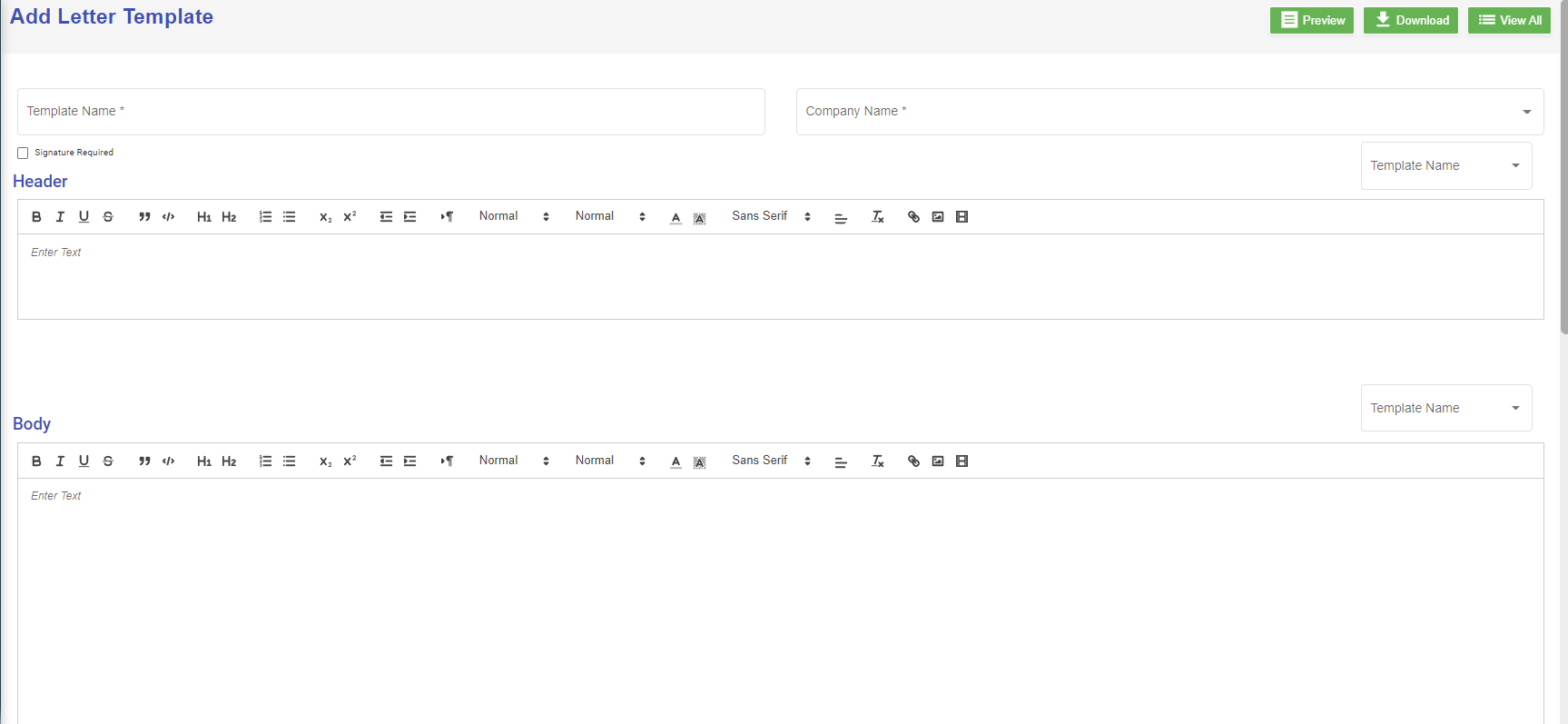
2. Enter the details of the new letter template: 
    - In **Template Name**, enter the letter template name
    - In **Company Name**, select company name from dropdown list
    - If letter require signature, tick the **Signature Required** checkbox
    - In **Header** section, enter the letter header content, or you can copy from existing template-select the template name, the header content of the selected template will automatically populated,
    - In **Body** section, enter the body content, or you can copy from existing template-select the template name, the body content of the selected template will automatically populated,
    - In **Footer** section, enter the footer content, or you can copy from existing template-select the template name, the footer content of the selected template will automatically populated,
    - In **Signature** section, enter the signature format or you can copy from existing template-select the template name, the signature format of the selected template will automatically populated,
3. Click **Save** to create and save new letter template.

#### Edit Letter Template

To edit letter template,

1. Click[![image-1662690942077.png](http://wiki.cuteinfocomm.com/uploads/images/gallery/2022-09/scaled-1680-/image-1662690942077.png) ](http://wiki.cuteinfocomm.com/uploads/images/gallery/2022-09/image-1662690942077.png)edit icon of the template that user wants to view, the template will open as below, [![image-1662690921723.png](http://wiki.cuteinfocomm.com/uploads/images/gallery/2022-09/scaled-1680-/image-1662690921723.png)](http://wiki.cuteinfocomm.com/uploads/images/gallery/2022-09/image-1662690921723.png)
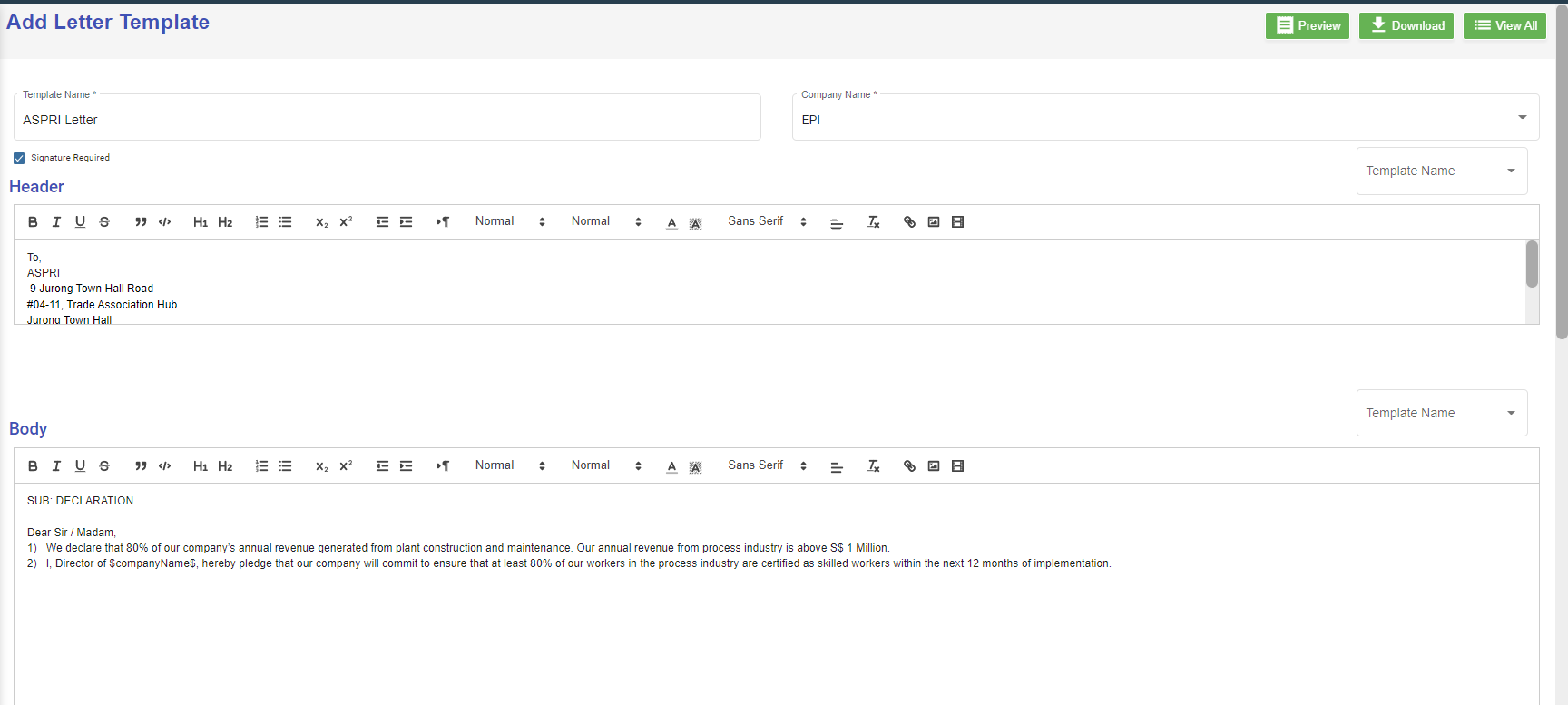
2. Edit the details where needed.
3. Click **Save** to save edits.

#### Delete Letter Template

User can use the delete option to delete letter template that is no longer in use or need to remove. Click [![image-1662695579815.png](http://wiki.cuteinfocomm.com/uploads/images/gallery/2022-09/scaled-1680-/image-1662695579815.png)](http://wiki.cuteinfocomm.com/uploads/images/gallery/2022-09/image-1662695579815.png) in the delete column of the template. The template will be removed.

### Onboard/Offboard Checklist

Onboard/Offboard Checklist master manages different type of checklist which contains list of task that the employee needs to perform before onboarding process/offboarding process.

#### Add Onboard Checklist

1. Click [![image-1662604025739.png](http://wiki.cuteinfocomm.com/uploads/images/gallery/2022-09/scaled-1680-/image-1662604025739.png)](http://wiki.cuteinfocomm.com/uploads/images/gallery/2022-09/image-1662604025739.png) add button in the top right corner in the Onboard Checklist page, the Edit category page opens to enter questions in checklist template.[![image-1663306419297.png](http://wiki.cuteinfocomm.com/uploads/images/gallery/2022-09/scaled-1680-/image-1663306419297.png)](http://wiki.cuteinfocomm.com/uploads/images/gallery/2022-09/image-1663306419297.png)
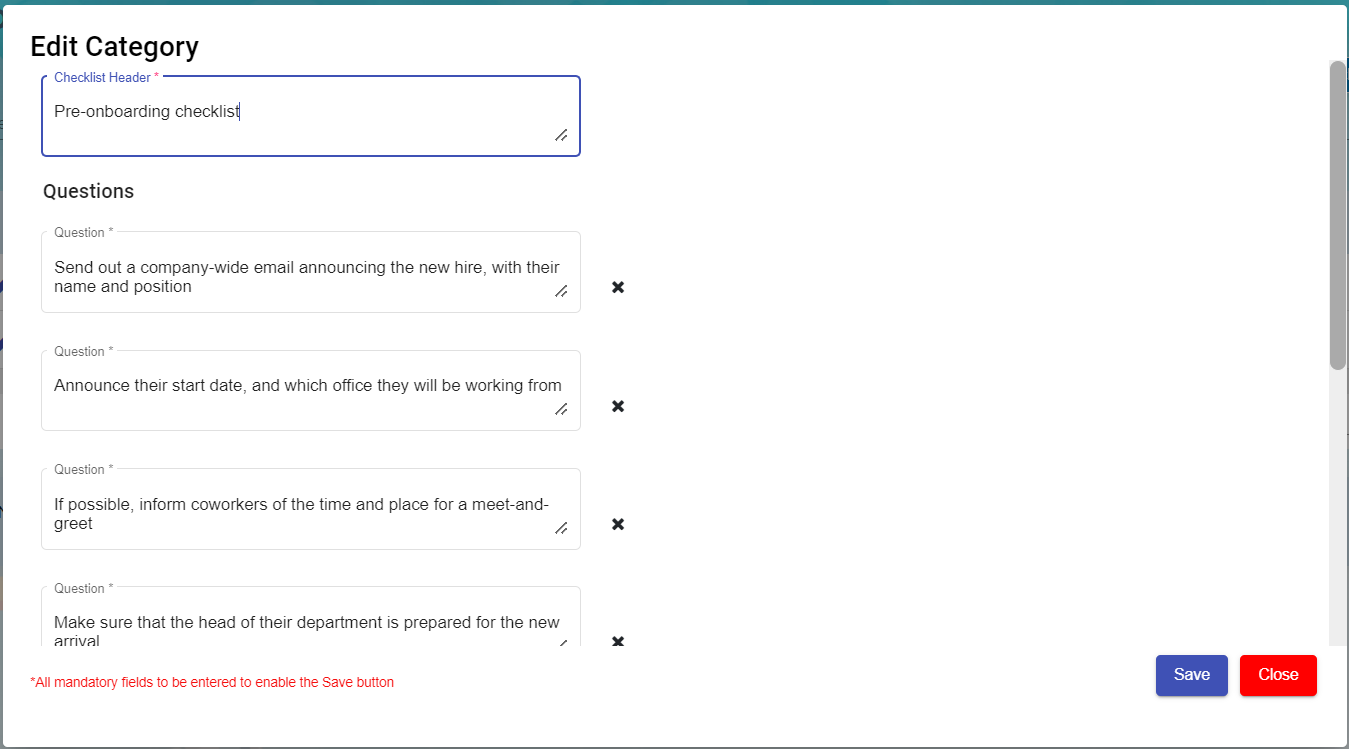
2. Enter Checklist Header
3. Add or Delete the mandatory questions to be asked during Onboard processing.
4. Click save to create new Onboard checklist template.

#### Add Offboard Checklist

1. Click [![image-1662604025739.png](http://wiki.cuteinfocomm.com/uploads/images/gallery/2022-09/scaled-1680-/image-1662604025739.png)](http://wiki.cuteinfocomm.com/uploads/images/gallery/2022-09/image-1662604025739.png) add button in the top right corner in the Offboard Checklist page, the Edit category page opens to enter questions in checklist template.[![image-1663306374492.png](http://wiki.cuteinfocomm.com/uploads/images/gallery/2022-09/scaled-1680-/image-1663306374492.png)](http://wiki.cuteinfocomm.com/uploads/images/gallery/2022-09/image-1663306374492.png)
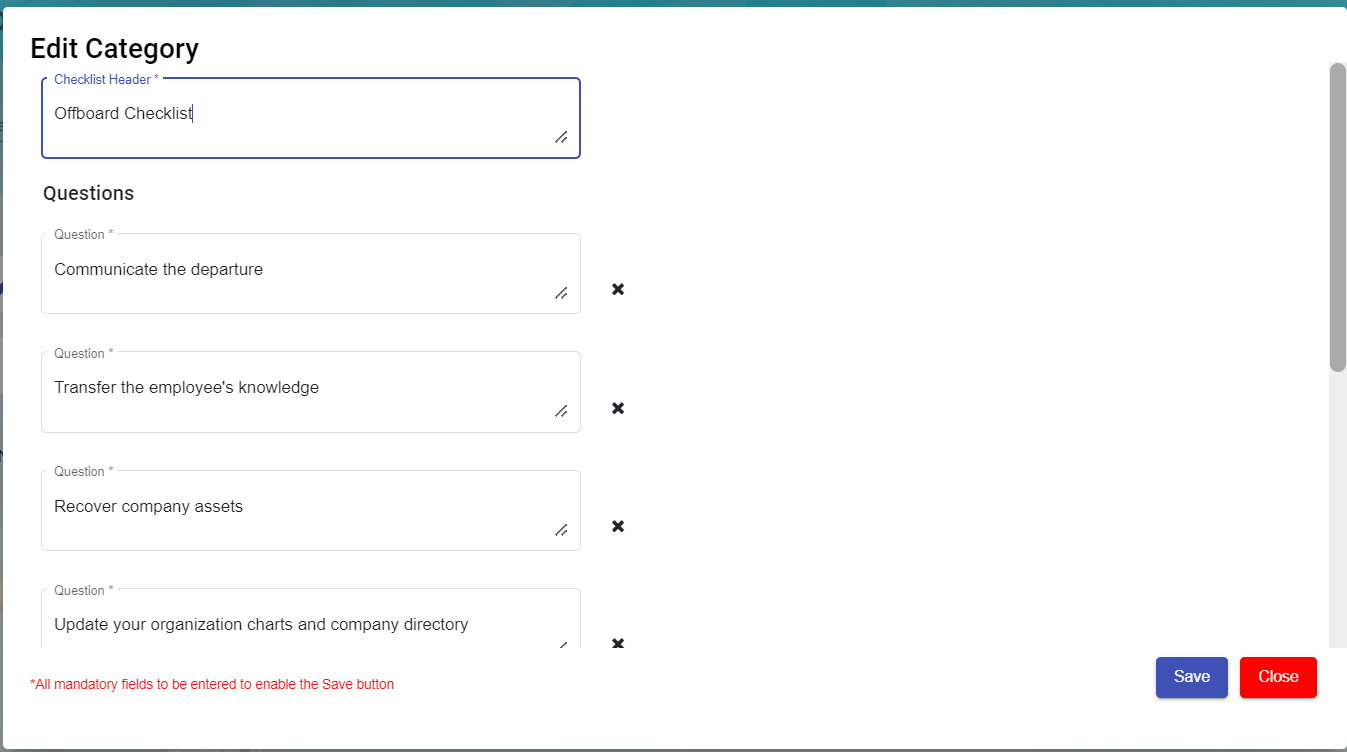
2. Enter Checklist Header
3. Add or Delete the mandatory questions to be asked during Offboard processing.
4. Click save to create new Offboard checklist template.

#### Edit the Checklist

To edit the checklist, click[![image-1662690942077.png](http://wiki.cuteinfocomm.com/uploads/images/gallery/2022-09/scaled-1680-/image-1662690942077.png) ](http://wiki.cuteinfocomm.com/uploads/images/gallery/2022-09/image-1662690942077.png)edit icon of the checklist to edit the questions in the edit category page. Then click **Save** to save edits.

[![image-1663311260051.png](http://wiki.cuteinfocomm.com/uploads/images/gallery/2022-09/scaled-1680-/image-1663311260051.png)](http://wiki.cuteinfocomm.com/uploads/images/gallery/2022-09/image-1663311260051.png)
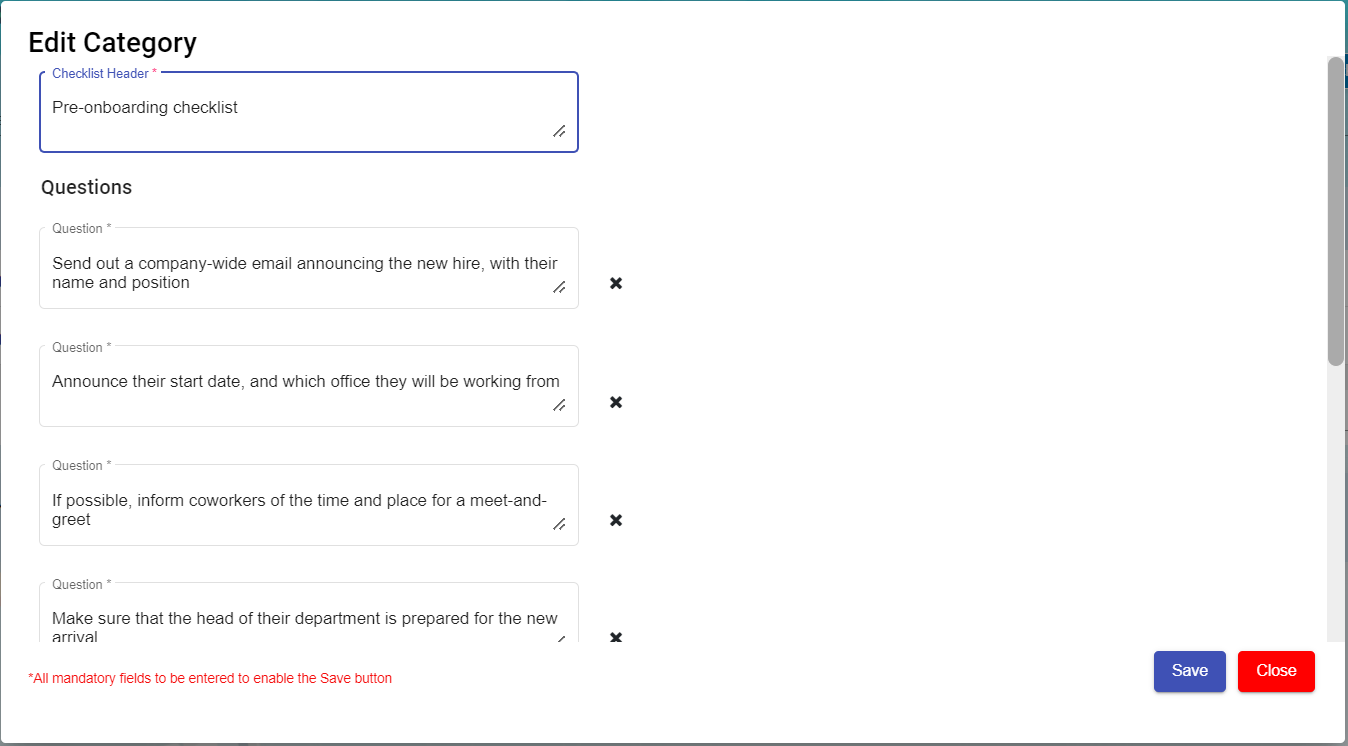
#### Delete Checklist

User can use the delete option to delete the Onboard/Offboard checklist which is not in use or need to remove. Click [![image-1662695579815.png](http://wiki.cuteinfocomm.com/uploads/images/gallery/2022-09/scaled-1680-/image-1662695579815.png)](http://wiki.cuteinfocomm.com/uploads/images/gallery/2022-09/image-1662695579815.png) in the delete column of the checklist. The checklist will be removed.

#### Filter a Onboard/Offboard Checklist

If you want to filter any checklist in the Onboard/Offboard Checklist page, you can use[![image-1663095417308.png](http://wiki.cuteinfocomm.com/uploads/images/gallery/2022-09/scaled-1680-/image-1663095417308.png) ](http://wiki.cuteinfocomm.com/uploads/images/gallery/2022-09/image-1663095417308.png)(**filter** button) on the page.

### Evaluation Factor

Evaluation Factor master manages all the different evaluation factors based on period, type and trade. Click Evaluation factor, the created list will open as below,

[![image-1663314194284.png](http://wiki.cuteinfocomm.com/uploads/images/gallery/2022-09/scaled-1680-/image-1663314194284.png)](http://wiki.cuteinfocomm.com/uploads/images/gallery/2022-09/image-1663314194284.png)
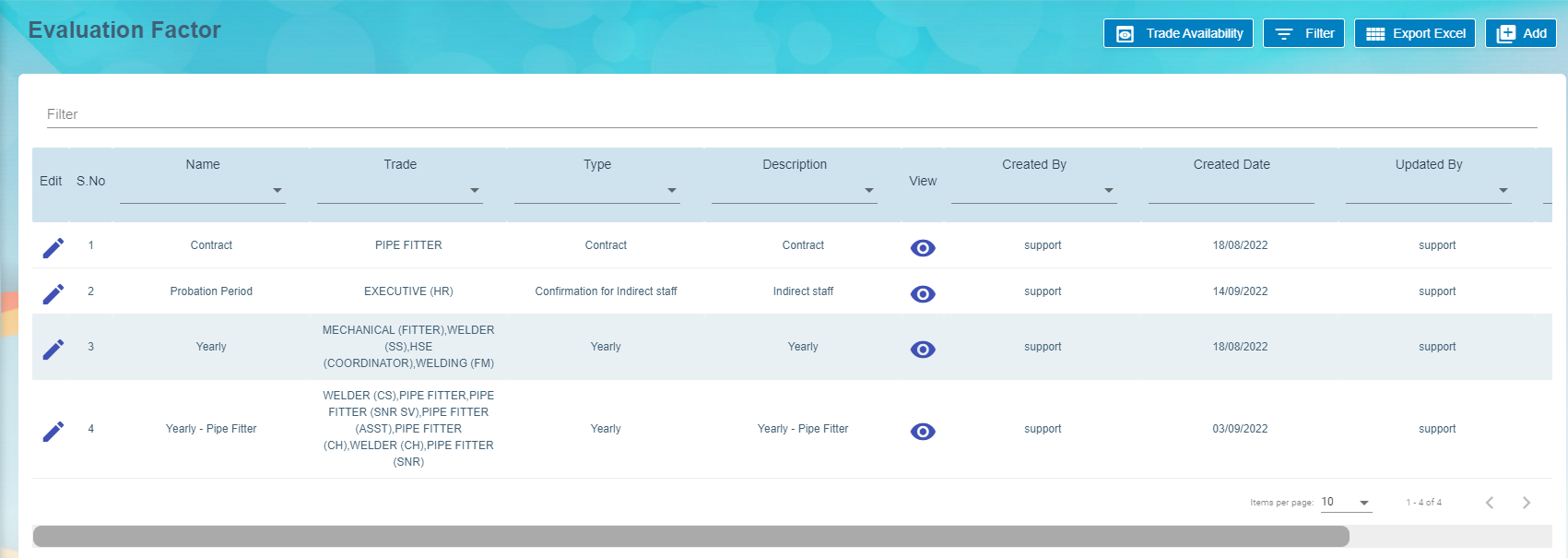
#### Add A New Evaluation Factor

To add a new evaluation template,

1. Click the [![image-1662604025739.png](http://wiki.cuteinfocomm.com/uploads/images/gallery/2022-09/scaled-1680-/image-1662604025739.png)](http://wiki.cuteinfocomm.com/uploads/images/gallery/2022-09/image-1662604025739.png), a new evaluation factor details window opens,
    
    [![image-1666651774377.png](http://wiki.cuteinfocomm.com/uploads/images/gallery/2022-10/scaled-1680-/image-1666651774377.png)](http://wiki.cuteinfocomm.com/uploads/images/gallery/2022-10/image-1666651774377.png)
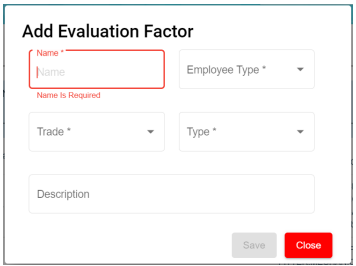
2. Enter all the details of the new evaluation factor: 
    - At Name field, type the name of this new evaluation template.
    - At Employee Type, select from the dropdown list i.e. Staff, Worker, Management
    - At Trade field, select from the dropdown list of which trade is applicable for this new evaluation   
        template. User can also use filter to search for the trade name. User can select more than 1 trade by ticking the given checkbox beside the trade.
    - At Type field, select the type for this new evaluation template. This list is setup at Admin -&gt;   
        Options -&gt; HRM - Evaluation Type.

[![image-1666652325245.png](http://wiki.cuteinfocomm.com/uploads/images/gallery/2022-10/scaled-1680-/image-1666652325245.png)](http://wiki.cuteinfocomm.com/uploads/images/gallery/2022-10/image-1666652325245.png)

1. - At Description field, type a brief description for this new evaluation template. [![image-1666652423855.png](http://wiki.cuteinfocomm.com/uploads/images/gallery/2022-10/scaled-1680-/image-1666652423855.png)](http://wiki.cuteinfocomm.com/uploads/images/gallery/2022-10/image-1666652423855.png)
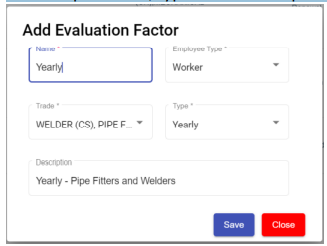
2. Click **Save** button to create the new evaluation template and it will be shown as below, [![image-1666652551302.png](http://wiki.cuteinfocomm.com/uploads/images/gallery/2022-10/scaled-1680-/image-1666652551302.png)](http://wiki.cuteinfocomm.com/uploads/images/gallery/2022-10/image-1666652551302.png)
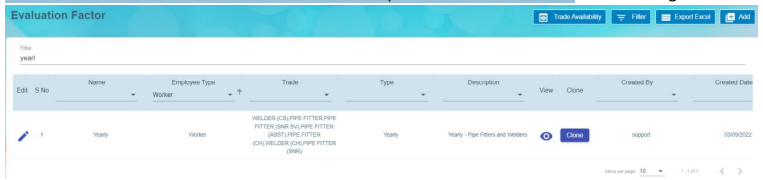
3. The New Evaluation factor added on the main page. Click[![image-1663315743260.png](http://wiki.cuteinfocomm.com/uploads/images/gallery/2022-09/scaled-1680-/image-1663315743260.png)](http://wiki.cuteinfocomm.com/uploads/images/gallery/2022-09/image-1663315743260.png)view icon to add details in Part I, Part II, Part III, Designation &amp; Skill Level and Rating. **Note:** Part II and Part III are optional.

#### Add Details in New Evaluation Template

##### Part I of Evaluation Factor 

Click on Part I tab, the part I detail page opens.

[![image-1666731836689.png](http://wiki.cuteinfocomm.com/uploads/images/gallery/2022-10/scaled-1680-/image-1666731836689.png)](http://wiki.cuteinfocomm.com/uploads/images/gallery/2022-10/image-1666731836689.png)
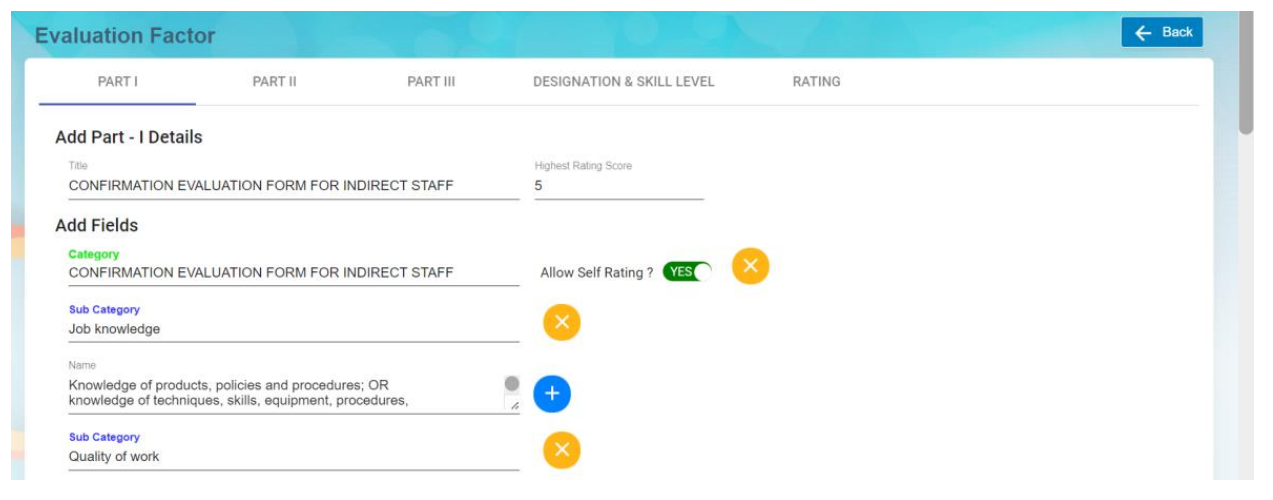
1. In **Add Part I Details,** enter the Title and Highest Rating Score of this evaluation, 
    - **Title** – enter the title and this will display at the beginning of the evaluation form as   
        shown in the below screenshot highlighted in yellow of an employee evaluation form   
        using this evaluation factor template. [![image-1666731803557.png](http://wiki.cuteinfocomm.com/uploads/images/gallery/2022-10/scaled-1680-/image-1666731803557.png)](http://wiki.cuteinfocomm.com/uploads/images/gallery/2022-10/image-1666731803557.png)
    - **Highest Rating Score** – enter the number score columns in the evaluation form.
2. In **Add Fields,** enter details as below: 
    - **Category**, it will be the column header in the evaluation table.
    - **Sub Category,**  it will be the sub Header of criteria setup in the evaluation form
    - **Name**, it will be the detailed perspectives of each criteria under the sub category.
    - **Allow Self Rating,**  if set to Yes, it means employee needs to do self rating. **Note:** Users can click [![image-1663562038610.png](http://wiki.cuteinfocomm.com/uploads/images/gallery/2022-09/scaled-1680-/image-1663562038610.png)](http://wiki.cuteinfocomm.com/uploads/images/gallery/2022-09/image-1663562038610.png) **add** icon to add (category, subcategory and, name). If click add icon at the Category level, system will create a new category with new sub category and new name under this new category. If click add icon at sub category level, system will create a new sub category including the name that falls under this new sub category. If click add icon at name level, then system will create a new name.
        
        Users can click [![image-1664858181194.png](http://wiki.cuteinfocomm.com/uploads/images/gallery/2022-10/scaled-1680-/image-1664858181194.png)](http://wiki.cuteinfocomm.com/uploads/images/gallery/2022-10/image-1664858181194.png) **delete** icon to remove (category, subcategory and, name). If click the delete icon at the Category level, system will delete the entire category including   
        the sub category and name belonging to this category. If click the delete icon at sub category level, system will delete this sub category including the name that falls under this sub category. If click the delete icon at name level, then system will delete only this name.
3. Click **Save** to save the Part I details.

##### Part II of Evaluation Factor 

Click on Part II tab, it opens as below. If the "Add Part-II Details" is set to ON, system will display this Part II details as part of the   
employee evaluation; If it's set to OFF, then the Part II details will be omitted from the employee evaluation form.

[![image-1666735475830.png](http://wiki.cuteinfocomm.com/uploads/images/gallery/2022-10/scaled-1680-/image-1666735475830.png)](http://wiki.cuteinfocomm.com/uploads/images/gallery/2022-10/image-1666735475830.png)
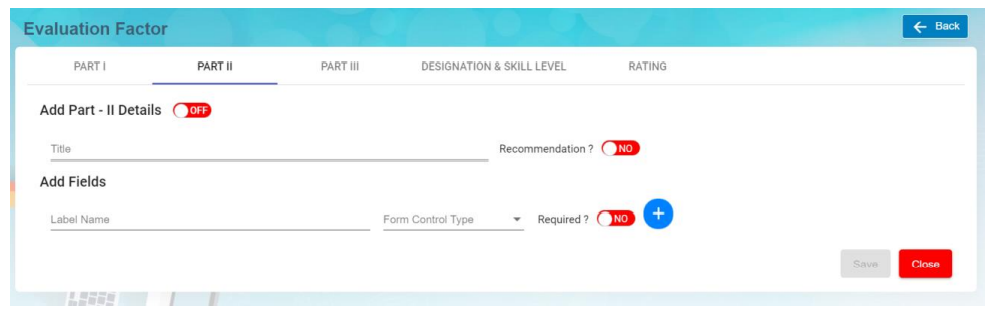
1. In **Add Part – II Details** section, enter below details. Note: The flag "**<span style="color: #e03e2d;">OFF</span>"** next to Part II details need to set to <span style="color: #2dc26b;">**ON** </span>hence this Part II will be displayed in the employee evaluation form. 
    - **Title** – Input the title and this will be displayed as the header of the section in the employee   
        evaluation form as shown below. [![image-1666736290274.png](http://wiki.cuteinfocomm.com/uploads/images/gallery/2022-10/scaled-1680-/image-1666736290274.png)](http://wiki.cuteinfocomm.com/uploads/images/gallery/2022-10/image-1666736290274.png)
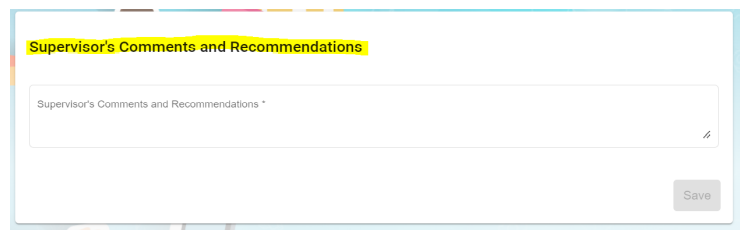
    - When **"Recommendation?"** icon is set to YES, system will display this Recommendation with a list of dropdown values for user to select as shown below, [![image-1666837488254.png](http://wiki.cuteinfocomm.com/uploads/images/gallery/2022-10/scaled-1680-/image-1666837488254.png)](http://wiki.cuteinfocomm.com/uploads/images/gallery/2022-10/image-1666837488254.png)
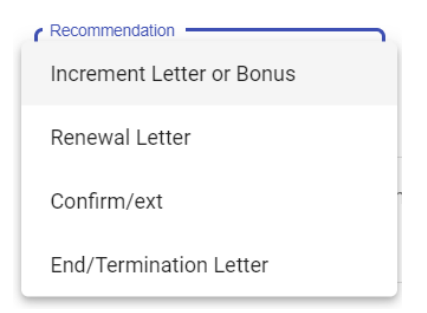
2. In **Add Felids,** enter below details, 
    - **Label Name**-enter the label name.
    - **Form control type**-choose type of control (Text/Text Area/Checkbox) for this Label Name
    - **Required?**- if this icon is set to YES, it is mandatory for user to select or type some text into this form control   
        field.
    - Click [![image-1663562038610.png](http://wiki.cuteinfocomm.com/uploads/images/gallery/2022-09/scaled-1680-/image-1663562038610.png) ](http://wiki.cuteinfocomm.com/uploads/images/gallery/2022-09/image-1663562038610.png)icon to add more label name field if needed. **Note:** Users can click [![image-1663562038610.png](http://wiki.cuteinfocomm.com/uploads/images/gallery/2022-09/scaled-1680-/image-1663562038610.png)](http://wiki.cuteinfocomm.com/uploads/images/gallery/2022-09/image-1663562038610.png) **add** icon to add (category, subcategory and, name). If click add icon at the Category level, system will create a new category with new sub category and new name under this new category. If click add icon at sub category level, system will create a new sub category including the name that falls under this new sub category. If click add icon at name level, then system will create a new name.
        
        Users can click [![image-1664858181194.png](http://wiki.cuteinfocomm.com/uploads/images/gallery/2022-10/scaled-1680-/image-1664858181194.png)](http://wiki.cuteinfocomm.com/uploads/images/gallery/2022-10/image-1664858181194.png) **delete** icon to remove (category, subcategory and, name). If click the delete icon at the Category level, system will delete the entire category including   
        the sub category and name belonging to this category. If click the delete icon at sub category level, system will delete this sub category including the name that falls under this sub category. If click the delete icon at name level, then system will delete only this name.
3. Click **Save** to save the Part II details.

##### Part III of Evaluation Factor

Click on Part III tab, it opens as below. If the "Add Part- III Details" is set to ON, system will display this Part III details as part of the   
employee evaluation; If it's set to OFF, then the Part III details will be omitted from the employee evaluation form.

[![image-1666838712207.png](http://wiki.cuteinfocomm.com/uploads/images/gallery/2022-10/scaled-1680-/image-1666838712207.png)](http://wiki.cuteinfocomm.com/uploads/images/gallery/2022-10/image-1666838712207.png)
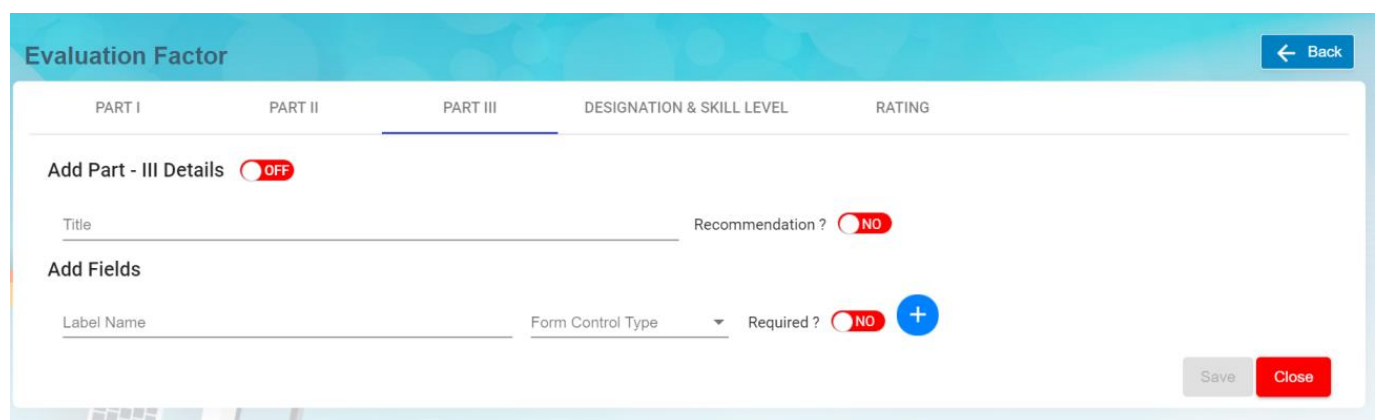
1. In **Add Part- III Details** section, enter below details. Note: The flag "**<span style="color: #e03e2d;">OFF</span>"** next to Part III details need to set to <span style="color: #2dc26b;">**ON** </span>hence this Part III will be displayed in the employee evaluation form. 
    - **Title** – Input the title and this will be displayed as the header of the section in the employee evaluation form as shown below. [![image-1666898672606.png](http://wiki.cuteinfocomm.com/uploads/images/gallery/2022-10/scaled-1680-/image-1666898672606.png)](http://wiki.cuteinfocomm.com/uploads/images/gallery/2022-10/image-1666898672606.png)
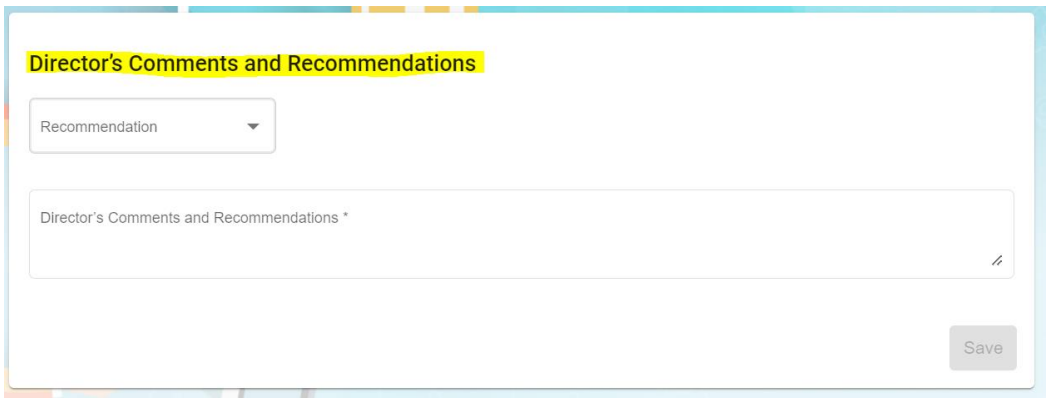
    - When **"Recommendation?"** icon is set to YES, system will display this Recommendation with a list of dropdown values for user to select as shown below, [![image-1666898726651.png](http://wiki.cuteinfocomm.com/uploads/images/gallery/2022-10/scaled-1680-/image-1666898726651.png)](http://wiki.cuteinfocomm.com/uploads/images/gallery/2022-10/image-1666898726651.png)
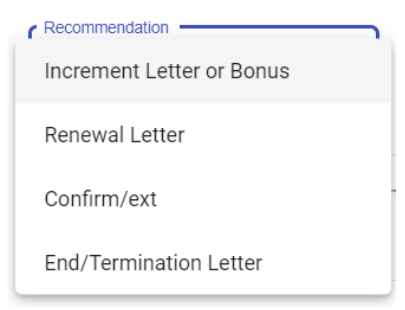
2. In **Add Felids,**
    
    
    - **Label Name**-enter the label name.
    - **Form control type**-choose type of control (Text/Text Area/Checkbox) for this Label Name
    - **Required?**- if this icon is set to YES, it is mandatory for user to select or type some text into this form control   
        field.
    - Click [![image-1663562038610.png](http://wiki.cuteinfocomm.com/uploads/images/gallery/2022-09/scaled-1680-/image-1663562038610.png) ](http://wiki.cuteinfocomm.com/uploads/images/gallery/2022-09/image-1663562038610.png)icon to add more label name field if needed. **Note:** Users can click [![image-1663562038610.png](http://wiki.cuteinfocomm.com/uploads/images/gallery/2022-09/scaled-1680-/image-1663562038610.png)](http://wiki.cuteinfocomm.com/uploads/images/gallery/2022-09/image-1663562038610.png) **add** icon to add (category, subcategory and, name). If click add icon at the Category level, system will create a new category with new sub category and new name under this new category. If click add icon at sub category level, system will create a new sub category including the name that falls under this new sub category. If click add icon at name level, then system will create a new name.
        
        Users can click [![image-1664858181194.png](http://wiki.cuteinfocomm.com/uploads/images/gallery/2022-10/scaled-1680-/image-1664858181194.png)](http://wiki.cuteinfocomm.com/uploads/images/gallery/2022-10/image-1664858181194.png) **delete** icon to remove (category, subcategory and, name). If click the delete icon at the Category level, system will delete the entire category including   
        the sub category and name belonging to this category. If click the delete icon at sub category level, system will delete this sub category including the name that falls under this sub category. If click the delete icon at name level, then system will delete only this name.
3. Click **Save** to save the Part III details.

##### Designation &amp; Skill Level

The Designation &amp; Skill Level section is to show the salary guide and job description of the selected trade(s) and this will serve as a benchmark when supervisors conduct employee evaluations. Click on DESIGNATION &amp; SKILL LEVEL tab, it opens as below,

[![image-1666898957434.png](http://wiki.cuteinfocomm.com/uploads/images/gallery/2022-10/scaled-1680-/image-1666898957434.png)](http://wiki.cuteinfocomm.com/uploads/images/gallery/2022-10/image-1666898957434.png)

1. In **Add Designation &amp; Skill Level Details** section, 
    - **Title** – enter the title and this will be displayed as the header of this Designation &amp; Skill Level   
        section in the employee evaluation form.
2. In **Add Fields** section, enter below details, 
    - ****Trade[![image-1666899946456.png](http://wiki.cuteinfocomm.com/uploads/images/gallery/2022-10/scaled-1680-/image-1666899946456.png)](http://wiki.cuteinfocomm.com/uploads/images/gallery/2022-10/image-1666899946456.png)****-Click on the field to select trades in the dropdown list. Users can select multiple trades. Tick on the checkbox as shown in the below screenshot,  
        [![image-1666899834308.png](http://wiki.cuteinfocomm.com/uploads/images/gallery/2022-10/scaled-1680-/image-1666899834308.png)](http://wiki.cuteinfocomm.com/uploads/images/gallery/2022-10/image-1666899834308.png)
    - After the above trade selection, you need to select each individual trade and input the   
        salary range for this selected trade and job description of this selected trade. Refer to   
        below screenshot, [![image-1666900049792.png](http://wiki.cuteinfocomm.com/uploads/images/gallery/2022-10/scaled-1680-/image-1666900049792.png)](http://wiki.cuteinfocomm.com/uploads/images/gallery/2022-10/image-1666900049792.png)
        
          
        **Note:** Users can click [![image-1663562038610.png](http://wiki.cuteinfocomm.com/uploads/images/gallery/2022-09/scaled-1680-/image-1663562038610.png)](http://wiki.cuteinfocomm.com/uploads/images/gallery/2022-09/image-1663562038610.png) **add** icon to add more trades is required.
        
        Users can click [![image-1664858181194.png](http://wiki.cuteinfocomm.com/uploads/images/gallery/2022-10/scaled-1680-/image-1664858181194.png)](http://wiki.cuteinfocomm.com/uploads/images/gallery/2022-10/image-1664858181194.png) **delete** icon to remove trade. If click the delete icon at the **[![image-1666899946456.png](http://wiki.cuteinfocomm.com/uploads/images/gallery/2022-10/scaled-1680-/image-1666899946456.png)](http://wiki.cuteinfocomm.com/uploads/images/gallery/2022-10/image-1666899946456.png)**level, system will delete whole section within this Trade field. If click the delete icon at trade after this Trade , then system will delete this selected trade.
    - User can[![image-1666900364286.png](http://wiki.cuteinfocomm.com/uploads/images/gallery/2022-10/scaled-1680-/image-1666900364286.png)](http://wiki.cuteinfocomm.com/uploads/images/gallery/2022-10/image-1666900364286.png)icon to clone a trade as shown in the below screenshot. Note that the dropdown list at this Clone Trade is based on the selected trades shown at the Evaluation Factor list page. This Clone Trade option is basically to duplicate the whole section of this selected**[![image-1666899946456.png](http://wiki.cuteinfocomm.com/uploads/images/gallery/2022-10/scaled-1680-/image-1666899946456.png)](http://wiki.cuteinfocomm.com/uploads/images/gallery/2022-10/image-1666899946456.png)** and its sub trades (salary scale and job description). Once selected, click[![image-1666900541340.png](http://wiki.cuteinfocomm.com/uploads/images/gallery/2022-10/scaled-1680-/image-1666900541340.png) ](http://wiki.cuteinfocomm.com/uploads/images/gallery/2022-10/image-1666900541340.png)icon to save this clone trade and you will notice that system create another separate section
        
        [![image-1666900448965.png](http://wiki.cuteinfocomm.com/uploads/images/gallery/2022-10/scaled-1680-/image-1666900448965.png)](http://wiki.cuteinfocomm.com/uploads/images/gallery/2022-10/image-1666900448965.png)
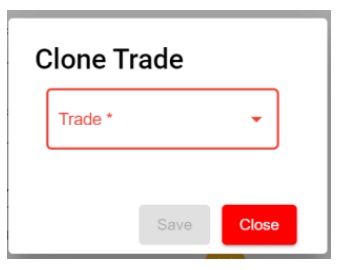
3. Click **Save** to save this Part of the evaluation factor.

##### Rating

The Rating section is optional to be setup. Based on your evaluation form format, if rating is required to be shown in the evaluation form then it can be setup as per below. Click on Rating tab, Rating details window opens,

[![image-1666900907041.png](http://wiki.cuteinfocomm.com/uploads/images/gallery/2022-10/scaled-1680-/image-1666900907041.png)](http://wiki.cuteinfocomm.com/uploads/images/gallery/2022-10/image-1666900907041.png)
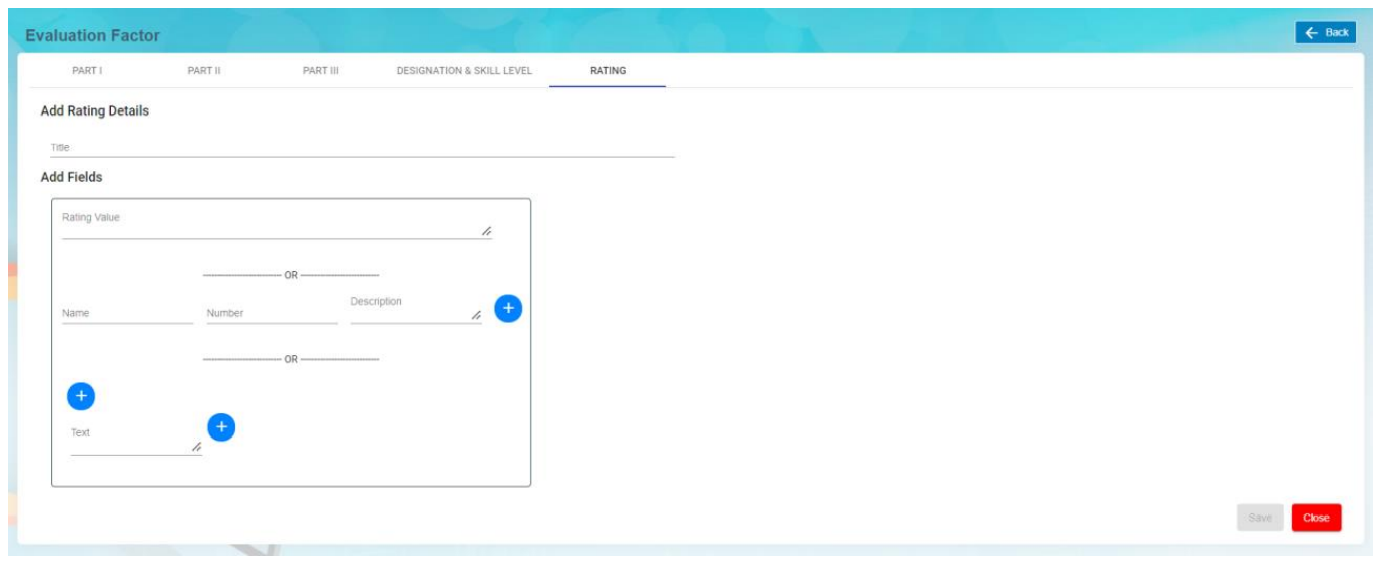
1. In **Add Rating Details** section,
    
    
    - **Title** – enter the title and this will be displayed as the header of this Rating section in the   
        employee evaluation form.
2. In **Add Fields** section, there are three options to creating the rating section to be displayed in the   
    employee evaluation form. 
    - **Option 1**: **Rating Value** – Input text to describe this rating value.[![image-1666901144339.png](http://wiki.cuteinfocomm.com/uploads/images/gallery/2022-10/scaled-1680-/image-1666901144339.png)](http://wiki.cuteinfocomm.com/uploads/images/gallery/2022-10/image-1666901144339.png)

    - ****Option 2****[![image-1666901229373.png](http://wiki.cuteinfocomm.com/uploads/images/gallery/2022-10/scaled-1680-/image-1666901229373.png)](http://wiki.cuteinfocomm.com/uploads/images/gallery/2022-10/image-1666901229373.png)

        
        
        - **Name** – enter text to describe this name.
        - **Number** – enter a numeric value.
        - **Description** – enter long description to describe this name.

Click on [![image-1663562038610.png](http://wiki.cuteinfocomm.com/uploads/images/gallery/2022-09/scaled-1680-/image-1663562038610.png)](http://wiki.cuteinfocomm.com/uploads/images/gallery/2022-09/image-1663562038610.png)add icon to add if a different name, number and description is required

1. - ****Option 3****[![image-1666901321736.png](http://wiki.cuteinfocomm.com/uploads/images/gallery/2022-10/scaled-1680-/image-1666901321736.png)](http://wiki.cuteinfocomm.com/uploads/images/gallery/2022-10/image-1666901321736.png)
        
        
        - Click on [![image-1663562038610.png](http://wiki.cuteinfocomm.com/uploads/images/gallery/2022-09/scaled-1680-/image-1663562038610.png)](http://wiki.cuteinfocomm.com/uploads/images/gallery/2022-09/image-1663562038610.png) icon before the Text field to add column horizontally.   
            Click on [![image-1663562038610.png](http://wiki.cuteinfocomm.com/uploads/images/gallery/2022-09/scaled-1680-/image-1663562038610.png)](http://wiki.cuteinfocomm.com/uploads/images/gallery/2022-09/image-1663562038610.png) icon after the Text field to add column vertically.   
            Click on [![image-1664858181194.png](http://wiki.cuteinfocomm.com/uploads/images/gallery/2022-10/scaled-1680-/image-1664858181194.png)](http://wiki.cuteinfocomm.com/uploads/images/gallery/2022-10/image-1664858181194.png) icon above the Text field will delete the column horizontally.  
            Click on [![image-1664858181194.png](http://wiki.cuteinfocomm.com/uploads/images/gallery/2022-10/scaled-1680-/image-1664858181194.png)](http://wiki.cuteinfocomm.com/uploads/images/gallery/2022-10/image-1664858181194.png) icon beside the Text field will delete the column vertically. [![image-1666901449416.png](http://wiki.cuteinfocomm.com/uploads/images/gallery/2022-10/scaled-1680-/image-1666901449416.png)](http://wiki.cuteinfocomm.com/uploads/images/gallery/2022-10/image-1666901449416.png)
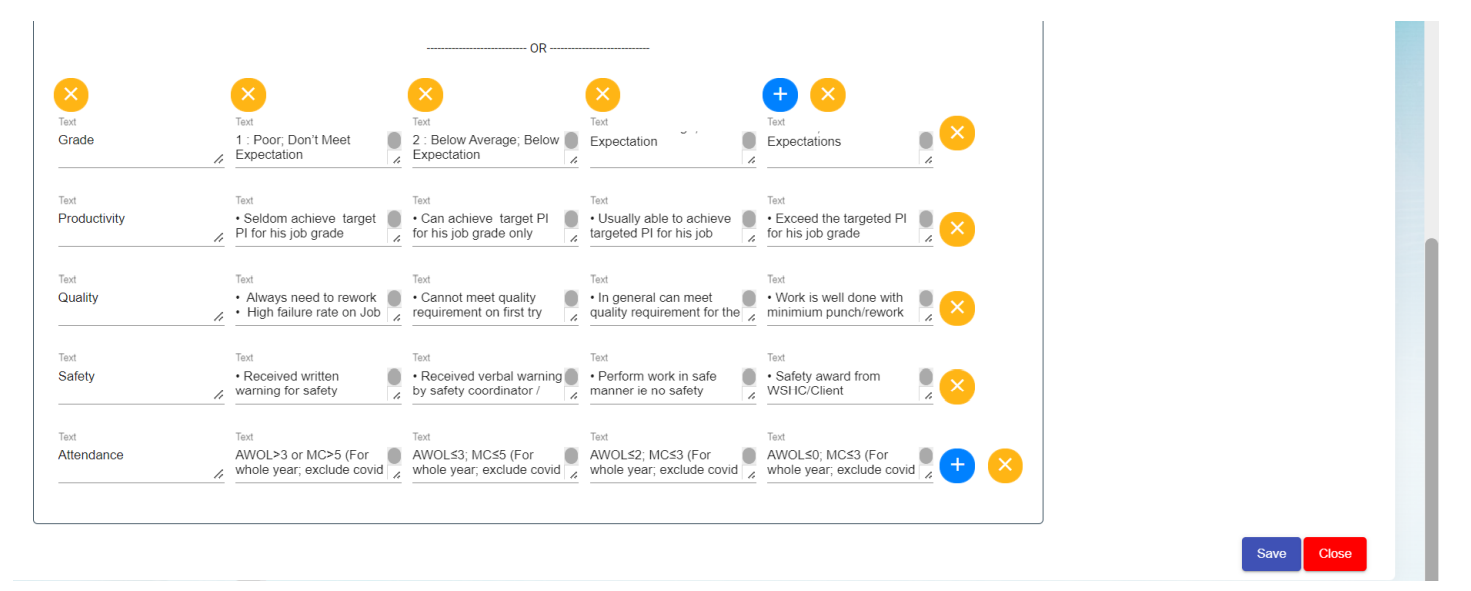
2. Click **Save** to save the rating setup of the evaluation factor.

#### View Trade Availability 

User can view the available trades used in evaluation by clicking on the Trade Availability icon in the Evaluation Factor page.

[![image-1666901811821.png](http://wiki.cuteinfocomm.com/uploads/images/gallery/2022-10/scaled-1680-/image-1666901811821.png)](http://wiki.cuteinfocomm.com/uploads/images/gallery/2022-10/image-1666901811821.png)
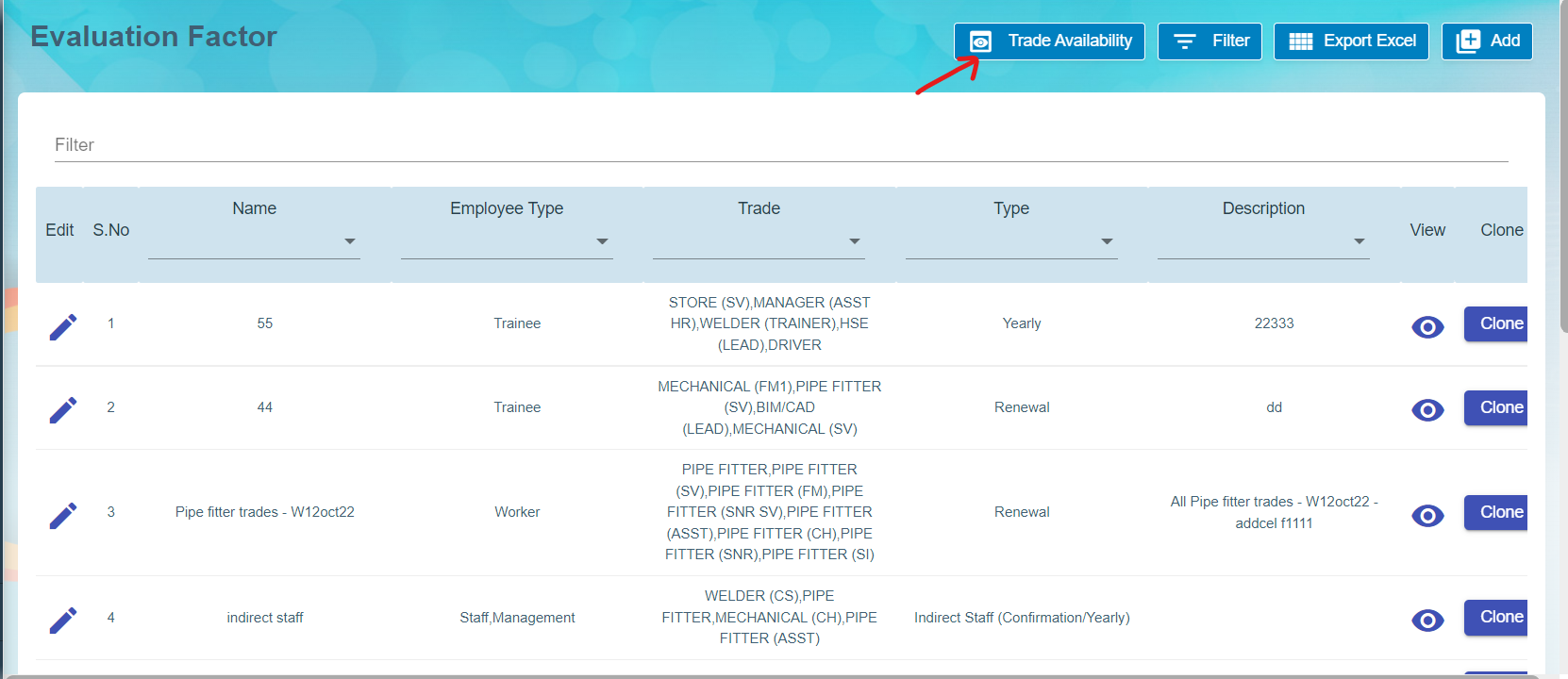
Click [![image-1666901951872.png](http://wiki.cuteinfocomm.com/uploads/images/gallery/2022-10/scaled-1680-/image-1666901951872.png)](http://wiki.cuteinfocomm.com/uploads/images/gallery/2022-10/image-1666901951872.png), below page opens for view,

[![image-1666901926753.png](http://wiki.cuteinfocomm.com/uploads/images/gallery/2022-10/scaled-1680-/image-1666901926753.png)](http://wiki.cuteinfocomm.com/uploads/images/gallery/2022-10/image-1666901926753.png)
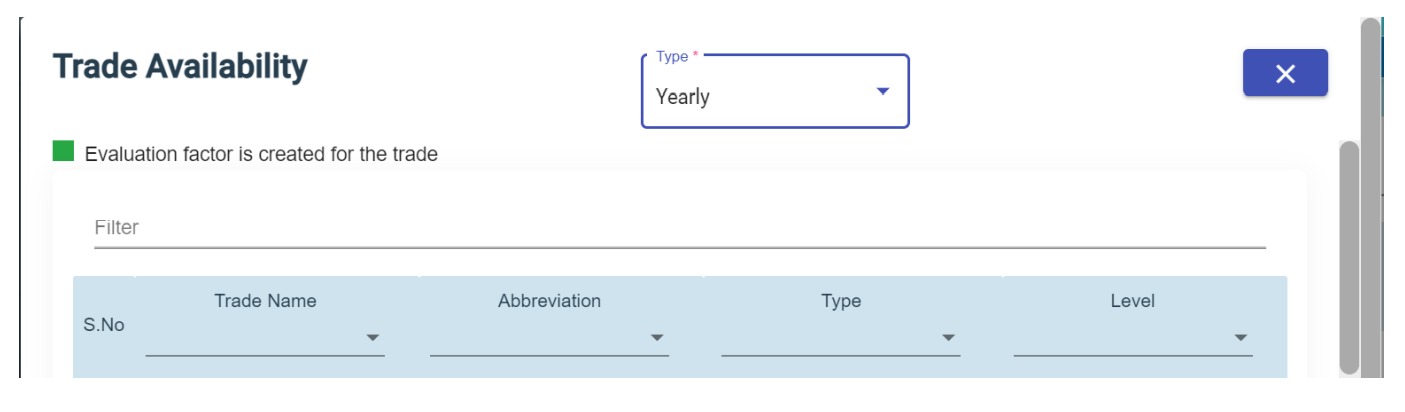
#### Filter Evaluation Factor

User can click [![image-1666902066314.png](http://wiki.cuteinfocomm.com/uploads/images/gallery/2022-10/scaled-1680-/image-1666902066314.png)](http://wiki.cuteinfocomm.com/uploads/images/gallery/2022-10/image-1666902066314.png) icon in the evaluation factor page to filter evaluation factor on different columns.

#### Export Evaluation Factor

User can click [![image-1666902547424.png](http://wiki.cuteinfocomm.com/uploads/images/gallery/2022-10/scaled-1680-/image-1666902547424.png)](http://wiki.cuteinfocomm.com/uploads/images/gallery/2022-10/image-1666902547424.png)icon to export this list of Evaluation Factor into an excel file.

# HRM Others

The **Others** submenu in the **HUMAN RESOURCES** page helps you to manage the details of vehicles belongs to the company, insurance details of company and employees, salary addition/deduction details of employees for each month and various documents that company needs to keep track of along with MOM OED submissions too.

[![image-1741838058117.png](https://wiki.cuteinfocomm.com/uploads/images/gallery/2025-03/scaled-1680-/image-1741838058117.png)](https://wiki.cuteinfocomm.com/uploads/images/gallery/2025-03/image-1741838058117.png)
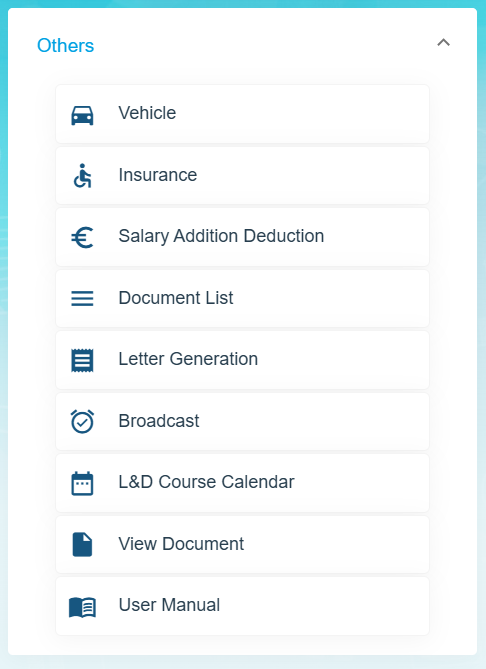
The **Others** submenu contains the following tabs,

- Vehicle
- Insurance
- Addition/Deduction
- Document List
- Letter Generation
- Broadcast
- MOM OED Submissions
- User Manual
- Scheduler Subscription

### Vehicle

The **Vehicle** tab in the **Others** submenu helps you to add the details of vehicles belongs to the company including vehicle type, vehicle insurance, maintenance, and season parking pass details. Click the **Vehicle** tab in the **Others.** The **Vehicle** page opens.

[![image-1662095291430.png](http://wiki.cuteinfocomm.com/uploads/images/gallery/2022-09/scaled-1680-/image-1662095291430.png)](http://wiki.cuteinfocomm.com/uploads/images/gallery/2022-09/image-1662095291430.png)
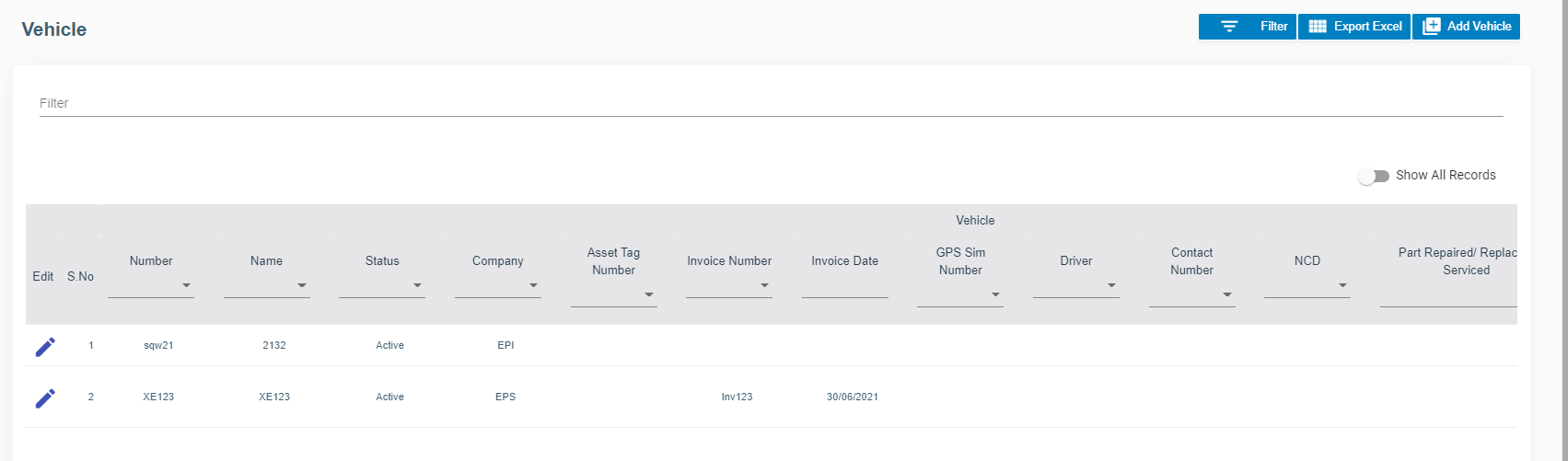
#### Add Vehicle

If you want to add vehicle, do the following steps,

1. Click (**Add Vehicle** button) in the **Vehicle.** The **Vehicle Information** window opens.
2. In the **Vehicle** tab, fill up the following details, [![image-1663644517500.png](http://wiki.cuteinfocomm.com/uploads/images/gallery/2022-09/scaled-1680-/image-1663644517500.png)](http://wiki.cuteinfocomm.com/uploads/images/gallery/2022-09/image-1663644517500.png)
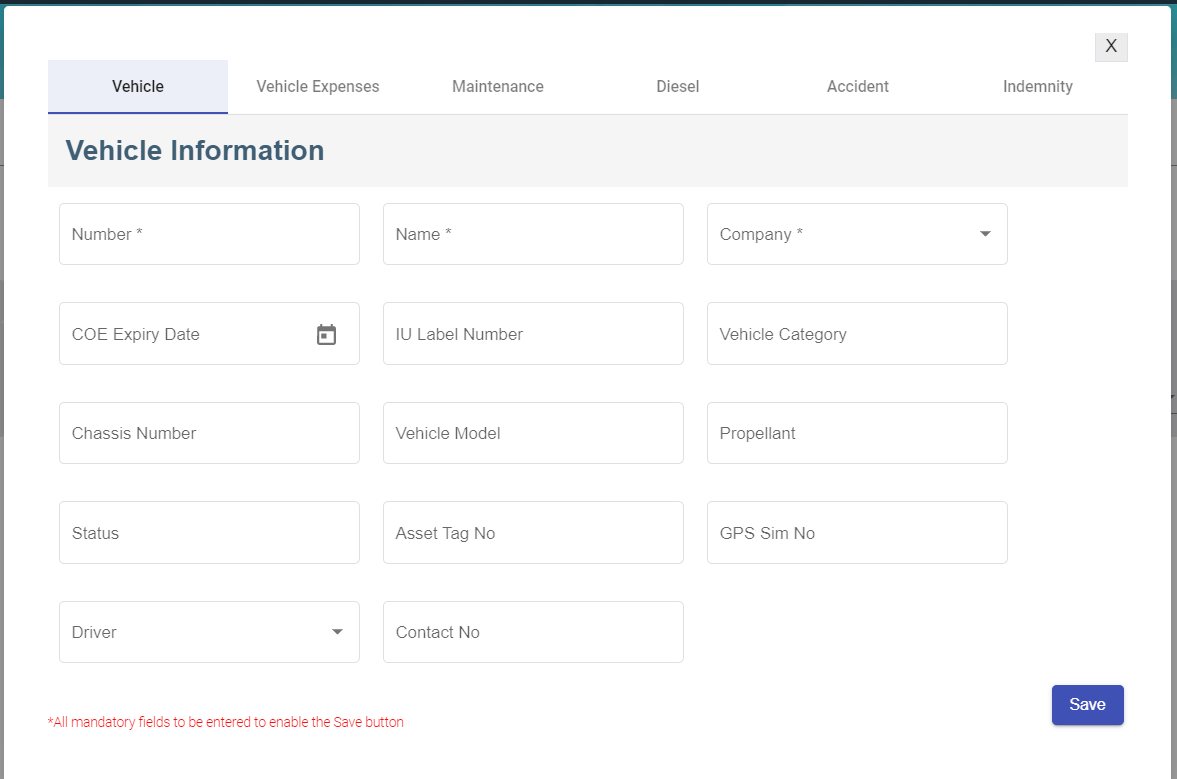
    
    
    - - In the **Number** box, enter the vehicle number.
        - In the **Name** box, enter the name of the vehicle.
        - In the **Company** box, select company name from dropdown list.
        - In the **COE Expiry Date** box, enter COE expiry date.
        - In the **IU label Number** box, enter the IU number.
        - In the **Vehicle Category** box, enter the vehicle category.
        - In the **Chassis Number** box, enter the car identification number
        - In the **Vehicle Model** box, enter the vehicle model.
        - In the **Propellant** box, enter the propellant information.
        - In the **Status** box, enter the status of the vehicle
        - In **Asset Tag No** box, enter the company asset tag number.
        - In **GPS Sim No** box, enter the GPS Sim attached to the vehicle if any
        - In **Driver** box, select the driver name from company employee list.
        - In **Contact No** box, enter the contact number.
    - Click **Save** then click **Next**, the vehicle expenses tab will open.
3. In the **Vehicle Expenses** tab, fill up the following details, [![image-1663261822494.png](http://wiki.cuteinfocomm.com/uploads/images/gallery/2022-09/scaled-1680-/image-1663261822494.png)](http://wiki.cuteinfocomm.com/uploads/images/gallery/2022-09/image-1663261822494.png)
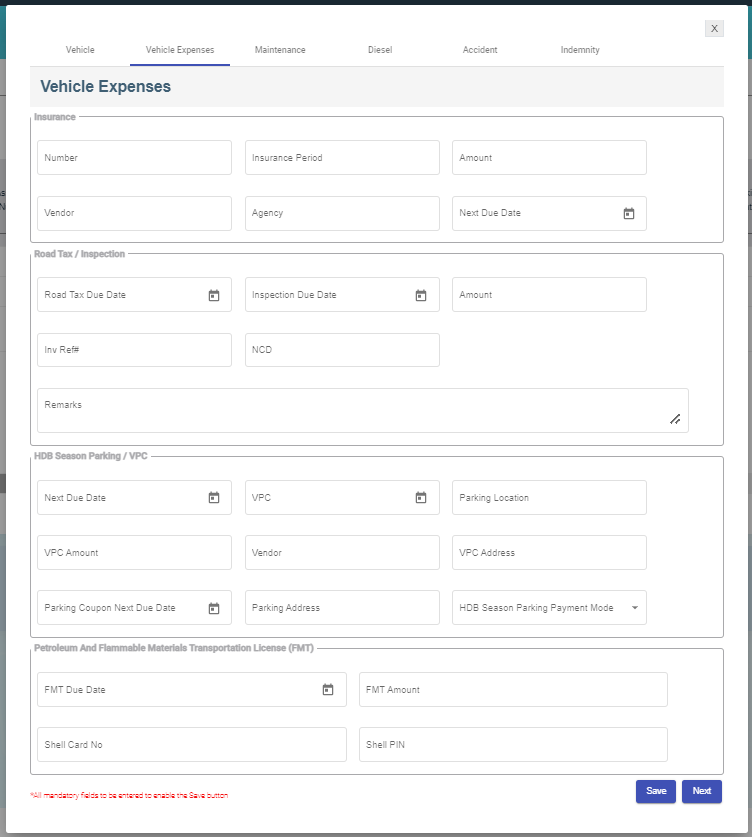
    
    
    - Insurance section 
        - In the **Number** box, enter the vehicle insurance number.
        - In the **Insurance Period** box, enter the current insurance period,
        - In the **Vendor** box, enter the name of the vendor.
        - In the **Agency** box, enter the name of the agency.
        - In the **Next Due Date** box, select the due date of the vehicle insurance.
    - Road Tax/Inspection section 
        - In the **Road Tax Due Date** box, select the due date of the road tax.
        - In the **Inspection Due Date** box, select the due date of the inspection.
        - In the **Amount** box, enter the inspection amount.
        - In the **Inv Ref#** box, enter invoice reference number.
        - In the **NCD** box, enter no claims discount.
    - HDB Season Parking/VPC section 
        - In the **Next Due Date** box, select the due date for HDB season parking.
        - In the **Vehicle Parking Certificate (VPC)** box, select the VPC due date.
        - In the **Parking Location** box, enter the parking address.
        - In the **VPC Amount** box, enter the VPC amount.
        - In the **Vendor** box, enter the vendor name.
        - In the **VPC Address** box, enter the VPC address.
        - In the **Parking Coupon Next Due Date** box, select the next due date of the parking coupon.
        - In the **Parking Address** box, enter parking address.
        - In the **HDB Season Parking Payment Mode** box, select the payment mode.
    - Petroleum And Flammable Materials Transportation License (FMT) section 
        - In the **FMT Due Date** box, enter the due date of the FMT.
        - In the **FMT Amount** box, enter the FMT amount.
        - In the **Shell Card No** box, enter the shell card number.
        - In the **Shell Pin** box, enter the shell pin number.
    - Click **Save**, then click **Next**, the Vehicle Maintenance tab will open.
4. In the **Vehicle Maintenance** tab, fill up the following details, [![image-1663263840925.png](http://wiki.cuteinfocomm.com/uploads/images/gallery/2022-09/scaled-1680-/image-1663263840925.png)](http://wiki.cuteinfocomm.com/uploads/images/gallery/2022-09/image-1663263840925.png)
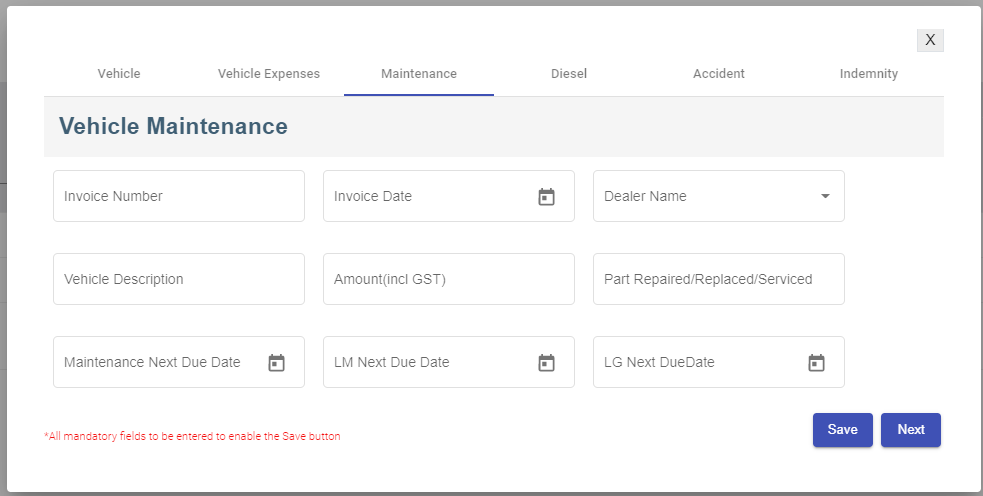
    
    
    - - In the **Invoice Number** box, enter the invoice number.
        - In the **Invoice Date** box, select the date of the invoice.
        - In the **Dealer Name** box, select the dealer name.
        - In the **Vehicle Description** box, enter the maintenance description.
        - In the **Amount (incl GST)** box, enter the maintenance amount.
        - In the **Part Repaired/Replaced/Serviced** box, enter the part name.
        - In the **Maintenance Next Due Date** box, select the next due date of maintenance.
        - In the **LM Next Due Date** box, select the next due date of LM.
        - In the **LG Next Due** box, select the next due date of LG.
    - Click **Save**, then click **Next**, the Vehicle Diesel tab will open.
5. In the **Vehicle Diesel** tab, fill up details of each record. [![image-1663264329106.png](http://wiki.cuteinfocomm.com/uploads/images/gallery/2022-09/scaled-1680-/image-1663264329106.png)](http://wiki.cuteinfocomm.com/uploads/images/gallery/2022-09/image-1663264329106.png)
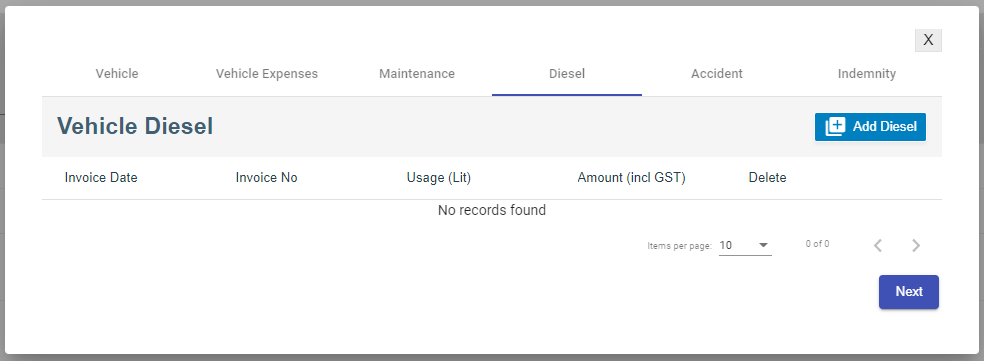
    
    
    - Click [![image-1663352493239.png](http://wiki.cuteinfocomm.com/uploads/images/gallery/2022-09/scaled-1680-/image-1663352493239.png)](http://wiki.cuteinfocomm.com/uploads/images/gallery/2022-09/image-1663352493239.png)add diesel icon, below window opens, enter the diesel details, [![image-1663264465471.png](http://wiki.cuteinfocomm.com/uploads/images/gallery/2022-09/scaled-1680-/image-1663264465471.png)](http://wiki.cuteinfocomm.com/uploads/images/gallery/2022-09/image-1663264465471.png)

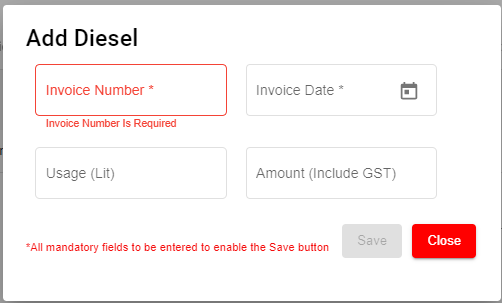
    - Click **Save**, then click **Next**, the Accident tab will open.
6. In the **Accident** tab, fill up the following details, [![image-1663352451233.png](http://wiki.cuteinfocomm.com/uploads/images/gallery/2022-09/scaled-1680-/image-1663352451233.png)](http://wiki.cuteinfocomm.com/uploads/images/gallery/2022-09/image-1663352451233.png)
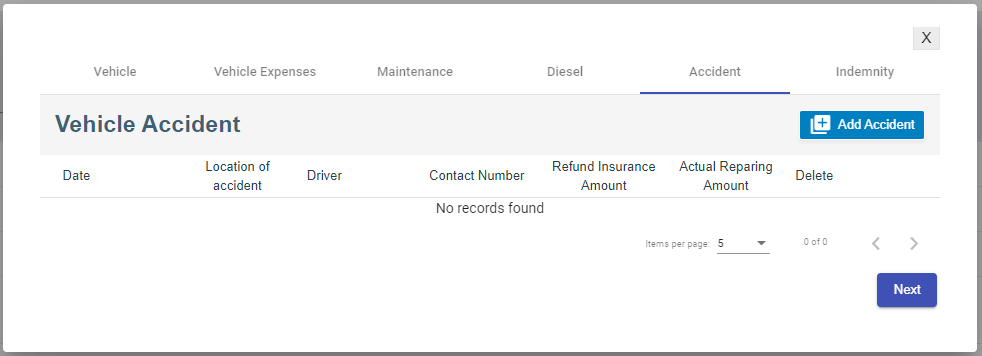
    
    
    - Click[![image-1663352538043.png](http://wiki.cuteinfocomm.com/uploads/images/gallery/2022-09/scaled-1680-/image-1663352538043.png)](http://wiki.cuteinfocomm.com/uploads/images/gallery/2022-09/image-1663352538043.png) add accident icon, below window opens, enter the details of the accident [![image-1663352813437.png](http://wiki.cuteinfocomm.com/uploads/images/gallery/2022-09/scaled-1680-/image-1663352813437.png)](http://wiki.cuteinfocomm.com/uploads/images/gallery/2022-09/image-1663352813437.png)

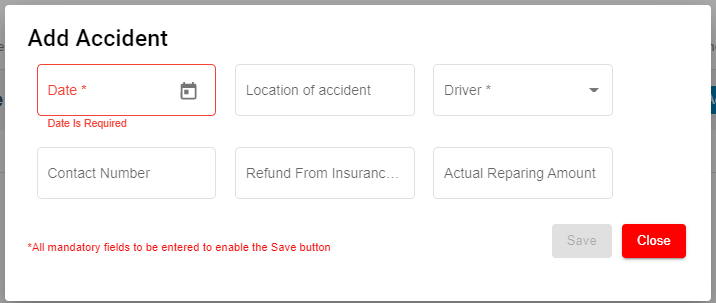
    - Click **Save** and then click **Next**, the Indemnity tab will open.
7. In the **Indemnity** tab, fill up the following details, [![image-1663353086440.png](http://wiki.cuteinfocomm.com/uploads/images/gallery/2022-09/scaled-1680-/image-1663353086440.png)](http://wiki.cuteinfocomm.com/uploads/images/gallery/2022-09/image-1663353086440.png)
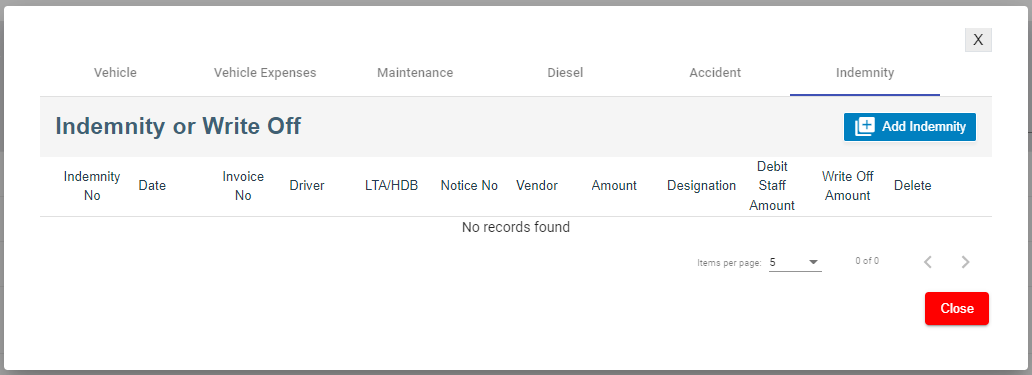
    
    
    - Click[![image-1663353135029.png](http://wiki.cuteinfocomm.com/uploads/images/gallery/2022-09/scaled-1680-/image-1663353135029.png)](http://wiki.cuteinfocomm.com/uploads/images/gallery/2022-09/image-1663353135029.png) add indemnity icon, below window opens, enter the details of the indemnity. [![image-1663353228245.png](http://wiki.cuteinfocomm.com/uploads/images/gallery/2022-09/scaled-1680-/image-1663353228245.png)](http://wiki.cuteinfocomm.com/uploads/images/gallery/2022-09/image-1663353228245.png)

    - Click **Save.**

#### Edit Vehicle

You can edit the details of the added vehicle by using edit option provided in the **Edit** column of the **Vehicle** page. Click ![](http://wiki.cuteinfocomm.com/uploads/images/gallery/2022-05/embedded-image-cweperr4.png) (Edit icon) of the respective vehicle you have added. The **Add vehicle** window opens with the added vehicle details. Edit the vehicle details where you want. Click **Save**.

[![image-1662095366866.png](http://wiki.cuteinfocomm.com/uploads/images/gallery/2022-09/scaled-1680-/image-1662095366866.png)](http://wiki.cuteinfocomm.com/uploads/images/gallery/2022-09/image-1662095366866.png)
#### Add/ View Attachment for Vehicle

If you want to add any new attachment for the vehicle or view any added attachment,

1. click ![](http://wiki.cuteinfocomm.com/uploads/images/gallery/2022-05/embedded-image-srykc71l.png)(Attachment icon) of the respective vehicle for which you want to add or view the attachment. The **Add/ View Attachment** window opens. [![image-1663353629149.png](http://wiki.cuteinfocomm.com/uploads/images/gallery/2022-09/scaled-1680-/image-1663353629149.png)](http://wiki.cuteinfocomm.com/uploads/images/gallery/2022-09/image-1663353629149.png)
2. Click [![image-1663353642362.png](http://wiki.cuteinfocomm.com/uploads/images/gallery/2022-09/scaled-1680-/image-1663353642362.png)](http://wiki.cuteinfocomm.com/uploads/images/gallery/2022-09/image-1663353642362.png)(Add Document button). The file choosing and uploading option will be enabled. Click (Choose File button) and select the file which you want to upload. [![image-1663353963695.png](http://wiki.cuteinfocomm.com/uploads/images/gallery/2022-09/scaled-1680-/image-1663353963695.png)](http://wiki.cuteinfocomm.com/uploads/images/gallery/2022-09/image-1663353963695.png)

3. Click **Upload.** The selected file will be uploaded and displayed in the **Add/View Attachment** window.

#### Delete Vehicle

You can delete the added vehicle by using[![image-1663353518509.png](http://wiki.cuteinfocomm.com/uploads/images/gallery/2022-09/scaled-1680-/image-1663353518509.png) ](http://wiki.cuteinfocomm.com/uploads/images/gallery/2022-09/image-1663353518509.png)(Delete icon) provided in the **Delete** column of the **Vehicle** page. If you want to delete the Vehicle Type, click **Yes** otherwise click **No**.

[![image-1663353560071.png](http://wiki.cuteinfocomm.com/uploads/images/gallery/2022-09/scaled-1680-/image-1663353560071.png)](http://wiki.cuteinfocomm.com/uploads/images/gallery/2022-09/image-1663353560071.png)
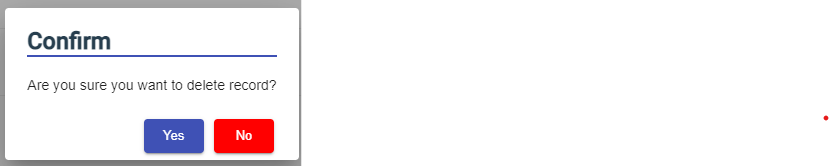
#### Filter Vehicle

If you want to view any specific vehicle details among multiple vehicles listed in the **Vehicle** page, you can use the filter option provided in the upper right corner of the **Vehicle** page. Click[![image-1663353587313.png](http://wiki.cuteinfocomm.com/uploads/images/gallery/2022-09/scaled-1680-/image-1663353587313.png) ](http://wiki.cuteinfocomm.com/uploads/images/gallery/2022-09/image-1663353587313.png)(Filter button). The filter option opens.

#### Export Vehicle

The application has a feature to download the added vehicle details as an excel file. You can use (**Export Excel** button) to download the added vehicle details. Click[![image-1663354003972.png](http://wiki.cuteinfocomm.com/uploads/images/gallery/2022-09/scaled-1680-/image-1663354003972.png)](http://wiki.cuteinfocomm.com/uploads/images/gallery/2022-09/image-1663354003972.png)(**Export Excel** button). The vehicle details in the **Vehicle** page will be downloaded as an excel file.

### Insurance

The **Insurance** tab in the **Others** submenu helps you to add the details of various insurance policy that is taken by the company. If you want to add an insurance, click the **Insurance** tab in the **Others.** The **Insurance** page opens.

[![image-1663139258801.png](http://wiki.cuteinfocomm.com/uploads/images/gallery/2022-09/scaled-1680-/image-1663139258801.png)](http://wiki.cuteinfocomm.com/uploads/images/gallery/2022-09/image-1663139258801.png)
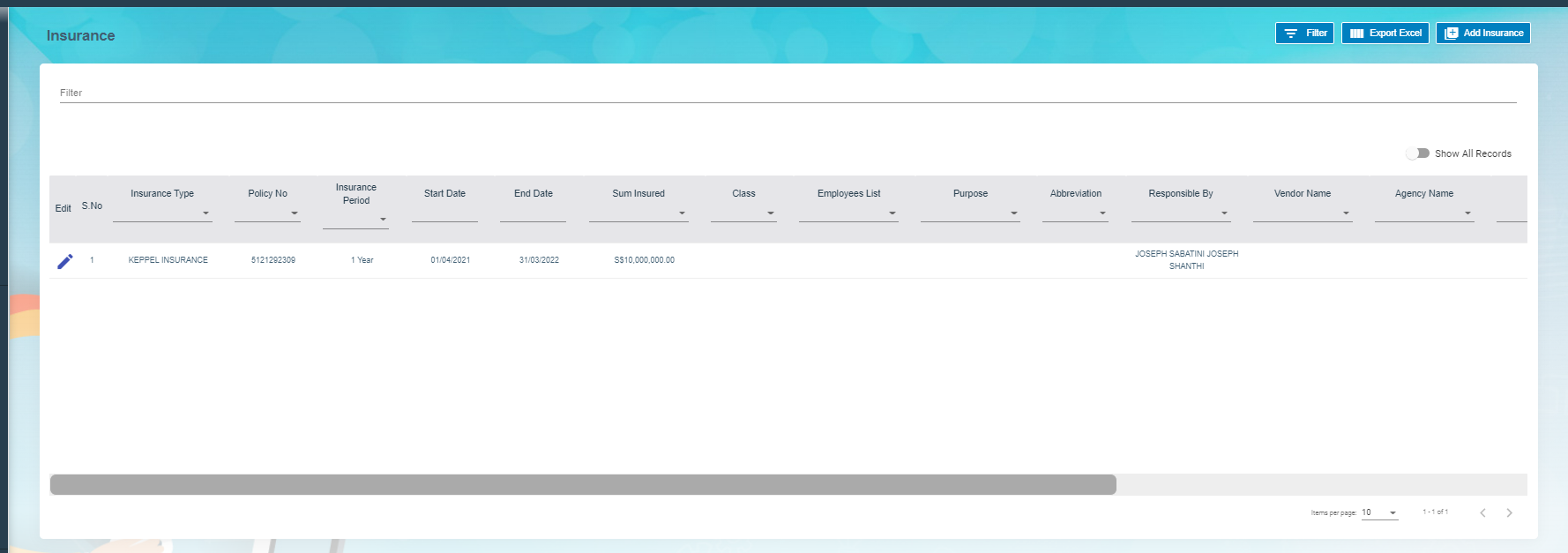
#### Add Insurance

To add insurances,

1. Click[![image-1663354158316.png](http://wiki.cuteinfocomm.com/uploads/images/gallery/2022-09/scaled-1680-/image-1663354158316.png)](http://wiki.cuteinfocomm.com/uploads/images/gallery/2022-09/image-1663354158316.png)(**Add Insurance** button) in the **Insurance,** the **Add New Insurance Policy Details** window opens, [![image-1663354129765.png](http://wiki.cuteinfocomm.com/uploads/images/gallery/2022-09/scaled-1680-/image-1663354129765.png)](http://wiki.cuteinfocomm.com/uploads/images/gallery/2022-09/image-1663354129765.png)**Note**: The fields notified with a symbol (\*) are mandatory. You must enter the relevant details in that fields before saving.

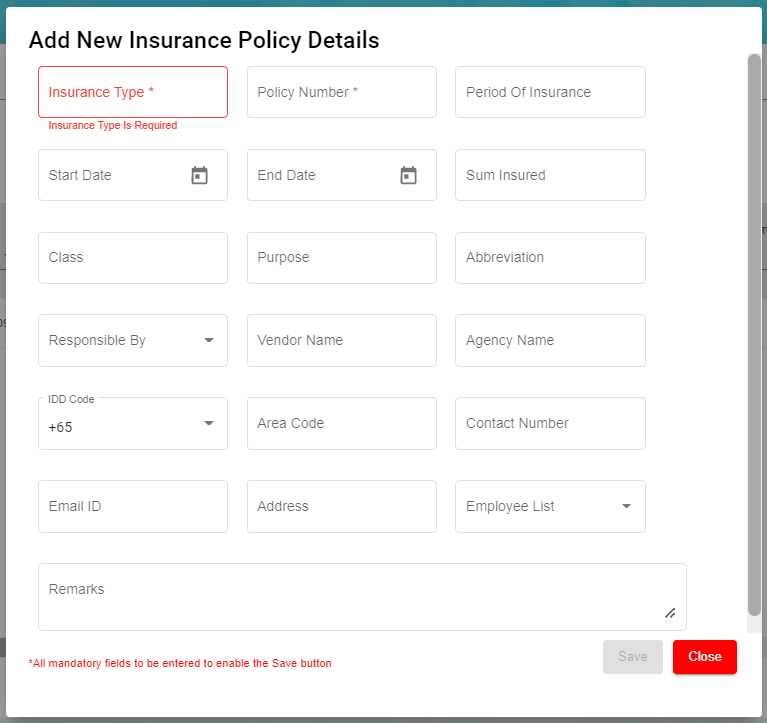
2. - In the **Insurance Type** box, enter the type of insurance.
    - In the **Policy Number** box, enter the insurance policy number.
    - In the **Period of Insurance** box, enter the total insurance period.
    - In the **Start Date** box, select the insurance starting period.
    - In the **End Date** box, select the insurance end date.
    - In the **Sum Insured** box, enter the insurance amount.
    - In the **Class** box, enter the class of insurance.
    - In the **Purpose** box, enter the purpose of taking insurance.
    - In the **Abbreviation** box, enter the abbreviation for the class.
    - In the **Responsible By** box, select the name of a person who is responsible for the insurance.
    - In the **Vendor Name** box, enter the vendor name.
    - In the **Agency Name** box, enter the agency name.
    - In the **IDD Code** box, enter the IDD code.
    - In the **Area Code** box, enter the area code.
    - In the **Contact Number** box, enter the contact number.
    - In the **Email ID** box, enter the email id of the employee.
    - In the **Address** box, enter the address of the employee.
    - In the **Employee List** box, select the employees from the given list. **Tip**: You can select all the employees if you have insured for multiple employees.
    - In the **Remarks** box, enter your remarks if any.
3. Click **Save**. The insurance is successfully added and listed in the **Insurance** page.

#### Edit Insurance

You can edit the details of the added insurance by using[![image-1663354671200.png](http://wiki.cuteinfocomm.com/uploads/images/gallery/2022-09/scaled-1680-/image-1663354671200.png)](http://wiki.cuteinfocomm.com/uploads/images/gallery/2022-09/image-1663354671200.png)(Edit icon) provided in the **Edit** column of the **Insurance** page. To edit the added insurance details,

1. Click (Edit icon) of the respective insurance you have added. The Insurance Policy Details window opens with the added insurance details.
2. Edit the insurance details where you want.
3. Click **Save**.

#### Add/ View Attachment for Insurance

If you want to add any new attachment for the insurance or view any added attachment, you can use[![image-1663354754354.png](http://wiki.cuteinfocomm.com/uploads/images/gallery/2022-09/scaled-1680-/image-1663354754354.png)](http://wiki.cuteinfocomm.com/uploads/images/gallery/2022-09/image-1663354754354.png)(Attachment icon) provided in the **Documents** column of the **Insurance** page.

#### Delete Insurance

You can delete the added insurance by using [![image-1663353518509.png](http://wiki.cuteinfocomm.com/uploads/images/gallery/2022-09/scaled-1680-/image-1663353518509.png)](http://wiki.cuteinfocomm.com/uploads/images/gallery/2022-09/image-1663353518509.png)(Delete icon) provided in the **Delete** column of the **Insurance** page.

#### Filter Insurance

If you want to view any specific insurance details among multiple insurances listed in the **Insurance** page, you can use the [![image-1663353587313.png](http://wiki.cuteinfocomm.com/uploads/images/gallery/2022-09/scaled-1680-/image-1663353587313.png)](http://wiki.cuteinfocomm.com/uploads/images/gallery/2022-09/image-1663353587313.png)filter option provided in the upper right corner of the **Insurance** page.

#### Export Insurance

The application has a feature to download the added insurance details as an excel file. You can use (**Export Excel** button) to download the added insurance details. Click [![image-1663354003972.png](http://wiki.cuteinfocomm.com/uploads/images/gallery/2022-09/scaled-1680-/image-1663354003972.png)](http://wiki.cuteinfocomm.com/uploads/images/gallery/2022-09/image-1663354003972.png)(**Export Excel** button), the insurance details in the **Insurance** page will be downloaded as an excel file.


### Employee Salary Addition/Deduction

<span style="color: #3598db;">**Note**: This section is linked with **Payroll**.</span>

The **Salary Addition/Deduction** tab in the **Others** submenu helps you to add the details of any addition or deduction in the employee’s salary for each month. This data is synchronized with the employee salary and automatically processed for each month. To add the salary addition/deduction details, click the **Salary Addition/Deduction** tab in the **Others**. The **Employees Addition/Deduction History** page opens.

[![image-1663139472695.png](http://wiki.cuteinfocomm.com/uploads/images/gallery/2022-09/scaled-1680-/image-1663139472695.png)](http://wiki.cuteinfocomm.com/uploads/images/gallery/2022-09/image-1663139472695.png)
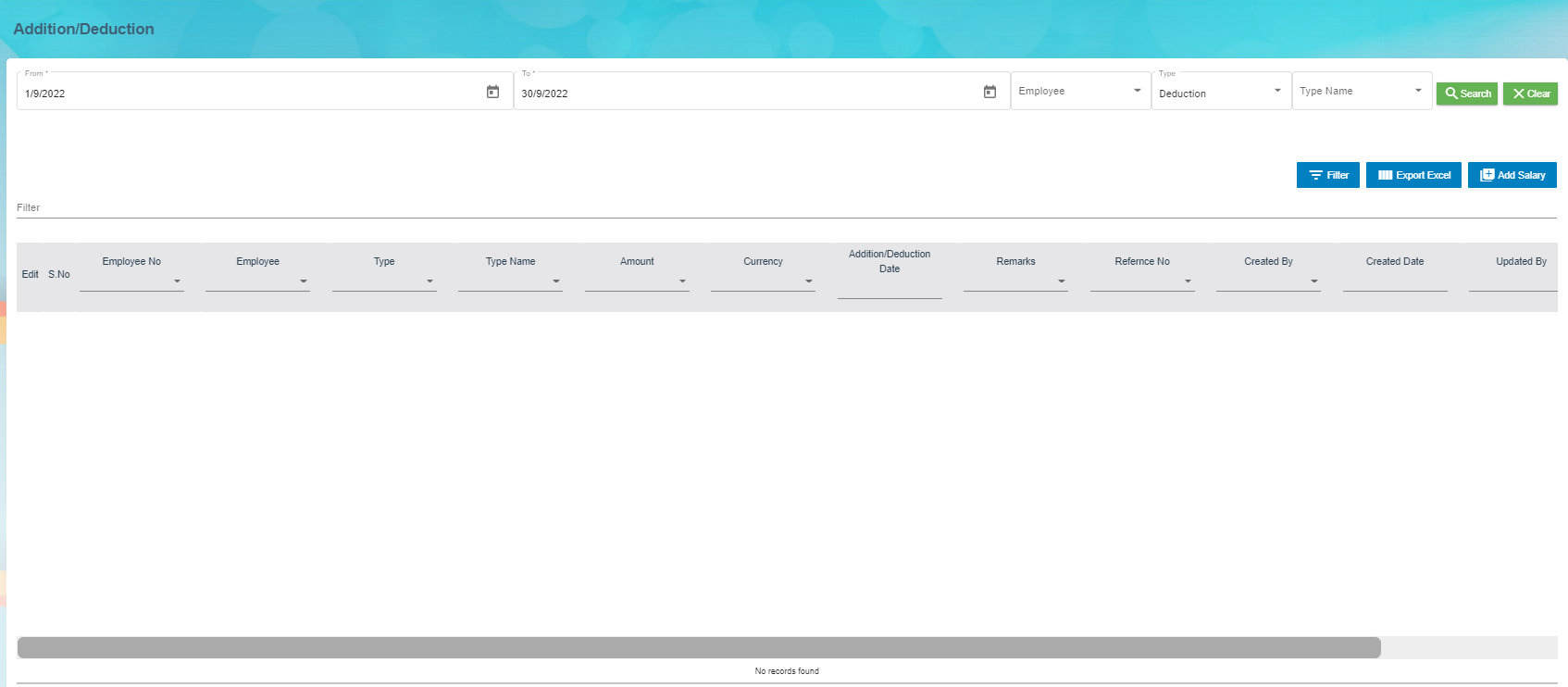
#### Add Salary Addition/Deduction

If you want to add employee’s salary addition/deduction details, do the following steps,

1. Click [![image-1663354967344.png](http://wiki.cuteinfocomm.com/uploads/images/gallery/2022-09/scaled-1680-/image-1663354967344.png)](http://wiki.cuteinfocomm.com/uploads/images/gallery/2022-09/image-1663354967344.png)(Add Salary Addition/Deduction button) in the Employees Addition/Deduction History, a new page for adding the details of salary addition/deduction open. [![image-1663139619963.png](http://wiki.cuteinfocomm.com/uploads/images/gallery/2022-09/scaled-1680-/image-1663139619963.png)](http://wiki.cuteinfocomm.com/uploads/images/gallery/2022-09/image-1663139619963.png)

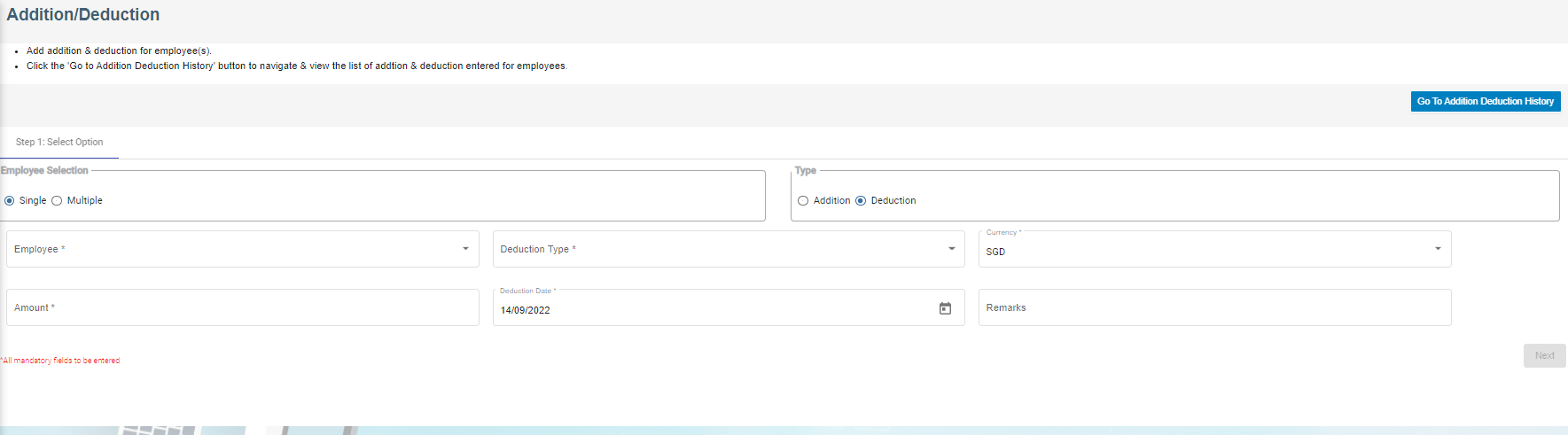
**Note**: The fields notified with a symbol (\*) are mandatory. You must enter the relevant details in that fields before saving.

2. In the **Employee selection** field:

- <span style="text-decoration: underline;"><span style="color: #000000; text-decoration: underline;">If you want to add the salary addition/deduction details for one employee, select the **Single**; </span></span>
- <span style="text-decoration: underline;"><span style="color: #000000; text-decoration: underline;">If you want to <span style="color: #e03e2d; text-decoration: underline;">add</span> the salary addition/deduction details for more than one employee, select the **Multiple**</span></span>

 3. In the **Type** field:

- <span style="text-decoration: underline;">If you want add the salary addition details, select the **Addition**; </span>
- <span style="text-decoration: underline;">If you want to <span style="color: #e03e2d; text-decoration: underline;">deduct </span>the salary deduction details, select the **Deduction**</span>

 4. In the **Employee** box:

- If you have selected the **Single** option in the **Employee selection** field, you can add only one employee from a drop-down list;
- If you have selected the **Multiple** option in the **Employee selection** field, you can add multiple employees by selecting the checkbox of the respective employees.

 5. To select the **Addition Type**/**Deduction Type**, do one of the following steps,

**Note**: If you have selected the **Addition** option in the **Type** field, the **Addition Type** box will be enabled. If you have selected the **Deduction** option, the **Deduction Type** box will be enabled.

- In the **Addition Type** box, select the type of addition from a drop-down list.
- In the **Deduction Type** box, select the type of deduction from a drop-down list.

 6. In the Currency box, select the currency type.

 7. In the Amount box, enter the amount to be added or deducted.

 8. To select the **Addition Date**/**Deduction Date**, do one of the following steps,

**Note**: If you have selected the **Addition** option in the **Type** field, the **Addition Date** box will be enabled. If you have selected the **Deduction** option, the **Deduction Date** box will be enabled.

- In the **Addition Date** box, select the date of addition from a drop-down list.
- In the **Deduction Date** box, select the date of deduction from a drop-down list.

 9. In the **Remarks** box, enter your remarks if any.

 10. Click **Next**.

 11. Click **Confirm**. The salary addition/deduction details of employee are successfully added.

#### Delete Salary Addition/Deduction

You can delete the added salary addition/deduction details by using ![](http://wiki.cuteinfocomm.com/uploads/images/gallery/2022-05/embedded-image-o6ensloi.png)(Delete icon) provided in the **Delete** column of the **Employees Addition/Deduction History** page.

#### Filter Salary Addition/Deduction

There are two type of filter options provided in the **Employees Addition/Deduction History** page to view the detail of specific salary addition/deduction of employee.

<span style="color: #3598db;">**<u>Filter option 1</u>**</span>

The **Employees Addition/Deduction History** page contains a filter option in the upper side of the page. To view the salary addition/deduction of the particular employee,![](http://wiki.cuteinfocomm.com/uploads/images/gallery/2022-05/embedded-image-danj8eid.png)

1. In the **From** and **To** boxes, select the from and to dates.
2. In the **Employee** box, select the employee you want to view the details.
3. In the **Type** box, select whether the addition or deduction.
4. In the **Type Name** box, enter the type of addition/deduction.
5. Click **Search**. The salary addition/deduction details of the employee you have selected will be filtered.

<span style="color: #3598db;">**<u>Filter option 2</u>**</span>

If you want to view any specific salary addition/deduction details among multiple entries listed in the **Employees Addition/Deduction History** page, you can use this filter option[![image-1663355063095.png](http://wiki.cuteinfocomm.com/uploads/images/gallery/2022-09/scaled-1680-/image-1663355063095.png)](http://wiki.cuteinfocomm.com/uploads/images/gallery/2022-09/image-1663355063095.png)provided in the upper right corner of the **Employees Addition/Deduction History** page.

#### Export Salary Addition/Deduction

The application has a feature to download the added salary addition/deduction details as an excel file. You can click [![image-1663354003972.png](http://wiki.cuteinfocomm.com/uploads/images/gallery/2022-09/scaled-1680-/image-1663354003972.png)](http://wiki.cuteinfocomm.com/uploads/images/gallery/2022-09/image-1663354003972.png)(**Export Excel** button) to download the added salary addition/deduction details. The salary addition/deduction details in the **Employees Addition/Deduction History** page will be downloaded as an excel file.

### Document List

The **Document List** tab in the **Others** submenu helps you to add any documents that company needs to maintain with or without expiry date like ISO 9001:2015 certification and company’s product certification etc. To add a document, click the **Document List** tab in the **Others.** The Document List page opens.

[![image-1663139741261.png](http://wiki.cuteinfocomm.com/uploads/images/gallery/2022-09/scaled-1680-/image-1663139741261.png)](http://wiki.cuteinfocomm.com/uploads/images/gallery/2022-09/image-1663139741261.png)
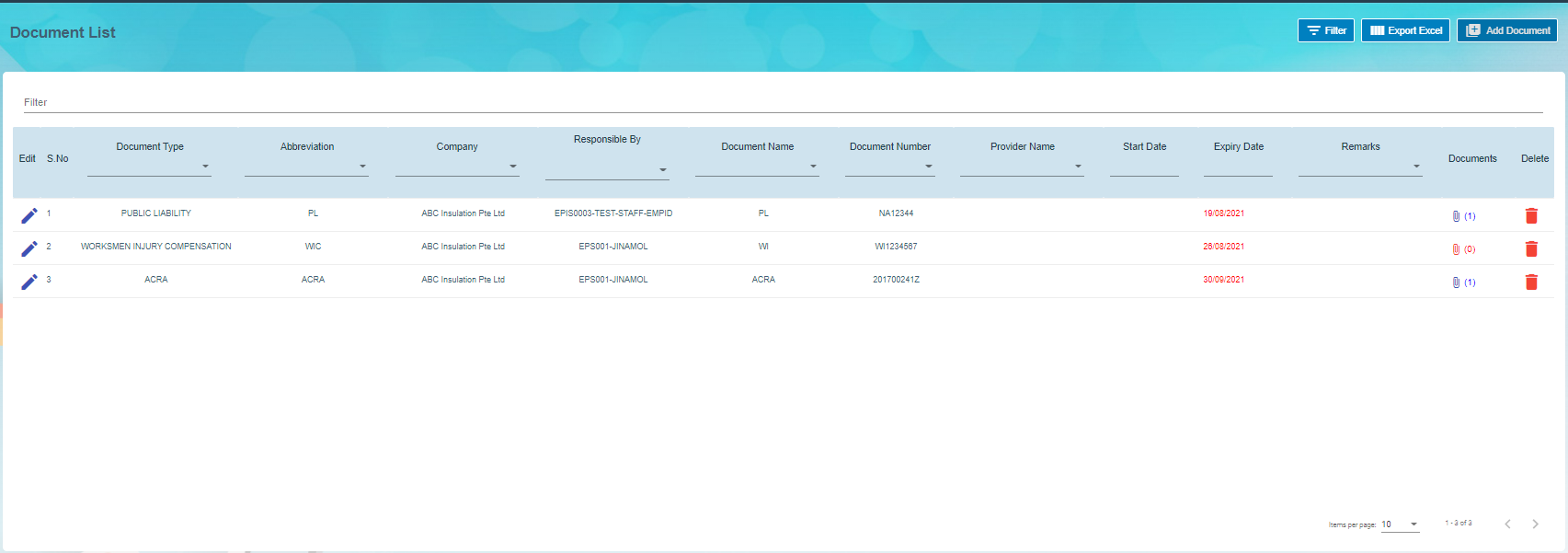
#### Add Document

If you want to add a document,

1. Click [![image-1663355137131.png](http://wiki.cuteinfocomm.com/uploads/images/gallery/2022-09/scaled-1680-/image-1663355137131.png)](http://wiki.cuteinfocomm.com/uploads/images/gallery/2022-09/image-1663355137131.png)(Add Document) button in the Document List. The Add Document window opens. [![image-1663355175983.png](http://wiki.cuteinfocomm.com/uploads/images/gallery/2022-09/scaled-1680-/image-1663355175983.png)](http://wiki.cuteinfocomm.com/uploads/images/gallery/2022-09/image-1663355175983.png)

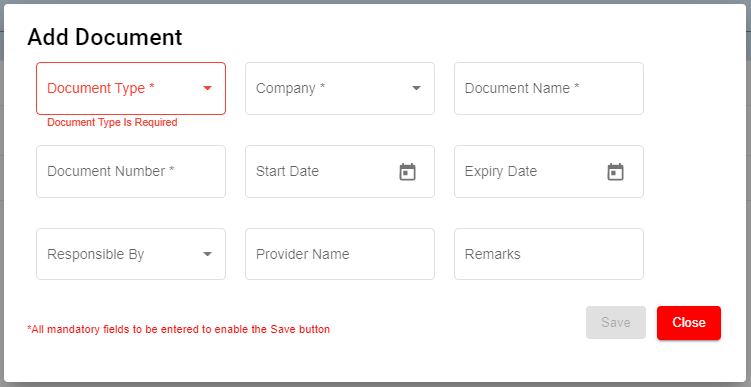


    - In the **Document Type** box, select the document type from a drop-down list. ( Selecting the '**Public**' document type will make the document available under the '**View Document**' page. The **"Public"** document type is added by default)
    - In the **Company** box, select a company from a drop-down list.
    - In the **Document Name** box, enter the name of a document you want to add.
    - In the **Document Number** box, enter the document number.
    - In the **Start Date** box, enter the validity starting date of the document.
    - In the **Expiry Date** box, enter the validity expiry date of the document.
    - In the **Responsible** By box, select the name of a person responsible for the document.
    - In the **Provider Name** box, enter the document provider name.
    - In the **Remarks** box, enter your remarks if any.
2. Click **Save**. The document is successfully added and listed in the **Document List** page.

#### Edit Document

You can edit the details of the added document by using (Edit icon) provided in the **Edit** column of the **Document List** page. To edit the added document details, click ![](http://wiki.cuteinfocomm.com/uploads/images/gallery/2022-05/embedded-image-bqpc1ml5.png)(Edit icon) of the respective document you have added. The **Add Document** window opens with the added details. Edit the document details where you want. Click **Save**.

[![image-1663355227328.png](http://wiki.cuteinfocomm.com/uploads/images/gallery/2022-09/scaled-1680-/image-1663355227328.png)](http://wiki.cuteinfocomm.com/uploads/images/gallery/2022-09/image-1663355227328.png)
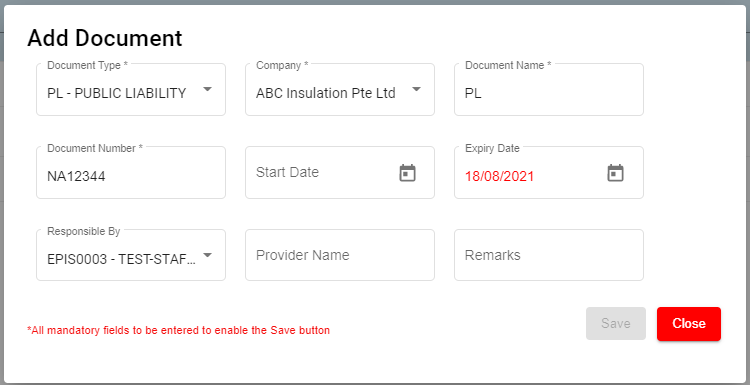
#### Add/ View Attachment for Document

If you want to add any new attachment for the document or view any added attachment, you can use ![](http://wiki.cuteinfocomm.com/uploads/images/gallery/2022-05/embedded-image-8ib9aec8.png)(Attachment icon) provided in the **Documents** column of the **Document List** page.

#### Delete Document

You can delete the added document by using ![](http://wiki.cuteinfocomm.com/uploads/images/gallery/2022-05/embedded-image-cbenmybz.png)(Delete icon) provided in the **Delete** column of the **Document List** page. If you want to delete the Document, click **Yes** otherwise click **No**.

#### Filter Document

If you want to view any specific document details among multiple documents listed in the **Document List** page, you can use the filter option [![image-1663355063095.png](http://wiki.cuteinfocomm.com/uploads/images/gallery/2022-09/scaled-1680-/image-1663355063095.png)](http://wiki.cuteinfocomm.com/uploads/images/gallery/2022-09/image-1663355063095.png)provided in the upper right corner of the **Document List** page.

#### Export Document

The application has a feature to download the added document details as an excel file. Click [![image-1663354003972.png](http://wiki.cuteinfocomm.com/uploads/images/gallery/2022-09/scaled-1680-/image-1663354003972.png)](http://wiki.cuteinfocomm.com/uploads/images/gallery/2022-09/image-1663354003972.png) (**Export Excel** button) to download the added document details. The document details in the **Document List** page will be downloaded as an excel file.

**Note**: The documents with expiry dates will be tracked for its expiry date in **HRM dashboard** and in **weekly emails** alerts.

### Letter Generation

User can generate all different letters here that are defined in letter template master. Click Letter Generation, the history record of letter generated are listed as below,

[![image-1663355632688.png](http://wiki.cuteinfocomm.com/uploads/images/gallery/2022-09/scaled-1680-/image-1663355632688.png)](http://wiki.cuteinfocomm.com/uploads/images/gallery/2022-09/image-1663355632688.png)
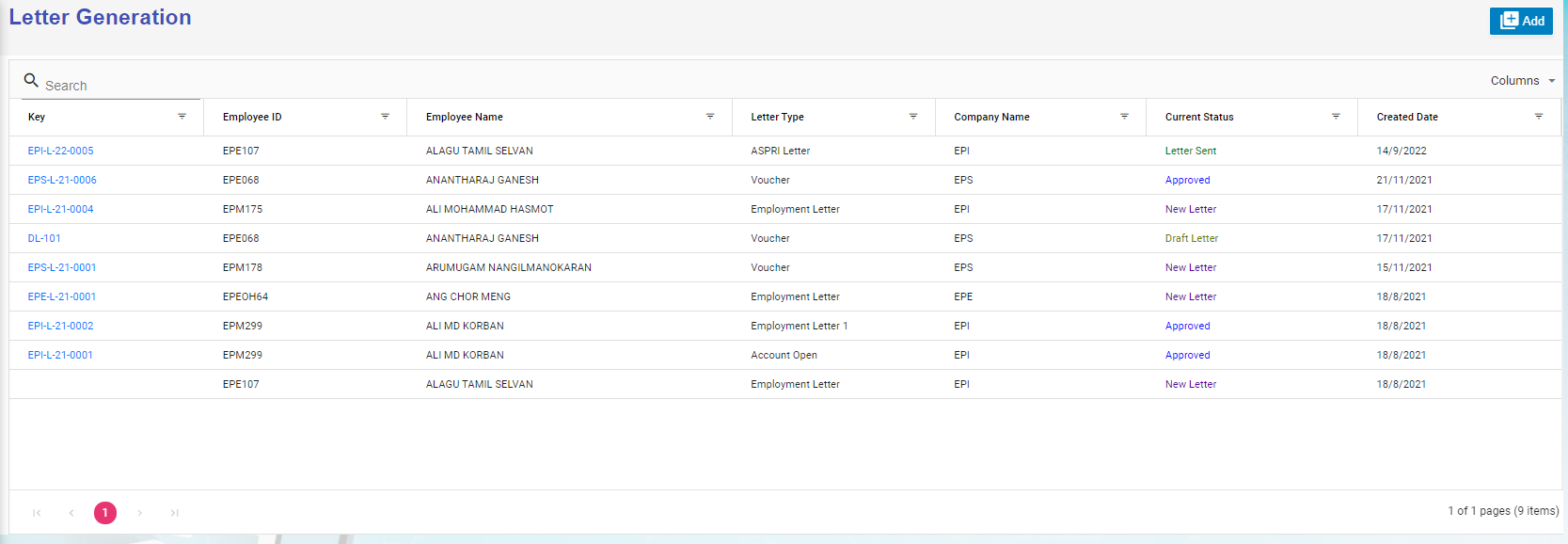
#### Generate A New Letter

To generate a new letter,

1. Click[![image-1663356302980.png](http://wiki.cuteinfocomm.com/uploads/images/gallery/2022-09/scaled-1680-/image-1663356302980.png)](http://wiki.cuteinfocomm.com/uploads/images/gallery/2022-09/image-1663356302980.png) add icon, below add letter page opens,[![image-1663147497713.png](http://wiki.cuteinfocomm.com/uploads/images/gallery/2022-09/scaled-1680-/image-1663147497713.png)](http://wiki.cuteinfocomm.com/uploads/images/gallery/2022-09/image-1663147497713.png)
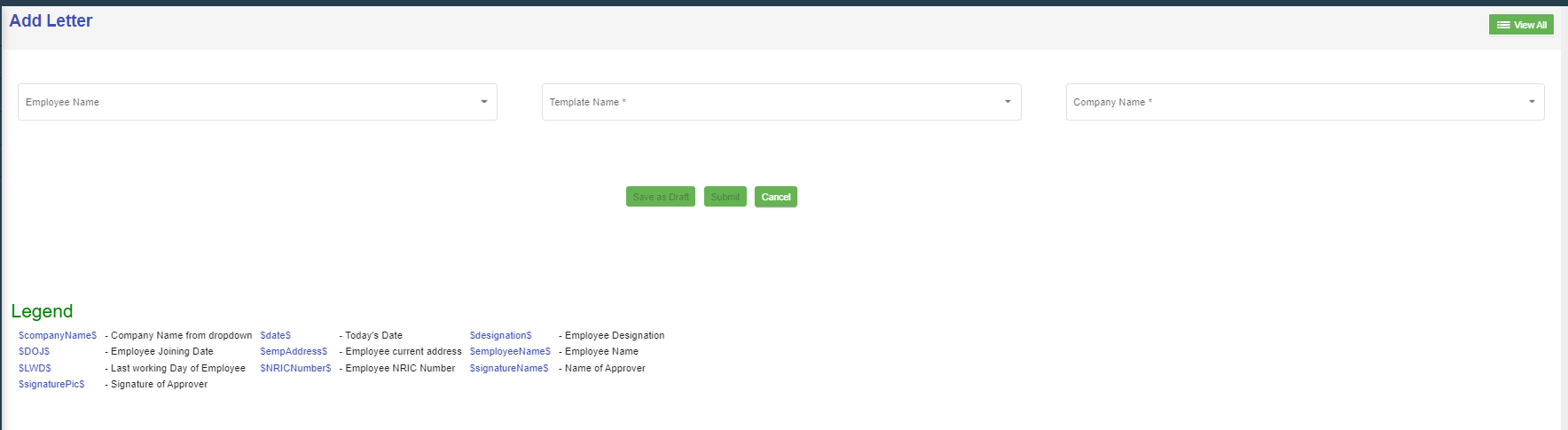
2. Select employee name, letter template name, and company name, the selected letter template will opens as below,[![image-1663148099362.png](http://wiki.cuteinfocomm.com/uploads/images/gallery/2022-09/scaled-1680-/image-1663148099362.png)](http://wiki.cuteinfocomm.com/uploads/images/gallery/2022-09/image-1663148099362.png)
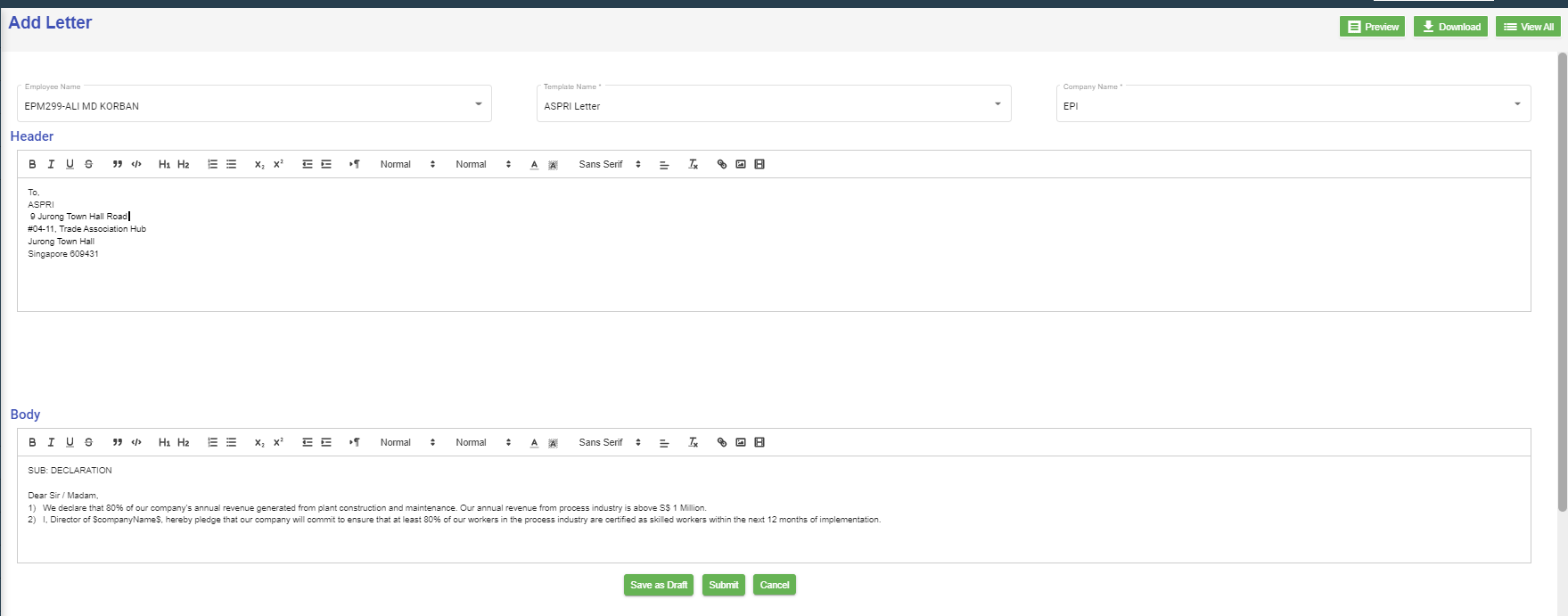
3. Check and edit the content if needed,
4. Click **Submit,** below notification confirmation window opens,[![image-1663148594519.png](http://wiki.cuteinfocomm.com/uploads/images/gallery/2022-09/scaled-1680-/image-1663148594519.png)](http://wiki.cuteinfocomm.com/uploads/images/gallery/2022-09/image-1663148594519.png)
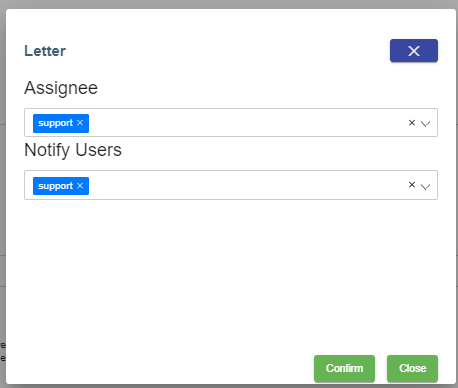
5. Click **Confirm**, the letter will be generated and ready for preview and approve. Note: before approval, there will be watermark as draft.[![image-1663149301264.png](http://wiki.cuteinfocomm.com/uploads/images/gallery/2022-09/scaled-1680-/image-1663149301264.png)](http://wiki.cuteinfocomm.com/uploads/images/gallery/2022-09/image-1663149301264.png)
6. To approve letter generation, click [![image-1663356632984.png](http://wiki.cuteinfocomm.com/uploads/images/gallery/2022-09/scaled-1680-/image-1663356632984.png)](http://wiki.cuteinfocomm.com/uploads/images/gallery/2022-09/image-1663356632984.png), below notification opens,[![image-1663149647712.png](http://wiki.cuteinfocomm.com/uploads/images/gallery/2022-09/scaled-1680-/image-1663149647712.png)](http://wiki.cuteinfocomm.com/uploads/images/gallery/2022-09/image-1663149647712.png)
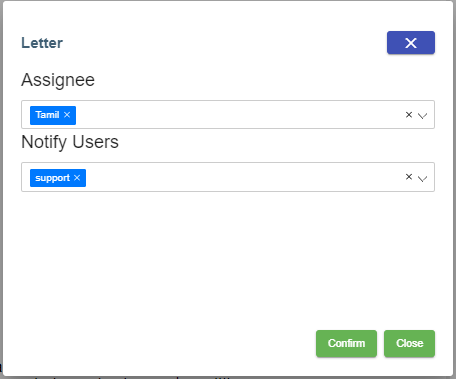
Click **Confirm**, the letter is generated and approved. User can download for use.[![image-1663149928458.png](http://wiki.cuteinfocomm.com/uploads/images/gallery/2022-09/scaled-1680-/image-1663149928458.png)](http://wiki.cuteinfocomm.com/uploads/images/gallery/2022-09/image-1663149928458.png)
### Broadcast

User can create broadcast message to a group of selected employees within the company. To view the screen, enable "menuNotification", "hrmNotificationCreator" and "hrmNotificationApprover" permission under HRM module.

[![image-1741845781877.png](https://wiki.cuteinfocomm.com/uploads/images/gallery/2025-03/scaled-1680-/image-1741845781877.png)](https://wiki.cuteinfocomm.com/uploads/images/gallery/2025-03/image-1741845781877.png)

1\. Click [![image-1741845945971.png](https://wiki.cuteinfocomm.com/uploads/images/gallery/2025-03/scaled-1680-/image-1741845945971.png)](https://wiki.cuteinfocomm.com/uploads/images/gallery/2025-03/image-1741845945971.png) to create new broadcast message.

[![image-1741850372638.png](https://wiki.cuteinfocomm.com/uploads/images/gallery/2025-03/scaled-1680-/image-1741850372638.png)](https://wiki.cuteinfocomm.com/uploads/images/gallery/2025-03/image-1741850372638.png)
- Change the toggle button [![image-1741846272692.png](https://wiki.cuteinfocomm.com/uploads/images/gallery/2025-03/scaled-1680-/image-1741846272692.png)](https://wiki.cuteinfocomm.com/uploads/images/gallery/2025-03/image-1741846272692.png)to change to select All Employee.
- Select Company in the Company field.
- Select Department in the Department field.
- Select Designation in the Designation field.
- Select Race in the Race field (optional).
- Select Religion in the Religion field (optional).
- Select Employee in the Employees field and this is mandatory to select which employee(s) for this broadcast message.
- Select the date and time in the Date field using the [![image-1741850786207.png](https://wiki.cuteinfocomm.com/uploads/images/gallery/2025-03/scaled-1680-/image-1741850786207.png)](https://wiki.cuteinfocomm.com/uploads/images/gallery/2025-03/image-1741850786207.png)calendar icon and this is mandatory to set the broadcast message to be delivered.
- Input the subject of this broadcast message in this mandatory Title field.
- Type the body text of this message in this mandatory Notification field.
- Click on the [![image-1741851522485.png](https://wiki.cuteinfocomm.com/uploads/images/gallery/2025-03/scaled-1680-/image-1741851522485.png)](https://wiki.cuteinfocomm.com/uploads/images/gallery/2025-03/image-1741851522485.png) button if an image is required to be attached to the broadcast message. Note on the recommended file size of image file when uploading.

- Tick on the checkbox [![image-1741851688794.png](https://wiki.cuteinfocomm.com/uploads/images/gallery/2025-03/scaled-1680-/image-1741851688794.png)](https://wiki.cuteinfocomm.com/uploads/images/gallery/2025-03/image-1741851688794.png) if the broadcast message notification needs to be sent to the selected employee(s) once the broadcast message is approved. Once broadcast message is approved, a notification will be sent to the selected employee(s)mobile. When the notification is clicked on a mobile device, it will open the cuteOffice 2B application's home page and the notification log will appear in the system in the Admin -&gt; Notification Logs

Once done and the mandatory fields (marked with \*) are entered/selected, you will be able to see the Save button. Click on the Save button to record the broadcast message.

Below sample record with status = New

[![image-1741852342381.png](https://wiki.cuteinfocomm.com/uploads/images/gallery/2025-03/scaled-1680-/image-1741852342381.png)](https://wiki.cuteinfocomm.com/uploads/images/gallery/2025-03/image-1741852342381.png)
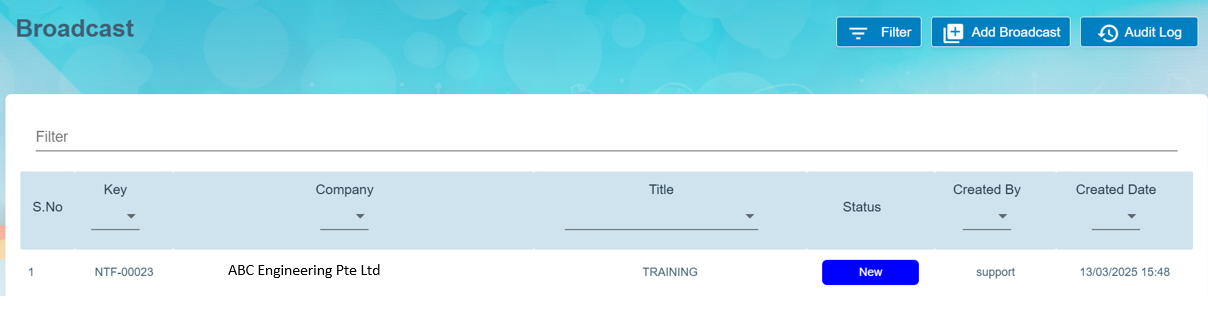
2\. Click on the key of the broadcast message (as shown in above pt 1) and click on the [![image-1741852911263.png](https://wiki.cuteinfocomm.com/uploads/images/gallery/2025-03/scaled-1680-/image-1741852911263.png) ](https://wiki.cuteinfocomm.com/uploads/images/gallery/2025-03/image-1741852911263.png)button to send to the required authorised person to approve this broadcast message before sending to the selected employee(s). The status will change from [![image-1741853161818.png](https://wiki.cuteinfocomm.com/uploads/images/gallery/2025-03/scaled-1680-/image-1741853161818.png)](https://wiki.cuteinfocomm.com/uploads/images/gallery/2025-03/image-1741853161818.png)to [![image-1741853088376.png](https://wiki.cuteinfocomm.com/uploads/images/gallery/2025-03/scaled-1680-/image-1741853088376.png)](https://wiki.cuteinfocomm.com/uploads/images/gallery/2025-03/image-1741853088376.png)in the View All page of the Broadcast page.



[![image-1741852783428.png](https://wiki.cuteinfocomm.com/uploads/images/gallery/2025-03/scaled-1680-/image-1741852783428.png)](https://wiki.cuteinfocomm.com/uploads/images/gallery/2025-03/image-1741852783428.png)
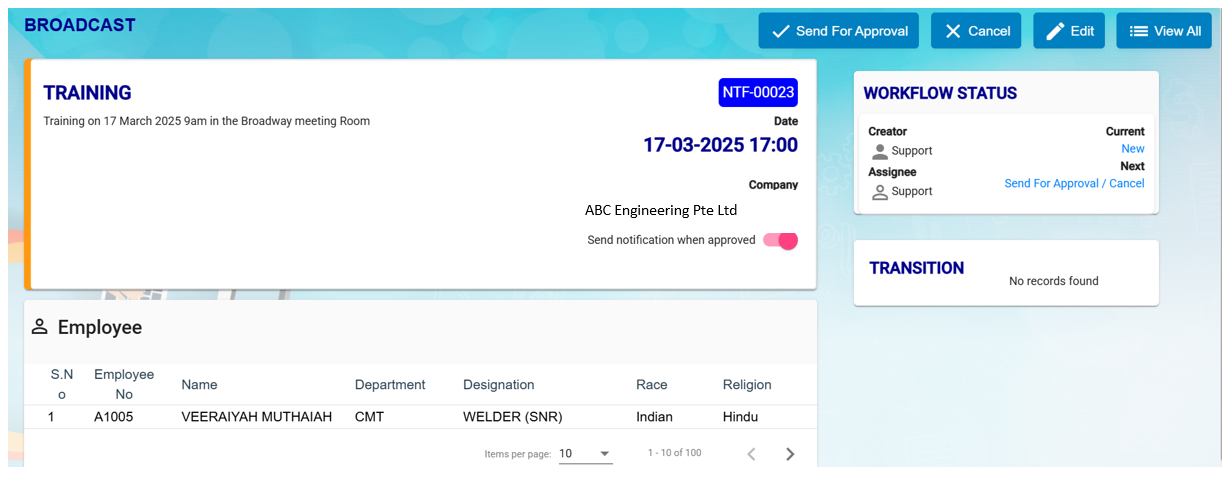
[![image-1741853246902.png](https://wiki.cuteinfocomm.com/uploads/images/gallery/2025-03/scaled-1680-/image-1741853246902.png)](https://wiki.cuteinfocomm.com/uploads/images/gallery/2025-03/image-1741853246902.png)

3\. To approve the broadcast message, click on [![image-1663356632984.png](http://wiki.cuteinfocomm.com/uploads/images/gallery/2022-09/scaled-1680-/image-1663356632984.png)](http://wiki.cuteinfocomm.com/uploads/images/gallery/2022-09/image-1663356632984.png) button. You can click on the [![image-1741853461683.png](https://wiki.cuteinfocomm.com/uploads/images/gallery/2025-03/scaled-1680-/image-1741853461683.png)](https://wiki.cuteinfocomm.com/uploads/images/gallery/2025-03/image-1741853461683.png) button any amendment and then send for approval again. Once Approved, status will show this [![image-1741853568431.png](https://wiki.cuteinfocomm.com/uploads/images/gallery/2025-03/scaled-1680-/image-1741853568431.png)](https://wiki.cuteinfocomm.com/uploads/images/gallery/2025-03/image-1741853568431.png) of this broadcast message in the View All of the Broadcast page.


[![image-1741853614834.png](https://wiki.cuteinfocomm.com/uploads/images/gallery/2025-03/scaled-1680-/image-1741853614834.png)](https://wiki.cuteinfocomm.com/uploads/images/gallery/2025-03/image-1741853614834.png)


#### MOM OED Submissions 

The Occupational Employment Dataset (OED) is an ongoing registry where organisations in Singapore are required to provide the job and work location details of all employees. The below URL is usually used to submit the OED data.

[https://stats.mom.gov.sg/laboursurvey](https://stats.mom.gov.sg/laboursurvey)

Now with the help of cuteOffice, the data can be submitted with ease to MOM.

Enable the permission "<span data-teams="true">HRM -&gt; oedSubmissionMOM" </span>to submit OED.

Click on MOM - OED MOM Submission menu to submit

You can also view the video on the process of submitting OED data here. [https://www.youtube.com/watch?v=pjiHbK\_gRFs](https://www.youtube.com/watch?v=pjiHbK_gRFs "Submit MOM OED data")

[![image-1743559298487.png](https://wiki.cuteinfocomm.com/uploads/images/gallery/2025-04/scaled-1680-/image-1743559298487.png)](https://wiki.cuteinfocomm.com/uploads/images/gallery/2025-04/image-1743559298487.png)
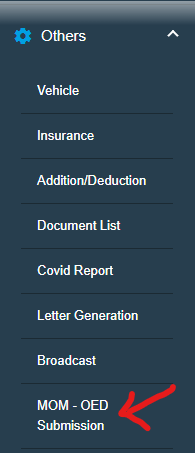
[![image-1743561435519.png](https://wiki.cuteinfocomm.com/uploads/images/gallery/2025-04/scaled-1680-/image-1743561435519.png)](https://wiki.cuteinfocomm.com/uploads/images/gallery/2025-04/image-1743561435519.png)
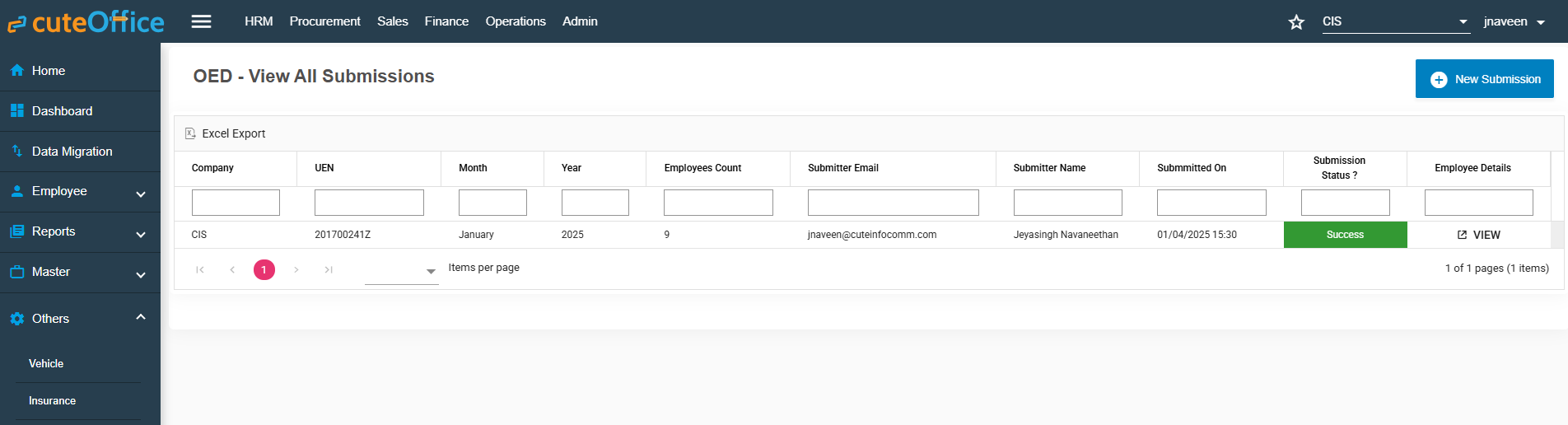
However, before submitting the data to mom from cuteOffice, we need to take few actions

There are certain mandatory data which should be sent to MOM and there are some optional data.

The mandatory data are

1. Full Name
2. Pass Type
3. NRIC/FIN
4. PW Job Title
5. Main Job Title
6. Standard Hours Work
7. Job Type
8. Date of Join
9. Date of Leaving (for resigned staff)
10. Total Working Days of Month
11. Actual Working Days of Month

Other than the above the below optional data can be sent which you can control whether to send or not.

1. Highest Education
2. Main Job Duties
3. Is Employee HR Role
4. Primary HR Role
5. Secondary HR Role
6. HR Job Level
7. Occupation Group
8. Employee Type
9. Department
10. Paid OT Hours
11. Payment Mode
12. Basic Wage
13. Gross Wage
14. Annual Leaves
15. Premise Type
16. Postal Code
17. Street Name
18. mode of Leaving

Trade Master has few important data that is required for OED submissions

[![image-1743560219844.png](https://wiki.cuteinfocomm.com/uploads/images/gallery/2025-04/scaled-1680-/image-1743560219844.png)](https://wiki.cuteinfocomm.com/uploads/images/gallery/2025-04/image-1743560219844.png)
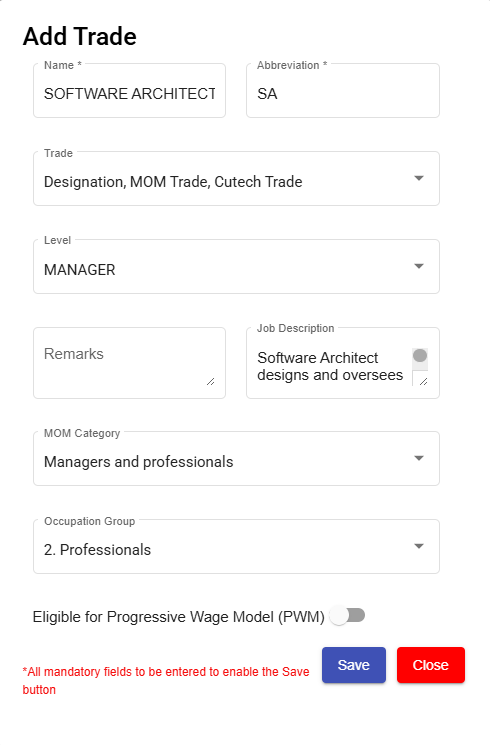
**MOM Category** - For every one of your designation shall be mapped to MOM category.

Similarly Map the **Occupation group** with the trade.

**Job description** is optional data for **Main Job Duties**

**Note**: Only after approving the timesheet, you can submit the OED data as worked day is part of the data to submit.

The Highest education is sent from employee data. To update go to Educational Qualifications tab of experience

[![image-1743560657471.png](https://wiki.cuteinfocomm.com/uploads/images/gallery/2025-04/scaled-1680-/image-1743560657471.png)](https://wiki.cuteinfocomm.com/uploads/images/gallery/2025-04/image-1743560657471.png)
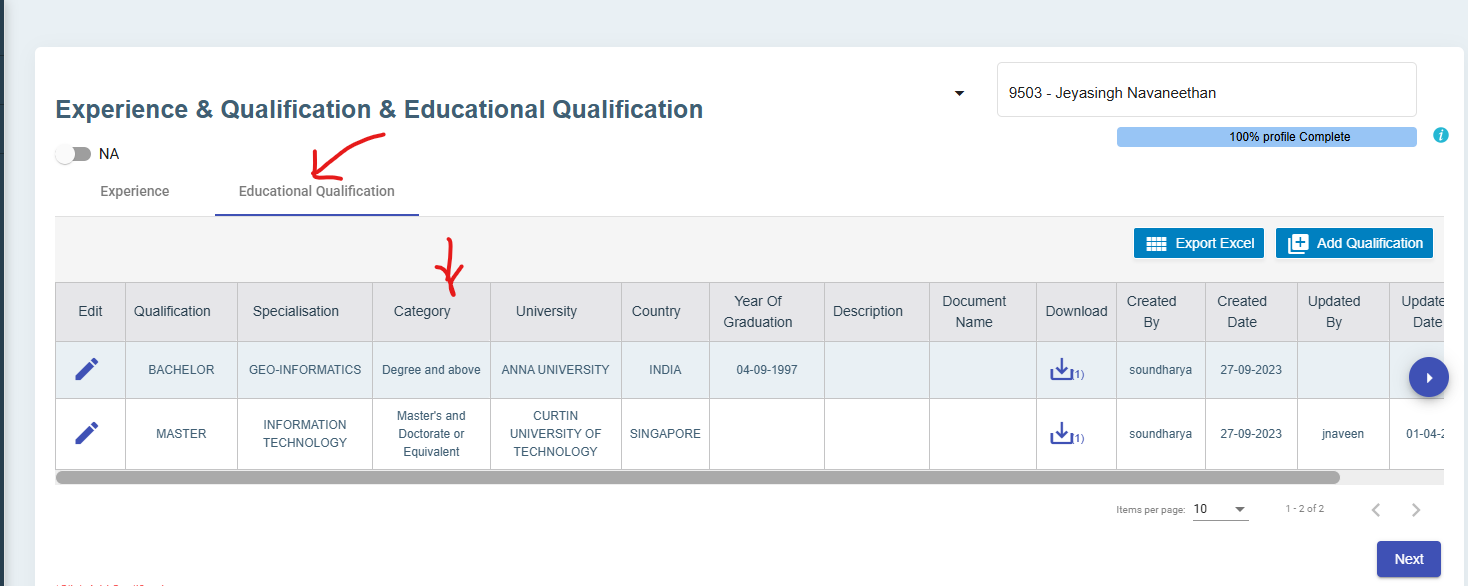
Edit the highest education record and mark as highest an also make sure to select the category of education such as master , bachelor etc

[![image-1743560774697.png](https://wiki.cuteinfocomm.com/uploads/images/gallery/2025-04/scaled-1680-/image-1743560774697.png)](https://wiki.cuteinfocomm.com/uploads/images/gallery/2025-04/image-1743560774697.png)
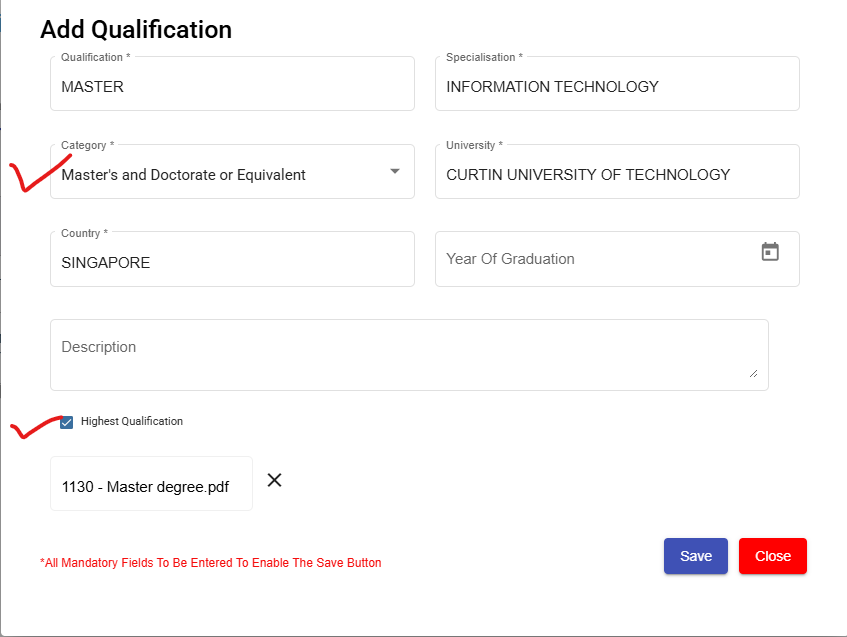
In official information page, select the place of working Premise Type and also update whether the employee is in HRM role or not.

[![image-1743561027850.png](https://wiki.cuteinfocomm.com/uploads/images/gallery/2025-04/scaled-1680-/image-1743561027850.png)](https://wiki.cuteinfocomm.com/uploads/images/gallery/2025-04/image-1743561027850.png)

If Employee is in HR role, select additional fields such as

1. Primary HR Role
2. Secondary HR Role and
3. HR Job Level

All are drop down data as per MOM and choose from the list.

[![image-1743561068852.png](https://wiki.cuteinfocomm.com/uploads/images/gallery/2025-04/scaled-1680-/image-1743561068852.png)](https://wiki.cuteinfocomm.com/uploads/images/gallery/2025-04/image-1743561068852.png)

In -OED View All Submissions page, select New Submission to send data

[![image-1743561418603.png](https://wiki.cuteinfocomm.com/uploads/images/gallery/2025-04/scaled-1680-/image-1743561418603.png)](https://wiki.cuteinfocomm.com/uploads/images/gallery/2025-04/image-1743561418603.png)
The new submissions window opens up.

[![image-1743561511749.png](https://wiki.cuteinfocomm.com/uploads/images/gallery/2025-04/scaled-1680-/image-1743561511749.png)](https://wiki.cuteinfocomm.com/uploads/images/gallery/2025-04/image-1743561511749.png)
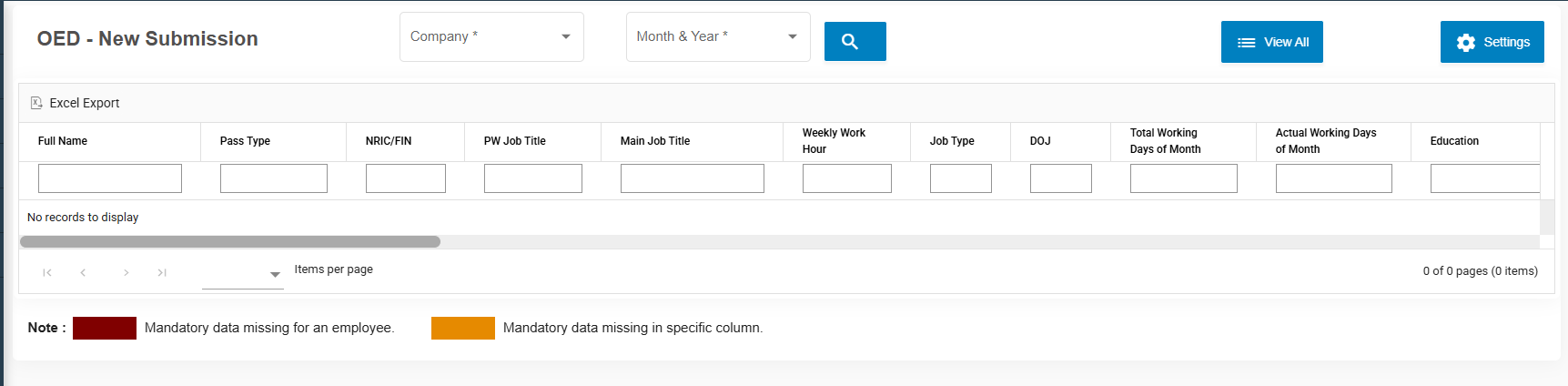
Click on Settings icon on the right to choose which fields of data that you are planning to send to MOM

[![image-1743560028272.png](https://wiki.cuteinfocomm.com/uploads/images/gallery/2025-04/scaled-1680-/image-1743560028272.png)](https://wiki.cuteinfocomm.com/uploads/images/gallery/2025-04/image-1743560028272.png)
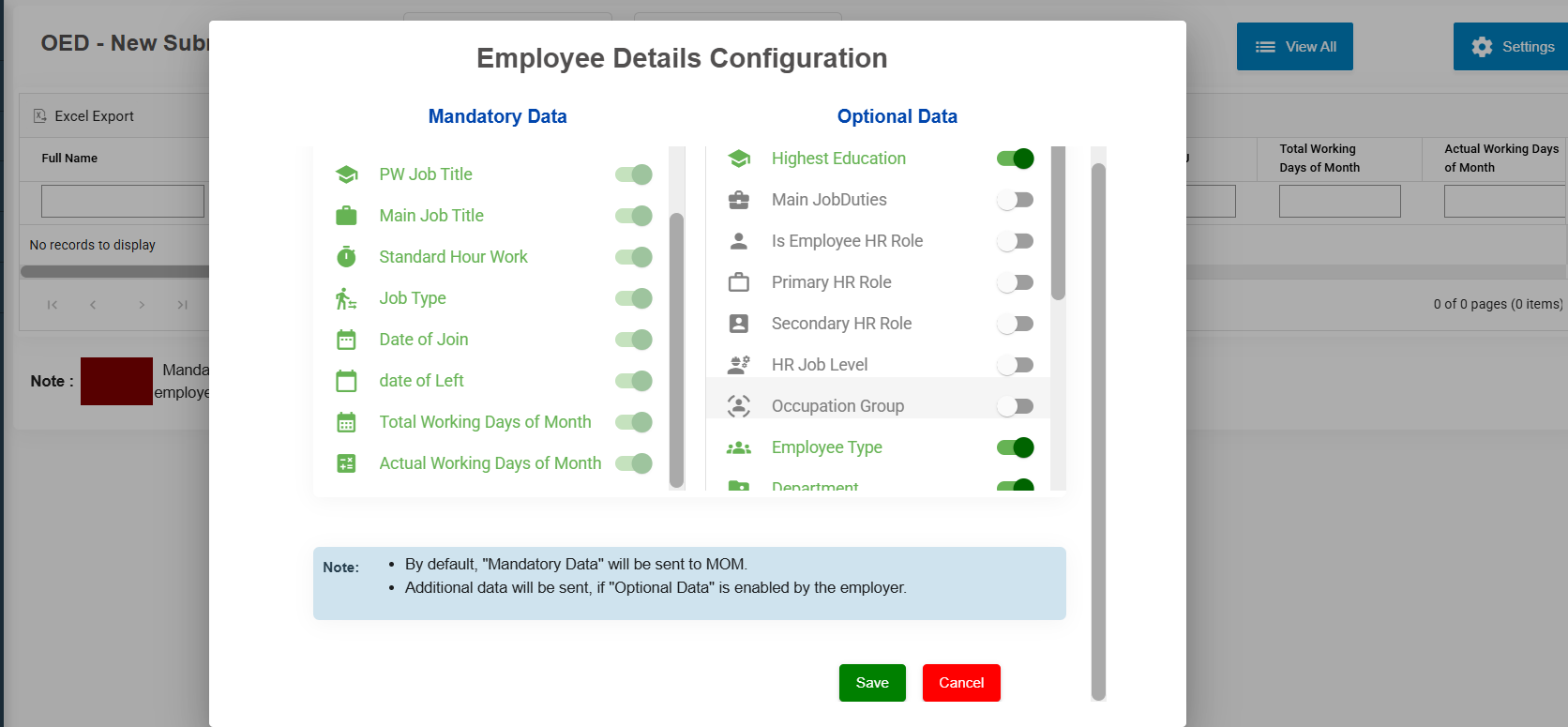
Mandatory data fields cant be unselected.

Choose the company and period for which you want to submit the records. Click Search

All the employees with data that will be submitted will be showing here.

[![image-1743563206485.png](https://wiki.cuteinfocomm.com/uploads/images/gallery/2025-04/scaled-1680-/image-1743563206485.png)](https://wiki.cuteinfocomm.com/uploads/images/gallery/2025-04/image-1743563206485.png)
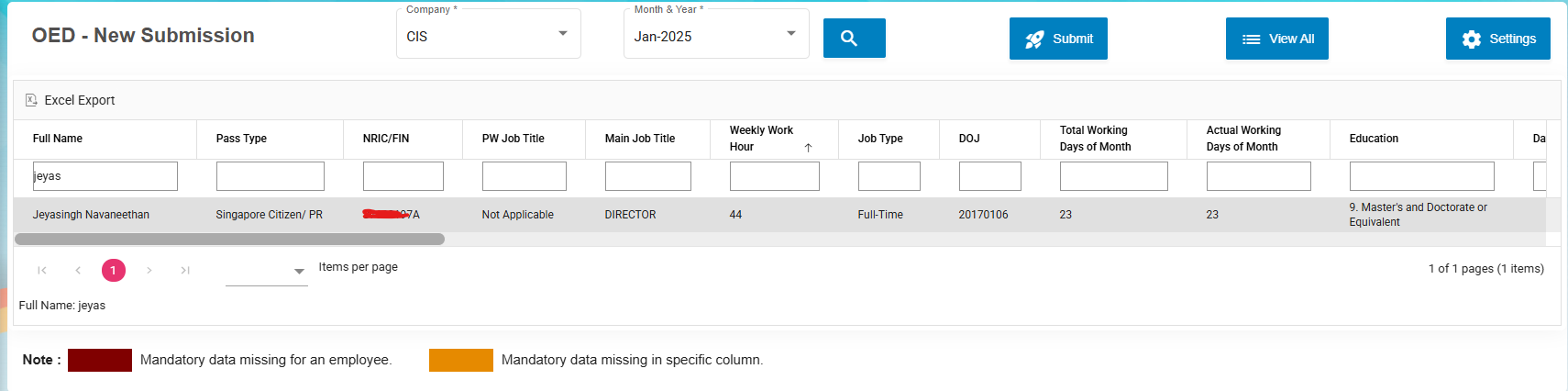
If any data is not available, it will be highlighted. Do the necessary corrections in respective places.

Click the button[![image-1743563414764.png](https://wiki.cuteinfocomm.com/uploads/images/gallery/2025-04/scaled-1680-/image-1743563414764.png).](https://wiki.cuteinfocomm.com/uploads/images/gallery/2025-04/image-1743563414764.png)

The summary is shown and Click Agree &amp; Proceed to login with SingPass and submit the OED data to MOM.

[![image-1743572933376.png](https://wiki.cuteinfocomm.com/uploads/images/gallery/2025-04/scaled-1680-/image-1743572933376.png)](https://wiki.cuteinfocomm.com/uploads/images/gallery/2025-04/image-1743572933376.png)
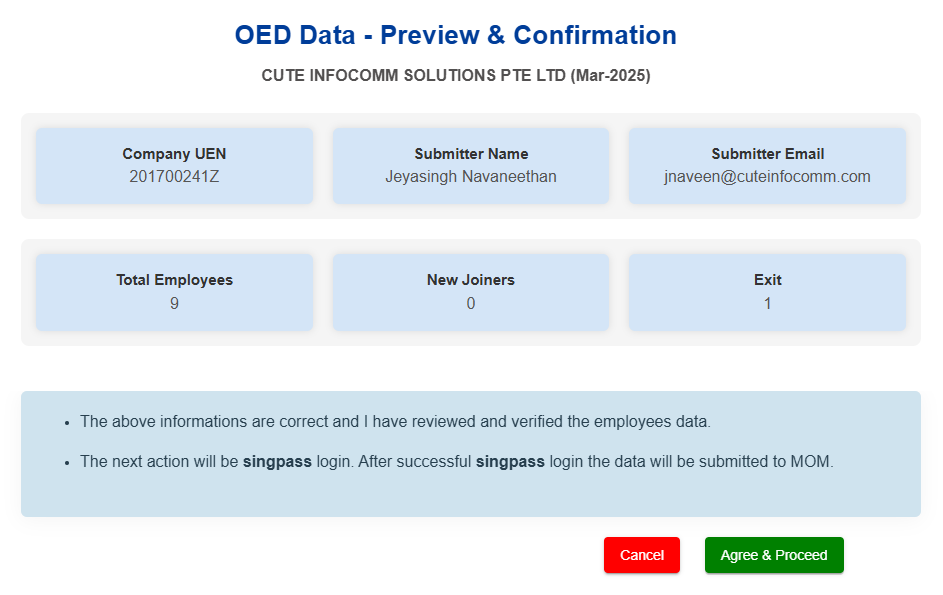
Once authorised and selected the correct company name, Click Allow for cuteOffice to submit the data on your behalf.

[![image-1743563524368.png](https://wiki.cuteinfocomm.com/uploads/images/gallery/2025-04/scaled-1680-/image-1743563524368.png)](https://wiki.cuteinfocomm.com/uploads/images/gallery/2025-04/image-1743563524368.png)
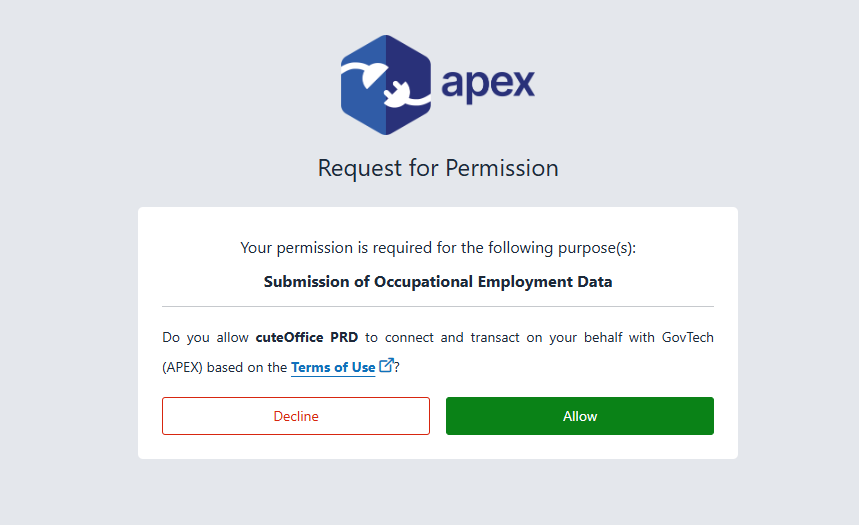
The data will be submitted and it will show a confirmation message.

[![image-1743586885057.png](https://wiki.cuteinfocomm.com/uploads/images/gallery/2025-04/scaled-1680-/image-1743586885057.png)](https://wiki.cuteinfocomm.com/uploads/images/gallery/2025-04/image-1743586885057.png)
The list of submitted data will be available for review along with the submission status.

[![image-1743563676787.png](https://wiki.cuteinfocomm.com/uploads/images/gallery/2025-04/scaled-1680-/image-1743563676787.png)](https://wiki.cuteinfocomm.com/uploads/images/gallery/2025-04/image-1743563676787.png)
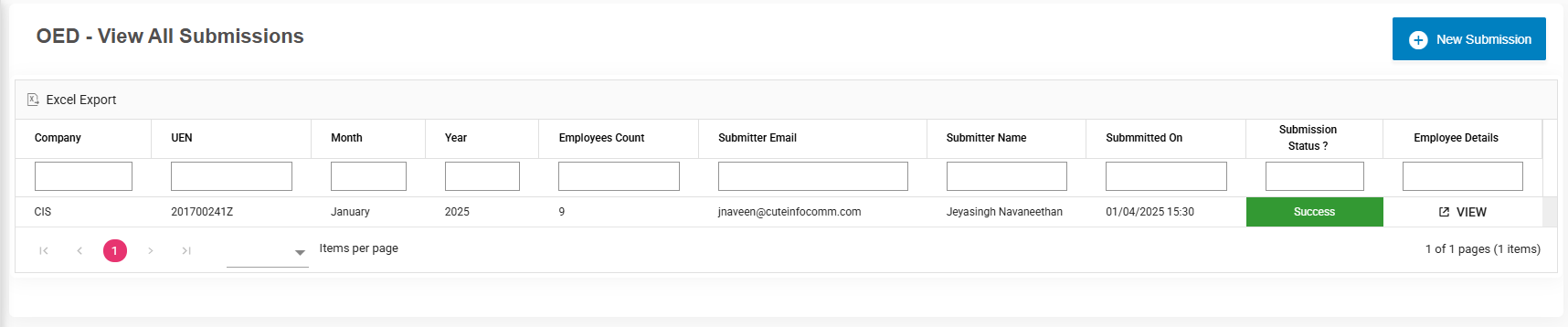
#### L&amp;D Course Calendar 

1\. Enter Month to view Learning and development calendar for the employee

2\. Hover the cursor near to employee, tool tip open to show L&amp;D Course details

[![image-1664352090534.png](http://wiki.cuteinfocomm.com/uploads/images/gallery/2022-09/scaled-1680-/image-1664352090534.png)](http://wiki.cuteinfocomm.com/uploads/images/gallery/2022-09/image-1664352090534.png)

### View Document

User can view the document which was created for public view within the company. Click on the title e.g. Worker Handbook.pdf to trigger download of the document for viewing.

[![image-1741844860131.png](https://wiki.cuteinfocomm.com/uploads/images/gallery/2025-03/scaled-1680-/image-1741844860131.png)](https://wiki.cuteinfocomm.com/uploads/images/gallery/2025-03/image-1741844860131.png)
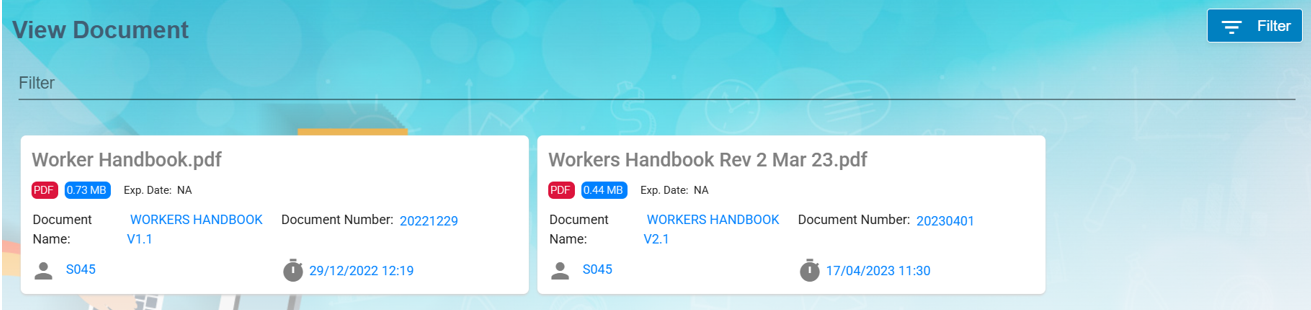
#### Filter Document

If you want to view any specific document details among multiple documents listed in the **View Document** page, you can use the filter option [![image-1663355063095.png](http://wiki.cuteinfocomm.com/uploads/images/gallery/2022-09/scaled-1680-/image-1663355063095.png)](http://wiki.cuteinfocomm.com/uploads/images/gallery/2022-09/image-1663355063095.png)provided in the upper right corner of the **View Document** page to search.

### Scheduler Subscription

To configure scheduler, enable "menuSchedulerSubscription" permission.

[![image-1766048811799.png](https://wiki.cuteinfocomm.com/uploads/images/gallery/2025-12/scaled-1680-/image-1766048811799.png)](https://wiki.cuteinfocomm.com/uploads/images/gallery/2025-12/image-1766048811799.png)
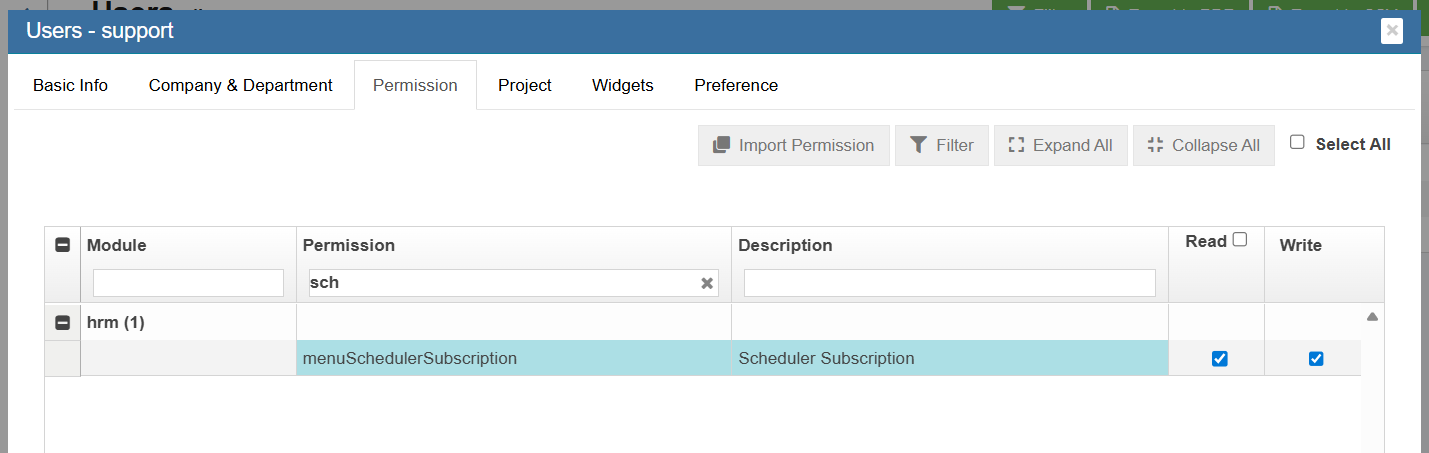
User can view the menu under HRM-&gt;Others.

[![image-1766049516209.png](https://wiki.cuteinfocomm.com/uploads/images/gallery/2025-12/scaled-1680-/image-1766049516209.png)](https://wiki.cuteinfocomm.com/uploads/images/gallery/2025-12/image-1766049516209.png)

Click edit and change the scheduler ( Hours, minutes and seconds) and save the record.

# HRM Accommodation

The **Accommodation** submenu in the **HUMAN RESOURCES** page helps to track and forecast the company's dormitory vacancies i.e. to help the HR team to better manage the dormitory accommodation provided to the foreign employees.

The Accommodation submenu consists of the following pages

- Accommodation
- Rooms/Beds
- Employee's Dormitory Accommodation
- Room Occupancy Report
- Room Availability Report
- Forecasting Report
- Forecasting Detailed Report
- Workers Accommodation Report
- Accommodation Expiring List

### Accommodation

The Accommodation page in the Accommodation submenu helps you to create the master data of the dormitory accommodation. Click on this page to add or update the accommodation provided by the respective dormitory operator/vendor.

[![image-1709632230460.png](http://wiki.cuteinfocomm.com/uploads/images/gallery/2024-03/scaled-1680-/image-1709632230460.png)](http://wiki.cuteinfocomm.com/uploads/images/gallery/2024-03/image-1709632230460.png)

#### Add Accommodation

Click [![image-1709632392811.png](http://wiki.cuteinfocomm.com/uploads/images/gallery/2024-03/scaled-1680-/image-1709632392811.png)](http://wiki.cuteinfocomm.com/uploads/images/gallery/2024-03/image-1709632392811.png)to create new dormitory vendor record.

[![image-1709632487867.png](http://wiki.cuteinfocomm.com/uploads/images/gallery/2024-03/scaled-1680-/image-1709632487867.png)](http://wiki.cuteinfocomm.com/uploads/images/gallery/2024-03/image-1709632487867.png)
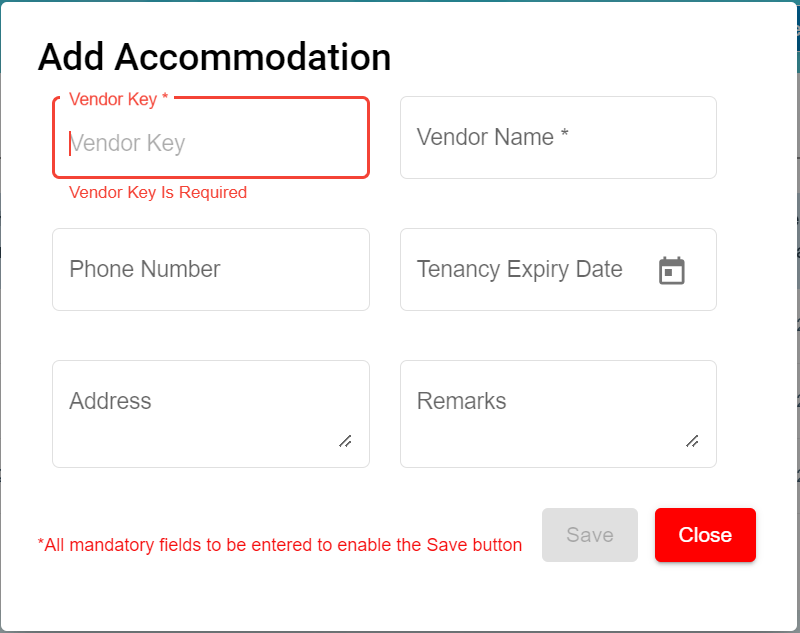
To Add new accommodation of the new dormitory vendor, do the following steps

1\. In the **Vendor Key** field, enter the Vendor Key to identify this dormitory vendor record.

2\. In the **Vendor Name** field, enter the name of this dormitory vendor record.

3\. In the **Phone Number** field, enter the phone number of this dormitory vendor record.

4\. In the **Tenancy Expiry Date** field, enter this tenancy expiry date of this dormitory vendor record.

5\. In the **Address** field, enter the address of this dormitory.

6\. In the **Remarks** field, enter the remarks.

Click **Save** button to save the above details for this dormitory vendor record.

#### Edit Accommodation

You can edit the details of the added accommodation record by using the edit option provided in the Edit column of the Accommodation page. Click [![image-1709708413181.png](http://wiki.cuteinfocomm.com/uploads/images/gallery/2024-03/scaled-1680-/image-1709708413181.png)](http://wiki.cuteinfocomm.com/uploads/images/gallery/2024-03/image-1709708413181.png) (Edit icon) of the respective accommodation you have added. Edit the accommodation details where you want. Click **Save**.

[![image-1709708835107.png](http://wiki.cuteinfocomm.com/uploads/images/gallery/2024-03/scaled-1680-/image-1709708835107.png)](http://wiki.cuteinfocomm.com/uploads/images/gallery/2024-03/image-1709708835107.png)

#### Delete Accommodation

<div id="bkmrk-you-can-delete-the-a"><div><div>You can delete the added accommodation by using [![image-1709711221708.png](http://wiki.cuteinfocomm.com/uploads/images/gallery/2024-03/scaled-1680-/image-1709711221708.png)](http://wiki.cuteinfocomm.com/uploads/images/gallery/2024-03/image-1709711221708.png)(Delete icon) provided in the Delete column of the Accommodation page. If you want to delete the Accommodation, click **Yes** otherwise click **No**. </div></div></div><div id="bkmrk--2"><div></div></div><div id="bkmrk--3"></div>[![image-1709710388822.png](http://wiki.cuteinfocomm.com/uploads/images/gallery/2024-03/scaled-1680-/image-1709710388822.png)](http://wiki.cuteinfocomm.com/uploads/images/gallery/2024-03/image-1709710388822.png)

Note: System will prompt a message if there are rooms and beds recorded for this accommodation record and you will not be able to delete the record.

[![image-1709710575574.png](http://wiki.cuteinfocomm.com/uploads/images/gallery/2024-03/scaled-1680-/image-1709710575574.png)](http://wiki.cuteinfocomm.com/uploads/images/gallery/2024-03/image-1709710575574.png)

#### Filter Accommodation

If you want to view a specific accommodation record, you can use the filter option provided in the upper right corner of the Accommodation page. Click [![image-1709711118552.png](http://wiki.cuteinfocomm.com/uploads/images/gallery/2024-03/scaled-1680-/image-1709711118552.png)](http://wiki.cuteinfocomm.com/uploads/images/gallery/2024-03/image-1709711118552.png) (Filter button). The filter option opens and input the text to filter.

[![image-1709711186534.png](http://wiki.cuteinfocomm.com/uploads/images/gallery/2024-03/scaled-1680-/image-1709711186534.png)](http://wiki.cuteinfocomm.com/uploads/images/gallery/2024-03/image-1709711186534.png)

#### Export Accommodation

You are able to download the added accommodation details as an excel file by using the [![image-1709711641499.png](http://wiki.cuteinfocomm.com/uploads/images/gallery/2024-03/scaled-1680-/image-1709711641499.png)](http://wiki.cuteinfocomm.com/uploads/images/gallery/2024-03/image-1709711641499.png) (**Export Excel** button).

#### Audit Log

If you want to view the changes done in this Accommodation page, you can click on the [![image-1709712553637.png](http://wiki.cuteinfocomm.com/uploads/images/gallery/2024-03/scaled-1680-/image-1709712553637.png)](http://wiki.cuteinfocomm.com/uploads/images/gallery/2024-03/image-1709712553637.png)(**Audit Log** button) and input the date range to view the updates.

[![image-1709712642909.png](http://wiki.cuteinfocomm.com/uploads/images/gallery/2024-03/scaled-1680-/image-1709712642909.png)](http://wiki.cuteinfocomm.com/uploads/images/gallery/2024-03/image-1709712642909.png)

### Rooms/Beds

The Rooms/Beds menu item in the Accommodation submenu helps you to create the master data of the rooms and beds of the dormitory accommodation record. Click on this and it will show the Manage Rooms page to allow you to add or update the rooms and beds provided by the respective dormitory operator/vendor.

[![image-1709716047417.png](http://wiki.cuteinfocomm.com/uploads/images/gallery/2024-03/scaled-1680-/image-1709716047417.png)](http://wiki.cuteinfocomm.com/uploads/images/gallery/2024-03/image-1709716047417.png)

#### Add Rooms/Beds

Click [![image-1709716361249.png](http://wiki.cuteinfocomm.com/uploads/images/gallery/2024-03/scaled-1680-/image-1709716361249.png)](http://wiki.cuteinfocomm.com/uploads/images/gallery/2024-03/image-1709716361249.png) ( **Add** **Rooms / Beds** button) to add.

[![image-1709716543807.png](http://wiki.cuteinfocomm.com/uploads/images/gallery/2024-03/scaled-1680-/image-1709716543807.png)](http://wiki.cuteinfocomm.com/uploads/images/gallery/2024-03/image-1709716543807.png)

To Add new rooms and/or beds of the dormitory vendor, do the following steps

1\. In the **Accommodation** field, select the dormitory vendor from the drop down list.

2\. In the **Tenancy Start Date** field, select the start date of this selected dormitory vendor record.

3\. In the **Tenancy Expiry Date** field, select the expiry date of this selected dormitory vendor record.

4\. In the **Room** field, input the room no. e.g. R1.

5\. In the **Bed** field, input the bed no. e.g. R1B1. If more beds needs to be added, click on the [![image-1709716890432.png](http://wiki.cuteinfocomm.com/uploads/images/gallery/2024-03/scaled-1680-/image-1709716890432.png)](http://wiki.cuteinfocomm.com/uploads/images/gallery/2024-03/image-1709716890432.png)icon next to the Bed field to add.

6\. If more rooms needs to be added, click on the [![image-1709716890432.png](http://wiki.cuteinfocomm.com/uploads/images/gallery/2024-03/scaled-1680-/image-1709716890432.png)](http://wiki.cuteinfocomm.com/uploads/images/gallery/2024-03/image-1709716890432.png)icon next to the Room field to add.

7\. Click on the [![image-1709717238112.png](http://wiki.cuteinfocomm.com/uploads/images/gallery/2024-03/scaled-1680-/image-1709717238112.png)](http://wiki.cuteinfocomm.com/uploads/images/gallery/2024-03/image-1709717238112.png) icon next to the Room field and/or Bed field to delete if the room or bed is not required or there is an error in earlier update.

[![image-1709717610857.png](http://wiki.cuteinfocomm.com/uploads/images/gallery/2024-03/scaled-1680-/image-1709717610857.png)](http://wiki.cuteinfocomm.com/uploads/images/gallery/2024-03/image-1709717610857.png)

Click **Save** button to save the rooms and beds details of the selected dormitory vendor record.

**Note**: If you click **Cancel** button, you will lose all the details which you have entered.

#### Edit Rooms and Beds

You can edit the details of the added rooms and/or beds record by using the edit option provided in the Edit column of the Manage Rooms page. Click [![image-1709708413181.png](http://wiki.cuteinfocomm.com/uploads/images/gallery/2024-03/scaled-1680-/image-1709708413181.png)](http://wiki.cuteinfocomm.com/uploads/images/gallery/2024-03/image-1709708413181.png) (Edit icon) of the respective accommodation record you have added. Edit the accommodation details where you want. Click **Save**.

[![image-1709718016660.png](http://wiki.cuteinfocomm.com/uploads/images/gallery/2024-03/scaled-1680-/image-1709718016660.png)](http://wiki.cuteinfocomm.com/uploads/images/gallery/2024-03/image-1709718016660.png)

#### Delete Manage Rooms Record

<div id="bkmrk-you-can-delete-the-a-0"><div><div><div>You can delete the added manage rooms record by using [![image-1709711221708.png](http://wiki.cuteinfocomm.com/uploads/images/gallery/2024-03/scaled-1680-/image-1709711221708.png)](http://wiki.cuteinfocomm.com/uploads/images/gallery/2024-03/image-1709711221708.png)(Delete icon) provided in the Delete column of the Manage Rooms page. If you want to delete the accommodation details record, click **Yes** otherwise click **No**. </div></div><div></div></div></div>[![image-1709719040661.png](http://wiki.cuteinfocomm.com/uploads/images/gallery/2024-03/scaled-1680-/image-1709719040661.png)](http://wiki.cuteinfocomm.com/uploads/images/gallery/2024-03/image-1709719040661.png)

#### Filter Manage Rooms

[![image-1709719203786.png](http://wiki.cuteinfocomm.com/uploads/images/gallery/2024-03/scaled-1680-/image-1709719203786.png)](http://wiki.cuteinfocomm.com/uploads/images/gallery/2024-03/image-1709719203786.png)

<div id="bkmrk-if-you-want-to-view--1"><div><div>If you want to view a specific accommodation record on rooms and beds, you can use the filter option provided in the upper right corner of the **Manage Rooms** page. Click [![image-1709711118552.png](http://wiki.cuteinfocomm.com/uploads/images/gallery/2024-03/scaled-1680-/image-1709711118552.png)](http://wiki.cuteinfocomm.com/uploads/images/gallery/2024-03/image-1709711118552.png) (Filter button). The filter option opens and input the text to filter.</div><div></div><div><span style="color: #222222; font-size: 1.666em; font-weight: 400;">Export Manage Rooms</span></div></div></div>You are able to download the added accommodation details as an excel file by using the [![image-1709711641499.png](http://wiki.cuteinfocomm.com/uploads/images/gallery/2024-03/scaled-1680-/image-1709711641499.png)](http://wiki.cuteinfocomm.com/uploads/images/gallery/2024-03/image-1709711641499.png) (**Export Excel** button).

#### Audit Log

If you want to view the changes done in this Manage Rooms page, you can click on the [![image-1709712553637.png](http://wiki.cuteinfocomm.com/uploads/images/gallery/2024-03/scaled-1680-/image-1709712553637.png)](http://wiki.cuteinfocomm.com/uploads/images/gallery/2024-03/image-1709712553637.png)(**Audit Log** button) and input the date range to view the updates.

[![image-1709719539617.png](http://wiki.cuteinfocomm.com/uploads/images/gallery/2024-03/scaled-1680-/image-1709719539617.png)](http://wiki.cuteinfocomm.com/uploads/images/gallery/2024-03/image-1709719539617.png)

### Employee's Dormitory Accommodation

In the cuteOffice **HRM Personal Particulars** page of the foreign employee, once this "Accommodation By Company" field is set to **Yes** then you will be able to set the dorm bed/room number in the Dorm Room Number field in the HRM Personal Particulars page.

[![image-1728267584274.png](https://wiki.cuteinfocomm.com/uploads/images/gallery/2024-10/scaled-1680-/image-1728267584274.png)](https://wiki.cuteinfocomm.com/uploads/images/gallery/2024-10/image-1728267584274.png)

In the Dorm Room Number field, system will display the vacant dorm bed/room number for user's selection.

[![image-1728267671743.png](https://wiki.cuteinfocomm.com/uploads/images/gallery/2024-10/scaled-1680-/image-1728267671743.png)](https://wiki.cuteinfocomm.com/uploads/images/gallery/2024-10/image-1728267671743.png)

Once selected and click Save button, the selected dorm room number will be saved against the selected hrm employee record and the record will be shown in the Accommodation page of the hrm employee record.

[![image-1728440486006.png](https://wiki.cuteinfocomm.com/uploads/images/gallery/2024-10/scaled-1680-/image-1728440486006.png)](https://wiki.cuteinfocomm.com/uploads/images/gallery/2024-10/image-1728440486006.png)

### Room Occupancy Report

You need to input the date range and the vendor dormitory record and then click on the [![image-1728271318497.png](https://wiki.cuteinfocomm.com/uploads/images/gallery/2024-10/scaled-1680-/image-1728271318497.png)](https://wiki.cuteinfocomm.com/uploads/images/gallery/2024-10/image-1728271318497.png) Search button. Based on these two search criteria, system will display the results on the screen.

[![image-1728271125569.png](https://wiki.cuteinfocomm.com/uploads/images/gallery/2024-10/scaled-1680-/image-1728271125569.png)](https://wiki.cuteinfocomm.com/uploads/images/gallery/2024-10/image-1728271125569.png)

#### Export Excel

You are able to download the room occupancy details as an excel file by using the [![image-1709711641499.png](http://wiki.cuteinfocomm.com/uploads/images/gallery/2024-03/scaled-1680-/image-1709711641499.png)](http://wiki.cuteinfocomm.com/uploads/images/gallery/2024-03/image-1709711641499.png) (**Export Excel** button).

### Room Availability Report

You need to input the date range and the vendor dormitory record and then click on the [![image-1728271941888.png](https://wiki.cuteinfocomm.com/uploads/images/gallery/2024-10/scaled-1680-/image-1728271941888.png)](https://wiki.cuteinfocomm.com/uploads/images/gallery/2024-10/image-1728271941888.png) button to search. Based on these two search criteria, system will display the results on the screen showing the room availability of the selected vendor dormitory record. For New Hires row in the report, if there is a number, it means that there is new hire but not allocated the dormitory room/bed number. In the results shown below, there is no new hire based on the date range input in the report.

[![image-1728271898448.png](https://wiki.cuteinfocomm.com/uploads/images/gallery/2024-10/scaled-1680-/image-1728271898448.png)](https://wiki.cuteinfocomm.com/uploads/images/gallery/2024-10/image-1728271898448.png)

#### Export Excel

You are able to download the room availability details as an excel file by using the [![image-1709711641499.png](http://wiki.cuteinfocomm.com/uploads/images/gallery/2024-03/scaled-1680-/image-1709711641499.png)](http://wiki.cuteinfocomm.com/uploads/images/gallery/2024-03/image-1709711641499.png) (**Export Excel** button).

### Forecasting Report

The Forecasting Report menu item in the Accommodation submenu helps you to view the statistics of the dormitories' vacancies and also forecast of the future occupancy for the next 2-3 months based on the factors such as employee's home leave and employee's resignation if there is any.

[![image-1728273393846.png](https://wiki.cuteinfocomm.com/uploads/images/gallery/2024-10/scaled-1680-/image-1728273393846.png)](https://wiki.cuteinfocomm.com/uploads/images/gallery/2024-10/image-1728273393846.png)

**Note**: When creating worker's home leave application in the E-Leave module, you need to select Leave Type = Unpaid Leave and Home Leave? option to set to Yes.

[![image-1728441781042.png](https://wiki.cuteinfocomm.com/uploads/images/gallery/2024-10/scaled-1680-/image-1728441781042.png)](https://wiki.cuteinfocomm.com/uploads/images/gallery/2024-10/image-1728441781042.png)

#### Export Excel

You are able to download the forecasting details as an excel file by using the [![image-1709711641499.png](http://wiki.cuteinfocomm.com/uploads/images/gallery/2024-03/scaled-1680-/image-1709711641499.png)](http://wiki.cuteinfocomm.com/uploads/images/gallery/2024-03/image-1709711641499.png) (**Export Excel** button).

### Forecasting Detailed Report

This report will give the statistics based on the selected date range and the vendor dormitory record.

[![image-1728273313937.png](https://wiki.cuteinfocomm.com/uploads/images/gallery/2024-10/scaled-1680-/image-1728273313937.png)](https://wiki.cuteinfocomm.com/uploads/images/gallery/2024-10/image-1728273313937.png)

#### Export Excel

You are able to download the forecasting detailed results as an excel file by using the [![image-1709711641499.png](http://wiki.cuteinfocomm.com/uploads/images/gallery/2024-03/scaled-1680-/image-1709711641499.png)](http://wiki.cuteinfocomm.com/uploads/images/gallery/2024-03/image-1709711641499.png) (**Export Excel** button).

### Workers Accommodation Report

You can select the vendor dorm record at the Dorm Key, the number of employee(s) and then click on the [![image-1728441041353.png](https://wiki.cuteinfocomm.com/uploads/images/gallery/2024-10/scaled-1680-/image-1728441041353.png)](https://wiki.cuteinfocomm.com/uploads/images/gallery/2024-10/image-1728441041353.png) search icon to search on the worker's accommodation. Based on the dorm key and all employees, system will display the results on the screen and you can click to export out as pdf file or excel file for reference.

[![image-1728440832331.png](https://wiki.cuteinfocomm.com/uploads/images/gallery/2024-10/scaled-1680-/image-1728440832331.png)](https://wiki.cuteinfocomm.com/uploads/images/gallery/2024-10/image-1728440832331.png)

#### PDF export

You are able to download the workers accommodation results as an excel file by using the [![image-1728441156239.png](https://wiki.cuteinfocomm.com/uploads/images/gallery/2024-10/scaled-1680-/image-1728441156239.png)](https://wiki.cuteinfocomm.com/uploads/images/gallery/2024-10/image-1728441156239.png) (**Pdf** button).

#### Export Excel

You are able to download the forecasting detailed results as an excel file by using the [![image-1709711641499.png](http://wiki.cuteinfocomm.com/uploads/images/gallery/2024-03/scaled-1680-/image-1709711641499.png)](http://wiki.cuteinfocomm.com/uploads/images/gallery/2024-03/image-1709711641499.png) (**Export Excel** button).

### Accommodation Expiring List

System will display those vendor dormitory record(s) when the tenancy date is 15 days before the tenancy date of the vendor dormitory record(s) as shown in the below example where this vendor dormitory record has a tenancy expiry date of 15 October 2024.

[![image-1728442740310.png](https://wiki.cuteinfocomm.com/uploads/images/gallery/2024-10/scaled-1680-/image-1728442740310.png)](https://wiki.cuteinfocomm.com/uploads/images/gallery/2024-10/image-1728442740310.png)

#### Filter

If you want to view a specific accommodation record, you can use the filter option provided in the upper right corner of the page. Click [![image-1709711118552.png](http://wiki.cuteinfocomm.com/uploads/images/gallery/2024-03/scaled-1680-/image-1709711118552.png)](http://wiki.cuteinfocomm.com/uploads/images/gallery/2024-03/image-1709711118552.png) (Filter button). The filter option opens and input the text to filter.

#### Export Excel

You are able to download the results as an excel file by using the [![image-1709711641499.png](http://wiki.cuteinfocomm.com/uploads/images/gallery/2024-03/scaled-1680-/image-1709711641499.png)](http://wiki.cuteinfocomm.com/uploads/images/gallery/2024-03/image-1709711641499.png) (**Export Excel** button).

# HRM Appraisal

### Employee Evaluation

Employee evaluation page manages evaluation for all employees. Click Evaluation tab in Employee menu, the employee evaluation list page shows as below

[![image-1666913545646.png](http://wiki.cuteinfocomm.com/uploads/images/gallery/2022-10/scaled-1680-/image-1666913545646.png)](http://wiki.cuteinfocomm.com/uploads/images/gallery/2022-10/image-1666913545646.png)

#### Add A New Evaluation

To add a new evaluation,

1. Click [![image-1664824676986.png](http://wiki.cuteinfocomm.com/uploads/images/gallery/2022-10/scaled-1680-/image-1664824676986.png)](http://wiki.cuteinfocomm.com/uploads/images/gallery/2022-10/image-1664824676986.png)Add button. Add New Employee Evaluation window opens, [![image-1663580391250.png](http://wiki.cuteinfocomm.com/uploads/images/gallery/2022-09/scaled-1680-/image-1663580391250.png)](http://wiki.cuteinfocomm.com/uploads/images/gallery/2022-09/image-1663580391250.png)
2. Select Employee No. from the drop down list. Once select the employee, employee’s details from HRM will be displayed on the screen. [![image-1682096064250.png](http://wiki.cuteinfocomm.com/uploads/images/gallery/2023-04/scaled-1680-/image-1682096064250.png)](http://wiki.cuteinfocomm.com/uploads/images/gallery/2023-04/image-1682096064250.png)
3. Select the Period of Evaluation from the drop down list. Note: The period of evaluation corresponds to the employee's trade (as in above screenshot, selected worker's trade is PIPE FITTER, the period of evaluation will show all available period for PIPE FITTER). If there is no trade configured at the Master Evaluation Factor, then you will not see any dropdown list, the same applies to Employee Type in this Period of Evaluation selection. [![image-1666936342940.png](http://wiki.cuteinfocomm.com/uploads/images/gallery/2022-10/scaled-1680-/image-1666936342940.png)](http://wiki.cuteinfocomm.com/uploads/images/gallery/2022-10/image-1666936342940.png)
4. Click Save. A new evaluation request will be created for selected employee. The add evaluation page will be redirect to evaluation list page.

#### Add Evaluations in Bulk

To add evaluations in bulk,

1. Click[![image-1664833503135.png](http://wiki.cuteinfocomm.com/uploads/images/gallery/2022-10/scaled-1680-/image-1664833503135.png)](http://wiki.cuteinfocomm.com/uploads/images/gallery/2022-10/image-1664833503135.png)add in bulk button, below window opens, [![image-1682096102648.png](http://wiki.cuteinfocomm.com/uploads/images/gallery/2023-04/scaled-1680-/image-1682096102648.png)](http://wiki.cuteinfocomm.com/uploads/images/gallery/2023-04/image-1682096102648.png)
2. Select employees by ticking the box in front of the employee names. Note: please check the color code in the top right corner of the page for those employees that are not in selection list.
3. Click **Save**. New evaluation requests will be created for selected employees. The add evaluation page will be redirect to evaluation list page.

#### Employee Evaluation Workflow Types

There are two different workflows in employee evaluations.

Type 1 scenario is: employees do not need to do self appraisal. HR personal or person in charge will create employee evaluation request, employee's supervisor will receive an email notification to remind that he/she needs to do this employee’s evaluation. (employee supervisor is configured as the supervisor field in Official Information page of the employee record in HRM); once supervisor completed evaluation of the employee, supervisor will send the evaluation for director level for final approval. Director will receive an email notification on this employee evaluation for approval. Director will review the all the ratings and comments of the employee and supervisor. Once reviewed, the director will click either Approve or Return the employee evaluation.

Type 2 scenario is: employees need to do self appraisal. HR personal or person in charge will create employee evaluation request. Employee will receive an email notification when his/her employee evaluation was created in the system. Employee needs to do self appraisal and then send to supervisor for evaluation. Supervisor will receive an email notification that he/she needs to do this employee’s evaluation. After supervisor complete evaluation, supervisor will send the evaluation for director level for final approval. Director will review the all the ratings and comments of the employee and supervisor. Once reviewed, the director will click either Approve or Return the employee evaluation.

##### Set Up Signature in System 

Signature setup is a one-time configuration. Employee needs to update the signature before send his/her employee evaluation form to the supervisor. Supervisor needs to update his/her signature before the employee evaluation can be sent to director for review and approval. Director needs to update the signature (one time setup) before approving the employee evaluation.

1. Click userid to expand user setup options. The signature setup is located at "My Profile" page screen see below,[![image-1667016958065.png](http://wiki.cuteinfocomm.com/uploads/images/gallery/2022-10/scaled-1680-/image-1667016958065.png)](http://wiki.cuteinfocomm.com/uploads/images/gallery/2022-10/image-1667016958065.png)
2. Click My Profile to open the user profile page as below, [![image-1667017103627.png](http://wiki.cuteinfocomm.com/uploads/images/gallery/2022-10/scaled-1680-/image-1667017103627.png)](http://wiki.cuteinfocomm.com/uploads/images/gallery/2022-10/image-1667017103627.png)
3. In the My Profile screen, click on the **Change** button. To update signature as per below screenshot. User can sign on the blank space or click upload signature button to upload a signature image file and click Save button. Once sign/upload and save, this signature will appear on the employee evaluation form. [![image-1667017215221.png](http://wiki.cuteinfocomm.com/uploads/images/gallery/2022-10/scaled-1680-/image-1667017215221.png)](http://wiki.cuteinfocomm.com/uploads/images/gallery/2022-10/image-1667017215221.png)

Note: below are icon definition used in evaluation.

[![image-1666991694784.png](http://wiki.cuteinfocomm.com/uploads/images/gallery/2022-10/scaled-1680-/image-1666991694784.png)](http://wiki.cuteinfocomm.com/uploads/images/gallery/2022-10/image-1666991694784.png)[![image-1666991754601.png](http://wiki.cuteinfocomm.com/uploads/images/gallery/2022-10/scaled-1680-/image-1666991754601.png)](http://wiki.cuteinfocomm.com/uploads/images/gallery/2022-10/image-1666991754601.png)

##### Type 1 Employee Self Appraisal Not Required

For each Evaluation Factor in HRM master, If[![image-1666937795816.png](http://wiki.cuteinfocomm.com/uploads/images/gallery/2022-10/scaled-1680-/image-1666937795816.png)](http://wiki.cuteinfocomm.com/uploads/images/gallery/2022-10/image-1666937795816.png)flag in Part I of the Evaluation Factor is set to <span style="color: #e03e2d;">**NO**</span> and the employee evaluation is created with this evaluation factor, then the employee is not required to do self appraisal.

Below are the workflow steps for type 1scenario:

**Supervisor Level**

1. Once a new employee evaluation request is created, the supervisor will receive an email notification to remind that he/she needs to do this employee’s evaluation. Click on the URL i.e. https://xxx will open the employee’s evaluation form for the supervisor to do evaluation.
    
    [![image-1666987101080.png](http://wiki.cuteinfocomm.com/uploads/images/gallery/2022-10/scaled-1680-/image-1666987101080.png)](http://wiki.cuteinfocomm.com/uploads/images/gallery/2022-10/image-1666987101080.png)
2. Supervisor need to click the key of each new evaluation request (with status being "New Request").
3. The evaluation detail page opens as below, [![image-1666987447008.png](http://wiki.cuteinfocomm.com/uploads/images/gallery/2022-10/scaled-1680-/image-1666987447008.png)](http://wiki.cuteinfocomm.com/uploads/images/gallery/2022-10/image-1666987447008.png)
    
    [![image-1666988185137.png](http://wiki.cuteinfocomm.com/uploads/images/gallery/2022-10/scaled-1680-/image-1666988185137.png)](http://wiki.cuteinfocomm.com/uploads/images/gallery/2022-10/image-1666988185137.png)
    
    [![image-1666988202765.png](http://wiki.cuteinfocomm.com/uploads/images/gallery/2022-10/scaled-1680-/image-1666988202765.png)](http://wiki.cuteinfocomm.com/uploads/images/gallery/2022-10/image-1666988202765.png)
    
    [![image-1666988217201.png](http://wiki.cuteinfocomm.com/uploads/images/gallery/2022-10/scaled-1680-/image-1666988217201.png)](http://wiki.cuteinfocomm.com/uploads/images/gallery/2022-10/image-1666988217201.png)
4. Supervisor needs to enter the rating at the Manager Rating column for each evaluation item. System will indicate a red mark at the Remarks column if the lowest rating of 1 or highest rating of 4 is entered and it is mandatory for the supervisor to enter remarks for this low or high rating. If there is no input for the mandatory remarks, the Save button is disabled. [![image-1666988576029.png](http://wiki.cuteinfocomm.com/uploads/images/gallery/2022-10/scaled-1680-/image-1666988576029.png)](http://wiki.cuteinfocomm.com/uploads/images/gallery/2022-10/image-1666988576029.png)
    
    [![image-1666988595266.png](http://wiki.cuteinfocomm.com/uploads/images/gallery/2022-10/scaled-1680-/image-1666988595266.png)](http://wiki.cuteinfocomm.com/uploads/images/gallery/2022-10/image-1666988595266.png)
5. Click the **Save** button once rating for all evaluation items is updated.
6. If recommendation is required for this employee then the supervisor needs to input the below items. If the recommendation is approved by the final approver, it will appear as a new record in the HRM Pay Eligibility page of the selected employee record.:[![image-1666988244545.png](http://wiki.cuteinfocomm.com/uploads/images/gallery/2022-10/scaled-1680-/image-1666988244545.png)](http://wiki.cuteinfocomm.com/uploads/images/gallery/2022-10/image-1666988244545.png)
    - **Effective Date**-enter the effective date of this recommended change
    - **Designation**-select from the dropdown list if the designation of employee needs to be changed
    - **Salary**-enter proposed new salary amount
    - Click on[![image-1666990294498.png](http://wiki.cuteinfocomm.com/uploads/images/gallery/2022-10/scaled-1680-/image-1666990294498.png)](http://wiki.cuteinfocomm.com/uploads/images/gallery/2022-10/image-1666990294498.png) icon to add any allowance for the employee. Select the allowance type from the dropdown list and enter allowance amount. [![image-1666990347088.png](http://wiki.cuteinfocomm.com/uploads/images/gallery/2022-10/scaled-1680-/image-1666990347088.png)](http://wiki.cuteinfocomm.com/uploads/images/gallery/2022-10/image-1666990347088.png)
7. At this Supervisor’s Comments and Recommendations section, the supervisor is required to select one of the options in the dropdown list and key in comments. [![image-1666991429980.png](http://wiki.cuteinfocomm.com/uploads/images/gallery/2022-10/scaled-1680-/image-1666991429980.png)](http://wiki.cuteinfocomm.com/uploads/images/gallery/2022-10/image-1666991429980.png)
8. Supervisor will click on[![image-1666991829897.png](http://wiki.cuteinfocomm.com/uploads/images/gallery/2022-10/scaled-1680-/image-1666991829897.png) ](http://wiki.cuteinfocomm.com/uploads/images/gallery/2022-10/image-1666991829897.png)icon to send for final approval of the employee evaluation and click Confirm button. System will auto populate the Assignee and Notify Users fields if these users are given the director’s permission on employee evaluation. [![image-1666991929919.png](http://wiki.cuteinfocomm.com/uploads/images/gallery/2022-10/scaled-1680-/image-1666991929919.png)](http://wiki.cuteinfocomm.com/uploads/images/gallery/2022-10/image-1666991929919.png)
9. Status of this employee evaluation will be changed to **"Sent to Director"** in the Employee Evaluation list page.

**Director Level**

1. Director will receive an email notification on this employee evaluation for approval [![image-1667017375252.png](http://wiki.cuteinfocomm.com/uploads/images/gallery/2022-10/scaled-1680-/image-1667017375252.png)](http://wiki.cuteinfocomm.com/uploads/images/gallery/2022-10/image-1667017375252.png)
2. The director can click on the url i.e. https://xxxx to access the employee evaluation. Below is the employee evaluation for his comments and approval, [![image-1667017629003.png](http://wiki.cuteinfocomm.com/uploads/images/gallery/2022-10/scaled-1680-/image-1667017629003.png)](http://wiki.cuteinfocomm.com/uploads/images/gallery/2022-10/image-1667017629003.png)
3. Director will review the supervisor’s ratings, comments and recommendations and he is required to input his comments and recommendations in the below section. Once done, the Save button will be enabled. [![image-1667017740536.png](http://wiki.cuteinfocomm.com/uploads/images/gallery/2022-10/scaled-1680-/image-1667017740536.png)](http://wiki.cuteinfocomm.com/uploads/images/gallery/2022-10/image-1667017740536.png)

##### Type 2 Employee Self Appraisal is Required

For each Evaluation Factor, If [![image-1667018074674.png](http://wiki.cuteinfocomm.com/uploads/images/gallery/2022-10/scaled-1680-/image-1667018074674.png)](http://wiki.cuteinfocomm.com/uploads/images/gallery/2022-10/image-1667018074674.png)at Part I of the Evaluation Factor is set to **<span style="color: #2dc26b;">YES</span>** and the employee evaluation is created with this evaluation factor, then the employee is required to do self appraisal first.   
Below are the workflow steps for type 2 scenario:

**Employee Level**

1. Employee will receive an email notification when his/her employee evaluation was created in the system. [![image-1667018315324.png](http://wiki.cuteinfocomm.com/uploads/images/gallery/2022-10/scaled-1680-/image-1667018315324.png)](http://wiki.cuteinfocomm.com/uploads/images/gallery/2022-10/image-1667018315324.png)
2. In the email notification, employee needs to click on the url i.e. https://xxx to open his/her evaluation form to do evaluation. Below shows the evaluation form for employee to view and self appraise: [![image-1667018379236.png](http://wiki.cuteinfocomm.com/uploads/images/gallery/2022-10/scaled-1680-/image-1667018379236.png)](http://wiki.cuteinfocomm.com/uploads/images/gallery/2022-10/image-1667018379236.png)
    
    [![image-1667018400417.png](http://wiki.cuteinfocomm.com/uploads/images/gallery/2022-10/scaled-1680-/image-1667018400417.png)](http://wiki.cuteinfocomm.com/uploads/images/gallery/2022-10/image-1667018400417.png)
    
    [![image-1667018417806.png](http://wiki.cuteinfocomm.com/uploads/images/gallery/2022-10/scaled-1680-/image-1667018417806.png)](http://wiki.cuteinfocomm.com/uploads/images/gallery/2022-10/image-1667018417806.png)
    
    [![image-1667018438440.png](http://wiki.cuteinfocomm.com/uploads/images/gallery/2022-10/scaled-1680-/image-1667018438440.png)](http://wiki.cuteinfocomm.com/uploads/images/gallery/2022-10/image-1667018438440.png)
    
    [![image-1667018471151.png](http://wiki.cuteinfocomm.com/uploads/images/gallery/2022-10/scaled-1680-/image-1667018471151.png)](http://wiki.cuteinfocomm.com/uploads/images/gallery/2022-10/image-1667018471151.png)
3. Employee is required to enter the rating at the Self Rating column for each evaluation item. Employee is required to input remarks/comments so that the Save button is enabled to allow to proceed to save and send to supervisor for evaluation.
4. Once employee click [![image-1667019390521.png](http://wiki.cuteinfocomm.com/uploads/images/gallery/2022-10/scaled-1680-/image-1667019390521.png)](http://wiki.cuteinfocomm.com/uploads/images/gallery/2022-10/image-1667019390521.png)send to supervisor icon, system will auto populate the Assignee and Notify Users fields and click Confirm button to send. [![image-1667018904386.png](http://wiki.cuteinfocomm.com/uploads/images/gallery/2022-10/scaled-1680-/image-1667018904386.png)](http://wiki.cuteinfocomm.com/uploads/images/gallery/2022-10/image-1667018904386.png)
5. This employee evaluation status will change from "New Request" to "Submitted" in the Employee Evaluation list page.

**Supervisor Level**

1. Supervisor will receive an email notification that he/she needs to do this employee’s evaluation. Click on the url i.e. https://xxx will open the employee’s evaluation form for the supervisor to do evaluation. [![image-1667019482031.png](http://wiki.cuteinfocomm.com/uploads/images/gallery/2022-10/scaled-1680-/image-1667019482031.png)](http://wiki.cuteinfocomm.com/uploads/images/gallery/2022-10/image-1667019482031.png)
2. Supervisor is required to enter the rating at the Manager Rating column for each evaluation item. System will indicate a red mark at the Remarks column if the lowest rating of 1 or highest rating of 5 is entered and it is mandatory for the supervisor to enter remarks for this low or high rating. If there is no input for the mandatory remarks then the Save button is disabled. The Red indicator disappears after supervisor inputs remarks.
3. Supervisor will click on [![image-1666991829897.png](http://wiki.cuteinfocomm.com/uploads/images/gallery/2022-10/scaled-1680-/image-1666991829897.png)](http://wiki.cuteinfocomm.com/uploads/images/gallery/2022-10/image-1666991829897.png) icon for final approval of the employee evaluation and click Confirm button. System will auto populate the Assignee and Notify Users fields if these users are given the director’s permission on employee evaluation.[![image-1666991929919.png](http://wiki.cuteinfocomm.com/uploads/images/gallery/2022-10/scaled-1680-/image-1666991929919.png)](http://wiki.cuteinfocomm.com/uploads/images/gallery/2022-10/image-1666991929919.png)
4. Status of this employee evaluation will be changed to "Sent to Director" in the Employee Evaluation list page.

**Director Level**

1. Director will receive an email notification on this employee evaluation for approval [![image-1667017375252.png](http://wiki.cuteinfocomm.com/uploads/images/gallery/2022-10/scaled-1680-/image-1667017375252.png)](http://wiki.cuteinfocomm.com/uploads/images/gallery/2022-10/image-1667017375252.png)
2. The director can click on the url i.e. https://xxxx to access the employee evaluation. Below is the employee evaluation for his comments and approval, [![image-1667017629003.png](http://wiki.cuteinfocomm.com/uploads/images/gallery/2022-10/scaled-1680-/image-1667017629003.png)](http://wiki.cuteinfocomm.com/uploads/images/gallery/2022-10/image-1667017629003.png)
3. Director will review the supervisor’s ratings, comments and recommendations and he is required to input his comments and recommendations in the below section. Once done, the Save button will be enabled.

# Leave Management

## E-leave Module

The **E-Leave** module in the ***cuteOffice*** is a simple portal for employees to self-manage their leave efficiently and **E-leave** module provides insights for human resource department to monitor the leave, manage human resource planning and it is integrated with payroll calculations. Additionally, the time keepers can also apply for leave on behalf of their employees.

In cuteOffice, apply or cancel leave can be done using the cuteOffice Website or cuteOffice2a Mobile App.

## Types of Leave

Depends on the employee, the list of leaves may be varied. Below are the leave types:

1. Annual Leave
2. Sick Leave (Non-Hospitalization)
3. Sick Leave (Hospitalization)
4. Maternity Leave
5. Paternity Leave
6. Childcare Leave
7. Extended Childcare Leave
8. Infant Care Leave
9. Compassionate Leave
10. National Service Leave
11. Shared Parental Leave
12. Unpaid Leave
13. Birthday Leave
14. Public Holiday Off-in-Lieu
15. Normal Off-in-Lieu

The leave types will be available based on the employees HRM profile (in HRM leave particulars, personal particulars, kids details page etc.). E.g. if the employee is Male, they will not be entitled for Maternity Leave. Similarly the childcare leave will be available only if the employee has kids that fulfill Childcare leave eligibility and entitlement requirements: [https://www.mom.gov.sg/employment-practices/leave/childcare-leave/eligibility-and-entitlement](https://www.mom.gov.sg/employment-practices/leave/childcare-leave/eligibility-and-entitlement), etc..

[https://www.mom.gov.sg/employment-practices/leave/paternity-leave](https://www.mom.gov.sg/employment-practices/leave/paternity-leave)

[![image-1706493024395.png](http://wiki.cuteinfocomm.com/uploads/images/gallery/2024-01/scaled-1680-/image-1706493024395.png)](http://wiki.cuteinfocomm.com/uploads/images/gallery/2024-01/image-1706493024395.png)

Employee who is eligible to 2 weeks paternity leave (company settings on paternity leave will be setup as 10 days), below demonstrated based on the employee’s HRM profile setup.

Employee on 5day work week.

 [![image-1706243008031.png](http://wiki.cuteinfocomm.com/uploads/images/gallery/2024-01/scaled-1680-/image-1706243008031.png)](http://wiki.cuteinfocomm.com/uploads/images/gallery/2024-01/image-1706243008031.png)

Employee on 5.5day work week

[![image-1706243077705.png](http://wiki.cuteinfocomm.com/uploads/images/gallery/2024-01/scaled-1680-/image-1706243077705.png)](http://wiki.cuteinfocomm.com/uploads/images/gallery/2024-01/image-1706243077705.png)

Employee on 6day work week

[![image-1706243136167.png](http://wiki.cuteinfocomm.com/uploads/images/gallery/2024-01/scaled-1680-/image-1706243136167.png)](http://wiki.cuteinfocomm.com/uploads/images/gallery/2024-01/image-1706243136167.png)

## Leave Calculation Period

**By Calendar Year**: Some organizations calculate leaves following the calendar year which means all leaves will be computed from Jan to Dec for each year. The leave application form show as below:

[![image-1646135591438.png](http://wiki.cuteinfocomm.com/uploads/images/gallery/2022-03/scaled-1680-/image-1646135591438.png)](http://wiki.cuteinfocomm.com/uploads/images/gallery/2022-03/image-1646135591438.png)

**By Anniversary Year**: Some organizations calculate leaves follow the anniversary year which means all leaves will be computed based on the date of join of each staff. The leave application form show as below:

[![image-1646135088570.png](http://wiki.cuteinfocomm.com/uploads/images/gallery/2022-03/scaled-1680-/image-1646135088570.png)](http://wiki.cuteinfocomm.com/uploads/images/gallery/2022-03/image-1646135088570.png)


## Apply Leave

To navigate to the **E-Leave** module, Click **E-Leave** in the **Time**, the **E-Leave** page opens

[![image-1653511287763.png](http://wiki.cuteinfocomm.com/uploads/images/gallery/2022-05/scaled-1680-/image-1653511287763.png)](http://wiki.cuteinfocomm.com/uploads/images/gallery/2022-05/image-1653511287763.png)

To apply leave,

1. Click![](http://wiki.cuteinfocomm.com/uploads/images/gallery/2022-05/embedded-image-wvpubnfv.png) (**Add** button) in the **E-Leave.** A new page opens to add the leave. [![image-1653673412904.png](http://wiki.cuteinfocomm.com/uploads/images/gallery/2022-05/scaled-1680-/image-1653673412904.png)](http://wiki.cuteinfocomm.com/uploads/images/gallery/2022-05/image-1653673412904.png)
2. In the **Employee** box: if it's a general staff apply for his/her own leave, staff name will appear; if it's HR who can apply leave on behalf of other staff, the staff list will be available to choose based on permission and access.
3. In the **Leave Type** box, select the leave type.

**Note**: If you are applying for unpaid leaves including the Public Holiday (PH) which is coming between the unpaid leaves, then the applied leave including that PH will be shown as unpaid in **Timelog**. If you split and apply the leaves as before PH and after PH, then the PH will not be shown as unpaid.

4. In the **Date Range** box, select the leave from and to date range. Once you have selected the leave type and date range, the Availability field opens and shows the details of the leave entitlement and prorated available leave days, and whether the selected leave dates are paid or not. #### <span style="color: #3598db;">Half Day Leave</span>
    
    If the user wants to apply for half day leave, click to enable the "Start Date Half Day (PM)" and End Date Half Day (AM) flags.
    
    [![image-1646134609617.png](http://wiki.cuteinfocomm.com/uploads/images/gallery/2022-03/scaled-1680-/image-1646134609617.png)](http://wiki.cuteinfocomm.com/uploads/images/gallery/2022-03/image-1646134609617.png)
    
    for example, in above screenshot, first option **Start Date Half Day (PM)** is enabled as **Yes**, it means that employee will start to take leave from afternoon on 2022-03-07.
    
    #### <span style="color: #3598db;">Error Message: <span style="color: #e03e2d;">You are allowed to create half a day only[![image-1646134697906.png](http://wiki.cuteinfocomm.com/uploads/images/gallery/2022-03/scaled-1680-/image-1646134697906.png)](http://wiki.cuteinfocomm.com/uploads/images/gallery/2022-03/image-1646134697906.png)</span></span>
    
    When a staff clock-in for a day in the morning and tried to apply for leave, the system will not allow to apply for full day leave. If we need to apply for full day leave, please delete the time log entry in the attendance system and then proceed to apply for leave.
5. In the **Reason** box, enter the reason for the leave.
6. In the **Remarks** box, enter your remarks optionally .
7. In the **Contact Number** box, Enter contact number optionally if different from standard contact number (e.g. travelling overseas and getting a new number)
8. Click **Submit**. The leave application will be added as new leave with a unique tracking number, and a notification for approval will be sent to supervisor.

### Edit Leave Application before Approval

Employees can edit or cancel their leave application before approved by the authorized person. Authorized person who has been assigned with special permissions can edit the leave application before and/or after approval.

- **Edit Leave Application**

1. Click ![](http://wiki.cuteinfocomm.com/uploads/images/gallery/2022-05/embedded-image-d3tpyxfb.png)(**Edit** button) in the **Leave Details.** The **E-Leave** window opens with the applied leave details.![](http://wiki.cuteinfocomm.com/uploads/images/gallery/2022-05/embedded-image-dsmznxtq.png)
2. Edit the leave data where you want change.
3. Click **Save**. The changed leave details will be updated in the **Leave Details** page.

- **Cancel Leave Application**

Employees can click the cancel button on the leave application detail page to cancel leave before it is approved by supervisors.

[![cancecl leave.png](http://wiki.cuteinfocomm.com/uploads/images/gallery/2022-06/scaled-1680-/cancecl-leave.png)](http://wiki.cuteinfocomm.com/uploads/images/gallery/2022-06/cancecl-leave.png)

## Leave Approval Process

E-leave module is integrated with timesheet and payroll modules, thus every leave application in the system must be processed (approve/reject/cancel) based on the company approval workflow setup to generate correct payroll. For **Special Edit** which allows user with assigned permission to edit leave after approval, time approver need to re-approve the timesheet again a special edit was done on any of the leave in approved timesheet.

### Approve E-Leave

To approve the applied leave,

1. Click ![](http://wiki.cuteinfocomm.com/uploads/images/gallery/2022-06/embedded-image-ap0196wd.png)(**Approve** button) in the **Leave Details**. The E-Leave approve box opens.![](http://wiki.cuteinfocomm.com/uploads/images/gallery/2022-06/embedded-image-myqjkcmv.png)
2. Click **Approve** to approve the E-leave. The status of the leave will be changed to “**Leave Approved**”.

### Reject E-Leave

To reject the applied leave,

1. Click![](http://wiki.cuteinfocomm.com/uploads/images/gallery/2022-06/embedded-image-vaouxtyd.png) (**Reject** button) in the **Leave Details**. The E-Leave reject box opens.![](http://wiki.cuteinfocomm.com/uploads/images/gallery/2022-06/embedded-image-tuj9aofs.png)
2. Click **Reject** to approve the E-leave. The status of the leave will be changed to “**Cancelled**”.

### Special Edit

The **Special Edit** option can be used to add the payment details of the applied leave. To add the payment details,

1. Click![](http://wiki.cuteinfocomm.com/uploads/images/gallery/2022-06/embedded-image-zvubmddh.png) (**Special Edit** button) in the **Leave Details.** A new window opens and shows the list of applied leaves.![](http://wiki.cuteinfocomm.com/uploads/images/gallery/2022-06/embedded-image-pe5mpfsr.png)

**Note:** Before adding the paid status details, read the <span style="color: #e03e2d;">**important note** </span>given in the box. If timesheet with leave application had been approved, then a special edit was done on any of the leave approved in timesheet, time approver need to re-approve the timesheet again.

2. If the applied leave comes under the paid leave means, enable **Yes** in the **Is Paid**
3. If the applied leave comes under the unpaid leave means, enable **No** in the **Is Paid.**
4. Click **Update**.

## Leave Configuration By HR

In HRM system, HR need to set annual leave eligibility for each employee. For rest of the leave types, system will configure accordingly to follow the Ministry of Manpower (MOM) rules.

### Set annual leave eligibility in HRM leave eligibility page

In the **Employee Leave Details** page, you can add the annual leave entitlement details of the employee.![](http://wiki.cuteinfocomm.com/uploads/images/gallery/2022-05/embedded-image-adct16z9.png)

<div class="pointer-container" id="bkmrk-%C2%A0-2"><div class="pointer anim is-page-editable"><svg class="svg-icon" data-icon="link" role="presentation" viewbox="0 0 24 24" xmlns="http://www.w3.org/2000/svg"></svg><div class="input-group inline block"><input id="bkmrk--31" placeholder="url" readonly="readonly" type="text"></input> <button class="button outline icon" data-clipboard-target="#pointer-url" title="Copy Link" type="button"><svg class="svg-icon" data-icon="copy" role="presentation" viewbox="0 0 24 24" xmlns="http://www.w3.org/2000/svg"></svg></button></div><svg class="svg-icon" data-icon="edit" role="presentation" viewbox="0 0 24 24" xmlns="http://www.w3.org/2000/svg"></svg></div></div>1. Click (**Add** button) in the **Employee Leave Details.** The Leave Details window opens.![](http://wiki.cuteinfocomm.com/uploads/images/gallery/2022-05/embedded-image-ly719ufe.png)
2. In the **AL Entitlement** box, enter the number of annual leave.
3. In the **Effective Date** box, select the effective date of the annual leave.
4. In the **Remarks** box, enter your remarks if any.
5. Click **Save**.
6. Click **Next**. The **Key Employment Report** page opens.

### Annual Leave Configuration

The **Annual Leave Configuration** tab in the HRM Master menu used to configure the carry forward leaves of the employee from previous year.

1. Enable Global settings "checkAVLconfig" as true. ![](https://wiki.cuteinfocomm.com/loading.gif)
2. Enable permission for the user to add available balance leave for the employees. [![image-1749547499193.png](https://wiki.cuteinfocomm.com/uploads/images/gallery/2025-06/scaled-1680-/image-1749547499193.png)](https://wiki.cuteinfocomm.com/uploads/images/gallery/2025-06/image-1749547499193.png)

[![image-1749541755971.png](https://wiki.cuteinfocomm.com/uploads/images/gallery/2025-06/scaled-1680-/image-1749541755971.png)](https://wiki.cuteinfocomm.com/uploads/images/gallery/2025-06/image-1749541755971.png)

Click **Annual Leave Configuration.** The **Annual Leave Configuration** page opens.![](http://wiki.cuteinfocomm.com/uploads/images/gallery/2022-06/embedded-image-ddvfnvw6.png)

**Audit** – The ![](http://wiki.cuteinfocomm.com/uploads/images/gallery/2022-06/embedded-image-o5nfki9a.png) (Eye icon) provided in the **Audit** column used to track edits done in the annual leave configuration of the particular employee.

- **Add the Carry Forward Leave Details**

1. Click (**Add** button) provided in the upper right-corner of the **Annual Leave Configuration.** The **Edit Leave Configuration** window opens.![](http://wiki.cuteinfocomm.com/uploads/images/gallery/2022-06/embedded-image-3m5ohjsi.png)
2. In the **Employee Name** box, select an employee from a drop-down list.
3. In the **Effective From** box, select an effective date.
4. In the **Leave Count** box, enter the leave count.
5. In the **Carry Forward Year** box, select the carry forward year from the list of years.
6. In the **Carry Forward Count** box, enter the carry forward count days from the previous year.
7. Click **Save**. The carry forward count will be added and listed in the **Annual Leave Configuration** page.

- **Edit the Carry Forward Leave Details**

If you want to edit any added carry forward leave count details in the **Annual Leave Configuration** page, do the following,

1. Click ![](http://wiki.cuteinfocomm.com/uploads/images/gallery/2022-06/embedded-image-sbwphzkz.png)(Edit icon) in the **Edit** column for the respective project. The **Edit Leave Configuration** window opens to edit the added details.

2. Click any box where you want to edit the details, and then edit the details in the respective box in the window.
3. Click **Save**.

- **Delete the Carry Forward Leave Details**

If you want to delete any added carry forward leave details, you can use (Delete icon) provided in the **Delete** column of the **Annual Leave Configuration** page.

1. Click ![](http://wiki.cuteinfocomm.com/uploads/images/gallery/2022-06/embedded-image-qzc2f6rf.png)(Delete icon) for the corresponding carry forward leave details. You receive a notification message “**Are you sure to delete a record**?”.

2. Click **Yes** to confirm deletion.

- **Filter Any Carry Forward Leave Details**

If you want to filter the carry forward leave details of any specific employee, do the following steps,

1. Click (**Filter** button) located on the **Annual Leave Configuration.** Once you clicked the **Filter** button, the filter box opens for the various columns in the page.![](http://wiki.cuteinfocomm.com/uploads/images/gallery/2022-06/embedded-image-vmqi7z9q.png)

2. Enter relevant detail in the respective column’s filter box to filter any particular employee’s details.

- **Export the Carry Forward Leave Details**

You can export the added carry forward leave details in the **Annual Leave Configuration** page in both the pdf and excel formats.

1. If you want to export the added carry forward leave details in the pdf format, click![](http://wiki.cuteinfocomm.com/uploads/images/gallery/2022-06/embedded-image-otz6h7vc.png) (**Export to** **PDF** button).

The added carry forward leave details will be downloaded as a pdf file.

2. If you want to export the added carry forward leave details in the excel format, click ![](http://wiki.cuteinfocomm.com/uploads/images/gallery/2022-06/embedded-image-g9jq2apk.png)(**Export to CSV** button).

The added carry forward leave details will be downloaded as an excel file.

### Public Holiday Off-in-Lieu Configuration

If a public holiday falls on a non-working day, you are entitled to another day off by configuring off-in-lieu in HRM Master menu and for each employee under official information page.

1. Enable showOffInLieuPH permission under Global setting. "showOffInLieuPH" [![image-1749547666820.png](https://wiki.cuteinfocomm.com/uploads/images/gallery/2025-06/scaled-1680-/image-1749547666820.png)](https://wiki.cuteinfocomm.com/uploads/images/gallery/2025-06/image-1749547666820.png)
2. Enable OffinLieu Permission in role for the users [![image-1749549075465.png](https://wiki.cuteinfocomm.com/uploads/images/gallery/2025-06/scaled-1680-/image-1749549075465.png)](https://wiki.cuteinfocomm.com/uploads/images/gallery/2025-06/image-1749549075465.png)
3. Click HRM and Master menu.
4. Click PH Off-in-lieu Configuration [![image-1749548379628.png](https://wiki.cuteinfocomm.com/uploads/images/gallery/2025-06/scaled-1680-/image-1749548379628.png)](https://wiki.cuteinfocomm.com/uploads/images/gallery/2025-06/image-1749548379628.png)
    
    [![image-1749548438775.png](https://wiki.cuteinfocomm.com/uploads/images/gallery/2025-06/scaled-1680-/image-1749548438775.png)](https://wiki.cuteinfocomm.com/uploads/images/gallery/2025-06/image-1749548438775.png)
5. Click Add
6. Enter Off-in-Lieu date and Expiry date
7. Click HRM and View all employees menu
8. Click Employee and go to official information page
9. Enable Off-in-lieu check box [![image-1749548637516.png](https://wiki.cuteinfocomm.com/uploads/images/gallery/2025-06/scaled-1680-/image-1749548637516.png)](https://wiki.cuteinfocomm.com/uploads/images/gallery/2025-06/image-1749548637516.png)
10. User/employees can apply off-in-lieu leave under Eleave Module. [![image-1749548918652.png](https://wiki.cuteinfocomm.com/uploads/images/gallery/2025-06/scaled-1680-/image-1749548918652.png)](https://wiki.cuteinfocomm.com/uploads/images/gallery/2025-06/image-1749548918652.png)

### Normal Off-in-Lieu Configuration

If an employee worked on Rest Day, the employee is eligible for Off-in-Lieu leave. By default, it is an unpaid leave. Using "Special Edit", HR user can change to paid leave.

1. Set "showOffinlieu" flag to true [![image-1758535890749.jpg](https://wiki.cuteinfocomm.com/uploads/images/gallery/2025-09/scaled-1680-/image-1758535890749.jpg)](https://wiki.cuteinfocomm.com/uploads/images/gallery/2025-09/image-1758535890749.jpg)
2. Add Off-in-Lieu settings under company [![image-1754469463248.png](https://wiki.cuteinfocomm.com/uploads/images/gallery/2025-08/scaled-1680-/image-1754469463248.png)](https://wiki.cuteinfocomm.com/uploads/images/gallery/2025-08/image-1754469463248.png)
3. Save the settings with zero value.
4. Apply Off-in-lieu leave under e-leave module for an employee [![image-1754470418510.png](https://wiki.cuteinfocomm.com/uploads/images/gallery/2025-08/scaled-1680-/image-1754470418510.png)](https://wiki.cuteinfocomm.com/uploads/images/gallery/2025-08/image-1754470418510.png)
5. By default, it is considered as unpaid leave.
6. Click Submit.
7. HR user can change to paid leave using special edit.

### Overtime (OT) Off-in-Lieu Configuration

1. Select the Rest Day/Public Holiday  
    • If an employee has worked 8 hours (current configuration 8 hours) or more, the tick button will be enabled under the “Action” column.
2. Initiate OIL Request  
    • Click the tick button for OT entries that meet the eligibility criteria of 8 hours or more.  
    • A popup window will open.
3. Select Off-in-Lieu Option  
    • In the popup window, choose the “Off-in-Lieu” option.  
    • The system will automatically fetch the eligible days and proceed to create the OIL days. (Refer to Image 2)
4. Verify the Created Record  
    • Once the record is created:  
    (a) The OT2 and Total columns values will be empty.  
    (b) The Remarks column will display “Rest Day – OIL”. (Refer to Image 3) [![image-1776755862418.png](https://wiki.cuteinfocomm.com/uploads/images/gallery/2026-04/scaled-1680-/image-1776755862418.png) Image 1](https://wiki.cuteinfocomm.com/uploads/images/gallery/2026-04/image-1776755862418.png)[![image-1776755981480.png](https://wiki.cuteinfocomm.com/uploads/images/gallery/2026-04/scaled-1680-/image-1776755981480.png)](https://wiki.cuteinfocomm.com/uploads/images/gallery/2026-04/image-1776755981480.png)
    
    Image 2 [![image-1776756004988.png](https://wiki.cuteinfocomm.com/uploads/images/gallery/2026-04/scaled-1680-/image-1776756004988.png) Image 3](https://wiki.cuteinfocomm.com/uploads/images/gallery/2026-04/image-1776756004988.png)
5. Applying Off-in-Lieu (OIL) Leave  
    • Navigate to the eLeave Apply screen to apply for leave.  
    • Choose the leave type “Off-in-Lieu (OT)”.  
    • While apply, you can verify that the employee has been granted paid OIL leave. (Refer to Image 4) [![image-1776756103757.png](https://wiki.cuteinfocomm.com/uploads/images/gallery/2026-04/scaled-1680-/image-1776756103757.png)](https://wiki.cuteinfocomm.com/uploads/images/gallery/2026-04/image-1776756103757.png)
6. Viewing OT Date in Leave Summary  
    • On the Leave Summary page, you can view the actual time log OT date for the employee. [![image-1776756137900.png](https://wiki.cuteinfocomm.com/uploads/images/gallery/2026-04/scaled-1680-/image-1776756137900.png) Image 5](https://wiki.cuteinfocomm.com/uploads/images/gallery/2026-04/image-1776756137900.png)
7. Viewing Off-in-Lieu (OIL) Records and Balances  
    • Navigate to E-Leave → Off-in-Lieu (OT) Menu to view:  
    o OIL records for all employees  
    o Leave balance details (Refer to Image 6) [![image-1776756269463.png](https://wiki.cuteinfocomm.com/uploads/images/gallery/2026-04/scaled-1680-/image-1776756269463.png) ](https://wiki.cuteinfocomm.com/uploads/images/gallery/2026-04/image-1776756269463.png)
    
    [![image-1776756304260.png](https://wiki.cuteinfocomm.com/uploads/images/gallery/2026-04/scaled-1680-/image-1776756304260.png) Image 6](https://wiki.cuteinfocomm.com/uploads/images/gallery/2026-04/image-1776756304260.png)
    
    Note – Time-Log Amendments  
    • When attempting to recalculate, edit, or delete time log entries, the system will validate the record.  
    o If leave has already been applied, no changes can be made. (Refer to Image 7)  
    • To amend OT data in the time log, the applied OIL leave must first be cancelled or rejected. [![image-1776756448062.png](https://wiki.cuteinfocomm.com/uploads/images/gallery/2026-04/scaled-1680-/image-1776756448062.png) Image 7](https://wiki.cuteinfocomm.com/uploads/images/gallery/2026-04/image-1776756448062.png)

## Bulk Leave Approval

System allows user to use bulk leave approval at E-Leave viewall page once user has the bulkApprove permission. MC attachments and information on employee's remaining entitlement for sick leave, hospitalisation leave, AL, off-in-lieu, childcare leave now available to users at a glance without having to click into each specific leave type. MC attachments are available for viewing instead of downloading at the E-Leave viewall page.

[![image-1765505418871.png](https://wiki.cuteinfocomm.com/uploads/images/gallery/2025-12/scaled-1680-/image-1765505418871.png)](https://wiki.cuteinfocomm.com/uploads/images/gallery/2025-12/image-1765505418871.png)

NOTE: If you use the cursor to mouse over this [![image-1765506702434.png](https://wiki.cuteinfocomm.com/uploads/images/gallery/2025-12/scaled-1680-/image-1765506702434.png)](https://wiki.cuteinfocomm.com/uploads/images/gallery/2025-12/image-1765506702434.png) button, system will display the steps on the screen to user on how to use the bulk leave approval.

[![image-1765506812940.png](https://wiki.cuteinfocomm.com/uploads/images/gallery/2025-12/scaled-1680-/image-1765506812940.png)](https://wiki.cuteinfocomm.com/uploads/images/gallery/2025-12/image-1765506812940.png)

**STEPS**:

1\. Choose the workflow status from the "Current Status" column.  
2\. Select the records to be processed for the bulk action.  
3\. Choose the workflow action from the drop-down list.  
4\. Click the "Bulk Action" button to execute the action.

[![image-1765505582055.png](https://wiki.cuteinfocomm.com/uploads/images/gallery/2025-12/scaled-1680-/image-1765505582055.png)](https://wiki.cuteinfocomm.com/uploads/images/gallery/2025-12/image-1765505582055.png)

[![image-1765505745938.png](https://wiki.cuteinfocomm.com/uploads/images/gallery/2025-12/scaled-1680-/image-1765505745938.png)](https://wiki.cuteinfocomm.com/uploads/images/gallery/2025-12/image-1765505745938.png)

[![image-1765505773593.png](https://wiki.cuteinfocomm.com/uploads/images/gallery/2025-12/scaled-1680-/image-1765505773593.png)](https://wiki.cuteinfocomm.com/uploads/images/gallery/2025-12/image-1765505773593.png)

To view attachment of leave records, click on this [![image-1765506212754.png](https://wiki.cuteinfocomm.com/uploads/images/gallery/2025-12/scaled-1680-/image-1765506212754.png)](https://wiki.cuteinfocomm.com/uploads/images/gallery/2025-12/image-1765506212754.png)icon and system will display the attachment history window for user to preview the attachment.

[![image-1765506112125.png](https://wiki.cuteinfocomm.com/uploads/images/gallery/2025-12/scaled-1680-/image-1765506112125.png)](https://wiki.cuteinfocomm.com/uploads/images/gallery/2025-12/image-1765506112125.png)

[![image-1765506171672.png](https://wiki.cuteinfocomm.com/uploads/images/gallery/2025-12/scaled-1680-/image-1765506171672.png)](https://wiki.cuteinfocomm.com/uploads/images/gallery/2025-12/image-1765506171672.png)

## Leave Reports

The below are the reports available in cuteOffice

[![image-1654831626012.png](http://wiki.cuteinfocomm.com/uploads/images/gallery/2022-06/scaled-1680-/image-1654831626012.png)](http://wiki.cuteinfocomm.com/uploads/images/gallery/2022-06/image-1654831626012.png)

- E-Leave: authorized users can export all employees leave application history data to excel, filters such as employee name, leave type, status etc. are provided.
- AL Balance Report: authorized users can check Annual leave balance and export AL balance report, filters such as the as of date, company and department, are provided.

### E-Leave Report

E-Leave report can be accessed from the E-Leave menu only by the authorized users.

[![image-1654833799830.png](http://wiki.cuteinfocomm.com/uploads/images/gallery/2022-06/scaled-1680-/image-1654833799830.png)](http://wiki.cuteinfocomm.com/uploads/images/gallery/2022-06/image-1654833799830.png)

1. In date filter (see above screenshot the yellow highlighted field), select a date range to view all leaves taken within the period selected.
2. Select data in other filters such as leave type, current application status etc. if required.
3. The leave applications that fulfill above step 1&amp;2 filters will show in E-leave page.
4. Click ![](http://wiki.cuteinfocomm.com/uploads/images/gallery/2022-06/embedded-image-8qfyl4mr.png) (Export to Excel icon) to export to excel report.

### AL Balance Report

AL Balance report can be accessed from the E-Leave menu only by the authorized users

[![image-1646132744801.png](http://wiki.cuteinfocomm.com/uploads/images/gallery/2022-03/scaled-1680-/image-1646132744801.png)](http://wiki.cuteinfocomm.com/uploads/images/gallery/2022-03/image-1646132744801.png)

1. In the date field, select the as of date to view leave balance.
2. In company and department apply filter if any.
3. Click search, The report shows the following details,
    
    
    - Employee Id and name
    - Date of Joining
    - Type of Leave
    - Leave entitlement
    - No of available leaves including the annual leave effective to details
    - Remarks
4. Click![](http://wiki.cuteinfocomm.com/uploads/images/gallery/2022-06/embedded-image-fi4j39if.png) (Export to Excel icon),the report can be exported to Excel.

### Settings

#### Pro-rated Annual Leave Adjustment rules

Pro-rated annual leave allocation can calculate either at the end of month or the start of a new month.

By default, system will calculate prorated leave balance based on start of new month.

To calculate prorated annual leave based on completed months, enable global settings "alLeaveCompletedMonthsOnly" by setting it to true.

#### Leave Attachment 

Enable the flag " leaveShowAttachment" under global settings to attach file while applying leave.[![image-1756097190358.png](https://wiki.cuteinfocomm.com/uploads/images/gallery/2025-08/scaled-1680-/image-1756097190358.png)](https://wiki.cuteinfocomm.com/uploads/images/gallery/2025-08/image-1756097190358.png)

[![image-1756097477578.png](https://wiki.cuteinfocomm.com/uploads/images/gallery/2025-08/scaled-1680-/image-1756097477578.png)](https://wiki.cuteinfocomm.com/uploads/images/gallery/2025-08/image-1756097477578.png)

# Planning

**Plan** module enables user to do resource planning by single day or by date range, project, skill, service etc. Click **Plan** submenu in the HRM module landing page to enter into the Planning module.

[![image-1755416954588.png](https://wiki.cuteinfocomm.com/uploads/images/gallery/2025-08/scaled-1680-/image-1755416954588.png)](https://wiki.cuteinfocomm.com/uploads/images/gallery/2025-08/image-1755416954588.png)

Once click on Resource Plan, you will see the below page called "Resource Planning".

[![image-1764317588016.png](https://wiki.cuteinfocomm.com/uploads/images/gallery/2025-11/scaled-1680-/image-1764317588016.png)](https://wiki.cuteinfocomm.com/uploads/images/gallery/2025-11/image-1764317588016.png)

Click on this (marked in red) and you will see the options available in the resource planning.

[![image-1764317871746.png](https://wiki.cuteinfocomm.com/uploads/images/gallery/2025-11/scaled-1680-/image-1764317871746.png)](https://wiki.cuteinfocomm.com/uploads/images/gallery/2025-11/image-1764317871746.png)

## General Planning by dates

#### To add new resource planning,

1. Select the date range to plan and click Search plan. [![image-1755418581133.png](https://wiki.cuteinfocomm.com/uploads/images/gallery/2025-08/scaled-1680-/image-1755418581133.png)](https://wiki.cuteinfocomm.com/uploads/images/gallery/2025-08/image-1755418581133.png)
2. The list of employees are shown along with the date range. User can click on the cell for the date/employee and mark as A (see mark A in above screenshot) and it can be done for multiple employees on multiple dates who are to be planned for a project.
3. Click [![image-1690788431454.png](http://wiki.cuteinfocomm.com/uploads/images/gallery/2023-07/scaled-1680-/image-1690788431454.png)](http://wiki.cuteinfocomm.com/uploads/images/gallery/2023-07/image-1690788431454.png)Add Plan (By Marked) option in the top tool bar, to add plan for marked employee vs date window opens as below, [![image-1755418839659.png](https://wiki.cuteinfocomm.com/uploads/images/gallery/2025-08/scaled-1680-/image-1755418839659.png)](https://wiki.cuteinfocomm.com/uploads/images/gallery/2025-08/image-1755418839659.png)
4. In **Project** field, select project planed for the selected dates/employees.
5. In **Project Site** field, enter or select project site. (if applicable)
6. In **Shift** field, select shift name.
7. In **Skill** field, select the skill in the which the person will be working as. (Some nature of job requires a person to work as worker or supervisor or engineer etc on different dates / projects)
8. In **Remarks** field, enter remarks for the planning if any.
9. In **Auto Approval** field, select Yes which is default
10. Click **Save** to save planning data. After click Save, a message will pop up “Data Saved”, click close to leave the data range planning window. Once the planning data is saved, the data will be appeared in the resource planning screen, color code applied to differentiate projects, mouse over the planned cell, the details of the planning will show as below. [![image-1755419073354.png](https://wiki.cuteinfocomm.com/uploads/images/gallery/2025-08/scaled-1680-/image-1755419073354.png)](https://wiki.cuteinfocomm.com/uploads/images/gallery/2025-08/image-1755419073354.png)

Click on the Show Advance button to display more options on resource planning (see below screen).

[![image-1764317966892.png](https://wiki.cuteinfocomm.com/uploads/images/gallery/2025-11/scaled-1680-/image-1764317966892.png)](https://wiki.cuteinfocomm.com/uploads/images/gallery/2025-11/image-1764317966892.png)

[![image-1764318051232.png](https://wiki.cuteinfocomm.com/uploads/images/gallery/2025-11/scaled-1680-/image-1764318051232.png)](https://wiki.cuteinfocomm.com/uploads/images/gallery/2025-11/image-1764318051232.png)

#### To delete the planned data,

Option 1

1. Double click on the cell and click Delete button in the popup. [![image-1755419297889.png](https://wiki.cuteinfocomm.com/uploads/images/gallery/2025-08/scaled-1680-/image-1755419297889.png)](https://wiki.cuteinfocomm.com/uploads/images/gallery/2025-08/image-1755419297889.png)
2. Option 2: Click on the planned date to make the cell to show D symbol for planned dates and click on Show Advanced and then Delete ( by Marked ) button. This will prompt a confirmation to delete and will delete multiple records in bulk.

[![image-1755419515517.png](https://wiki.cuteinfocomm.com/uploads/images/gallery/2025-08/scaled-1680-/image-1755419515517.png)](https://wiki.cuteinfocomm.com/uploads/images/gallery/2025-08/image-1755419515517.png)

[![image-1755419547849.png](https://wiki.cuteinfocomm.com/uploads/images/gallery/2025-08/scaled-1680-/image-1755419547849.png)](https://wiki.cuteinfocomm.com/uploads/images/gallery/2025-08/image-1755419547849.png)

[![image-1755419597916.png](https://wiki.cuteinfocomm.com/uploads/images/gallery/2025-08/scaled-1680-/image-1755419597916.png)](https://wiki.cuteinfocomm.com/uploads/images/gallery/2025-08/image-1755419597916.png)

#### Add Plan (Date Range)

[![image-1764318543740.png](https://wiki.cuteinfocomm.com/uploads/images/gallery/2025-11/scaled-1680-/image-1764318543740.png)](https://wiki.cuteinfocomm.com/uploads/images/gallery/2025-11/image-1764318543740.png)

Click on this[![image-1764318779331.png](https://wiki.cuteinfocomm.com/uploads/images/gallery/2025-11/scaled-1680-/image-1764318779331.png)](https://wiki.cuteinfocomm.com/uploads/images/gallery/2025-11/image-1764318779331.png) button to add the project, shift etc for employee(s) as per below screen.

[![image-1764319195257.png](https://wiki.cuteinfocomm.com/uploads/images/gallery/2025-11/scaled-1680-/image-1764319195257.png)](https://wiki.cuteinfocomm.com/uploads/images/gallery/2025-11/image-1764319195257.png)

[![image-1764319412171.png](https://wiki.cuteinfocomm.com/uploads/images/gallery/2025-11/scaled-1680-/image-1764319412171.png)](https://wiki.cuteinfocomm.com/uploads/images/gallery/2025-11/image-1764319412171.png)

System will show the selected employees. Click Save.

#### Multi Task planning

[![image-1764319728288.png](https://wiki.cuteinfocomm.com/uploads/images/gallery/2025-11/scaled-1680-/image-1764319728288.png)](https://wiki.cuteinfocomm.com/uploads/images/gallery/2025-11/image-1764319728288.png)

[![image-1764319764960.png](https://wiki.cuteinfocomm.com/uploads/images/gallery/2025-11/scaled-1680-/image-1764319764960.png)](https://wiki.cuteinfocomm.com/uploads/images/gallery/2025-11/image-1764319764960.png)

If an employee is required to work on more than 1 task each day, position the cursor on the cell and click until the alphabet is showing M (green cell) and click on this [![image-1764319811813.png](https://wiki.cuteinfocomm.com/uploads/images/gallery/2025-11/scaled-1680-/image-1764319811813.png)](https://wiki.cuteinfocomm.com/uploads/images/gallery/2025-11/image-1764319811813.png) button.

[![image-1764320125043.png](https://wiki.cuteinfocomm.com/uploads/images/gallery/2025-11/scaled-1680-/image-1764320125043.png)](https://wiki.cuteinfocomm.com/uploads/images/gallery/2025-11/image-1764320125043.png)

[![image-1764320160876.png](https://wiki.cuteinfocomm.com/uploads/images/gallery/2025-11/scaled-1680-/image-1764320160876.png)](https://wiki.cuteinfocomm.com/uploads/images/gallery/2025-11/image-1764320160876.png)

Update on project, shift and the timing required for this task.

[![image-1764320303951.png](https://wiki.cuteinfocomm.com/uploads/images/gallery/2025-11/scaled-1680-/image-1764320303951.png)](https://wiki.cuteinfocomm.com/uploads/images/gallery/2025-11/image-1764320303951.png)

[![image-1764320354538.png](https://wiki.cuteinfocomm.com/uploads/images/gallery/2025-11/scaled-1680-/image-1764320354538.png)](https://wiki.cuteinfocomm.com/uploads/images/gallery/2025-11/image-1764320354538.png)

Once saved, you will noticed that the particular day cell shows 2 colors and there is blinking number indicated 2 i.e. 2 tasks for this day of this employee and when moused over the cell, you will see the details of the 2 jobs created for this employee of this selected day.

Click on this [![image-1764320597717.png](https://wiki.cuteinfocomm.com/uploads/images/gallery/2025-11/scaled-1680-/image-1764320597717.png)](https://wiki.cuteinfocomm.com/uploads/images/gallery/2025-11/image-1764320597717.png) button if you want to copy a plan to another employee(s). Refer to below screen.

[![image-1764320670857.png](https://wiki.cuteinfocomm.com/uploads/images/gallery/2025-11/scaled-1680-/image-1764320670857.png)](https://wiki.cuteinfocomm.com/uploads/images/gallery/2025-11/image-1764320670857.png)

Click on this [![image-1764320712744.png](https://wiki.cuteinfocomm.com/uploads/images/gallery/2025-11/scaled-1680-/image-1764320712744.png)](https://wiki.cuteinfocomm.com/uploads/images/gallery/2025-11/image-1764320712744.png) button to display reports on planning.

[![image-1764320782694.png](https://wiki.cuteinfocomm.com/uploads/images/gallery/2025-11/scaled-1680-/image-1764320782694.png)](https://wiki.cuteinfocomm.com/uploads/images/gallery/2025-11/image-1764320782694.png)

## Others

At the bottom page of the resource planning, system provide legend details for user’s reference.

[![image-1691216946867.jpg](http://wiki.cuteinfocomm.com/uploads/images/gallery/2023-08/scaled-1680-/image-1691216946867.jpg)](http://wiki.cuteinfocomm.com/uploads/images/gallery/2023-08/image-1691216946867.jpg)

#### Special Settings

##### List all employees in Plan Module with excluded Time or Both

To list down all employees in the resource planning module who have exclude time/eleave as "Time" or "Both" in HRM page.

1. Enable permission "listAllEmployeesInDropDown" in the Plan Module role to assign for the user [![image-1750225745315.png](https://wiki.cuteinfocomm.com/uploads/images/gallery/2025-06/scaled-1680-/image-1750225745315.png)](https://wiki.cuteinfocomm.com/uploads/images/gallery/2025-06/image-1750225745315.png)
    
    [![image-1750226160014.png](https://wiki.cuteinfocomm.com/uploads/images/gallery/2025-06/scaled-1680-/image-1750226160014.png)](https://wiki.cuteinfocomm.com/uploads/images/gallery/2025-06/image-1750226160014.png)

# Time Attendance

The **Time** module in the ***cuteOffice*** application helps manage the time attendance details of employees within an organization.

Below are key functionalities in the **Time** module:

- Capture Time Attendance from Devices
- Shift Management
- Projects List Management
- Interface with Leave System
- Generate Timesheet
- Approving Timesheet
- Calculating working time details to Generate Payroll
- Alerts and Reports

If you want to navigate to the **Time** module, click the **Time** menu in the menu bar. The submenus of **Time** will be displayed.

[![image-1654969845802.png](http://wiki.cuteinfocomm.com/uploads/images/gallery/2022-06/scaled-1680-/image-1654969845802.png)](http://wiki.cuteinfocomm.com/uploads/images/gallery/2022-06/image-1654969845802.png)

The **Time** menu consists the following sub menus:

- Time Log
- Geo Punch View
- Supplier Time Log
- Planning
- Planning Dashboard
- User Manual

## Time Log

The **Time Log** submenu in the **Time** menu helps to manage the employee’s daily attendance.

The logged in user must have assigned as the **Time Keeper** role or must have permissions to the specific **Company** and **Department** in order to view the employee’s attendance details from the respective company and department.

 **Tip**: You can check your permission details by clicking on the user name in the upper right corner and then clicking the **My Profile** option.

 ![](http://wiki.cuteinfocomm.com/uploads/images/gallery/2022-06/embedded-image-nqr1r08l.png)

The Profile shows the details of your assigned roles. Based on the assigned roles, you can access the different functionalities in the **Time Log**.

To navigate to the **Time Log** page, Click **Time Log** in the ****Time*.*****

The Time Log page opens with a list of employees including the attendance details.

Time Log is integrated with the planning module, where the planning module refers to the combination of shift details in the Shift column and project details in the Project column.

***![](http://wiki.cuteinfocomm.com/uploads/images/gallery/2022-06/embedded-image-dyoz00m9.png)***

 **Note:** If you want to view all the columns, click (Column icon) in the upper right side of the **Time Log** page. A list of columns will be shown. You can select the columns which you want to display in the **Time Log** page.

The **Time Log** page shows the following fields,

- **ID** – Employee id
- **Name** – Name of the employee
- **Date** – Attendance date
- **In** – In time of the employee
- **Out** – Out time of the employee
- **Normal Hour (NH)** – Normal hour is calculated based on the in and out times and shift.

<span style="color: #3598db;">**Note**: The maximum normal hour is decided by the added Shift based on the employee’s in and out time. If the shift is not selected, then the normal hour will not be calculated. To know how to add a shift, See the topic on “[**Shifts**](#_Shifts)”.</span>

- **Over Time 1 (OT1)** - The hours worked beyond the normal hour are considered as OT1 in normal days except public holidays and days marked as 0 working hours in shift.

<span style="color: #3598db;">**Note**: The OT also depends on other parameters in shift such as minimum hour for OT. If minimum required hour for OT is configured as 1 hour and if the employee has worked for OT about 55 minutes, then the OT computed as zero.</span>

- **OT2** - The hours worked beyond normal hours are considered as OT2 in public holidays and days marked as 0 working hours in shift.
- **Total Hours** – The total hours are sum of normal working hours and OT.
- **Late** – If the employee’s entry time is later than the shift starting time, then the late time will be calculated and displayed in minutes.
- **Days Worked (DW)** – If the employee’s worked hours are equal to the shift hours, it will be considered as one worked day. If the employee’s worked hours are less than shift hours, it will be considered as half worked day (0.5). If the employee’s worked hours are less than four hours, it will be considered as zero (0) worked day.
- **Shift** – The **Shift** field shows the work schedule of the employee.

<span style="color: #3598db;">**Note**: If the particular shift is selected for the current day, then the same shift will be updated automatically for the upcoming days. To select or change the shift, double click on the shift cell, and select the shift from a drop-down list.</span>

- **Waiting Time** – If the employee is temporarily idle while waiting for further work, it will be considered as waiting time.
- **Extra Computation (EC)**- EC also refers to custom computation. EC will be used for computing additional payment.
- **Project** – The **Project** field shows the project that the employee is currently working on.

<span style="color: #3598db;">**Note**: If the particular project is selected for the current day, then the same project will be updated automatically for the upcoming days. To select or change the project, double click on the project cell, and select the project from a drop-down list.</span>

- **Status** – The **Status** field shows the employee’s time log status. Each status is explained in the lower side of the **Time Log**
- **Mode** – The **Mode** field shows the capturing mode of in and out times. Each mode is explained in the lower side of the **Time Log**
- **Site** – The **Site** field shows the name of site where the employee is working.
- **Waiting Time Rest Over Time (WTROT)**
- **Action** – The **Action** field shows the following two type of actions based on the in and out time entries.

If the employee’s in and out time entries are not captured automatically, then (Add icon) will be displayed in the **Action** field.

![](http://wiki.cuteinfocomm.com/uploads/images/gallery/2022-06/embedded-image-e5hzjfll.png)

- - To manually add the attendance detail of the employee. Click ![](http://wiki.cuteinfocomm.com/uploads/images/gallery/2022-06/embedded-image-w6a2ycyo.png)(Add icon) for the respective employee. The Employee box opens.to manually add the attendance detail of the employee. Click (Add icon) for the respective employee. The Employee box opens. If you want to manually enter the attendance detail, select **Manual Entry**. The system automatically updated the in and out times based on the shift detail.

1. 1. 1. If the employee is absent, select **Absent**.
        2. If the employee gets a paid off in lieu off another working day/hour, select **Paid OFF**.
        3. If the employee gets unpaid off, select **OFF**.

- - If you want to delete any time entries of any employee, click![](http://wiki.cuteinfocomm.com/uploads/images/gallery/2022-06/embedded-image-1lzmkrar.png) (Delete icon) in the **Action** field for the respective employee. The **Confirm** dialog box opens with the notification message, “Are you sure to delete a record?”. Click **Yes**. The selected time entry record will be deleted.![](http://wiki.cuteinfocomm.com/uploads/images/gallery/2022-06/embedded-image-wwsabawk.png)
- **Waiting Time Normal Hours (WTNH) Edit –** If you want to edit WTNH, enable the checkbox provided in the **WTNH Edit**
- **Map –** shows the map details if the employee did geo punch.
- **Time In Location** &amp; **Time Out Location –** shows geo punch address of time in and time out location if the employee did geo punch.

### View Time log

1. If you want view the attendance details for the particular day, choose the respective day in the calendar.

**Note**: The calendar has a date range selector, so that you need to select two days that is From and To days. If you want to select a single day, select From and To days as same day.

![](http://wiki.cuteinfocomm.com/uploads/images/gallery/2022-06/embedded-image-tbfuqwmr.png)

2. If you want to view the attendance details of a particular employee for several days e.g. one month, you must select the date range including the particular department and employee.

![](http://wiki.cuteinfocomm.com/uploads/images/gallery/2022-06/embedded-image-sh1ntobb.png)

1. - Select the date range in the calendar.
    - Select a department that the employee belongs to.
    - Select the employee.

**Note**: Once you have selected the employee, the **Paycycle** option shows the paycycle details of the selected employee. The **Time Log** page shows the attendance details of the employee for the selected date range.

#### Filter the Time Log Details

If you want to filter the time log details for any particular company and project, do the following steps,

1. Click ![](http://wiki.cuteinfocomm.com/uploads/images/gallery/2022-06/embedded-image-u7c0hisa.png)(Filter icon) in the **Time Log.** The **Company** and **Project** filter boxes open.

![](http://wiki.cuteinfocomm.com/uploads/images/gallery/2022-06/embedded-image-i6yclevp.png)

2. In the **Company** filter box, select a company from a drop-down list of companies.
3. In the **Project** filter box, select a project from a drop-down list of projects.
4. Click **Search**. The filtered time log details are displayed based on the selection of company and project.

#### Print the Timesheet

You can print and view the timesheets of the particular employee by using print option provided in the upper right-corner of the **Time Log** page. To print and view the timesheet,

1. Select the date range in the **Calendar**.
2. Select an employee in the **Employee**
3. Click ![](http://wiki.cuteinfocomm.com/uploads/images/gallery/2022-06/embedded-image-cxhkvatn.png)(Print icon). The timesheet will be downloaded and displayed.

#### Export Timesheet

You can export the timesheet in the **Time Log** page in the pdf and excel formats.

1. If you want to export the timesheet in the pdf format, click ![](http://wiki.cuteinfocomm.com/uploads/images/gallery/2022-06/embedded-image-lrjz37nc.png)(PDF icon). The timesheet will be downloaded in the pdf format.

2. If you want to export the timesheet in the excel format, click![](http://wiki.cuteinfocomm.com/uploads/images/gallery/2022-06/embedded-image-1yrdz5mv.png) (Excel icon). The timesheet will be downloaded in the excel format.

#### Export a CSV File for Payroll Generation

You can export the timesheet as a CSV file for generating the payroll. To export the timesheet,

1. Click ![](http://wiki.cuteinfocomm.com/uploads/images/gallery/2022-06/embedded-image-k2finimb.png)(**CSV Export** button) in the lower side of the **Time Log.** The **CSV Generation** window opens.
2. In the **Company** box, select a company from a list of companies.
3. If you want to export the timesheet for 1<sup>st</sup> to End of Month (EOM), select the **1<sup>st</sup> to EOM**
4. If you want to export the timesheet for 26<sup>th</sup> to 25<sup>th</sup>, select the **26<sup>th</sup> to 25<sup>th</sup>**
5. Select the month for which you want to export the timesheet details.
6. Click **Generate**. The timesheet details are downloaded as a CSV file.

#### Print Timesheet for Multiple Employees

If you want to print the timesheet for the multiple employees,

1. Click ![](http://wiki.cuteinfocomm.com/uploads/images/gallery/2022-06/embedded-image-qzs9vezv.png)(**Print** button) provided in the lower side of the **Time Log.** The **Print (Multiple Employee)** window opens.

![](http://wiki.cuteinfocomm.com/uploads/images/gallery/2022-06/embedded-image-blknvivg.png)

2. In the **Company** box, select a company from a list of companies.
3. If you want to export the timesheet for 1<sup>st</sup> to End of Month (EOM), select the **1<sup>st</sup> to EOM**
4. If you want to export the timesheet for 26<sup>th</sup> to 25<sup>th</sup>, select the **26<sup>th</sup> to 25<sup>th</sup>**
5. In the **Department** box, select a department from a list of departments.
6. Select the month for which you want to export the timesheet details.
7. Click **Generate**. The timesheets are downloaded for the employees of the selected department.

### Edit Time log

#### Edit In Time, Out Time, Normal Hours, and Over Time 

<span style="color: #e03e2d;">**Note**<span style="font-family: -apple-system, BlinkMacSystemFont, 'Segoe UI', Oxygen, Ubuntu, Roboto, Cantarell, 'Fira Sans', 'Droid Sans', 'Helvetica Neue', sans-serif; font-size: 14px; font-style: normal; font-variant-ligatures: normal; font-variant-caps: normal; font-weight: 400;">: In order to edit the time entry, you must be assigned for </span>**Edit Auto Time Permission** <span style="font-family: -apple-system, BlinkMacSystemFont, 'Segoe UI', Oxygen, Ubuntu, Roboto, Cantarell, 'Fira Sans', 'Droid Sans', 'Helvetica Neue', sans-serif; font-size: 14px; font-style: normal; font-variant-ligatures: normal; font-variant-caps: normal; font-weight: 400;">or</span> <span style="font-family: -apple-system, BlinkMacSystemFont, 'Segoe UI', Oxygen, Ubuntu, Roboto, Cantarell, 'Fira Sans', 'Droid Sans', 'Helvetica Neue', sans-serif; font-size: 14px; font-style: normal; font-variant-ligatures: normal; font-variant-caps: normal; font-weight: 400;">you must be assigned as the</span> **Time Keeper.** </span>

If you want to edit the in time, out time, normal hours, and over time entries, which are captured from attendance devices automatically, do the following steps,

1. Double click on the respective cell where you want to change, and edit the time entries. Once you have edited the time entries, you must enter the remarks to explain why you have edited the auto captured time entries.

2. To enter remarks, double click on the respective **Remarks.** The **Remarks** box opens with a list of reasons.![](http://wiki.cuteinfocomm.com/uploads/images/gallery/2022-06/embedded-image-ijco97pt.png)

3. Select the appropriate reason in the **Remarks.** The Remarks will be updated.

#### Manually Add Attendance Details

- ##### Add attendance data for Multiple Employees on a Single Day

If multiple employees have the same time entries for any day, you can add the attendance details of all the employees together. To add the attendance details, do the following steps,

1. Click![](http://wiki.cuteinfocomm.com/uploads/images/gallery/2022-06/embedded-image-wkctdjtj.png) (**Manual Entry** Button) provided in the **Time Log**. The **Employee** window opens with a list of employees.

[![image-1682096217117.png](http://wiki.cuteinfocomm.com/uploads/images/gallery/2023-04/scaled-1680-/image-1682096217117.png)](http://wiki.cuteinfocomm.com/uploads/images/gallery/2023-04/image-1682096217117.png)

2. Select the employees for whom you want to add the attendance details.
3. Click **Add to Time Log.** The **Employee** box opens,

![](http://wiki.cuteinfocomm.com/uploads/images/gallery/2022-06/embedded-image-f7n4jvk2.png)

4. Select the category from the category list. The attendance details will be added for all the selected employees.

- ##### Add Attendance Details of an Employee for Multiple Days

If a single employee has the same time entries for multiple days, you can add the attendance details of all the days together. To add the attendance details, do the following steps,

1. Click ![](http://wiki.cuteinfocomm.com/uploads/images/gallery/2022-06/embedded-image-vxdgeovl.png)(**Manual Entry** Button) provided in the **Time Log**. The **Time Log Manual Entry – an Employee Multiple Dates** window opens.

![](http://wiki.cuteinfocomm.com/uploads/images/gallery/2022-06/embedded-image-9jiu8ceh.png)

2. In the **Date Range** box, select the dates range.
3. In the **Employee** box, select an employee from the list of employees.
4. In the **Time In** box, enter the in time.
5. In the **Time Out** box, enter the out time.
6. In the **Shift Name** box, select a shift from a drop-down list.
7. In the **Project** box, select a project from a drop-down list.
8. In the **Remarks** box, enter your remarks if any.
9. In the **Site** box, enter the site name.
10. Click **Create**. The attendance details will be added for the selected employee.

#### Bulk Change

The **Bulk Change** option in the **Time Log** page can be used to make changes in the attendance details of multiple employees in bulk. To use bulk change,

1. Select the employees for whom you want to make changes in time entries. See the below figure. ![](http://wiki.cuteinfocomm.com/uploads/images/gallery/2022-06/embedded-image-2ckelq55.png)
2. Navigate to the **Bulk Change** option provided in the lower side of the **Time Log**

![](http://wiki.cuteinfocomm.com/uploads/images/gallery/2022-06/embedded-image-l7pytp0m.png)

 3. Click on the **Bulk Change.** A list of options to be edited opens.

 4. Select the options which you want edit. Once you have selected the options, the selected option will be displayed in the right side.

![](http://wiki.cuteinfocomm.com/uploads/images/gallery/2022-06/embedded-image-pfu6quzt.png)

 5. For example, if you have selected the **Time In** and **Time Out** options, , the time in and time out bulk update window will pop up, you need to enter the in and out times in the respective **Time In** and **Time Out** fields.

 6. Click **Update Changes**. The time entries for the selected employees will be changed.

#### Bulk update of a Project under the time log for Multiple employees on a specific date

1. Click “A Date Multiple Employees” button in the time log ![](https://wiki.cuteinfocomm.com/uploads/images/gallery/2025-05/embedded-image-jisllrpz.png). A window will open to select Project, Supplier company and Employees to update for a single date. ![](https://wiki.cuteinfocomm.com/uploads/images/gallery/2025-05/embedded-image-9gusfbku.png)
2. Choose the specific project and Supplier company from the drop-down list.
3. Based on the previous day time log, the employee names will be listed. If the PH or non-working day falls on the previous day, the time log data from the last working day will be considered for the project update. ![](https://wiki.cuteinfocomm.com/uploads/images/gallery/2025-05/embedded-image-pjwpiyuj.png)
4. Hold the “Ctrl” key and select multiple employees.
5. Click “Add to Time log”
6. Another window will open to choose Manual entry category
7. Click “Create” to create records in the time log.

#### Recalculate the Timesheet

When you do changes in the timesheet of any employee, for example changes in In time, Out time, OT, and Waiting time, you need to recalculate the total work hours after made changes in the timings. To recalculate the total work hours,

1. Select the respective time logs where you have done changes in the timings.
2. Click ![](http://wiki.cuteinfocomm.com/uploads/images/gallery/2022-06/embedded-image-noqg844u.png)(**Recalculate** button) provided in the **Time Log.** According to the changes you have done in the time log, the total hours will be calculated and updated in the same.

### Review and Approve Time Log

The timesheet can only be reviewed or approved by the person who has granted with assigned permissions. The "approve" permission can overwrite the "review" permission, that time sheet approver can approve the timesheet without reviewing it.

#### Review the Timesheet

Review option provided in the **Time Log** page helps the reviewer to review the in and out times of the employee. To review the timesheet,

1. Select the dates you want to review.
2. Click![](http://wiki.cuteinfocomm.com/uploads/images/gallery/2022-06/embedded-image-zheuelxr.png) (**Review** button). The timesheet is reviewed successfully and the status is changed as **Reviewed** in the **Status** column of the **Time Log** page.![](http://wiki.cuteinfocomm.com/uploads/images/gallery/2022-06/embedded-image-zdv6xk83.png)

#### Approve the Timesheet

Once the timesheet is reviewed by the reviewer, then timesheet will be ready for approval. To approve the timesheet,

1. Select the date range in the calendar.
2. Select a department and an employee for whom you want to approve the timesheet. The timesheet opens for the selected employee.
3. Select the respective records which you want to approve.
4. Check whether the Time, Shift, and Project details are entered properly.
5. Click ![](http://wiki.cuteinfocomm.com/uploads/images/gallery/2022-06/embedded-image-1eymdr6l.png)(**Approve** button). The timesheet is approved successfully and the status is changed as **Approved** in the **Status** column of the **Time Log** page.

**Tip**: Make sure that all the attendance records should show the individual status as **Pending** in the **Status** column for approving the timesheet.

- If the **Summary** field shows the status as **Ready For Approval** which means the timesheet is ready for the approval.
- If the **Summary** field shows the status as **INVALID** which means that the time attendance records are not yet ready for approval. The reason may be the records are incomplete due to missing of the Time, Shift, and Project details and so on. Timekeeper personal shall fill up attendance details accordingly. ![](http://wiki.cuteinfocomm.com/uploads/images/gallery/2022-06/embedded-image-mmt4fqyz.png)

The **Summary** field shows the following summary details of the employee’s time attendance:

- Total working days in the month
- of worked days of the employee
- of holidays
- Paid and un paid leaves of the employee
- Total NH, OT, and waiting time

This summary details helps you to know how much time is spent on what project by your employees.

#### Edit the Time Log after Approval

You can edit the time log details even after approval with permission. Once the changed has done, then the record still needs to be approved again by the approver.

Note: Make sure that you have been granted with the **Change Project Approved** permission to change the project even after the approval. If you have the **Edit Approved** permission, you can modify each time log details even after the approval.

## Supplier Time Log

The **Supplier** **Time Log** submenu in the **Time** menu helps to manage the daily attendance of the external employees who are working under the contract basis. This type of employees is called as suppliers.

The logged in user must have assigned as the **Time Keeper** role or must have permissions to the specific **Company** and **Department** in order to view the supplier’s attendance details from the respective company and department.

Enable permissions such as "externalEmployee" and "supplierTimeLog" to add Supplier Workers and view attendance in the Time log.

To navigate to the **Supplier** **Time Log** page,

1. Click **Supplier** **Time Log** in the **Time*.*** The **Supplier Time Log** page opens with a list of suppliers including the attendance details.

[![image-1656195775094.png](http://wiki.cuteinfocomm.com/uploads/images/gallery/2022-06/scaled-1680-/image-1656195775094.png)](http://wiki.cuteinfocomm.com/uploads/images/gallery/2022-06/image-1656195775094.png)

The **Supplier Time Log** page shows the same fields as in the **Time Log** page.

2. If you want view the attendance details for the particular day, choose the respective day in the calendar.

 **Note**: The calendar has a date range selector, so that you need to select two days that is from and to days. If you want to select a single day, select start and end days as same day.

3. If you want to view the attendance details for several days e.g. one month, you must select the date range including the particular department and supplier employee. The **Time Log** page shows the attendance details of the employee for the selected date range.

- - Select the date range in the calendar.
    - Select a department that the employee belongs to.
    - Select the employee.

The view/filter/print/edit/review/approve procedures in **Supplier Time Log** are same as **Time Log**

## Shifts

Shift plays a major role in calculating the timesheets for the employees. <span style="font-family: -apple-system, BlinkMacSystemFont, 'Segoe UI', Oxygen, Ubuntu, Roboto, Cantarell, 'Fira Sans', 'Droid Sans', 'Helvetica Neue', sans-serif; font-size: 14px; font-style: normal; font-variant-ligatures: normal; font-variant-caps: normal; font-weight: 400;">The </span>**Shifts**<span style="font-family: -apple-system, BlinkMacSystemFont, 'Segoe UI', Oxygen, Ubuntu, Roboto, Cantarell, 'Fira Sans', 'Droid Sans', 'Helvetica Neue', sans-serif; font-size: 14px; font-style: normal; font-variant-ligatures: normal; font-variant-caps: normal; font-weight: 400;"> tab</span> <span style="font-family: -apple-system, BlinkMacSystemFont, 'Segoe UI', Oxygen, Ubuntu, Roboto, Cantarell, 'Fira Sans', 'Droid Sans', 'Helvetica Neue', sans-serif; font-size: 14px; font-style: normal; font-variant-ligatures: normal; font-variant-caps: normal; font-weight: 400;">in the </span>**Time**<span style="font-family: -apple-system, BlinkMacSystemFont, 'Segoe UI', Oxygen, Ubuntu, Roboto, Cantarell, 'Fira Sans', 'Droid Sans', 'Helvetica Neue', sans-serif; font-size: 14px; font-style: normal; font-variant-ligatures: normal; font-variant-caps: normal; font-weight: 400;"> menu is a master data of all the details of shifts. In each shift, </span><span style="font-family: -apple-system, BlinkMacSystemFont, 'Segoe UI', Oxygen, Ubuntu, Roboto, Cantarell, 'Fira Sans', 'Droid Sans', 'Helvetica Neue', sans-serif; font-size: 14px; font-style: normal; font-variant-ligatures: normal; font-variant-caps: normal; font-weight: 400;">daily working hours requirements and rules of computing the working hours are configured. </span><span style="font-family: -apple-system, BlinkMacSystemFont, 'Segoe UI', Oxygen, Ubuntu, Roboto, Cantarell, 'Fira Sans', 'Droid Sans', 'Helvetica Neue', sans-serif; font-size: 14px; font-style: normal; font-variant-ligatures: normal; font-variant-caps: normal; font-weight: 400;">The added shift details will be automatically integrated with the time log details.</span>

Users can edit shift master data with the right permission assigned.

![](http://wiki.cuteinfocomm.com/uploads/images/gallery/2022-06/embedded-image-ajts6zsg.png)

### Add a Shift

To add a new shift,

1. Click ![](http://wiki.cuteinfocomm.com/uploads/images/gallery/2022-06/embedded-image-cofir7hz.png)(**Add** button) provided in the upper right-corner of the **Shifts.** The **Shifts** window opens and shows the days in a week in the left side, so you can configure the shift for each day.![](http://wiki.cuteinfocomm.com/uploads/images/gallery/2022-06/embedded-image-fsusueia.png)

2. In the **Shift Name** box, enter the shift name.
3. If the employee is working in the night shift, enable **Yes** for the **Night Shift**
4. Click the day for which you want to add the shift details.
5. In the **Shift Time** field, set the shift starting and ending times in the **From** and **To**
6. In the **First Break** field, set the break starting and ending times in the **From** and **To**

 **Note**: If you want to add another break, click ![](http://wiki.cuteinfocomm.com/uploads/images/gallery/2022-06/embedded-image-sodog57t.png) (Add icon) and add another break timing. Normal hour will be calculated by the deduction of break timings from the time between the shift start and end times.

7. In the **Grace Period** box, enter the grace period minutes.

**Grace Period -** If the employee is allowed to clock in late without affecting the normal hour calculation, enter the grace period time range. The default value is 0 minutes. For example, in above screenshot, if an employee clocks in at 8.35am for the shift starting 8.30am, they will lose 30 minutes(rounded off) if grace period is set as 0. But if grace period is 10 minutes, then the time in will be computed as 8.30 even though the staff is late for 5 minutes.

8. In the **Round Off Min** box, enter the round off minutes.

**Round Off Minute** – If the employee clocks in by late even after the grace period, then the system will extend the normal working hours based on the round off minute you set. For example, the round off minute is set as 30 minutes and the grace period is 10 minutes. If an employee clocks in at 8.41, it will be rounded off to 9.00 AM as the round off is set to 30 minutes.

9. If the employees need to work for only half-day, enable **Yes** for the **Half Day**
10. In the **Crop Time** **in** box, enable **Yes** to round off when doing the worked hours calculations.
11. In the **OT Minimum** box, enter the minimum OT time.

If the employee works beyond the normal working hours then the extra working time is considered as an over time. For example, the OT minimum is set as 30 minutes. If an employee works for extra time about 15 minutes, then the OT will be considered as 0 minutes because the minimum OT period is set as 30 minutes.

12. In the **NH From** and **NH To** boxes, enter the normal hour from and to ranges.
13. . In the **Waiting Time** box, enter the waiting of the employee.

**Waiting Time** – If the employee is temporarily idle while waiting for further work, it will be considered as waiting time.

14. In the **Deduct OT** box, enter the deduct OT time.
15. Premium OT ( 1.5 times/2 times pay ) after the configured hours based on the settings.

[![image-1709288479848.png](http://wiki.cuteinfocomm.com/uploads/images/gallery/2024-03/scaled-1680-/image-1709288479848.png)](http://wiki.cuteinfocomm.com/uploads/images/gallery/2024-03/image-1709288479848.png)

 16. If you want to apply the same shift for all days, click **Apply to All**.

The added shift details will be applied for all days.

 17. Click **Save**. The shift is added and listed in the **Shifts** page.

### View the Added Shift Details

If you want to view the added shift details, click ![](http://wiki.cuteinfocomm.com/uploads/images/gallery/2022-06/embedded-image-pefuisc7.png)(Expand icon) of the respective shift. The **Shifts** page shows the details of the selected shift.

![](http://wiki.cuteinfocomm.com/uploads/images/gallery/2022-06/embedded-image-ub22uwin.png)

### Edit the Shift Details

If you want to edit any added shift details in the **Shifts** page, do the following steps,

1. Click ![](http://wiki.cuteinfocomm.com/uploads/images/gallery/2022-06/embedded-image-7jiwhvmz.png)(Edit icon) in the **Edit** column for the respective shift. The **Shifts** window opens to edit the added shift details.

2. Click any box where you want to edit the shift details, and then edit the details in the respective box in the **Shifts**
3. Click **Save**.

### Delete Any Shift

If you want to delete any added shift, you can click ![](http://wiki.cuteinfocomm.com/uploads/images/gallery/2022-06/embedded-image-svtbjd77.png) (Delete icon) provided in the **Delete** column of the **Shifts** page, You receive a notification message “**Are you sure to delete a record**?”. Click **Yes** to confirm deletion.

### Filter Any Shift

If you want to filter any particular shift from the list of added shifts,

1. click ![](http://wiki.cuteinfocomm.com/uploads/images/gallery/2022-06/embedded-image-itufqkfd.png)(**Filter** button) located on the **Shifts.** Once you clicked the **Filter** button, the filter box opens for the various columns in the page.![](http://wiki.cuteinfocomm.com/uploads/images/gallery/2022-06/embedded-image-ffirvvp9.png)
2. Enter relevant detail in the respective column’s filter box to filter any particular shift.

### Export the Shift Details

You can export the added shift details in the **Shifts** page in both the pdf and excel formats.

1. If you want to export shift details in the pdf format, click ![](http://wiki.cuteinfocomm.com/uploads/images/gallery/2022-06/embedded-image-5fochcoo.png)(**Export to** **PDF** button). The shift details will be downloaded as a pdf file.

2. If you want to export shift details in the excel format, click ![](http://wiki.cuteinfocomm.com/uploads/images/gallery/2022-06/embedded-image-i8weuh8b.png)(**Export to CSV** button). The shift details will be downloaded as an excel file.

## Holding Raw Time

**Holding Raw Time** option in the **Time** menu used to resynchronize the unprocessed time records of the employee. Raw time refers to data received from attendance device.

### Resynchronize Raw Data

To manually resynchronize attendance data from device,

1. Click **Holding Raw Time** in the **Time.** The **Holding Raw Data** page opens. The page shows the list of employee’s time records which has not been synchronized.

![](http://wiki.cuteinfocomm.com/uploads/images/gallery/2022-06/embedded-image-b7926dre.png)

2. By searching the Attendance ID of the employee, select the time records which you want to resynchronize.
3. Then click "Re Sync" button on the top right. The selected time records will be synchronized to the Time Log.

**Note**: If one Attendance ID is selected, the time records for different dates will be synchronized. There is no need to select each date for the same Attendance ID.

### Export the Unprocessed Time Record Details

You can export the unprocessed time record details in the **Holding Raw Data** page in the excel format. Click ![](http://wiki.cuteinfocomm.com/uploads/images/gallery/2022-06/embedded-image-paqj2y5w.png)(**Export to CSV** button). The unprocessed time record details will be downloaded as an excel file.


## Time Reports

The Time Reports menu used to view the reports related with the time log details of the employees. Click the **Time Reports** menu in the menu bar. The submenus of **Time** **Reports** will be displayed.

[![time report.png](http://wiki.cuteinfocomm.com/uploads/images/gallery/2022-06/scaled-1680-/time-report.png)](http://wiki.cuteinfocomm.com/uploads/images/gallery/2022-06/time-report.png)

The **Time** **Reports** menu consists the following sub menus:

- **Time Log Summary**
- **Manhour**
- **Monthly Manhour**
- **Current Projects**

### Time Log Summary

The **Time Log Summary** tab in the **Time Reports** menu shows the time log summary report of the employees belong to the particular department in a company.

#### View the Time Log Summary Report

To view the time log summary report,

1. Click **Time Log Summary** in the **Time** **Reports.** The **Time Log Summary** page opens.

![](http://wiki.cuteinfocomm.com/uploads/images/gallery/2022-06/embedded-image-ddbixv4a.png)

The **Time Log Summary** page contains the following fields:

- **Emp No –** Employee number
- **Name –** Employee name
- **Status –** Shows the approval status of the timesheet that is whether the timesheet is approved or not.
- **Calendar Working Days (CWD)** – The CWD field shows the total number of working days in the selected month.
- **Payable Working Days (PWD) –** The PWD field shows the total number of days worked by the employee in the selected month.
- **NH –** shows the normal working hours.
- **OT1, OT2, OT3 –** shows the over time.
- **Leave Applied (Days) –** Number of leaves applied by the employee
- **Absent (Days)** – Number of absent days
- **OFF (Days) –** Number of OFF
- **Paid Leave –** Number of paid leaves
- **Un paid Leave –** Number of unpaid leaves
- **Approved by –** Name of a person who has approved the leaves
- **Approved Date –** Date when the leaves has been approved

2. In the **Company** box, select a company.
3. In the **Year and Month** box, select a month and year for which you want to view the time log summary report.
4. In the **Pay Cycle** box, select a pay cycle.
5. In the **Department** box, select a department from the list of departments.
6. Click **Search**. The time log summary report is displayed for the employees of the selected department.

#### Export Time Log Summary Details

You can export the time log summary details in an excel format. Click ![](http://wiki.cuteinfocomm.com/uploads/images/gallery/2022-06/embedded-image-fw25yzn9.png)(**Export to CSV** button). The time log summary details will be downloaded in the excel format.

#### Generate Bulk Timesheet

**Generate** option provided in the **Time Log Summary** page helps to manually generate the bulk timesheets. It helps to ease the bulk timesheet generating operation. To generate the timesheet,

<span style="color: #e03e2d;">**Note:** You can generate the bulk timesheets together only for the approved timesheets.</span>

1. Select the employees whom you want to generate their timesheet.
2. Click![](http://wiki.cuteinfocomm.com/uploads/images/gallery/2022-06/embedded-image-0f0jtqxi.png) (**Generate** button). The bulk timesheet will be generated and the ![](http://wiki.cuteinfocomm.com/uploads/images/gallery/2022-06/embedded-image-wjtic8gl.png)(Download icon) will be enabled in the **Download** column.

#### Download Time Log Summary Details

1. If you want to download the time log summary details for all the employees, select the employees and click ![](http://wiki.cuteinfocomm.com/uploads/images/gallery/2022-06/embedded-image-zrfx1kfa.png)(**Download** button) provided in the upper side of the **Time Log Summary**
2. If you want to download the time log summary details for any individual employee, click the respective![](http://wiki.cuteinfocomm.com/uploads/images/gallery/2022-06/embedded-image-hejuobcm.png)(Download icon) provided in the **Download**

### Man Hour Report

A man-hour is the average amount of work that one employee can do in an hour. Man-hour report are used to view how long jobs took, or how many employees are involved to do a job in a particular time.

The **Man Hour Report** tab in the **Time Reports** menu used to view the man hour report of the employees.

To view the man hour report,

1. Click **Man Hour Report** in the **Time** **Reports.** The **Man Hour Report** page opens.

![](http://wiki.cuteinfocomm.com/uploads/images/gallery/2022-06/embedded-image-sprjiyy9.png)

2. In the **Calendar** box, select the date range for which you want to view the man-hour report.
3. In the **Project** box, select a project from the list of projects.
4. Click **Search**. The man-hour report is displayed for the selected period and project. The Report shows total man hours and list of employees including their individual manhours.![](http://wiki.cuteinfocomm.com/uploads/images/gallery/2022-06/embedded-image-rfe2nvnz.png)

### Monthly Man Hour Report

The **Monthly** **Man Hour Report** tab in the **Time Reports** menu used to view the man hour report of the employees on a monthly basis.

#### View Monthly Man Hour Report

To view the monthly man hour report,

1. Click **Monthly Man Hour Report** in the **Time** **Reports.** The **Monthly** **Man Hour Report** page opens.

[![image-1682096276800.png](http://wiki.cuteinfocomm.com/uploads/images/gallery/2023-04/scaled-1680-/image-1682096276800.png)](http://wiki.cuteinfocomm.com/uploads/images/gallery/2023-04/image-1682096276800.png)

The **Monthly Man Hour Report** page contains the following fields:

- **Customer** – shows the name of the customer
- **Vessel Name –** shows the name of vessel where the employees worked
- **Mechanics –** shows the total number of employees involved in the work
- **Total Man Hour –** shows the total man-hour

2. In the **Calendar** box, select the date range for which you want to view the monthly man-hour report.
3. Click **Search**. The monthly man-hour report is displayed for the selected period and project.

#### Export Monthly Man Hour Report

You can export the monthly man hour report in the pdf and excel formats.

1. If you want to export the monthly man hour report in the pdf format, click![](http://wiki.cuteinfocomm.com/uploads/images/gallery/2022-06/embedded-image-qnkxllvy.png) (**Export to** **PDF** button). The monthly man hour report will be downloaded in the pdf format.

2. If you want to export the monthly man hour report in the excel format, click![](http://wiki.cuteinfocomm.com/uploads/images/gallery/2022-06/embedded-image-ukqs95mt.png) (**Export to CSV** button). The monthly man hour report will be downloaded in the excel format.

### Current Projects

The **Current Projects** tab in the **Time Reports** menu used to view the details of customer’s projects currently working by the company.

#### View Current Projects

To view the current projects,

1. Click **Current Projects** in the **Time Reports.** The **Current Projects** page opens.

[![image-1682096322416.png](http://wiki.cuteinfocomm.com/uploads/images/gallery/2023-04/scaled-1680-/image-1682096322416.png)](http://wiki.cuteinfocomm.com/uploads/images/gallery/2023-04/image-1682096322416.png)

The **Current Projects** page contains the following fields:

- **Main Code –** shows the company code
- **Vessel Name –** shows the name of the currently working vessel project
- **Customer Name –** shows the customer name
- **Department –** shows the department name
- **Start Date** and **End Date –** shows the starting and ending dates of project
- **Total\_MHr –** shows the total manhour
- **Status –** shows the status of the project

2. In the **Customer Name** box, select the name of a customer.
3. In the **Type** field, if you want to view the current status for commercial projects, select **Commercial**. If you want to view the current status for overhead projects, select  If you want to view the current status for both commercial and overhead projects, select **Both**.
4. Click **Search**. The status of the current projects is displayed for the selected customer and type.

#### Export Current Project Details

You can export the current project details in the pdf and excel formats.

1. If you want to export the current project details in the pdf format, click![](http://wiki.cuteinfocomm.com/uploads/images/gallery/2022-06/embedded-image-bcjdyyaf.png) (**Export to** **PDF** button). The current project details will be downloaded in the pdf format.

2. If you want to export the current project details in the excel format, click![](http://wiki.cuteinfocomm.com/uploads/images/gallery/2022-06/embedded-image-1gu95fdu.png) (**Export to CSV** button). The current project details will be downloaded in the excel format.

#### **Time Log Settings**

- ##### **Time log Prioritize Shift NH**

Cute Office automatically takes into account NH from both the Minimum and Shift working hours. The system will give priority to the minimum working hours if they exceed the shift's NH; if not, the shift will be given priority if the NH in the shift is the highest.

To prioritize shift even hours when minimum working hours are greater, a new setting called tmShiftTakesPriorityForNHHrs has been created. In order to make it possible, enable the below setting as "true".

**Enable Settings to prioritize shift in NH calculation.**

Change the value to "true" in the global admin settings for " tmShiftTakesPriorityForNHHrs " and save the changes to activate the feature.

![](https://wiki.cuteinfocomm.com/uploads/images/gallery/2024-07/embedded-image-eniosawf.png)

##### **Maximum round off for Out punch**

Client request to have forward round off for out punch as employees punch a minute or couple of mins before shift out time, system consider it as half working day. To avoid this introduced new setting for ceiling the out entry in the time log by shift.

**Step 1:** **Settings to Enable Max Round off mins in Shift Master**

Change the value to "true" in the global admin settings for "tmShiftShowMaxRoundOffForTimeOutEntry" and save the changes to activate the feature.

![](https://wiki.cuteinfocomm.com/uploads/images/gallery/2024-07/embedded-image-owk7gptn.png)

**Step 2: Maximum round off mins in Shift master**

 Add the maximum round off minutes to the "Max Round Off for out Entry" field under HRM -&gt; Master -&gt; Shifts -&gt; Edit for time out and Save Shift.

![](https://wiki.cuteinfocomm.com/uploads/images/gallery/2024-07/embedded-image-tp27onhm.png)

**Ex:** If Shift Out time is 06:00 pm and Max Round Off for out entry is 30 mins as per above screen,

1. Employee actual time out is 05: 32pm -&gt; system consider it as 06:00pm
2. Employee actual time out is 06: 00 pm -&gt; system consider it as 06:00pm
3. Employee actual time out is 06:23pm -&gt; system consider it as 06:30pm

It’s a **forward round off for out time** only.

- **Capture First Clock in and Last Clock out for multiple project entry** System automatically takes first clock in and last clock out to calculate total number of hours spend in a day for multiple check in and check out without considering it as a Night Shift. **Step 1:** Go to company settings and edit nightShiftNotApplicable. Change the flag to true. [![image-1730187053531.png](https://wiki.cuteinfocomm.com/uploads/images/gallery/2024-10/scaled-1680-/image-1730187053531.png)](https://wiki.cuteinfocomm.com/uploads/images/gallery/2024-10/image-1730187053531.png)

 **Step 2:** Filter overWrite TimeOut and change the flag to true.

 [![image-1730187396959.png](https://wiki.cuteinfocomm.com/uploads/images/gallery/2024-10/scaled-1680-/image-1730187396959.png)](https://wiki.cuteinfocomm.com/uploads/images/gallery/2024-10/image-1730187396959.png)

 These two settings help to calculate normal hour and overtime hours based on the first clock in and last clock out in a day without considering it either night shift or next day.

 Note: Multiple clocks in can happen before 12 am of the next day. Orelse system will calculate next day for last clock in after 12 am of the next day.

##### **Enable Normal Hours according to Shift time**

Normal hours calculated based on the shift time.

Ex: Shift time 9 am to 6 pm

Configure - NH from 6hrs to 8 hrs (consider as one day).

If the employee clock out after completing 6hr and come for work at 9 pm on the same day. The system will not deduct 2 hrs as NH to fulfill NH 8hrs. From 9pm onwards, it will consider as overtime.

[![image-1727086376858.png](https://wiki.cuteinfocomm.com/uploads/images/gallery/2024-09/scaled-1680-/image-1727086376858.png)](https://wiki.cuteinfocomm.com/uploads/images/gallery/2024-09/image-1727086376858.png)

##### **Enable Auto Time out** 

 If an employee forgot to clock out, the scheduler runs the next day at 5-6am to update the clock out time on the previous days' time log, provided the employee did not clock out.

Enable the below global settings to "true", by default "false" will be available. In the time log, Mode shows "S".

[![image-1741161528814.png](https://wiki.cuteinfocomm.com/uploads/images/gallery/2025-03/scaled-1680-/image-1741161528814.png) ](https://wiki.cuteinfocomm.com/uploads/images/gallery/2025-03/image-1741161528814.png)[![image-1741161653119.png](https://wiki.cuteinfocomm.com/uploads/images/gallery/2025-03/scaled-1680-/image-1741161653119.png)](https://wiki.cuteinfocomm.com/uploads/images/gallery/2025-03/image-1741161653119.png)

##### **Premium Over Time**

If client have **extra shift** and rate various from overtime rate for both weekdays and weekends, total hours of **Premium Over Time (POT)** will be calculated automatically in the time log.

**<u>Steps</u>**

1. Enable POT under Global settings  
    [![s1.png](https://wiki.cuteinfocomm.com/uploads/images/gallery/2025-03/scaled-1680-/s1.png)](https://wiki.cuteinfocomm.com/uploads/images/gallery/2025-03/s1.png)

2. Enable POT under Shift[![s2.png](https://wiki.cuteinfocomm.com/uploads/images/gallery/2025-03/scaled-1680-/s2.png)](https://wiki.cuteinfocomm.com/uploads/images/gallery/2025-03/s2.png)

3. Enter the start time of Premium Overtime inside the Shift to consider as cutoff time.

4. Additional POT column will be available in the time log to calculate the total hours worked by the employee after the cutoff time given in the Premium Overtime shift and pushed to it. ￼[![s3.png](https://wiki.cuteinfocomm.com/uploads/images/gallery/2025-03/scaled-1680-/s3.png)](https://wiki.cuteinfocomm.com/uploads/images/gallery/2025-03/s3.png)
5. Display EC(2x) can change using the below Global settings[![s6.png](https://wiki.cuteinfocomm.com/uploads/images/gallery/2025-03/scaled-1680-/s6.png)](https://wiki.cuteinfocomm.com/uploads/images/gallery/2025-03/s6.png)

5. The rate will be calculated accordingly by the pay code generated for POT.[![s4.png](https://wiki.cuteinfocomm.com/uploads/images/gallery/2025-03/scaled-1680-/s4.png)](https://wiki.cuteinfocomm.com/uploads/images/gallery/2025-03/s4.png)

6. Configure POT under Timelog Extra Shift in Payroll Admin Settings. [![s5.png](https://wiki.cuteinfocomm.com/uploads/images/gallery/2025-03/scaled-1680-/s5.png)](https://wiki.cuteinfocomm.com/uploads/images/gallery/2025-03/s5.png)

##### **Off Day Configuration** 

If an employee works on an "**Off day" (basically rest day)** at the employer's request, the employee will be paid **1.5 times the basic pay**.

To configure "Off day" for 1.5 times basic pay:

1. Enable "enableOffDay" flag in the global settings
2. Under HRM Minimum Working Hours, click add and configure the off day. [![image-1755700248699.png](https://wiki.cuteinfocomm.com/uploads/images/gallery/2025-08/scaled-1680-/image-1755700248699.png)](https://wiki.cuteinfocomm.com/uploads/images/gallery/2025-08/image-1755700248699.png)
3. Click **Save.**
4. Go to **Time Log** and add an entry for the off day.
5. The total hours will appear in the OT1 column to calculate 1.5 times the basic pay in the payroll. [![image-1755700393995.png](https://wiki.cuteinfocomm.com/uploads/images/gallery/2025-08/scaled-1680-/image-1755700393995.png)](https://wiki.cuteinfocomm.com/uploads/images/gallery/2025-08/image-1755700393995.png)
    
    ##### Enable Leave &amp; Absent Report
    
    To view Leave &amp; Absent Report, enable permission "time - eleaveAbsentReport". ##### Enable ISRP Time Sheet 
    
    
    To view ISRP Time Sheet, enable permission "Time- importTimeLog".
    
    ##### Enable A/D Type 
    
    
    To view header A/D type in Time log, enable permission "allowTimlogAdditionDeduction". [![image-1772103107301.png](https://wiki.cuteinfocomm.com/uploads/images/gallery/2026-02/scaled-1680-/image-1772103107301.png)](https://wiki.cuteinfocomm.com/uploads/images/gallery/2026-02/image-1772103107301.png)

# Geopunch

Capture attendance using Mobile App. The geofencing and biometric validations are optional

#### App Installation

Install the App cuteOffice2A by searching cuteOffice2A and install the App.

Alternatively use the links below to install.

iOS Devices

[https://apps.apple.com/us/app/cuteoffice2a/id1535384738](https://apps.apple.com/us/app/cuteoffice2a/id1535384738)

Android Devices

[https://play.google.com/store/apps/details?id=com.cutech.cuteOffice2A&amp;pcampaignid=web\_share](https://play.google.com/store/apps/details?id=com.cutech.cuteOffice2A&pcampaignid=web_share)

Open the App.

[ ![image-1706766882418.png](http://wiki.cuteinfocomm.com/uploads/images/gallery/2024-02/scaled-1680-/image-1706766882418.png)](http://wiki.cuteinfocomm.com/uploads/images/gallery/2024-02/image-1706766882418.png)

When opening the app for the first time, click continue at this background location prompt. If you click Exit then the app will be closed. The application needs to capture the location for attendance purposes.

[![image-1764579818670.png](https://wiki.cuteinfocomm.com/uploads/images/gallery/2025-12/scaled-1680-/image-1764579818670.png)](https://wiki.cuteinfocomm.com/uploads/images/gallery/2025-12/image-1764579818670.png)

Read the Privacy Policy and Click **Close**

[![image-1764579882911.png](https://wiki.cuteinfocomm.com/uploads/images/gallery/2025-12/scaled-1680-/image-1764579882911.png)](https://wiki.cuteinfocomm.com/uploads/images/gallery/2025-12/image-1764579882911.png)

Next the App will ask you for permissions to access location on your device, click **Allow all the time.**

[![image-1764579854596.png](https://wiki.cuteinfocomm.com/uploads/images/gallery/2025-12/scaled-1680-/image-1764579854596.png)](https://wiki.cuteinfocomm.com/uploads/images/gallery/2025-12/image-1764579854596.png)

First time, as one time exercise, it is mandatory to enter the correct Application URL to access

The URL can be retrieved by the client code also. Contact your HR for the client code. Enter the code and click Get URL to fill the URL directly.

Otherwise enter https://\*\*\*.cuteoffice.net (Get the correct URL from your cuteOffice administrator or HR)

Click Save.

[![image-1768523166053.png](https://wiki.cuteinfocomm.com/uploads/images/gallery/2026-01/scaled-1680-/image-1768523166053.png)](https://wiki.cuteinfocomm.com/uploads/images/gallery/2026-01/image-1768523166053.png)

User may need to restart the App after entering the URL.

#### Register device for attendance

[![image-1764580249638.png](https://wiki.cuteinfocomm.com/uploads/images/gallery/2025-12/scaled-1680-/image-1764580249638.png)](https://wiki.cuteinfocomm.com/uploads/images/gallery/2025-12/image-1764580249638.png)

Click Attendance Icon.

[![image-1764579934739.png](https://wiki.cuteinfocomm.com/uploads/images/gallery/2025-12/scaled-1680-/image-1764579934739.png)](https://wiki.cuteinfocomm.com/uploads/images/gallery/2025-12/image-1764579934739.png)

Click Allow All the time

[![image-1764580025204.png](https://wiki.cuteinfocomm.com/uploads/images/gallery/2025-12/scaled-1680-/image-1764580025204.png)](https://wiki.cuteinfocomm.com/uploads/images/gallery/2025-12/image-1764580025204.png)

[![image-1764579968401.png](https://wiki.cuteinfocomm.com/uploads/images/gallery/2025-12/scaled-1680-/image-1764579968401.png)](https://wiki.cuteinfocomm.com/uploads/images/gallery/2025-12/image-1764579968401.png)

 ![](http://wiki.cuteinfocomm.com/uploads/images/gallery/2024-02/embedded-image-xiwao5it.png)

Click Allow the App to access

Click Ok to register

![](http://wiki.cuteinfocomm.com/uploads/images/gallery/2024-02/embedded-image-5jhzdgsg.png) ![](http://wiki.cuteinfocomm.com/uploads/images/gallery/2024-02/embedded-image-xszkv2cm.png)

Enter your name and employee ID and click Register.

Click Ok to restart the application.

[![image-1706767530116.png](http://wiki.cuteinfocomm.com/uploads/images/gallery/2024-02/scaled-1680-/image-1706767530116.png)](http://wiki.cuteinfocomm.com/uploads/images/gallery/2024-02/image-1706767530116.png)

Inform your HR to activate the device. (See the last section in this document on how to activate)

Once the device is activated, the below window will open

1. Please click on the highlighted icon to do the sync on the mobile to see the project list (depends on the device activation as per below point) and profile image.

[![image-1764580519642.png](https://wiki.cuteinfocomm.com/uploads/images/gallery/2025-12/scaled-1680-/image-1764580519642.png)](https://wiki.cuteinfocomm.com/uploads/images/gallery/2025-12/image-1764580519642.png)

#### Check In

1. Open the App. Don’t login
2. Click Attendance icon.
3. Select project
4. Click Check in
5. Take Photo when camera is launched.

Attendance taking is completed.  
Data Shown in Recent Punch  
Keep the App open until the punch status is green so that it syncs to the server.

[![image-1764733644349.png](https://wiki.cuteinfocomm.com/uploads/images/gallery/2025-12/scaled-1680-/image-1764733644349.png)](https://wiki.cuteinfocomm.com/uploads/images/gallery/2025-12/image-1764733644349.png)

#### Check Out

Do the same but click click Check Out button.

#### **Activating the Device**

Click on Masters - Devices

[![image-1733819943753.png](https://wiki.cuteinfocomm.com/uploads/images/gallery/2024-12/scaled-1680-/image-1733819943753.png)](https://wiki.cuteinfocomm.com/uploads/images/gallery/2024-12/image-1733819943753.png)

The device that are on Red color locked ones are not activated yet. The user particulars has the details entered by the user when registering such as their name/employee number etc.

Click the Edit button

[![image-1733820052326.png](https://wiki.cuteinfocomm.com/uploads/images/gallery/2024-12/scaled-1680-/image-1733820052326.png)](https://wiki.cuteinfocomm.com/uploads/images/gallery/2024-12/image-1733820052326.png)

Select the employee name and click the Active Toggle. Finally Save.

**Restricting Projects**

The list of projects shown to the end users on their phone is decided by the company / department / project selection in this window. To show all the projects from all companies, simply select all the companies and dont select any department / project. Leaving the project empty will make all the projects available to the users.

If only certain projects to be seen by the end user, select the project that has to be shown. Finally click Save.

# Payroll

## Payroll Overview

The **Payroll** module in the ***cuteOffice*** app involves everything having to do with the process of paying employees and filing employment taxes. It supports all **necessary payroll features** such as pay slips, Tax filing, CPF submissions, Giro bank files, and payroll reports such as payroll journals, summary reports, etc..

The solution is able to generate compatible files to submit to CPF board, IRAS and all the banks in Singapore for employee’s salary transfer (including online bank GIRO).

Functionality present in the **Payroll** module including:

- **Payroll Master**
    - Paycycle
    - Paycode
    - Working Day
    - Bank List
- **Payroll Operation**
    - Generate and Approve Payroll
    - View and Print Payslip via Portal or Mobile App
    - Email Password Protected Payslip to Employees
    - Generate CPF File Including Details like CPF, CDAC, SINDA etc.
    - Generate Online Bank GIRO file to all the banks in Singapore
    - AIS File Generation: IR8A/ IR21/ IR8S/ Appendix A forms etc.
    - Inclusion of Foreign Worker Levy/ SDL etc.
- **Reports**
    - Pay Slip
    - Payroll Journal Report
    - Payroll Register Report
    - Payroll Summary Report
    - Cheque Register Report
    - Donation Report
    - Liabilities Report
    - Yearly Payroll Report
    - Generate CPF Submission File
    - Generate GIRO Bank File
    - AIS reports

## Payroll Master

### Pay Cycle

**Pay Cycle** determines the Period that employees are paid in. It determines how often payroll is run and the specific date that employees are paid on. These pay cycles are payment frequencies (monthly, semimonthly, weekly, or biweekly) defined by start and end dates in the system calendar.

For example, if a pay cycle is monthly, employees may get paid with different scenarios depending upon the company policy:

1<sup>st</sup> to end of the month, Paid on 7<sup>th</sup> of the following month

26<sup>th</sup> of previous month to 25<sup>th</sup> of current month, Paid on 1<sup>st</sup> of the following month.

1<sup>st</sup> to end of the month but cutoff for payroll computation is 24<sup>th</sup> of current month and Paid on 1<sup>st</sup> of the following month..

1<sup>st</sup> to end of the month, Paid on 1<sup>st</sup> of the month with partial amount and 7<sup>th</sup> of the month with rest of the amount.

Click **Pay Cycle** in **Masters,** the **Pay Cycle** page opens.

![](https://wiki.cuteinfocomm.com/uploads/images/gallery/2022-07/embedded-image-yo7whmww.png)

#### Add a Pay Cycle

If you want to add a pay cycle,

1. Click![](https://wiki.cuteinfocomm.com/uploads/images/gallery/2022-07/embedded-image-tcabwayd.png) (**Add New** button) in the **Pay Cycle.** The **Pay Cycle** window opens.![](https://wiki.cuteinfocomm.com/uploads/images/gallery/2022-07/embedded-image-lwfd1d0v.png)

**Note**: The fields notified with a symbol (\*) are mandatory. You must enter the relevant details in those fields before saving.

2. In the **Name** box, enter the name of a pay cycle you want to add.
3. In the **Value** box, enter the value of the pay cycle.
4. In the **From Date** and **To Date** boxes, select the from and to dates of the pay period.

**Note**: if you want to add an end of the month as To Date automatically, select the checkbox of the **End of the Month** option.

5. In the **Cut-off** box, select the total number of cut-off days.

**Note**: If you want to take previous month payroll, select the checkbox of the **Take Previous Month Payroll** option.

For example, the employer wants to calculate the monthly salary based on the cut-off date format that is from 1<sup>st</sup> to 24<sup>th</sup> with the approved Time Sheet and for the remaining days with Full Pay. If any leave has taken in the days which are paid fully, the deduction will be done in the next month pay. To add the pay cycle for the cut-off date format,

- - In the **From Date** and **To Date** boxes, select the from date as 1 and to date as 24.
    - In the **Cut-off** box, select the cut-off date as 24.
    - Select the checkbox of the **Take Previous Month Payroll**

6. In the **Remarks** box, enter your remarks if any.
7. In the **Company** box, select a company from a list of companies.

 **Note**: If you want to select all the companies in the list, select the checkbox of the **ALL**.

8. Click **Submit**. The pay cycle is added and listed in the **Pay Cycle** page.

#### Edit a Pay Cycle

You can edit the details of the added pay cycle by using edit option provided in the **Edit** column of the **Pay Cycle** page. To edit the added pay cycle details,

1. Click ![](https://wiki.cuteinfocomm.com/uploads/images/gallery/2022-07/embedded-image-mrha1olf.png)(Edit icon) of the respective pay cycle you have added. The **Pay Cycle** window opens with the added pay cycle details.

![](https://wiki.cuteinfocomm.com/uploads/images/gallery/2022-07/embedded-image-r8udoume.png)

2. Edit the pay cycle details where you want.
3. Click **Save**.

#### Delete a Pay Cycle

You can delete the added pay cycle by using![](https://wiki.cuteinfocomm.com/uploads/images/gallery/2022-07/embedded-image-cyioikd0.png) (Delete icon) provided in the **Delete** column of the **Pay Cycle** page.

#### Filter a Pay Cycle

If you want to filter any pay cycle in the **Pay Cycle** page, you can use ![](https://wiki.cuteinfocomm.com/uploads/images/gallery/2022-07/embedded-image-mh2kbg25.png)(**FILTER** button) located on the **Pay Cycle** page.

### Pay Code

Pay Codes are labels used to identify and park the various parts of the salary into appropriate group for financial records. Some of the standard pay codes has been already created in the application by default and you can use the pay codes as it is.

You can also create new pay codes by using this Pay Code feature. The added pay code will be used in the further payroll process.

The **Pay Code** tab in the **Masters** submenu helps you to add a pay code. Click **Pay Code** in the **Masters.** The **Pay Code** page opens.

![](https://wiki.cuteinfocomm.com/uploads/images/gallery/2022-07/embedded-image-jj7xyms8.png)

#### Add a Pay Code

To add a pay code,

1. Click ![](https://wiki.cuteinfocomm.com/uploads/images/gallery/2022-07/embedded-image-vlqocmhd.png)(**Add New** button) in the **Pay Code.** The **Pay Code** window opens.

![](https://wiki.cuteinfocomm.com/uploads/images/gallery/2022-07/embedded-image-bxvfn1qa.png)

**Note**: The fields notified with a symbol (\*) are mandatory. You must enter the relevant details in that fields before saving.

2. In the **Pay Code** box, enter the pay code.
3. In the **Description** box, enter the description for the added pay code.
4. In the **General Ledger** **Account** **(GL A/C)** **Code** box, enter the general ledger account code.
5. In the **Pay Type** and **Attitude** fields, select the appropriate options you want from the given options based on the suitable conditions given below：

- If you select the **Pay Type** as **Earning** and the **Attitude** as **Positive**, the amount that will be earned by the employee from 
    - Salary
    - Paid Leave
    - Advance Against Salary
    - Over Time
    - Allowances
    - Bonus and so on.
- If you select the **Pay Type** as **Earning** and the **Attitude** as **Negative**, the amount that will be deducted from the employee’s earning is for 
    - Unpaid Leave
    - Advance Salary Deduction
    - Absent deduction and so on.
- If you select the **Pay Type** as **Deduction** and the **Attitude** as **Positive**, the amount that will be deducted from the employee’s earning is for 
    - Donations such as SINDA, CDAC, MBMF, ECF and so on
    - Withhold Tax
    - Any other deductions like fines.

 6. In the **Central Provident Fund** **(CPF)** field, if the employee is eligible for CPF this will attract the CPF, click **Yes** else click **No**.

 7. In the **Taxable** field, if the employee is eligible for tax deduction, click **Yes** else click **No**.

 8. In the **Wage Category** box, select the appropriate wage category you want from the given categories.

 9. In the **Pay Pattern** field, select the appropriate pay pattern you want from the given options.

 10. In the **IR8A Form Group** box, select the appropriate group you want from the given options.

 11. If the added pay code is for allowance, select the checkbox of the **Is Allowance**

 12. If the added pay code is for deduction, select the checkbox of the **Is Deduction**

 13. In the **Remarks** box, enter your remarks if any.

 14. Click **Submit**. The pay code is added and listed in the **Pay Code** page.

#### Edit a Pay Code

You can edit the details of the added pay code by using edit option provided in the **Edit** column of the **Pay Code** page. To edit the added pay code details,

1. Click ![](https://wiki.cuteinfocomm.com/uploads/images/gallery/2022-07/embedded-image-n1iswclj.png)(Edit icon) of the respective pay code you have added. The **Pay Code** window opens with the added pay code details.![](https://wiki.cuteinfocomm.com/uploads/images/gallery/2022-07/embedded-image-ejak5va6.png)

2. Edit the pay code details where you want.
3. Click **Save**.

#### Delete a Pay Code

You can delete the pay code by using![](https://wiki.cuteinfocomm.com/uploads/images/gallery/2022-07/embedded-image-4merxkv9.png) (Delete icon) provided in the **Delete** column of the **Pay Code** page.

#### Filter a Pay Code

If you want to filter any pay code in the **Pay Code** page, you can use ![](https://wiki.cuteinfocomm.com/uploads/images/gallery/2022-07/embedded-image-cq6msrjb.png) (**FILTER** button) located on the **Pay Code** page.

#### Import Multiple Pay Codes

You can import multiple pay codes together by using import option provided in the **Pay Code** page. Before doing import,

1. Create a template in an excel worksheet as in the **Pay Code**
2. Add the details of pay code in the excel worksheet and save the excel worksheet in your computer.
3. Click![](https://wiki.cuteinfocomm.com/uploads/images/gallery/2022-07/embedded-image-z0p9lsjn.png) (**Import** button). A new window opens to upload the excel worksheet.

![](https://wiki.cuteinfocomm.com/uploads/images/gallery/2022-07/embedded-image-anhtddpq.png)

4. Click **Choose File to import**.
5. Select the excel worksheet which you want to upload.
6. Click **Upload**. The pay code data are imported in the **Pay code** page successfully.

### Working Day

Working days can vary for different types of staff based on how many days they need to work in a week as per their contract. Here you can configure the working days and assign them to employees to compute the salary details.

The **Working Day** tab in the **Masters** submenu used to add the working day table code including the working days in each month of the particular year. The added working day table code will be used in the further payroll process. Click **Working Day** in the **Masters.** The **Working Day** page opens.

![](https://wiki.cuteinfocomm.com/uploads/images/gallery/2022-07/embedded-image-lxppzwgs.png)

#### Add a Working Day Table Code

If you want to add the working day table code,

1. Click![](https://wiki.cuteinfocomm.com/uploads/images/gallery/2022-07/embedded-image-8i0ijkwy.png) (**Add New** button) in the **Working Day.** The **Working Day Information** window opens.

![](https://wiki.cuteinfocomm.com/uploads/images/gallery/2022-07/embedded-image-ekt2diuq.png)

 **Note**: The fields notified with a symbol (\*) are mandatory. You must enter the relevant details in that fields before saving.

2. In the **Working Day Table Code** box, enter the code for the working days you want to create.
3. In the **Current Year** box, select the year for which you want to add the working day code.
4. In the **Description** box, enter the description for the added working day code.
5. From **January** to **December** boxes, enter the number of working days for each month.
6. In the **Company** box, select a company from a drop-down list.

**Note**: If you want to select all the companies in the list, select the checkbox of the **ALL**.

7. Click **Submit**. The working day table code is added and listed in the **Working Day** page.

#### Edit the Working Day Table Code

You can edit the details of the added working day table code by using edit option provided in the **Edit** column of the **Working Day** page. To edit the added working day table code details,

1. Click ![](https://wiki.cuteinfocomm.com/uploads/images/gallery/2022-07/embedded-image-xwpvd8kf.png)(Edit icon) of the respective working day table code you have added. The **Working Day Information** window shows the added working day table code details.

![](https://wiki.cuteinfocomm.com/uploads/images/gallery/2022-07/embedded-image-naegocrl.png)

2. Edit the working day table code details where you want.
3. Click **Save**.

#### Delete a Working Day Table Code

You can delete the working day table code by using![](https://wiki.cuteinfocomm.com/uploads/images/gallery/2022-07/embedded-image-uo5q6qmj.png) (Delete icon) provided in the **Delete** column of the **Working Day** page.

#### Filter a Working Day Table Code

If you want to filter any specific working day table code in the **Working Day** page, you can use ![](https://wiki.cuteinfocomm.com/uploads/images/gallery/2022-07/embedded-image-fmo21dst.png) (**FILTER** button) located on the **Working Day** page.

### Employer Banks List

The **Banks List** tab in the **Masters** submenu helps you to add all the bank account details of the company that are used to pay salary to staff. Click **Banks List** in the **Masters,** the **Banks List** page opens.

![](https://wiki.cuteinfocomm.com/uploads/images/gallery/2022-07/embedded-image-5pkkat9o.png)

#### Add a Bank Account

To add a new bank account,

1. Click ![](https://wiki.cuteinfocomm.com/uploads/images/gallery/2022-07/embedded-image-gxdnj7eu.png)(**Add New** button) in the **Banks List, t**he **Bank** window opens.

![](https://wiki.cuteinfocomm.com/uploads/images/gallery/2022-07/embedded-image-4npnlbkx.png)

**Note**: The fields notified with a symbol (\*) are mandatory. You must enter the relevant details in that fields before saving.

2. In the **Bank** box, enter the bank name.
3. In the **Description** box, enter the description for the added bank.
4. In the **Code** box, enter the bank code.
5. In the **Account Number** box, enter the bank account number.
6. In the **Account Type** box, enter the type of bank account.
7. In the **Branch Code** box, enter the branch code of the bank.
8. In the **Pay Mode** box, select the payment mode.
9. Click **Submit**. The bank account details are added and listed in the **Banks List** page.

#### Edit the Bank Account Details

You can edit the details of the added bank account by using edit option provided in the **Edit** column of the **Banks List** page. To edit the added bank account details,

1. Click ![](https://wiki.cuteinfocomm.com/uploads/images/gallery/2022-07/embedded-image-xzgtm37s.png)(Edit icon) of the respective bank account you have added. The **Bank** window shows the added bank account details.

![](https://wiki.cuteinfocomm.com/uploads/images/gallery/2022-07/embedded-image-edb8doek.png)

2. Edit the bank account details where you want.
3. Click **Save**.

#### Delete a Bank Account

You can delete any added bank account by using ![](https://wiki.cuteinfocomm.com/uploads/images/gallery/2022-07/embedded-image-evcwzc9a.png)(Delete icon) provided in the **Delete** column of the **Bank List** page.

#### Filter a Bank Account

If you want to filter any bank account in the **Bank List** page, you can use ![](https://wiki.cuteinfocomm.com/uploads/images/gallery/2022-07/embedded-image-np41lzjg.png) (**FILTER** button) located on the **Bank List** page.

### CPF List

CPF list shows CPF contribution rate by different age group/categories etc.

## Payroll Prerequisites

The **Payroll** module in the ***cuteOffice*** app is fully integrated with other modules such as **HRM**, **E-** **Leave**, and **Time**. The below diagram explains how the **Payroll** module is in integrated with other modules. The employee’s information added in the **HRM**, **Time** and **E-leave** modules will be automatically synchronized with the **Payroll** module.

![](https://wiki.cuteinfocomm.com/uploads/images/gallery/2022-07/embedded-image-i9v0pcmc.png)

The payroll can be processed only for those staff who are registered in the **HRM** module. Along with the employee registration, the below information is also **mandatory** for payroll processing:

1. The employee’s pay eligibility details
2. Salary information
3. Leave entitlements
4. Minimum working hour configuration
5. Pay cycle processing details

### Payroll Admin Settings 

The **Settings** tab in the **Admin** submenu is a pre-defined setup that will be used in generating the payroll. Once you have added the list of pay codes in the **Masters** submenu, the added pay codes will be listed here to select one of which against the pay items.

If you set the respective pay code for the following terms, the same pay code will be reflected in future payroll processing.

1. Click **Settings** in the **Admin,** the **Settings** page opens.

![](https://wiki.cuteinfocomm.com/uploads/images/gallery/2022-07/embedded-image-wnarbv1s.png)

2. In the **Monthly** box, select a pay code from the list of pay codes for monthly payment.
3. In the **Daily** box, select a pay code from the list of pay codes for daily payment.
4. In the **Hourly** box, select a pay code from the list of pay codes for hourly payment.
5. In the **OT1** box, select a pay code from the list of pay codes for OT1.
6. In the **OT2** box, select a pay code from the list of pay codes for OT2.
7. In the **OT3** box, select a pay code from the list of pay codes for OT3.
8. In the **Annual Leave** box, select a pay code from the list of pay codes for annual leave.
9. In the **Sick Leave** box, select a pay code from the list of pay codes for sick leave.
10. In the **Non-Working Days** box, select a pay code from the list of pay codes for non-working days.
11. In the **CDAC** box, select a pay code from the list of pay codes for CDAC.
12. In the **MBMF** box, select a pay code from the list of pay codes for MBMF.
13. In the **SINDA** box, select a pay code from the list of pay codes for SINDA.
14. In the **ECF** box, select a pay code from the list of pay codes for ECF.
15. In the **C\_CHEST** box, select a pay code from the list of pay codes for C\_CHEST.
16. In the **Bonus** box, select a pay code from the list of pay codes for bonus.
17. In the **PH\_OT DAY** box, select a pay code from the list of pay codes for PH\_OT day.
18. If you want to take previous month OT, click the checkbox of the **Take Previous Month OT**
19. If you want to set the PH OT pay based on the day rate, click the checkbox of the **Is PH \_OT Pay in Day Rate (Monthly, Daily)**
20. If you want to pay for extra working days, select the checkbox of the **Pay for Extra WD**
21. Rest day OT (ROT) is paid at 2 times rate by default; however, it can be paid at 1.5 times rate. This can be configured by clicking the ROT 2 times check box.
22. Click **Submit**. The payroll admin settings will be saved and updated in system.

## General Payroll Process

**Time** module in the ***cuteOffice*** application automatically synchronizes the Timesheet of all the employees with the **Payroll** module. **E-Leave** module in the ***cuteOffice*** application automatically synchronizes the attendance and leave details of all the employees with the **Payroll** module. **HRM** module synchronizes the pay eligibilities of the employees with the **Payroll** module.

As mentioned in payroll prerequisites. HRM salary details, and timesheet and E-leaves must be approved to enable payroll processing.

### Generate Payroll

You can generate the payroll for the employees by just one click using the **Generate Payroll** option. The **Generate Payroll** tab in the **Operation** submenu used to generate the payroll for the employees. To generate the payroll,

1. Click **Generate Payroll** in the **Operation.** The **Generate Payroll** page opens.![](https://wiki.cuteinfocomm.com/uploads/images/gallery/2022-07/embedded-image-rjxsb2gs.png)
2. Choose Payroll period, Department, and Pay Cycle to Generate a Payroll
    
    If you want to generate a payroll, you must choose the payroll period, department, and pay cycle. Default selection is set to previous month and all departments and all pay cycles.
    
    In the **Year and Month** box, select the respective month and year for which you want to generate the payroll.
    
    In the **Pay Cycle** box, select a pay cycle from a drop-down list.
    
    In the **Department** box, select a department from a drop-down list.
    
    **Note**: If you want to select all the departments in the list, select the checkbox of the **ALL** option.
3. Click **Search.** The Generate Payroll page shows the list of processed and unprocessed employees detail based on the selected data.
    
    [![image-1682096418059.png](https://wiki.cuteinfocomm.com/uploads/images/gallery/2023-04/scaled-1680-/image-1682096418059.png)](https://wiki.cuteinfocomm.com/uploads/images/gallery/2023-04/image-1682096418059.png)
    
    **Note:** The page shows both the processed and unprocessed employee details separately, and shows the reason of not processing employee details in the Remarks column. For example, If the timesheet is modified and not yet approved means, it shows that Timesheet not approved.   
    <span style="color: #e03e2d;">**Error: If the employee’s detail is not appeared, the following could be the reason,** </span>  
    A. You may have started the payroll processing before approving the attendance and Timesheet for the respective period.   
    B. The payroll may have been processed already.   
    C. In HRM official info page, some staff can be excluded from Time attendance.
4. **Generate Payroll.** Once the page shows the list of processed and unprocessed employees’ detail, you can generate the payroll by selecting the respective employee details. To generate the payroll, 
    - - Click the checkbox of the respective employees.
        - Click ![](https://wiki.cuteinfocomm.com/uploads/images/gallery/2022-07/embedded-image-1twaekkj.png)(**Generate Payroll** button).
    
    The **Confirm** dialog box opens with a message “**Are you sure want to proceed with Auto Pay processing for selected Employees?**”.
5. If you want to proceed with auto pay processing, click **Yes**. The payroll is generated and moved to the payroll staging area.

**Note:** If you want to generate specific employees' payroll, you can use filter option to filter any specific employee detail in the Generate Payroll page. Click ![](https://wiki.cuteinfocomm.com/uploads/images/gallery/2022-07/embedded-image-e3gngvrc.png) (FILTER button) located on the Generate Payroll page.

### Payroll in Staging

The **Payroll in Staging** is where you can view and validate the payroll details of the employees after payroll generation. The payroll in staging shows the auto processed payroll detail for selected employees. It can be further amended or adjusted before approval. The common payroll adjustments could be additional allowances, bonus and deductions, etc..

After viewing and adjusting the payroll, user with permission can approve the payroll for final payment to employees in **Payroll in Staging** tab. Click **Payroll in Staging** in the **Operation,** the **Payroll in Staging** page opens with a list of generated payrolls.

[![image-1682096461188.png](https://wiki.cuteinfocomm.com/uploads/images/gallery/2023-04/scaled-1680-/image-1682096461188.png)](https://wiki.cuteinfocomm.com/uploads/images/gallery/2023-04/image-1682096461188.png)

#### View the Payroll Details of an Employee

If you want to view the generated payroll details of any employee, you can use view option provided in the **View** column of the **Payroll in Staging** page. Click![](https://wiki.cuteinfocomm.com/uploads/images/gallery/2022-07/embedded-image-94d2goys.png) (View icon) of the respective employee, the Payroll Details window opens and shows the payroll details of the selected employee.

[![image-1682096494938.png](https://wiki.cuteinfocomm.com/uploads/images/gallery/2023-04/scaled-1680-/image-1682096494938.png)](https://wiki.cuteinfocomm.com/uploads/images/gallery/2023-04/image-1682096494938.png)

#### Regenerate a Payroll

You can use **Regenerate** option provided in the **Payroll in Staging** page to regenerate the payroll. If you made any changes in an employee's Timesheet/Employee Salary in HRM/Pay code after the employee payroll is generated, you must use **Regenerate** option to regenerate the payroll so the latest updates from **Time, E-leave and HRM** module will be reflected in the payroll.

To regenerate the payroll, click![](https://wiki.cuteinfocomm.com/uploads/images/gallery/2022-07/embedded-image-awgy5kwb.png) (Regenerate icon) in the **Regenerate** column for the respective payroll you want to regenerate. The selected payroll will be regenerated.

**Note**: If you edit any pay details in payroll staging manually, it will be lost while generating the payroll.

**Regenerate multiple employees' payroll:** If you want to regenerate multiple payrolls together, select the checkbox of the respective payrolls and click ![](https://wiki.cuteinfocomm.com/uploads/images/gallery/2022-07/embedded-image-0fmentgf.png)(Regenerate button).

#### Edit the Payment Details of an Employee

If you want to edit and update the payment details of any employee, you can use edit option provided in the **Edit** column of the **Payroll in Staging** page. To edit payroll details in staging,

1. Click ![](https://wiki.cuteinfocomm.com/uploads/images/gallery/2022-07/embedded-image-sax7pcks.png)(Edit icon) of the respective employee. The **Edit Payroll** **Details** window opens. [![image-1682096530353.png](https://wiki.cuteinfocomm.com/uploads/images/gallery/2023-04/scaled-1680-/image-1682096530353.png)](https://wiki.cuteinfocomm.com/uploads/images/gallery/2023-04/image-1682096530353.png)

2. If you want to edit and update the payment details of any employee, click (Edit icon) of the respective employee. The **Update Payment Details** window opens. Edit the payment details where you need, click **Submit**, the payment details will be updated.![](https://wiki.cuteinfocomm.com/uploads/images/gallery/2022-07/embedded-image-l3j3np4a.png)


3. If you want to add the new payment details for any employee, click![](https://wiki.cuteinfocomm.com/uploads/images/gallery/2022-07/embedded-image-0gbncsor.png) (**ADD** button) in the **Edit Payroll** **Details.** The **Update Payment Details** window opens to add the payment details. Enter the relevant details in the respective fields. Click **Submit**.![](https://wiki.cuteinfocomm.com/uploads/images/gallery/2022-07/embedded-image-ssyi4bwz.png)

#### Bulk Edit the Payment Details of Multiple Employees

If you want to update the payment details of multiple employees together, you can use the **Bulk Edit** option provided in the **Payroll in Staging** page.

1. Select the checkbox of the employees for whom you want to update the payment details together.
2. Click ![](https://wiki.cuteinfocomm.com/uploads/images/gallery/2022-07/embedded-image-et5cpmjt.png)(**Bulk Edit** button). The **Payment Details Bulk Update** window opens.![](https://wiki.cuteinfocomm.com/uploads/images/gallery/2022-07/embedded-image-uy1wsrob.png)

3. Enter the relevant details for the respective employees.
4. Click **Submit**.

#### Bulk Delete Employee Allowance/Deduction

Employee’s Allowance/Deduction details are usually configured in the **Pay Eligibility** in **HRM**. The same details will be reflected into the **Payroll** through **Pay Code** while generating payroll for an employee**.**

If you want to cancel the Allowance/Deduction for any employee for a particular period, you can use ![](https://wiki.cuteinfocomm.com/uploads/images/gallery/2022-07/embedded-image-9esk0d9g.png) (**Pay Code Delete** button).

For example, if you want to cancel the Utility Deduction and the Accommodation allowance of an employee for the current payroll month, you can use the **Pay Code Delete** option.

1. Click![](https://wiki.cuteinfocomm.com/uploads/images/gallery/2022-07/embedded-image-dfu7woof.png) (**Pay Code Delete** button) in the **Payroll in Staging.** The **Pay Code Bulk Delete** window opens.![](https://wiki.cuteinfocomm.com/uploads/images/gallery/2022-07/embedded-image-lmcdkpk1.png)

2. In the **Choose Pay Code** box, select the pay code you want to delete. Once you have selected the pay code, the list of employees who are eligible for the selected pay code opens. ![](https://wiki.cuteinfocomm.com/loading.gif)

3. Select the checkbox of the employees for whom you want to delete the pay code.
4. Click ![](https://wiki.cuteinfocomm.com/uploads/images/gallery/2022-07/embedded-image-4pynafek.png)(Delete button). The pay code for the selected employee will be deleted for the pay roll month.

#### Approve the Payroll of an Employee

If you want to approve the payroll of any employee,

1. Select the employees by clicking the checkbox of the respective employee.
2. Click ![](https://wiki.cuteinfocomm.com/uploads/images/gallery/2022-07/embedded-image-1n2cqhek.png)(**Approve** button). The selected employee’s payroll will be approved for the payment.

#### Filter the Payroll Details of an Employee

If you want to filter the payroll details of any specific employee in the **Payroll in Staging** page, you can use ![](https://wiki.cuteinfocomm.com/uploads/images/gallery/2022-07/embedded-image-qxf4tq3r.png) (**FILTER** button) located on the **Payroll in Staging** page.

#### Delete the Payroll Details of an Employee

You can delete the payroll details of any employee by using ![](https://wiki.cuteinfocomm.com/uploads/images/gallery/2022-07/embedded-image-kgwpsorr.png)(Delete icon) provided in the **Delete** column of the **Payroll in Staging** page and (**Delete** button) in the **Payroll in Staging** page.

### Payroll History

The **Payroll History** tab in the **Operation** submenu helps you to view the history of the approved payroll list of employees. Click **Payroll History** in the **Operation,** the **Payroll** page opens.

[![image-1682096640446.png](https://wiki.cuteinfocomm.com/uploads/images/gallery/2023-04/scaled-1680-/image-1682096640446.png)](https://wiki.cuteinfocomm.com/uploads/images/gallery/2023-04/image-1682096640446.png)

#### View the Payroll History of an Employee

If you want to view the approved payroll details of any employee, you can use view option provided in the **View** column of the **Payroll** page. Click![](https://wiki.cuteinfocomm.com/uploads/images/gallery/2022-07/embedded-image-mnfzdn5q.png) (View icon) of the respective employee, the **Payroll Details** window opens and shows the payroll details of the selected employee.[![image-1682096494938.png](https://wiki.cuteinfocomm.com/uploads/images/gallery/2023-04/scaled-1680-/image-1682096494938.png)](https://wiki.cuteinfocomm.com/uploads/images/gallery/2023-04/image-1682096494938.png)

#### Filter the Payroll History of an Employee

If you want to filter the payroll details of any specific employee in the **Payroll** page, you can use ![](https://wiki.cuteinfocomm.com/uploads/images/gallery/2022-07/embedded-image-yx1wweh3.png) (**FILTER** button) located on the **Payroll** page.

#### Delete the Payroll Details of an Employee

You can delete the payroll details of any employee by using ![](https://wiki.cuteinfocomm.com/uploads/images/gallery/2022-07/embedded-image-sg5wcyn4.png)(Delete icon) provided in the **Delete** column of the **Payroll** page and ![](https://wiki.cuteinfocomm.com/uploads/images/gallery/2022-07/embedded-image-86keijgj.png) (**Delete** button) in the **Payroll** page.

**Note**: Users need have the right permission to Delete approved payroll in Payroll History. Once an employee's approved payroll is delete, it will go back to the previous stage: payroll staging. User can search and find the payroll details in staging.

#### Annual Leave Encashment in Payroll for Resigned Staff

System automatically processes the balance annual leave encashment for the resigned employee in the last payroll run. User needs to have the below permission to configure paycode under payroll settings.

1. Enable leaveBalanceForResignee permission for the staff who process the payroll[![image-1749537099548.png](https://wiki.cuteinfocomm.com/uploads/images/gallery/2025-06/scaled-1680-/image-1749537099548.png)](https://wiki.cuteinfocomm.com/uploads/images/gallery/2025-06/image-1749537099548.png)
2. Click Paycode and add BAL\_LEAVE[![image-1749537625714.png](https://wiki.cuteinfocomm.com/uploads/images/gallery/2025-06/scaled-1680-/image-1749537625714.png)](https://wiki.cuteinfocomm.com/uploads/images/gallery/2025-06/image-1749537625714.png)
3. Click Payroll
4. Click Admin and Settings.
5. Configure Paycode "BAL\_LEAVE" in the Balance Leave for Resignee [![image-1749537909663.png](https://wiki.cuteinfocomm.com/uploads/images/gallery/2025-06/scaled-1680-/image-1749537909663.png)](https://wiki.cuteinfocomm.com/uploads/images/gallery/2025-06/image-1749537909663.png)
6. Generate Payroll. The balance leave will be automatically calculated in the payroll as per MOM calculation. [![image-1749538836040.png](https://wiki.cuteinfocomm.com/uploads/images/gallery/2025-06/scaled-1680-/image-1749538836040.png)](https://wiki.cuteinfocomm.com/uploads/images/gallery/2025-06/image-1749538836040.png)

 Leave balance = 7 days

 Monthly salary = S$3150

Working days per week = 5 days

Annual salary = S$3150 X 12 months = S$37,800

Total workdays in a week = 5 days X 52 weeks in year = 260 days

Daily rate = S$ 37,800/260 days= S$145.3846

Total annual leave encashment = 7 days X S$145.3846= S$1017.69

#### Payslip release 

Two ways of releasing payslip to the employees after payroll details available in the payroll history.

1. Cuteoffice application 2A
2. Email Payslip (Personal Email id)

##### cuteOffice application 2A

The following steps need to follow before viewing the payslip in the cuteOffice application.

1. Create user id under user management (Admin-&gt; User)
2. Under Payroll history, select an employee and click "Release Payslip"
3. Login into cuteOffice application
4. Click and view the payslip.

##### Email Payslip

The following steps need to follow before viewing the payslip in the personal email id.

1. Enable permission against user or through roles to trigger email payslip from Payroll History [![image-1749176554737.png](https://wiki.cuteinfocomm.com/uploads/images/gallery/2025-06/scaled-1680-/image-1749176554737.png)](https://wiki.cuteinfocomm.com/uploads/images/gallery/2025-06/image-1749176554737.png)
2. Go to HRM
3. Click View all employees
4. Select an employee
5. Click Payroll information page from the right-side menu [![image-1749176750821.png](https://wiki.cuteinfocomm.com/uploads/images/gallery/2025-06/scaled-1680-/image-1749176750821.png)](https://wiki.cuteinfocomm.com/uploads/images/gallery/2025-06/image-1749176750821.png)
6. Enable Email Payslip check box.
7. Click Personal Particular [![image-1749177090778.png](https://wiki.cuteinfocomm.com/uploads/images/gallery/2025-06/scaled-1680-/image-1749177090778.png)](https://wiki.cuteinfocomm.com/uploads/images/gallery/2025-06/image-1749177090778.png)
8. Enter email id in the personal email field
9. Go to Payroll
10. Click Payroll History under Operation menu
11. Choose employees to release payslip through email
12. Click "Release Payslip"
13. Click "Email Payslip" to release payslip to the personal email id. [![image-1749177199480.png](https://wiki.cuteinfocomm.com/uploads/images/gallery/2025-06/scaled-1680-/image-1749177199480.png)](https://wiki.cuteinfocomm.com/uploads/images/gallery/2025-06/image-1749177199480.png)

## Progressive Wage Model (PWM)

Progressive Wage Model (PWM) is set at each job level and this is to enable rank-and-file local workers to climb the wage ladder and provides for a minimum wage, improving overall productivity and in turn creating increased sustainable economic growth. PWM jobs are roles in cleaning, security, landscape, lift and escalator, retail, F&amp;B services and waste management that have structured wages based on skills and productivity as per Ministry of Manpower (MOM). This PWM on Occupational Progressive Wages (OPW) Job Level Administrative Assistant, Administrative Executive, Administrative Supervisor, General Driver and Specialised Driver will contain OT hours up to 72 hours as stipulated by MOM.

PWM covers Singapore citizens and Singapore permanent residents working full-time or part-time under a contract of service employed by the company who has registered and qualified for the Progressive Wage (PW) Mark.

Below extract from MOM site on the administrative and driving roles being covered.

[![image-1764731992190.png](https://wiki.cuteinfocomm.com/uploads/images/gallery/2025-12/scaled-1680-/image-1764731992190.png)](https://wiki.cuteinfocomm.com/uploads/images/gallery/2025-12/image-1764731992190.png)

[![image-1764732021288.png](https://wiki.cuteinfocomm.com/uploads/images/gallery/2025-12/scaled-1680-/image-1764732021288.png)](https://wiki.cuteinfocomm.com/uploads/images/gallery/2025-12/image-1764732021288.png)

[![image-1764732047776.png](https://wiki.cuteinfocomm.com/uploads/images/gallery/2025-12/scaled-1680-/image-1764732047776.png)](https://wiki.cuteinfocomm.com/uploads/images/gallery/2025-12/image-1764732047776.png)

[![image-1764732092877.png](https://wiki.cuteinfocomm.com/uploads/images/gallery/2025-12/scaled-1680-/image-1764732092877.png)](https://wiki.cuteinfocomm.com/uploads/images/gallery/2025-12/image-1764732092877.png)

[![image-1764732117493.png](https://wiki.cuteinfocomm.com/uploads/images/gallery/2025-12/scaled-1680-/image-1764732117493.png)](https://wiki.cuteinfocomm.com/uploads/images/gallery/2025-12/image-1764732117493.png)

[![image-1764732154073.png](https://wiki.cuteinfocomm.com/uploads/images/gallery/2025-12/scaled-1680-/image-1764732154073.png)](https://wiki.cuteinfocomm.com/uploads/images/gallery/2025-12/image-1764732154073.png)

[![image-1764732176805.png](https://wiki.cuteinfocomm.com/uploads/images/gallery/2025-12/scaled-1680-/image-1764732176805.png)](https://wiki.cuteinfocomm.com/uploads/images/gallery/2025-12/image-1764732176805.png)

[![image-1764732246908.png](https://wiki.cuteinfocomm.com/uploads/images/gallery/2025-12/scaled-1680-/image-1764732246908.png)](https://wiki.cuteinfocomm.com/uploads/images/gallery/2025-12/image-1764732246908.png)

### PWM setup:

1\) PWM Rate Master on administrators and drivers

[![image-1764732348094.png](https://wiki.cuteinfocomm.com/uploads/images/gallery/2025-12/scaled-1680-/image-1764732348094.png)](https://wiki.cuteinfocomm.com/uploads/images/gallery/2025-12/image-1764732348094.png)

[![image-1764732428345.png](https://wiki.cuteinfocomm.com/uploads/images/gallery/2025-12/scaled-1680-/image-1764732428345.png)](https://wiki.cuteinfocomm.com/uploads/images/gallery/2025-12/image-1764732428345.png)

[![image-1764732458741.png](https://wiki.cuteinfocomm.com/uploads/images/gallery/2025-12/scaled-1680-/image-1764732458741.png)](https://wiki.cuteinfocomm.com/uploads/images/gallery/2025-12/image-1764732458741.png)

Detailed salary based on the no. of OT hours worked

[![image-1764732499544.png](https://wiki.cuteinfocomm.com/uploads/images/gallery/2025-12/scaled-1680-/image-1764732499544.png)](https://wiki.cuteinfocomm.com/uploads/images/gallery/2025-12/image-1764732499544.png)

[![image-1764732525053.png](https://wiki.cuteinfocomm.com/uploads/images/gallery/2025-12/scaled-1680-/image-1764732525053.png)](https://wiki.cuteinfocomm.com/uploads/images/gallery/2025-12/image-1764732525053.png)

[![image-1764732622868.png](https://wiki.cuteinfocomm.com/uploads/images/gallery/2025-12/scaled-1680-/image-1764732622868.png)](https://wiki.cuteinfocomm.com/uploads/images/gallery/2025-12/image-1764732622868.png)

[![image-1764732675913.png](https://wiki.cuteinfocomm.com/uploads/images/gallery/2025-12/scaled-1680-/image-1764732675913.png)](https://wiki.cuteinfocomm.com/uploads/images/gallery/2025-12/image-1764732675913.png)

[![image-1764732817399.png](https://wiki.cuteinfocomm.com/uploads/images/gallery/2025-12/scaled-1680-/image-1764732817399.png)](https://wiki.cuteinfocomm.com/uploads/images/gallery/2025-12/image-1764732817399.png)

[![image-1764732840097.png](https://wiki.cuteinfocomm.com/uploads/images/gallery/2025-12/scaled-1680-/image-1764732840097.png)](https://wiki.cuteinfocomm.com/uploads/images/gallery/2025-12/image-1764732840097.png)

[![image-1764732876816.png](https://wiki.cuteinfocomm.com/uploads/images/gallery/2025-12/scaled-1680-/image-1764732876816.png)](https://wiki.cuteinfocomm.com/uploads/images/gallery/2025-12/image-1764732876816.png)

[![image-1764732916844.png](https://wiki.cuteinfocomm.com/uploads/images/gallery/2025-12/scaled-1680-/image-1764732916844.png)](https://wiki.cuteinfocomm.com/uploads/images/gallery/2025-12/image-1764732916844.png)

Administrative Supervisors are not subject to additional PWM gross wage requirements for overtime hours, as most of such employees will exceed the $2,600 wage threshold and will not be covered by Part 4 of the Employment Act.

[![image-1764732980072.png](https://wiki.cuteinfocomm.com/uploads/images/gallery/2025-12/scaled-1680-/image-1764732980072.png)](https://wiki.cuteinfocomm.com/uploads/images/gallery/2025-12/image-1764732980072.png)

[![image-1764733014638.png](https://wiki.cuteinfocomm.com/uploads/images/gallery/2025-12/scaled-1680-/image-1764733014638.png)](https://wiki.cuteinfocomm.com/uploads/images/gallery/2025-12/image-1764733014638.png)

[![image-1764733045373.png](https://wiki.cuteinfocomm.com/uploads/images/gallery/2025-12/scaled-1680-/image-1764733045373.png)](https://wiki.cuteinfocomm.com/uploads/images/gallery/2025-12/image-1764733045373.png)

[![image-1764733080320.png](https://wiki.cuteinfocomm.com/uploads/images/gallery/2025-12/scaled-1680-/image-1764733080320.png)](https://wiki.cuteinfocomm.com/uploads/images/gallery/2025-12/image-1764733080320.png)

[![image-1764733099258.png](https://wiki.cuteinfocomm.com/uploads/images/gallery/2025-12/scaled-1680-/image-1764733099258.png)](https://wiki.cuteinfocomm.com/uploads/images/gallery/2025-12/image-1764733099258.png)

[![image-1764733132880.png](https://wiki.cuteinfocomm.com/uploads/images/gallery/2025-12/scaled-1680-/image-1764733132880.png)](https://wiki.cuteinfocomm.com/uploads/images/gallery/2025-12/image-1764733132880.png)

[![image-1764733154405.png](https://wiki.cuteinfocomm.com/uploads/images/gallery/2025-12/scaled-1680-/image-1764733154405.png)](https://wiki.cuteinfocomm.com/uploads/images/gallery/2025-12/image-1764733154405.png)

[![image-1764733172960.png](https://wiki.cuteinfocomm.com/uploads/images/gallery/2025-12/scaled-1680-/image-1764733172960.png)](https://wiki.cuteinfocomm.com/uploads/images/gallery/2025-12/image-1764733172960.png)

[![image-1764733194287.png](https://wiki.cuteinfocomm.com/uploads/images/gallery/2025-12/scaled-1680-/image-1764733194287.png)](https://wiki.cuteinfocomm.com/uploads/images/gallery/2025-12/image-1764733194287.png)

[![image-1764733213878.png](https://wiki.cuteinfocomm.com/uploads/images/gallery/2025-12/scaled-1680-/image-1764733213878.png)](https://wiki.cuteinfocomm.com/uploads/images/gallery/2025-12/image-1764733213878.png)

[![image-1764733241005.png](https://wiki.cuteinfocomm.com/uploads/images/gallery/2025-12/scaled-1680-/image-1764733241005.png)](https://wiki.cuteinfocomm.com/uploads/images/gallery/2025-12/image-1764733241005.png)

[![image-1764733283337.png](https://wiki.cuteinfocomm.com/uploads/images/gallery/2025-12/scaled-1680-/image-1764733283337.png)](https://wiki.cuteinfocomm.com/uploads/images/gallery/2025-12/image-1764733283337.png)

2\) HRM Trade Master

[![image-1764733333569.png](https://wiki.cuteinfocomm.com/uploads/images/gallery/2025-12/scaled-1680-/image-1764733333569.png)](https://wiki.cuteinfocomm.com/uploads/images/gallery/2025-12/image-1764733333569.png)

Eligible for Progressive Wage Model (PWM) set to true and need to select the PWM Rate Type to link to the PWM Rate Master.

### PWM calculation

[![image-1764733971729.png](https://wiki.cuteinfocomm.com/uploads/images/gallery/2025-12/scaled-1680-/image-1764733971729.png)](https://wiki.cuteinfocomm.com/uploads/images/gallery/2025-12/image-1764733971729.png)

Employee is setup with MOM trade as Admin Executive in his HRM Official Information page and this MOM trade is linked to the HRM Trade Master setup.

[![image-1764733514245.png](https://wiki.cuteinfocomm.com/uploads/images/gallery/2025-12/scaled-1680-/image-1764733514245.png)](https://wiki.cuteinfocomm.com/uploads/images/gallery/2025-12/image-1764733514245.png)

[![image-1764733565739.png](https://wiki.cuteinfocomm.com/uploads/images/gallery/2025-12/scaled-1680-/image-1764733565739.png)](https://wiki.cuteinfocomm.com/uploads/images/gallery/2025-12/image-1764733565739.png)

Based on the employee's MOM trade and PWM Rate Master setup for Admin Executive and due to no OT by this employee for the payroll month, PWM Income is calculated as PWM Minimum Salary minus the employee's monthly salary for the payroll month and minus transport allowance.

PWM Income = 2390 – 2165 – 50 = 175

## Special Payroll Processes

- Generate Two CPF Payments with Two Pay Slip for an Employee
- CPF contribution for National Service Leave
- Add payment date in Payroll Staging Manually
- Salary Advance

### Generate Two CPF Payments with Two Pay Slip for an Employee

If you want to generate two CPF payments for an employee, do the following steps,

1. In the **Employee List** page in payroll module select an employee for whom you want to generate two CPF accounts. The Employee Details page opens and shows the selected employee data.

2. Navigate to the **Others** field.

![](https://wiki.cuteinfocomm.com/uploads/images/gallery/2022-07/embedded-image-ocuhr0wp.png)

3. Select the checkbox of the **Is Additional Sector**
4. In the **Additional Sector** box, enter the name of the additional sector.
5. In the **Additional Sector Salary** box, enter the salary of the added additional sector.
6. Click **Submit**.
7. Navigate to the **CPF Account** field.

![](https://wiki.cuteinfocomm.com/uploads/images/gallery/2022-07/embedded-image-deyhbuzo.png)

8. In the **Additional CPF Account** box, select the additional CPF account name.
9. Navigate to the Generate Payroll page.![](https://wiki.cuteinfocomm.com/uploads/images/gallery/2022-07/embedded-image-bgc9syyd.png)

10. Select the employee for whom you have added the additional sector and generate Payroll.
11. Navigate to **Payroll in Staging** page and select the particular employee. You will see two records such as one is configured salary and another one is additional sector salary.

![](https://wiki.cuteinfocomm.com/uploads/images/gallery/2022-07/embedded-image-yybgj5xj.png)

**Note**: After approving both the records, you can generate and view two pay slips for the same employee. While generating the CPF File Submission, these two records will be placed in different CPF accounts, which are configured for the employee.

### CPF contribution for National Service Leave

The purpose of this document is to narrate the CPF contribution of an employer to the employee for both paid and unpaid National Service Leave. cuteOffice Application facilitates user to configure CPF parameter in National service leave pay code for both paid and unpaid components.

**Scenario 1:** Employer should continue to pay CPF contributions on the total wages payable to employee for NS paid, even though employee is away from work for NS training.

1. Navigate to: Payroll Master -&gt; pay code, define NSL pay code (National Service Leave) with CPF as “Yes”. [![image-1685049141303.png](https://wiki.cuteinfocomm.com/uploads/images/gallery/2023-05/scaled-1680-/image-1685049141303.png)](https://wiki.cuteinfocomm.com/uploads/images/gallery/2023-05/image-1685049141303.png)
2. Navigate to: Admin-&gt; Company-&gt; Settings -&gt; National service leave -&gt; Edit, the value can be configured based on the client requirement.

**Scenario 2:** Employer should continue to pay CPF contributions on the total wages payable to employee for NS unpaid for the employee away from work for NS training.

1. Navigate to: Payroll Master -&gt; pay code, define NSLUP pay code (National Service Leave Unpaid) with CPF as “No”.[![image-1685049218042.png](https://wiki.cuteinfocomm.com/uploads/images/gallery/2023-05/scaled-1680-/image-1685049218042.png)](https://wiki.cuteinfocomm.com/uploads/images/gallery/2023-05/image-1685049218042.png)
2. Navigate to: Admin-&gt; Company-&gt; Settings -&gt; National service leave -&gt; Edit, the value should be set as ”0” (Zero).![](https://wiki.cuteinfocomm.com/uploads/images/gallery/2023-05/embedded-image-xrktl1xs.png)

**Example CPF details for an Employee** **with both paid and unpaid NS**

An employee (emp 1001) draws a salary of $ 5000 per month and has 5 days NS for the current month, the above screen shots details are to be configured to facilitate CPF contribution while processing the payroll in the cuteOffice at the end of the month.![](https://wiki.cuteinfocomm.com/uploads/images/gallery/2023-05/embedded-image-nbvdd16d.png)

##### **Calculate CPF contributions payable on Additional Wages**

1\. Enter wages for the year

- Ordinary Wage (OW)
- Additional Wage (AW)

2\. CPF contribution rules

- CPF contribution on OW are subject to a monthly ceiling.
- From 1st Jan 2026, OW ceiling is $8000 per month.
- If an employee's total annual wages exceed $ 1,02,000, the AW ceiling will apply.

**Example Calculation**

**Scenario:** An employee earns a monthly salary of $ 6850 and received a bonus $ 25000 in April.

**Step-by-step calculation:**

- Annual OW = $ 6850 \* 12 = $ 82,200.
- Bonus of $ 25000 is treated as AW under CPF
- Total wages = $ 82200+ $ 25000 =$ 107000

**AW Ceiling Calculation:**

- AW Ceiling = $102000-$82200=$19800
- CPF is only payable on $19800 of the bonus (not the full $25000)

**CPF Contribution Computation (&lt;=55 years old)**

- Total CPF rate: 37% (Employee 20% &amp; Employer 17%)
- CPF on monthly OW: 37%\* 6850 = $ 2535
- CPF on AW: 37% \* 19800 =$ 7326

**Total CPF Contribution Payable**

- OW CPF: $2535
- AW CPF:$7326
- Total CPF payable : $9861

### Add payment date in Payroll Staging Manually

1. Navigate to Payroll module, navigate to Admin -&gt; Settings, click to enable "Manually add pay date in Staging" option, then click Submit to confirm above option setting.![](https://wiki.cuteinfocomm.com/uploads/images/gallery/2023-06/embedded-image-e1d2ixs0.png)
2. To add pay-date for an employee, navigate to Payroll -&gt; Operations -&gt; Payroll Staging. Navigate to Payment Date column in payroll staging page. With settings in above step, the add pay date manually will be enabled for all employees. (Note: By default manual add pay date is available only for employee who is resigned and pay mode is “cheque”)![](https://wiki.cuteinfocomm.com/uploads/images/gallery/2023-06/embedded-image-ki87yhml.png)
3. Click on the relevant cell in Payment Date column, a pop-up window will show as below, user can select payment date from calendar and click SAVE to save dates.![](https://wiki.cuteinfocomm.com/uploads/images/gallery/2023-06/embedded-image-jj0vs6rv.png)

#### **Validation of Payment Date on the Payslip** 

##### **Condition applied to setup the payment date in the payslip:**

- If the Payment date is available in the Payroll in Staging, payslip contains that as a payment date.
- If the payment date is not available and GIRO BANK file generated, the payment date in the payslip will be based on the value date mentioned in the GIRO Bank File.
- if there is no payment date as well as GIRO bank generation, eventually payroll approved date will be considered as a payment date.

##### **Conditions applied to check the GIRO value date with value date in the Payroll Settings**

- Created date and Value date can be same or different while generating Giro bank file.
- The value date has been considered based on the settings in the payroll for the same bank and other banks between employer and employees.

[![image-1712907837172.png](https://wiki.cuteinfocomm.com/uploads/images/gallery/2024-04/scaled-1680-/image-1712907837172.png)](https://wiki.cuteinfocomm.com/uploads/images/gallery/2024-04/image-1712907837172.png)

- Value date set as either zero or one to process the payment to the employees for the same bank on the same day or next working day.
- Value date should be equal to or more than 2 days to process payment for the other banks in the next 2 working days or more.
- Based on the working days, the system will calculate actual value date and display as payment date in the Payslip.

### Salary Advance

To generate advance salary,

- Navigate to system Admin -&gt; Users-&gt;Permissions, in payroll module, search and enable both write and read permission "advanceSalary" for the user who needs to process advance salary. This step will enable user's permission to view advance salary in Payroll. ![](https://wiki.cuteinfocomm.com/uploads/images/gallery/2024-01/embedded-image-6rzy2319.png)
- Navigate to HRM module, search for an employee to pay a portion of basic salary as an advance, and navigate to the employee's HRM salary configuration page, in **Advance Salary** field, enter the amount of advance salary, click **Save.**[![image-1706252508927.png](https://wiki.cuteinfocomm.com/uploads/images/gallery/2024-01/scaled-1680-/image-1706252508927.png)](https://wiki.cuteinfocomm.com/uploads/images/gallery/2024-01/image-1706252508927.png)
- Navigate to Payroll module, go to operation -&gt; Generate Advance to open generate advance page as below, ![](https://wiki.cuteinfocomm.com/uploads/images/gallery/2024-01/embedded-image-bip2khqc.png)
- Choose relevant search criteria such as payroll year and month, paycycle or department, then click search. A list of employees who have configured advance salary in HRM and meet search criteria will display, [![image-1706253157602.png](https://wiki.cuteinfocomm.com/uploads/images/gallery/2024-01/scaled-1680-/image-1706253157602.png)](https://wiki.cuteinfocomm.com/uploads/images/gallery/2024-01/image-1706253157602.png)
- User can either tick to select all employee or specific employees and click **Generate Advance Salary** button at the top right corner in the generate advance page.
- Generated advance salary data will be moved to **Advance In staging** section. Where user can regenerate/delete/ approve for advance salary in staging in bulk or individually. User can also use the [![image-1706253695510.png](https://wiki.cuteinfocomm.com/uploads/images/gallery/2024-01/scaled-1680-/image-1706253695510.png)](https://wiki.cuteinfocomm.com/uploads/images/gallery/2024-01/image-1706253695510.png)edit option to edit existing detail pay data.
    
    [![image-1706253560860.png](https://wiki.cuteinfocomm.com/uploads/images/gallery/2024-01/scaled-1680-/image-1706253560860.png)](https://wiki.cuteinfocomm.com/uploads/images/gallery/2024-01/image-1706253560860.png)

 Once advance salary in staging is approved, advance salary data will move to **Advance in History** section,

[![image-1706253965070.png](https://wiki.cuteinfocomm.com/uploads/images/gallery/2024-01/scaled-1680-/image-1706253965070.png)](https://wiki.cuteinfocomm.com/uploads/images/gallery/2024-01/image-1706253965070.png)

[Cu](https://wiki.cuteinfocomm.com/uploads/images/gallery/2024-01/image-1706253965070.png)stomized Advance Salary based on client requirement as follows

- Based on number of days worked, the basic salary will be calculated and pay as an advance salary.
- Another method, the generate advance salary without entering the value in HRM Payroll Salary information page. The advance of $1 will be available for the generated employees. Edit the advance salary in the Advance payroll staging and enter the value in it or else $1 will be added to the employees' salary.

<div id="bkmrk-advance-payment">Advance Payment</div><div id="bkmrk-we-have-customized-t">We have customized to generate advance Salary based on client requirements</div><div id="bkmrk-general-configuratio">General configuration steps</div><div id="bkmrk-%E2%80%A2-navigate-to-system">• Navigate to system Admin -&gt; Users-&gt;Permissions, in payroll module, search and enable both write and read permission "advanceSalary" for the user who needs to process advance salary. This step will enable user's permission to view advance salary in Payroll. </div><div id="bkmrk-%E2%80%A2-add-advance-cut-of">• Add Advance cut-off date in the global settings to process advance salary after the cut-off date.</div><div id="bkmrk-%C2%A0-3"> </div><div id="bkmrk-scenario-1%3A%C2%A0%C2%A0">Scenario 1: </div><div id="bkmrk-%E2%80%A2-navigate-to-hrm-mo">• Navigate to HRM module, search for employee who needs to advance a portion of the salary, and navigate to the employee's HRM salary configuration page, in Advance Salary field, enter the amount of advance salary, click Save.</div><div id="bkmrk-%C2%A0-18"> </div><div id="bkmrk-advance-salary-%28ex%29-">Advance Salary (Ex) : $ 800</div><div id="bkmrk-%E2%80%A2-total-working-days">• Total working days for the month (Eg: 24)</div><div id="bkmrk-%C2%A0-%C2%A0-%C2%A0-%C2%A0-%C2%A0-%C2%A0-%C2%A0-%C2%A0"> </div><div id="bkmrk-per-day-rate-%3D-800%2F2">Per day rate = 800/24 = 33.33</div><div id="bkmrk-non-working-days-%28ex">Non-working days (Ex: 2 days – unpaid leave based on time log records of the month)</div><div id="bkmrk-total-advance-%3D-800-">Total Advance = 800 - (33.3*2) = 733.33</div><div id="bkmrk-%E2%80%A2-navigate-to-payrol">• Navigate to Payroll module, go to operation -&gt; Generate Advance to open generate advance page as below, </div><div id="bkmrk-%E2%80%A2-choose-relevant-se">• Choose relevant search criteria such as payroll year and month, paycycle or department, then click search. A list of employees who have configured advance salary in HRM and meet search criteria will display, </div><div id="bkmrk-%C2%A0-%C2%A0-%C2%A0-%C2%A0-%C2%A0-%C2%A0-%C2%A0-%C2%A0-0"> </div><div id="bkmrk-%E2%80%A2-user-can-either-ti">• User can either tick to select all employee or specific employees and click Generate Advance Salary button at the top right corner in the generate advance page.</div><div id="bkmrk-%E2%80%A2-generated-advance-">• Generated advance salary data will be moved to Advance In staging section. Where user can regenerate/delete/ approve for advance salary in staging in bulk or individually. User can also use the edit option to edit existing detail pay data. </div><div id="bkmrk-%C2%A0-19"> </div><div id="bkmrk-once-advance-salary-">Once advance salary in staging is approved, advance salary data will move to Advance in History section,</div><div id="bkmrk-%C2%A0-20"> </div><div id="bkmrk-%C2%A0-21"> </div><div id="bkmrk--72"></div><div id="bkmrk--73"></div><div id="bkmrk-scenario-2%3A%C2%A0">Scenario 2: </div><div id="bkmrk-use-basic-salary-as-">Use Basic Salary as Advance Pay </div><div id="bkmrk-%E2%80%A2-go-to-payroll-sett">• Go to Payroll settings under Payroll-&gt; Admin -&gt; Settings. </div><div id="bkmrk-%C2%A0-22"> </div><div id="bkmrk-click-checkbox-%E2%80%9Cuse-">Click checkbox “Use Basic Salary as Advance Pay”. </div><div id="bkmrk--74"></div><div id="bkmrk-note%3A%C2%A0">Note: </div><div id="bkmrk-%EF%80%AD-in-this-case%2C-the-"> In this case, the basic salary amount under HRM Pay Eligibility page is considered as an Advance Salary. User need not to enter amount in the Advance Salary field under HRM -&gt;Payroll Salary configuration page.</div><div id="bkmrk-%EF%80%AD-check-advance-sala"> Check advance salary in HRM -&gt; Payroll Salary information screen (Ex: 0)</div><div id="bkmrk-%EF%80%AD-get-basic-salary-f"> Get Basic salary from Pay eligibility (Ex: 3000)</div><div id="bkmrk-%EF%80%AD-if-an-employee-has"> If an employee has” exclude time/leave” as “time or both” , the generated advance salary will have default $ 1 value for changing it manually. </div><div id="bkmrk--75"></div><div id="bkmrk-%C2%A0-23"> </div><div id="bkmrk--76"></div><div id="bkmrk-%EF%80%AD-per-day-rate-%3D-300"> Per day rate = 3000/24 = 125</div><div id="bkmrk-%EF%80%AD-if-2-non-working-d"> If 2 non-working days of the month (Ex: 2 – unpaid leave), the Total Advance = 3000 - (125*2) = $ 2750</div><div id="bkmrk-%E2%80%A2-navigate-to-payrol-0">• Navigate to Payroll module, go to operation -&gt; Generate Advance to open generate advance page. </div><div id="bkmrk-%E2%80%A2-select-all-employe">• Select all employee or specific employees and click Generate Advance Salary button at the top right corner in the generate advance page.</div><div id="bkmrk-%E2%80%A2-generated-advance--0">• Generated advance salary data will be moved to Advance In staging section. Where user can regenerate/delete/ approve for advance salary in staging in bulk or individually.</div><div id="bkmrk-%E2%80%A2-once-advance-salar">• Once advance salary in staging is approved, advance salary data will move to Advance in History section</div><div id="bkmrk--77"></div><div id="bkmrk-scenario-3%3A%C2%A0">Scenario 3: </div><div id="bkmrk-fixed-advance-salary">Fixed Advance Salary?</div><div id="bkmrk-%E2%80%A2-add-advance-salary">• Add advance salary in HRM -&gt; Payroll Salary information screen (Ex: 800)</div><div id="bkmrk-%E2%80%A2-no-computation-for">• No Computation for Total Advance based on absent or unpaid leave</div><div id="bkmrk-%E2%80%A2-total-advance-%3D-80">• Total Advance = 800</div>## Reports

The **Reports** submenu in the **Payroll** module used to generate and view various reports related to the employee’s payroll such as pay slip, payroll journal, payroll register, and so on. The **Reports** submenu contains the following reports,

- Pay Slip
- Payroll Journal Report
- Payroll Register Report
- Payroll Summary Report
- Cheque Register Report
- Donation Report
- Liabilities Report
- Yearly Payroll Report
- Generate CPF Submission File
- Generate GIRO Bank File
- AIS submission

### Pay Slip

The **Pay Slip** tab in the **Reports** submenu used to generate and view the pay slip of employee.

To generate the pay slip,

1. Click **Pay Slip** in the **Reports.** The **Pay Slip** page opens.
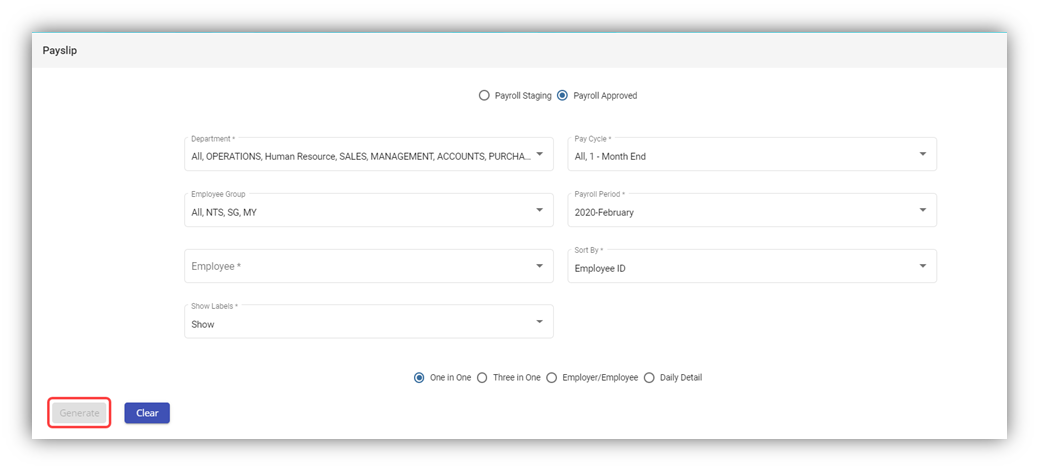
![](https://wiki.cuteinfocomm.com/uploads/images/gallery/2022-07/embedded-image-tjvacm9x.png)

**Note:** You can generate the pay slip of any employee in both the **Payroll in Staging** and **Payroll history** (Approved) stages.

2. On top of pay slip window, select any one of **Payroll in Staging** or **Payroll Approved**.
3. In the **Department** box, select a department from a drop-down list.

**Note**: If you want to select all the departments in the list, select the checkbox of the **ALL**.

4. In the **Pay Cycle** box, select a pay cycle from a drop-down list.

**Note**: If you want to select all the pay cycles in the list, select the checkbox of the **ALL**.

5. In the **Employee Group** box, select an employee group from a drop-down list.

**Note**: If you want to select all the employee groups in the list, select the checkbox of the **ALL**.

6. In the **Payroll Period** box, select a payroll period from a drop-down list.

 **Note**: If you want to select all the payroll periods in the list, select the checkbox of the **ALL**.

7. In the **Employee** box, select an employee from a drop-down list.

**Note**: If you want to select all the employees in the list, select the checkbox of the **ALL**.

8. If you want to generate the pay slip based on the **Employee ID** or **Employee Name**, select the respective option in the **Sort By** box.
9. If you want to show the labels, select **Show** otherwise select **Hide** from the **Show Labels** box.

**Note**: You can generate the pay slip in four type of formats.

10. Select the respective format in which you want to generate the pay slip, e.g. one in one, three in one
11. Click **Generate**. The pay slip will be generated and downloaded as a PDF file in the selected format, see below as an example.

[![image-1682096693397.png](https://wiki.cuteinfocomm.com/uploads/images/gallery/2023-04/scaled-1680-/image-1682096693397.png)](https://wiki.cuteinfocomm.com/uploads/images/gallery/2023-04/image-1682096693397.png)
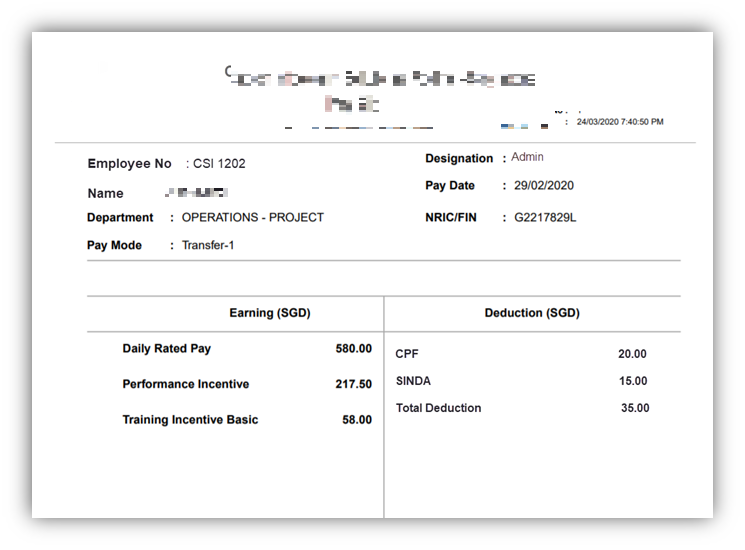
**Note**: If you are using the Epson Printer to print the generated pay slip, you need do set the printer settings. To know how to do setup, refer the document, “**Epson Printer Setup to Print a Pay Slip**”.

### Payroll Journal Report

The **Payroll Journal** tab in the **Reports** submenu used to generate and view the payroll journal report of the employee. The payroll journal summary report used to check the payroll process of the employee.

To generate and view the payroll journal summary report,

1. Click **Payroll Journal** in the **Reports,** the **Payroll Journal** page opens.
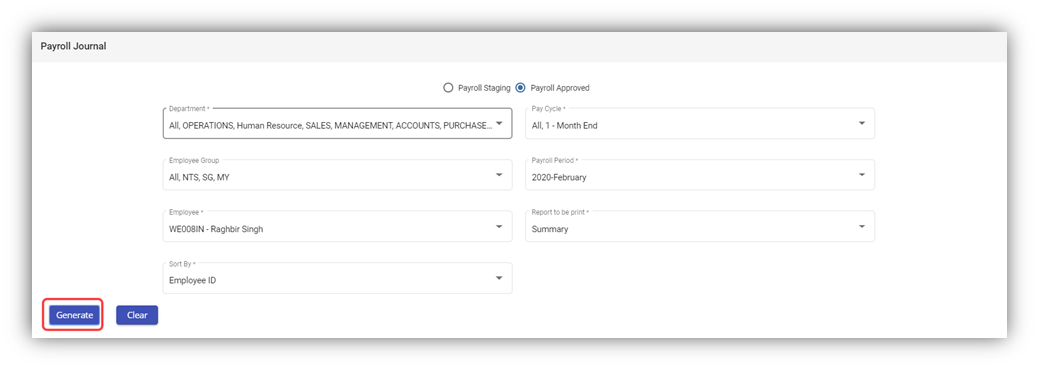
![](https://wiki.cuteinfocomm.com/uploads/images/gallery/2022-07/embedded-image-ev4aqvmu.png)

**Note:** You can generate the payroll journal for any employee in both the Payroll in Staging and Payroll Approved stages.

2. Select any one of **Payroll in Staging** or **Payroll Approved**.
3. In the **Department** box, select a department from a drop-down list.

**Note**: If you want to select all the departments in the list, select the checkbox of the **ALL**.

4. In the **Pay Cycle** box, select a pay cycle from a drop-down list.

**Note**: If you want to select all the pay cycles in the list, select the checkbox of the **ALL**.

5. In the **Employee Group** box, select an employee group from a drop-down list.

**Note**: If you want to select all the employee groups in the list, select the checkbox of the **ALL**.

6. In the **Payroll Period** box, select a payroll period from a drop-down list.

**Note**: If you want to select all the payroll periods in the list, select the checkbox of the **ALL**.

7. In the **Employee** box, select an employee from a drop-down list.

**Note**: If you want to select all the employees in the list, select the checkbox of the **ALL**.

8. In the **Report to be print** box, if you want to generate the payroll journal as a summary report, select **Summary** or if you want to generate the payroll journal as a detail report, select **Detail**.
9. If you want to generate the payroll journal summary report based on the **Employee ID** or **Employee Name**, select the respective option in the **Sort By**
10. Click **Generate**. The payroll journal report will be generated and downloaded as a PDF file. See below as an example. [![image-1682096755323.png](https://wiki.cuteinfocomm.com/uploads/images/gallery/2023-04/scaled-1680-/image-1682096755323.png)](https://wiki.cuteinfocomm.com/uploads/images/gallery/2023-04/image-1682096755323.png)
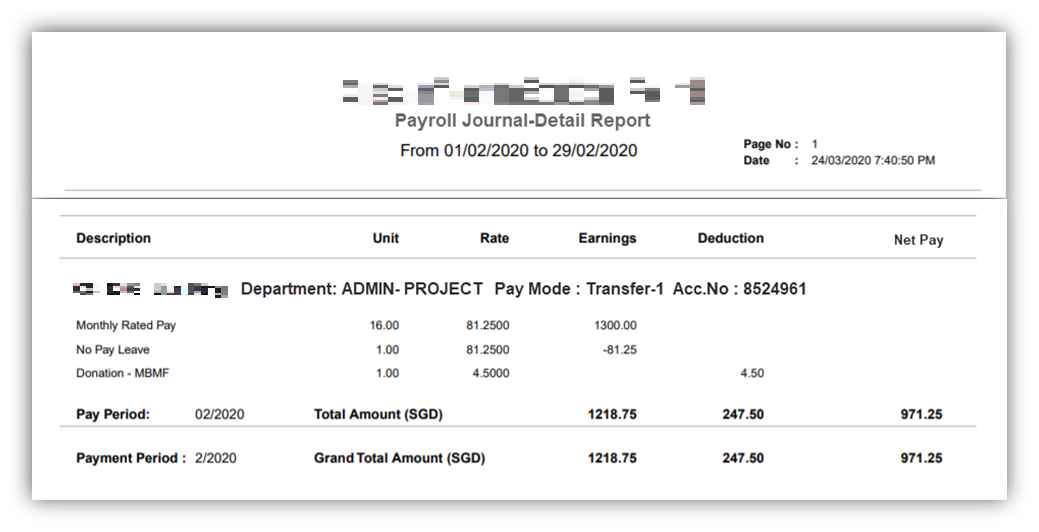
### Payroll Register Report

The **Payroll Register t**ab in the **Reports** submenu used to generate and view the payroll register report of the employee. The payroll register report shows the CPF detail of the local employee.

To generate and view the payroll register report,

1. Click **Payroll Register** in the **Reports,** the **Payroll Register** page opens.
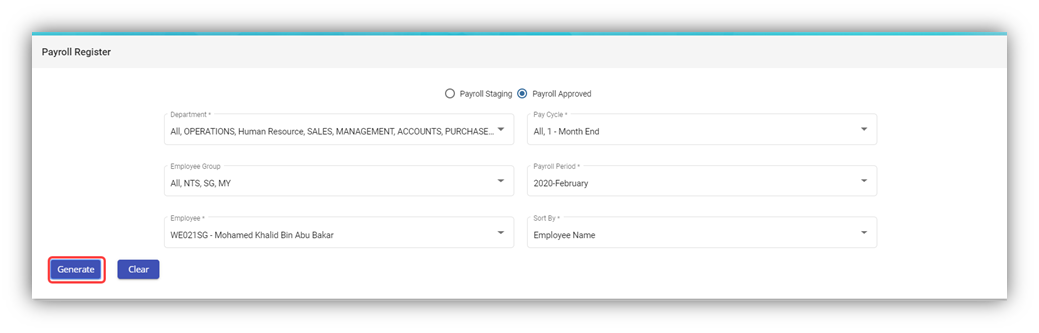
![](https://wiki.cuteinfocomm.com/uploads/images/gallery/2022-07/embedded-image-wttrulh1.png)

**Note:** You can generate the payroll register for any employee in both the Payroll in Staging and Payroll Approved stages.

2. Select any one of **Payroll in Staging** or **Payroll Approved**.
3. In the **Department** box, select a department from a drop-down list.

**Note**: If you want to select all the departments in the list, select the checkbox of the **ALL**.

4. In the **Pay Cycle** box, select a pay cycle from a drop-down list.

**Note**: If you want to select all the pay cycles in the list, select the checkbox of the **ALL**.

5. In the **Employee Group** box, select an employee group from a drop-down list.

**Note**: If you want to select all the employee groups in the list, select the checkbox of the **ALL**.

6. In the **Payroll Period** box, select a payroll period from a drop-down list.

**Note**: If you want to select all the payroll periods in the list, select the checkbox of the **ALL**.

7. In the **Employee** box, select an employee from a drop-down list.

**Note**: If you want to select all the employees in the list, select the checkbox of the **ALL**.

8. If you want to generate the payroll journal summary report based on the **Employee ID** or **Employee Name**, select the respective option in the **Sort By** box.
9. Click **Generate**. The payroll register report will be generated and downloaded as a PDF file. See below as an example. [![image-1682096802587.png](https://wiki.cuteinfocomm.com/uploads/images/gallery/2023-04/scaled-1680-/image-1682096802587.png)](https://wiki.cuteinfocomm.com/uploads/images/gallery/2023-04/image-1682096802587.png)
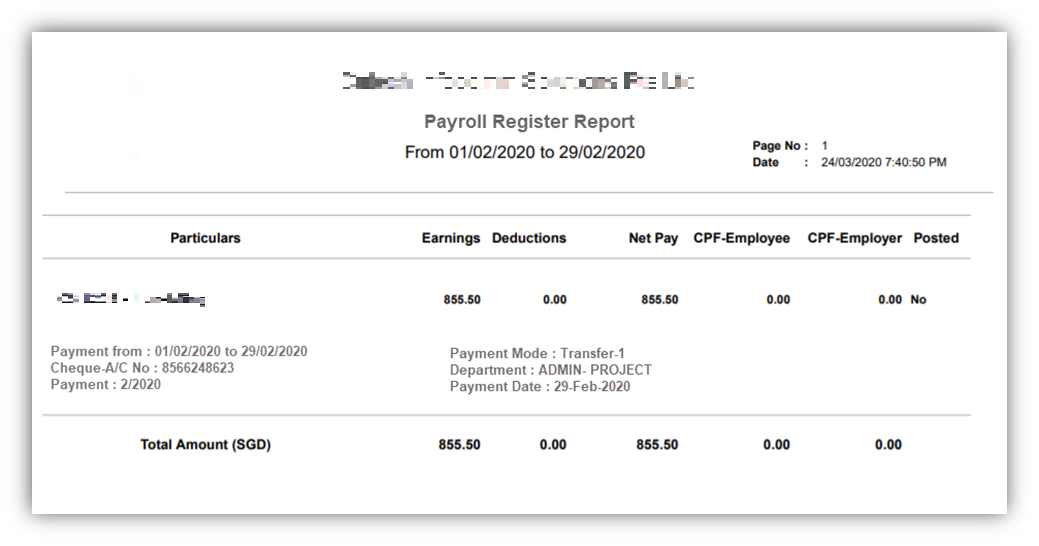
### Payroll Summary Report

The **Payroll Summary t**ab in the **Reports** submenu used to generate and view the payroll summary report of the employee. The payroll summary report shows the CPF detail of the local employee.

To generate and view the payroll summary report,

1. Click **Payroll Summary** in the **Reports,** the **Payroll Summary** page opens.
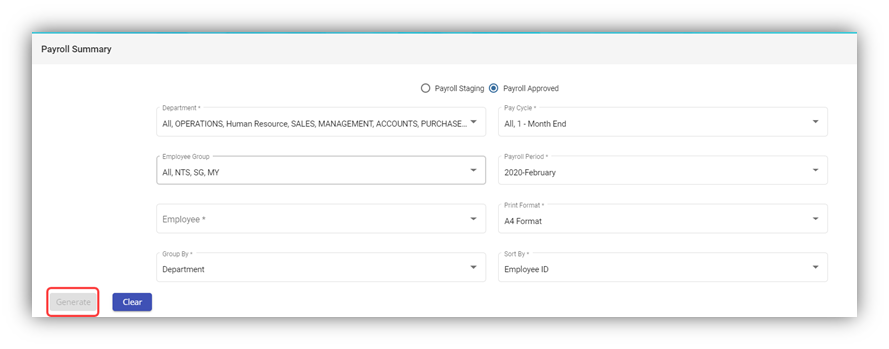
![](https://wiki.cuteinfocomm.com/uploads/images/gallery/2022-07/embedded-image-fi8qbllu.png)**Note:** You can generate the payroll summary for any employee in both the Payroll in Staging and Payroll Approved stages.

2. Select any one of **Payroll in Staging** or **Payroll Approved**.
3. In the **Department** box, select a department from a drop-down list.

**Note**: If you want to select all the departments in the list, select the checkbox of the **ALL**.

4. In the **Pay Cycle** box, select a pay cycle from a drop-down list.

**Note**: If you want to select all the pay cycles in the list, select the checkbox of the **ALL**.

5. In the **Employee Group** box, select an employee group from a drop-down list.

**Note**: If you want to select all the employee groups in the list, select the checkbox of the **ALL**.

6. In the **Payroll Period** box, select a payroll period from a drop-down list.

**Note**: If you want to select all the payroll periods in the list, select the checkbox of the **ALL**.

7. In the **Employee** box, select an employee from a drop-down list.

**Note**: If you want to select all the employees in the list, select the checkbox of the **ALL**.

8. In the **Print Format** box, select the print format from the given list.
9. In the **Group by** box, select the grouping mode of employees from the options such as **Department**, **Employee Group**, and **Pay Mode**.

**Note**: The grouping mode options such as **Pay Mode** and **Employee Group** are reflected from the **Employee** submenu.

10. If you want to generate the payroll journal summary report based on the **Employee ID** or **Employee Name**, select the respective option in the **Sort By** box.
11. Click **Generate**. The payroll summary report will be generated and downloaded as a PDF file. See below as an example. [![image-1682096860974.png](https://wiki.cuteinfocomm.com/uploads/images/gallery/2023-04/scaled-1680-/image-1682096860974.png)](https://wiki.cuteinfocomm.com/uploads/images/gallery/2023-04/image-1682096860974.png)
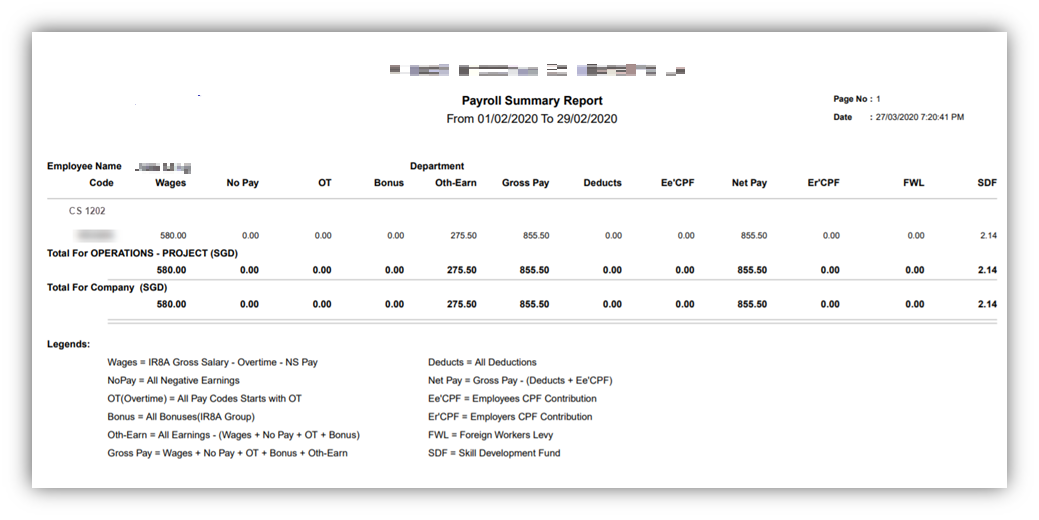
### Cheque Register Report

The **Cheque Register t**ab in the **Reports** submenu used to generate and view the cheque register report of the employee. The cheque register report shows the issued cheque detail of the employee.

To generate and view the cheque register report,

1. Click **Cheque Register** in the **Reports,** the **Cheque Register** page opens.
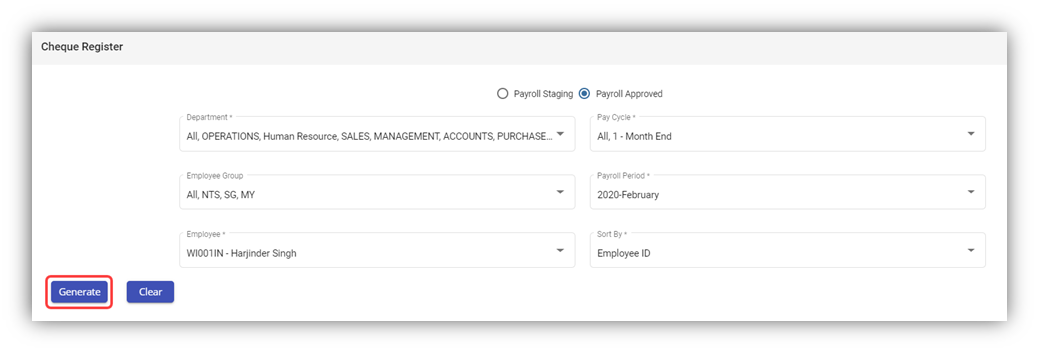
![](https://wiki.cuteinfocomm.com/uploads/images/gallery/2022-07/embedded-image-zng0xwmn.png)**Note:** You can generate the cheque register report for any employee in both the Payroll in Staging and Payroll Approved stages.

2. Select any one from **Payroll in Staging** or **Payroll Approved**.
3. In the **Department** box, select a department from a drop-down list.

**Note**: If you want to select all the departments in the list, select the checkbox of the **ALL**.

4. In the **Pay Cycle** box, select a pay cycle from a drop-down list.

**Note**: If you want to select all the pay cycles in the list, select the checkbox of the **ALL**.

5. In the **Employee Group** box, select an employee group from a drop-down list.

**Note**: If you want to select all the employee groups in the list, select the checkbox of the **ALL**.

6. In the **Payroll Period** box, select a payroll period from a drop-down list.

**Note**: If you want to select all the payroll periods in the list, select the checkbox of the **ALL**.

7. In the **Employee** box, select an employee from a drop-down list.

**Note**: If you want to select all the employees in the list, select the checkbox of the **ALL**.

8. If you want to generate the payroll journal summary report based on the **Employee ID** or **Employee Name**, select the respective option in the **Sort By** box.
9. Click **Generate**. The cheque register report will be generated and downloaded as a PDF file. See below as an example.

[![image-1682096933162.png](https://wiki.cuteinfocomm.com/uploads/images/gallery/2023-04/scaled-1680-/image-1682096933162.png)](https://wiki.cuteinfocomm.com/uploads/images/gallery/2023-04/image-1682096933162.png)
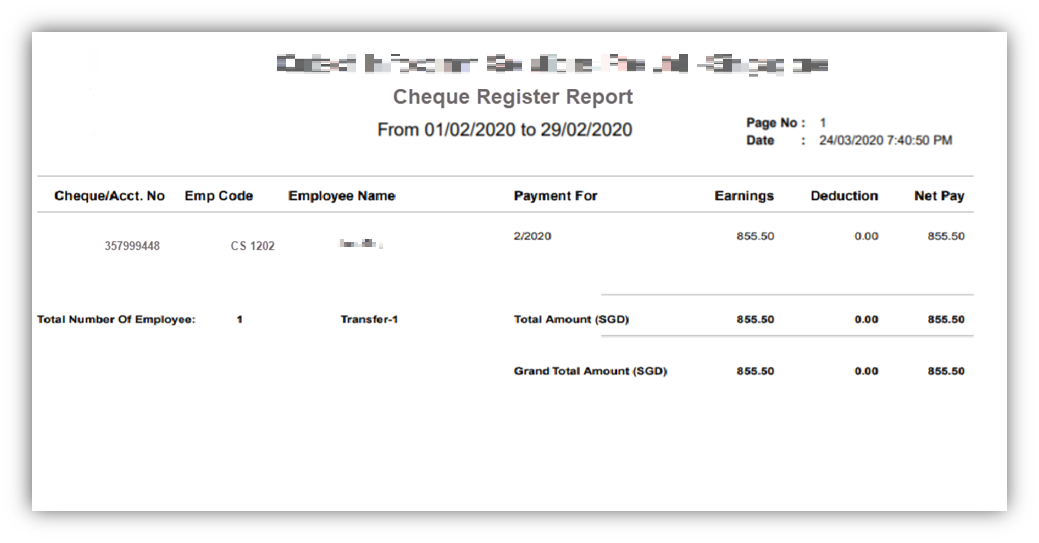
### Donation Report

The **Donation Report** tab in the **Reports** submenu used to generate and view the donation report of the employee. The donation report shows the amount deducted for donation given by the employee.

To generate and view the donation report,

1. Click **Donation Report** in the **Reports,** the **Donation Report** page opens.
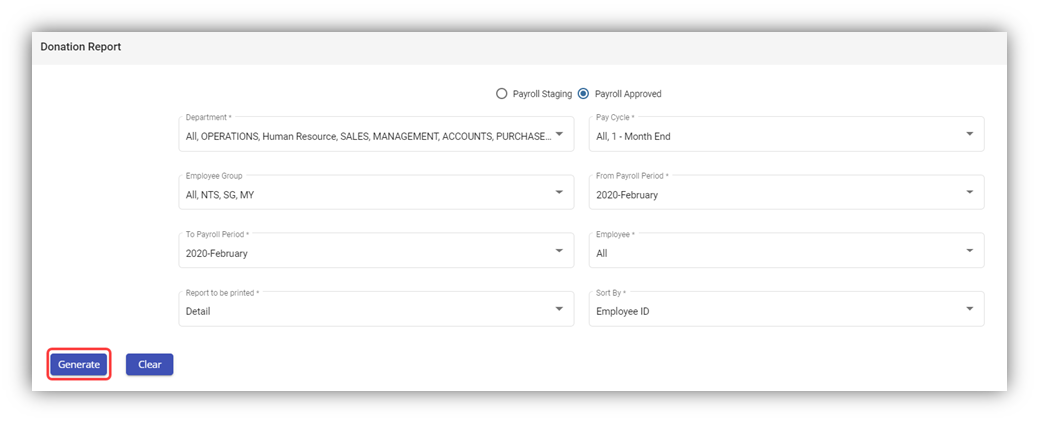
![](https://wiki.cuteinfocomm.com/uploads/images/gallery/2022-07/embedded-image-nxpspwbe.png)**Note:** You can generate the donation report for any employee in both the Payroll in Staging and Payroll Approved stages.

2. Select any one from **Payroll in Staging** or **Payroll Approved**.
3. In the **Department** box, select a department from a drop-down list.

**Note**: If you want to select all the departments in the list, select the checkbox of the **ALL**.

4. In the **Pay Cycle** box, select a pay cycle from a drop-down list.

**Note**: If you want to select all the pay cycles in the list, select the checkbox of the **ALL**.

5. In the **Employee Group** box, select an employee group from a drop-down list.

**Note**: If you want to select all the employee groups in the list, select the checkbox of the **ALL**.

6. In the **From** **Payroll Period** and **To Payroll Period** boxes, select the from and to payroll periods.
7. In the **Employee** box, select an employee from a drop-down list.

**Note**: If you want to select all the employees in the list, select the checkbox of the **ALL**.

8. In the **Report to be print** box, if you want to generate the donation report as a summary report, select **Summary** or if you want to generate the donation report as a detail report, select **Detail**.
9. If you want to generate the payroll journal summary report based on the **Employee ID** or **Employee Name**, select the respective option in the **Sort By** box.
10. Click **Generate**. The donation report will be generated and downloaded as a PDF file. See below as an example. [![image-1682096982419.png](https://wiki.cuteinfocomm.com/uploads/images/gallery/2023-04/scaled-1680-/image-1682096982419.png)](https://wiki.cuteinfocomm.com/uploads/images/gallery/2023-04/image-1682096982419.png)
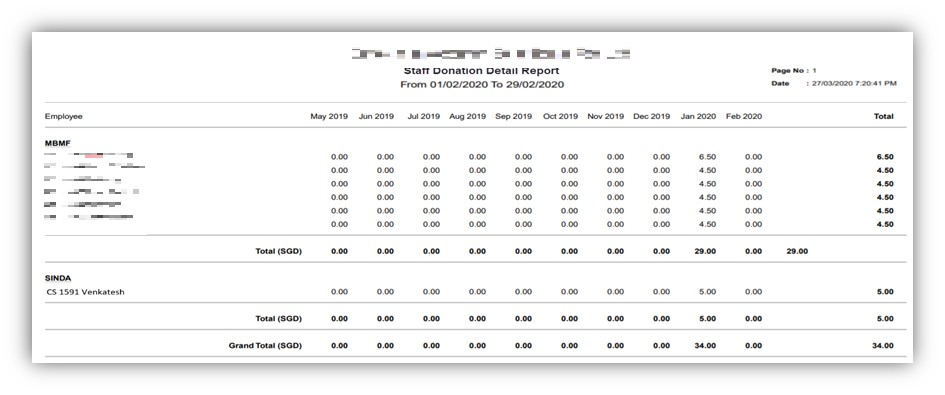
### Liabilities Report

The **Liabilities** tab in the **Reports** submenu used to generate and view the liabilities report of the employee. The liabilities report shows the details Skill Development Levy (SDL) paid by the company for the particular employee. To generate and view the liabilities report,

1. Click **Liabilities** in the **Reports,** the **Liabilities** page opens.
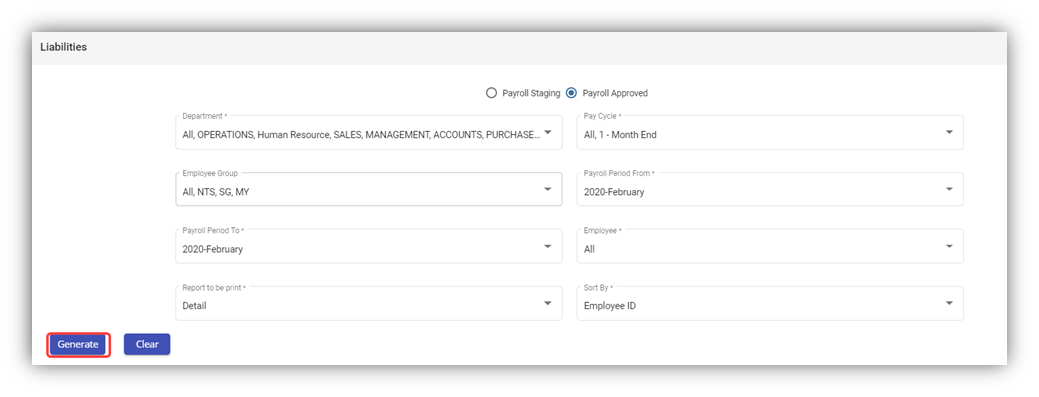
![](https://wiki.cuteinfocomm.com/uploads/images/gallery/2022-07/embedded-image-mqloqimj.png)**Note:** You can generate the liabilities report for any employee in both the Payroll in Staging and Payroll Approved stages.

2. Select any one from **Payroll in Staging** or **Payroll Approved**.
3. In the **Department** box, select a department from a drop-down list.

**Note**: If you want to select all the departments in the list, select the checkbox of the **ALL**.

4. In the **Pay Cycle** box, select a pay cycle from a drop-down list.

**Note**: If you want to select all the pay cycles in the list, select the checkbox of the **ALL**.

5. In the **Employee Group** box, select an employee group from a drop-down list.

**Note**: If you want to select all the employee groups in the list, select the checkbox of the **ALL**.

6. In the **Payroll Period** **From** and **Payroll Period** **To** boxes, select the from and to payroll periods.
7. In the **Employee** box, select an employee from a drop-down list.

**Note**: If you want to select all the employees in the list, select the checkbox of the **ALL**.

8. In the **Report to be print** box, if you want to generate the donation report as a summary report, select **Summary** or if you want to generate the donation report as a detail report, select **Detail**.
9. If you want to generate the payroll journal summary report based on the **Employee ID** or **Employee Name**, select the respective option in the **Sort By** box.
10. Click Generate. The liabilities report will be generated and downloaded as a PDF file. See below as an example.

[![image-1682100861122.png](https://wiki.cuteinfocomm.com/uploads/images/gallery/2023-04/scaled-1680-/image-1682100861122.png)](https://wiki.cuteinfocomm.com/uploads/images/gallery/2023-04/image-1682100861122.png)
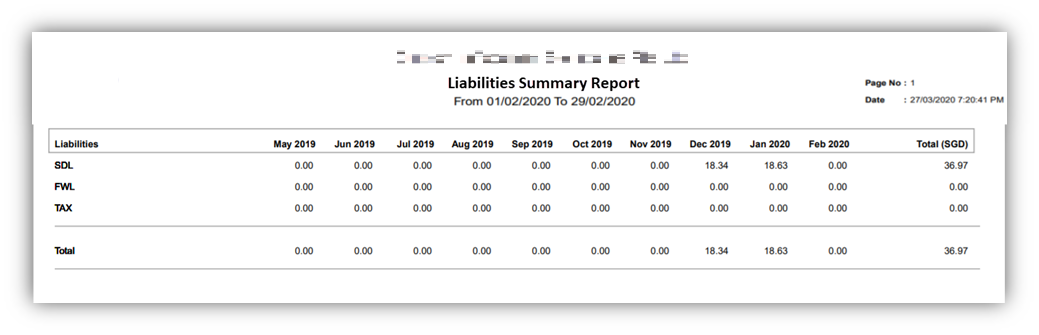
### Yearly Payroll Report

The Yearly Payroll Report tab in the Reports submenu used to generate and view the yearly payroll report of the employee. The yearly payroll report shows the details of the yearly payroll paid by the company for the particular employee.

To generate and view the yearly payroll report,

1. Click **Yearly Payroll Report** in the **Reports,** the **Yearly Payroll Report** page opens.
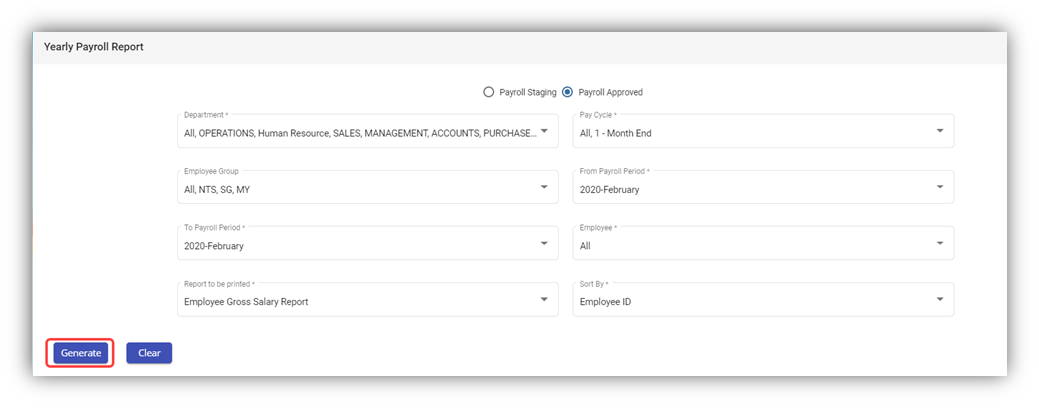
![](https://wiki.cuteinfocomm.com/uploads/images/gallery/2022-07/embedded-image-zgnnov1n.png)**Note:** You can generate the yearly payroll report for any employee in both the Payroll in Staging and Payroll Approved stages.

2. Select any one from **Payroll in Staging** or **Payroll Approved**.
3. In the **Department** box, select a department from a drop-down list.

**Note**: If you want to select all the departments in the list, select the checkbox of the **ALL**.

4. In the **Pay Cycle** box, select a pay cycle from a drop-down list.

**Note**: If you want to select all the pay cycles in the list, select the checkbox of the **ALL**.

5. In the **Employee Group** box, select an employee group from a drop-down list.

**Note**: If you want to select all the employee groups in the list, select the checkbox of the **ALL**.

6. In the **From** **Payroll Period** and **To** **Payroll Period** boxes, select the from and to payroll periods.
7. In the **Employee** box, select an employee from a drop-down list.

**Note**: If you want to select all the employees in the list, select the checkbox of the **ALL**.

8. In the **Report to be print** box, if you want to generate the donation report as a summary report, select **Summary** or if you want to generate the donation report as a detail report, select **Detail**.
9. If you want to generate the payroll journal summary report based on the **Employee ID** or **Employee Name**, select the respective option in the **Sort By** box.
10. Click **Generate**. The yearly payroll report will be generated and downloaded as a PDF file. See below as an example.

[![image-1682101066508.png](https://wiki.cuteinfocomm.com/uploads/images/gallery/2023-04/scaled-1680-/image-1682101066508.png)](https://wiki.cuteinfocomm.com/uploads/images/gallery/2023-04/image-1682101066508.png)
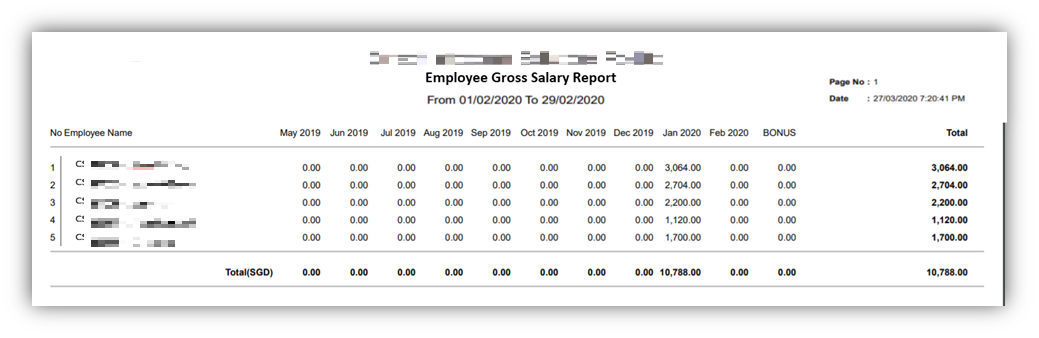
### Generate CPF Submission File

The **Generate CPF Submission File** tab in the **Reports** submenu used to generate and view the CPF submission file of the employee. The CPF submission file shows the details of the CPF submission file for the particular employee.

To generate and view the CPF submission file,

1. Click **Generate CPF Submission File** in the **Reports,** the **Generate CPF Submission File** page opens.
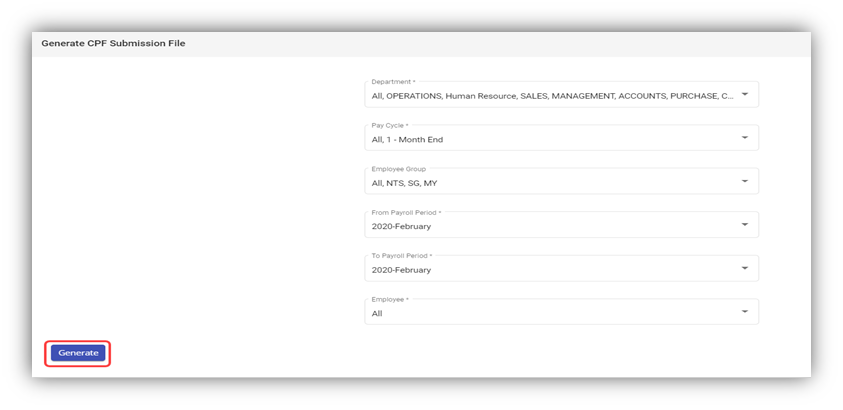
![](https://wiki.cuteinfocomm.com/uploads/images/gallery/2022-07/embedded-image-w5urxcj1.png)

2. In the **Department** box, select a department from a drop-down list.

**Note**: If you want to select all the departments in the list, select the checkbox of the **ALL**.

3. In the **Pay Cycle** box, select a pay cycle from a drop-down list.

**Note**: If you want to select all the pay cycles in the list, select the checkbox of the **ALL**.

4. In the **Employee Group** box, select an employee group from a drop-down list.

**Note**: If you want to select all the employee groups in the list, select the checkbox of the **ALL**.

5. In the **From** **Payroll Period** and **To** **Payroll Period** boxes, select the from and to payroll periods.
6. In the **Employee** box, select an employee from a drop-down list.

**Note**: If you want to select all the employees in the list, select the checkbox of the **ALL**.

7. Click **Generate**. The CPF submission file will be generated and downloaded as a .txt file. User can use it to upload to CPF portal.

Instead of going to the cpf portal, you can submit the data directly from cuteOffice.

[https://www.youtube.com/watch?v=HSdC2jrwPU4](https://www.youtube.com/watch?v=HSdC2jrwPU4 "Submit to CPF board from cuteOffice") Use the video to see how easily we can submit to CPF Board directly.

Upon generating the file, click on Submit CPF buttton.

[![image-1772108520303.png](https://wiki.cuteinfocomm.com/uploads/images/gallery/2026-02/scaled-1680-/image-1772108520303.png)](https://wiki.cuteinfocomm.com/uploads/images/gallery/2026-02/image-1772108520303.png)
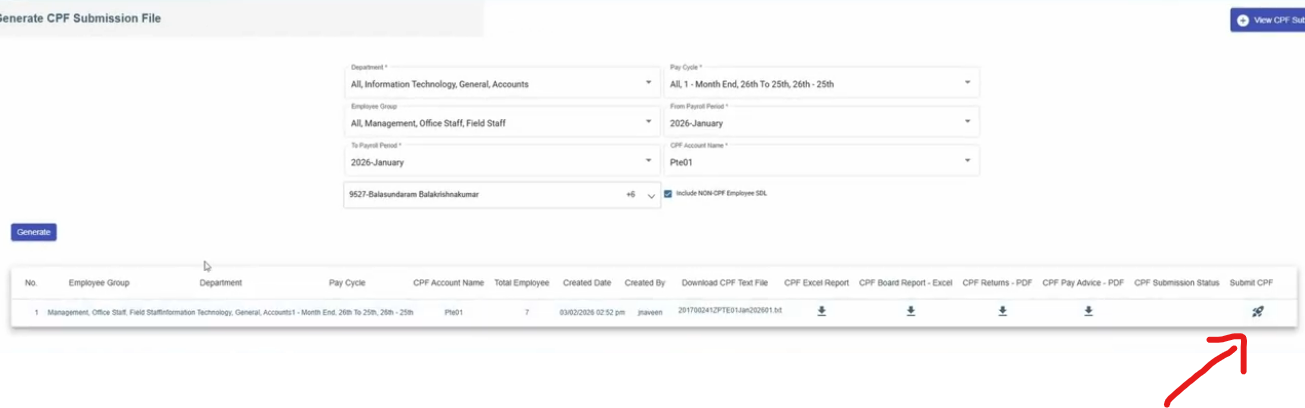
Select the second tab.

[![image-1772108575715.png](https://wiki.cuteinfocomm.com/uploads/images/gallery/2026-02/scaled-1680-/image-1772108575715.png)](https://wiki.cuteinfocomm.com/uploads/images/gallery/2026-02/image-1772108575715.png)
Select Direct Debit and choose Date of payment. Click acceptance for declaration and click proceed to submit.

[![image-1772108589443.png](https://wiki.cuteinfocomm.com/uploads/images/gallery/2026-02/scaled-1680-/image-1772108589443.png)](https://wiki.cuteinfocomm.com/uploads/images/gallery/2026-02/image-1772108589443.png)
Login with Singpass.

[![image-1772108619936.png](https://wiki.cuteinfocomm.com/uploads/images/gallery/2026-02/scaled-1680-/image-1772108619936.png)](https://wiki.cuteinfocomm.com/uploads/images/gallery/2026-02/image-1772108619936.png)
Allow to submit from cuteOffice for your behalf.

[![image-1772108641558.png](https://wiki.cuteinfocomm.com/uploads/images/gallery/2026-02/scaled-1680-/image-1772108641558.png)](https://wiki.cuteinfocomm.com/uploads/images/gallery/2026-02/image-1772108641558.png)
Status will be displayed, Click Ok.

[![image-1772108677416.png](https://wiki.cuteinfocomm.com/uploads/images/gallery/2026-02/scaled-1680-/image-1772108677416.png)](https://wiki.cuteinfocomm.com/uploads/images/gallery/2026-02/image-1772108677416.png)
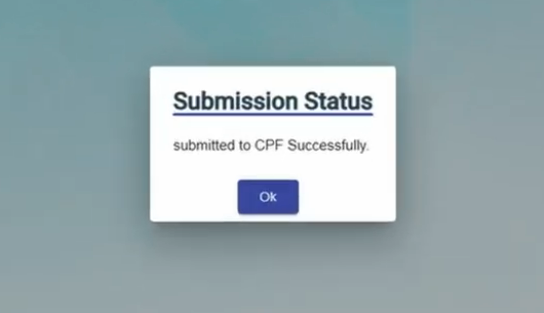
The submission status is shown for reference. You will receive the email confirmation from CPF board.

[![image-1772108692281.png](https://wiki.cuteinfocomm.com/uploads/images/gallery/2026-02/scaled-1680-/image-1772108692281.png)](https://wiki.cuteinfocomm.com/uploads/images/gallery/2026-02/image-1772108692281.png)
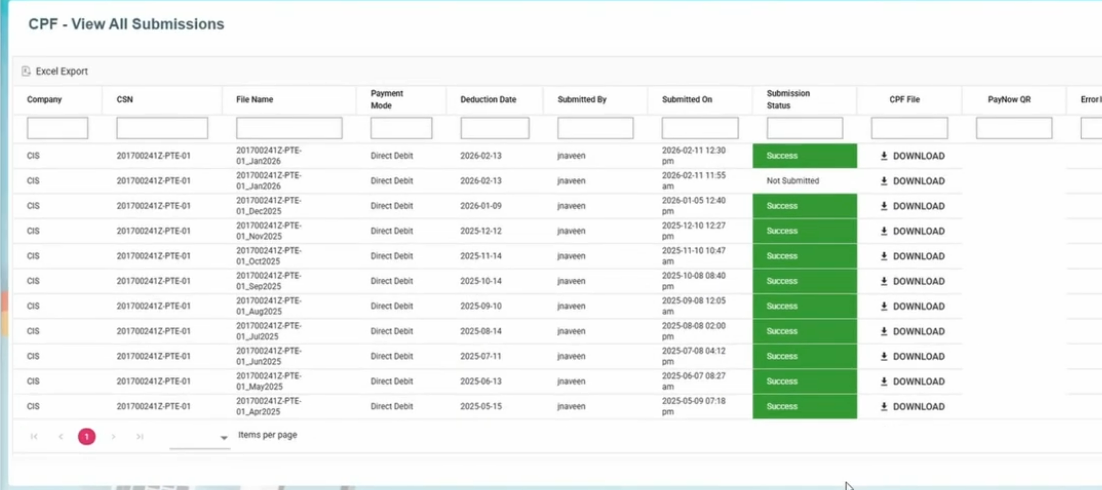
Alternatively, if you want to submit in the CPF portal, below option can be chosen.

[![image-1730519612176.png](https://wiki.cuteinfocomm.com/uploads/images/gallery/2024-11/scaled-1680-/image-1730519612176.png)](https://wiki.cuteinfocomm.com/uploads/images/gallery/2024-11/image-1730519612176.png)
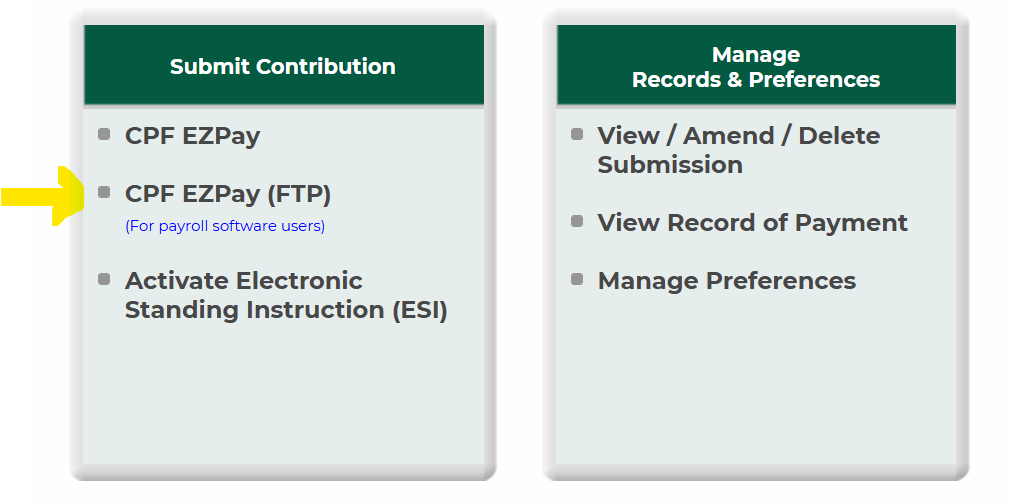
[![image-1730519646966.png](https://wiki.cuteinfocomm.com/uploads/images/gallery/2024-11/scaled-1680-/image-1730519646966.png)](https://wiki.cuteinfocomm.com/uploads/images/gallery/2024-11/image-1730519646966.png)
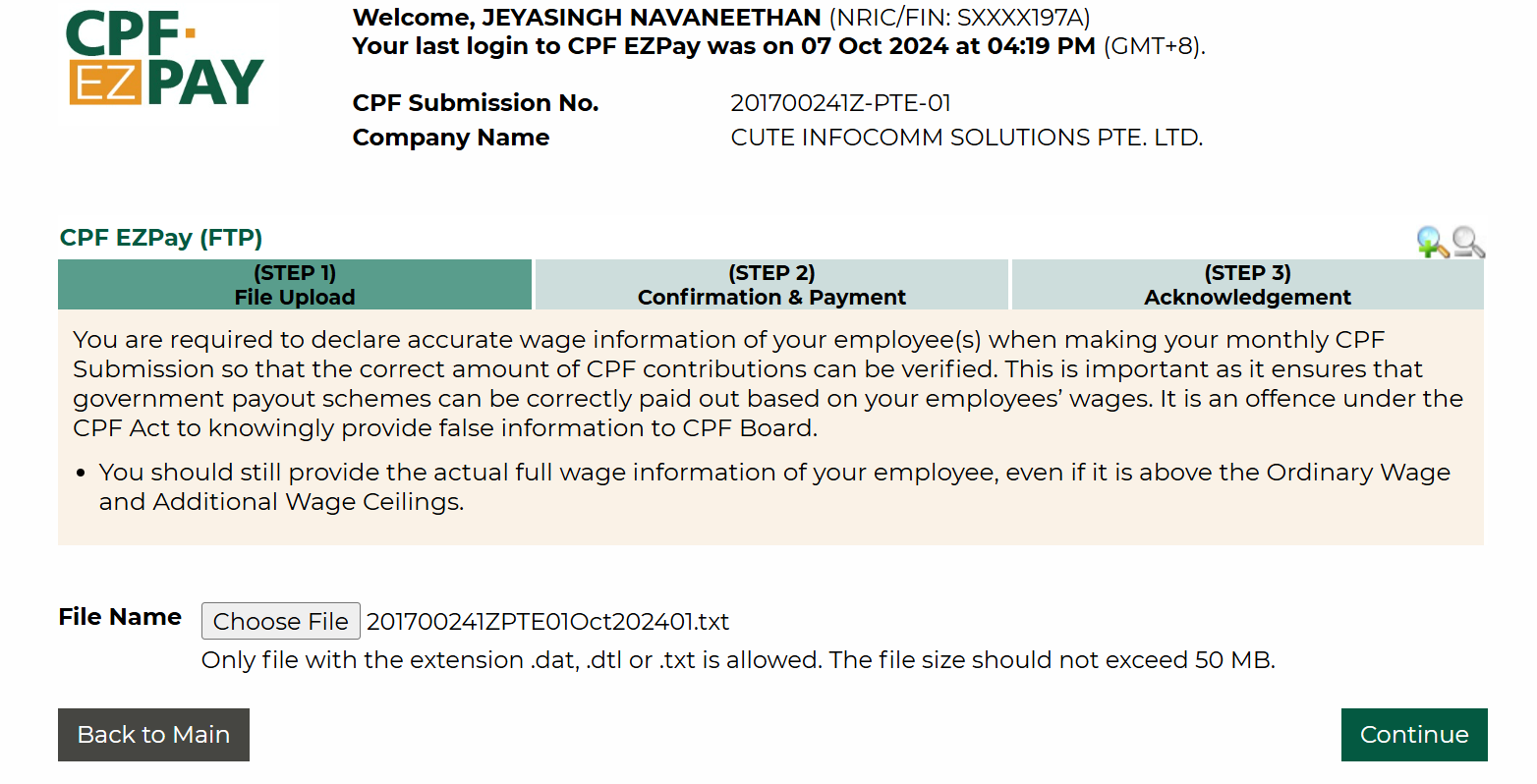
In the next screen, select the date of deduction and select method of payment and proceed.

[![image-1730519784321.png](https://wiki.cuteinfocomm.com/uploads/images/gallery/2024-11/scaled-1680-/image-1730519784321.png)](https://wiki.cuteinfocomm.com/uploads/images/gallery/2024-11/image-1730519784321.png)
[![image-1730519850252.png](https://wiki.cuteinfocomm.com/uploads/images/gallery/2024-11/scaled-1680-/image-1730519850252.png)](https://wiki.cuteinfocomm.com/uploads/images/gallery/2024-11/image-1730519850252.png)
Download and keep the acknowledge slip if required.

cuteOffice has "<span data-teams="true">One Stop Payroll" to submit OED , CPF and AIS submission. </span>

<span data-teams="true">The permission for AIS submission is "payroll - &gt; aisSubmission"  
</span>

### Generate General Interbank Recurring Order (GIRO) Bank File

The **Generate GIRO Bank File** tab in the **Reports** submenu used to generate and view the GIRO bank file of the employee. The GIRO is used to make monthly payment to the billing organization (BO) from your account directly. The GIRO bank file shows the details of the GIRO.

Check the youTube video link for same details

[https://youtu.be/kz7YNF3nR\_M](https://youtu.be/kz7YNF3nR_M "How to upload a bank Giro file from DBS")

To generate and view the GIRO bank file,

1. Click **Generate GIRO Bank File** in the **Reports,** the **Generate GIRO Bank File** page opens.

[![image-1657407137538.png](https://wiki.cuteinfocomm.com/uploads/images/gallery/2022-07/scaled-1680-/image-1657407137538.png)](https://wiki.cuteinfocomm.com/uploads/images/gallery/2022-07/image-1657407137538.png)
2. In the **Department** box, select a department from a drop-down list.

**Note**: If you want to select all the departments in the list, select the checkbox of the **ALL**.

3. In the **Pay Cycle** box, select a pay cycle from a drop-down list.

**Note**: If you want to select all the pay cycles in the list, select the checkbox of the **ALL**.

4. In the **Employee Group** box, select an employee group from a drop-down list.

**Note**: If you want to select all the employee groups in the list, select the checkbox of the **ALL**.

5. In the **Payroll Period** box, select the payroll period.
6. In the **Origin Bank** box, select the origin bank from the drop-down list.
7. In the **Employee** box, select an employee from a drop-down list.

**Note**: If you want to select all the employees in the list, select the checkbox of the **ALL**.

8. Click **Generate**. The generate GIRO bank file will be generated and downloaded as a .txt file. User can upload to bank portal.

**Note:** For DBS bank, when uploading GIRO bank file, kindly ensure you have selected the correct format in IDEAL as “New Interbank Giro Format” in DBS file upload portal.

- - - - - Upload the GIRO bank file
                - Choose Payment Type as Payroll
                - Select Payroll - New Inter Bank GIRO
                - Approval Option
                - Amend Payment date
                - Choose either confidential file or Test File
                - Click confirm upload
![](https://wiki.cuteinfocomm.com/uploads/images/gallery/2022-07/embedded-image-isq5b6ao.png)

#### **Giro Bank file submission in OCBC Portal**

##### Generate GIRO Bank file 

- Click **GIRO Bank** in the **Reports,** the **Generate GIRO Bank File** page opens.
- In the clearing method field, choose either FAST or GIRO method.
- If you choose FAST, the value date change to the date of generating GIRO bank file.
- Click **Generate &amp; Download GIRO Bank File**. The GIRO bank file generated and downloaded as a .txt file. User can upload to OCBC portal.

![](https://wiki.cuteinfocomm.com/uploads/images/gallery/2024-07/embedded-image-zhqthnhk.png)

##### File Submission in OCBC Portal

- Click Transaction on the header
- Select Upload file
- Click file format
![](https://wiki.cuteinfocomm.com/uploads/images/gallery/2024-07/embedded-image-ej7h2urw.png)

- Select file format as **GIROFASTWITHINV**

[![image-1720423810782.png](https://wiki.cuteinfocomm.com/uploads/images/gallery/2024-07/scaled-1680-/image-1720423810782.png)](https://wiki.cuteinfocomm.com/uploads/images/gallery/2024-07/image-1720423810782.png)
- Click upload and check the file upload status for uploaded successfully.

Note: If the upload file failed, check the error message and rectify it.

#### **Giro Bank file submission in UOB Portal**

##### File Submission in UOB Portal

- Click “Pay &amp; Transfer”
- Select Upload bulk file
- Proceed to click on “Upload New Bulk Files”
- Click “file type”
- Select “Fast/GIRO Payroll (Employee)” as the file type
- Upload GIRO bank text file generated via payroll's GIRO Bank
- Click submit and check the file upload status for uploaded successfully.

### Generate GIRO Report

CuteOffice payroll allows user to view two GIRO reports before posting GIRO file to the bank: GIRO payment checklist, and GIRO payment summary report.

To generate above reports,

1. Click **GIRO Report** in the **Reports,** the **GIRO report** page opens,[![image-1657568315695.png](https://wiki.cuteinfocomm.com/uploads/images/gallery/2022-07/scaled-1680-/image-1657568315695.png)](https://wiki.cuteinfocomm.com/uploads/images/gallery/2022-07/image-1657568315695.png)
2. Select report type
3. Select data source
4. Select origin bank
5. Select payroll period
6. Select sort by method
7. Click[![image-1657568677505.png](https://wiki.cuteinfocomm.com/uploads/images/gallery/2022-07/scaled-1680-/image-1657568677505.png) (](https://wiki.cuteinfocomm.com/uploads/images/gallery/2022-07/image-1657568677505.png)Generate Report Icon), the selected report type will be downloaded.

### AIS Submission

The cuteOffice payroll system allows the generation of IR8A file and allow employers to submit the data to IRAS.

Before submitting to IRAS, please make sure your company is registered for Auto inclusion scheme, otherwise the submission cant be done. ([https://www.iras.gov.sg/taxes/individual-income-tax/employers/auto-inclusion-scheme-(ais)-for-employment-income/join-the-auto-inclusion-scheme-(ais)-for-employment-income](https://www.iras.gov.sg/taxes/individual-income-tax/employers/auto-inclusion-scheme-(ais)-for-employment-income/join-the-auto-inclusion-scheme-(ais)-for-employment-income "IRAS Auto inclusion"))

[https://www.youtube.com/watch?v=iTrSy1L8INI](https://www.youtube.com/watch?v=iTrSy1L8INI "Submit to IRAS AIS from cuteOffice") Follow the video for a quick guide on the submission.

Enable the permission "p<span data-teams="true">ayroll - &gt; aisSubmission" against the role to view the menu.</span>

<span data-teams="true">The below menu will be available</span>

[![image-1769500323228.png](https://wiki.cuteinfocomm.com/uploads/images/gallery/2026-01/scaled-1680-/image-1769500323228.png) ](https://wiki.cuteinfocomm.com/uploads/images/gallery/2026-01/image-1769500323228.png)

[![image-1769500347610.png](https://wiki.cuteinfocomm.com/uploads/images/gallery/2026-01/scaled-1680-/image-1769500347610.png)](https://wiki.cuteinfocomm.com/uploads/images/gallery/2026-01/image-1769500347610.png)
To generate IR8A

1. Click **Generate AIS - IRAS** in the **Others,** the **Generate AIS Submissions File** page opens.

[![image-1769500492701.png](https://wiki.cuteinfocomm.com/uploads/images/gallery/2026-01/scaled-1680-/image-1769500492701.png)](https://wiki.cuteinfocomm.com/uploads/images/gallery/2026-01/image-1769500492701.png)
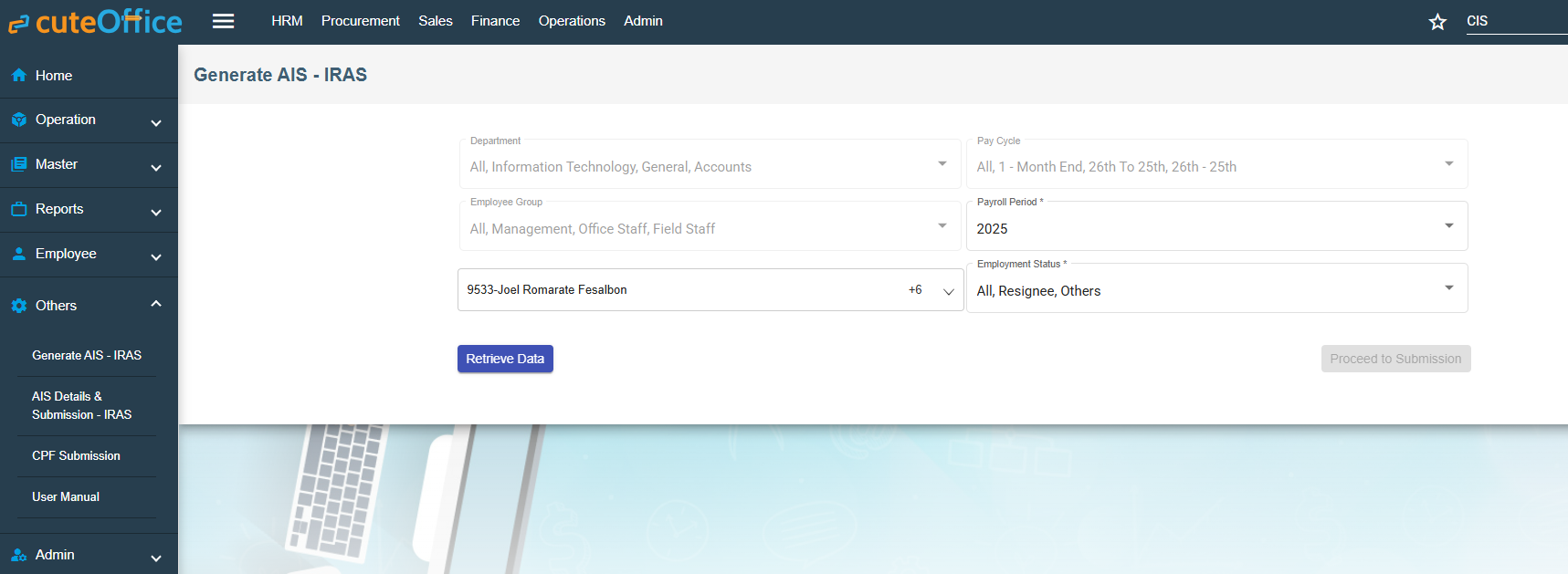
2. All the **Department** and **Pay Cycle** will be selected.
3. In the **Employee** box, select all employees from a drop-down list. The list is populated based on the last dropdown of employment status.
4. Click Retrieve Data. The below table will be shown. [![image-1769500742435.png](https://wiki.cuteinfocomm.com/uploads/images/gallery/2026-01/scaled-1680-/image-1769500742435.png)](https://wiki.cuteinfocomm.com/uploads/images/gallery/2026-01/image-1769500742435.png)
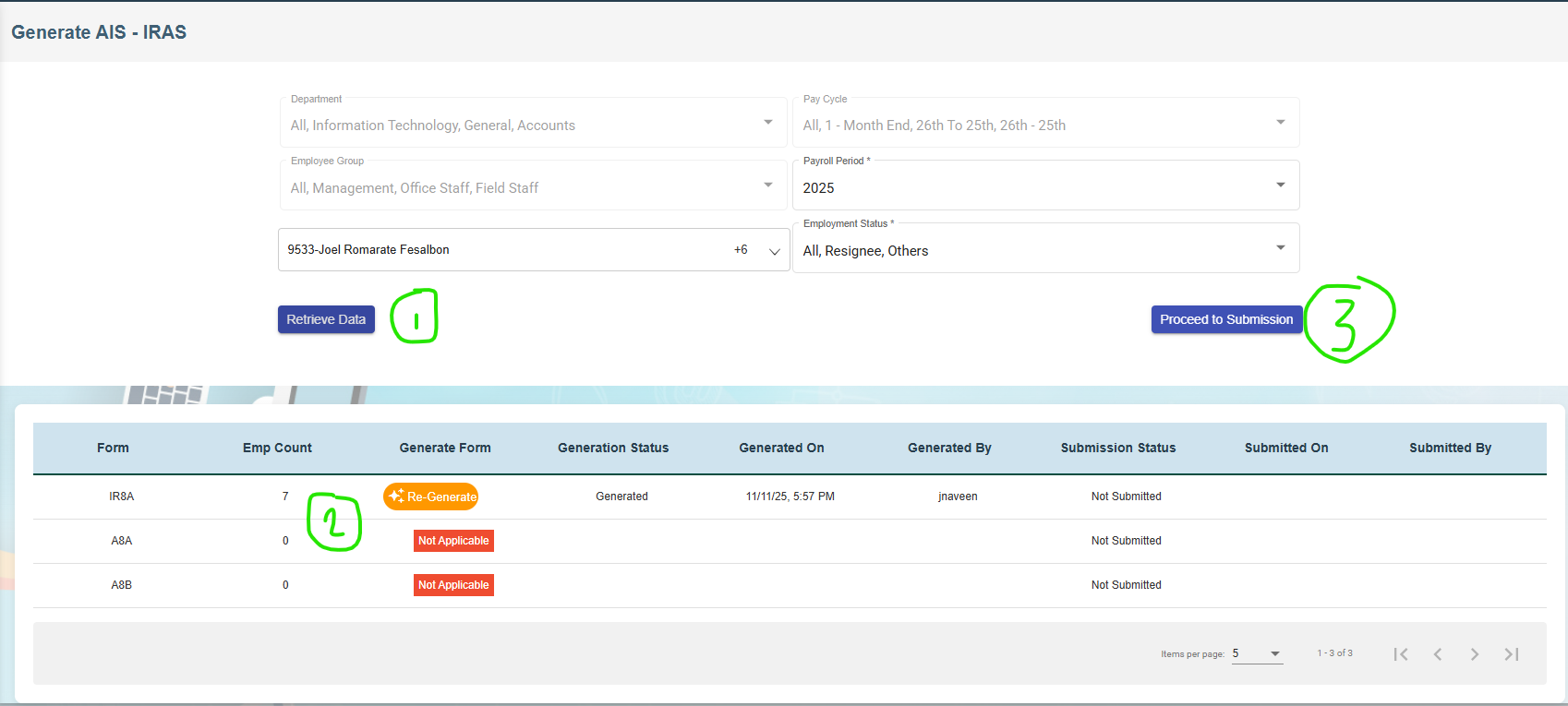
5. In the **Form Type** IA8A click Generate. If already generated earlier, click Regenerate.
6. Click **Generate**. The success message will appear.
7. Click **Proceed to Submission** button.

[![image-1769500907859.png](https://wiki.cuteinfocomm.com/uploads/images/gallery/2026-01/scaled-1680-/image-1769500907859.png)](https://wiki.cuteinfocomm.com/uploads/images/gallery/2026-01/image-1769500907859.png)

11. Click [![image-1657255085239.png](https://wiki.cuteinfocomm.com/uploads/images/gallery/2022-07/scaled-1680-/image-1657255085239.png) <span style="color: #000000;">(Print </span>](https://wiki.cuteinfocomm.com/uploads/images/gallery/2022-07/image-1657255085239.png)<span style="color: #000000;">i</span>con) to generate the IR8A form for each employee to download if required.
12. Before approving, the data can be edited if required.
13. [Select all employees and click Approve submission button. ![image-1769501135579.png](https://wiki.cuteinfocomm.com/uploads/images/gallery/2026-01/scaled-1680-/image-1769501135579.png)](https://wiki.cuteinfocomm.com/uploads/images/gallery/2026-01/image-1769501135579.png)

14. Once approved the summary will be shown and ready for submission.
15. [![image-1769502368420.png](https://wiki.cuteinfocomm.com/uploads/images/gallery/2026-01/scaled-1680-/image-1769502368420.png)](https://wiki.cuteinfocomm.com/uploads/images/gallery/2026-01/image-1769502368420.png)

16. Click Proceed to IRAS - AIS Submission and authenticate using CorpPass.
17. [![image-1769502431001.png](https://wiki.cuteinfocomm.com/uploads/images/gallery/2026-01/scaled-1680-/image-1769502431001.png)](https://wiki.cuteinfocomm.com/uploads/images/gallery/2026-01/image-1769502431001.png)
18. Click Allow to confirm to submit the data to IRAS.
19. The data successfully submitted message will appear.
20. The submitted data can always be checked and verified. [![image-1769502607159.png](https://wiki.cuteinfocomm.com/uploads/images/gallery/2026-01/scaled-1680-/image-1769502607159.png)](https://wiki.cuteinfocomm.com/uploads/images/gallery/2026-01/image-1769502607159.png)

Note: If there is a prompt asking to enter Authorised person, ask the administrator to enter the authorised person details in Company-&gt;Payroll tab.

[![image-1770378469101.jpeg](https://wiki.cuteinfocomm.com/uploads/images/gallery/2026-02/scaled-1680-/image-1770378469101.jpeg)](https://wiki.cuteinfocomm.com/uploads/images/gallery/2026-02/image-1770378469101.jpeg)

Note : To import IRAS (manually maintained), enable global settings "enableIRASImport".

Any revision and amendment submission, the below document contains the steps to follow.

[quick-guide-on-making-ais-amendments-at-mytax-portal-(online-application).pdf](https://www.iras.gov.sg/media/docs/default-source/uploadedfiles/pdf/quick-guide-on-making-ais-amendments-at-mytax-portal-(online-application).pdf?sfvrsn=cbdfa153_14)

# Expense Claims

Expense Claims