Finance
- Masters & Setup Company in Finance Module
- Voucher Entry
- Voucher Staging Entries
- Integration Staging
- Monthly Reports
- Customer Reports
- Supplier Reports
- Tax Reports
Masters & Setup Company in Finance Module
cuteOffice finance module helps accounts team to manage all activities related to the corporate finance effectively.
The key functionalities of the finance module are:
- Masters
- Voucher Entry
- Voucher Staging Entries
- Integration Staging
- Monthly Reports
- Customer Reports
- Supplier Reports
- Tax Reports
- Link Account Setup
Finance module greatly helps to manage financial data. The subsequent reports can be generated automatically without any manual intervention.
Click Finance tab in cuteOffice system, below is the screenshot of finance module home page.
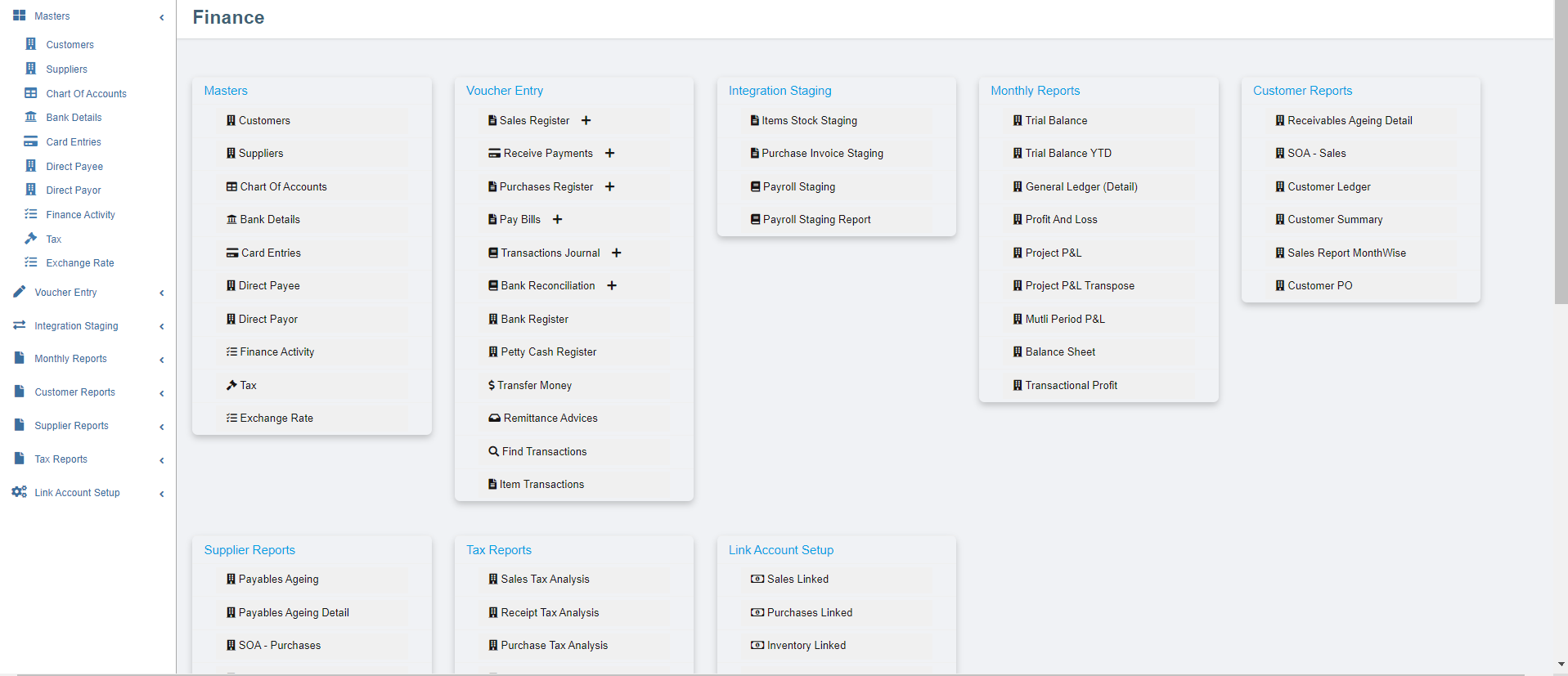
Finance Module Prerequisites
The following set of information is required for the implementation of the Finance Module. The information could be provided in the form of Excel for upload to the system.
Setup a financial year
Before start using the finance module, the company needs to be configured for a financial year so that the users can start to use the system. The administrator of cuteOffice can configure the financial year details of the company in Admin menu-Company submenu.

- Click Company in the Admin menu, the admin companies (holding companies or any affiliate companies registered in system will show,

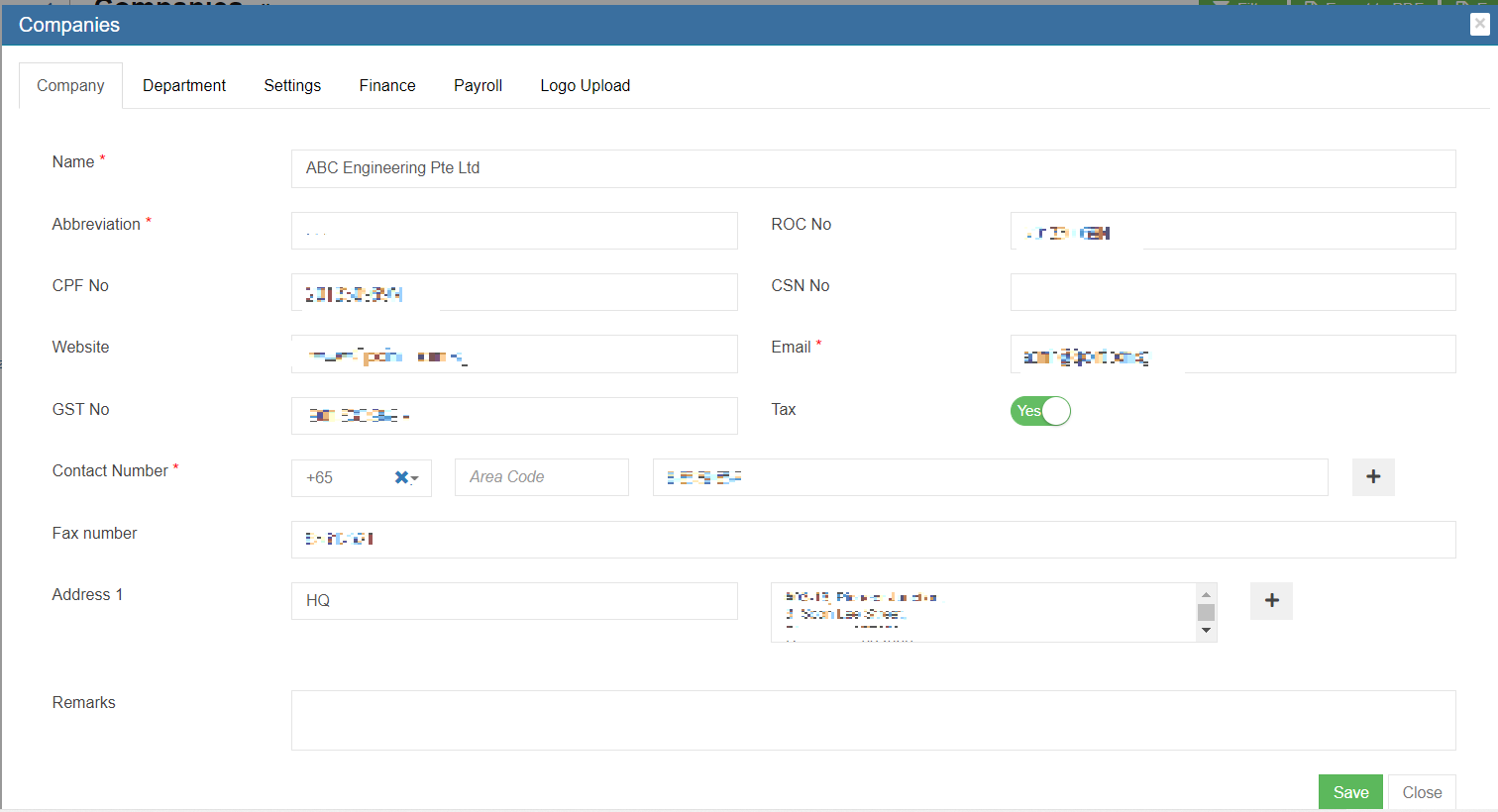
- Select the company and click
 edit button to open the company detail page as below,
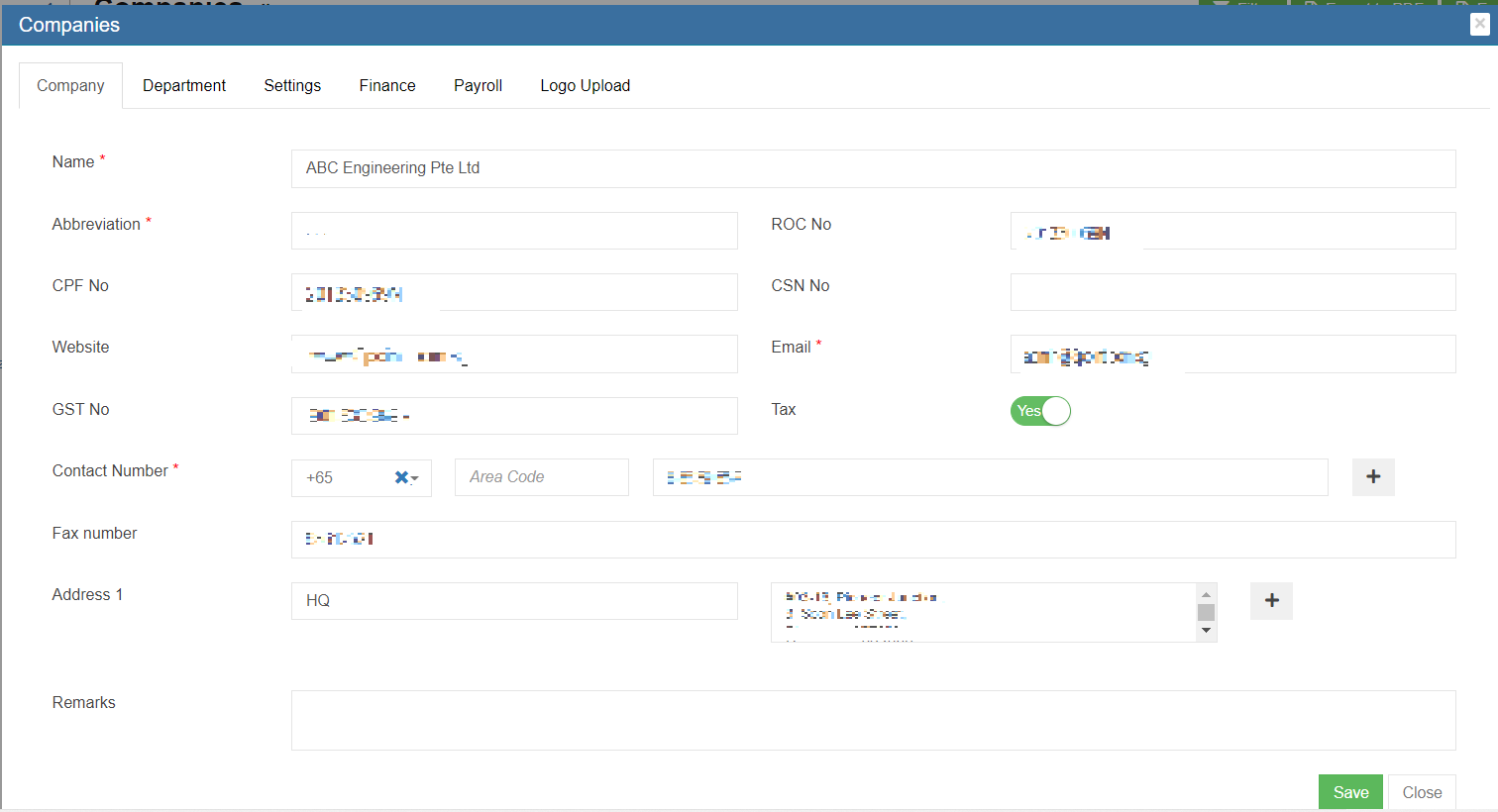
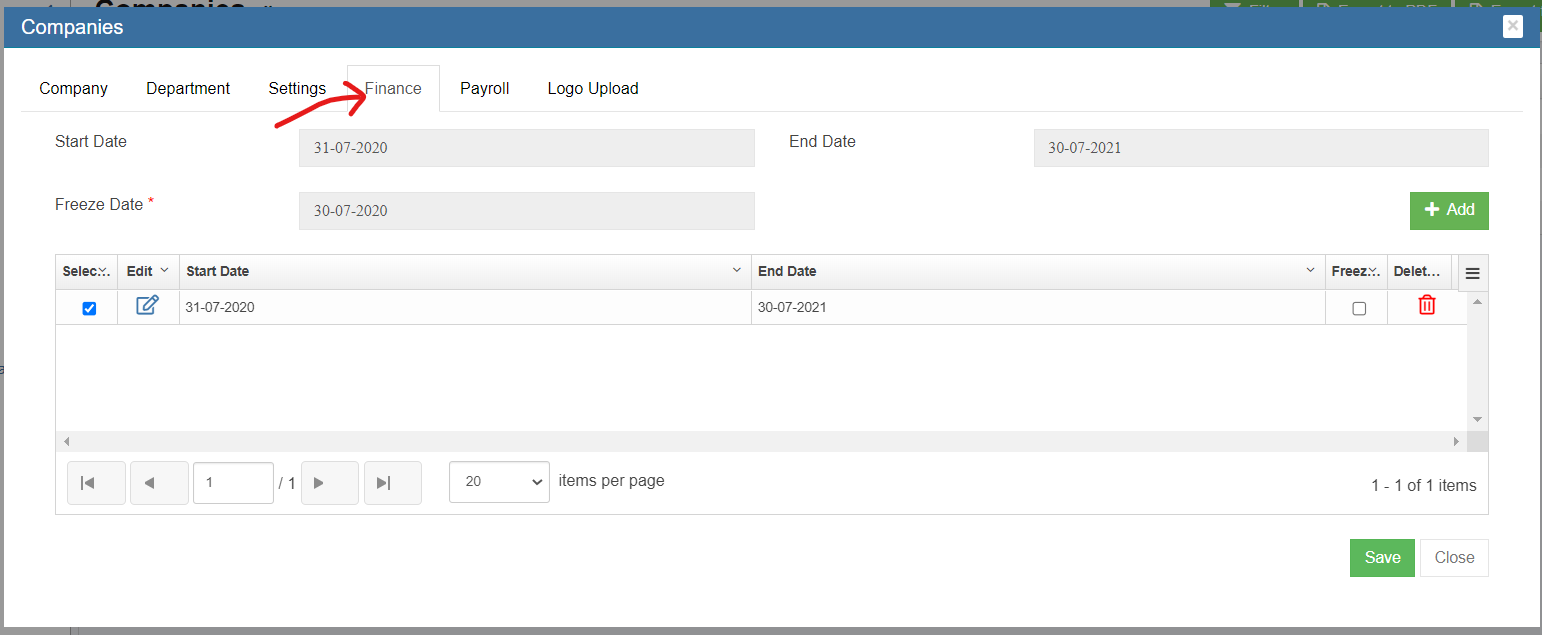
- Navigate to the Finance tab. Note: When there is no financial year setup currently, the list shows no record.
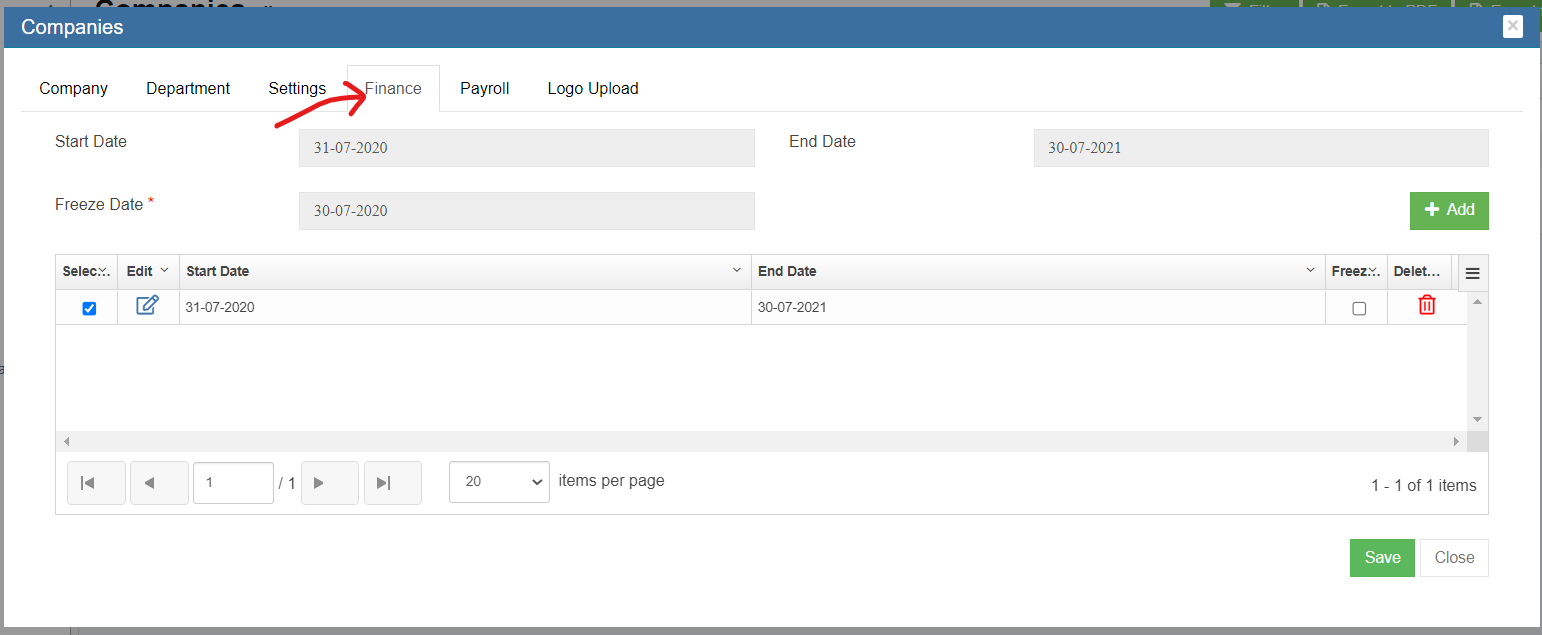
- To add a new financial year, Click
 to create a new financial year. The Add Financial Year window opens,
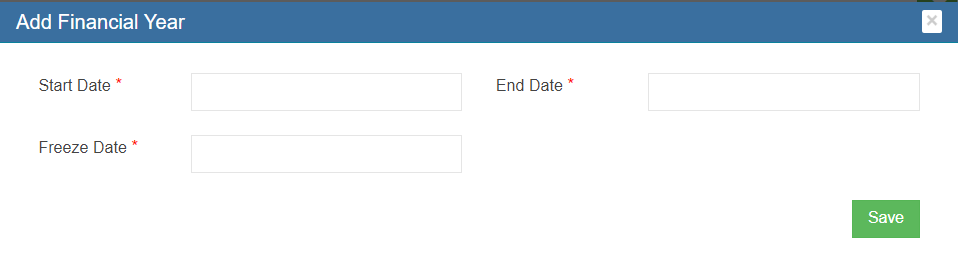
- Enter the start date, end date and freeze date of the financial year. Note: With this Freeze date setup, end users will not be able to do any transaction before this specified date.
- Click Save. The financial year data will be saved.



Letterhead Upload
To view letter head in the sales invoice report, the below setting has to configured.
- Go to Admin and Click Company
- Click Logo Upload. Choose Letter Pad in the image type.
- Click choose file and upload the company letter head.

- Go to company settings and click add
- Enter the name as " financeSalesInvoiceReportFormat".

- Enter the value as "SALESINVOICEFORMAT3"
- Click save to save the settings
- Click add and enter name as " financeSalesInvoiceReportStartPosition"
- Enter value starting from 20 to adjust the Invoice header in the report
- Click save to save the position of the "Invoice"

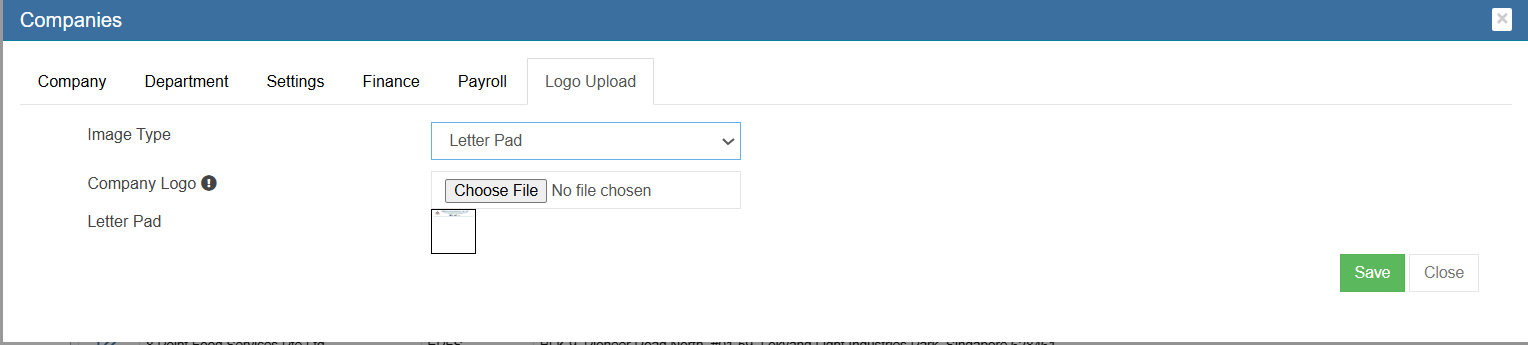
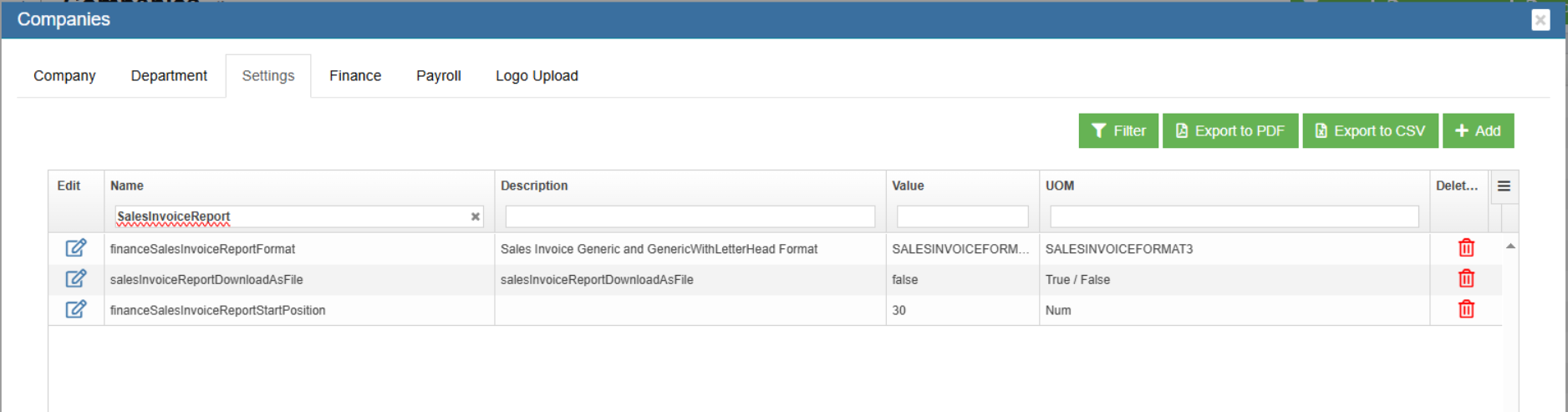

Chart of Accounts
This file will represent the Chart of Accounts that would be used in the Finance Module. The file would also contain the Opening Balance that needs to be considered for the individual Account lines.
Fields Required
Account Name : Name of the Account
Account Number : Account Number in Numeric
Opening Balance : Account Opening Balance
Account Type : Asset / Liability / Equity / Income / Expense / Other Income / Other Expense / Cost Of Sales
Account Sub Type : Fixed Asset / Current Asset / Current Liability / Income / Expense / Other Income / Other Expense
/ Cost Of Sales
Level : 1 - ASSET ,2 – Fixed Asset , 3 – Cash At Bank , 4 – Cheque Account
Type : Header / Detail (Ex: ASSET ->Fixed Asset – Header, Cheque Account - Detail)
Parent Account : Asset -> Fixed Asset - > Cash At Bank -> Cheque Account (Child Account))
Customer Master
The file is to represent the list of Customers. The Customer Number will be generated by the Finance module
Fields Required
Customer Name : Name of the Customer
Country : Country where the customer belongs to Ex: Singapore / Australia / Malaysia etc..
Customer Type : Agent / Client / Sub Contractor etc..
Industry Type : IT / Automobile / Construction etc..
Sub Industry Type : Software / Medical / Cement Companies etc..
Currency : SGD / USD / AUD etc..
GST Number : Customer Registration Number
Payment Mode : Cheque / TT / Cash
Fax : Country Code – Area Code – Telephone Number
Website : Website URL of the customer
eMail : Customer eMail
Contact No : Country Code – Area Code – Telephone Number
Address : Customer Address
Customer Receivables
This file would contain the Opening Balances of all Customer Invoices. As a control measure the sum of all the outstanding invoices should match with the Debtors Opening Balance provided as part of Chart of Accounts. If the Customer Balances are maintained at a multi-currency level, then the outstanding invoices should be the multi-currency level with the Balances tallying.
Fields Required
Invoice Number : Invoice Transaction ID
Invoice Date : Invoice Transaction Date
Customer Name : Name of the Customer (as provided in the Customer Master)
Currency : SGD / USD / AUD etc..
Tax Code : TX – 7, SR – 7, NT – 0 etc
Invoice Amount : Gross Total of the Invoice
Terms : 7 Days / 30 Days / COD etc
Memo : Invoice Description
Supplier Master
The file is to represent the list of Suppliers. The Supplier Number will be generated by the Finance module.
Fields Required
Supplier Name : Name of the Supplier
Country : Country where the Supplier belongs to Ex: Singapore / Australia / Malaysia etc..
Supplier Type : Agent / Client / Sub Contractor etc..
Industry Type : IT / Automobile / Construction etc..
Sub Industry Type : Software / Medical / Cement Companies etc..
Currency : SGD / USD / AUD etc..
GST Number : Supplier Registration Number
Payment Mode : Cheque / TT / Cash
Fax : Country Code – Area Code – Telephone Number
Website : Website URL of the customer
eMail : Supplier eMail
Contact No : Country Code – Area Code – Telephone Number
Address : Supplier Address
Supplier Payables
This file would contain the Opening Balances of all Supplier Purchase Invoices. As a control measure the sum of all the outstanding purchase invoices should match with the Creditors Opening Balance provided as part of Chart of Accounts. If the Supplier Balances are maintained at a multi-currency level, then the outstanding invoices should be the multi-currency level with the Balances tallying.
Fields Required
Invoice Number : Invoice Transaction ID
Invoice Date : Invoice Transaction Date
Supplier Name : Name of the Supplier (as provided in the Supplier Master)
Currency : SGD / USD / AUD etc..
Tax Code : TX – 7, SR – 7, NT – 0 etc
Invoice Amount : Gross Total of the Invoice
Terms : 7 Days / 30 Days / COD etc
Memo : Invoice Description
Tax Codes
This file is required to store the Tax Codes in the System.
Fields Required
Tax Code : TX – 7, SR – 7, NT – 0 etc.
Tax Type : Goods & Service Tax
Tax Description : Description of the Tax, Standard Rate etc..
Percentage : 7 %
Terms : 7 Days / 30 Days / COD etc
Form Type : Sales / Purchase
Exchange Rate (For Foreign Currency Transactions)
This file is required to store the Exchange Rate difference between the foreign currency & Base Currency in the System.
Fields Required
Base Currency : SGD
Foreign Currency : Foreign Currency Code
Rate : Exchange Rate
Sales Linked Accounts
The following configuration parameters needs to be provided to setup the Finance module which are required for Sales related transactions. Client needs to provide the Account Number (from the Chart of Accounts provided) which would be configured in the application.
Asset Account for Tracking Receivable : Debtors Account
Bank Account for Customer Receipts : Primary Bank Account
Accounts for Goods & Service Tax : GST Receiving Account
Income Account for Freight : Freight Account
Contra Account : Contra Adjustment Sales Account
Customer Pre-payments : Pre-payment Customer Account
Income Account for Late Charges : Late Charges Collection Account
Foreign Currency Customer Account : Foreign Currency Customer Debtor Account. Ex for USD Currency Customer Account, use Trade Debtors – USD Account
Foreign Currency Exchange Difference : Foreign Currency Exchange Difference Account Customer Debtor Ex for USD Exchange difference, use Trade Debtors Foreign Exchange – USD Account
Purchase Linked Accounts
The following configuration parameters needs to be provided to setup the Finance module which are required for Purchase related transactions. Client needs to provide the Account Number (from the Chart of Accounts provided) which would be configured in the application.
Liability Account for Tracking Payable : Creditors Account
Bank Account for Paying Bills : Primary Bank Account
Accounts for Goods & Service Tax : GST Paying Account
Contra Account : Contra Adjustment Purchase Account
Expense Account for Late Charges : Late Charges Payment Account
Foreign Currency Supplier Account : Foreign Currency Supplier Creditor Account. Ex for USD Currency Customer Account, use Trade Creditors – USD Account
Foreign Currency Exchange Difference : Foreign Currency Exchange Difference Account Supplier Creditor Ex for USD Exchange difference, use Trade Creditors Foreign Exchange – USD Account
Accounts & Banking Linked Accounts
The following configuration parameters needs to be provided to setup the Finance module
Equity Account for Current Earnings : Current Year Earning Account
Equity Account for Retained Earnings : Retained Earnings Account
Equity Account for Historical Balancing : Historical Balancing Account
Account for Currency Gain / Loss : Foreign Currency Gain / Loss Account
Master Data
Master Data in Finance module includes below data sets. Below are steps to add prerequisite data for finance module to run smoothly.
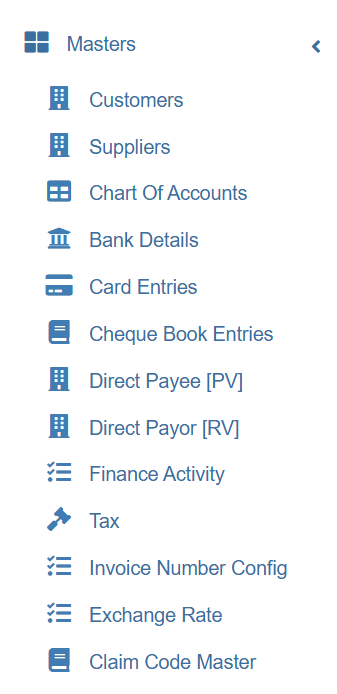
Chart of Accounts
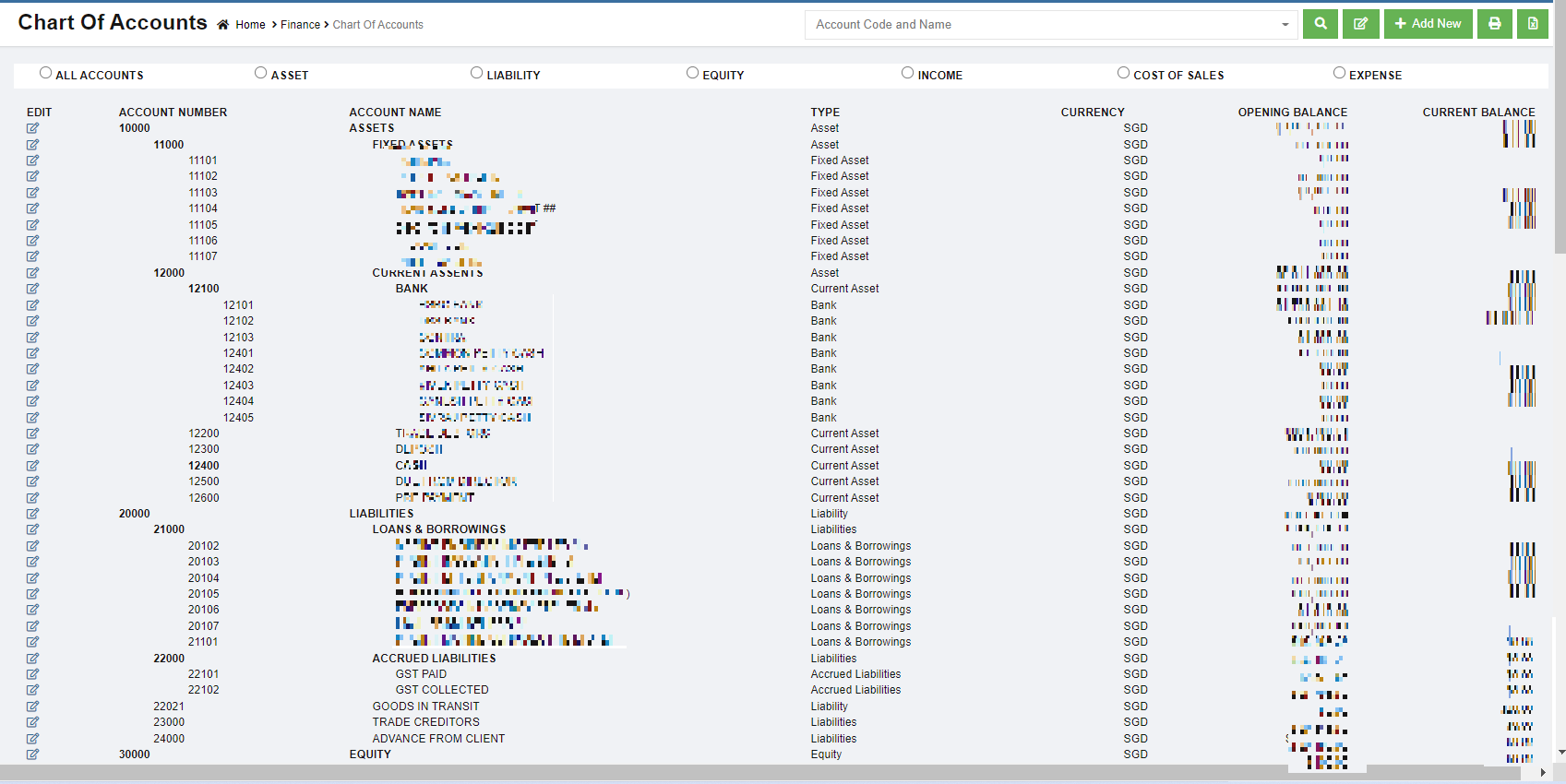
The Chart of Accounts menu in the Finance is used to manage the chart of accounts.
A chart of accounts (COA) is a financial, organizational tool that provides an index of every account in an accounting system. This provides an insight into all the financial transactions of the company. Here, an account is a unique record for each type of asset, liability, equity, revenue and expense.
The chart of accounts is classified into eight major categories and stored in the company’s ledger. Each account in the chart of accounts is typically assigned a name and a unique number by which it can be identified.
|
Accounts Code |
Classification |
Accounts Type |
Remarks |
|
10000 |
Asset |
Account Receivables Bank Assets (Current, Fixed, Others) |
Cash, Accounts, Receivable, Land, Equipment |
|
20000 |
Liability |
Accounts Payable Credit Card Liability (Current, Long Term, Others) |
Loans payable, Account payable |
|
30000 |
Equity |
Equity |
Paid up capital |
|
40000 |
Income |
Income |
Revenue from sales |
|
50000 |
Cost of Sales |
Cost of Sales |
Purchases |
|
60000 |
Expense |
Expense |
Other expenses of business |
|
80000 |
Other Income |
Other Income |
Non-operating revenues and gains |
|
90000 |
Other Expense |
Other Expense |
Non-operating expenses and losses |
The chart of accounts lists the accounts that are available for recording transactions. In keeping with the double-entry system of accounting, a minimum of two accounts is needed for every transaction- at least one account is debited and at least one account is credited.
Some general rules about debiting and crediting the accounts are:
Asset accounts normally have debit balances
- To increase an asset account, debit the account
- To decrease an asset account, credit the account
Liability accounts normally have credit balances
- To increase a liability account, credit the account
- To decrease a liability account, debit the account
View Chart of Accounts
Add a New Account Code
You can add the accounts only in the starting of the financial year. In the middle of the financial year, you cannot add or change any account.
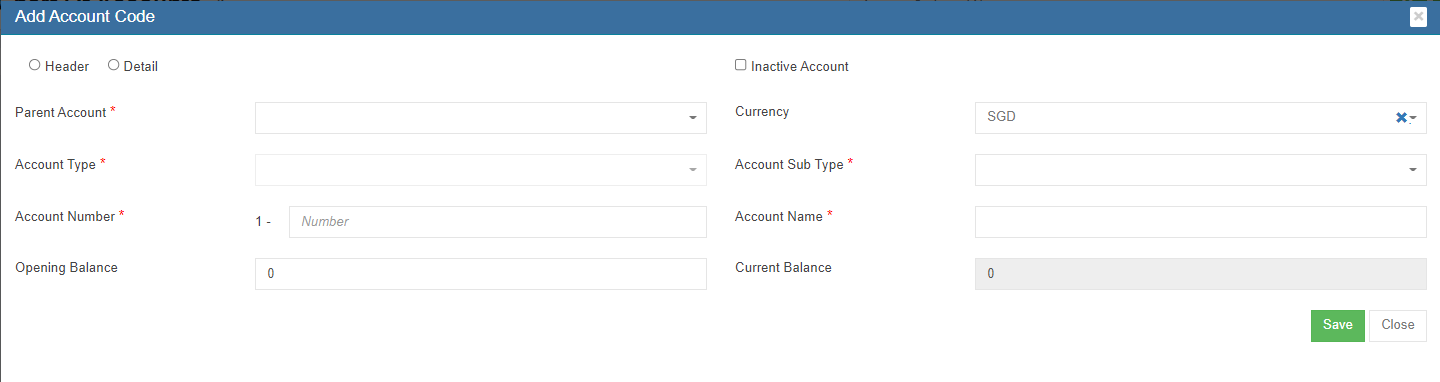
To add a new account code,
- Click
 (Add New button) in the upper right-corner of the Chart of Accounts list page, the Add Account Code window opens,

- Select the type of account code whether it's Header or Detail.
Header - Header is used only for grouping. Transactions cannot be posted under this code.
Detail – All transactions can be posted under the detail account code.
- If the account to be created is inactive account, enable the Inactive Account
- In the Parent Account box, select parent account name.
- In the Account Type box, the account type will automatically populated when parent account is selected.
- In the Currency box, select the currency.
- In the Account Sub Type box, select the account sub type.
- In the Account Number box, enter the account number.
- In the Account Name box, enter the name of the account.
- In the Opening Balance box, enter the opening balance of the account.
- In the Current Balance box, for new account it will default showing 0.
- Click Save. The new account code will be created and listed in the Chart of Accounts page.

Edit Account Code
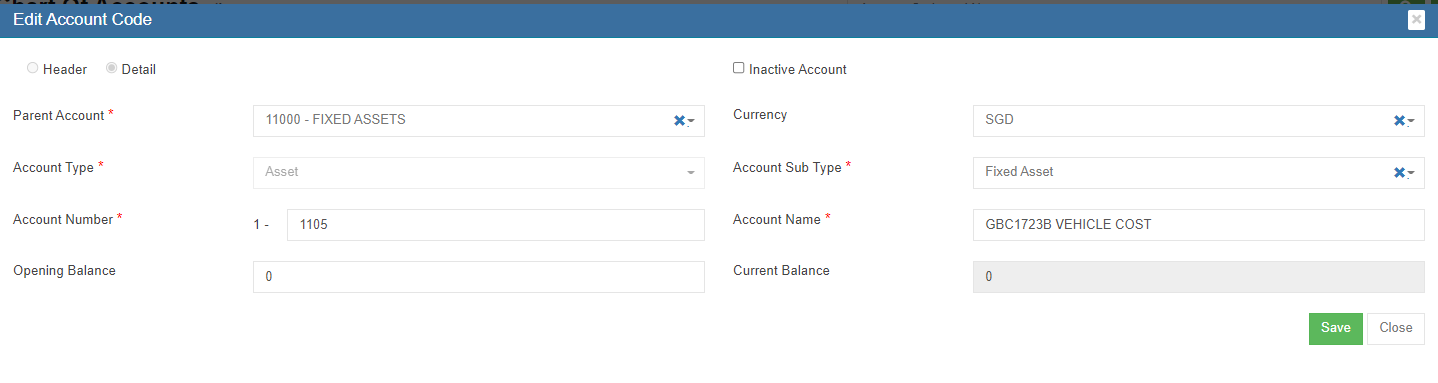
If you want to edit any added account code in the Chart of Accounts page, do the following page,
- Click
 (Edit icon) of the Account Code and Name which you want to edit, the edit account code page opens,

- Click any box where you want to edit the account details, and then edit the details in the respective box in the Edit Account Code
- Click Save to save edits.
Export Chart of Accounts
User can use the print or export
 option to print or export the chart of accounts.
Customers
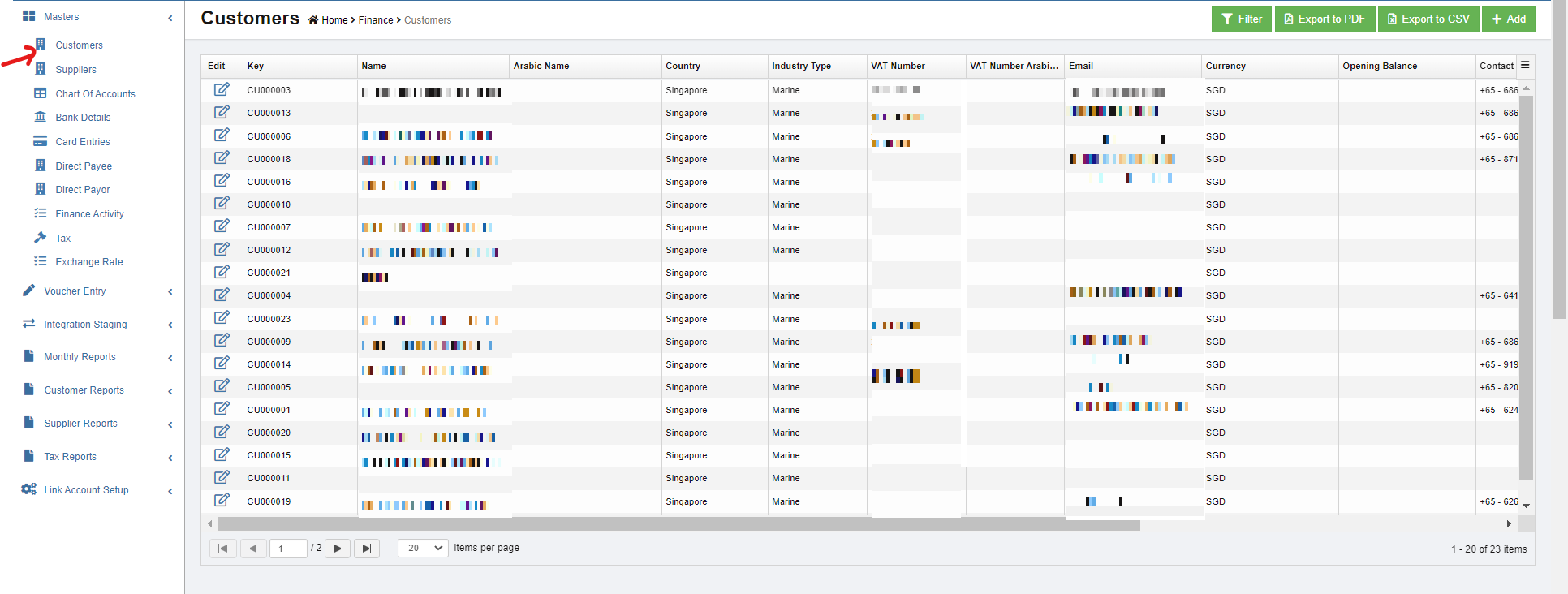
Customers master manages all customer's company details so that sales activities and transactions can be recorded and entered in finance module.
To view all customers, click Customers submenu in Master menu,
Add A New Customer
To add a new customer,
- click
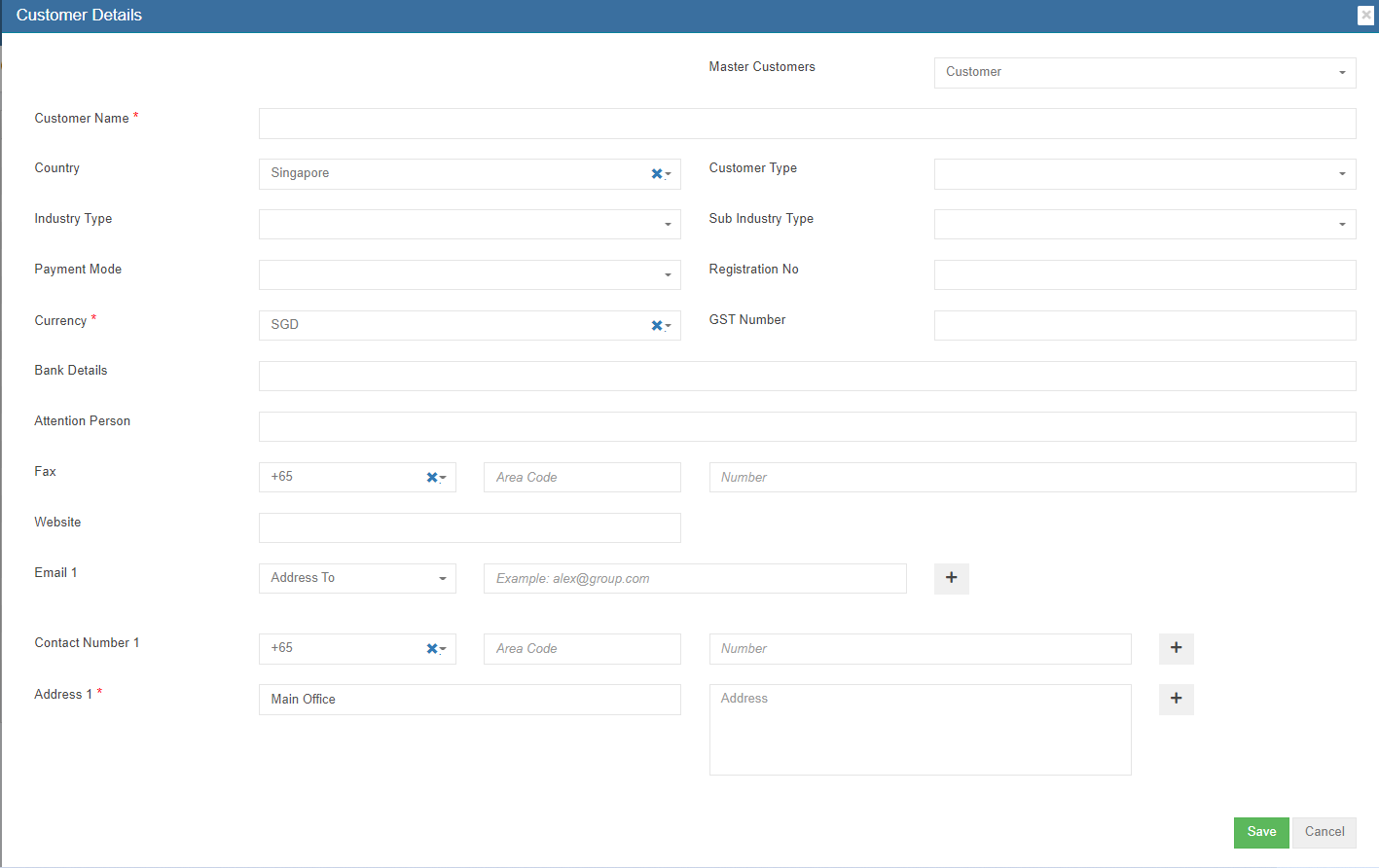
 (add button) in the upper right corner of customer list page, the customer detail page open,
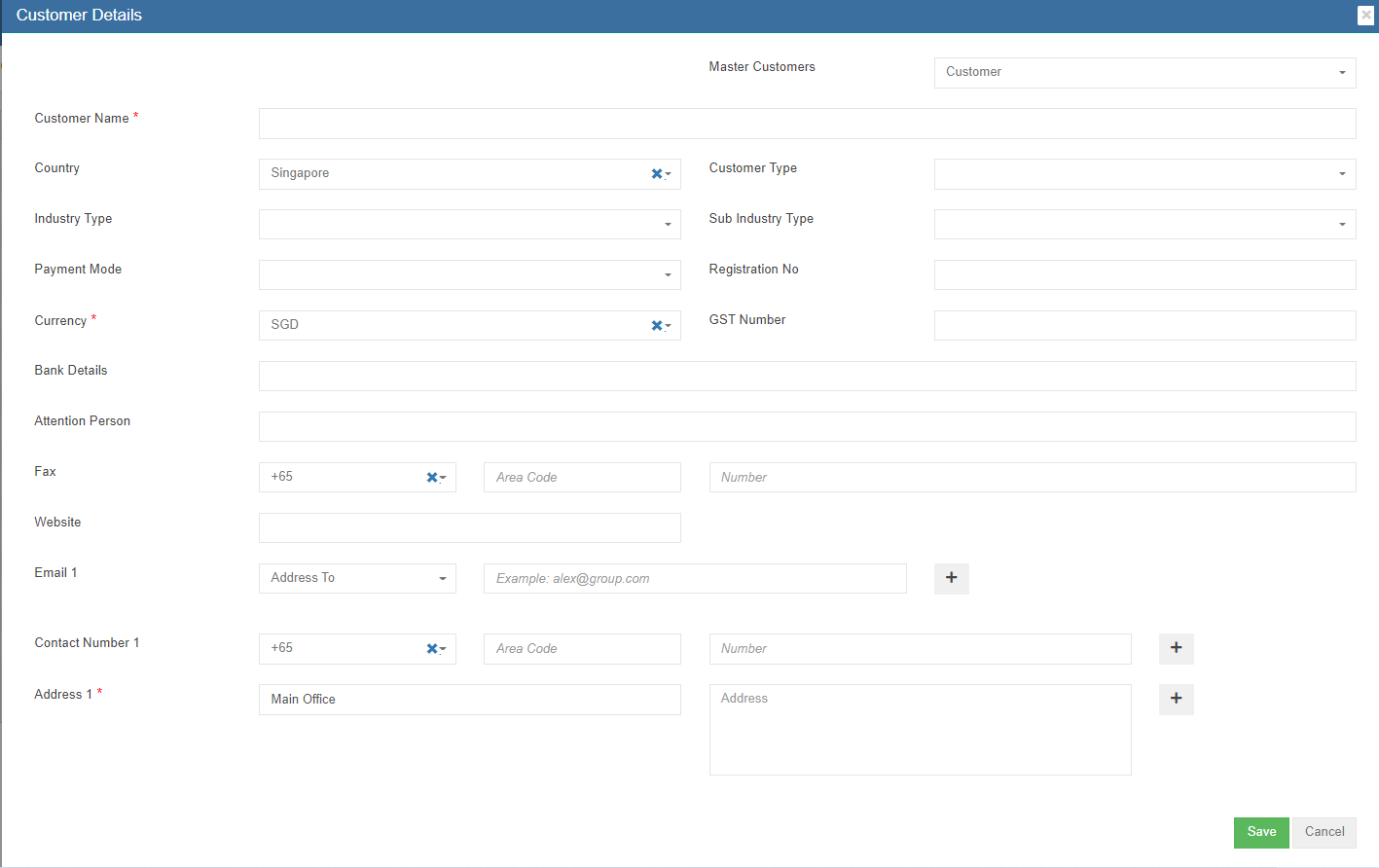
- Enter customer details in above page.
- Click Save. The new customer master data is created and saved in system.

Edit Customer
To edit customer data,
- Click
 (edit button) in the edit column of the customer that user wants to edit, the customer detail page opens,
 - Edit the fields where needed.
- Click Save to save edits.

Delete Customer
If a customer is not yet in any transaction in system, user can use delete option to delete customer data,
- click the
 (delete button) in the delete column of the customer that user wants to delete, a confirmation window opens,
- Click Yes to confirm deletion. Note: if a customer is already in use/transaction, below error message will pop up in the bottom right corner and system will not allow deletion.




Export Customer
User can use the export option to export customer data. Select and click the format that user want to download.
Suppliers
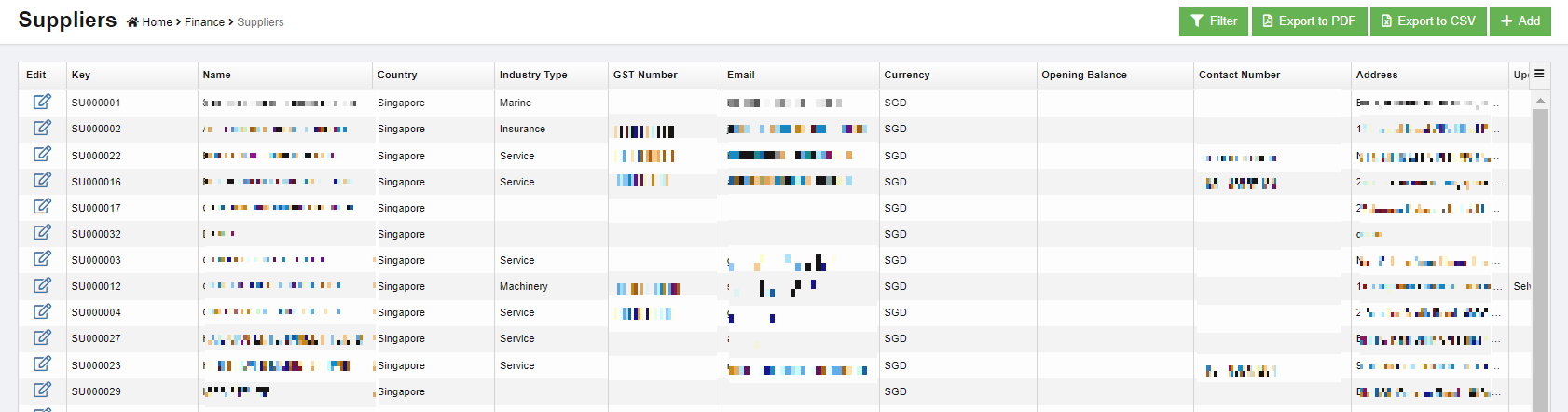
Suppliers master manages all suppliers' company details so that purchase activities and transactions can be recorded and entered in finance module.
To view all suppliers, click Suppliers submenu in Master menu,
Add A New Supplier
To add a new supplier,
- Click add button in the upper right corner of the suppliers list page, the supplier detail page opens,
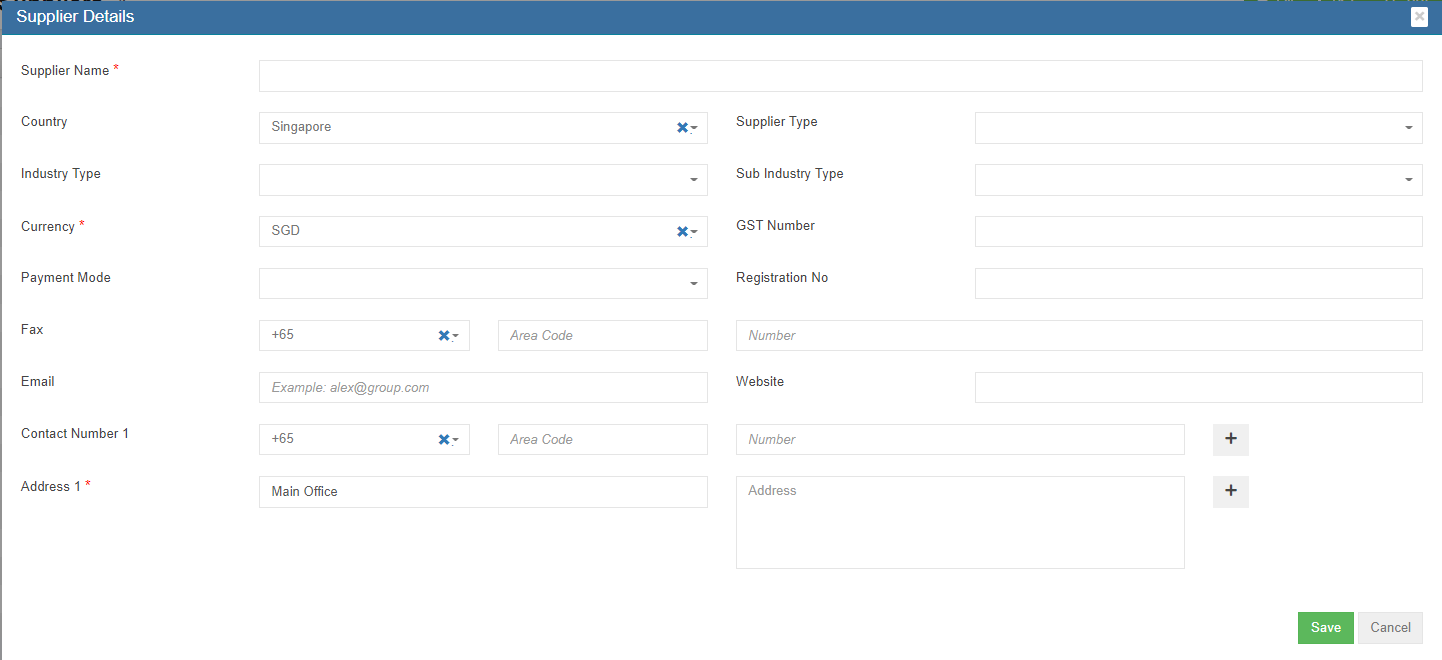
- Enter all details of the new supplier.
- Click Save. The new supplier master data is created and saved in system.
Edit Supplier
To edit supplier data,
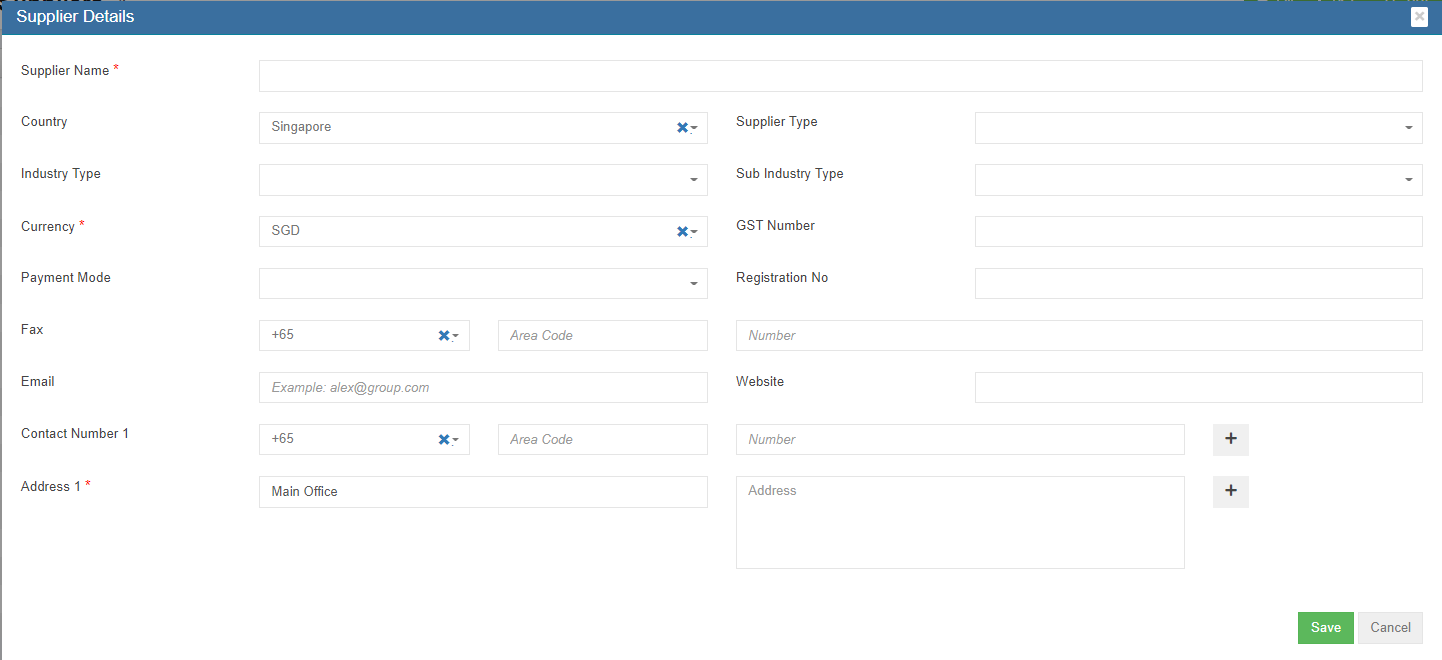
- Click(edit button) in the edit column of the supplier that user wants to edit, the supplier detail page opens,
- Edit the fields where needed.
- Click Save to save edits.
Delete Supplier
If a supplier is not yet in any transaction in system, user can use delete option to delete supplier data,
- click the (delete button) in the delete column of the supplier that user wants to delete, a confirmation window opens,
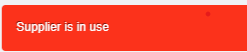
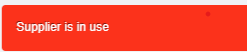
- Click Yes to confirm deletion. Note: if a supplier is already in use/transaction, below error message will pop up in the bottom right corner and system will not allow deletion.
Export Supplier
User can use the export option to export supplier data. Select and click the format that user want to download.
Bank details
The Bank Details tab in the Finance menu used to manage all the bank account details of the company. The Bank Details data will be automatically synchronized is integrated with the Sales Register and Purchase Register pages.
To view all bank details, click Bank Detail in the Master menu, the bank details list open,

Add A New Bank
To add a new bank,
- Click
 (Add button) in the upper right-corner of the bank detail list page. The Bank Details Add/Edit window opens.
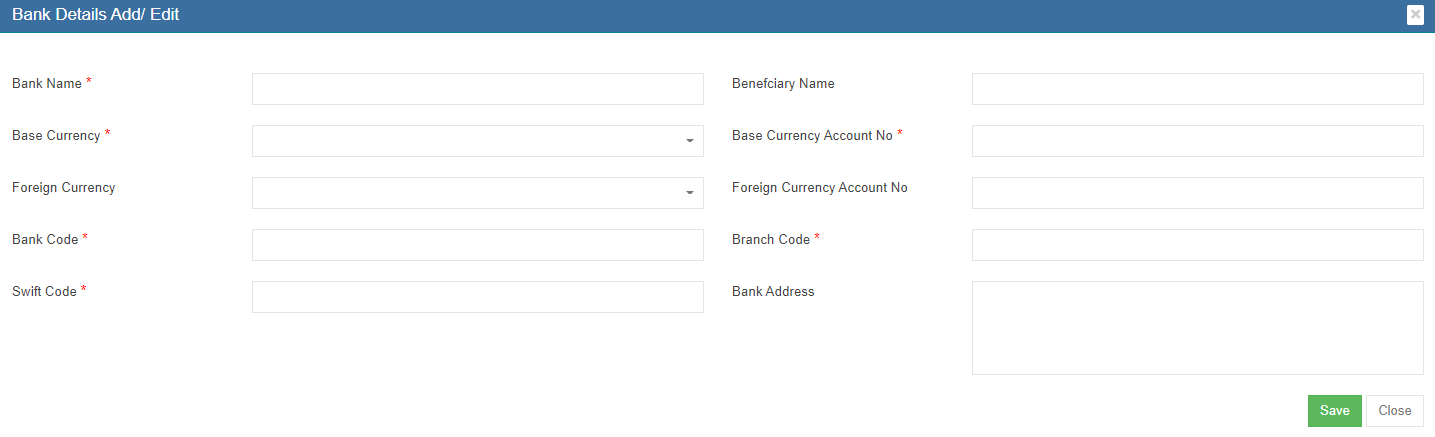
- Enter the bank details in the relevant fields.
- Click Save. The bank account is added and saved in the Bank Details list page.
Edit Bank Account Details
To edit any added bank account details in the Bank Details page,
- Click
 (Edit icon) in the Edit column for the respective bank account. The Bank Details Add/Edit window opens.

- Click and edit any fields where user wants to edit the details
- Click Save to save edits.
Delete A Bank Account Details
If a bank account is not yet in use, user can delete if needed. To delete,
- click the (delete button) in the delete column of the bank account that user wants to delete, a confirmation window opens,
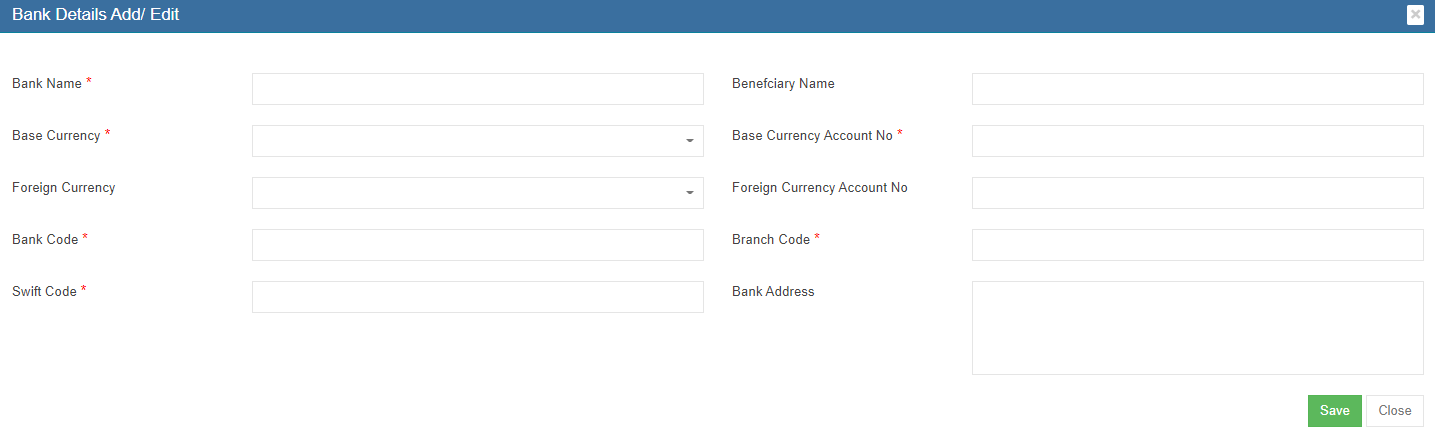
- Click Yes to confirm deletion. Note: if a bank account is already in use/transaction, below error message will pop up in the bottom right corner and system will not allow deletion.
Card Entries
Card entries helps to manage company bank cards details. Click Card Entries in the Master menu, all the bank cards saved in system will show as below,
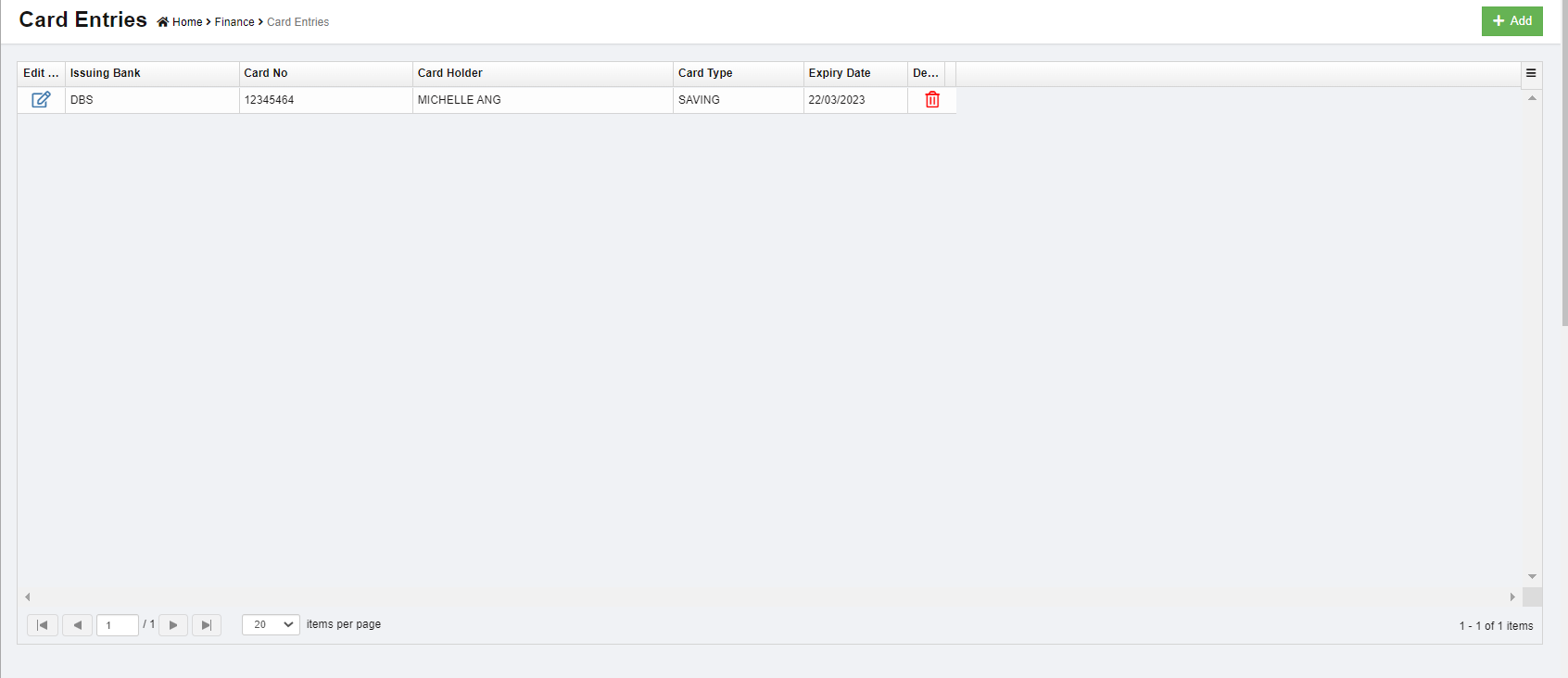
Add A New Card
To add a new card,
- Click (Add button) in the upper right-corner of the card detail list page. The Card Entry window opens,

- Enter the card details.
- Click Save to save card entry. Card details will be saved and shown in the card entry list page.

Edit Card Details
To edit any added card details in the Card Entries page,
- Click (Edit icon) in the Edit column for the respective card detail. The Card Enrty window opens.
- Click and edit any fields where user wants to edit the details
- Click Save to save edits.
Delete A Card
If a card is not yet in transaction record in system, user can delete if needed. To delete a card detail,
- click the (delete button) in the delete column of the card number that user wants to delete, a confirmation window opens,
- Click Yes to confirm deletion.
Direct Payee
Each and every direct payee’s detail needs to be added before any of the transactions such as purchase details can be entered. Before adding a direct payee, the respective users must be assigned with the Payee permission. To assign permission,
Add A Direct Payee
To add a direct payee,
- Navigate to Master, click Direct Payee. The Direct Payee page opens as below,

- Click
 (Add button) in the top right corner. The Direct Payee window opens,
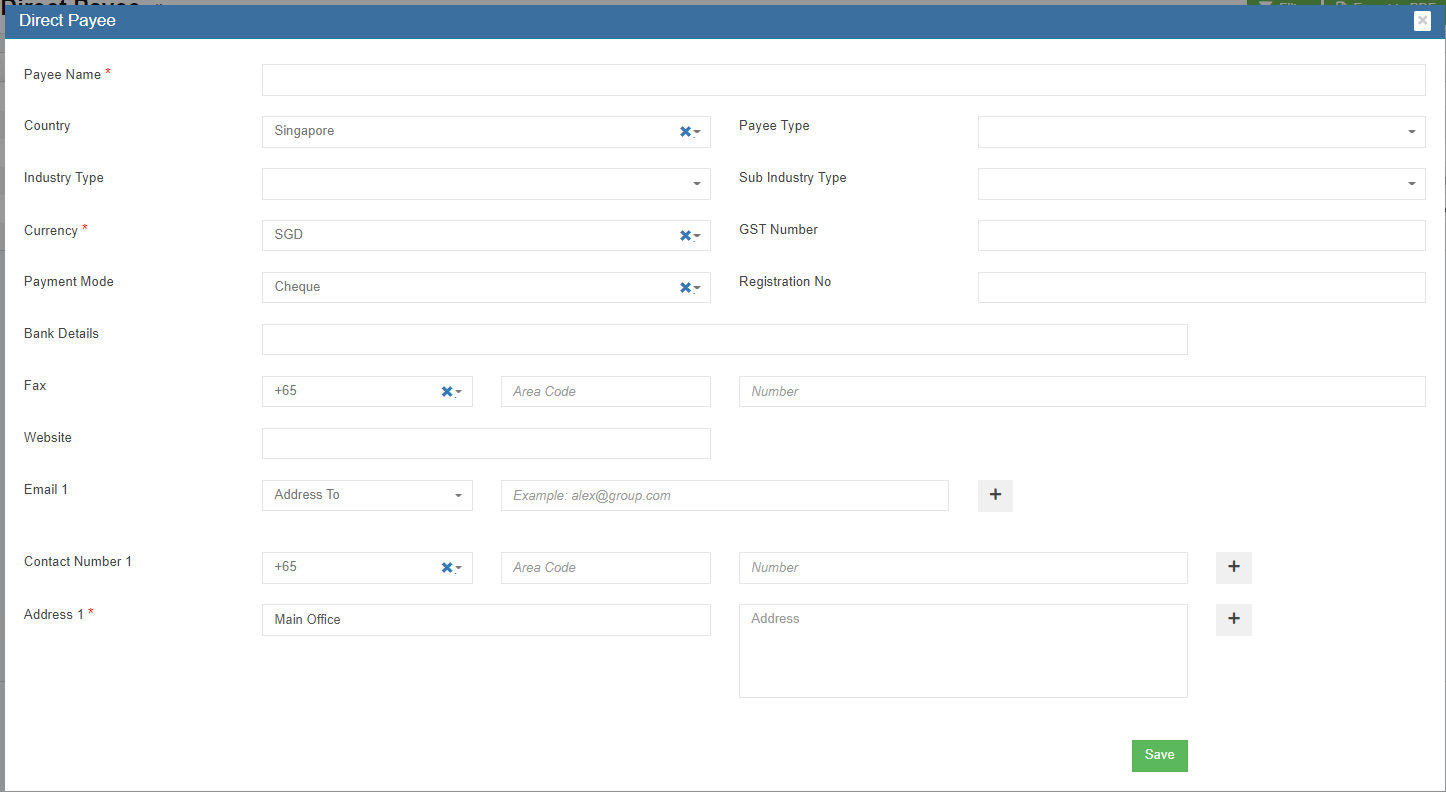
- Enter the direct payee details.
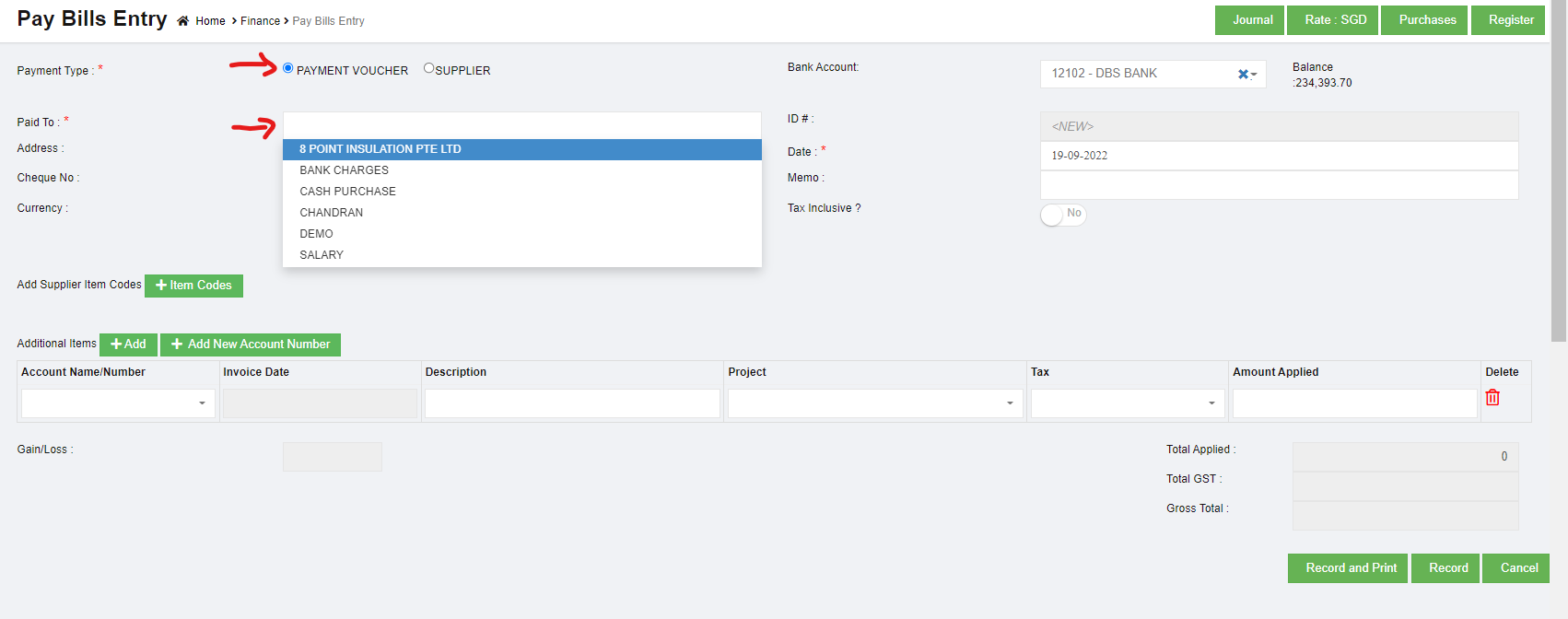
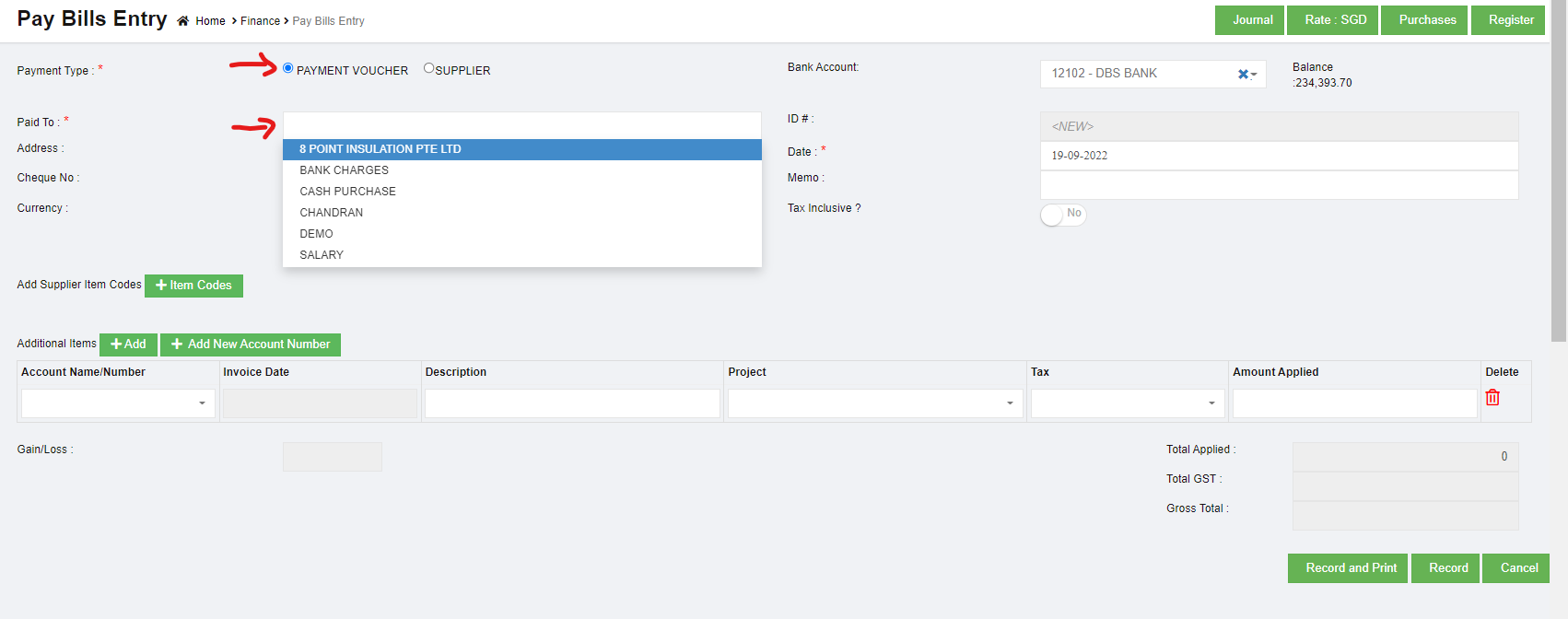
- Click Save. The direct payee will be added in the Direct Payee page. The added payee will be listed in the Pay Bills Entry page by selecting the PAYMENT VOUCHER option while adding the pay bill details.


Edit Direct Payee
To edit direct payee details,
- Click (Edit icon) in the Edit column for the respective direct payee. The direct payee details window opens.
- Click and edit any fields where user wants to edit the details
- Click Save to save edits.
Delete A Direct Payee
If a direct payee is not yet in transaction record in system, user can delete if needed. To delete a card detail,
- click the (delete button) in the delete column of the direct payee that user wants to delete, a confirmation window opens,
- Click Yes to confirm deletion.
Direct Payor
Each and every direct payor’s detail needs to be added before any of the transactions such as sales can be entered. Before adding a direct payor, the respective users must be assigned with the Payor permission. To assign permission,
Add A Direct Payor
To add a direct payor,
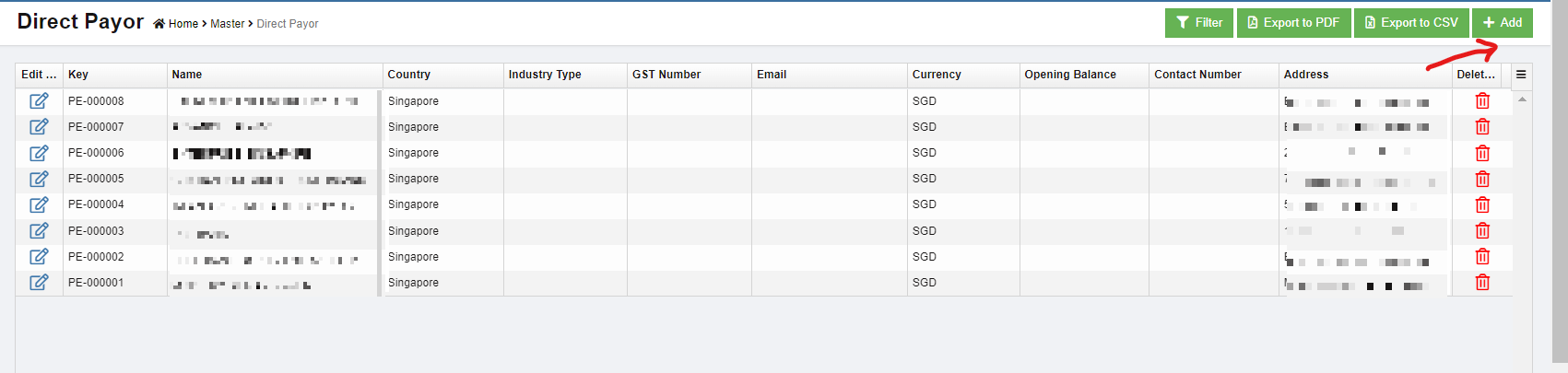
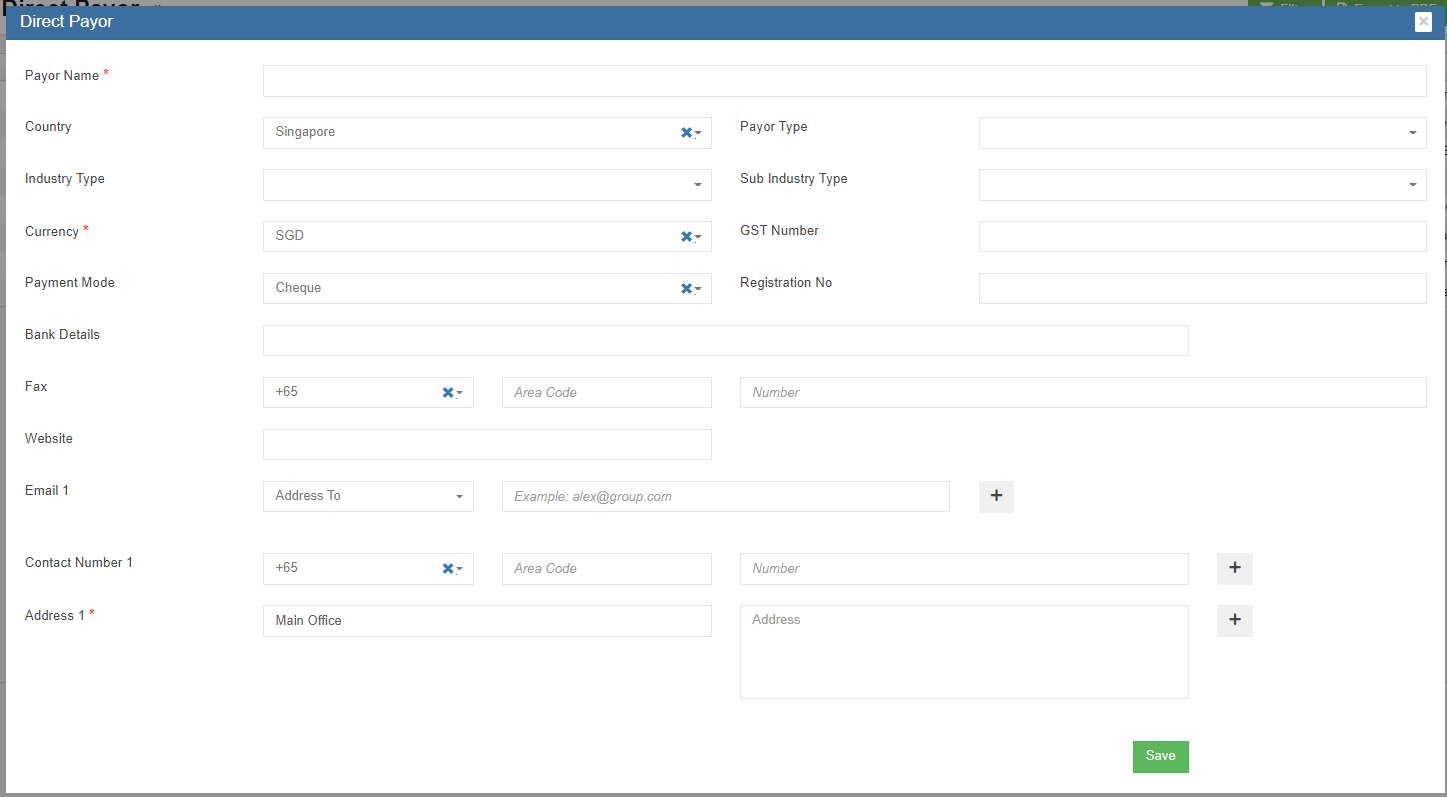
- Navigate to Master, click Direct Payor. The Direct Payor page opens.

- Click (Add button) in the top right corner. The Direct Payor window opens.
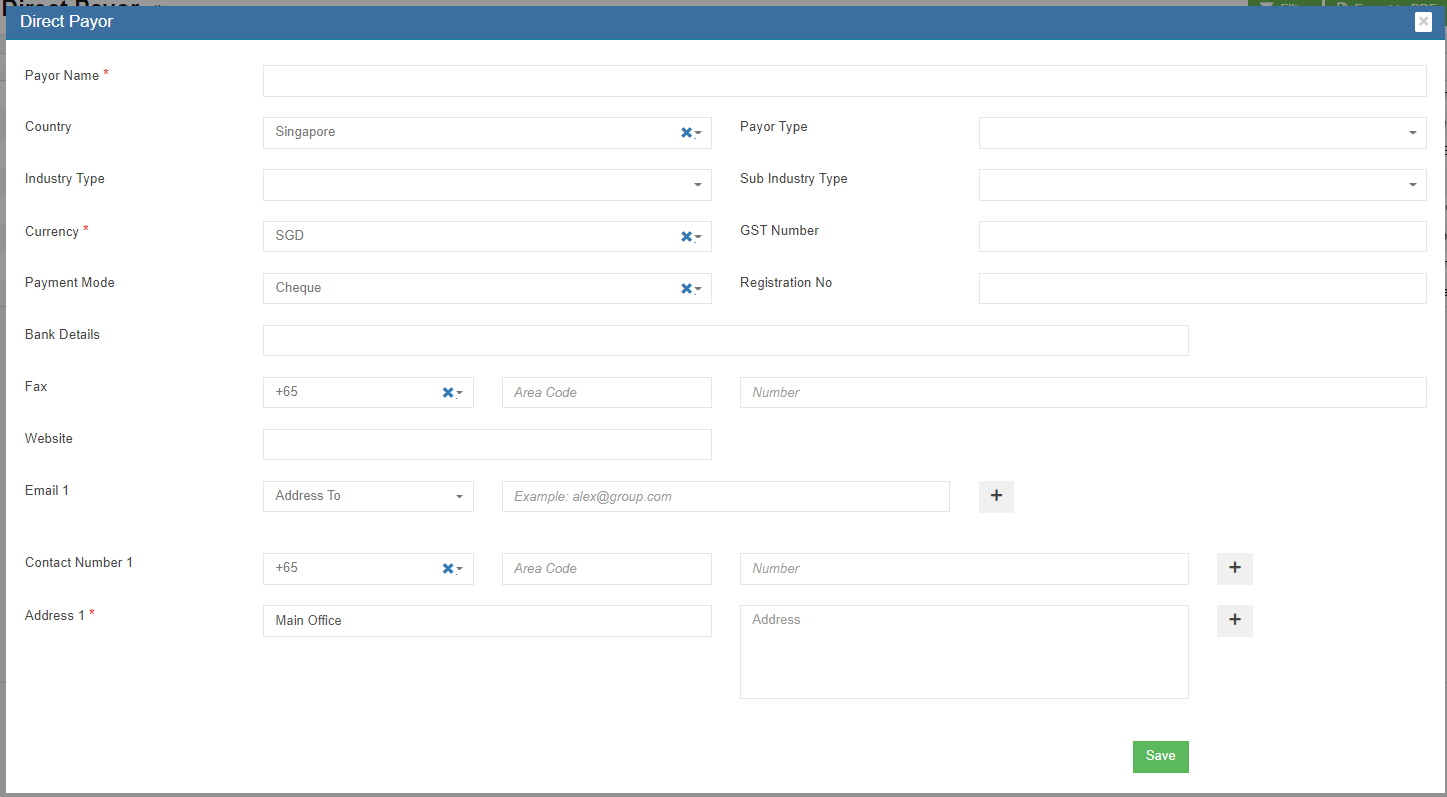
- Enter the direct payor details.
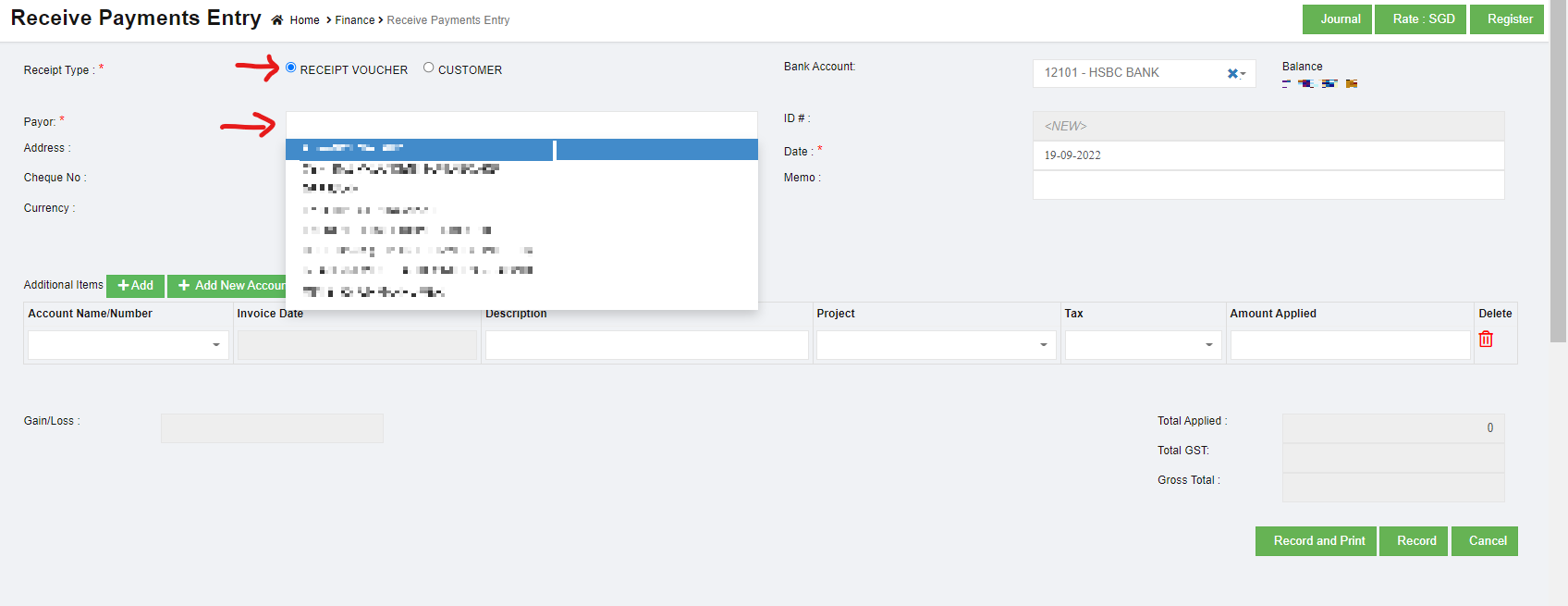
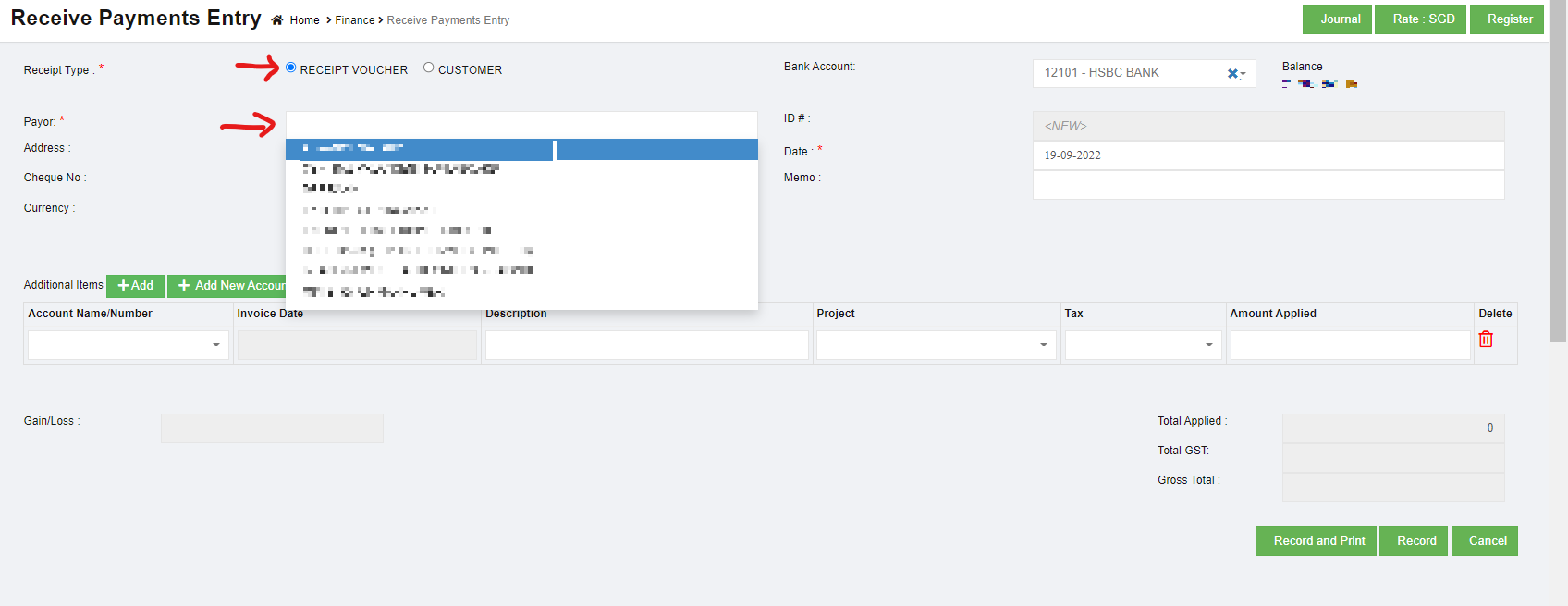
- Click Save. The direct payor will be added in the Direct Payor page. The added payer will be listed in the Receive Payment Entry page by selecting the RECEIPT VOUCHER option while adding the payment details.
Edit Direct Payor
To edit direct payor details,
- Click (Edit icon) in the Edit column for the respective direct payee. The direct payor details window opens.
- Click and edit any fields where user wants to edit the details
- Click Save to save edits.
Delete A Direct Payor
If a direct payor is not yet in transaction record in system, user can delete if needed. To delete a card detail,
- click the (delete button) in the delete column of the direct payor that user wants to delete, a confirmation window opens,
- Click Yes to confirm deletion.
Tax
Tax type, and percentage are managed in Tax master. Click Tax in Master menu, below list of tax master opens,

Add Tax Type
To add a new tax type master,
- Click
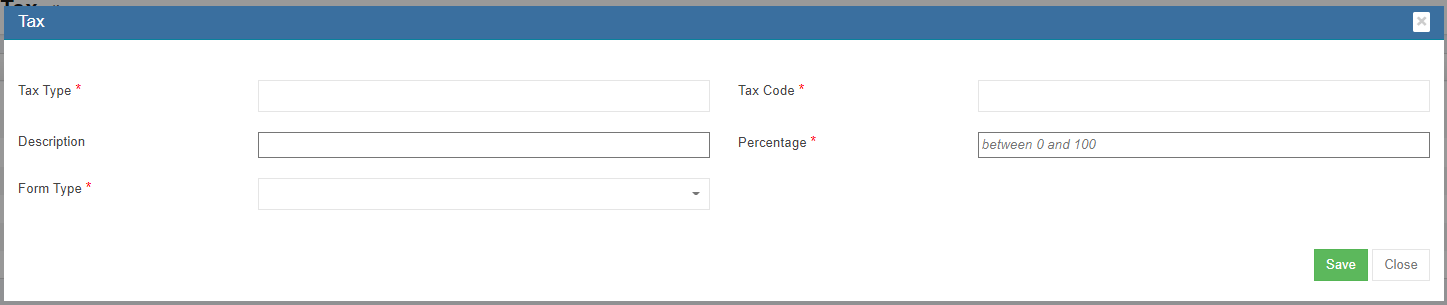
 add button in the top right corner in the tax master list page, the new tax detail page opens,
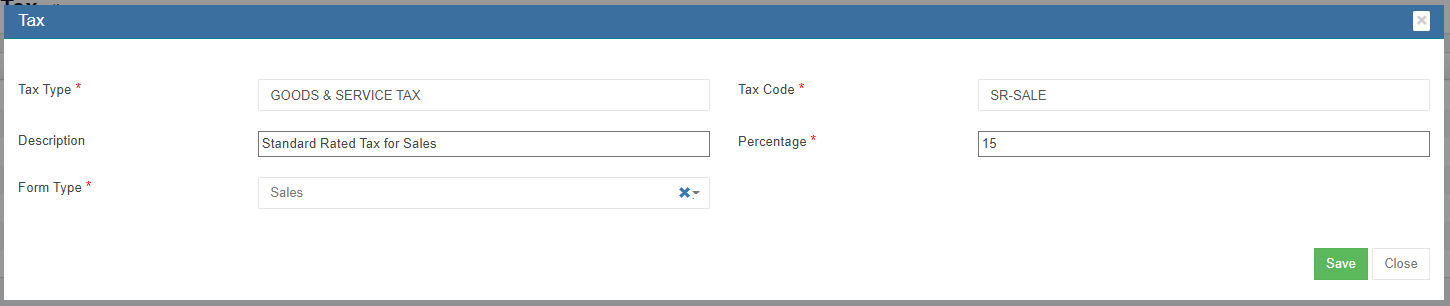
- Fill up the details of the tax master:
- In Tax Type box, enter tax type.
- In Tax Code box, enter the code.
- In Description box, enter description of the tax type.
- In Percentage box, enter the percentage between 0-100.
- In Form Type box, select the form type.
- Click Save. A new tax type is created and saved in the tax master.

Edit Tax Type
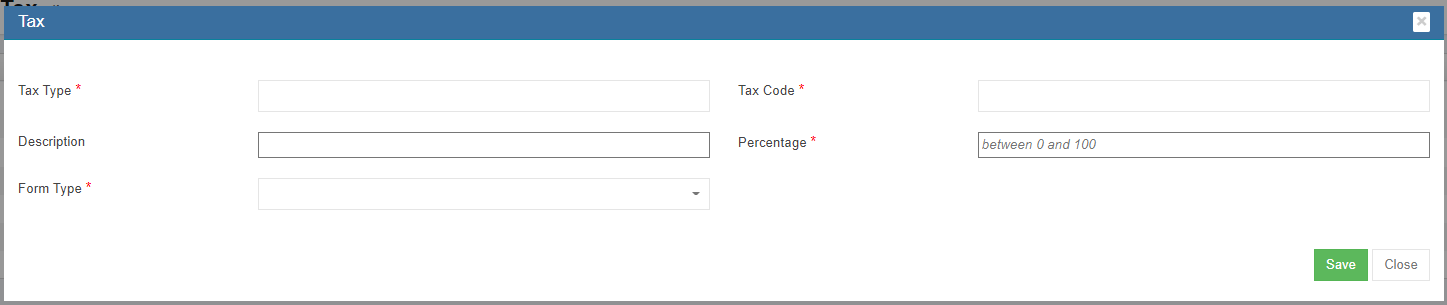
To edit a tax type master,
- Click
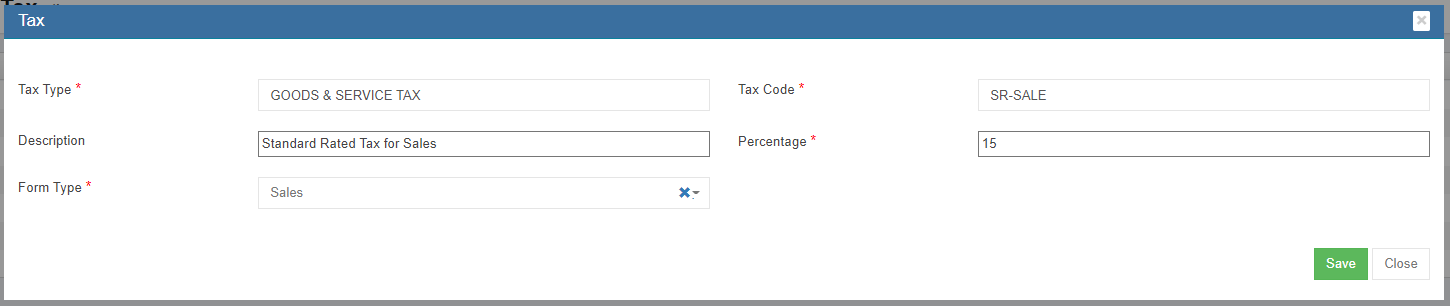
 edit button in front of the tax type that needs to be edited. The tax type details window opens,
- Edit the details where suits.
- Click Save to save edits.

Delete Tax Type
To delete a tax type master,
- Click
 delete button in the delete column in the relevant tax type. A confirmation window will open as below,

- Click Yes to confirm deletion. The tax type will be deleted.


Invoice Number Configure
User can configure the invoice format and invoice number in Master-Invoice Number Config.
To configure invoice number,
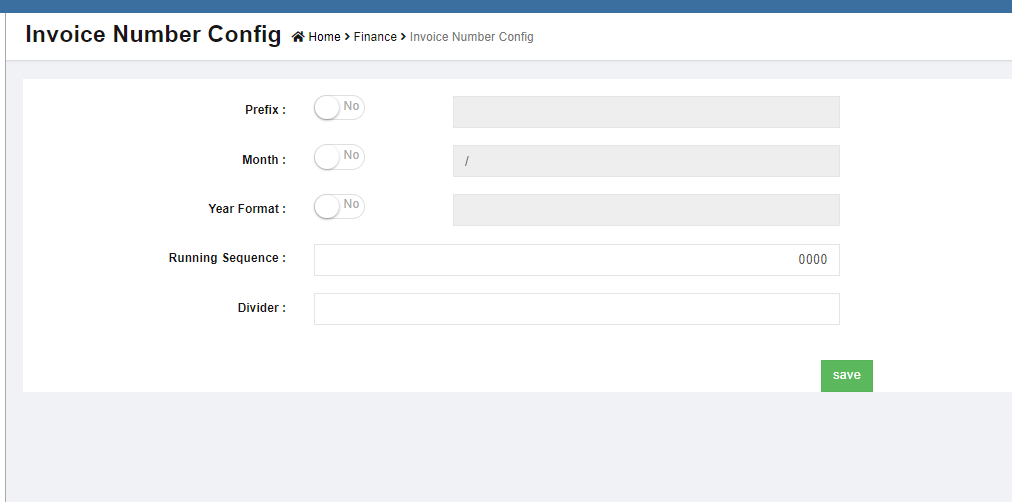
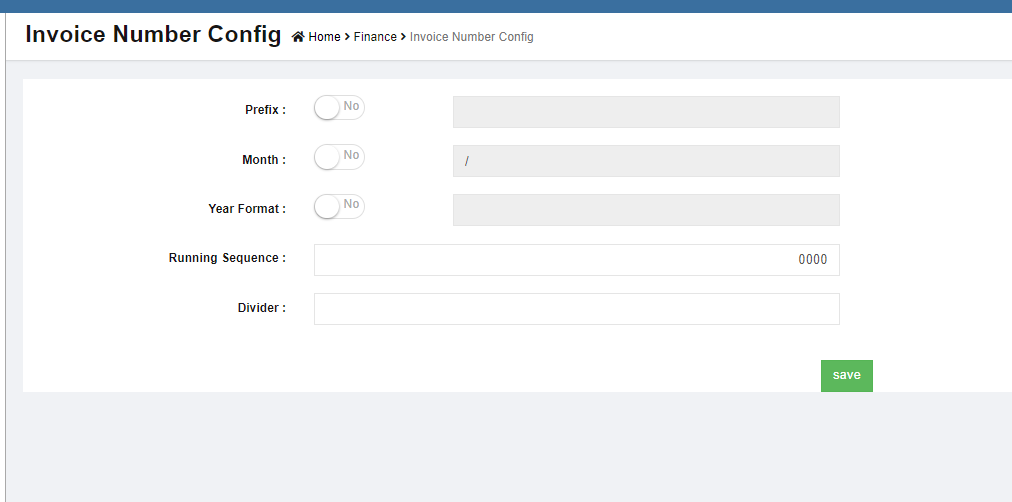
- Click Invoice Number Config in the finance master menu, below configure page opens,
- Enter the details to configure:
- In Prefix box, if there is no prefix required, disable the flag to No; if there is prefix, enable the flag to Yes, then enter the prefix in the text field.

- In Month box, if there is no month info required, disable the flag to No; if there is, enable the flag to Yes, then enter the month format in the text field.

- In Year box, if there is year info required, disable the flag to No; if there is, enable the flag to Yes, then enter the year format in the text field.

- In Running Sequence, enter the first running number

- In Divider box, enter the divider if any

- In Prefix box, if there is no prefix required, disable the flag to No; if there is prefix, enable the flag to Yes, then enter the prefix in the text field.
- Click Save to save configuration details.





Exchange Rate
The exchange rate used in finance module are managed in exchange rate master. Click Exchange Rate in master menu, below exchange rate list opens,

Note: Exchange rate fluctuate due to various factors, cuteOffice exchange rate master accommodate such changes in exchange rate. If an exchange rate is created for the first time in the system, the "to date" field will be open so it’s definite the "to date" is as of now; when a new rate is added or edited on existing exchange rate, the adding or editing date will become the "to date" of the previous rate, as such, exchange rate can be within a period which is defined as from date & to date. Whenever finance vouchers are entered for foreign exchange the rate is picked based on the voucher date
Add Exchange Rate
To add new exchange rate,
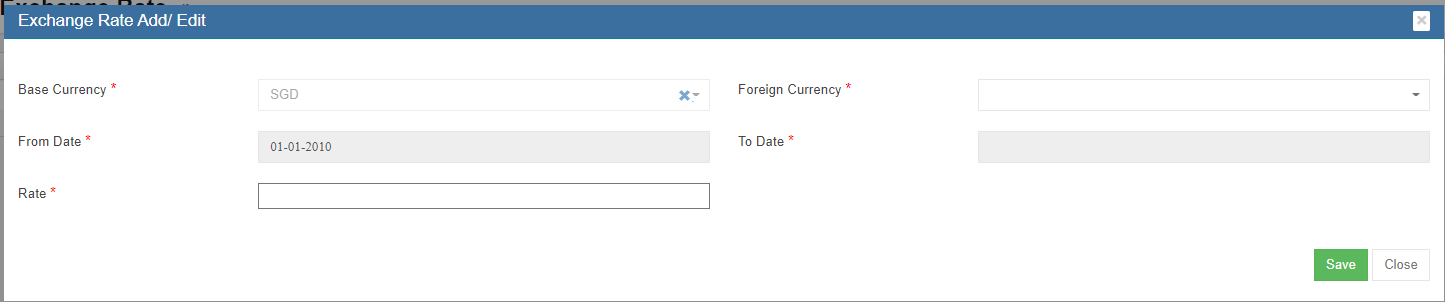
- Click add button in the top right corner in exchange rate list page, the exchange rate add/edit window opens as below,
- Enter the details of exchange rate:
- Base Currency box is default as SGD, this can be configured as other currency upon request.
- In Foreign currency box, select the foreign currency from dropdown list.
- In From Date box, the date will automatically take the end date of current active rate.
- In To Date box, if it's the first time to configure an exchange rate, this field will be open, no need to fill up.
- In Rate box, enter the exchange rate.
- Click Save. A new exchange rate will be added.
Edit Exchange Rate
To edit exchange rate,
- Clickedit button in front of the exchange rate, the exchange rate detail window opens,
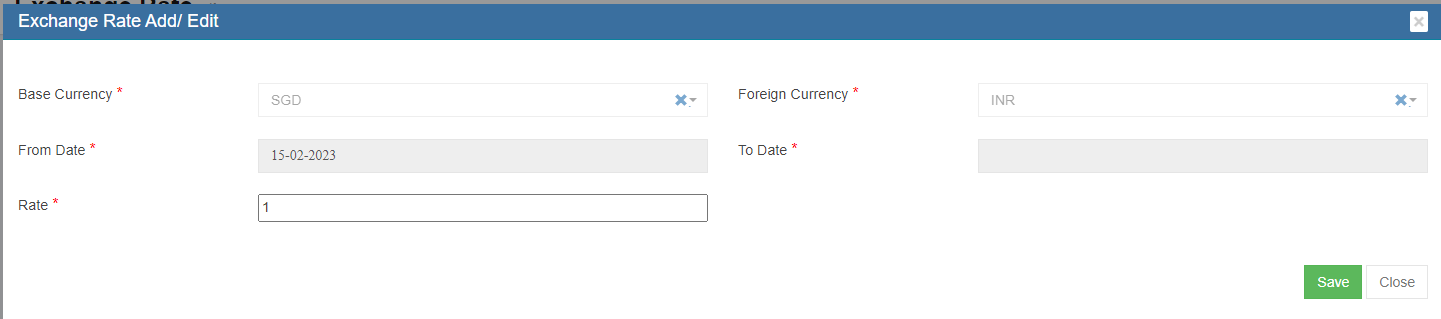
- In Rate box, enter the new exchange rate.
- Click Save, a new exchange rate will be saved based on the current date and time.
Claim Code Master
The expense claim code master is used to maintain all expense codes and map each expense code to the corresponding debit code and credit code for proper accounting entries.
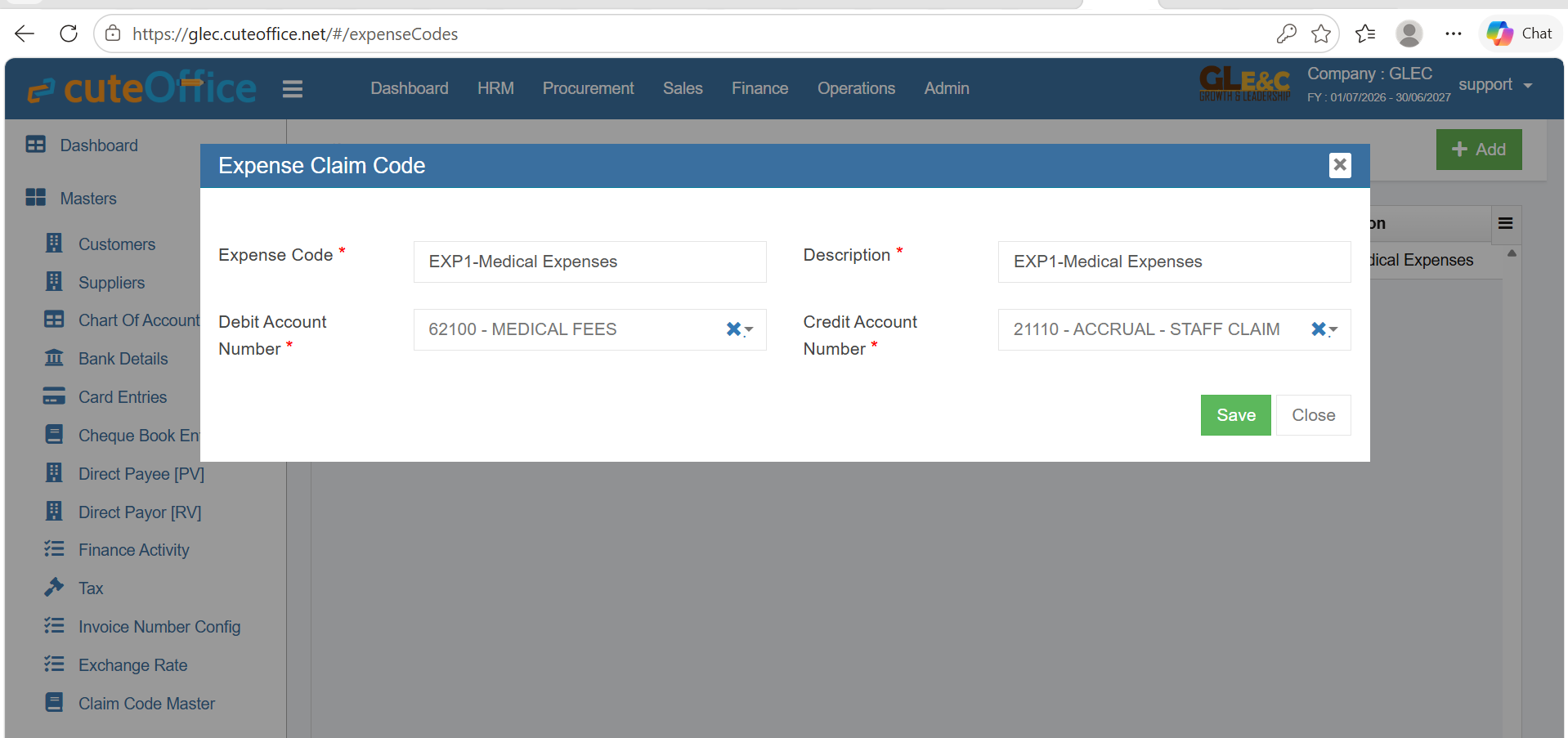
Add Expense Claim Code
- Click Master (Menu)
- Click claim code master (Submenu)
- Click add
- Enter Expense Code, Description
- Configure Debit account number against the expense code
- Configure Accrual - Staff Claim code
- Save the record
Voucher Entry
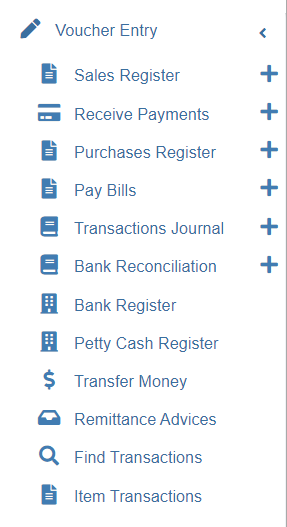
Voucher Entry manages all finance transactions. It contains below submenu:
- Sales Register
- Receive Payments
- Purchases Register
- Pay Bills
- Transactions Journal
- Bank Register
- Petty Cash Register
- Transfer Money
- Bank Reconciliation
- Remittance Advices
- Find Transactions
- Item Transactions
Sales Register
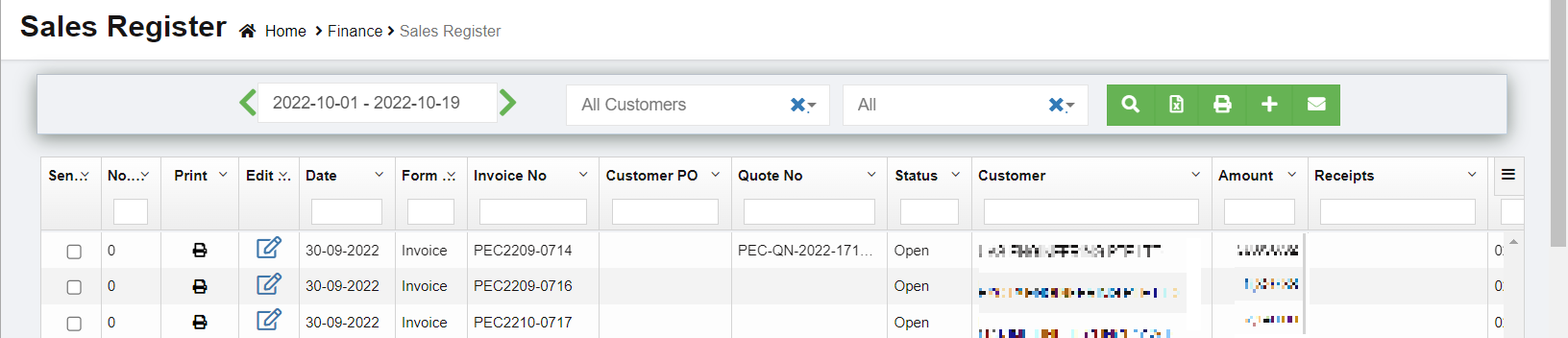
Sales Register helps to record and manage the sales and income from sales. The list of transactions pertaining to each month can be viewed by selecting that month, customer, and transaction status. Click Sales Register in the Voucher Entry menu, The Sales Register page opens.
View Sales Entry
If you want to view the sales entry details of a particular customer, you can use the filters to search

- In the Calendar field, select the period for which you want to view the sales entry details.
- In the Customer box, select a customer.
- In the Status box, select the status for you want to view the sales entry details.
- Click
 . The sales entry detail opens for the selected customer and period.

Enable Permission for Sales Recurring Transaction
If you want to add a new sales entry by using the transaction details of an existing invoice number, you need to enable permission for accessing the Sales recurring transaction option. To enable the permission for sales recurring transaction, search for permission name "SalesRecurring" in user 's permission page and enable both read and write permissions. Once you have enabled this permission, the sale recurring transaction related option will be appeared while adding a new sales entry.

Add a New Sales Entry
To add a sales entry,
Click (Add icon) provided in the upper right-corner of the Sales Register page, the Sales Entry page opens as below,
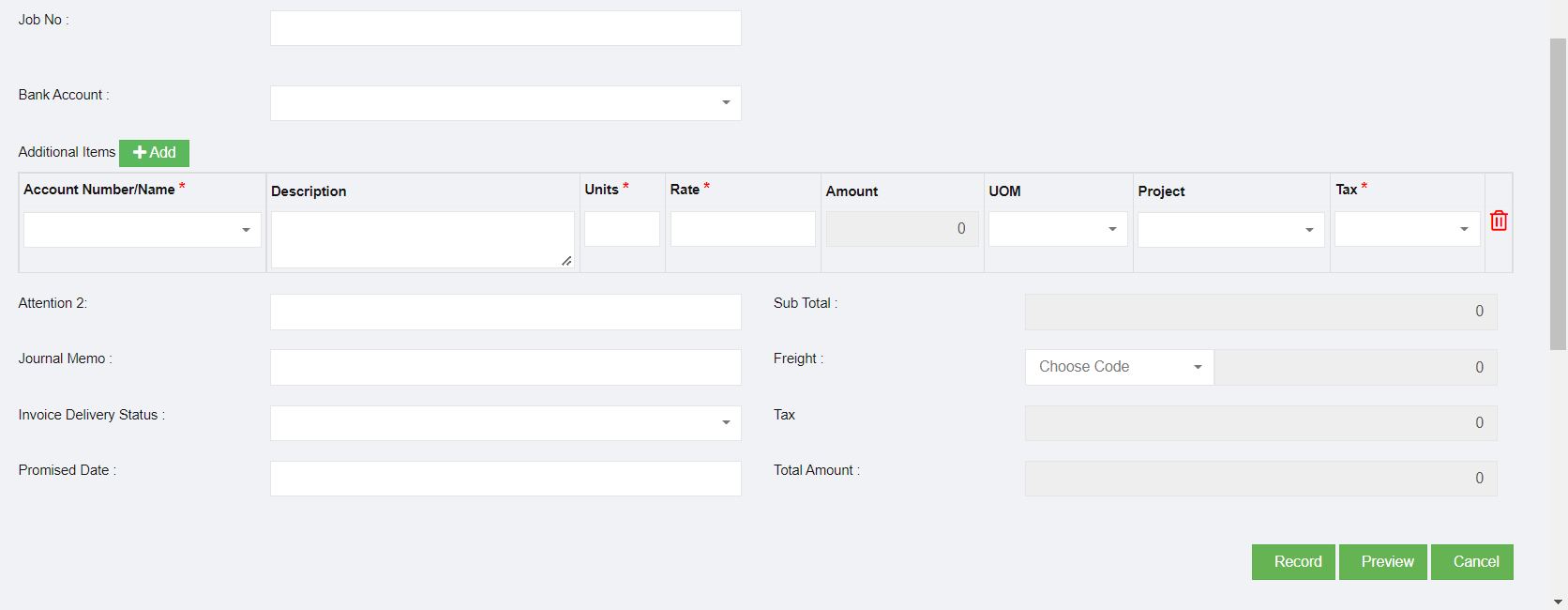
 (Journal button)-You can use the Journal option to view the sales journal entry. Sales journal entry records a cash or credit sale to a customer. Sales journal entries also reflect changes to accounts such as Cost of Goods Sold, Inventory, and Sales Tax Payable accounts.
  (Payment button) – used to navigate into the Receive Payments Entry page.
 (Register button) – used to navigate into the Sales Register page.


Add Sales Entry using Recurring Option
If you want to add a sales entry by using the sales recurring option,
- Click
 (use recurring button), all the saved recurring transactions page will open as below,
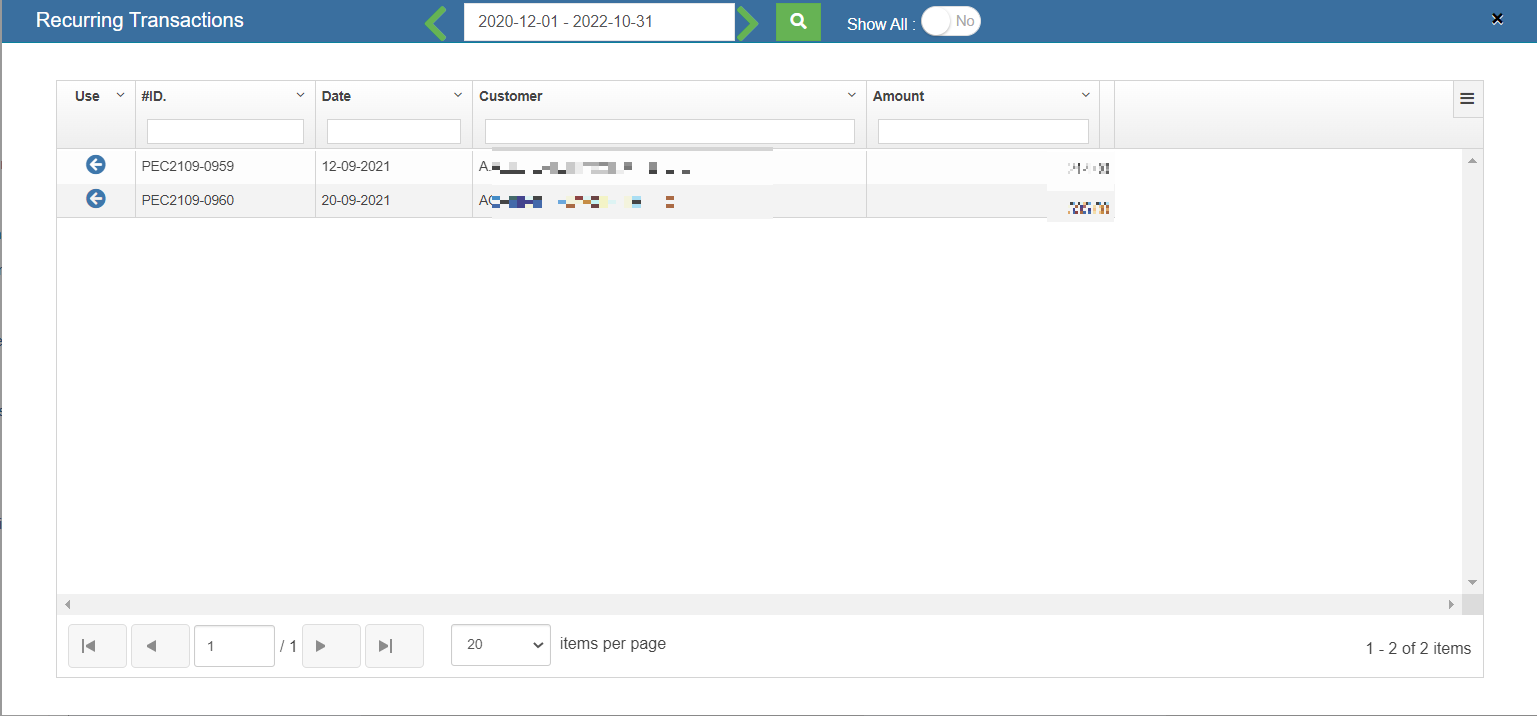
- Select an invoice number from the recurring transactions list. Click the use icon. Once the invoice number is selected, it will retrieve the respective transaction details saved successfully in cuteOffice. All the input fields will be automatically filled up according to the selection of invoice number.
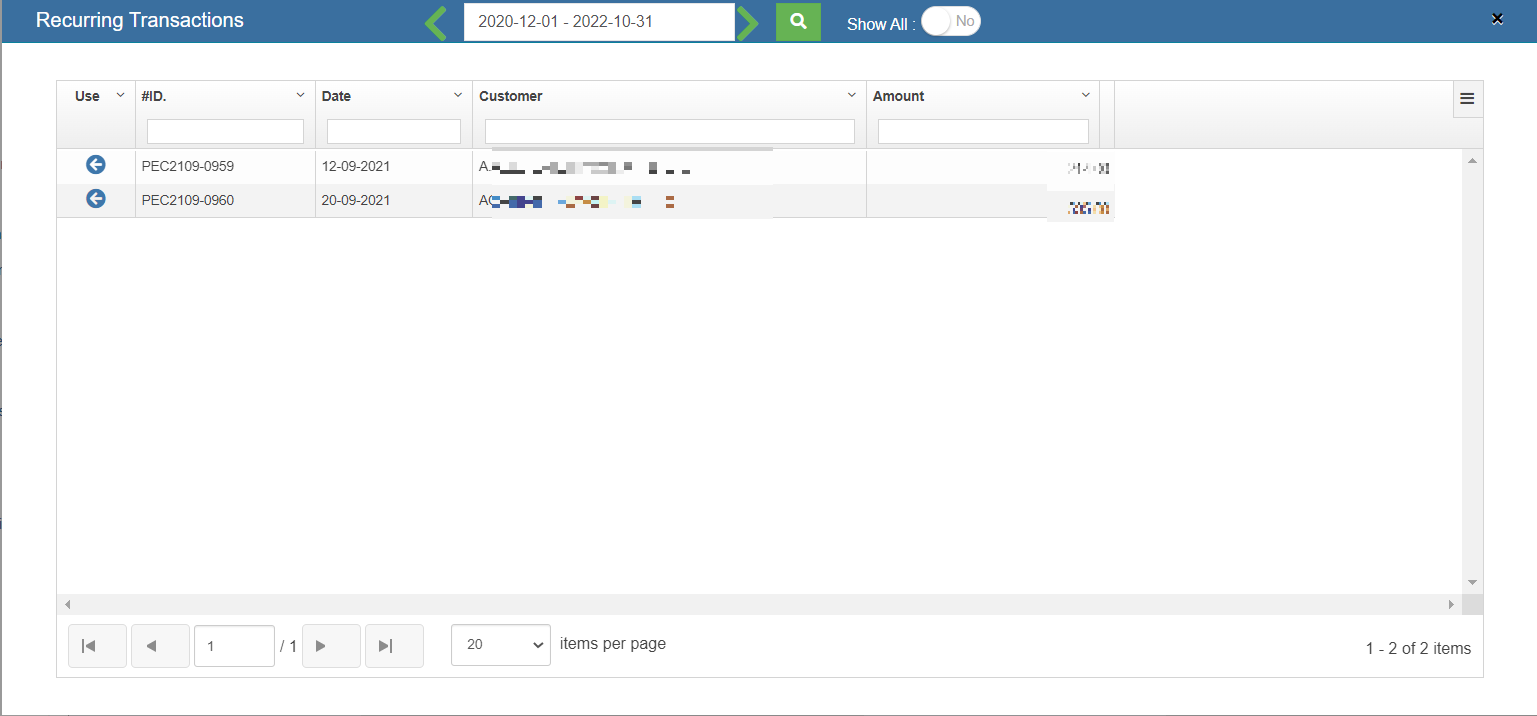
Note: to save a sale entry as Recurring, enable the "Save As Recurring" flag to Yes when register a sales entry. Once saved as recurring entry, it will be shown in the recurring transaction page when use "Use Recurring" option to register sales entry.

Add Sales Entry Manually
To add a sales entry manually,
- In the Sales Form Type field, select the sales form type you want to add.

- If the tax is inclusive for the sales entry, enable Yes in the in the Tax Inclusive option.
- In the Customer box, select a customer from customer dropdown list. Note: If you can't find the customer in the list, and want to add as a new customer, you can click the add button near the Customer box.

- In the Terms box, select the terms. Terms refers to the payment period of the customer. For example, if you select the terms as COD, then the customer needs to pay cash on delivery. If you select 30 Days, then the customer needs to pay the amount within the 30 days of delivery.
- In the Ship to box, select the shipping location. Note: once you have selected the shipping location, the shipping address will be automatically updated in the Address box.
- In the Destination Country box, enter the destination country detail.
- In the Invoice box, the invoice number will be updated automatically. Note: If you want to edit the invoice number, click
 (Edit button) and change the invoice number.
 - In the Customer Purchase Order (PO) box, enter the customer PO number.
- In the Date box, select the date (click in the field and select from the calendar).
- In the Bank Account box, select the bank account to receive payment from the customer.
- In the Account Number/Name box, select the appropriate chart of account from the list of chart of accounts. Note: If you want to add additional account number, click (Add button) and add the account and item details by following the below steps. Once you have selected the account number and name, the Description box shows the description for the corresponding selected account.
- In the Period of Work box, select the number of days spent for this work.
- In the Units box, enter the number of items purchased by the customer.
- In the Rate box, enter the rate of each item.
- Once you have entered the units and rate of the item, the total amount will be calculated and displayed in the Amount box.
- In the Project box, select for which project, the items are purchased.
- In the Tax box, select a tax code from the given tax codes. The total amount for the items will be automatically updated in the Sub Total box. Tax Codes:
Zero Rated (ZR) – 0% GST– Export of goods to overseas.
Standard Rated (SR) -7% GST– Most local sales falls under this category.
Exempt Supplies (EX) - GST is not applicable – Sale of unfurnished residential property, Importation and local supply of investment precious metals. - In the Sales Person box, enter the name of the sales person.
- In the Invoice Delivery Status box, select the invoice delivery status from the list.
- In the Promised Date box, select the date when the item will be delivered.
- In the Fright box, select the tax percentage for the freight charges.
- The tax amount will be automatically updated in the Tax box.
- Click Record to complete sales register.



Add/Change Exchange Rate (Need team's input re this section)
Make sure that you cannot edit the exchange rate of the base currency Singapore Dollar (SGD).
Once you have added the sales amount details, if you want to change the USD exchange rate, do the following steps,
The exchange rate will be changed and the total amount will be calculated according to the selected exchange rate.
Send Invoice to Customers through Email
If you want to send the invoices to the specific customer,
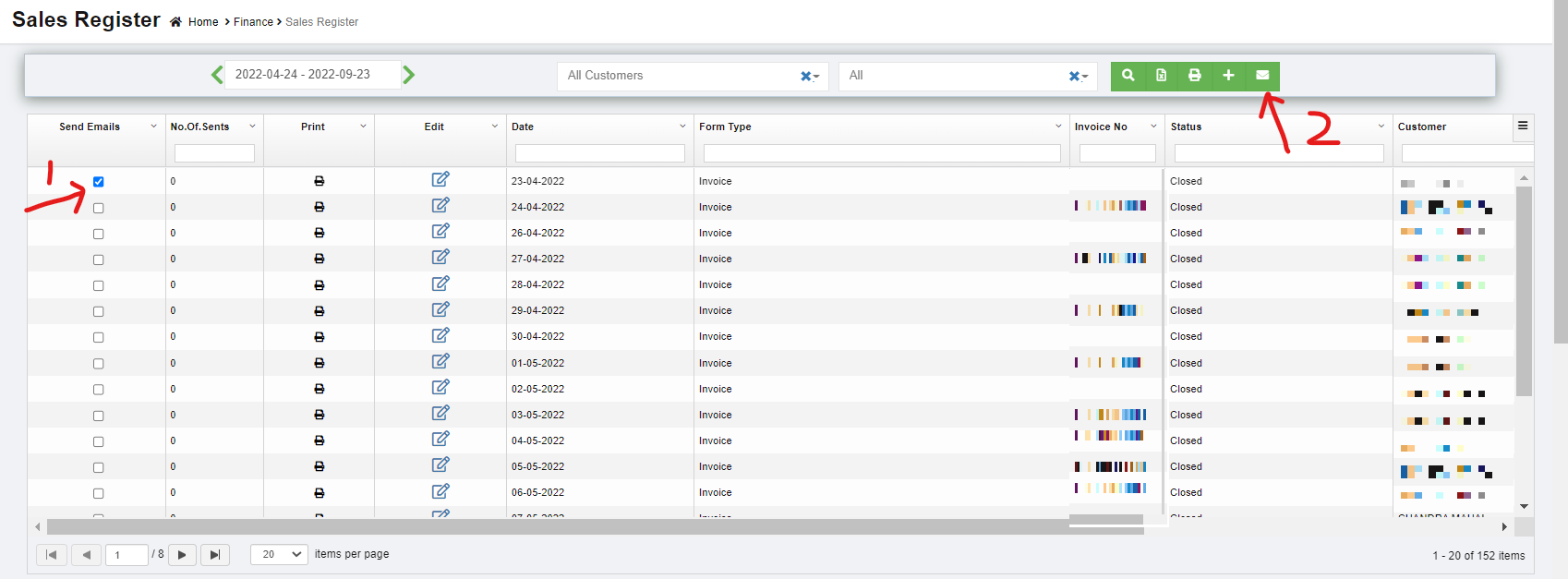
- Select the checkbox provided in the Send Emails column for the invoices which you want to send to the customer.
- Click
 (E-Mail icon) provided in the Sales Register. The selected invoices will be sent to the respective email address.
Add Purchase Details Against a Sales Invoice (need team's input)
Edit the Sales Entry Details
If you want to edit any added sales entry details in the Sales Entry page, navigate to sales register list view page,
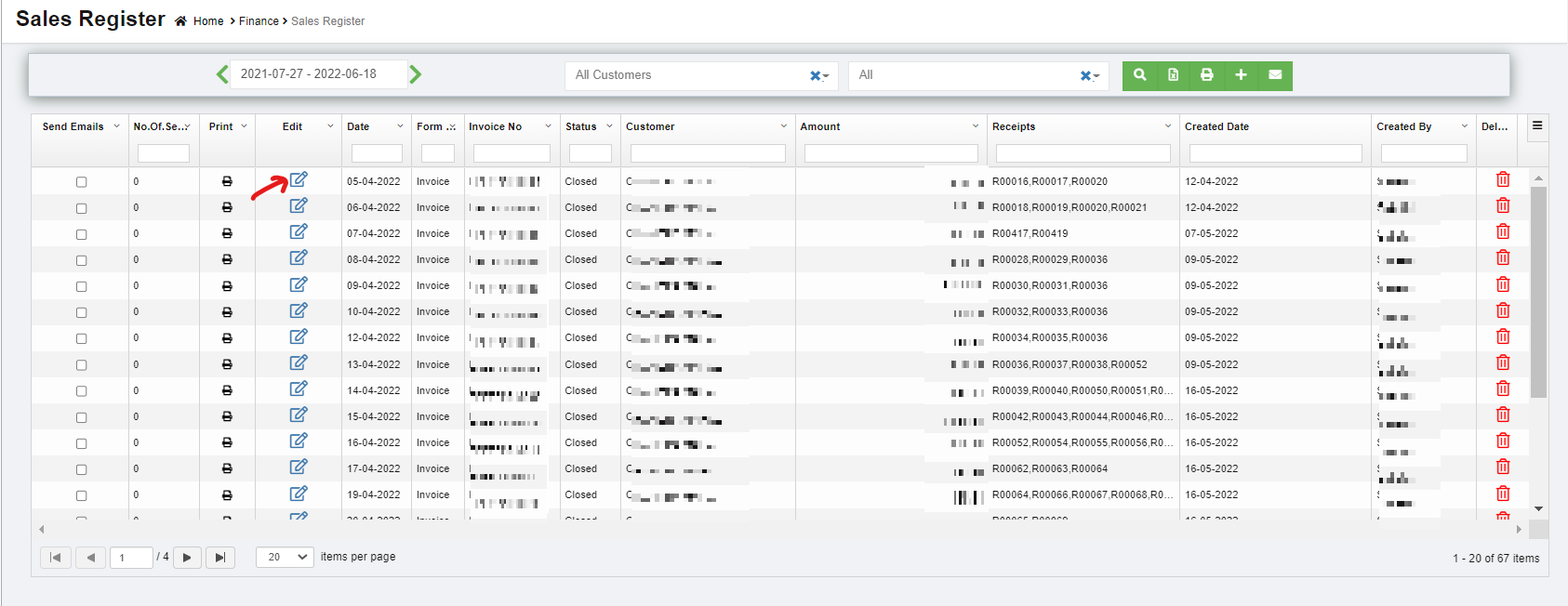
- Click
 (Edit icon) in the Edit column for the respective sales entry. The Sales Entry page opens and shows the added sales details.
 - Click and edit where needed.
- Click Record to save edits. The Changed sales entry details will be updated.

Delete Any Added Sales Entry
If you want to delete any added sales entry, you can use delete option provided in the Delete column of the Sales Register page,
- Click
 (Delete icon) for the corresponding sales entry. You receive a notification message “Are you sure to delete a record?”
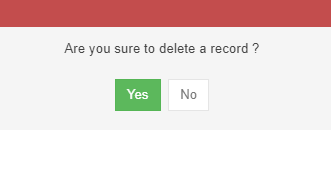
- Click Yes. The selected sales entry will be deleted.
Print the Invoice Details
If you want to print the invoice details of the particular sales entry, click (Print icon) provided in the Print column for the corresponding sales entry.
Settings Configuration to Print Invoice
- Click (Edit icon) in the Edit column for the respective company. The company page opens and go to settings tabs. Use filter and enter "financeSalesInvoiceReportFormat".
- Click edit and enter "SALESINVOICEFORMAT3" in the value.
- Click Save to save details.
- Go to Logo upload tab and choose "Letter Pad" in the image type.
- Click choose file and add Company Letterhead.
- Click Show Preview and Save the details.
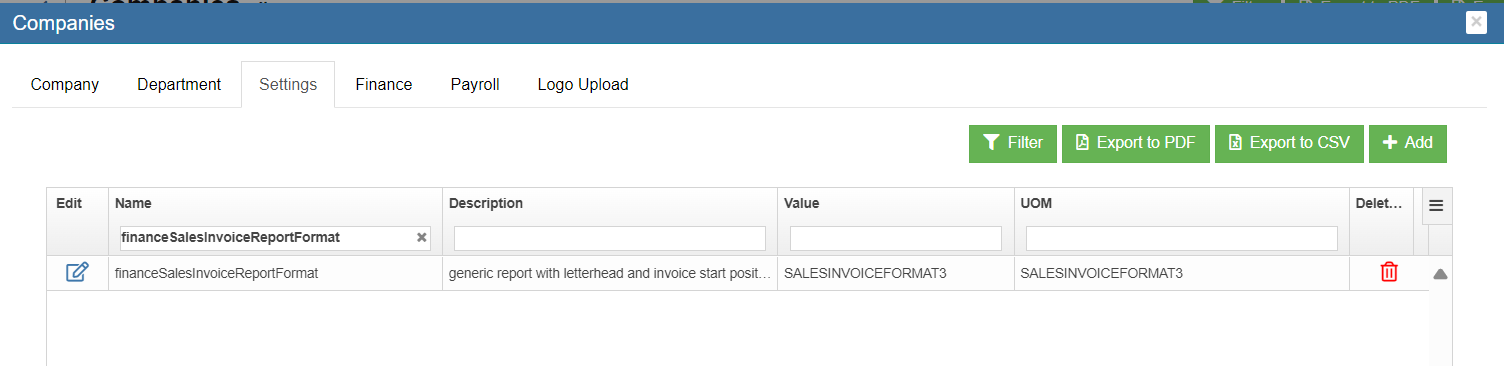
Note : Use setting "financeSalesInvoiceReportStartPosition" to adjust the space between header and "Tax Invoice" in the report
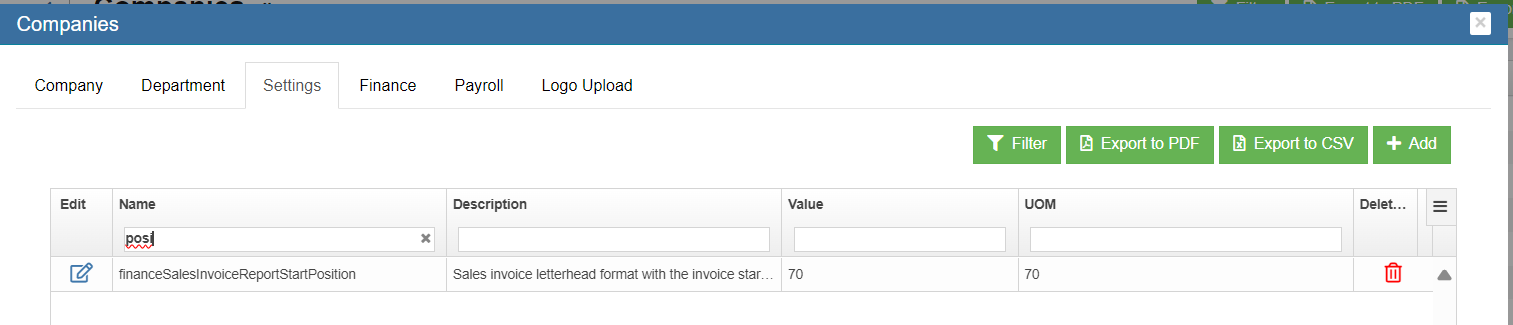

Export the Sales Register
If you want to export the added sales entries in the Sales Register page in the excel format, you can click  (Excel icon). The added sales entries will be downloaded in the excel format.
Receive Payments
The Receive Payments tab in the Finance menu helps you to add the details of the payment received from the customer. Click Receive Payments in the Finance, the Receive Payments Register page opens as below,
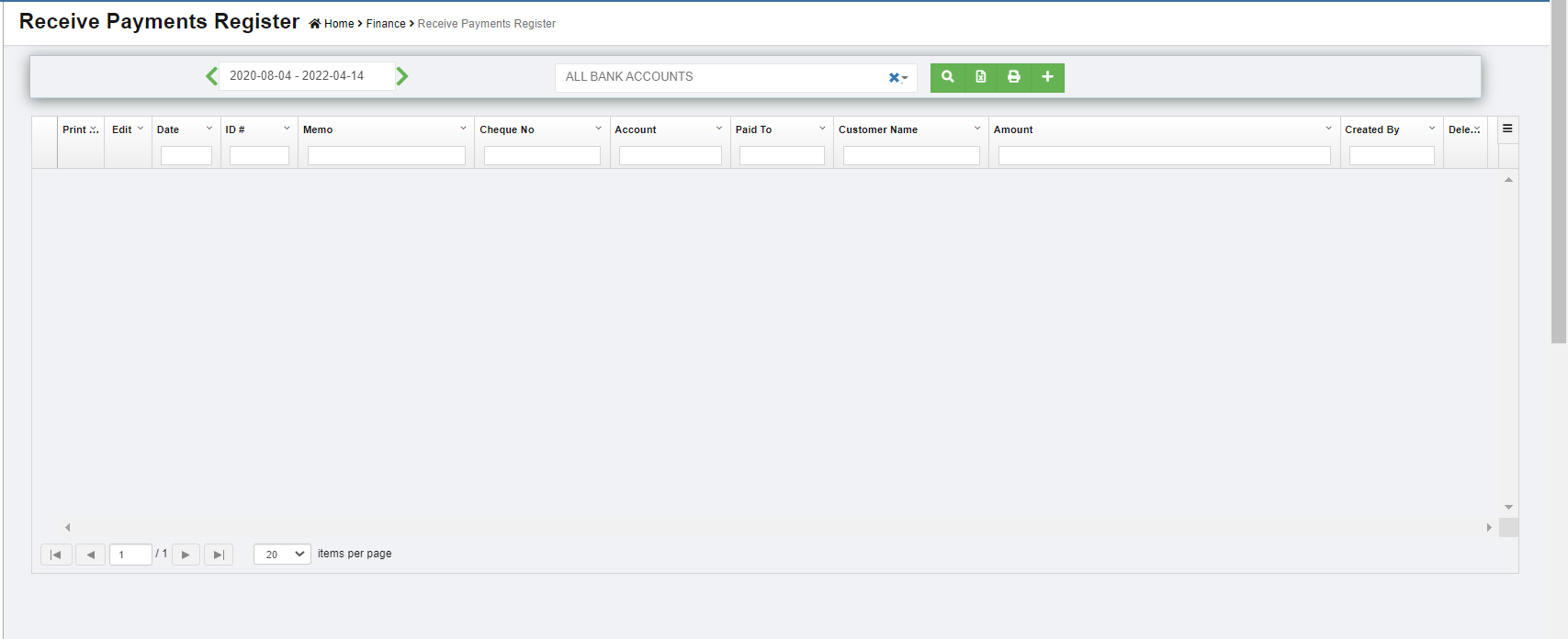
View Received Payments
If you want to view the received payment entry details of the particular bank account, you can use below filter to search,

- In the Calendar field, select the period for which you want to view the received payment entry details.
- In the Account box, select a bank account.
- Click
 , the received payment entry detail opens for the selected bank account and period.
 ,
, Add a Received Payment Entry
To add a received payment details,
- Click
 (Add icon) provided in the upper right-corner of the Receive Payments Register. The Receive Payments Entry page opens.
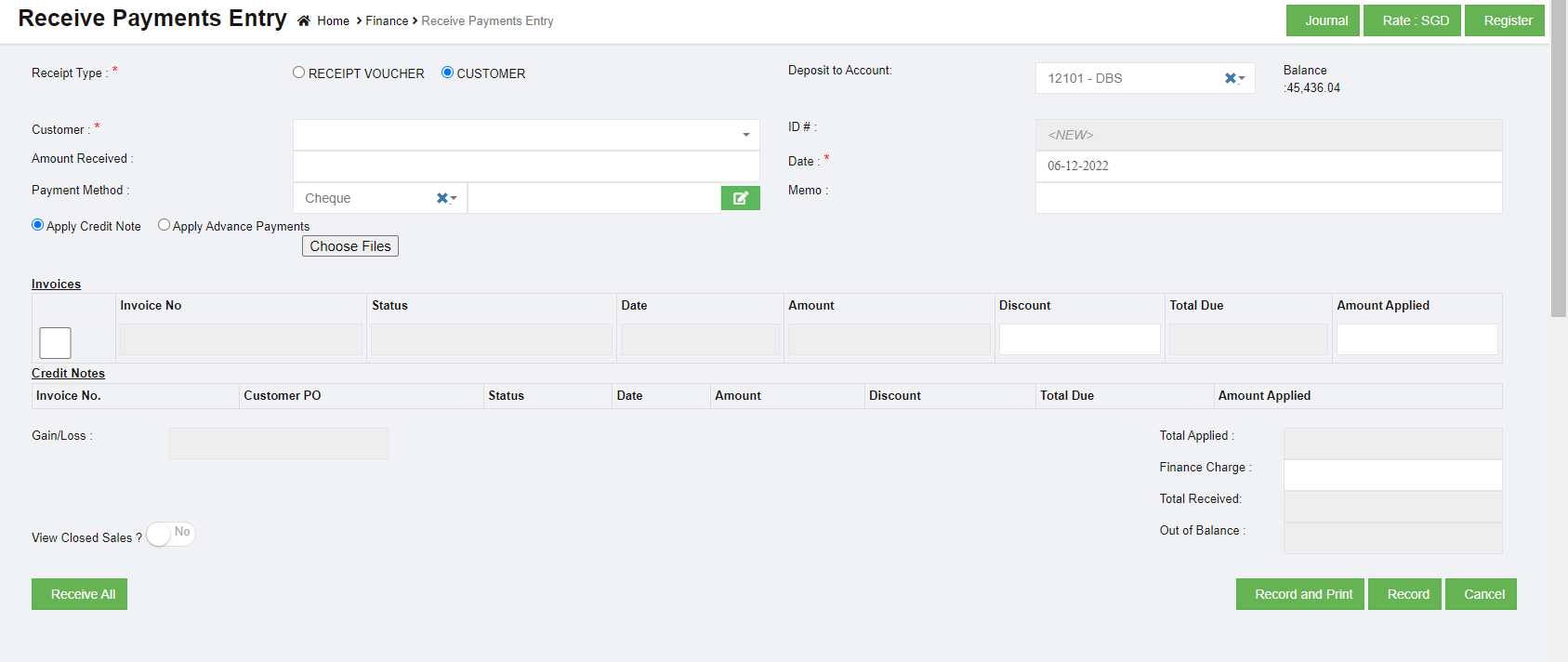
- In the Receipt Type field, if you want to add the details of payment received from any buyer other than the customers, select the RECEIPT VOUCHER, Once you select the RECEIPT VOUCHER option, the Receive Payments Entry page shows the following fields to be filled.
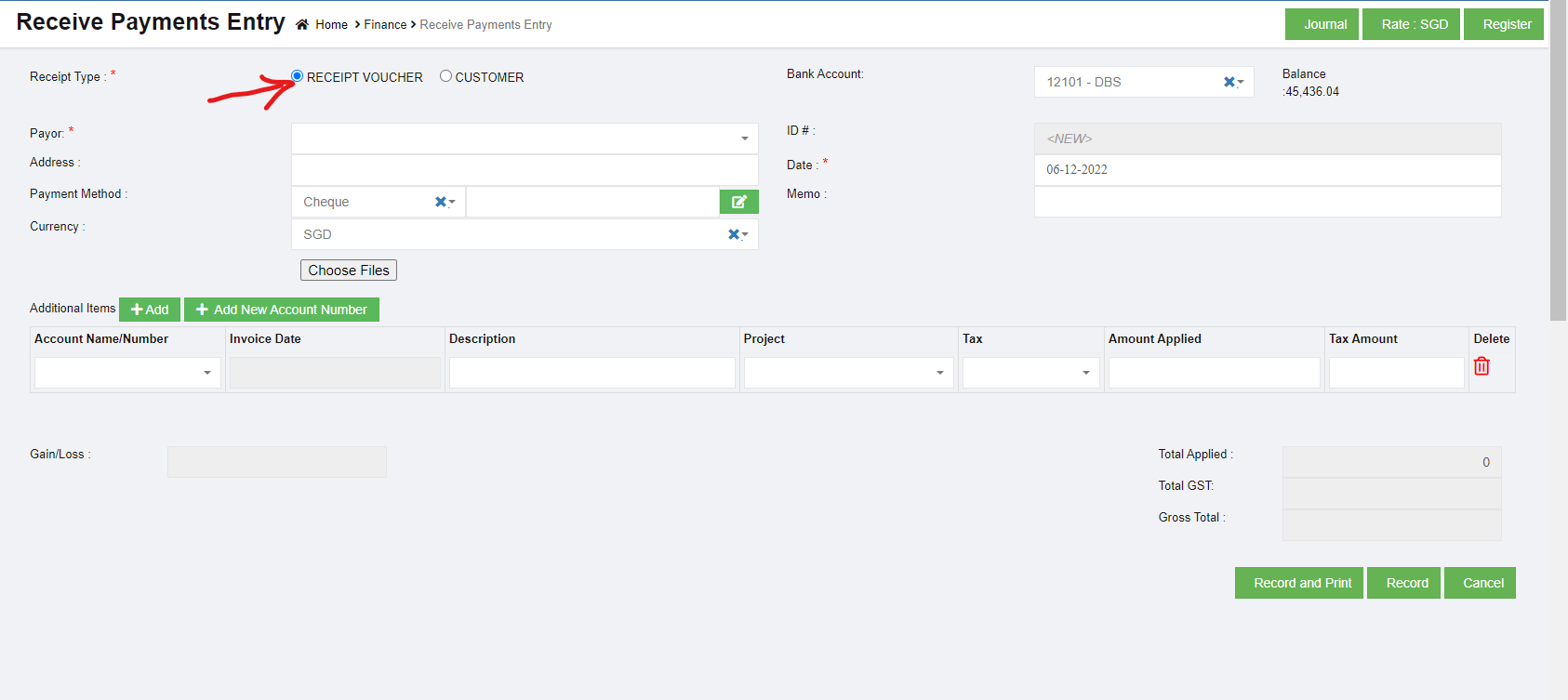
- In the Bank Account box, select a bank account.
- In the Payor box, select a payor from a drop-down list.
- In the Address box, enter the address of the person or company who has made payment.
- In the Date box, select the date of payment.
- In the Payment Method box, select the mode of payment.
- In the Currency box, select the currency type.
- In the Account Name/Number box, select any one of appropriate chart of account from the list of charts of accounts.
- If you want to add additional account number, click (Add button) and add the account details.
- If you want to add a new account number, click (Add New Account Number button) and add the account details.
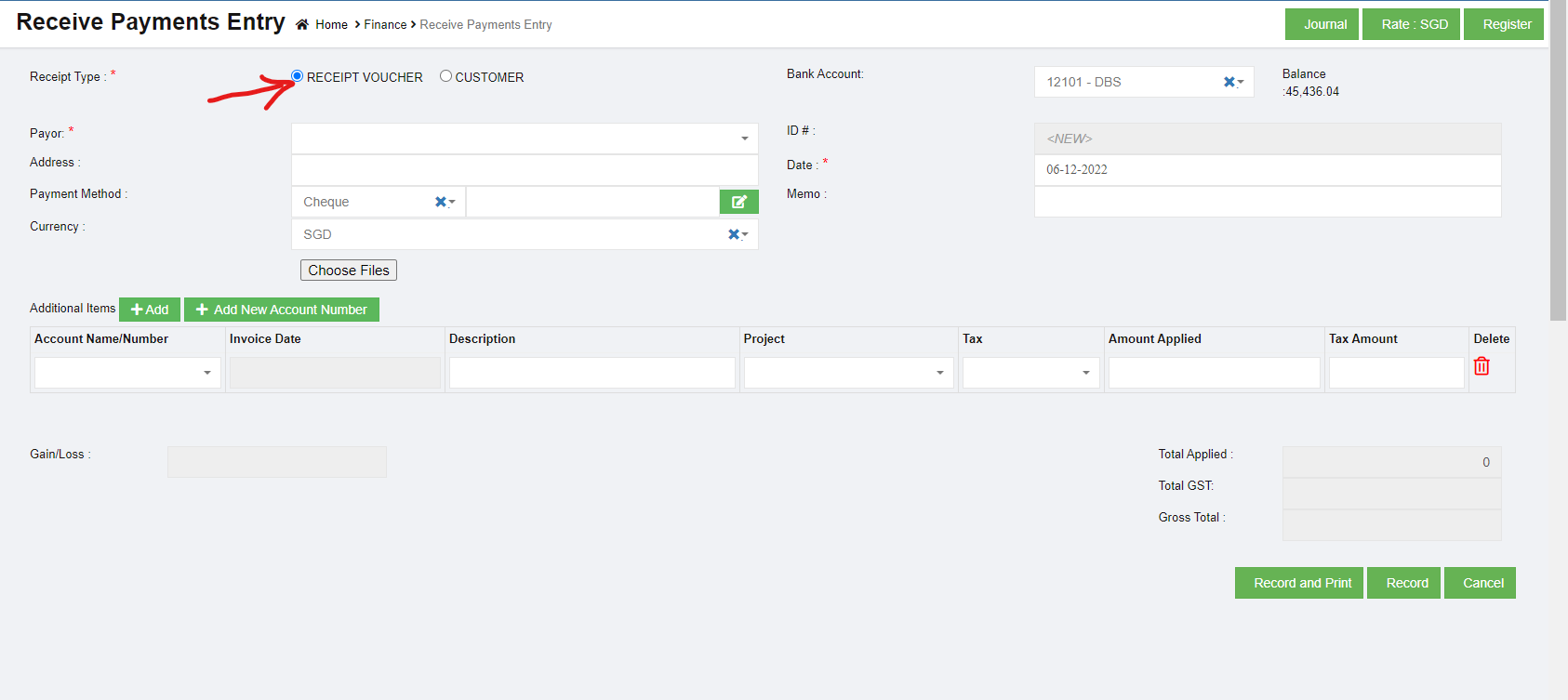
Note: Once you have selected the account number and name, the Invoice Date box shows the invoice date and the Description box shows the description for the corresponding selected account.
- In the Tax box, select a tax code from the given tax codes.
- In the Amount applied box, enter the amount. Once you have selected the tax code and entered the amount, the GST and gross total will be automatically updated. The gain/loss amount will be automatically updated in the Gain/Loss box.
- Click Record to save the received payments details. The added payment details will be saved and listed in the Receive Payments Register page. Note: If you want to print the received payments details, click
 (Record and Print button).
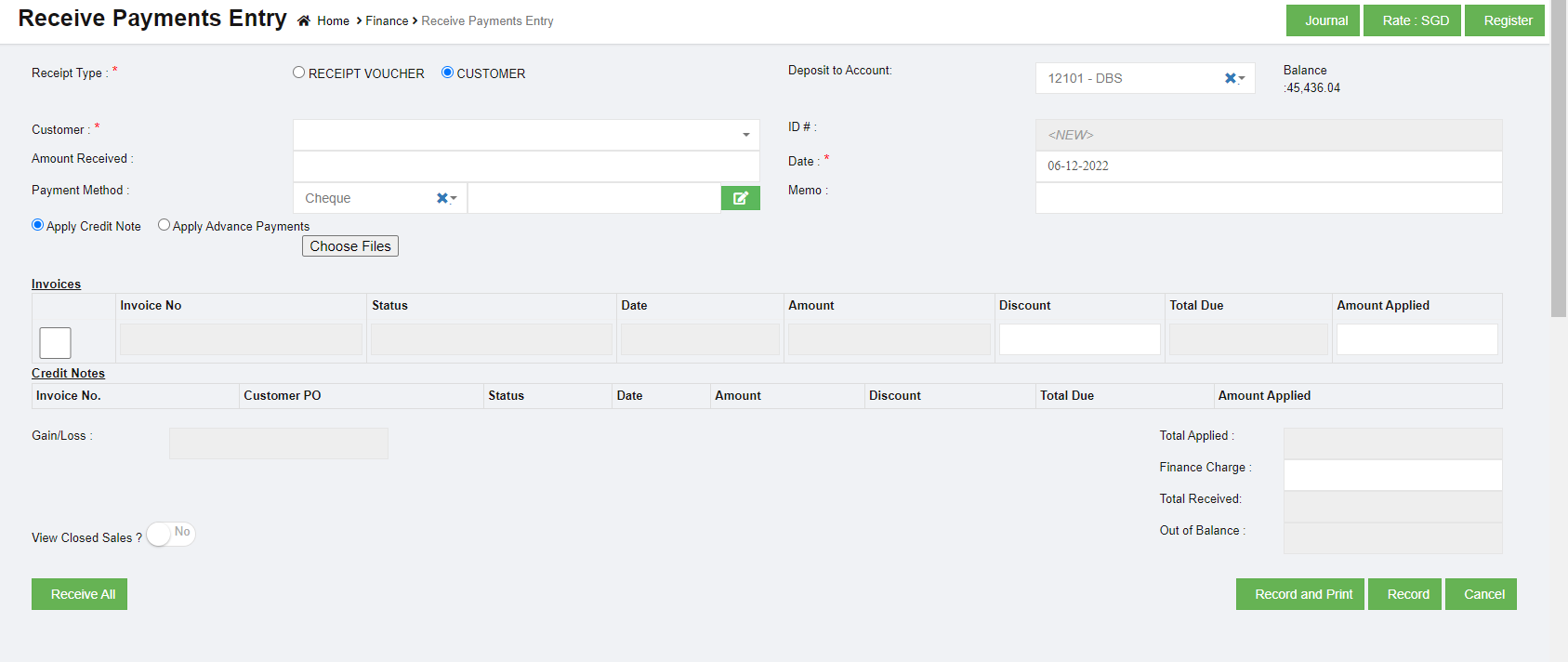
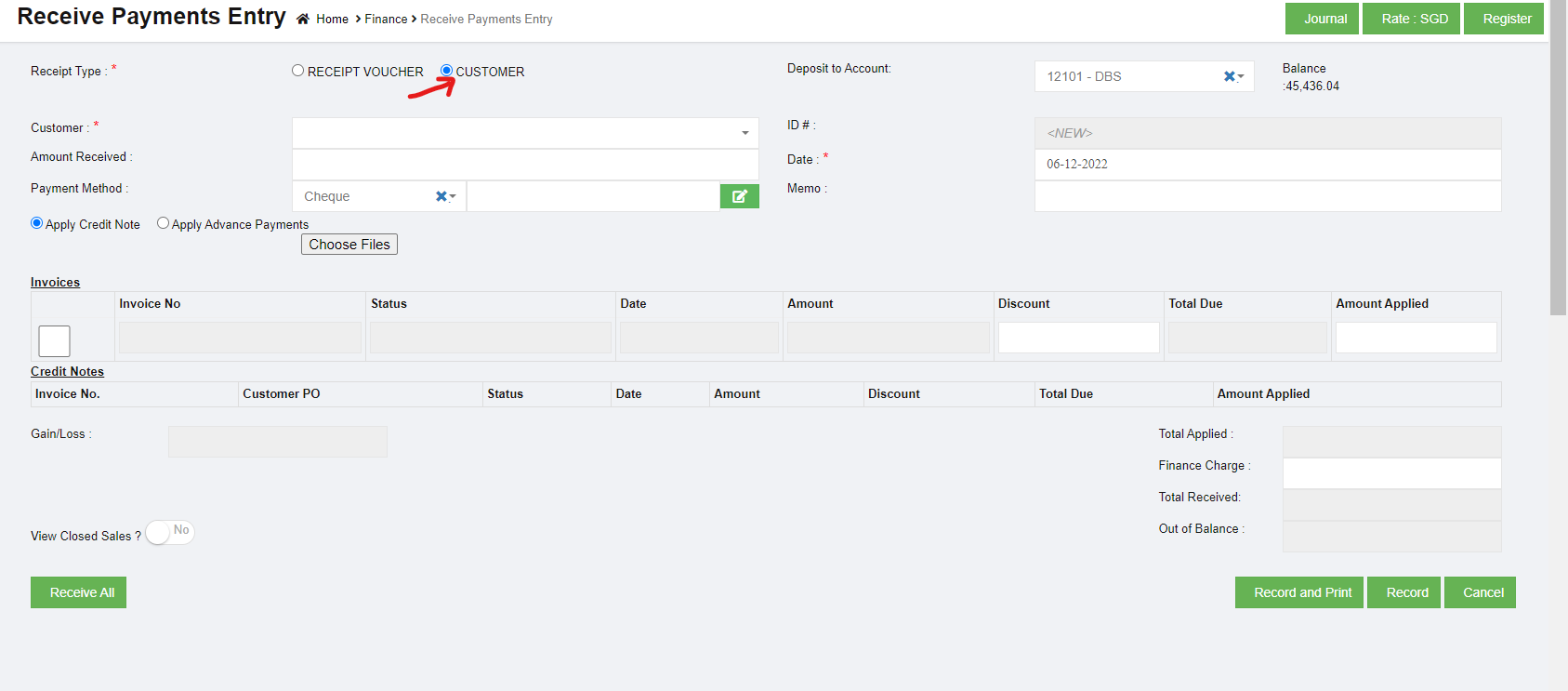
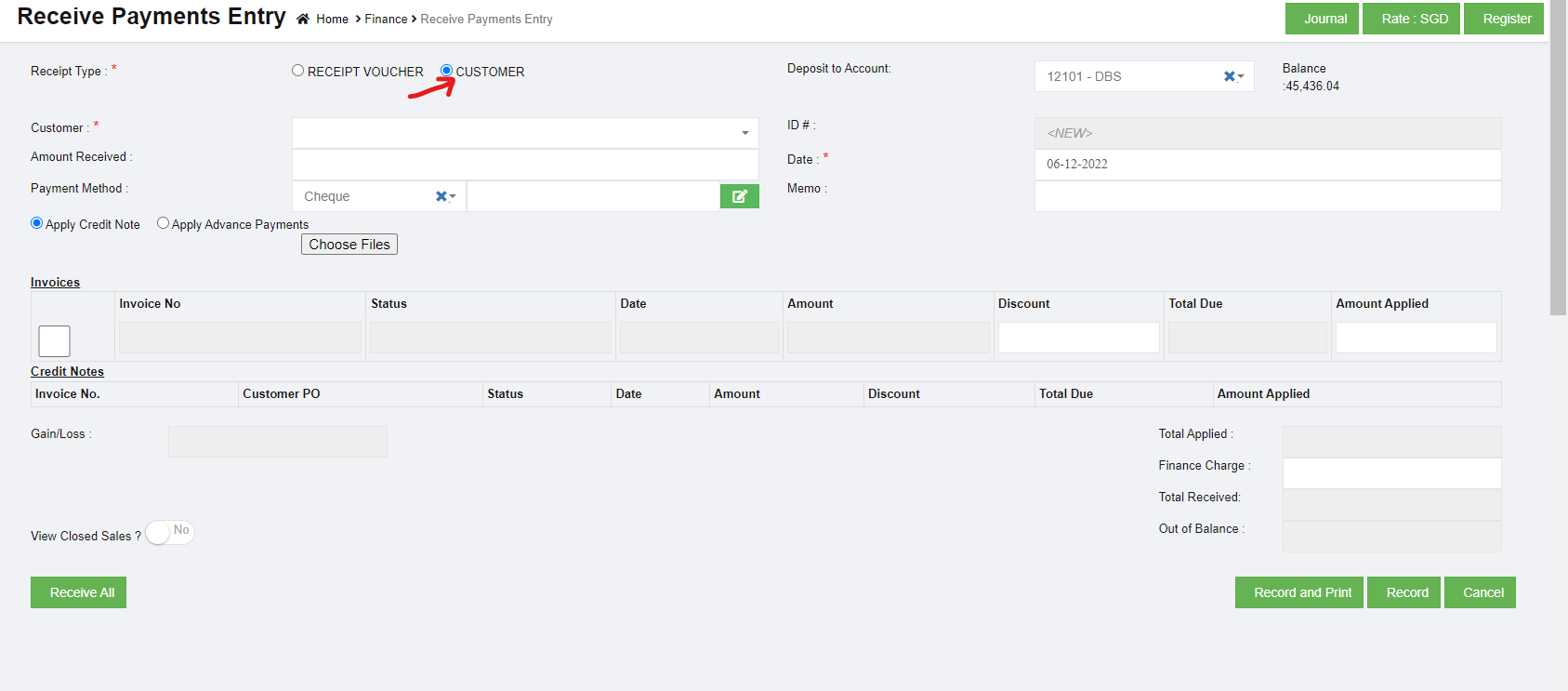
- In the Receipt Type field, if you want to add the details of payment received from any customers, select the CUSTOMER. Once you select the CUSTOMER option, the Receive Payments Entry page shows the following fields to be filled.
-
In the Deposit to Account box, select the amount deposit account.
-
In the Customer box, select a customer from the list of customers. Once you have selected the customer, the list of invoices created for the respective customer open.
-
In the Amount Received box, enter the received amount from the customer.
-
In the Date box, select the date of payment.
-
In the Payment Method box, select the mode of payment.
-
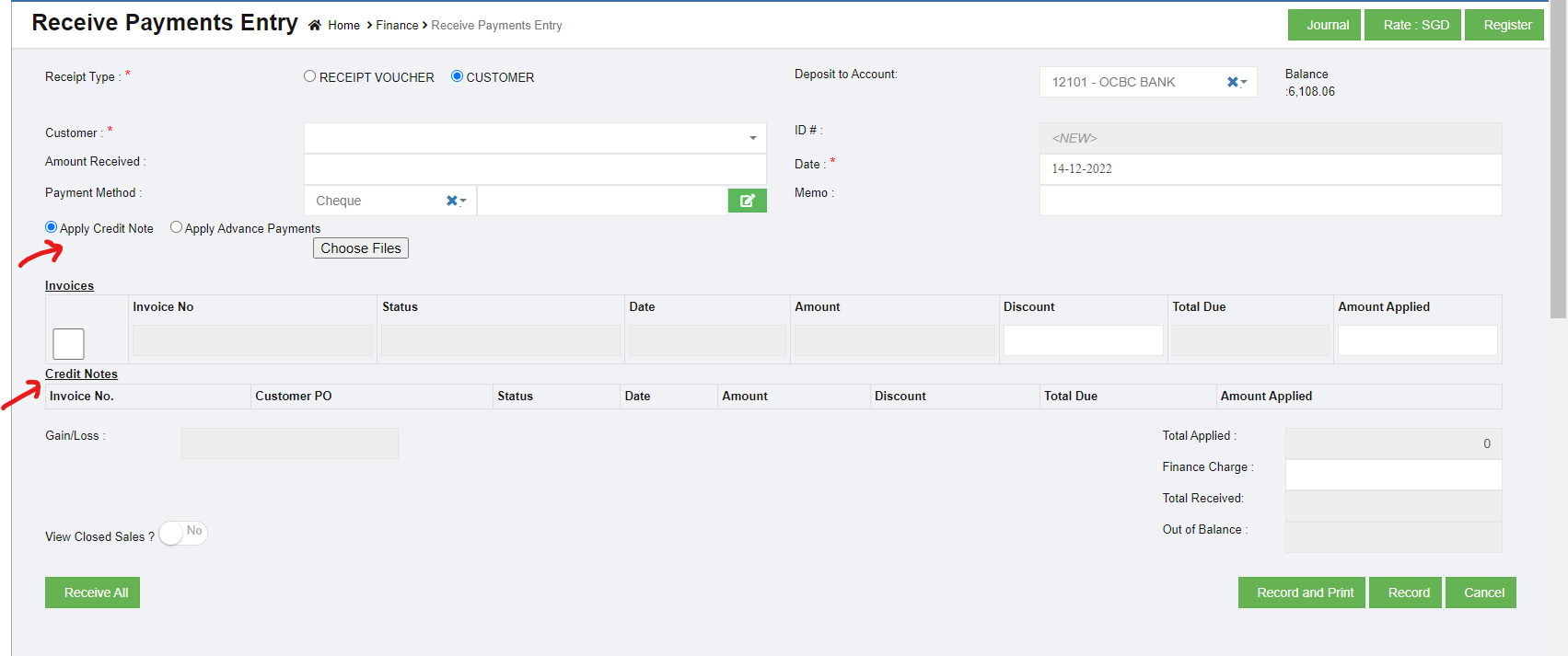
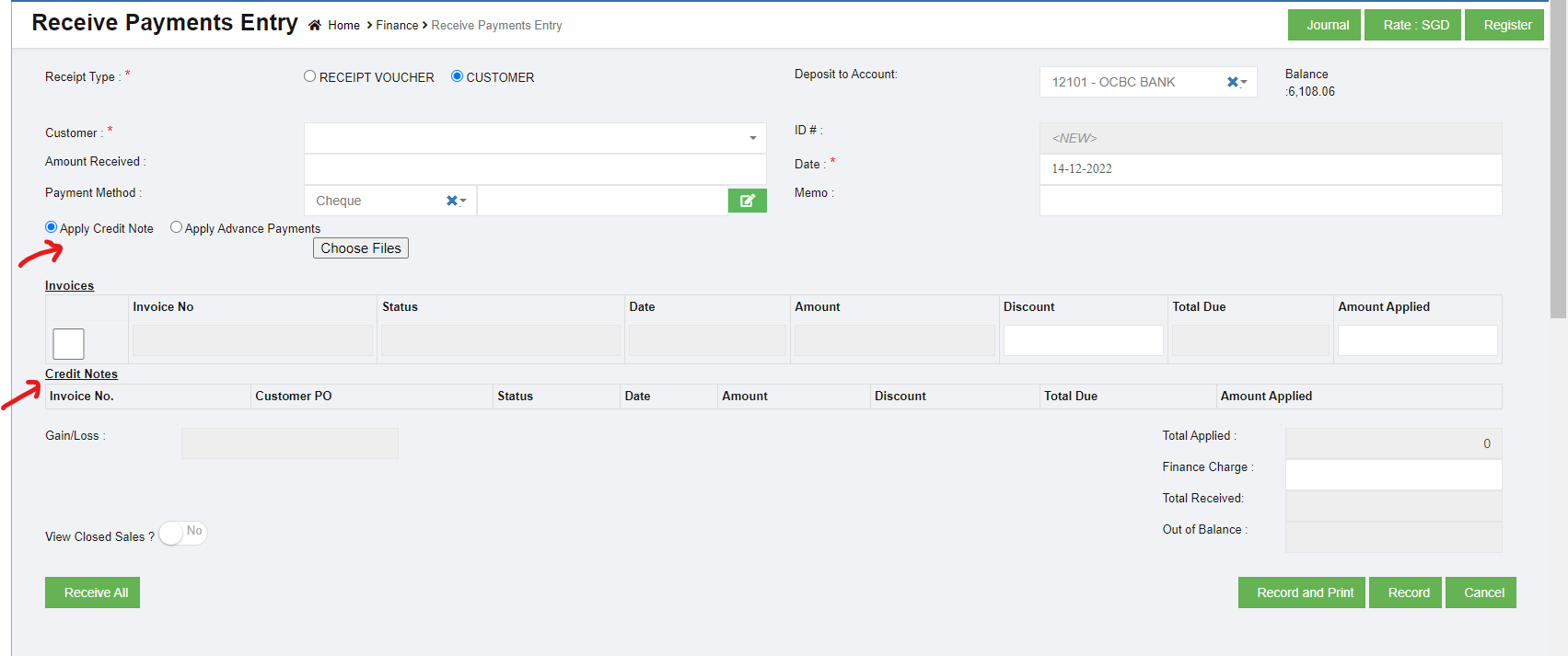
If you want to add any credit note or credit memo, select the Apply Credit Note. Credit Note is a way of refunding an invoice that has already been issued or paid. It can be for part of or the whole amount of an invoice. Once select Apply Credit Note option, the Credit Note fields will be displayed as below,
-
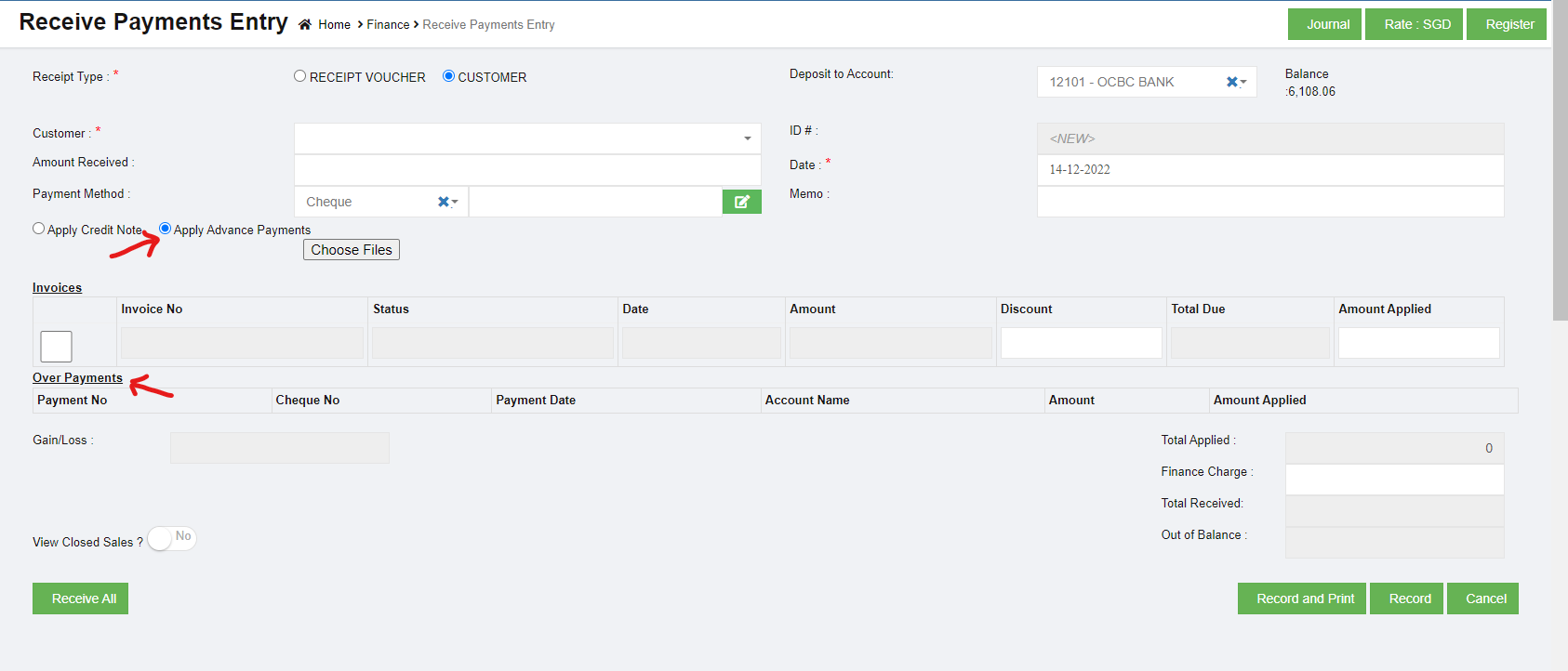
If you want to receive the payment from any overpayments, Select the Apply Overpayments option.
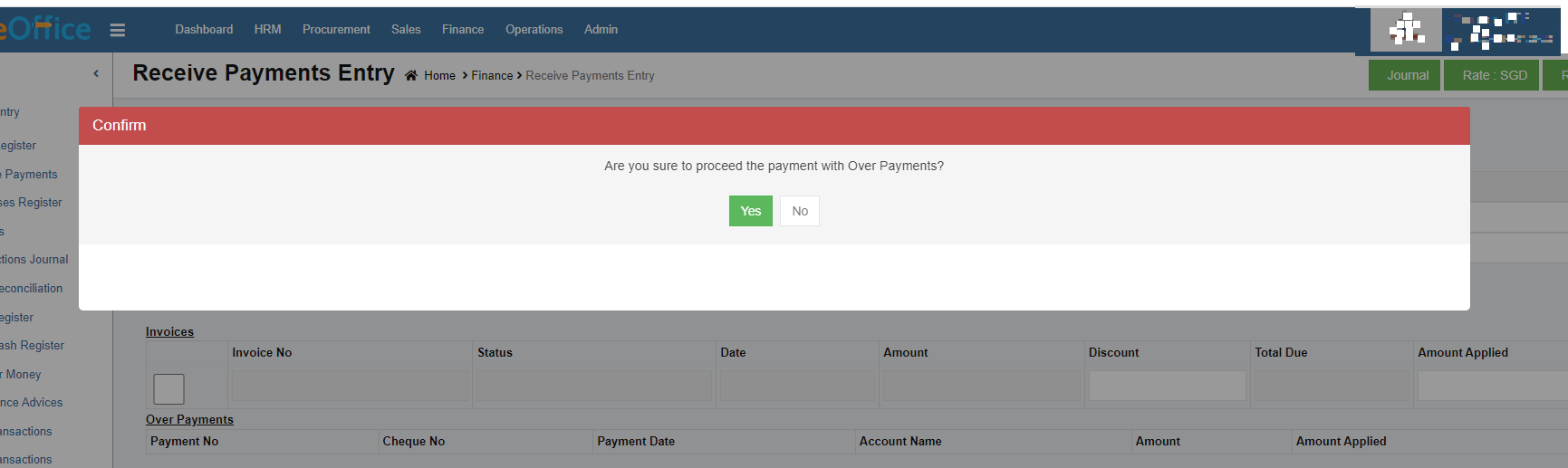
Overpayment is a liability as it consists of money due back to the customer. Scenario 1 - Customer may pay an advance payment and park that amount for later adjusting against the invoice. Scenario 2 - Customer may pay extra amount and park that amount for later use. Once select Apply Overpayments option, the overpayment Confirm dialog box opens and shows the following notification,
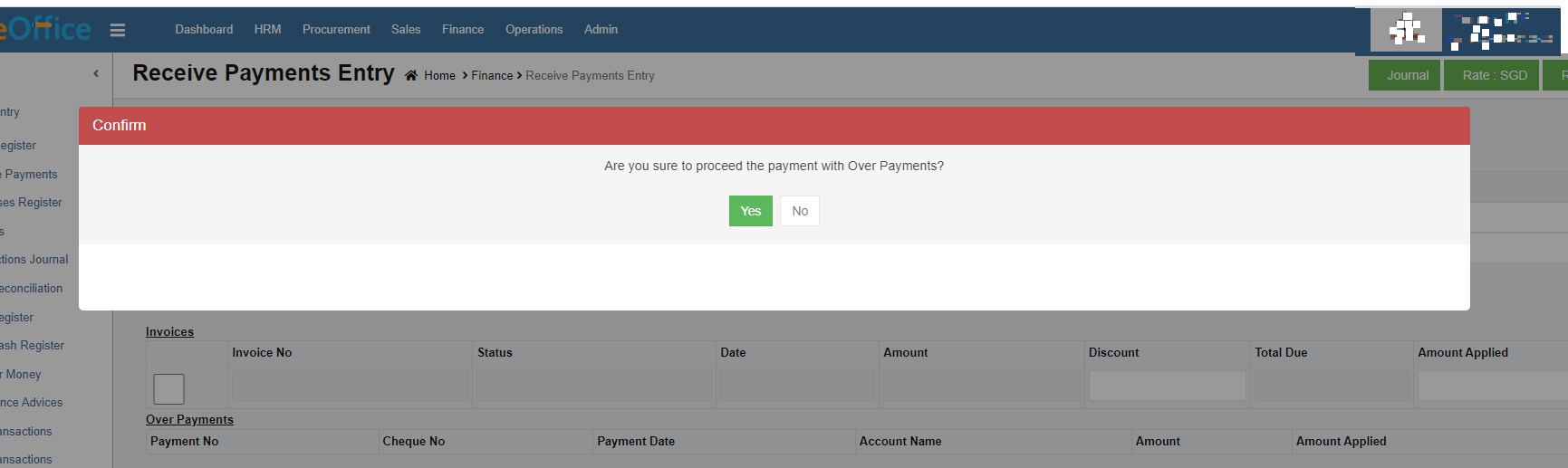
Click Yes. The Over Payments fields will be displayed as below:
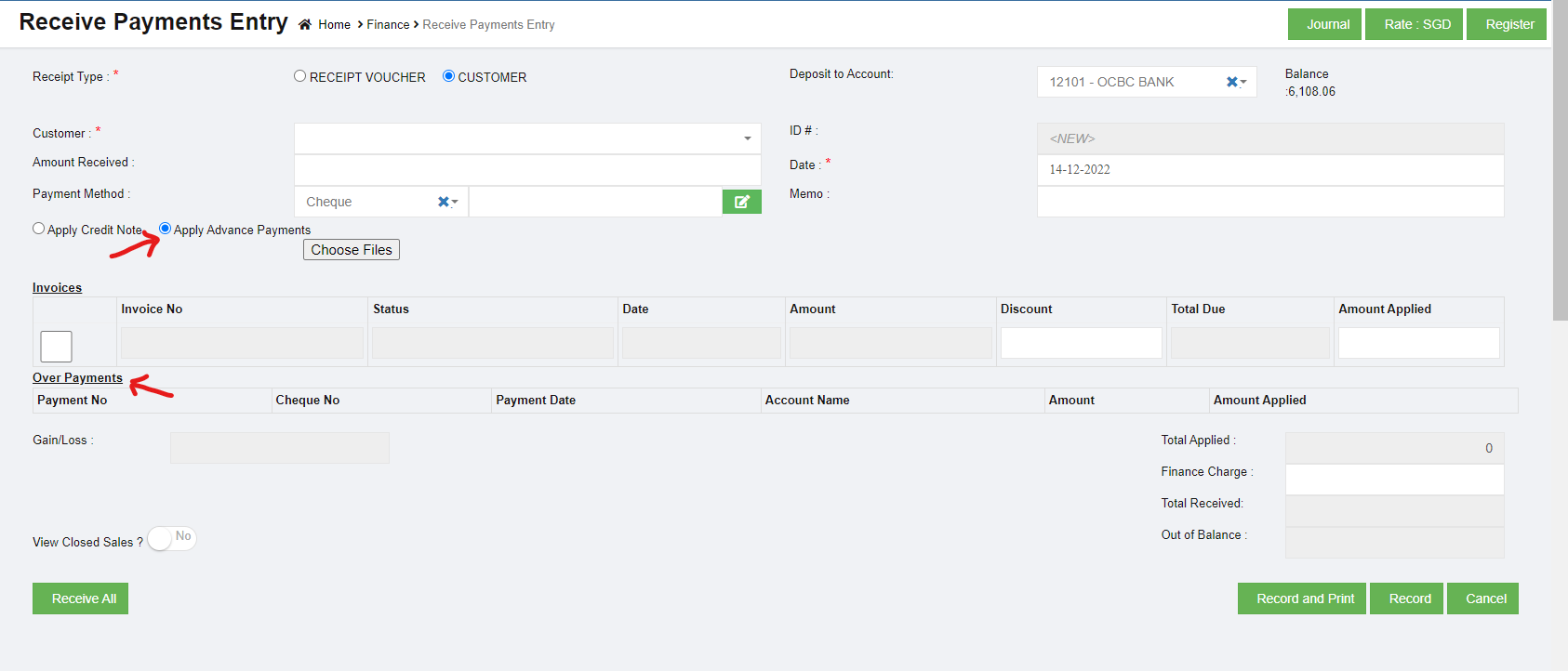
The system will display the information of over payment if available. The Amount box in the Over Payments field shows the balance amount of the over payment. If you want to receive the amount from the customer’s over payment, enter the amount in the Amount Applied box in the Over Payments field. The total amount will be adjusted from the applied over payment amount.
Note: If you want to attach any file regarding credit note or overpayments, click
 (Choose Files button) and attach the file.
 -
In the Invoices field, enter the discount amount in the Discount box.
Note: To manually enter the amount in the Invoices field, the respective users must be assigned with the Manual Amount Filling permission.
-
-
- If you want to enter the amount manually,
- In the Amount Applied box, enter the paid amount. Once you have entered the paid amount, the total applied, finance charge, total received and out of balance will be automatically updated. The gain/loss amount will be automatically updated in the Gain/Loss box.
- If you want to view the closed sales details, enable Yes in the View Closed Sales
- If you want to view all the payment details, click (Receive All button).
- Click Record to save the received payments details. The added payment details will be saved and listed in the Receive Payments Register page. Note: If you want to print the received payments details, click (Record and Print button).
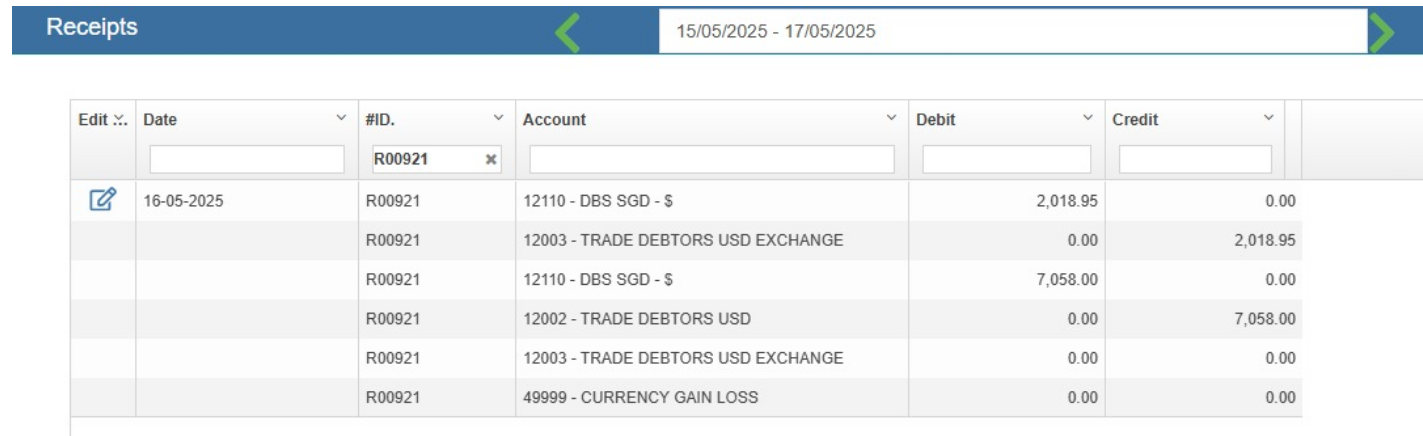
Receive USD customer payment in SDD account.
If a customer is invoiced in USD and received payment in SGD, then use the below method to update the receive payment in system.
Example: Customer AlMansoori was invoiced with 7058 USD. The payment received in SGD account is SGD 9076.95
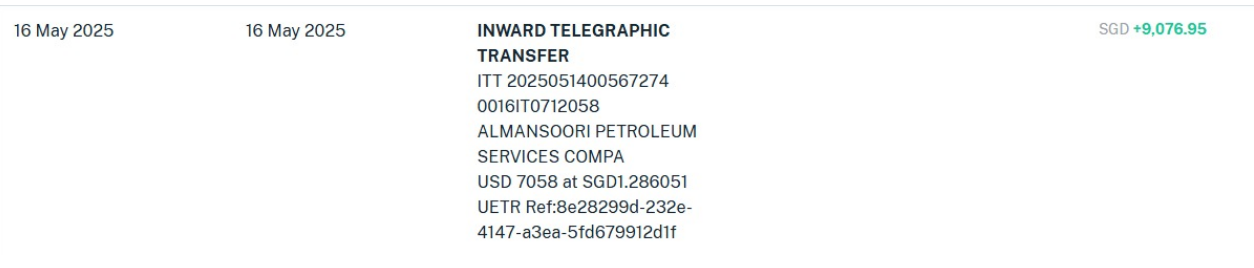
So the exchange rate calculated in 9076.95 / 7058 = 1.286051
Go to Receive payment entry screen and enter the USD amount in amount received textbox.
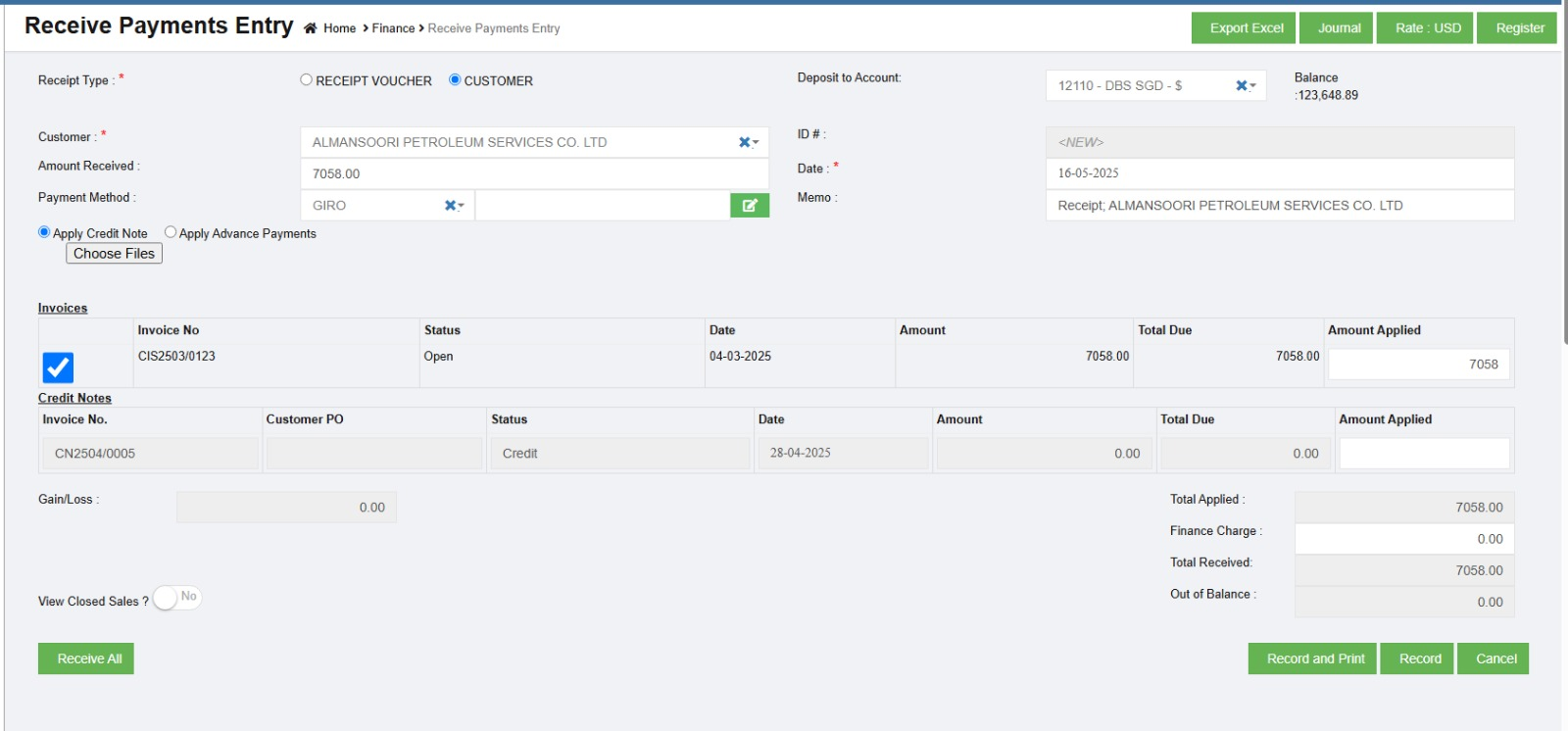
Click on Rate: USD and enter the exchange rate

Now Record the receipt.
The journal shows the actual receipt of 9076.95 in the SGD account as required.
Edit the Receive Payment Entry Details
If you want to edit any added receive payment entry details in the Receive Payments Entry page, do the following steps,
- Click (Edit icon) in the Edit column for the respective receive payment entry. The Receive Payments Entry page opens and shows the added received payment details.
- Click any box where you want to edit the details, and then edit the details in the respective box in the window.
- Click Record. The changed receive payment entry details will be updated.
Delete Any Added Receive Payment Entry
If you want to delete any added receive payment entry, you can use (Delete icon) provided in the Delete column of the Receive Payments Register page,
- Click (Delete icon) for the corresponding receive payments entry. You receive a notification message “Are you sure to delete a record?”.
- Click Yes. The selected receive payments entry will be deleted.
Print the Receipt Voucher
If you want to print the receipt voucher of the particular received payment entry, click (Print icon) provided in the Print column for the corresponding payment entry.
Export the Receive Payments Register
If you want to export the added received payments entry in the Receive Payments Register page in the excel format, you can click (Excel icon). The added receive payments entries will be downloaded in the excel format.
Purchase Register
Purchase Register is a record of your company's purchases from suppliers. Each time when a purchase is made, the Purchase Invoice received from the Supplier should be recorded in the Purchase register page. Click Purchases Register in the Finance menu.
The Purchases Register page opens.
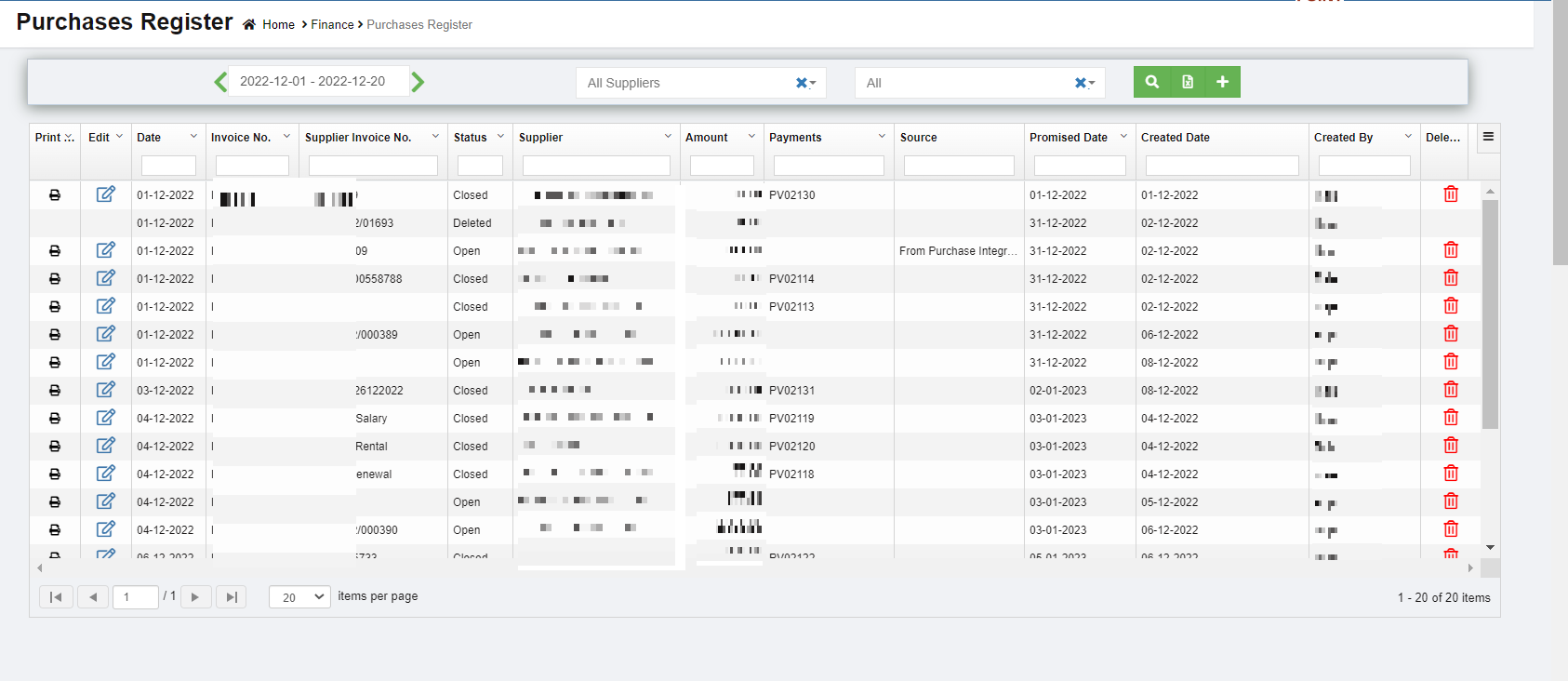
View Purchase Register
If you want to view the purchase entry details of the particular supplier,

- In the Calendar, select the period for which you want to view the purchase entry details.
- In the Supplier box, select a supplier.
- In the Status box, select the status to view the purchase entry details.
- Click
 . The purchase entry detail opens for the selected supplier and period.
Enable Permission for Purchase Recurring Transaction
If you want to add a new purchase entry by using the transaction details of an existing invoice number, you need to enable permission for accessing the Purchase recurring transaction option. To enable the permission for purchase recurring transaction, search for permission name "Purchase Recurring" in user 's permission page and enable both read and write permissions. Once you have enabled this permission, the purchase recurring transaction related option will be appeared while adding a new purchase entry.
Add a Purchase Entry
If you want to add a purchase entry, click  (Add icon) provided in the upper right-corner of the Purchases Register. The Purchases Entry page opens.
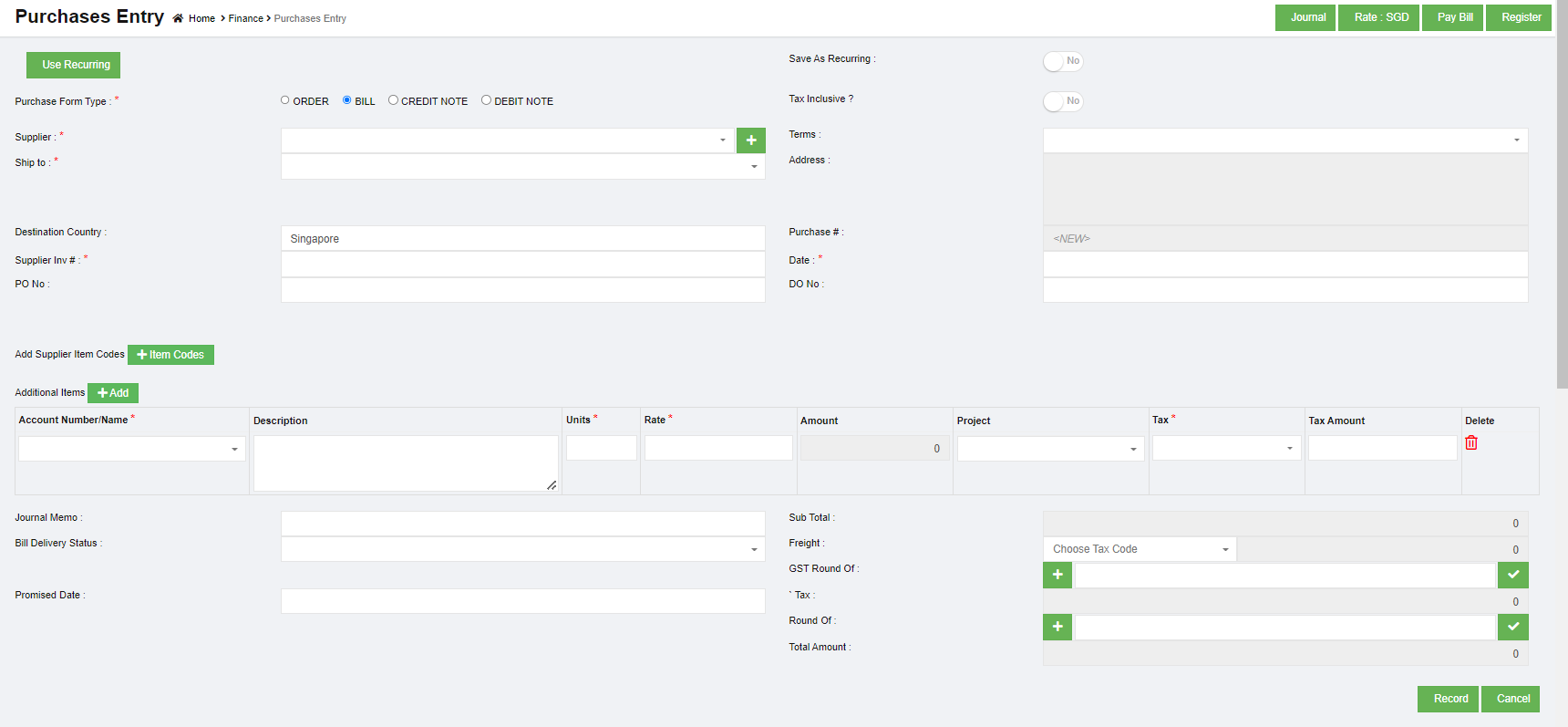
- (Journal button)-You can use the Journal option to view the purchase journal entry. Purchase Credit Journal Entry is the journal entry passed by the company in the purchase journal of the date when the company purchases any goods from the supplier on the terms of credit, where the purchases account will be debited.
 (Pay Bill button) – used to navigate into the Pay Bills Entry page.
 - (Register button) – used to navigate into the Purchases Entry page.
Add a Purchase Entry Using the Purchase Recurring Option
If you want to add a purchase entry by using the purchase recurring option,
-
- Click (use recurring button), all the saved recurring transactions page will open as below,
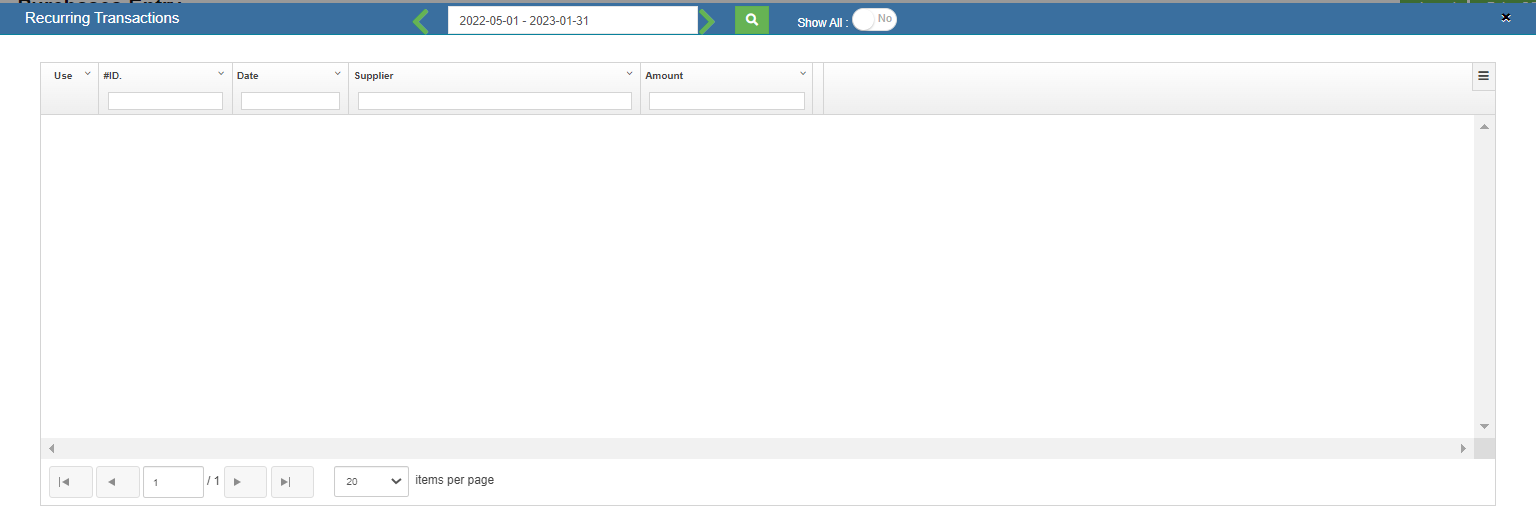
- Select an invoice number from the recurring transactions list. Click the use icon. Once the invoice number is selected, it will retrieve the respective transaction details saved successfully in cuteOffice. All the input fields will be automatically filled up according to the selection of invoice number.
- Click
Note: to save a purchase entry as Recurring, enable the "Save As Recurring" flag to Yes when register a purchase entry. Once saved as recurring entry, it will be shown in the recurring transaction page when use "Use Recurring" option to register purchase entry.
Add a Purchase Entry Manually
If you want to add a purchase entry manually, click  add button in the purchase register page, the purchase entry page will open as below,
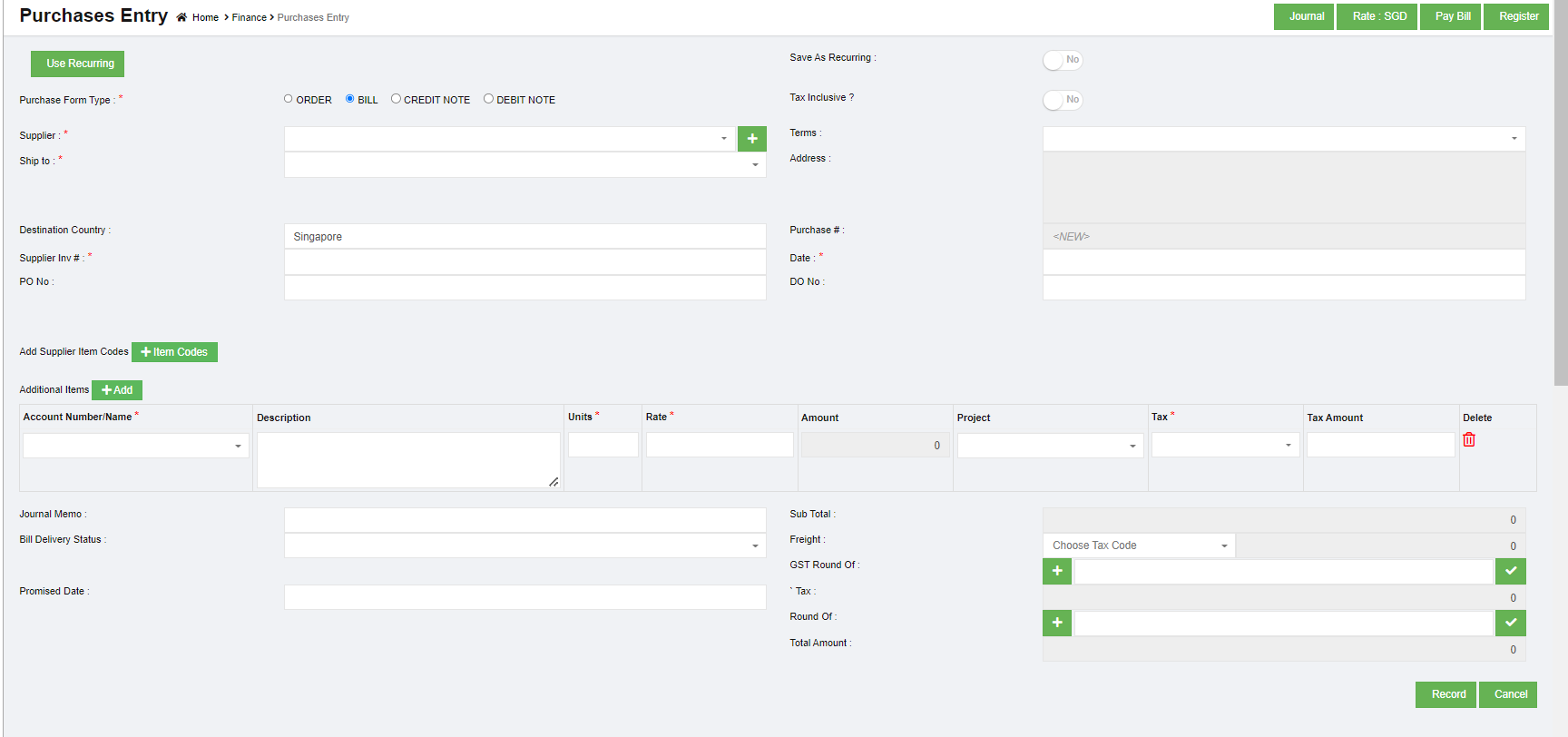
- In the Purchase Form Type field, select the purchase form type from the given types.
-
In the in the Tax Inclusive field, If the tax is inclusive for the purchase entry, enable to Yes; or else, No.
-
In the Supplier box, select a supplier from drop down list from suppliers' master. Note: If you want to add a new supplier, you can add a new supplier by clicking
 (Add icon) near the Supplier box.
 - In the Terms box, select the terms. Terms – Terms refers to the payment period. For example, if you select the terms as COD, then you need to pay cash on delivery. If you select 30 Days, then you need to pay the purchase amount within the 30 days of delivery.
- In the Ship to box, select the shipping location. Note: once you have selected the shipping location, the shipping address will be automatically updated in the Address box.
- In the Destination Country box, enter the destination country name.
- In the Supplier Inv# box, enter the invoice number received from the supplier.
- In the Date box, select the purchase date.
- In the Account Number/Name box, select any one of appropriate chart of account from the list of charts of accounts.
- Once you have selected the account number and name, the Description box shows the description for the corresponding selected account.
- In the Units box, enter the number of items purchased by you.
- In the Rate box, enter the rate of one item.
- Once you have entered the units and rate of the item, the total amount will be calculated and displayed in the Amount box.
- In the Project box, select for which project, the items are purchased.
- In the Tax box, select a tax code from the given tax codes. The total amount for the items will be automatically updated in the Sub Total box.
- In the Bill Delivery Status box, select the bill delivery status from the list.
- In the Promised Date box, select the date when the payment will be made.
- In the Freight box, select the tax percentage for the freight charges. The tax amount will be automatically updated in the Tax box.
- In the GST Round Of box, user can use this option to round of GST amount. If need to round down the GST amount, click area 1 to show as "-", then enter round down amount, then click area 2 to enable round of; if need to round up the GST amount, click area 1 to show as "+", then enter round up amount, then click area 2 to enable round of.

- In the Round Of box, user can use this option to round of the total amount. Refer to above point of GST round of.
- Click Record. The purchase entry will be added and listed in the Purchases Register page.


Edit the Purchase Entry Details
If you want to edit any added purchase entry details in the Purchases Entry page, do the following steps,
- Click
 (Edit icon) in the Edit column for the respective purchase entry. The Purchases Entry page opens and shows the added purchase details.
 - Click any box where you want to edit the details, and then edit the details in the respective box in the window.
- Click Record. The changed purchase entry details will be updated.

Delete Any Added Purchase Entry
If you want to delete any added purchase entry, you can use delete option provided in the Delete column of the Purchases Register page,
- Click (Delete icon) for the corresponding purchase entry. You receive a notification message “Are you sure to delete a record?”.
- Click Yes. The selected purchase entry will be deleted.
Print the Invoice Details
If you want to print the invoice details of the particular purchase entry, click (Print icon) provided in the Print column for the corresponding purchase entry.
Export the Purchase Register
If you want to export the added purchase entries in the Purchases Register page in the excel format, click (Excel icon). The added purchase entries will be downloaded in the excel format.
Pay Bills
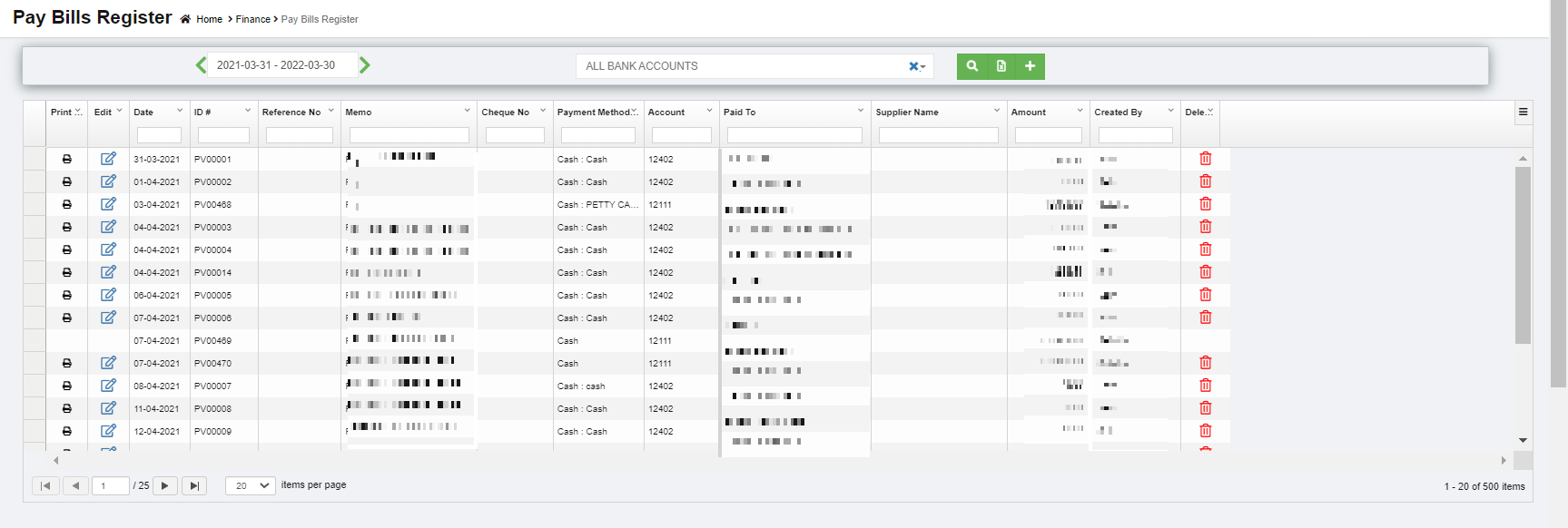
Pay Bills is a statement specifying the amount of money paid to the supplier for the purchase. The Pay Bills tab in the Finance menu helps you to add the details of the amount paid to the supplier. Navigate to finance module, and click Pay Bills in the Voucher Entry menu, the Pay Bills Register page opens as below,
View Paid Bills
If you want to view the paid bill details of a particular bank account, go to the pay bills register page,
- In the Calendar, select the period for which you want to view the paid bill details.
- In the Account box, select a bank account.
- Click
 search icon. The page shows the paid bill details for the selected bank account and period.

Add a Pay Bill Entry
To add paid bill details,
- Click
 (Add icon) provided in the upper right-corner of the Pay Bill Register. The Pay Bills Entry page opens.
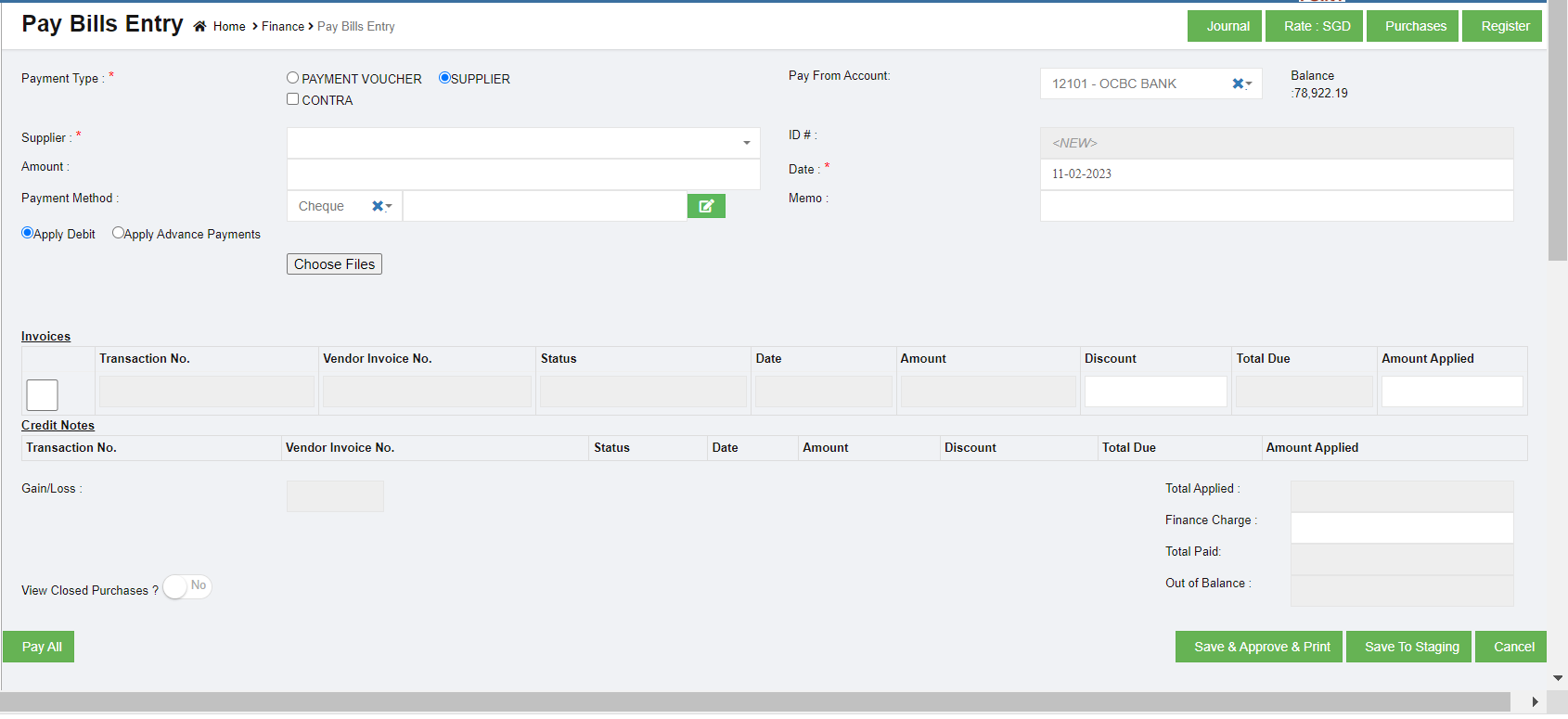
- (Journal button)-You can use the Journal option to used to view the pay bills journal entry. Purchase Credit Journal Entry is the journal entry passed by the company in the purchase journal of the date when the company purchases any goods from the supplier on the terms of credit, where the purchases account will be debited.
- (Pay Bill button) – used to navigate into the Pay Bills Entry page.
- (Register button) – used to navigate into the Purchases Entry page.
- In the Payment Type field, there are three types, namely Payment Voucher and Contra. Payments can be made in two scenarios: payments against an Invoice or Advance payment; Payments made without a Supplier Invoice.
- Type 1 PAYMENT VOUCHER-Payment Voucher option will be selected when the User intends to make a payment without an invoice. When this option is selected, User has to select the Supplier (which is a mandatory field) and the Supplier information will be picked from the Direct Payee Master. For such cases, User needs to create the details in the Direct Payee master, before raising the Pay Bill transaction. .
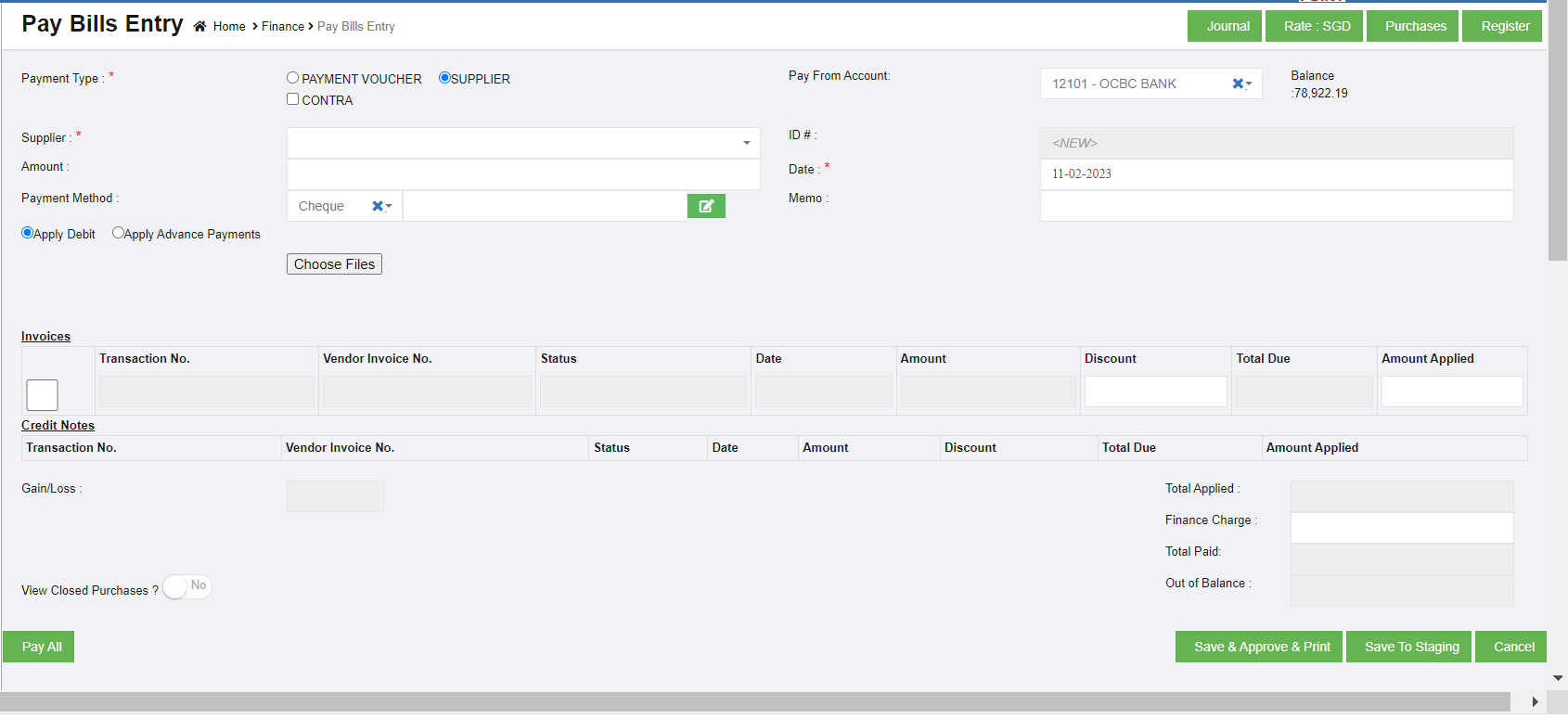
Once you select the PAYMENT VOUCHER option in payment type, the Pay Bills Entry page shows the following fields need to be filled.
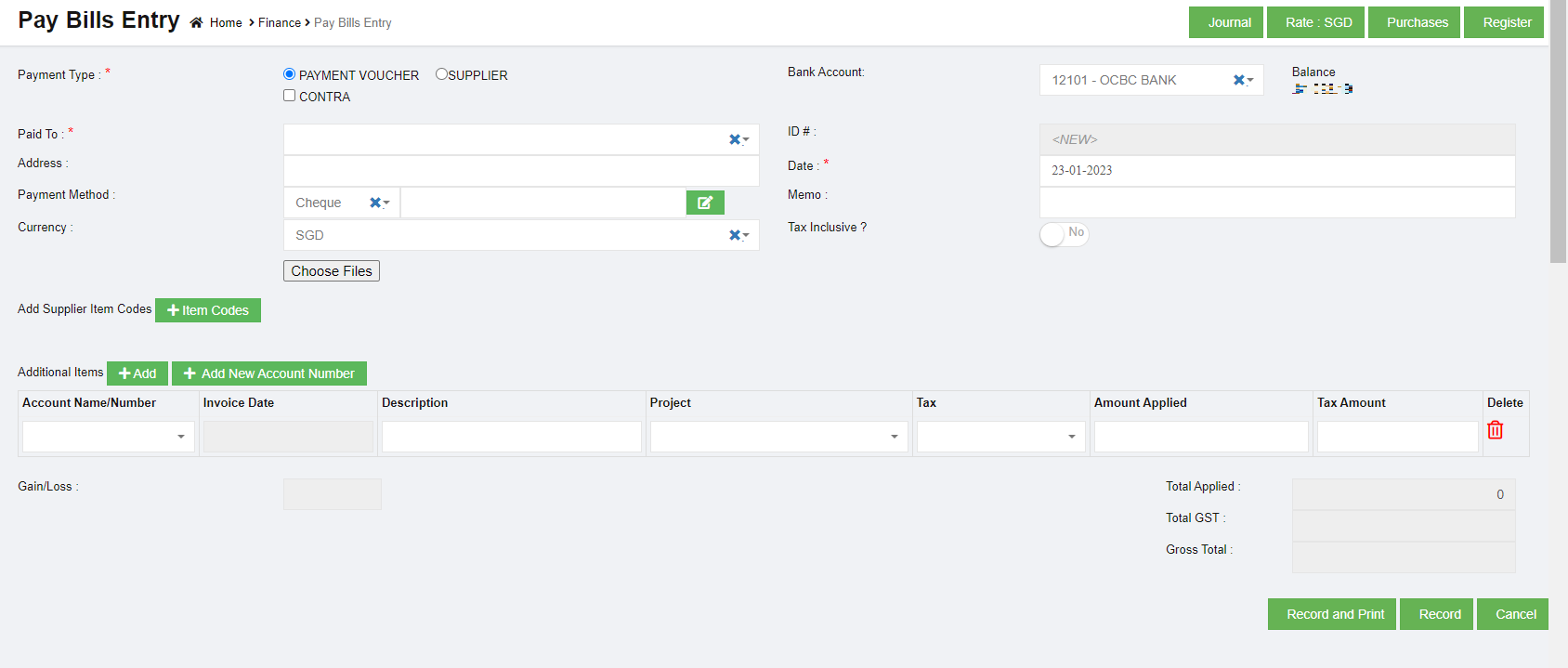
- In the Bank Account box, select the debited bank account.
- In the Paid To box, enter the bank name to which the amount has been transferred.
- In the Address box, enter the address of the supplier who has received payment.
- In the Date box, select the date of payment.
- In the Payment Method box, select the mode of payment.
- In the Currency box, select the currency type.
- In the Account Name/Number box, select any one of appropriate chart of account from the list of charts of accounts. If you want to add additional account number, click (Add button) and add the account details. If you want to add a new account number, click (Add New Account Number button) and add the account details.
- Once you have selected the account number and name, the Invoice Date box shows the invoice date and the Description box shows the description for the corresponding selected account.
- In the Tax box, select a tax code from the given tax codes.
- In the Amount applied box, enter the amount. Once you have selected the tax code and entered the amount, the GST and gross total will be automatically updated. The gain/loss amount will be automatically updated in the Gain/Loss box.
- Click Record to save the paid amount details. The added payment details will be saved and listed in the Pay Bills Register page. Note: If you want to print the received payments details, click (Record and Print button).
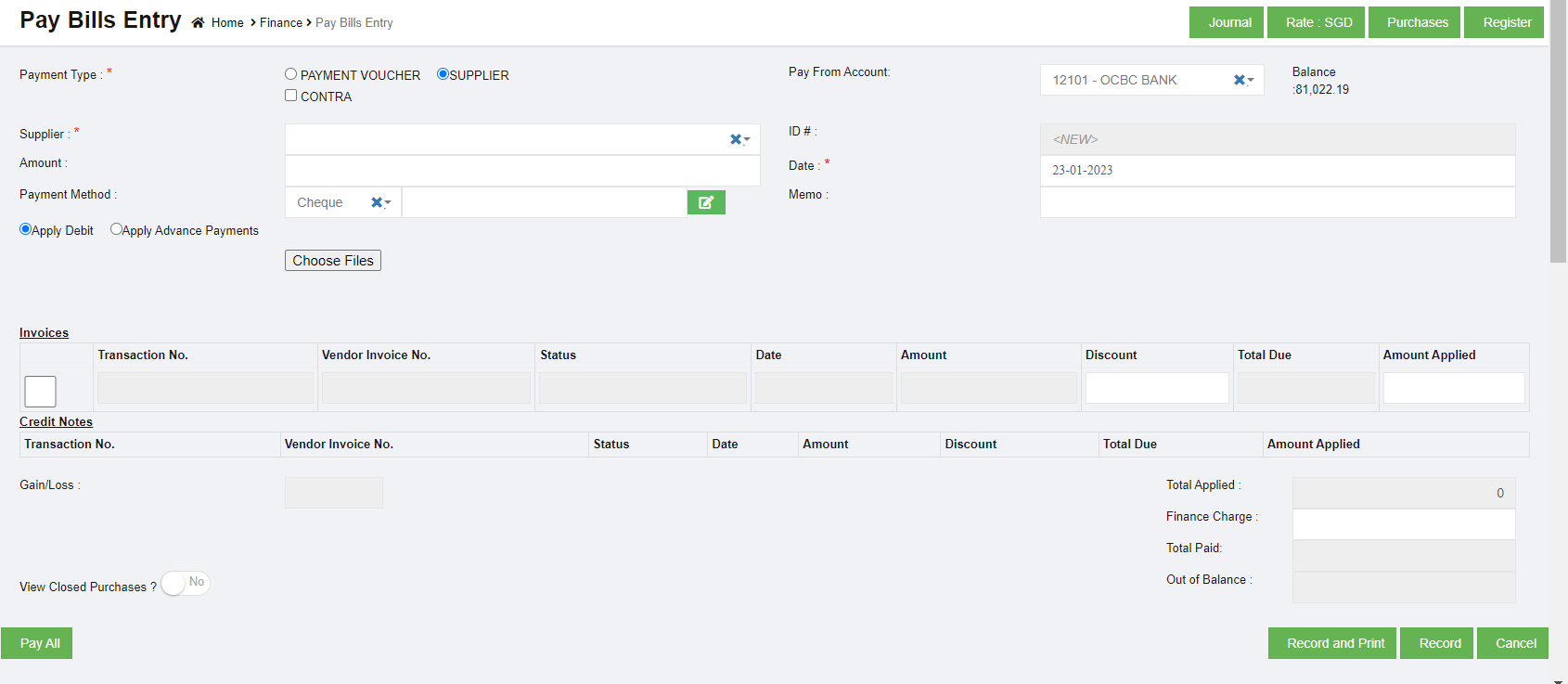
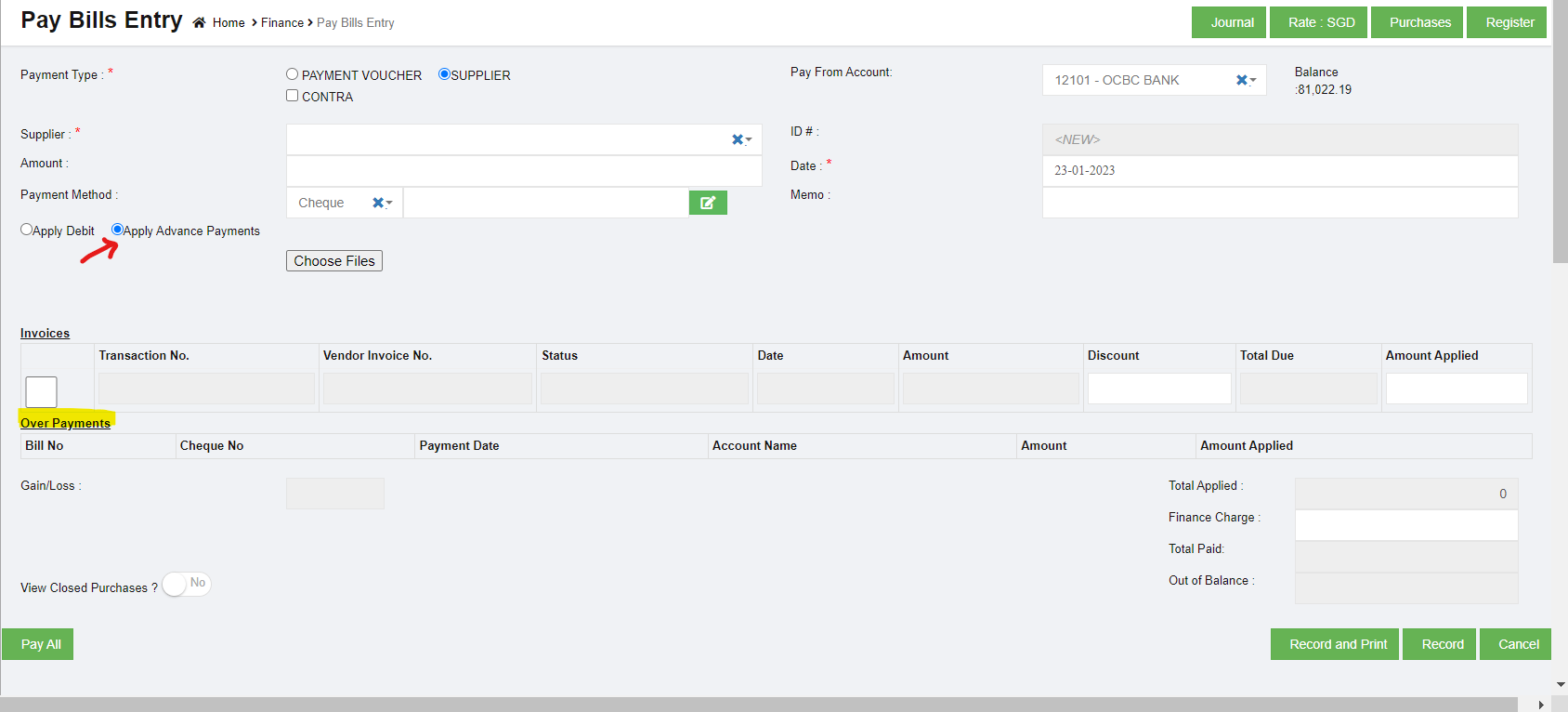
- Type 2 Supplier-supplier option will be selected when the User intends to pay / settle an outstanding invoice to the Supplier. When this option is selected, User has to select the Supplier (which is a mandatory field) from the Supplier Master. User will enter the Payment amount and apply the amount against the Outstanding invoices by entering the Applied Amount field. While doing so, the Outstanding Invoice is adjusted against the Applied amount, and the Supplier Total Outstanding amount is thus calculated. If the Amount paid to the Supplier is to be treated as Advance, then user need to select the Apply Advance Payment and the amount will be treated as Advance Amount,
Once you select the SUPPLIER option, the Pay Bills Entry page shows the following fields need to be filled.
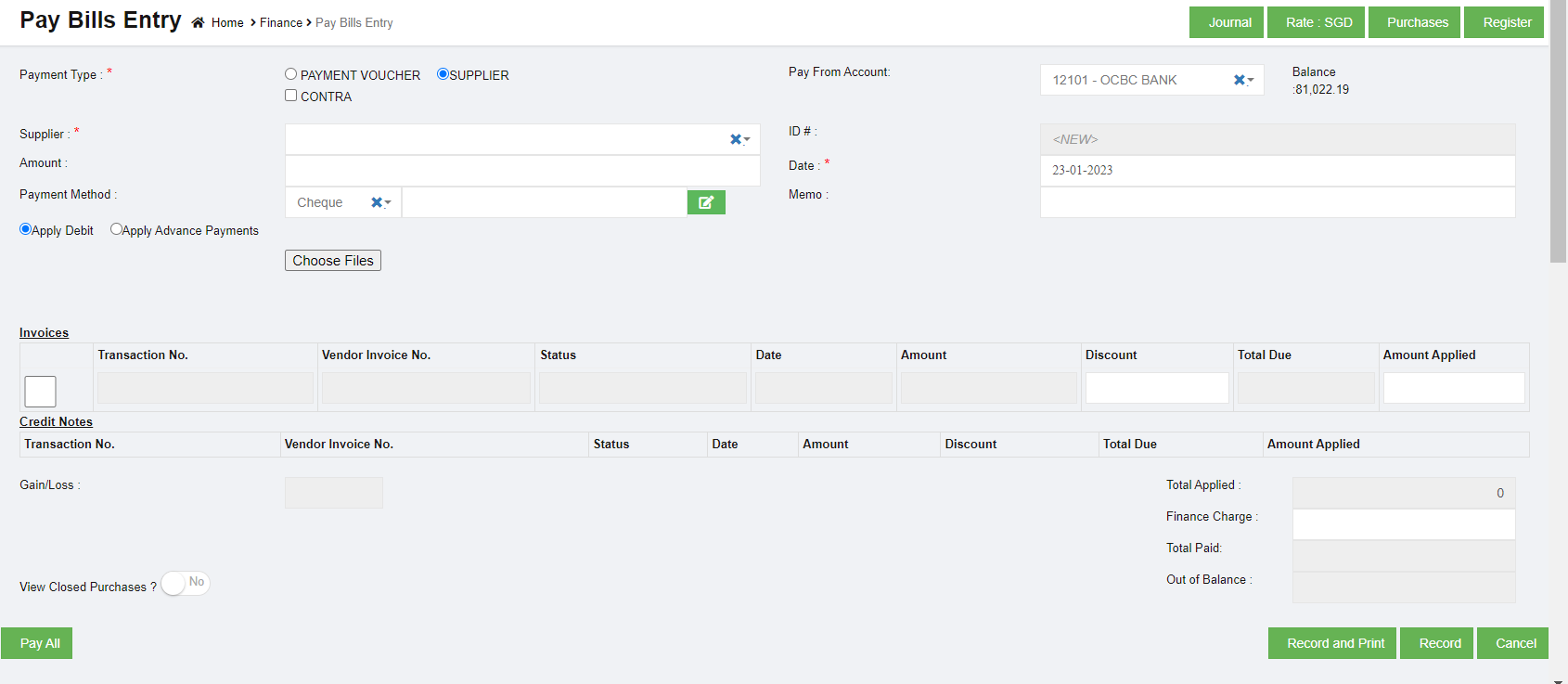
- In the Pay From Account box, select the debited bank account.
- In the Supplier box, select a supplier from the list of suppliers. Once you have selected the supplier, the list of vendor invoices created for the respective supplier open.
- In the Amount box, enter the amount paid to the supplier.
- In the Date box, select the date of payment.
- In the Payment Method box, select the mode of payment.
a. If you want to add any credit note or credit memo, select the Apply Debit option.
b. If you want to pay from any over payments, select the Apply Advance Payments option. A confirm dialog box opens and shows the following notification. Click Yes. The Over Payments field will be displayed below the Invoices field. The system will display the information of over payment if available. The Amount box in the Over Payments field shows the balance amount of the over payment. If you want to pay the amount from your over payment, enter the amount in the Amount Applied box in the Over Payments field. The total amount will be adjusted from the applied over payment amount.
Note: If you want to attach any file regarding credit note or overpayments, click (Choose Files button) and attach the file.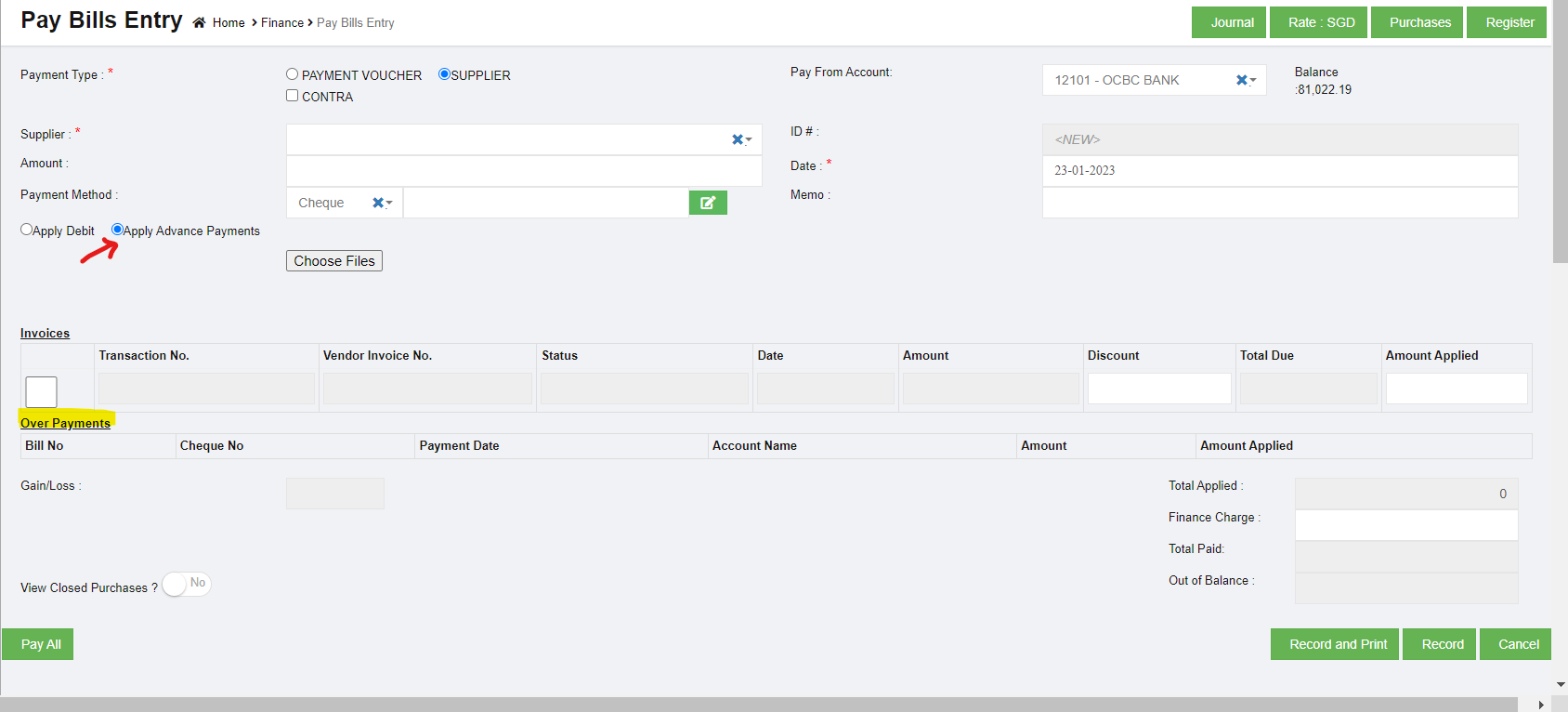
- In the Invoices field, enter the discount amount in the Discount box. Note: To manually enter the amount in the Invoices field, the respective users must be assigned with the Manual Amount Filling permission.
- In the Amount Applied box, enter the paid amount. Once you have entered the paid amount, the total applied, finance charge, total received and out of balance will be automatically updated. The gain/loss amount will be automatically updated in the Gain/Loss box.
- If you want to view the closed purchases details, enable to Yes in the View Closed Purchases option.

If you want to view all the paid details, click (Pay All button).
 - Click Record to save the paid bill details. The added bill details will be saved and listed in the Pay Bills Register page. Note: If you want to print the paid bill details, click
 (Record and Print button).
- Type 3 CONTRA-Contra Payments in Cuteoffice Application is to settle the outstanding Invoices between the same Supplier & Customer. Please refer the Contra Entry voucher documentation for this. Select Supplier, and if the supplier is same as customer, click to select Contra.
- Type 1 PAYMENT VOUCHER-Payment Voucher option will be selected when the User intends to make a payment without an invoice. When this option is selected, User has to select the Supplier (which is a mandatory field) and the Supplier information will be picked from the Direct Payee Master. For such cases, User needs to create the details in the Direct Payee master, before raising the Pay Bill transaction. .

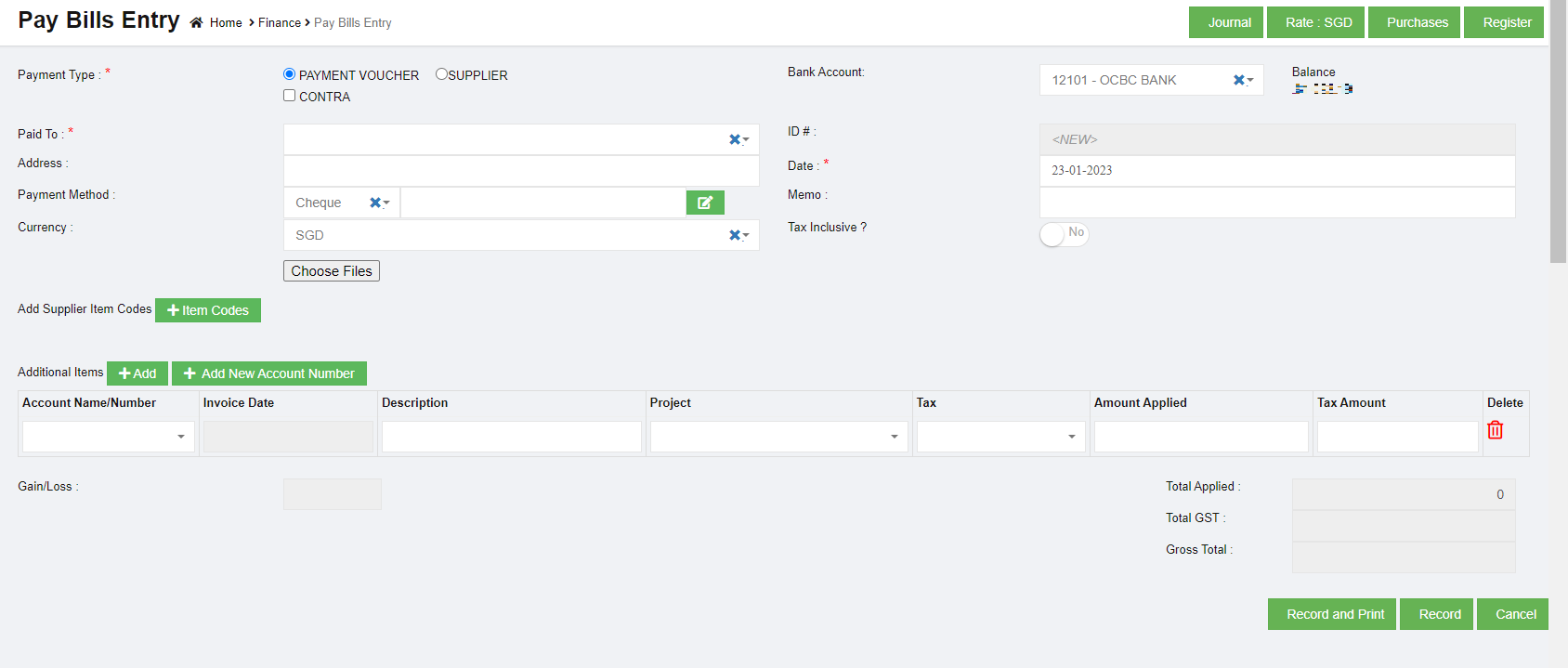

Once you select the Supplier and Contra option in payment type, the Pay Bills Entry page shows the following fields need to be filled.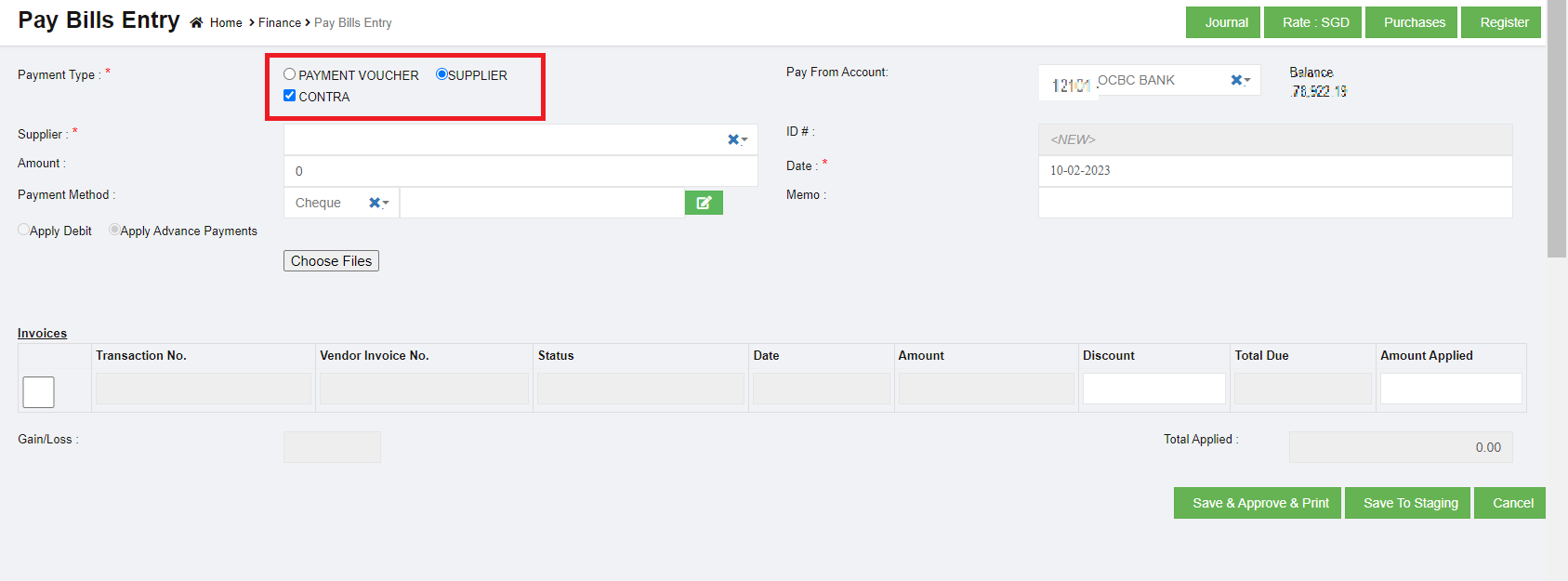
-
- In the Pay From Account box, select the debited bank account.
- In the Supplier box, select a supplier from the list of suppliers. Once you have selected the supplier, the list of vendor invoices created for the respective supplier open.
- In the Amount box, enter the amount paid to the supplier.
- In the Date box, select the date of payment.
- In the Payment Method box, select the mode of payment.
a. If you want to add any credit note or credit memo, select the Apply Debit option.
b. If you want to pay from any over payments, select the Apply Advance Payments option. A confirm dialog box opens and shows the following notification. Click Yes. The Over Payments field will be displayed below the Invoices field. The system will display the information of over payment if available. The Amount box in the Over Payments field shows the balance amount of the over payment. If you want to pay the amount from your over payment, enter the amount in the Amount Applied box in the Over Payments field. The total amount will be adjusted from the applied over payment amount.
Note: If you want to attach any file regarding credit note or overpayments, click (Choose Files button) and attach the file.
-
- In the Invoices field, select the invoice of the transaction and enter the discount amount in the Discount box. Note: To manually enter the amount in the Invoices field, the respective users must be assigned with the Manual Amount Filling permission.
- In the Amount Applied box, enter the paid amount. Once you have entered the paid amount, the total applied, finance charge, total received and out of balance will be automatically updated. The gain/loss amount will be automatically updated in the Gain/Loss box.
- If you want to view the closed purchases details, enable to Yes in the View Closed Purchases option.
If you want to view all the paid details, click (Pay All button). - Click
 to approve, or click
  to save to staging. The added bill details will be saved and listed in the Pay Bills Register page.

Contra Voucher Entry
Contra Function in Cuteoffice Application is to settle the outstanding Invoices between the same Supplier & Customer.
Contra voucher entry Scenario
Group companies can have multiple companies and Buy / Sell functions can have within these companies. In such scenarios Buy & Sell function happens raising the Purchase Invoices and Sales Invoice through the normal Purchase Register and Sales Register entry through our Cuteoffice Application. However these companies within the group do not make payments to each other, instead for such cases Contra Voucher entry in Pay Bills can be used.
Prerequisites
To raise a Contra Voucher the following conditions should be met
- Supplier Name (Supplier Code) & the Customer Name (Customer code) should be the same
- Contra Amount Entered should be Less Than Purchase Applied Amount in Pay Bill
- After the Pay Bill data is entered and Record Button is clicked, Application Control will navigate to Customer Receipts Payment. If the client cancels the Customer Receipt Payment entry then the associated Pay Bills entry entered will be deleted by the application automatically. In other words, for Contra Entry Pay Bills and Customer Receipts should be done immediately without a break
- In Customer Receipts Entry, Contra Amount that is displayed should be allowed to Edit
Contra voucher entry Examples
Example 1 – Contra Amount = 0 ; Purchase Invoice Amount Applied = 1000
The above example means that the Client wants to pay $1000 to a Purchase Invoice and have the Sales Invoice Pay $1000.
GL Entry for the above will be:
Pay Bills
Dr Sundry Creditors - $1000
Cr Contra Account - $1000 (Contra Account code is configured in Account Link Menu)
Customer Receipts
Dr Contra Account - $1000 (Contra Account code is configured in Account Link Menu)
Cr Sundry Debtors - $1000
Example 2 – Contra Amount = 600 ; Purchase Invoice Amount Applied = 1000
The above example means that the Client wants to pay $1000 to a Purchase Invoice and have the Sales Invoice Pay $600. The balance $400 will be paid from the Bank Account as mentioned in the Pay Bill entry
Pay Bills
Dr Sundry Creditors - $1000
Cr Contra Account - $1000 (Contra Account code is configured in Account Link Menu)
Cr Bank A/c - $400
Customer Receipts
Dr Contra Account - $1000 (Contra Account code is configured in Account Link Menu)
Cr Sundry Debtors - $1000
Steps to Operate
- In Pay Bills screen Select Contra Option and proceed the Pay Bill Transaction as usual
- Enter the Contra Amount Example 600
- Enter the Purchase Amount Applied – Example 1000
- Click Record Button
- Application will automatically load the Customer Receipt and allow to complete the transaction with Applied Amount as $1000
- If the Amount applied entered is not equal to $1000, application will display an error and proceed only if the amount entered is $1000
- GL entries will be created as mentioned above
The following bug will be fixed and a GIT issue has been raised:
- Customer Name (Customer code) in Customer Receipts screen will not be allowed to change. This is controlled through a configuration allowing Customer Name change, will be set to False
- Contra Amount Entered should be Less Than Purchase Applied Amount in Pay Bill
- In Customer Receipts Entry, Contra Amount that is displayed should be allowed to Edit.
Contra Voucher against Receive Payment
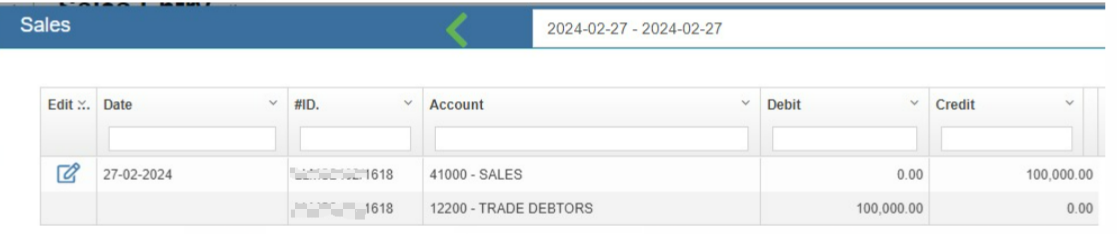
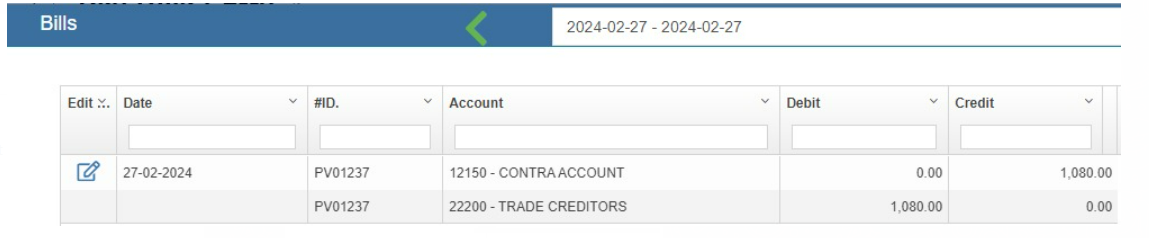
Example 3 : Contra Account in Pay bill - $1080 Purchase Invoice - $1080 Sales Invoice - $100000 Receive Payment (Normal) - $98920 Contra Receive Payment - $1080
To raise a Contra Voucher against Receive Payment the following steps to operate.
- Supplier Name (Supplier Code) & the Customer Name (Customer code) should be the same.
- Raising Sales Invoice in Sales register (ex: $ 100000)
- Raising Purchase Invoice in Purchase register (ex: $ 1080)
- Normal receive payment entry in Bank with offset contra amount (ex: Amount received $ 98920)
- Contra Pay bill entry for the amount $1080 . Choose Contra Account code in Pay from Account
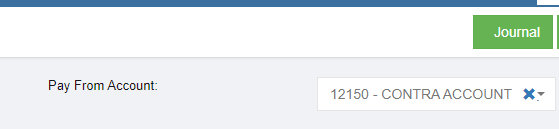
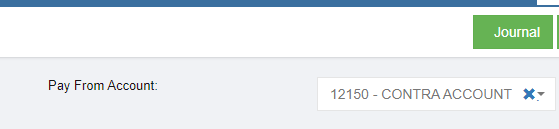
- Contra Receive payment entry to Offset Paybill . Choose Contra Account code is configured in Account Link Menu
- The Customer Receipt Payment entry entered in Contra then the associated Pay Bills entry entered in Contra will be cancelled by the application automatically.
Output of the Scenario
1. Sale Invoice entry
2. Purchase Invoice entry
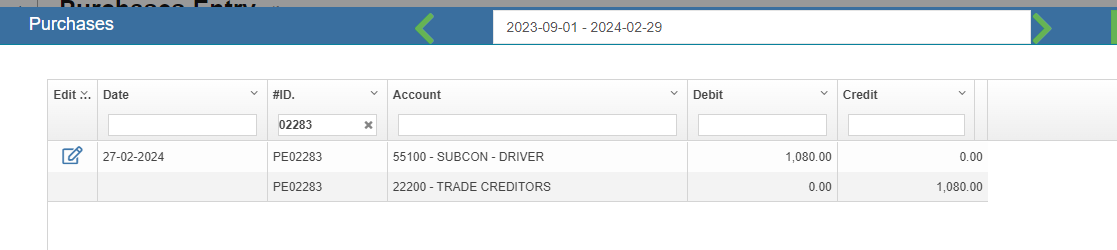
3. Contra Pay bill entry
4. Normal Receive Payment entry

5. Contra Receive Payment entry
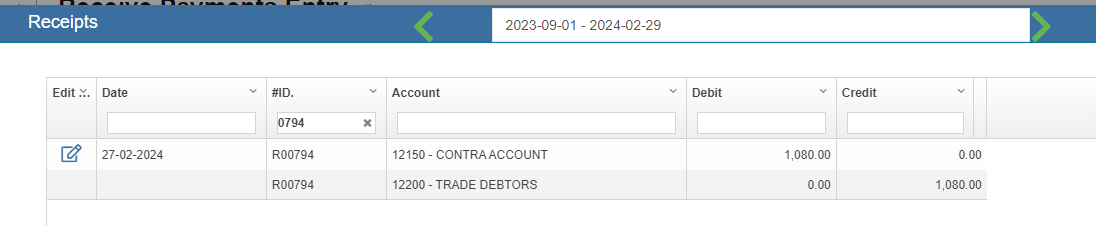
- GL entries will be created as mentioned above.
Edit the Pay Bills
If you want to edit any added purchase entry details in the Pay Bills page, do the following steps,
- Click (Edit icon) in the Edit column for the respective pay bill. The Pay Bill Entry page opens and shows the added payment details.
- Click any box where you want to edit the details, and then edit the details in the respective box in the window.
- Click. The changed pay bill entry details will be updated.
Delete Any Added Pay Bills Entry
If you want to delete any added pay bill entry, you can use delete option provided in the Delete column of the Pay Bills page,
- Click (Delete icon) for the corresponding pay bills entry. You receive a notification message “Are you sure to delete a record?”.
- Click Yes. The selected pay bill entry will be deleted.
Print the Pay Bills Details
If you want to print the invoice details of the particular pay bills entry, click (Print icon) provided in the Print column for the corresponding pay bills entry.
Export the Pay Bills
If you want to export the pay bills records in the Pay Bills page in the excel format, click (Excel icon). The pay bills entry will be downloaded in the excel format.
Transactions Journal
In Transactions Journal page, user can search for any financial transaction entered in cuteOffice finance module.
View Transactions Journal Entry
To view transaction journal,
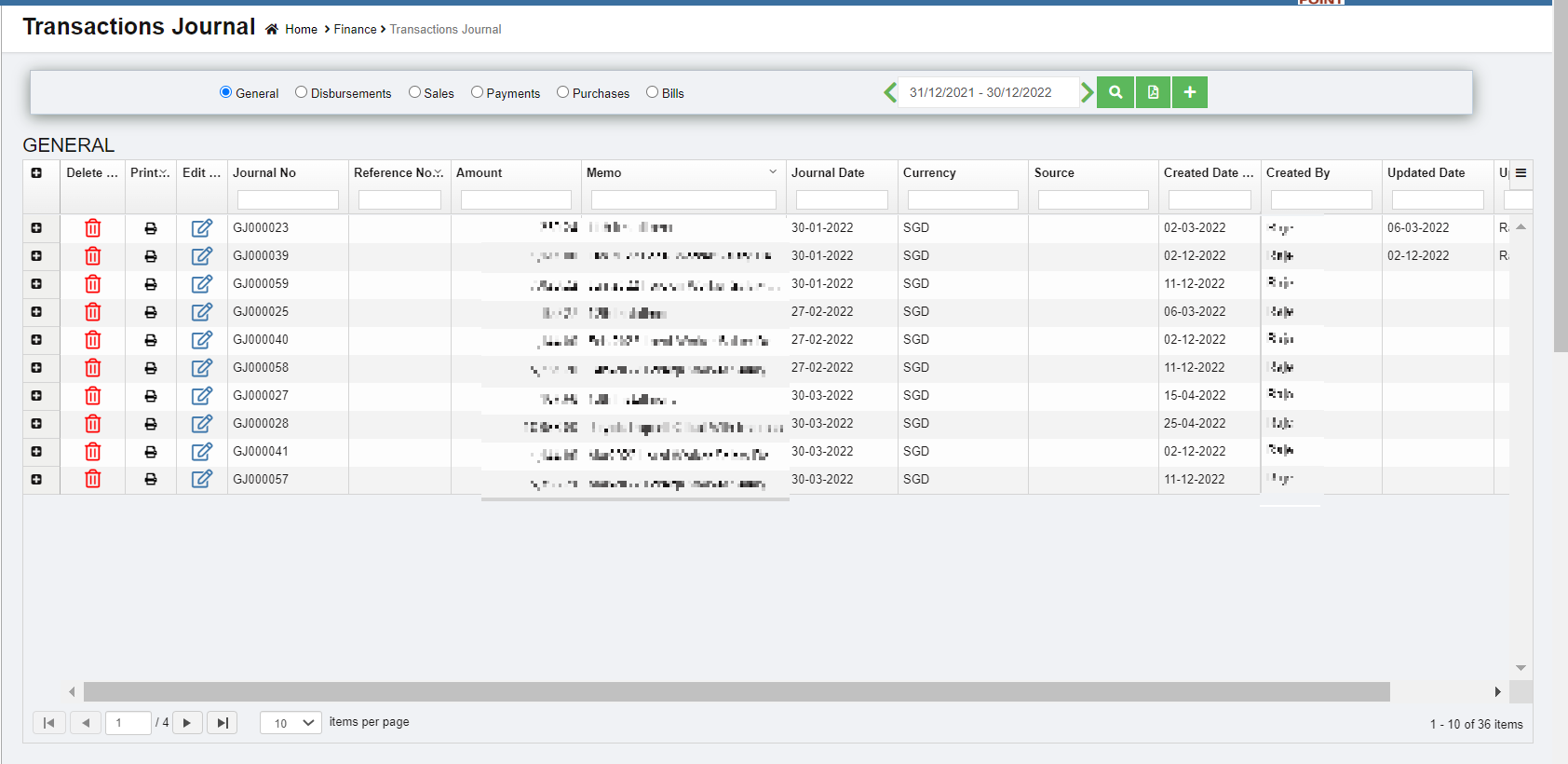
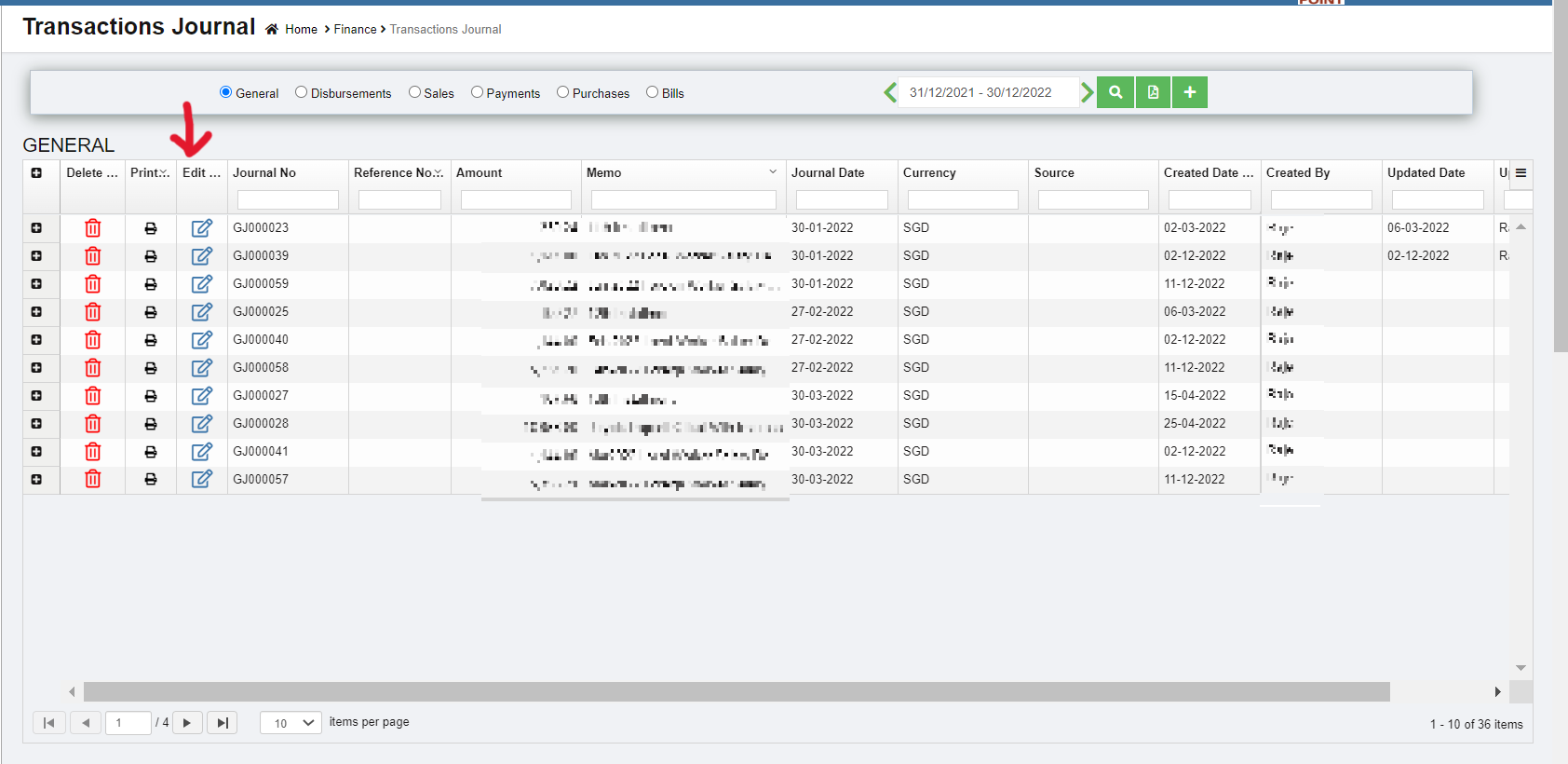
- Click Transactions Journal in Finance menu, the Transaction Journal page opens as below,
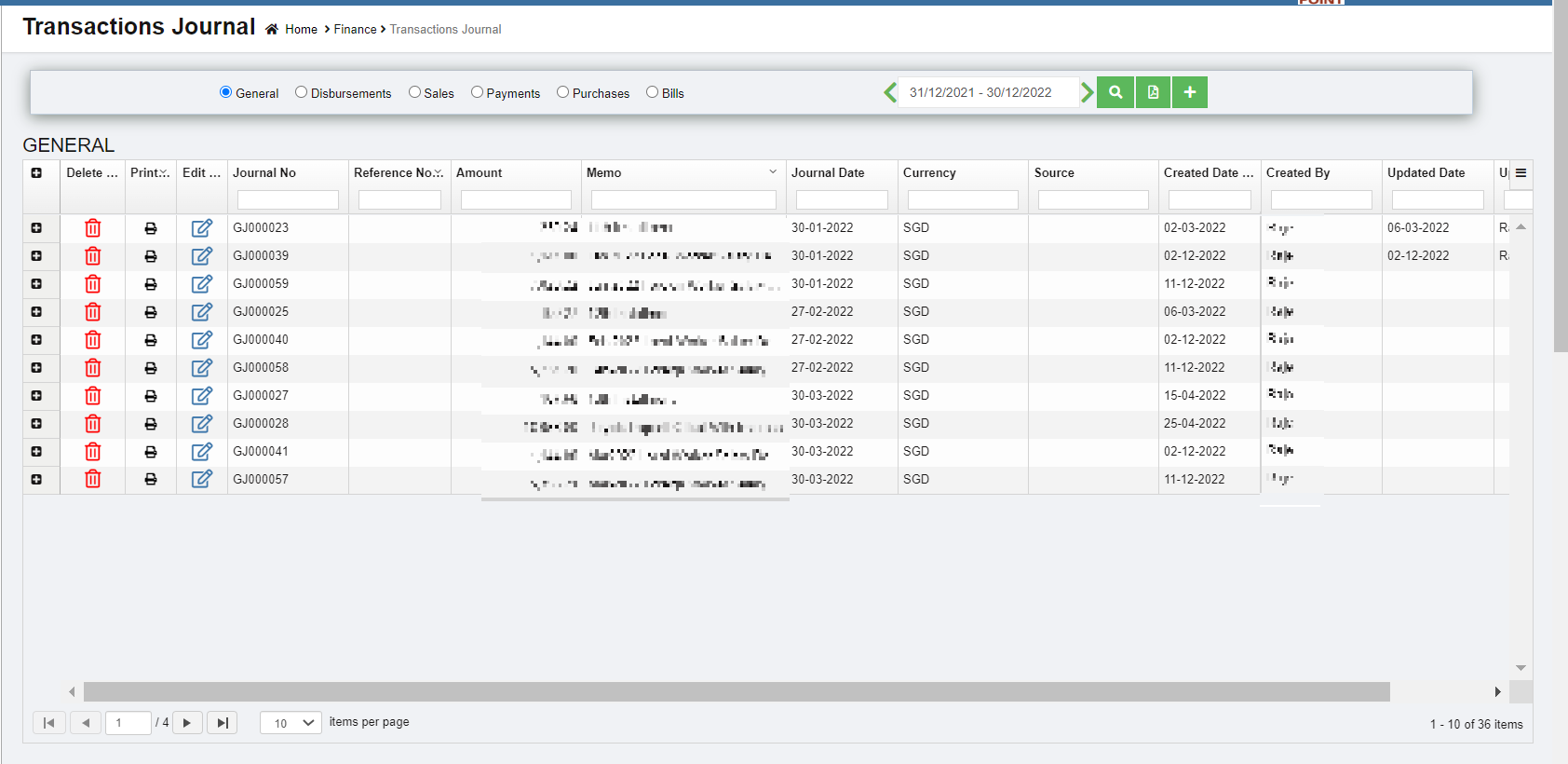
- In the Transactions Journal page, select any one transaction journal type from the given types.

- In the Calendar, select the date range.
- Click
 (Search icon). All qualified transactions journal will be shown in the page.


Edit Transaction Journal Entry
To edit any transaction journal entry in the Transaction Journal page,
- Click (Edit icon) in the Edit column for the respective transaction journal entry. The respective page opens and shows the journal entry details.
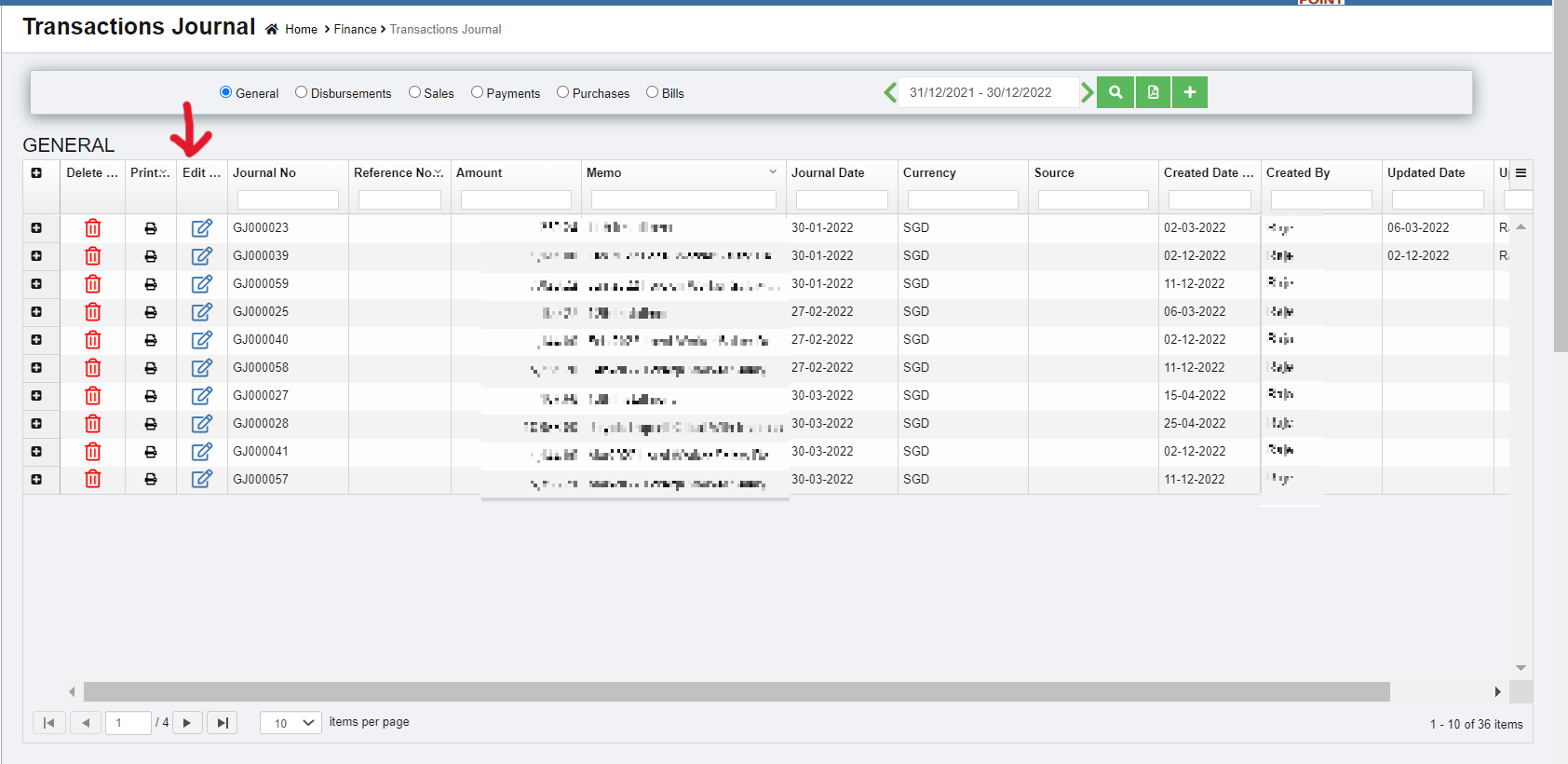
- Click any box where you want to edit the details, and then edit the details in the respective box in the window.
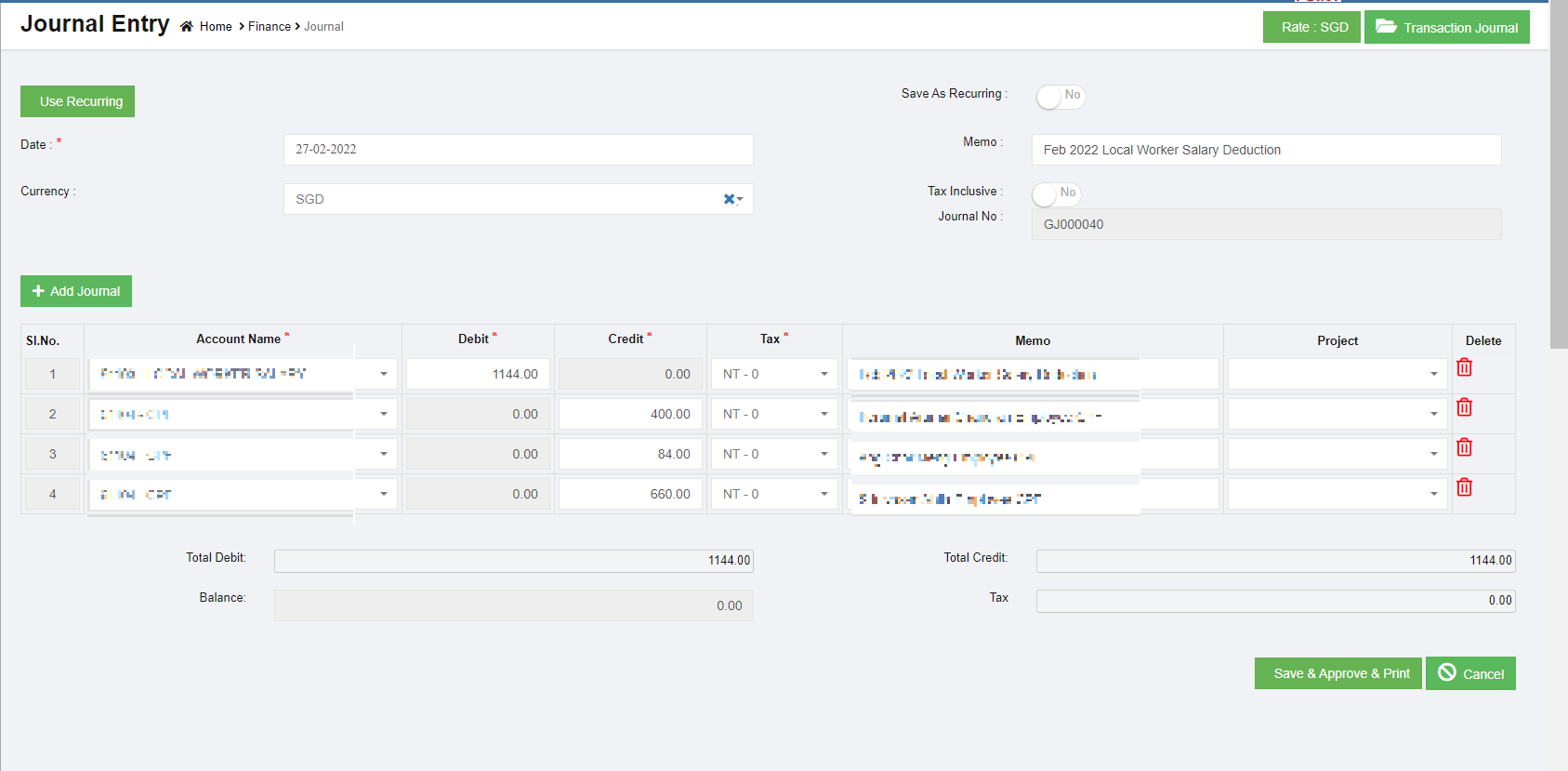
- Click. The transaction journal entry details will be updated.
Delete Any Transaction Journal Entry
If you want to delete any transaction journal entry, you can use delete option provided in the Delete column of the Transactions Journal page, click (Delete icon) for the corresponding transaction journal entry. The selected transaction journal entry will be deleted. to confirm with sekar if need to prompt confirmation notification
Print the Transaction Journal Entry
If you want to print the particular transaction journal entry, click (Print icon) provided in the Print column for the corresponding transaction journal entry.
Export the Transaction Journal Entry
If you want to export the added transaction journal entry in the Transactions Journal page in the excel format, click (Excel icon). The added transaction journal entries will be downloaded in the excel format.
Bank Register
Bank Register are reports that is generated based on the entries made through the various vouchers. The selection for these reports would be Bank as defined in the Chart of Accounts master. The Bank Register tab in the Finance menu used to view the transaction statement of the particular bank account.
View Bank Register
To view the transaction statement,
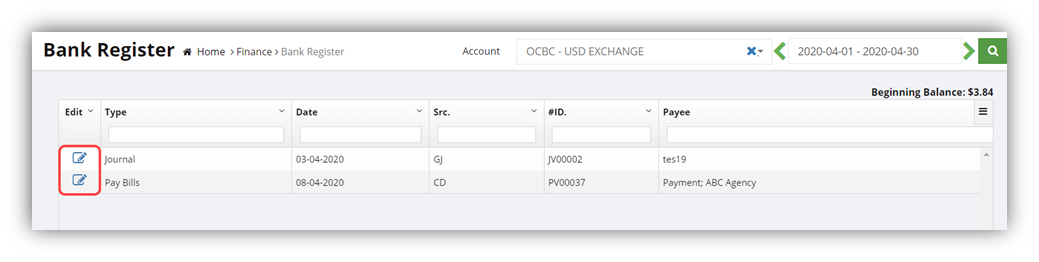
- Click Bank Register in the Finance, the Bank Register page opens.

- In the Account box, select an account from the list of bank accounts.
- In the Calendar, select the date range from the current financial year.
- Click (search icon). The Bank Register page shows the transaction detail of the selected account.

Edit the Transaction Detail
To edit any transaction detail listed in the Bank Register page,
- click (Edit icon) provided in the Edit column for the respective transaction. The selected transaction page opens. You can edit the transaction detail if you want.
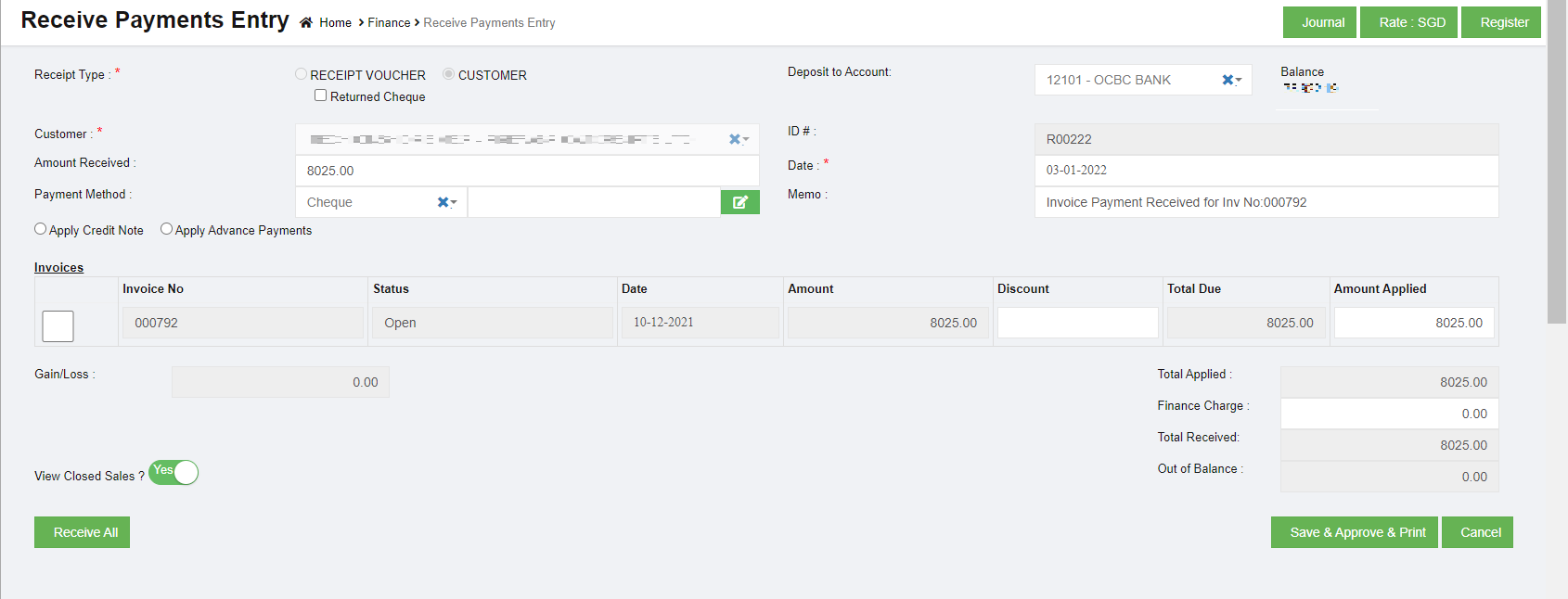
- Click. The transaction details will be updated.
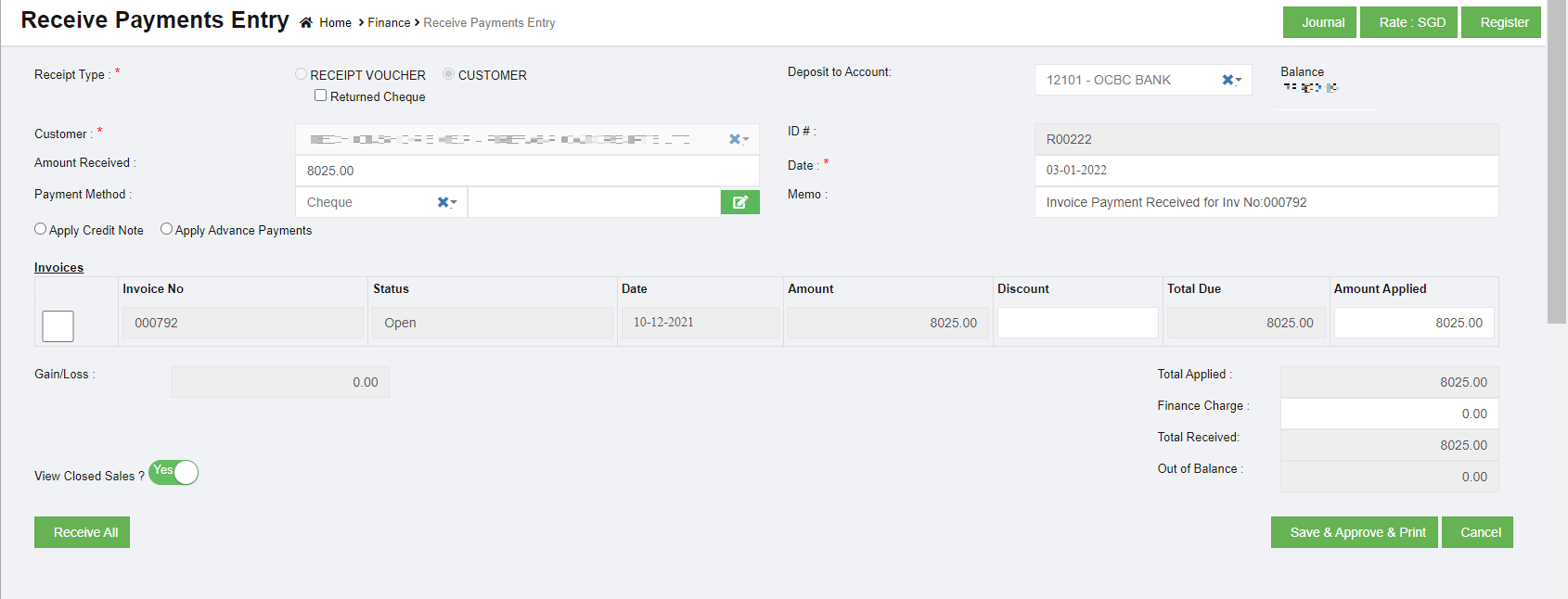
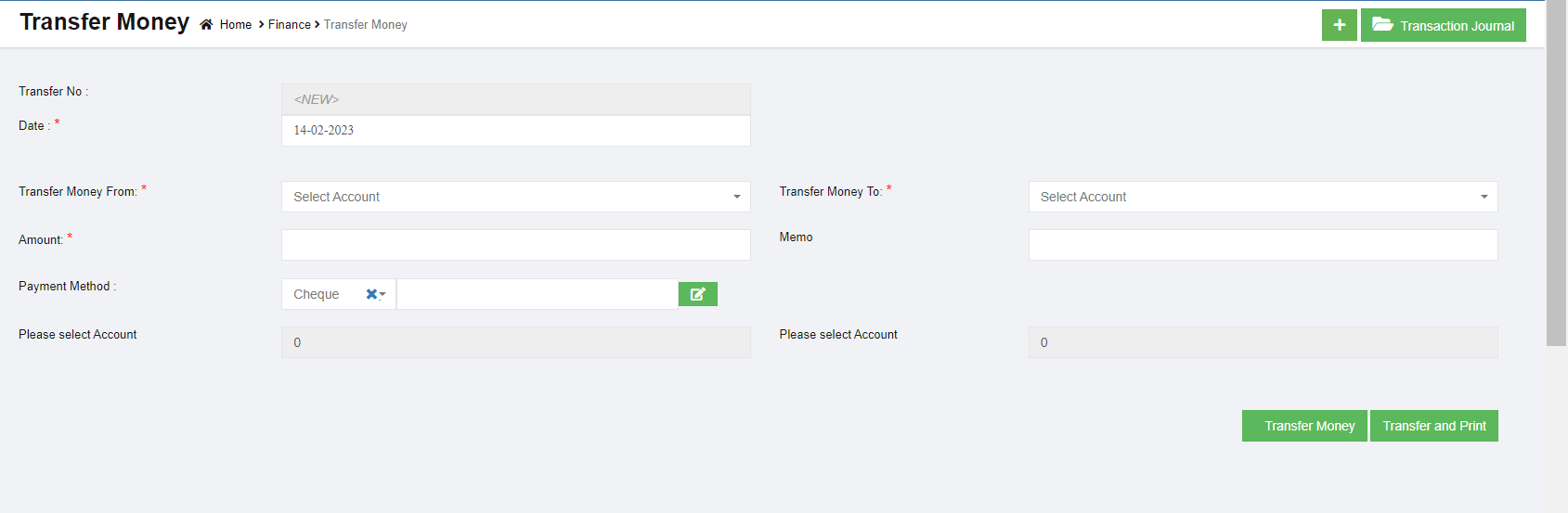
Transfer Money
The Transfer Money tab in the Finance menu is used to record transfer money from one bank account to another bank account. Finance users can transfer the money with multi foreign currency banks.
To transfer money,
- Click Transfer Money in the Finance, the Transfer Money page opens,
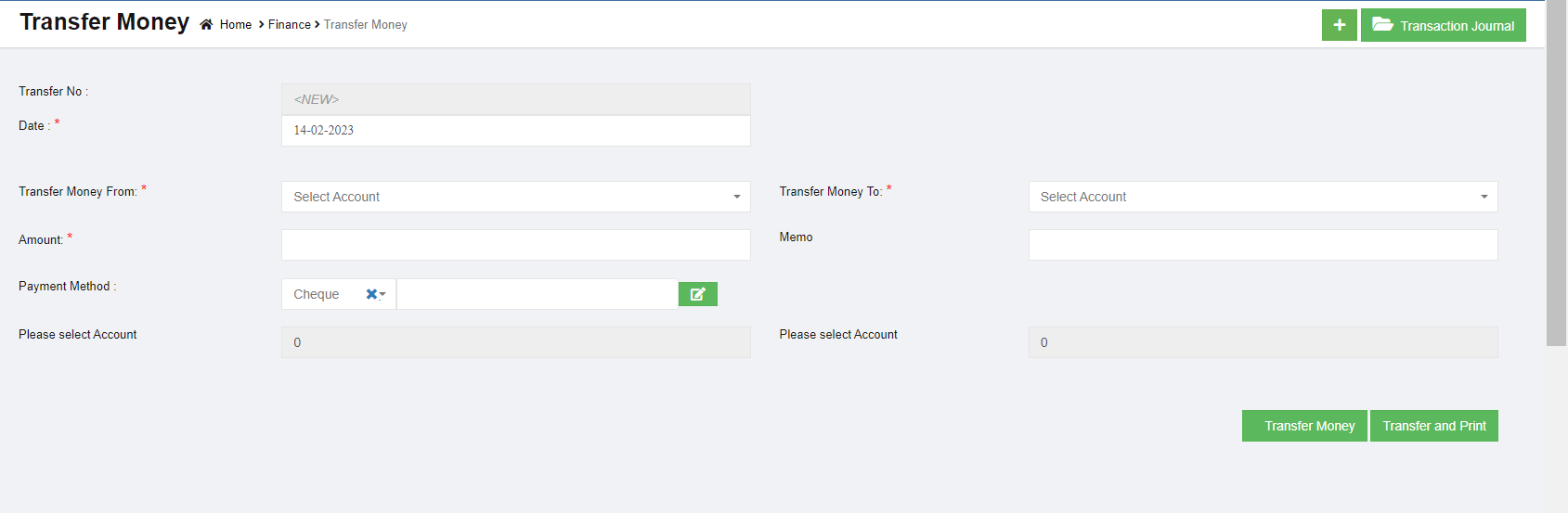
- In the Transfer No box, the transfer number will be updated automatically.
- In the Date box, select the date of money transfer.
- In the Transfer Money From box, select an account where you want to transfer money from. Note: Once you select the debit account, the Transfer Money page shows the account balance of the selected account.
- In the Transfer Money To box, select an account where you want to transfer money to. Note: Once you select the credit account, the Transfer Money page shows the account balance of the selected account.
- In the Amount box, enter the amount you want to transfer.
- In the Payment Method box, select the payment method.
- Click
 (Transfer Money icon). The entered amount will be transferred to the respective selected account. The transfer money detail will be moved and listed in the Transaction Journal page. Note: If you want to print the transferred money details, click
  (Transfer and Print icon).
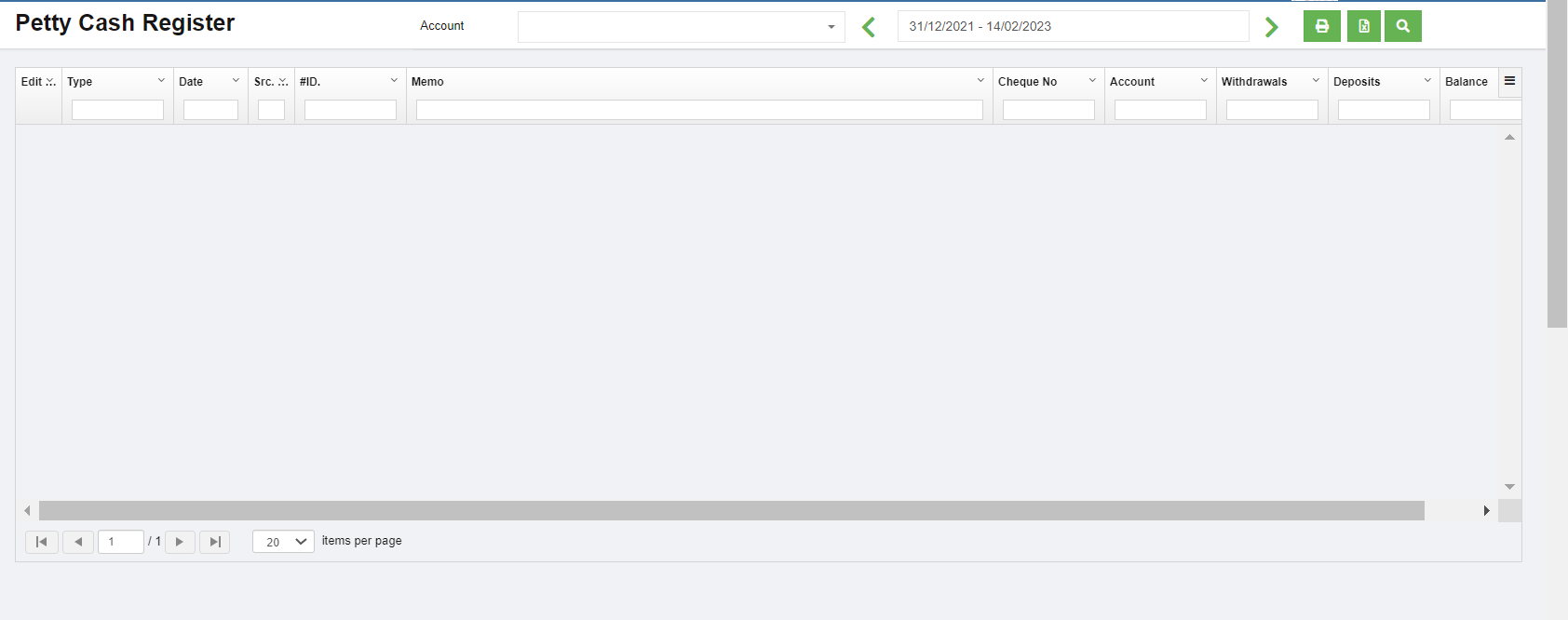
Petty Cash Register
Petty cash register helps companies ensure that the funds are used appropriately and the transactions are properly documented. Having such a system in place serves as an internal control to protect the business against theft and fraud, and it supports the larger, general ledger reconciliation process. Petty Cash Register are reports that is generated based on the entries made through the various vouchers. The selection for these reports would be Cash as defined in the Chart of Accounts master. This report is to list down the transaction made from these nature of accounts with a running balance.
Bank Reconciliation Register
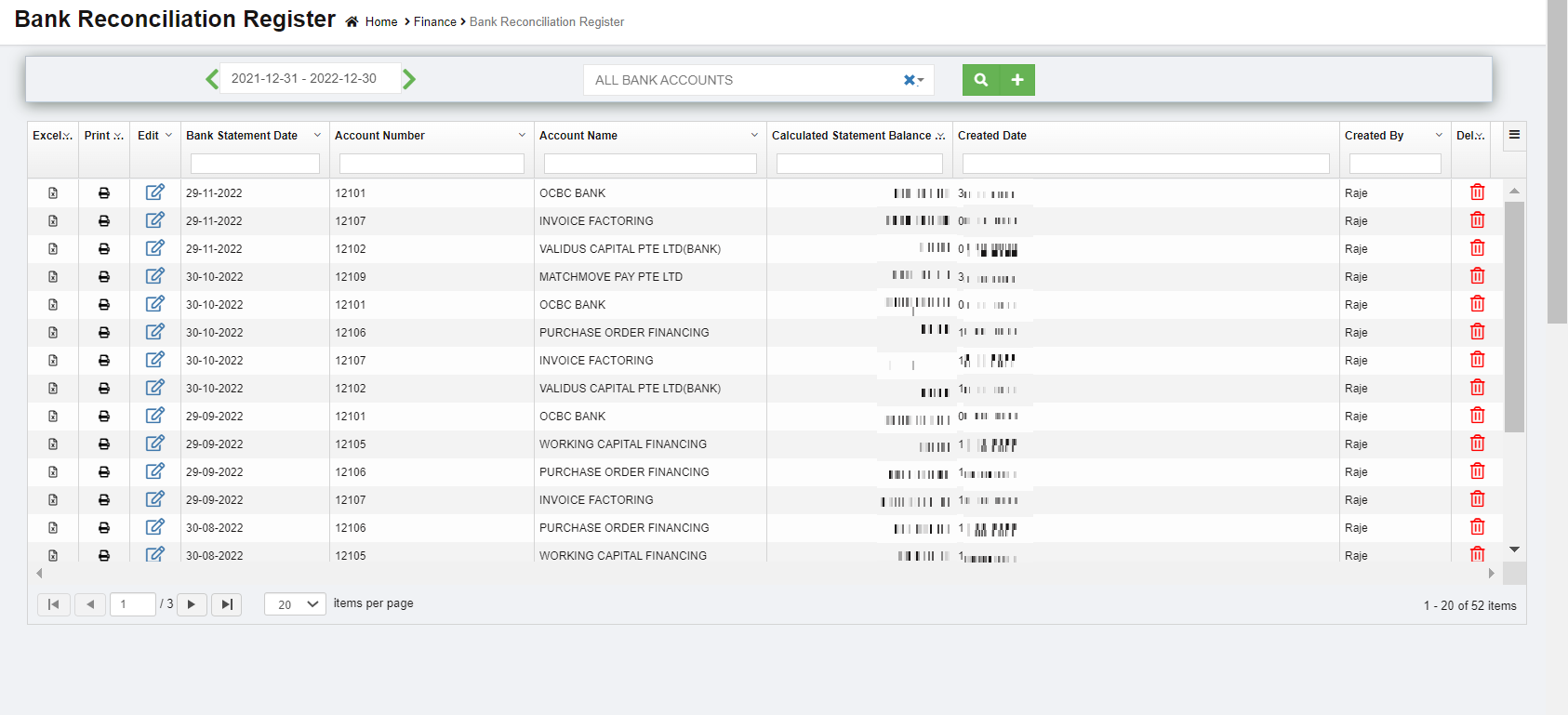
Bank Reconciliation is the process of verifying the bank statement with the reconciliation report to ensure that the records such as check register, general ledger account, and balance sheet, are correct. This is done by comparing the company's recorded amounts with the amounts shown on the bank statement.
Any differences must be justified. When there are no unexplained differences, you must state that the bank statement has been reconciled. Once you have reconciled the bank statement, the reconciled bank statement will be shown in bank reconciliation report and the general ledger.
Click Bank Reconciliation tab in the Finance menu, the Bank Reconciliation Register page opens as below,
View A Bank Reconciliation Details
To view the bank reconciliation details of the particular bank account,
- In the Calendar box, select the period for which you want to view the bank reconciliation details.
- In the Account Name box, select an account.
- Click (search icon). The bank reconciliation detail opens for the selected account and period.
Reconcile Any Bank Statement
To reconcile any bank statement,
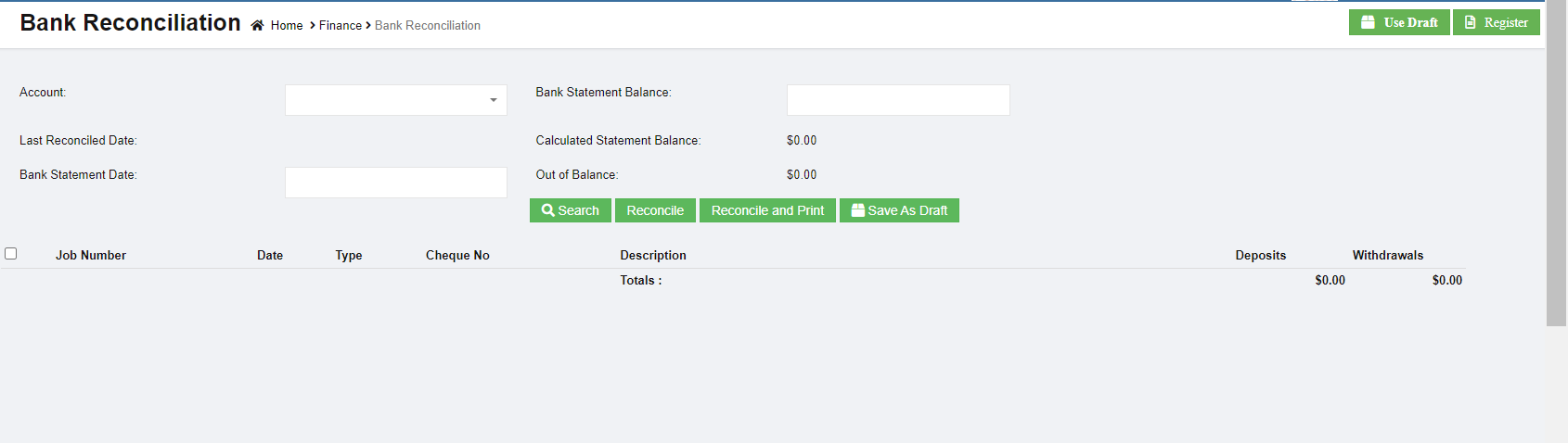
- Click (Add icon) provided in the upper right-corner of the Bank Reconciliation Register, the Bank Reconciliation page opens.
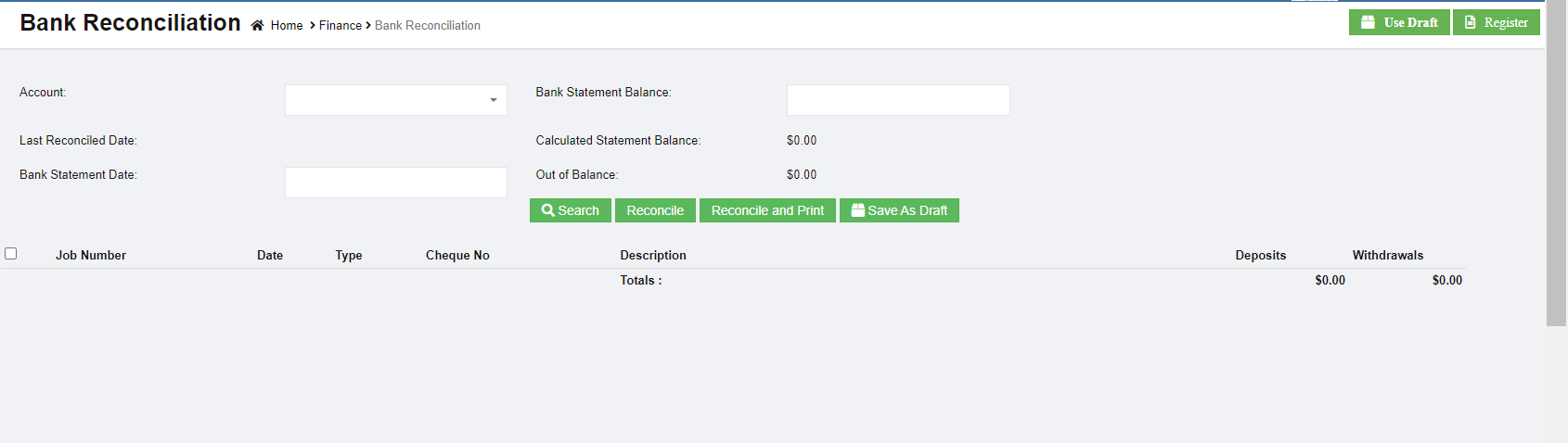
- In the Account box, select an account from the list of accounts.
- In the Bank Statement Balance box, enter the balance of the selected account.
- In the Bank Statement Date box, select the bank statement date.
- Click
 (search icon). The list of job numbers opens including date and cheque number.
 - Select the job number.
- Click
 , the selected bank account is reconciled. Click
  to reconcile and print report. Click
 to save as draft.



Edit Any Reconciled Bank Statement
To edit any reconciled bank statement in the Bank Reconciliation Register page,
- Click (edit icon) in the Edit column for the respective reconciled bank statement. The page opens and shows the respective reconciled bank statement.


- Click any box where you want to edit the details, and then edit the details in the respective box in the window.
- Click Record. The changed reconciled bank statement details will be updated.
Delete Any Added Reconciled Bank Statement
If you want to delete any added reconciled bank statement, you can use delete option provided in the Delete column of the Bank Reconciliation Register page,

- Click (Delete icon) for the corresponding reconciled bank statement. You receive a notification message.


- Click Yes to confirm deletion of the selected reconciled bank statement.
Print the Reconciled Bank Statement
If you want to print the reconciled bank statement, click  (Print icon) provided in the Print column in the Bank Reconciliation Register page.
Export the Reconciled Bank Statement
If you want to export the added reconciled bank statement in the Bank Reconciliation Register page in the excel format, you can use export to excel option in the Excel column. Click  (Excel icon) of the respective reconciled bank statement. The reconciled bank statement will be downloaded in the excel format.
Remittance Advices
A remittance advice is an acknowledge sent by a customer to a supplier, informing the supplier that an invoice has been paid. The purpose of the remittance advice is to match a customer's payment with the invoice. The remittance advice is also sent to the supplier to inform that the payment has been received against the payment voucher. Click Remittance Advices tab in Voucher menu, the remittance page opens as below,

View Remittance Advices
to view the remittance advices,
- Click Remittance Advices tab in Voucher menu to open the Remittance page
- In the Payment Type box, select the payment type from Pay Bills or Payment Vouchers.
- In the Calendar box, select the date range you want to view the remittance advices.
- Click (search icon), the page shows the remittance advices for the selected payment type and period.
Edit Any Remittance Advice
To edit any remittance advice in the Remittance Advices page,
- Click (edit icon) in the Edit column for the respective remittance advice. The respective page opens and shows details of the remittance advice.
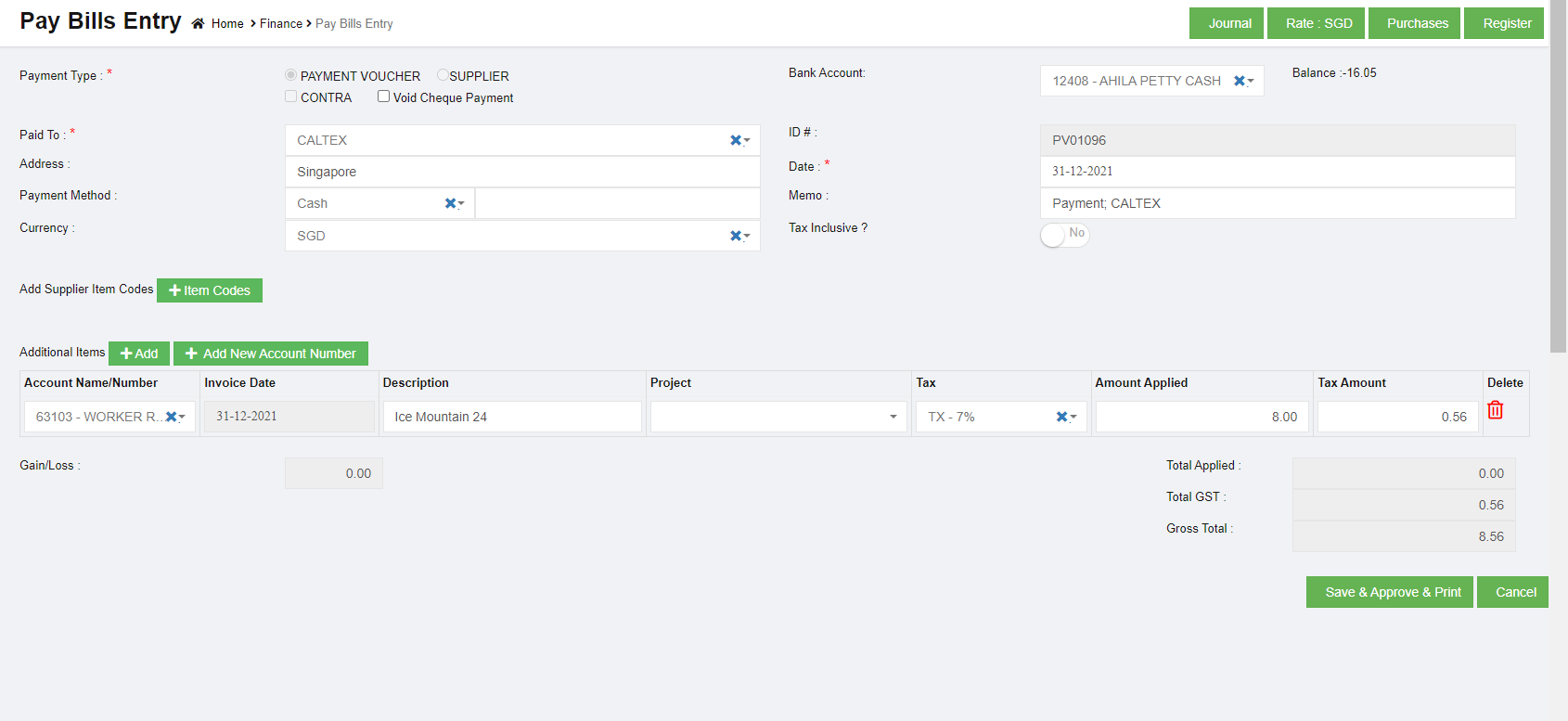
- Edit the details in the respective box as needed.
- Click
 . The changed remittance advice details will be updated.
 .
. Print Any Remittance Advice
If you want to print the remittance advice, click (Print icon) provided in the Print column in the Remittance Advices page.
Find Transactions
The Find Transactions tab in the Finance menu is used to view the details of the transactions such as sales and purchase transactions of both customer and supplier. Click Find Transactions in the Finance, the Find Transactions page opens.
to view the transaction details of particular customer/supplier
- In Filter box, click to select Customer/Supplier.
- In the Search By box, select Customer or Supplier.
- In the Name box, select the name of the customer or supplier.
- In the Calendar, select the date range.
- Click (search icon), the transaction details for the selected customer/supplier opens.
to view the transaction details for the particular sales invoice,
- In Filter box, click to select Sales Invoice.
- In the Sales Invoice box, select the sales invoice number.
- In the Customer box, the customer will be updated automatically.
- Click (search icon), the transaction details for the selected sales invoice opens.
to view the transaction details for the particular purchase invoice,
- In Filter box, click to select Bill.
- In the Purchase Invoice box, select the purchase invoice number.
- In the Supplier box, the supplier will be updated automatically.
- Click (search icon), the transaction details for the selected purchase invoice opens.
Item Transactions
The Item Transactions tab in the Finance menu is used to view the item details of the transactions of sales and purchases of both customer and supplier. Click Item Transactions in the Finance, the Item Transactions page opens as below,
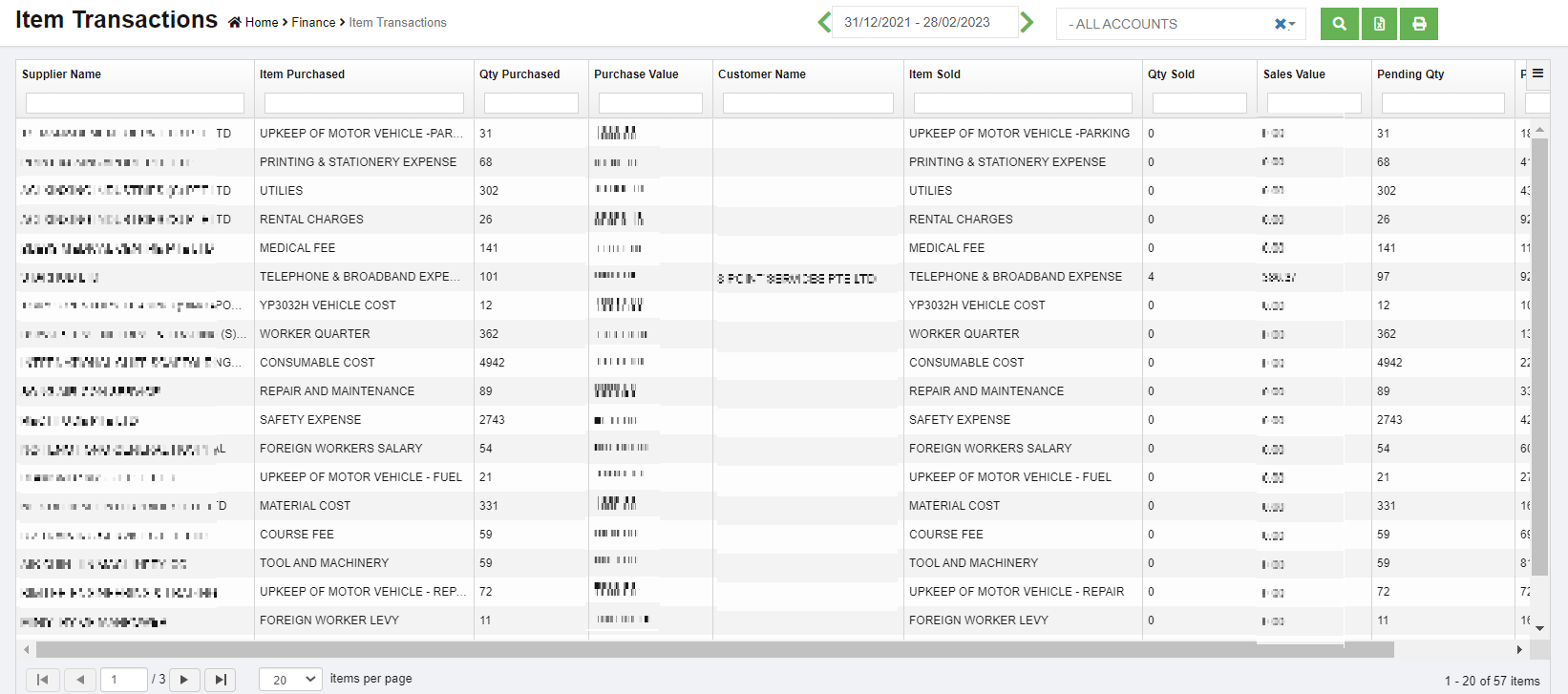
User can use the column filters to search for specific item sales/purchase details,

Bad Debt Write-Off transaction
Step 1: Check your aging accounts receivable
Review other invoices or receivables that should be considered as bad debt using the Accounts Receivable Aging Detail report.
- Go to Reports
- Find and open an Accounts Receivable Aging Detail report.
- Check which outstanding accounts receivable should be written off.
Step 2: Create a bad debts expense account
If you haven't already, create a "bad debts" expense account.
- Go to Master and select Chart of accounts
- Click add to create a new account.
- Choose Detail account
- From the Parent Account Type ▼ dropdown, select Expenses.
- From the Parent Account Sub Type ▼ dropdown, select Expenses
- Enter Account Number
- Enter Account name as Bad debts in Account Name field.
- Select Save and Close.
Step 3: Create a Credit Note Invoice
- Go to Voucher entry and Select Sales Register
- Select + icon.
- Choose Sales form type as Credit Note
- Under Customers, select Customer name.
- Choose Bad Debts from Account Number/Name.
- Enter the write off amount.
- Select Save and Close.
Step 4: Apply the credit note against invoice
- Go to Voucher entry and Select Receive Payment
- Select + icon.
- Under Customers, select Customer Name
- Outstanding Transactions and Credit Note available in the section,
- Enter Credit amount against the invoice number under Amount Applied.
- Enter Credit amount value under Amount Applied.
- Check Out of Balance should be Zero.
- Select Save and Close.
The uncollectible receivable now appears on your Profit and Loss report under the Bad Debts expense account.
Bad Debt Write-Off for Journal Entry
Step 1: Check your Opening Balance in the Accounting records (COA) to write off
- Go to COA
- Check which accounts to be written off.
- Find the amount in accounting to write off.
Step 2: Create a bad debts expense account
If you haven't already, create a "bad debts" expense account.
- Go to Master and select Chart of accounts
- Click add to create a new account.
- Choose Detail account
- From the Parent Account Type ▼ dropdown, select Expenses.
- From the Parent Account Sub Type ▼ dropdown, select Expenses
- Enter Account Number
- Enter Account name as Bad debts in Account Name field.
- Select Save and Close.
Step 3: Create a Journal to write off
- Go to Transaction Journal under Voucher Entry
- Select + icon.
- 1st Line item
a) Choose Outstanding Account name
b) Enter the amount on the credit side for Asset
c) Enter the amount on the debit side for Liability
- 2nd Line item
a) Choose Bad debt from the Account Name
b) Enter the write off amount on the debit side for Asset
c) Enter the write off amount on the credit side for Liability
- Select Save and Close.
The uncollectible or payable amount now appears on your Bad debt Expense, and they are removed as assets/Liability from the balance sheet.
This results the total expense either increase or decrease in the Profit and Loss statement.
Voucher Staging Entries
CuteOffice provides finance voucher staging feature if client company wants to apply approve workflow for voucher entries. Finance vouchers entered in finance module in Voucher Staging Entries menu will be moved into financial transactions only after vouchers are approved. The vouchers will not be reflected in any financial reports or the balances will not be affected until the vouchers are approved.
Enable Finance Approval Option
Step1: To enable Approval Option to Accounts at Company Level
- In Cute Office, navigate to Admin module, click Company menu and click
 edit icon in selected company.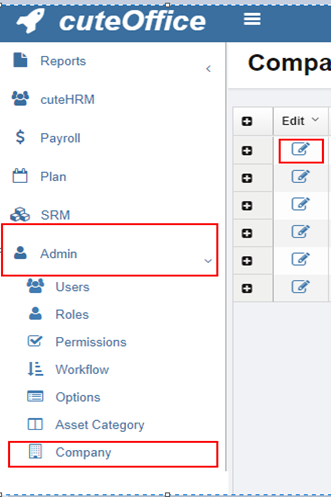
- Navigate to Setting page, search for setting configuration name Finance - Approval option for Account Vouchers,
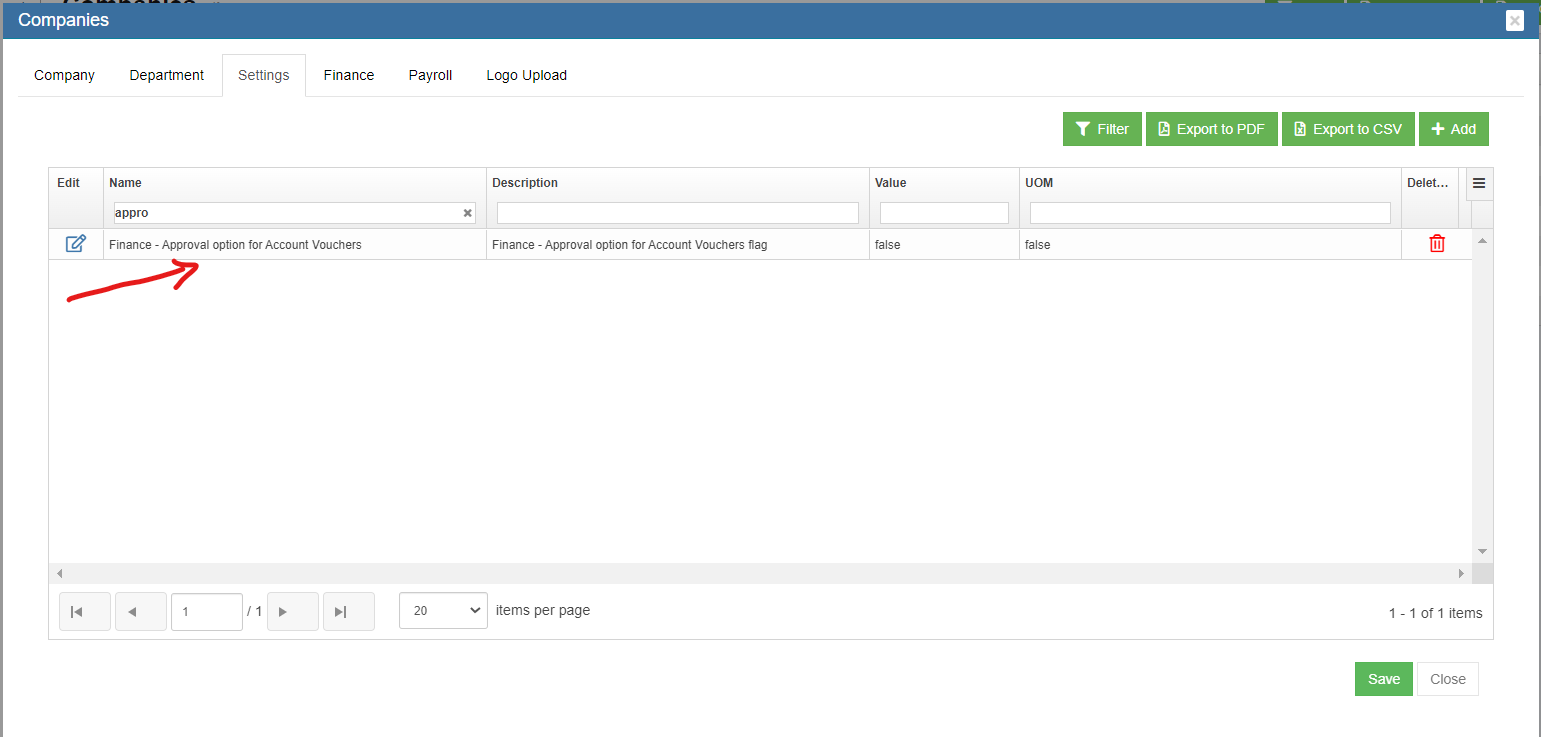
- Click edit icon, change setting Value as true (Note: by default the value is false)
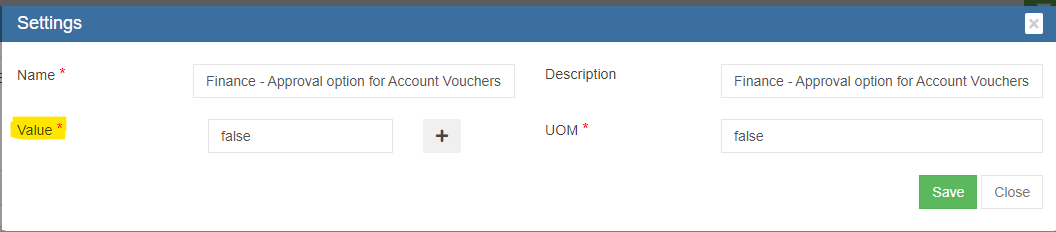
- Click Save to save setting for finance approval.

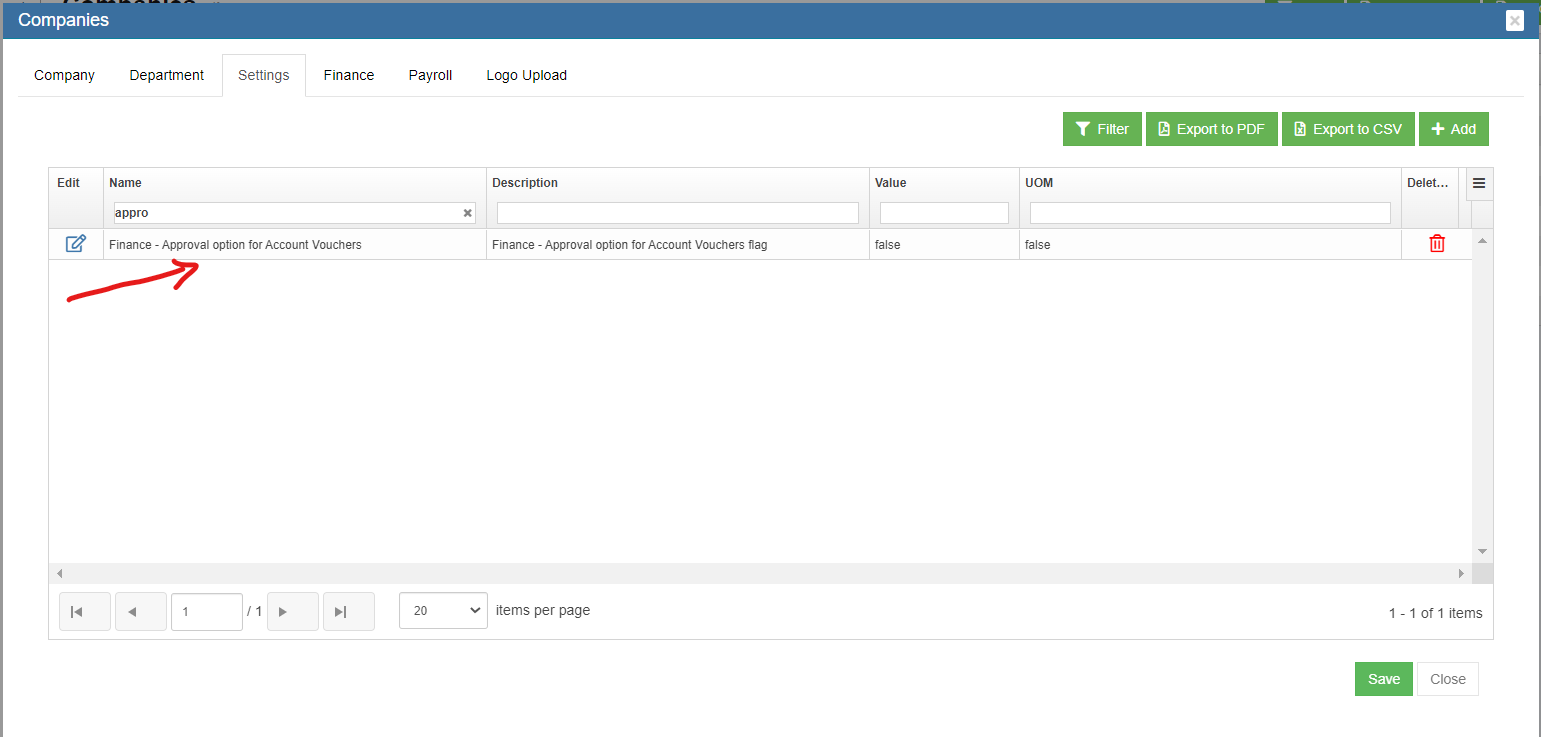
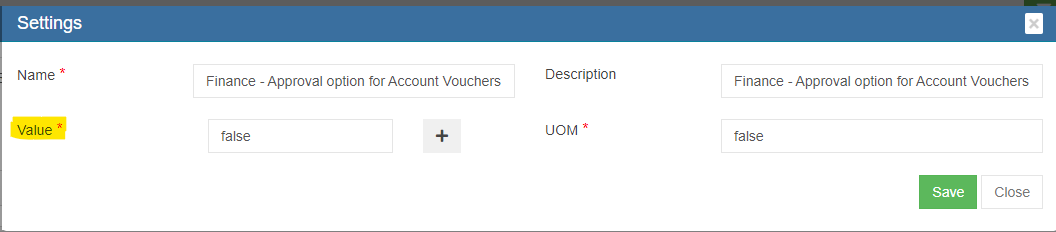
Step 2: Enable Permission to View Approval Option & Staging Menu’s at User Level
- In Cute Office, navigate to Admin module, click Users menu and click edit icon in selected user.
- Navigate to Permissions tab. To view Save & Approve Button in Voucher Entry screens and to view Voucher Staging Menu, in user's permission page, enable below Read & Write permissions (click filter and filter "approvalstaging").
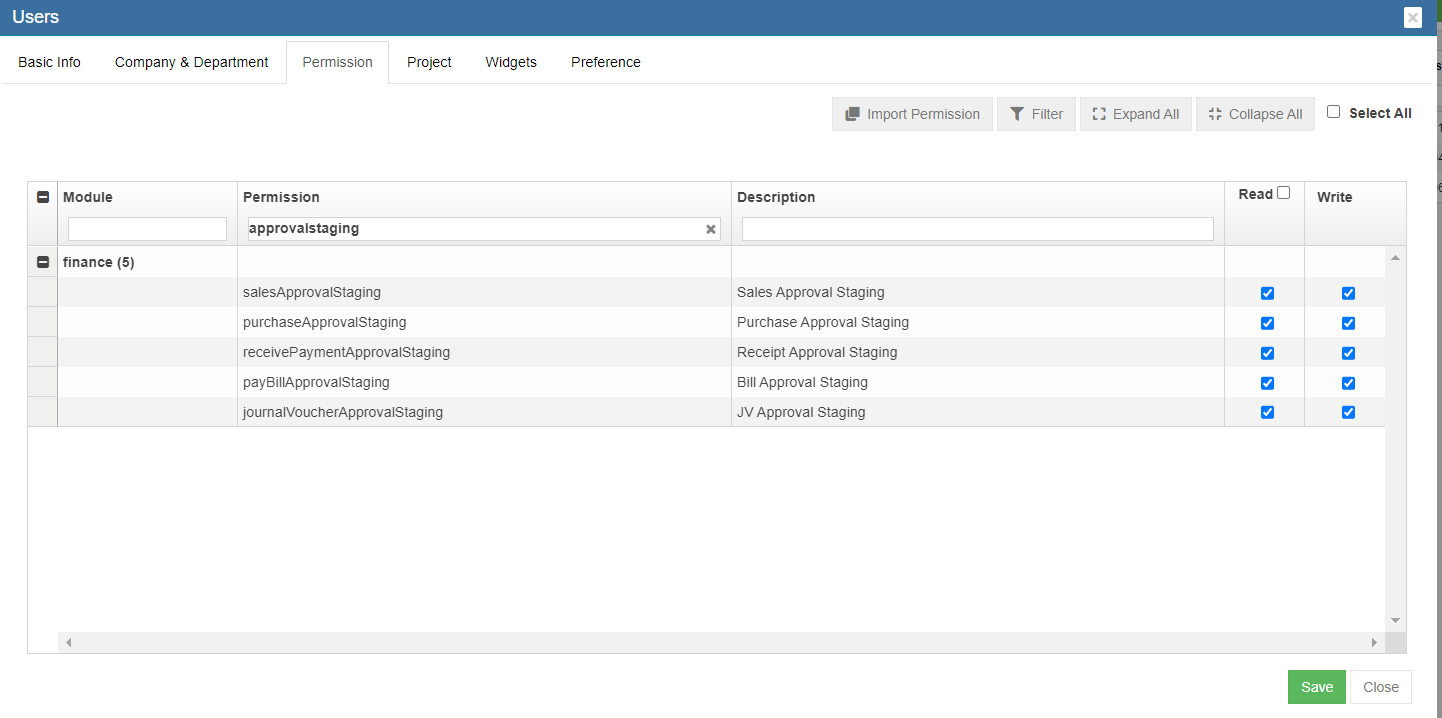
- Click Save to save permissions.
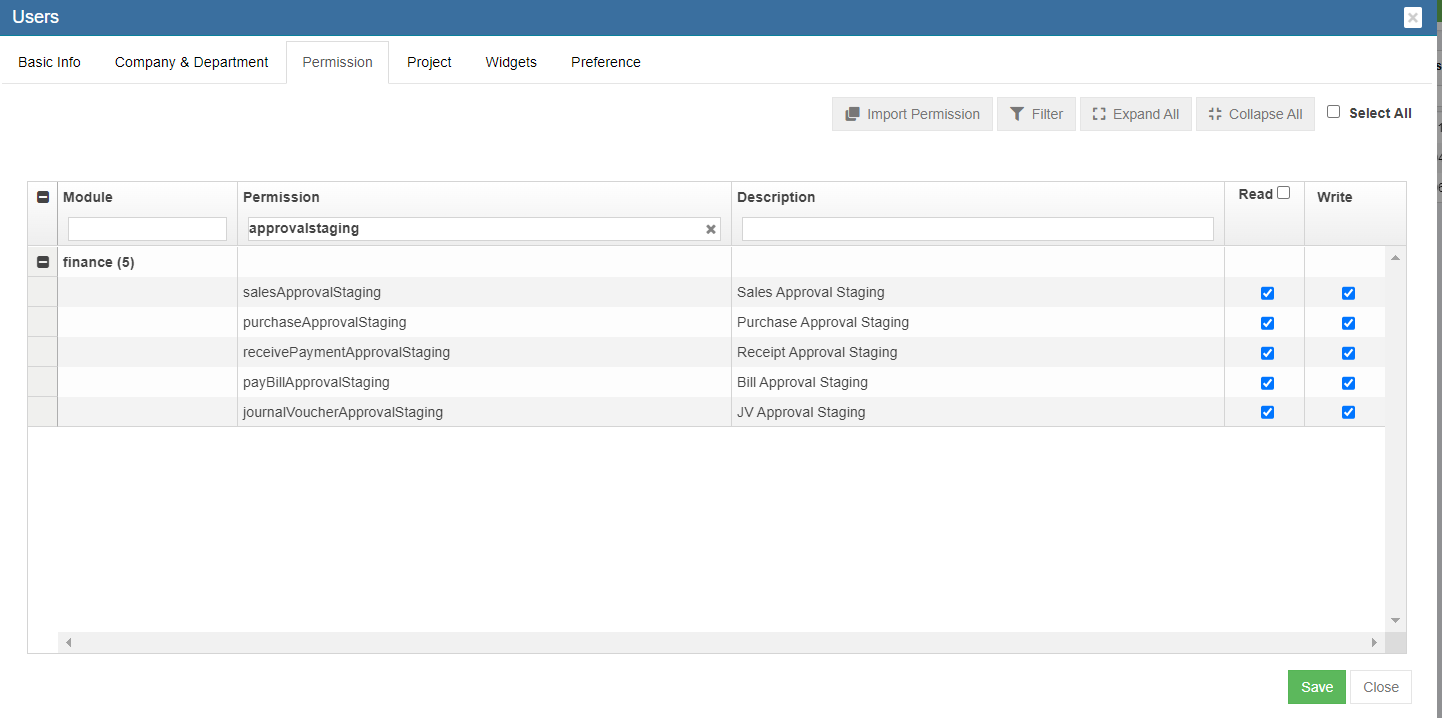
If finance approval functionality is enabled through Step 1 at the company level and Step 2 at the User level. All Voucher Entry screens will show Save To Staging Button by default

Step 3: Approve the Staging Vouchers
Once voucher entries are saved to staging, user with permission to approve staging voucher entries can review all staging vouchers in Voucher Staging Entries menu as below. Click to review specific vouchers and click Approve button to approve. After approval, vouchers will be integrated to financial transactions.
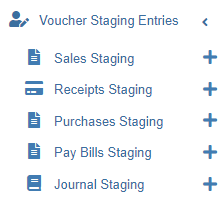
Integration Staging
This document briefs the steps that needs to be done for implementing the purchase module and payroll module integration to financial accounting module.
Purchase Module Integration
From Purchase module, customers can opt for integrating below data
- Stock value of items purchased to Accounting module (at Purchase Cost)
- Invoices created in purchase module against the Purchase Order raised
As part of Integration, the vouchers will be generated for the above 2 scenarios (as selected by the customer) and linked to the Financial Module Staging location. Subsequently, customer need to approve the vouchers in the Staging location which will then reflect in the Accounting entries as per the configuration created.
Please follow the below steps to post entries from the Purchase Module to Financial Module Staging location.
Step 1: To enable Purchase Module Integration to Accounts at Company Level
- In Cute Office, navigate to Admin module, click Company menu and click edit icon in selected company.
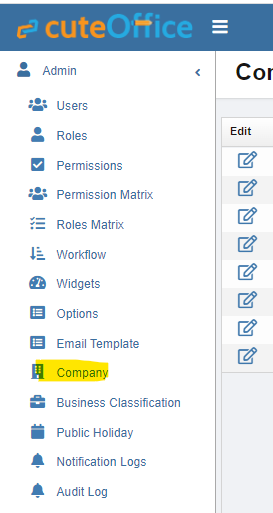
- Navigate to Setting page, search for setting configuration name Purchase Module Linked To Finance, this setting is to define whether the user wants to Link Purchase module to Finance module.
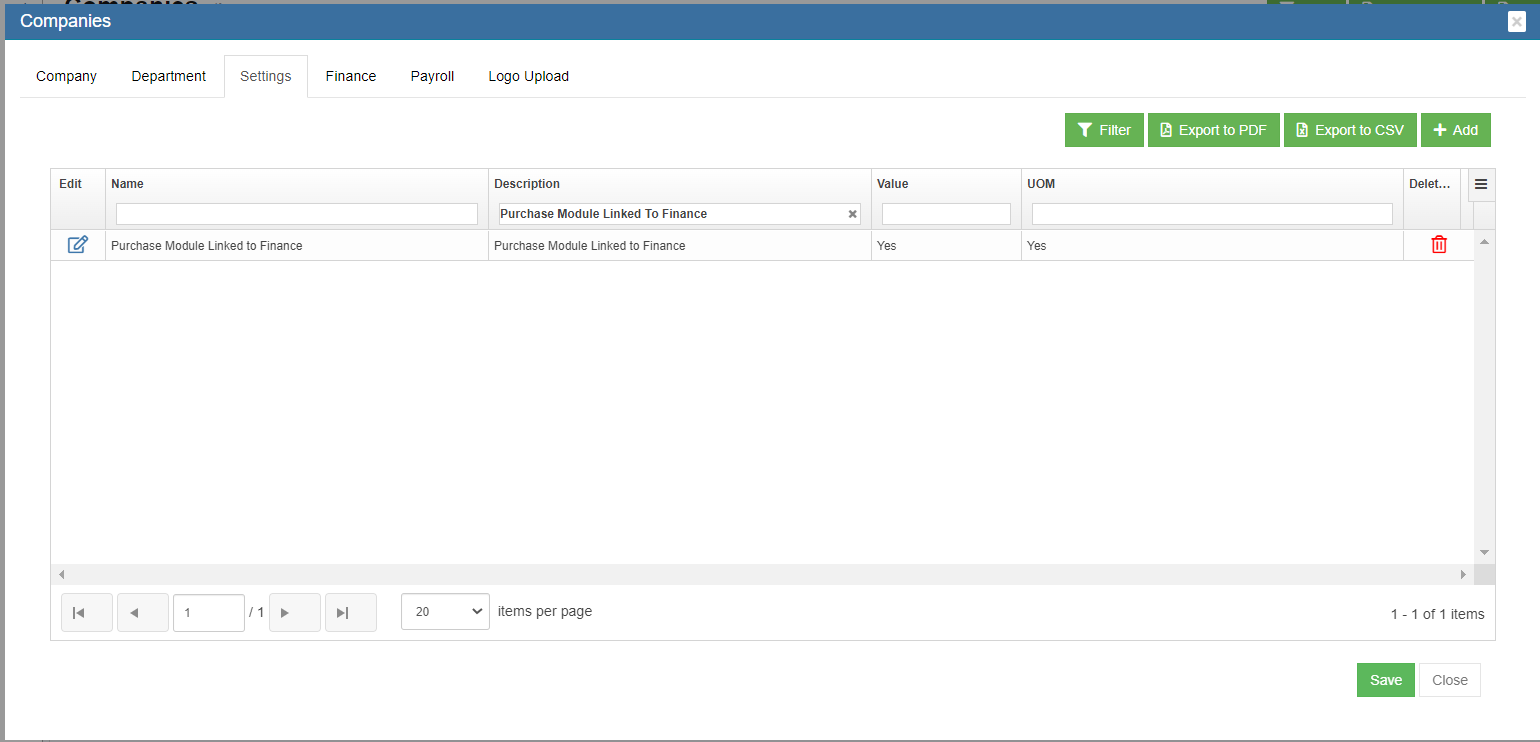
- Click edit icon, change setting Value as Yes (Note: by default the value is No), and click Save to save setting.
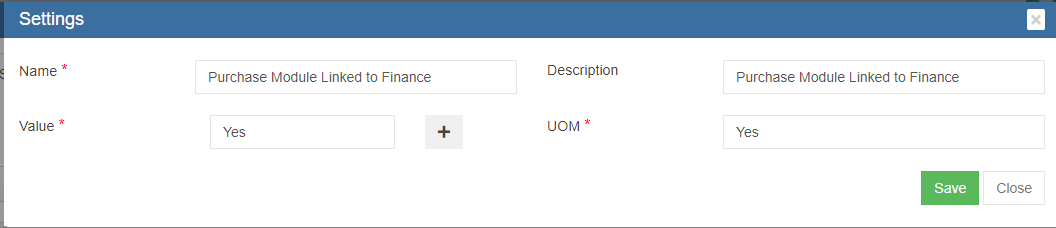
- And if user wants to integrate purchase module through item stock, then navigate to Setting page, search for setting configuration name ItemLinking, and change setting Value as Yes, the Post to Accounts option will be available after item inspected and the stock value can be posted to Finance module in the Receiving Entry table of the Purchase Order; If user do not want to integrate through item stock, set value as No, user can integrated purchase module to finance module via invoices created in Purchase Orders.
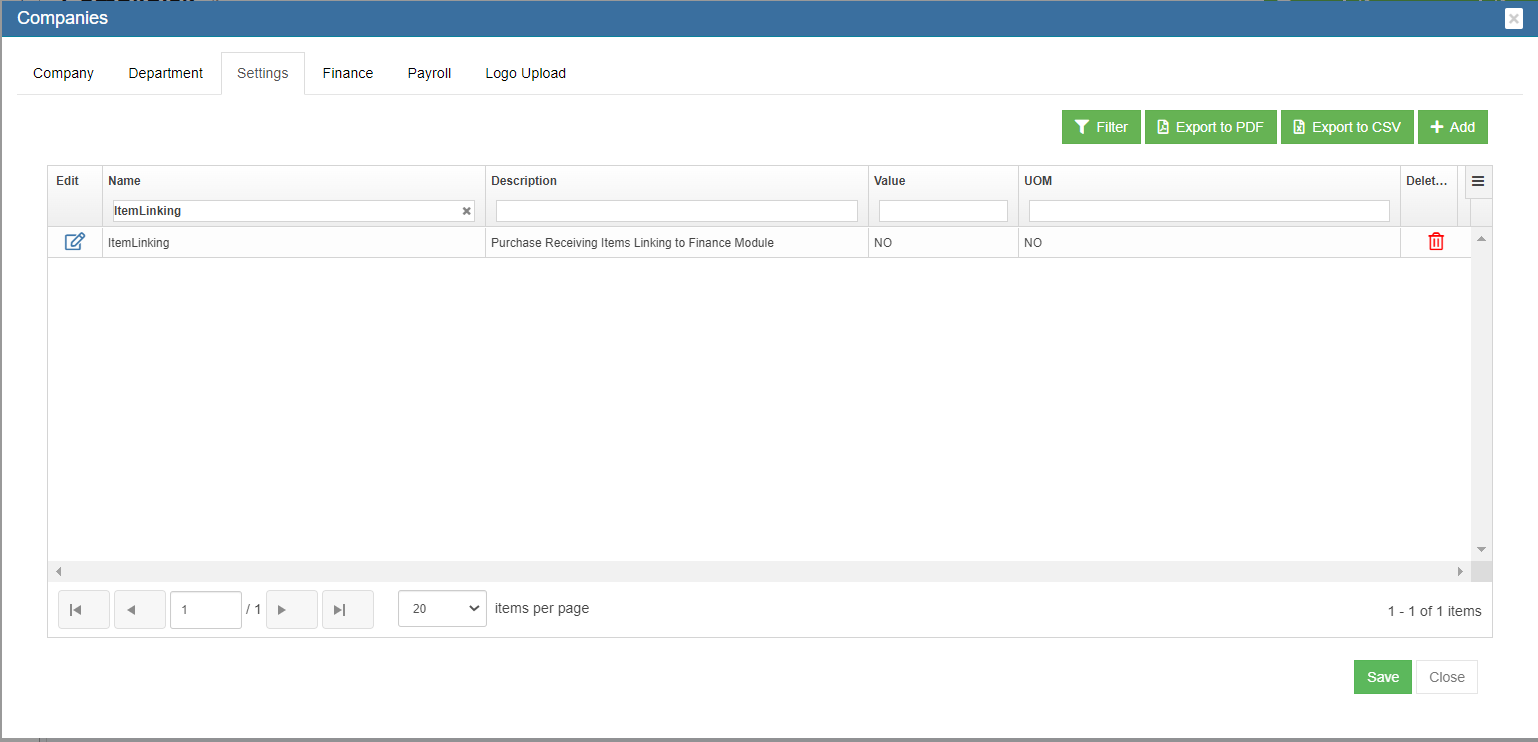
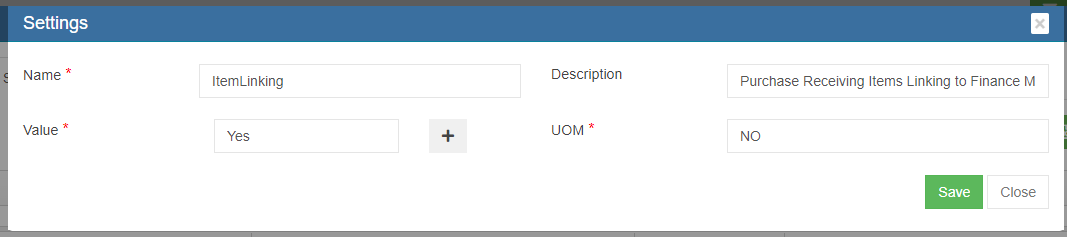
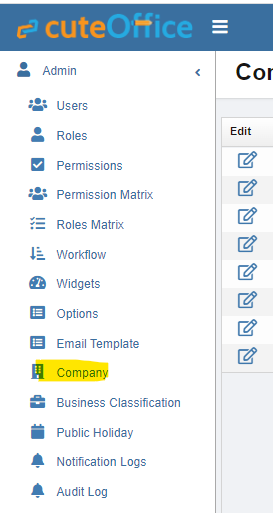
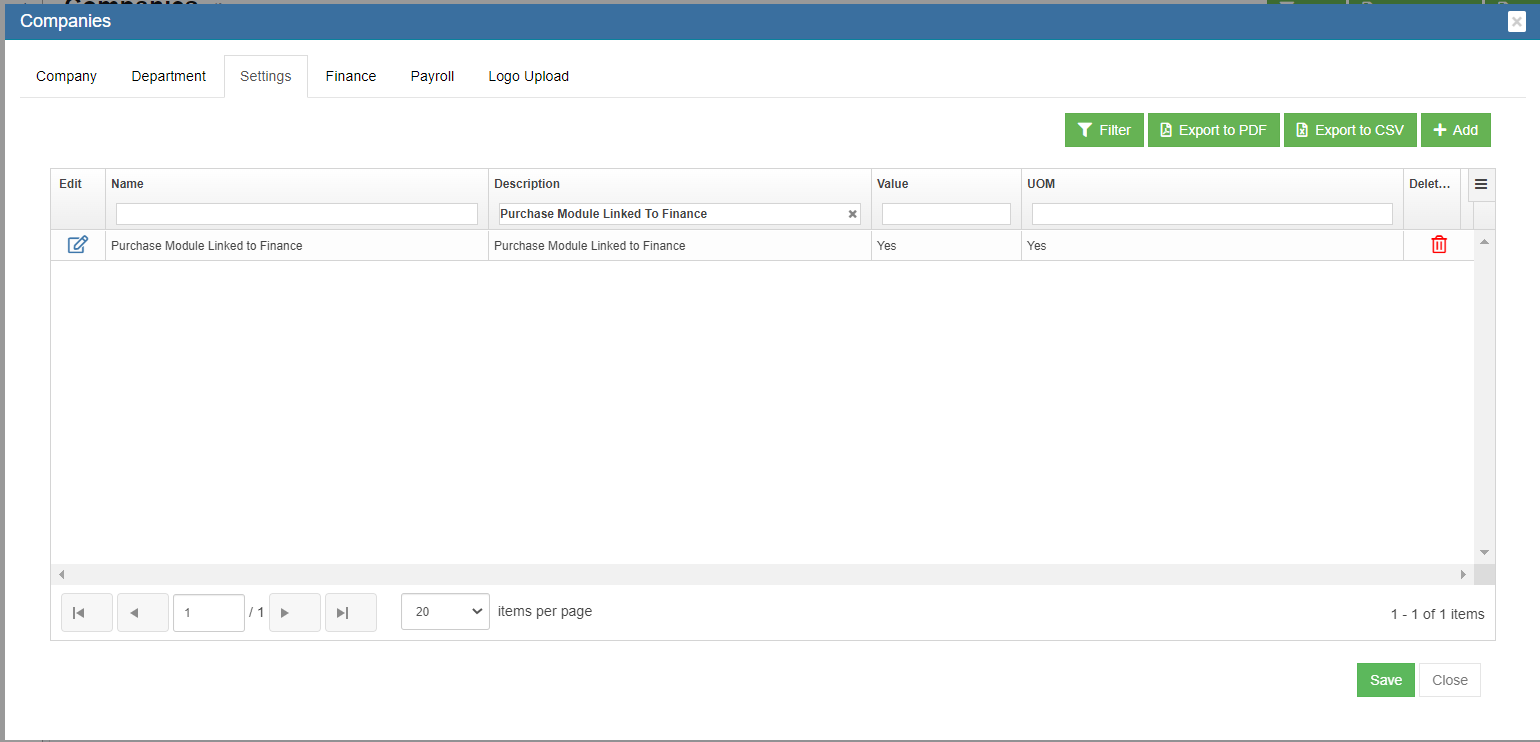
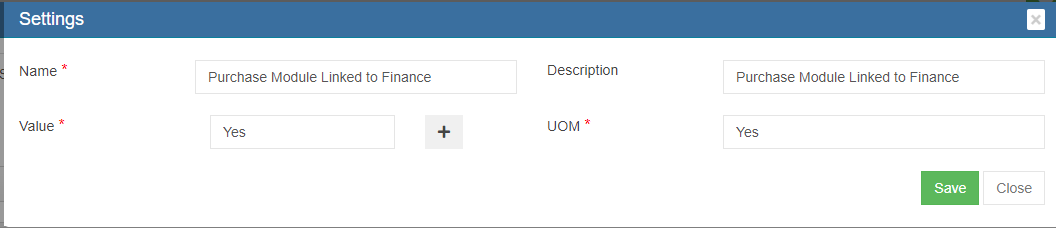
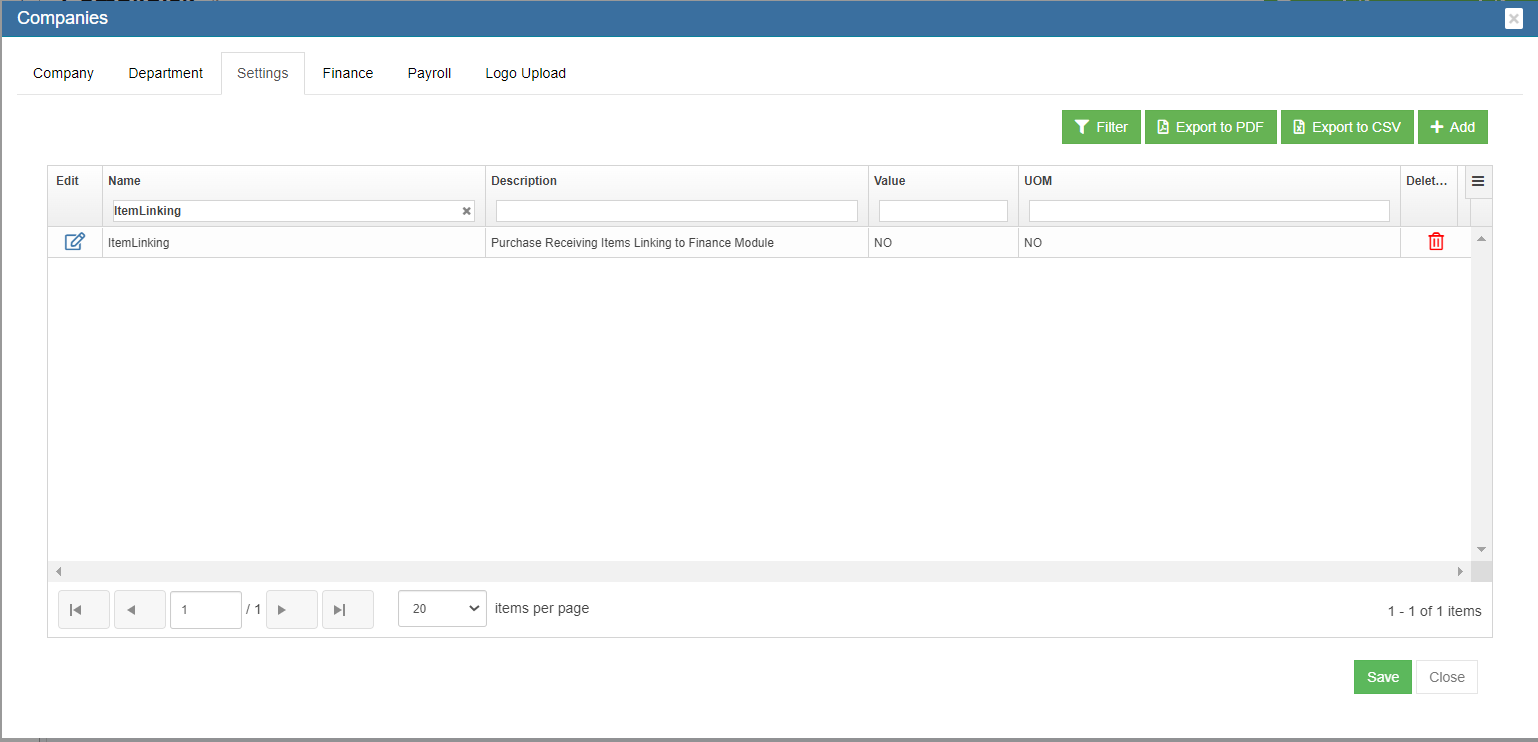
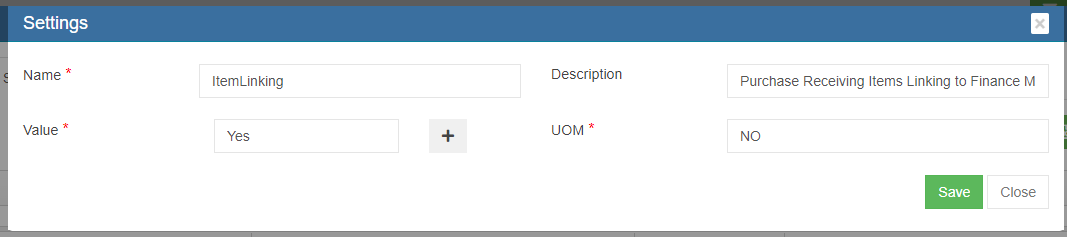
Step 2: Enable Permission to Configure GL Accounts Codes to be linked to Accounting Module at User Level
Note: It is highly recommended to define permission in user role and then assign user roles to a specific user account, so that users who perform same duty in cuteOffice will have same permissions. Roles are defined by a set of permissions to different functionalities in cuteOffice system. Based on company operation needs or organization structure, system admin user can create finance roles, such as finance manager etc., and give required permission to these roles and assign role to user.
To define permission in user role,
- Click Roles tab, all existing roles created in system will be displayed as below.
- Click
 (add icon), the adding new role window open as below,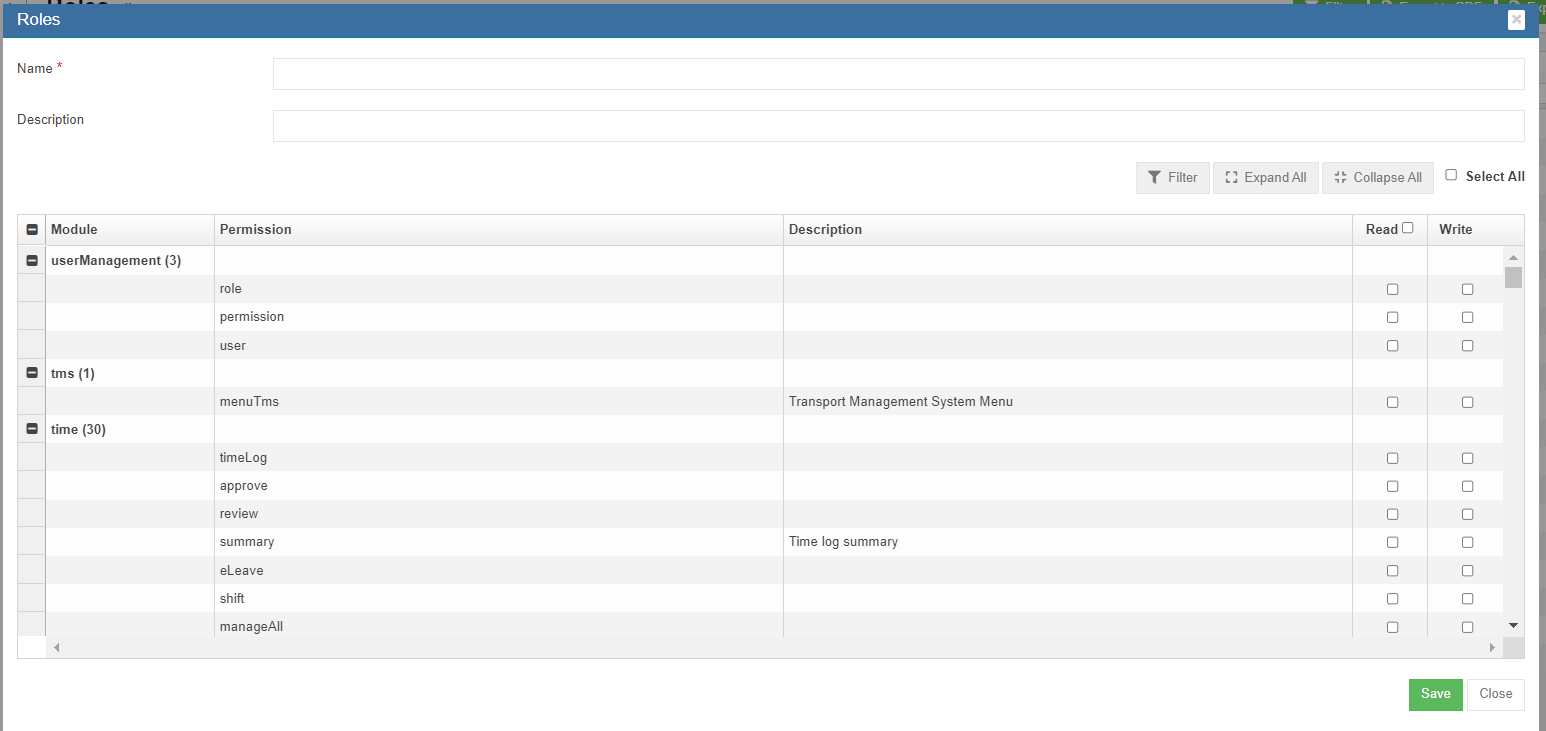
- In Name box, enter the new role name, such as "Finance Manager"
- In Description box, enter description of the new role.
- Based on the function of the new role, search for relevant module and permissions.
- Search and enable below Read & Write permission (click filter and filter "inventoryLinkedAccounts").
- Click Save to save the new role.
- To assign role to user, click Users menu and click edit icon in selected user.
- Navigate to user's Basic Info tab, in Role box, search and select "Finance Manager" role.
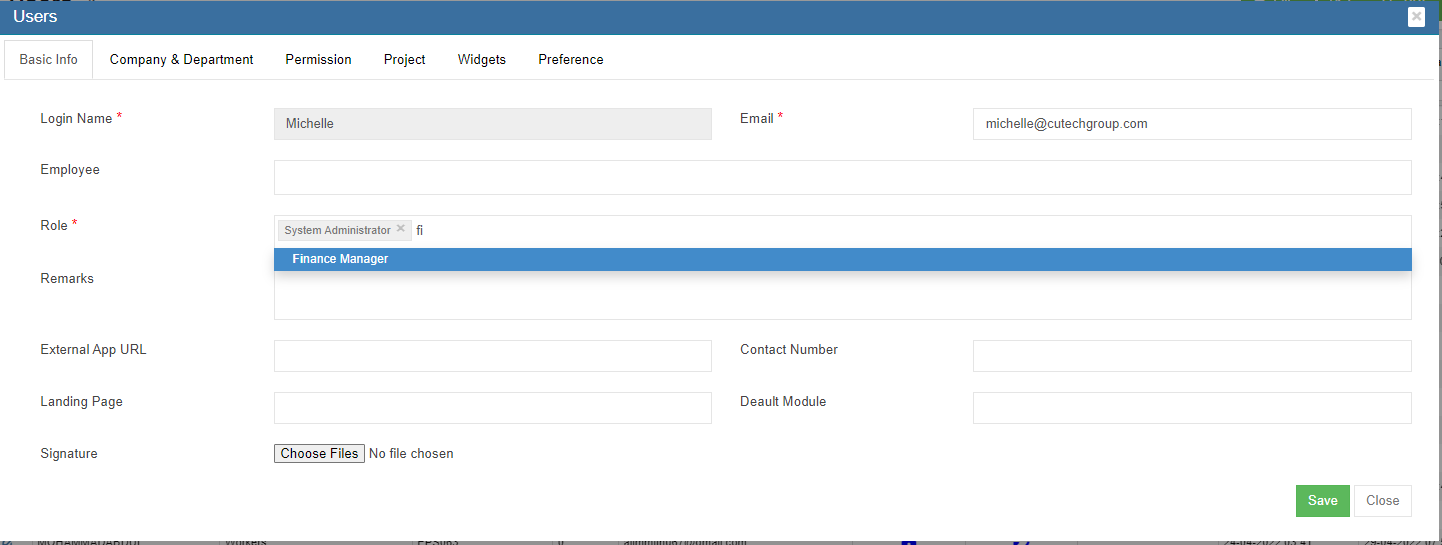
- Click Save. The new permission assigned to role "Finance Manager" will be granted to user.
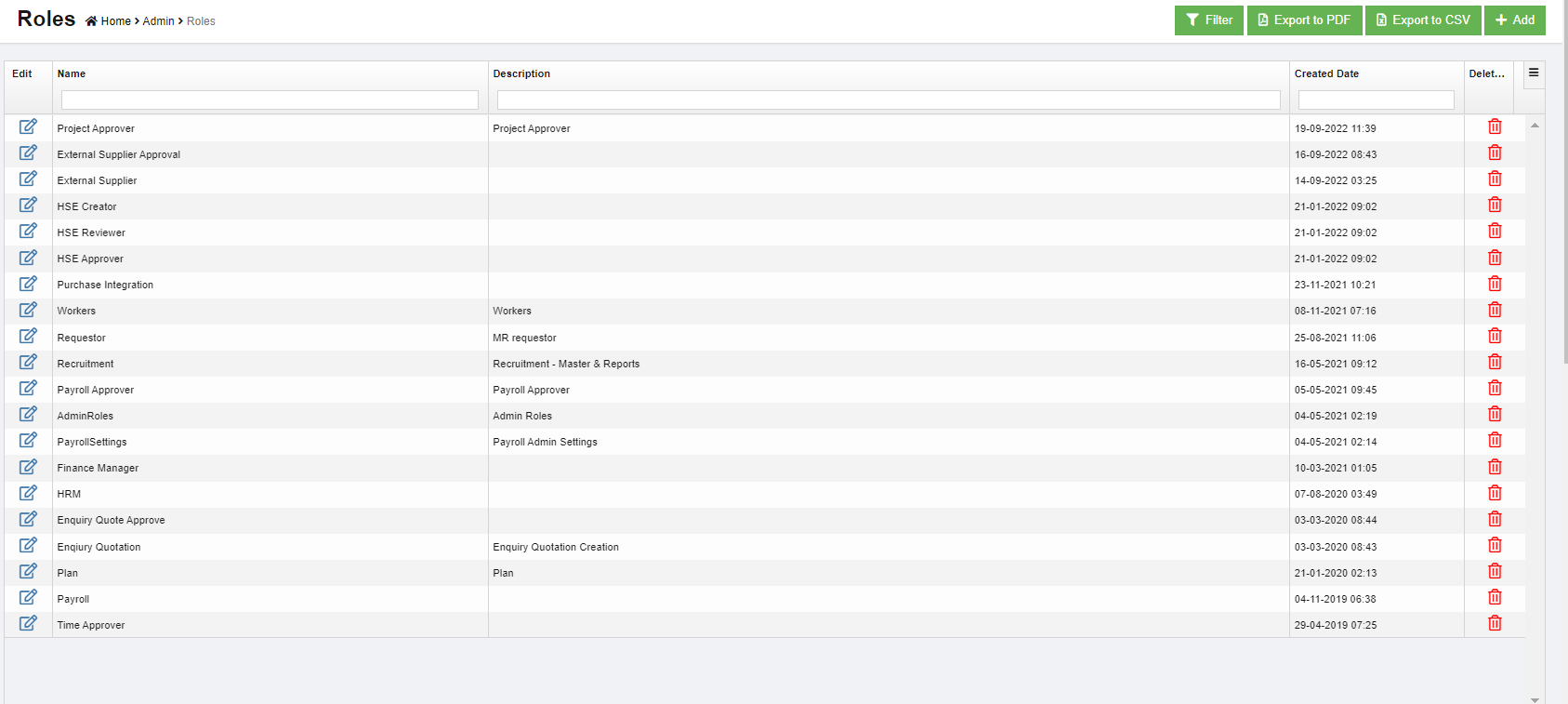

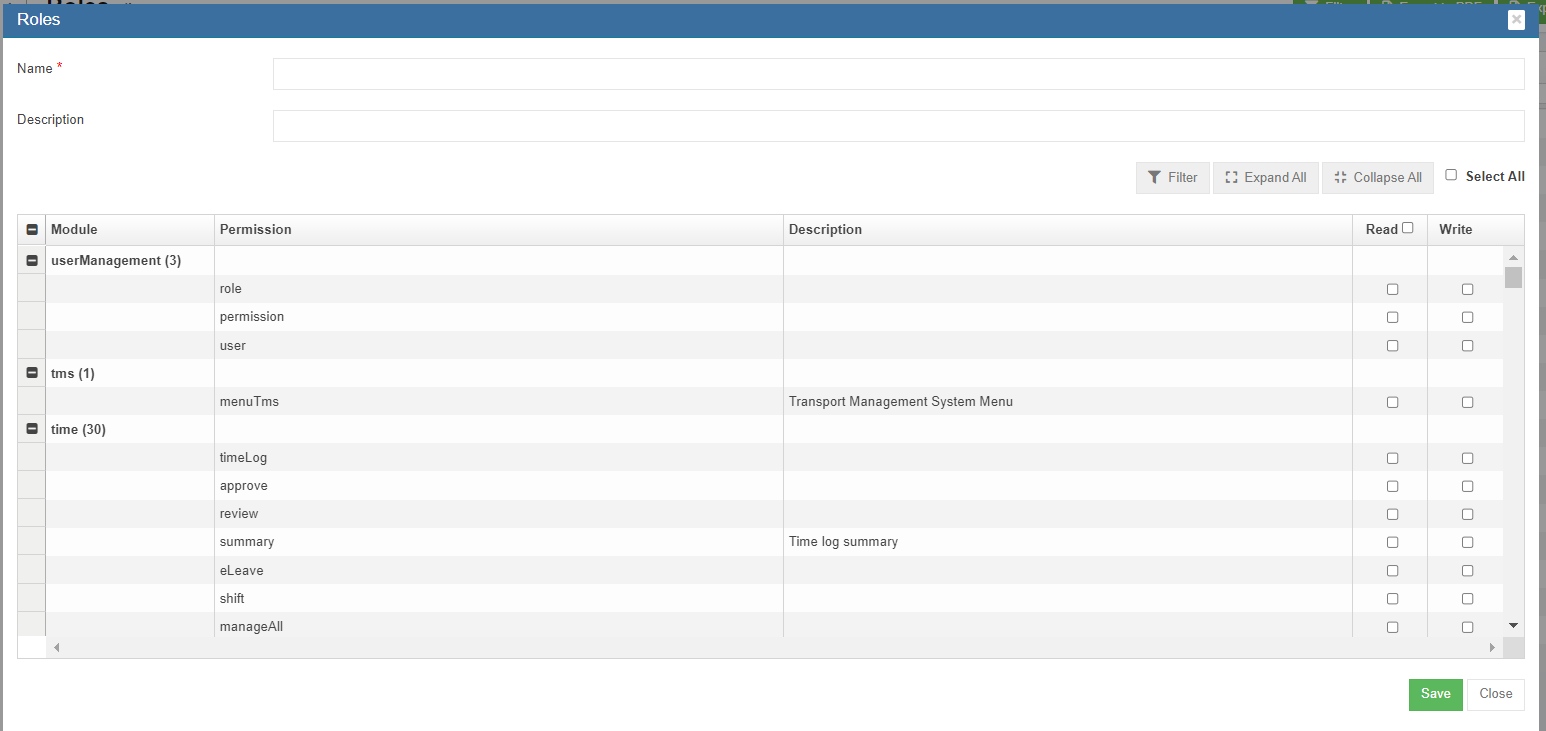
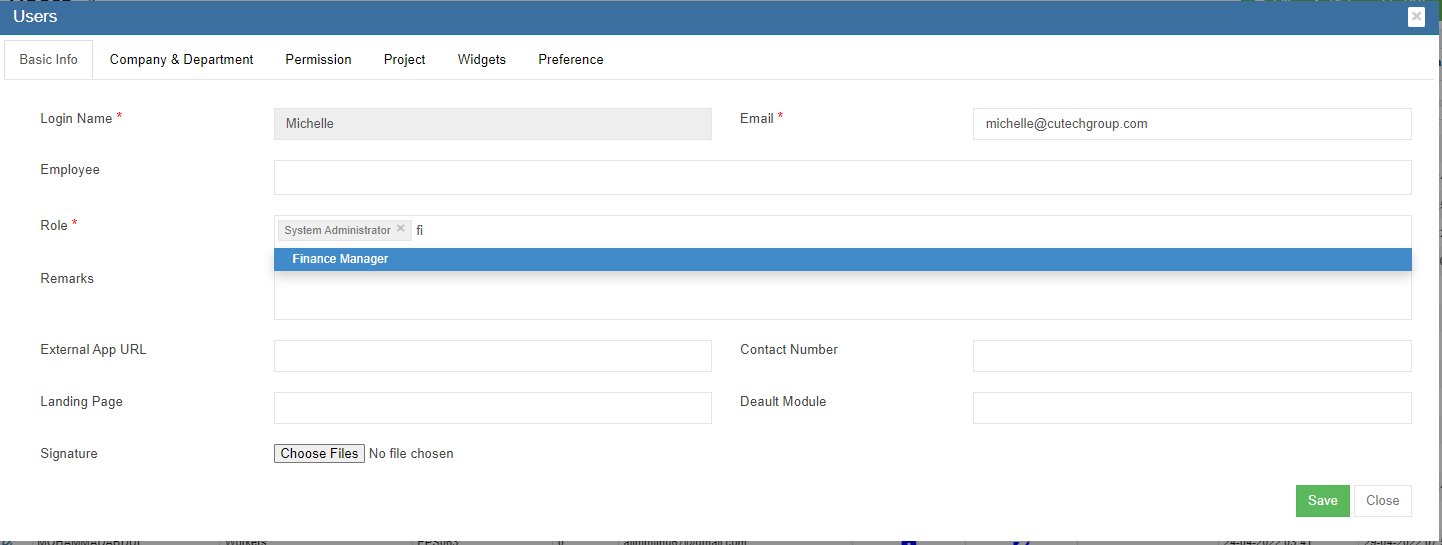
To enable permission to a specific user
- In Cute Office, navigate to Admin module, click Users menu and click edit icon in selected user.
- Navigate to Permissions tab. To be enable to configure GL accounts codes to be linked to Accounting module, in user's permission page, enable below Read & Write permission (click filter and filter "inventoryLinkedAccounts").
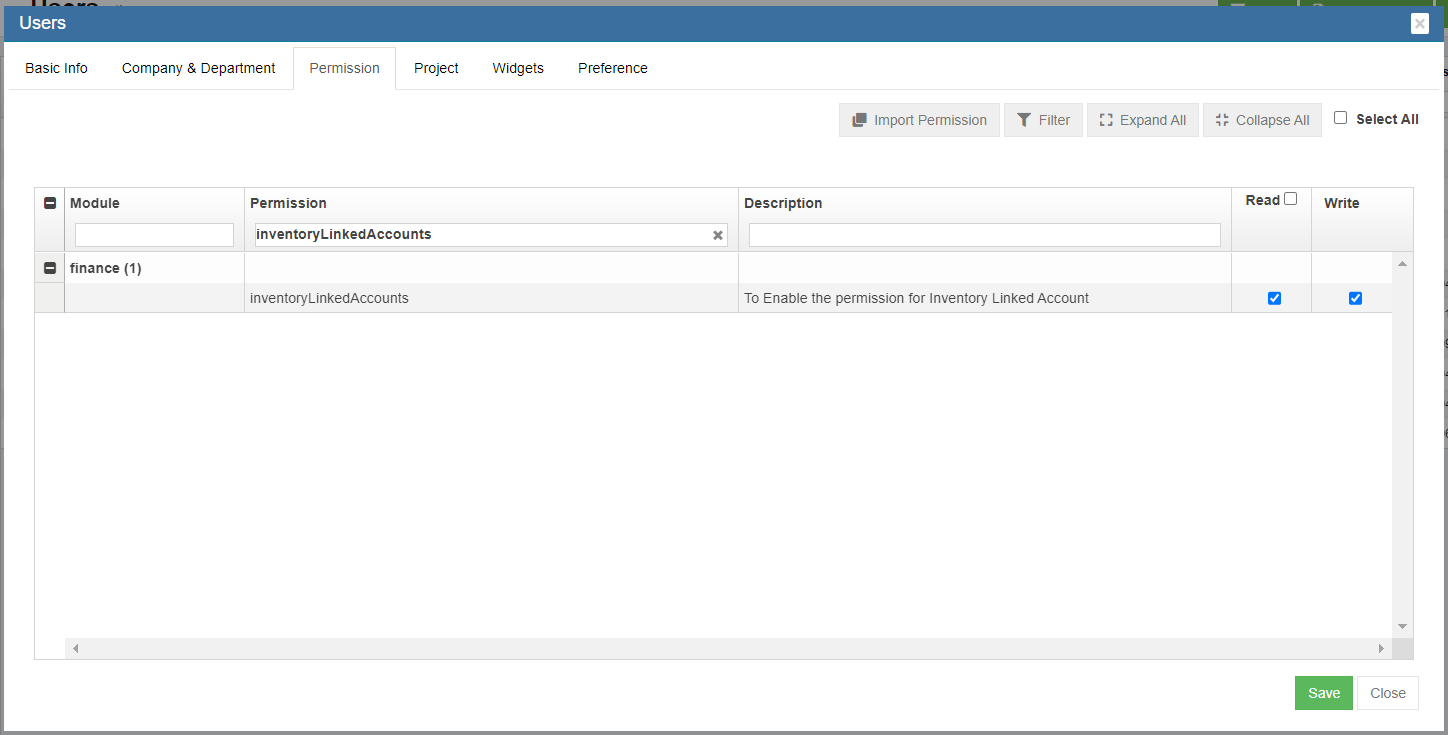
- Click Save to save user's permission configuration.
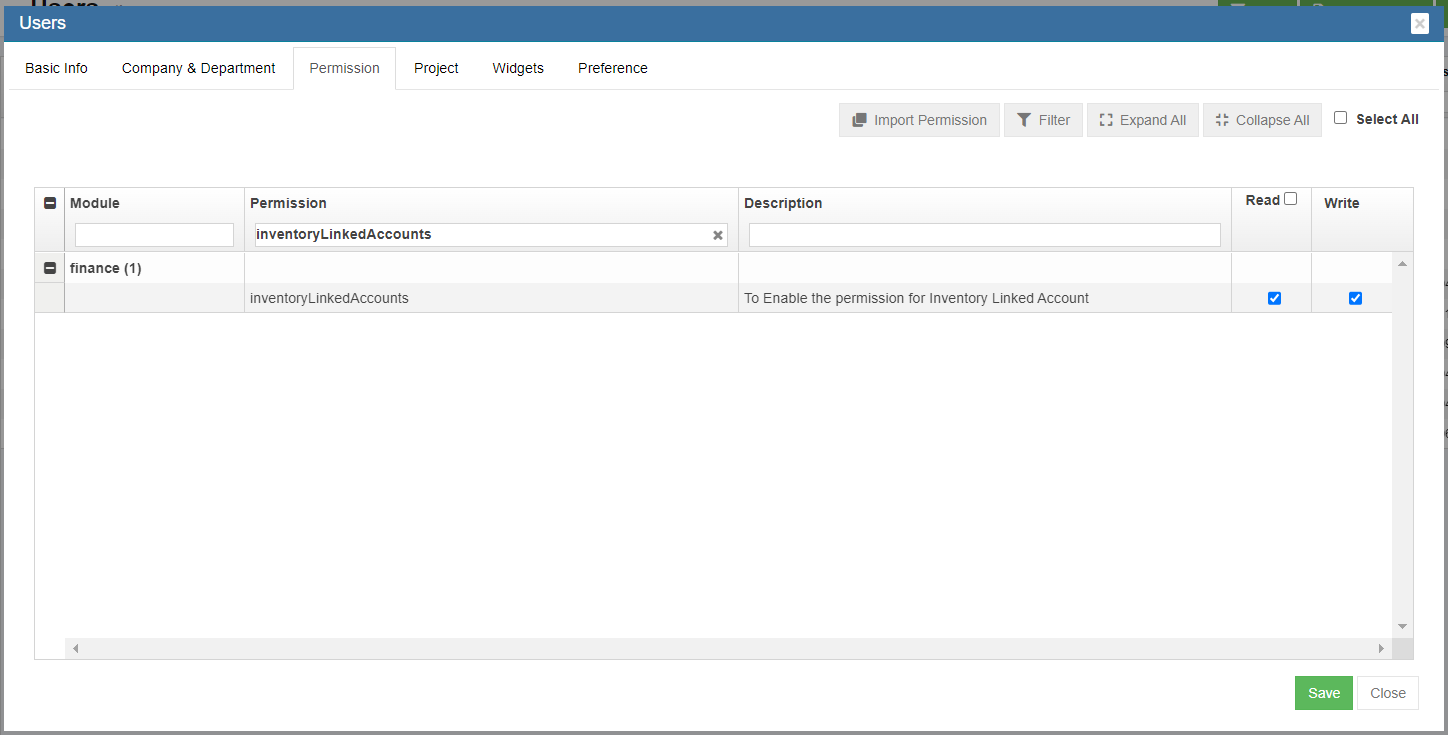
Step 3: Linking GL Account Code to Items
Note: The Link Account Setup Menu will be available only if Permission is granted through Step 2.
- Navigate to Finance module, click Link Account Setup menu,
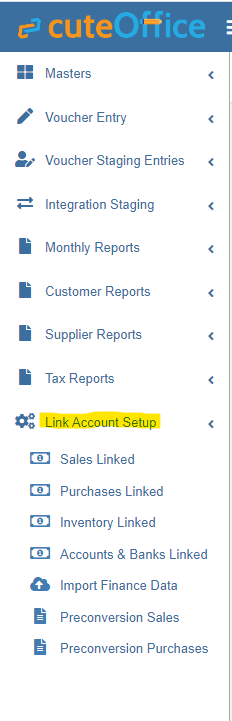
- Click Inventory Linked submenu, the inventory link account page opens as below,
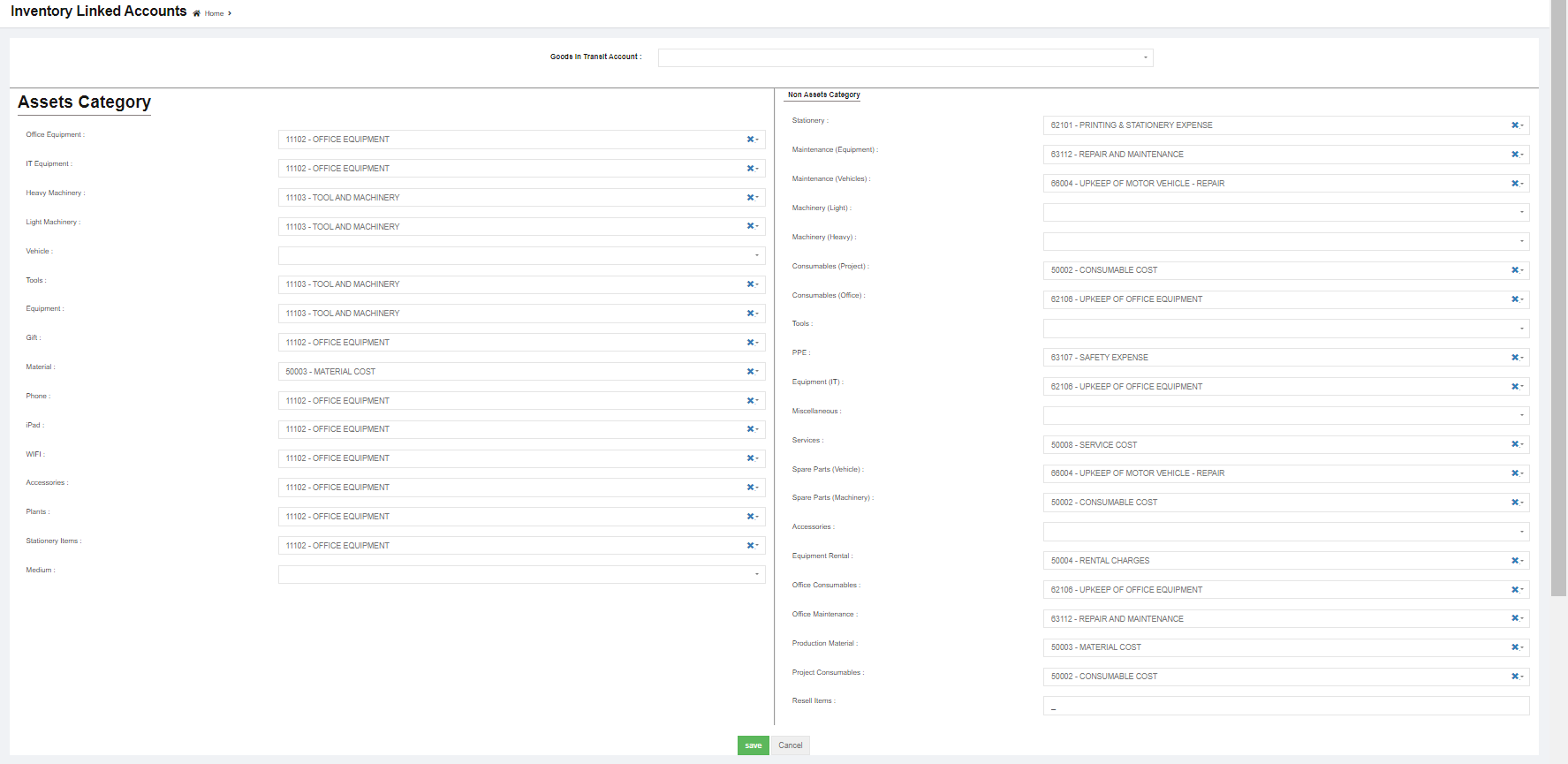
- In each of the category box, click and select to link accounts for Asset Category and Non-Asset Category and Goods In Transit Account.
- Click Save to save updates.
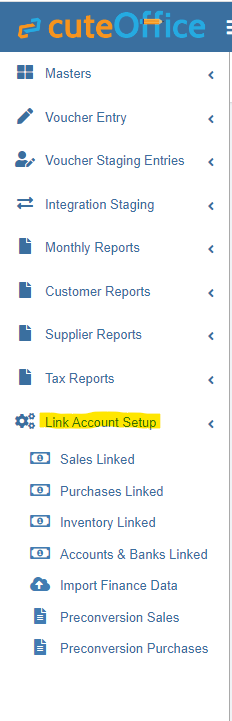
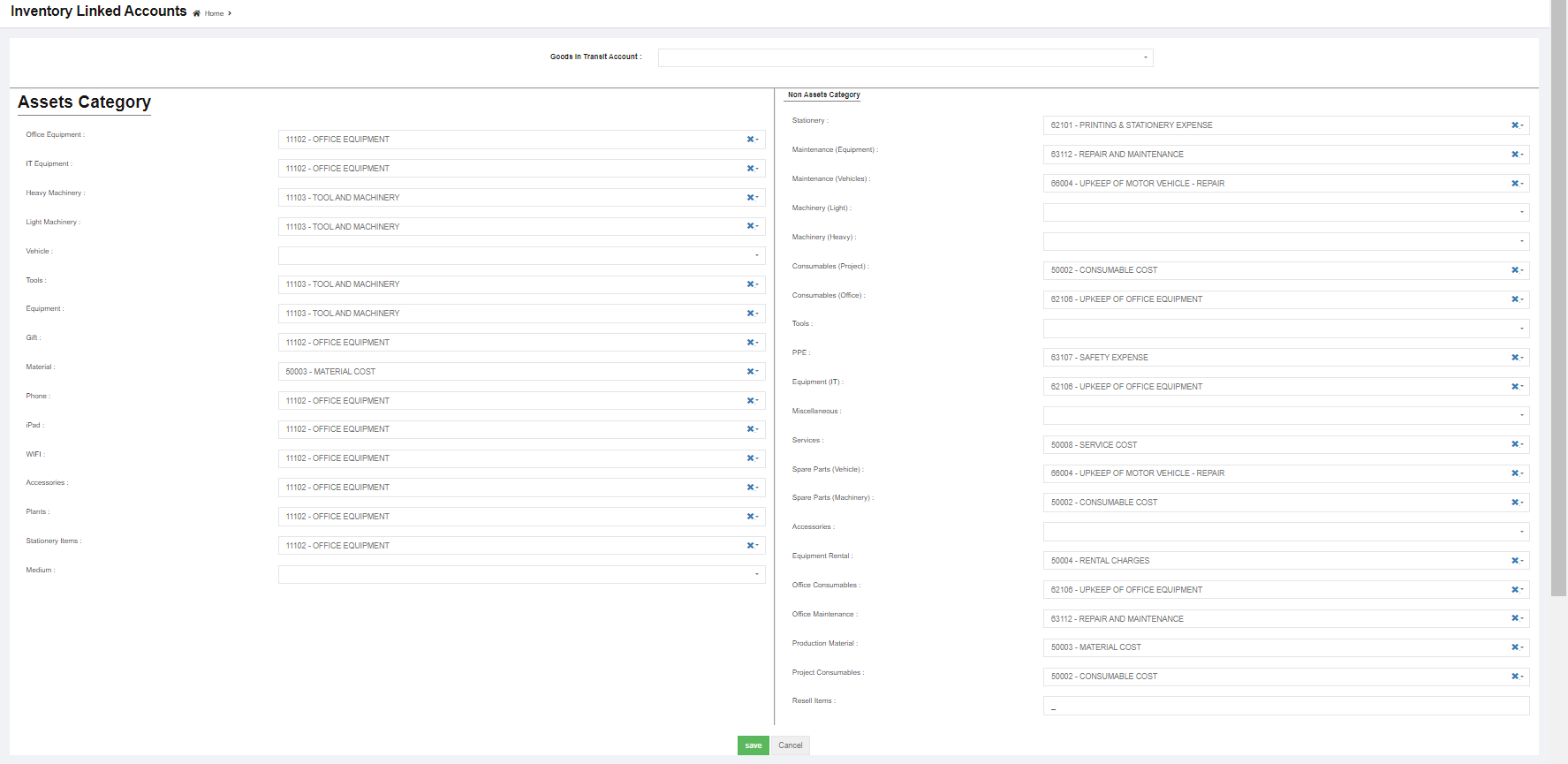
Step 4: Posting Purchase Orders to Financial Accounting Module
Note: Posting PO to finance function will be available only if setting configurations in Step 1 setting configuration name Purchase Module Linked To Finance is enabled as Yes at the company level.
To post PO to accounts,
- Navigate to Procurement module, click Purchase Order menu.
- Click the PO key to open PO details,
- Post To Accounts tab will be available in both Receiving Entry (if ItemLinking setting is configured as Yes at company level) & Invoice Entry Table.
- If user chooses to Post to Accounts via item stock value, after item inspected in PO, the
 option will show in Receiving Entry table as below,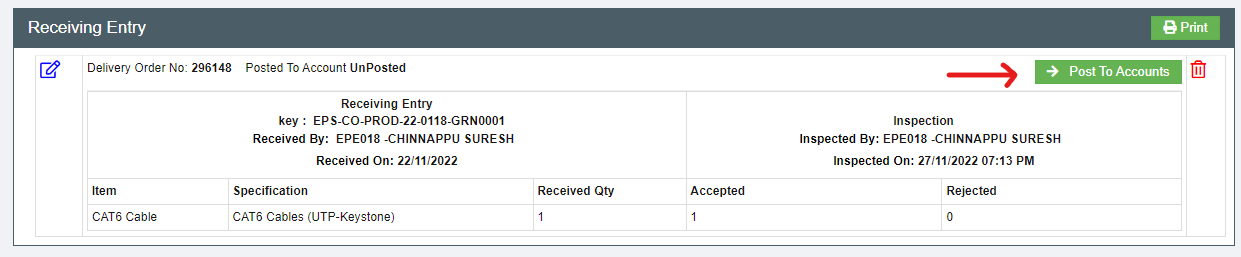
- If user chooses to Post to Accounts via invoices, after invoice details are entered in Invoice Entry, the option will show in Invoice Entry table as below,

- If user chooses to Post to Accounts via item stock value, after item inspected in PO, the
- Click , a confirmation notification will prompt,
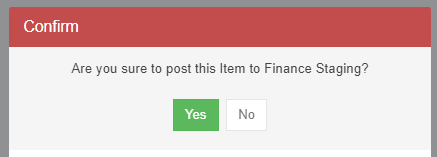
- Click Yes to confirm posting PO to finance staging.

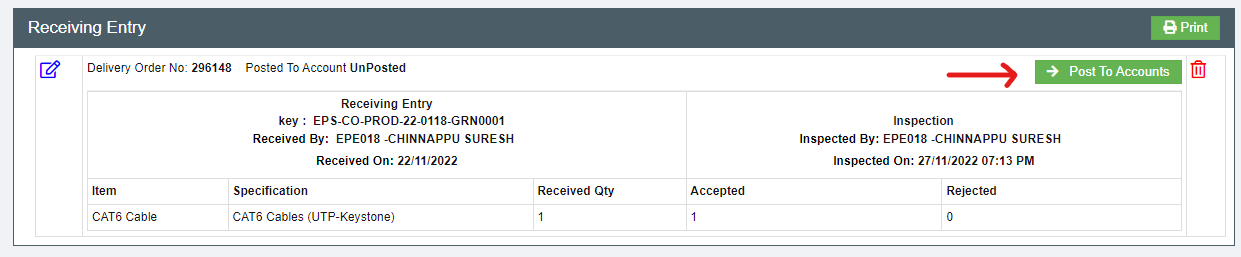

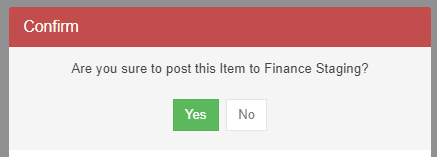
Step 5: Enable Permission to View / Post Vouchers in Staging Location
- In Cute Office, navigate to Admin module, click Users menu and click edit icon in selected user.
- Navigate to Permissions tab. To view staging menu in Finance, in user's permission page, enable below Read & Write permissions (click filter and filter "stagingPurchaseInvoice" and "stagingPurchaseItemReceiving").
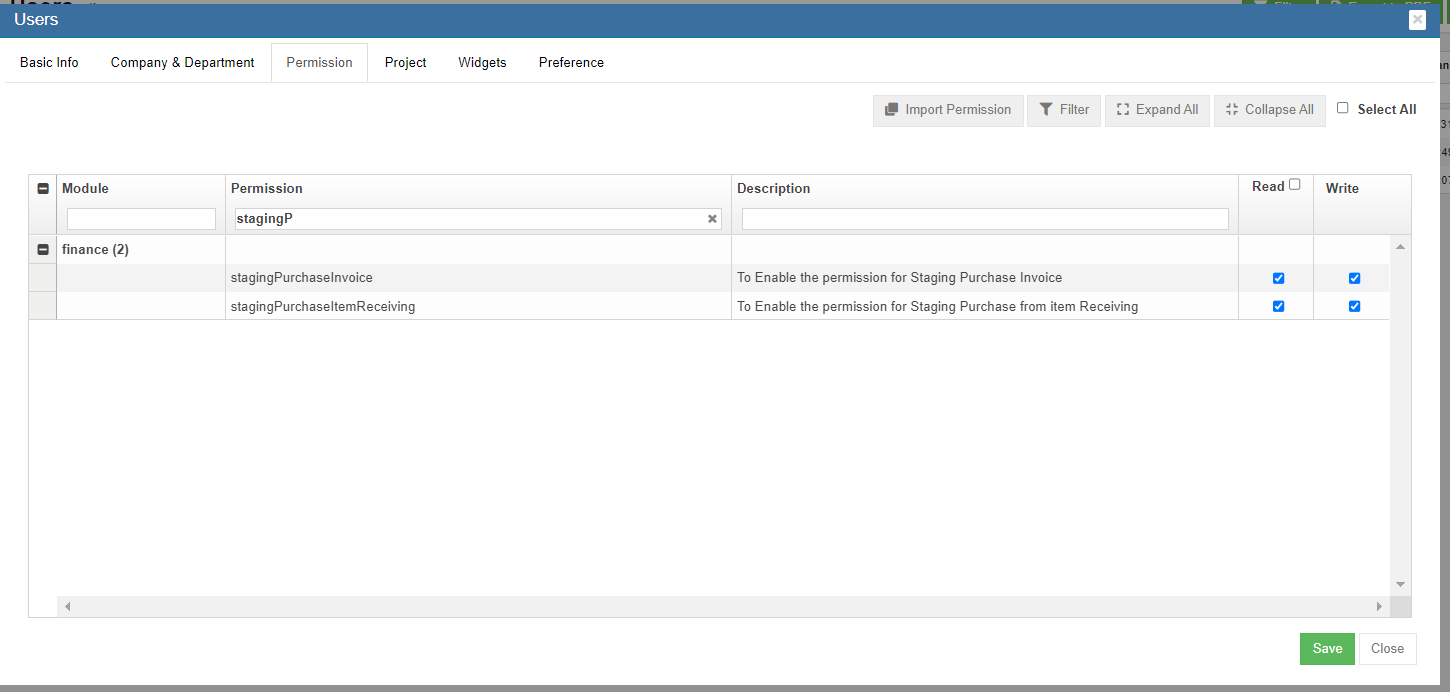
- Click Save to save permissions.
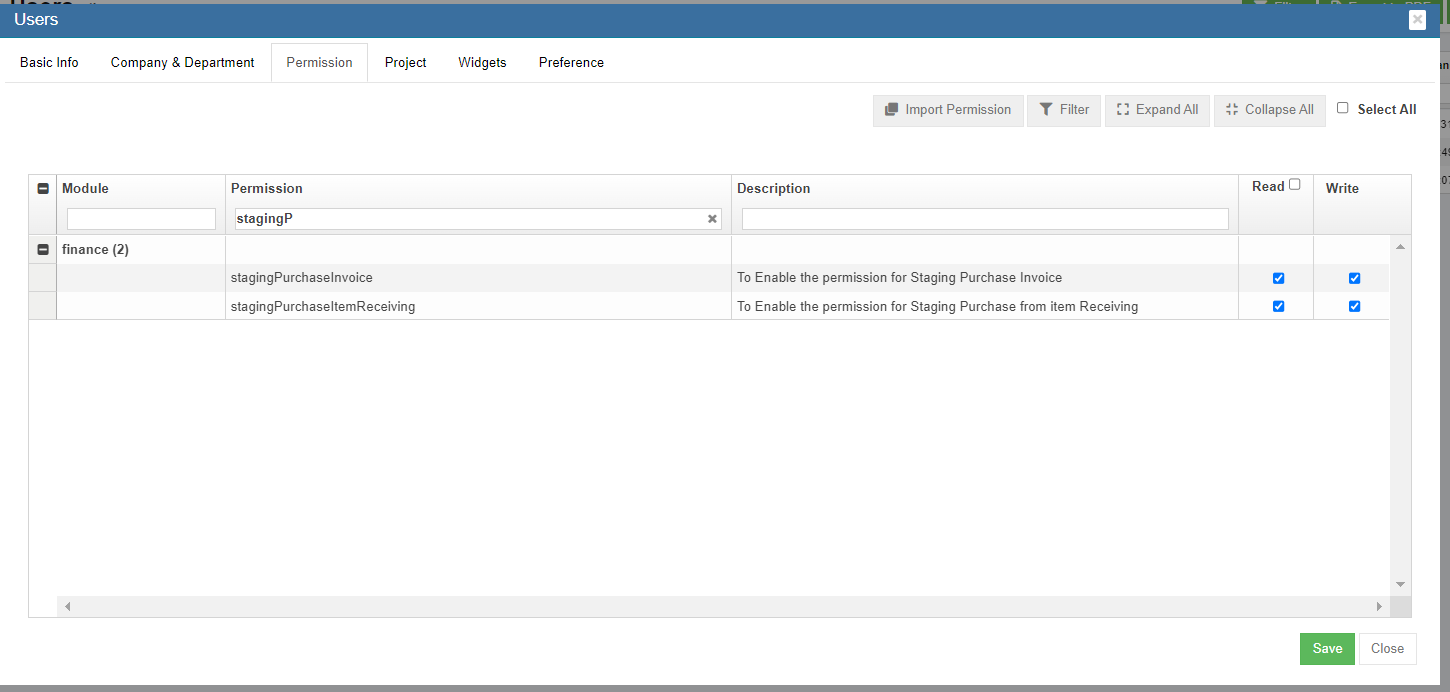
Step 6: To Approve the Purchase Integration Staging in Finance Module
- Navigate to Integration Staging menu,
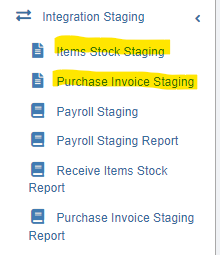
- To view and approve posted Receiving Item stock value or Invoices from Purchase module,
- If user posted via item stock value in Receiving Entry table in PO, click Items Stock Staging tab, select relevant vouchers and click
 to approve,

- If user posted via invoices, click Purchase Invoice Staging tab, select relevant vouchers and click to approve,

- If user posted via item stock value in Receiving Entry table in PO, click Items Stock Staging tab, select relevant vouchers and click
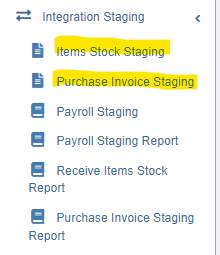


Payroll Module Integration
Follow the below steps to post entries from Payroll to Finance module Integration Staging.
Step 1: Configure Payroll Admin Settings
- Go to Payroll module, navigate to Admin menu, click Settings to open settings page as below,
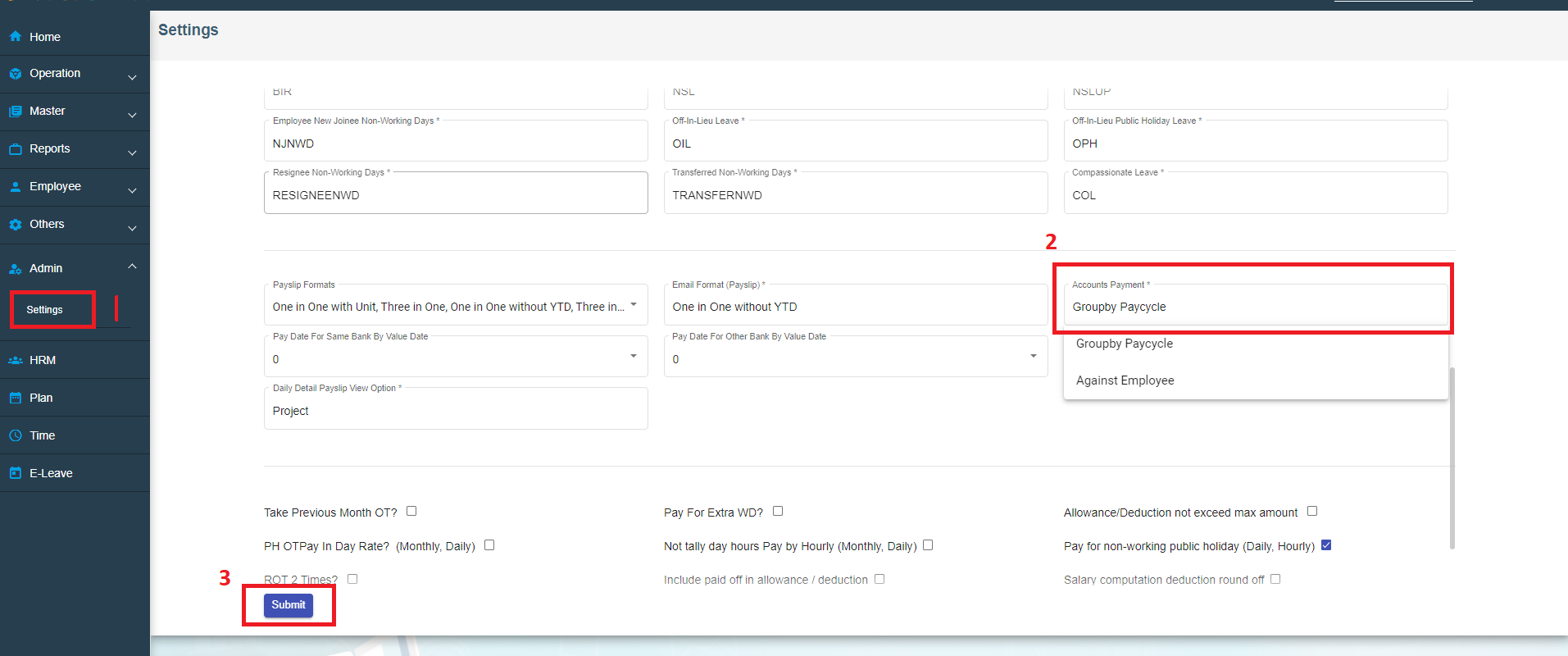
- Scroll down the page to find Account Payment box, and select "Groupby Paycycle" as account payment setting.
- Click Submit to save payroll setting configuration.
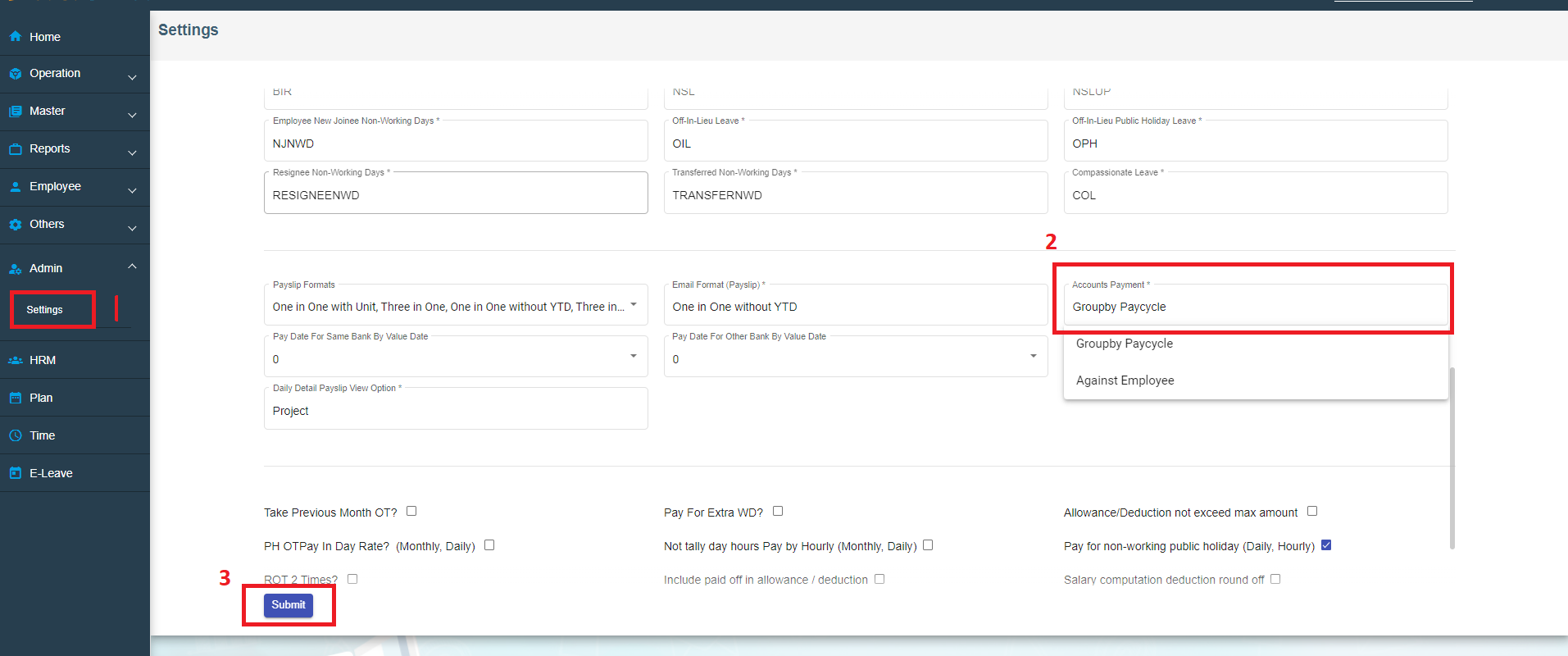
Step 2: Configure Admin Company Settings at Company Level
- In Cute Office, navigate to Admin module, click Company menu and click edit icon in selected company.
- Navigate to Setting page, search for setting configuration name Financial Groups,
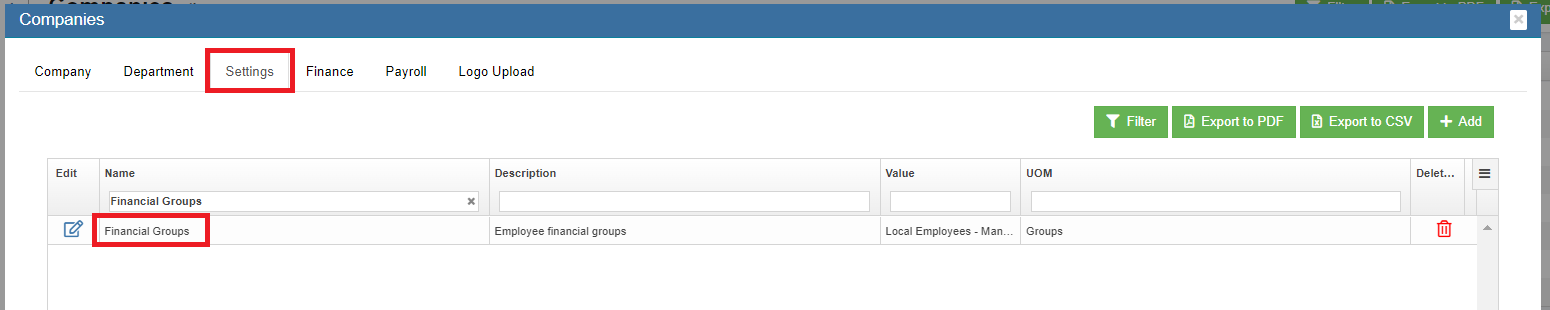
- Click icon of Financial Groups setting name,
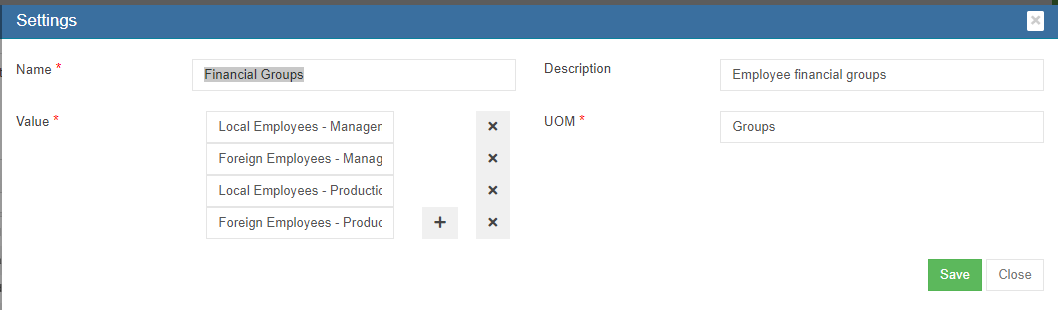
- Check and edit Value box if needed.
- Click Save to save company settings.
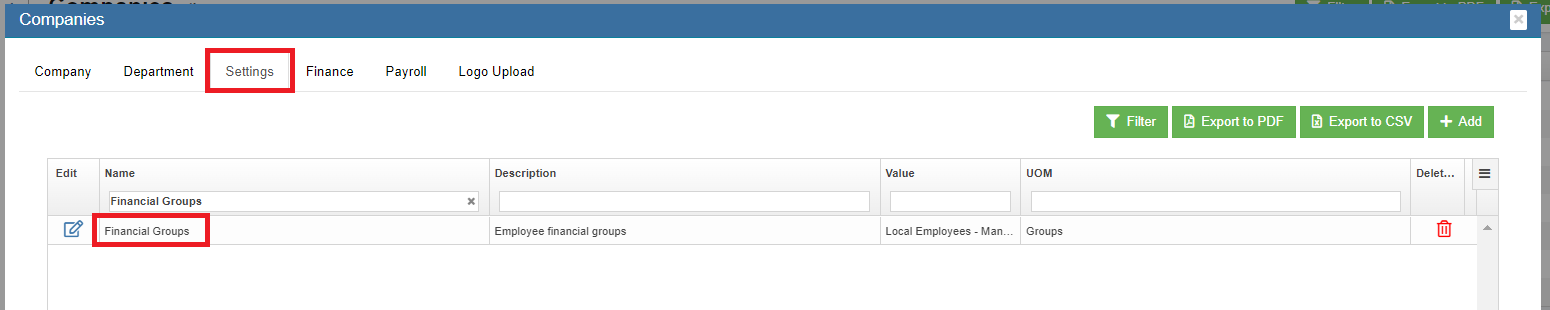
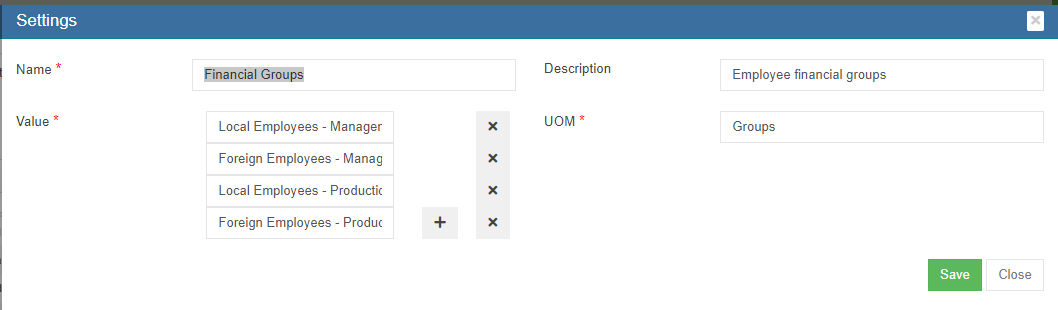
Step 3: Enable Permission to View Project Costing and Post Payroll to Accounts at User Level
Note: It is highly recommended to define permission in user role and then assign user roles to a specific user account, so that users who perform same duty in cuteOffice will have same permissions. Roles are defined by a set of permissions to different functionalities in cuteOffice system. Based on company operation needs or organization structure, system admin user can create finance roles, such as finance manager etc., and give required permission to these roles and assign role to user.
To define permission in user role,
- Click Roles tab, all existing roles created in system will be displayed as below.
- Click (add icon), the adding new role window open as below,
- In Name box, enter the new role name, such as "Finance Manager"
- In Description box, enter description of the new role.
- Based on the function of the new role, search for relevant module and permissions.
- Search and enable below Read & Write permissions (click filter and filter permission names "projectCosting","payrollJournal", "payrollJournalReport").
- projectCosting - To Enable Project Payroll Costing menu in Payroll
- payrollJournal - To Enable Staging Journal Resgister in Finance
- payrollJournalReport - To Enable Payroll Journal Report in Finance
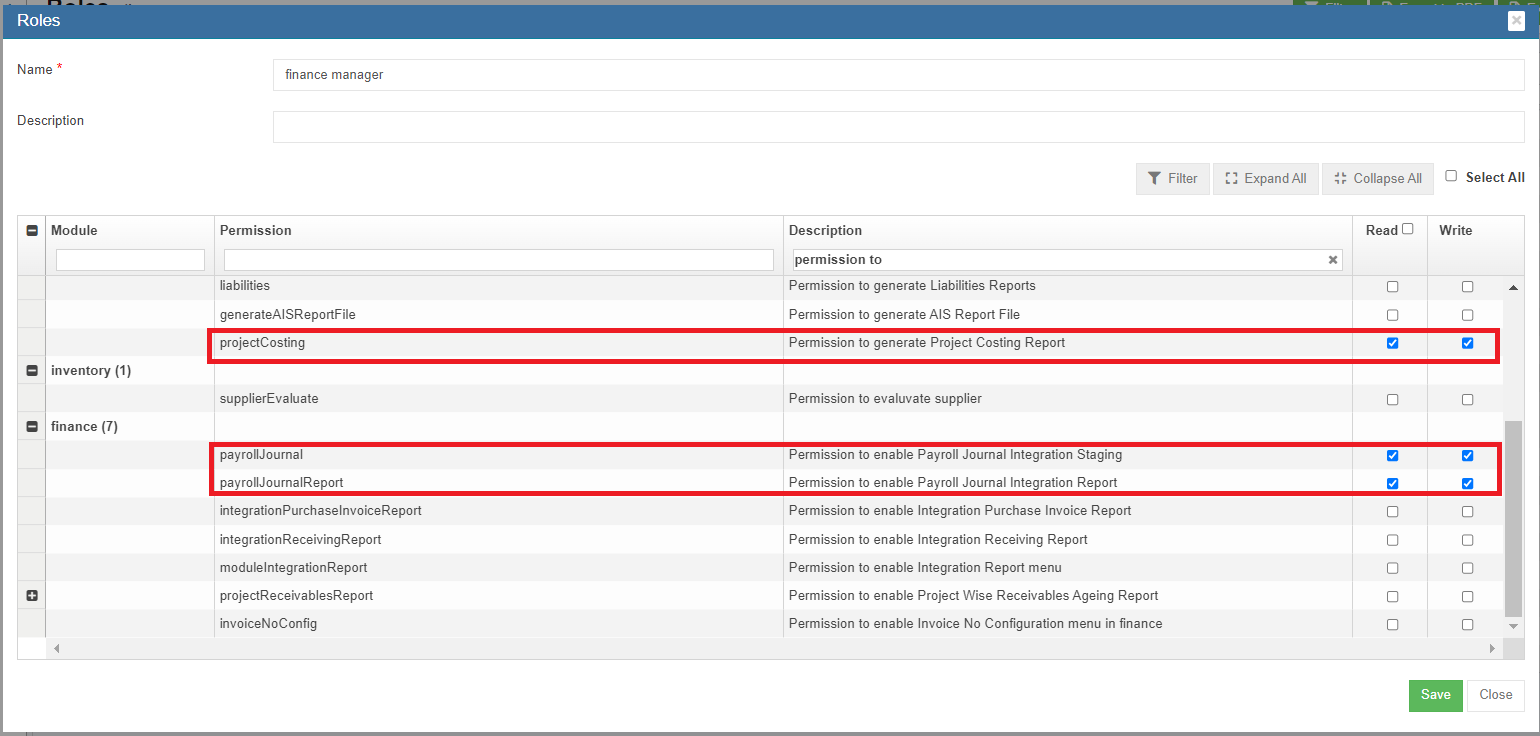
- Click Save to save the new role.
- To assign role to user, click Users menu and click edit icon in selected user.
- Navigate to user's Basic Info tab, in Role box, search and select "Finance Manager" role.
- Click Save. The new permission assigned to role "Finance Manager" will be granted to user.
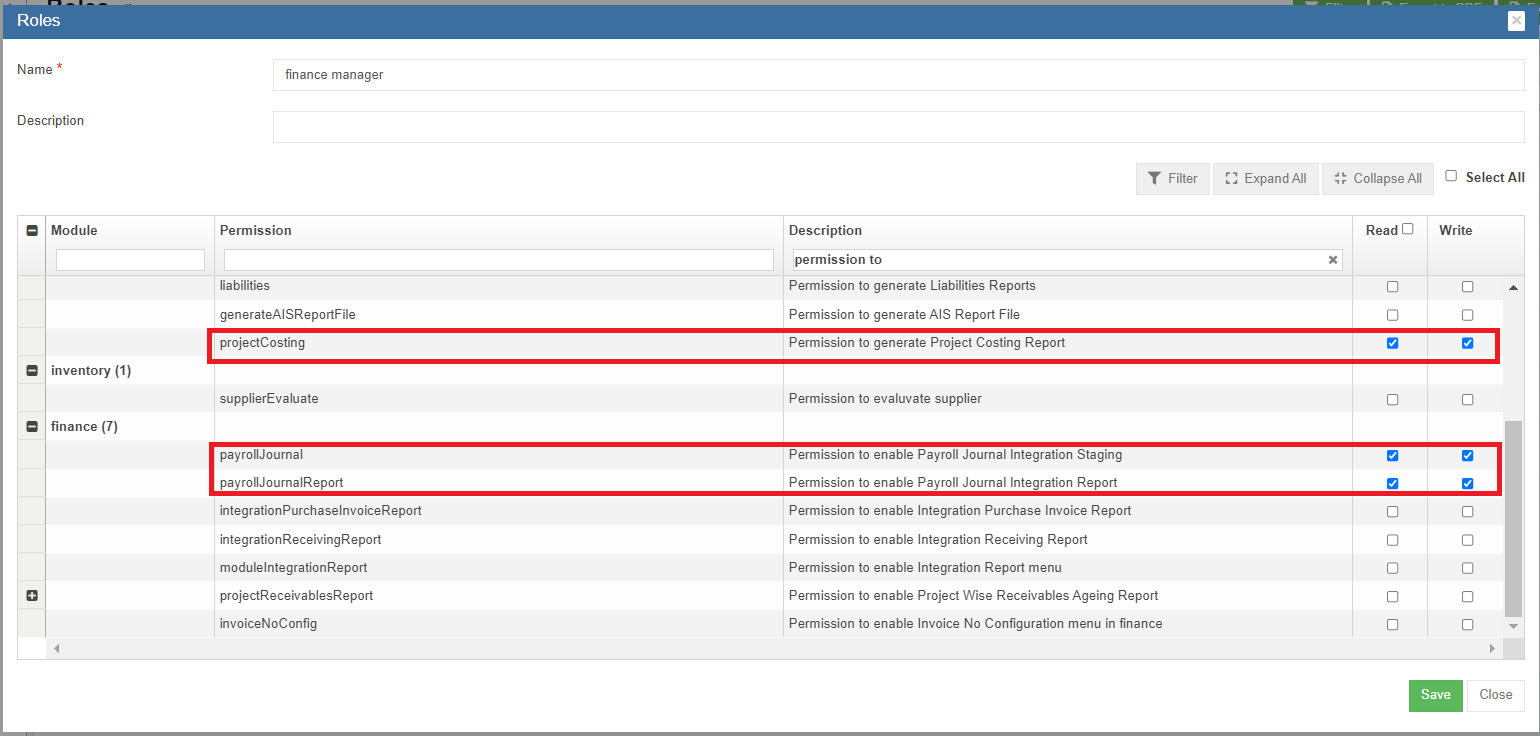
To enable permission to a specific user
- In Cute Office, navigate to Admin module, click Users menu and click edit icon in selected user.
- Navigate to Permissions tab. To be enable to configure GL accounts codes to be linked to Accounting module, in user's permission page, enable below Read & Write
- permissions (click filter and filter permission names "projectCosting","payrollJournal", "payrollJournalReport")
- Click Save to save user's permission configuration.
Step 4: Configure Employee's Finance Group in HRM Employee's Salary Configuration
- Go to HRM module, navigate to Employee menu, click view all to open employee list.
- Search for an specific employee and click to open the HRM details, and navigate to Payroll Salary Information page as below. In Others section, Finance Groups box, click to choose Finance Group for the specific employee.
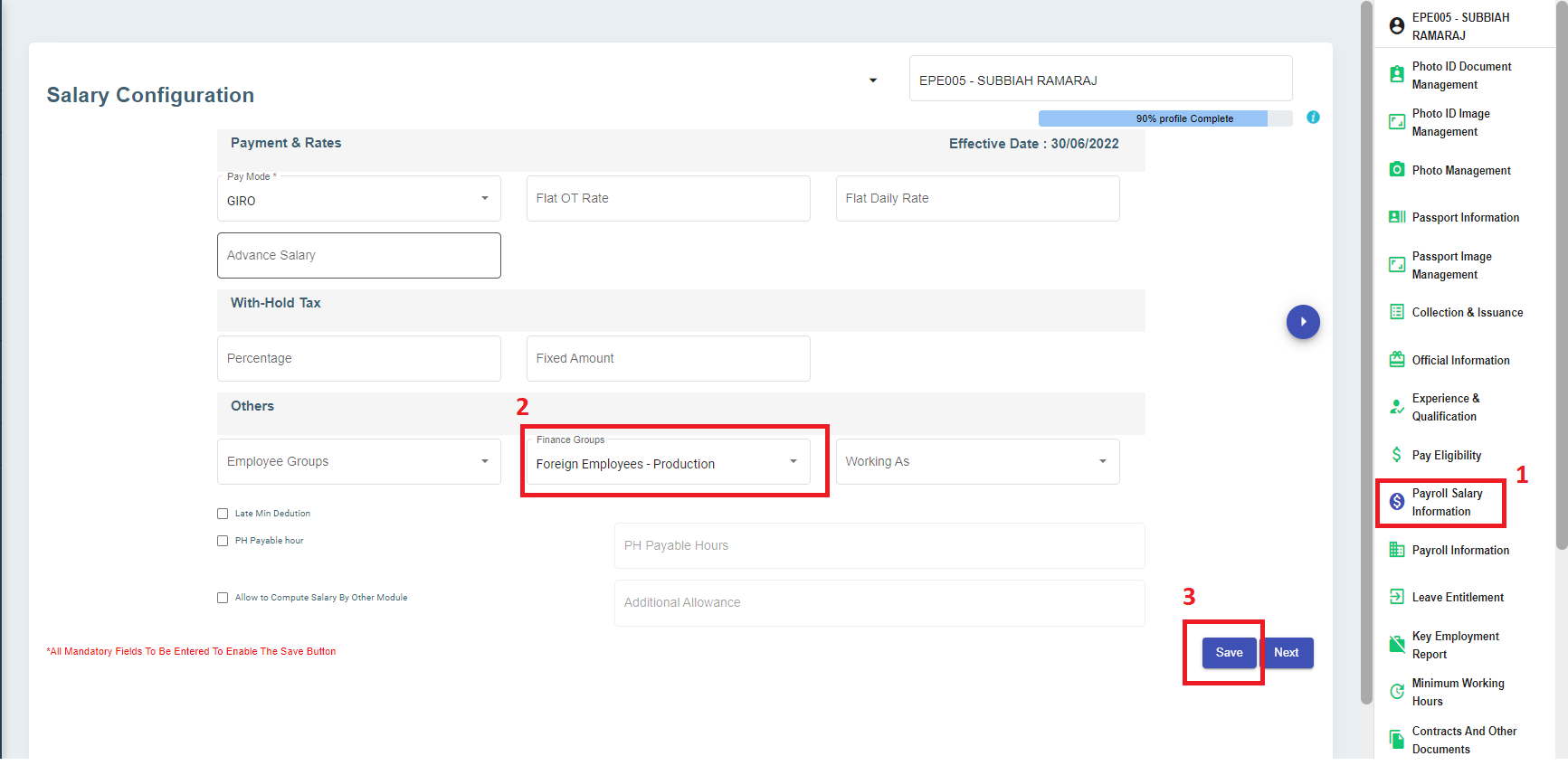
- Click Save to save employee's finance group information.
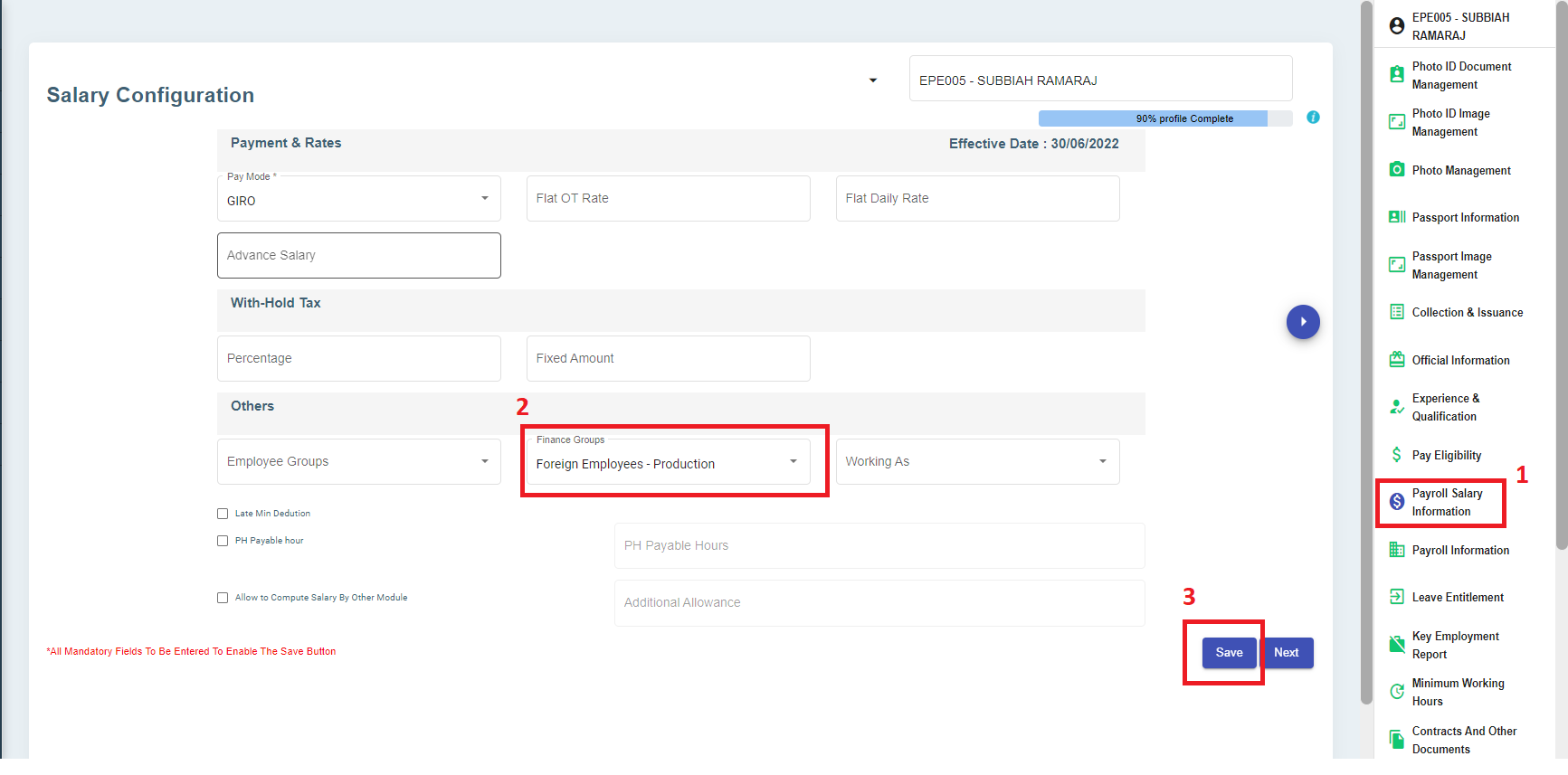
Step 5: Map G/L Debit or Credit Account to Pay Code Payroll Master
- Go to HRM-Payroll module, navigate to Master menu, click to open pay code master list.
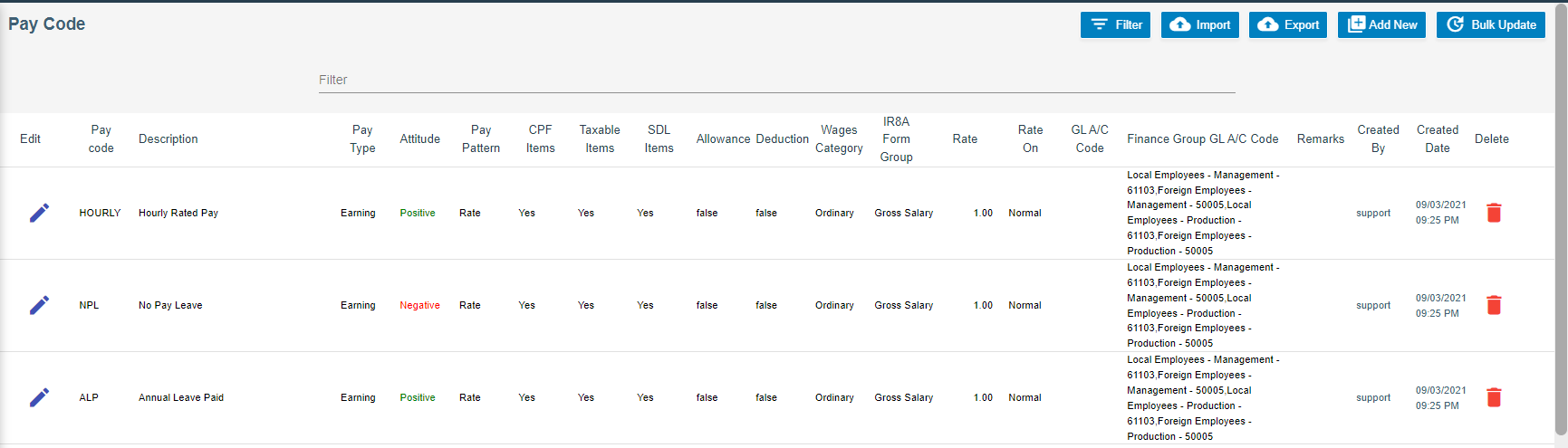
- Select a pay code, and click edit icon,
To map Single Debit Account Code Against Finance Group or Single Credit Account Code or Against Finance Group
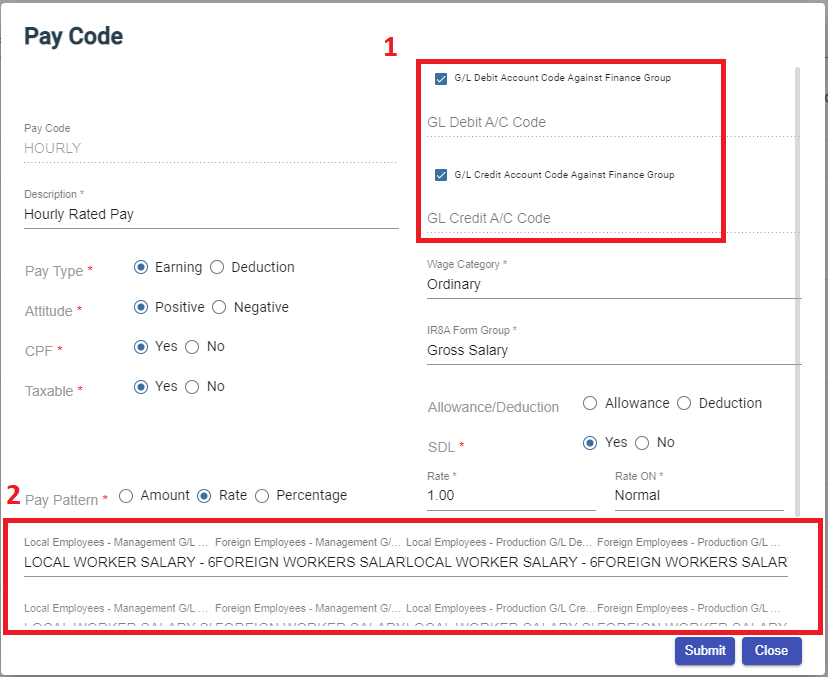
- Tick relevant box in area 1 in above screenshot.
- If
 or
or  is/are ticked, the employee finance group details will be shown in area 2, and user need to select G/L debit or credit account code in each of the employee finance group in area 2.
 - Click Submit to save account mapping information.
- To map account code in one stretch, use the bulk update option of G/L Account Code for multiple pay codes, click
 , the GL Account Code Bulk Update window opens as below,
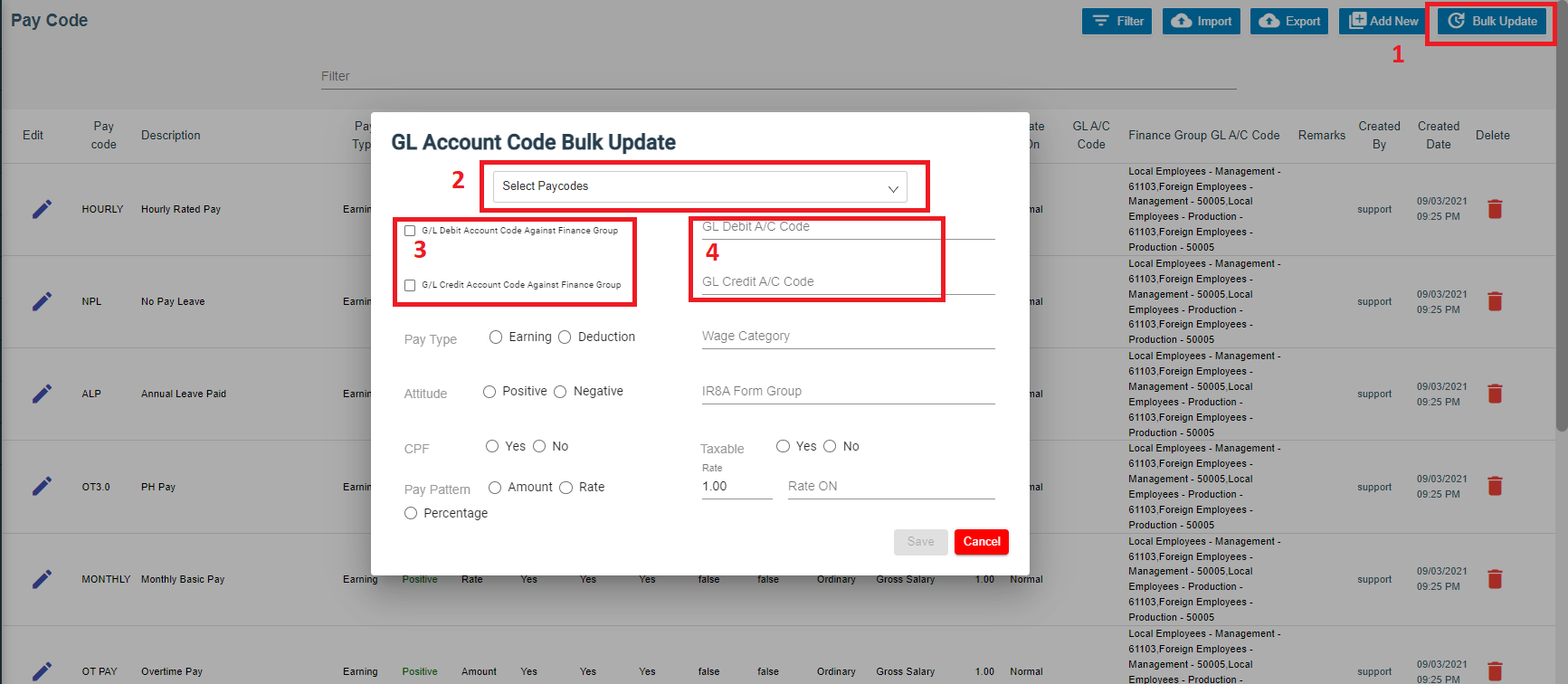
- Select a pay code in area 2 in above screenshot,
- If user wants to map G/L account code against finance group, tick relevant box in area 3, and select G/L account code to map to each finance group as shown in below yellow highlight area,

- Or if user want to map G/L account code, select relevant G/L account code in area 4.
- Fill up rest of the details and click Save to save mapping details.
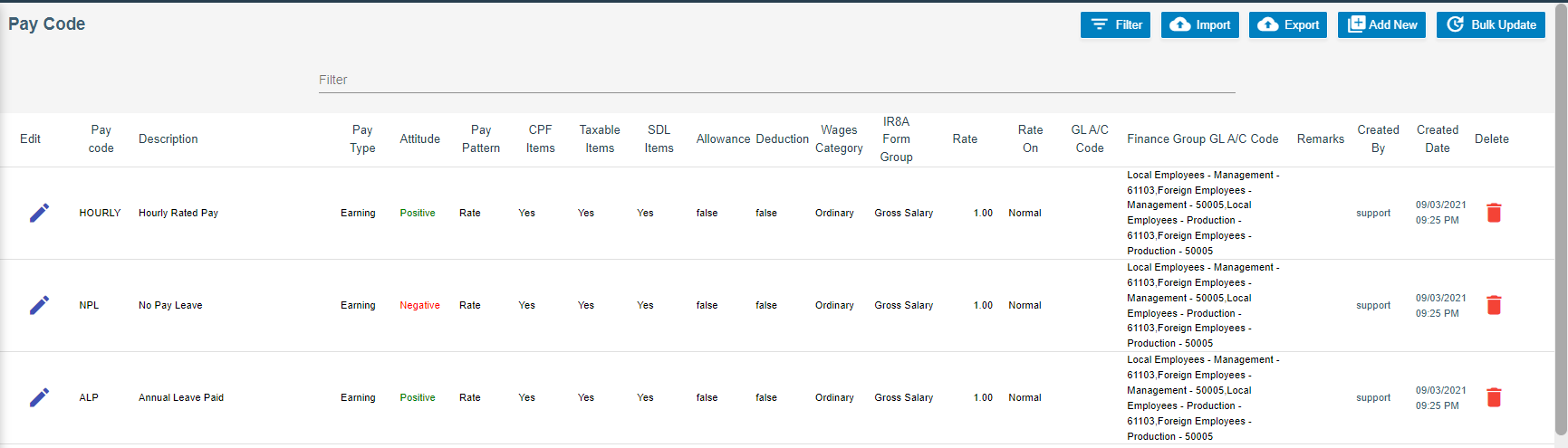
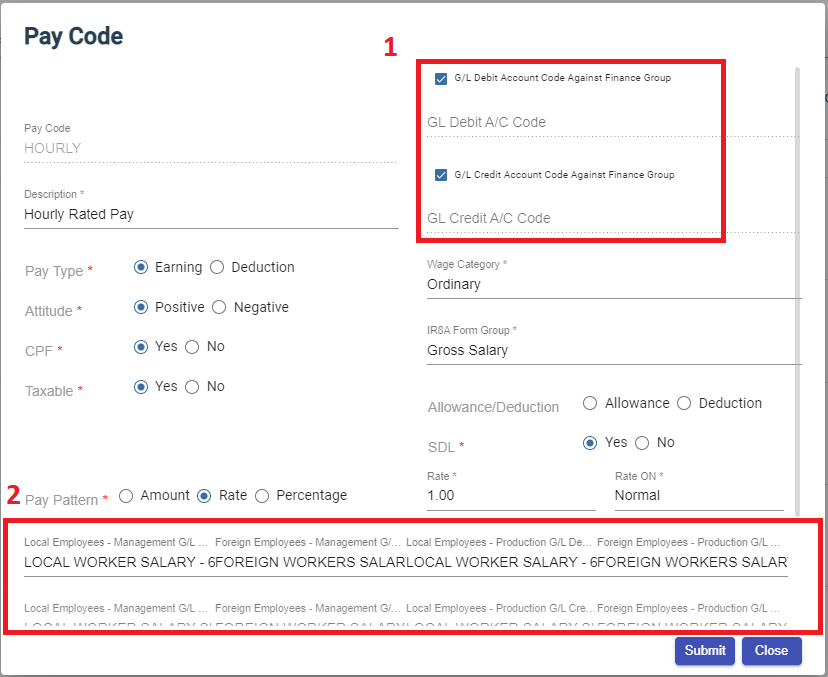



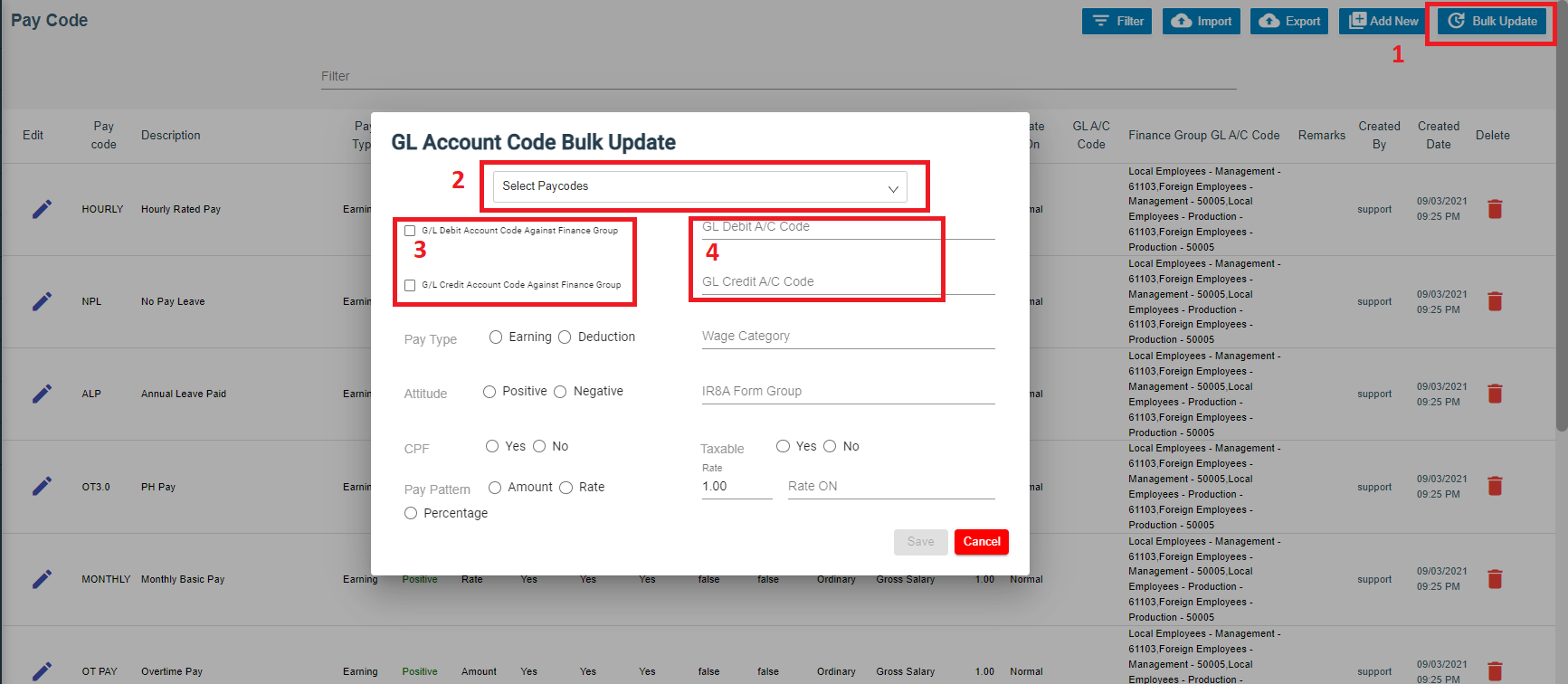

Step 6: To Generate & Print Project Payroll Costing
- Go to HRM-payroll module, navigate to Reports menu, click Project Payroll Costing submenu,
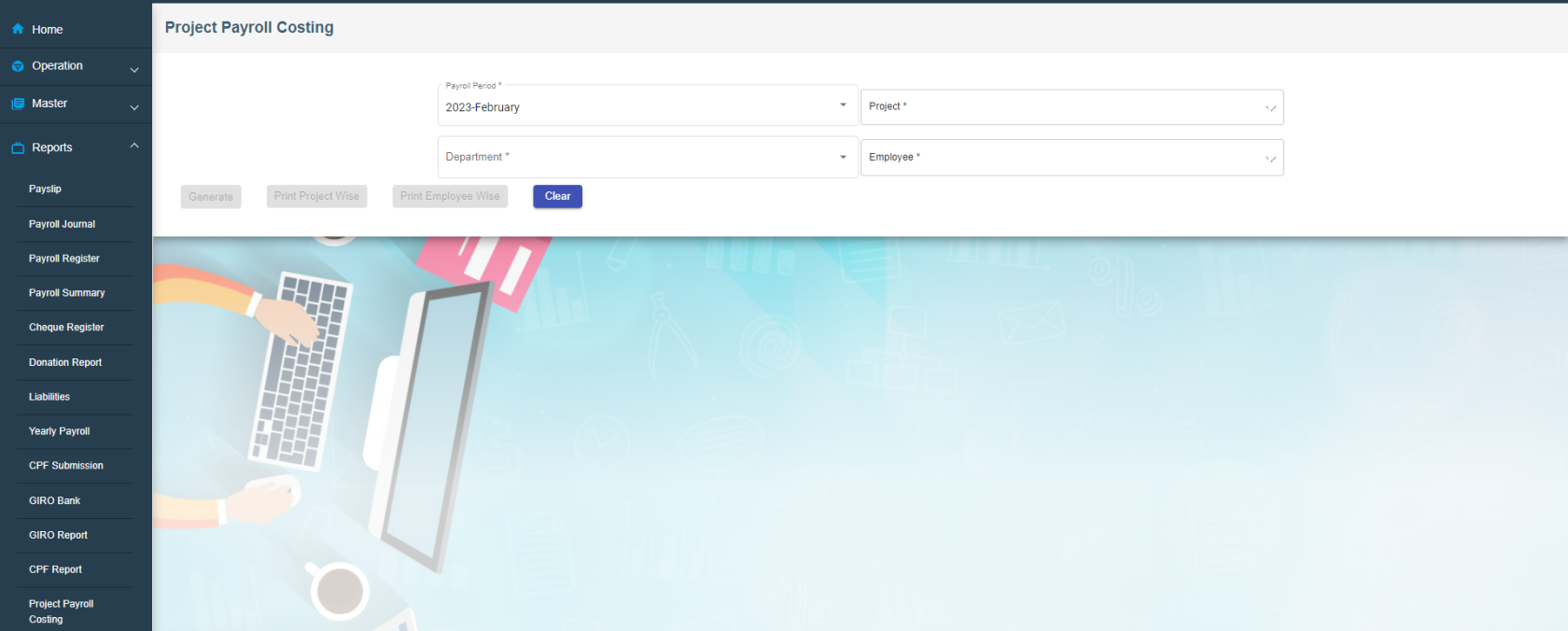
- Select relevant information in Payroll Period/Project/Department/Employees fields,

- Click
 to generate project payroll costing report; Click
 or
or to download reports.
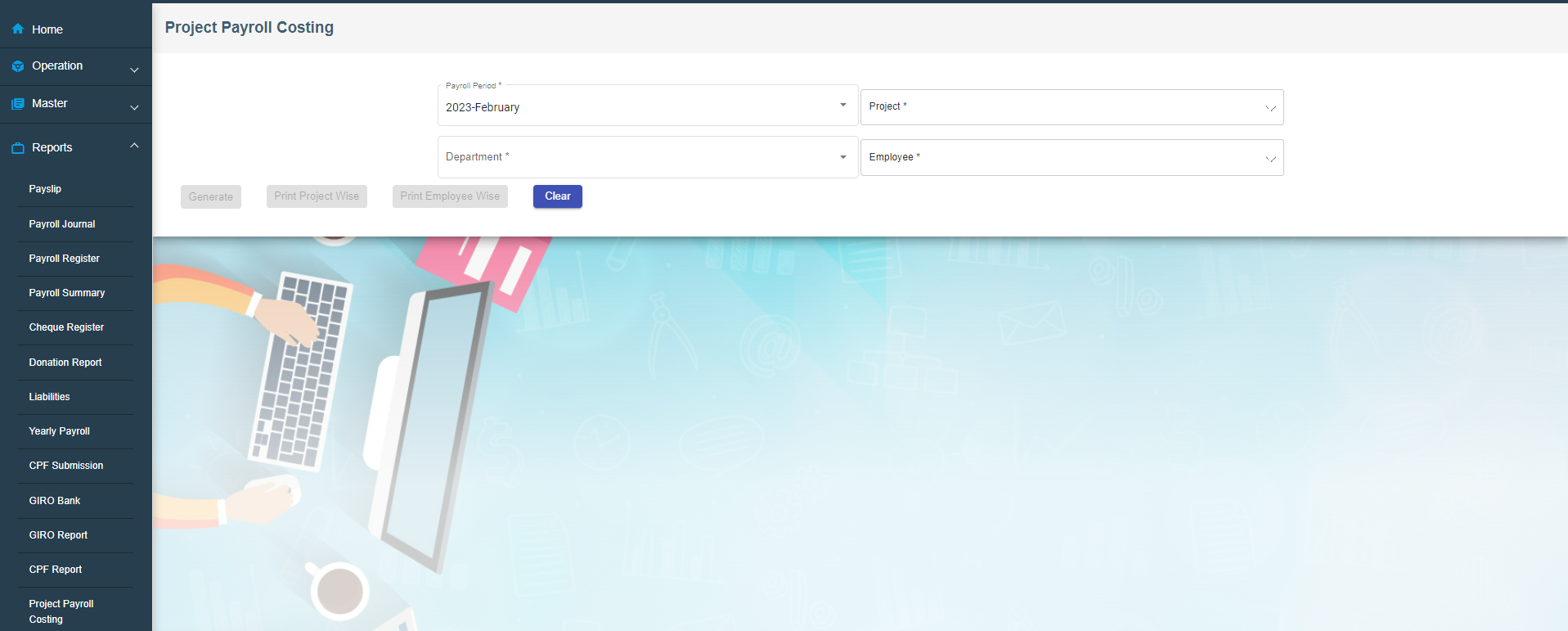


Step 7: Post Payroll to Accounts
Once above four steps are configured, user will be able to integrate payroll to finance module (Post payroll to finance staging).
- Go to Payroll module, navigate to Operation menu, click to open Payroll history (Note: only approved payroll details will be shown in Payroll History page).
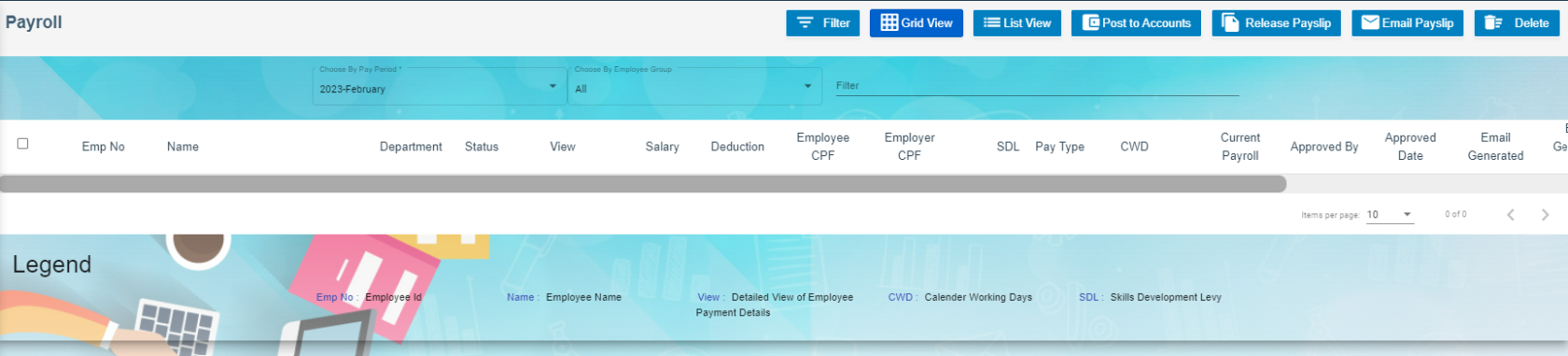
- In Choose Pay Period box, select pay period to post in accounts, all approved employees' payroll for selected pay period will be displayed,

- Tick the box in front of employees' name to select employee(s) to post to accounts,

- Click
 Post to Accounts Button at the top right corner of the payroll history page, a confirmation notification window will prompt up as below,

- Click Yes to confirm posting to accounts. Note: once employees' payroll are posted to accounts, the payroll history records will be disabled from further action such as deletion.

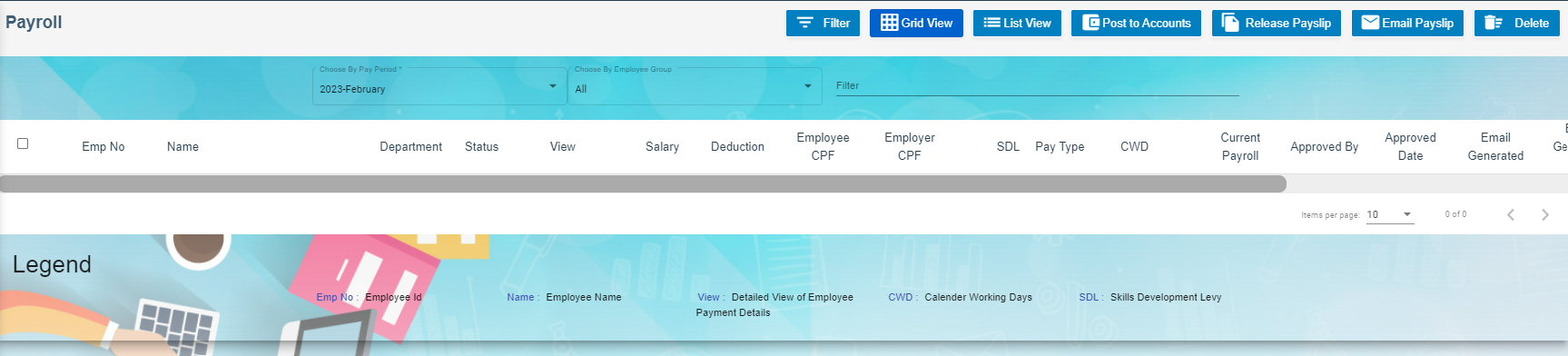





Step 8: To View/Approve Staging Payroll Journal in Finance Integration Staging
- Navigate to Finance module, go to Integration Staging menu, click Payroll Staging to open the staging payroll journal page as below,
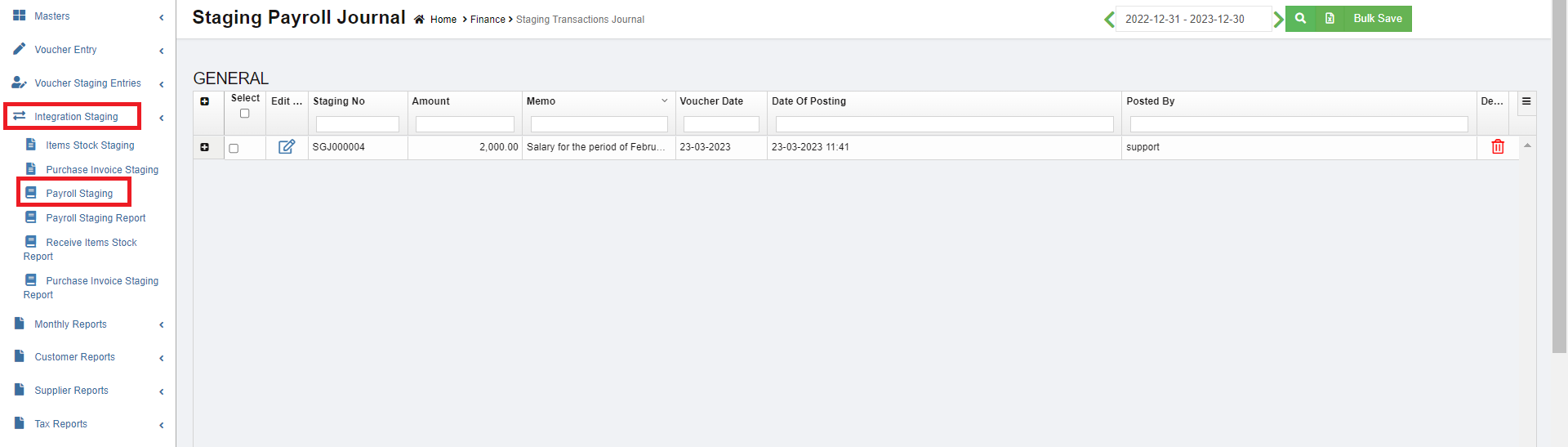
- In the date field, select period then click search icon to show staging voucher.
- To view staging payroll journal details, click
 icon to expand payroll payment details,

- To edit staging payroll journal, click edit icon, the payroll staging journal will open as below, edit fields where needed, then click
 to save & approve staging payroll journal.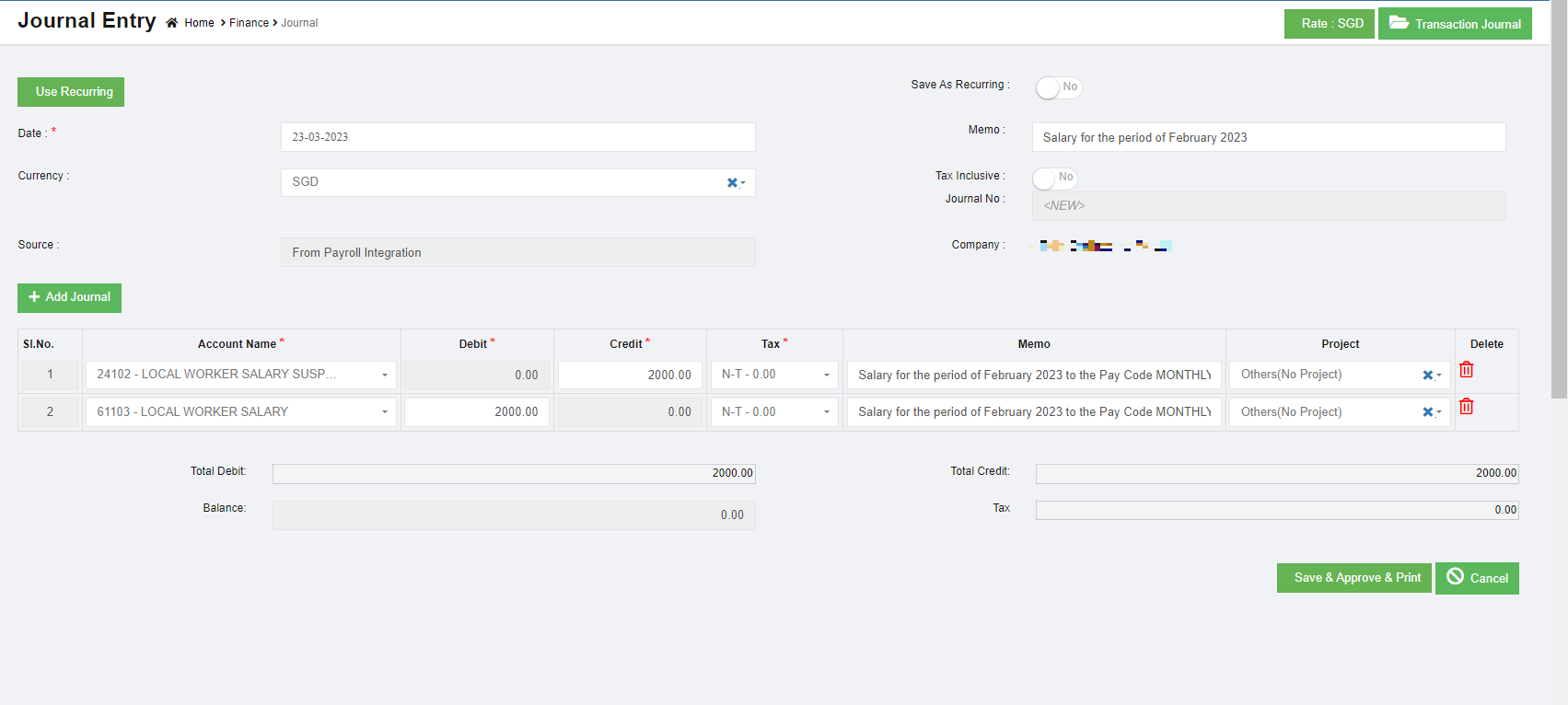
-
After salary released, add a manual entry in the journal with suspense (Debit) and Bank (Credit) account to close the transaction.
Configuration and Journal details :

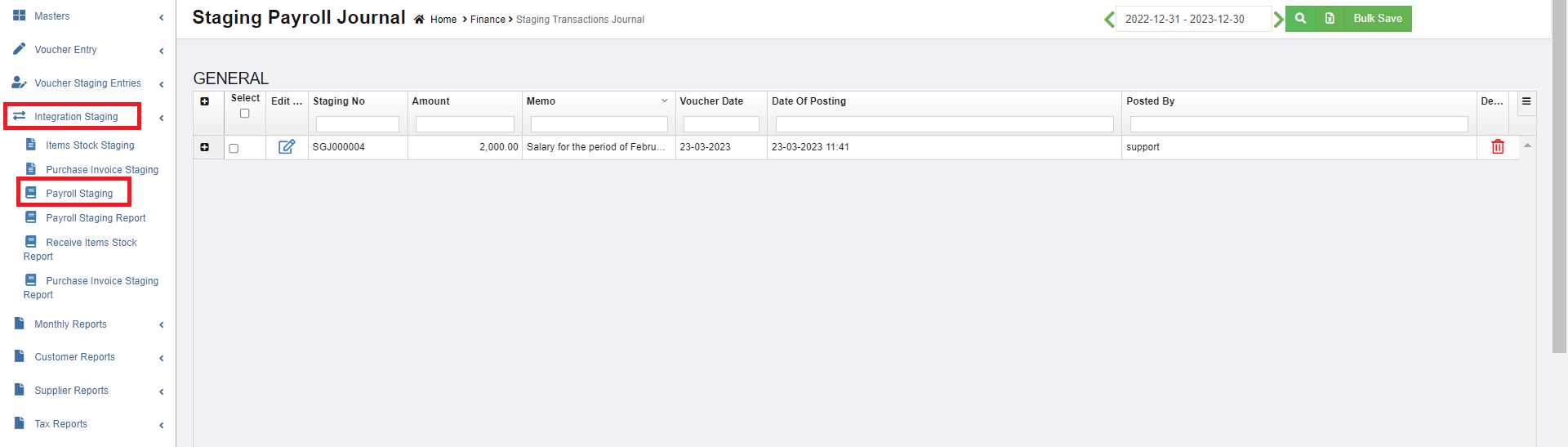



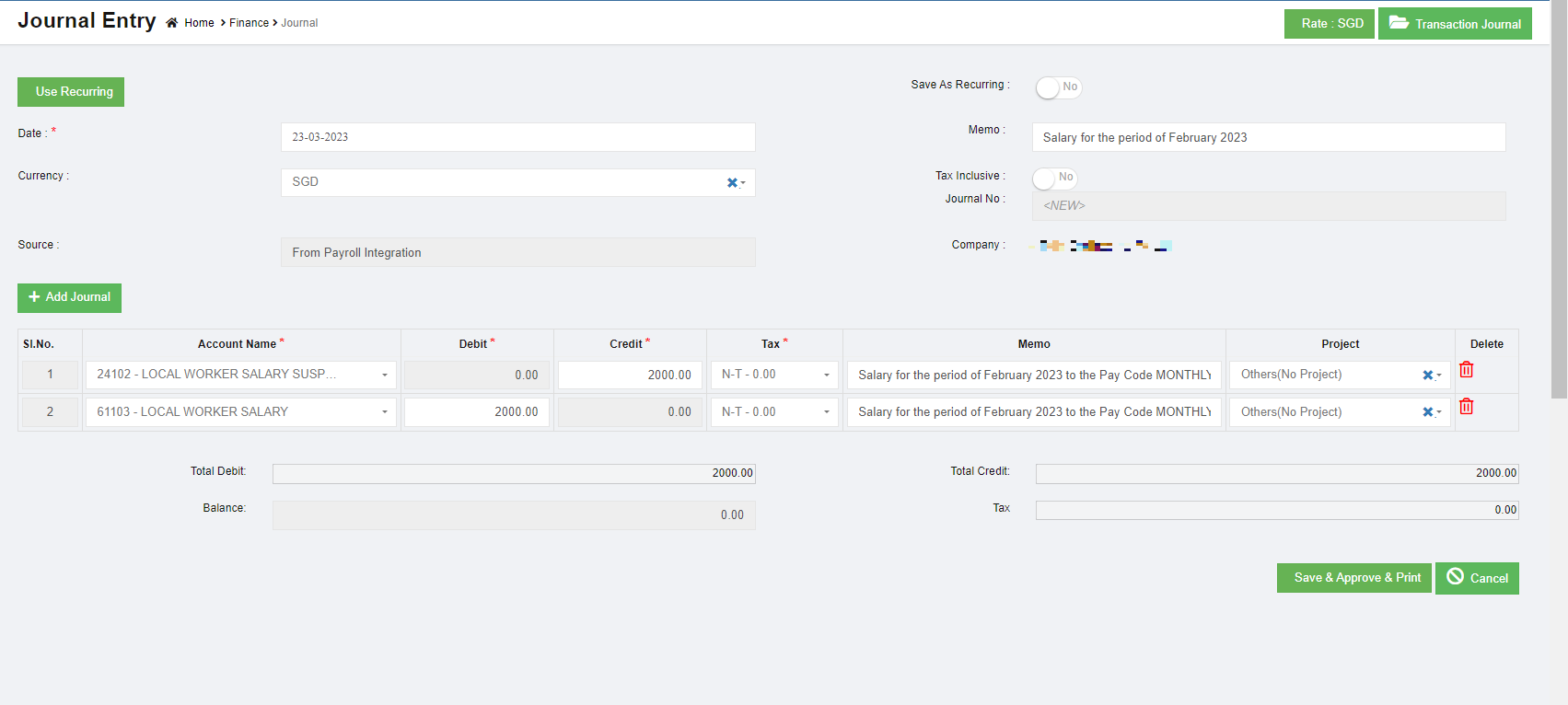
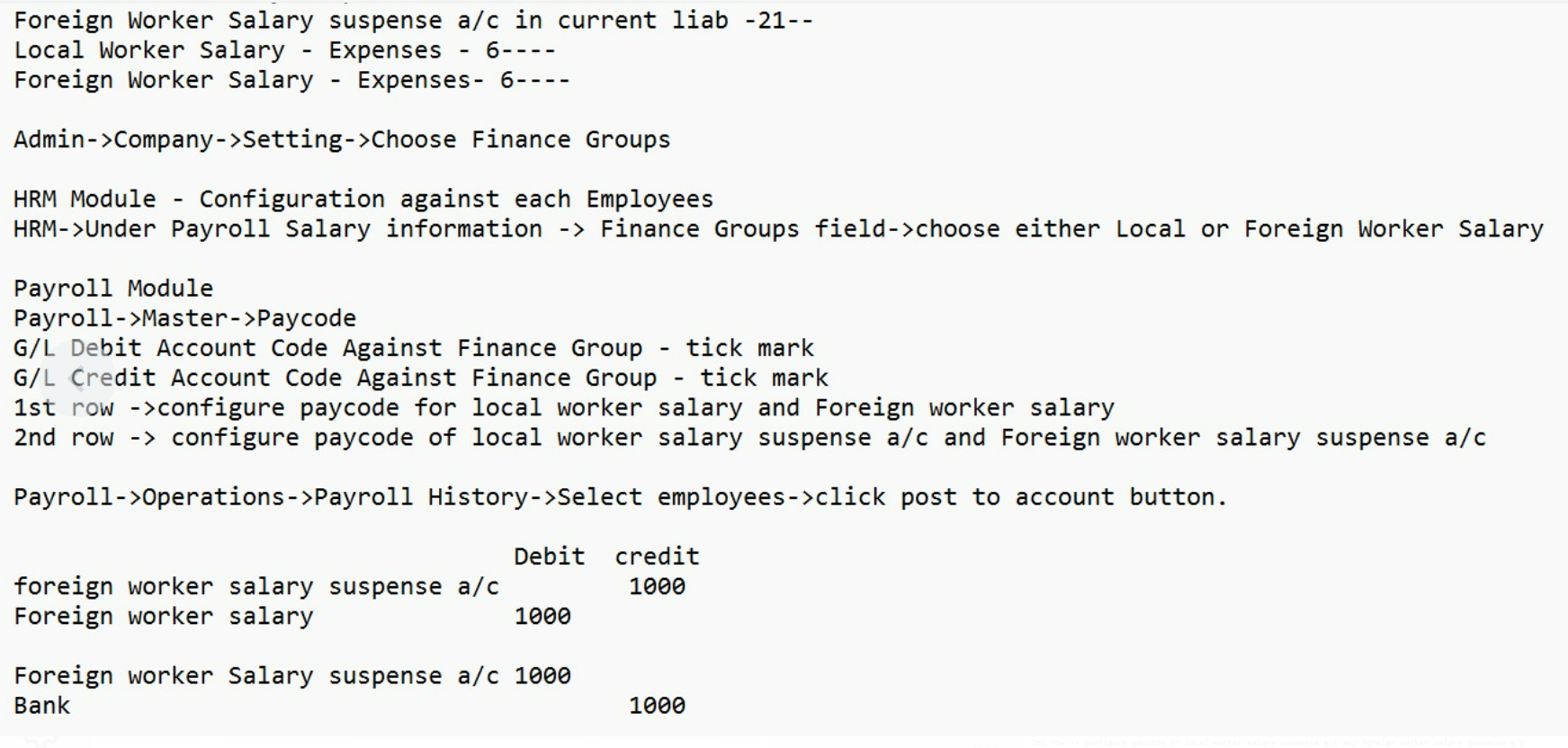
Monthly Reports
Monthly finance reports include below reports: Trial Balance, Trial Balance YTD, General Ledger(Detail), Profit and Loss, Project P&L, Project P&L Transpose, Multi Period P&L, Balance Sheet, Transactional Journal, Transactional Profit, Accounts Journal, Transaction Report.
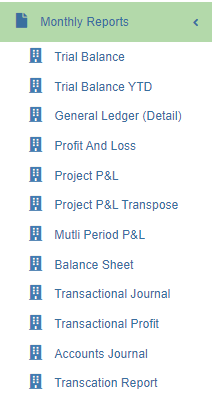
Trial Balance Report
To generate trial balance report,
- Navigate to Monthly Reports menu in finance module, click Trial Balance to open trial balance report page.
- user can select period from calendar field 1, or if user wants to generate report by calendar month, tick Show monthly box.
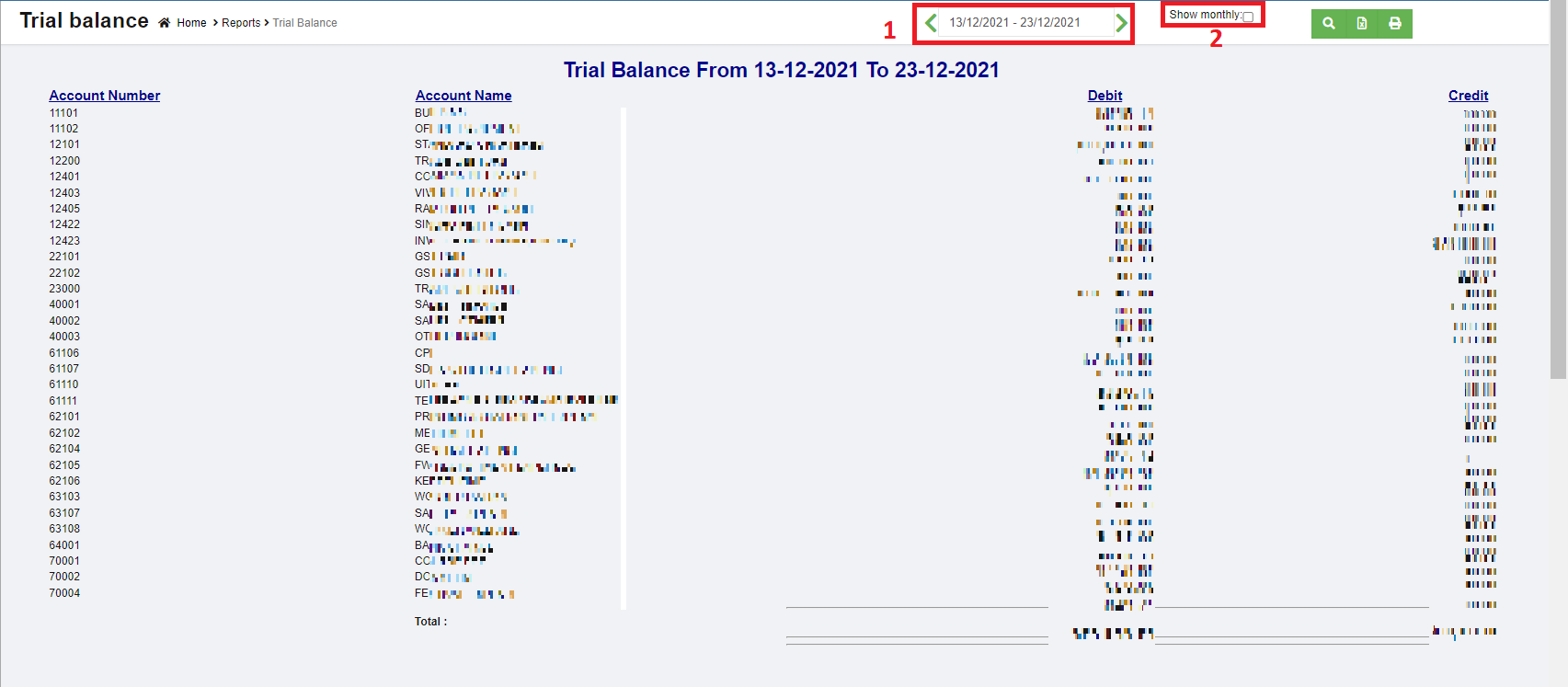
- Click
 search icon, the trial balance report for selected period will show in screen.
 -
Click
 to download report in xlsx format, click
 to download report in PDF format.
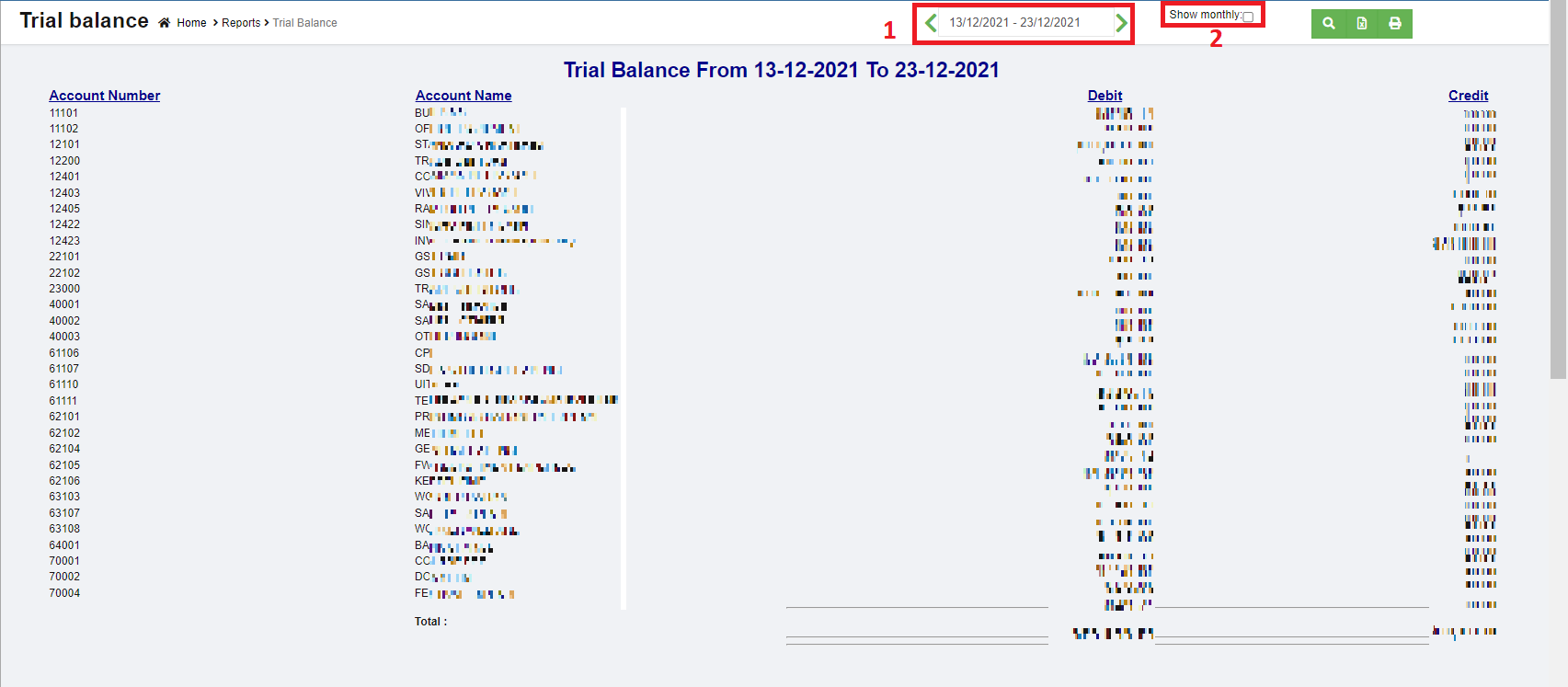


Trial Balance YTD (Year-to-date) Report
To generate trial balance YTD report,
- Navigate to Monthly Reports menu in finance module, click Trial Balance YTD to open trial balance YTD report page.
- user can select date period from calendar field 1, or if user wants to generate report by calendar month, tick Show monthly box.
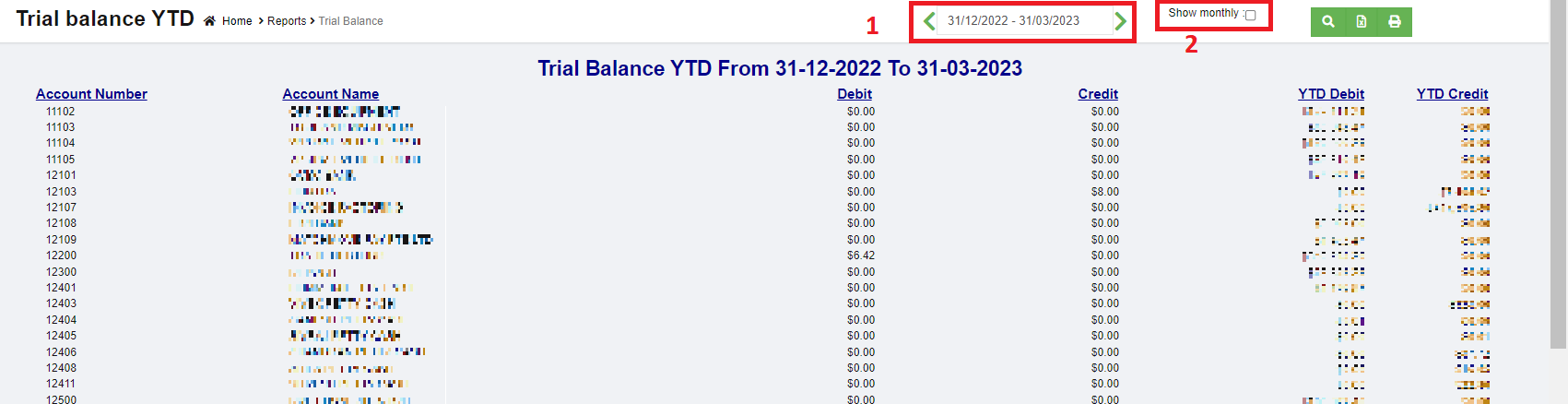
- Click search icon, the trial balance YTD report for selected period will show in screen.
-
Click
to download report in xlsx format, click to download report in PDF format.
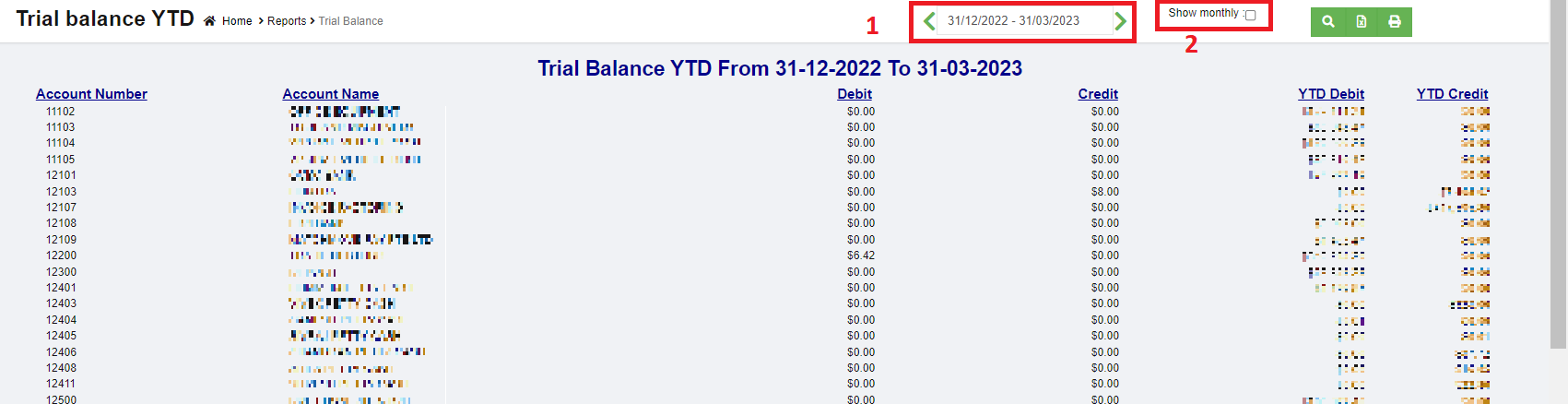
General Ledger (Detail) Report
To generate general ledger detail report,
- Navigate to Monthly Reports menu in finance module, click General Ledger (Detail) to open report page.
- user can select date period from calendar field.
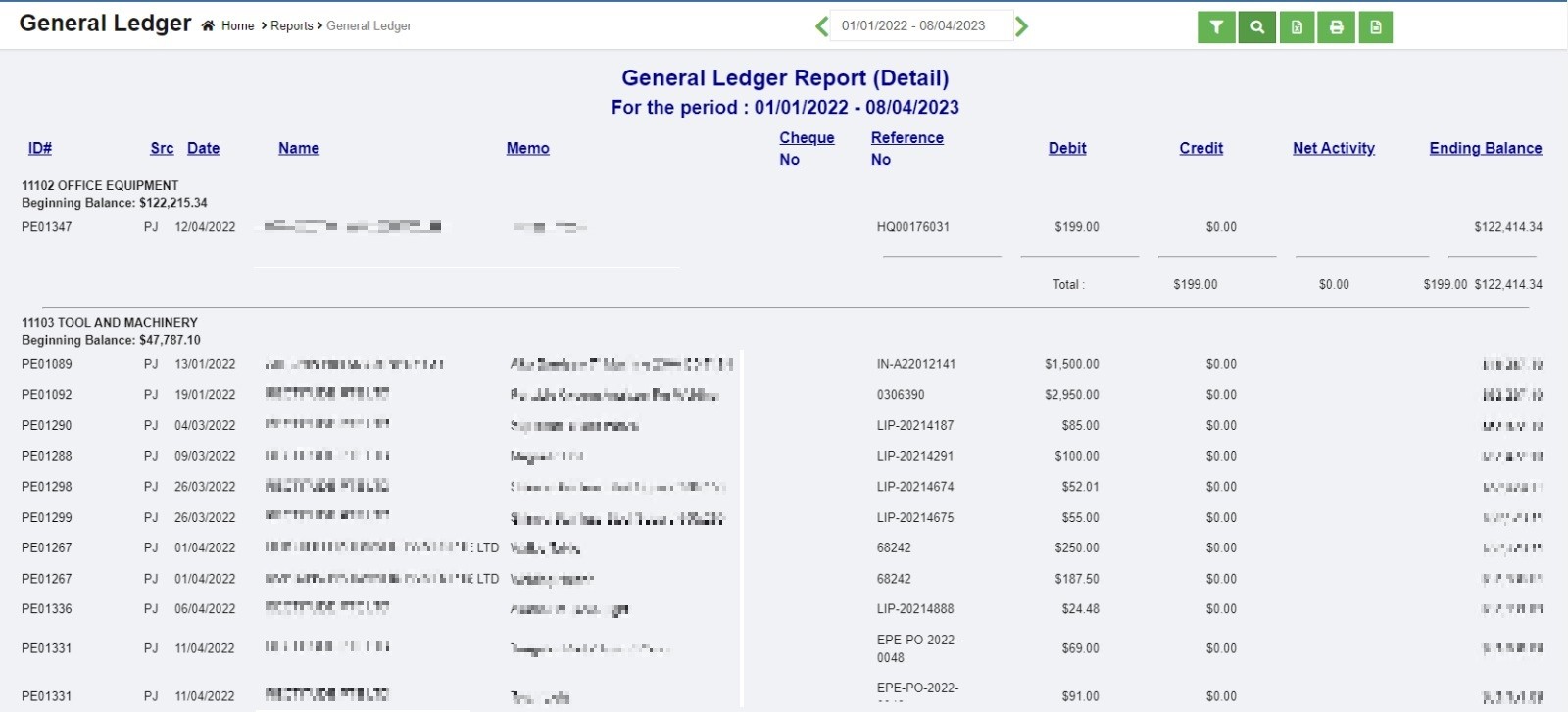
- Click search icon, the general ledger detail report for selected period will show in screen.
-
Click
to download report in xlsx format, click to download report in PDF format.
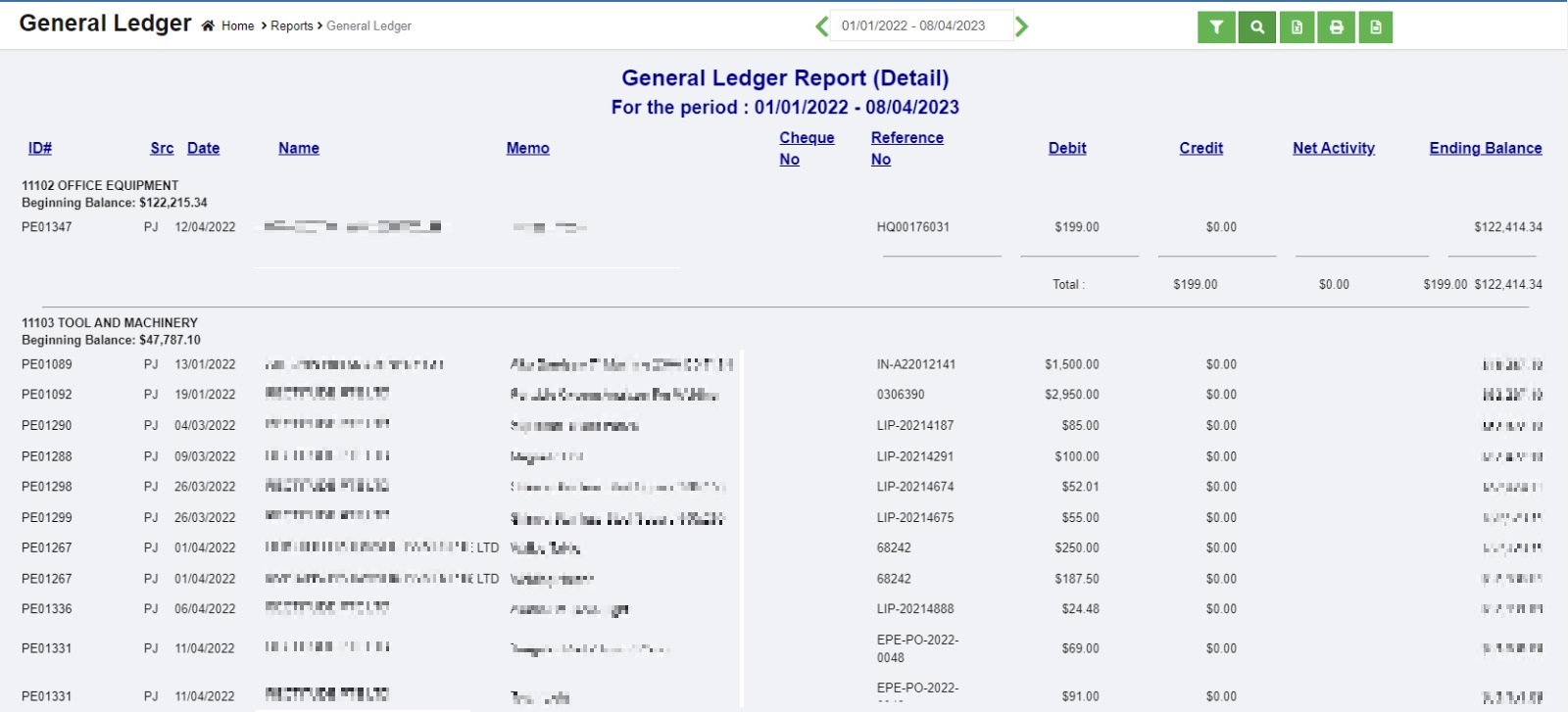
Profit And Loss Report
To generate profit and loss report,
- Navigate to Monthly Reports menu in finance module, click Profit and Loss to open report page.
- user can select date period from calendar field 1 to generate profit and loss report for selected date range.
- In field 2, select account type to generate report (user can select all accounts or accounts with value).
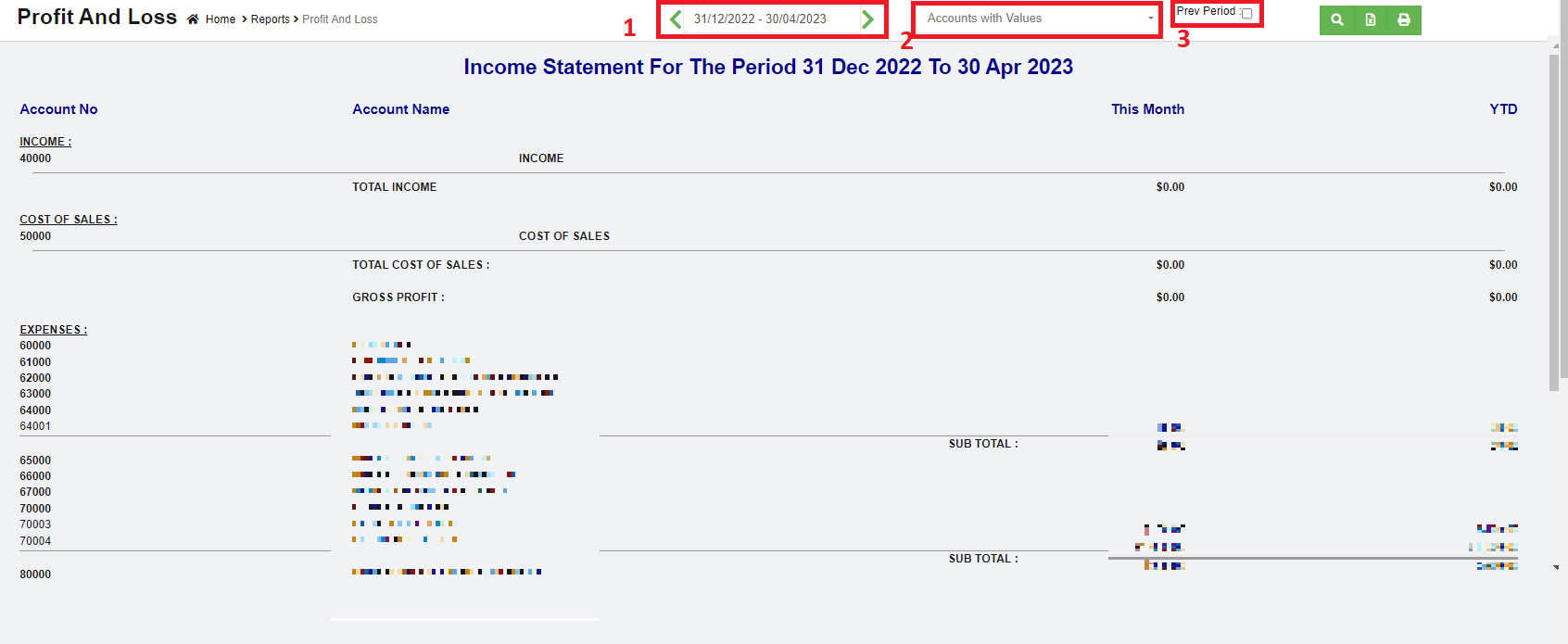
- Or if user wants to view and compare variance between current month and the previous period, tick the Pre Period box in field 3. Then select month & year.
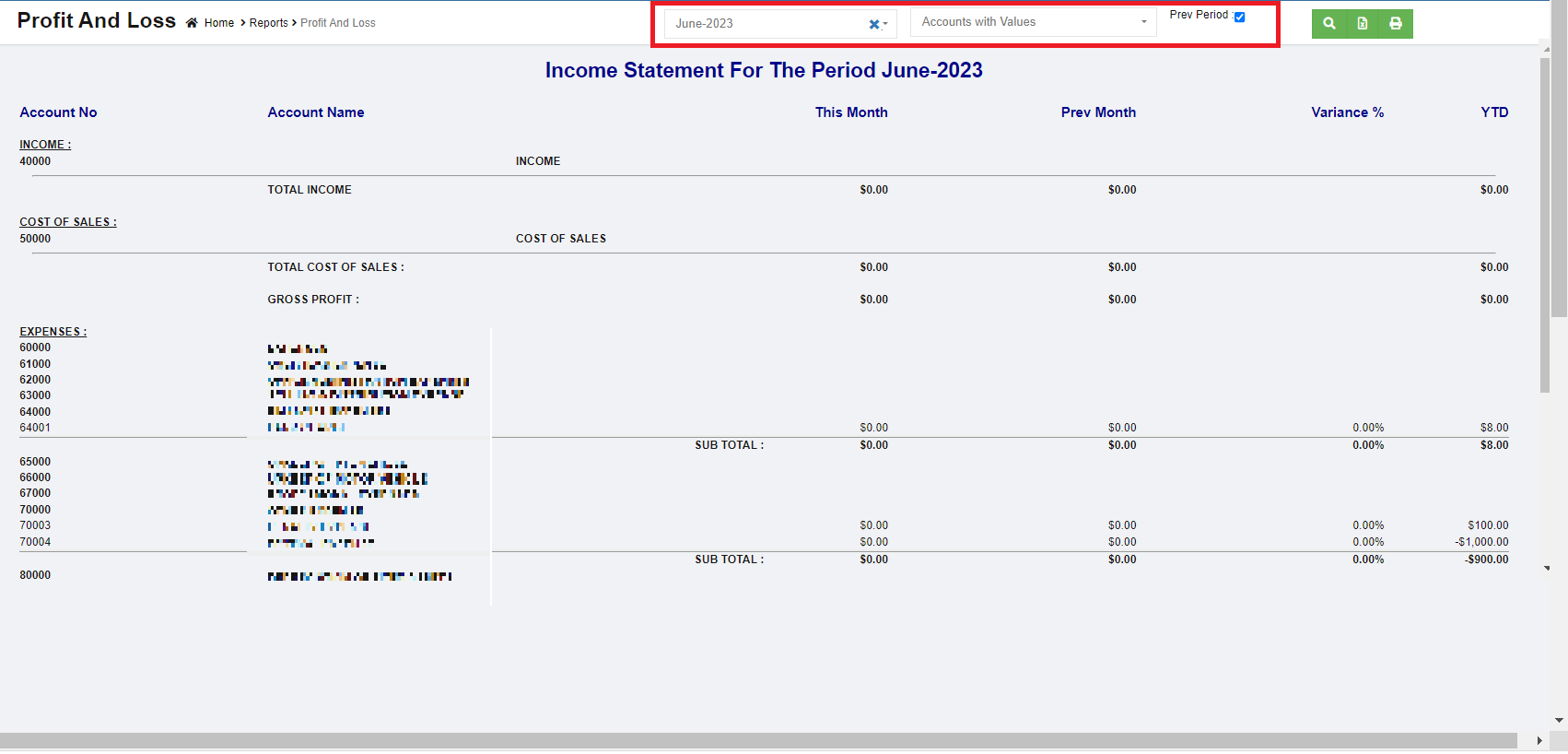
- Once month and year are selected, click search icon, the profit and loss report for selected period and previous month and the variance will show in screen.
-
Click
to download report in xlsx format, click to download report in PDF format.
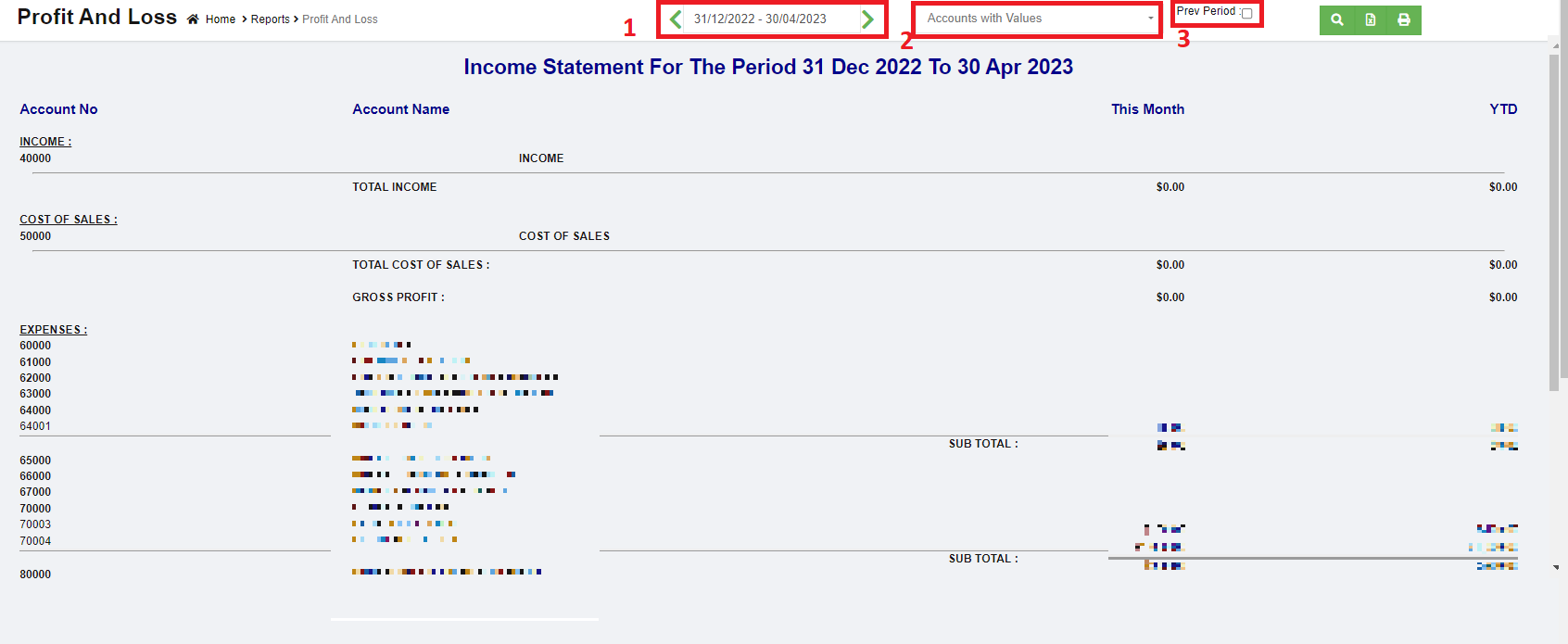
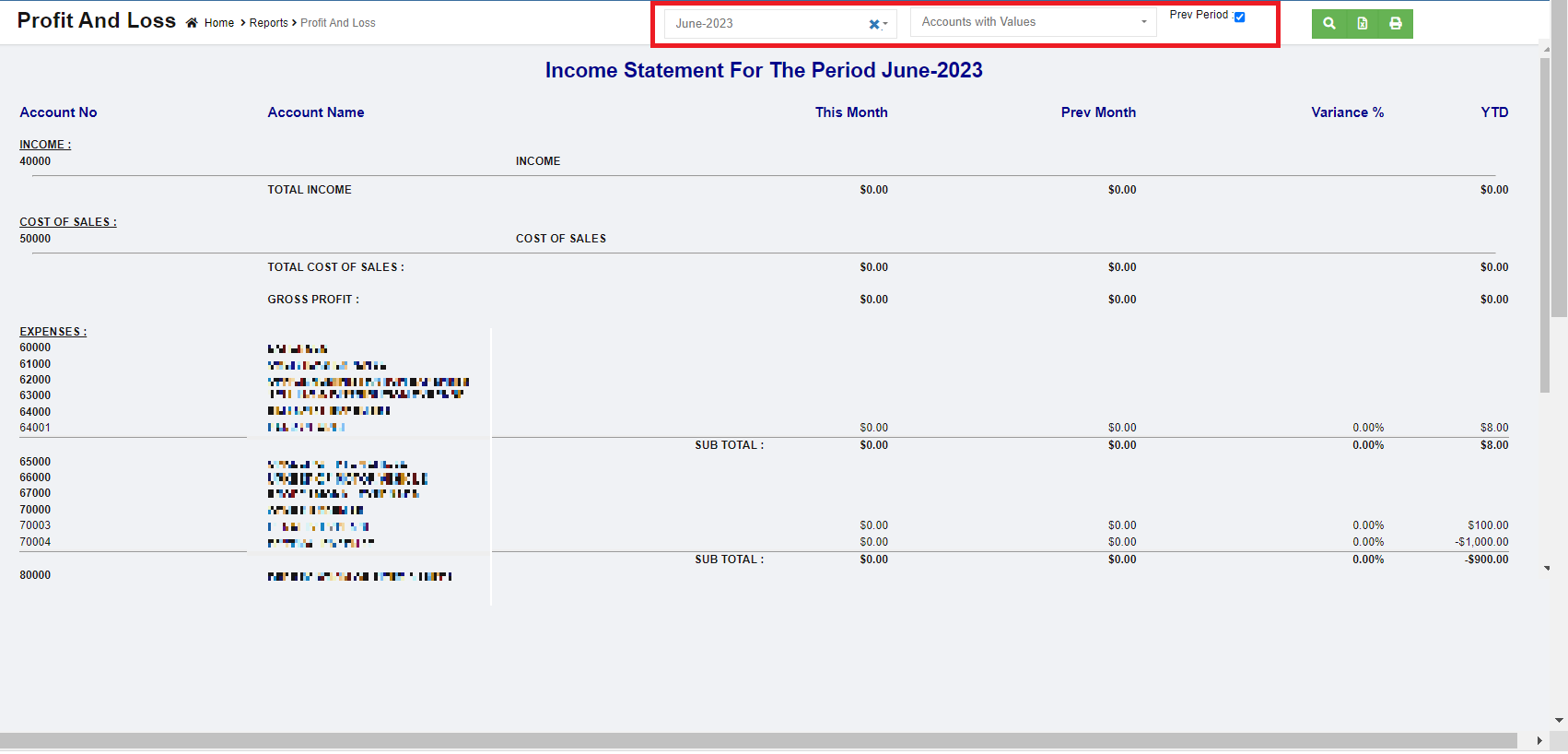
Project P&L
To generate project profit and loss report,
- Navigate to Monthly Reports menu in finance module, click Project P&L to open report page.
- In project field, click to select project.
- In calendar field, select date range.
- In report type, select summary or detail report.
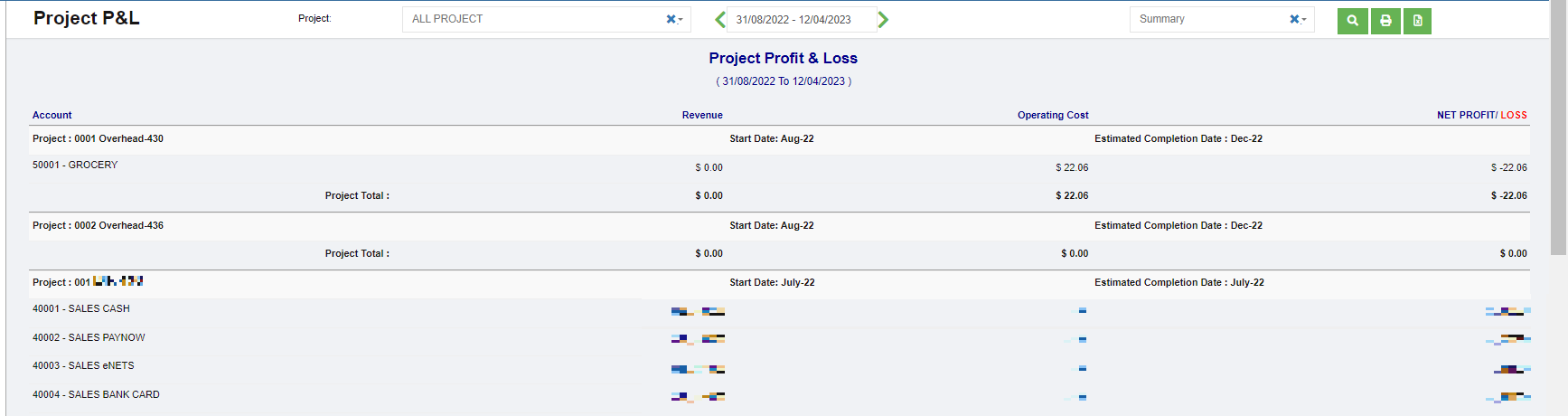
- Click search icon, the project P&L report for selected period will show in screen.
-
Click
to download report in xlsx format, click to download report in PDF format.
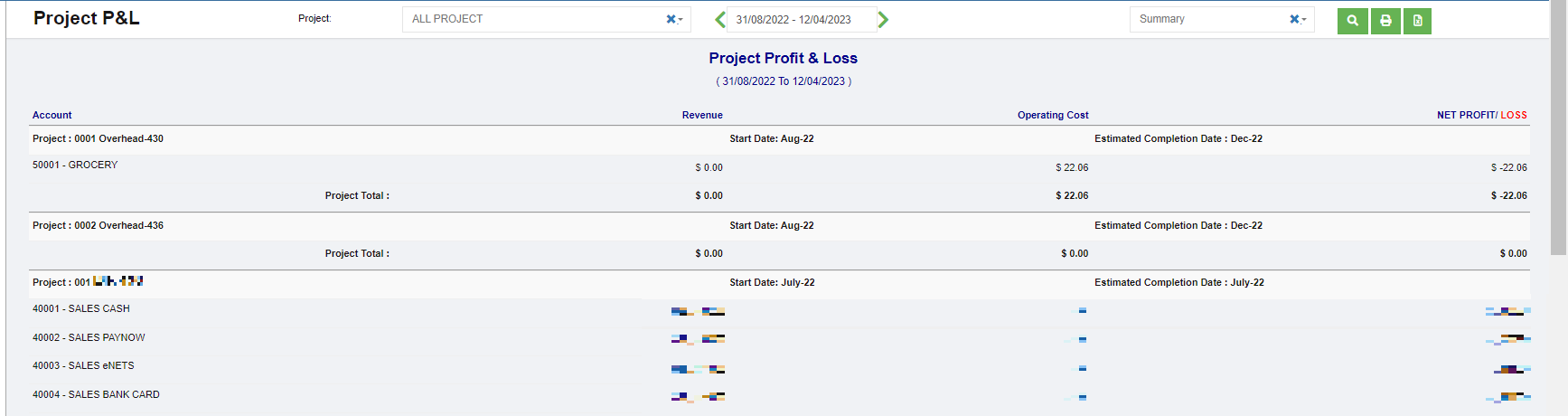
Project P&L Transpose
To generate project profit and loss report transpose,
- Navigate to Monthly Reports menu in finance module, click Project P&L Transpose to open report page.
- In project field, click to select project.
- In calendar field, select date range.
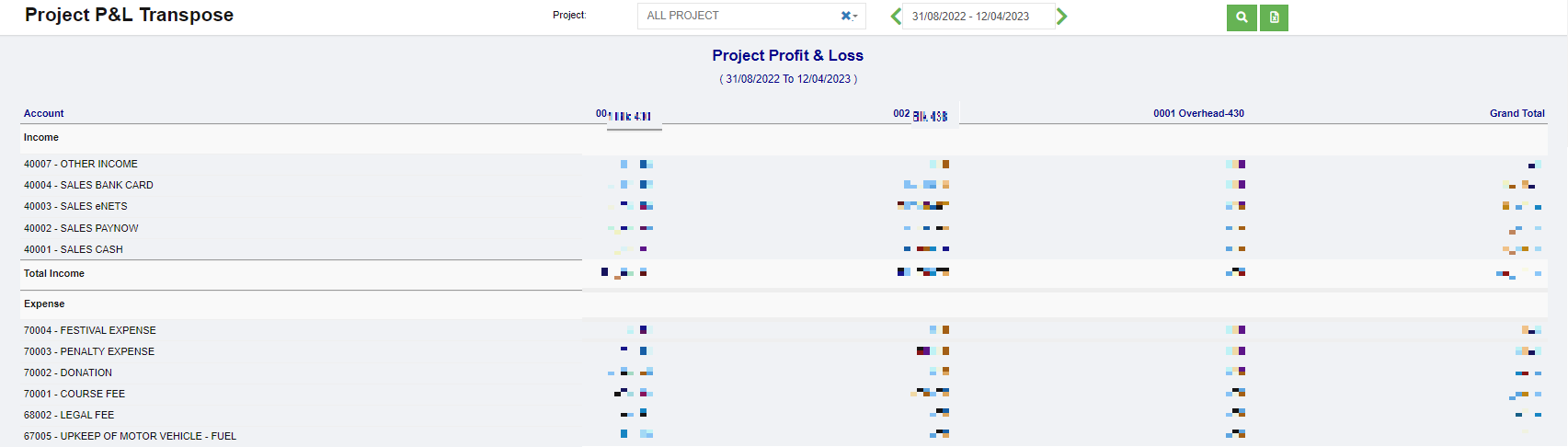
- Click search icon, the project P&L transpose report for selected period will show in screen.
-
Click
to download report in xlsx format.

Multi Period P&L
To generate multi period profit and loss report,
- Navigate to Monthly Reports menu in finance module, click Multi Period P&L to open report page.
- In calendar field, click to select date range to view P&L report.
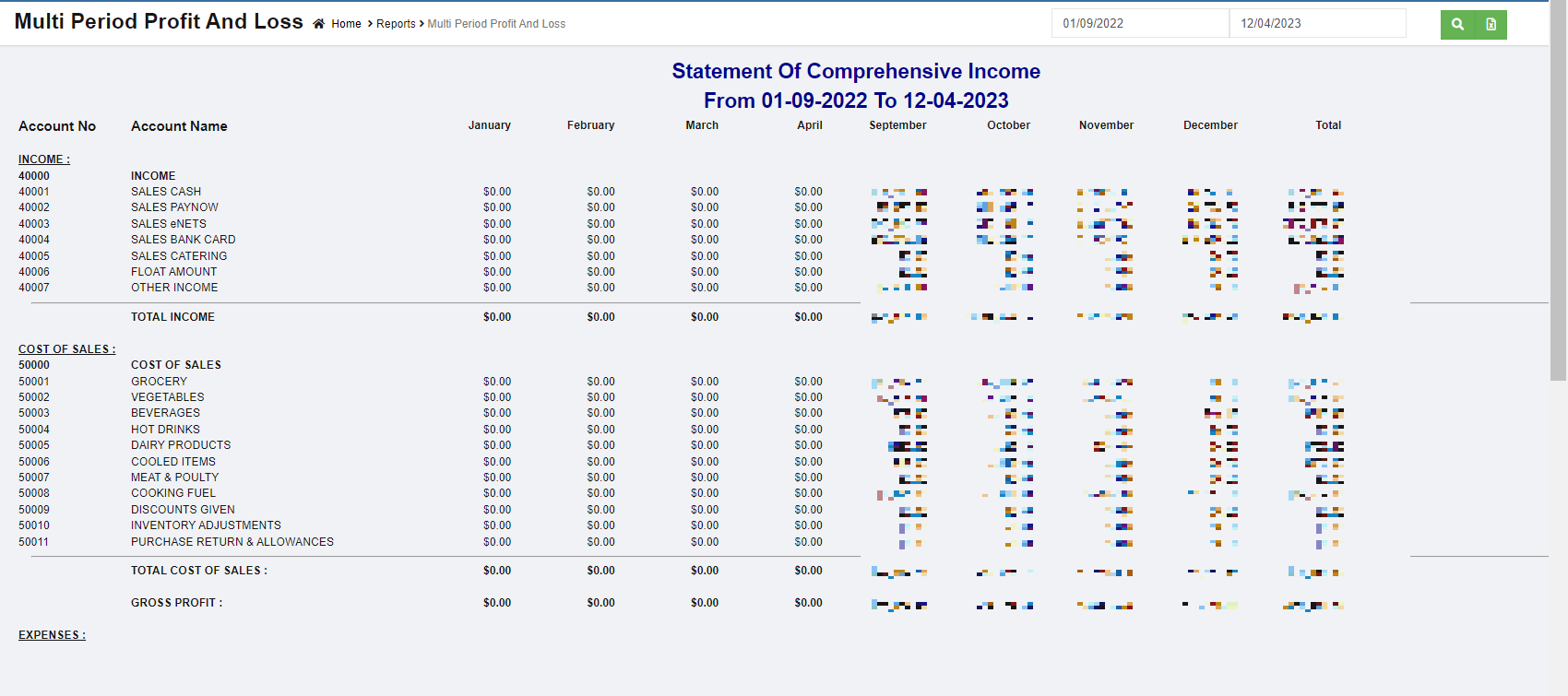
- Click search icon, the multi period P&L report for selected period will show details of income, cost of sales, expense, other income, other expenses and net profits by month as in above screenshot.
-
Click
to download report in xlsx format. not working check
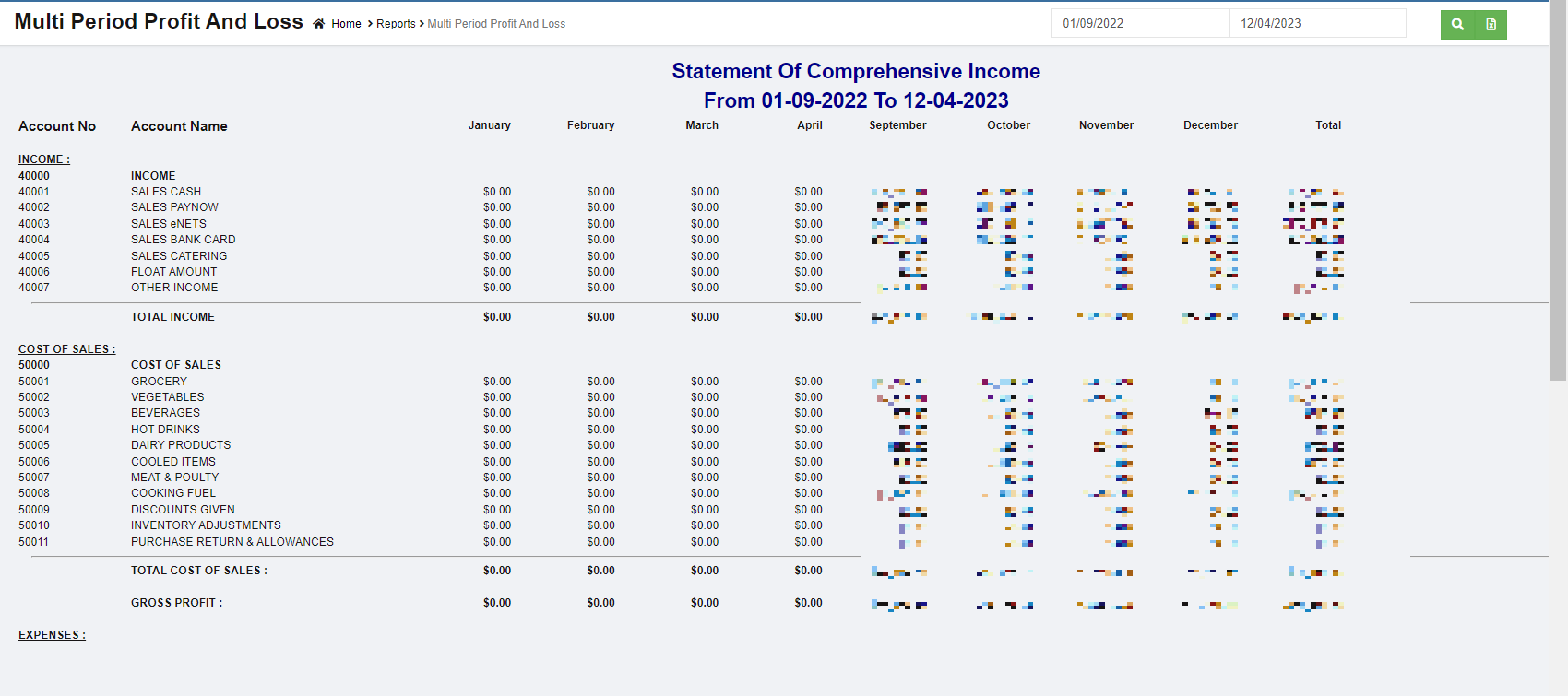
Balance Sheet
To generate balance sheet report,
- Navigate to Monthly Reports menu in finance module, click Balance Sheet to open report page.
- In calendar field, select date and year.
- Click search icon, the balance sheet report for selected period will show in screen.
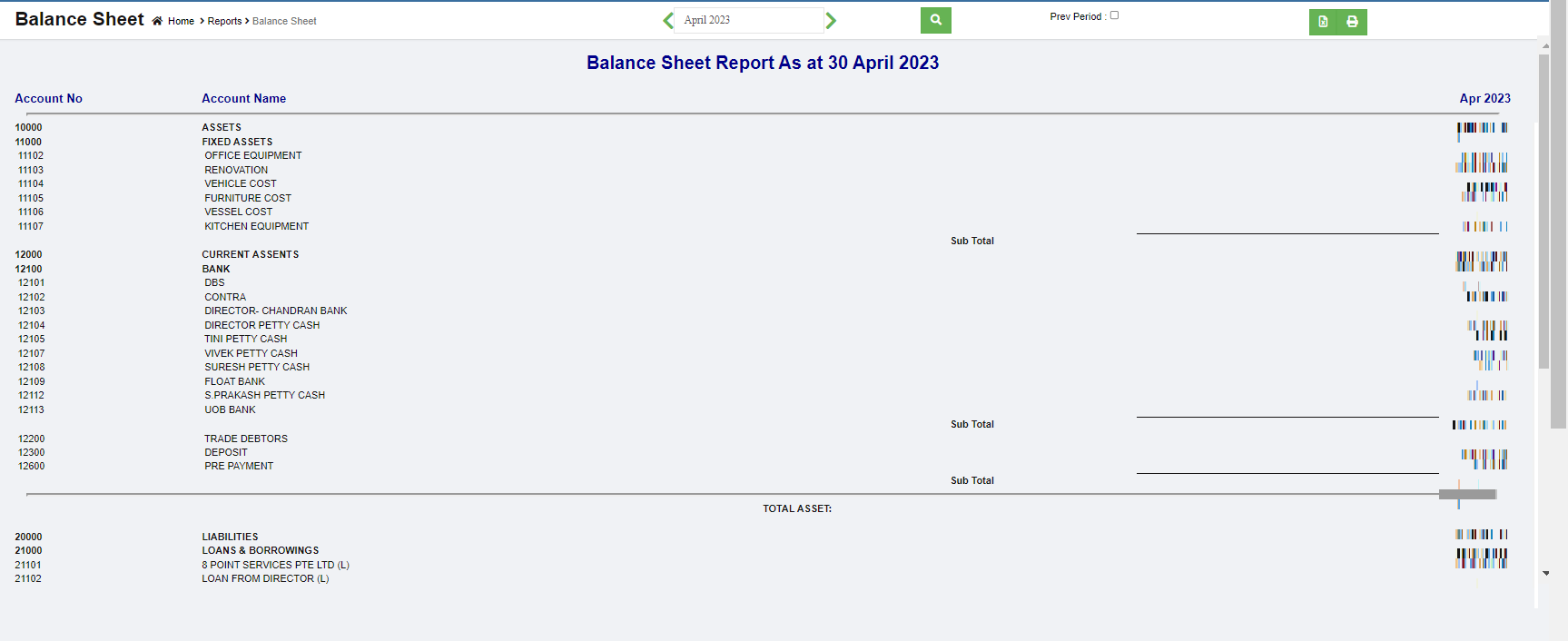
- Or if user wants to view previous month balance sheet and the variance, tick the Pre Period box, the selected month and previous month and variance data will show as below,
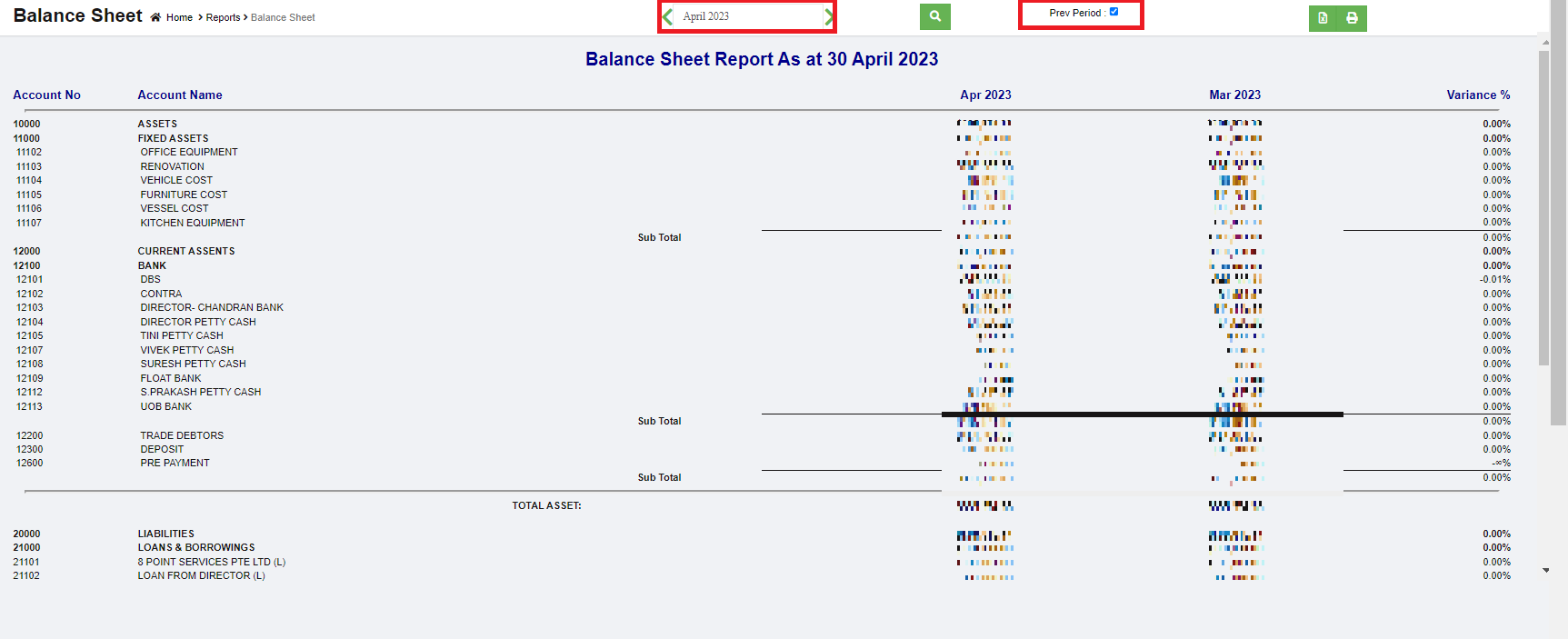
-
Click
to download report in xlsx format, click to download report in PDF format.
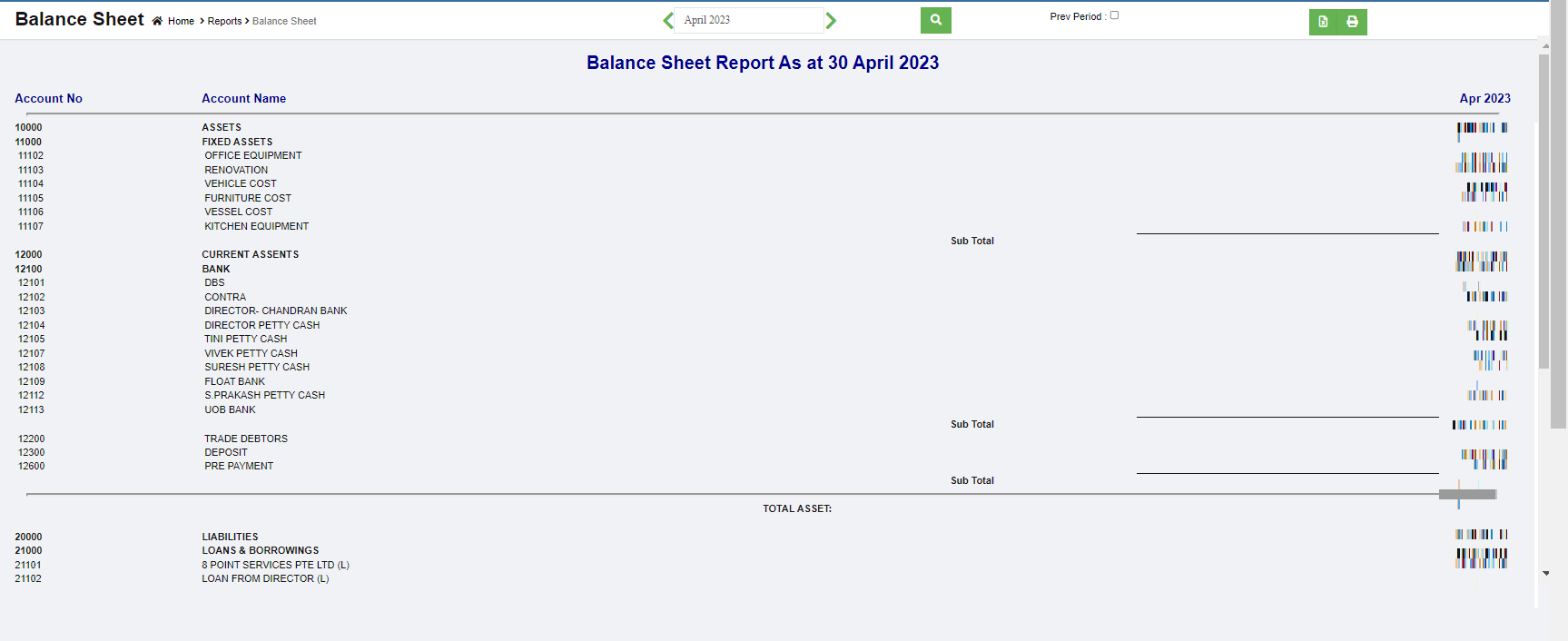
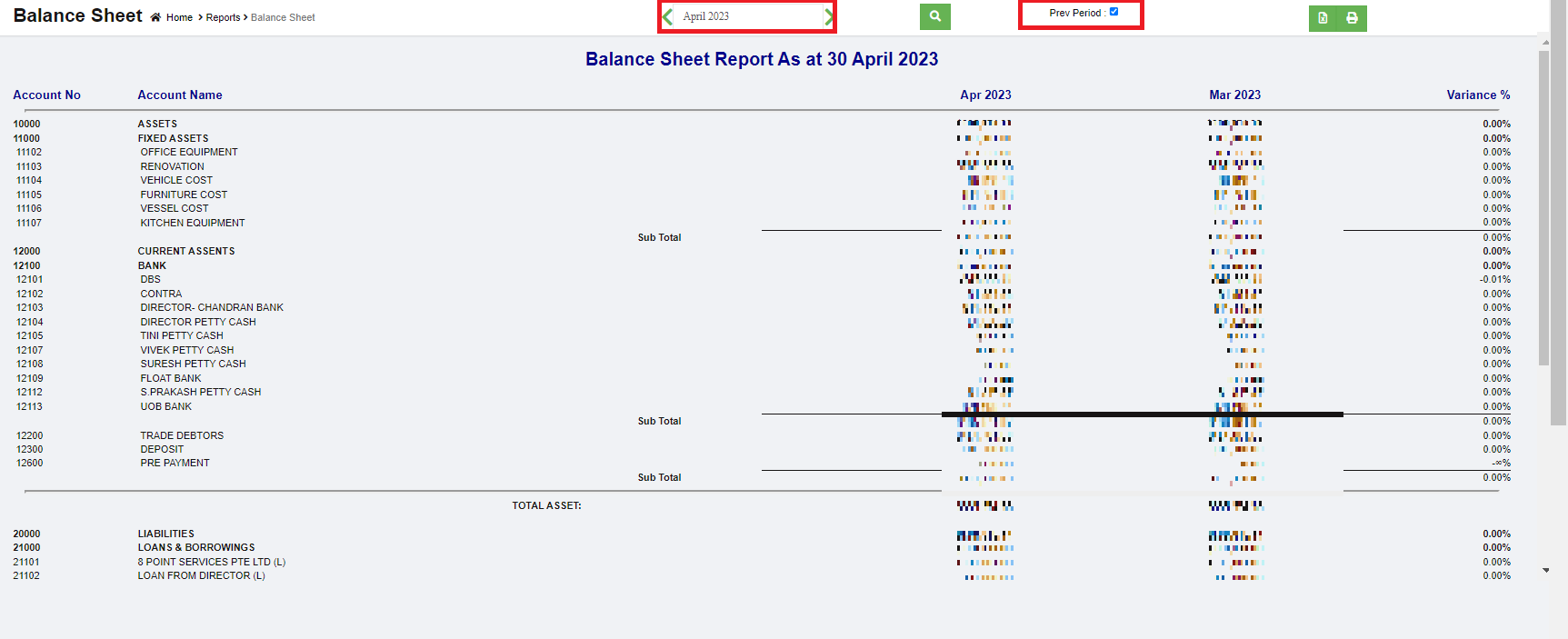
Transaction Journal
The Transaction Journal Report shows debits and credits for each transaction and provides a more focused view of amounts and accounts.
To generate transaction journal report,
- Navigate to Monthly Reports menu in finance module, click Transaction Journal to open report page.
- In calendar field, select date range,
- In transaction type field, select type of transaction to view.

- Click search icon, the transaction journal that meets criteria will show in screen.
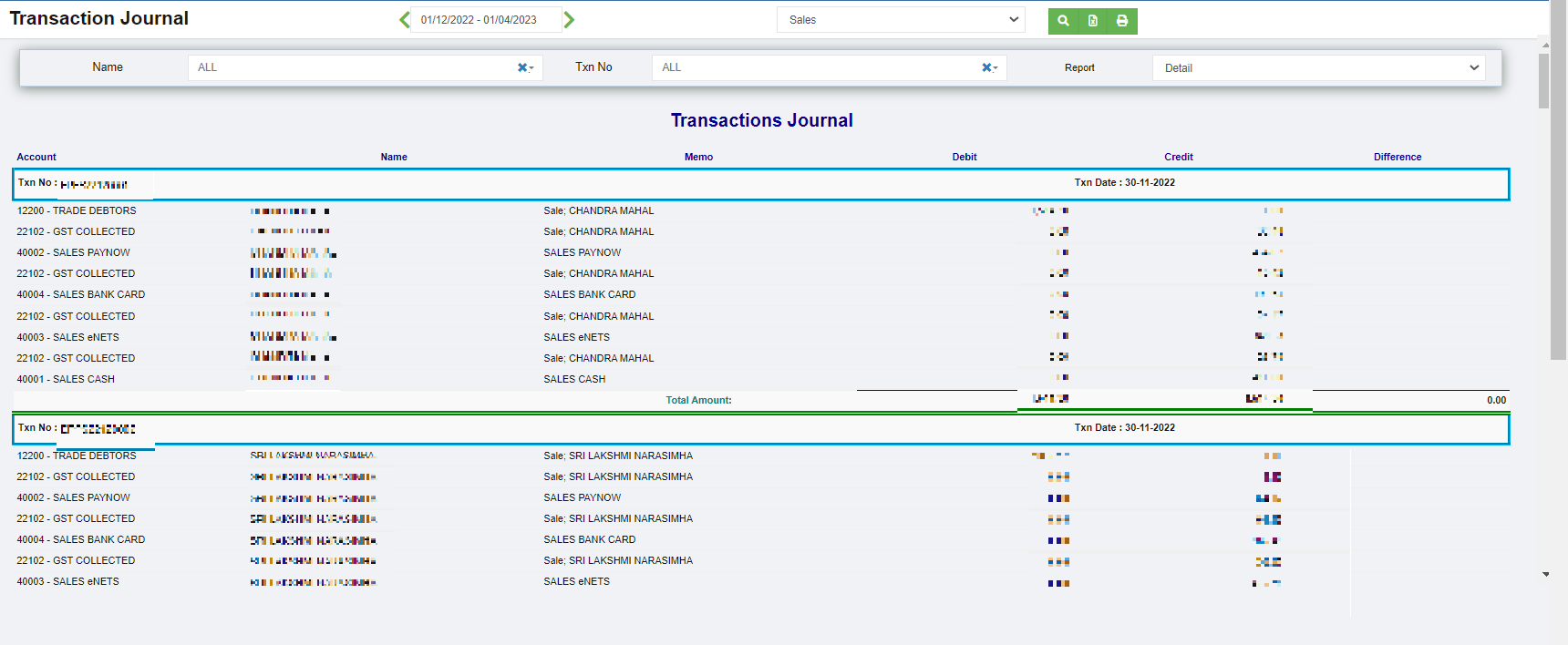
- Or user can use filters to customize the transaction journal report(filter options including name, Txn number, report type),

- Click to download report in xlsx format, click to download report in PDF format.

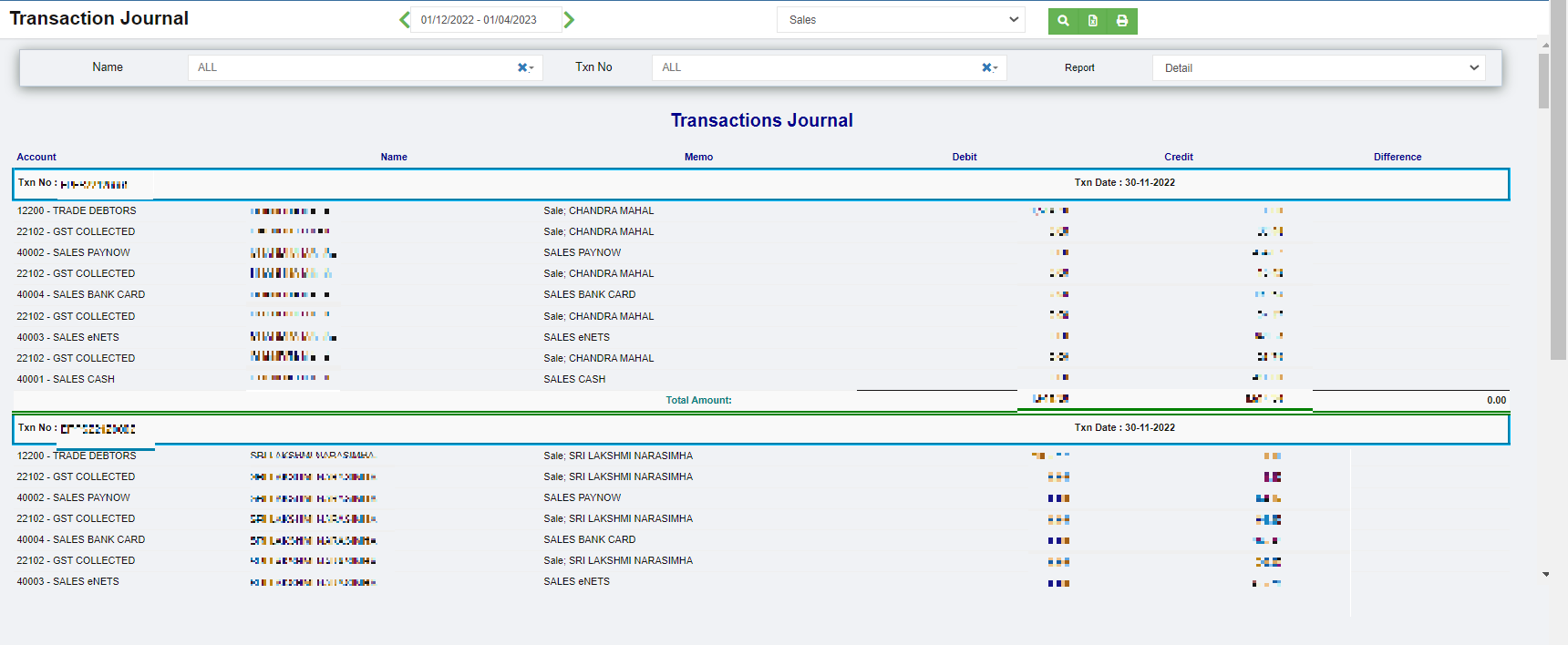

Transactional Profit Report
To generate transaction profit report,
- Navigate to Monthly Reports menu in finance module, click Transaction Profit to open report page.

- In calendar field, select date range.
- In Job Code, click to select project.
- Click search icon, the transaction profit report for selected period and project will show in screen.
-
Click
to download report in xlsx format, click to download report in PDF format.

Accounts Journal
To generate accounts journal report,
- Navigate to Monthly Reports menu in finance module, click Accounts Journal to open report page.
- In calendar field, select date range,
- In Accounts field, select account or all accounts,
- Click search icon, the accounts journal report for selected period will show details of income, cost of sales, expense, other income, other expenses and net profits by month as in below screenshot.
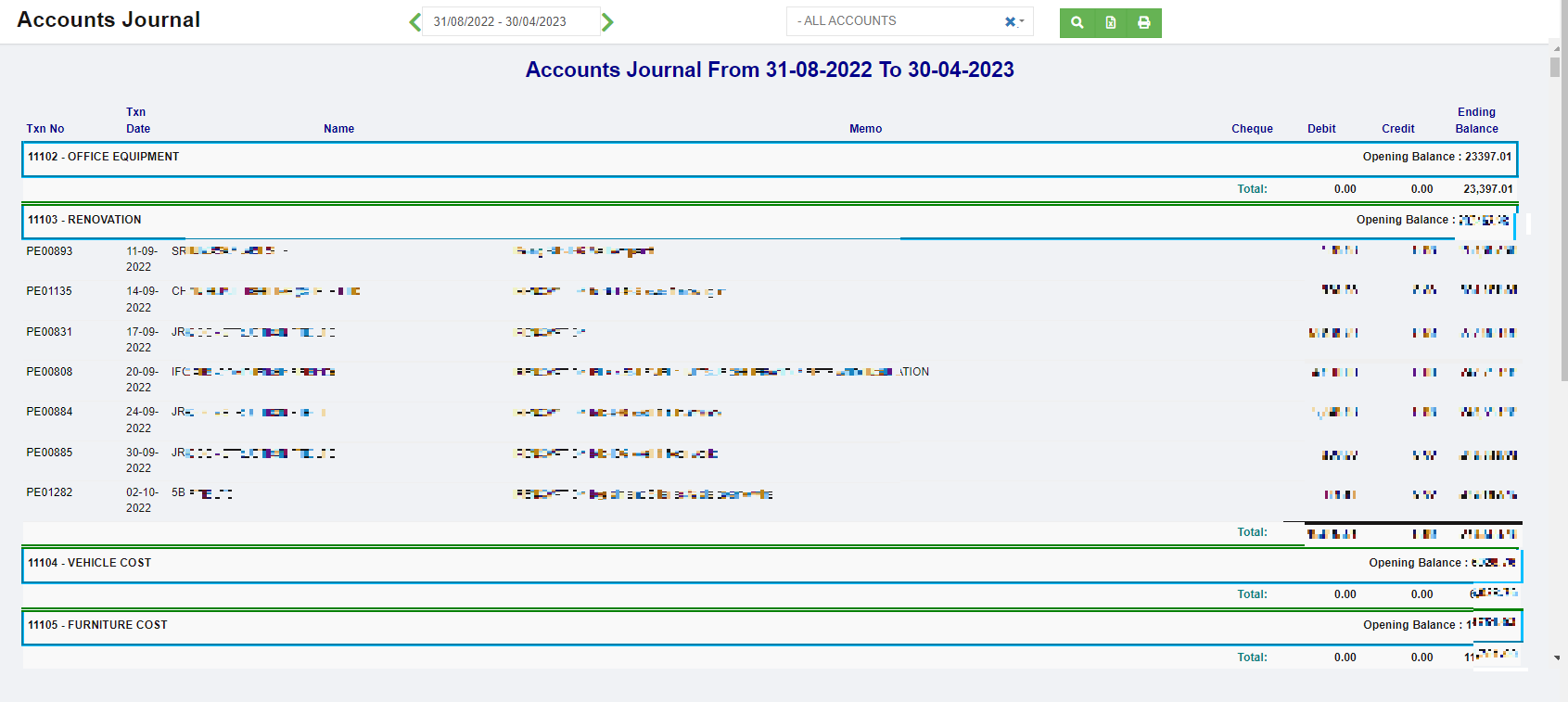
-
Click
to download report in xlsx format, click to download report in PDF format.
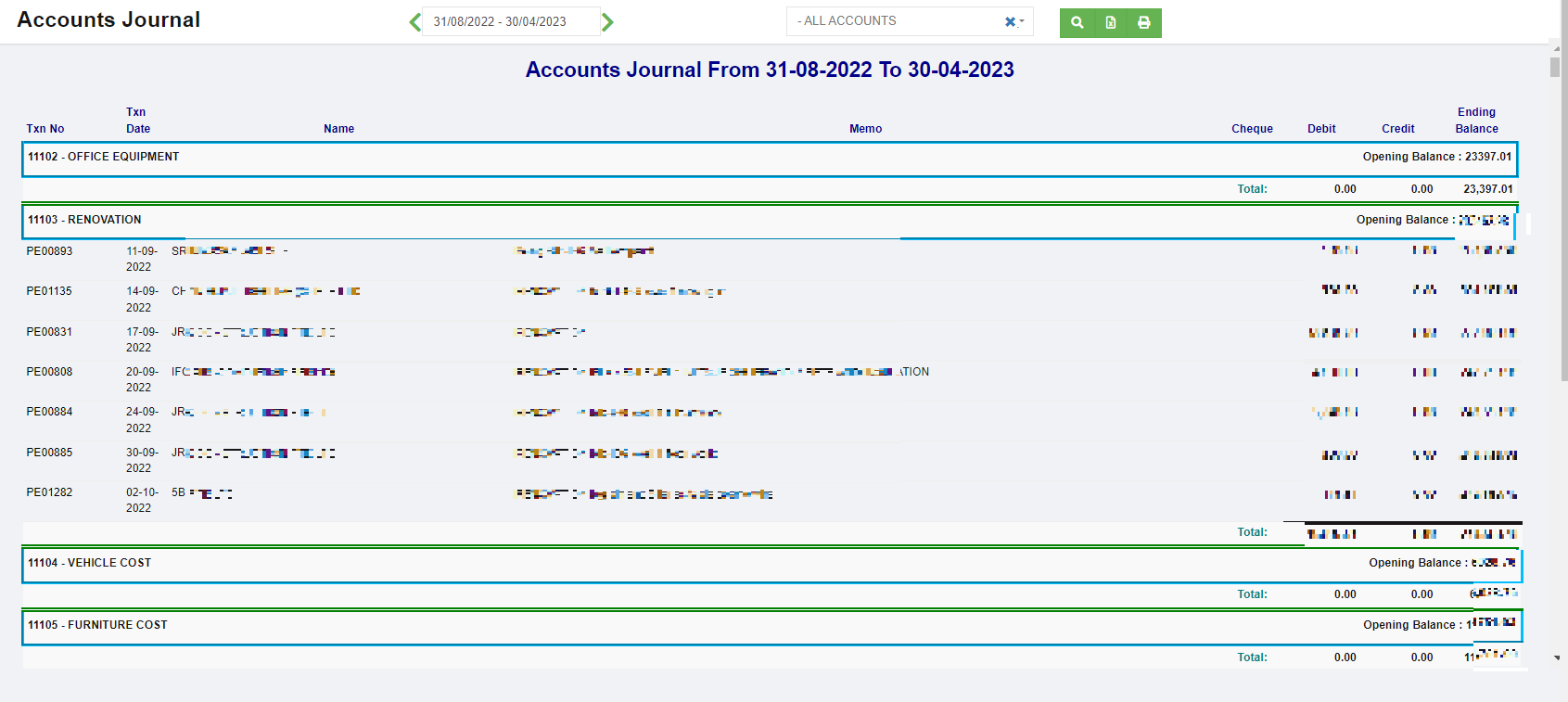
Transaction Report
To generate transaction report,
- Navigate to Monthly Reports menu in finance module, click Transaction Report to open report page.

- In calendar field 1, select date range,
- Or user can click filter icon in area 2 to open report filter page, and select column filters, then click Show to show selected filters,
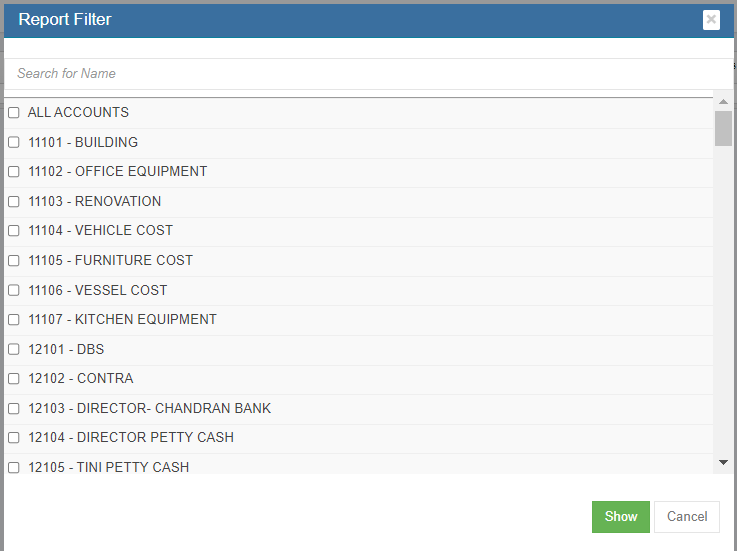
- Click search icon, the transaction report for selected period will show, click to download report in xlsx format, click to download report in PDF format.

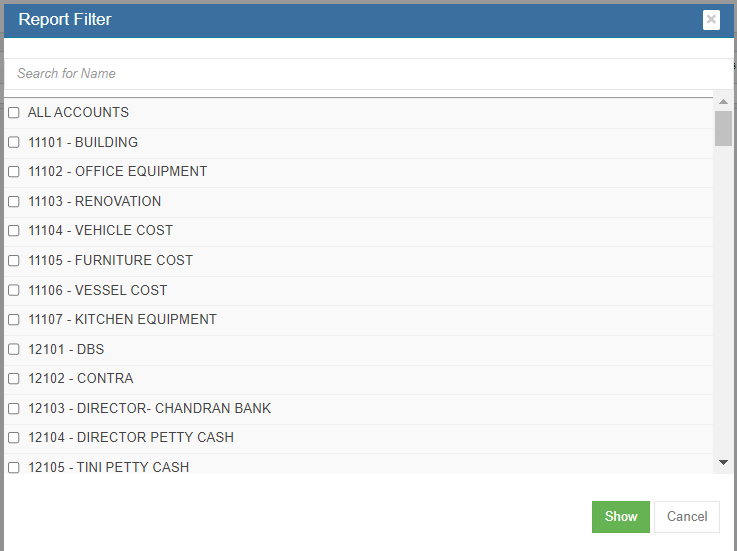
Customer Reports
Customer reports include below reports: Receivables Ageing, Receivables Ageing Detail, Receivables Ageing Detail (Portrait), SOA-Sales, Customer Ledger, Customer Summary, Sales Report MonthWise, Project Receivables Ageing.
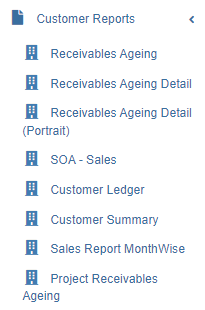
Receivables Ageing Summary Report
To generate receivables ageing report,
- Navigate to Customer Reports menu in finance module, click Receivables Ageing to open report page.
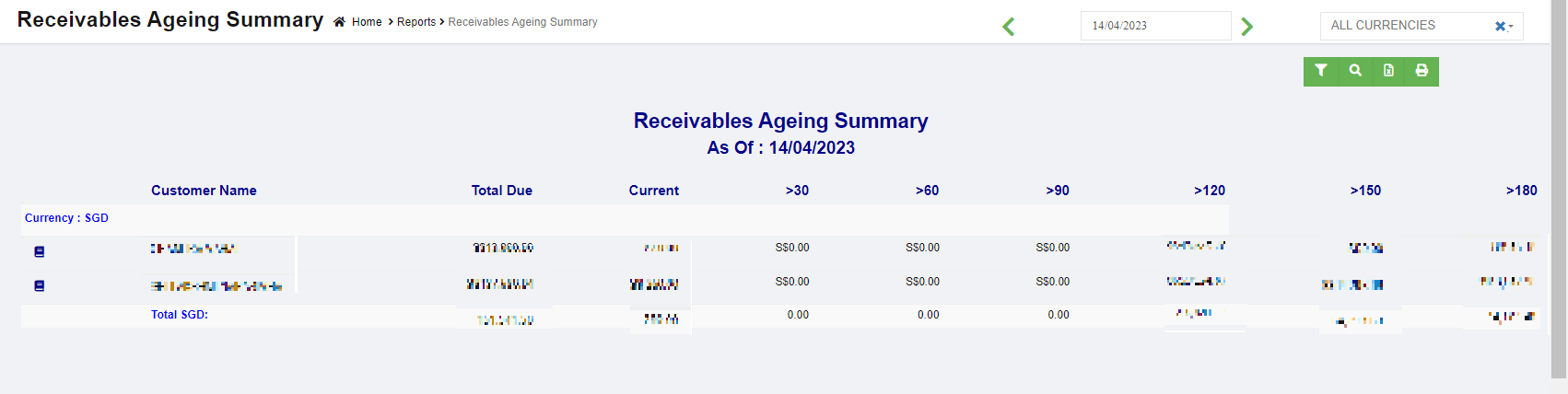
- In calendar field, click to select a date as ageing report by date.
- In Currency type field, select all currencies or a specific currency type.
- Click search icon, the receivables ageing report for selected period will show in screen, click to download report in xlsx format, click to download report in PDF format.
- Click
 filter icon to open customer filter, and select customer name, then click show, the selected customer(s)' receivables ageing report will show.

Receivables Ageing Detail Report
To generate receivables ageing detail report,
- Navigate to Customer Reports menu in finance module, click Receivables Ageing Detail to open report page.
- In calendar field, click to select a date as ageing report by date.
- In Currency type field, select all currencies or a specific currency type.
- Click search icon, the receivables ageing report for selected period will show in screen, click to download report in xlsx format, click to download report in PDF format.
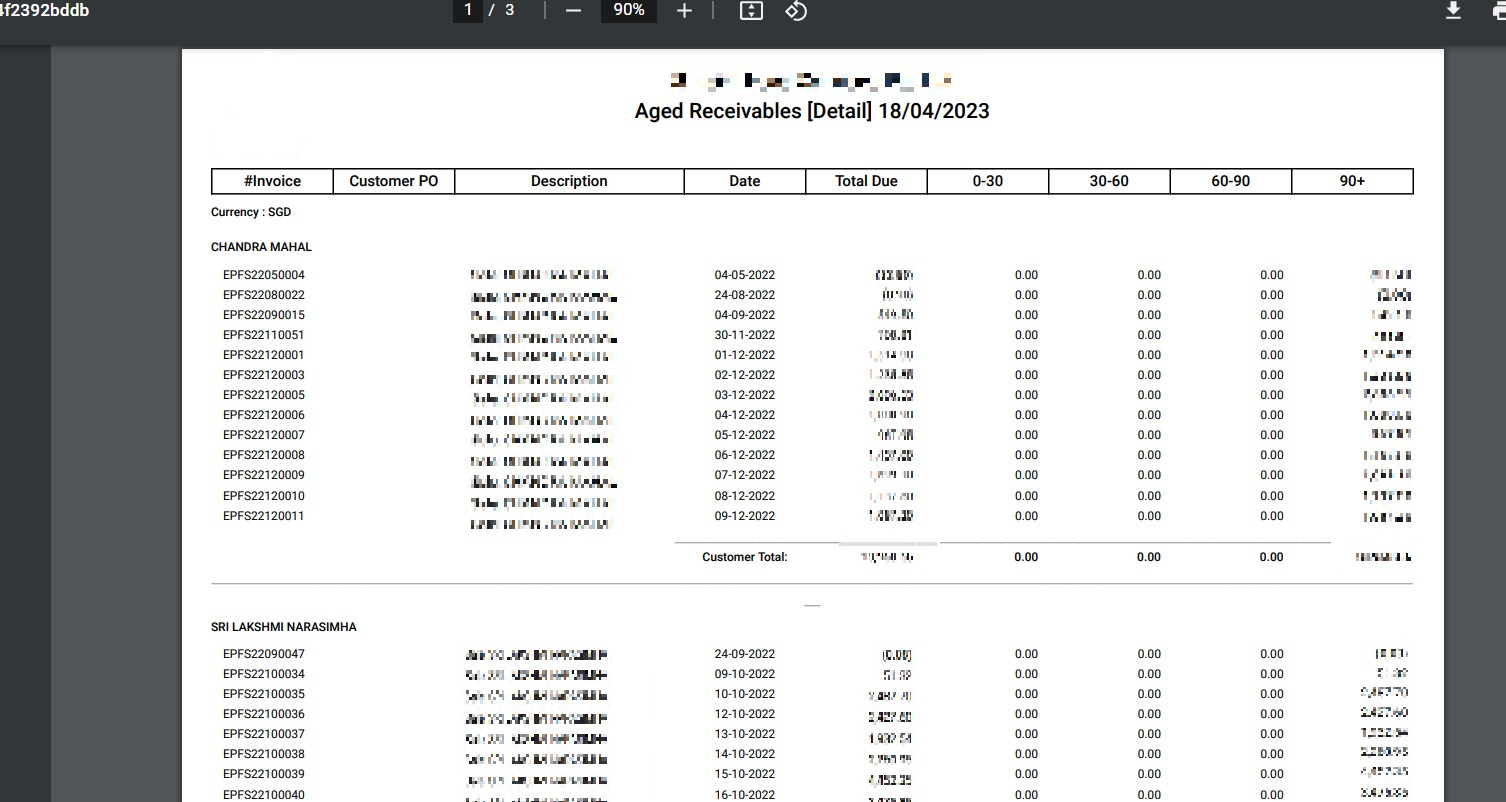
- Click filter icon to open customer filter, and select customer name, then click show, the selected customer(s)' receivables ageing detail report will show.
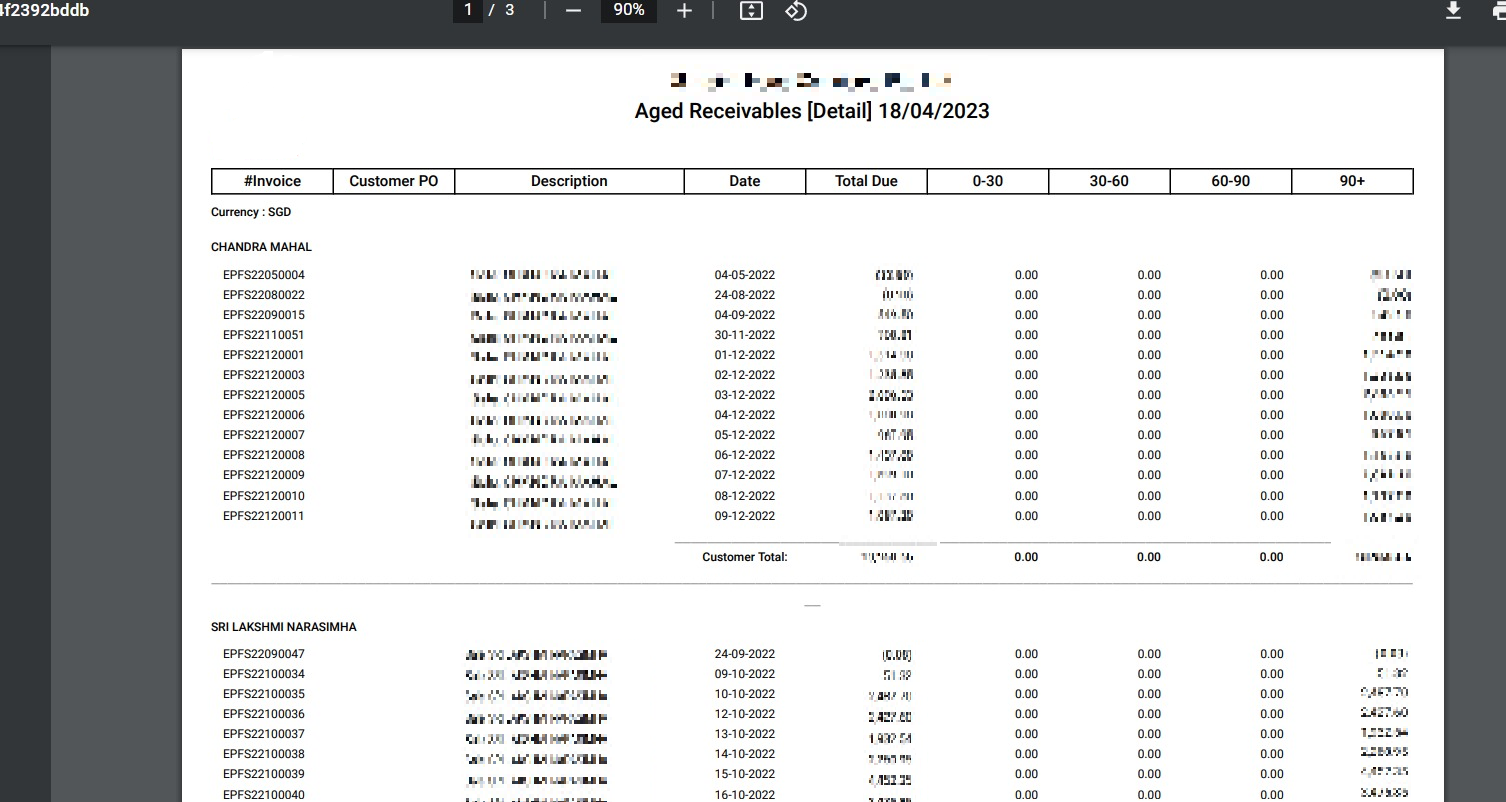
Receivables Ageing Detail Portrait Report
To generate receivables ageing detail report in portrait format,
- Navigate to Customer Reports menu in finance module, click Receivables Ageing Detail (Portrait) to open report page.
- In calendar field, click to select a date as ageing report by date.
- In Currency type field, select all currencies or a specific currency type.
- Click search icon, the receivables ageing report for selected period will show in screen, click to download report in xlsx format, click to download report in PDF format.

- Click filter icon to open customer filter, and select customer name, then click show, the selected customer(s)' receivables ageing detail portrait report will show.
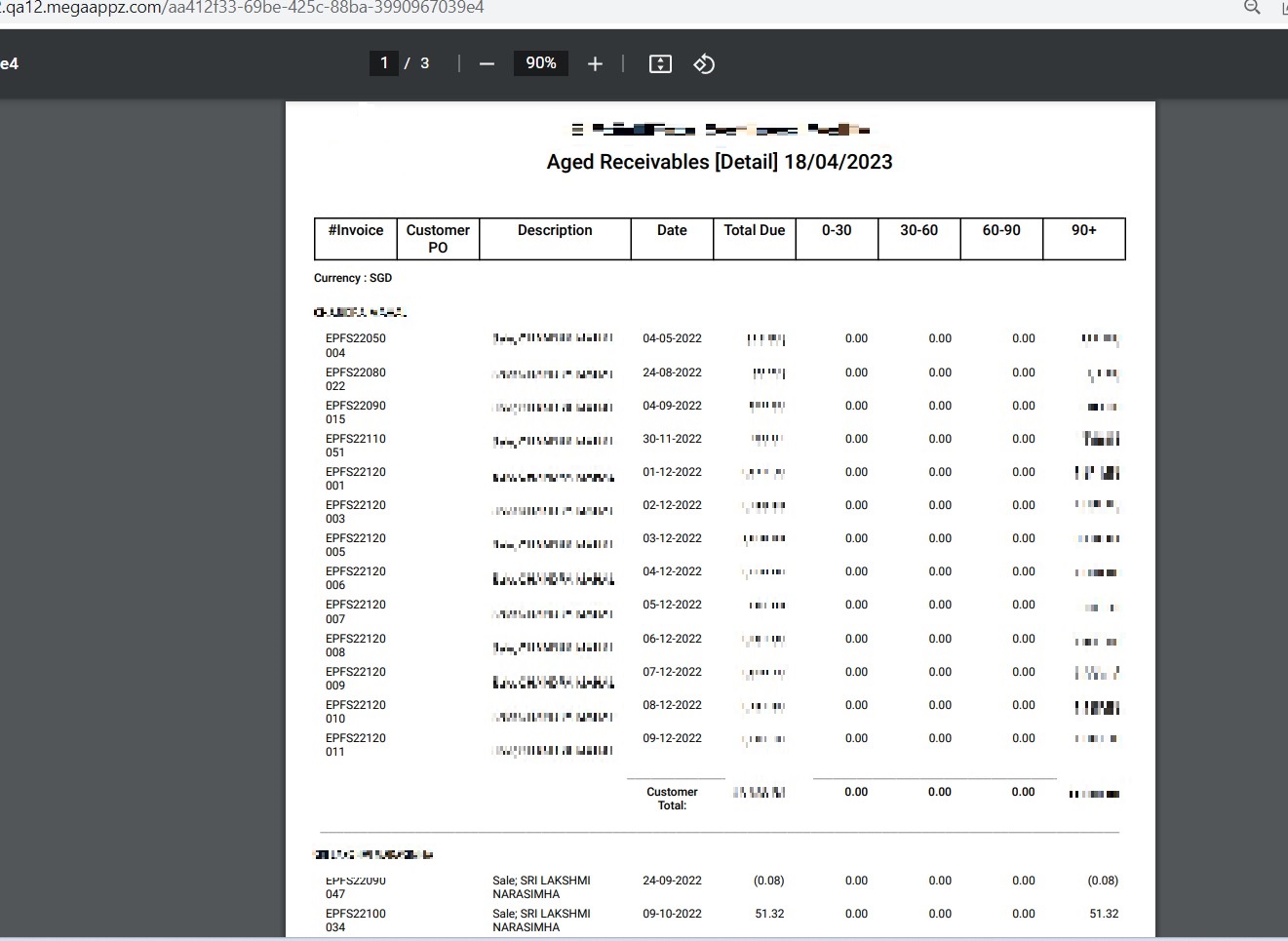
Statement of Account (SOA)-Sales Report
To generate SOA-Sales report,
- Navigate to Customer Reports menu in finance module, click SOA-Sales to open report page.

- In calendar field, click to select a date as report by date.
- Click search icon, the sales report for selected period will show in screen, click to download report in xlsx format, click to download report in PDF format.
- Click filter icon to open customer filter, and select customer name, then click show, the selected customer(s)' SOA-sales report will show.

Customer Ledger
To generate customer ledger report,
- Navigate to Customer Reports menu in finance module, click Customer Ledger to open report page.
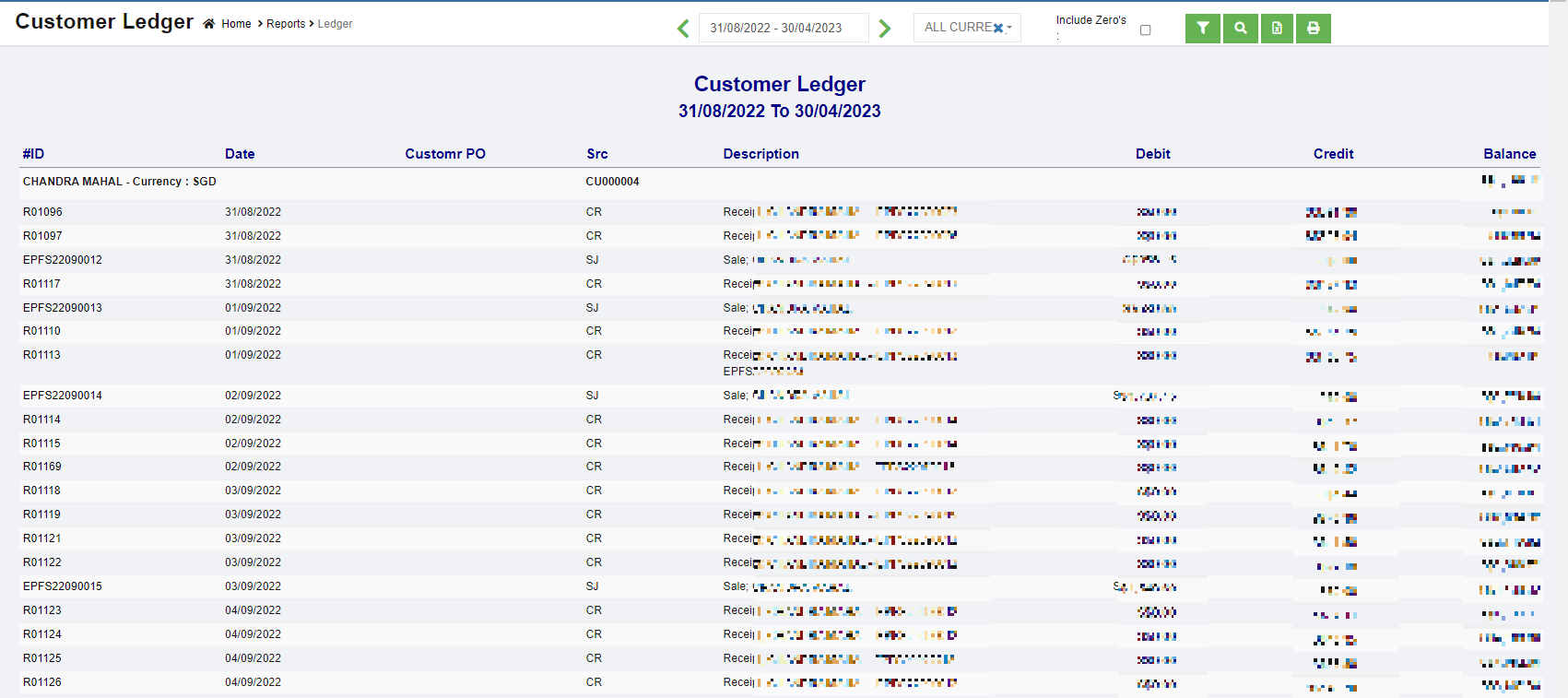
- In calendar field, click to select date range to view customer ledger.
- In Currency type field, select all currencies or a specific currency type.
- If user wants to view customer ledger that includes zero value accounts, tick the Include Zero's box.
- Click search icon, the customer ledger report for selected period will show in screen, click to download report in xlsx format, click to download report in PDF format.
- Click filter icon to open customer filter, and select customer name, then click show, the selected customer(s)' ledger report will show.
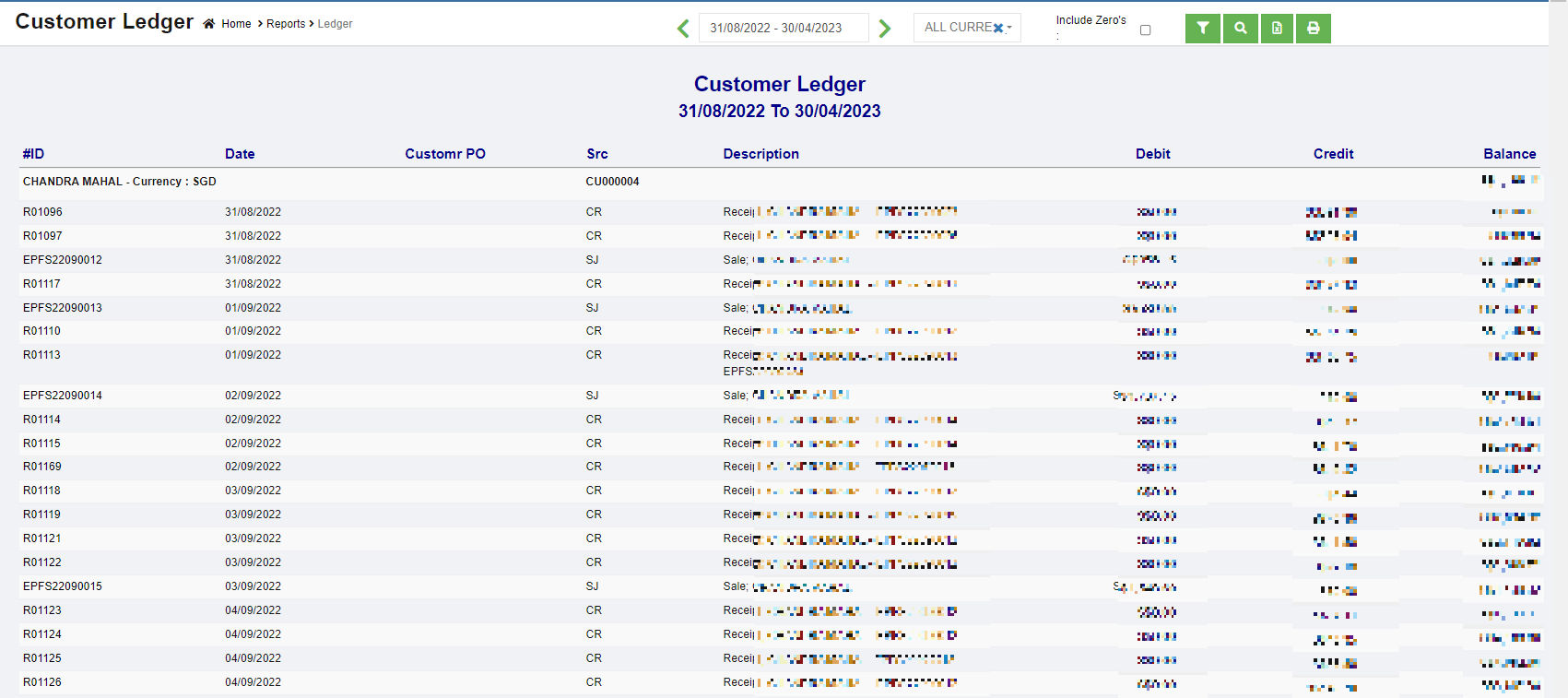
Customer Summary Report
To generate customer summary report,
- Navigate to Customer Reports menu in finance module, click Customer Summary to open report page.

- In calendar field, click to select date range to view customer ledger.
- In report type field, select summary or detail report type.
- Click search icon, the customer summary report for selected period will show in screen, click to download report in xlsx format, click to download report in PDF format.

Sales Report MonthWise Report
To sales month wise report,
- Navigate to Customer Reports menu in finance module, click Sales Report MonthWise to open report page.

- In Multi Period box, tick if user wants to view sales report for selected period; untick if user wants to view by month.
- In With Ex-Rate box, tick if want to include exchange rate.
- In calendar field, if multi period is ticked, user will be able to select a date range; if multi period is not ticked, user will be able to select month and year to generate report.
- In Currency type field, select all currencies or a specific currency type.
- Click search icon, the sales report for selected period will show in screen, click to download report in xlsx format, click to download report in PDF format.
- Click filter icon to open customer filter, and select customer name, then click show, the selected customer(s)' sales month wise report will show.

Project Receivables Ageing Report
To generate Project Receivables Ageing report,
- Navigate to Customer Reports menu in finance module, click Project Receivables Ageing to open report page.

- In Project field, click to select all project or a specific project.
- In calendar field, click to select a date as ageing report by date.
- In Currency type field, select all currencies or a specific currency type.
- Click search icon, the receivables ageing report for selected period will show in screen, click to download report in xlsx format.
- Click filter icon to open customer filter, and select customer name, then click show, the selected customer(s)' receivables ageing detail portrait report will show.

Supplier Reports
Supplier reports include below reports: Payables Ageing, Payables Ageing Detail, Payables Ageing Detail (Portrait), SOA-Purchases, Supplier Ledger, Supplier Summary.
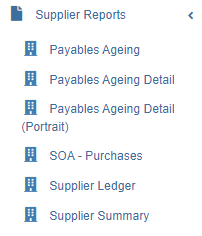
Payables Ageing Summary Report
To generate payables ageing report,
- Navigate to Supplier Reports menu in finance module, click Payables Ageing to open report page.

- In calendar field, click to select a date as ageing report by date.
- In Currency type field, select all currencies or a specific currency type.
- Click search icon, the payables ageing report for selected period will show in screen, click to download report in xlsx format, click to download report in PDF format.
- Click filter icon to open suppliers filter, and select supplier's name, then click show, the selected supplier(s)' payables ageing report will show.

Payables Ageing Detail Report
To generate payables ageing detail report,
- Navigate to Supplier Reports menu in finance module, click Payables Ageing Detail to open report page.

- In calendar field, click to select a date as ageing report by date.
- In Currency type field, select all currencies or a specific currency type.
- Click search icon, the payables ageing report for selected period will show in screen, click to download report in xlsx format, click to download report in PDF format.
- Click filter icon to open suppliers filter, and select supplier's name, then click show, the selected supplier(s)' payables ageing detail report will show.

Payables Ageing Detail Portrait Report
To generate payables ageing detail report in portrait format,
- Navigate to Supplier Reports menu in finance module, click Payables Ageing Detail (Portrait) to open report page.

- In calendar field, click to select a date as ageing report by date.
- In Currency type field, select all currencies or a specific currency type.
- Click search icon, the payables ageing report for selected period will show in screen, click to download report in xlsx format, click to download report in PDF format.
- Click filter icon to open suppliers filter, and select supplier's name, then click show, the selected supplier(s)' payables ageing detail portrait report will show.

Statement of Account (SOA)-Purchases Report
To generate SOA-Purchases report,
- Navigate to Supplier Reports menu in finance module, click SOA-Purchases to open report page.
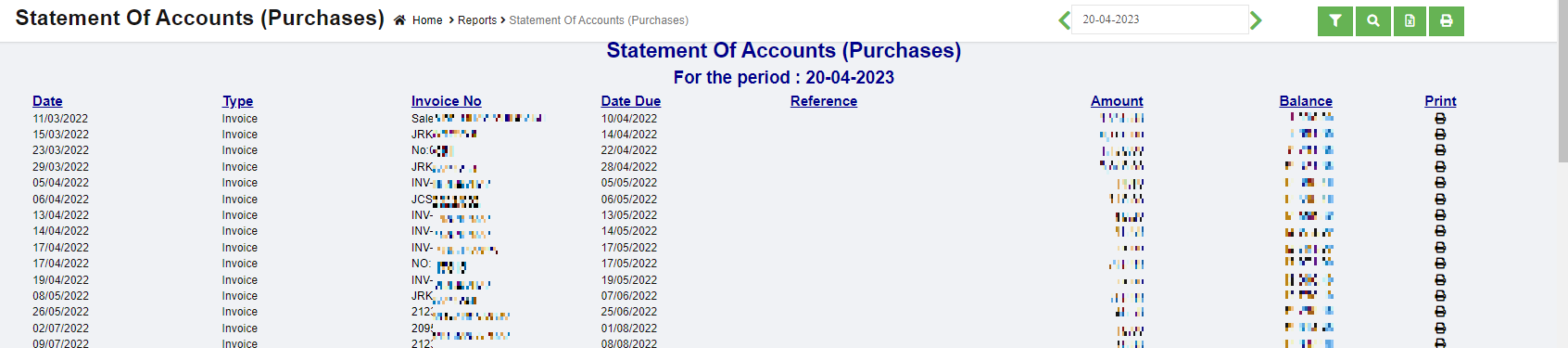
- In calendar field, click to select a date as report by date.
- Click search icon, the SOA purchases report for selected period will show in screen, click to download report in xlsx format, click to download report in PDF format.
- Click filter icon to open supplier filter, and select supplier name, then click show, the selected supplier(s)' SOA-purchases report will show.
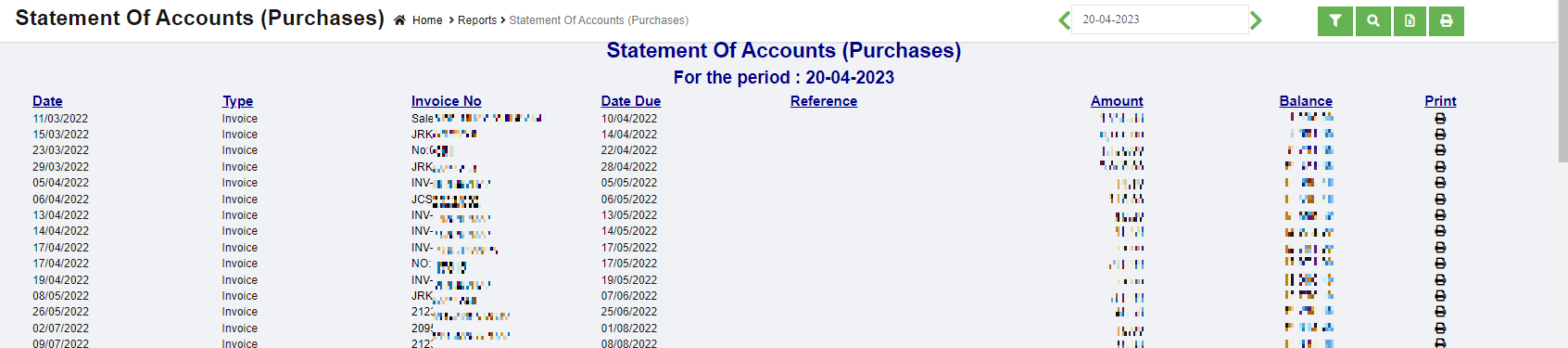
Supplier Ledger
To generate supplier ledger report,
- Navigate to Supplier Reports menu in finance module, click Supplier Ledger to open report page.
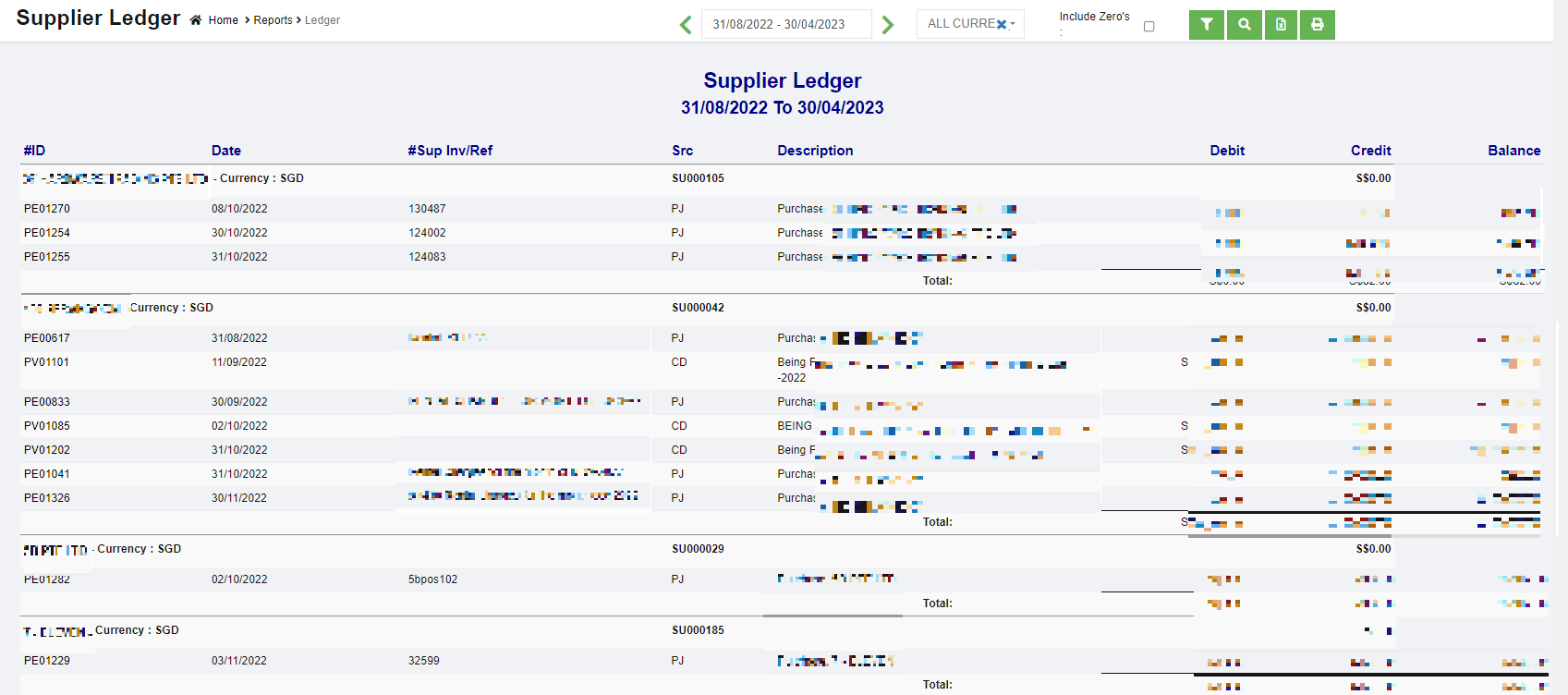
- In calendar field, click to select date range to view supplier ledger.
- In Currency type field, select all currencies or a specific currency type.
- If user wants to view supplier ledger that includes zero value accounts, tick the Include Zero's box.
- Click search icon, the supplier ledger report for selected period will show in screen, click to download report in xlsx format, click to download report in PDF format.
- Click filter icon to open supplier filter, and select supplier name, then click show, the selected supplier(s)' ledger report will show.
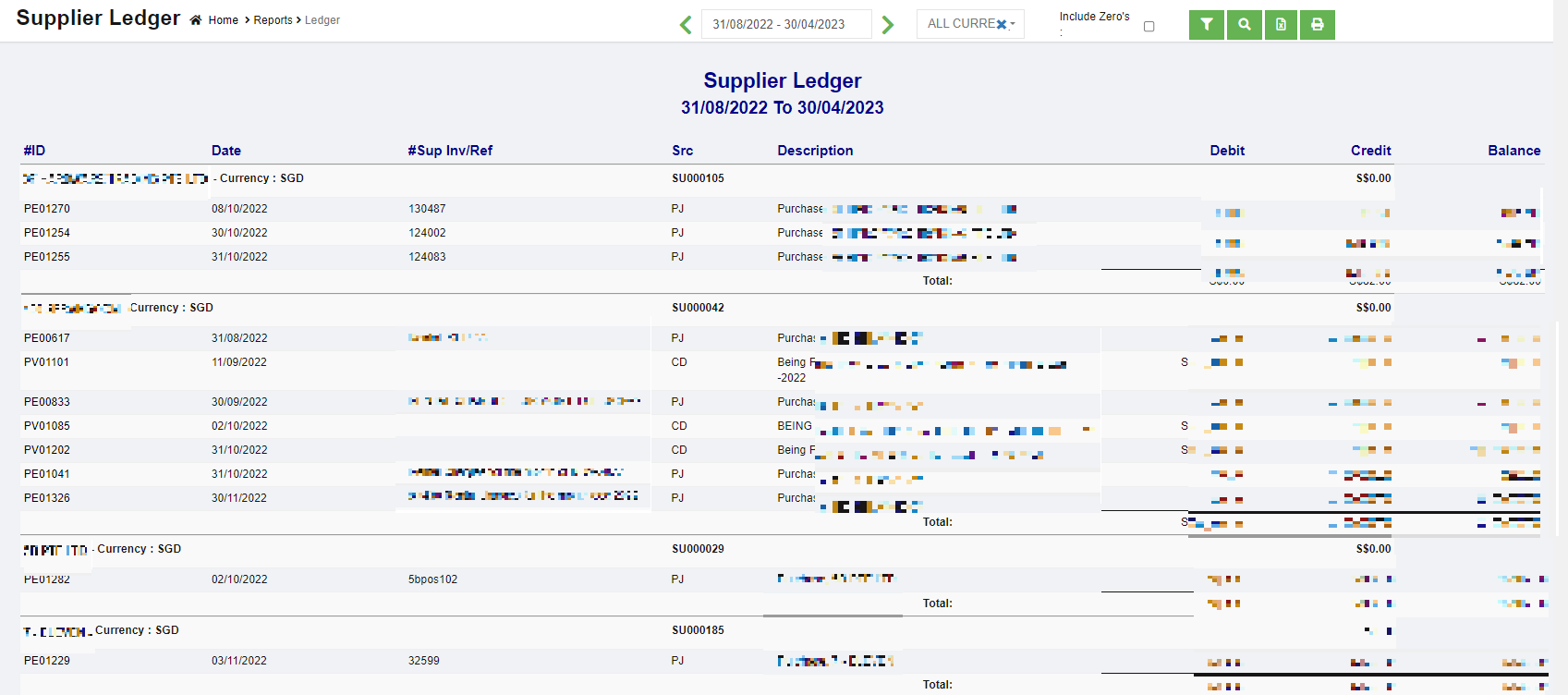
Supplier Summary Report
To generate supplier summary report,
- Navigate to Supplier Reports menu in finance module, click Supplier Summary to open report page.
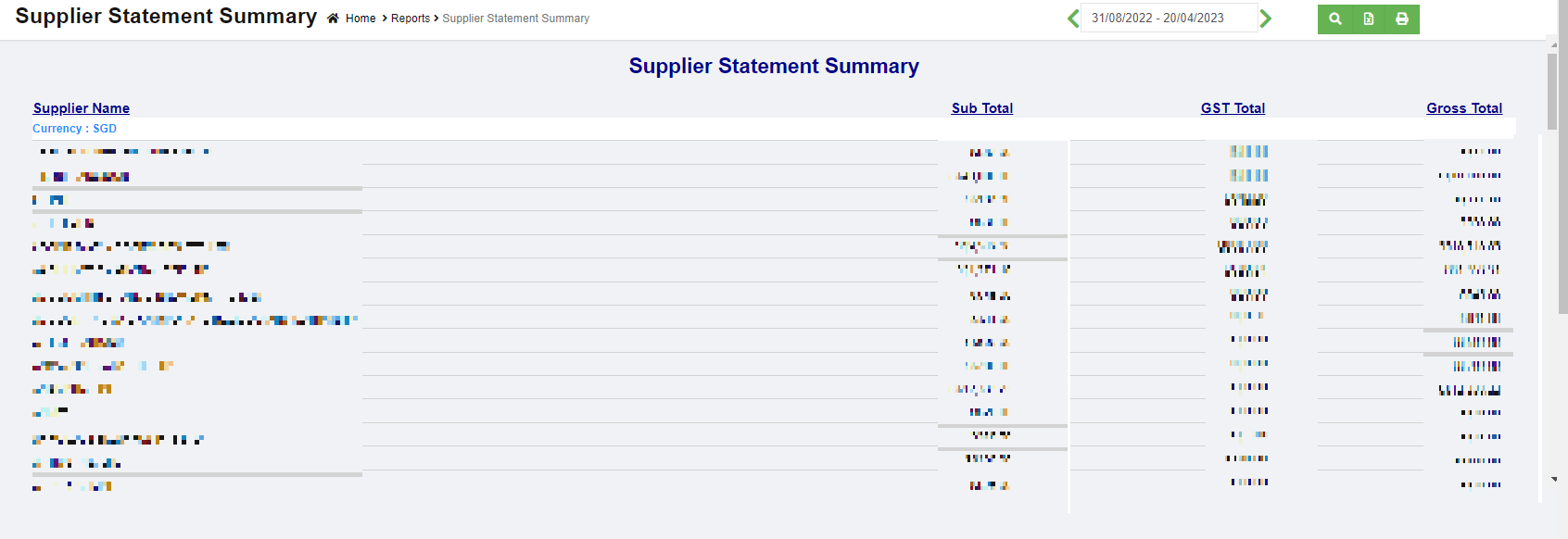
- In calendar field, click to select date range to view supplier ledger.
- Click search icon, the supplier statement summary report for selected period will show in screen, click to download report in xlsx format, click to download report in PDF format.
Tax Reports
Tax reports include below reports: GST F5 Return, Sales Tax Analysis, Receipt Tax Analysis, Purchase Tax Analysis, Payment Tax Analysis, Journal Tax Analysis.
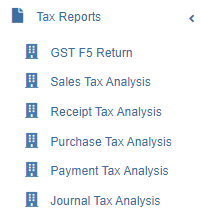
GST F5 Return
To generate GST F5 Return report,
- Navigate to Tax Reports menu in finance module, click GST F5 Return to open report page.

- In calendar field, click to select date range to generate GST F5 return.
- In Report type field, click to select report type as Summary or Detail report.
- Click search icon, the GST F5 Return report for selected period will show in screen, click to download report in xlsx format, click to download report in PDF format.
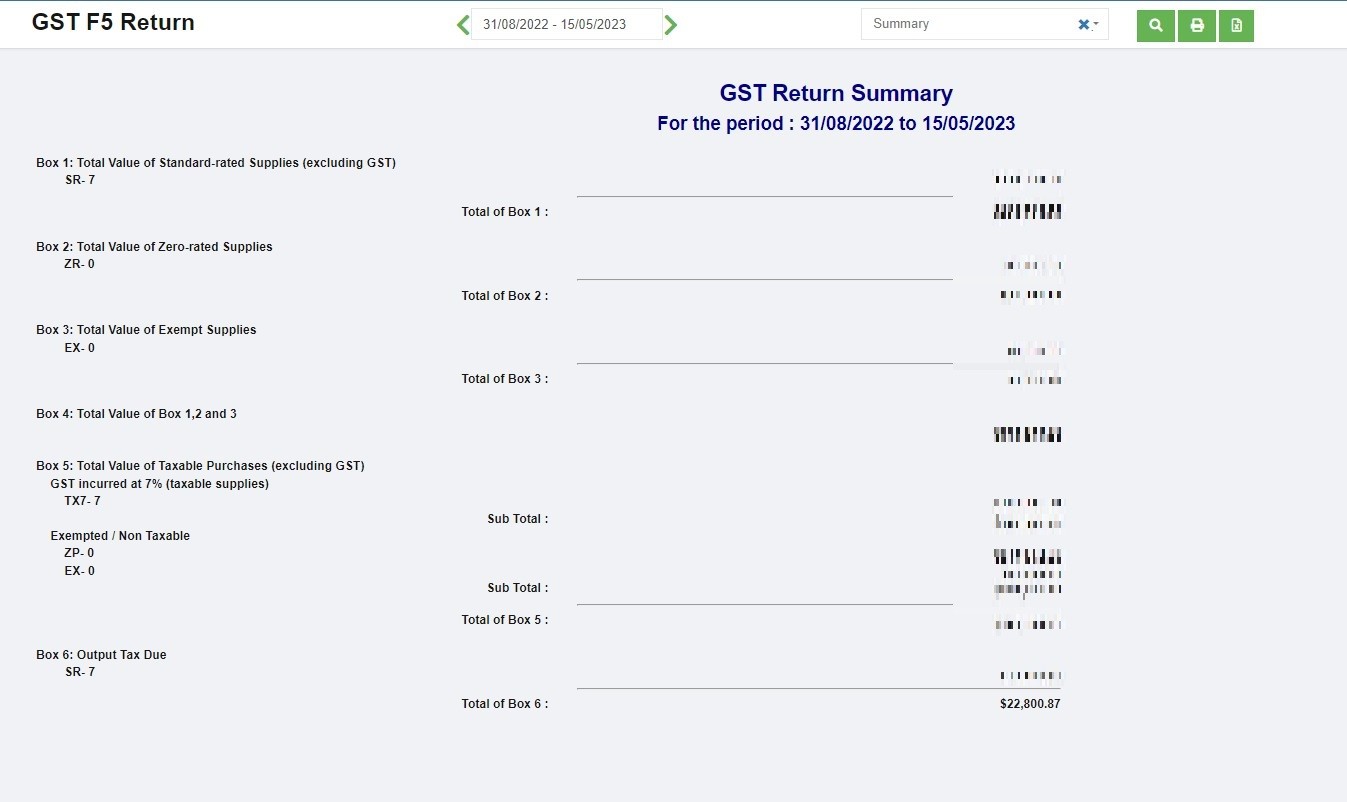

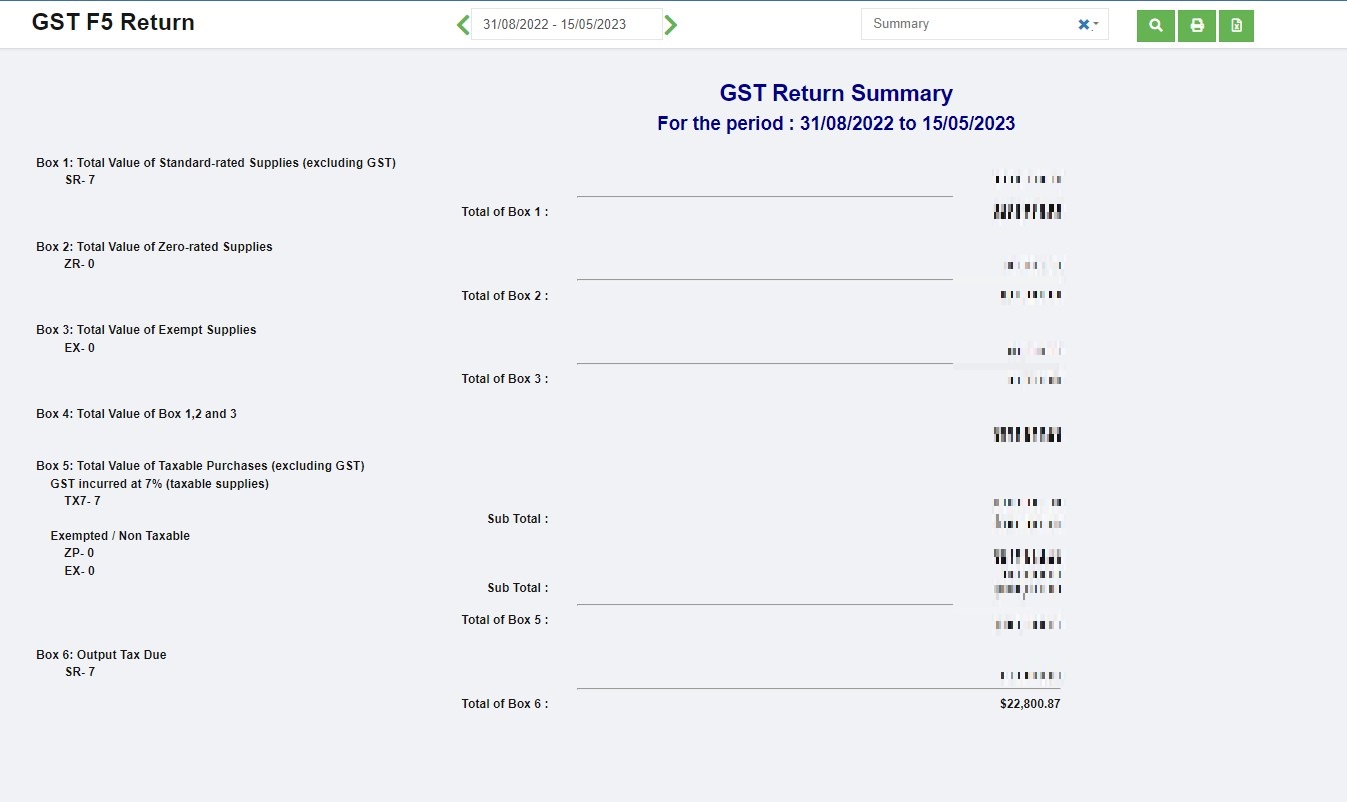
Sales Tax Analysis
To generate Sales Tax Analysis report,
- Navigate to Tax Reports menu in finance module, click Sales Tax Analysis to open report page.
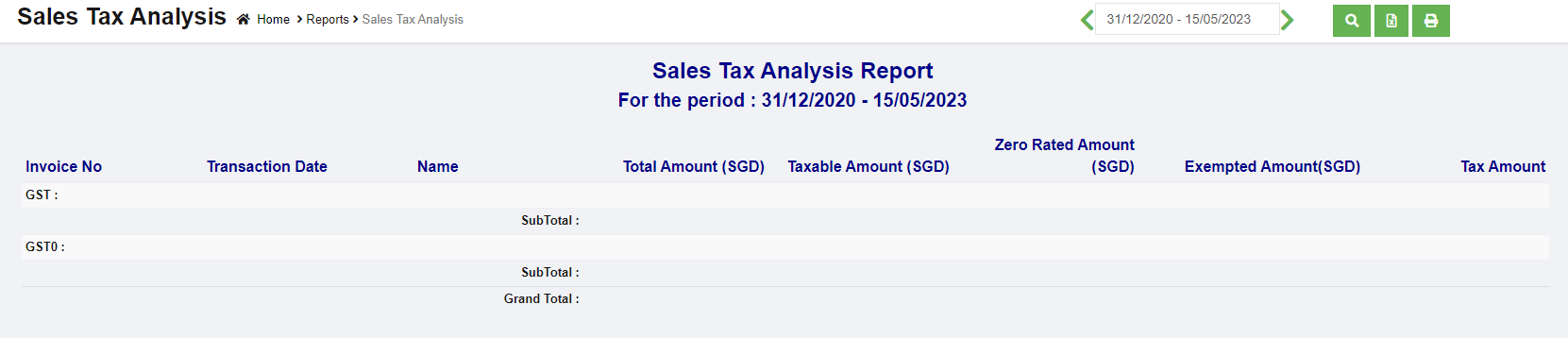
- In calendar field, click to select date range to generate sales tax analysis.
- Click search icon, the Sales Tax Analysis report for selected period will show in screen, click to download report in xlsx format, click to download report in PDF format.

Receipt Tax Analysis
To generate Receipt Tax Analysis report,
- Navigate to Tax Reports menu in finance module, click Receipt Tax Analysis to open report page.

- In calendar field, click to select date range to generate receipt tax analysis.
- Click search icon, the Receipt Tax Analysis report for selected period will show in screen, click to download report in xlsx format, click to download report in PDF format.

Purchase Tax Analysis
To generate Purchase Tax Analysis report,
- Navigate to Tax Reports menu in finance module, click Purchase Tax Analysis to open report page.
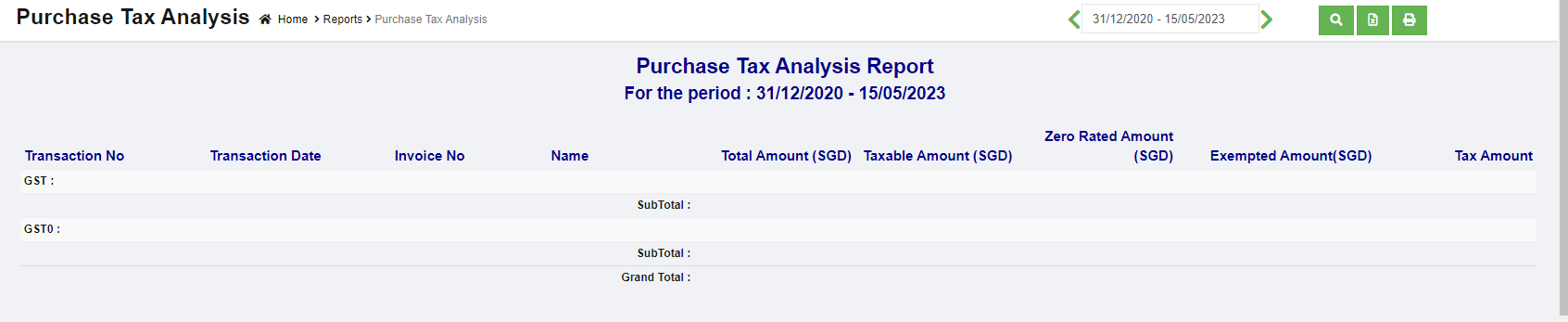
- In calendar field, click to select date range to generate purchase tax analysis.
- Click search icon, the Purchase Tax Analysis report for selected period will show in screen, click to download report in xlsx format, click to download report in PDF format.
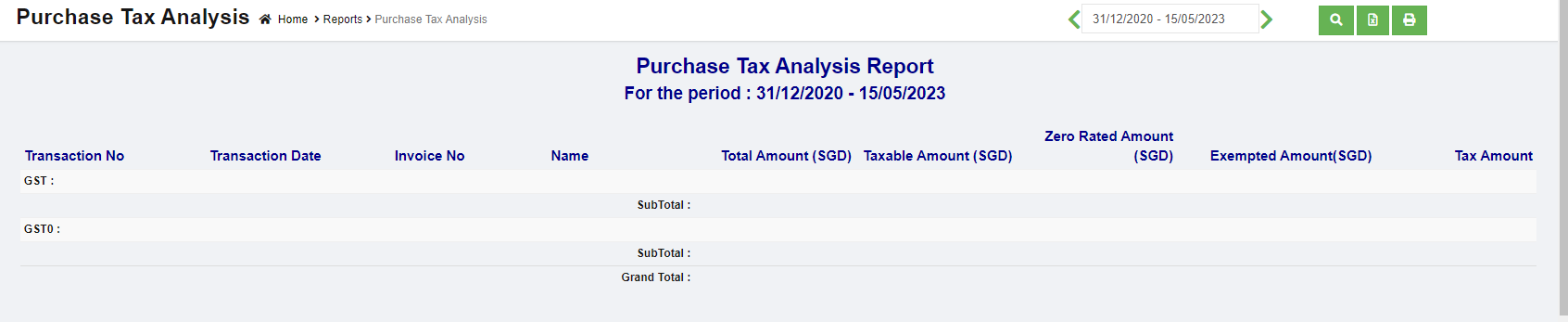
Payment Tax Analysis
To generate Payment Tax Analysis report,
- Navigate to Tax Reports menu in finance module, click Payment Tax Analysis to open report page.
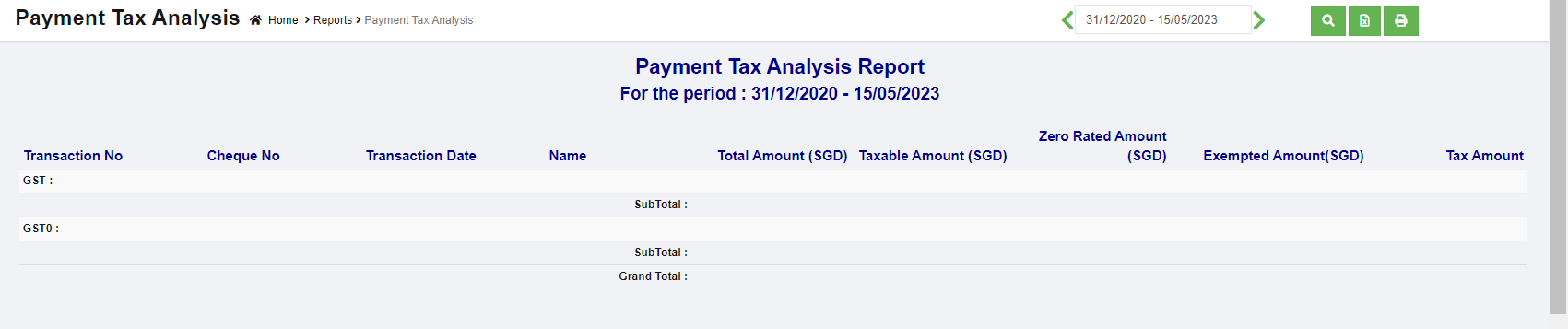
- In calendar field, click to select date range to generate payment tax analysis.
- Click search icon, the Payment Tax Analysis report for selected period will show in screen, click to download report in xlsx format, click to download report in PDF format.
Journal Tax Analysis
To generate Journal Tax Analysis report,
- Navigate to Tax Reports menu in finance module, click Journal Tax Analysis to open report page.
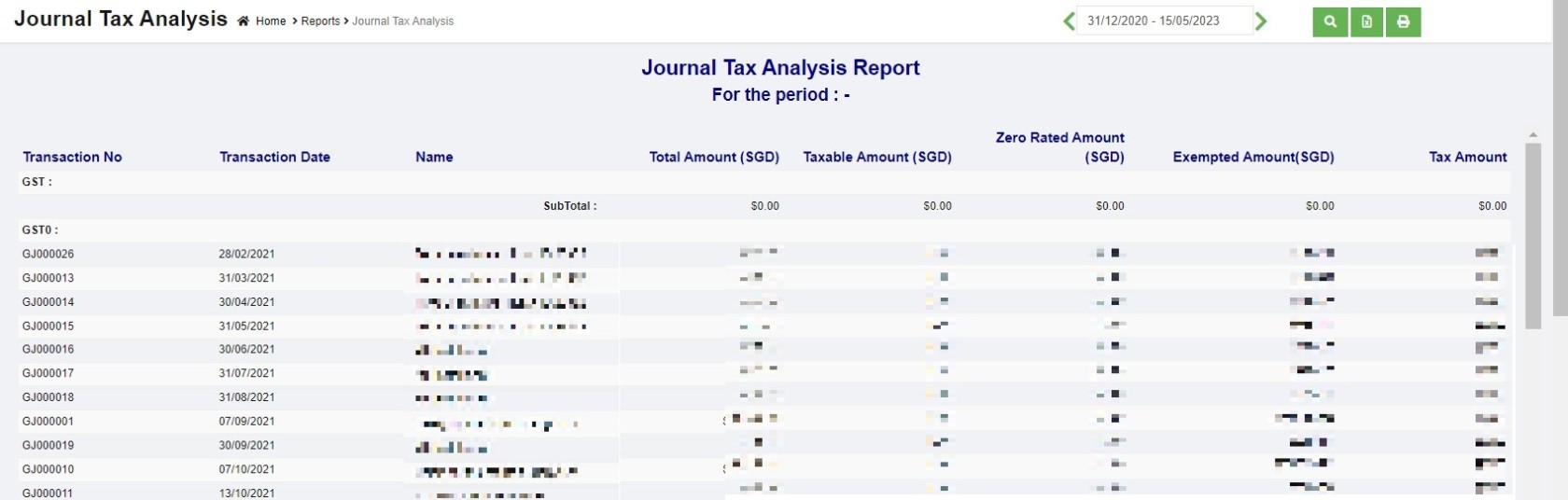
- In calendar field, click to select date range to generate journal tax analysis.
- Click search icon, the Journal Tax Analysis report for selected period will show in screen, click to download report in xlsx format, click to download report in PDF format.